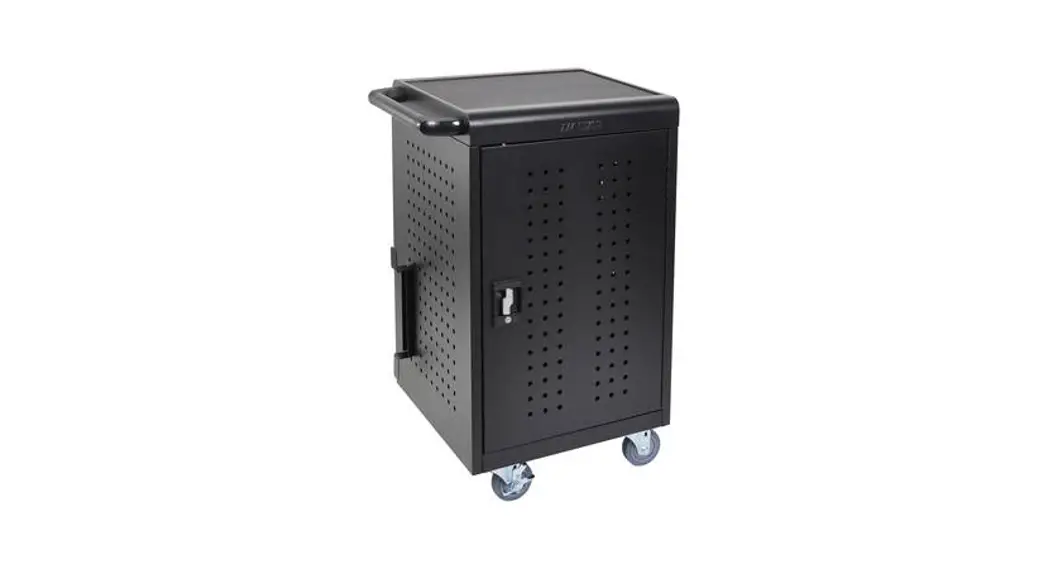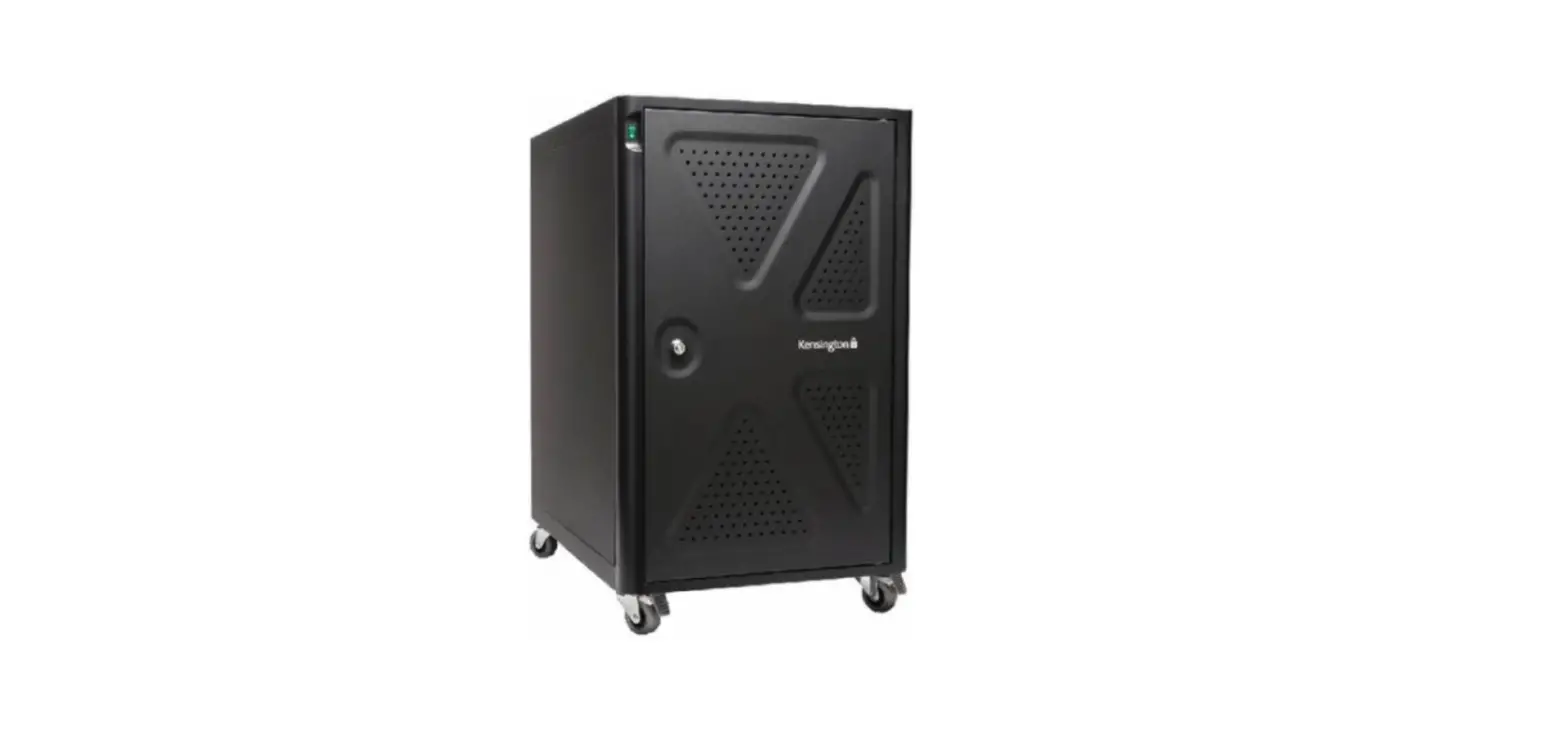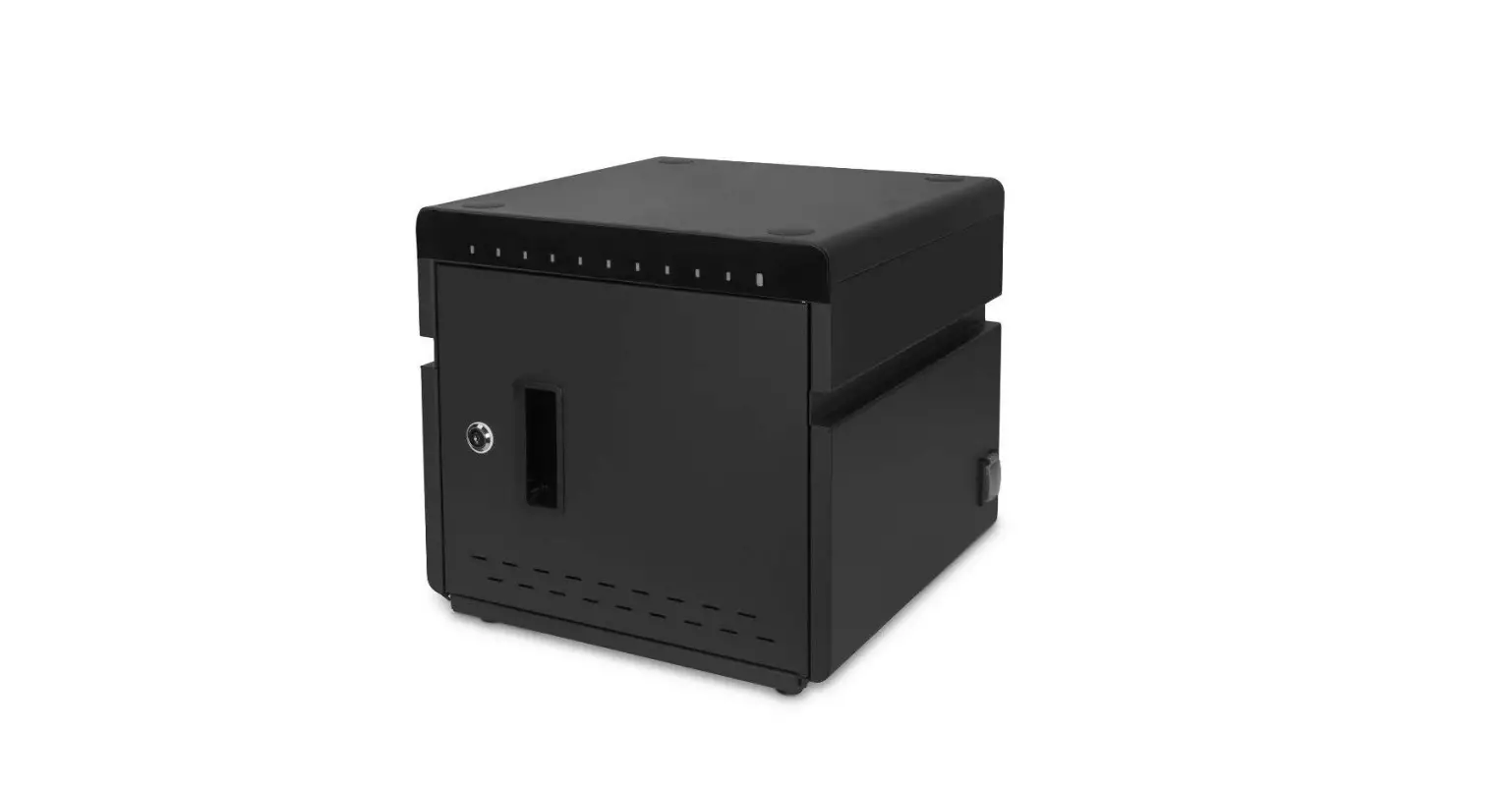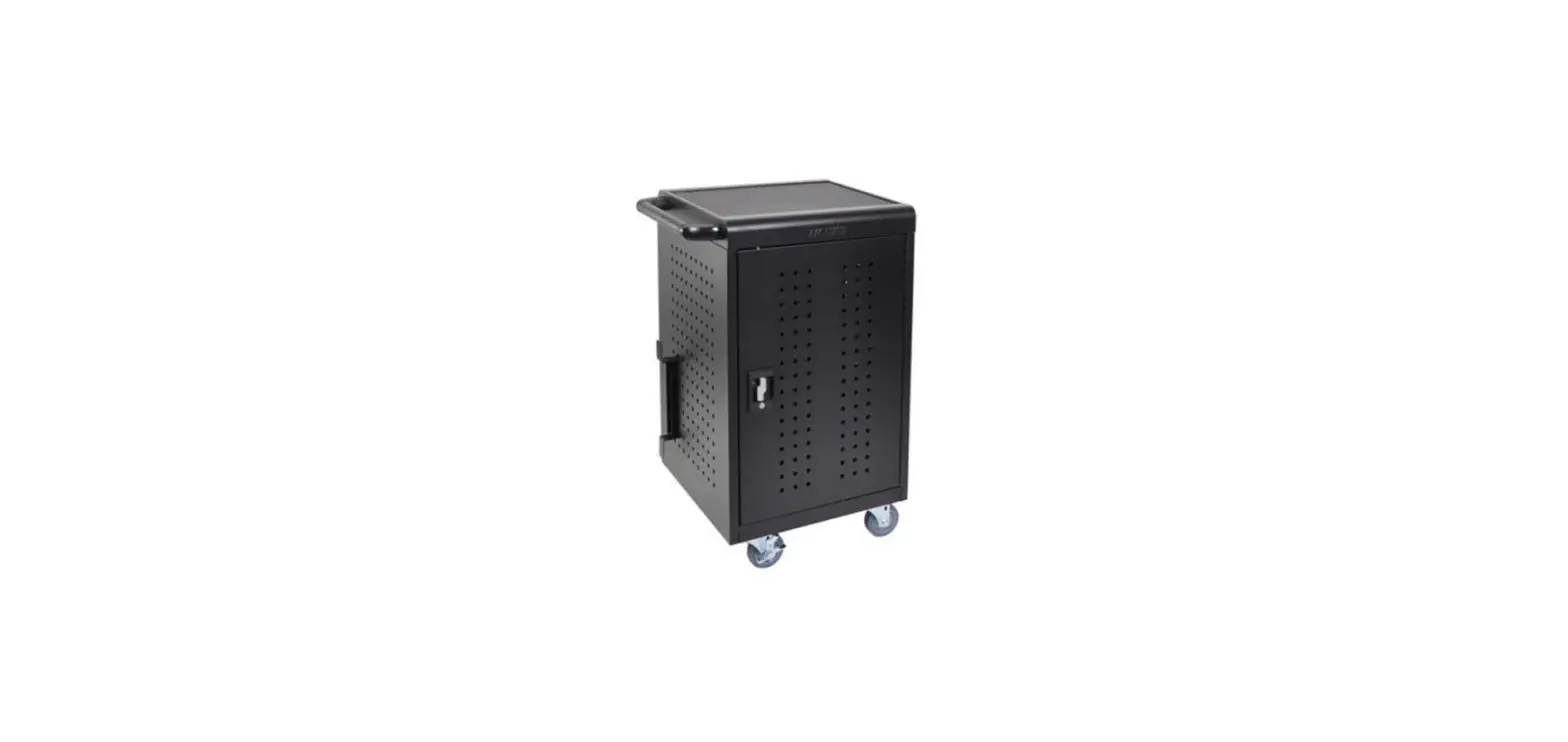
 USUB SC01-40AU-LT-F Charging Cabinet
 USUB SC01-40AU-LT-F Charging Cabinet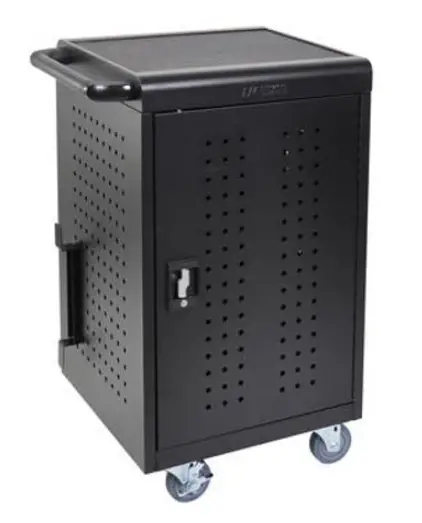
WARNING
- This cart is intended for use only with loading as indicated. Use with loads greater than indicated may result in instability
- Please place the devices from the bottom to top shelf to avoid the tilting
- Death or serious injury may occur when children climb on audio and/or video equipment furniture. A remote control or toys placed on the furnishing may encourage a child to climb on the furnishing and as a result the furnishing may tip over on to the child.
- Relocating audio and/or video equipment to furniture not specifically designed to support audio and/or video equipment may result in death or serious injury due to the furnishing collapsing or overturning onto a child.
- DO NOT allow anyone to sit, stand or climb on the cart.
- DO NOT lift the cart.
- DO NOT block the ventilation holes used for air circulation. When moving the cart,
- DO NOT put any devices (ex: TV, Monitor, Document’s camera…etc.) on top of cart.
- No TV/monitor is to be used on top of cart.
- Before moving the cart, disconnect the power from the wall outlet.
- While moving the cart, make sure the power cord is secured and tightly wrapped.
Introduction
Cart Dimensions
| Model | Description | Dimension W*D*H (mm) |
| Laptop & Tablet Charging Cart, Charging Type: AC + USB charging | ||
| SC01-30AU-LT-F | 30(10*3) devices, with fast charging | 820*650*1257 |
| SC01-40AU-LT-F | 40(10*4) devices, with fast charging | 820*650*1587 |
Cart Diagram 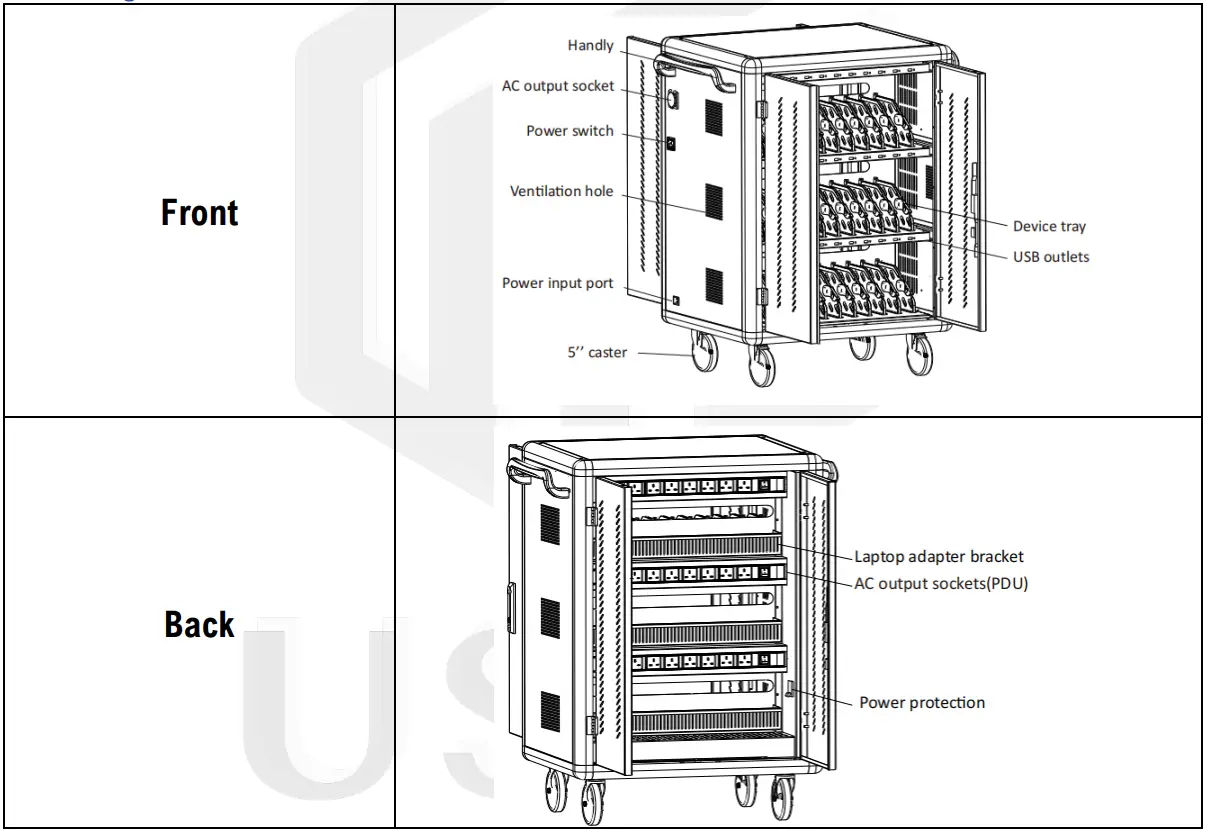
Setup
USB charging operation
- Disconnect the charger in advance and open the cabinet door.

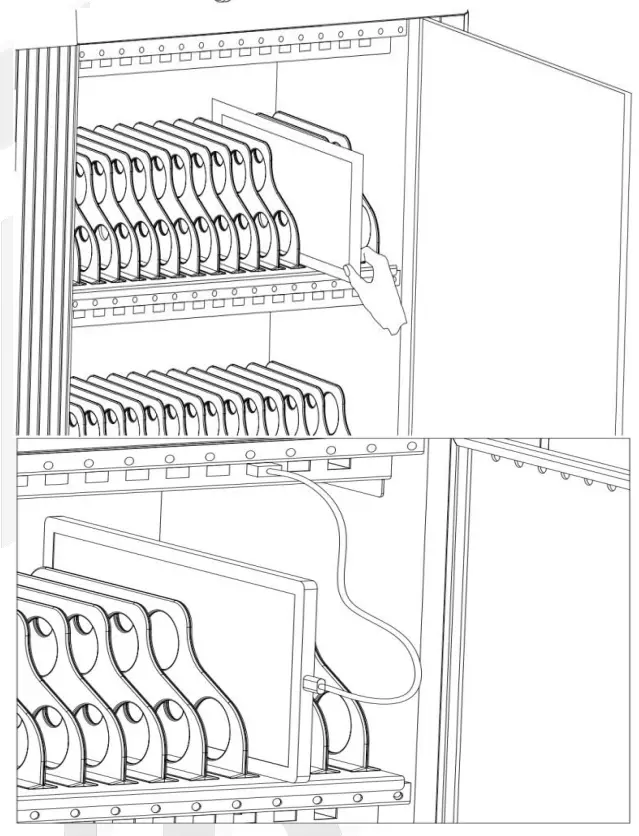
- According to the tablet number, put the tablets one by one into the tablet rotation slot corresponding to the number.
- The two ends of the USB cable are connected to the charging HUB port on the device and the tablet port respectively.

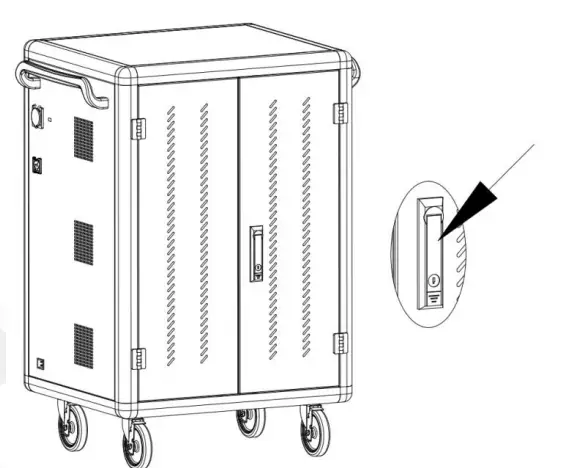
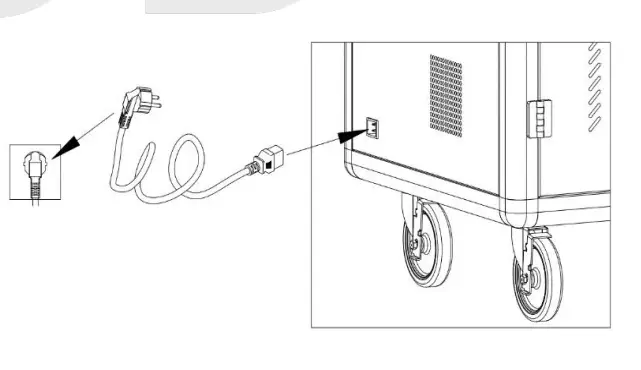
- After the connection is completed, lock the cabinet door and plug the power plug of the charging car into the mains outlet for charging。
- Switch the main power switch to “ON”, and then all charging units’ LED charging status indicator lights up red, and the device is in charging state.

AC charging operation with adapter
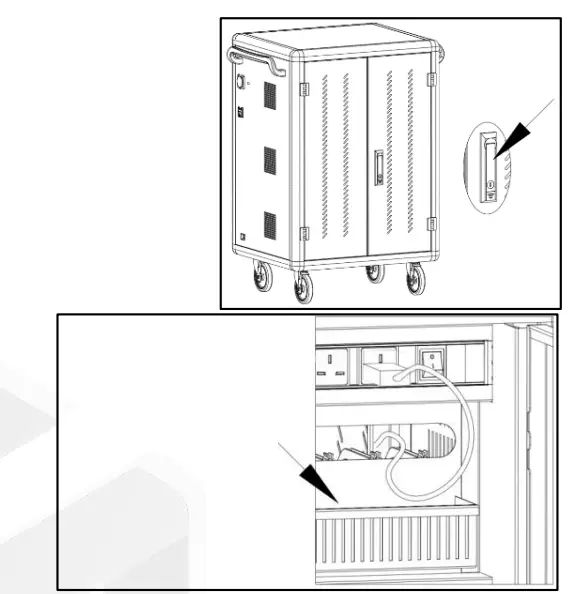
- Disconnect the charger in advance and open the rear door.
- Plug your tablet or laptop charger into the socket at the back of the car one by one, then thread the cable through the hole; For laptop charges, place the adapter in the bucket below the thread hole.

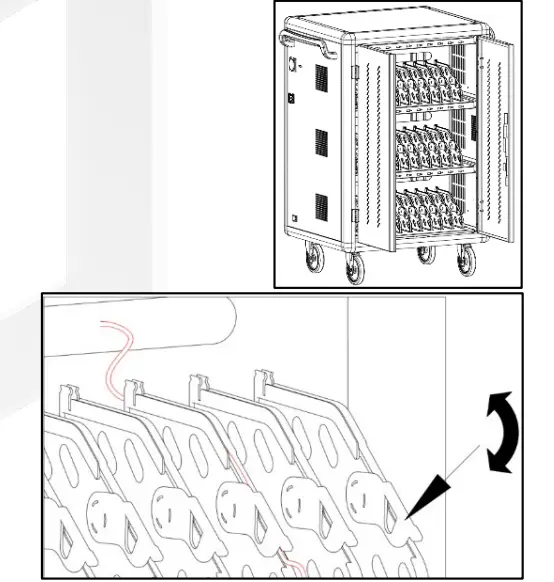
- Open the front door of the charging car.
- Jam the data line with the buckle and arrange the data line.
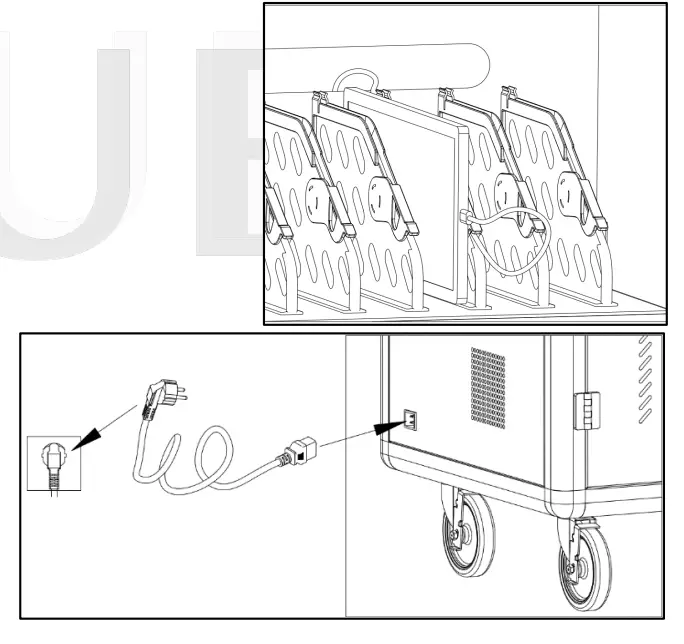
- Place tablets or laptops one by one in the tablet (laptop) slot and connect to the corresponding data cable。

- After the connection is completed, lock the cabinet door, and plug the power plug of the charging car into the mains outlet for charging。
- Switch the main power switch to “ON”, and then all charging units are in charging state。
Specifications
Service environment
| Working temperature | 0℃~45℃ |
| Working environment humidity | 20%~80% |
| Humidity of storage environment | -15℃~45℃ |
| The machine has passed CE certification and RoHS certification | |
Product Parameter
| Main material | The main body adopts 1.0mm-1.5mm cold-rolled steel plate. The main frame adopts high strength aluminum profiles, the cabinet is provided with ABS engineering plastic partition layer, layering the tablet is effective in preventing scratches |
| Input | AC 220-240V 50Hz 16A |
| Product power | 3500W |
| Cooling system | Forced air cooling |
| Output | USB: 5V 2.1A AC: 220-240V 50Hz 13A |
| Status indicator light | Red light: in charging state; Green light: full/disconnected |
| External AC socket | Standard: BS1363 socket*1pc |
| System compatibility | Android system, iOS system, Windows System |
| Super compatible | 1. Other Android devices 2. Other mobile terminals 3. V+/V-No agreement class |
 USUB 雲斯 - 科技智能產品網購 各弱電系統工程