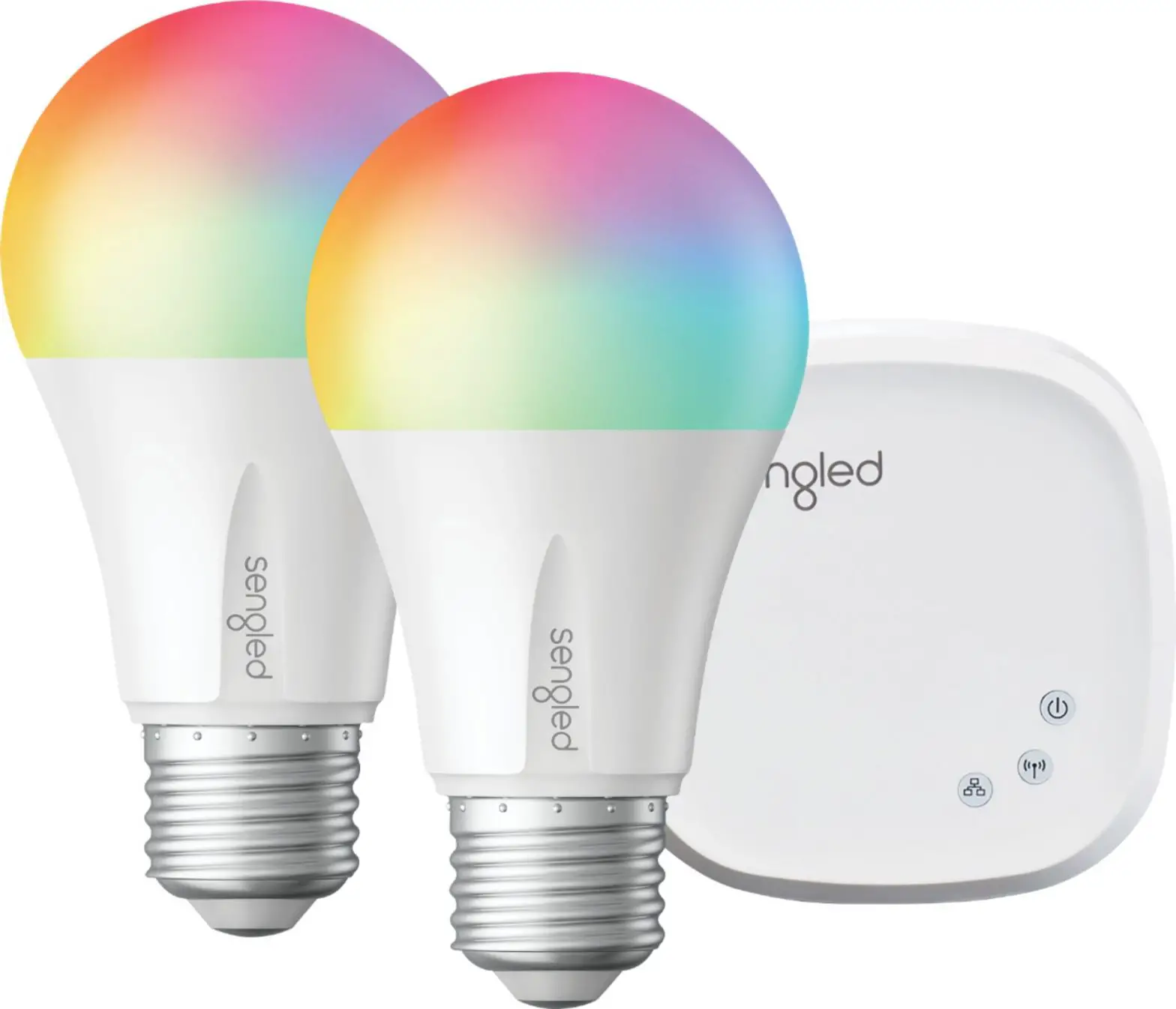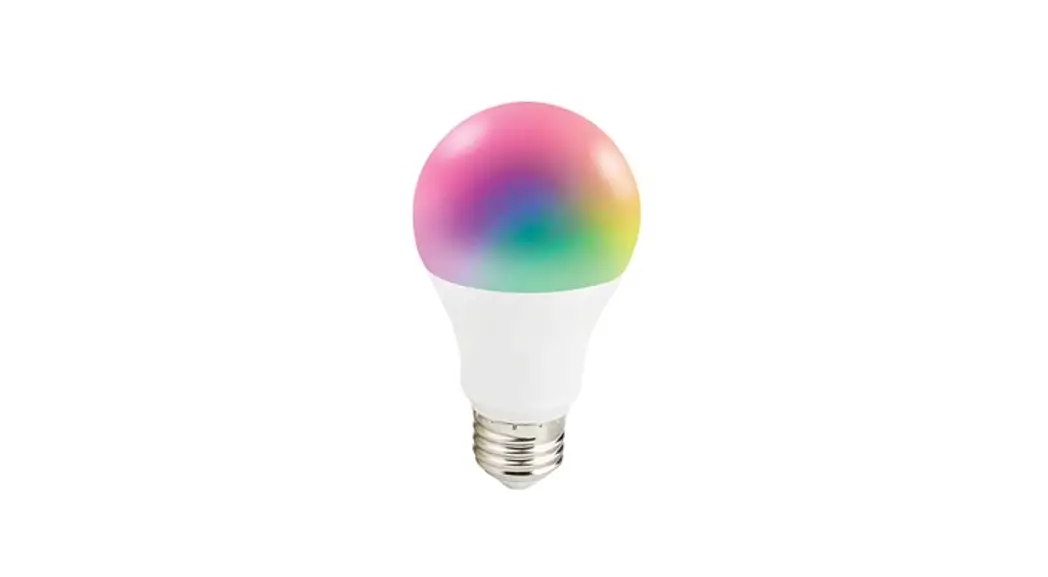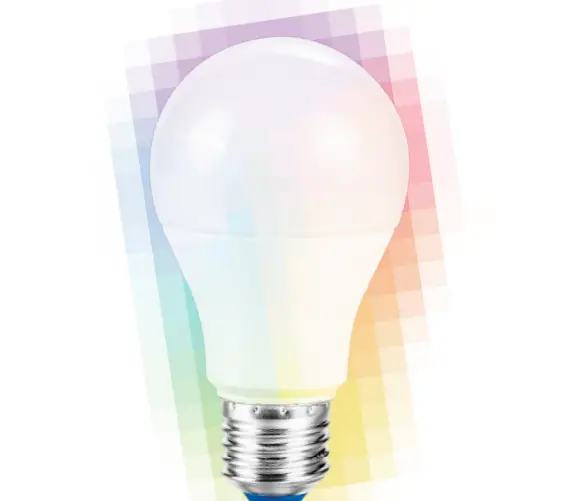

GE APPLIANCES A60 Imagine Smart Light Starter Kit
Seamless Setup
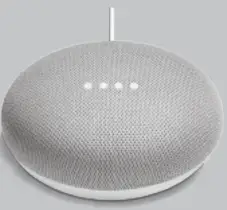
- Plug in your Google Nest device ( smart speaker )

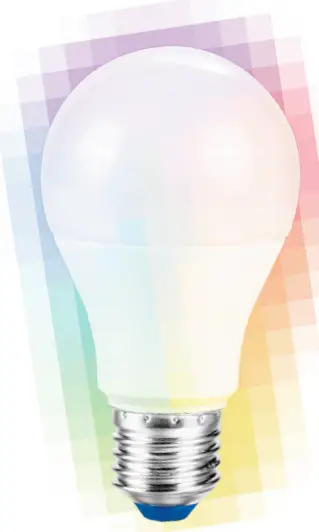
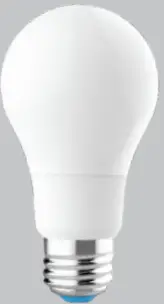
- In the same room, fit the bulb and turn on the light. The light will start blinking and waiting to be added in Google Home App

- Download the Google Home App and follow the prompts to easily set up

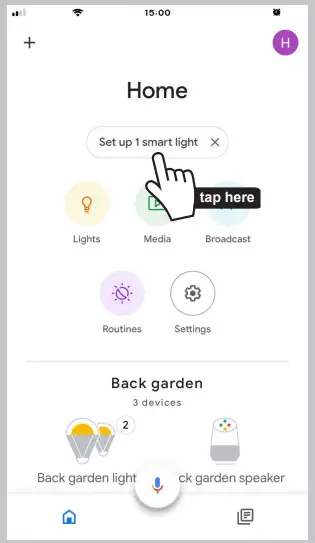
- Set up smart light

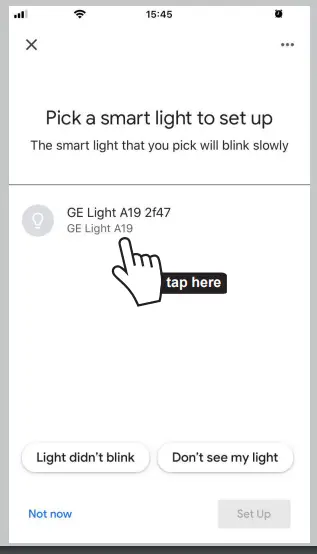
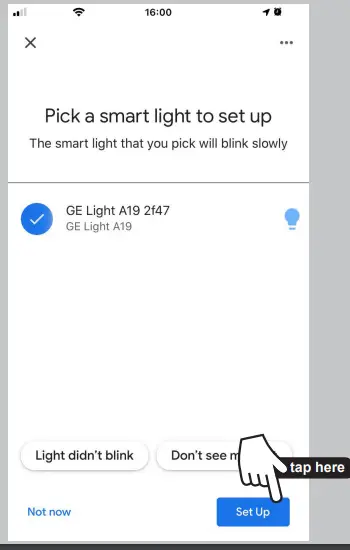
- Pick smart light to set up

- Select smart light and tap Set up

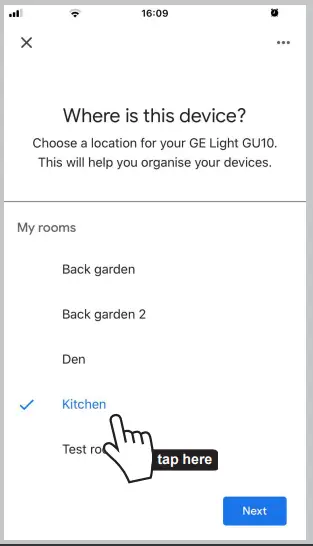
- Choose room and tap Next

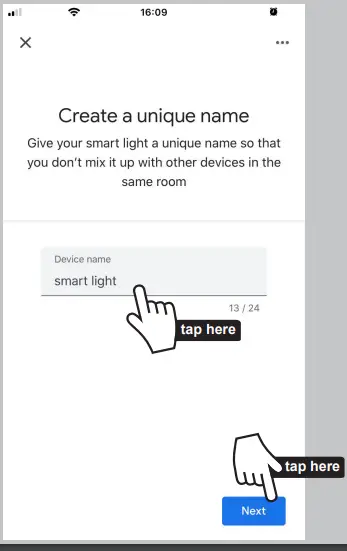
- Create a unique name and tap Next

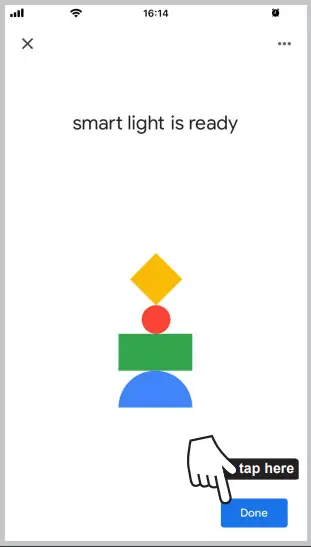
- Your Light is now ready and tap Done

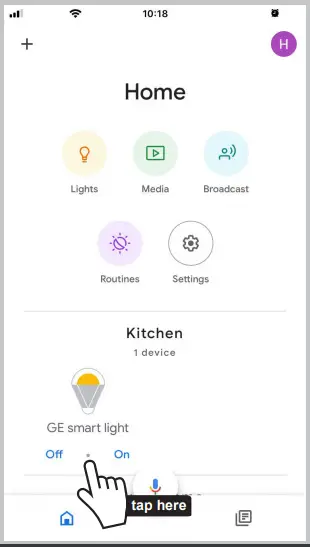
Now your light and room is on App and ready to be controlled
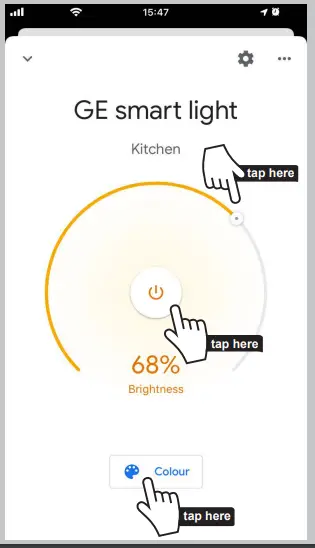
Control your light, power On & Off, dim your light Down & Up, change colours
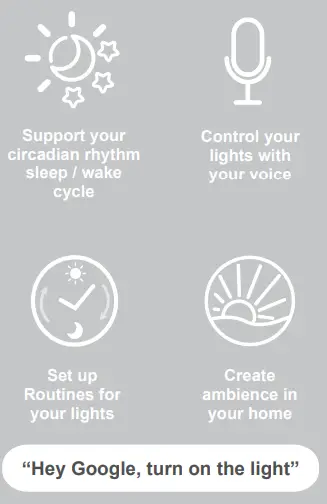
Control your lights with your voice
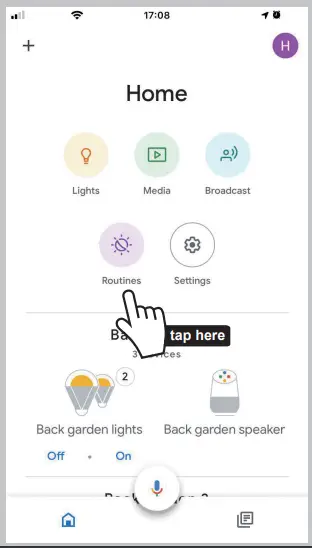
Explore Google Home App with Routines
Troubleshooting
Problem: If there’s no blinking from light after powering on.
- Solution: Please follow below Factory Reset process.
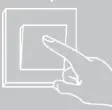
- Turn power On & Off 5 times then leave on, each time using light switch:
- On & Off,
- On & Off,
- On & Off,
- On & Off, 5) On & Off, then On again light should now start to blink

- After performing the above On & Off cycle, if light does not blink, please redo the above On & Off cycle ( factory reset ) again.
- Confirm the light blinks and go to step
- Problem: The light can be added successfully, but cannot be controlled.
- Solution: Please follow below to reboot the Google Home. Tap
 the to reboot.
 the to reboot.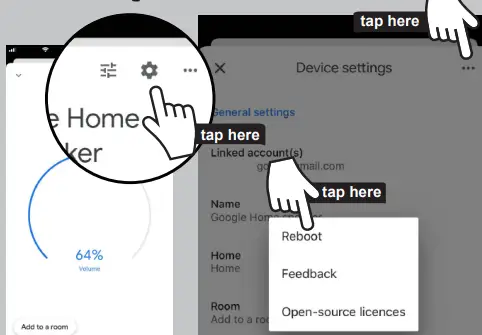
imagine connected smart home
This GE imagine connected smart home LED bulb features and controls are performed via the App or Voice only.
- Brightness or dimming controls can only be performed via the App or Voice as outlined in the quick start guide supplied with your bulb. Note: This smart LED bulb is not compatible with the use of any external dimmer.
- Use in Dry Locations only
- Australian / New Zealand Regulatory Compliance Mark and Responsible supplier number E6
GE is a trademark of General Electric Company and is under license by Light Source Solutions and Light Source Solutions New Zealand Ltd. of 140 Fulton Drive Derrimut Vic 3026 Australia.
Thank you
for choosing GE imagine.
Enjoy your new smart lighting experience