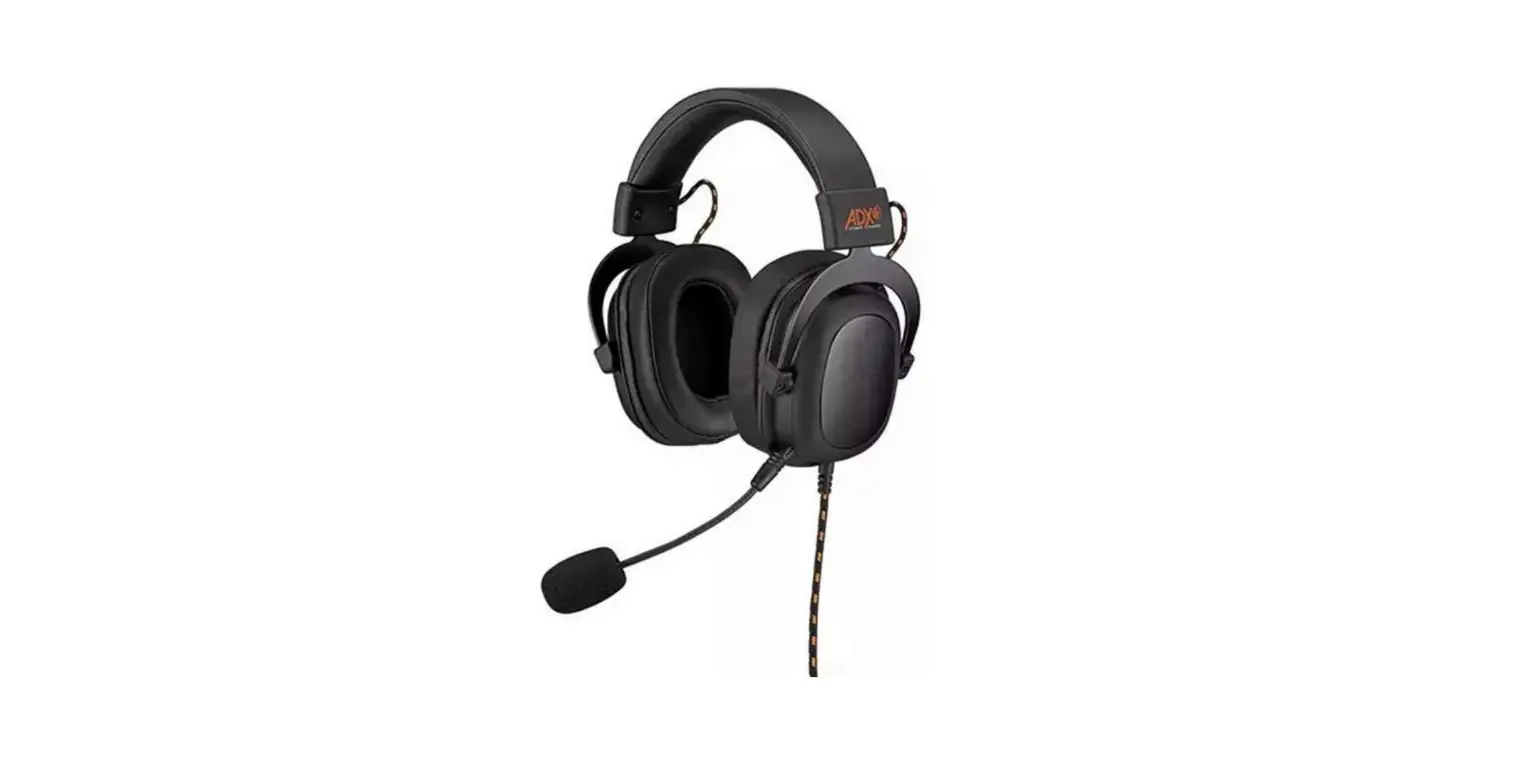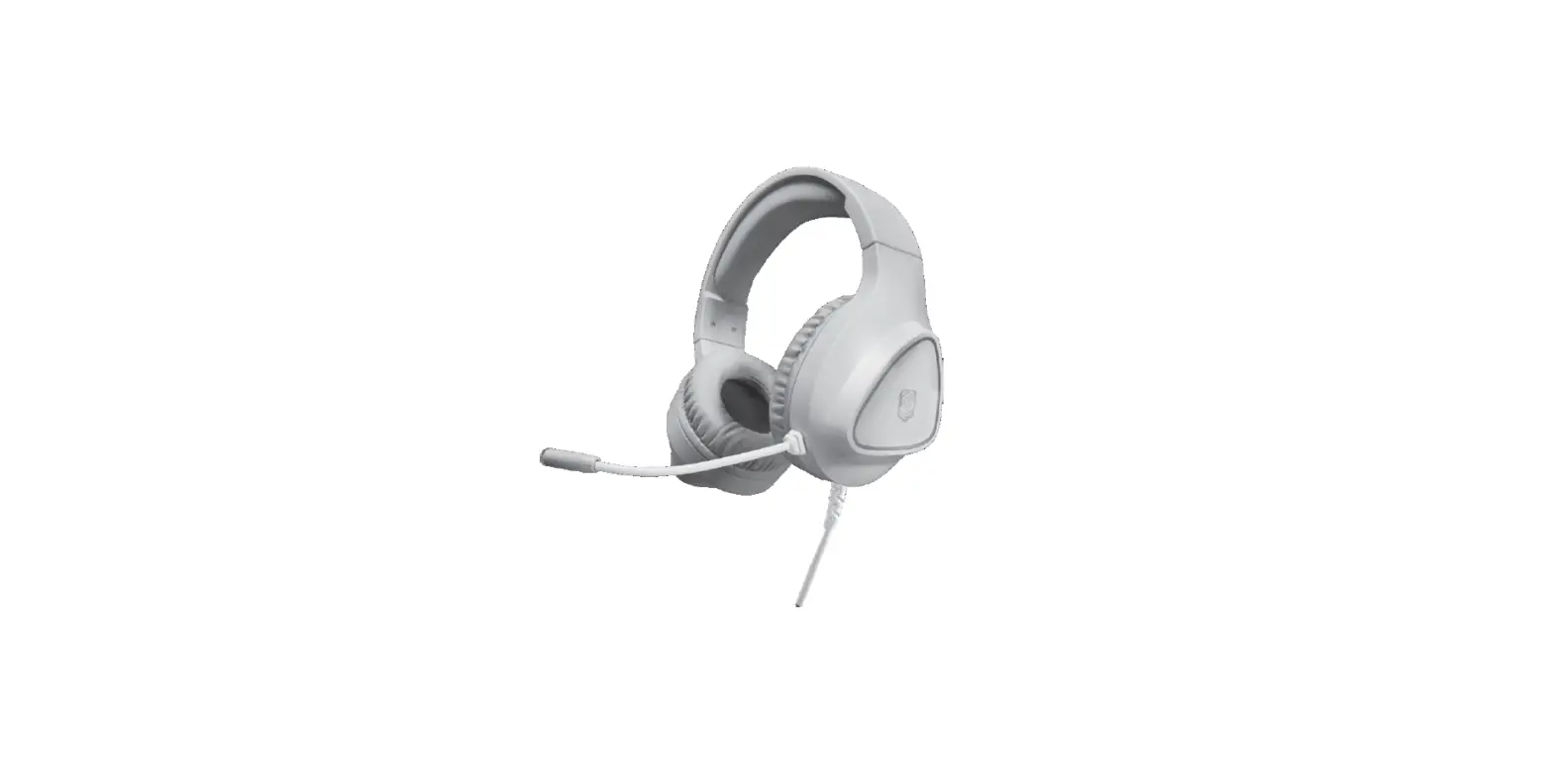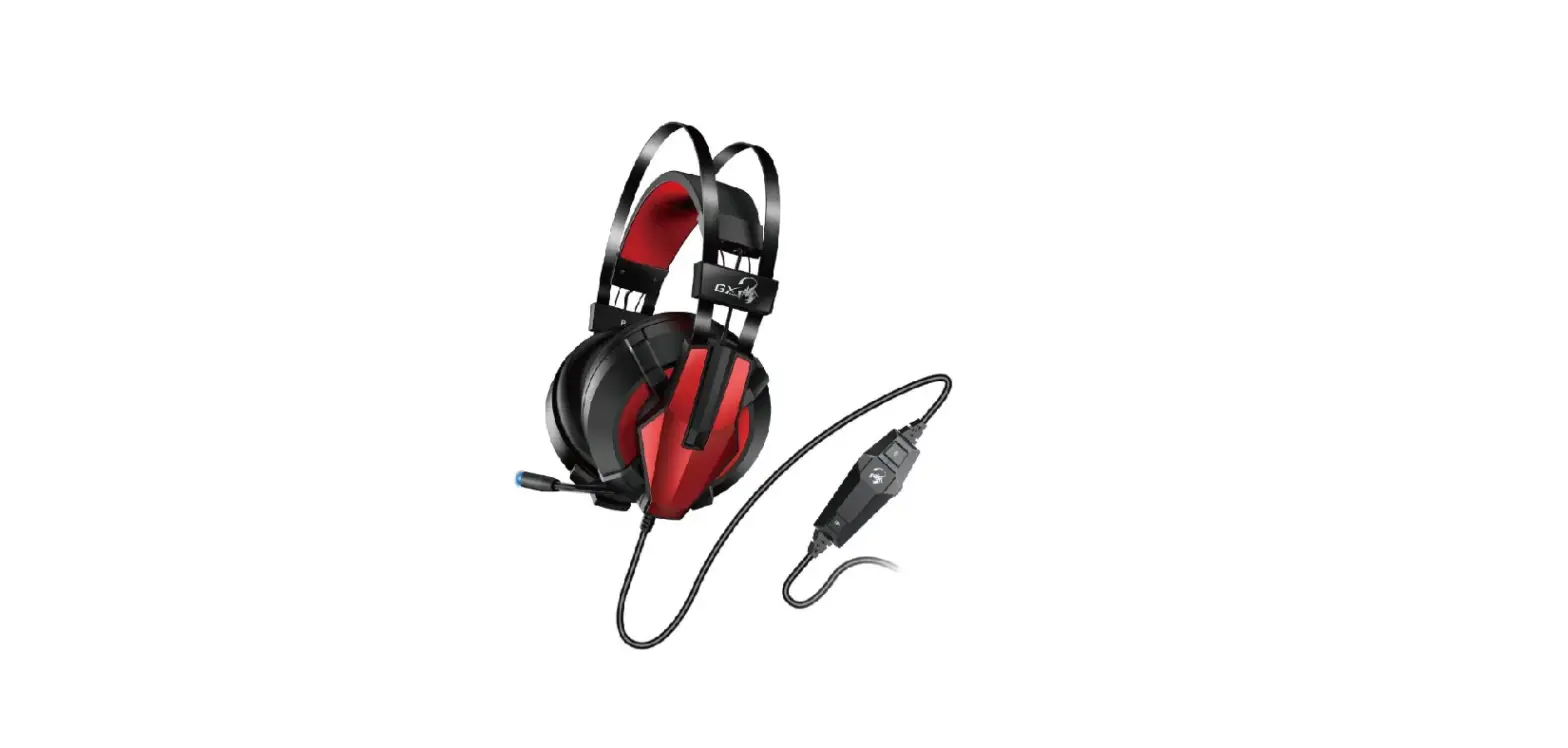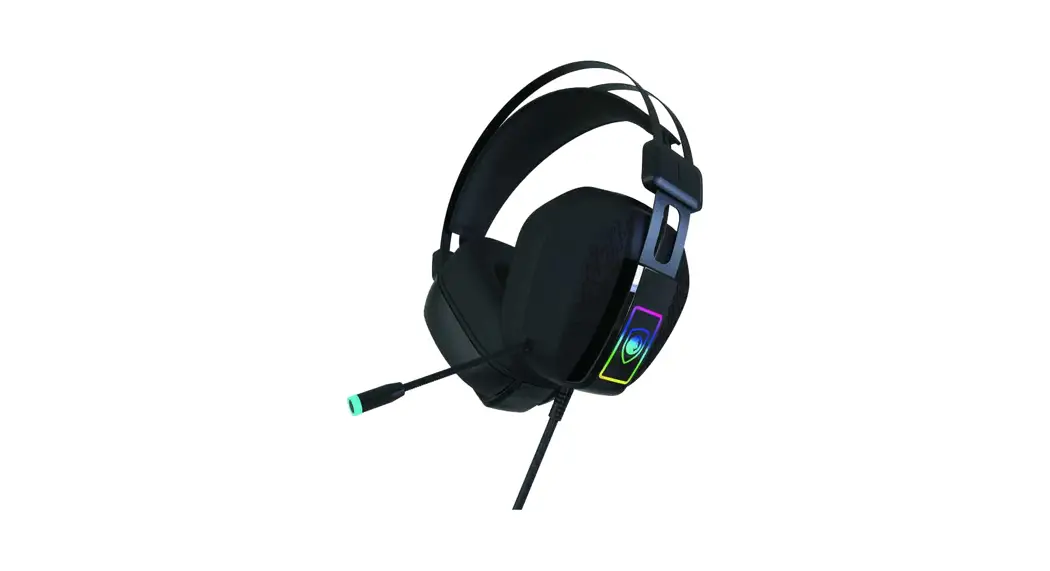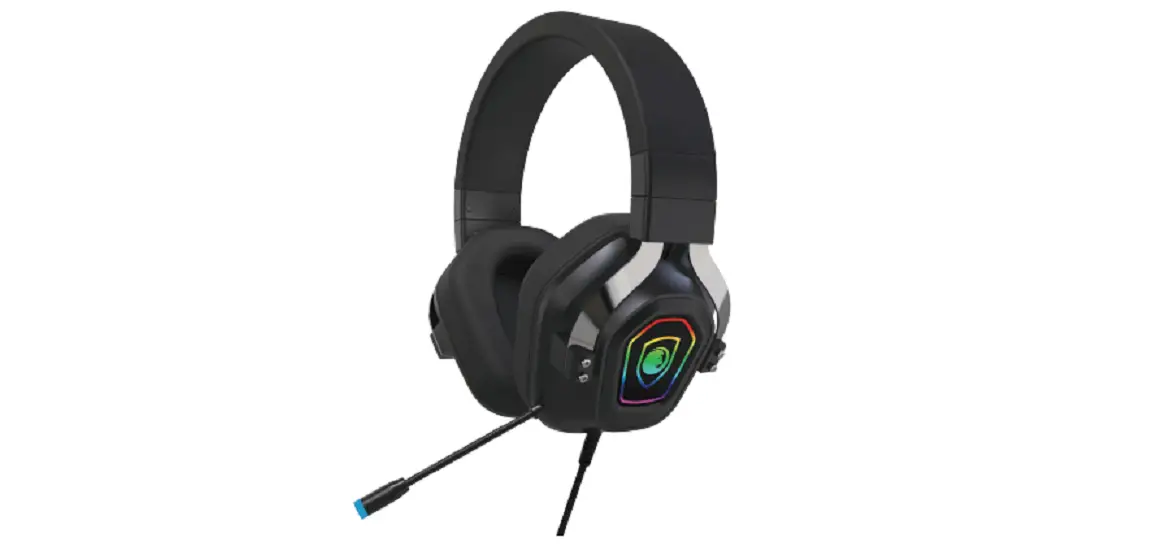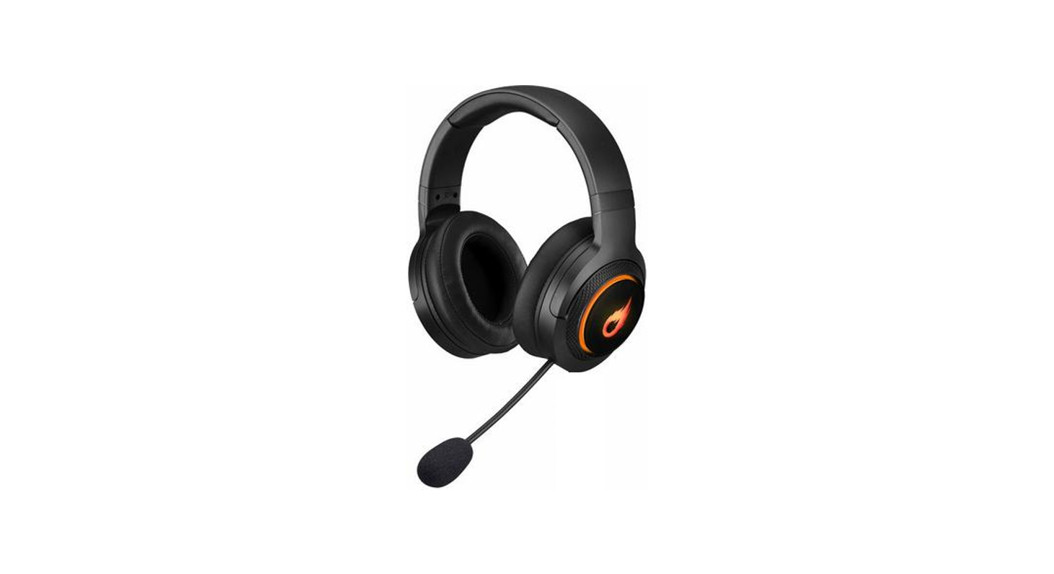
 FIRESTORM PRO 23
7.1 RGB GAMING HEADSET
INSTRUCTION MANUAL
ADXHS0723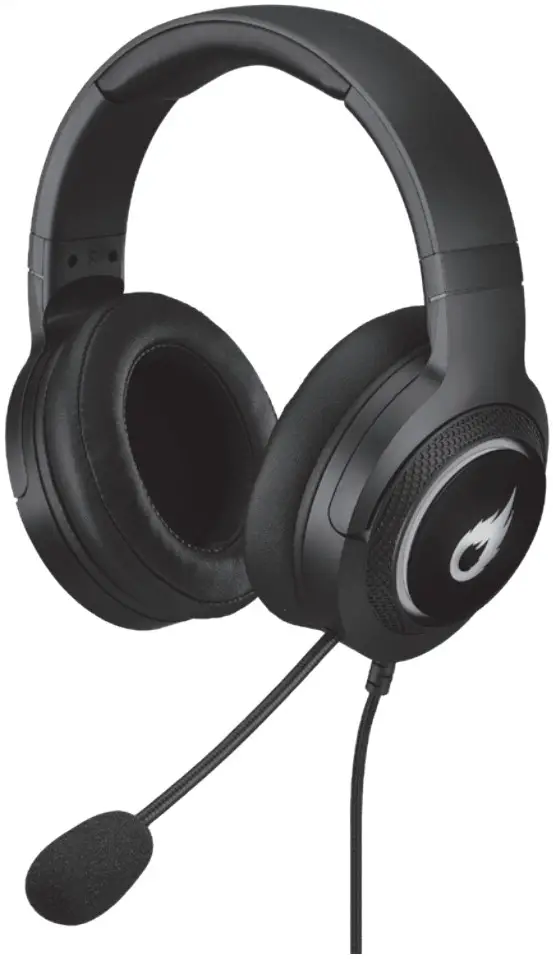
Safety Warnings
- For traffic safety, do not use earphones while driving or cycling.
- Listening to loud sounds for prolonged periods of time may permanently damage your hearing.
 Before putting on earphones, turn the volume down then put the earphones on and slowly increase the volume until you reach a comfortable listening level.
 Before putting on earphones, turn the volume down then put the earphones on and slowly increase the volume until you reach a comfortable listening level.
Thank you for purchasing your new product.
We recommend that you spend some time reading this instruction manual in order that you fully understand all the operational features it offers. You will also find some hints and tips to help you resolve any issues.
Read all the safety instructions carefully before use and keep this instruction manual for future reference.
Unpacking
Remove all items from the packaging. Retain the packaging. If you dispose of it please do so according to local regulations.
The following item is included:
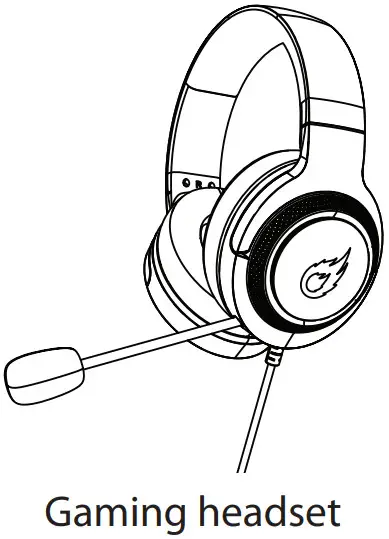
Product Overview
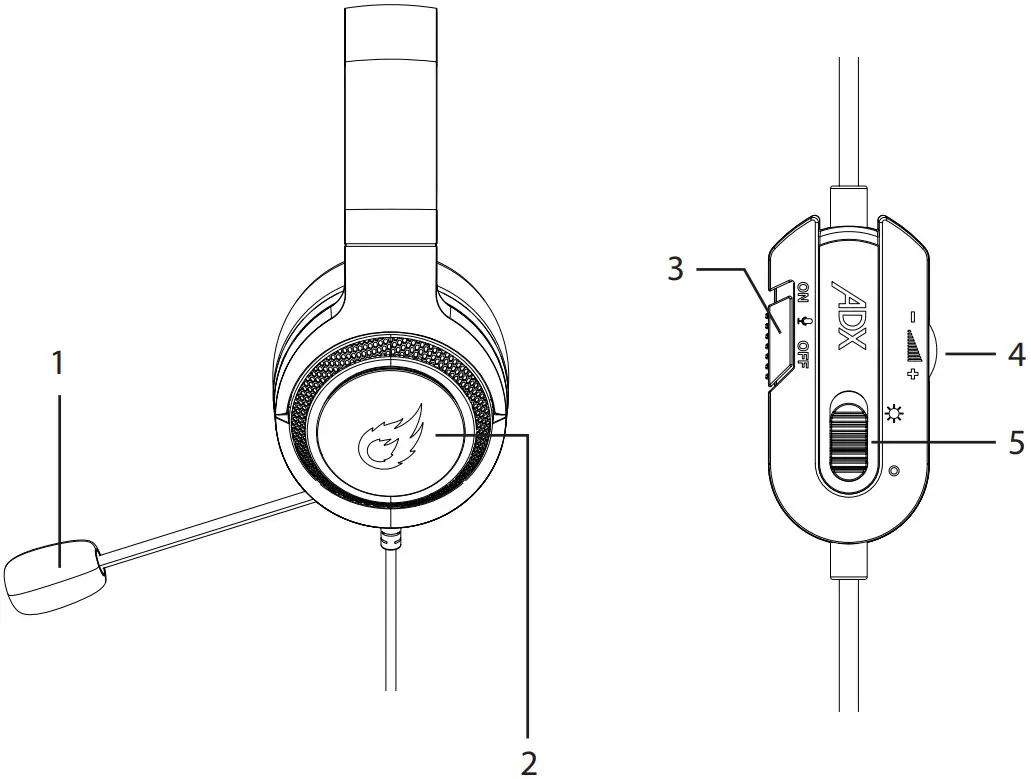
- Microphone
- Headset RGB Light
 Microphone ON/OFF button
- Volume +/– Control
- RGB
 ON/
ON/ OFF button
 Microphone ON/OFF button
 ON/
ON/ OFF button
System Requirements
Operating Systems: Microsoft® Windows® 8 / 10 / 11
Hardware: 1 available USB port
Software Installation
- Plug the unit into the USB port of your computer.
- Download the latest gaming software from https://downloads.adxgaming.com (under ADX HUB LIGHTING SOFTWARE DOWNLOAD)
- Run the software installer (ADX HUB 2 Setup.exe).
- Follow the installation instruction to complete the installation.
- Choose ADX HUB 2.exe from the desktop to start the software.
 The software is not available for MAC OS.
User Interface
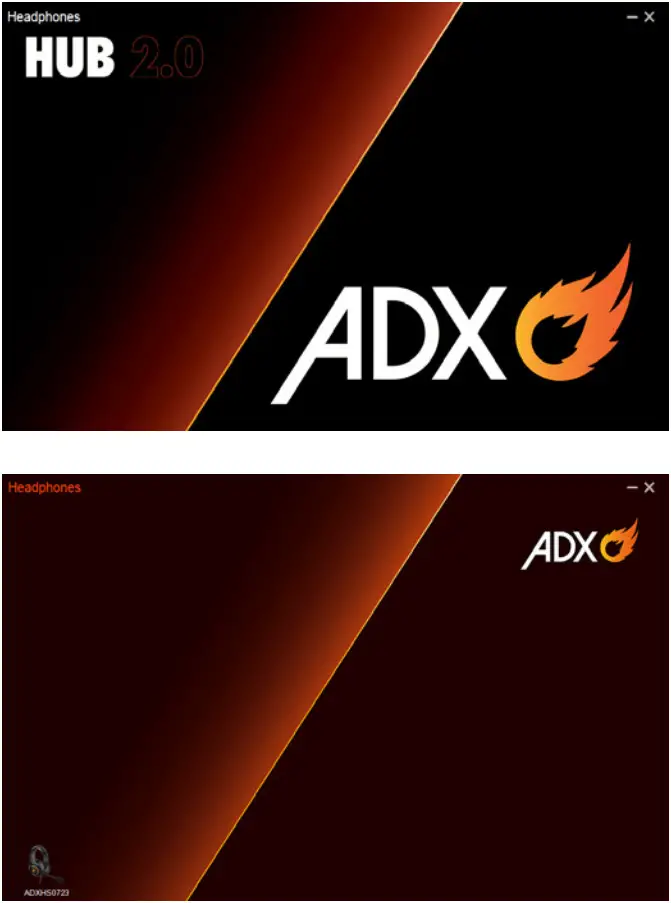
- Choose ADX HUB 2.exe from the desktop to launch the software.
- Select “Headphones“ and then “ADXHS0723“ at the bottom of the connected device list to enter the interface.
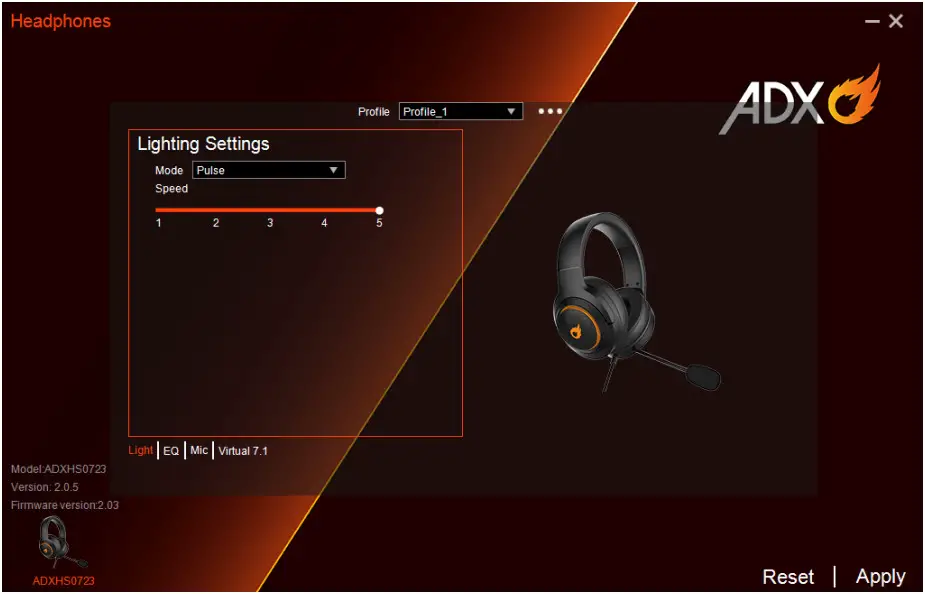
User Interface – Lighting Settings
- In the Lighting Settings page, press to select between Pulse / Static / Breathing / Stream Breathing / Off in the Mode menu.
- Select “Apply“ to implement your settings, or “Reset” to reset all settings.
User Interface – EQ
EQ Setting
- Adjust the level on 60 Hz / 300 Hz / 1200 Hz / 3600 Hz / 12000 Hz from -12 db to 12 db. for EQ setting.
- Select ON to implement your setting.
3D Setting
- Select ON for 3D setting.
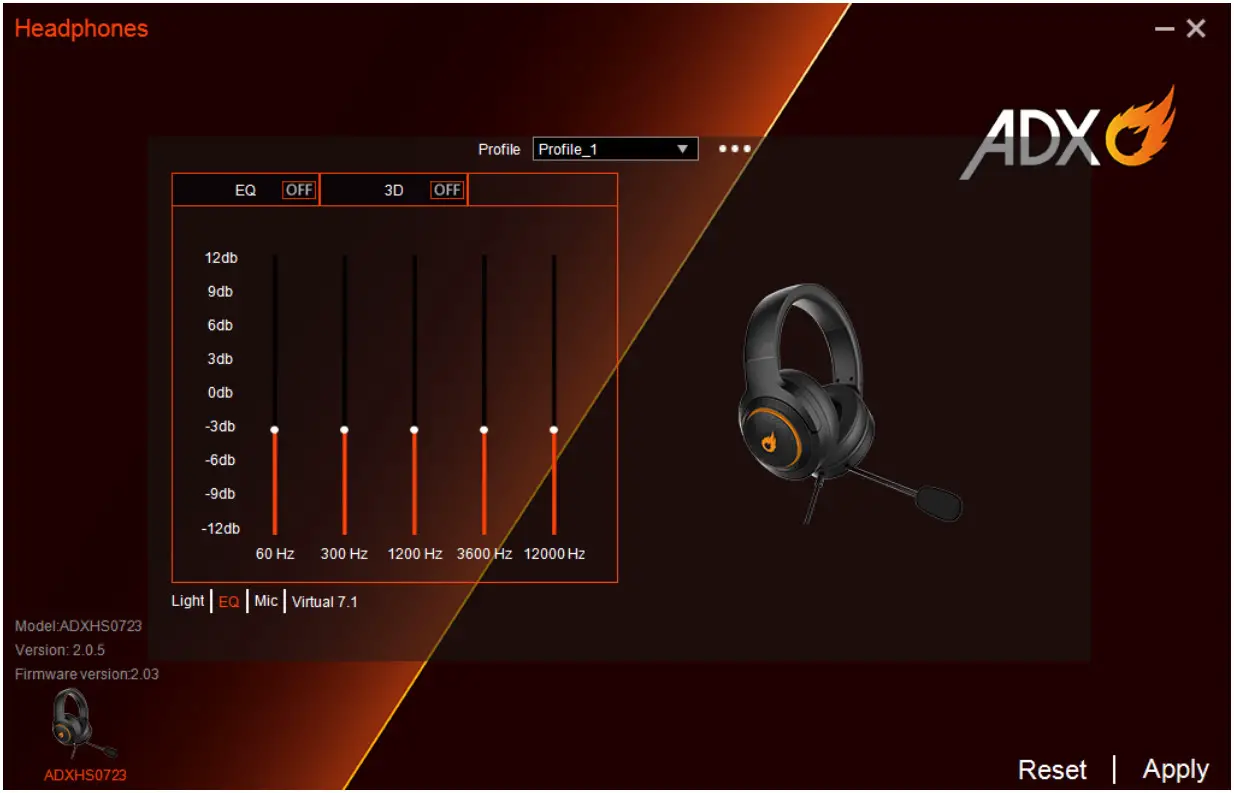
 Select “Reset” to reset all settings.
Microphone
- Select ON on the Boost menu to enhance microphone’s transmission performance.
- Set the microphone sound level from 0 to 100.
Select “Reset” to reset all settings.
Virtual 7.1 Surround Sound
Allows for personal calibration to fit for your ears, enabling you to configure to your perfect individual setting.
- Select ON in Virtual 7.1 menu.
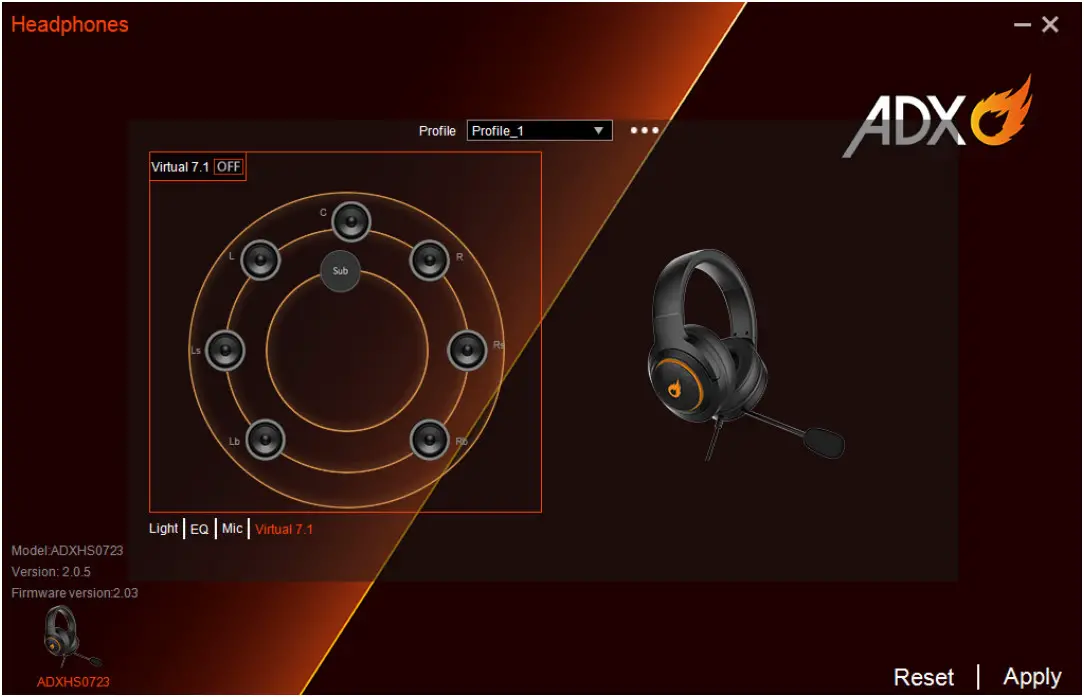
Select “Reset” to reset all settings.
User Interface – Light Effect
If one more ADX gaming device is connected, you may synchronize their light effects.
- Select Light Effect, and the devices you want to apply the light effect.
- Select your preferred Lighting Settings (Mode, Brightness and Speed).
- Select “Apply“ to implement your settings.
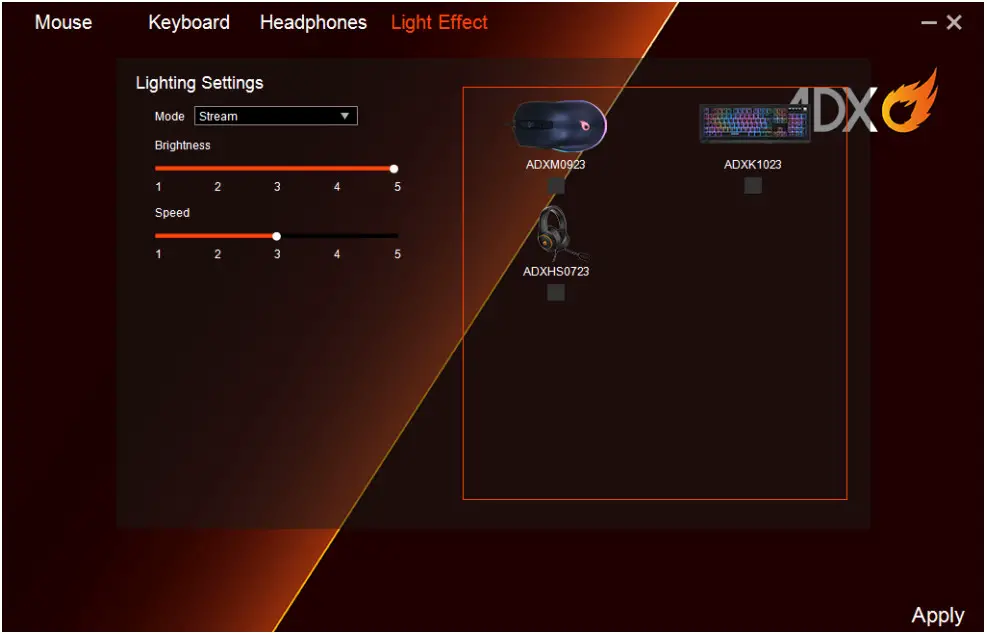
To reset the setting of a particular device, select a connected device shown in the menu, and then select Reset.
Hints and Tips
- Make sure the USB plug is fully plugged into a USB port and the computer is on or try to use a different USB port.
- If the software is not working properly, uninstall it and then reboot the computer. Re-install the software.
Specifications
| Model | ADXHS0723 |
| Frequency response | Headset: 20Hz – 20kHz |
| Sensitivity | Headset: 98 ±3dB Microphone: -57 ±3dB |
| Impedance | Headset: 32Ω ±15% Microphone: 2.2kΩ |
| Net Weight | approx. 354g |
Features and specifications are subject to change without prior notice. The symbol on the product or its packaging indicates that this product must not be disposed of with your other household waste. Instead, it is your responsibility to dispose of your waste equipment by handing it over to a designated collection point for the recycling of waste electrical and electronic equipment. The separate collection and recycling of your waste equipment at the time of disposal will help conserve natural resources and ensure that it is recycled in a manner that protects human health and the environment.
For more information about where you can drop off your waste for recycling, please contact your local authority, or where you purchased your product.
Windows is a registered trademark of Microsoft Corporation in the United States and other countries.
Currys Group Limited (co. no. 504877)
1 Portal Way, London, W3 6RS, UK
EU Representative
Currys Ireland Limited (259460)
3rd Floor Office Suite
Omni Park SC, Santry, Dublin 9, Republic of Ireland
IB-ADXHS0723H-220919V1
 Software and Documents - ADXGaming