QUICK START GUIDE
CUBOT

SIMPLE & TRUST
START HERE
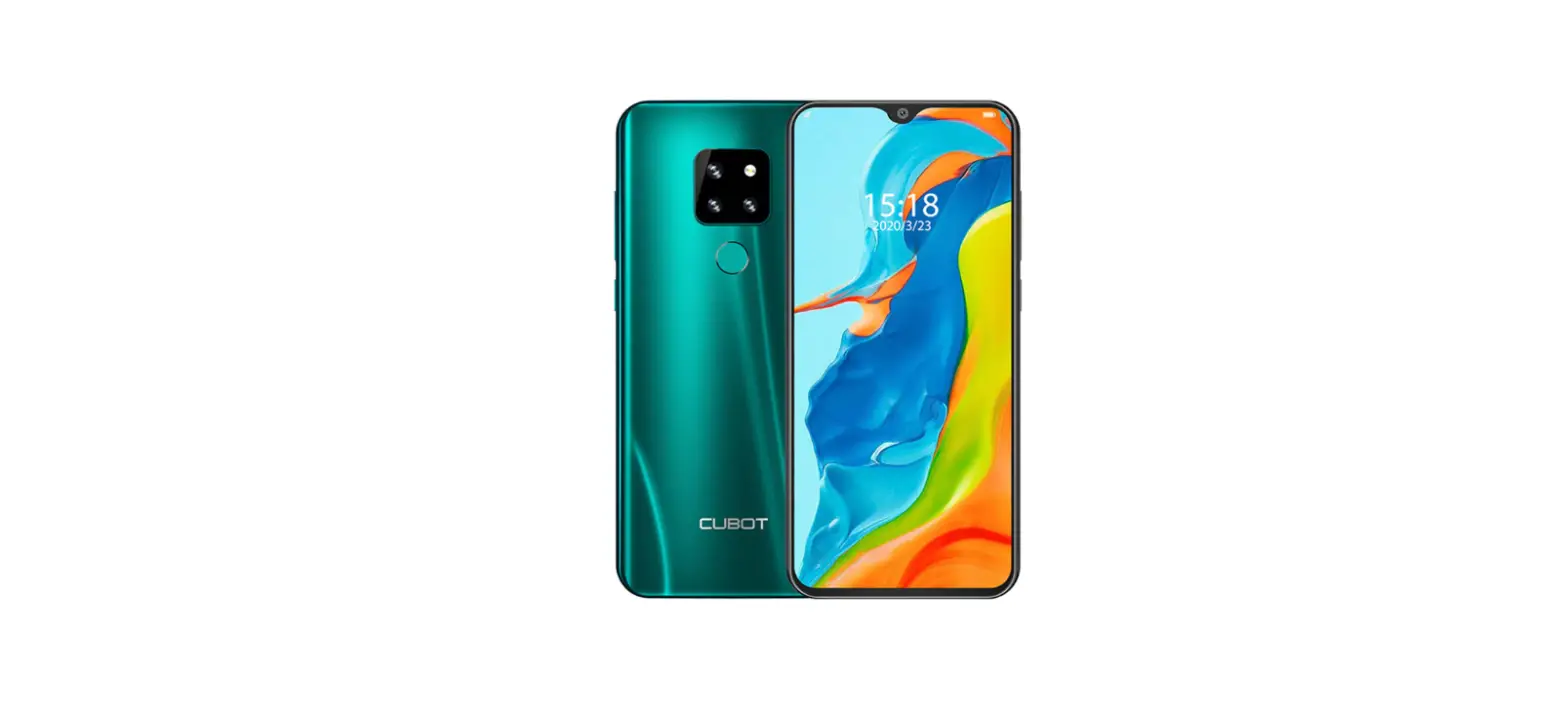
P 30
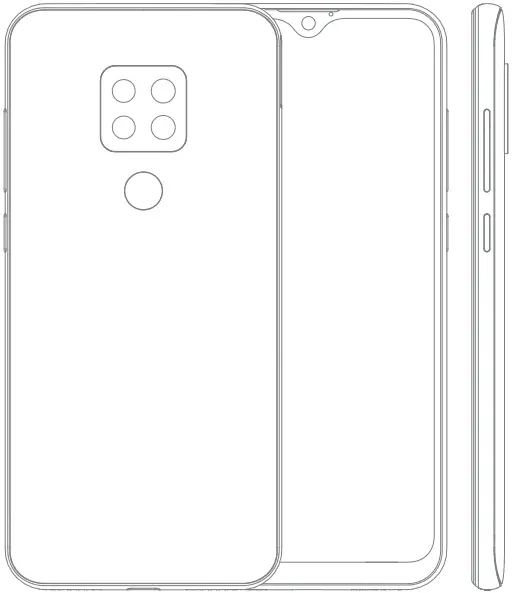
Main components
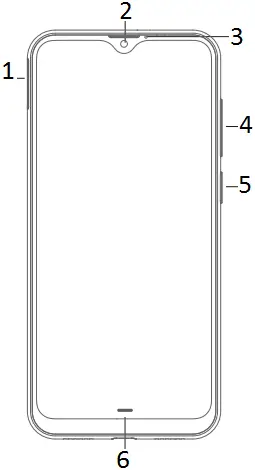
- Card slot
- Front camera
- Notification light
- Volume
- Power on/off
- Home
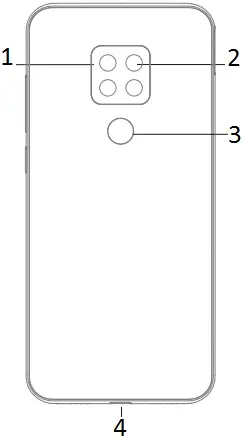
- Rear camera
- Flash LED
- Finger scanner
- USB interface
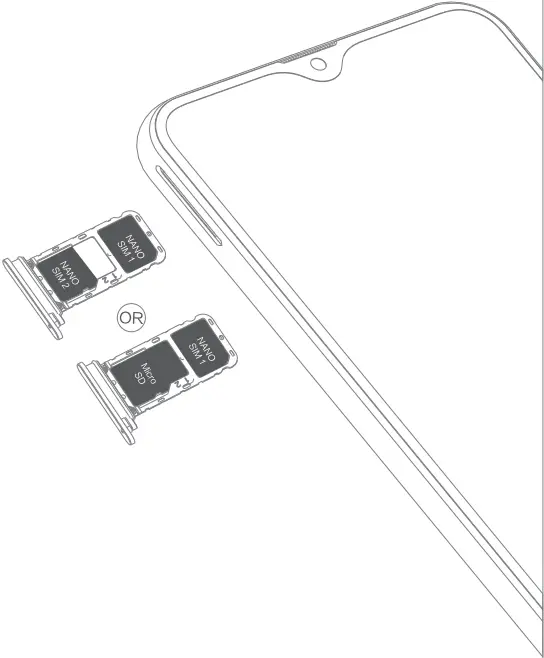
SIM/Micro SD
Nano SIM card + Nano SIM card
Micro SD card
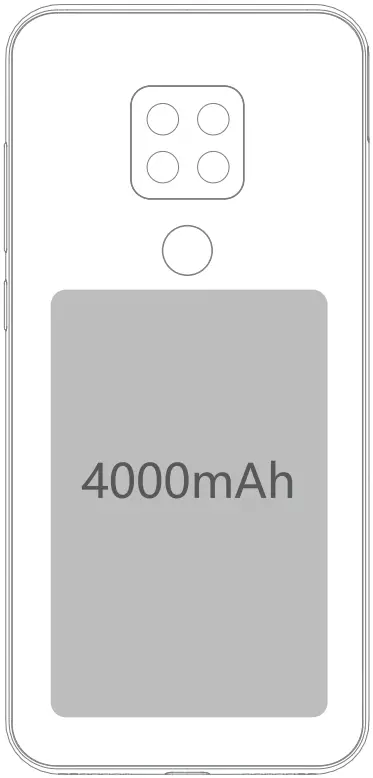
Battery
4000mAh
Undetachable battery
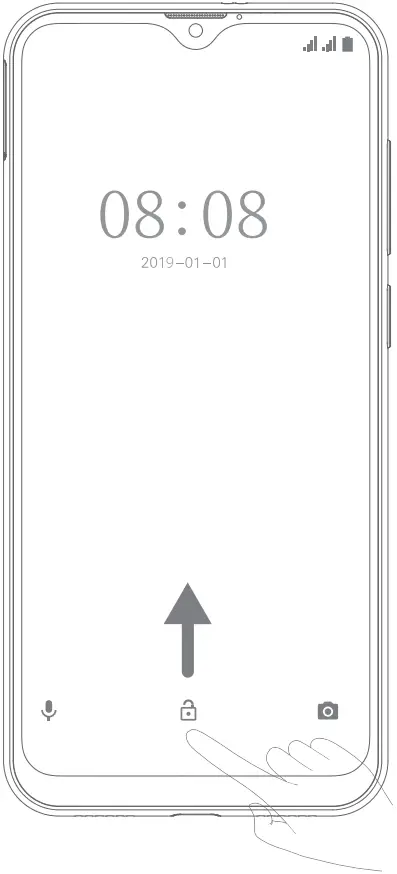
Screen lock 

It can be increased the security of the phone by using screen lock .Screen lock settings can be found under “Settings”>”Security”> “Set up screen lock”.
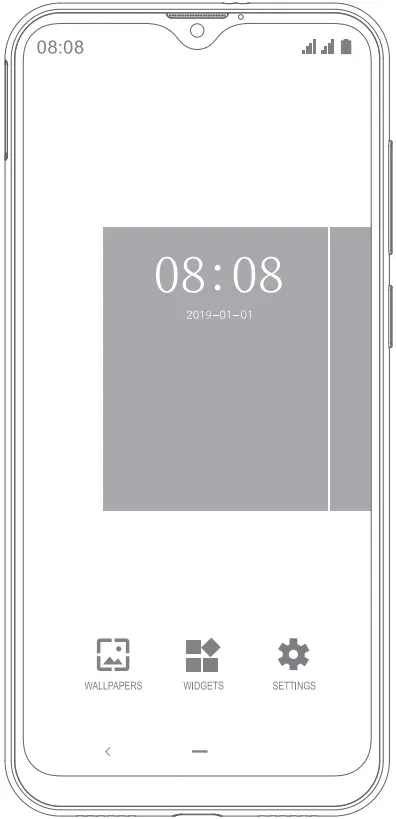
Customize home interface 

In standby mode, press at any blank area for a few seconds to add shortcuts, widgets, folders, or set wallpapers. You can also remove or move,add other items from the home interface. It’s customized.
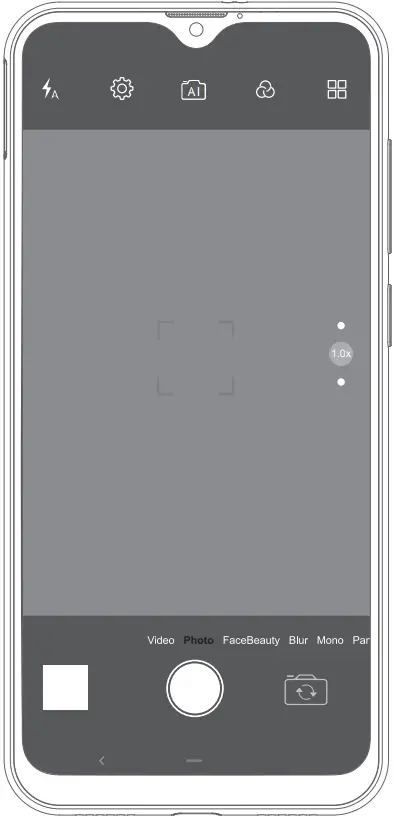
Camera 

CUBOT is equipped with front and rear cameras ,which is designed for you to share wonderful moments with friends and family.
Adjust focus, exposure, zoom in or zoom out, switch between front and rear cameras and among different functions of the camera video recorder by flipping the icon on the screen.
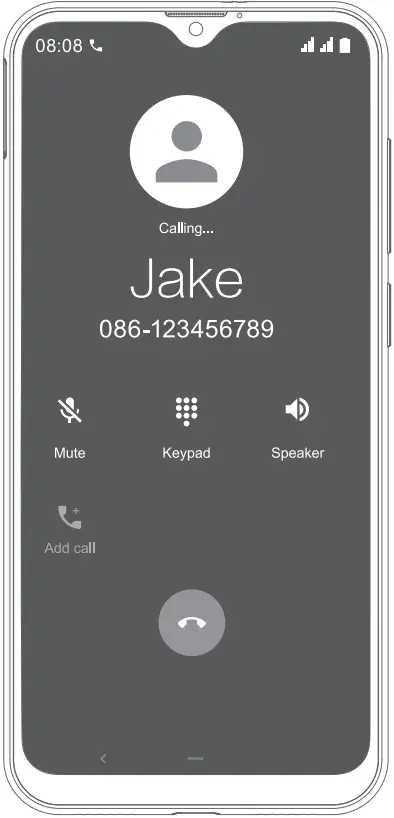
Make a call 

You can make a call under the interface of Call log, contacts, favorites, message (which contains phone number). In standby mode, press call key to make a call.
Messaging 

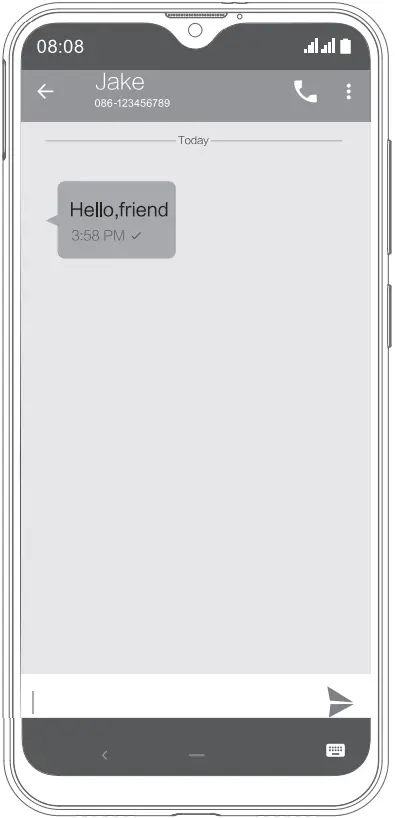
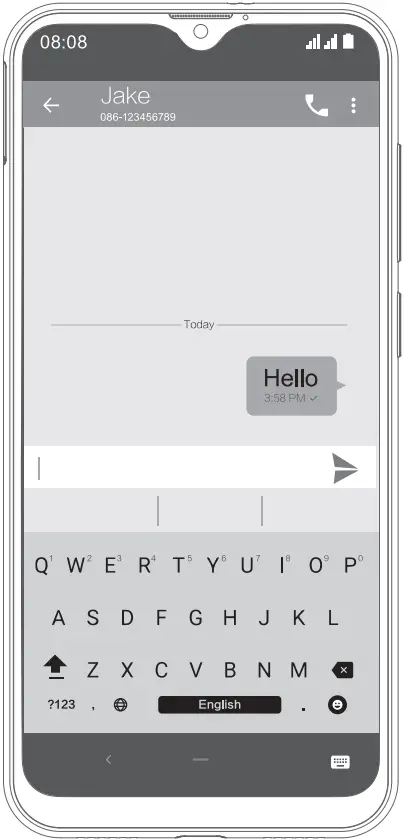
Touch and open the text box to select an input method. You can insert smiley, picture, audio or video files and send to multiple recipients.
Email 

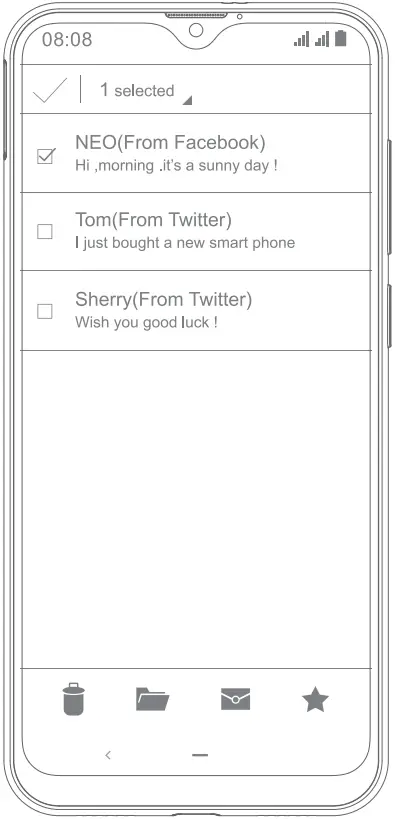
The email app enables you to read, compose and send emails, and is configured to work with all the major email providers. CUBOT supports multiple account mode, and you won’t miss any email.
Music 

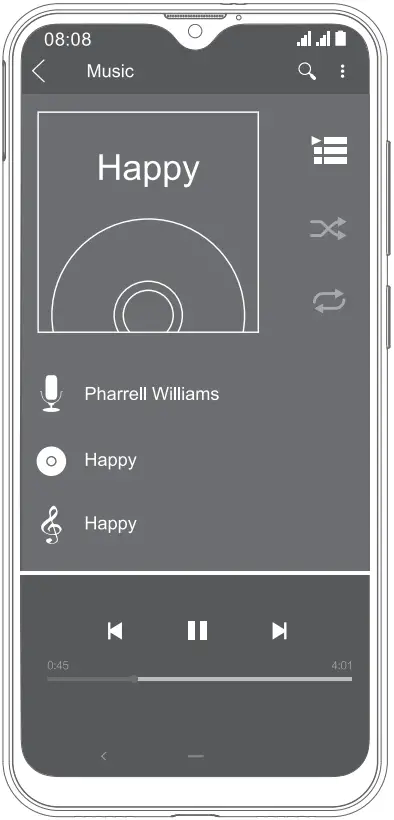
CUBOT supports various music formats, different sound effects, such as Bass Boost, Virtualizer and equalizer features etc. and 4 categories, i.e. Artists, Albums, Songs and Playlists.
Gallery 

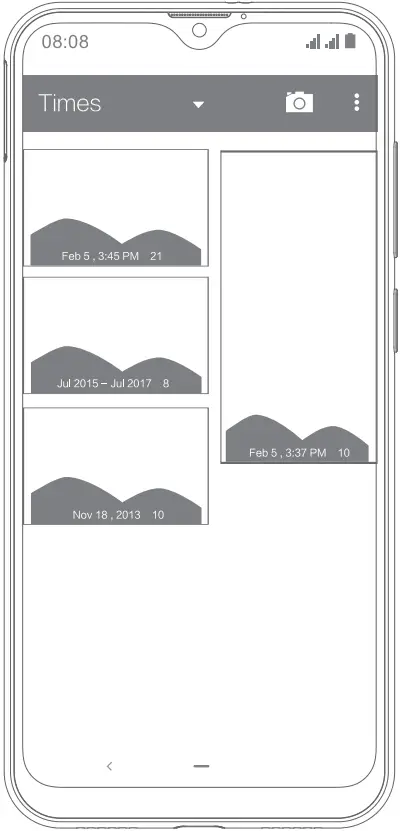
You will find it very easy to view all the photos. Flick right or left to move images. Double click or pinch the photo to zoom. You can edit, share, print, and more.
Intelligent keyboard 

CUBOT automatically corrects and suggests words when you are typing, and it also supports voice input.
Cut, copy, and paste

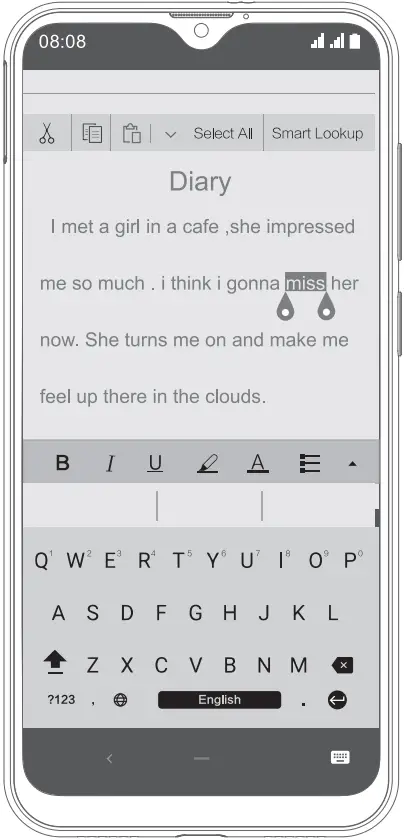
Press for a little longer of the text content to bring up the magnifying glass, and then slide your finger to move the insertion points. Then tap to cut, copy, or paste. It is very easy to copy text from web pages, emails, or text messages.
Map 

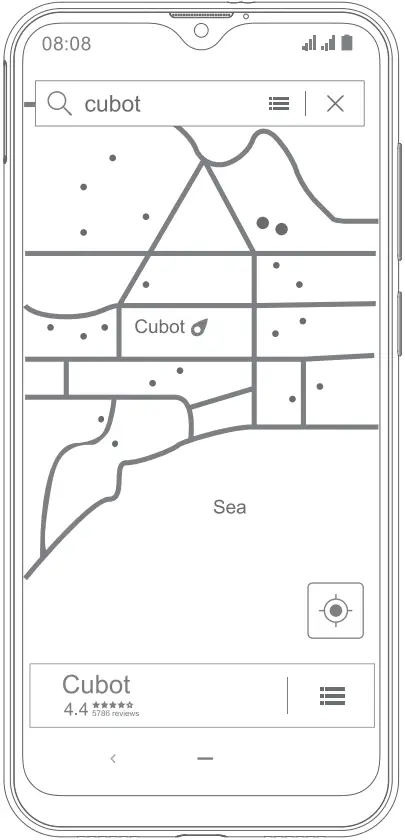
You can view satellite images or street map with detailed route instructions just like you are walking in the street. The Map app can be used to locate yourself, view real-time traffic conditions, pedestrian, bus routes or car driving route instructions.
 SIMPLE & TRUST
Thank you for your purchase of CUBOTAndroid™ product Android is a trademark of Google LLC.
Please click www.cubot.net and download the lastest firmware,getting acknowledge of lately products information.
 FCC ID Search | Federal Communications Commission