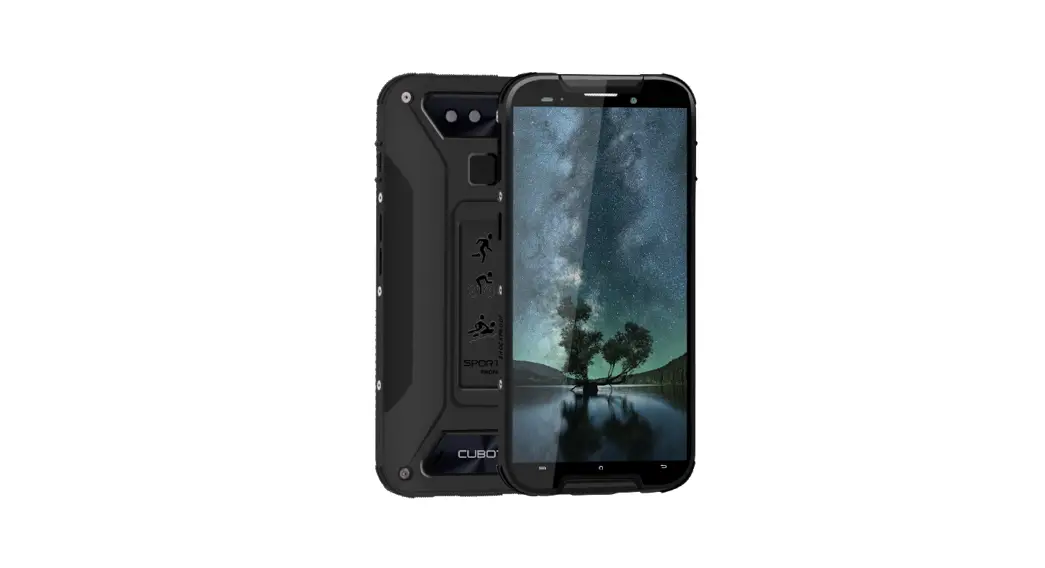
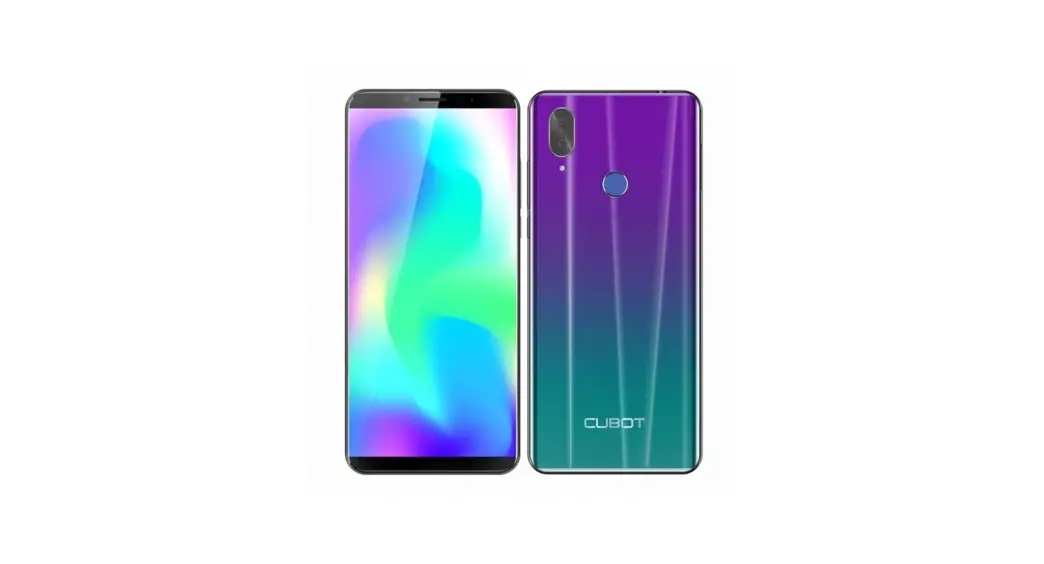
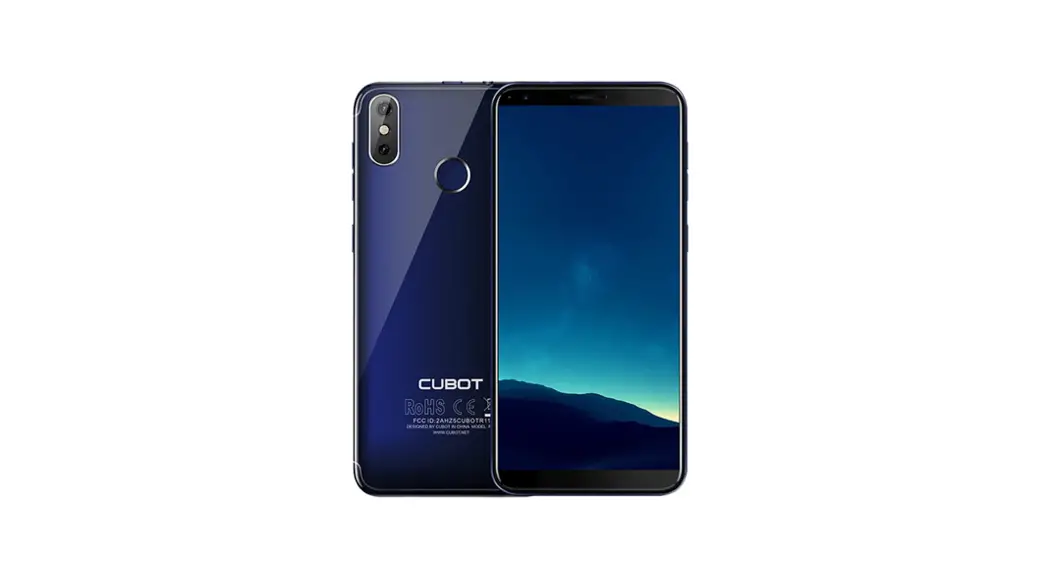
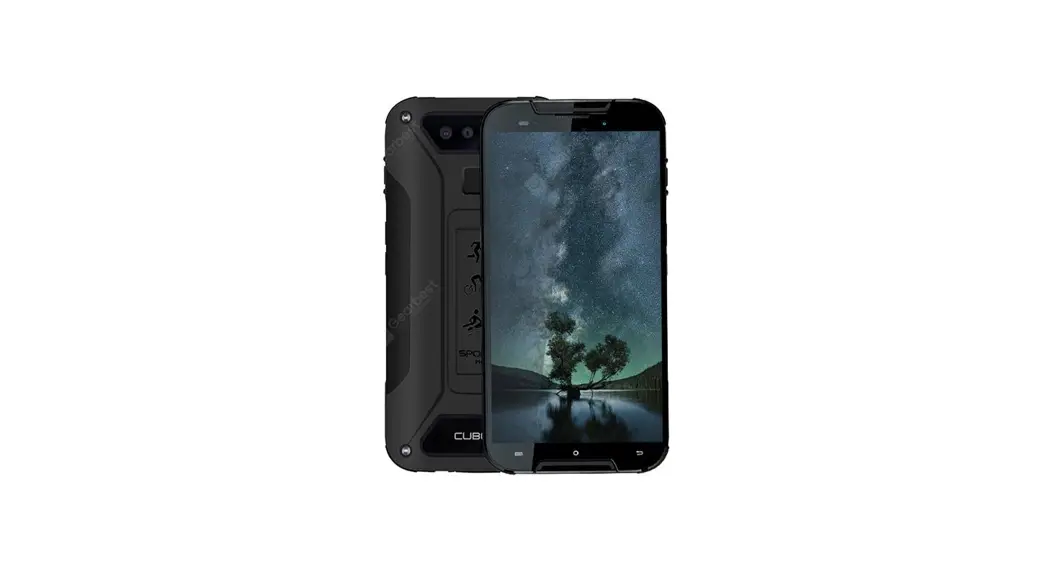
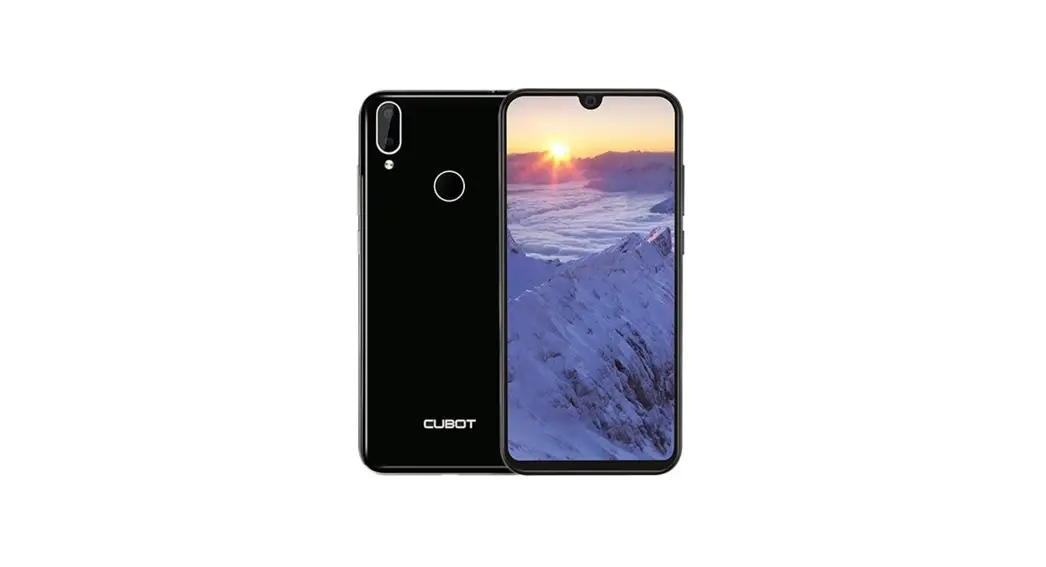
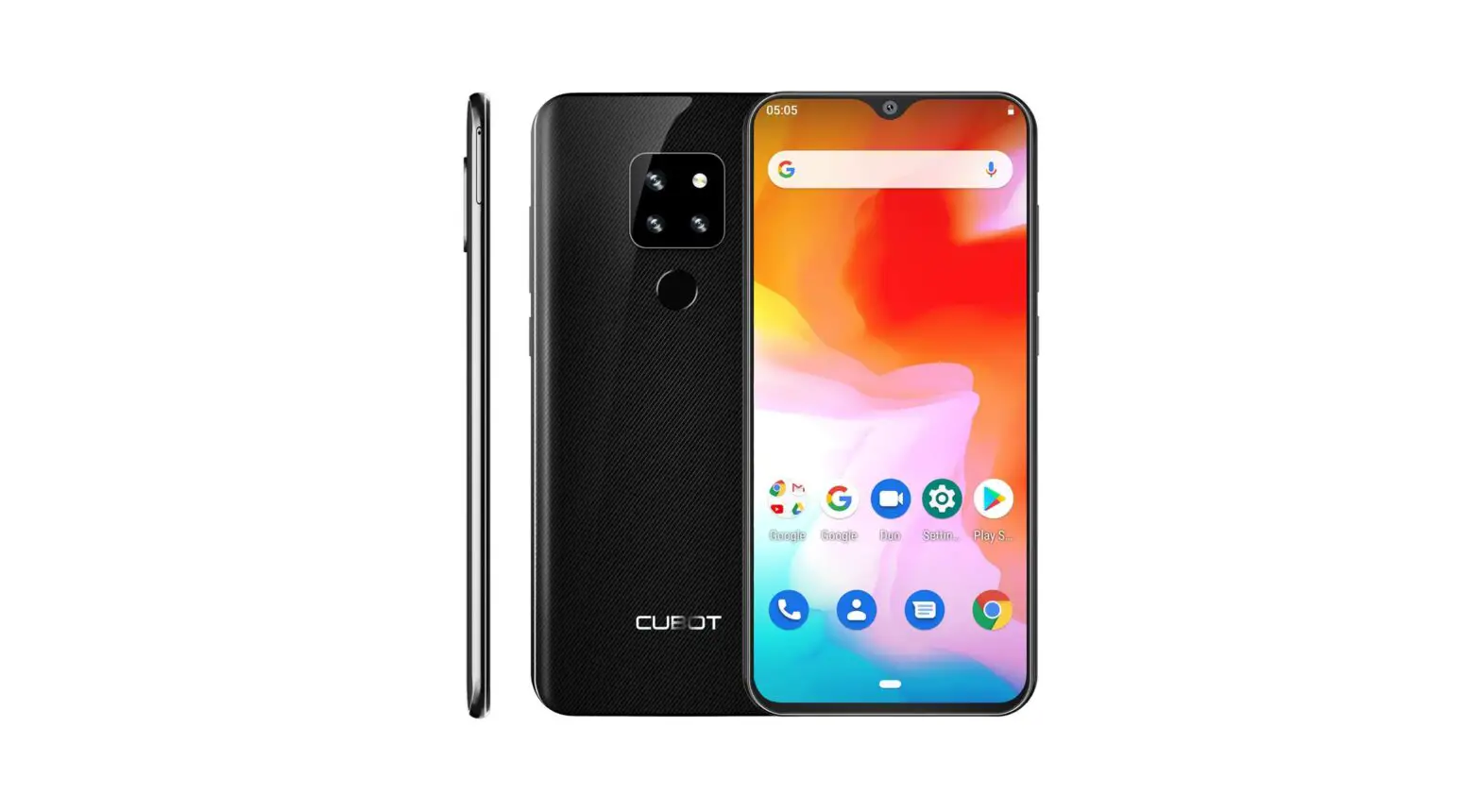
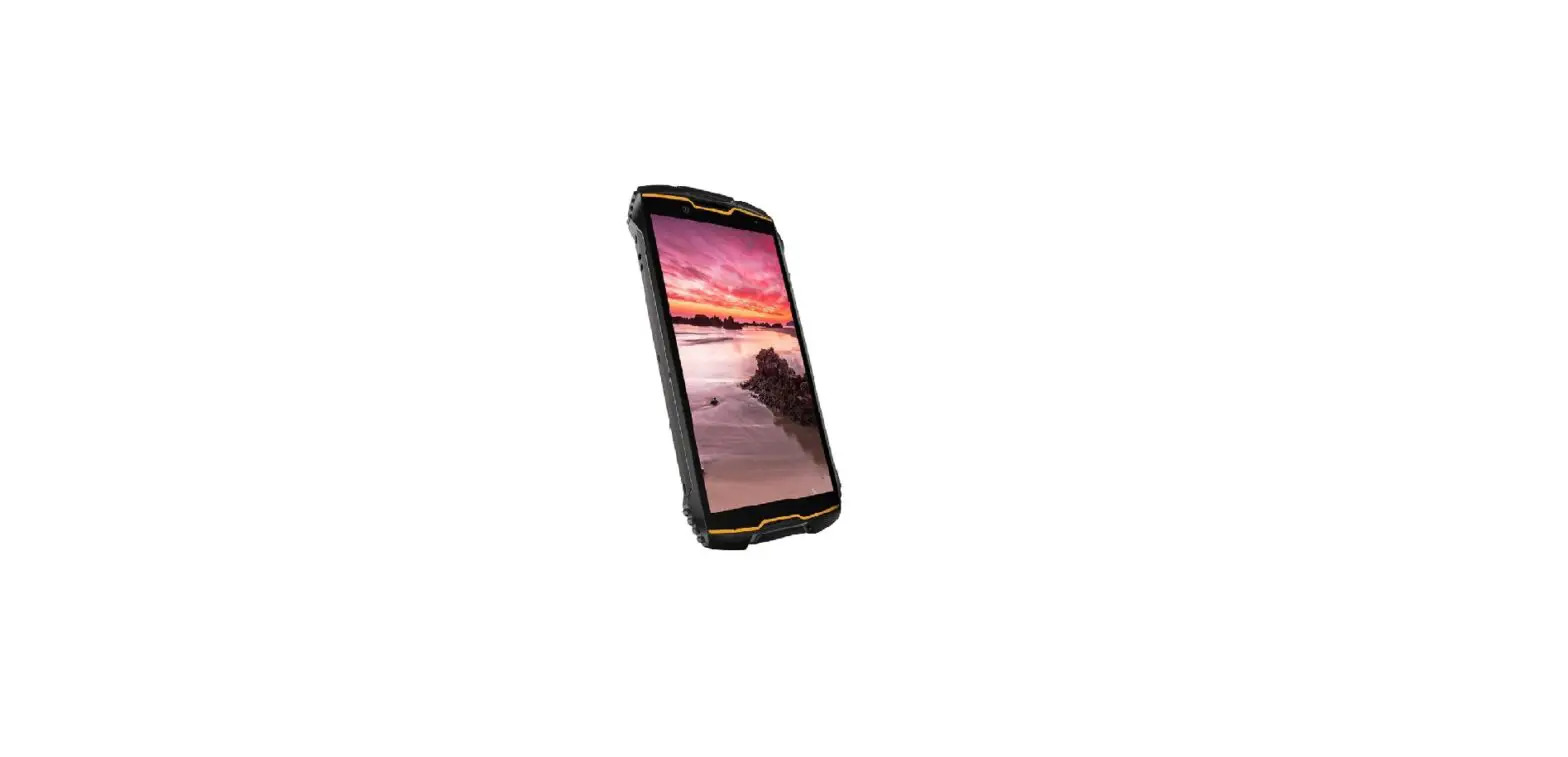
Quest Lite Smartphone Black
CUBOT Quick Start Guide
Start Here
This guide provides an overview of the CUBOT phone and
instructions for getting started.
Phone Overview
The CUBOT phone has the following buttons:
- Power key: Used to power off the phone, activate or deactivate
the screen, and end a call. - Home key: Used to return to the home screen and view recently
accessed features. - Menu key: Used to set wallpaper, view settings, manage apps,
view notifications, add shortcuts, widgets, folders &
wallpapers to the desktop, and view menu options. - Back key: Used to go back to the previous menu.
Getting Started
Before proceeding, make sure that the phone is powered off.
Follow these steps:
- Open the battery cover.
- Install the SIM card and memory card.
- Install the battery.
- Install the battery cover.
Powering Off the Phone
To power off the CUBOT phone:
- Press and hold the power key for a few seconds.
- Tap the options to confirm.
Activating or Deactivating the Screen
To activate or deactivate the screen:
- Press the power key once.
Ending a Call
To end a call:
- Press the power key.
Returning to the Home Screen
To return to the home screen:
- Touch the home key.
Viewing Recently Accessed Features
To view recently accessed features:
- Touch and hold the home key.
To perform any of these actions:
- Touch the menu key.
To go back to the previous menu:
- Touch the back key.
CUBOT Quick Start Guide
Start Here
Phone overview
Getting started
Please make sure that the phone is powered off before proceeding.
1. Open battery cover 2. Install SIM & memory card
3. Install battery
4. Install battery cover
Buttons
Power key: To power off CUBOTpress and hold power key for a few seconds, then tap the options to confirm. When CUBOT is on, press the power key once to activate or deactivate the screen. Press the key to end a call.
Home key ( ): Touch the key to return to the home screen. In idle screen, touch and hold the key to view recently accessed features.
Menu key ( ): In standby mode, touch the key to set wallpaper, view settings, manage apps, view notifications, add shortcuts, widgets, folders & wallpapers to the desktop. Touch it to view menu options.
Back key ( menu.
): Touch to go back to the previous
Obsah je uzamcen
Dokoncete, prosím, proces objednávky. Následn budete mít pístup k celému dokumentu.
Proc je dokument uzamcen? Nahnvat Vás rozhodn nechceme. Jsou k tomu dva hlavní dvody: 1) Vytvoit a udrzovat obsáhlou databázi návod stojí nejen spoustu úsilí a casu, ale i financní prostedky.
Dlali byste to Vy zadarmo? Ne*. Zakoupením této sluzby obdrzíte úplný návod a podpoíte provoz a rozvoj nasich stránek. Teba se Vám to bude jest nkdy hodit. *) Mozná zpocátku ano. Ale vzte, ze dotovat to dlouhodob nelze. A rozhodn na tom nezbohatneme. 2) Pak jsou tady ,,roboti”, kteí se pizivují na nasí práci a ,,vysávají” výsledky naseho úsilí pro svj prospch. Tímto krokem se jim to snazíme pekazit. A pokud nemáte zájem, respektujeme to. Urgujte svého prodejce. A kdyz neuspjete, rádi Vás uvidíme!