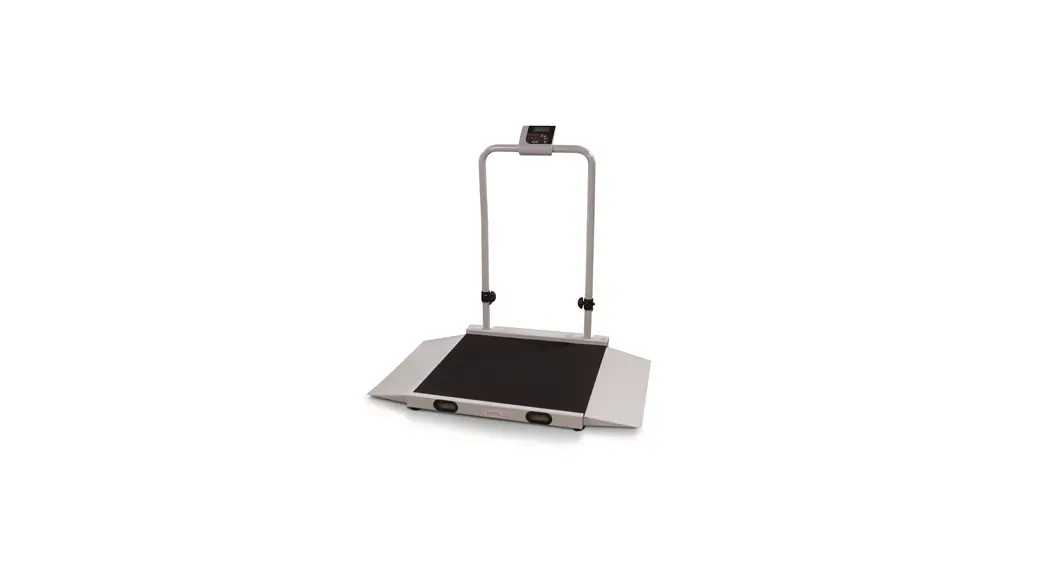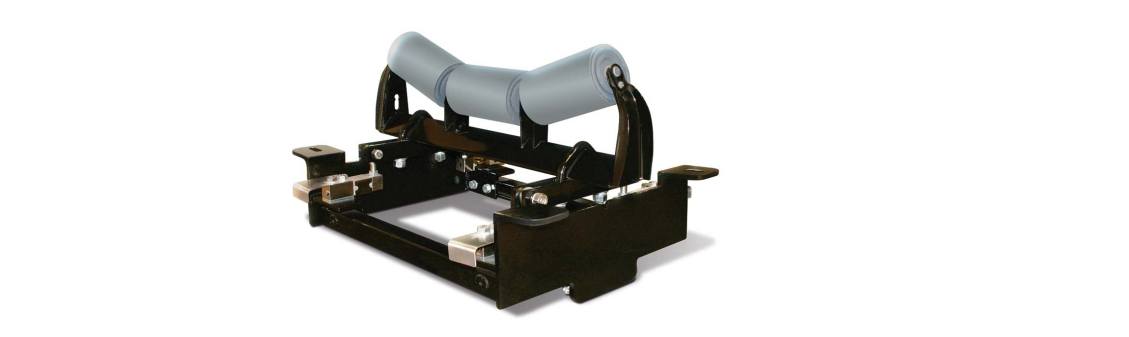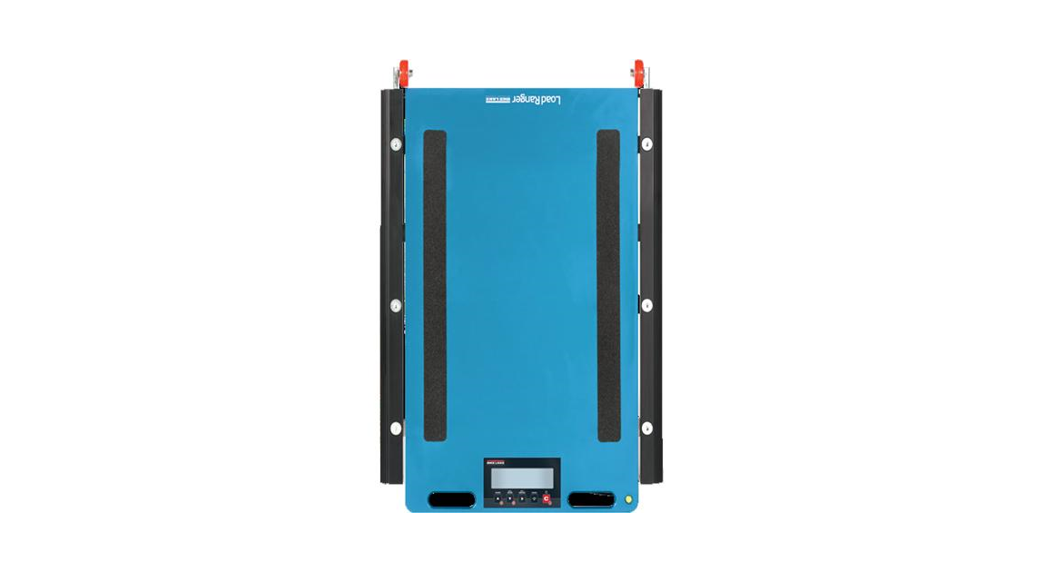

Load Ranger Wheel Weigh Pads
Quick Start Guide
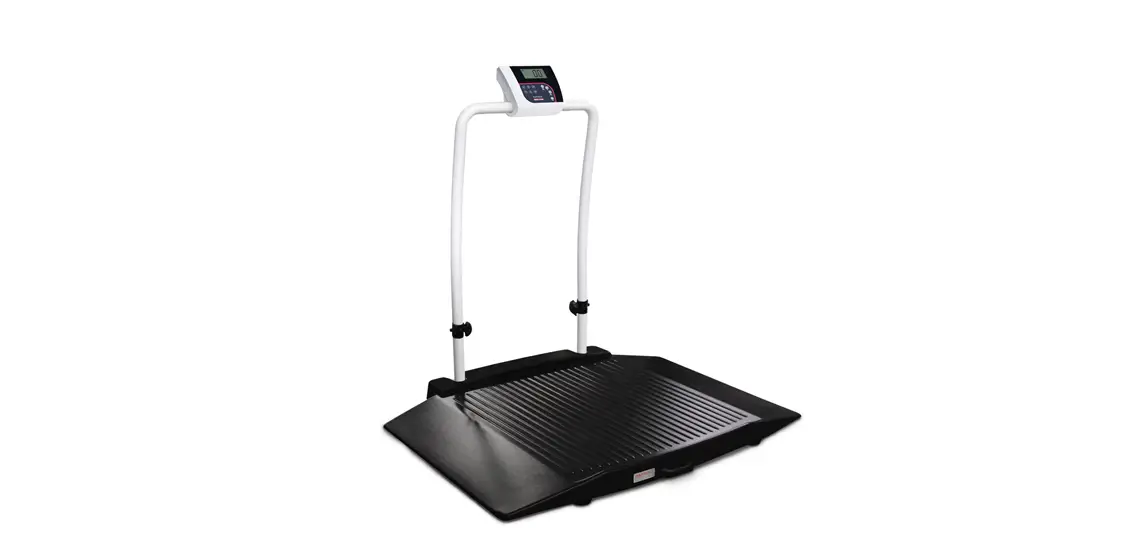
This document provides the procedures necessary to quickly set up the Load Ranger Wheel Weigh Pads and pair them with the Ai-1 Indicator to take weight readings.
Wheel Weigh Pad Configuration
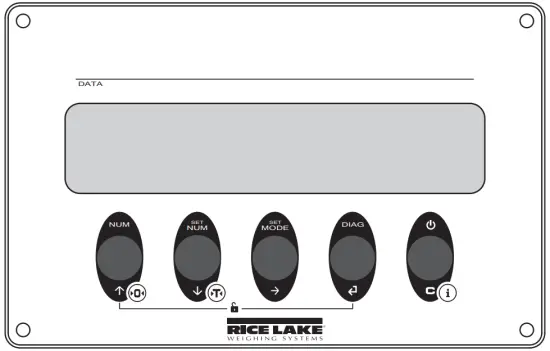
- Press
 to power on the indicator then press
 during startup.
  displays.
 - Press three times.
 displays.
 - Press
 to enter the Serial menu.
  displays.
 - Press to enter the ID settings.
- Press
 orto increase or decrease the selected digit and press
 to move between the digits to enter the pad ID number.
 Note: The first Pad ID number must be 01 and the remaining pad ID numbers must increment in ascending numeric order. Example: 01, 02, 03, etc.
 - Press to confirm.
 displays.
 - Press to enter the Bluetooth Initialization menu.
 displays.
 - Press to confirm.
 displays followed by
  displays.
 - Press twice.
 displays.
 - Press to confirm.
 briefly, displays and all the changed parameters are saved.
 - Repeat steps for all-wheel weigh pads in the system.
 to power on the indicator then press
 during startup.
  to enter the Serial menu.
  or
or to move between the digits to enter the pad ID number.
 displays.
Pairing Ai-1 Indicator with Wheel Weigh Pads
- Press
 to turn on the Ai-1 indicator.
 - During startup, press the upper right corner of the screen when the logo displays to enter the Technical Setup menu.

- Press

- Press

- Press


- Select the number of wheels to weigh pads to be used.
- Press

- Press

- Press

- Press
 to start the pairing process. A prompt displays (Figure 4). Do not press anything at this time.
- Turn off all of the wheels weigh pads.
- Turn on the first weigh pad only (pad assigned ID 01).
- Press
 in the prompt window (Figure 4 on page 3) to start the pairing process. Connecting… displays alongside the ID number.
 - Once the serial number of the first wheel weigh pad displayed, turn on the second wheel weigh pad (assigned ID 02).

- Repeat this process until all of the weigh pad pin numbers in the desired system are displayed. Once the last wheel weigh pad is paired, a prompt displays.

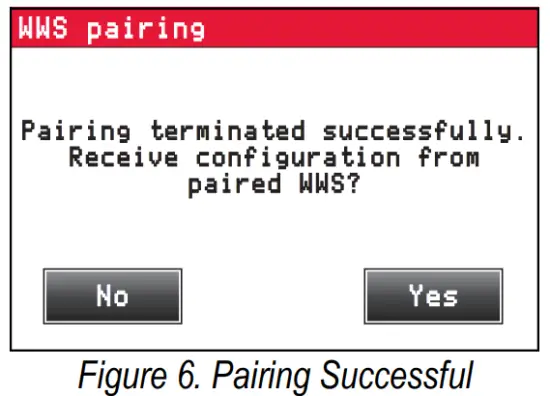
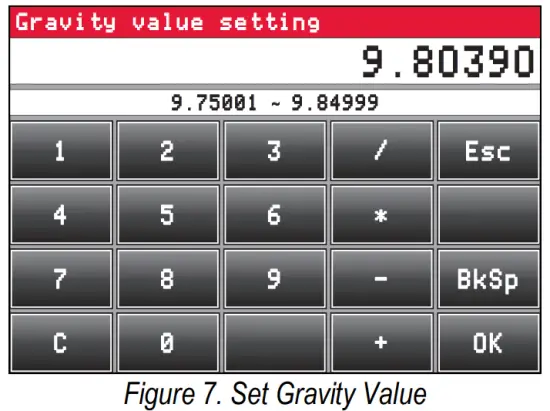
- Press to confirm the completion of pairing. The Gravity Value Setting keyboard displays.
- This should save loading weights on all eight scales.

- Enter the gravity value for the area the wheel weigh pads are to be used in.
- Press.
- Press
 three times to get back to the Technical Setup menu.
- Press
 . Setup changed box displays.
- Press to save settings and complete setup. Indicator reboots to Weigh mode.
 to turn on the Ai-1 indicator.



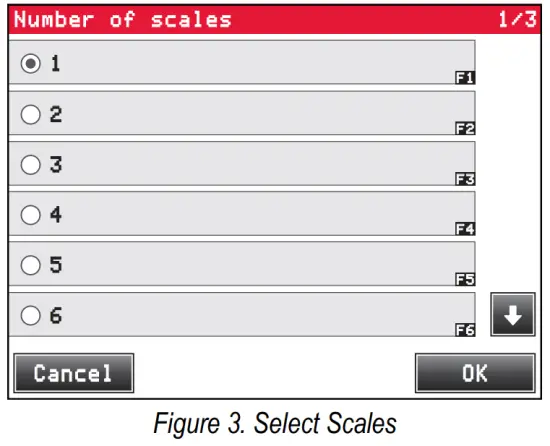



 to start the pairing process. A prompt displays (Figure 4). Do not press anything at this time.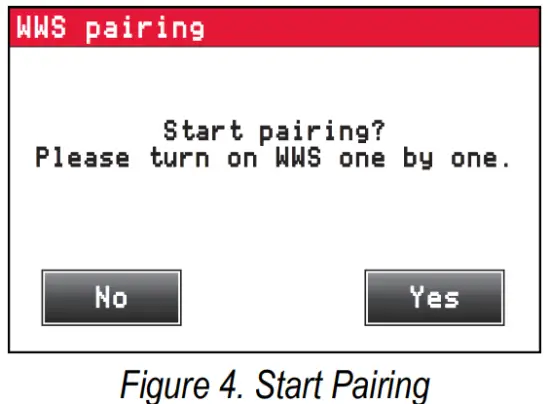
 in the prompt window (Figure 4 on page 3) to start the pairing process. Connecting… displays alongside the ID number.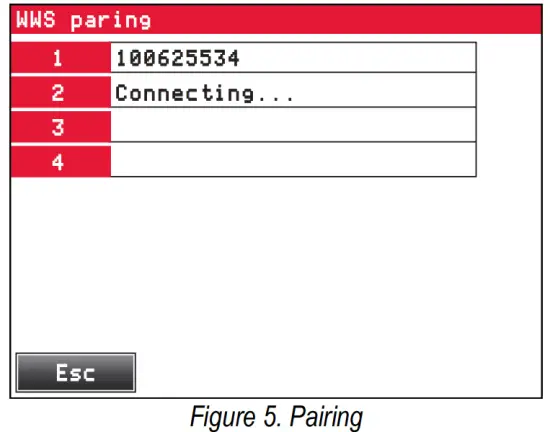
 three times to get back to the Technical Setup menu.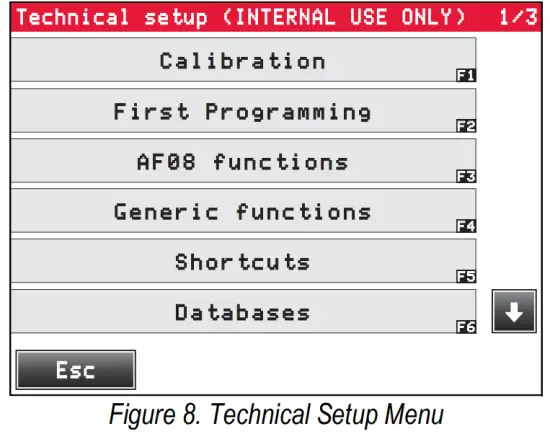
 . Setup changed box displays.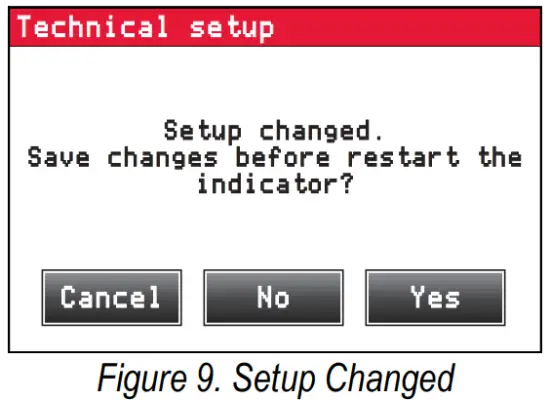
Initial Setup Parameters
The following parameter windows display during the initial setup before the indicator reboots to Weigh mode.
- The Backup of the Configuration window — Pressto backup all settings
- The Password window displays — Pressor
 , depending on if a password is needed
 - The Technical Setup window displays — Pressto convert the indicator units to match the weigh pad units
 , depending on if a password is needed
Applications
The Load Ranger weighs pads can be arranged to serve multiple applications. The adjustment from one scenario to another is made quickly and easily with the wireless and portability features of the Load Ranger system. This section highlights several of the arrangements available. Note: For additional Load Ranger Wheel Weigh Pad System information, see the Load Ranger Wheel Weigh Pad System Technical Manual (PN 189612).
Wireless Setup
A wireless system allows for weighing with up to seven connected wheels and weigh pads.
Connection Procedure
- Assign ID numbers to the weigh pads and initialize Bluetooth.
- Pair the Ai-1 indicator with the weigh pads.
- Turn off the weigh pads and the Ai-1 indicator.
- Connect RS485 cables to the weigh pads’ data communication ports.
- Connect the other ends of each RS485 cable to one of the Ai-1 indicator communication ports. Note: The wheel weighs pads can be connected to any of the RS485 ports on the Ai-1 indicator. The pad ID assigned within the weigh pad dictates the scale number and it does not need to match the Ai-1 indicator channel number.
- Turn on all of the weigh pads.
- Turn on the Ai-1 indicator.
485briefly displays on weigh pads (Hrepresents the assigned pad ID number).PL.Hthen displays on the weigh pads and they are ready for use.
Wired Setup
A wired system allows for weighing up to four connected wheels and weigh pads. The data communication port is located on the underside of the wheel weigh pad. For the RF-MD the port is located at the handle end of the platform and is the port further from the edge. For the RF-WD and RF-XWD, the port is located at the end opposite the platform handles.
Hybrid Wireless Setup
A hybrid system allows for weighing up to 14 connected wheels and weigh pads.
A hybrid wireless system allows for the weighing of vehicles with four to seven axles. These larger applications are possible by connecting each axle set of weighing pads together with a cable so that one weigh pad is able to transfer both sets of weighing data wirelessly to the indicator.
Note: Seven wireless and seven wired wheels weigh pads can be connected together for a total of 14 wheel weigh pads.
© Rice Lake Weighing Systems Specifications are subject to change without notice.
Rice Lake Weighing Systems is an ISO 9001 registered company.
230 W. Coleman St. • Rice Lake, WI 54868 • USA
U.S. 800-472-6703 • Canada/Mexico 800-321-6703 • International 715-234-9171 • Europe +31 (0)26 472 1319
www.ricelake.com
February 22, 2021
PN 189611 Rev B
 Rice Lake Weighing Systems