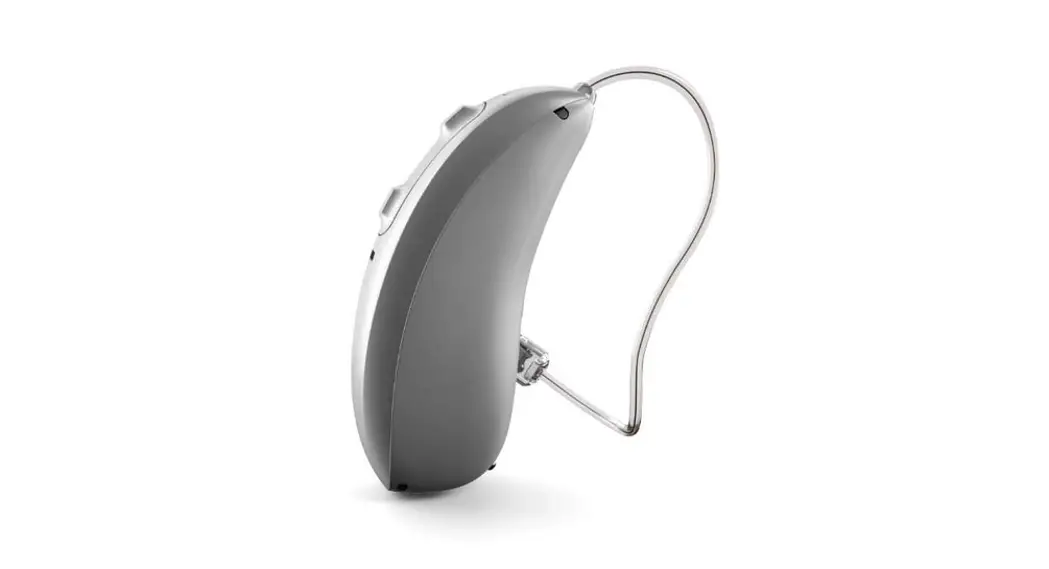

How to pair your Kirkland Signature 10.0 Hearing Aids with T-coil to your cell phone
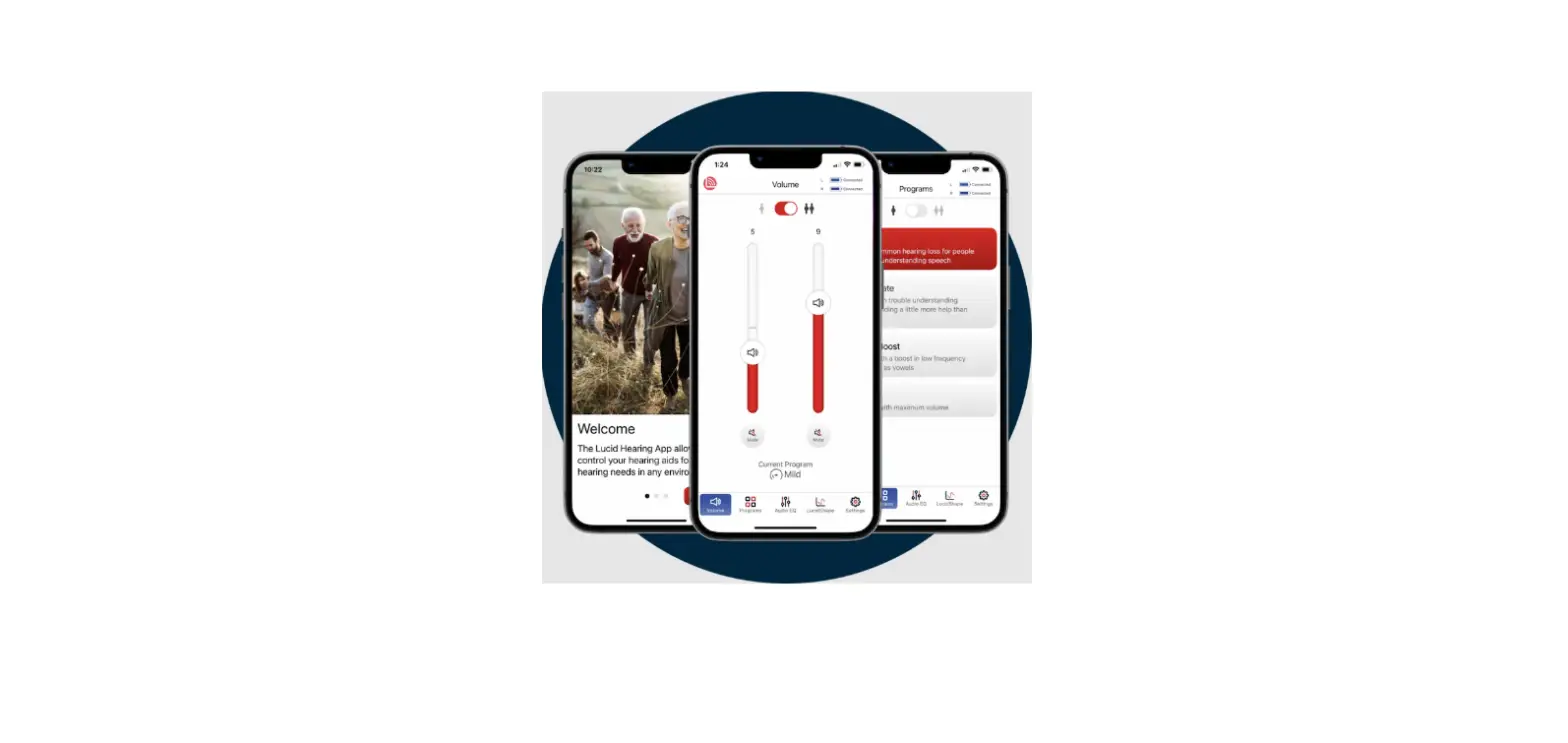
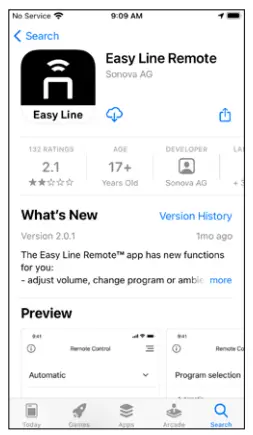
- Download and install the Easy Line RemoteTM app from the Google PlayTM or App Store®

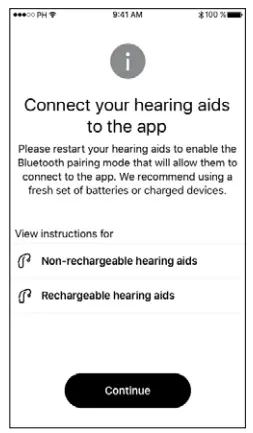
- Open the app and restart your hearing aids

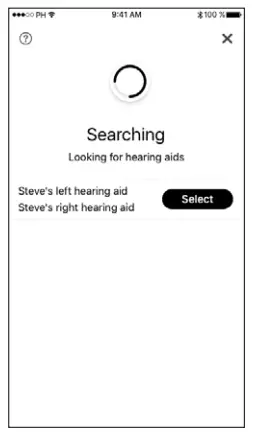
- Select your hearing aids

- Contact your Hearing Aid center staff (HACS) and set up a scheduled time for a Remote Support appointment
Google Play is a trademark of Google LLC. App Store is a service mark of Apple Inc.
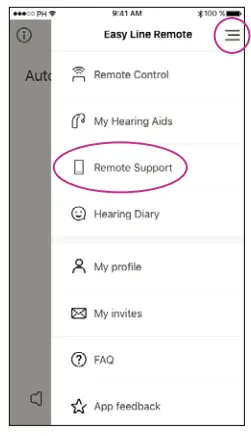
How to start a Remote Support session - To start Remote Support tap the 3 lines at the top right

- Tap “Remote Support”
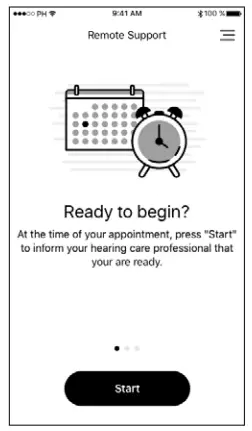
- Tap “Start” to begin searching for your Hearing Aid center staff (HACS)

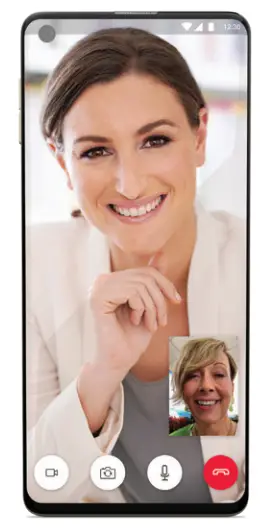
NOTE: You must have already set up an appointment time with your hearing care professional. They will only be available if you have an established appointment already set up. Please be patient as they connect. - Video chat with your Hearing Aid center staff (HACS)

V1.00/2021-04/hc
© 2021 Sonova AG.
All rights reserved.