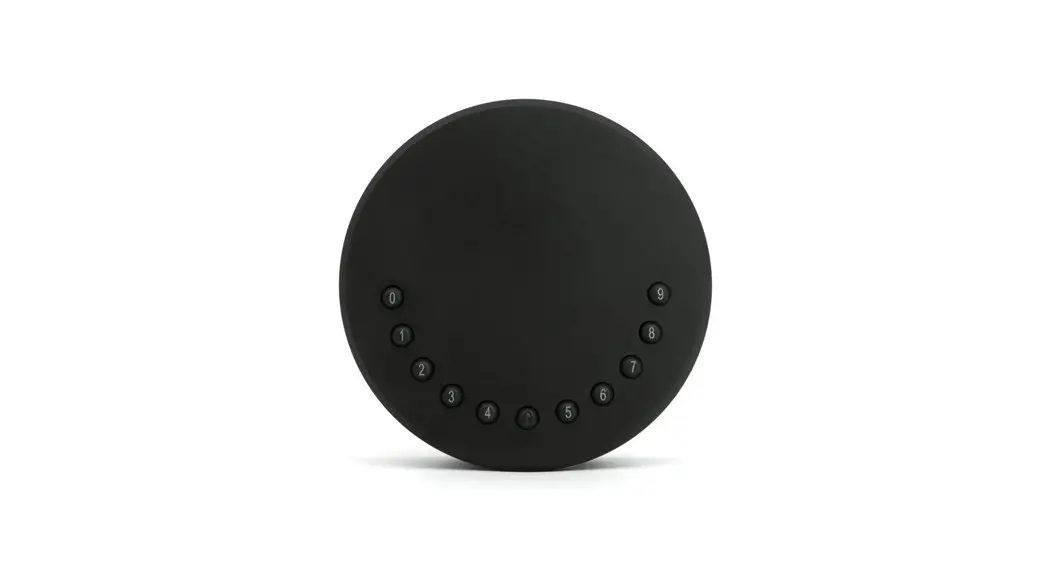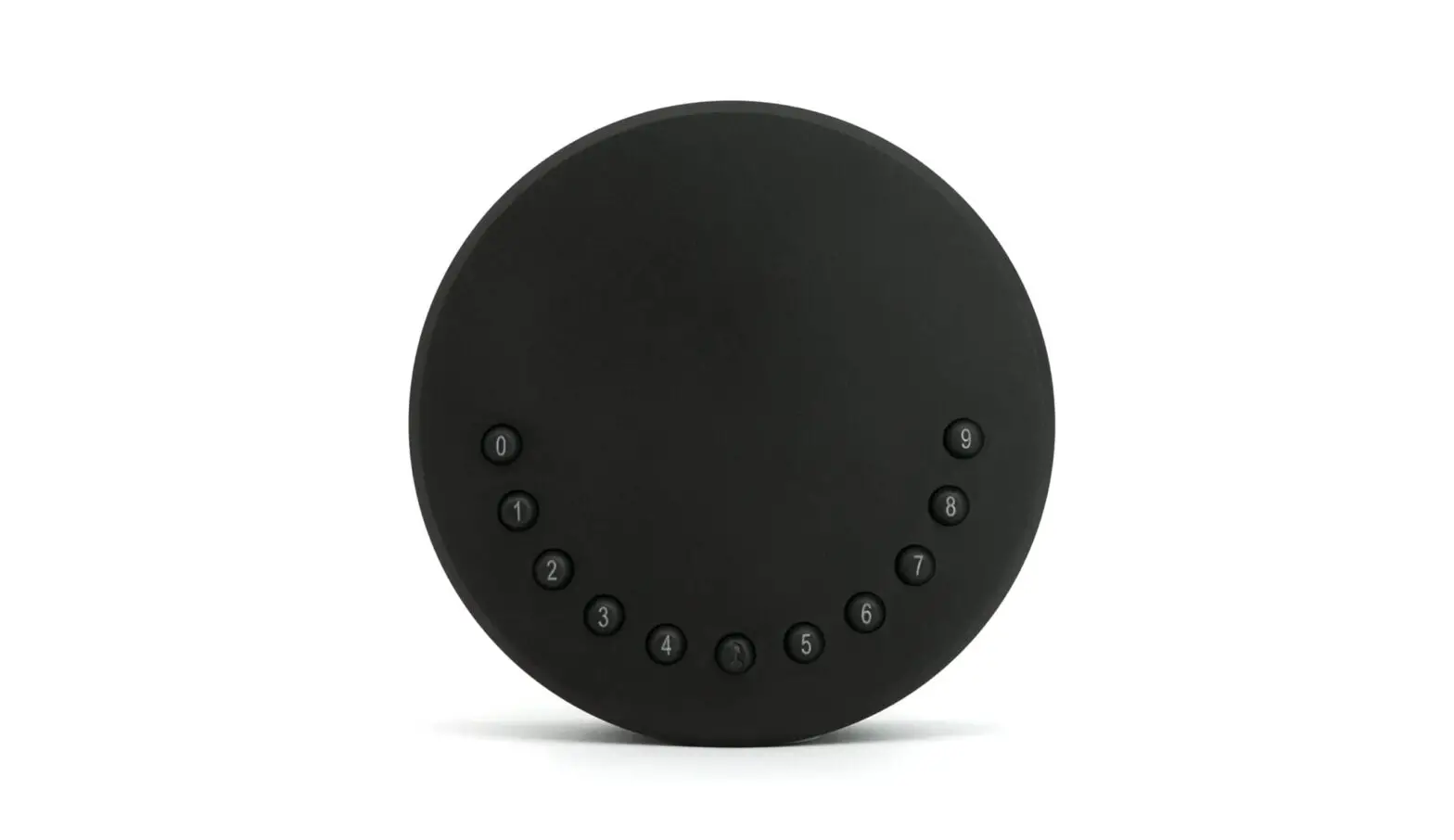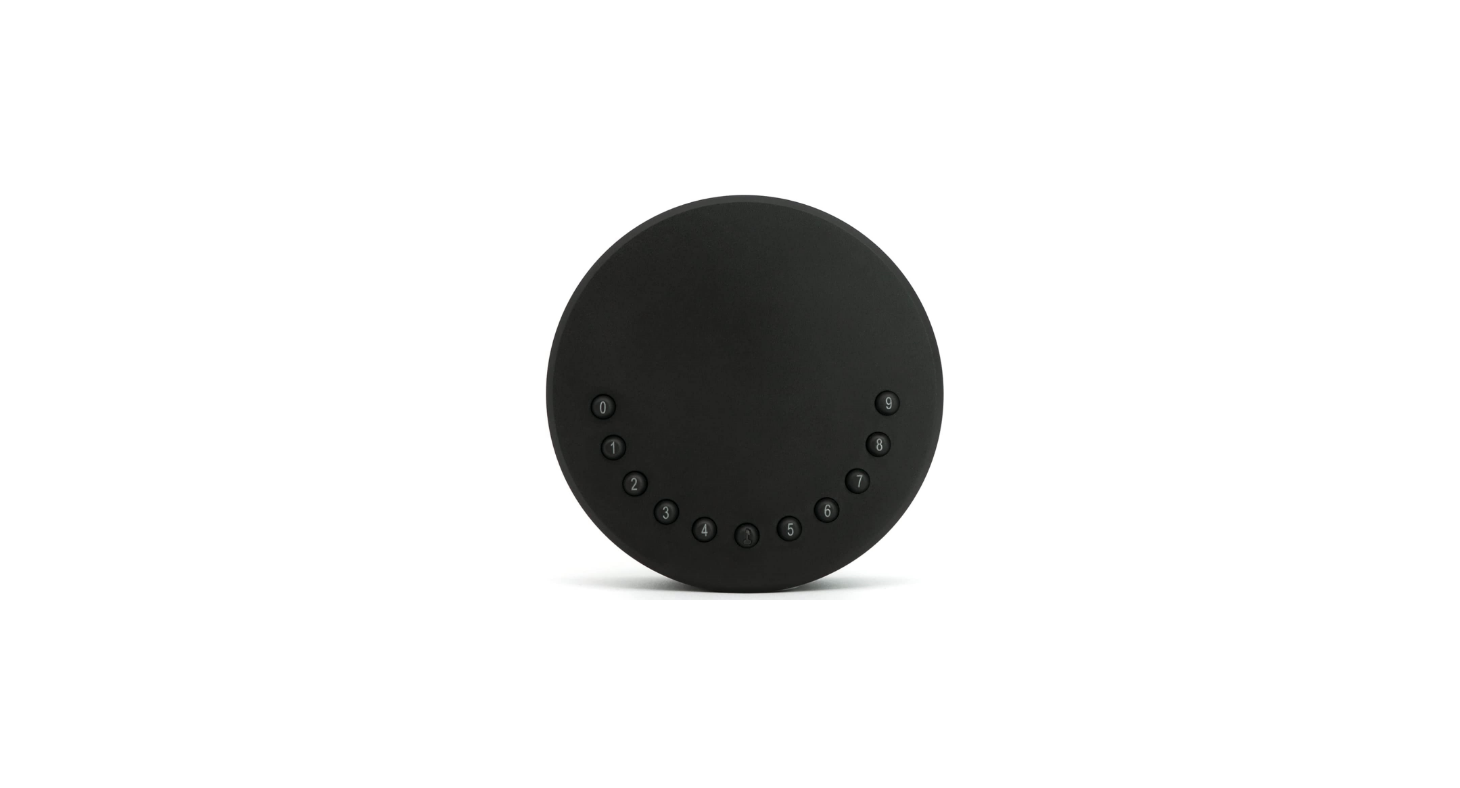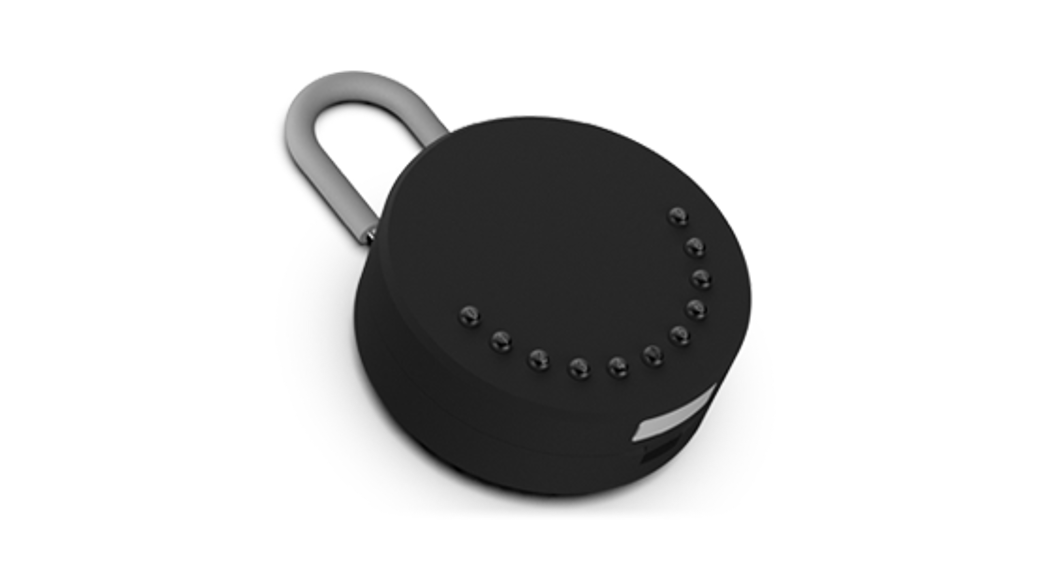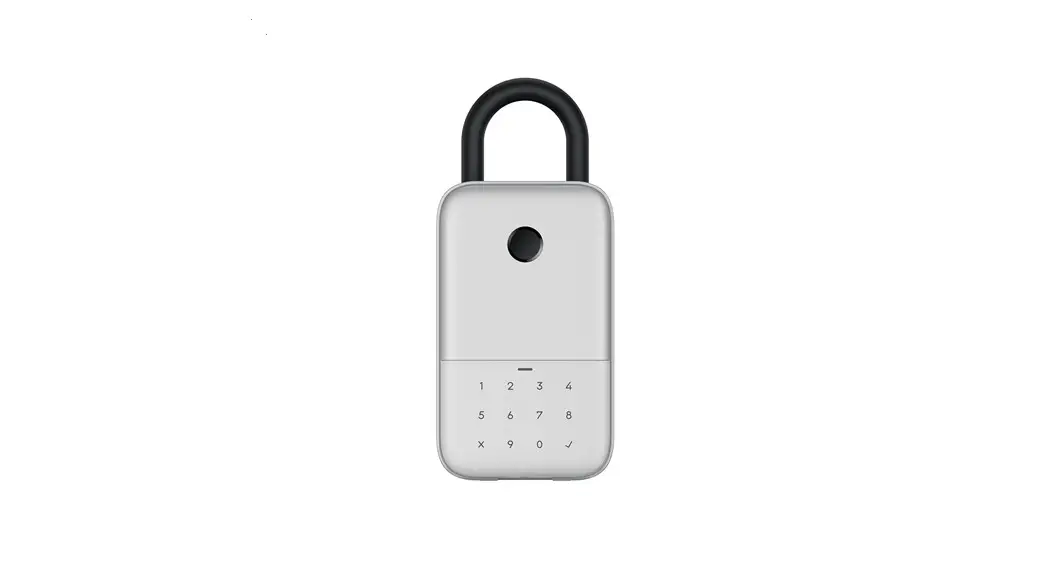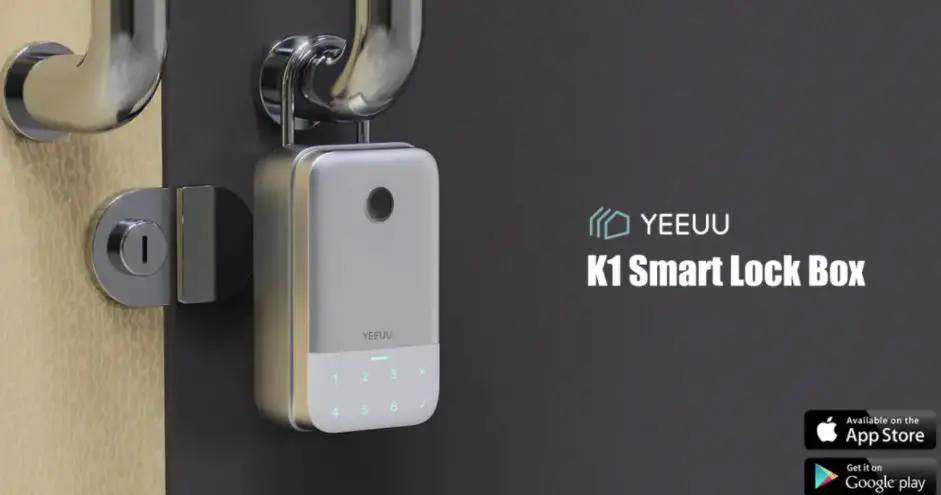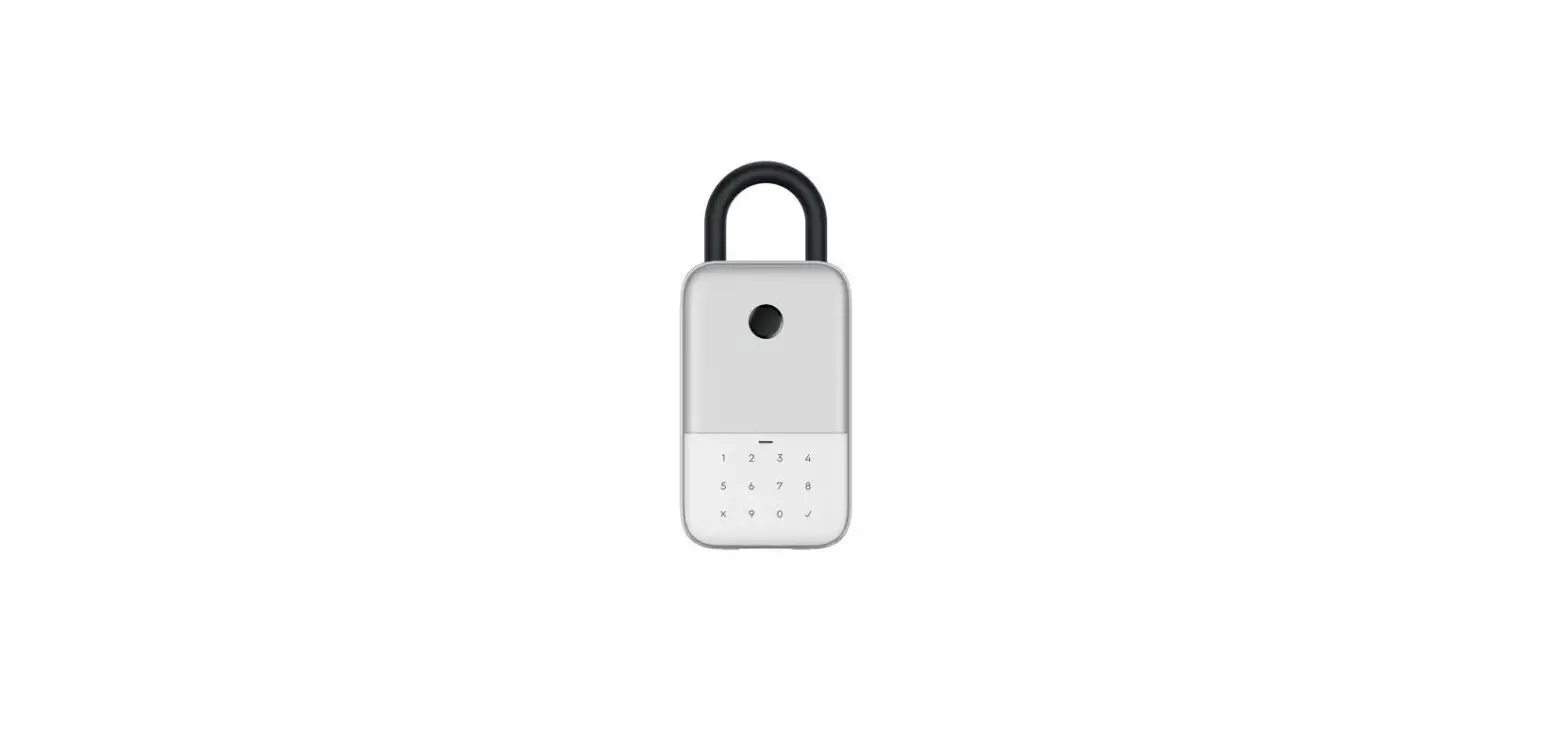
K12 Plus
USER MANUAL V2.0
What’s Included
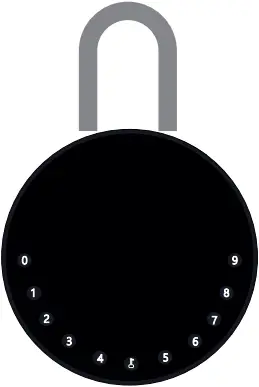

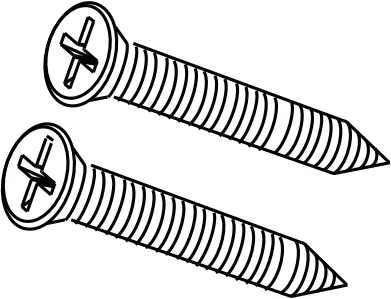
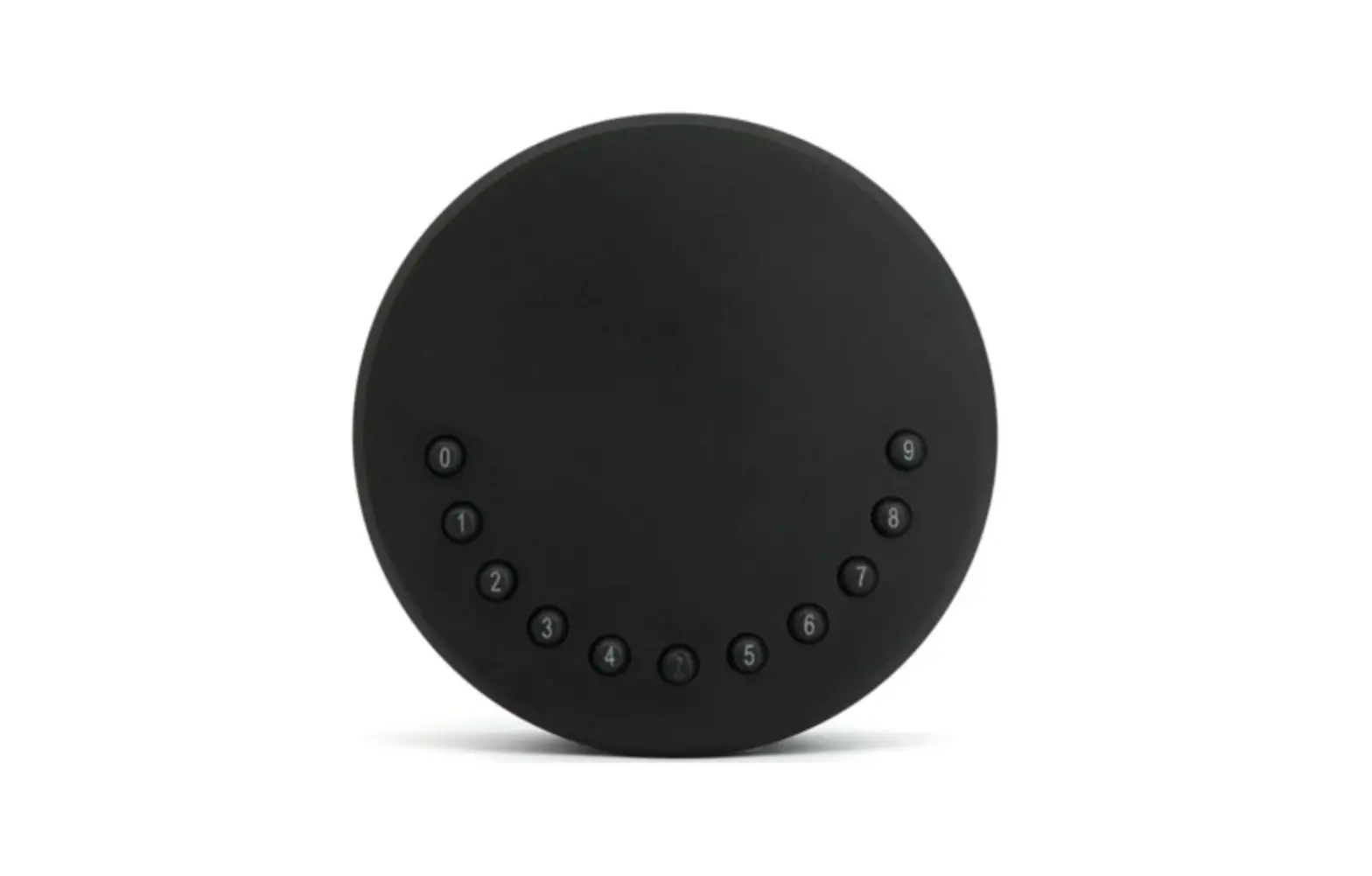
1 x Key Box 1 x Hello Card 2 x Mounting Screws


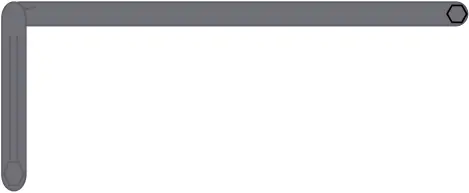
2 x Screws Anchors 2 x Screw Rubber Cap 1 x Screw Driver(Hexagon)

2 x Screw Hole Rubber Stopper
Specification
Model K12 Plus
Material Body Zinc Alloy, SUS304
Battery 4 x AAA Alkaline Battery
Unlock Mechanism Bluetooth, PIN Code, App
Jump Start USB-C
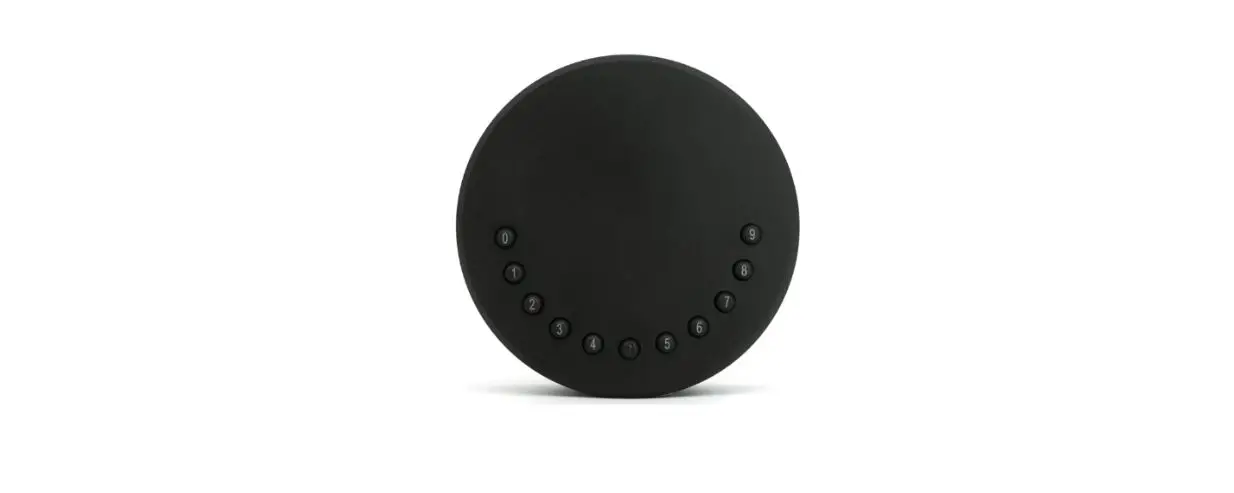
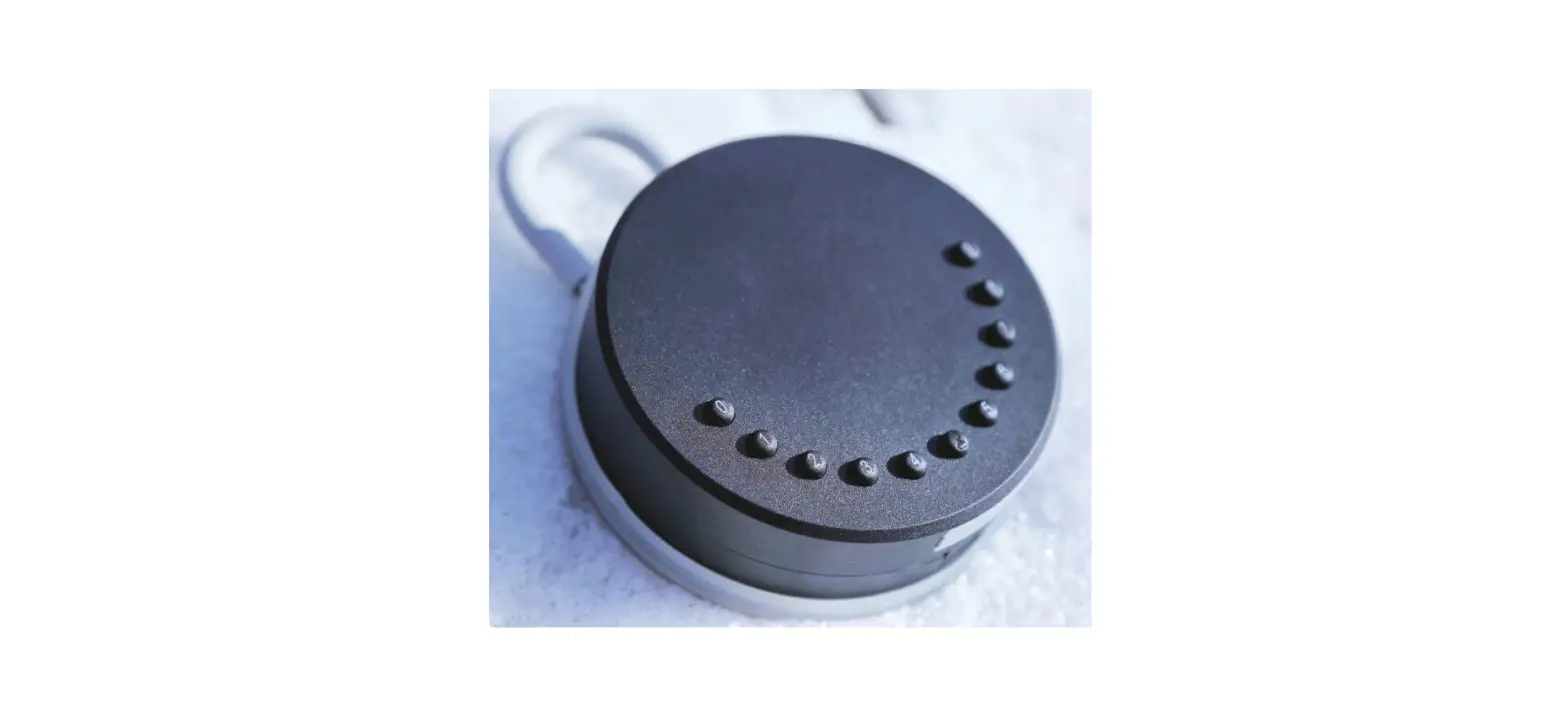
Front Inside Back
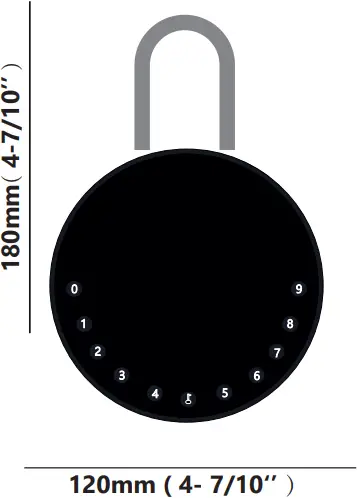
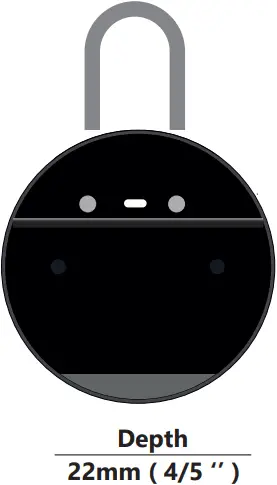
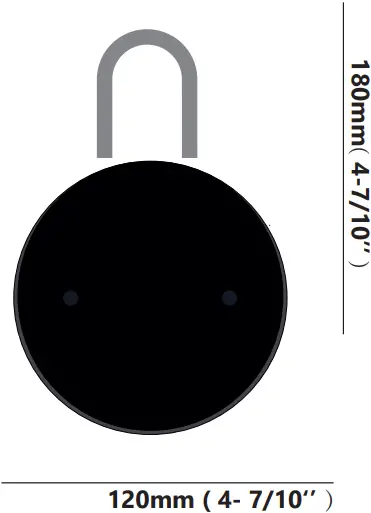
Features
Lock&Unlock

Administrator Unlock
Set a Master Administrator PIN for Unlocking, settings, operations etc. and only the administrator could change the administrator PIN code.

Anti-peeping
Add up to 10 digits before and after PIN code to intensify your PINs.

User Unlock
This KeyBox allows to add up to 100 user PIN codes for your family, friends and visitors.

Auto Locking
If there are no opening motions in 10 seconds the box will be automatically locked.
Mobile Control

Bluetooth one-touch unlock
With your Mobile you could unlock the KeyBox by tapping the “ ” on the App.
Mobile Administrator
Set Administrator PIN Codes from your Mobile to unlock, add users, delete users, etc.

Offline Unlock
You could generate offline code through mobile App, for scheduled access, parcel delivery, housekeeping, etc.
Battery

Battery Life
4 AAA batteries, the life cycle will be more than 12 months, please use good batteries.

Low Consumption
BLE broadcasting turns to sleep mode if no operations.
Low Battery
When the battery runs out of power, system will remind you to replace the batteries.
Emergency

Jump Start
When the power is down and use USB-C to jump start the lock and get it unlocked

System Lockdown
The lock will be lockdown for 5 minutes if continuously enter wrong PINs for 5 times.
Quick Start
Step 1>Install Battery
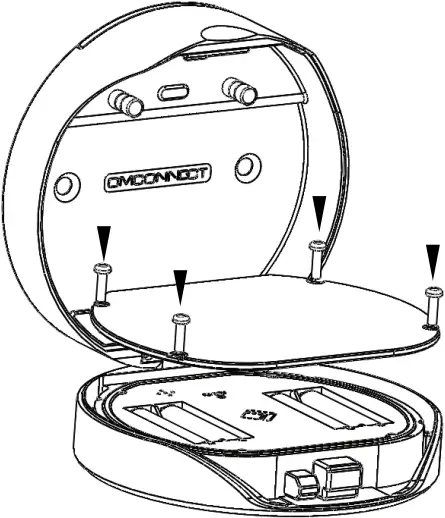
>. Remove the (4) screws on the battery cover
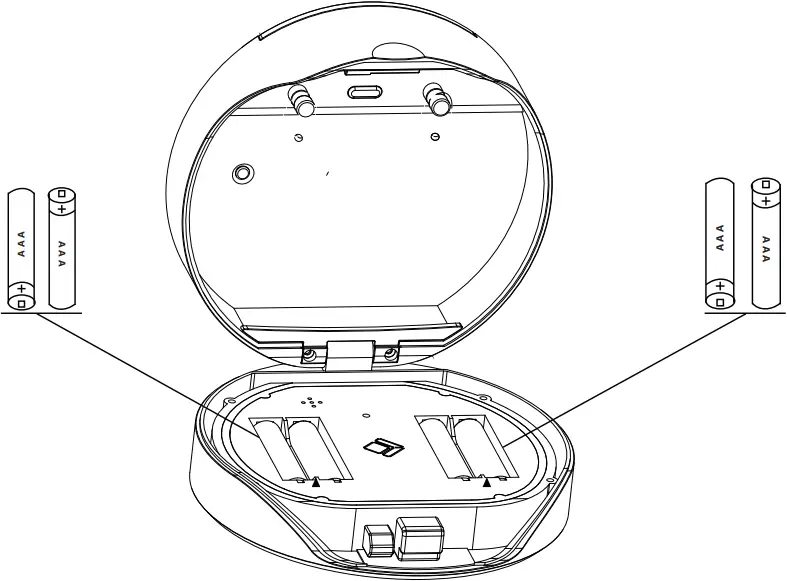
>. Put 4 AAA batteries into the battery dock.
Step 2>Download Mobile App
>1. Scan QR Code below and download the App and turn on your mobile Bluetooth

Step 3>Add Device
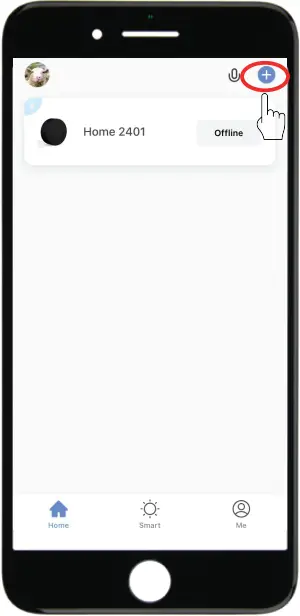
>1. Go to App Home page, click Add Device or click “+” on the upper right.
>2. Press the “Reset” button and hold it for 3 beeps to start pairing
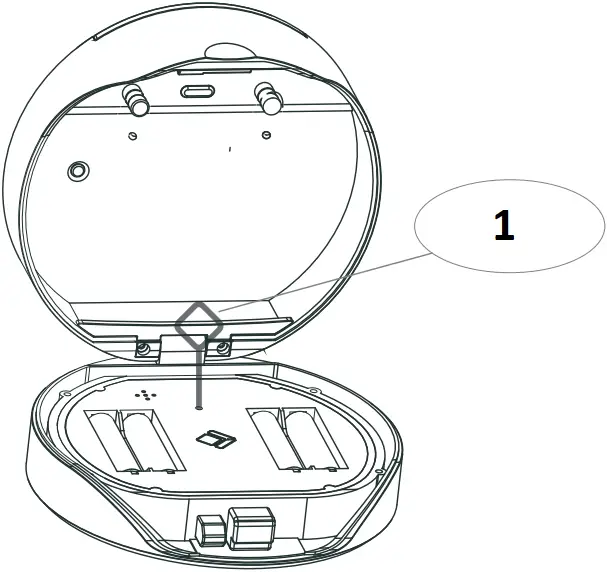
- Use The Reset Tool
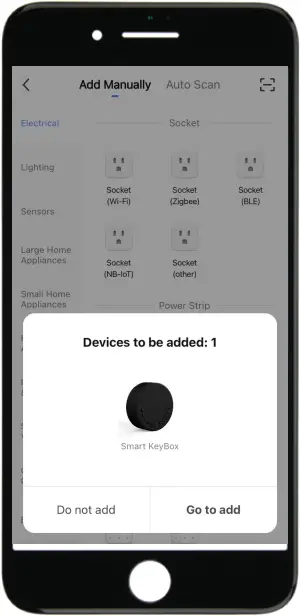
>3. You will see the detected device and click “Go to add”.
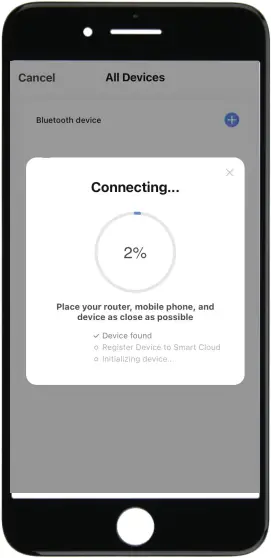
>4. Connecting, you need to wait for few seconds to let it finish.
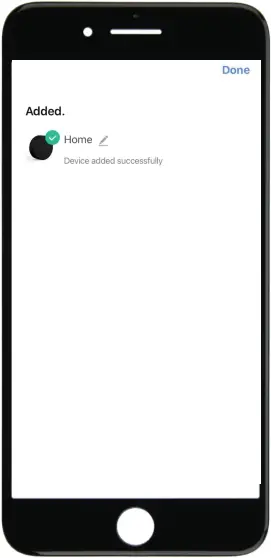
>5. Device added
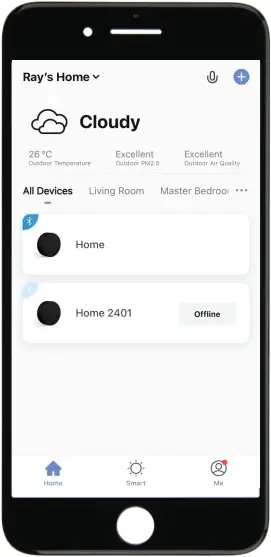
Step 4>Change Admin Password-Initial Admin Password:123456
>1. Press  and hold for 3 beeps
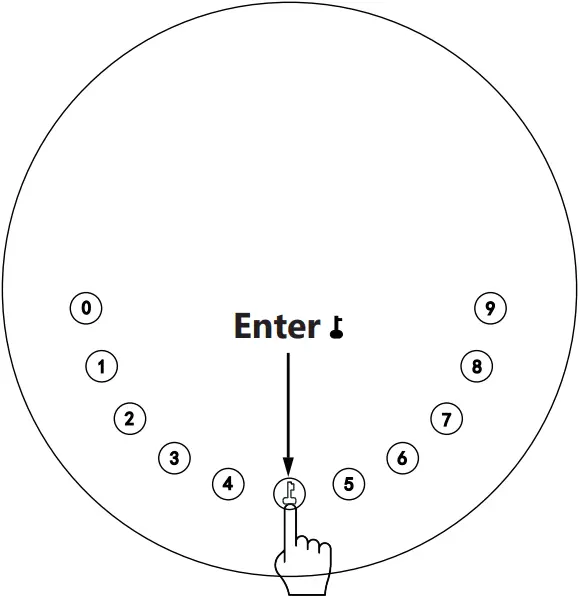
>2. Right after the 3 beeps please key in:
Initial Admin Password + +new admin password+ +new admin password+
Mechanical Instructions
Password & Factory Mode:
1. Password Length Password must be 6 digits (no more no less)
2. Add User Password Click + 0 + until the blue light blinks
>. Enter admin password +
>. Enter new user password +
>. Repeat new user password +
3. Delete User Password Click + 2 + until the blue light blinks
>. Enter admin password and do not press any more buttons
>. Enter the user password you wish to delete and press
>. When the (Enter button) blinks in green the password has been deleted.
4. Delete All User Password Click + 00000 + until the blue light blinks
>. Enter admin password and press
>. Enter the user password you wish to delete and press
>. When the (Enter button) blinks in green all passwords have been deleted.
5. Virtual digits-Anti Peeping Add any digits before and after the correct password the KeyBox unlock as always
6. System Lockdown KeyBox will Lockdown for 5 minutes if entering wrong password continuously 5 times
7. Reset Factory Mode Press and hold the reset button for 5seconds and with a long beep
Bluetooth broadcasting & re-connecting:
Press and hold the reset button for 3 beeps, you will be able to pair the device.
Bluetooth broadcasting will turn to sleep mode if no operations within 1 minute.
Press any key to activate the Bluetooth, App&Device will get reconnected each other.
App Instructions
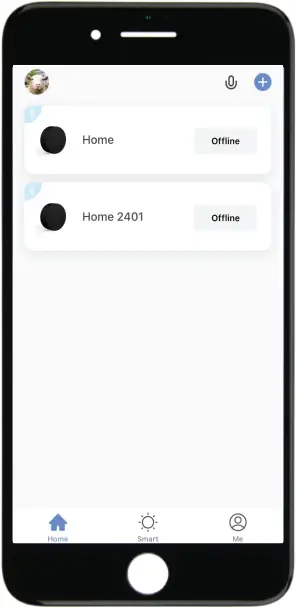
You will see all devices and rooms on the home page. Tap the Device to start operating. Tap “Me” at the bottom to manage your home.
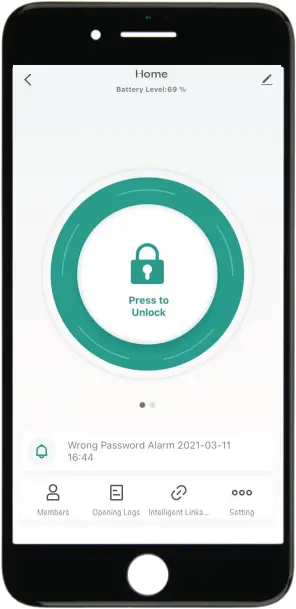
Touch the lock sign to unlock and lock. Tap “Bell” sign to check the alarm records. Tap “Member Management to add or delete members. Tap “opening record” to check opening logs. Tap “Intelligent Linkage” to turn on and off go home mode. Tap “Set” to manage passwords
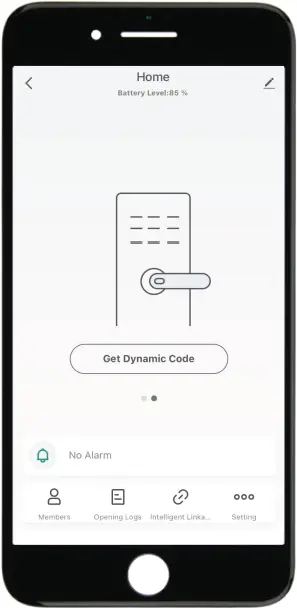
Tap “Get dynamic code” to get a code. Tap “copy code” and send it to friend or family. Tap “Pen” sign to edit your personal information.
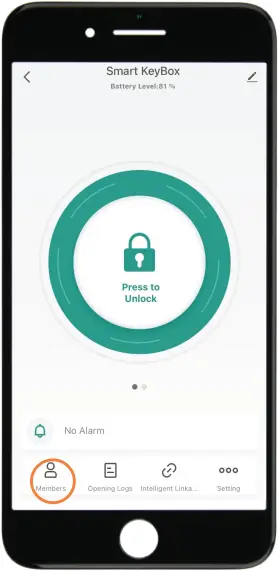
Go to “Members” to add family or other members
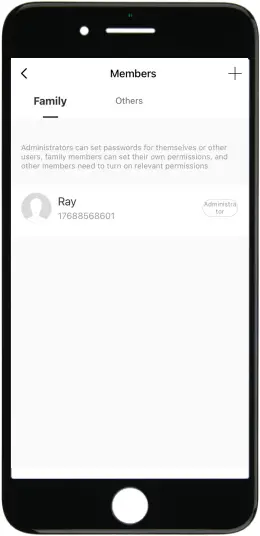
Tap “+” to add family member or other members
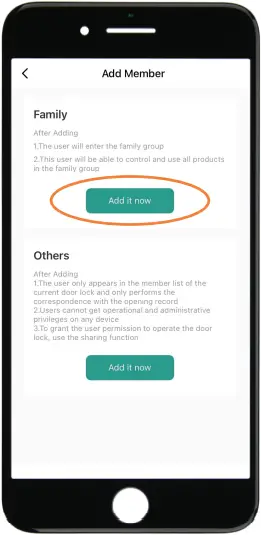
Tap ” Add it now” under Family to add family members.
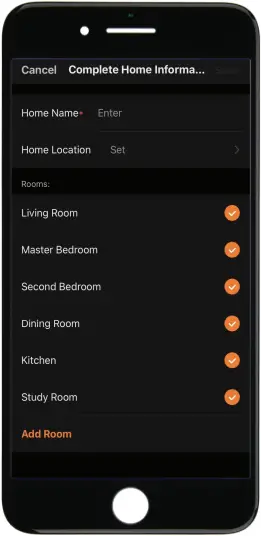
Owner need to complete the Home information before adding any family member if required The member need to be registered to the App before adding as a family member
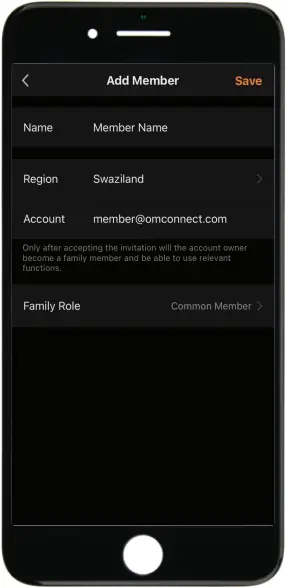
Fill up member information and set the role of the member Tap “Save” to complete and the member will be able to operate the device on his App
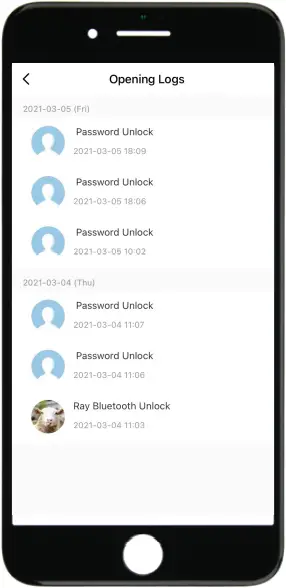
Go to “Opening Logs” to check the unlocking history With this feature you will be able to find out when and who unlocked the KeyBox
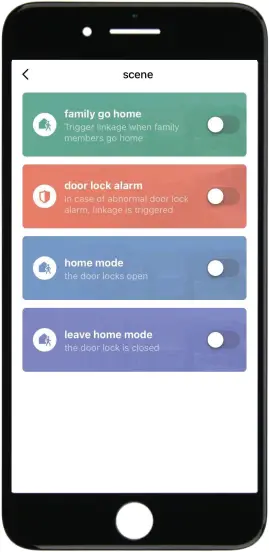
Go to “Intelligent Linkage” to set more smart functions Tap the green bar to turn on “Family go home”function. Tap the orange bar to turn on “Door lock alarm”function You will get notification if user unlocked with Bluetooth Go to “me” homepage and got to message center to check the records.
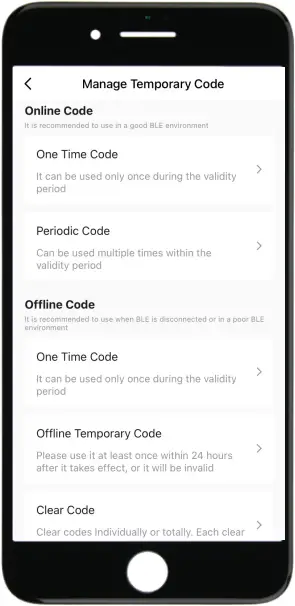
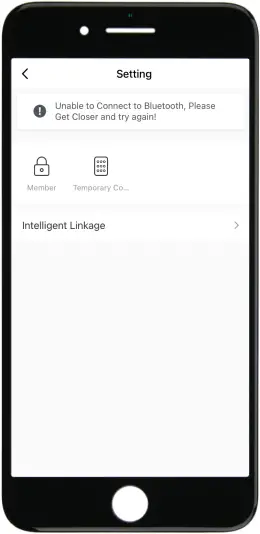
Tap “password management” to add or remove codes. Tap “Temporary code” to manage online and offline codes.
Tap “one-time code” under Online Code to set an online one time code. Tap “periodic Code” under Online Code to set a online code which will be available in a period of time. Tap “One-Time Code” under Offline Code to generate a one time offline code which will be a 10 digits code and use it when the device is offline. Tap “Offline Temporary Code” under Offline Code t generate an offline code (10 digits) which will be available in a period of time, and use when the device is offline or Bluetooth disconnected with device. Tap “Clear Code” to generate a code (10 digits) which is able to clear Codes that need to be invalid or clear all codes. Please note if the code less than 10 digits you need to regenerate a new code, the code must be 10 digits.

DESIGNED IN FRANCE MADE IN CHINA
COPYRIGHT © 2020 OMFOCUS TECH. ALL RIGHTS RESERVED.