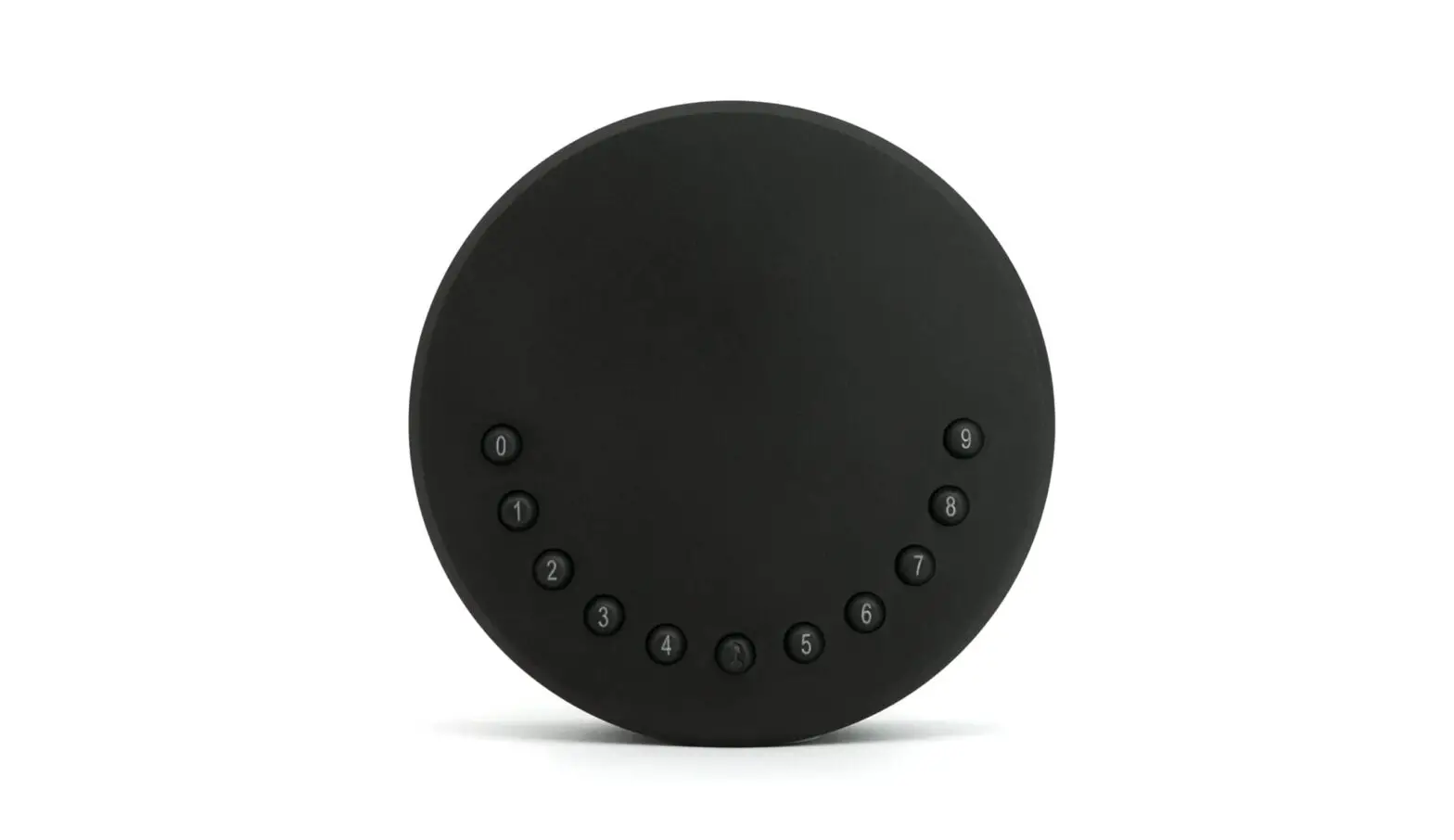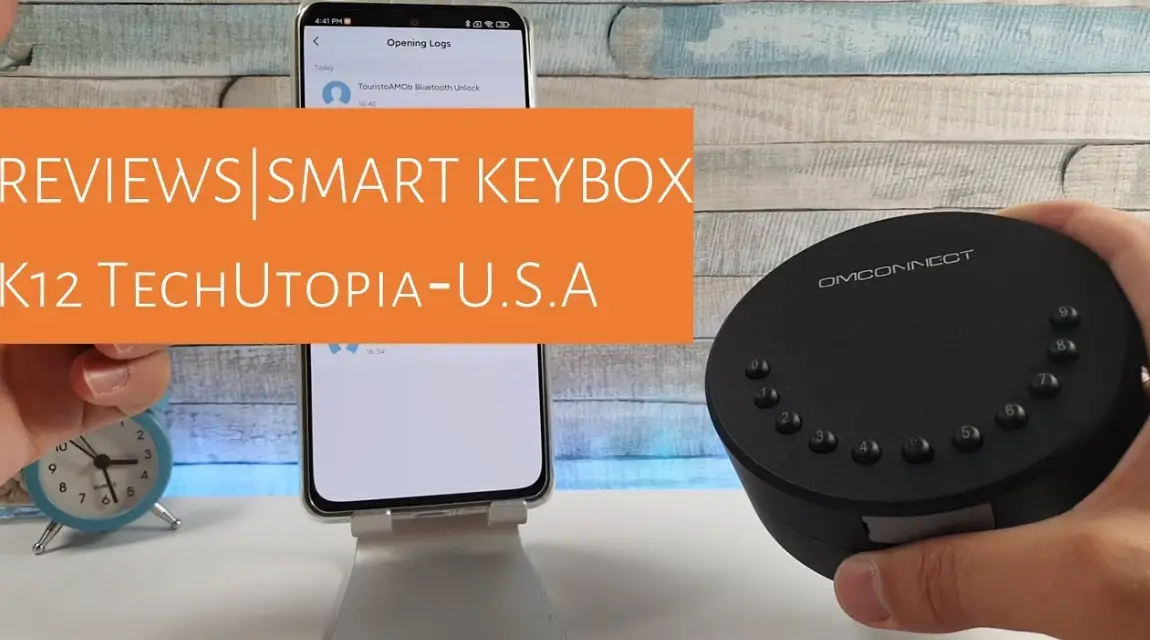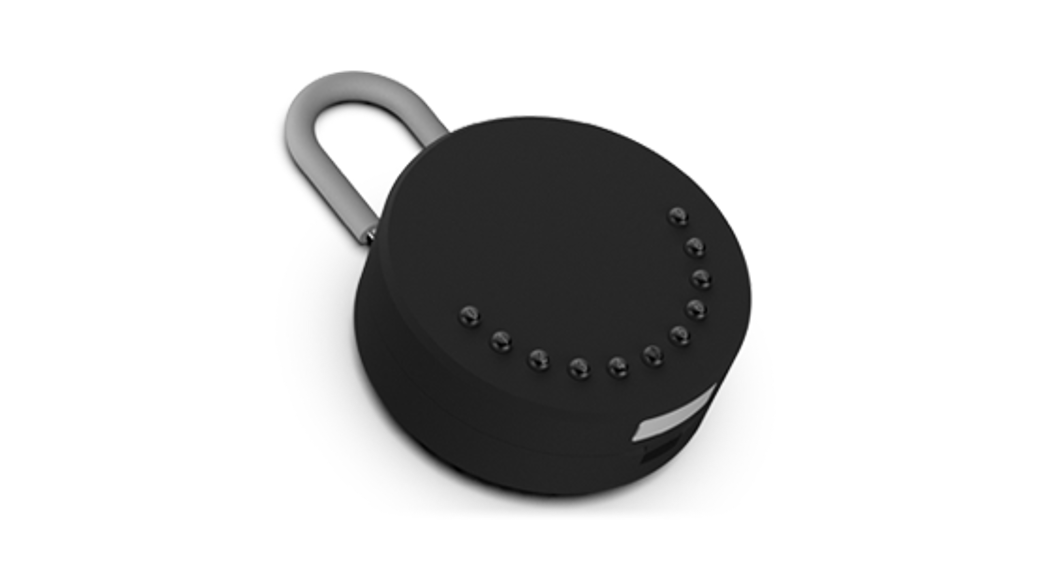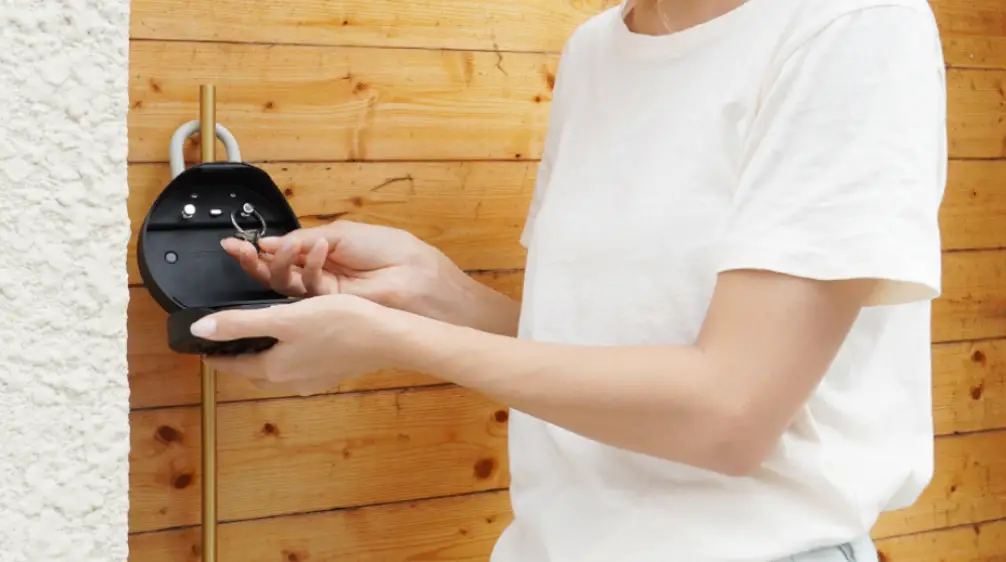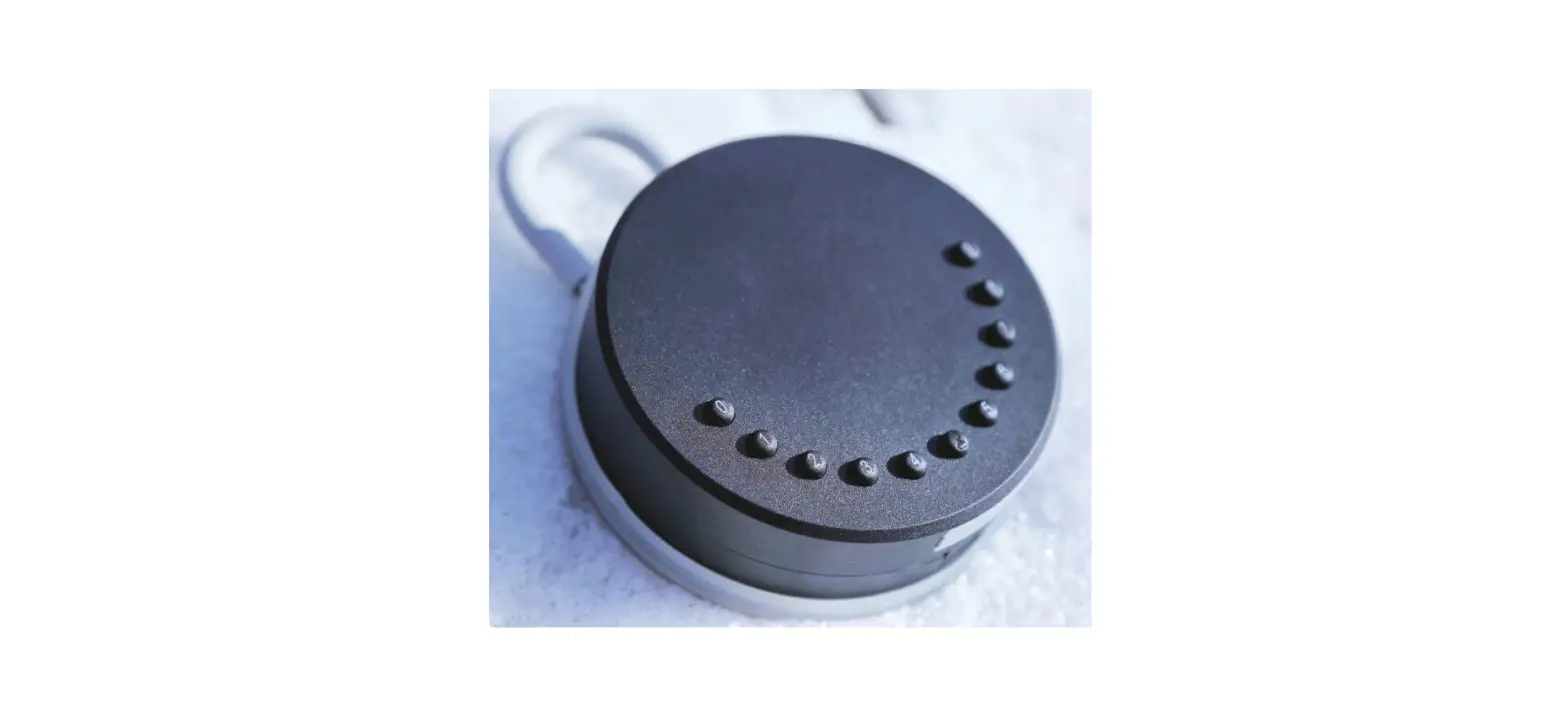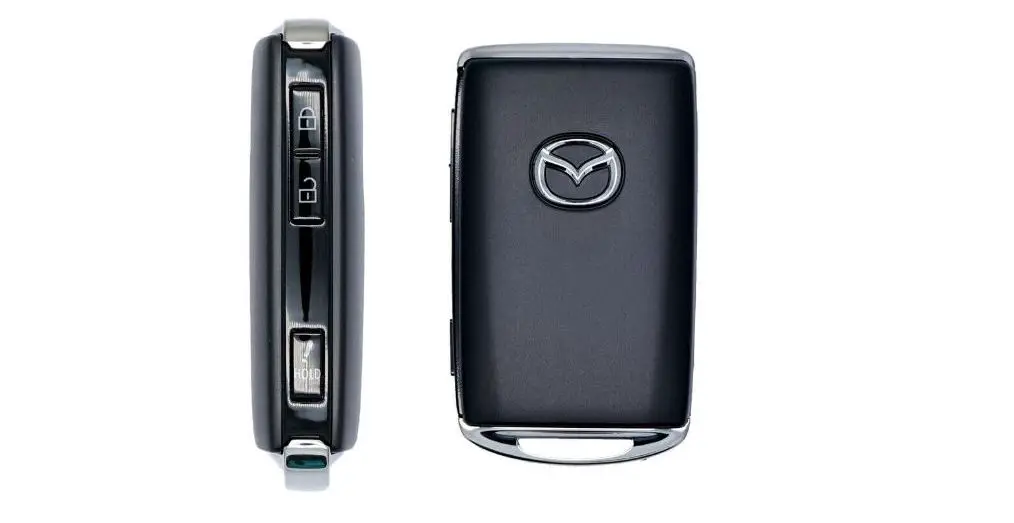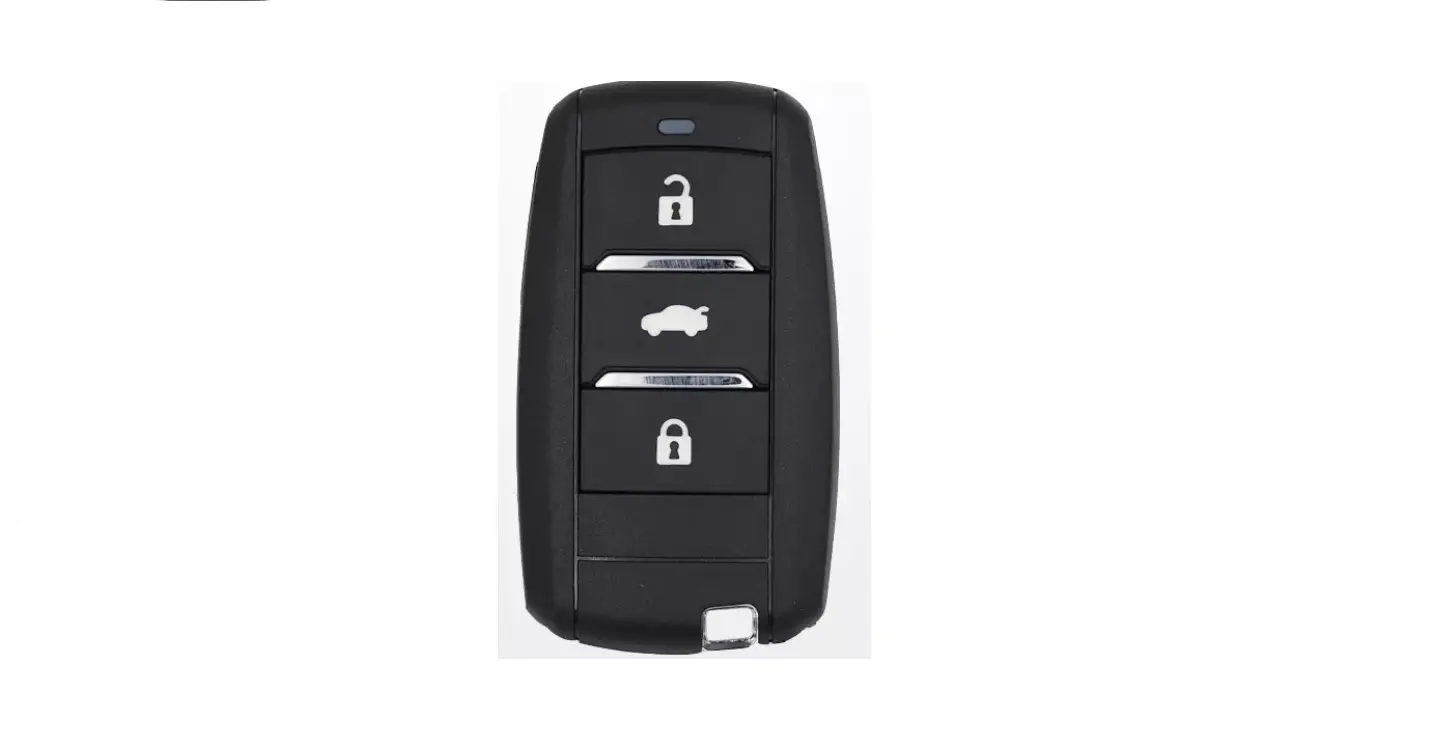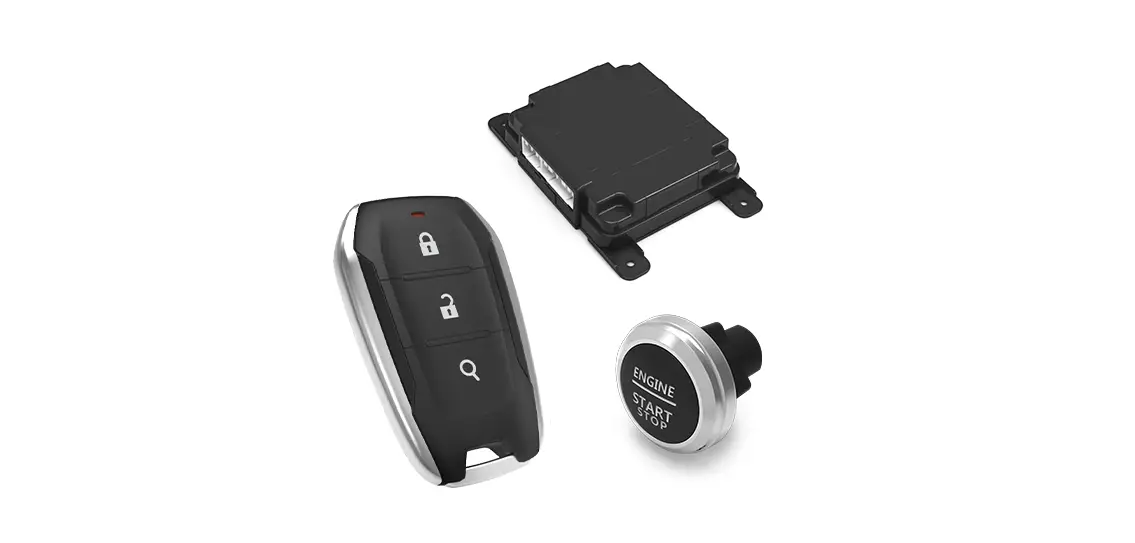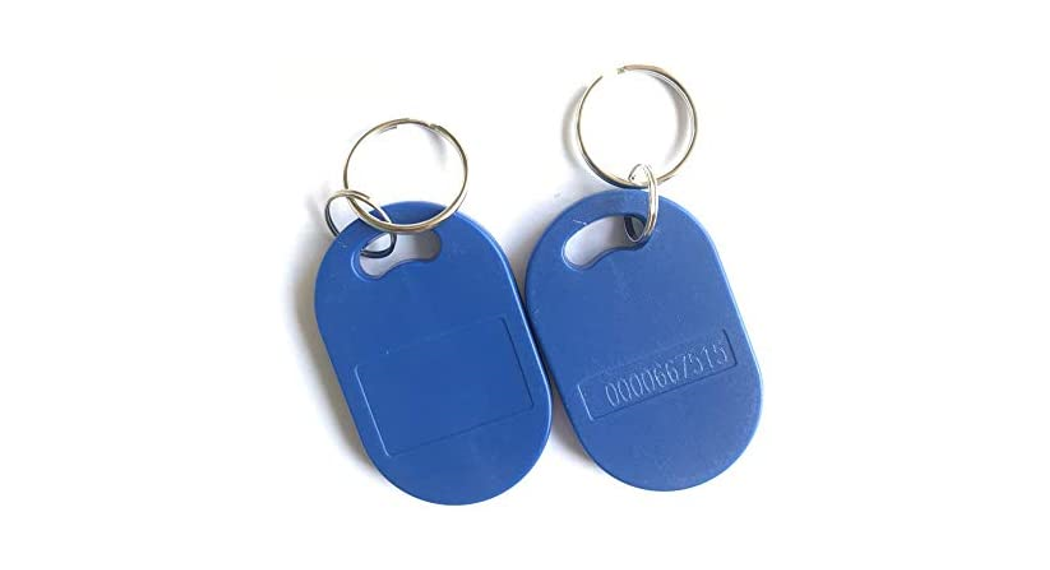
omconnect K12 Smart Key Fob
User Manual
What’s Included

Features
Lock&Unlock
Mobile Control
Battery
Emergency

Quick Start
Step 1>Install Battery
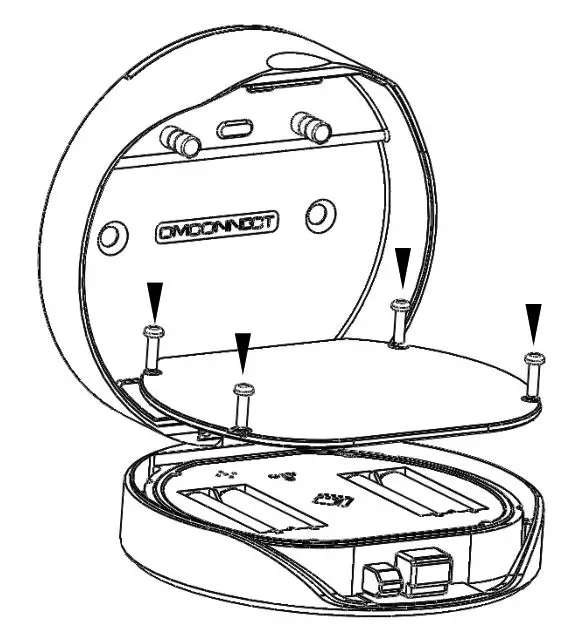
>. Remove the (4) screws on the battery cover
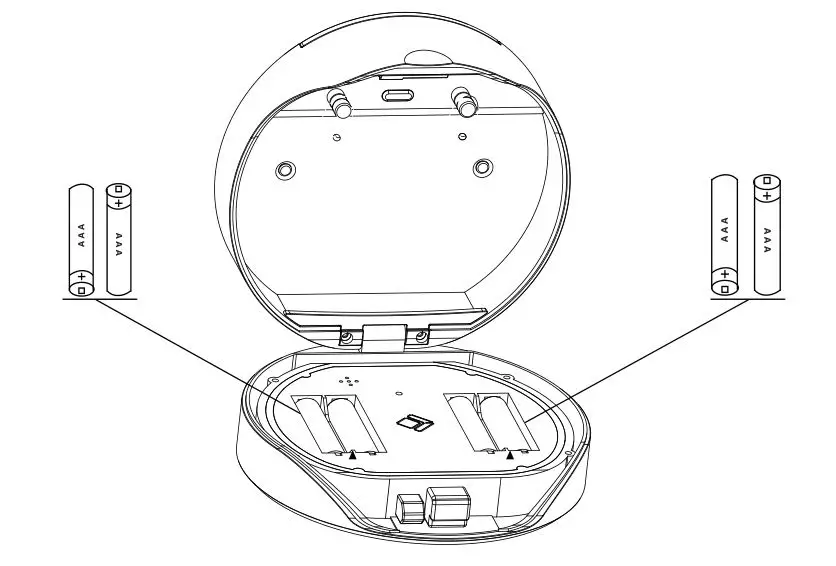
>. Put 4 AAA batteries into the battery dock.
Step 2>Download Mobile App
>1. Scan QR Code below and download the App and turn on your mobile Bluetooth

Step 3>Add Device
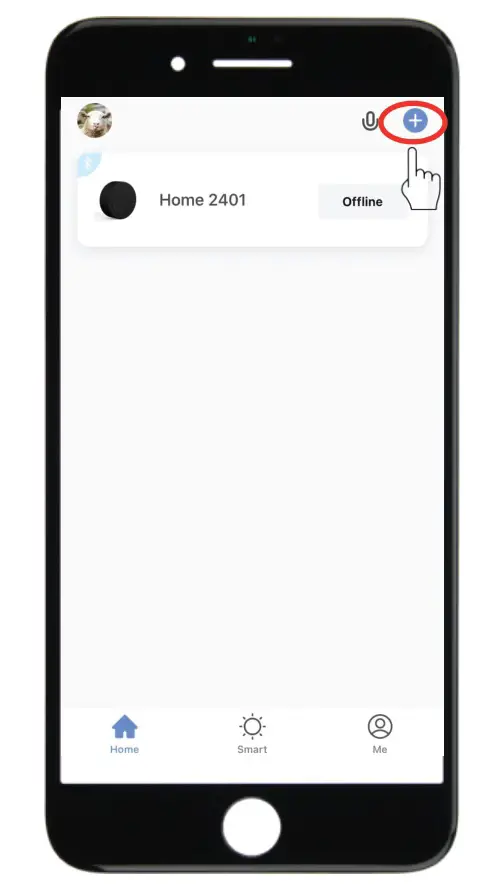
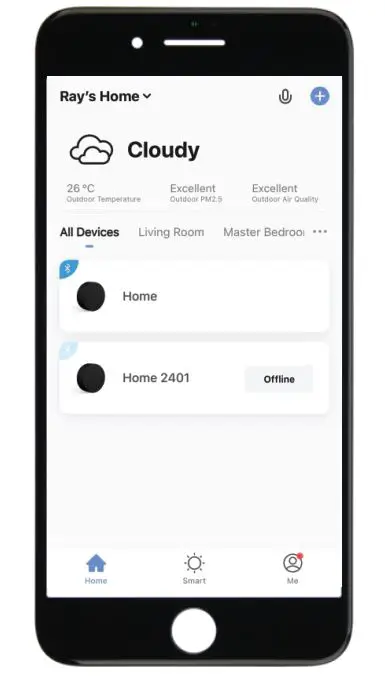
>1.Go to App Home page, click Add Device or click “+” on the upper right.
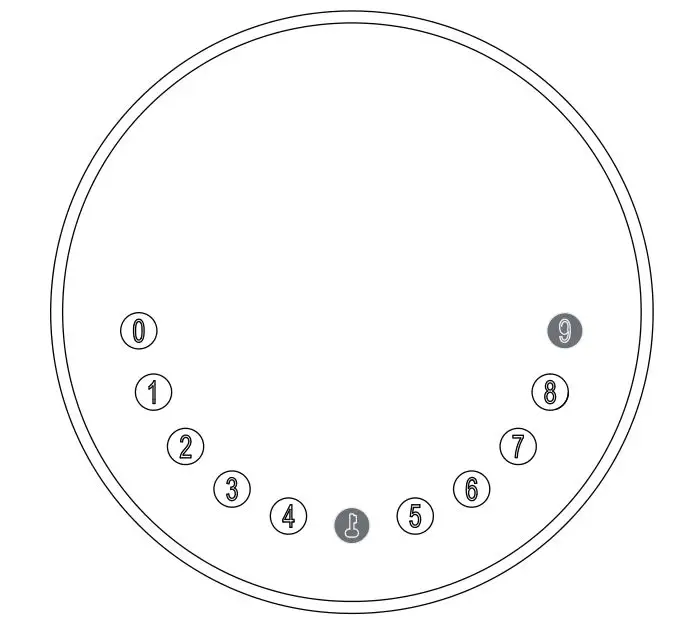
> 2. Press  +9+ and enter Admin password + , when the light slowly blinks in blue the KeyBox is ready to pair.
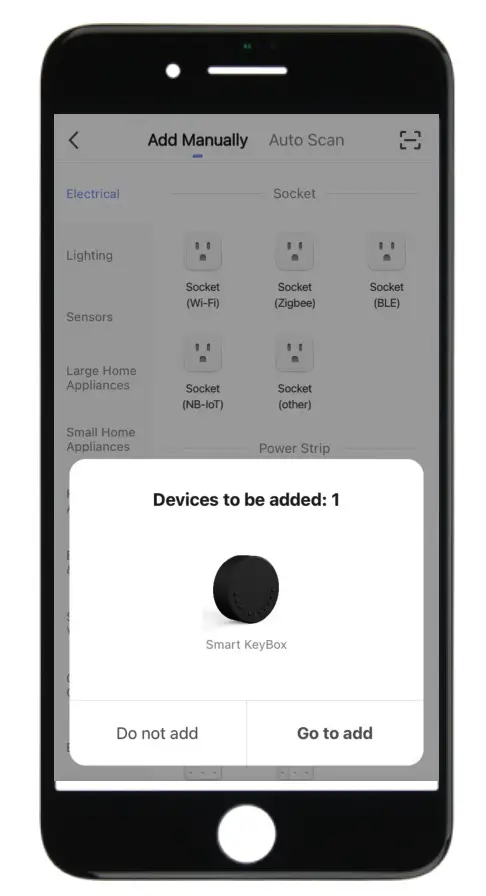
>3. You will see the detected device and click “Go to add”.
>4. Connecting, you need to wait for few seconds to let it finish.
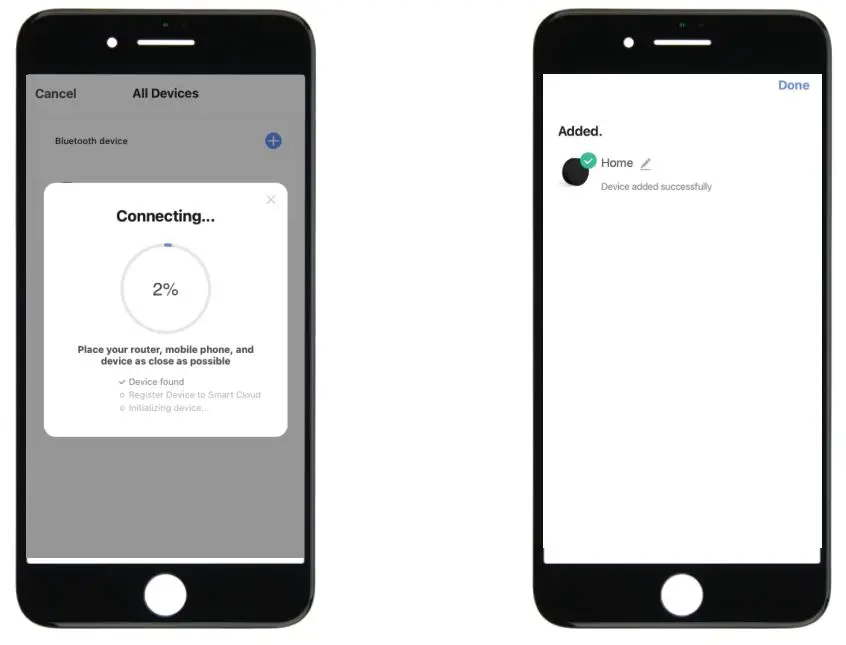
>5. Device added
Step 4>Change Admin Password-Initial Admin Password:123456
>1. Press and hold for 3 beeps
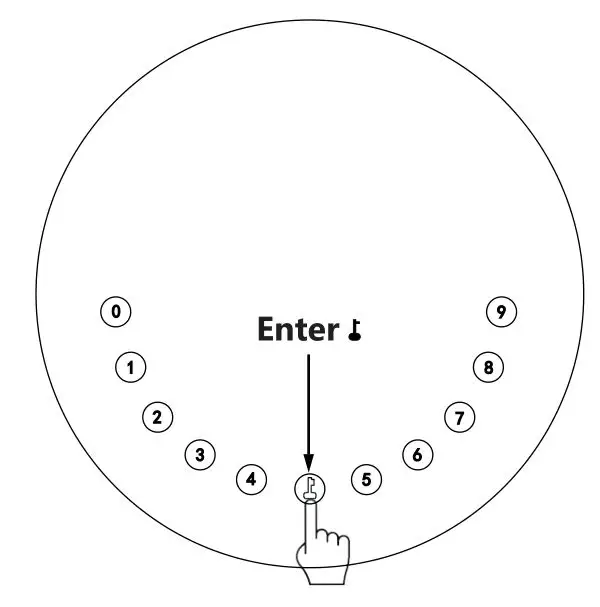
>2. Right after the 3 beeps please key in: Initial Admin Password + +new admin password+ +new admin password+
Mechanical Instructions
Password & Factory Mode:
1. Password Length
⊗ Password must be 6 digits (no more no less)
2. Add User Password
⊗ Click + 0 + until the blue light blinks
>. Enter admin password +
>. Enter new user password +
>. Enter new user password again and press
>. When the (Enter button) blinks in green, user password has been set.
3. Delete User Password
⊗ Click + 2 + until the blue light blinks
>. Enter admin password and do not press any more buttons
>. Enter the user password you wish to delete and press
>. When the (Enter button) blinks in green the password has been deleted.
4. Delete All User Password
⊗ Click + 00000 + until the blue light blinks
>. Enter admin password and press
>. When the (Enter button) blinks in green all passwords have been deleted.
5. Virtual digits-Anti Peeping
⊗ Add any digits before and after the correct password the KeyBox unlock as always
6. System Lockdown
⊗ KeyBox will Lockdown for 5 minutes if entering wrong password continuously 5 times
7. Reset Factory Mode
⊗ Press and hold the reset button for 5 seconds and with a long beep
Bluetooth broadcasting & re-connecting:
⊗ Bluetooth broadcasting will turn to sleep mode if no operations within 1 minute.
⊗ Press any key to activate the Bluetooth, App&Device will get reconnected each other
App Instructions
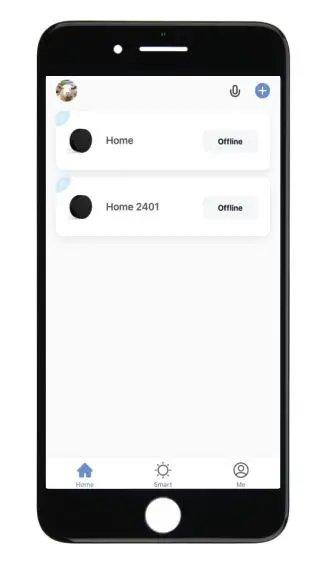
⊗You will see all devices and rooms on the home page.
⊗Tap the Device to start operating.
⊗Tap “Me” at the bottom to manage your home
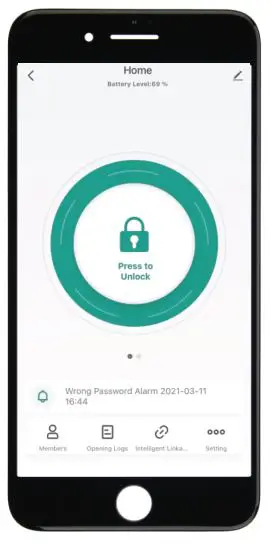
⊗ Touch the lock sign to unlock and lock.
⊗ Tap “Bell” sign to check the alarm records.
⊗ Tap “Member Management to add or delete members.
⊗ Tap “opening record” to check opening logs.
⊗ Tap “Intelligent Linkage” to turn on and off go home mode.
⊗ Tap “Set” to manage passwords
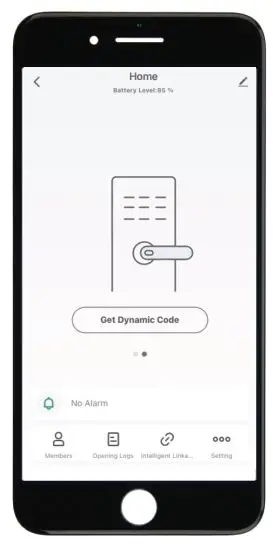
⊗Tap “Get dynamic code” to get a code.
⊗Tap “copy code” and send it to friend or family.
⊗Tap “Pen” sign to edit your personal information
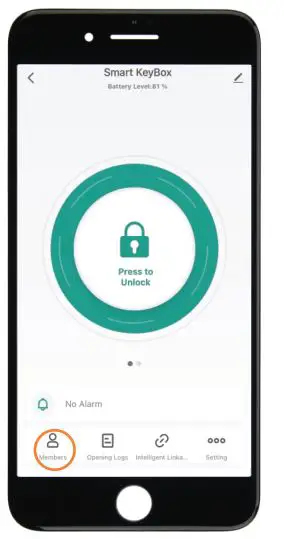
⊗Go to “Members” to add family or other members
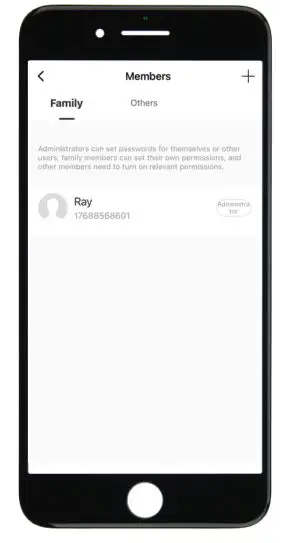
⊗Tap “+” to add family member or other members
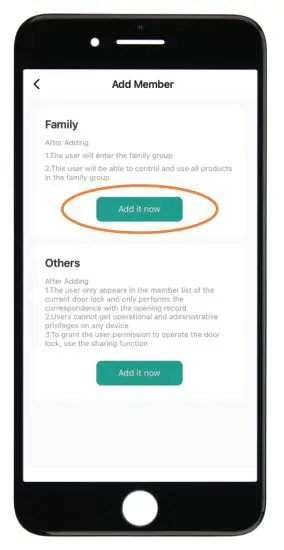
⊗Tap “ Add it now” under Family to add family members.
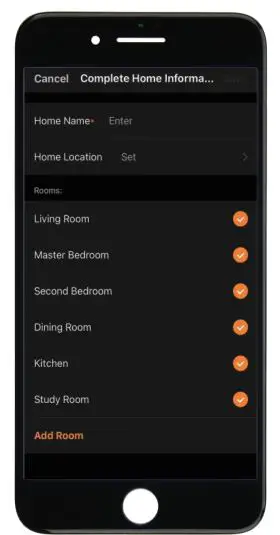
⊗Owner need to complete the Home information before adding any family member if required
⊗The member need to be registered to the App before adding as a family member
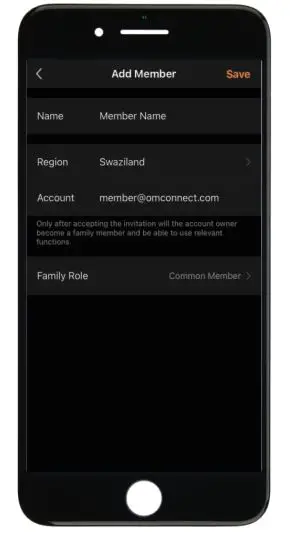
⊗ Fill up member information and set the role of the member
⊗ Tap “Save” to complete and the member will be able to operate the device on his App
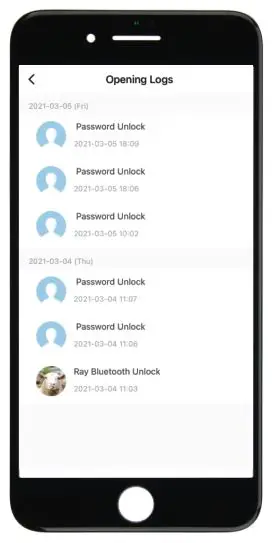
⊗ Go to “Opening Logs” to check the unlocking history
⊗ With this feature you will be able to find out when and who unlocked the KeyBox
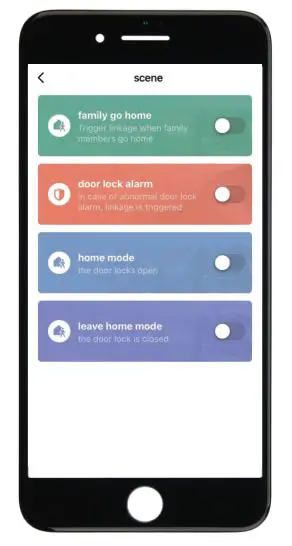
⊗Go to “Intelligent Linkage” to set more smart functions
⊗Tap the green bar to turn on “Family go home”function.
⊗Tap the orange bar to turn on “Door lock alarm”function
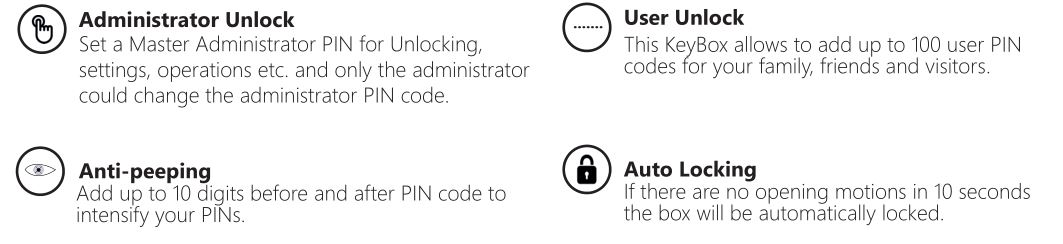
⊗You will get notification if user unlocked with Bluetooth
⊗Go to “me” homepage and got to message center to check the records.
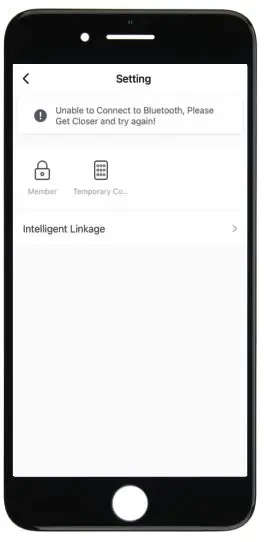
⊗Tap “password management” to add or remove codes.
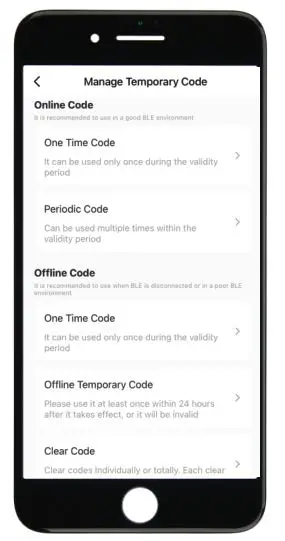
⊗Tap “Temporary code” to manage online and offline codes.
⊗ Tap “one-time code” under Online Code to set an online one time code.
⊗ Tap “periodic Code” under Online Code to set a online code which will be available in a period of time.
⊗ Tap ”One-Time Code” under Offline Code to generate a one time offline code which will be a 10 digits code and use it when the device is offline.
⊗ Tap “Offline Temporary Code” under Offline Code t generate an offline code (10 digits) which will be available in a period of time, and use when the device is offline or Bluetooth disconnected with device.
⊗ Tap “Clear Code” to generate a code (10 digits) which is able to clear Codes that need to be invalid or clear all codes.
⊗ Please note if the code less than 10 digits you need to regenerate a new code, the code must be 10 digits.

 OMCONNECT