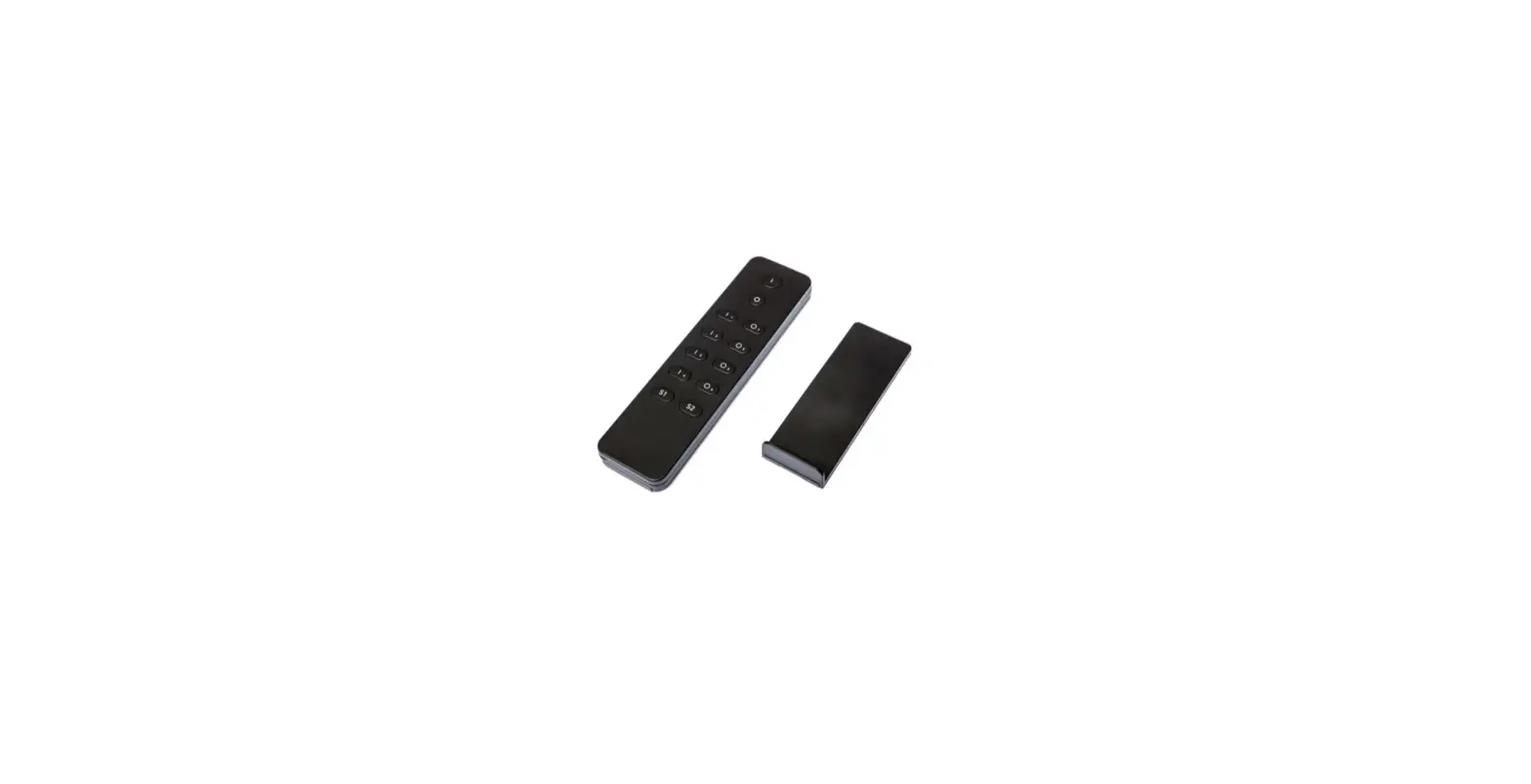
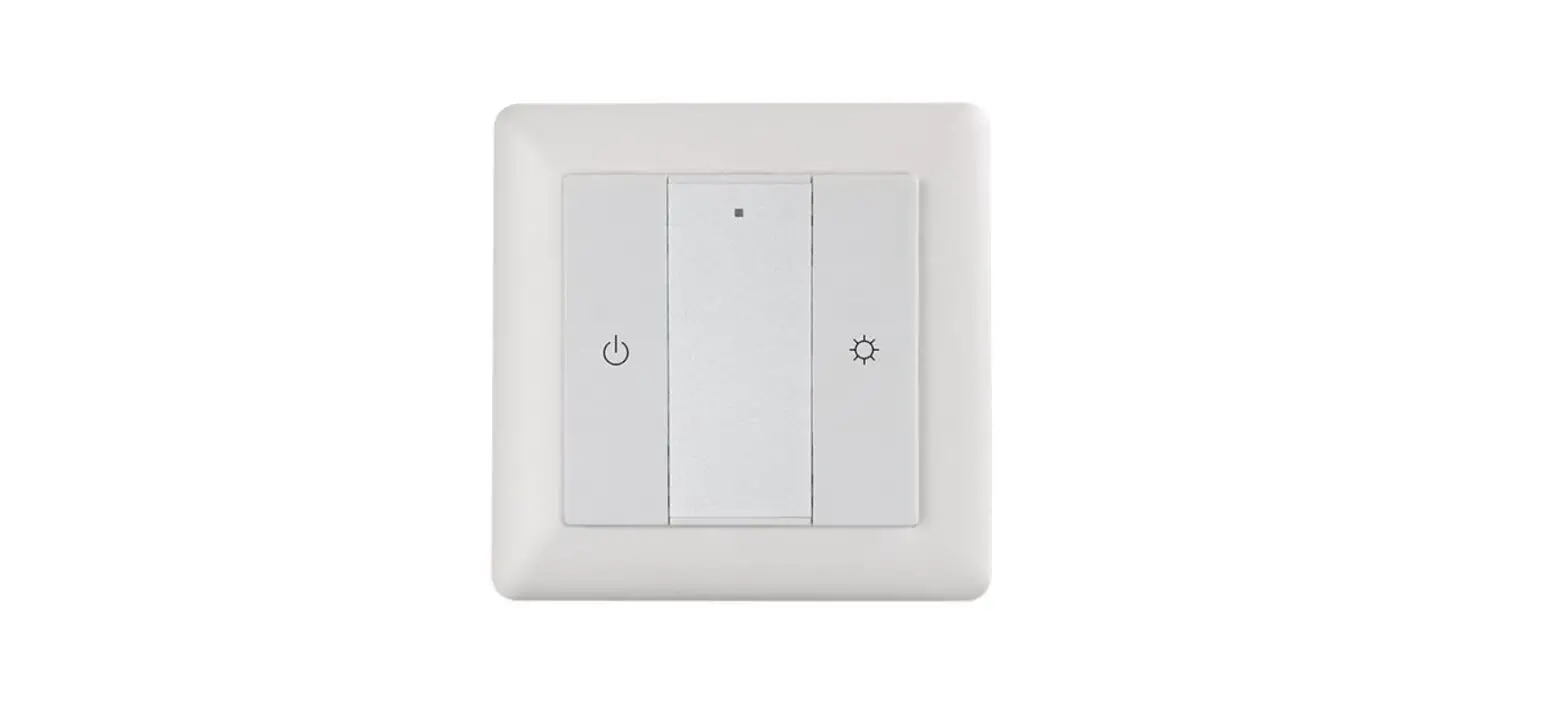
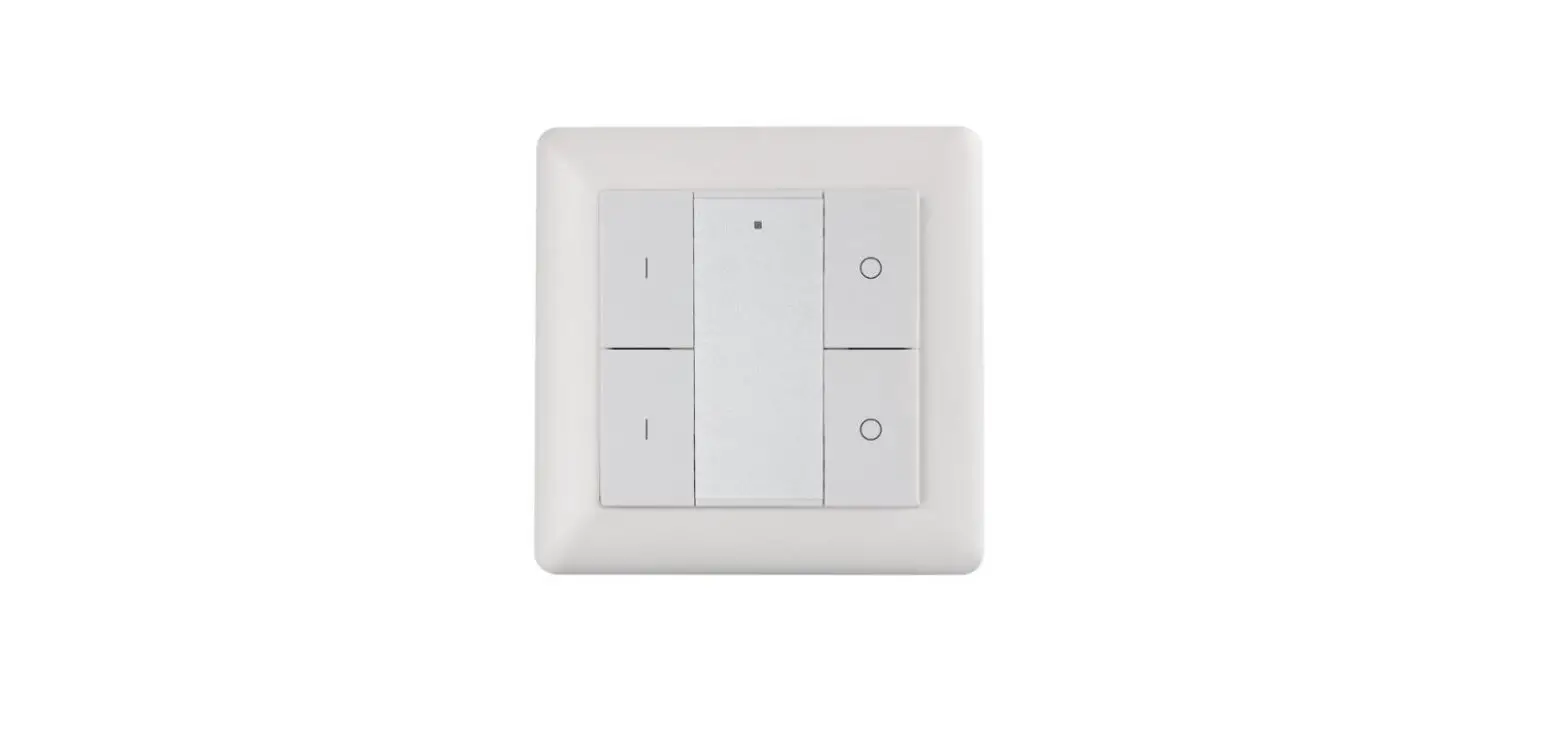
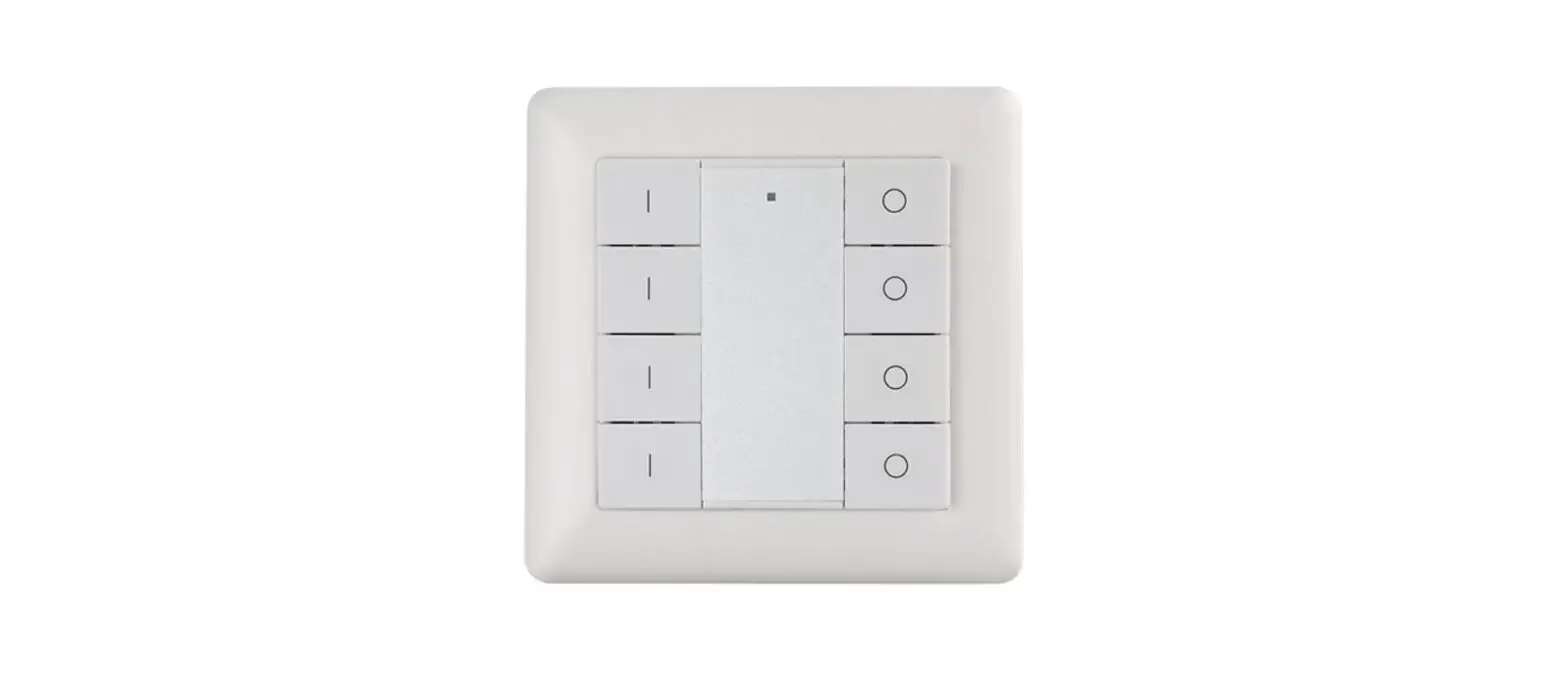
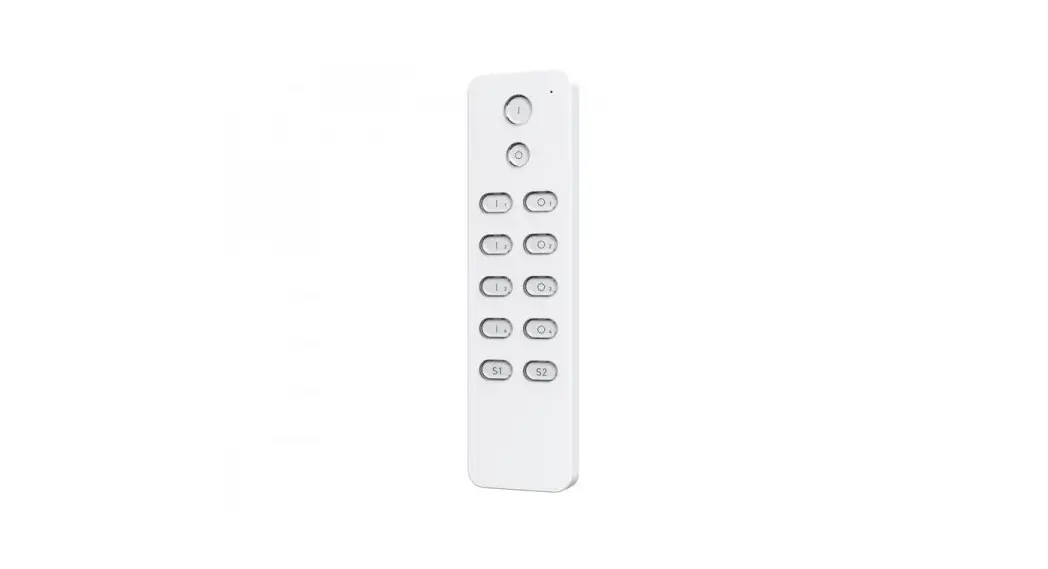
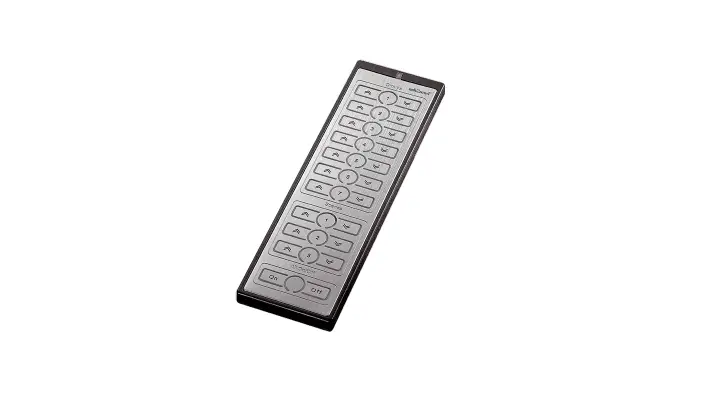
100-025-0 Z-Wave Dim Remote Control
Product Information
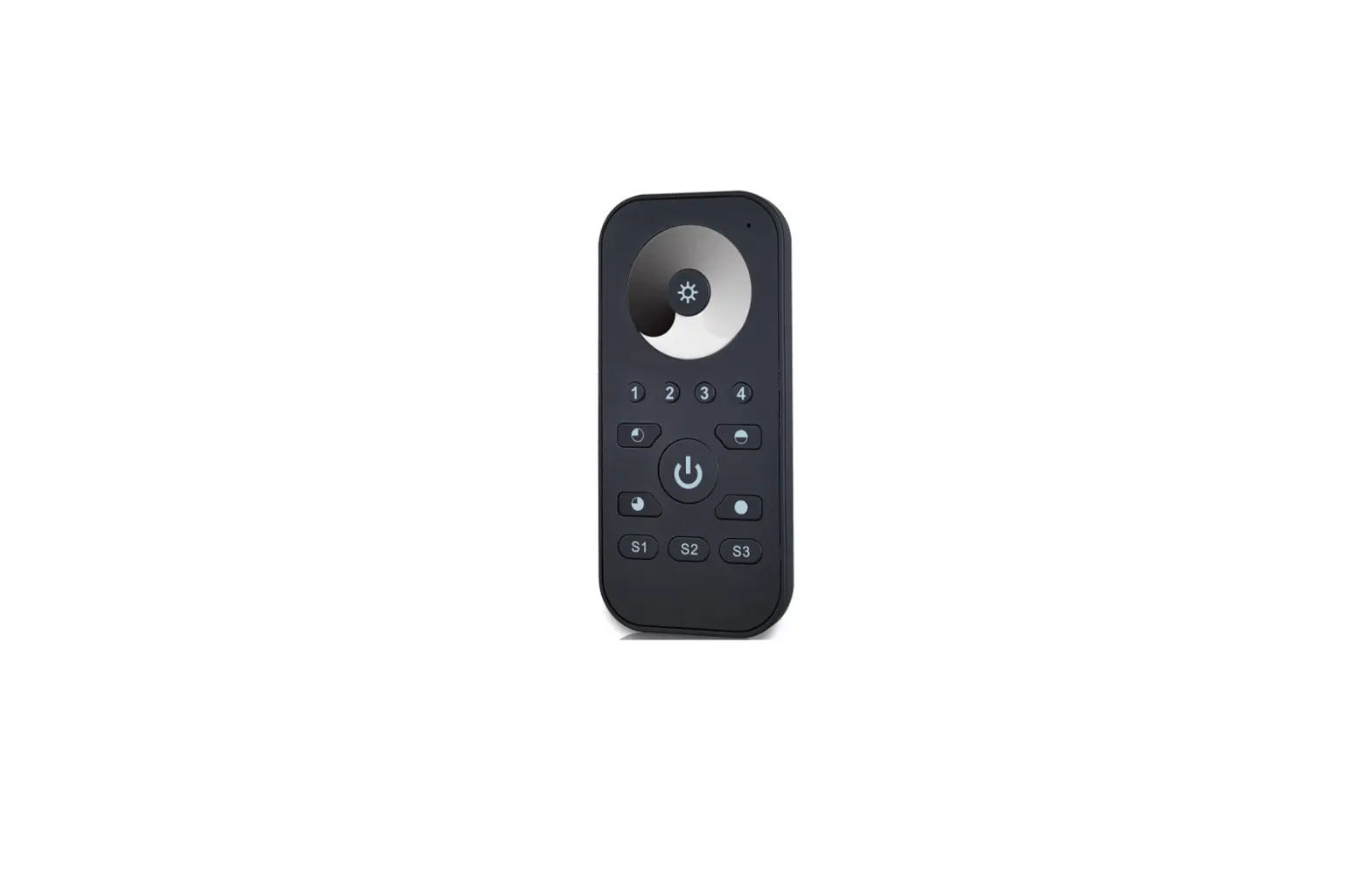
The Z-Wave Dim Remote Control, model ROB_100-025-0, is a
battery-operated device that can control other Z-Wave devices and
activate scenes in Gateways. It is not a Z-Wave network controller
and requires a primary or secondary Z-Wave network controller to
function. The remote control supports the Over The Air (OTA)
feature for firmware upgrades and encryption modes S0, S2
Authenticated, and S2 Unauthenticated. It comes with a CR2450
battery and has an IP20 waterproof grade.
Product Usage Instructions
Before Use: Open the battery cover and remove
the protective film from the battery before using the remote
control.
Inclusion (Adding to a Z-Wave network)
- Make sure the remote control does not belong to any Z-Wave
network by short pressing any button. If the LED indicator does not
turn on, proceed to step 2. If it turns on, refer to the Exclusion
section of the manual first. - Set the primary controller/gateway into inclusion mode (refer
to the controller’s manual).
Exclusion (Removing from a Z-Wave network)
Method 1:
- Set the primary controller/gateway into exclusion mode (refer
to the controller’s manual). - Press and hold down both buttons (of Group 2) for over 3
seconds until the LED indicator turns on. The remote control will
be set to exclusion mode and wait to be excluded. After 7 seconds,
the LED indicator blinks 4 times quickly to indicate successful
exclusion.
Functionality
The remote control has the following functions:
- Group 2: Click to turn on, press and hold down
to increase light intensity. Click to turn off, press and hold down
to decrease light intensity. - Group 3, Group 4, Group 5: Functionality not
specified in the manual.
Installation Guide
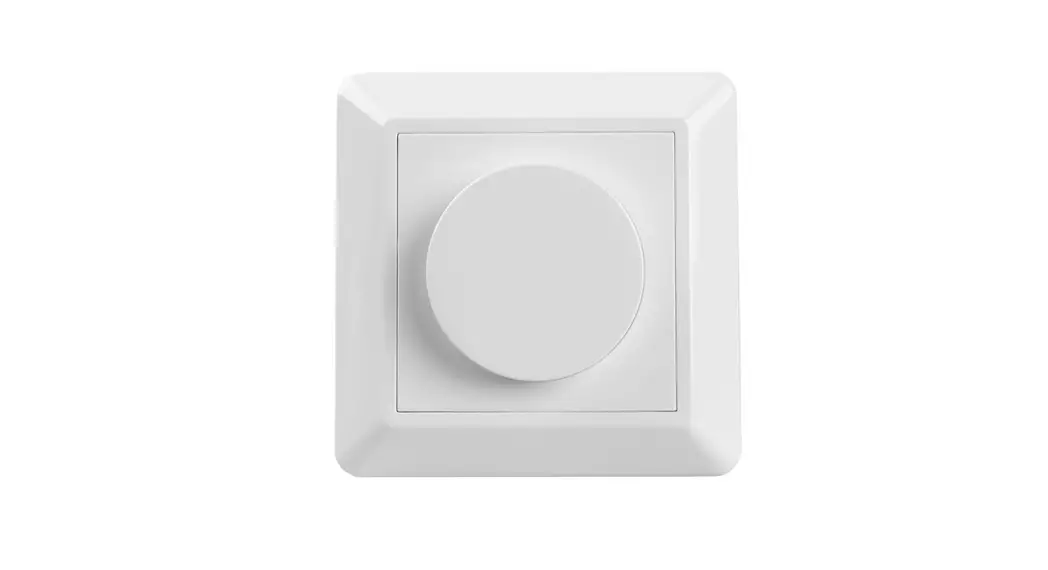
The remote control unit is supplied as a complete set for flush
mounting in standard circular European wall boxes with a 60mm
diameter. Please read the enclosed user manual carefully before
installation to ensure error-free functioning.
Safety & Warnings
No safety or warning information is provided in the manual.
However, please ensure that the remote control is installed
according to the installation guide and that the battery is
inserted correctly.
Z-Wave Dim Remote Control
ROB_100-025-0
Important: Read All Instructions Prior to Installation Function introduction
Press and hold down both keys together for 3s to be added to or removed from Z-Wave network by Z-Wave master (primary) controller.
Group 2: Click to turn on, Press and hold down to increase light intensity
Group 3
Group 4
Group 5
11 mm
Front side 71.20 mm 55.57 mm
Group 2: Click to turn off, Press and hold down to decrease light intensity Group 3
Group 4
Group 5
71.20 mm 55.57 mm
Product Data
Battery: CR2450 Before the first use, please open the battery cover and remove the protective film
Back side
Z-Wave Frequency Power Supply
Operating temperature Relative humidity Dimensions Waterproof Grade
868.42MHz 3VDC(1xCR2450 battery)
0 to 40°C 8% to 80% 71.2×71.2×13.6mm
IP20
Safety & Warnings
· This device contains a button lithium battery that shall be stored and disposed properly. · DO NOT expose the device to moisture.
Quick Start
How to install: · Step 1: turn on your remote control. · Step 2: activate inclusion mode on your Z-Wave controller. · Step 3: activate inclusion mode of your remote control by pressing and holding down both buttons and of Group 2 together over 3 seconds.
Product Description
The remote control is a Z-Wave device that can both control other Z-Wave devices and activate scenes in Gateways. Although it is controlling other devices, the device cannot act as Z-Wave network controller (primary or secondary) and will always need a Z-Wave network controller to be included into a Z-Wave network. It also supports the Over The Air (OTA) feature for the product’s firmware upgrade.
The remote control has following functions:
1. Control of groups of other Z-Wave devices using ‘ON’, ‘OFF’ and Dim commands.
2. Activation of scenes in Gateway mode.
The encryption modes that the remote control supports are S0, S2 Authenticated, S2 Unauthenticated. When the remote control is being included into a Z-Wave network, you can use your primary controller/gateway to enable one encryption mode or disable encryption. (The primary controller/gateway shall support encryption mode configuration).
Installation Guide
Please read carefully the enclosed user manual before installation of remote control, in order to ensure an error-free functioning.
The remote control unit supplied as complete set for flush mounting in the standard circular European wall boxes with 60mm diameter.
Inclusion (Adding to a Z-Wave network)
Step 1. Make sure the remote control does not belong to any Z-Wave network, short press any button, if LED indicator does not turn on, the remote control does not belong to any network, then continue step 2,if LED indicator turns on, it means the remote control has already been included to a network, please first set the remote control to exclusion mode (refer to the part “Exclusion” of this manual),then continue step 2.
Step 2. Set primary controller/gateway into inclusion mode (Please refer to your primary controllers manual on how to turn your controller into inclusion).
Step 3. Press and hold down both buttons and of Group 2 over 3 seconds, LED indicator turns on, the remote control will be set to inclusion mode, and waiting to be included, after 10s LED indicator blinks 6 times quickly to indicate successful inclusion. The remote control is a sleepy device, after inclusion it will not enter into sleepy mode immediately, and will continue activation status for 30s and wait data interaction from the gateway, the LED indicator will stay solid on, please be patient to wait LED indicator to turn off.
Exclusion (Removing from a Z-Wave network)
There are two exclusion methods:
Method 1: Exclusion from the primary controller/gateway as follows:
1. Set the primary controller/gateway into exclusion mode (Please refer to your primary controllers manual on how to set your controller into exclusion).
2. Press and hold down both buttons and of Group 2 over 3 seconds, LED indicator turns on, the remote control will be set to exclusion mode, and waiting to be excluded, after 7s LED indicator blinks 4 times quickly to indicate successful exclusion.
Method 2: Factory reset the remote control will force the remote control to be excluded from a network. (please refer to the part “Factory Reset” of this manual)
Note: Factory reset is not recommended for exclusion, please use this procedure only if the primary controller/gateway is missing or otherwise inoperable.
How to check whether the remote control already included to a network
Short press any button, if LED indicator blinks 3 times, the remote control does not belong to any network, if LED indicator turns on, it means the remote control has already been included to a network.
If the remote control already belongs to a network, follow the exclusion process before including it in your network. Otherwise inclusion of this device will fail.
Factory Reset
Press and hold down both buttons and of Group 2 for over 10 seconds, LED indicator turns on and then blinks 4 times quickly to indicate successful factory reset.
Association
Z-Wave devices control other Z-Wave devices. The relationship between one device controlling another device is called association. In order to control a different device, the controlling device needs to maintain a list of devices that will receive controlling commands. These lists are called association groups and they are always related to certain events (e.g. button pressed). In case the event happens all devices stored in the respective association group will receive a common wireless command.
Association Groups:
Each group supports maximum 5 nodes for association, the same device can be associated with multiple groups on the remote control simultaneously, to ensure better control experience, the remote control shall remove the associated devices that are not under working status from association groups in time.
Association Groups
Group Name
Max Nodes
Description
Group 3
Launch 2
5
Group 4
Launch 3
5
Group 5
Launch 4
5
Short press / button of Group 3 to send ON/OFF command to associated devices of this group using Command Class “Basic Set V2”. Press and hold down / button of Group 3 to send light intensity increase/decrease command to associated devices of this group using Command Class “Multilevel V4”.
Short press / button of Group 4 to send ON/OFF command to associated devices of this group using Command Class “Basic Set V2”. Press and hold down / button of Group 4 to send light intensity increase/decrease command to associated devices of this group using Command Class “Multilevel V4”.
Short press / button of Group 5 to send ON/OFF command to associated devices of this group using Command Class “Basic Set V2”. Press and hold down / button of Group 5 to send light intensity increase/decrease command to associated devices of this group using Command Class “Multilevel V4”.
Group 1
Lifeline
5
1. Send Command Class “Device Reset Locally Notification V1” to associated devices of this group to report factory reset information when factory reset the remote control. 2. When remote control battery power value changes, send Command Class “Battery Report V1” to associated devices of this group to report power value information. 3. Short press or press and hold down any button to send scene activation command to the associated devices of this group using Command Class “Central Scene Notification V3”
Group 2
Launch 1
5
Short press / button of Group 2 to send ON/OFF command to associated devices of this group using Command Class “Basic Set V2”. Press and hold down / button of Group 2 to send light intensity increase/decrease command to associated devices of this group using Command Class “Multilevel V4”.
Set and unset associations:
(Note: All association information will be cleared automatically once the remote control is excluded from a network.)
There are two methods to set associations:
1. Set association by operating primary controller/gateway to send association command to the remote control:
When set association from primary controller/gateway, the remote control shall be activated first, if it is not activated, you should activate it manually.
The primary controller/gateway sends association command to the remote control using “Command Class ASSOCIATION” or “Command Class Multi Channel Association”
2. Set association by operating the remote control and devices to be controlled:
To control a Z-Wave device from the remote control the node ID of this device needs to be assigned to one of the two association groups. This is a three-step process:
1. Press and hold down both buttons and of Group 2 over 3 seconds, LED indicator turns on.
2. Short press ON button of any group within 7s to associate the device to this group, short press OFF button of any group within 7s to remove association of the device from this group.
3. Operate the device to be controlled to send Node Information Frame (please refer to the device manual) within 10 seconds, or set the device to exclusion mode within 10 seconds, since it will send Node Information Frame in exclusion mode, LED indications are as follows:
LED blinks twice to indicate that the remote control failed to add the associated device (the association group has already added maximum quantity associated devices that it supports ).
LED blinks 5 times to indicate that the remote control added the associated device successfully. LED blinks 8 times to indicate that the remote control removed the associated device successfully.
To remove all associated devices in an association group on the remote control directly: 1. Press and hold down both buttons and of Group 2 over 3 seconds, LED indicator turns on.
2. Click OFF button of any group on the remote control 5 times continuously within 7 seconds to remove all associated devices of this group, LED indicator blinks 8 times to indicate that the associated devices are removed successfully.
Operating the device
Press and hold down both keys together for 3s to be added to or removed from Z-Wave network by Z-Wave master (primary) controller.
How to communicate with the device
The remote control is under sleepy mode for most of the time to save battery power. It can not receive wireless command under sleepy mode. Before the gateway interacts data with the remote, the remote control shall be activated manually first. Short press any button to activate the remote control for 3s, and press and hold down
and buttons of Group 2 over 1 second to activate the remote control for 7s.
Node Information Frame
The Node Information Frame is the business card of a Z-Wave device. It contains information about the device type and the technical capabilities. The inclusion and exclusion of the device is confirmed by sending out a Node Information Frame. Beside this it may be needed for certain network operations to send out a Node Information Frame.
How to send out Node Information Frame:
Set the wall controller into inclusion/exclusion mode: and press and hold down and buttons of Group 2 over 3 seconds, LED indicator turns on to indicate the wall controller has already sent out Node Information Frame, the user can repeat the operation to set the wall controller to quit “inclusion/exclusion mode”.
Group 2: Click to turn on, Press and hold down to increase light intensity
Group 3
Group 4
Group 5
Group 2: Click to turn off, Press and hold down to decrease light intensity Group 3
Group 4
Group 5
· Short press or press and hold down any button to send scene activation command to association group 1 using Command Class “Central Scene Notification V3”.
· Short press / 2.
button of Group 2, send ON/OFF command to all associated devices of Association Group
· Press and hold down / button of Group 2, send light intensity increase/decrease command to all associated devices of Association Group 2.
· Short press / 3.
button of Group 3, send ON/OFF command to all associated devices of Association Group
· Press and hold down / button of Group 3, send light intensity increase/decrease command to all associated devices of Association Group 3.
· Short press / 4.
button of Group 4, send ON/OFF command to all associated devices of Association Group
· Press and hold down / button of Group 4, send light intensity increase/decrease command to all associated devices of Association Group 4.
· Short press / 5.
button of Group 5, send ON/OFF command to all associated devices of Association Group
· Press and hold down / button of Group 5, send light intensity increase/decrease command to all associated devices of Association Group 5.
Technical Data
Battery Type Frequency Wireless Range
SDK Explorer Frame Support
Device Type Generic Device Class Specific Device Class
Routing FLiRS
Z-Wave Plus Info
Parameter Z-Wave Plus Version
Role Type Node Type Installer Icon Type User Icon Type
1*CR2450 868.42 MHz up to 100 m outside, on average up to 20 m inside buildings
6.71.01 Yes
Wall Controller Switch Remote Switch Remote Multilevel
No No
Value 1
Slave Portable ZWAVEPLUS 0x0b00 (ICON_TYPE_GENERIC_REMOTE_CONTROL_SIMPLE) 0x0b00 (ICON_TYPE_GENERIC_REMOTE_CONTROL_SIMPLE)
Manufacturer Specific
Parameter Manufacturer ID Product Type ID
Product ID
Value (hex) 0x0330 0x0003 0xa305
SUPPORTED COMMAND CLASS · COMMAND_CLASS_ZWAVEPLUS_INFO_V2 · COMMAND_CLASS_ASSOCIATION_V2 · COMMAND_CLASS_MULTI_CHANNEL_ASSOCIATION_V3 · COMMAND_CLASS_CENTRAL_SCENE_V3 · COMMAND_CLASS_ASSOCIATION_GRP_INFO_V1 · COMMAND_CLASS_TRANSPORT_SERVICE_V2 · COMMAND_CLASS_VERSION_V2 · COMMAND_CLASS_MANUFACTURER_SPECIFIC_V2 · COMMAND_CLASS_DEVICE_RESET_LOCALLY_V1 · COMMAND_CLASS_FIRMWARE_UPDATE_MD_V4 · COMMAND_CLASS_POWERLEVEL_V1 · COMMAND_CLASS_BATTERY_V1 · COMMAND_CLASS_SECURITY_V1 · COMMAND_CLASS_SECURITY_2_V1 · COMMAND_CLASS_WAKE_UP_V2 · COMMAND_CLASS_SUPERVISION_V1
Controlled Command Classes · COMMAND_CLASS_CENTRAL_SCENE_V3 · COMMAND_CLASS_BASIC_V2 · COMMAND_CLASS_SWITCH_MULTILEVEL_V4 · Multi Channel V3 · Security_V1 · Security_2_V1
Installation 1.Remove battery insulator
Use tool to open the silicone gel battery cover
Pull out the battery insulator
2.Install the controller to wall(2 methods)
Install the silicone battery cover back
Method 1:Stick 3M glue on the back of the bracket and then stick the bracket to the wall
Method 2:Screw the bracket to the wall
After the bracket is fixed,clip the frame and control part to the bracket in sequence