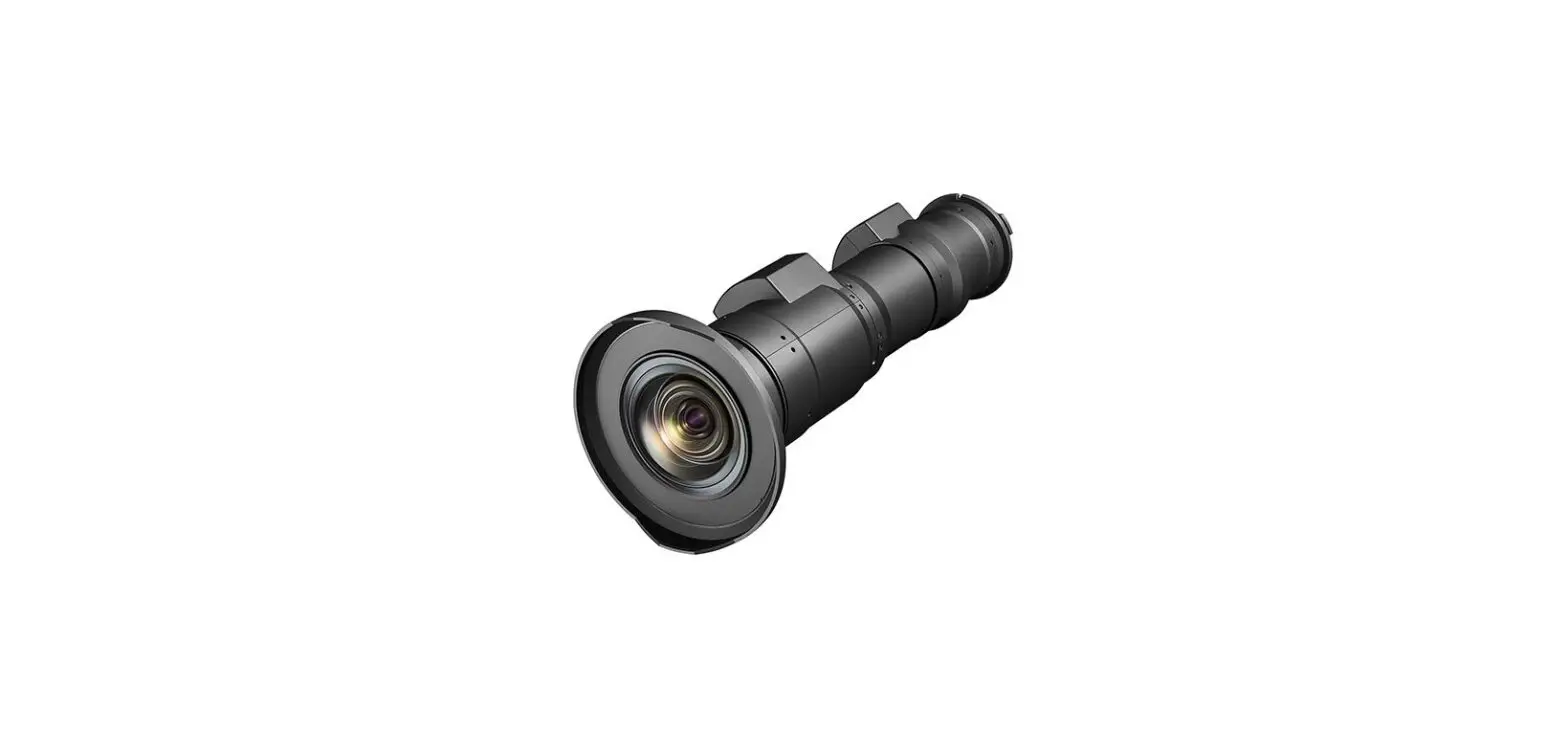
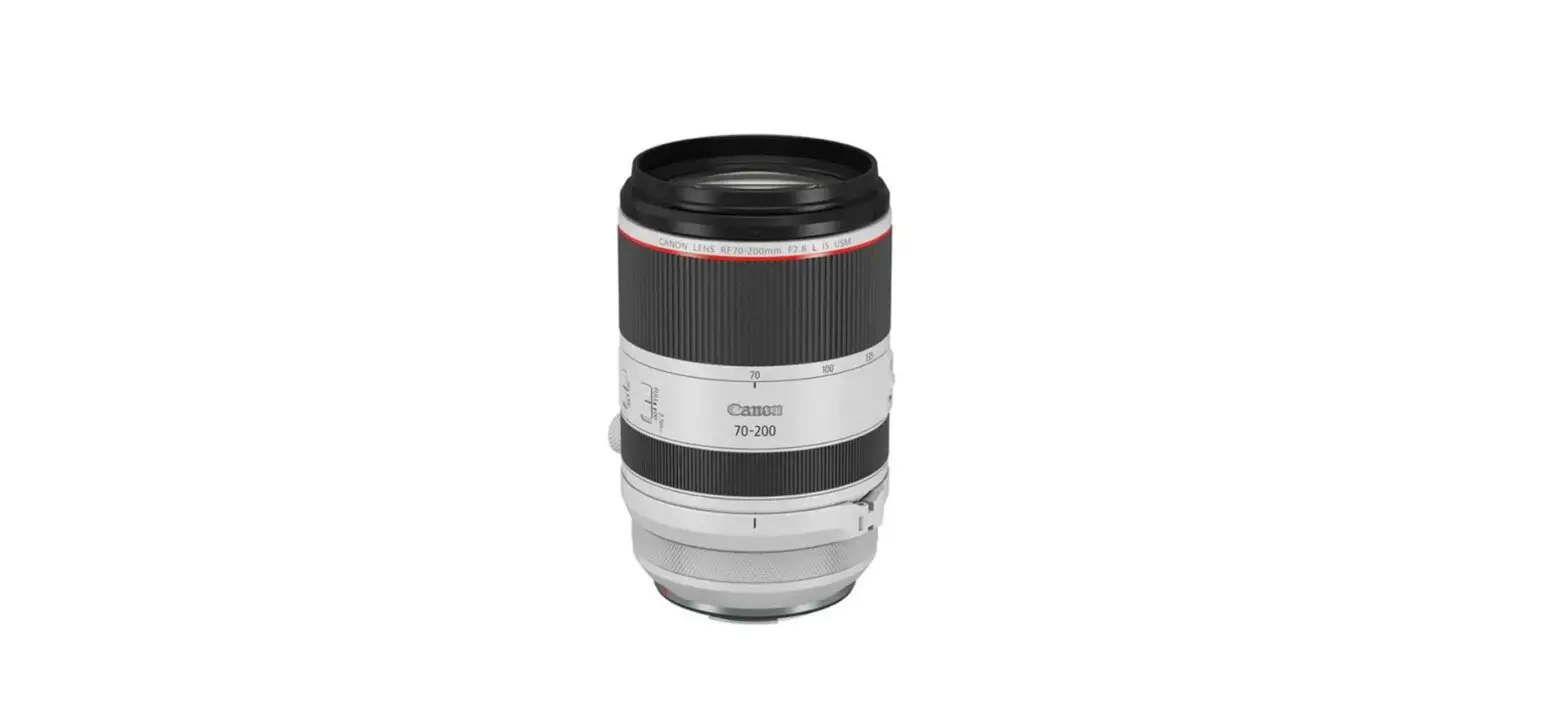
CN7x17 Zoom Lens
Product Information
The Zoom Lens CN7x17 CN8x15 CN10x25 is a versatile lens designed
for professional use. It offers a wide zoom range and various
digital functions to enhance your shooting experience. The lens
features an information display that provides quick access to
different settings and modes.
Basic Operation
The lens has two operating modes: Basic Mode and Full Mode. In
Basic Mode, you can access the top screen and menu screen to set
and view different functions. The Full Mode provides additional
screens for more advanced settings.
Using Digital Functions
The lens offers several digital functions to enhance your
shooting capabilities:
- Zoom Track Function: This function enables you
to set the zoom range and shuttle between two zoom positions at the
fastest speed. - Speed Preset: You can set a preset zoom speed
and direction for easy reproduction. - Framing Preset: This function allows you to
set a preset view angle and zoom speed for consistent framing.
Product Usage Instructions
Basic Operation
- Turn on the lens power.
- Press the Display switch to turn on the display.
- Use the operation key to navigate and select functions on the
top screen or menu screen.
Using Digital Functions
Zoom Track Function
To use the Zoom Track Function:
- Access the top screen or menu screen.
- Select the desired zoom range and set the shuttle shot
option. - Press the AUX switch to activate the function (default:
Fr1P).
Speed Preset
To set a preset zoom speed and direction:
- Access the top screen or menu screen.
- Set the desired zoom speed and direction.
- Press the RET switch to save the preset (default: RET).
Framing Preset
To set a preset view angle and zoom speed:
- Access the top screen or menu screen.
- Set the desired view angle and zoom speed.
- Press the AUX switch to save the preset (default: Fr1P).
Please refer to the operation manual for more detailed
instructions on each function and setting.
Zoom Lens CN7x17 CN8x15 CN10x25
QUICK GUIDE ” Information display ”
ENG
Information Display Quick Guide
Contents
Basic Operation
2
Basic Mode Top Screen
3
Basic Mode Menu Screen
4
Full Mode Top Screen
5
Full Mode Menu Screen
6
Operation Example
7
Assigning a function to
VTR, RET, and AUX switches …………………………………………………………… 7
Adjusting the iris gain ……………………………………………………………………… 8
Auto-adjusting the mechanical end …………………………………………………… 9
Using Digital Functions
10
Zoom Track Function …………………………………………………… 10
Setting the zoom range
Shuttle Shot ……………………………………………………………………… 11
“Shuttle” between two zoom positions at the fastest speed
Speed Preset …………………………………………………………………… 12
Reproducing the preset zoom speed and direction
Framing Preset ……………………………………………………………… 12
Reproducing the preset view angle and zoom speed
1
Basic Operation
DISPLAY
Display It turns off if left for 2 minutes without operation.
VTR
Fastest zoom speed adjusting volume Instant auto-iris switch
Iris gain adjusting trimmer
MEMO switch
1 Turn the lens power on.
I.G.
IRIS AM
T
MEMO
W
AUX RET
12 27012 5
T
Display switch Turn the display ON/OFF.
Operation key Move the cursor up/ down/left/right. Press the center to confirm.
VTR switch V Default: VTR
Iris A/M switch AM Default: Norm
Zoom seesaw switch Default: Zoom
RET switch R Default: RET
AUX switch A Default: Fr1P
2
Press the Display
3
Use the operation key
switch.
to select and set functions.
[ Basic ] Fr1P Shtl [ I-Gain ]The display turns on.
[ Basic ] Fr1P Shtl [ I-Gain ]2
Basic Mode Top Screen
The Top screen in Basic mode is an initial screen displayed when the Display switch is pressed. Digital functions can be set and viewed from this screen. This guide describes the screens in Basic and Full modes.
For details on how to set each item, refer to the operation manual ” Information display ”
Top screen
MENU A Fr1P A 1 Shtl A 2 Fr1P [ Z.M. ]
IG: 50
[Adj] [Trk]OFF [I-Tq]HMENU
IG:Ir5i0s gain
A AUX switch
Mechanical end auto-adjustment
A 1 AUX1 switch
Zoom track
A 2 AUX2 switch
[I-Tq] Iris torque
Zoom curve mode
Go to Menu screen. Used to set the auto iris gain. Function assignment to AUX. Default: “Fr1P”
Mechanical end auto-adjustment Function assignment to AUX1. Default: “Shtl” Used to enable/disable the zoom track function. Function assignment to AUX2. Default: “Fr1P” Used to set iris torque. Used to change the characteristics of the zoom speed variation.
3
Basic Mode Menu Screen
The icon of the active screen is highlighted.
User Mode: ResetAll Access:
B Basic
Unlock
B User screen
Switch screen
Preset screen
Iris screen
Zoom screen Focus screen Info screen Fol. screen
The icons of the inactive screens are not highlighted.
Top screen
MENU A Fr1P A 1 Shtl A 2 Fr1P
IG: 50 [Adj] [Trk]OFF
[I-Tq]H
User 0-9 User B
Full mode screen
User Mode: ResetAll Access:
1 Full
Unlock
Go Top screen
User screen
Menu screen
B
Fol. screen
Switch screen
Info screen
Preset screen
Focus screen
Iris screen
Zoom screen
4
Full Mode Top Screen
Top screen in Full mode. The Following 15 items can be set and viewed on this screen.
Top screen
MENU [ ] 1
[ Basic ] [Adj]
AM
[ I-Gain ] [Trk]OFF
A Fr1P [I-Tq]H
RET
A 1 Shtl
V VTR
A 2 Fr1P
R RET
[ Z.M. ]
Zoom
AM Norm
M EM O
AUX DISPLAY
AM R
V A
MENU
User
[ Basic ] Switching to Basic modeMechanical end auto-adjustment
[ I-Gain ] Iris gain
Zoom track
A AUX switch
[I-Tq] Iris torque
A 1 AUX1 switch
V VTR switch
A 2 AUX2 switch
R RET switch
Zoom curve mode
Seesaw switch AM Iris A/M switch
Go to Menu screen. User-customized settings specific to individual user can be set for each user, from 1 to 9.
Switching to Basic mode
Mechanical end auto-adjustment
Used to adjust the iris gain. Used to enable/disable the zoom track function. Function assignment to AUX. Default: “Fr1P” Used to set iris torque. Function assignment to AUX1. Default: “Shtl” Function assignment to VTR. Default: “VTR” Function assignment to AUX2. Default: “Fr1P” Function assignment to RET. Default: “RET” Used to change the characteristics of the zoom speed variation. Function (zoom or iris) assignment to the seesaw switch. Default: “Zoom” Iris A/M switch operation mode setting. Default: “Norm”
5
Full Mode Menu Screen
The icon of the active screen is highlighted.
User Mode: ResetAll Access:
1 Full
Unlock
User screen Zoom screen
Switch screen Focus screen
Preset screen Info screen
Iris screen
Fol. screen
The icons of the inactive screens are not highlighted.
Top screen
MENU [ Basic ] [ I-Gain ] A Fr1P
[ ]1 [Adj] [Trk]OFF [I-Tq]HUser B User 0-9
Basic mode screen
User Mode: ResetAll Access:
B Basic
Unlock
Go Top screen
User screen Switch screen Preset screen Iris screen
Menu screen Fol. screen Info screen Focus screen Zoom screen
6
Operation Example
Assigning a function to VTR, RET, and AUX switch respectively.
This guide describes how to assign the VTR function to the AUX switch in Full mode.
Top screen
MENU [ Basic ] [ I-Gain ] A Fr1P
[ ]1 [Adj] [Trk]OFF [I-Tq]H(to select AUX)
Fr1P flashing
to select a function
MENU [ Basic ] [ I-Gain ] A Fr1P
[ ]1 [Adj] [Trk]OFF [I-Tq]H(to assign “VTR” function)
MENU [ Basic ] [ I-Gain ] A VTR
[ ]1 [Adj] [Trk]OFF [I-Tq]HIcons Switches
Functions
Fr1P Fr2P Fr1F Fr2F Sped Shtl NON VTR RET
V VTR
R RET
A
AUX
A 1
AUX1
A 2
AUX2
Default
The AUX1 and AUX2 switches are switches on the zoom demand. For details on how to assign a function to each switch, refer to the operation manual ” Information display ” .
7
Operation Example
Adjusting the iris gain.
Any adjustment made to the iris gain setting will be applied to all users, including those not currently selected.
Top screen
MENU [ Basic ] [ I-Gain ] A Fr1P
[ ]1 [Adj] [Trk]OFF [I-Tq]HIris [ I-Gain ] Auto: Remote:
[] 50 90MENU [ Basic ] [ I-Gain ] A Fr1P
[ ]1 [Adj] [Trk]OFF [I-Tq]HIris [ I-Gain ] Auto: Remote:
[] 71 90 [I-Gain] screenIris [ I-Gain ] Auto: Remote:
[] 50 90Setting range
01
to
99
Function
Minimum gain
to
Maximum gain
Default Auto: Value set with trimmer Remote: 90
8
Operation Example
Perform automatic adjustment of the mechanical end in zoom, focus, and iris operations on the lens and drive unit.
Always perform mechanical end auto-adjustment after reattaching a drive unit to the lens.
Top screen
MENU [ Basic ] [ I-Gain ] A Fr1P
[ ]1 [Adj] [Trk]OFF [I-Tq]HScreen A
MENU [ Basic ] [ I-Gain ] A Fr1P
[ ]1 [Adj] [Trk]OFF [I-Tq]HLens AutoAdjust
OK? y/n
Auto-Adjustment: Succeeded
Lens Interface: Connected
* If the following message is displayed after auto-adjustment, contact Canon or your dealer.
Auto-Adjustment: Error
Lens Interface: Non-Connected
9
Using Digital Functions
Zoom Track Function
The zoom control range (zoom track) can be limited to preferred zoom range.
Enable/Disable the zoom track function
Top screen
MENU [ Basic ] [ I-Gain ] A Fr1P
[ ]1 [Adj] [Trk]OFF [I-Tq]Hor flashing
MENU [ Basic ] [ I-Gain ] A Fr1P
[ ]1 [Adj] [Trk]OFF [I-Tq]Hto select a function
MENU [ Basic ] [ I-Gain ] A Fr1P
[ ]1 [Adj] [Trk]ON [I-Tq]HSetting Function
OFF Disabled
ON Enabled
Default
Setting the zoom track positions
1 Zoom to any preferred zoom position and keep that position. 2 Press the Instant auto-iris switch while pressing down the MEMO switch. If the zoom
position is at the Telephoto side, the position is memorized as the zoom track Telephoto end. If position is at the Wide side, it is memorized as the Wide end.
3 Repeat steps and to set both Telephoto and Wide ends. It is possible to set only one
end. If the zoom track position is set repeatedly at the same end, the last set position will be memorized.
10
Using Digital Functions
Shuttle Shot
“Shuttle” between the current zoom position and the preset zoom position at the fastest speed.
To use this function, the shuttle shot function “Shtl” should have been assigned to VTR, RET, or AUX switch in advance (P7).
Setting a specific shuttle memory position
1 Zoom in a position that you want to memorize and keep that position. 2 Press the “Shtl” switch while pressing down the MEMO switch.
The memorized position will be maintained even after the power is turned off.
Current zoom position
Press and hold the “Shtl” switch. Shuttle memory position
Fastest speed
Release the “Shtl” switch. Previous zoom position
Fastest speed
11
Using Digital Functions
Speed Preset
Memorized zoom speed and direction can be reproduced any time.
To use this function, the speed preset function “Sped” should have been assigned to VTR, RET, or AUX switch in advance (P7).
Setting a specific zoom speed and direction
Operate the zoom rocker seesaw to zoom in the preferred direction (toward telephoto or wide end) at desired speed. Press the MEMO switch while zooming in to memorize the direction and speed. The memorized zoom speed will be applied to the framing preset function as well. When the “Sped” switch is pressed, the lens will start zooming in the memorized direction (toward telephoto or wide end) at the memorized speed and stop at the zoom end.
Using Digital Functions
Framing Preset [Zoom]
Memorized view angle and zoom speed can be reproduced any time.
Setting a specific framing position
1 Zoom in a position you want to memorize and keep that position. 2 Press the “Fr1P” switch while pressing down the MEMO switch.
The memorized position will be maintained even after the power is turned off.
Zoom speed to the memorized framing position can be set either to the fastest speed or the one memorized by Speed Preset. Refer to the operation manual ” Information display ” for details.
Moving to the memorized framing position
When the “Fr1P” switch is pressed, the lens will start zooming in and stop at the memorized framing position.
12
CANON INC. 30-2, Shimomaruko 3-chome, Ohta-ku, Tokyo, 146-8501, Japan
BT1-D009-A-ENG
©2022.09 CANON INC.