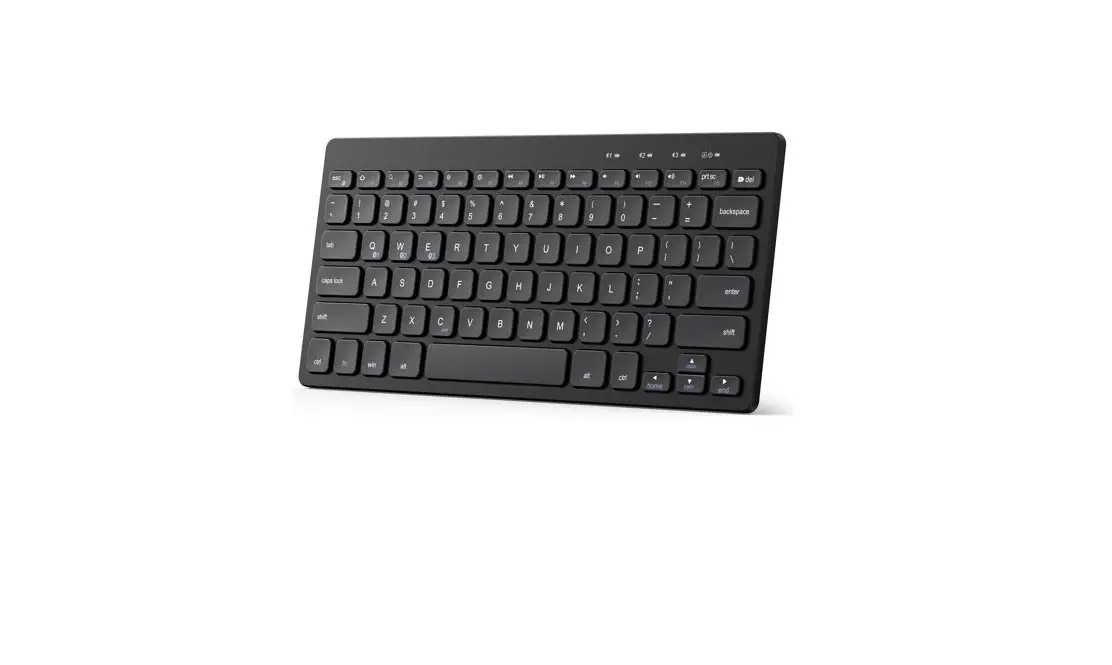
Y2640 Compact Wireless Keyboard
Anker Compact Wireless Keyboard
Product Number: Y2640 51005003728 V01
User Manual
Important Safety Instructions
- This keyboard is not a toy. Keep away from children. Read and
follow all instructions and warnings before use. - If any parts are damaged, contact Technical Support before
resuming use. - Do not attempt to repair or modify the keyboard.
- Do not insert foreign metal objects into the keyboard or its
ports. - Avoid using the keyboard with wet hands. Moisture in or on the
keyboard may lead to electrical shock. If exposed to moisture
during use, turn off and take out the battery immediately. Contact
Technical Support before resuming use. - Keep the keyboard away from heat sources and open flames.
- To prevent overheating, keep the area around the keyboard
ventilated. Do not place anything on or around the keyboard during
operation. - If the keyboard becomes hot to the touch, swells, or expands,
turn it off and unplug the keyboard immediately and contact
Technical Support.
Care and Storage
The keyboard contains two lead-zinc batteries. Contact your
local electronics recycler to recycle the keyboard.
What’s in the Box
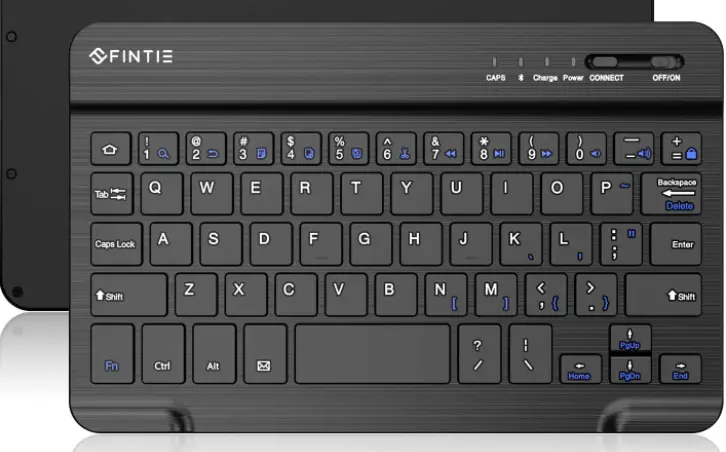
- Bluetooth Status Indicators
- Power / Caps Lock Indicator
- Power Switch
- Stand
- Battery Compartment
Keys and Functions
| Key | Fn | ESC Key | F1 | F2 | F3 | F4 | F5 |
|---|---|---|---|---|---|---|---|
| Functionality | Functionality | Functionality | on Android | on iOS | on Windows | ||
| N/A | Home | Search | N/A | Home | Search | ||
| N/A | Open Browser Window | Search | N/A | Brightness – | Brightness + | ||
| Note: | Some applications or operating systems may have different key bindings. |
Keys and Functions
| Key | Fn | F6 | F7 | F8 | F9 | F10 | F11 | F12 |
|---|---|---|---|---|---|---|---|---|
| Functionality | Functionality | Functionality | Functionality | Functionality | Functionality | Functionality | Functionality | Functionality |
| on Android | on iOS | on Windows | ||||||
| Previous Track | Previous Track | Previous Track | Play/Pause | Play/Pause | Play/Pause | |||
| Next Track | Next Track | Next Track | Mute | Mute | Mute | |||
| N/A | N/A | Screenshot |
LED Indicator Guide
| Indicator | LED Status |
|---|---|
| Power / Caps Lock Indicator | Solid green |
| Bluetooth 1/2/3 Indicator | Flashes blue |
| Bluetooth 1/2/3 Indicator | Solid blue |
| Bluetooth 1/2/3 Indicator | Flashes red |
Powering On Your Keyboard
- Insert the provided AAA batteries into the battery compartment
on the back panel of the keyboard. - Slide the power switch down to power on the keyboard. The power
indicator will turn solid green and turn off after 3 seconds. Note:
The keyboard will enter sleep mode after being idle for 30
minutes.
Pairing Your Wireless Keyboard with Your Devices
Pair your keyboard with the first device:
- Power on your keyboard. The Bluetooth channel ( ) indicator
will flash blue quickly, indicating that the keyboard is ready for
pairing automatically. - Enable your device’s Bluetooth function. A list of available
Bluetooth devices will display. - Select Anker Compact Wireless Keyboard to pair. The indicator
will turn solid blue after the first device is successfully paired
with your keyboard.
For FAQs and more information, please visit:
anker.com/support
@anker_official @Anker Deutschland @AnkerOfficial
@anker_jp
@Anker Japan
@Anker_JP
@Anker
3 SERIES
Product Number: Y2640 51005003728 V01
Anker Compact Wireless Keyboard
USER MANUAL
Important Safety Instructions
This keyboard is not a toy. Keep away from children. Read and follow all instructions and
warnings before use.
· Check the keyboard and lead-zinc batteries before use. If
any parts are damaged, contact Technical Support before
01
English
resuming use.
· Do not open, disassemble, modify, drop, crush, puncture,
incinerate, or shred the Bluetooth® keyboard.
15
· The keyboard is not serviceable. Do not attempt to open,
repair, or modify.
· To prevent a short circuit or other potential hazards, do not
insert foreign metal objects into the keyboard or its ports.
· Keep the keyboard away from moisture and do not use it
with wet hands. Moisture in or on the keyboard may lead
to electrical shock. If exposed to moisture during use, turn
off and take out the battery immediately. Contact Technical
Support before resuming use.
· The keyboard contains two lead-zinc batteries. Keep away
from heat sources and open flames.
· It is normal for the keyboard to become warm during
operation. To prevent overheating, keep the area around the
keyboard ventilated. Do not place anything on or around the
keyboard during operation.
· Do not operate the keyboard near a heat source or in direct
sunlight. Recommended for use in temperatures between 0°C
and 40°C. NEVER use in temperatures outside the range of 0°C
to 40°C.
· If the keyboard begins to emit a strong odor, becomes hot
to the touch, swells or expands, turn it off and unplug the
keyboard immediately and contact Technical Support.
· If the battery inside the keyboard leaks for any reason, turn
EN 01
off and unplug the keyboard immediately. · Do not allow the contents of the battery to contact your skin or
eyes. In the event of contact, wash the affected area with large amounts of water and seek medical attention immediately. · Do not mix old and new batteries. · Do not mix alkaline, standard (carbon-zinc) or rechargeable (ni-cad, ni-mh, etc.) batteries.
CARE AND STORAGE
Do not store your keyboard in areas of high temperatures (such as in your car) or high humidity. · Do not place heavy objects on top of the keyboard. · Keep the keyboard away from oil, chemicals, and liquids. · Clean the keyboard with a damp clean cloth.
DISPOSAL
· Do not burn or dispose of your keyboard in a fire or incinerator. · Do not throw your keyboard away in the trash. The keyboard
contains two lead-zinc batteries. Contact your local electronics recycler to recycle the keyboard.
What’s in the Box
· Compact Wireless Keyboard · AAA Battery x 2
02 EN
At a Glance
1
2
3
4
5
1. Bluetooth Status Indicators 2 .Power / Caps Lock Indicator 3 .Power Switch 4. Stand 5. Battery Compartment
EN 03
Keys and Functions
Key
Fn
ESC Key
F1 F2 F3 F4 F5
Functionality Functionality Functionality
on Android on iOS
on Windows
N/A Home Search
N/A Home Search
N/A
Open Browser Window
Search
N/A
Back
N/A
Brightness – Brightness – N/A
Brightness + Brightness + N/A
Note: Some applications or operating systems may have different key bindings.
Keys and Functions
Key
Fn
F6
F7 F8 F9 F10 F11 F12
Functionality Functionality Functionality
on Android on iOS
on Windows
Previous Track
Previous Track
Previous Track
Play/Pause Play/Pause Play/Pause
Next Track Next Track Next Track
Mute
Mute
Mute
Volume – Volume – Volume –
Volume + Volume + Volume +
N/A
N/A
Screenshot
04 EN
EN 05
LED Indicator Guide
Indicator
LED Status
Solid green
Power / Caps Lock Indicator
Solid blue Flashes red
Description
Powered on Caps function enabled
Low battery
Bluetooth1/2/3 Indicator
Flashes blue Ready for pairing
Solid blue
Paired successfully
Powering On Your Keyboard
1. Insert the provided AAA batteries into the battery compartment on the back panel of the keyboard.
2. Slide the power switch down to power on the keyboard. The power indicator will turn solid green and turn off after 3 seconds. Note: The keyboard will enter sleep mode after being idle for 30 minutes.
06 EN
EN 07
Pairing Your Wireless Keyboard
with Your Devices
Pair your keyboard with the first device 1.Power on your keyboard. The Bluetooth channel ( ) indicator will flash blue quickly, indicating that the keyboard is ready for pairing automatically. 2. Enable your device’s Bluetooth function. A list of available Bluetooth devices will display. 3. Select “Anker Compact Wireless Keyboard” to pair. The indicator will turn solid blue after the first device is successfully paired with your keyboard.
Pairing Your Wireless Keyboard
with Your Devices
Pair your keyboard with a second or third device To pair your keyboard with a second device: 1. Press Fn + W. The indicator will flash blue, indicating the keyboard is ready for pairing. 2. Repeat the Step 3 in the “Pair your keyboard with the first device” section to pair your keyboard with the second device.
To pair your keyboard with a third device: 1. Press Fn + E. The indicator will flash blue, indicating the keyboard is ready for pairing. 2. Repeat the Step 3 in the “Pair your keyboard with the first device” section to pair your keyboard with the third device.
Note:To switch between the first / second / third paired device, press Fn + Q ( ) / W ( ) / E ( ) simultaneously. Your paired device will automatically connect to the corresponding channel. To remove the paired memory and pair a new device, press Fn + Q ( ) / W( ) / E ( ) . Then press Fn + C to enter pairing status again.
08 EN
EN 09
Using the Stand
Open the cover and pull the stand out until it sits on your desk.
1
2
Specifications
Operating Voltage Operating Current Battery Type Operating Range
Operating Temperature
Bluetooth Version
2.0V – 3.2V 30 mA (Max) 2 x AAA LR03 1.5V < 10 m
0°C to 40°C
BT 5.1 (BDR)
W
O
B
pair
10 EN
EN 11
Notice
FCC Statement This device complies with Part 15 of the FCC Rules. Operation is subject to the following two conditions: (1) This device may not cause harmful interference, and (2) this device must accept any interference received, including interference that may cause undesired operation.
Warning: Changes or modifications not expressly approved by the party responsible for compliance could void the user’s authority to operate the equipment. Note: This equipment has been tested and found to comply with the limits for a Class B digital device, pursuant to Part 15 of the FCC Rules. These limits are designed to provide reasonable protection against harmful interference in a residential installation.
This equipment generates, uses, and can radiate radio frequency energy and, if not installed and used in accordance with the instructions, may cause harmful interference to radio communications. However, there is no guarantee that interference will not occur in a particular installation. If this equipment does cause harmful interference to radio or television reception, which can be determined by turning the equipment off and on, the user is encouraged to try to correct the interference by one or more of the following measures:
(1) Reorient or relocate the receiving antenna. (2) Increase the separation between the equipment and receiver. (3) Connect the equipment into an outlet on a circuit different from that to which the receiver is connected. (4) Consult the dealer or an experienced radio / TV technician for help.
12 EN
Radiation Exposure Statement This equipment complies with FCC radiation exposure limits set forth for an uncontrolled environment. The following importer is the responsible party contract for FCC matters: Company Name: Fantasia Trading LLC Address: 5350 Ontario Mills Pkwy, Suite 100, Ontario, CA 91764 Telephone: +1-800-988-7973
EN 13
CAUTION
RISK OF EXPLOSION IF BATTERY IS REPLACED BY AN INCORRECT TYPE. DISPOSE OF USED BATTERIES ACCORDING TO THE INSTRUCTIONS Changes or modifications not expressly approved by the manufacturer responsible for compliance could void the user’s authority to operate the equipment.
The Bluetooth® word mark and logos are registered trademarks owned by the Bluetooth 14 EN
·
· ·
·
·
· · · 0 40 · · · ·
JP 15
·
·
·
·
·
·
· · ·
·
·
· · 4 (x2)
16 JP
1
2
3
4
5
1. Bluetooth 2. / Caps Lock 3. 4. 5.
JP 17
OS
ESC
F1
F2
Android
iOS
Windows
N/A
N/A
N/A
F3
N/A
N/A
F4
N/A
F5
N/A
: OS
OS
F6
Android
iOS
Windows
F7
/ / /
F8
F9
F10
F11
F12
N/A
N/A
18 JP
JP 19
LED
/ Caps Lock
Caps Lock
Bluetooth1/2/3
1. 4 (+) (-)
2. 3 : 30
20 JP
JP 21
1 1. Bluetooth
( ) 2. Bluetooth Bluetooth 3.Anker Compact Wireless Keyboard Bluetooth
2 2 1. Fn + W Bluetooth
2.1 3 2
3 1. Fn + E Bluetooth
2.1 3 3
: 1 3 Fn + Q ( ) / W ( ) / E ( ) Fn + Q ( ) / W ( ) / E ( ) Fn + C
22 JP
JP 23
1
2
2.0V3.2V 30mA () 4 (x2) LR03 1.5V < 10m
0°C40°C
Bluetooth 5.1 (BDR)
24 JP
W
O
B
pair
JP 25
26 JP
Customer Service
DE: Kundenservice | ES: Atención al Cliente | FR: Service Client IT: Servizio Clienti | NL: Klantenservice | PT: Serviço de Apoio ao Clien RU: | TR: Müteri Hizmetleri JP: | KO: |
| :AR | :HE
EN: 18-month limited warranty *
DE: 18 Monate eingeschränkte Garantie*
ES: Garantía limitada de 18 meses*
FR: Garantie limitée de 18 mois*
IT: Garanzia limitata di 18 mesi*
NL: 18 maanden beperkte garantie
PT: Garantia de até 18 meses
RU: 18
TR: 18 aylik sinirli garanti
JP: 18 ()
KO: 18
18
18
18 :AR 18 :HE
*EN: Please note that your rights under applicable law governing the sale of consumer goods remain unaffected by the warranties given in this Limited Warranty.
DE: Die gesetzlichen Gewährleistungspflichten bleiben von der beschränkten Herstellergarantie unberührt.
ES: Tenga en cuenta que los derechos que le conceden las leyes aplicables que rigen la venta de bienes de consumo no se ven afectados por las garantías que proporciona esta garantía limitada.
FR: Notez que vos droits dans le cadre de la législation régissant la vente de biens de consommation ne sont pas affectés par les garanties accordées dans cette garantie limitée.
IT: Si prega di notare che i diritti del cliente ai sensi della legge applicabile in materia di vendita di beni di consumo non sono influenzati dalle garanzie concesse dalla presente Garanzia limitata. 27
EN: Lifetime technical support DE: Technischer Support für die Produktlebensdauer ES: Asistencia técnica de por vida FR: Assistance technique à vie IT: Supporto tecnico per l’intero ciclo di vita NL: Levenslang technisch support PT: Suporte técnico vitalício RU:
TR: Ömür boyu teknik destek JP: | KO: |
:AR | :HE [email protected] [email protected] (For Middle East and Africa Only)
(US/CA) +1 (800)988 7973 (UK) +44 (0) 1604 936200 (DE) +49 (0) 69 9579 7960 (Middle East & Africa) +971 42428633 (UAE) +971 8000320817 (KSA) +966 8008500030 (Kuwait) +965 22069086 (Egypt) +20 8000000826 (AU) +61 3 8331 4800 (TR) +90 0850 460 14 14 (RU) +8 (800) 511-86-23 (India) +91 18003138831 ( ) +86 400 0550 036 ( ) 03 4455 7823 ( ) +82 02-1670-7098
28
 download - Anker US