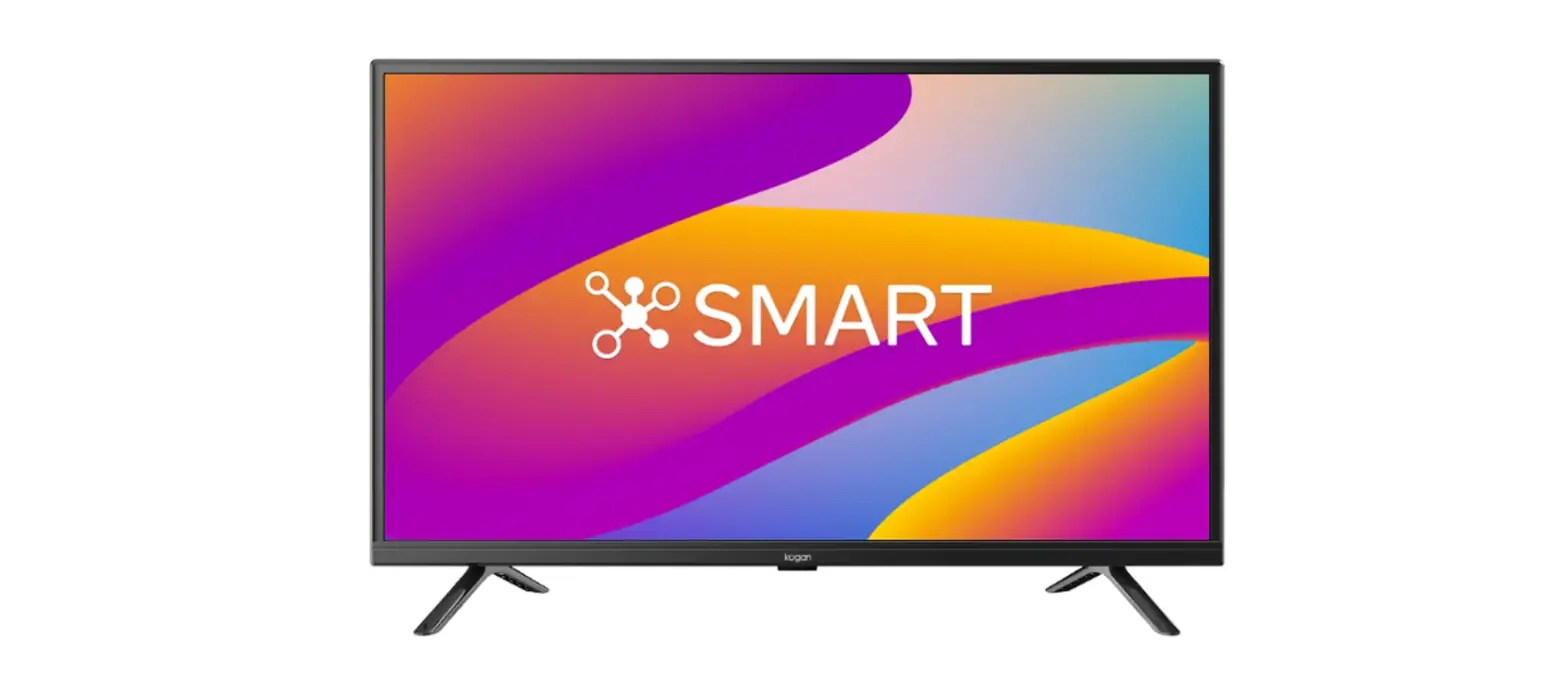

USER GUIDE
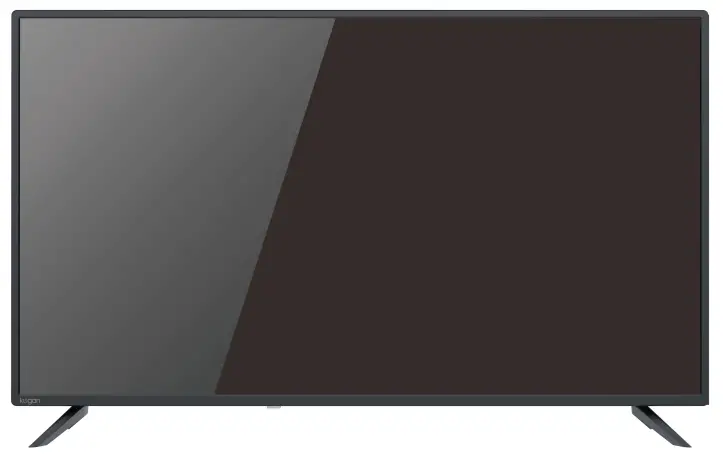
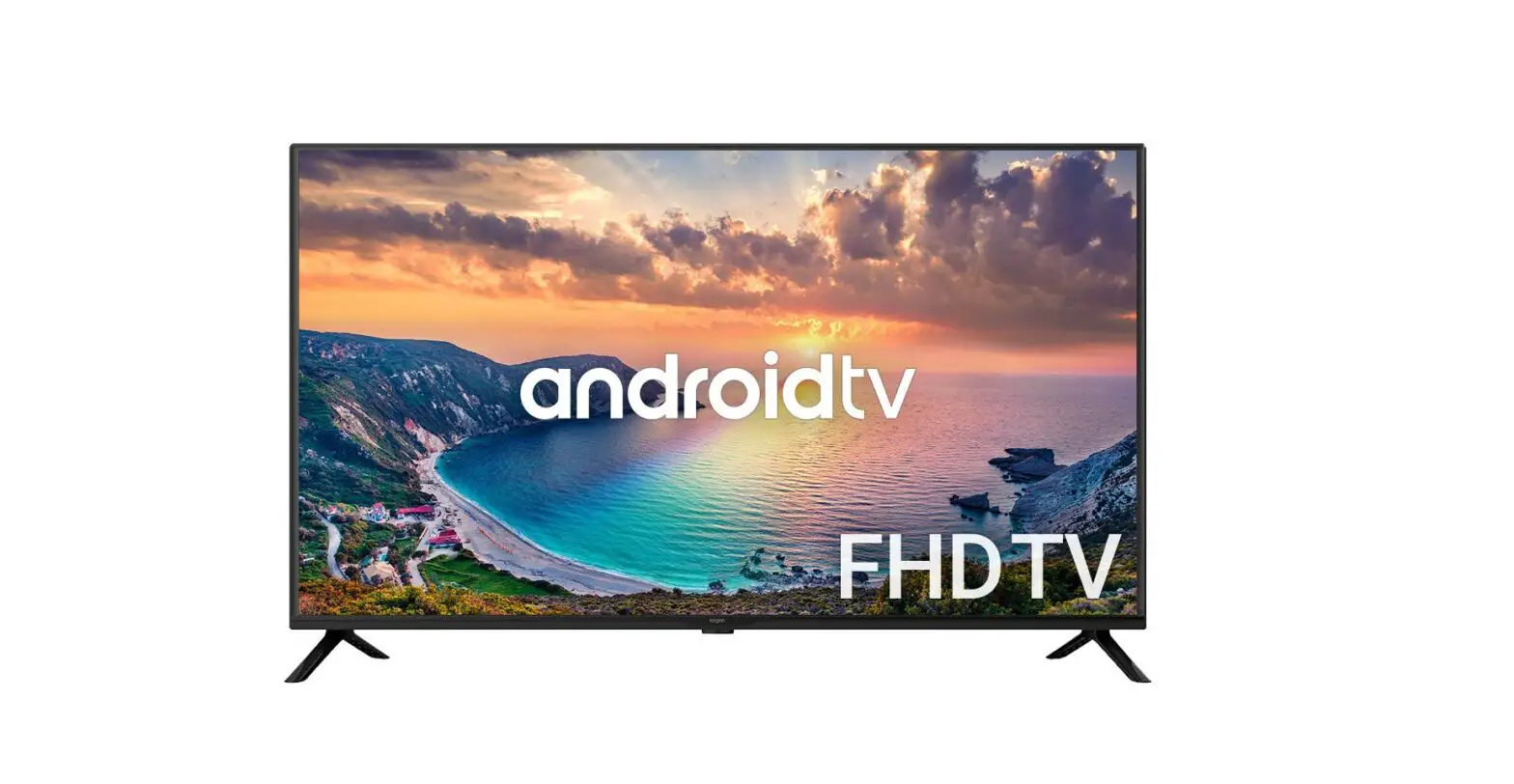
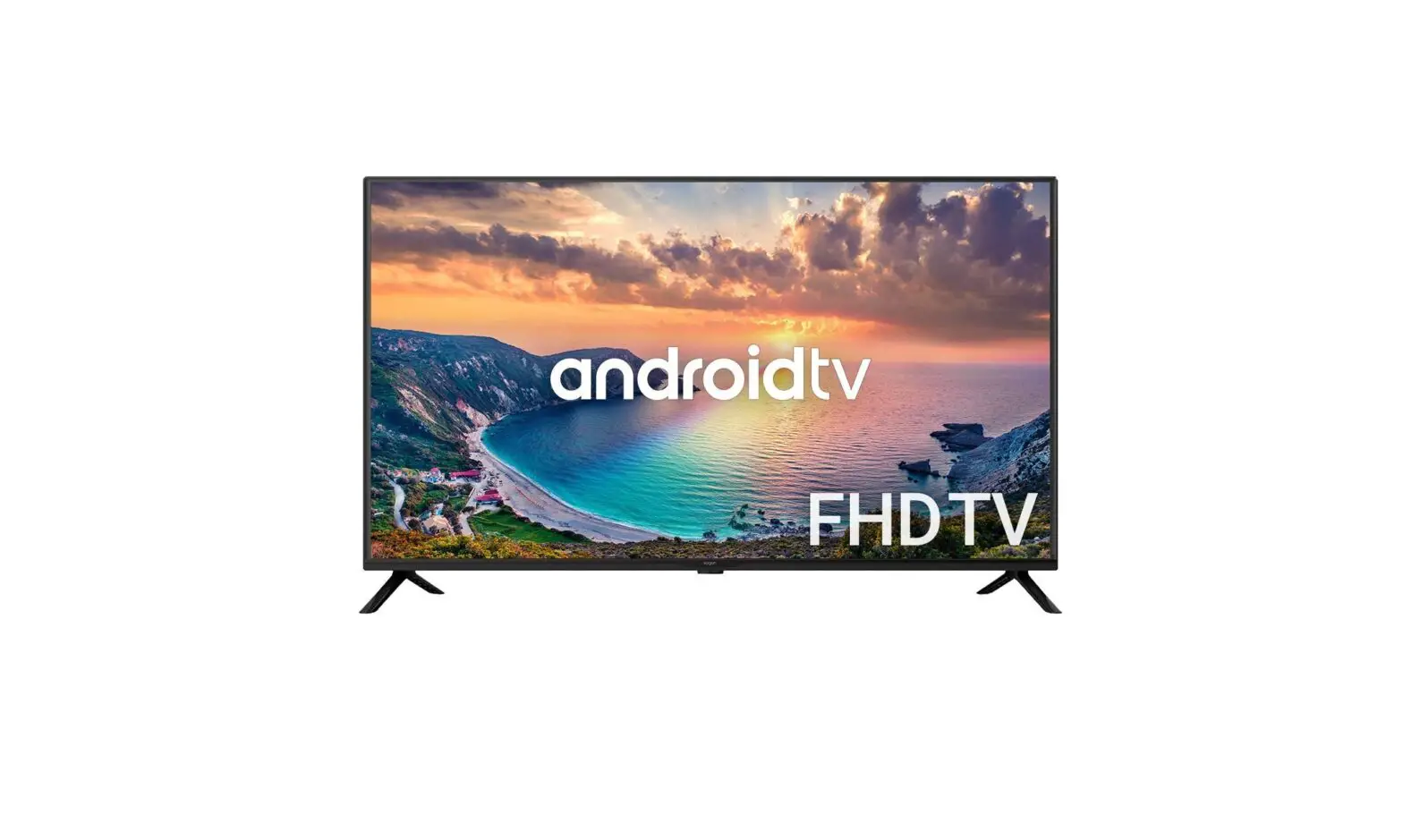
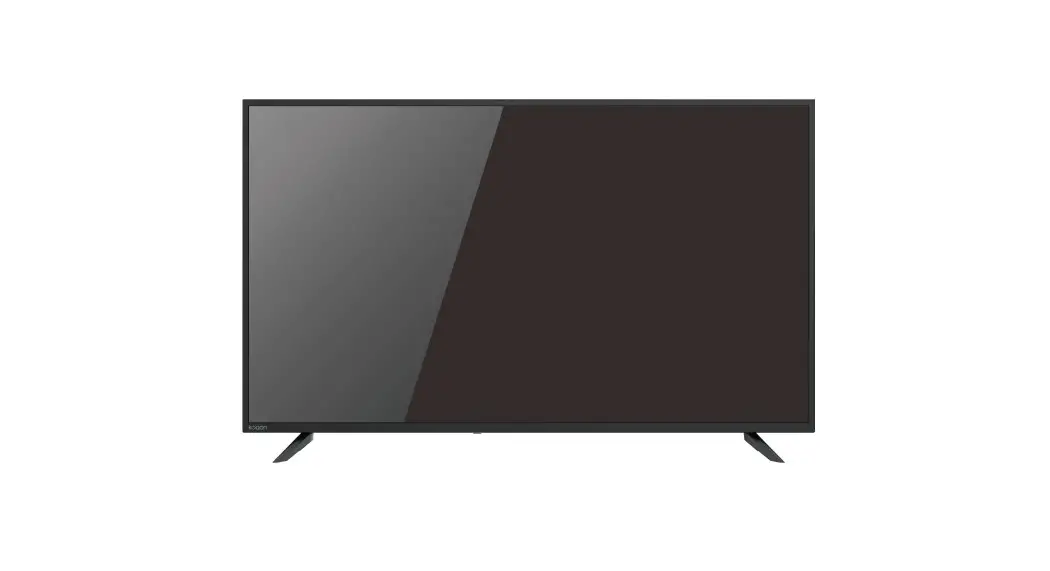
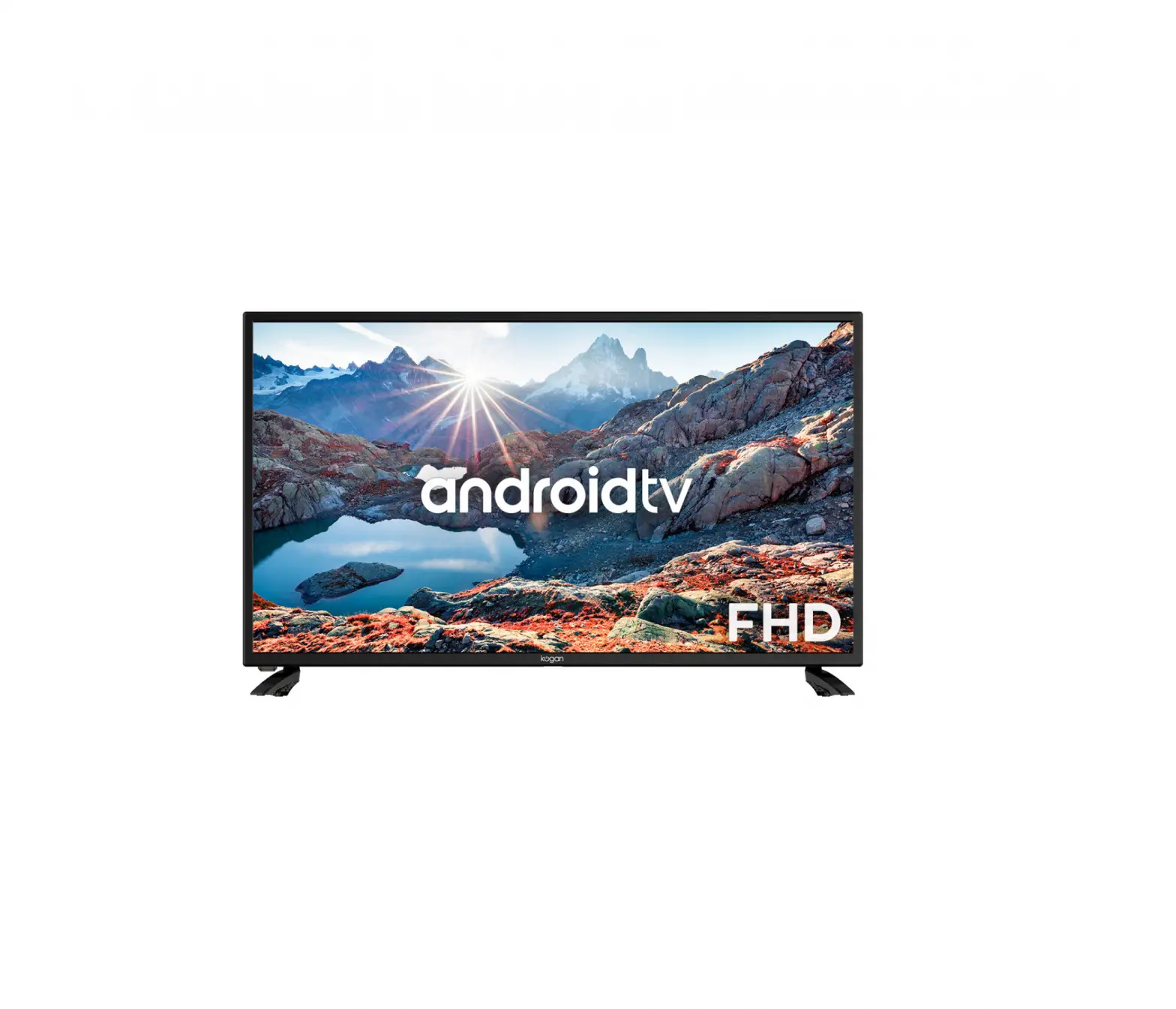
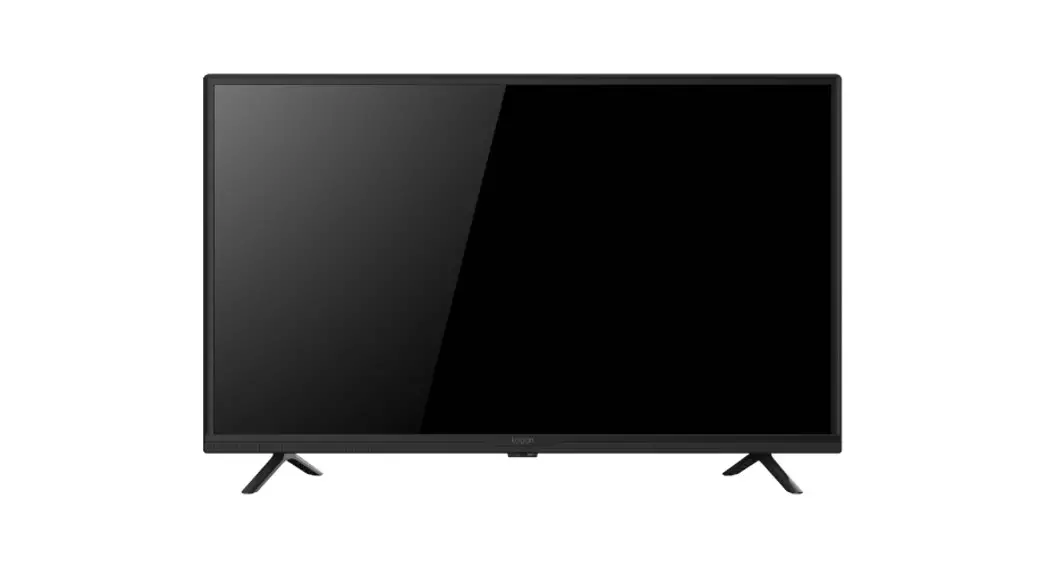
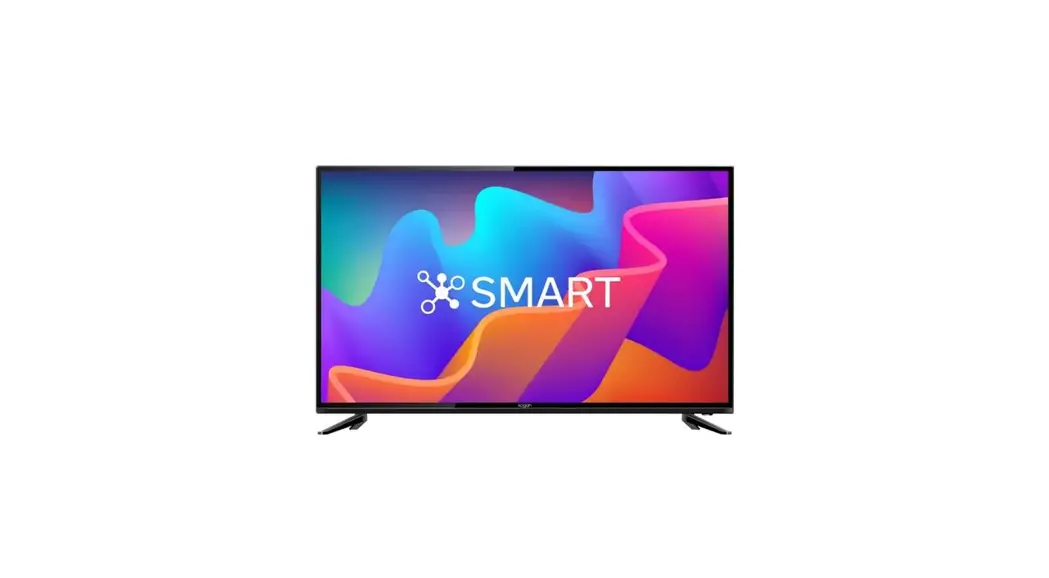
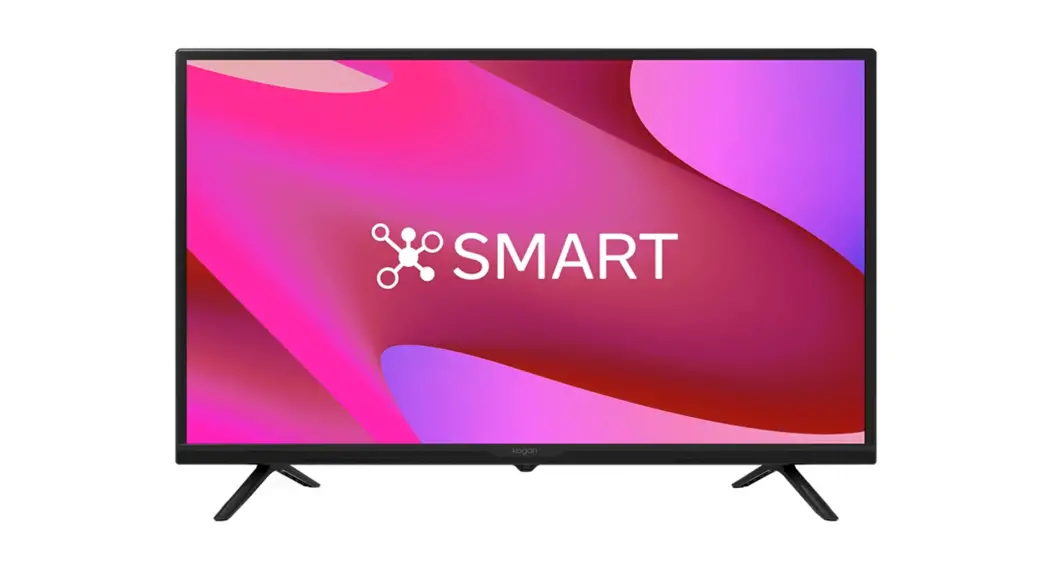
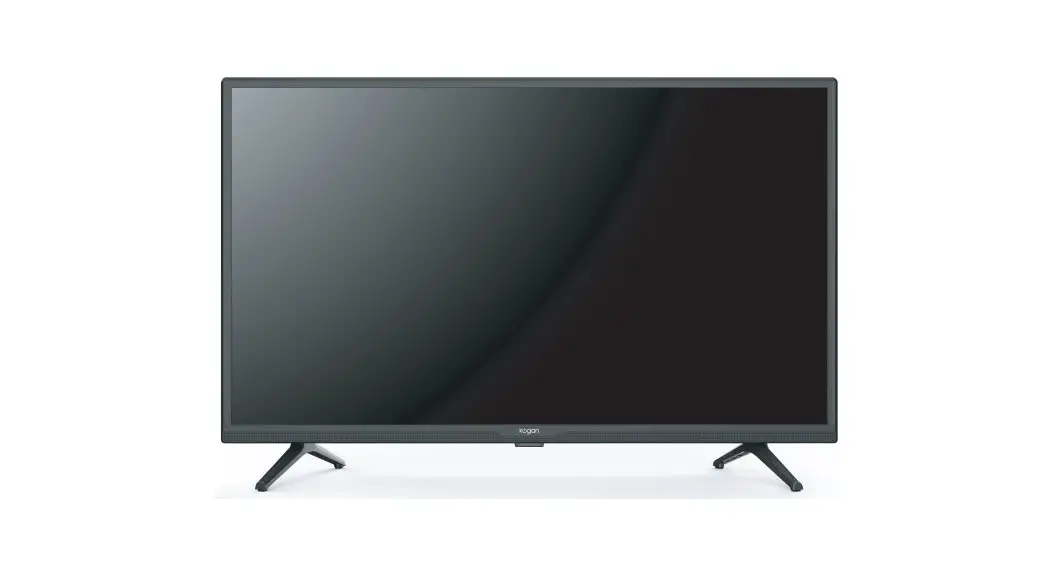
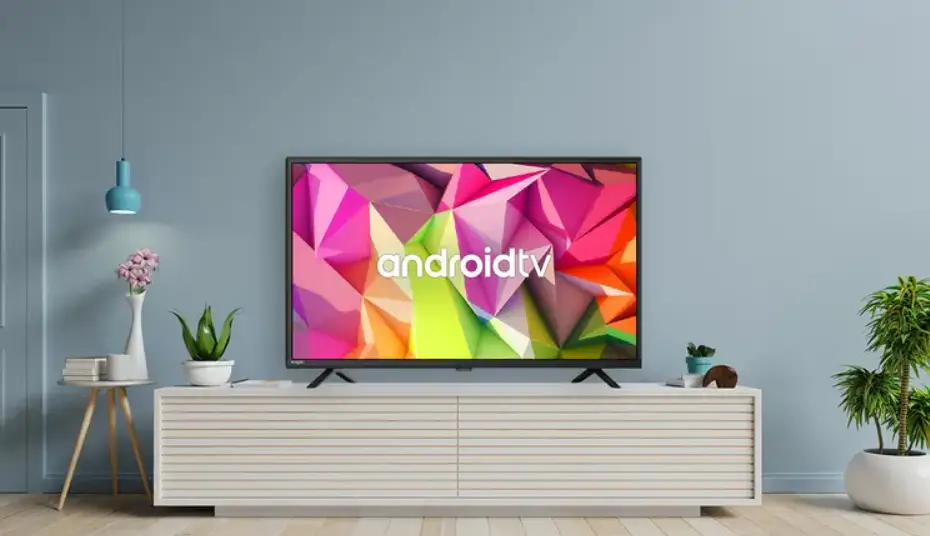
KALED40RT9220SVA 40 Inch Smart Full HD LED Android TV
SAFETY INFORMATION
 The exclamation point within an equilateral triangle is intended to alert the user to the presence of important operating in the literature accompanying the appliance.
 Warning
The lightning flash with arrowhead symbol within an equilateral triangle,is in tended to alert the user to the presence of uninsulated dangerous voltage within the products enclosure that may be of sufficient magnitude to constitute a risk of electric shock to persons.
CAUTION
RISK OF ELECTRIC SHOCK DO NOT OPEN
High, voltage are used in the operation of this product to reduce the risk of elect shock,do not remove cover of the cabinet, refer servicing to qualified service personal.
If the TV any changes or coarse adjustment, electric shocks to be hurt, do not attempt to open a machine-maintenance, customer contact centres needed overhaul.
IMPORTANT SAFETY PRECAUTIONS
- Read these instructions.
- Keep these instructions.
- Heed all warnings.
- Follow all instructions.
- Do not use his apparatus near water.
- Clean only with dry doth.
- Do not block any ventilation openings. Install in accordance with the manufacturer’s instructions.
- Do not install near any heat sources such as radiators, heat registers, stoves, or other apparatus (including amplifiers) that produce heat.
- Do not defeat the safety purpose of the polarized or grounding-type plug. A polarized plug has two blades with one wider than the other. A grounding type plug has two blades and a third grounding prong. The wide blade or the third prong are provided for your safety, If the provided plug does not fit into your outlet, consult an electrician for replacement of the obsolete outlet.
- Protect the power cord from being walked on or pinched particularly at Plugs, convenience receptacles, and the point where they exit from the apparatus.
- Only use attachments /accessories specified by the manufacturer.
 Use only with the cart, stand,tripod, bracket or table specified by the manufacturer, or sold with the apparatus. When a cart is used caution when moving the cart/apparatus combination to avoid injury tip-over.
- Unplug this apparatus during lightning storms or when unused for long periods of time. Caution:
- To reduce the risk of fire or electric shock, do not expose this apparatus to rain or moisture.
- The mains plug is used as disconnect device,the disconnect devices hall remain readily operable.
- The socket-out shall be installed near the equipment and shall be easily accessible.
- This product should never be placed in a built-in installation such as a bookcase or rack unless proper ventilation is provided or the manufacture’s instructions have been adhered to.
- The apparatus shall not be exposed to dripping or splashing and that no objects filed with liquid, such as vases, shall be placed on the apparatus.
- Do not place any sources of danger on the apparatus(e.g.liquid filled objects,lighted candles).
- Wall or Ceiling Mounting-The appliance should be mounted to a wall or ceiling only as recommended by the manufacturer.
 Never place the TV,remote control or batteries near naked flames or other heat sources, including direct sunlight.To prevent the spread of fire,keep candles or other flames away from the TV, remote control and batteries at all times.
- PThe USB terminal should be loaded with 0.5A under normal operation. These servicing instructions are for use by qualified service personnel only.To reduce the risk of electric shock do not perform any servicing other than that contained in the operating instructions. unless you are qualified to do so.
- The battery shall not be exposed to excessive heat such as sunshine,fire or the like.
 This equipment is a Class Il or double insulated electrical appliance.It has been designed in such a way that it does not require a safety connection to electrical earth
- The maximum using environment temperature is 45 degrees. The Maximum using altitude is 2000 meters
 Use only with the cart, stand,tripod, bracket or table specified by the manufacturer, or sold with the apparatus. When a cart is used caution when moving the cart/apparatus combination to avoid injury tip-over.
 Never place the TV,remote control or batteries near naked flames or other heat sources, including direct sunlight.To prevent the spread of fire,keep candles or other flames away from the TV, remote control and batteries at all times.
 This equipment is a Class Il or double insulated electrical appliance.It has been designed in such a way that it does not require a safety connection to electrical earth
COMPONENTS
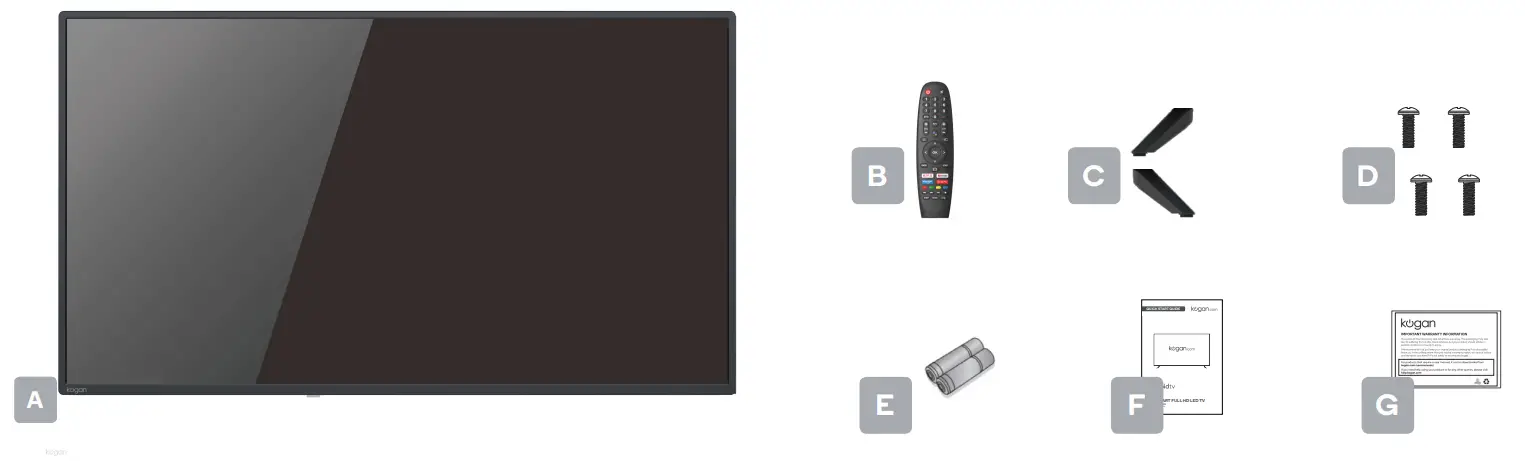
A Kogan 40” SMAR T FULL HD LED TV
B Remote control
C Stand (x2)
D Ba4 x 18mm screw (x4)
E AAA battery (x2)
F Quick-start guide
G Warranty card
NOT INCLUDED
Phillips head screwdriver, antenna cable, broadband internet connection.
Note: The following is only functional schematic,And the actual position and arrangement of different models may be different.
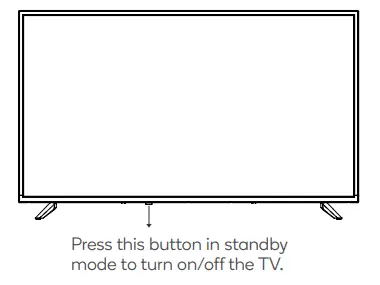
Terminal Interface
Note: The following are the various terminal interface,the actual position and arrangement, the number of different models may be different.
 | AV input External Av Signal Input. |
 | HDMI input Digital signal input from HDMI video connector. |
 | ANT 75 Connect the antennal/cadle tv input (75/VHF/UHF). |
 | USB input Connect a USB device here to play its media files or to record programs via the PVR function. |
 | OPTICAL output Connect the SPDIF receiver. |
 | LAN Connect the Internet. |
EXTERNAL DEVICE CONNECTION DIAGRAM
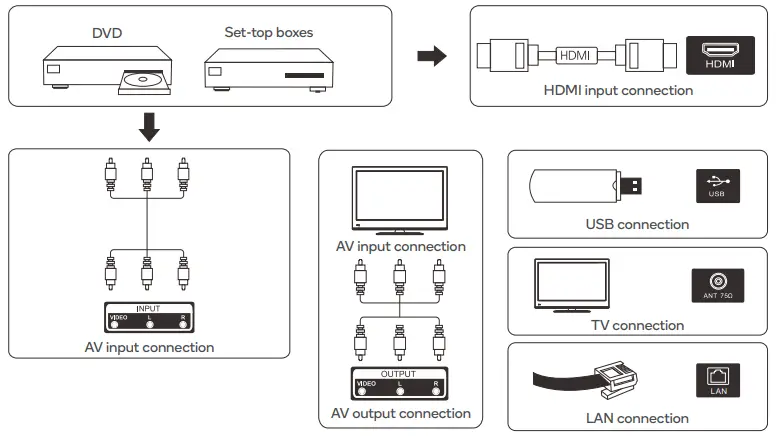
TV INSTALL AND CONNECT
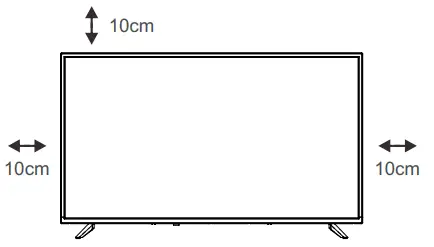
Set your TV
To put your TV on a firm place which can bear the weight of the TV.
To avoid danger, please don’t positions the TV near water or heating place (such as light, candle, heating machine),do not block the ventilation at the back of TV.
Connect antenna and power
- Connect the antenna cable to the antenna socket on the back of the TV.
- To plug the power cord of TV (AC 100-240V~ 50/60Hz).
 Turn on TV
 - Connect the power supply, enter the standby mode (red light), press the power button of the TVor the power button on the remote control to turn on the TV
Note:
Picture for reference purposes only.
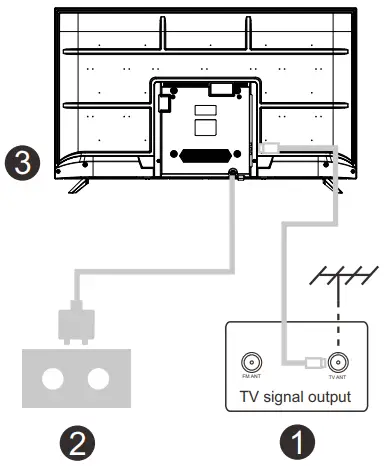 Turn on TV
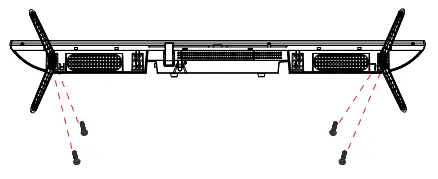
TV STAND INSTALLATION INSTRUCTIONS
- Open the carton and remove the TV and scattered accessories and base (some models without base).
- In order to avoid damaging the TV,please cover it with soft mattress,put it on the table, face down on the soft material and screw the neck of the base to the TV.
- screw the base and connected to the TV.
- the installation is complete.
Note:
Picture for reference purposes only.
Please prevail in kind
REMOTE CONTROL OVERVIEW
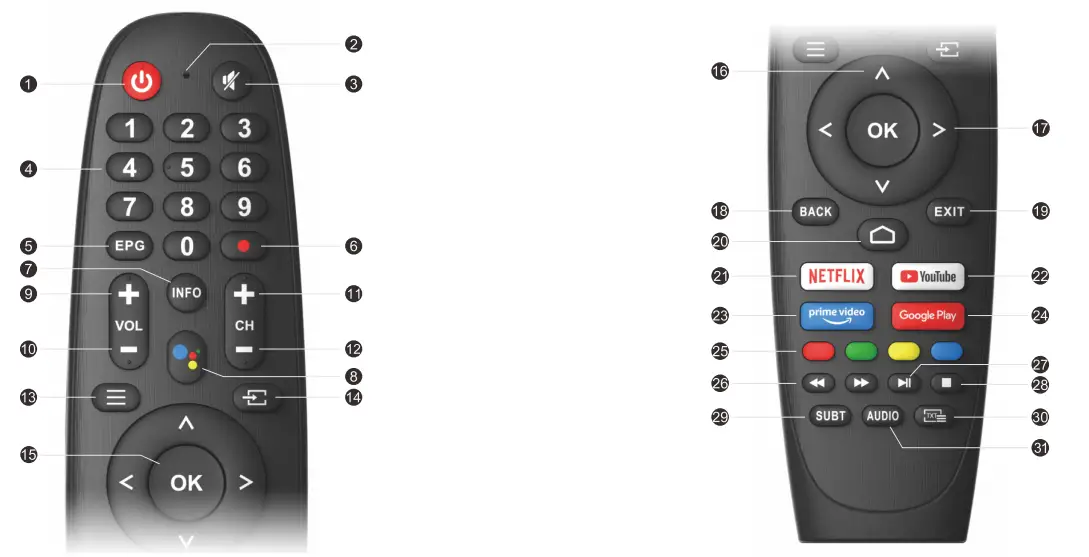
 : Switches the TV between on and standby mode
- • : Microphone hole
 : Mute or restore TV sound
- 0∼9: Figures 0-9 are used to directly input channel number
 : Press to display Electronic Program Guide and select the favorite channel
 : Press to start recording the program
 : Press to info the source and channel’s info
 : Google Assistant
- VOL + :Increase the volume
- VOL -:Decrease the volume
- CH +:Increase the program
- CH -: Decrease the program
 : Displays the OSD(On Screen Display) menu
 : Display/Select signal source options
 : To confirm the choice with program the highlighted menu item
 : Press these buttons to select items
 : Press these buttons to select and adjust items
 : Go back to the previous step
 : Press to exit the OSD menu
 : Displays the home screen
 : Connects to NETFLIX for viewing online TVshows and films(internet connection required).
 : Connects to YouTube (internet connection required).
 : Accesso diretto a Amazon Prime Video
 : To open app homepage
- Colour Buttons: Press these buttons according to different prompts
 : Press to fast reverse in USB mode
 : Press to play the video and press again to pause the video
 : Press to fast forward in USB mode
 : Hold on or off for current page display SUBT
 : Press to enter Teletext when play the program
- : Press to change the language when
 : playing the stream which contains multi-language
 : Switches the TV between on and standby mode
 : Mute or restore TV sound
 : Press to display Electronic Program Guide and select the favorite channel
 : Press to start recording the program
 : Press to info the source and channel’s info
 : Google Assistant
 : Display/Select signal source options
 : To confirm the choice with program the highlighted menu item
 : Press these buttons to select items
 : Press these buttons to select and adjust items
 : Go back to the previous step
 : Press to exit the OSD menu
 : Displays the home screen
 : Connects to NETFLIX for viewing online TVshows and films(internet connection required).
 : Connects to YouTube (internet connection required).
 : Accesso diretto a Amazon Prime Video
 : To open app homepage
 : Press to fast reverse in USB mode
 : Press to play the video and press again to pause the video
 : Press to fast forward in USB mode
 : Hold on or off for current page display SUBT
 : Press to enter Teletext when play the program
 : Press to change the language when
 : playing the stream which contains multi-language
INITIAL INSTALLATION
1. Initial Installation
The first time you switch the TV on, the initial step screen appears which guides you through the initial proces.Please according to the Text Tips to inish initial installtion.
1. 1 Language select
->Press  remote control to select the language option,then click【OK】to confirm.
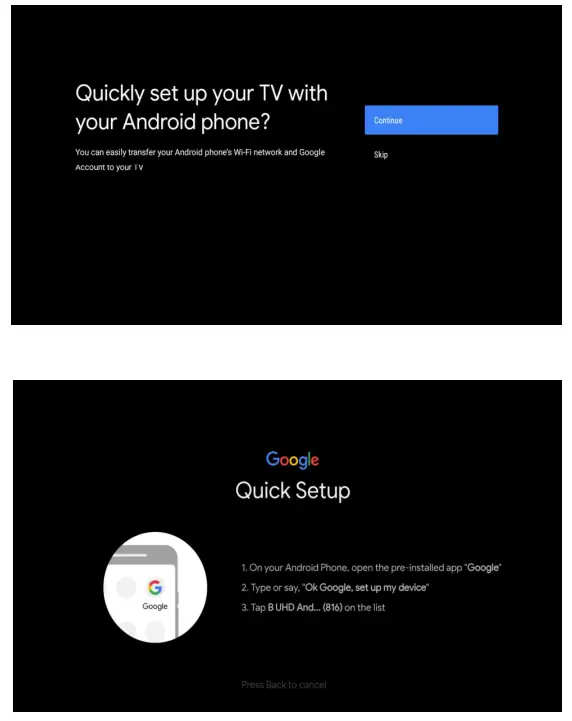
1.2 Quickly set up your TV with your Android phone? (Continue/skip) Steps:
- On your Android Phone, open the Pre-installed app “Google”.
- Type or say, “Ok Google, set up my device”.
- Tap the model name on the list.
1.3Configure the network
->Select wired or wireless to connect to internet.
->If you select skip,it could be performed in homepage or settings menu.
1.4 Google Account Sign in
Sign in to get new apps,recommendations,movies,the Assistant,and more from Google.Two ways to login Google account:
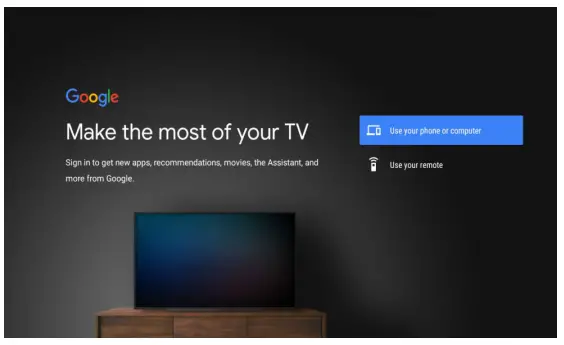
->Use your phone or computer:
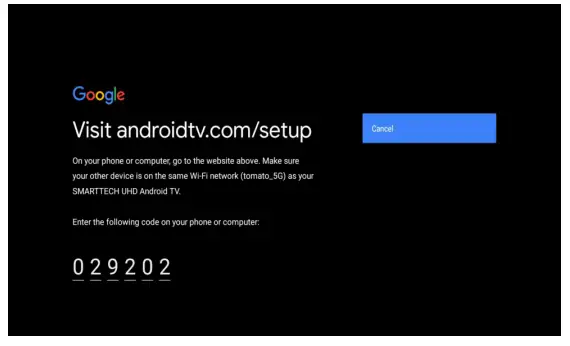
- Visit androidtv.com/setup on your phone or computer, Make sure your other device is on the same Wi-Fi network as your Android TV ™
- Enter the display code on your phone or computer
->Use your remote:
Use the remote to enter your Google account and password to sign in to Google account.
1.5 Google setting
In these steps you will setup the Terms of Service, Location, Help improve Android, Google Assistant and additional Google functions.
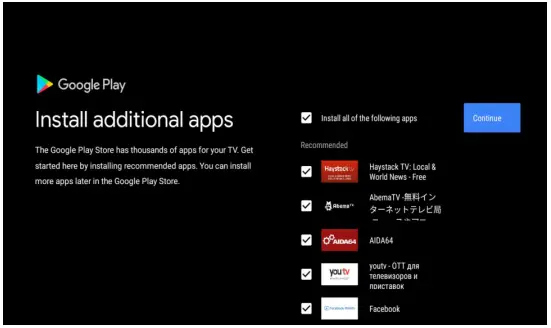
1.6 Play Auto Installs
Select install or un-install he recommended apps and Google apps by using this process.
->Press “Continue” to the next setting page.
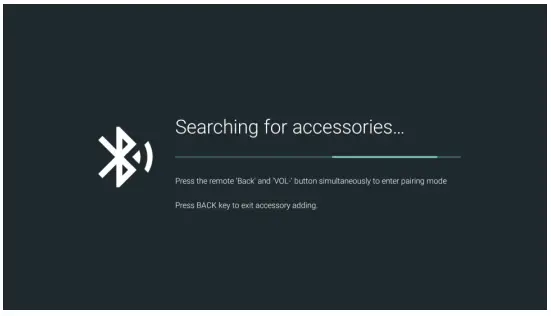
1.7 Pairing Bluetooth Remote
-> Press’BACK  ‘and ‘ VOL-
 ‘ simultaneously on remote control to enter the Bluetooth pairing mode. The Indicator light on remote control will flash when enter the pairing mode.
-> Press【OK】to begin pairing.
-> Press on remote control to skip the pairing mode.
1.8 Country select
->Press on remote control to select the country option,then click【OK】to confirm.
1.9 Set the TV password for Parental Controls, “0000” is invalid.
1.10 Select TV mode(Home/Retail)
Home mode is optimized for efficient energy usage for home use.
Retail mode is optimized to store demo with fixed settings.
1.11 Chromecast built-in™
Select On/Off to make Chromecast built-in available.
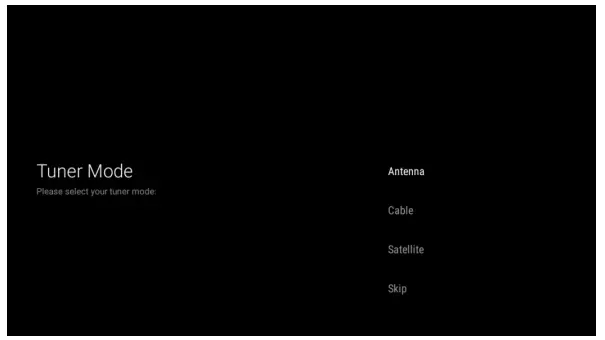
1.12 TV Channel Setting
->Select Antenna/Cable/Satelite to scan TV channel.
->If you select skip, the channel scan could be performed in menu.
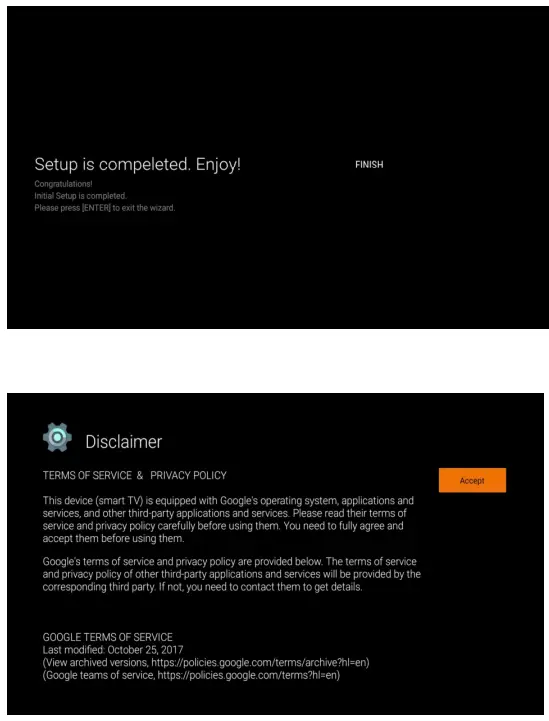
1.13 Setup completed and Disclaimer Terms
HOME
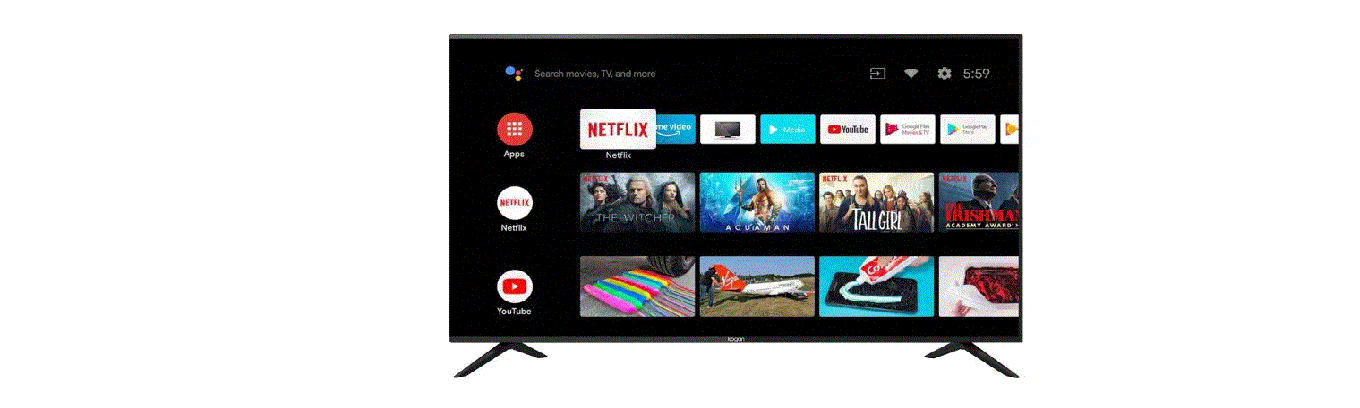
When initial setup is complete,the TV will enter the homepage by defaul t,or press on remote control to display the homepage.
->Press  on remote control to switch between Google Assistant, Apps, Play Next, Netflix, YouTube, and more on the Homepage.
-> Press【OK】to enter.
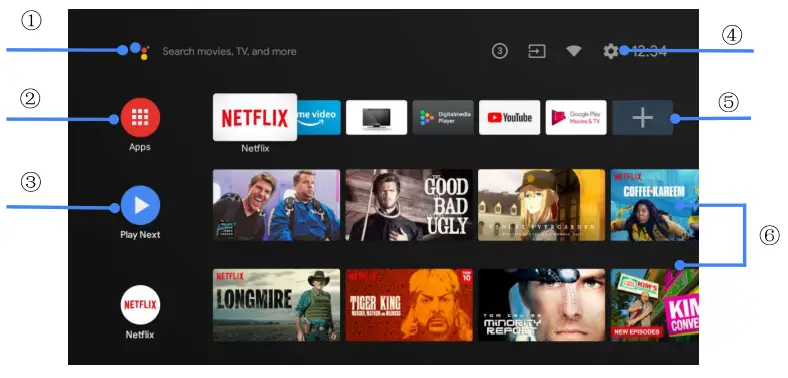
- Google Assistant
Use your voice to jump to shows,control devices,and more—with Google Assistant - Apps
List of downloaded and pre-loaded apps on your device - Play Next
Based on your watch history and includes next episode in a series or unfinished movies - Settings
Manage apps and TV controls, changepreferences, sounds,and account - Favorite apps
Quick access to frequently used apps - Channels
For easy content discovery
SETTINGS
Allows to set various performance of your TV.
-> Press  on remote control to select “Settings”which is in the upper right corner of the screen.
-> Press on remote control to select the option which you want to adjust in the Settings menu.
-> Press【OK】to enter.

3.1 Network&internet
Adjust all network setting and check connection if you have connection problems.
-> Press remote control to select “Network&internet” in the settings menu.
-> Press remote control to select:Wi–Fi/Add new network/Scanning always available/Proxy settings/IP settings.
3.2 Channel
-> Press on remote control to select “Channel” menu.
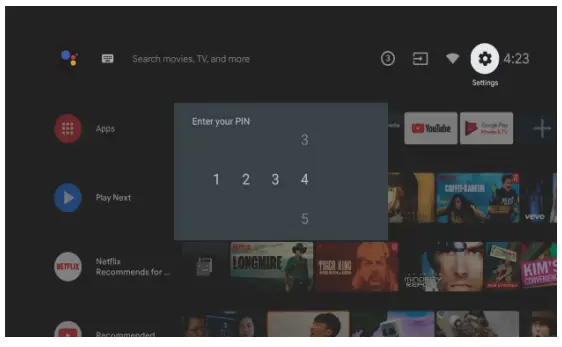
->Press【OK】to enter”Parental Controls”, then click or use the number buttons on remote control to enter your PIN(Password for Parental Controls).
3.3 Device Preferences
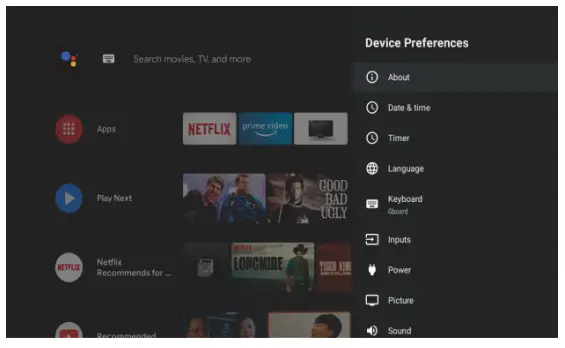
-> Press on remote control to select “Device Preferences”.
-> Press on remote control to select the options of About, Date&time, Timer, Language, Inputs, Picture, Sound, Google Assistant, Reset,etc.
->Press【OK】to jump to the corresponding sub-option.
3.3.1 About
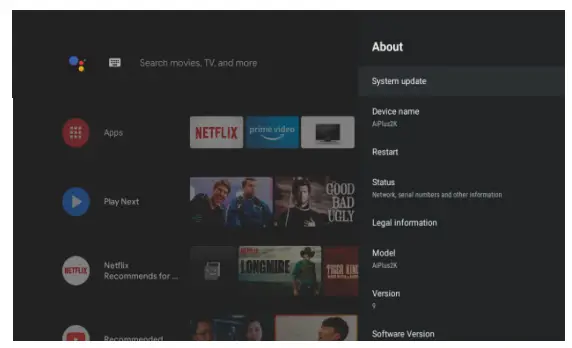
-> Press on remote control to select “About”.
-> Press on remote control to check additional information such as System update, Device name, R estart, Status, and more.
-> Press on remote control to return to the previous menu.Press  on remote control to exit the menu.
3.3.2 Reset
If select reset, it will erase all data from your device’s internal storage, including: your Google account, System and app data and settings, and downloaded apps.
-> Press on remote control to select “Reset”.
-> Press on remote control to select “Cancel” or “Erase everything”.
APP INSTALL/MOVE/UNINSTALL
->Press on remote control to select”Apps”on Homepage, then click 【OK】to enter.
-> Select “Get more apps” and input app name.
-> Select “search” which is in the upper right corner of the page.
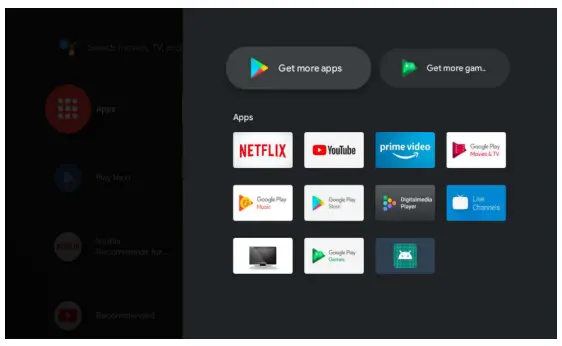
Example for “Facebook”
4.1 Install
->Input “Facebook”, find “Facebook”App will show in the list,then click【OK】to select it.
->Select “Install”,when completed select to open or Uninstall.
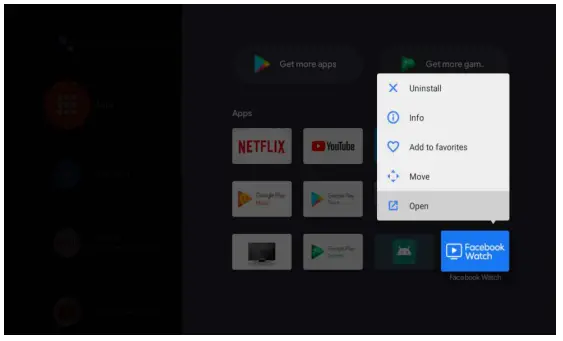
4.2 Move
->Select”Facebook”, press and hold【OK】on remote control, then click remot e control to select”Move”
-> Press on remote control to move,then click【OK】to confirm.
4.3 Uninstall
->Select “Facebook”, press and hold【OK】on remote control, then click on remote control to select”Uninstall”.
-> press【OK】to uninstall.
TV SOURCE SETTING
5 TV source setting
The way to enter TV source in Homepage:
->Presson remote control or Select”Live TV”on Homepage.
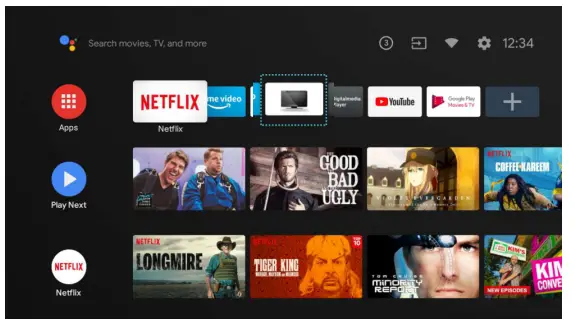
->Press  on remote control.
->Press on remote control to select”Channels”and select”New Channels Available”to enter.
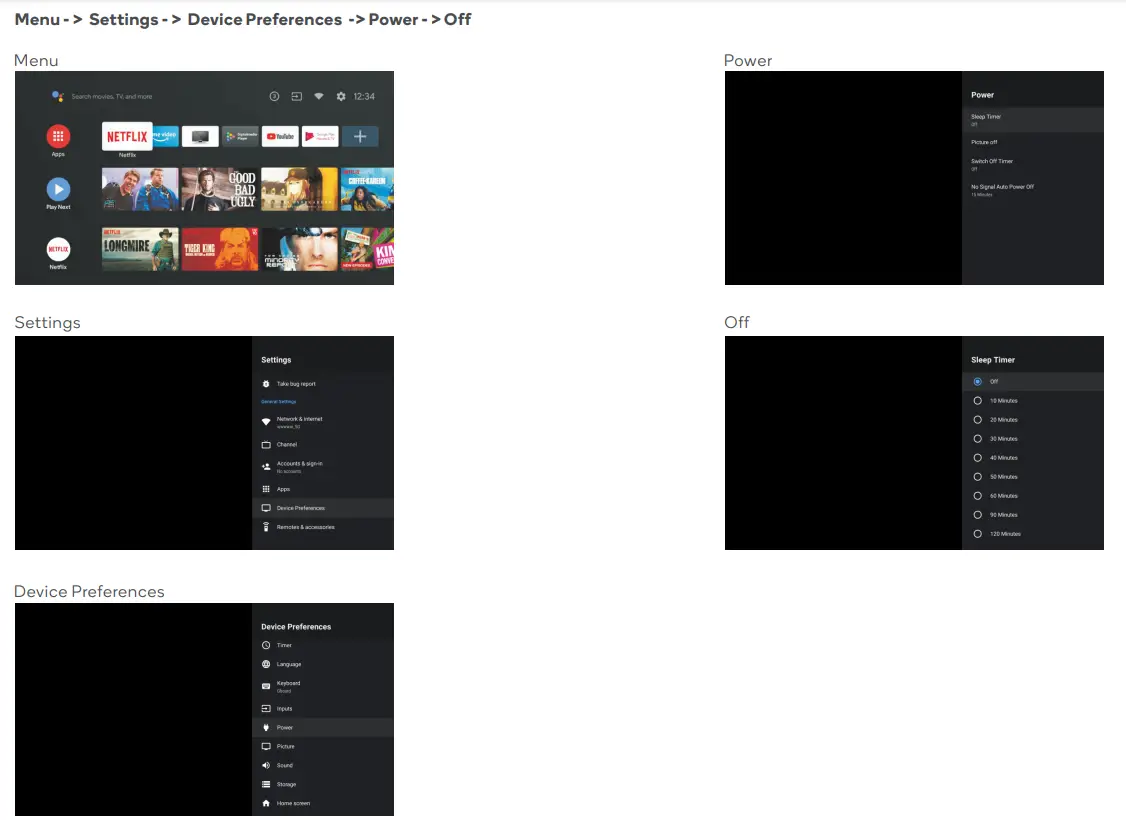
HOW TO TURN OFF AUTO SLEEP FUNCTION
SPECIFICATIONS
Audio
| Speakers | 2 x 10W |
Connectivity
| Ethernet (RJ45) | Yes |
| HDMI | 1.4 |
| HDMI-ARC | Yes | HDMI 1 |
| HDMI-CEC | Yes | HDMI 1, HDMI 2, HDMI 3 |
| USB | 2 x USB 2.0 |
| Wi-Fi | IEEE 802.11a/b/g/n |
Dimensions
| Distance Between Legs | 833.8mm |
| Without Stand | 905.3 x 514.8 x 74.6mm |
| With Stand | 905.3 x 558.5 x 237.2mm |
| VESA Wall Mount Pattern | 200 x 200 |
| Weight | 6.6 kg |
Display
| Colours | 16.7M |
| Computer Supported Resolutions | 640×360, 853×480, 1024×576, 1280×720, 1366×768, 1920×1080 (@60Hz) |
| Contrast Ratio | 5000:01:00 |
| Native Aspect Ratio | 16:09 |
| Refresh Rate | 60Hz |
| Resolution | 1920 x 1080 |
| Response Time | 8.5 ms |
| Size | 40” |
| Viewing Angle | 178°/178° |
Features
| EPG | Yes |
| HDCP | Yes | 1.4 |
| TV Resolution | FHD |
| Browser | No |
| USB Media Playback | Yes |
| USB Media Playback Formats | JPG, JPEG, PNG, BMP, MP3, DD, DD+, AAC, MPG, MPEG4, H.265, VP9 (4K@60P) |
Inputs
| Composite (AV) | 1 |
| HDMI | 3 |
Outputs
| Optical Audio Out | 1 |
Performance
| CPU | ARM Cortex A53 quadcore 1.1GHz |
| GPU | MAli470 MP3 |
| OS | Android 9.0 |
| RAM | 1 GB |
| Storage Capacity | 8GB |
Power
| Average Consumption | 90W |
| Energy Consumption | 151 kWh per year |
| Energy Rating | 6 Star |
Tuning And Signal
| Tuner Type | DVB-T/T2/C |
Note:
- Design and specifications are subject to change without notice.
- Weight and dimension shown are approximate.
TROUBLESHOOTING
Common fixes
Many minor issues can be resolved by hard resetting, or power cycling the unit or upgrading the firmware.
To perform a hard reset, or power cycle,please use the following steps.
- Unplug it from the main power socket and leave it for 10-15 minutes.
- Press and hold the power button on the TV for 5 seconds.
- Connect the TV back to the power and turn it on.
Poor picture and sound quality
- Try a different channel
- Adjust the antenna
- Check all connections
No picture or sound in TV status
- Try another channel
- Press the TV/AV button
- Make sure TV is plugged in
- Check the antenna connection
No sound or sound is too low at maximum volume
- Check the volume settings on any external speakers connected to your television
- Adjust the TV volume accordingly
- Check another channel or input
- Check that MUTE hasn’t been turned on
Picture rolls vertically
- Check all connections
No colour, wrong colour or tints
- Make sure the program itself is broadcast in colour
- Select the picture menu, then adjust the colour and tint submenus
Blurred or snowy picture, distorted sound
- Check direction, location and connections to your antenna
- Issues may be caused by the use of an indoor antenna (poor signal)
Remote control malfunctions
- Replace remote control batteries
- Check battery terminals
- Remote is out of range, move closer to TV
- Remove any obstructions between remote and IR sensor of TV
- Make sure the power cord to your TV is plugged in and turned on
Image is not centred on the screen
- Adjust the horizontal and vertical position
“No Signal” on HDMI source
- Test the device with a different HDMI cable
- Plug the device into another HDMI port
- Try a different device connected to the same cable and port
- Perform a factory reset on your TV
Care & maintenance
Unplug the television from the power supply before cleaning. Do not use any liquid cleaners or harsh chemicals. Always use a soft, damp cloth.
Cleaning the screen
Wet a soft cloth in a mixture of lukewarm water and a little fabric softener or dish washing detergent. Wring the cloth until it’s almost dry, and then use it to wipe the screen.
Make sure the excess water is off the screen, and then let it air-dry before you turn on your TV.
Cleaning the casing
To remove dirt or dust, wipe the TV casing with a soft, dry, lint-free cloth. Please be sure not to use a wet cloth.
For our full TV troubleshooting guide, head online to help.kogan.com
© Copyright 0221, Kogan.com – KALED40RT9220SVA
THIS USER GUIDE COVERS THE FOLLOWING MODELS
Kogan 40” SMART FULL HD LED TV (Series 9 RT9220)
 Kogan.com | Australia's Premier Shopping Destination