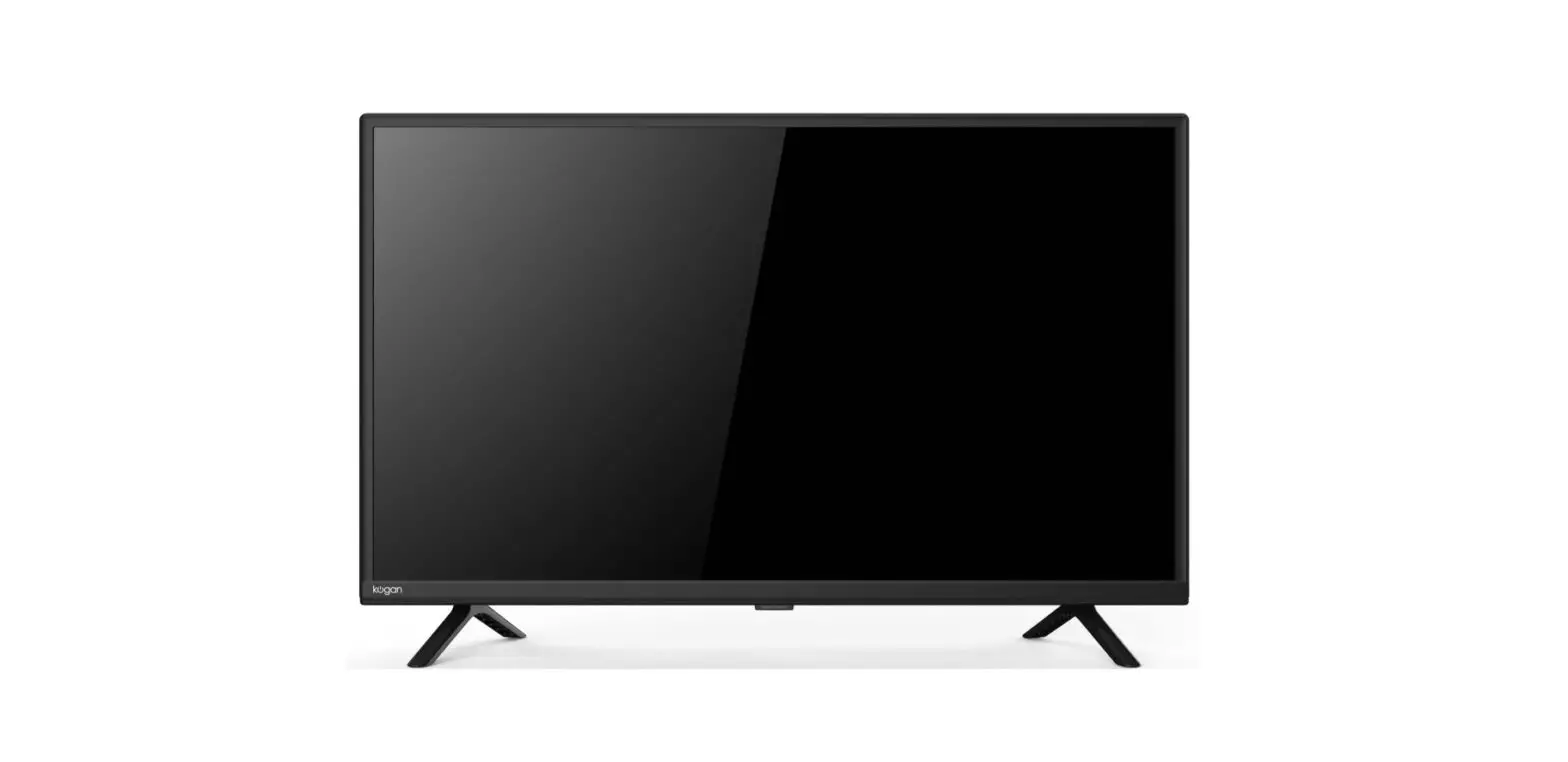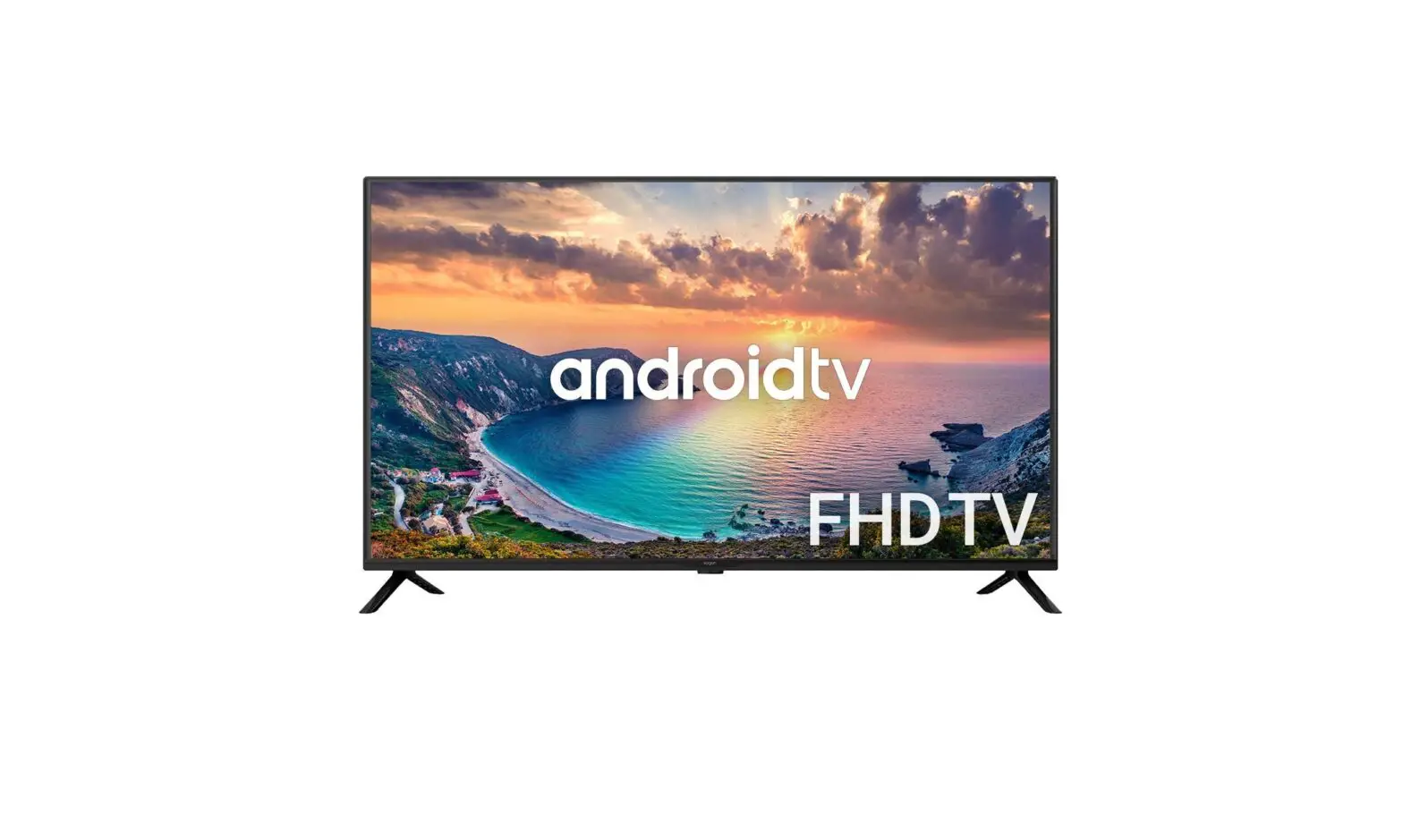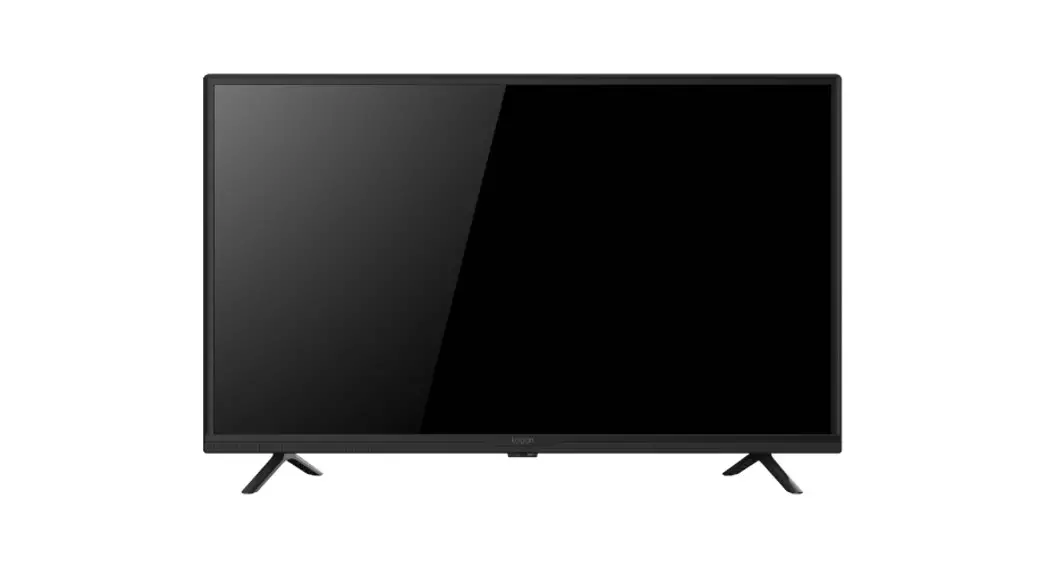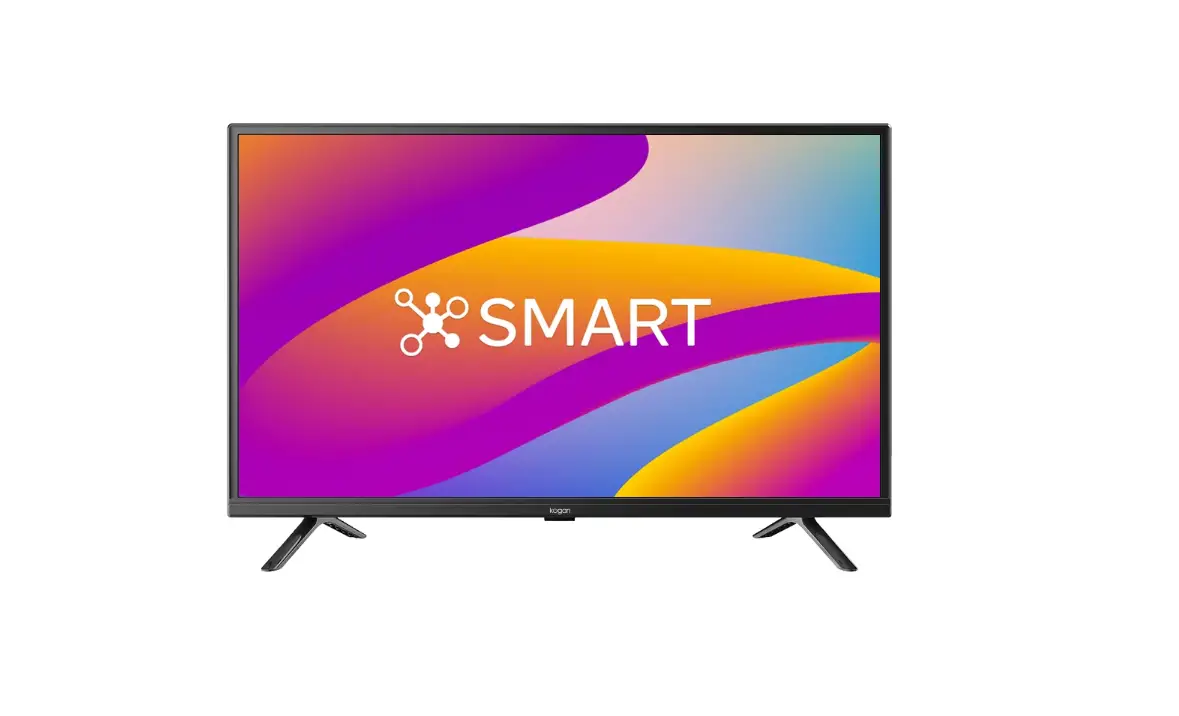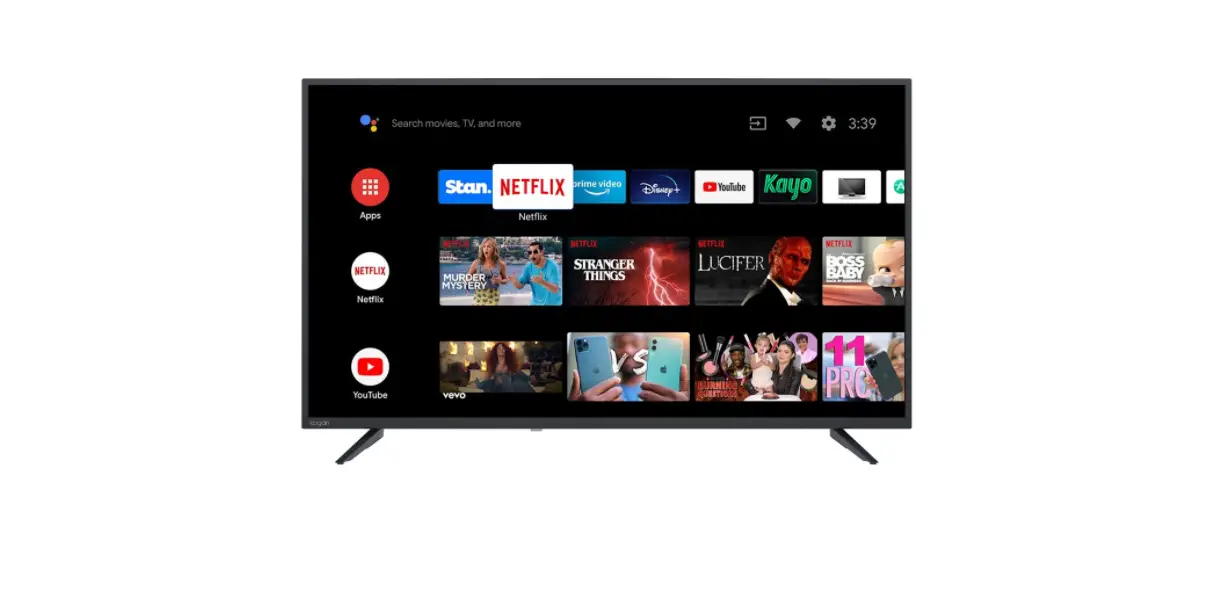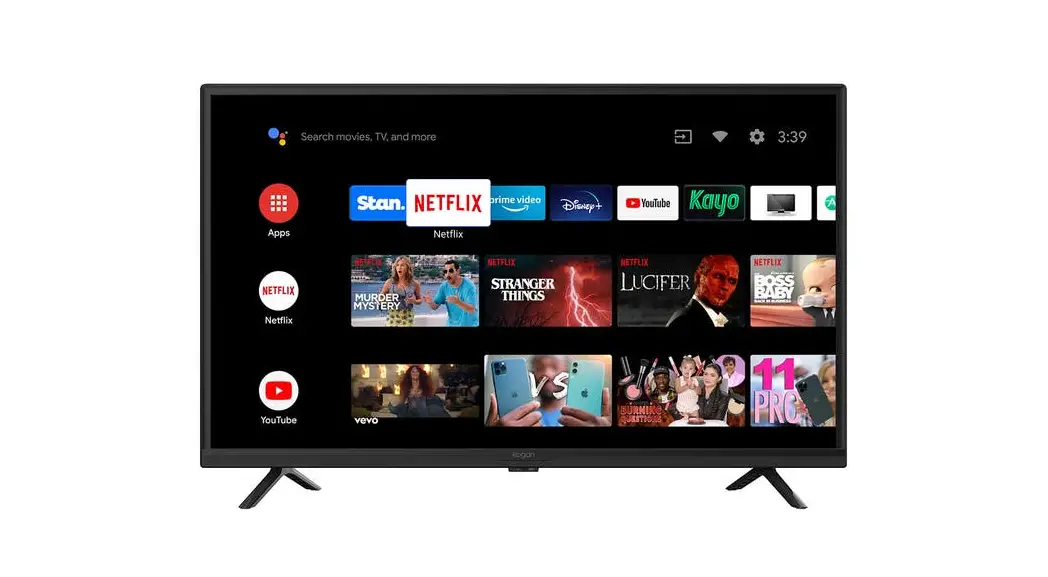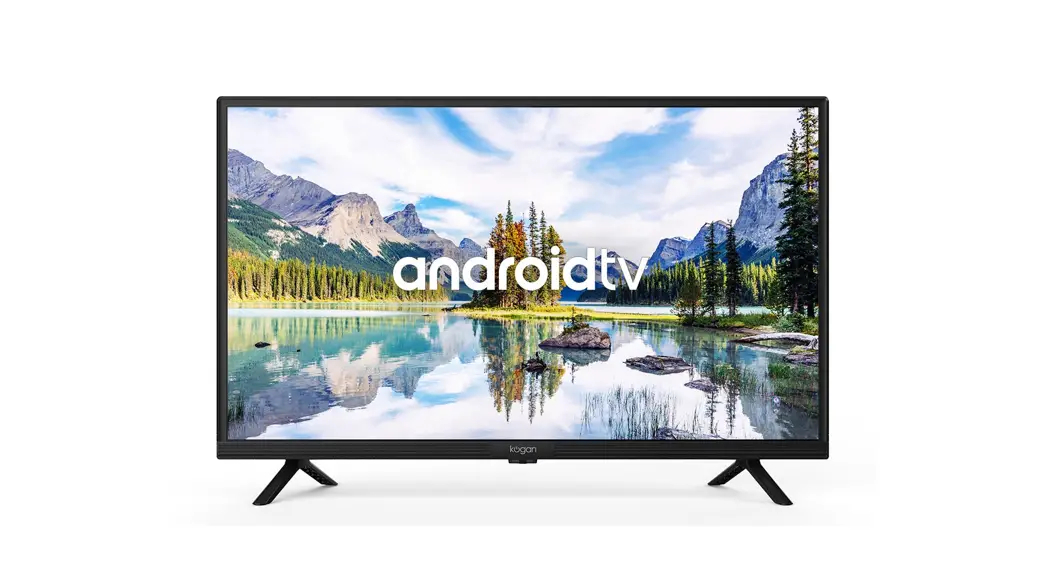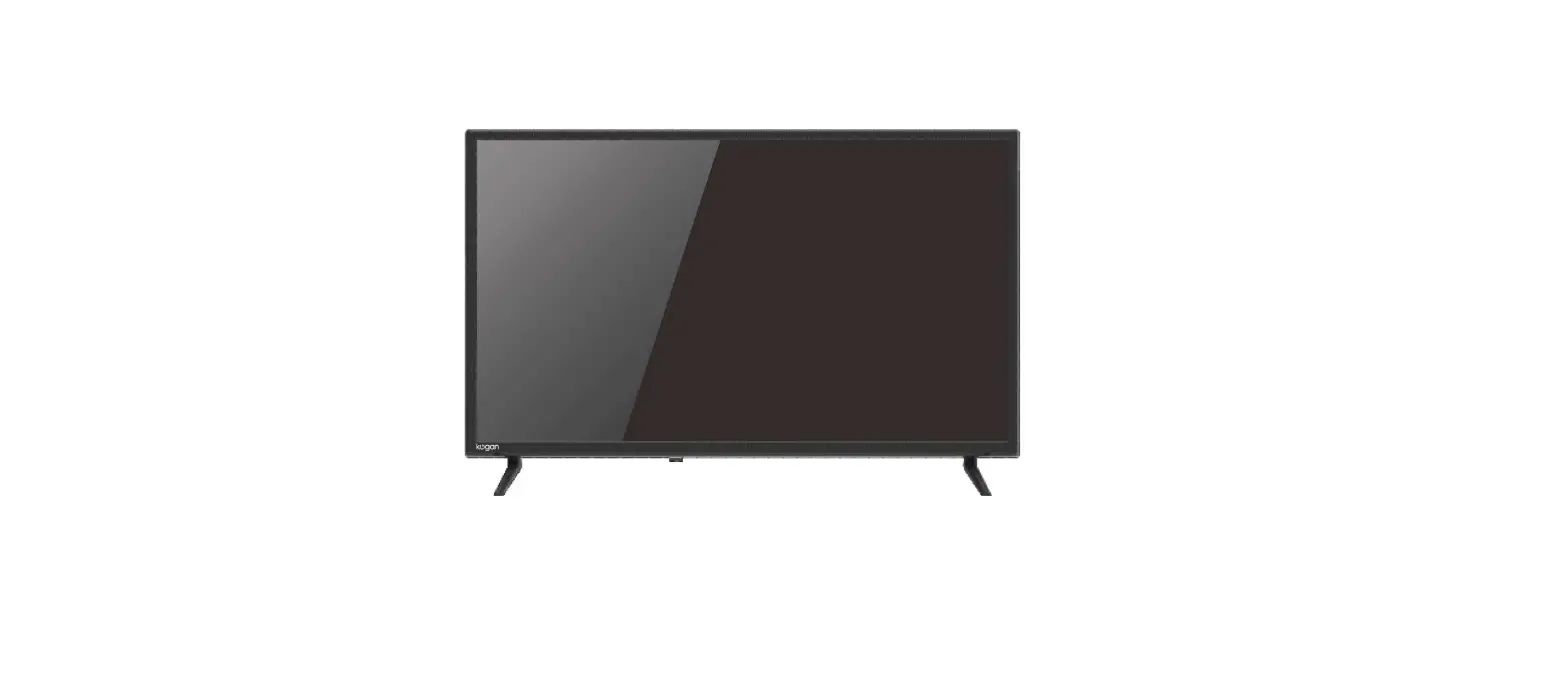

kogan KALED32RT9220SVA 32″ Smart Hd Led Tv
COMPONENTS
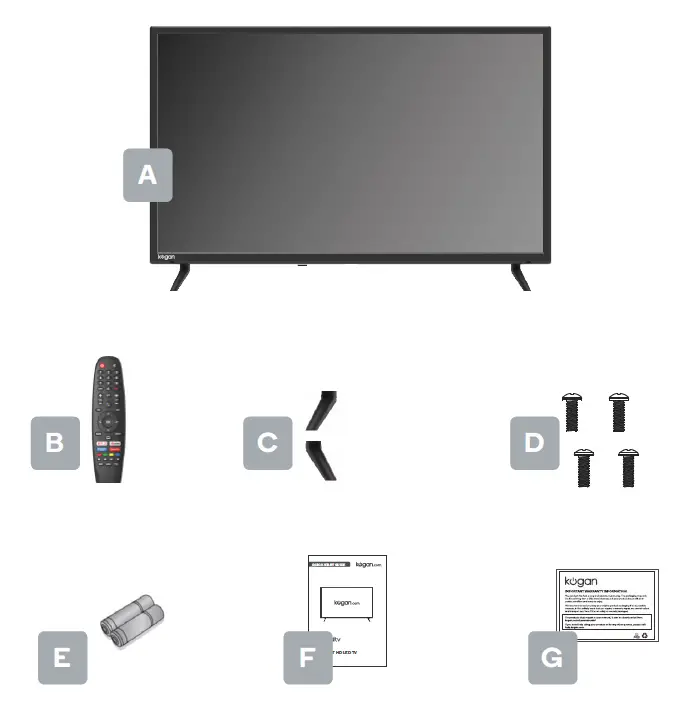
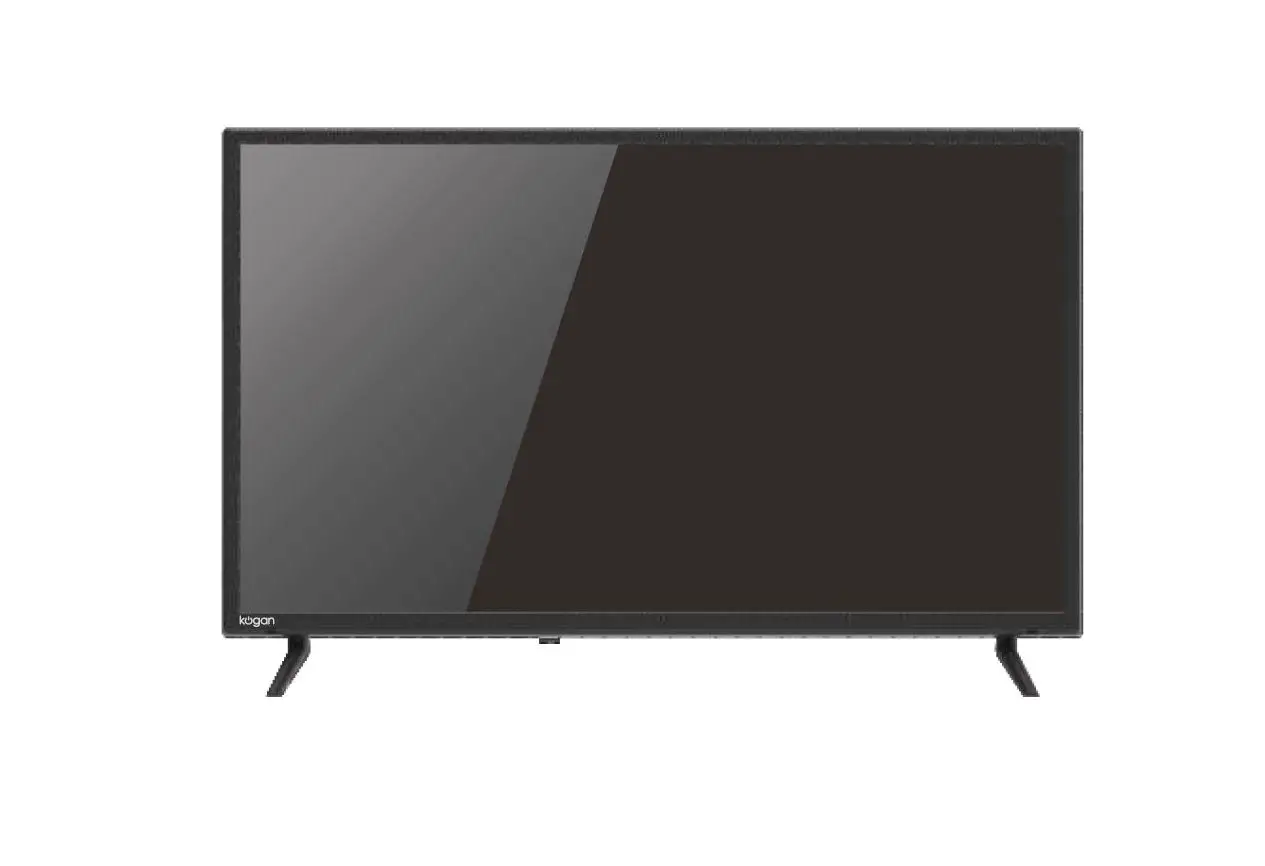
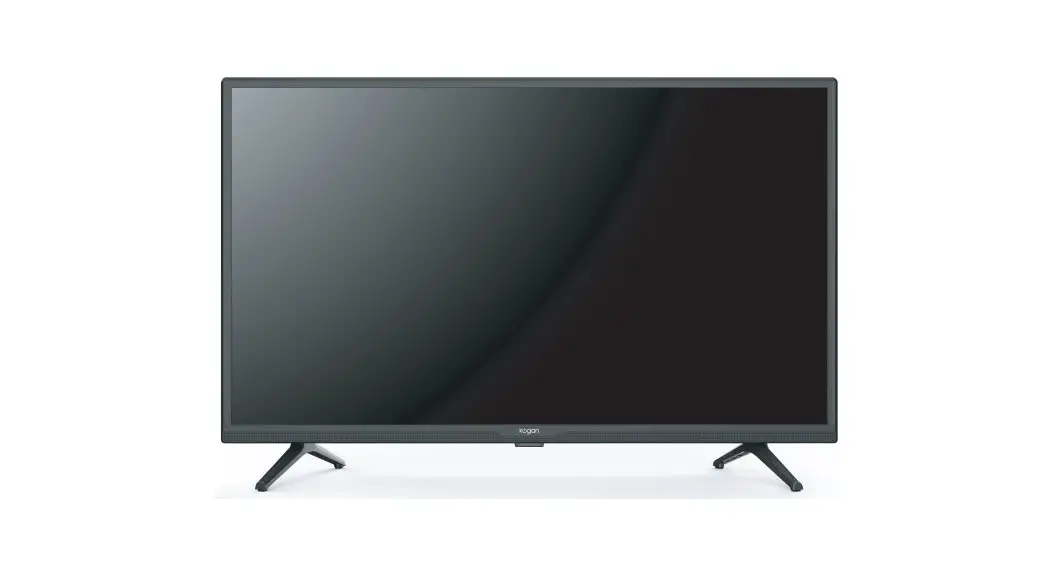
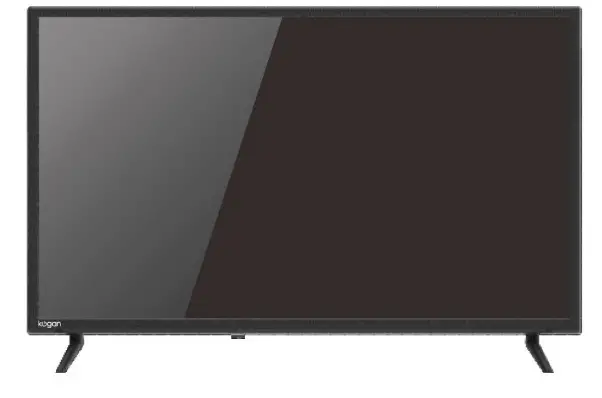
- A Kogan 32” SMAR T HD LED TV
- B Remote control
- C Stand (x2)
- D Ba4 x 18mm screw (x4)
- E AAA battery (x2)
- F Quick-start guide
- G Warranty card
NOT INCLUDED
Phillips head screwdriver, antenna cable, broadband internet connection.
REMOTE CONTROL OVERVIEW

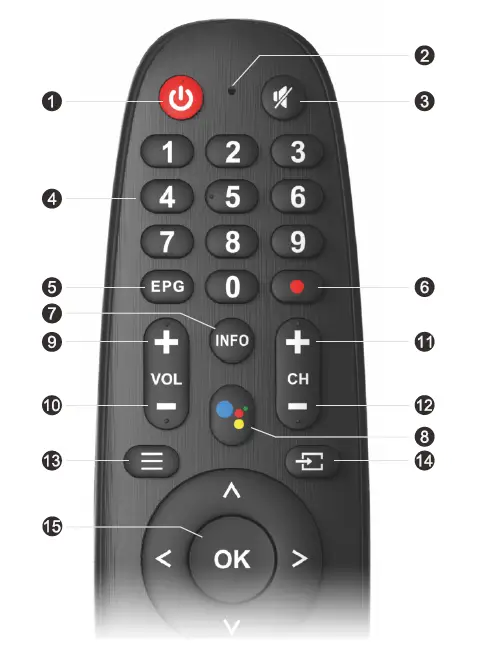
 Switches the TVbetween on and standby mode
- Microphone hole
- Mute or restore TV sound
- Figures 0-9 are used to directly input channel number
- Press to display Electronic Program Guide and select the favorite channel
- Press to start recording the program
- Press to info the source and channel’s info
- Google Assistant
 Increase the volume
- Decrease the volume
- Increase the program
- Decrease the program
- Displays the OSD(On Screen Display) menu
- Display/Select signal source options
- To confirm the choice with program the highlighted menu item
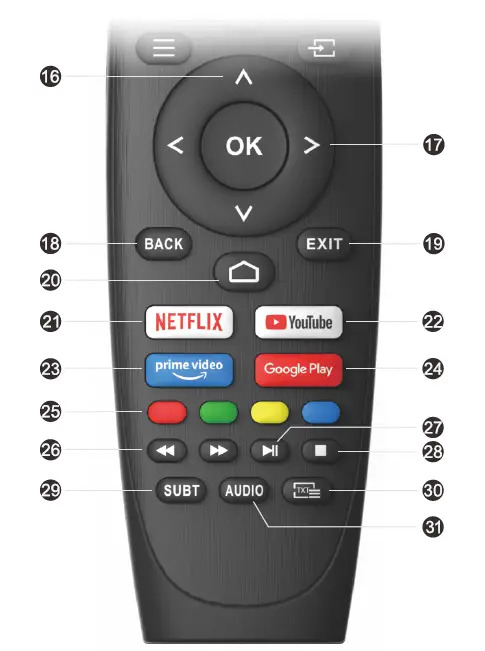
 Press these buttons to select items
- Press these buttons to select and adjust items
- Go back to the previous step
- Press to exit the OSD menu
- Displays the home screen
- Connects to NETFLIX for viewing online TVshows and films(internet connection required).
- Connects to YouTube (internet connection required).
- Accesso diretto a Amazon Prime Video
- To open app homepage
 Press these buttons according to different prompts
- Press to fast reverse in USB mode
- Press to fast forward in USB mode
- Press to play the video and press again to pause the video
- Hold on or off for current page display
- SUBT
- Press to enter Teletext when play the program
- Press to change the language when playing the stream which contains multi-language
 Switches the TVbetween on and standby mode
 Increase the volume
 Press these buttons to select items
 Press these buttons according to different prompts
ASSEMBLY AND INSTALLATION
BEFORE YOU GET STARTED
Spread cushioning flat to lay the TV on. This will help to prevent damage.
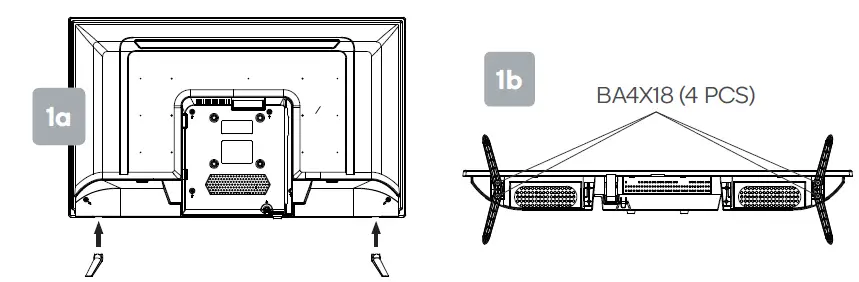
Stand assembly
- Attach stands to base of TV.
- Insert two 18 mm screws for each stand, and use Phillips head screwdriver (not supplied) to tighten.

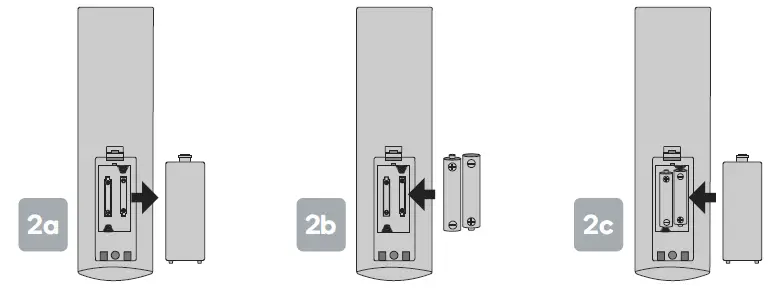
Remote control assembly
- Open the battery compartment cover on the back side.
- Insert two 1.5V AAA size batteries, making sure to match the polarity markings (+ / -) of the batteries with the diagram inside the compartment.
- Replace battery compartment cover.

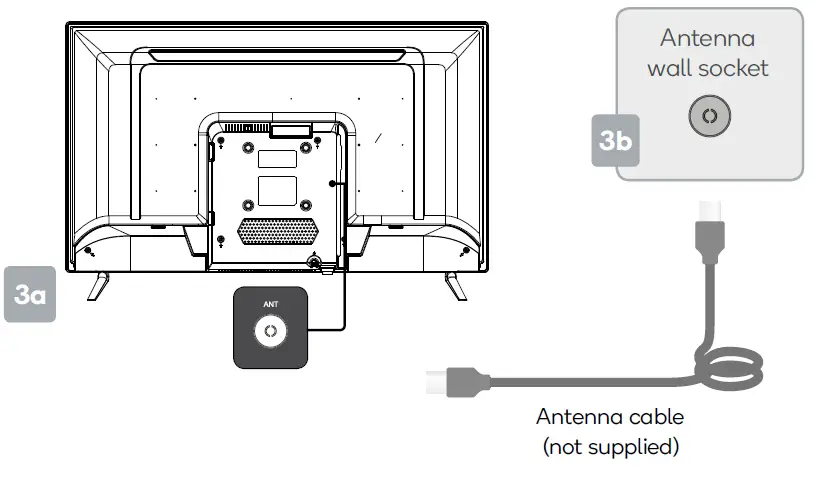
Connect to antenna
- Connect an antenna cable (not supplied) via the ‘ANT’ input port at the back of the TV.
- Ensure the antenna cable is also connected to a working antenna,either via an antenna wall socket in your home, or directly.

Turning TV on
Plug the power cord into a suitable power outlet, then press the POWER ( ) button on the remote control, making sure to aim it at the sensor at the front of the TV. Alternatively, you can press the power button on the lower side of the back panel on the TV.
TURNING TV OFF
Press the POWER button on the remote control to enter standby mode. To power down the TV completely, unplug the power cord from the power outlet. Do not leave your set in standby mode for long periods of time. If you will not use the TV for a long time, it is recommended to unplug the set from both the power outlet and the aerial.
INITIAL INSTALLATION
Initial Installation
The first time you switch the TV on, the initial step screen appears which guides you through the initial proces.Please according to the Text Tips to inish initial installtion.
Language select
- Press
 remote control to select the language option,then click OK to confirm.
 remote control to select the language option,then click OK to confirm.
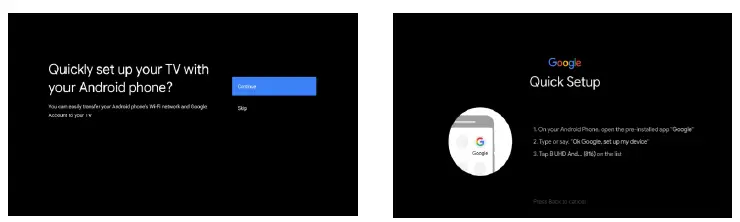
Quickly set up your TV with your Android phone? (Continue/skip) Steps:
- On your Android Phone, open the Pre-installed app “Google”.
- Type or say, “Ok Google, set up my device”.
- Tap the model name on the list.

Configure the network
- Select wired or wireless to connect to internet.
- If you select skip,it could be performed in the homepage or settings menu.
Google Account Sign in
Sign in to get new apps, recommendations, movies, the Assistant,and more from Google. Two ways to login Google account: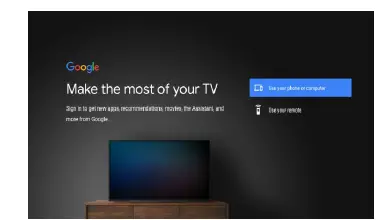
- Use your phone or computer:
- Visit androidtv.com/setup on your phone or computer, Make sure your other device is on the same Wi-Fi network as your Android TV TM
Enter the display code on your phone or computer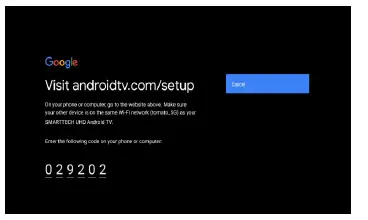
- Use your remote:
- Use the remote to enter your Google account and password to sign in to Google account.
Google setting
- In these steps you will setup the Terms of Service, Location, Help improve Android, Google Assistant and additional Google functions.
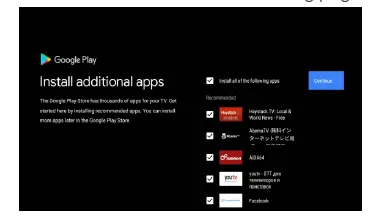
Play Auto Installs
- Select install or uninstall the recommended apps and Google apps by using this process.
- Press “Continue” to the next setting page.

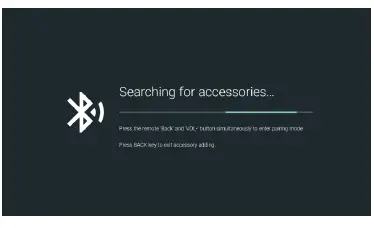
Pairing Bluetooth Remote
- Press’BACK ‘and ‘ VOL- ‘ simultaneously on remote control to enter the Bluetooth pairing mode. The Indicator light on remote control will flash when enter the pairing mode.
- Press OK to begin pairing.
- Press on remote control to skip the pairing mode.

Country select
- Presson remote control to select the country option, then click OK to confirm.
Set the TV password for Parental Controls,”0000″ is invalid.
Select TV mode(Home/Retail)
Home mode is optimized for efficient energy usage for home use. Retail mode is optimized to store demo with fixed settings.
Chromecast built-inTM
Select On/Off to make Chromecast built-in available.
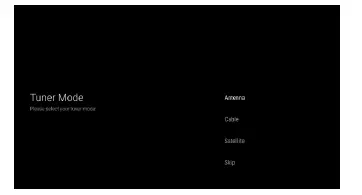
TV Channel Setting
- Select Antenna/Cable/Satelite to scan TV channel.
- If you select skip, the channel scan could be performed in menu.

Setup completed and Disclaimer Terms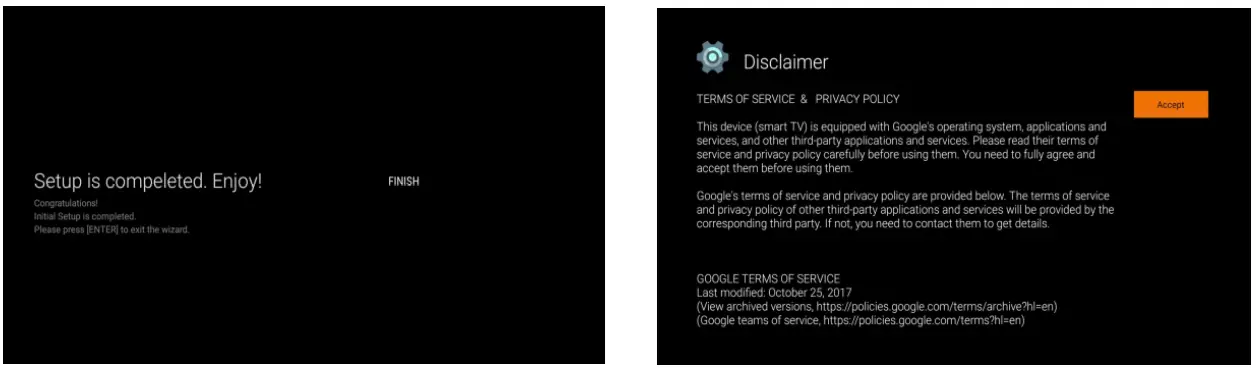
SETTINGS
HOME
When initial setup is complete,the TV will enter the homepage by default,or press on remote control to display the homepage.
- Press / / / on remote control to switch between Google Assistant,Apps,Play Next,Netflix, YouTube, and more on the Homepage.
- PressOKto enter.

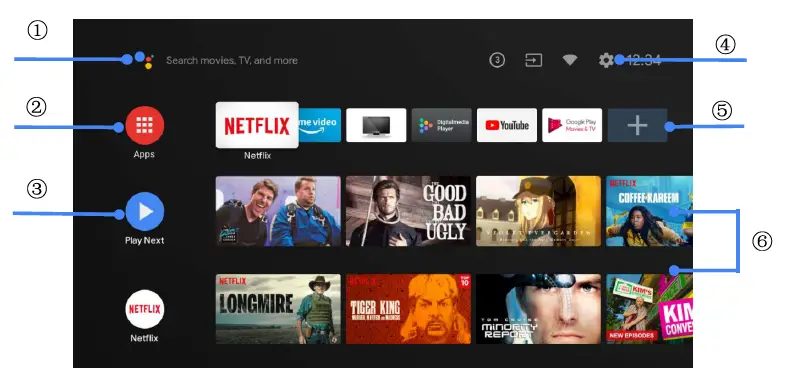
- Google Assistant
Use your voice to jump to shows,control devices,and more–with Google Assistant - Apps
List of downloaded and pre-loaded apps on your device - Play Next
Based on your watch history and includes next episode in a series or unfinished movies - Settings
Manage apps and TV controls, change preferences, sounds,and account - Favorite apps
Quick access to frequently used apps - Channels
For easy content discovery
CONNECTING TO THE INTERNET
Settings
- Allows to set various performance of your TV.
- Presson remote control to select “Settings”which is in the upper right corner of the screen.
- Press on remote control to select the option which you want to adjust in the Settings menu.
- PressOKto enter.

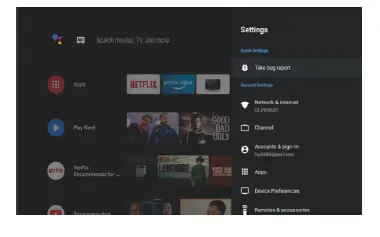
Network&internet
- Adjust all network setting and check connection if you have connec tion problems.
- Pressremote control to select “Network&internet” in the settings menu.
- Pressremote control to select:Wi–Fi/Add new network/Scanning always available/Proxy settings/IP settings.
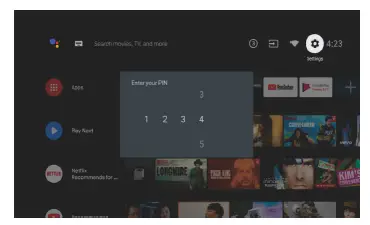
Channel
- Press on remote control to select “Channel” menu.
- Press OKto enter”Parental Controls”, then clickor use the number buttons on remote control to enter your PIN(Password for Parental Controls).

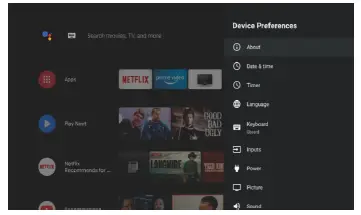
Device Preferences
- Press on remote control to select “Device Preferences”.
- Press on remote control to select the options of About, Date&time, Timer, Language, Inputs, Picture, Sound, Google Assistant, Reset,etc.
TUNING
- PressOKto jump to the corresponding sub-option.

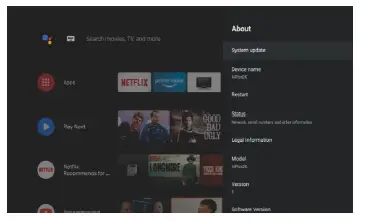
About
- Press on remote control to select “About”.
- Press on remote control to check additional information such as System update,Device name, Restart, Status, and more.
- Press on remote control to return to the previous menu.
- Press on remote control to exit the menu.

Reset
If select reset, it will erase all data from your device’s internal storage,including:your Google account, System and app data and settings, and downloaded apps.
- Press on remote control to select “Reset”.
- Press on remote control to select “Cancel” or “Erase everything”.
App Install/Move/Uninstall
- Press / on remote control to select”Apps”on Homepage,then click OK to enter.
- Select “Get more apps”and input app name.
- Select “search”which is in the upper right corner of the page.

- Example for “Facebook”
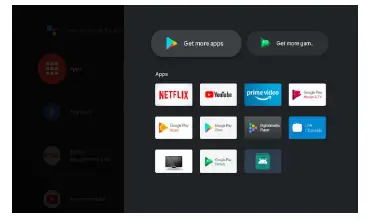
Install
- Input “Facebook”, find “Facebook”App will show in the list,then click OK to select it.
- Select “Install”,when completed select to open or Uninstall.

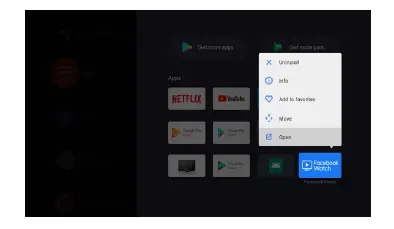
Move
- Select”Facebook”, press and holdOK on remote control, then click / remote control to select”Move”
- Press on remote control to move,then click OK to confirm.
Uninstall
- Select “Facebook”, press and hold OK on remote control, then click / on remote control to select”Uninstall”.
- press OKto uninstall.
TV source setting
The way to enter TV source in Homepage: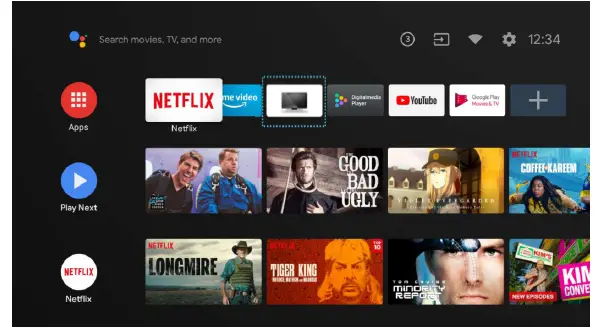
- Press
 on remote control or Select”Live TV”on Homepage.
 - Press on remote control.
- Press on remote control to select”Channels”and select”New Channels Available”to enter.
 on remote control or Select”Live TV”on Homepage.
 on remote control.
HOW TO TURN OFF AUTO SLEEP FUNCTION
Menu – > Settings – > Device Preferences -> Power – > Off
Menu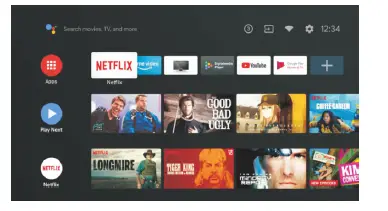
Power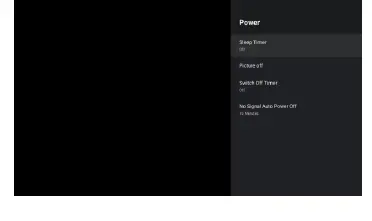
Settings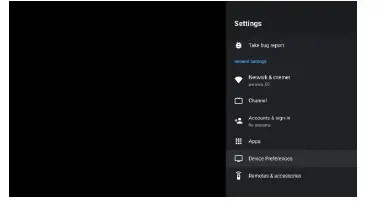
Off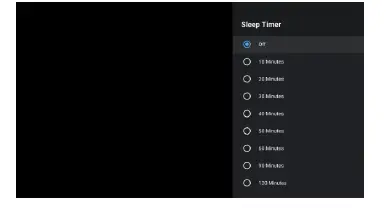
Device Preferences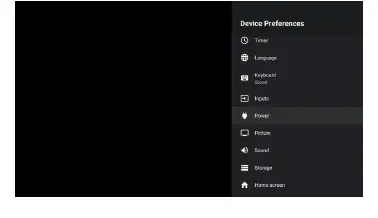
BASIC TROUBLESHOOTING
Poor picture and sound quality
- Try a different channel Adjust the antenna Check all connections
No picture or sound in TV status
- Try another channel
- Press the TV/AV button
- Make sure TV is plugged in
- Check the antenna connection
No sound or sound is too low at maximum volume
- Check the volume settings on any external speakers connected to your television
- Adjust the TV volume accordingly
- Check another channel or input
- Check that MUTE hasn’t been turned on
No colour, wrong colour or tints
- Make sure the program itself is broadcast in colour
- Select the picture menu, then adjust the colour and tint submenus
Picture rolls vertically
- Check all connections
Blurred or snowy picture, distorted sound
- Check direction, location and connections to your antenna
- Issues may be caused by the use of an indoor antenna (poor signal)
Remote control malfunctions
- Replace remote control batteries
- Check battery terminals
- Remote is out of range, move closer to TV
- Remove any obstructions between remote and IR sensor of TV
- Make sure the power cord to your TV is plugged in and turned on
Image is not centred on the screen
- Adjust the horizontal and vertical position
“No Signal” on HDMI source
- Test the device with a different HDMI cable
- Plug the device into another HDMI port
- Try a different device connected to the same cable and port
- Perform a factory reset on your TV
For our full TV troubleshooting guide and extended User Manual for this TV, head online to help.
kogan.com
Need more information?
This is a Quick Start Guide, and while we hope that this has given you the assistance needed for a simple set-up, a full user guide outlining all of this product’s instructions and features can be found online at help.
kogan.com