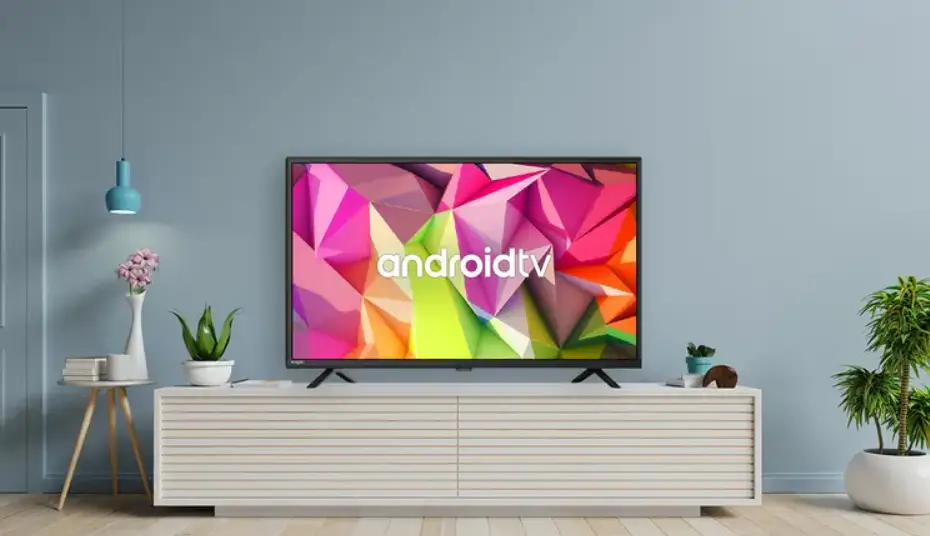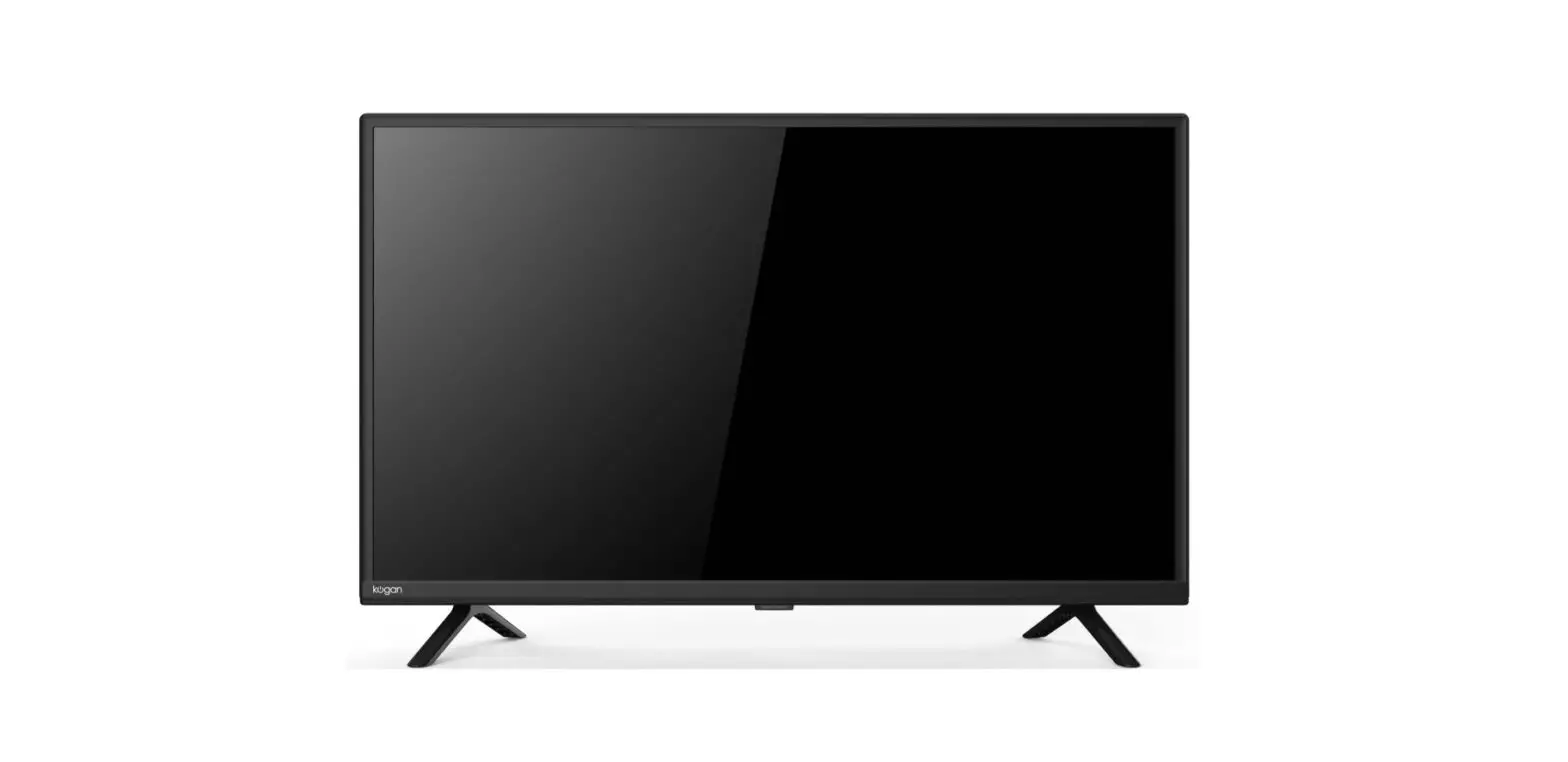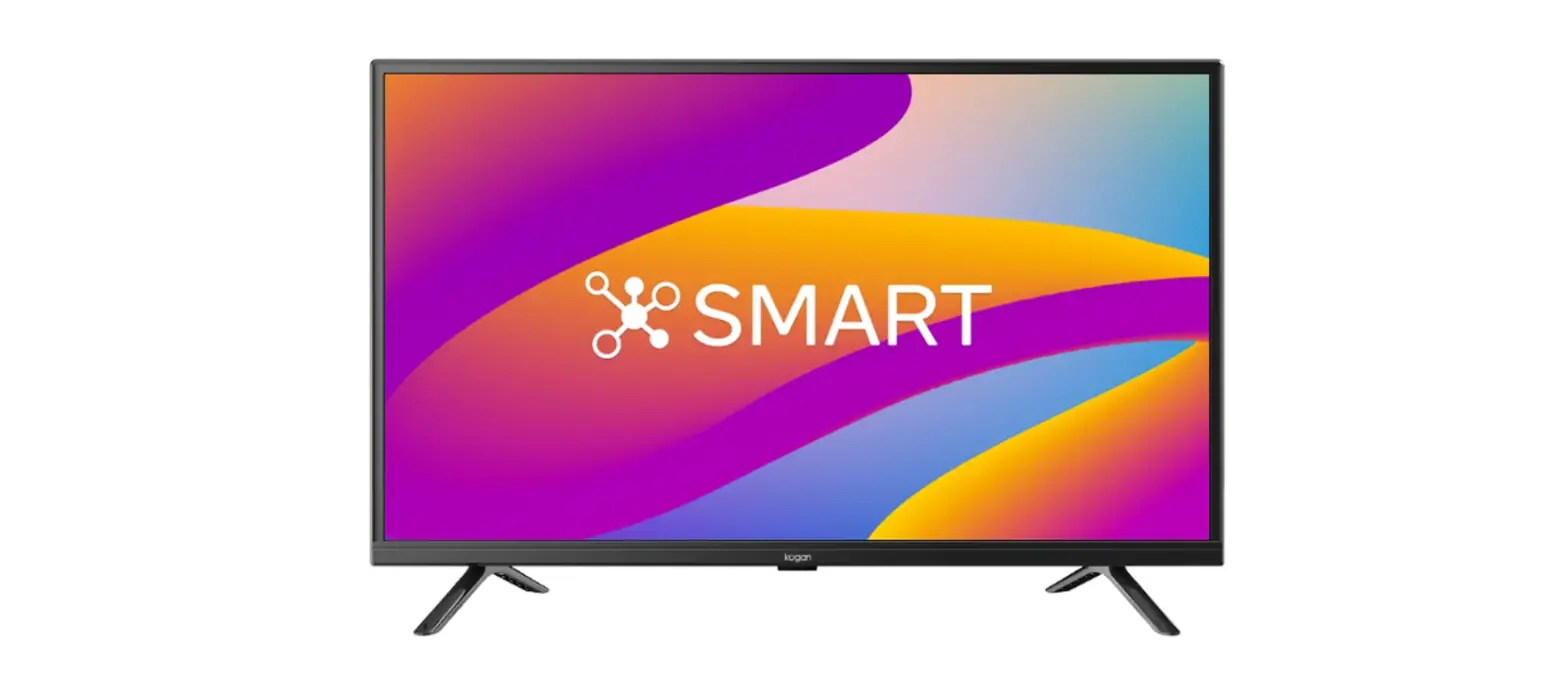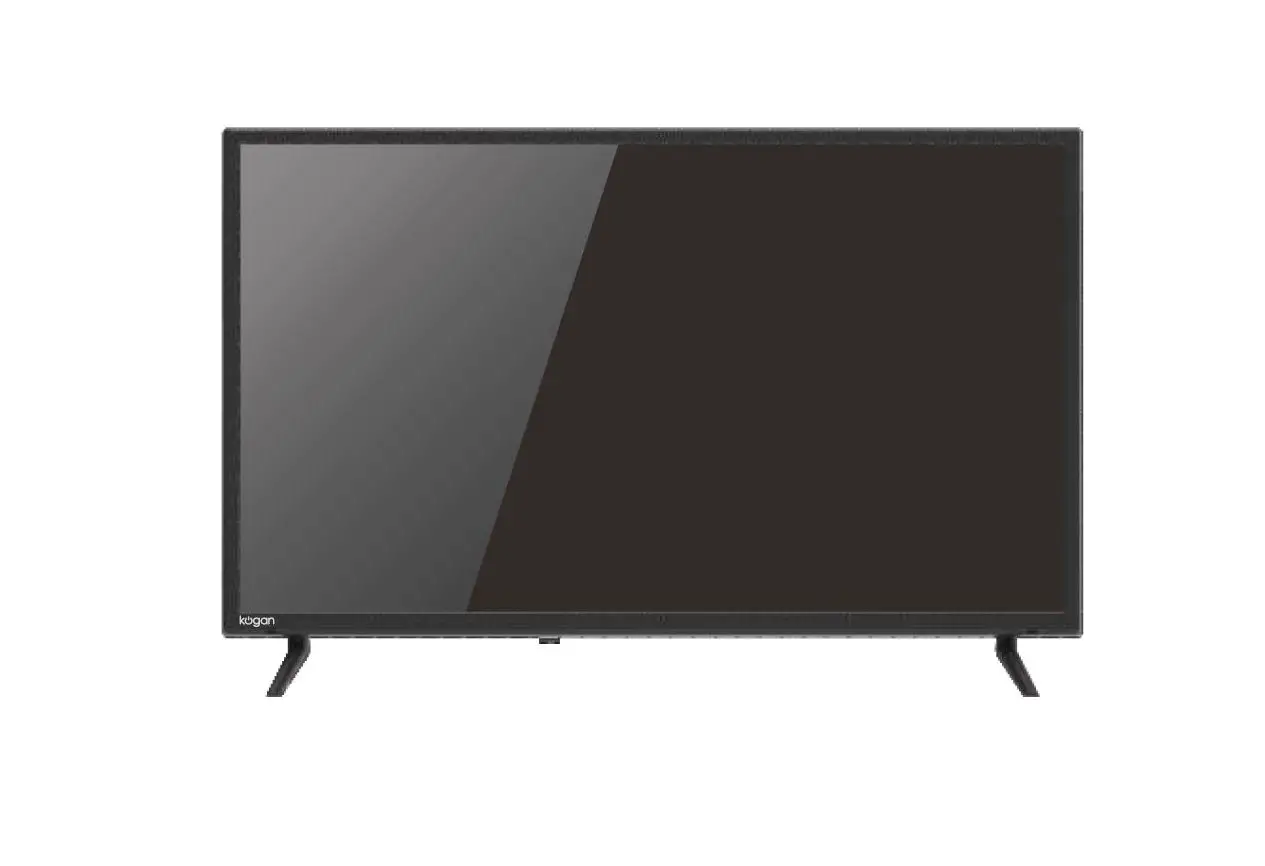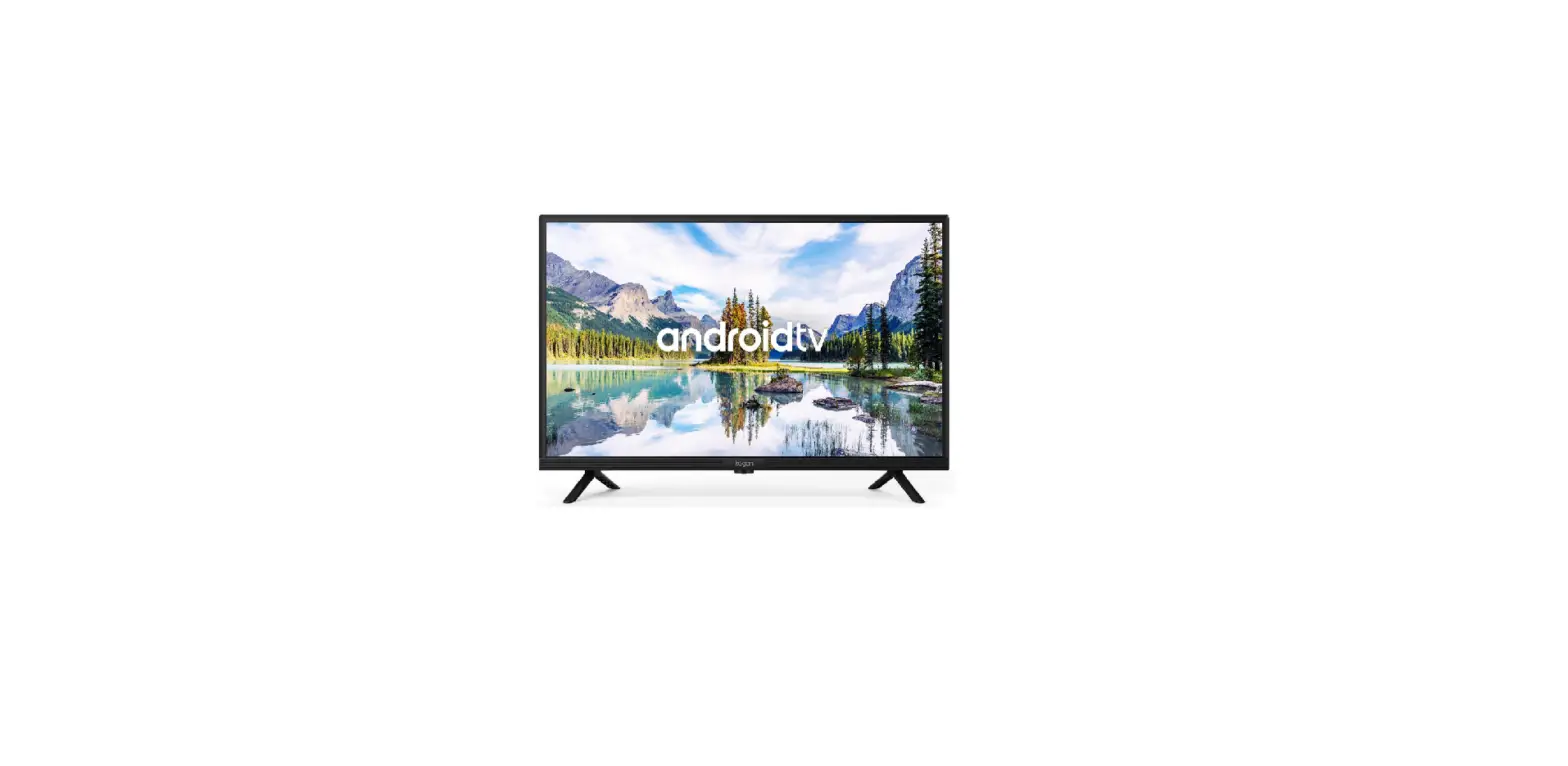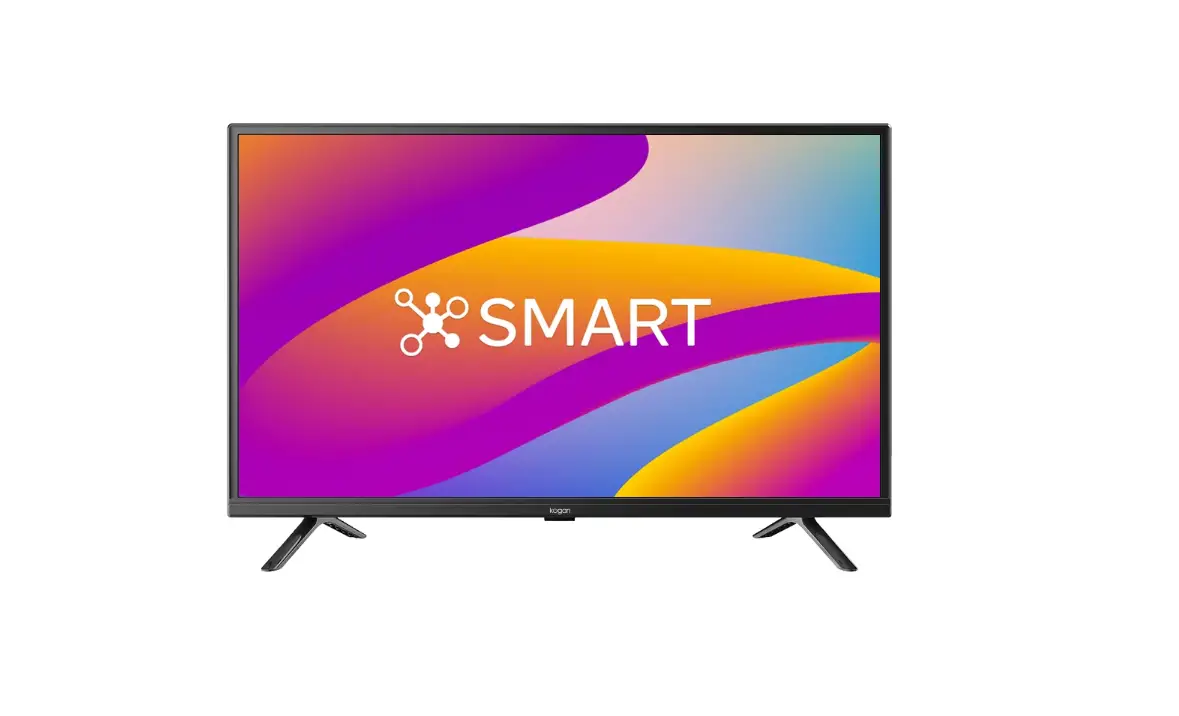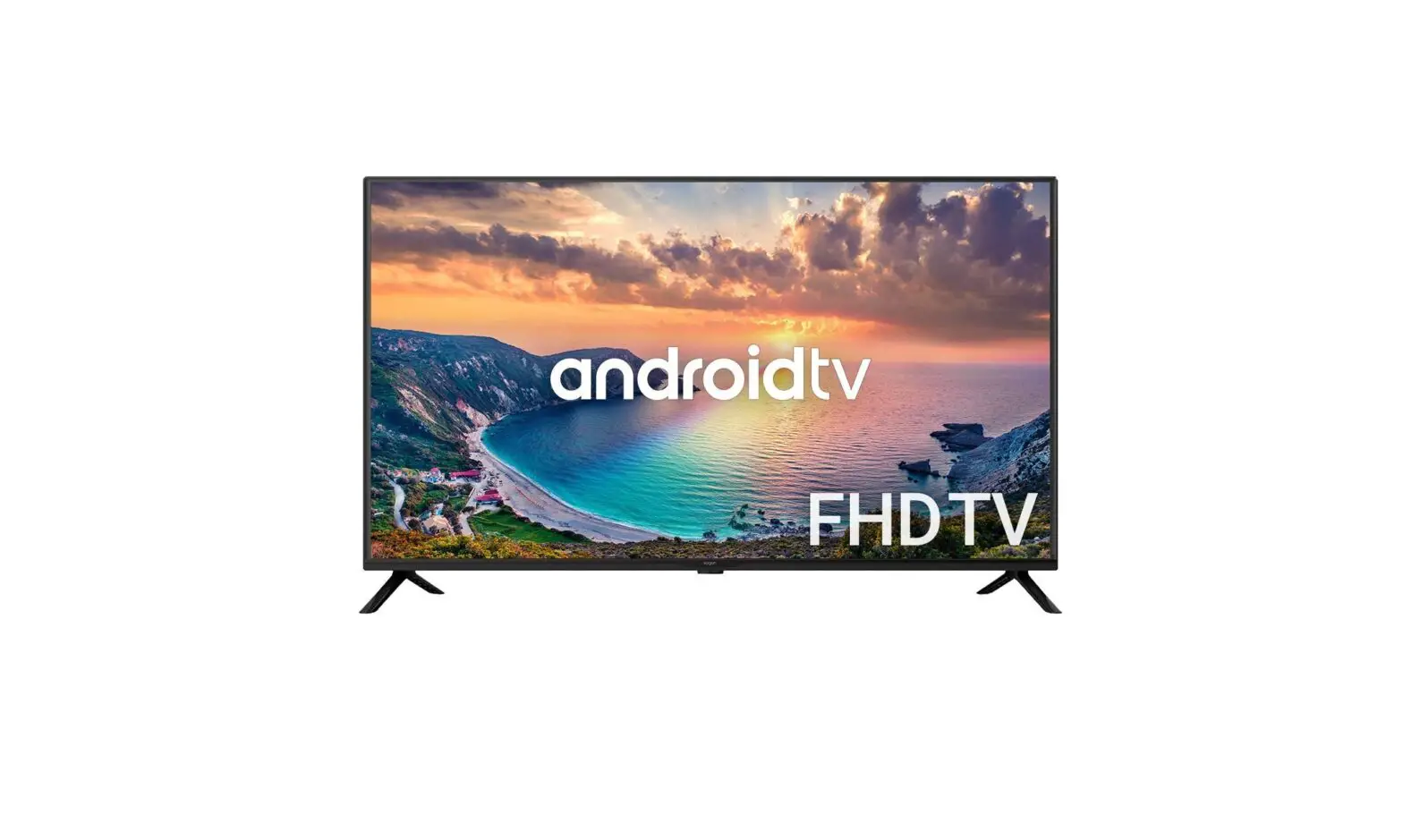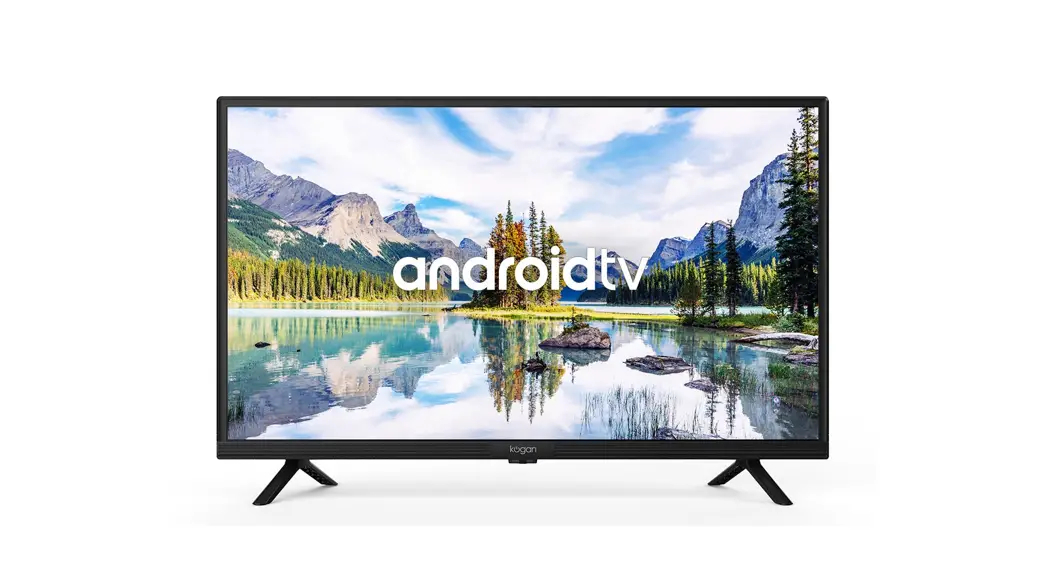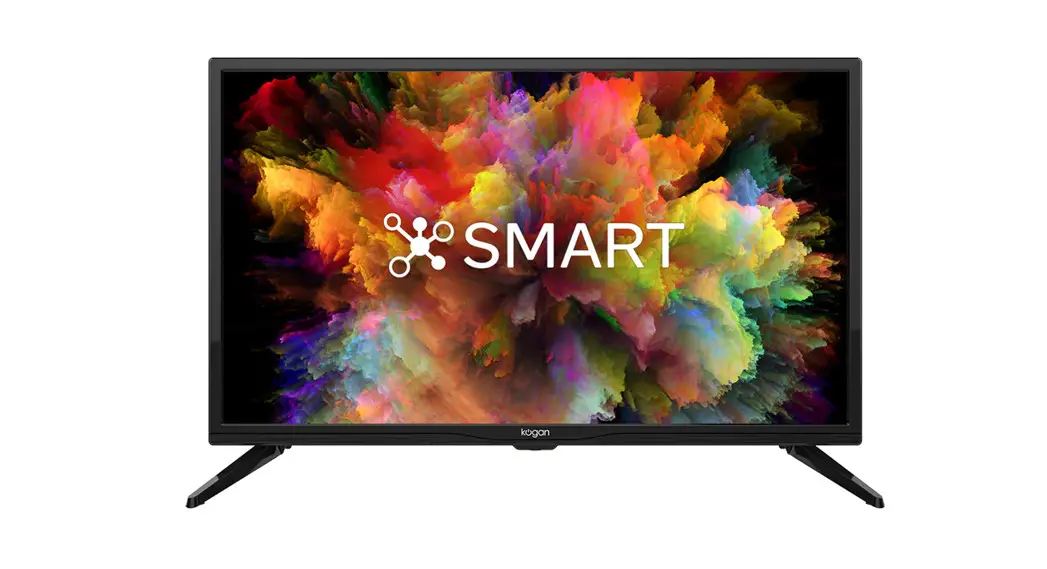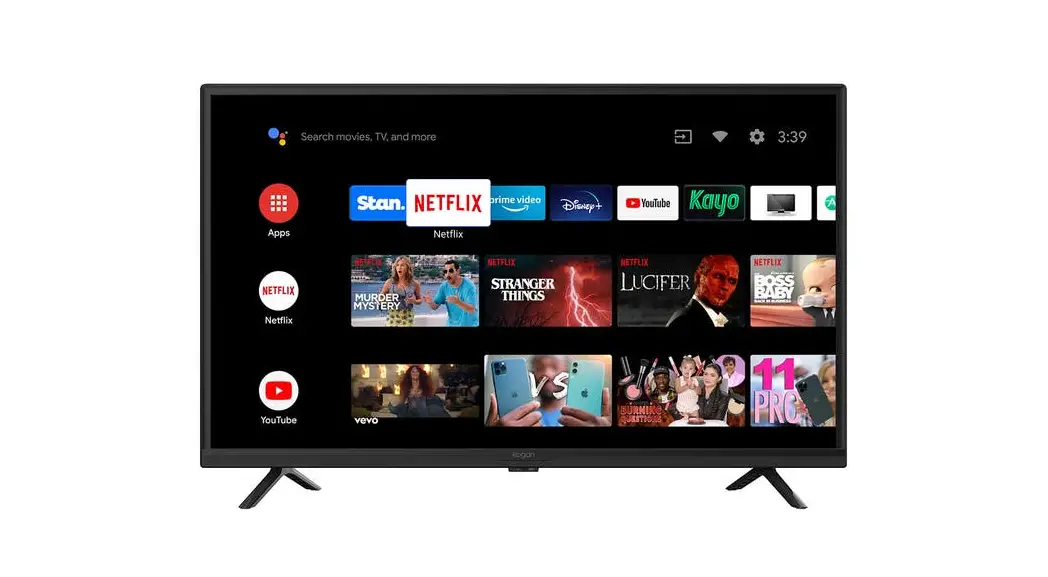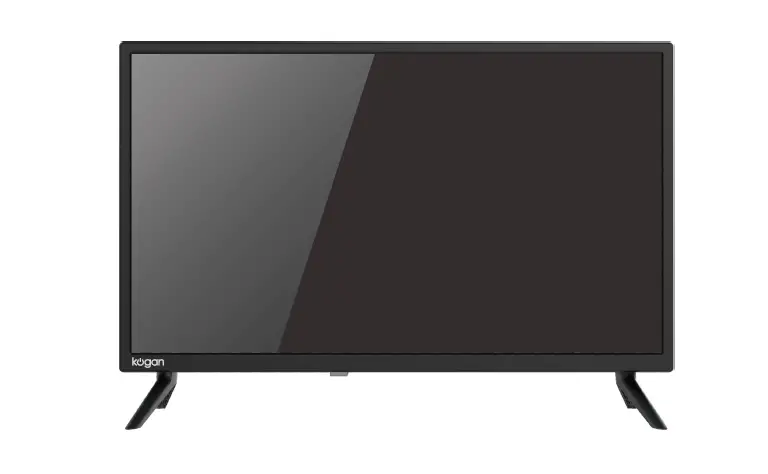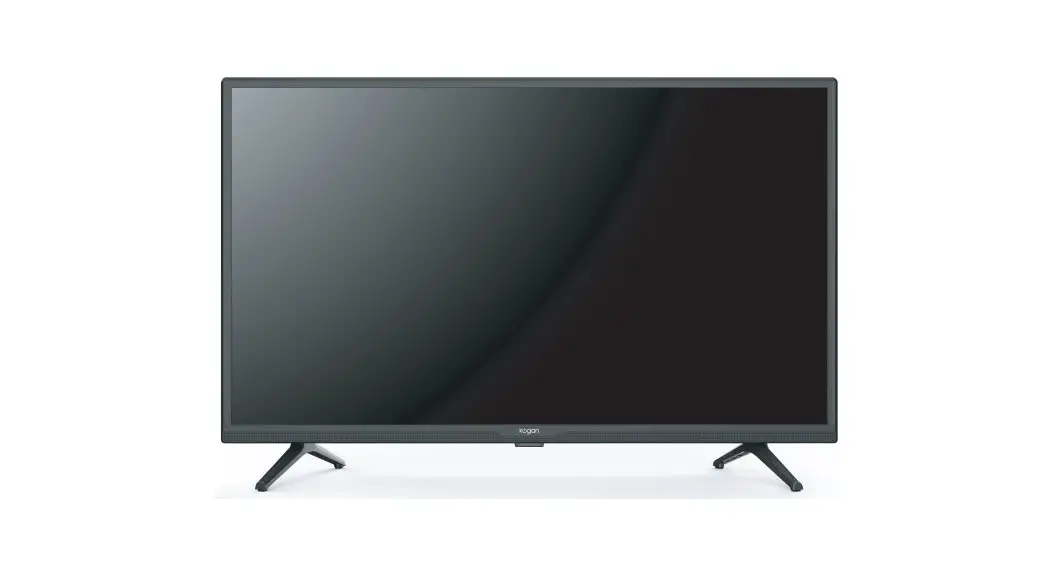
 32″ SMART LED TV
SERIES 9 RH9320
(KALED32RH9320ST A)
Androidtv  KOGAN.COM
COMPONENTS
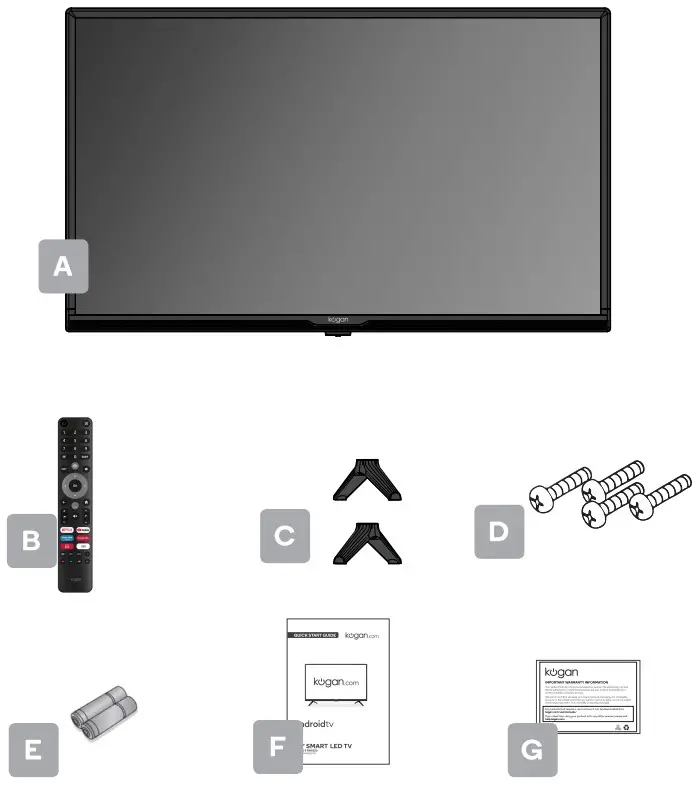
A. Kogan 32″ Smart LED TV
B. Remote control
C. Stand (x2)
D. M4 x 20 mm screw (x4)
E. AAA battery (x2)
F. Quick-start guide
G. Warranty card
NOT INCLUDED
Phillips head screwdriver, antenna cable, broadband internet connection.
REMOTE CONTROL OVERVIEW
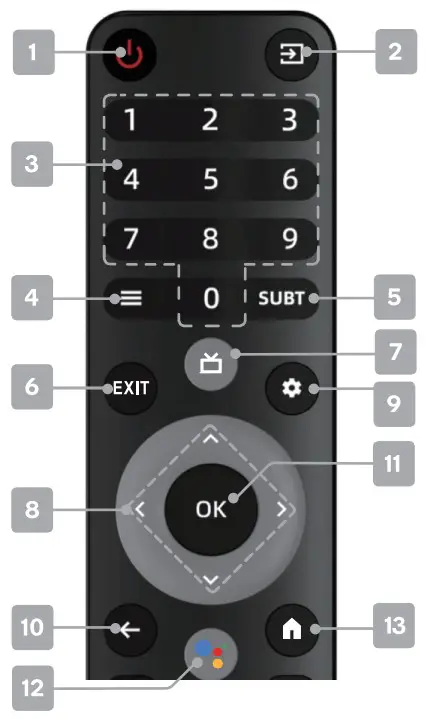
 Power, press to enter or exit standby mode
 Source displays the list of input source channels.
- Number buttons to select channels or input passwords
 Quick Menu to display TV options with optional, adjustable settings
- suBT Subtitles to select subtitles
- EXIT the current interface
 Electronic Program Guide DTV mode
 Direction buttons for navigating menus and settings
 Device preferences show sound and image options under apps
TV Option show TV Option under live tv
Settings Display the Settings menu under the home page
Note: long press to appear soft keyboard Back to the previous menu
- OK Enter select the current item or confirm selection, display Channel list in DTV mode
 Google Assistant to launch the built-in virtual assistant for voice commands
 Home to access the home page
 Mute to toggle sound on/off
 Volume to adjust the volume up or down
 Program to scroll channels
 to open app homepage
 to open app homepage
 to open opp homepage
 to open opp homepage
 Press to switch to the USB source.
 Apps Show all installed apps
 Teletext to show/hide Teletext (Teletext not available in Australia or New Zealand)
 Record in DTV mode;
- info displays the current program information
 Audio to select available languages and audio channels.
- Colour buttons for navigational use within apps
 Power, press to enter or exit standby mode
 Source displays the list of input source channels.
 Electronic Program Guide DTV mode
 Direction buttons for navigating menus and settings
 Back to the previous menu
 Google Assistant to launch the built-in virtual assistant for voice commands
 Home to access the home page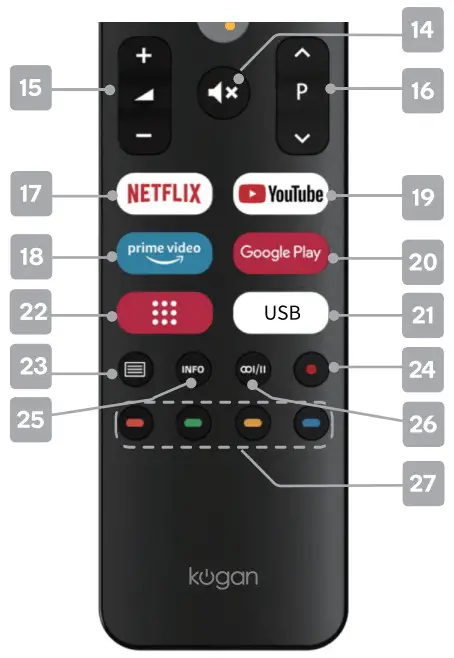
 Mute to toggle sound on/off
 Volume to adjust the volume up or down
 Program to scroll channels
 to open app homepage
 to open app homepage
 to open opp homepage
 to open opp homepage
 Press to switch to the USB source.
 Apps Show all installed apps
 Teletext to show/hide Teletext (Teletext not available in Australia or New Zealand)
 Record in DTV mode;
 Audio to select available languages and audio channels.
ASSEMBLY AND INSTALLATION
BEFORE YOU GET STARTED
Spread cushioning flat to lay the TV on. This will help to prevent damage.
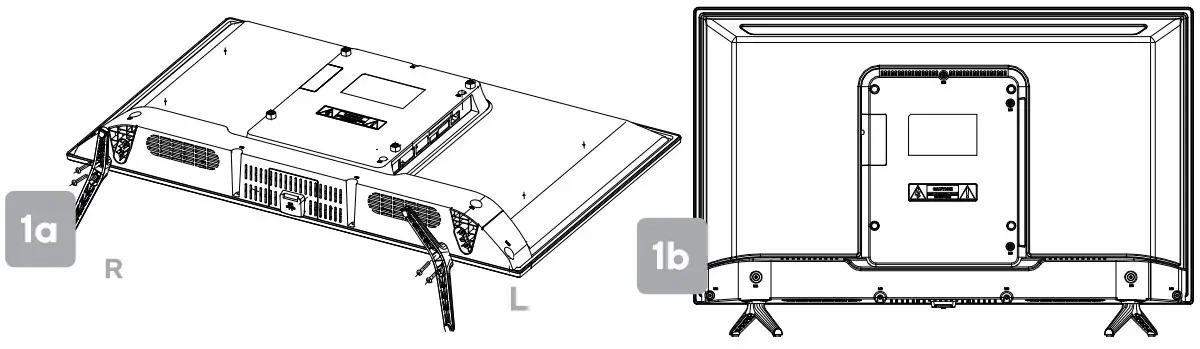
- Stand assembly
a. Attach stands to base of TV, ensuring ‘L’ and ‘R’ markings on the TV and stands match.
b. Insert two 20 mm screws for each stand and use Phillips head screwdriver (not supplied) to tighten.
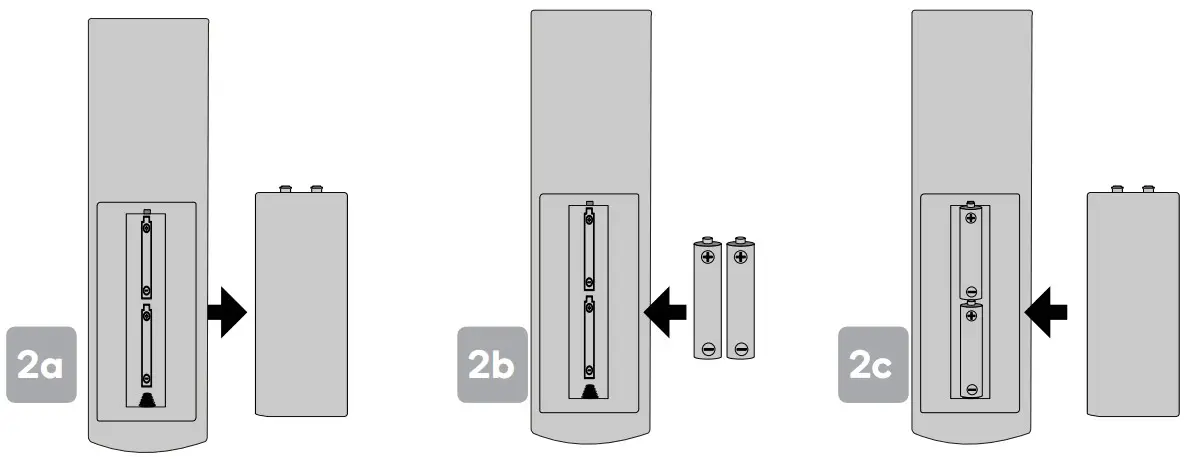
- Remote control assembly
a. Open the battery compartment cover on the back side.
b. Insert two 1.5V AAA size batteries, making sure to match the polarity markings (+/-) of the batteries with the diagram inside the compartment.
c. Replace battery compartment cover.
Please use Lithium AAA Batteries for the Remote
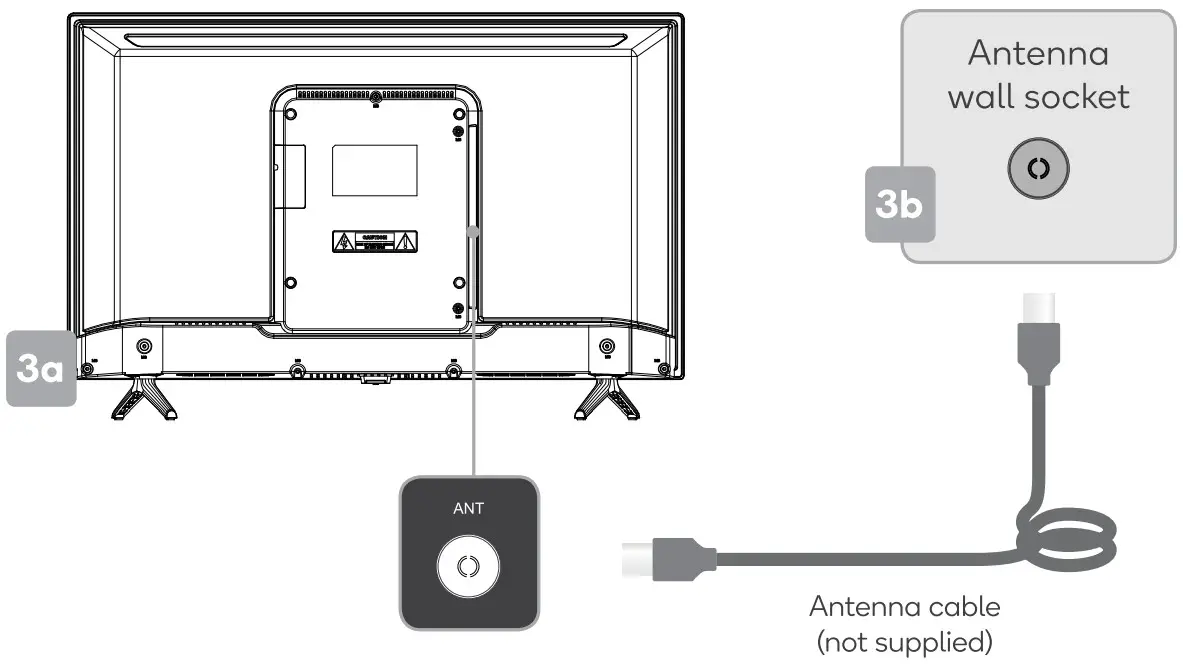
- Connect to antenna
a. Connect an antenna cable (not supplied) via the ‘ANT’ input port at the back of the TV.
b. Ensure the antenna cable is also connected to a working antenna, either via an antenna wall socket in your home, or directly.
- Turning TV on
Plug the power cord into a suitable power outlet, then press the POWER (0) button on the remote control, making sure to aim it at the sensor at the front of the TV. Alternatively, you can press the power button on the lower side of the back panel on the TV.
TURNING TV OFF
Press the POWER (0) button on the remote control to enter standby mode.
To power down the TV completely, unplug the power cord from the power outlet.
Do not leave your set in standby mode for long periods of time. If you will not use the TV for a long time, it is recommended to unplug the set from both the power outlet and aerial.
FIRST TIME SETUP
When turning the TV on for the first time, the Welcome screen will appear. Use the  and OK buttons to navigate the following options.
Language
Select your menu language.
Bluetooth
Your Android TV remote control has bluetooth capabilities. Follow the onscreen prompts to pair the remote with the TV. This will allow you to use voice commands with your remote via the Google Assistant button.
Quickly set up with Android phone
If you have an Android smartphone, you can easily transfer your phone’s Wi-Fi network and Google account to your TV. If not, select ‘Skip’.
Select Wi-Fi network
Your Android TV will automatically scan for wireless networks nearby.
Ensure the TV is within range of your wireless modem or router, and have your password handy. Follow the prompts to input your password and connect your TV to your selected network.
If you’d prefer to connect an Ethernet cable to connect to the internet, simply insert the cable (not supplied) to the ‘LAN’ input port at the back of the TV(4a), and ensure that it is correctly connected to the internet.
Google Account sign-in
Linking your Google Account to your Android TV will allow you to install new apps from the Play store, as well as receive recommendations, movies, and more from Google.
Terms of Service
This page will allow you to read each of the Google Terms of Service, Privacy Policy, and Google Play Terms of Service in full, and to accept.
Choose a name for your TV
Give you TV a name to help identify it when casting or connecting to it from other devices. Select a preset option or enter a custom name.
Install additional apps
Get started with some of our handpicked selections from the Play Store. Following this you will be shown a brief overview of Android TV’s features.
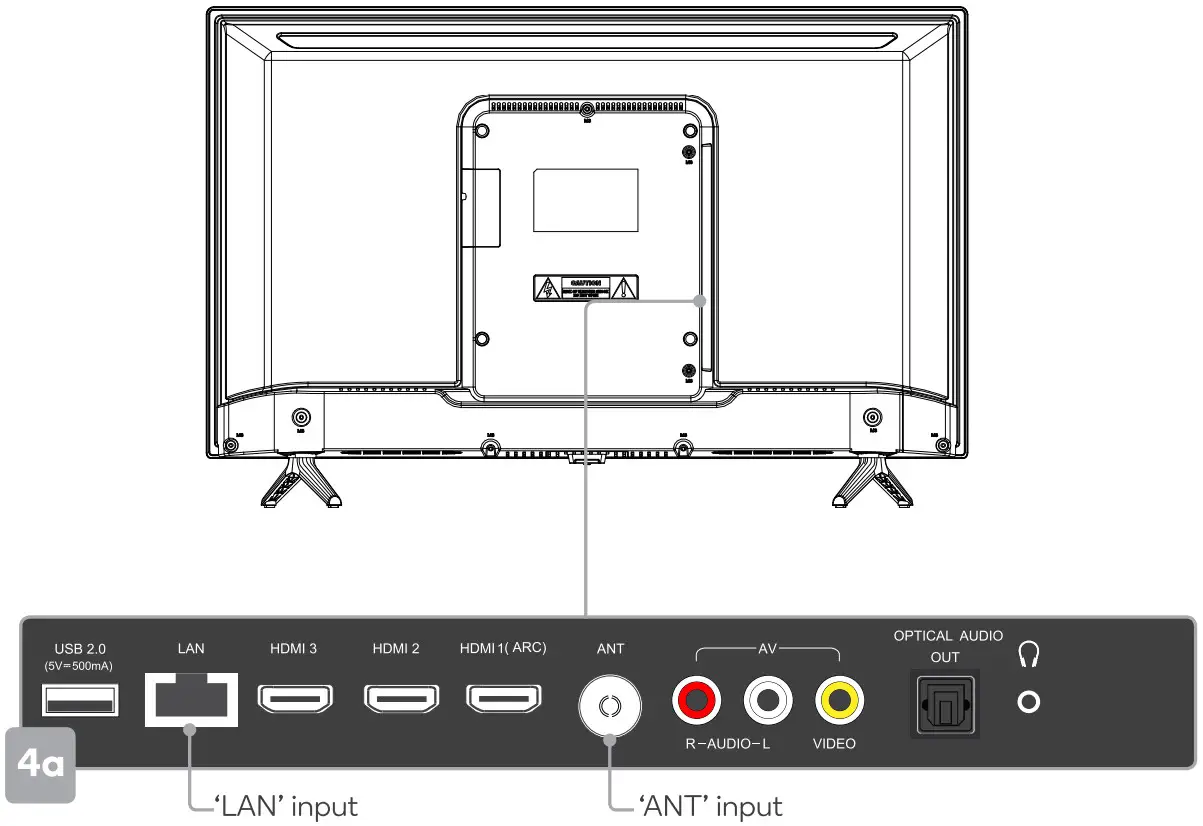
Following these options, the Auto Tuning screen will appear. Ensure you hove on antenna coble connected to the ‘ANT’ input port at the bock of the TV(4a).
The auto tuning function will search for and save all available free-to-air TV channels. After confirming your settings, the process will automatically begin. The number of searched channels will be displayed on the screen.
When setup is complete, you will be able to access the Home page.
HOMEPAGE
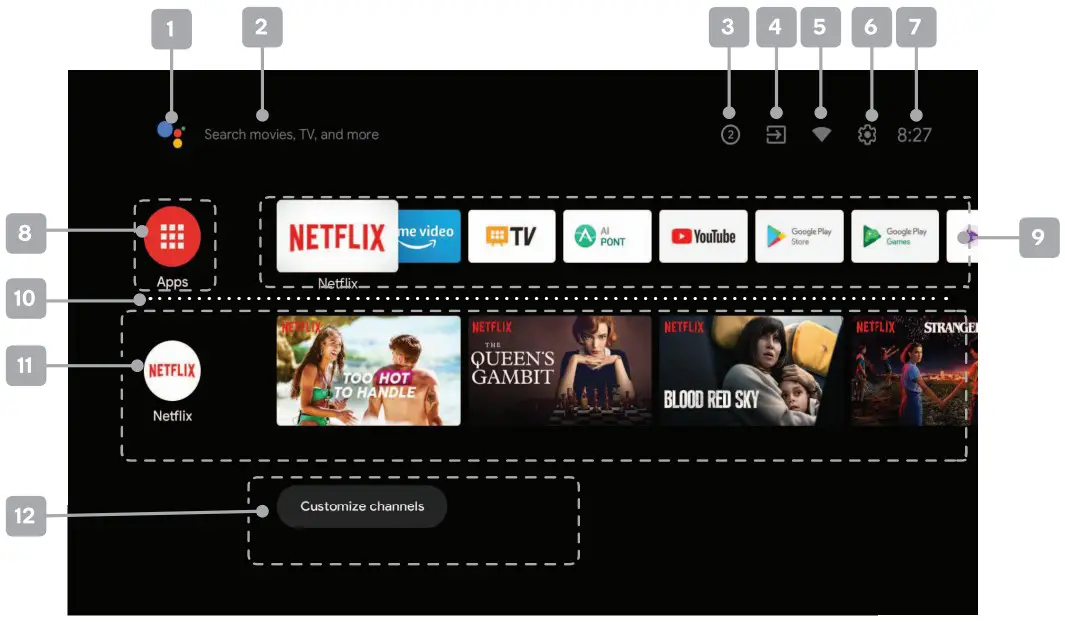
- Google Assistant
Click to launch the built-in virtual assistant, which will begin listening for voice commands. Give it a try, ask “What’s the weather today?” - Textsearch
Enter text manually to search TV apps. - System notifications
This option will only appear when notifications are present. - Source
Access free-to-air channels (‘DTV’) or other input source channels. - Internet connection
This will display as a Wi-Fi or LAN icon, depending on your connection. Select for connectivity options. - Settings
Access the global settings menu. - Clock
Time and date settings can be adjusted in the global settings. - Apps
Access the App Centre to display all installed apps. Free-to-air channels can be accessed under the ‘Live TV’ option. - Favourites list
A customisable list of apps available at a single click. - Play next
Displays the program you are watching or have queued to play next. You can add to this list by long pressing the OK button, then selecting “Add to play next”. If the play next queue is empty, it will not be shown on the home page. - Pinned channels
Show the program list of pinned channels. The order of this list can be adjusted by pressing < from the channel icon and selecting the “<>” icon. Empty channels will not be shown on the home page. - Customise channels
Add or remove pinned channels from the home page.
SETTING
Global settings
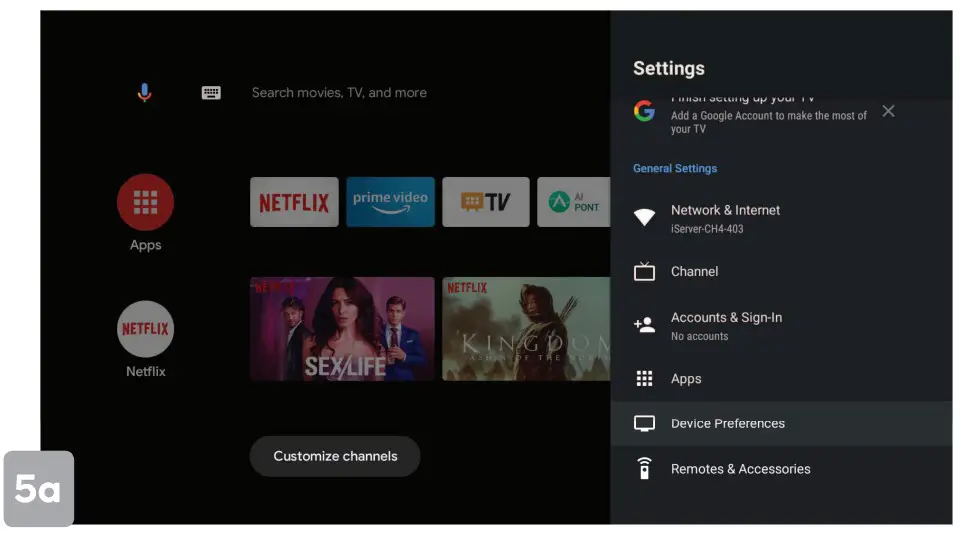
To access the global settings menu (5a), simply navigate to the icon on the Home screen. Here you will find all of the adjustable options for Android TV’s interface, connectivity, and apps.
In live tv mode you can also press the Settings button on your remote control and use the  buttons to navigate to the Settings option.
Quick Menu
Options for your Live T\/ (Input,picture, sound,Power,Advanced Options) can be accessed by pressing the  Quick Menu button on your remote control. Use buttons to navigate through the submenus, and
  buttons to access Channel and Recording/Time Shift options.
BASIC TROUBLESHOOTING
Poor picture and sound quality
- Try a different channel
- Adjust the antenna
- Check all connections
No picture or sound in TV status
- Try another channel
- Press the TV/AV button
- Make sure TV is plugged in
- Check the antenna connection
No sound or sound is too low at maximum volume
- Check the volume settings on any external speakers connected to your television
- Adjust the TV volume accordingly
- Check another channel or input
- Check that MUTE hasn’t been turned on
No colour, wrong colour or tints
- Make sure the program itself is broadcast in colour
- Select the picture menu, then adjust the HUE and Color Tuner
Picture rolls vertically
- Check all connections
Blurred or snowy picture, distorted sound
- Check direction, location and connections to your antenna
- Issues may be caused by the use of an indoor antenna (poor signal)
Remote control malfunctions
- Replace remote control batteries
- Check battery terminals
- Remote is out of range, move closer to TV
- Remove any obstructions between remote and IR sensor of TV
- Make sure the power cord to your TV is plugged in and turned on
Image is not centred on the screen
- Adjust the horizontal and vertical position
“No Signal” on HDMI source
- Test the device with a different HDMI cable
- Plug the device into another HDMI port
- Try a different device connected to the same cable and port
- Perform a factory reset on your TV
For our full TV troubleshooting guide and extended User Manual for this TV, head online to help.kogan.com AUDIO
AUDIO
Manufactured under license from Dolby Laboratories.Dolby, Dolby Audio,and the double-D.symbol are trademarks of Dolby Laboratories Licensing Corporation.
NOTES
……………………………
Need more information?
This is a Quick Start Guide, and while we hope that this has given you the assistance needed for a simple set-up, a full user guide outlining all of this product’s instructions and features can be found online at help.kogan.com