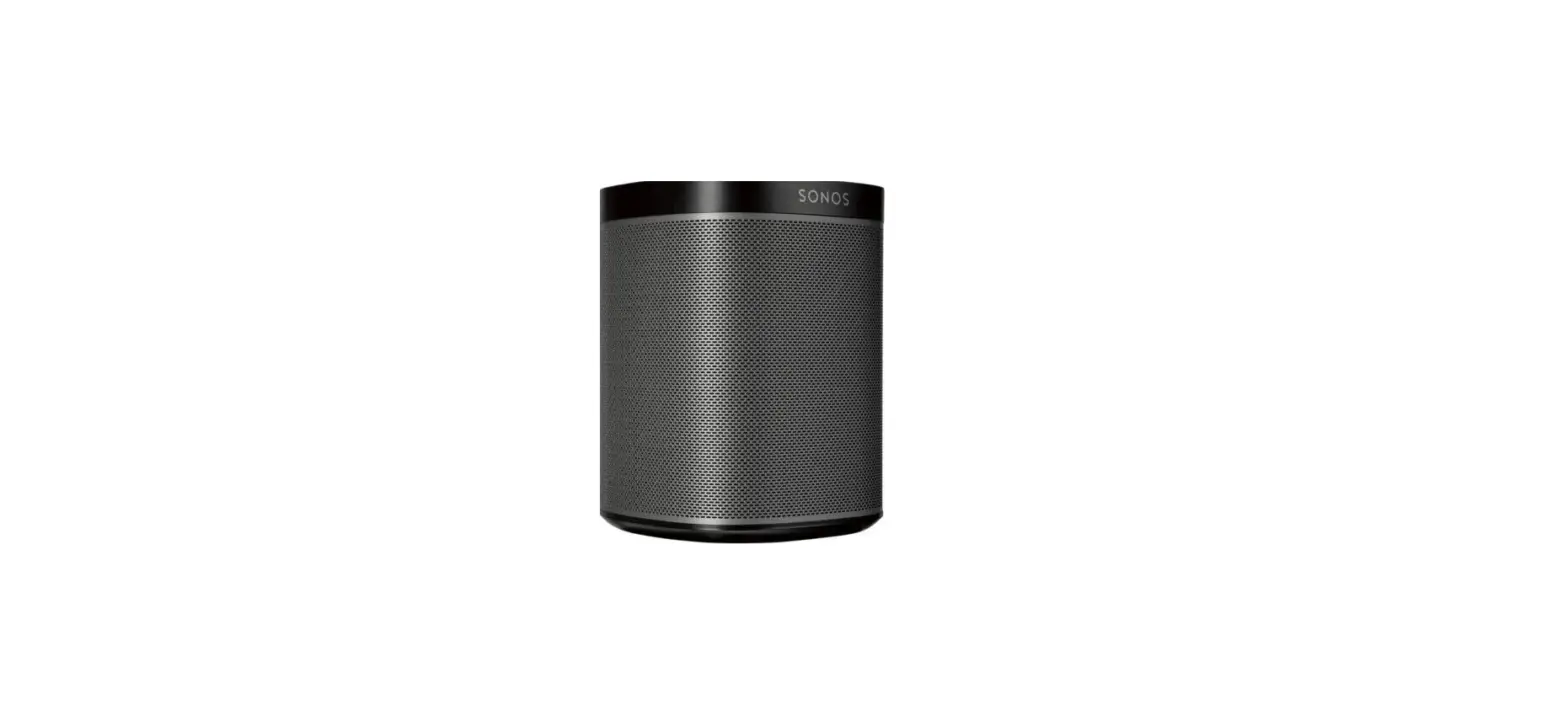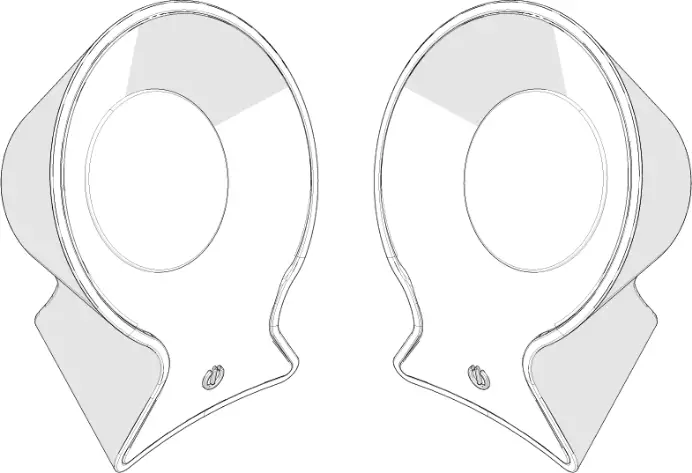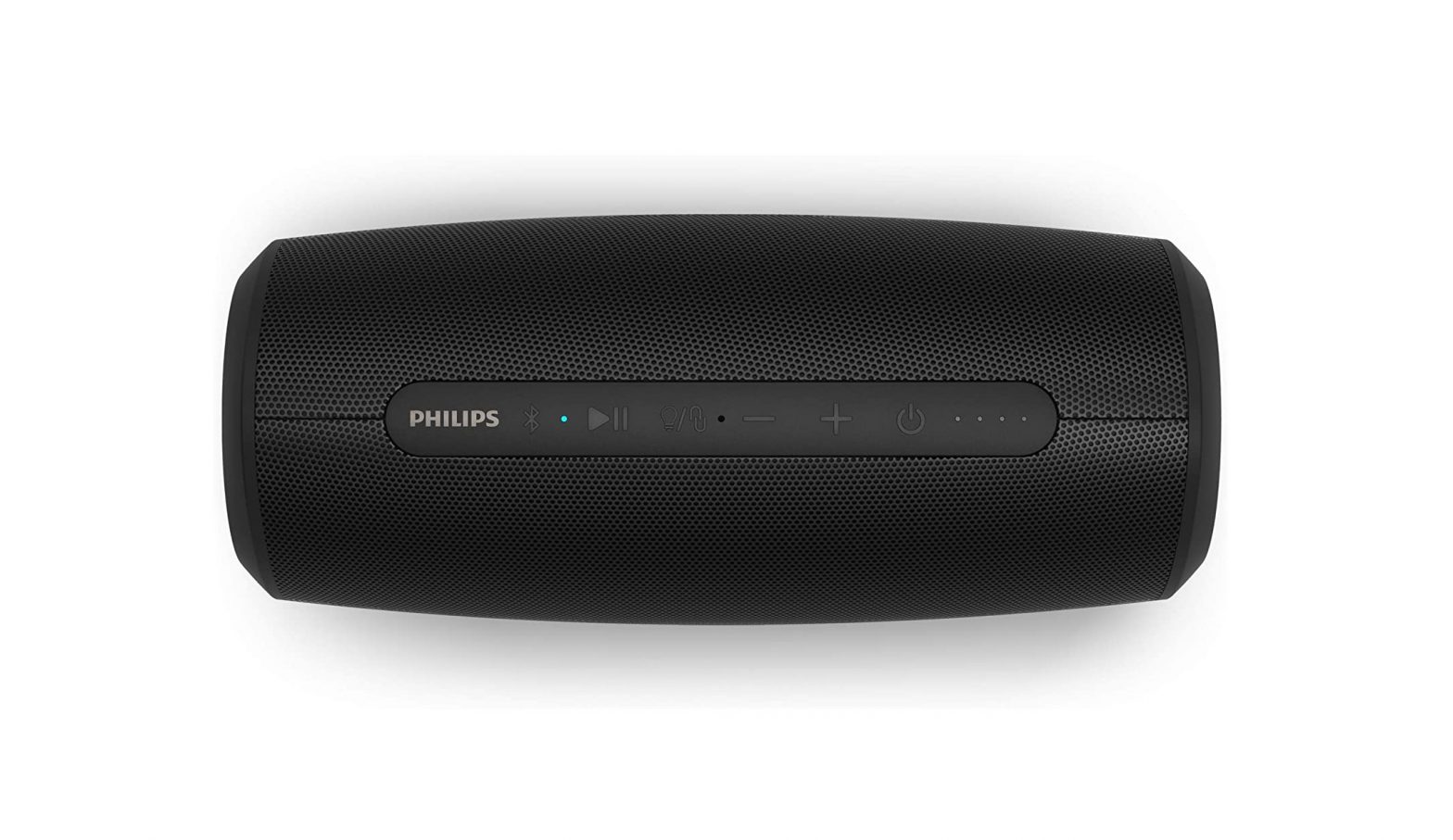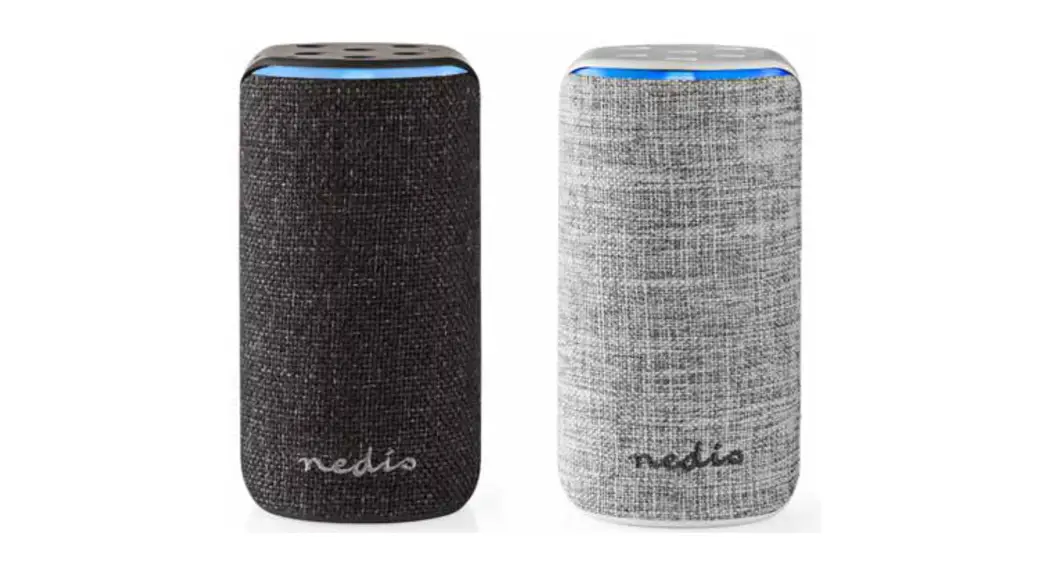

Smart Wi-Fi Speaker
SPVC7000BK / SPVC7000WT
Introduction
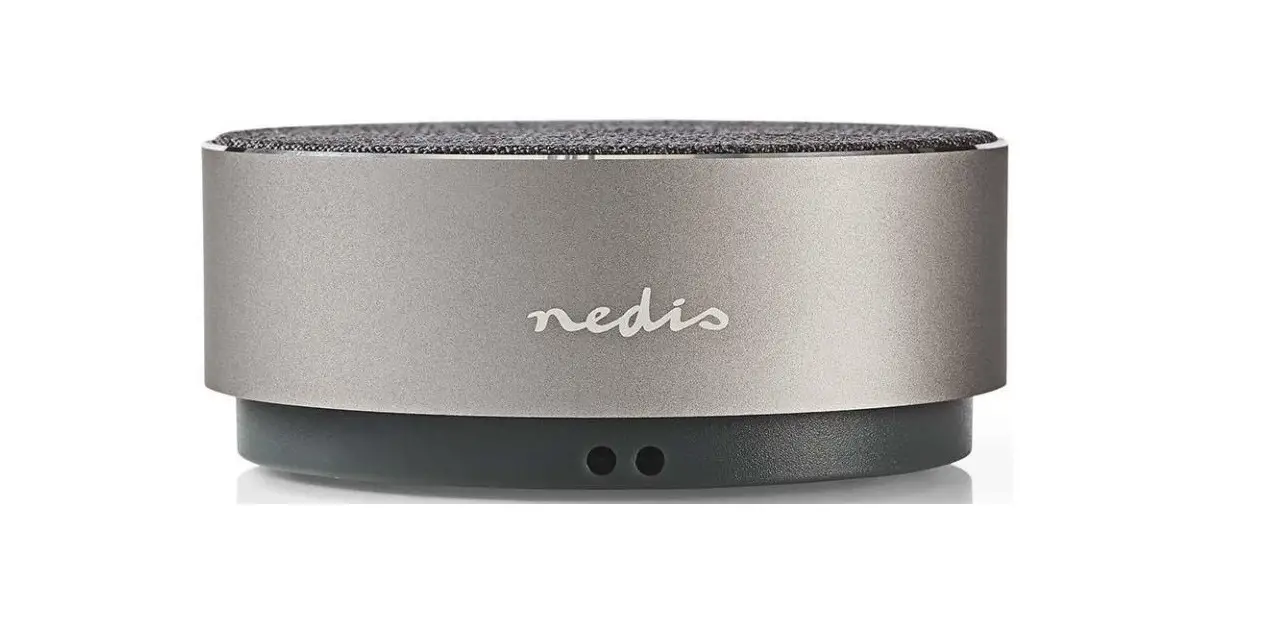
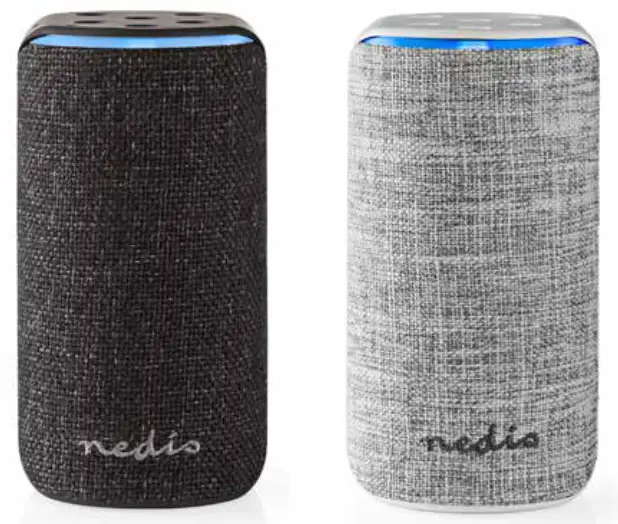
Control your music and your other smart home devices with your voice thanks to this Nedis® Smart Wi-Fi and Bluetooth Wireless Speaker that’s fully integrated with Amazon Alexa.
Far-field, 360° voice recognition
Offering far-field hands-free speech recognition through its three integrated microphones, you can enjoy long-distance, 360° voice control and recognition.
Licensed by Amazon
You’ll always be right up to date with the latest Amazon Alexa developments thanks to this speaker’s Amazon license which ensures 100% compatibility – now and at any time in the future.
Wi-Fi and Bluetooth connectivity
The speaker offers 15W peak power output and can easily be carried with you from room to room, with a maximum two-hour playtime from its 2600 mAh rechargeable battery and wireless/Bluetooth connectivity.
Placing you in control
A ring of indicator LEDs shows you exactly when Alexa’s voice recognition is operating and receiving, but you can mute voice recognition at any time with just the touch of a button.
Features
• Control your music, set simple chores, and activate your Nedis SmartLife products with nothing more than your voice.
• Licensed by Amazon – to ensure 100% Alexa compatibility now and in the future
• Integrated Amazon Alexa Far-field chipset – for hands-free long-distance voice control
• 360° voice recognition – from three integrated microphones
• Mute voice recognition – with the press of a button
• 15 W peak power output – for crystal-clear sound quality
• LED ring – to show you when Alexa voice service is operating
• Take the speaker from room to room – thanks to the rechargeable 2600 mAh battery
• Dual Bluetooth and Wi-Fi connectivity – for the times Wi-Fi is not available
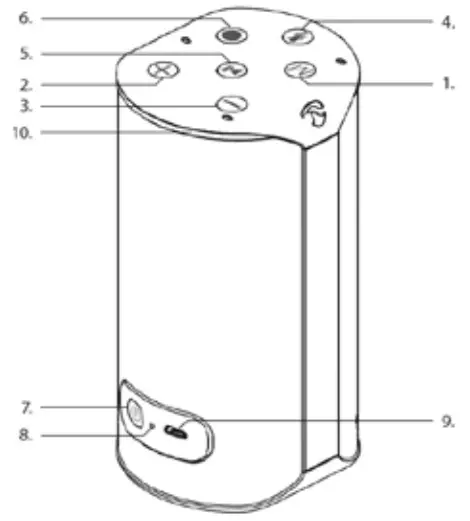
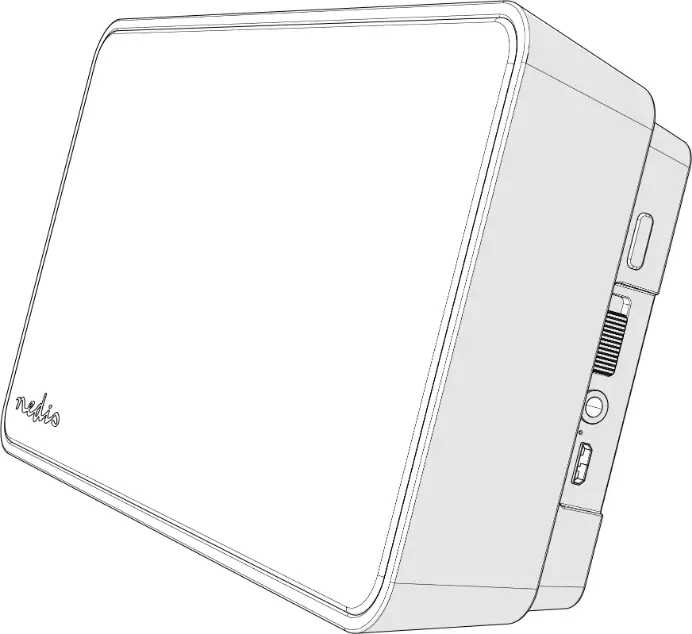
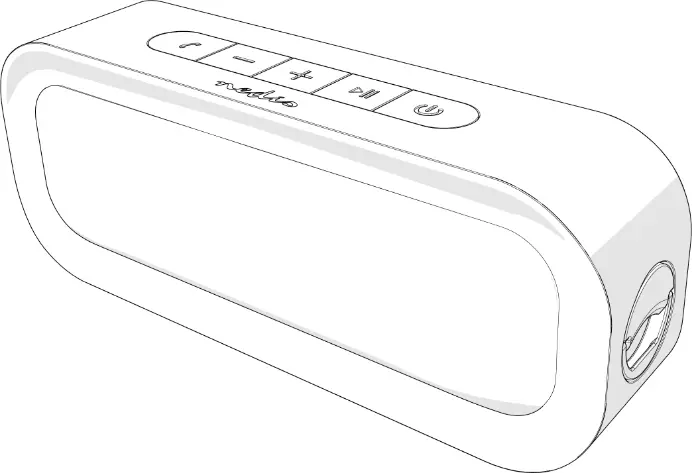
Description (fig. A)
| 1.Mode Button | Switch between Wi-Fi and Bluetooth• by pressing the button |
| 2.Vol+ | Short press to increase the volume |
| 3.Vol- | Short press to decrease the volume |
| 4.Mute Microphone | Short press to mute the microphone |
| 5.Play & Pause | Play or Pause the music playback under Bluetooth mode |
| 6.Push to talk | Wake up the speaker and talk to Amazon Alexa |
| 7.Power | Short press to power On/Off |
| 8.Reset | Press to reset factory default settings |
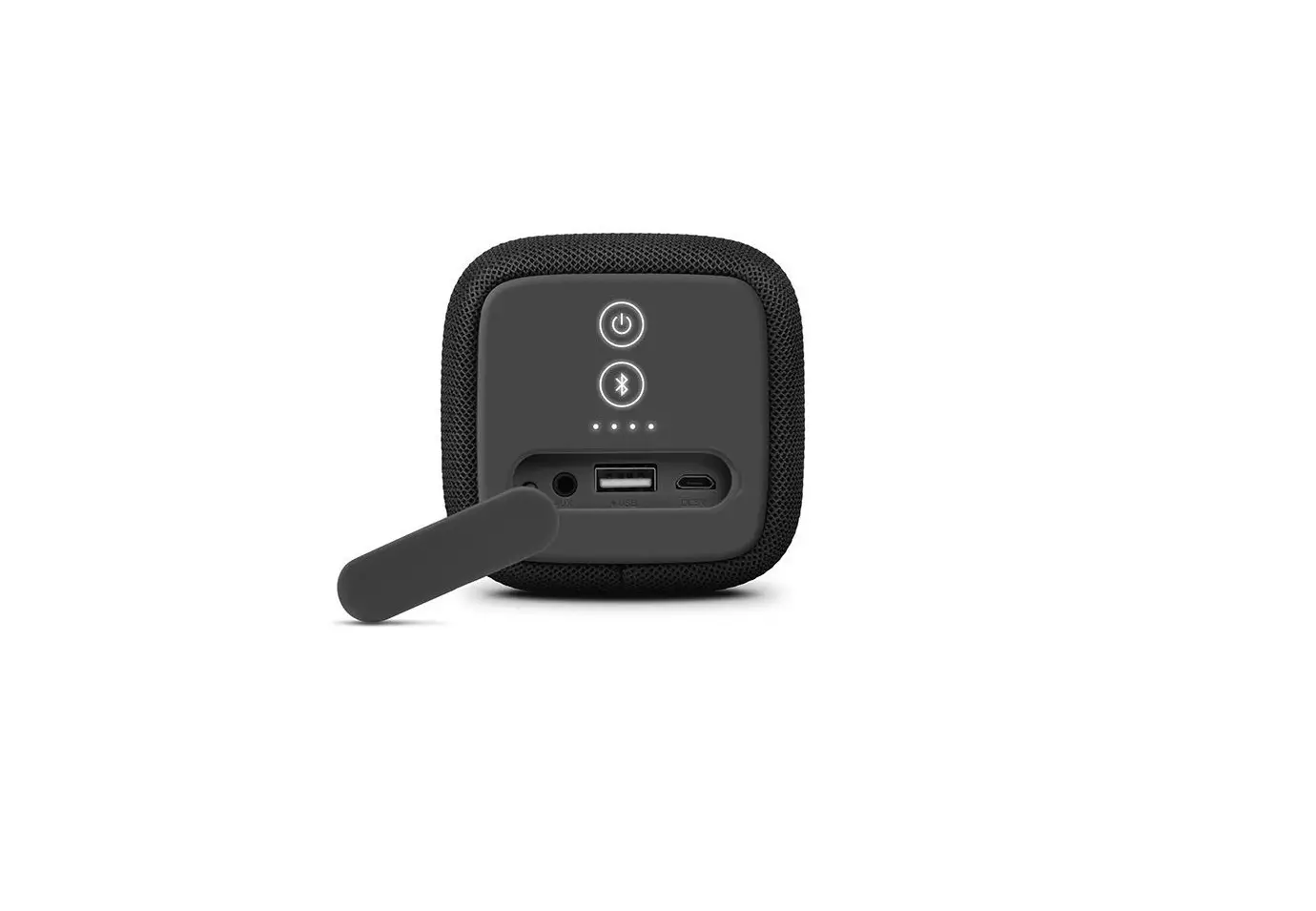
| 9.Micro USB Port | Connect a USB cable to charge the speaker |
| 10.LED Indicator | See LED indicator table |
LED Indicator
| Status | LED status |
| Bluetooth Mode | Blue |
| Notification | Yellow flashing |
| Alarm | Cyan and blue rotating |
| Vol+/- | White |
| Mute Microphone | Red |
| Pause | White quick breathing |
| Power On | White running |
| Power Off | Red running |
| Reset | White running |
| WiFi Setup Mode | Orange running |
| No Internet | Red slow breathing – for 15 seconds |
| WiFi Connecting | Orange quick flashing |
| WiFi Connected | White breathing – 3 seconds |
| WiFi Mode | No LED |
| No Amazon Account | Red slow breathing – 15 seconds |
| Alexa function (Amazon Account Sign successfully) | Blue light Flashing (after saying “Alexa”) |
| WiFi Software Upgrade | Green breathing |
| WiFi Software Finish | Power cut without any LED |
| Bluetooth Pairing | Blue breathing |
| Bluetooth No Connection | Blue breathing light off after 2 mins no connection and then blue light always on |
| Bluetooth Connected Success | Blue quick breathing 3 times and then blue light always on |
| Bluetooth Music Playing Status | Blue running |
| Spotify Music Playing Status | Green running |
| Wake up | Cyan |
| Thinking | Cyan and Blue – Alternating |
| Response | Cyan and Blue – Pulsing |
Product Details
Smart Wifi Speaker | 15 W | Amazon Alexa Far Field Voice Control
Order code: SPVC7000BK | SPVC7000WT
EAN: 5412810292615 | 5412810292622
Packaging: Gift box
Voice service: Amazon Alexa
Far-field speech recognition: Yes
Push-to-talk activation: Yes
No. of integrated microphones: 3
Microphone mute function: Yes
RMS power output: 5 W
Peak power: 15 W
Speaker driver: 2” downfiring
No. of passive radiators (40 mm): 2
Frequency response: 90 Hz – 10 kHz
Built-in battery: 3.7 V / 2600 mAh
Battery operating time: up to 2.5 hours
Battery charging time: +/- 4 hours
Bluetooth® version: V4.1
Frequency band(s): 2402 ~ 2480 MHz
Max. transmission power WiFi / BT: 16.5 / -5 dBm
Max. antenna gain WiFi / BT: 1.5 / 2.3 dBi
Power input: 5 VDC / 1A
Setting up the speaker
Note: To be able to use the product’s full range of functions, you must additionally download the Amazon Alexa app and create an Amazon account. For this purpose, follow the instructions in the Amazon Alexa app. Further information can be found at alexa.amazon.co.uk.
Downloading the Nedis Smart WiFi Speaker App
Note: The following systems are supported:
iOS 8 or higher
Android 4.4.1 or higher
• Open the iTunes App Store or Google Play Store on your smartphone.
• Use the search function to find the app by typing “Nedis SmartVoice”
• Download the app in the usual way and install it on your smartphone. To do this, follow the instructions on your smartphone
Getting started
Turning on the product
• Connect the USB cable of the speaker to a USB power adapter and inser this adapter in a power socket.
• Press [power] to turn on the product
First time Wi-Fi setup
Note: The SPVC7000 does not support 5 GHz networks. So please always enable the 2.4 GHz connection.
• Ensure that the router is switched on, functioning correctly and that there is a connection to the internet.
• Activate the WLAN function of your router is this is not activated.
• Press [mode] for at least 3 seconds to start WiFi setup. The LED will have a running orange colour when it’s in WiFi setup mode.
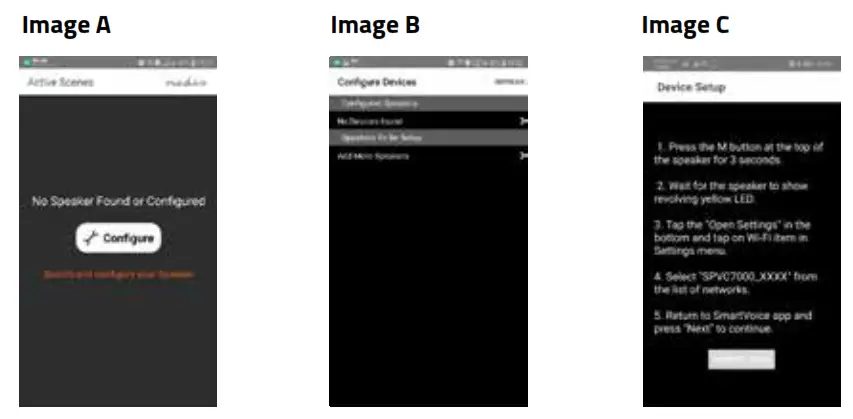
• Open the Nedis SmartVoice app and tap [configure] as shown in “image A”.
• Then tap [add more speakers] as shown in “image B”.
• Open your smartphone’s settings by tapping [open settings] as shown in “image C”
• Search for the speaker’s WiFi signal in the list of your smartphone. This signal will have a name build-up like SPVC7000_xxxxxx.
• Connect your smartphone to the speaker and confirm the connection.
• Now return to the Nedis SmartVoice app on your smartphone. On Android devices, your return to the setup using the back button in the app. On iOS devices, you must switch the application or use the left-pointing arrow display in the upper left corner of the screen.
• The process should now continue automatically, and you can access the speaker’s network setup. In case this not happens, tap [next] in the app.
• You can now setup the new network for the speaker. Select the desired WLAN name from your list of networks. If needed enter the right key for the WLAN and confirm your entry with [save] as shown in “image D”.
• Confirm the settings by tapping [confirm] as shown in “image E”.
• The speaker now connects to the network. After a successful connection, the message “configured successfully SPVC7000_xxxxxx” is displayed on your smartphone as shown in “image F”
Note: It’s possible that the app may restart.
Connect with Amazon
• The configured speaker should now be displayed in the main menu of the app. Tap the speakers icon.
• Tap [sources] at the low edge of the screen to set up a connection to your Amazon account.
• Tap the [Amazon Alexa] button.
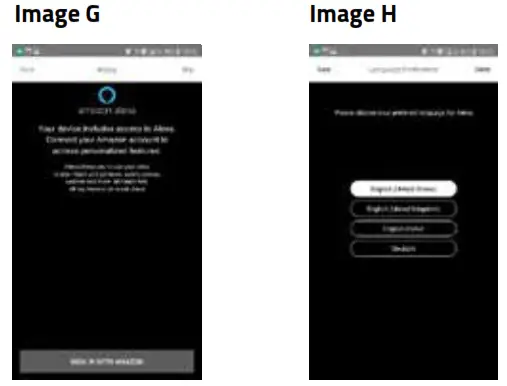
• Tap [Sign in with Amazon] as shown in “image G” to open the web browser for entering your account data.
Note: If the Amazon Shopping app has already been installed and set up on your smartphone, the following steps are skipped.
• Enter the account data from your Amazon account and confirm your entry with [Sign in].
• Alternatively, you can create a new Amazon account by tapping [ Create a new Amazon account].
• After successful sign-in, you return to the Nedis SmartVoice app.
• Now select the language that you want Alexa to respond to in the future as shown in “image H”
• Open the Amazon Alexa app and, if necessary, enter your account data once again. After that, you should find the speaker SPVC7000 among your active devices.
• Then specify your personal settings (time zone, device name, etc) in the Amazon Alexa app. Further information can be found at www.amazon.co.uk/alexasupport.
• You can now use the Alexa voice control function.
Note: Note that location-dependent information for queries (e.g. “What’s the weather?”) will only be accurate if the correct location information was entered in the Alexa app.
Connect with Bluetooth®
You can pair your mobile device with the speaker via Bluetooth® and use it as a playback device for audio signals. You can control playback directly on your mobile device. The volume can also be controlled directly on the speaker.
Note:
• Check whether your mobile device (smartphone, tablet, etc.) is Bluetooth® capable.
• Note that the maximum range for Bluetooth® is 10 meters without obstacles such as walls, people, etc.
• The Bluetooth® connection may be disrupted by other Bluetooth® devices/connections in the vicinity.
• It’s only possible to connect the speaker to one mobile device.
• The compatibility depends on the supported Bluetooth® profiles as well as the Bluetooth® versions being used
• Activate the Bluetooth® signal on the mobile device
• Set the mode on the speaker to Bluetooth® mode by pressing the [mode] button on the speaker, the Bluetooth® status LED begins to pulsate in blue colour.
• Press and hold [mode] for about 5 seconds to activate the pairing mode. The Bluetooth® status LED begins to flash quickly.
• Open the Bluetooth® settings on your mobile device and wait until SPVC7000 appears in the list of Bluetooth® devices found.
If needed, search for new Bluetooth® signals on your mobile device.
• Select the SPVC7000 in the list of available devices and wait until the speaker is shown as connected in the Bluetooth® settings of your mobile device. The Bluetooth® status LED will be constantly blue.
• If needed, search for new Bluetooth® devices on your mobile device.
Note: Some mobile devices require a password to connect. In that case enter 0000.
Alexa function (voice control)
• After you have said the word “Alexa” or pressed the [Push to talk] button, the status LED will turn blue and a signal tone will sound. You can now talk to Alexa.
• The status LED will flashes blue while Alexa is giving the answers.
Factory settings
• Press reset button on the rear panel by using a sharp pin.
• The speaker restarts after a successful reset.
• Resetting to the factory default setting can solve some problems and malfunctions.
• During the reset all settings made previously will be permanently deleted.
Software updates
• We are constantly developing new software features and improvements for our speakers to fix problems, add functionality etc.
• We recommend that you keep your speaker’s software up-to-date at all time
• You are informed about updates within the Nedis SmartVoice app.
• Make sure there is a stable power supply before you start a software update.
• Power supply failure during a software update can cause irreparable damage to the speaker.
Safety
• Read the manual carefully before use. Keep the manual for future reference.
• The manufacturer is not liable for consequential damages or for damages to property or persons caused by nonobservance of the safety instructions and improper use of the device.
• Only use the device for its intended purposes. Do not use the device for other purposes than described in the manual.
• Do not use the device if any part is damaged or defective. If the device is damaged or defective, replace the device immediately.
• The device is suitable for indoor use only. Do not use the device outdoors.
• The device is suitable for domestic use only. Do not use the device for commercial purposes.
• Do not use the device near bathtubs, showers, basins or other vessels containing water.
• Do not expose the device to water or moisture.
• Make sure that the device does not come into contact with flammable material.
• Keep the device away from heat sources. Do not place the device on hot surfaces or near open flames.
• Do not cover the device.
 Amazon Sign In
 Amazon.co.uk Help: Alexa Help