
ivie Bud In-Home Display 
Let’s get started
First, plug in your ivie Bud. It should just turn on. If not, wake it up by holding down the ON/OFF button at the back.
Getting to grips with ivie Bud is easy
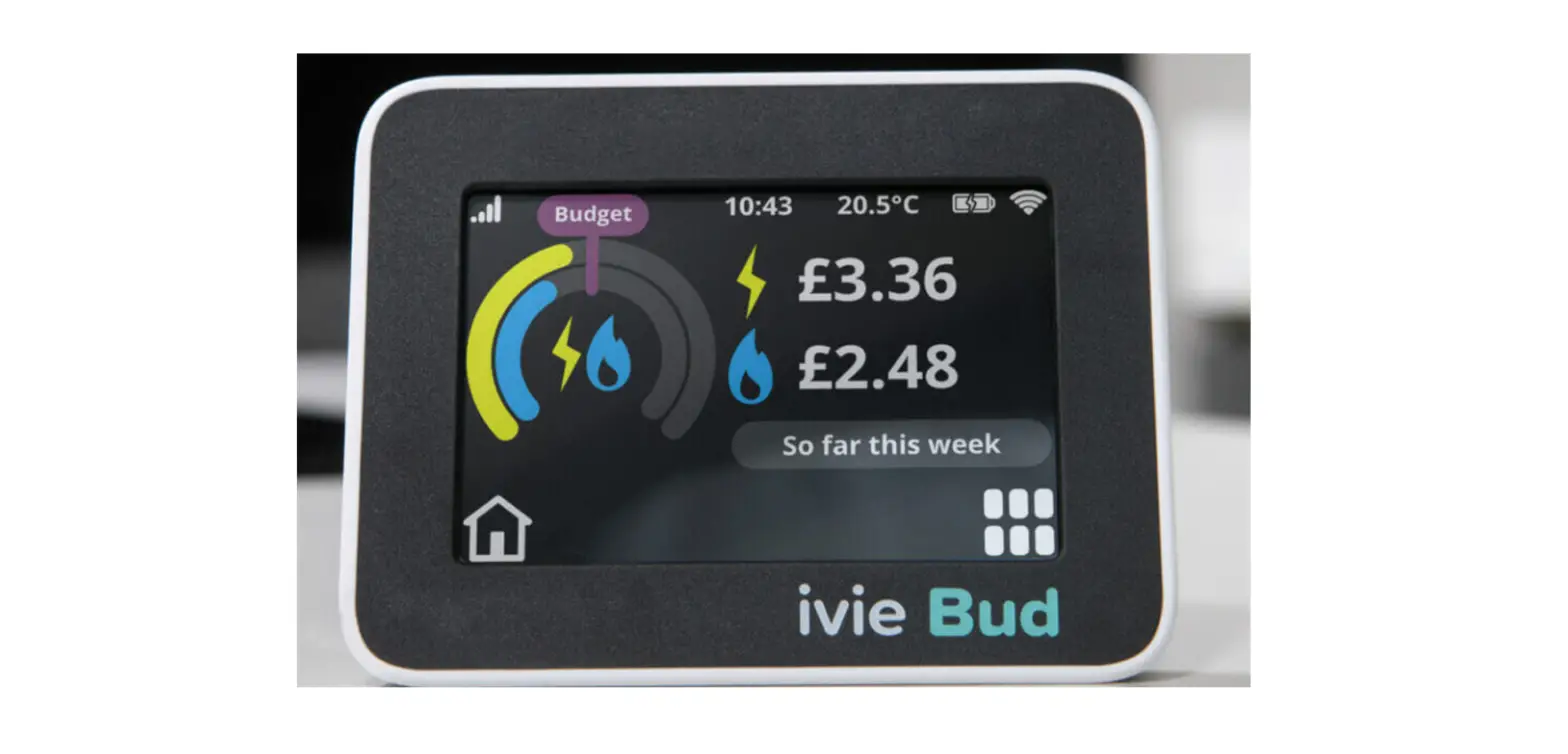
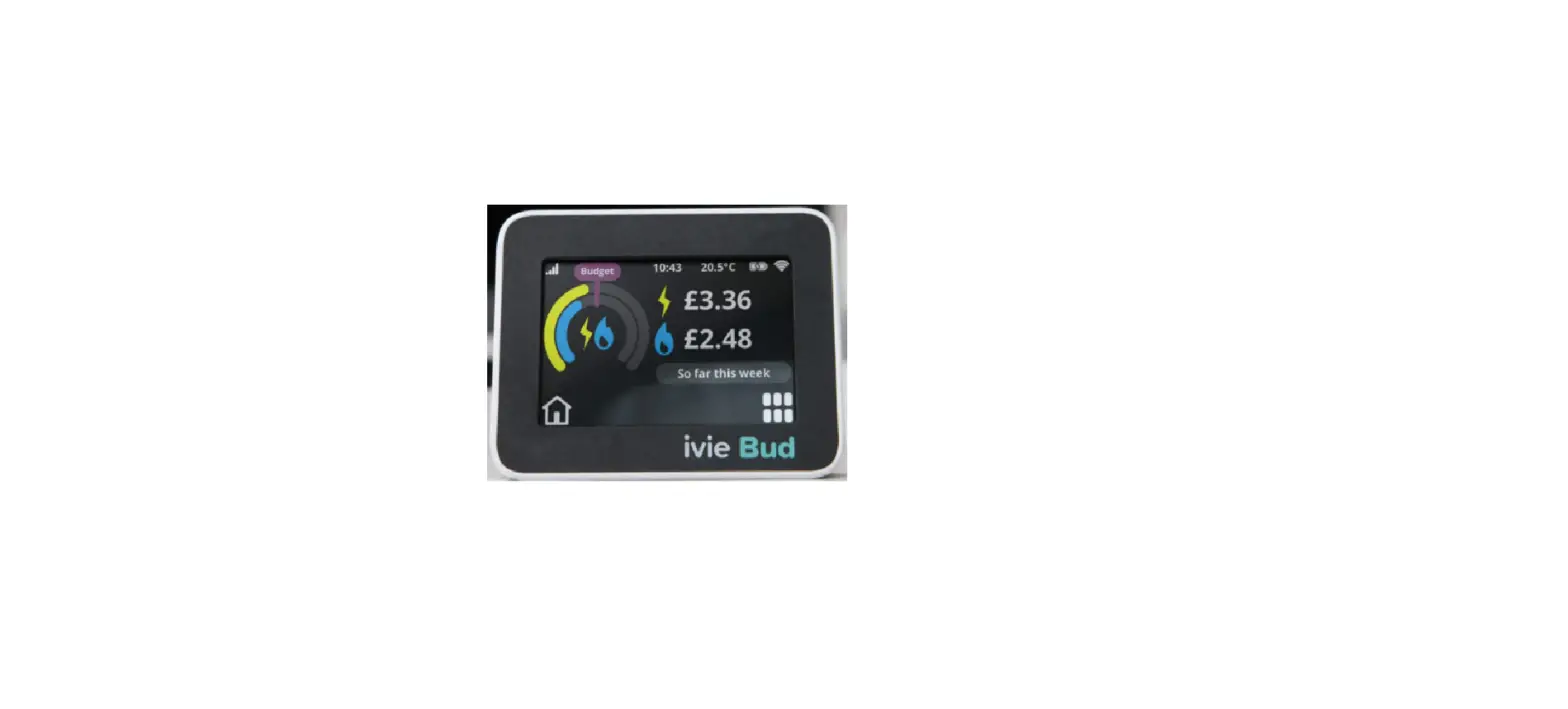
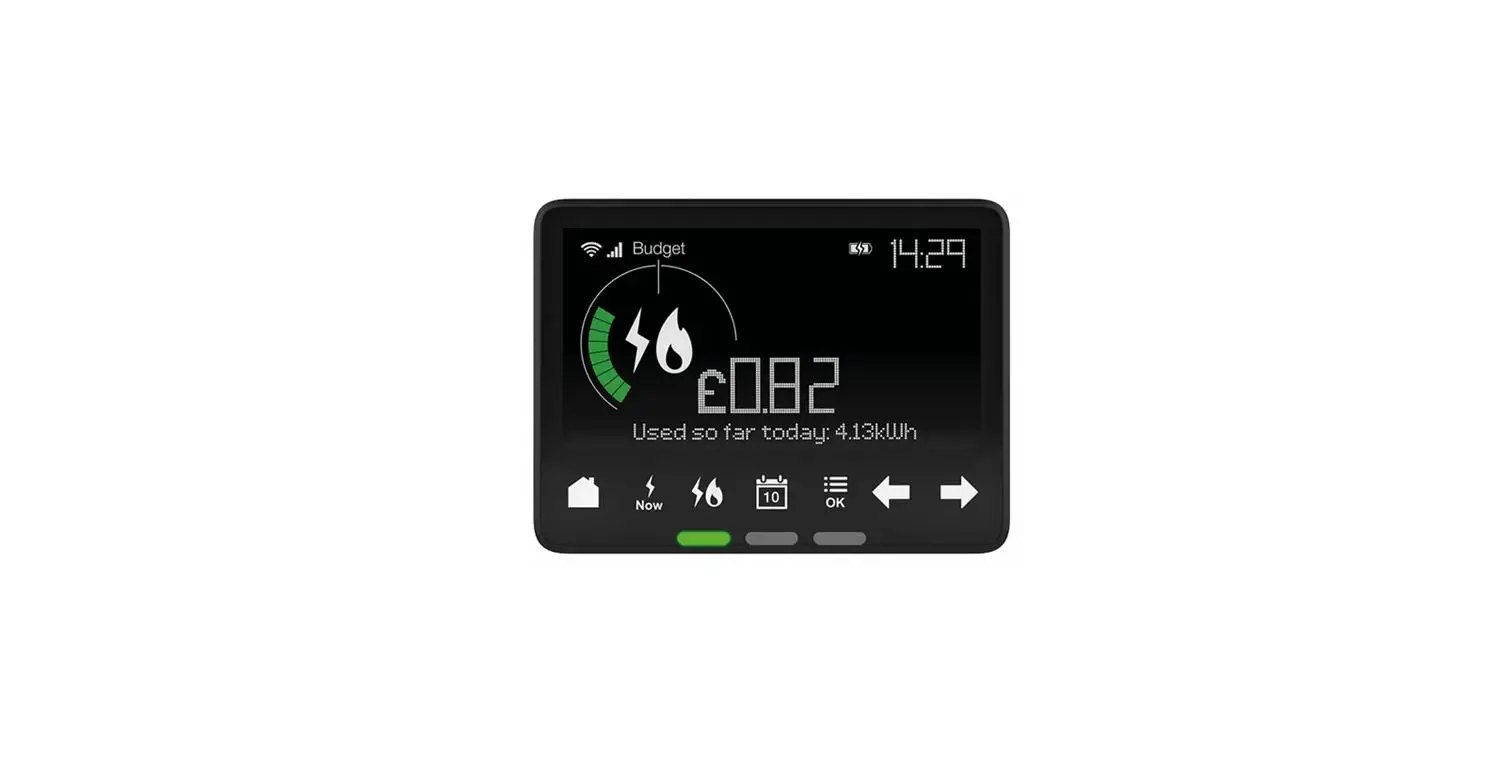
ivie Bud’s been designed to be as simple to use as possible. With a touchscreen display and easy-to-understand icons, ivie Bud makes controlling your energy plain sailing.
Get to know your ivie Bud
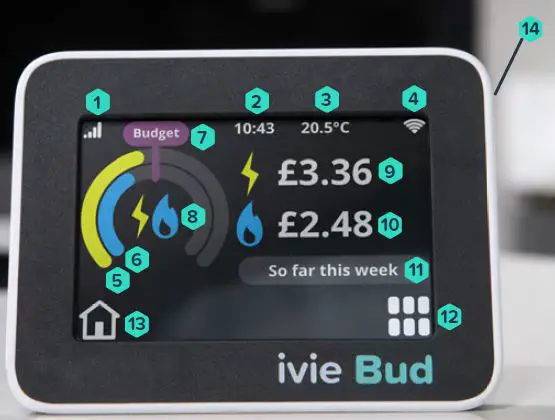
- The connection between your ivie Bud and your smart meter
- Time
- Room temperature
- Wi-Fi signal strength
- Electricity amount you’re using
- Gas amount you’re using
- Budget checker, set by you
- Energy type, electricity or gas
- Electricity display in figures
- Gas display in figures
- Timings of your energy usage for set periods
- Menu button to access all the features
- Home button to return to the home screen
- On/Off button
Understand your home energy usage better.
Your ivie Bud makes checking how much energy you’re using easy. It’s all there on the screen. Just tap it to explore. With your ivie Bud, you can check how much each of your appliances costs to run. Simply tap the button and scroll through to.
 Then turn each of your appliances on and off and note the difference in your instant energy usage! Simple? We thought so too.
Stay connected
Connecting your ivie Bud to Wi-Fi keeps you in touch with the latest updates. You won’t miss any of the new features and your ivie Bud will run like a dream. It keeps your security ticking along nicely too. So it’s pretty important to stay connected.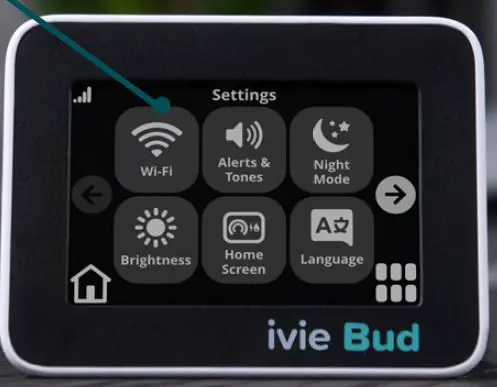
Your ivie Bud’s offline?
Check out the steps below to see how to get it back up and running again.
Connecting to Wi-Fi
- 1. Press
 then use them
  to scroll. Press
 and press.
- Turn your Wi-Fi on with this button.
 You can connect using four different options. Scan for networks, WPS Push, WPS PIN, or Network name. We suggest using Scan for networks.
 - Choose the one that’s right for you by tapping your choice and following the prompts. You’ll be back on track in moments.
 then use them
  to scroll. Press
 You can connect using four different options. Scan for networks, WPS Push, WPS PIN, or Network name. We suggest using Scan for networks.
Got a budget?
All ivie Buds are set to a default budget. To help you track and control your own energy consumption, we’d recommend setting your own. It’s easy.
- 1. Start by pressing
 then press.
- 2. Choose which energy you’re setting your budget for and press

- Choose a day, week, month or year by tapping the Time Period button. To add to or lower your budget, use
 and
and  buttons. Then press
  and
and  . Easy as that.
 then press.

 and
and  buttons. Then press
  and
and  . Easy as that.
Pay as you go, the smart way.
This is a great way to keep on top of everything. With a prepayment tariff, your ivie Bud offers extra features making your energy usage really clear and simple.
- Check your smart meter balance.
Your ivie Bud shows your meter balance in pounds and pence, so you know how much credit you have left and when you can top it up before running out. - Low Credit Alerts.
ivie Bud will let you know when your balance is running low. An alarm will sound and the Low Credit symbol will appear on the screen. - Emergency Credit Alerts.
Run over into Emergency Credit? Your ivie Bud will show you on-screen in pounds and pence.
Make your ivie Bud your own.
You can personalize some of the settings, from alert sounds to brightness, making them just right for you. Simply press,  use the
  to scroll, and select.
- Change the brightness of your screen.
- Switch key tones and alert tones on or off.
- Dim your screen so it’s easy on the eye at night.
- Swap languages from English to Welsh. Change your home screen view.
To save your changes, press
Need help with your ivie Bud?
We’ve got you covered. Just head over to Support and check out our helpful guides and FAQs.