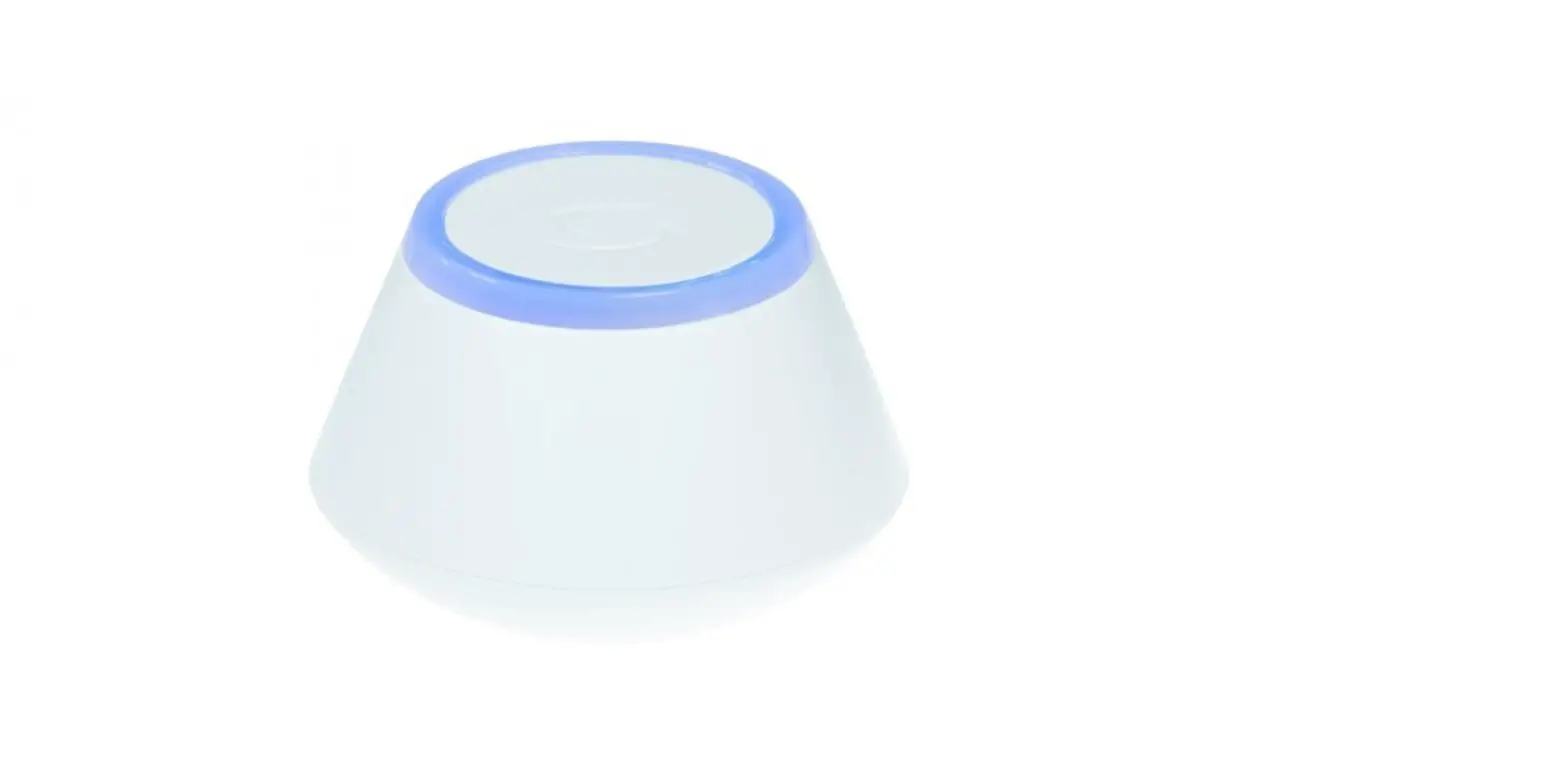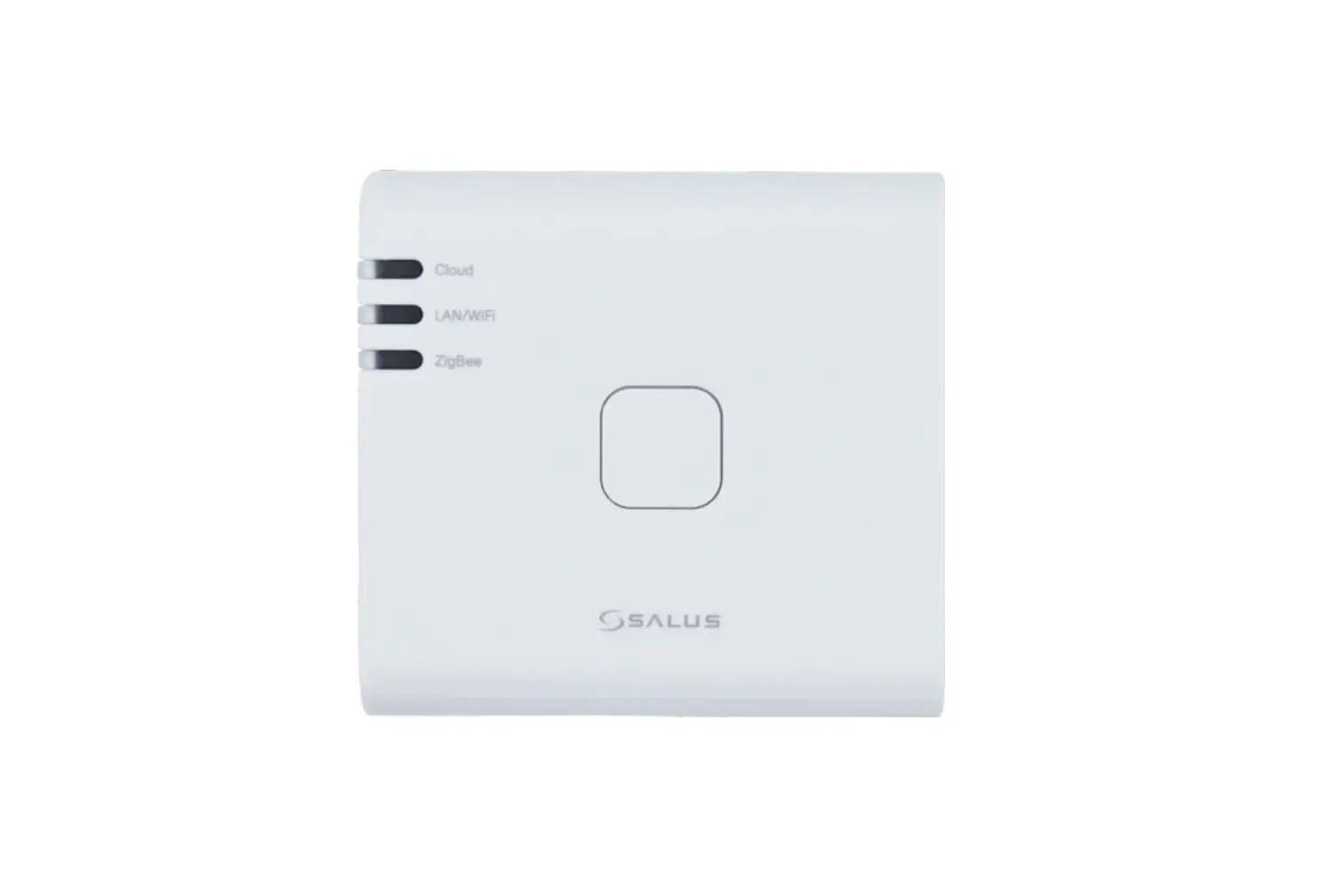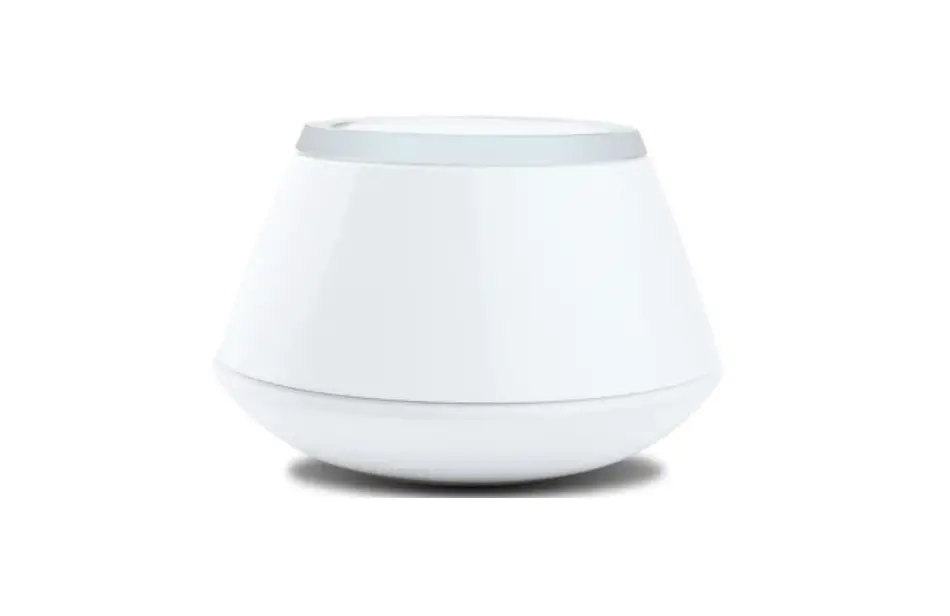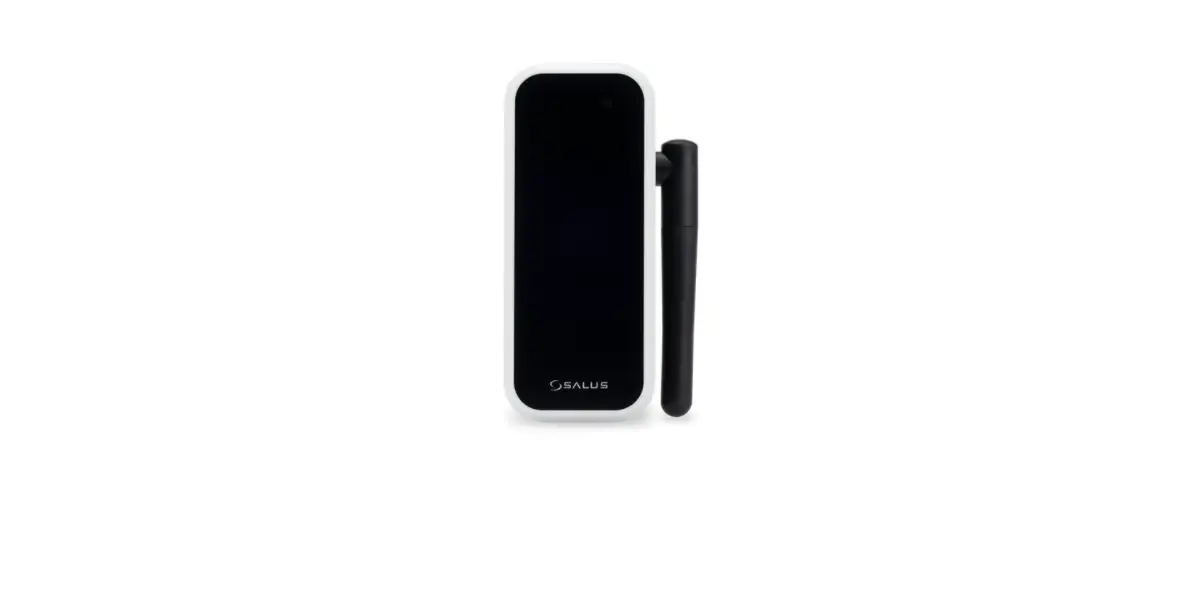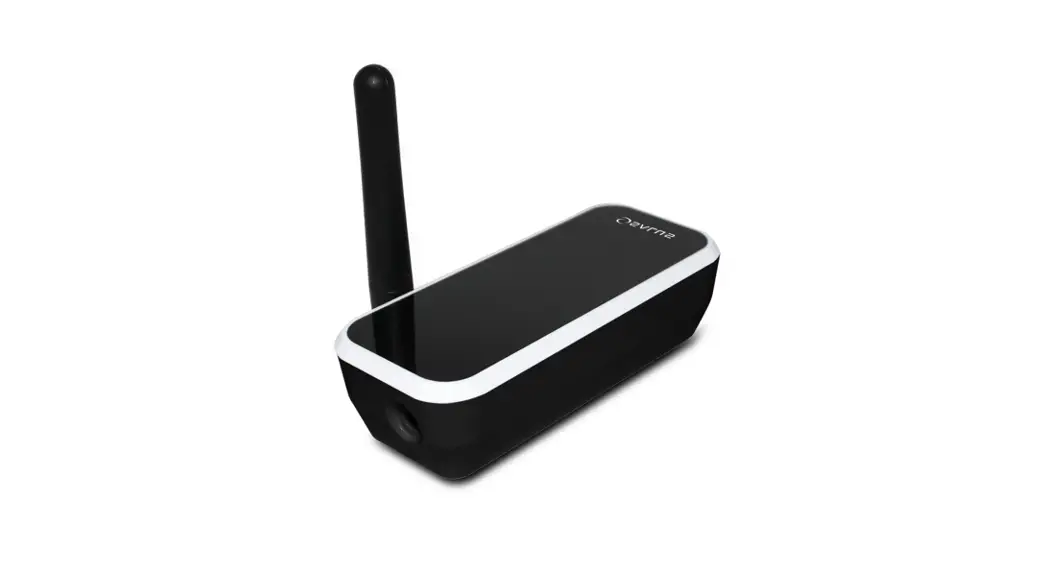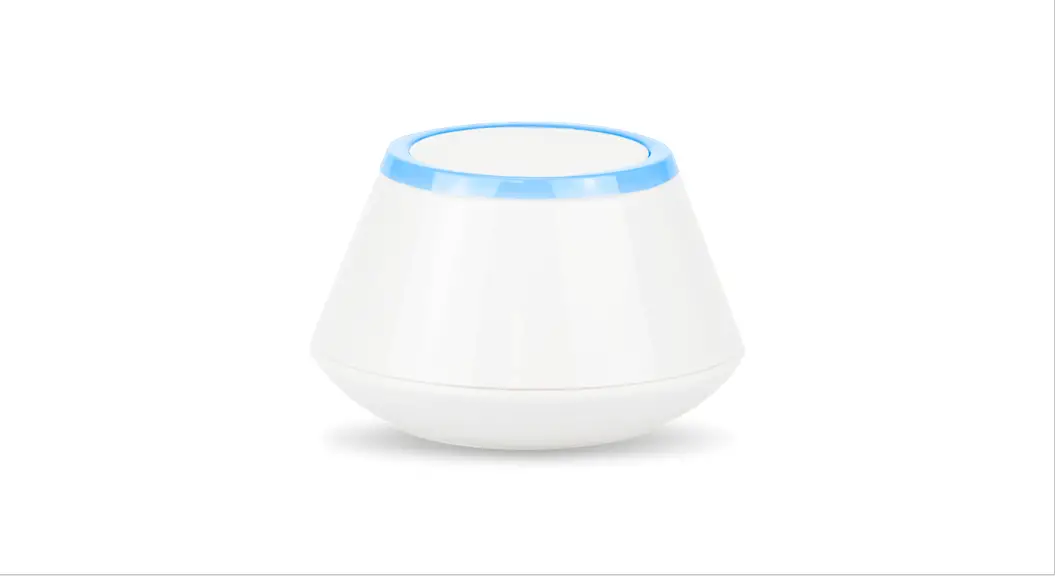

Universal Gateway
Model: UGE600
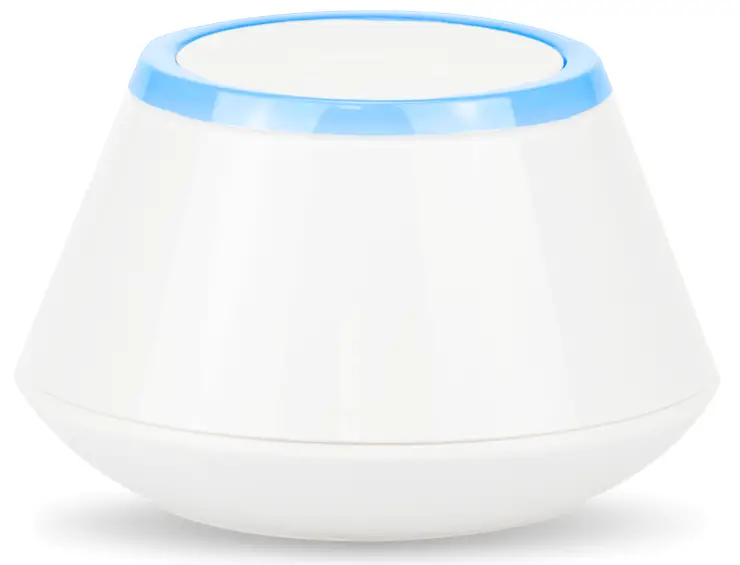
Installation Manual
VI/ 2020
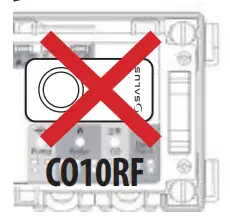
 Don’t use CO10RF coordinator with UGE600 simultaneously!
IMPORTER:
QL CONTROLS Sp. z o.o. Sp. k.
ul. Rolna 4, 43-262 Kobielice
PRODUCER:
Salus Limited
6/F, Building 20E, Phase 3, Hong Kong Science
Park, 20 Science Park East Avenue, Shatin,
New Territories, Hong Kong
 Introduction
The Universal Gateway is the key product for the SALUS iT600 system. This will offer you the possibility to wirelessly control all the connected equipment just by using your smartphone or your computer via the Internet. You can connect up to t100 devices to one gateway. Go to www.salus-controls.eu for the pdf version of the manual.
Product Compliance
This product complies with the essential requirements and other relevant provisions of Directives 2014/30/EU, 2014/35/EU, 2014/53/EU, and 2011/65/EU. The full text of the EU Declaration of Conformity is available at the following internet address: www.saluslegal.com.
 Safety Information
 Safety Information
Use in accordance with the regulations. Indoor use only. Keep your device completely dry. Disconnect your device before cleaning it with a dry cloth.
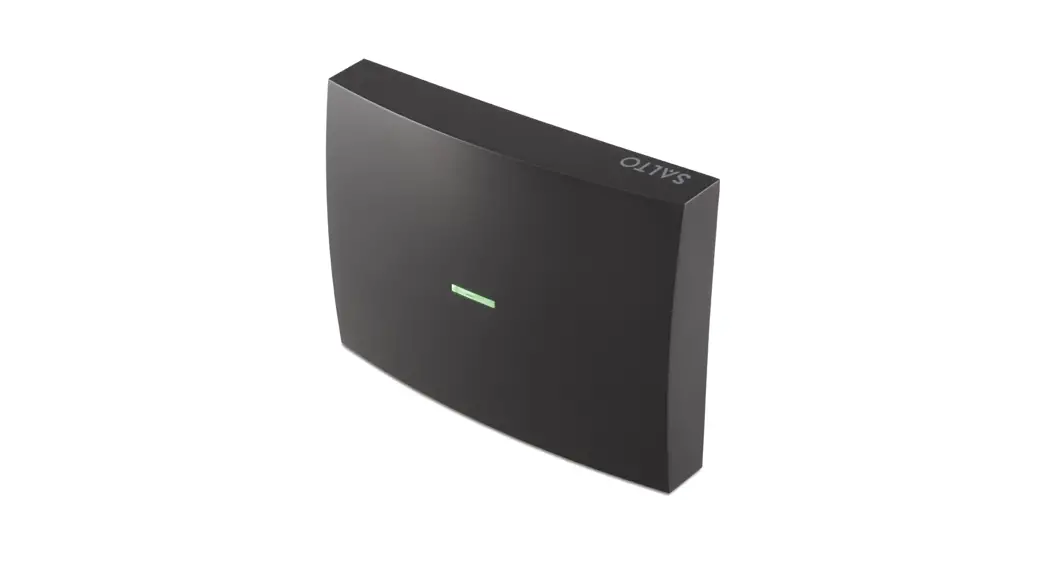
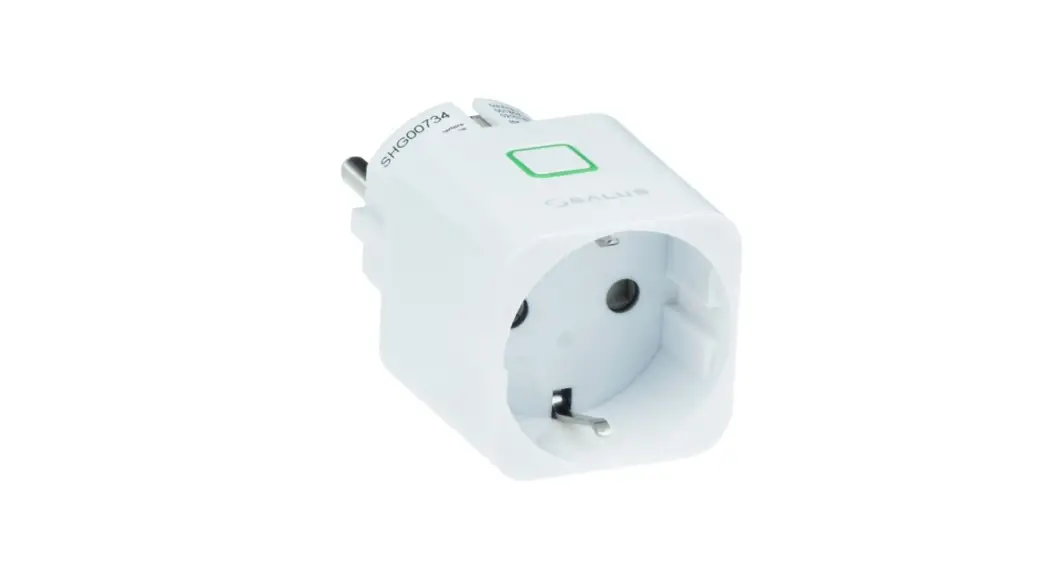
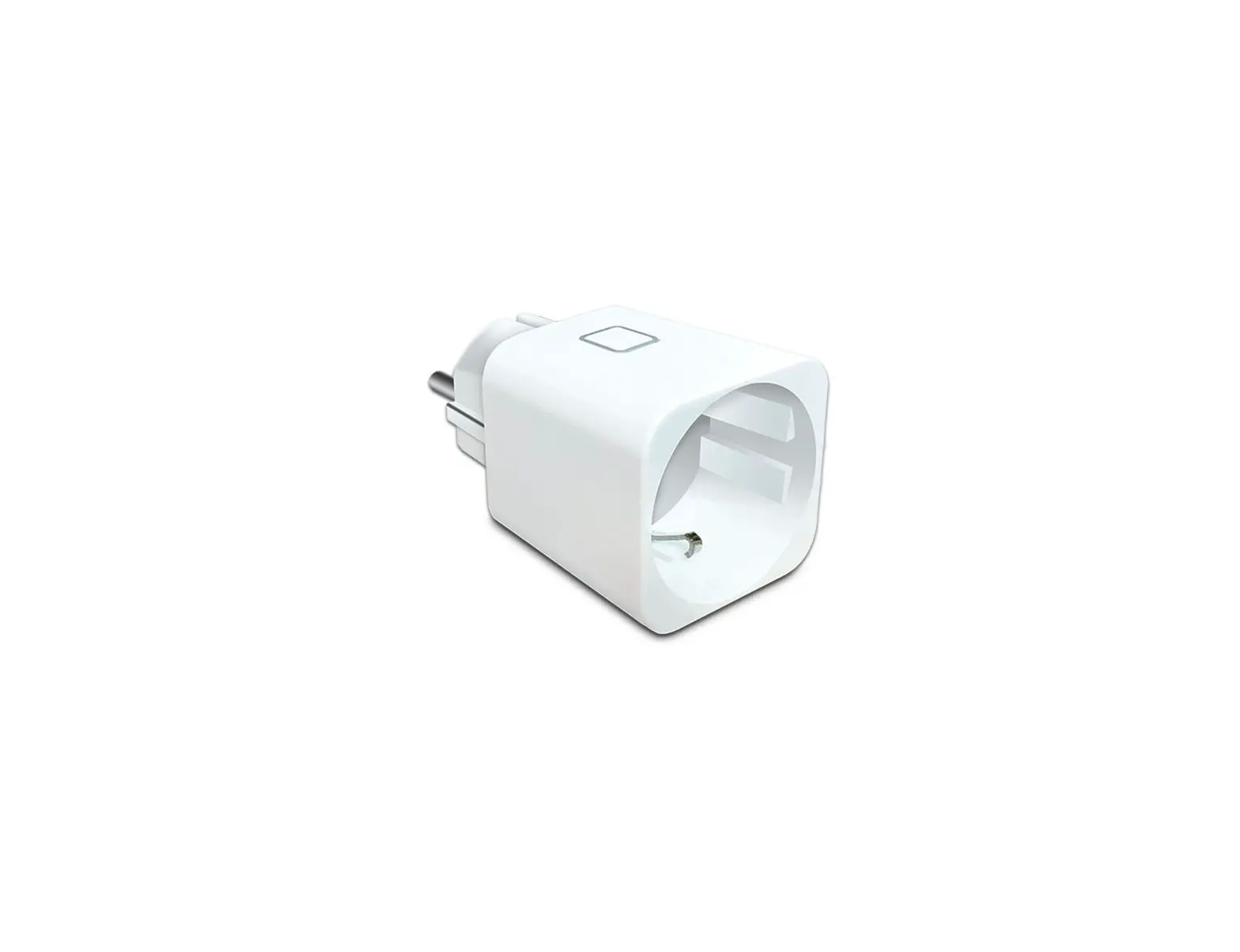
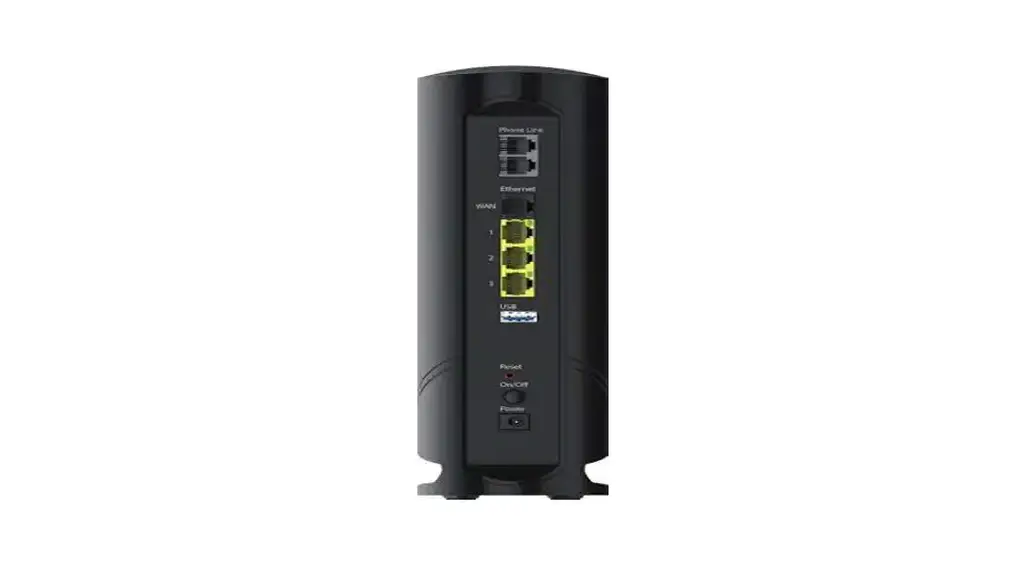
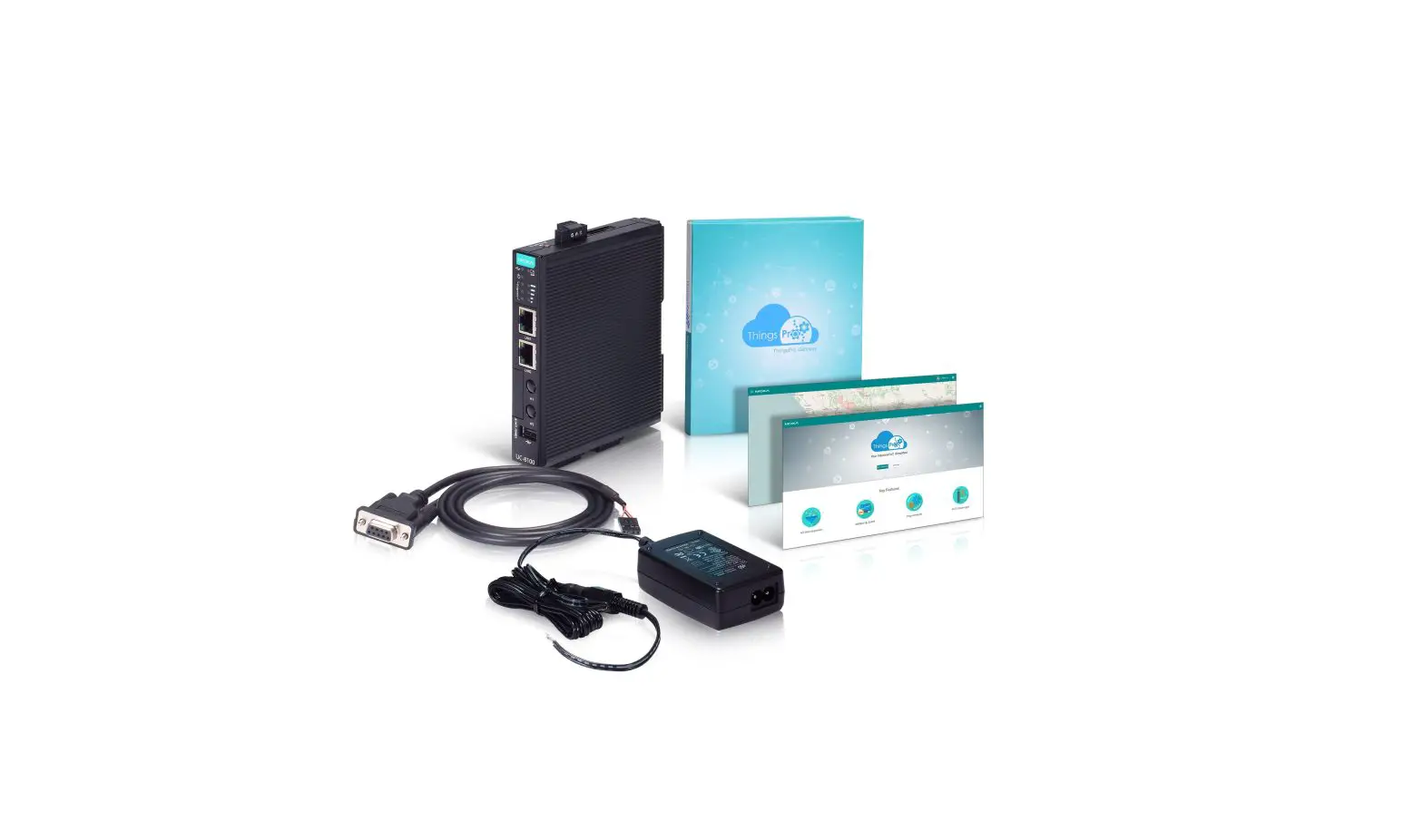
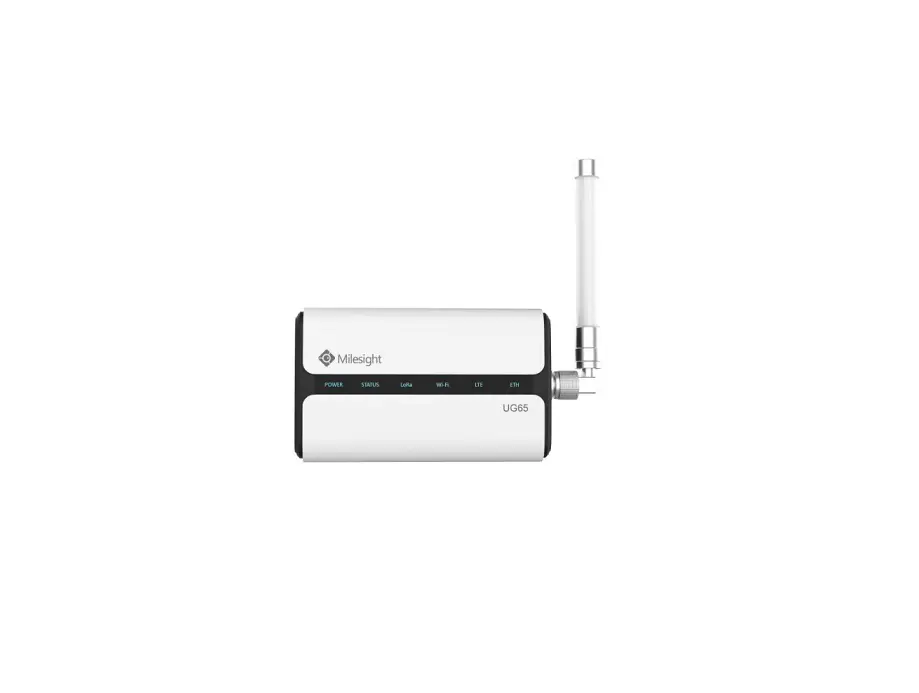
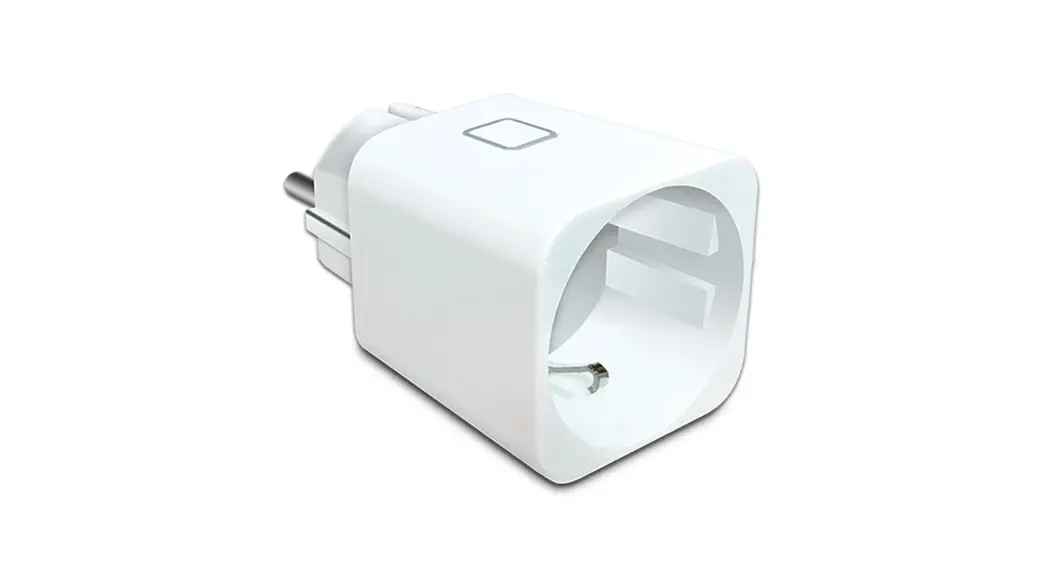
Devices that can be connected:
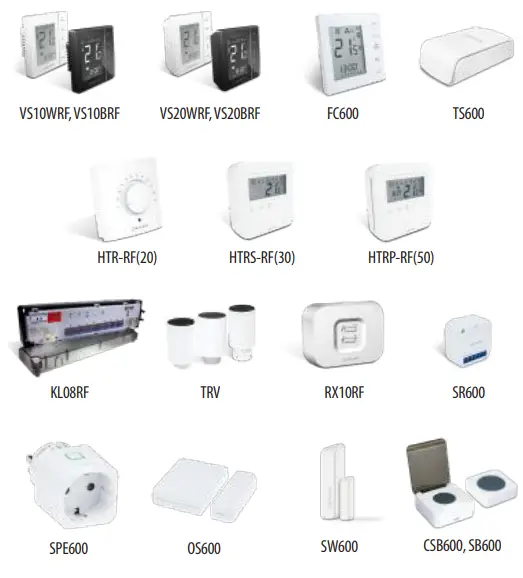
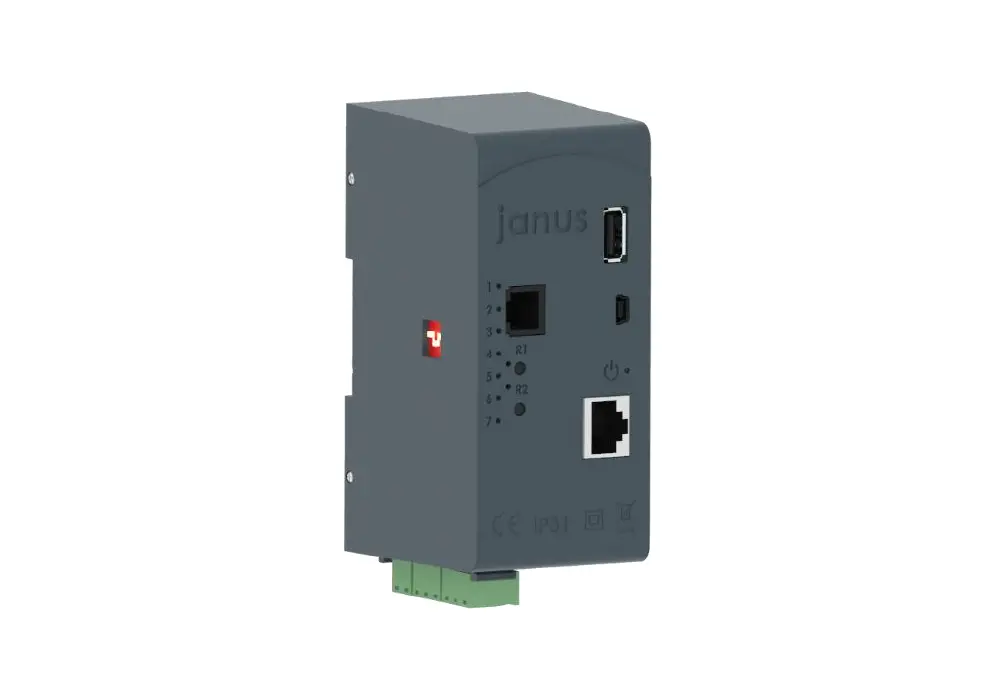
Description of the UGE600
 | UGE600 works in OFFLINE mode, without a LAN network connection |
| ZigBee network is ready to accept Smart Home devices | |
| UGE600 works in OFFLINE mode, with a LAN network connection | |
| Identify mode | |
| UGE600 works in ONLINE mode, with an Internet connection |
Installation in Online mode
(with Internet connection via SALUS Smart Home app)
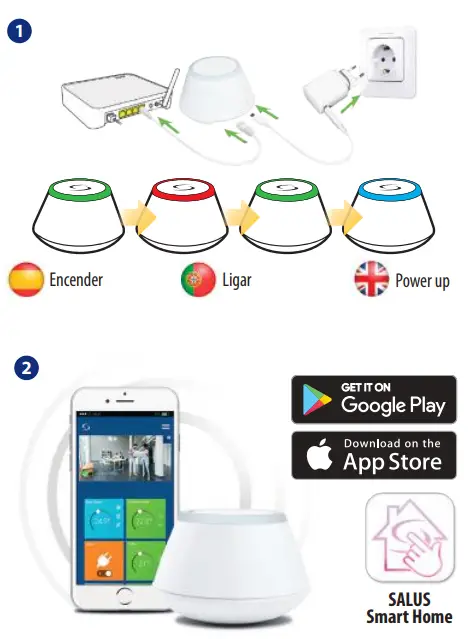
This product must be used with the SALUS Smart Home App.
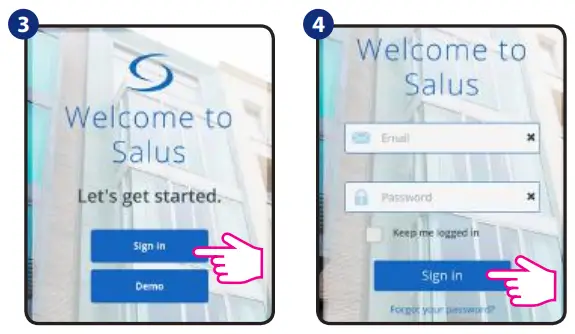
Sign up, create an account and confirm it. After that please Sign in.
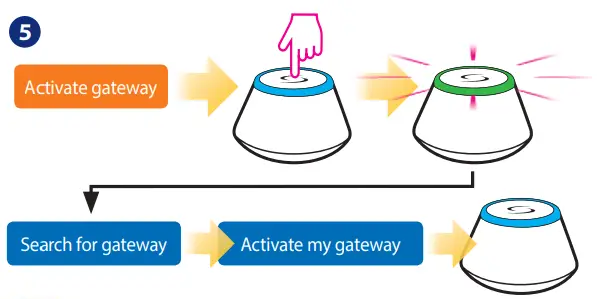
6 Success! You have connected your gateway.
Press to go to the dashboard.
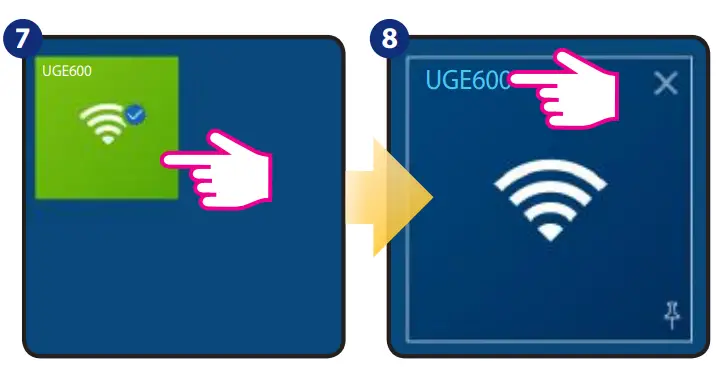
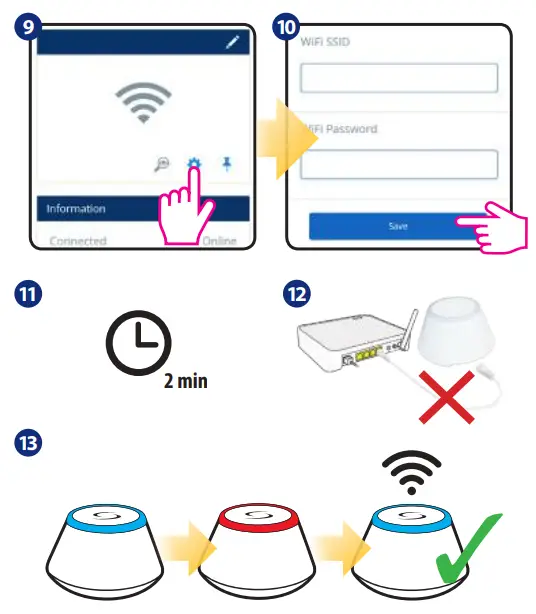
Connect your UGE600 via WiFi (optional)
First, add the UGE600 to the APP by using the Ethernet cable (steps 1-6).
Create the WiFi settings (steps 7-13), wait 2 min, and remove the Ethernet cable.
WiFi SSID: the name of your network (Case sensitive)
WiFi Password: the password of your network
Note: The WiFi Internet connection might not be as stable as the one on cable.
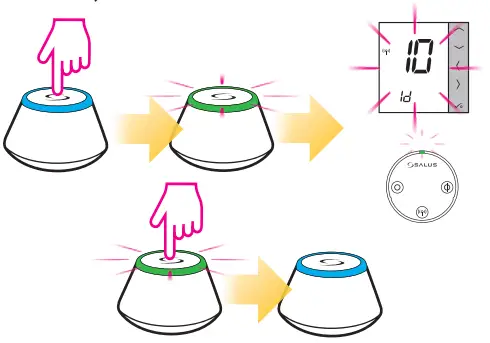
Checking system configuration
To check which devices of the iT600 system are paired and have been configured correctly, you can use Identify mode. Press the button to activate Identify mode. Using Identify mode the UGE600 will show all equipment that is connected to your system. Press the button again to cancel Identify process. Identify mode will time out after 10 minutes.
Installation in Offline mode
(without an Internet connection)
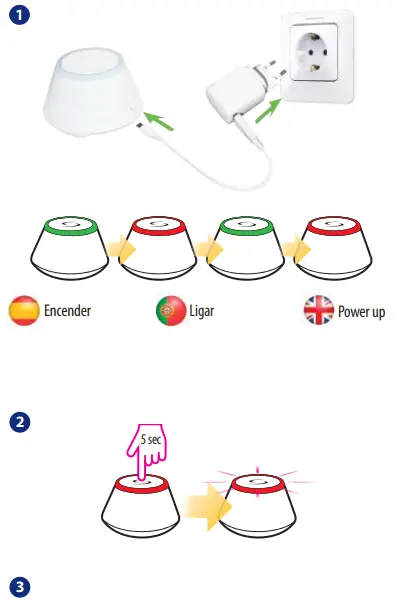
To commence system installation press and hold the button for 5 seconds until the button starts flashing red. This means the ZigBee network is ready to accept iT600 devices.
Note: It’s highly recommended to refer to individual devices manuals before starting the installation process for each of them.
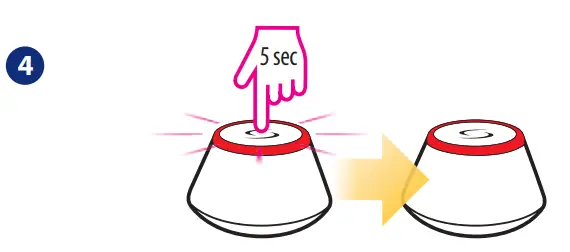
When everything is paired press and hold the button for 5 seconds or till the flashing stops. If you want to replace or add Smart Home devices please ensure you follow steps 2 to 4.
Note: If you want to change OFFLINE mode to ONLINE mode, you must find equipment via the application. All system settings will be automatically moved into SALUS cloud server. You don’t need to do the installation again in ONLINE mode.
Factory Reset
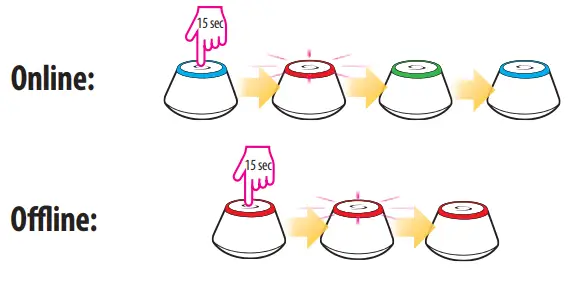
Choosing a factory restore results in erasing all saved settings and removing connected equipment from the system. Press and hold the button for 15 seconds, if you want to use a factory restore. When the process is completed, an LED light will flash continuously.

www.salus-controls.eu
SALUS Controls es miembro del Grupo Computime.
 Spodní prádlo - Luxusní prádlo.cz
 SALUS Controls - intelligent temperature control 7-User-Check elektryczne nadmuchowe grzejnikowe podlogowe-1
 SALUS Controls - intelligent temperature control
 salus-manuals.com
 Salus – Smart Technology for your comfort