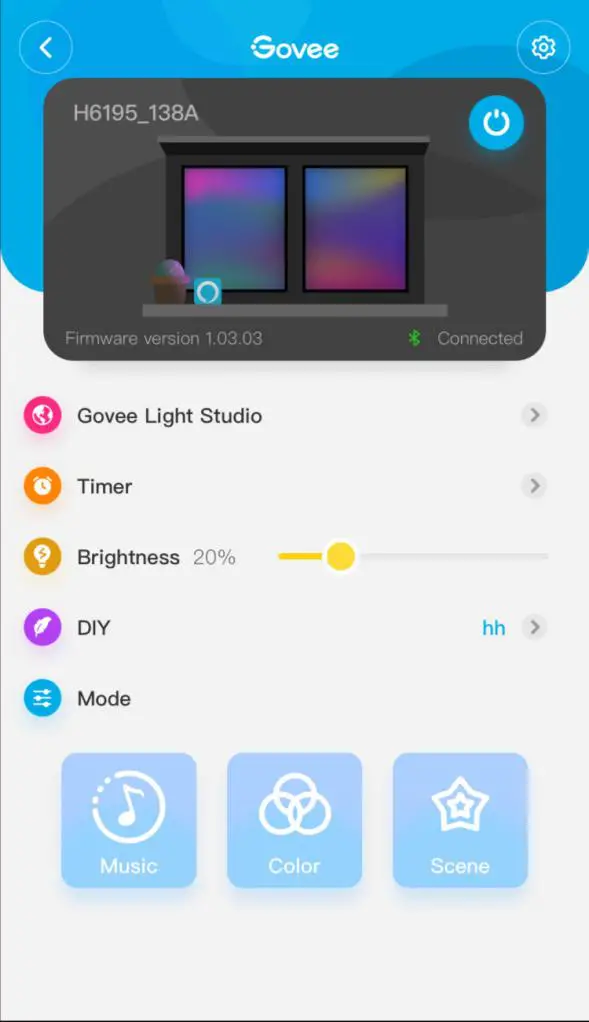
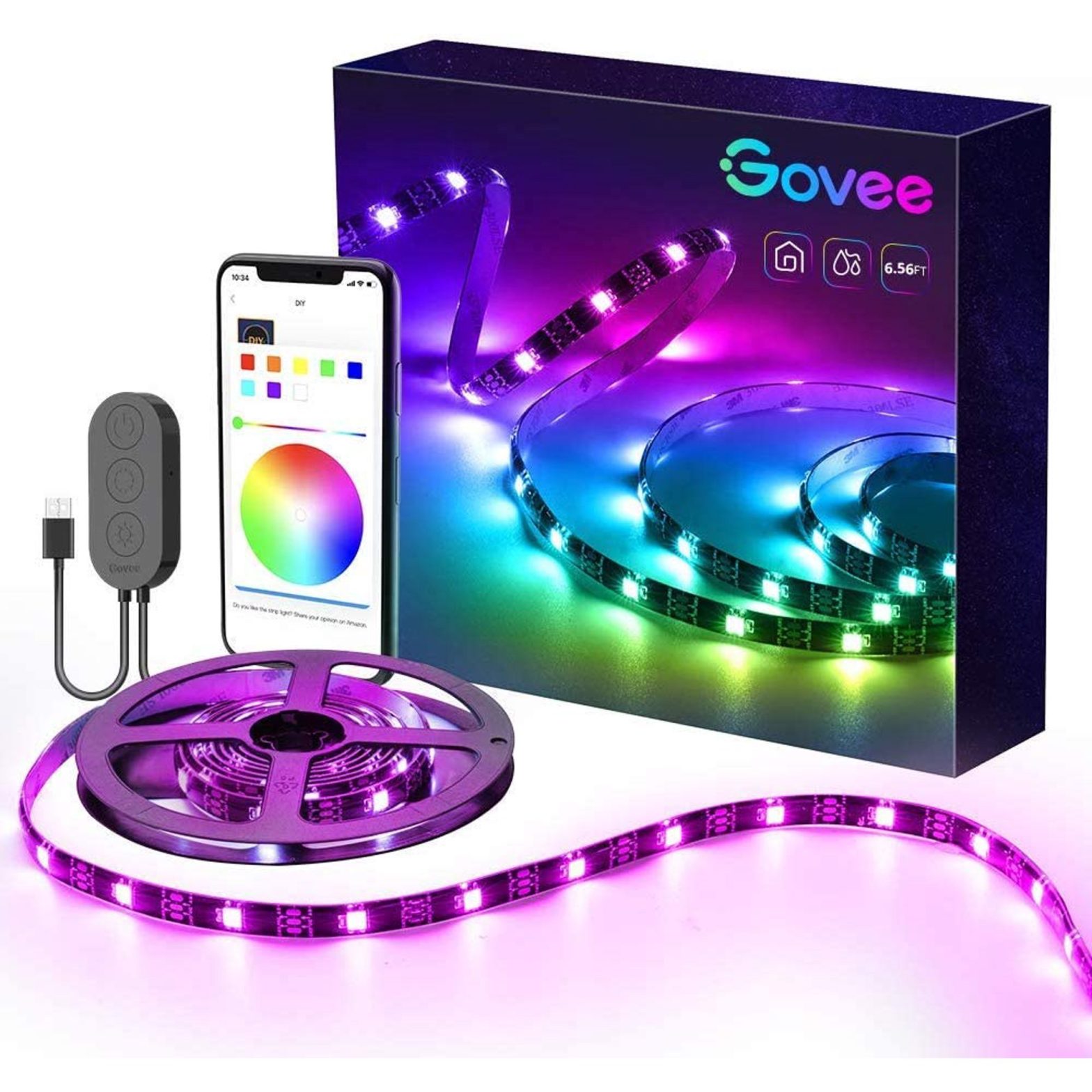
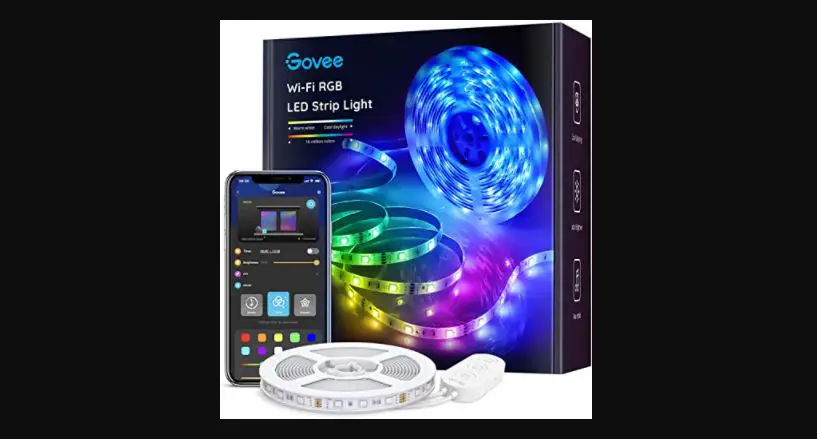
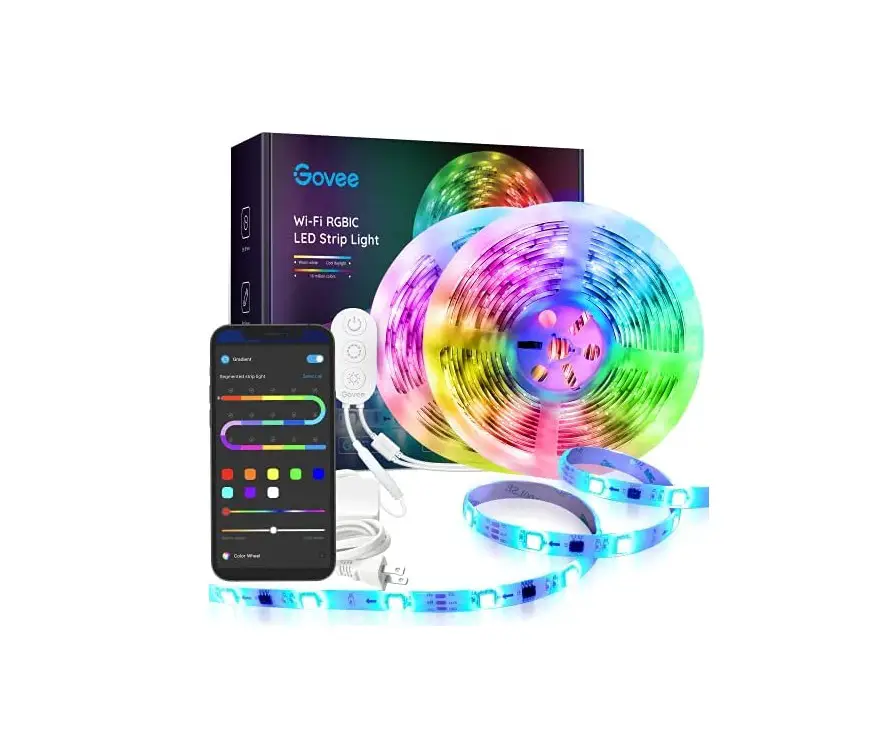
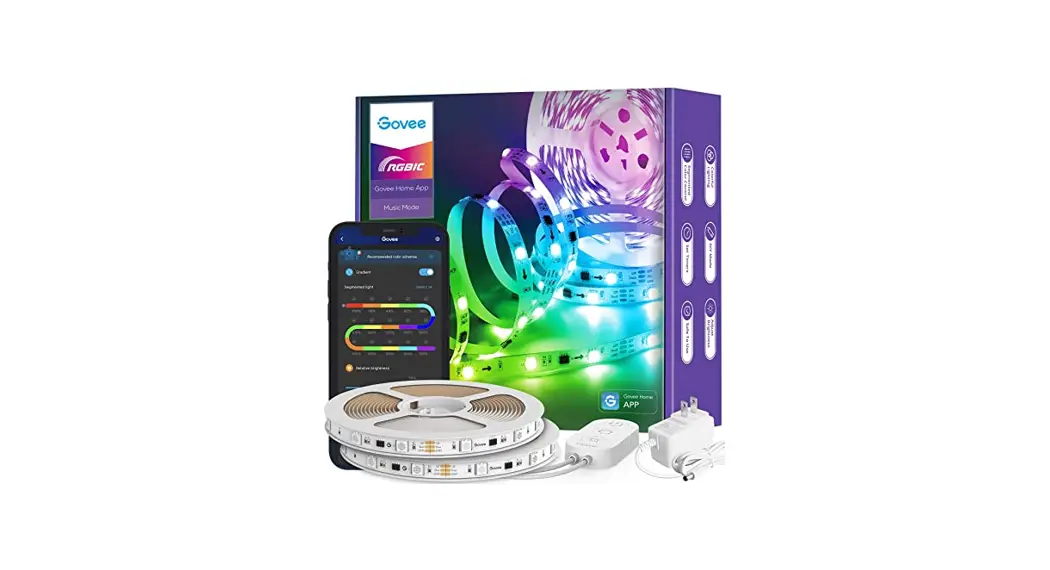
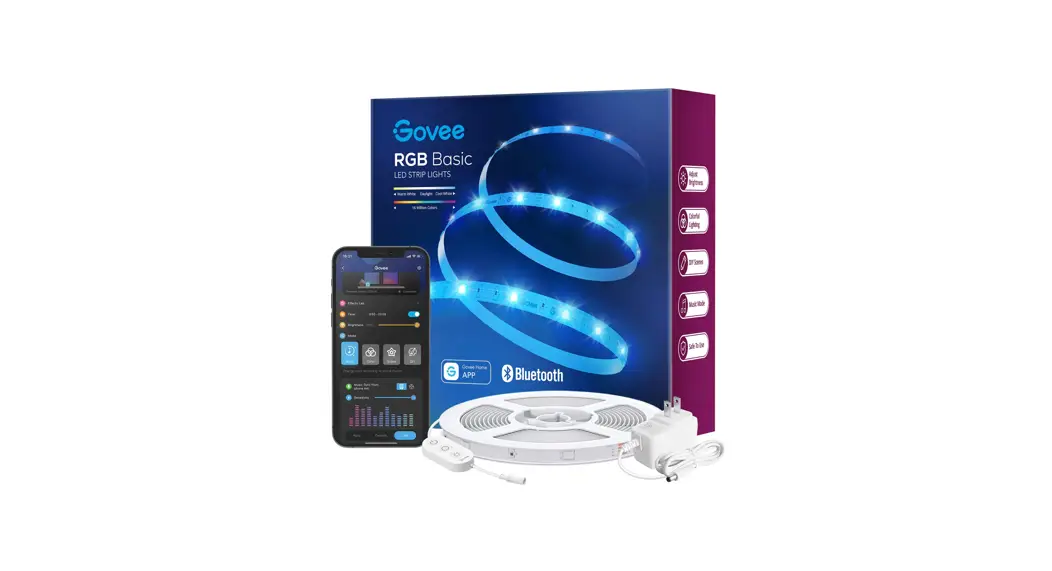
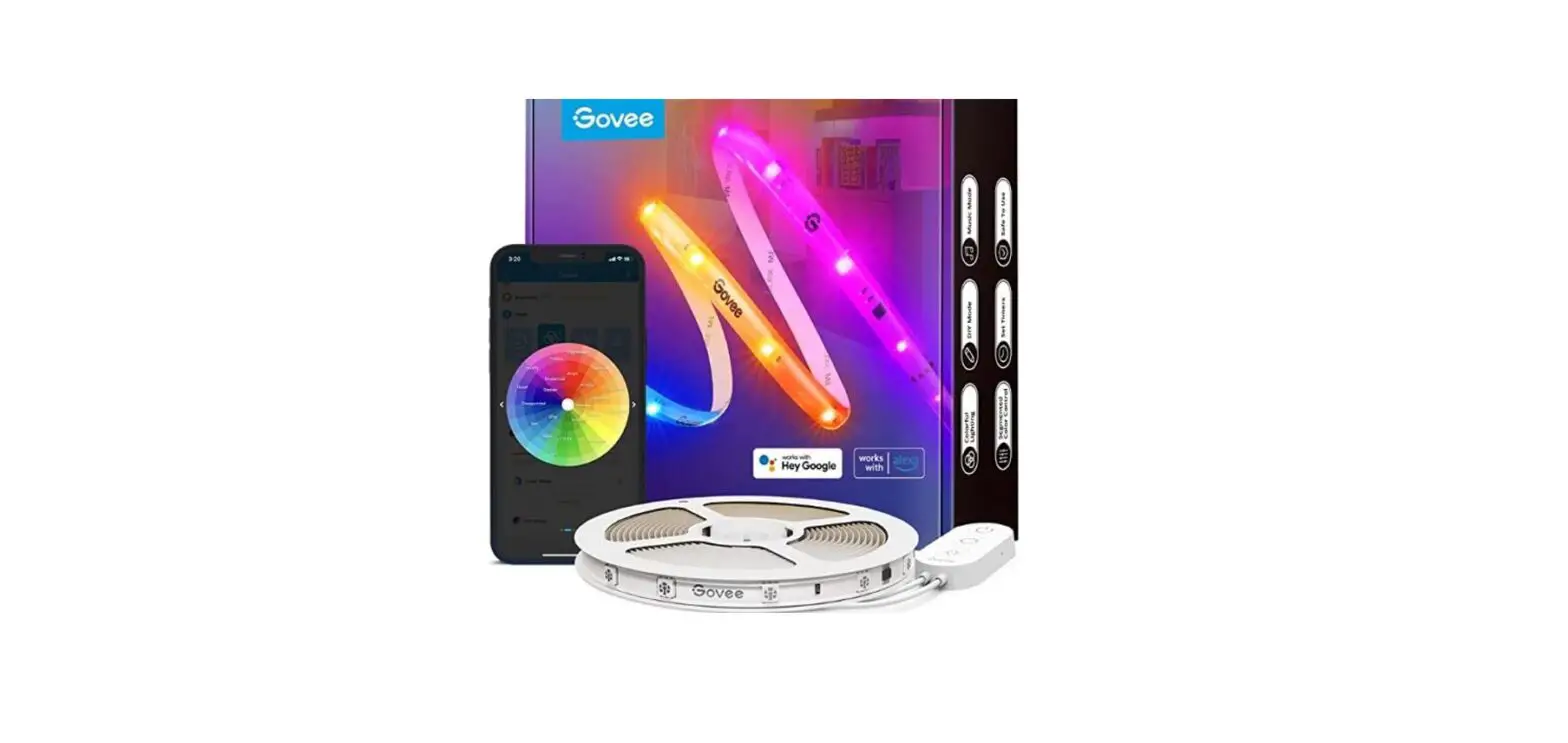
1. What is the DreamView? Do you want your other smart lights to enjoy the color sync function like the DreamView devices do? The DreamView feature can reach your expectations! Connect all sub-devices to the Sync center to enjoy the immersive experience.
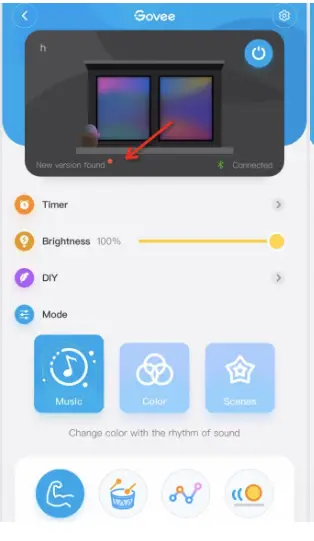
2. Before using the DreamView function, here are 6 tips for you: a. The hardware version of the device is above V3.00.01. If below the version, please feel free to send an email to [email protected], we will help you solve it. b. Only one DreamView product can be set as a Sync Center, and Dreamview devices can only be set as a Sync Center. c. Max 5 sub-devices can be added. d. 6003 does not support the DreamView feature, because it only supports the WiFi connection(no Ble). e. Do not point the light source at the screen and the camera, otherwise this may affect the color accuracy. f. Ensure that your Sync Center device has been calibrated.
3. Here are the steps to use the DreamViewfunction, 1. Open Govee Home App, tap the icon “+” on My Devices-Command-DreamView Page 2. Name the command 3. Select a device as the Sync Center 4. Turn on the DreamViewcommand 5. Tap the icon “+” to add the sub-devices 6. Select a corresponding area for each sub-device,(RGB supports one area, RGBIC above one area)
4. The problems we may encounter while using the DreamView feature:
Q1: The DreamView page notified that “the device of the current version cannot be set as a Sync Center”: A: Please feel free to contact us via [email protected], we will help you solve it.
Q2: If there is only 1 corresponding area for RGBIC lights. A: Reset or delete the device from the App, and re-add it again
Q3. If you already have a set of H6199, please note that you cannot add the H6054 lightbar as a sub-device. A: H6199, H6054, H605B can only be used as a Sync Center, select one of them as a sync center in the DreamView Command feature. Then add other supported devices to be a sub-device. Please note that these 3 devices cannot be set as sub-device.
If you already have a set of H6199, you can take a look at other light bars, H6053(Ble) or H6056(Ble+WiFi), then you can enjoy the sync color at a time.
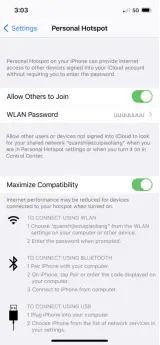
How can I use the WI-FI strip light with the personal hot spot on my phone?
1) Turn on the personal hot spot on the settings of your phone.
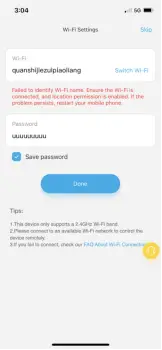
2) Enter the personal hotspot name and password on the WI-FI settings of the Govee Home app.
3) Then you can use the WI-FI function of the strip light via the personal hotspot.
Is there a group control for Govee strip lights?
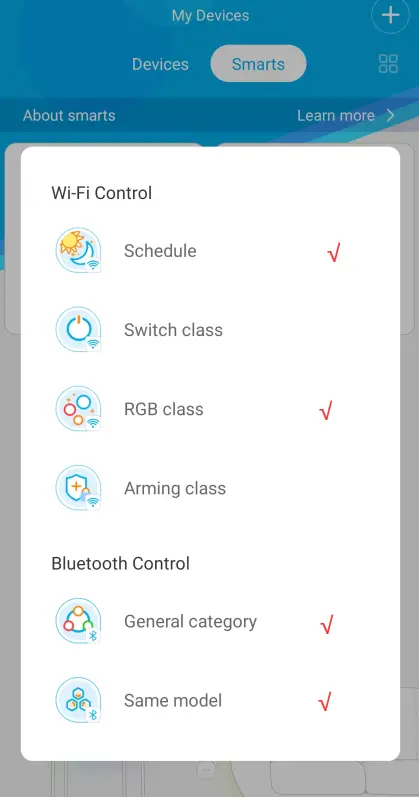
1.Group control is divided into 6 parts, “Schedule, General category, Same model and RGB class” for strip lights. 1) Schedule: Only for WiFi devices. Support adding a time point to perform certain on/off/brightness/color/ scene mode/DIY. 2) Same Model: For Bluetooth-support devices, with extra new functions(Music mode, Scene mode,DIY mode) 3) General Category: For Bluetooth-support devices, you can also group control strip lights and bulbs at the same time, with 3 functions(On/Off, Color variation, Brightness adjustment) 4) RGB class: Only for WiFi devices, with 4 functions (Timer, On/Off, Color variation, Brightness adjustment).
2.Here are the steps:
1) Click on the Smarts option on My Device page. 2) Click on the “+” button on the top right corner and choose Bluetooth or Wifi control. 3) Name your group. 4) Drop down to add your strip lights.
Does my light strip supports segment colors?
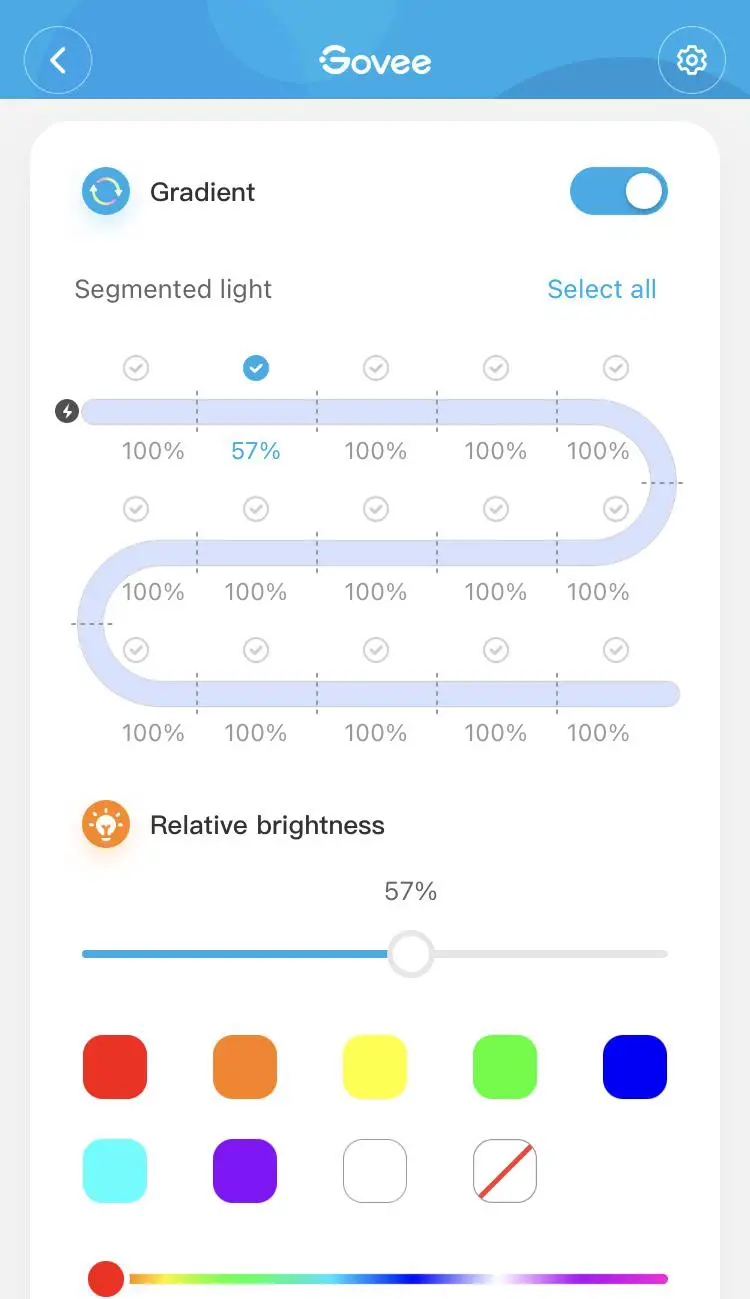
1. The below RGBIC strip models support the segment colors. H6125, H6126, H6102, H6161, H6127, H6163, H6116, H6117, H6143, H6144,H6145, H6146, H6199, H6171,H611A 2. Please upgrade the light strip and Govee Home App to the latest version. 3. The light strip is divided into 15 segments, you can set different colors for every segment. 4. The Wi-Fi RGBIC light strip can be segment controlled under Bluetooth connection.
Solutions for lost Scenes and Music mode in Alexa.
Option 1:
1) Please click “discover” on Alexa for one or two times, then the scenes will appear again;
2) If the first step failed, please try : rename the light device in govee home app, do not click “discover” on Alexa. Open Alexa and pull down the device page to refresh, if the light device name doesn’t update, you need to disable the govee home skill and enable it again. Sometimes, the token might be invalid, in this way, you can re-acquire the token and get it work.
Option 2 :
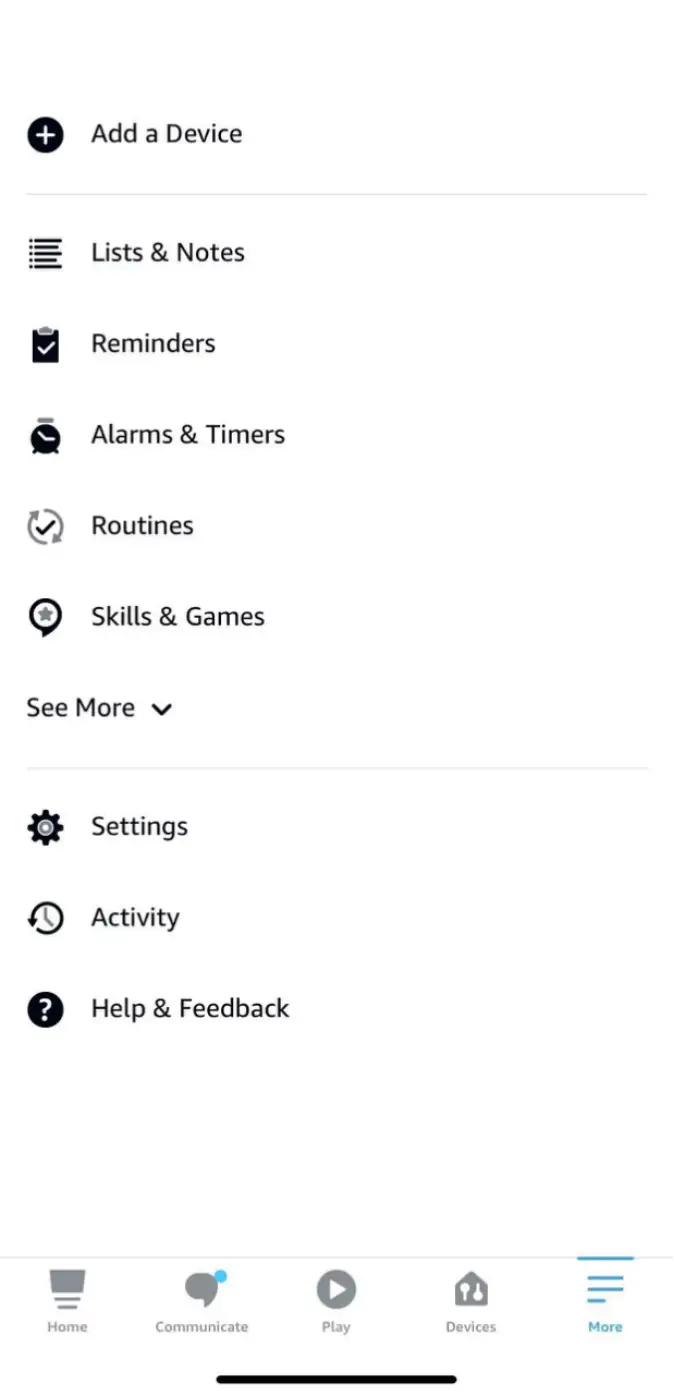
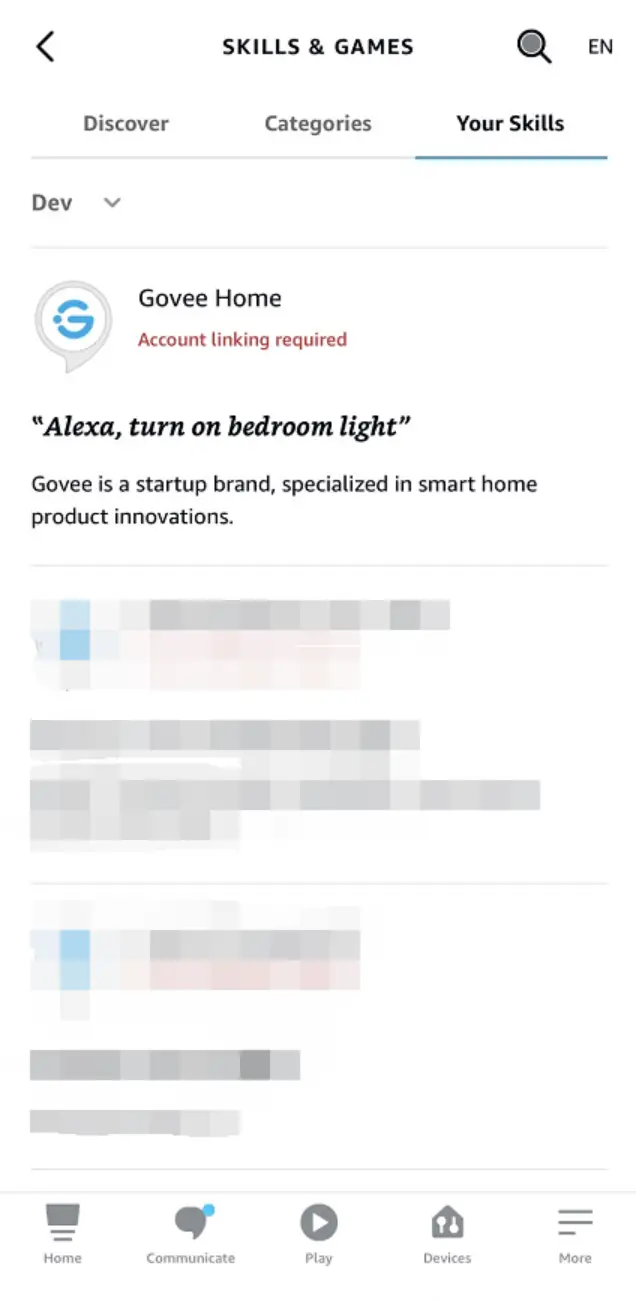
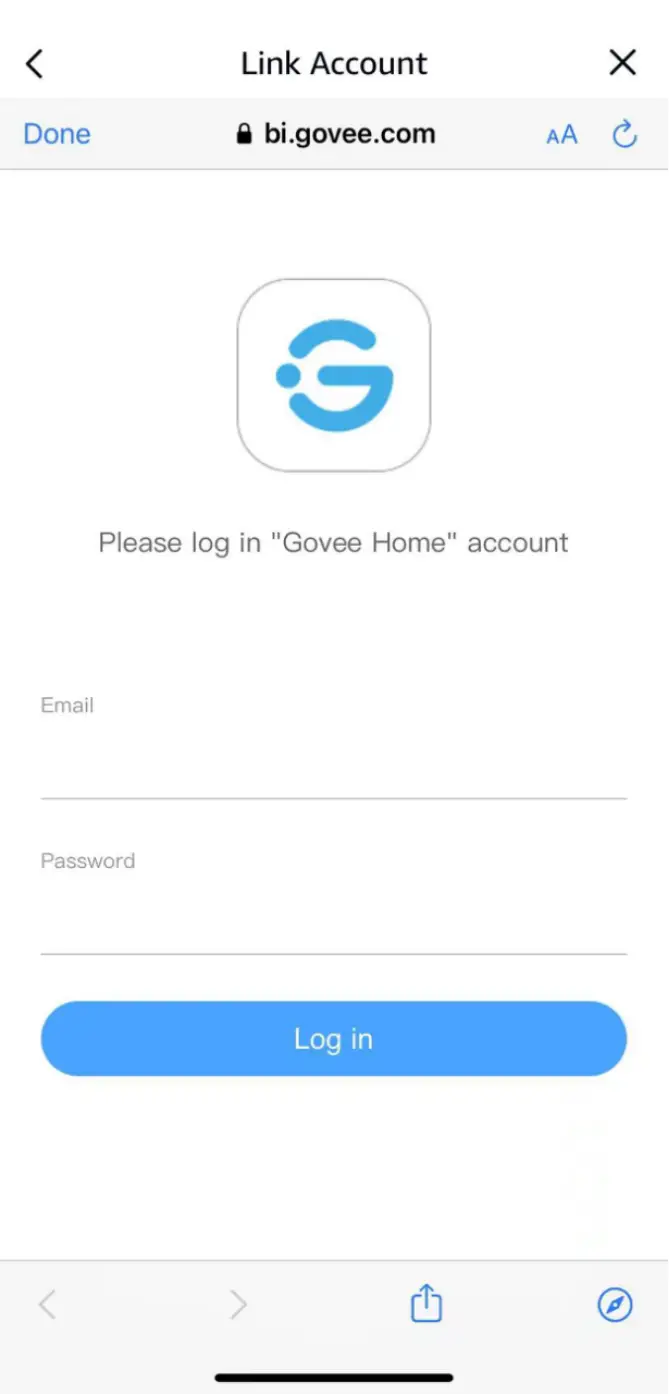
1) Go into your Alexa app and click the Skills & Games setting under the More (hamburger) menu.
2)Click Your Skills and scroll till you find the Govee skill.
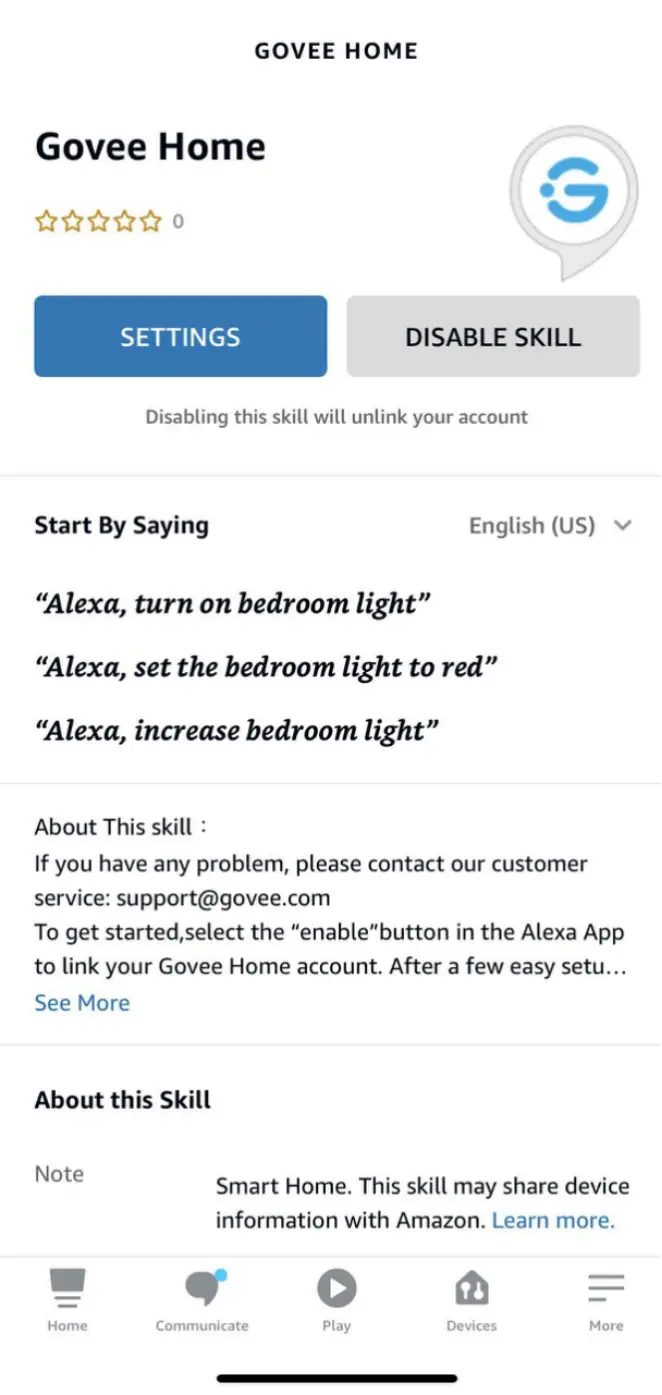
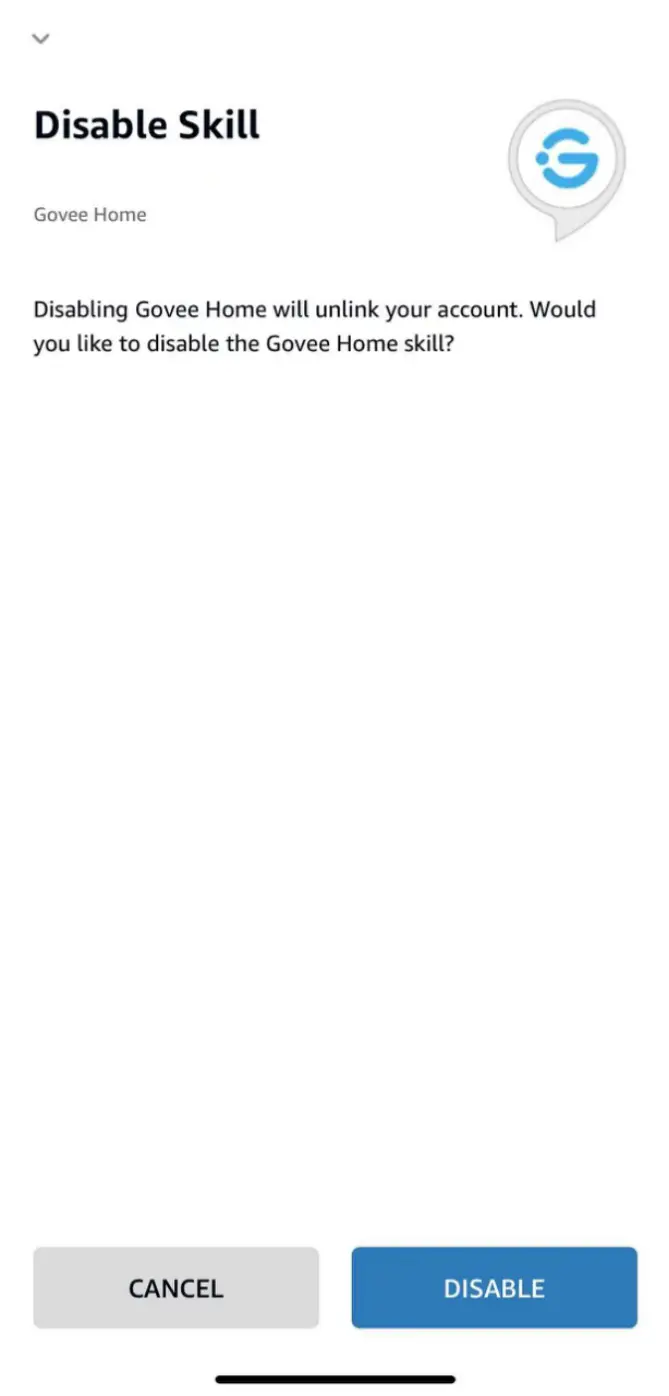
3)Disable the skill.
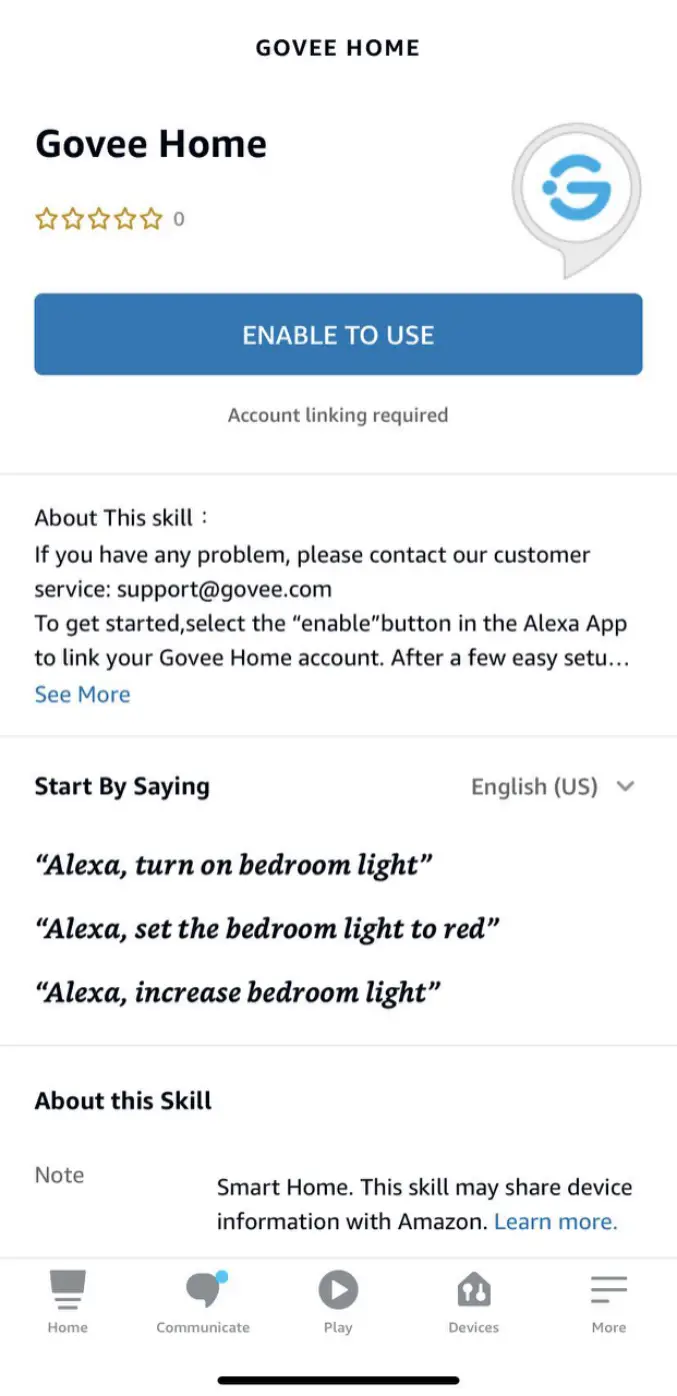
4) After disabling the skill re-enable it.
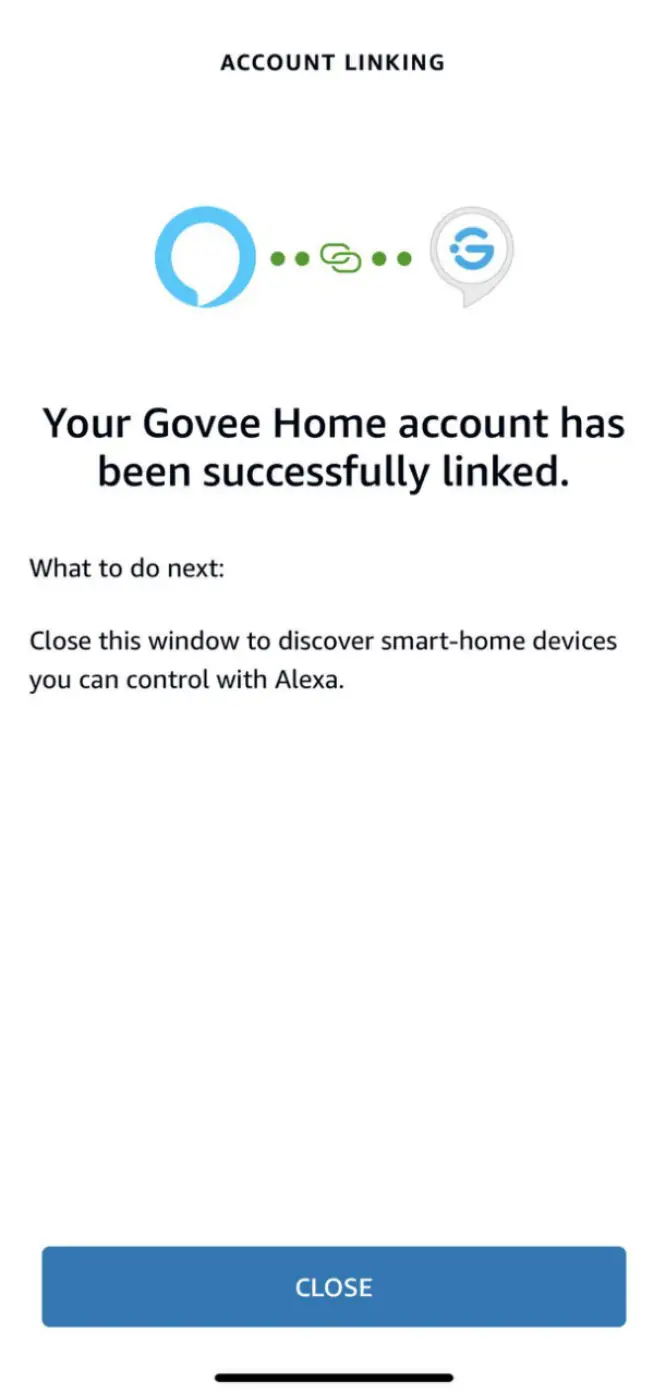
5)Re-log into your account.
6)Once logged in and re-linked, you can close the window.
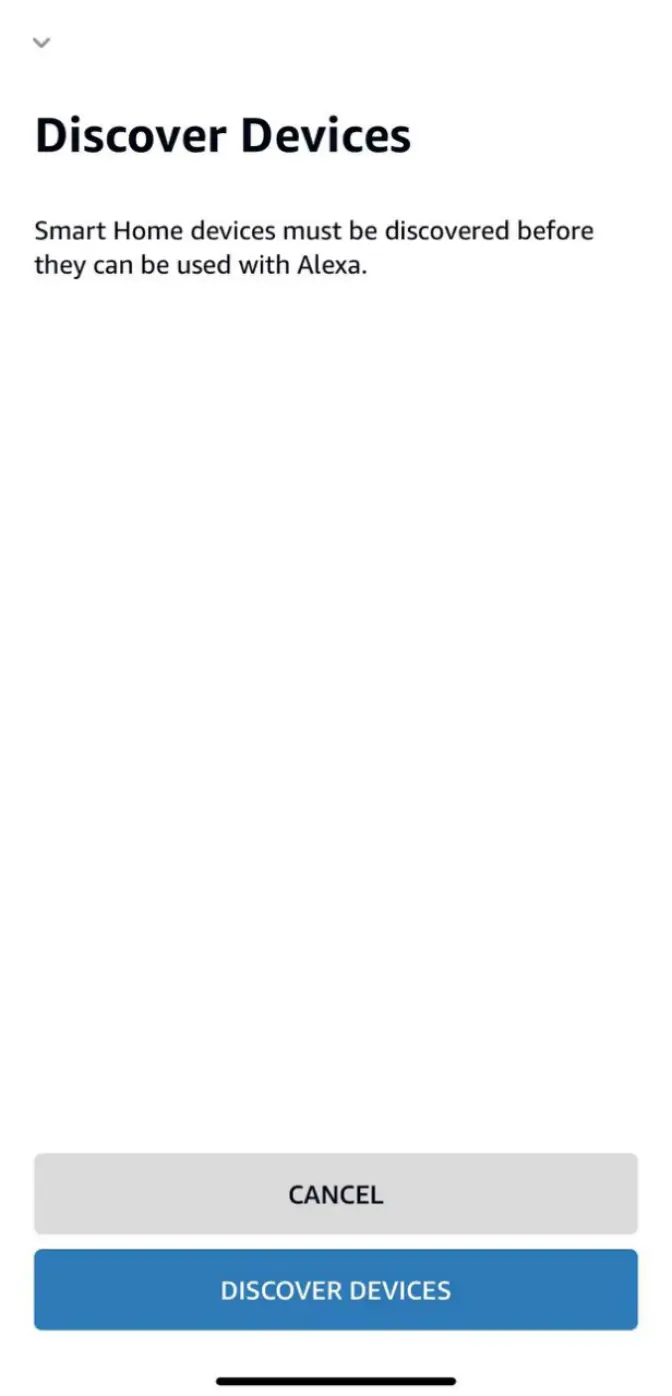
7)Click Discover Devices.
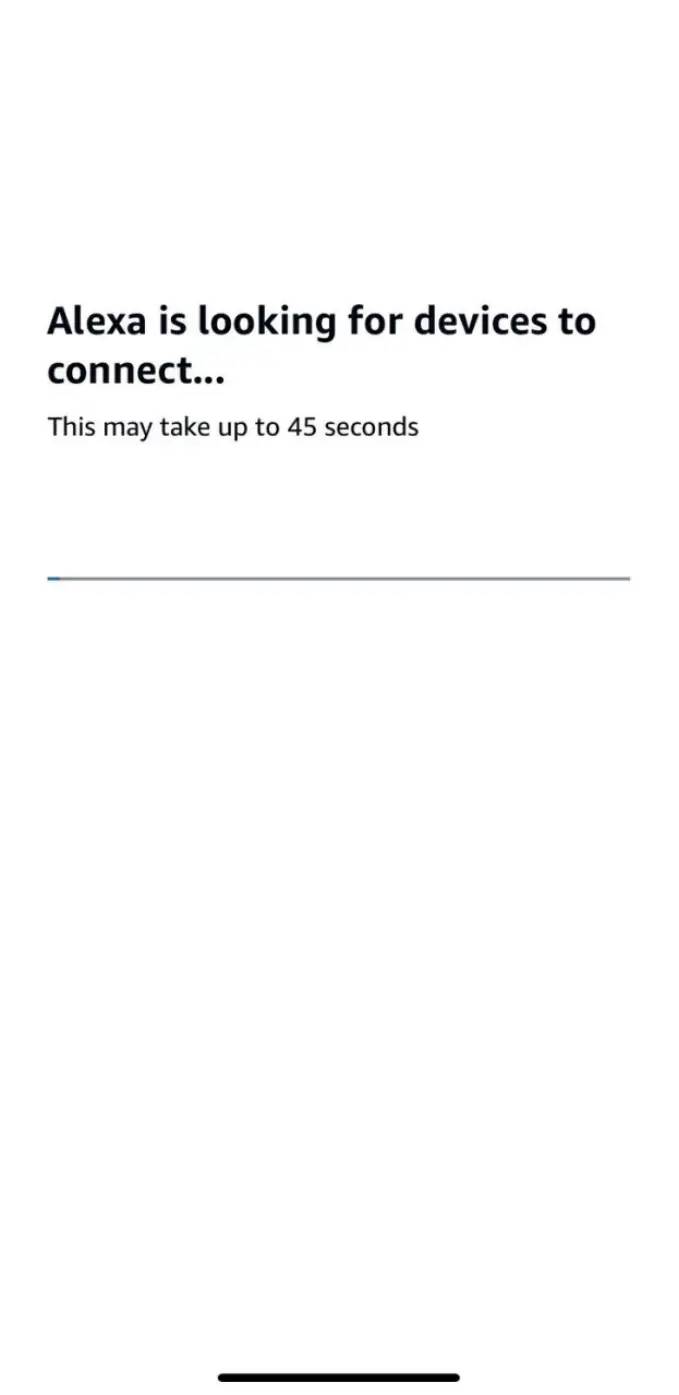
8)Let the app rescan all of your devices.
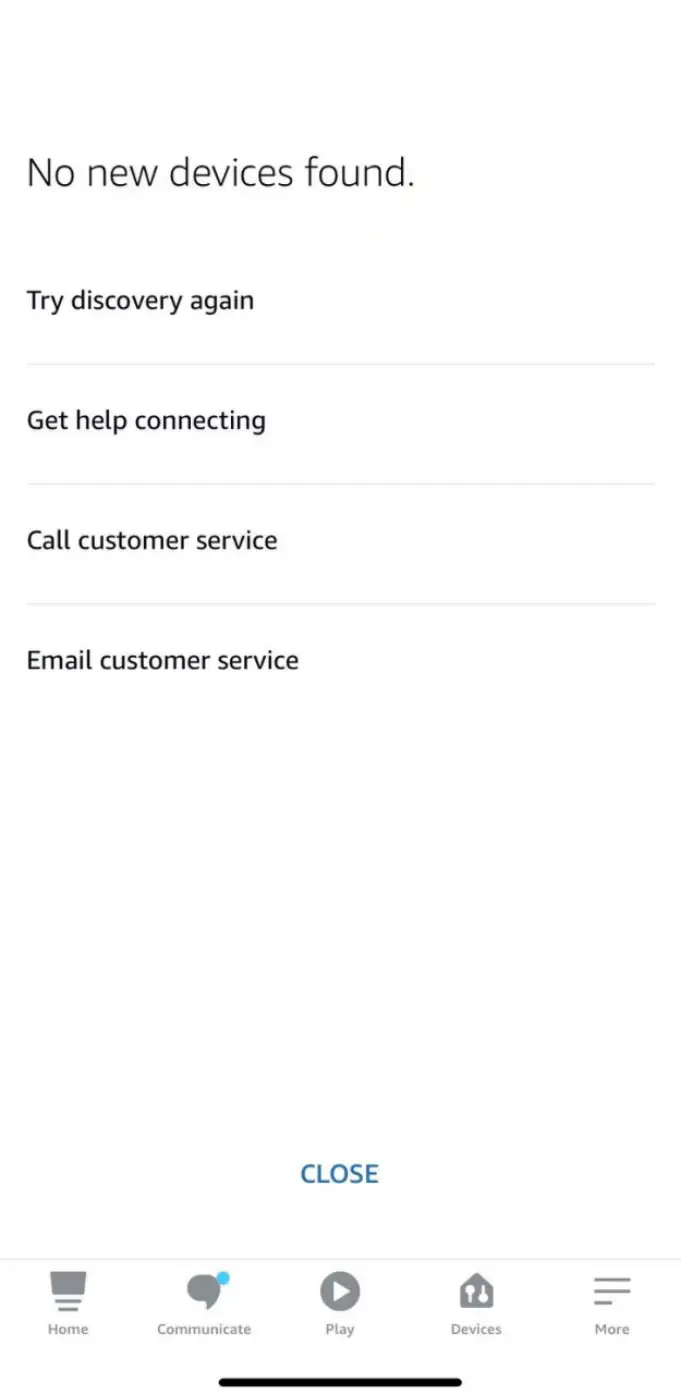
9) The next screen will warn you that it couldn’t find any new devices. This is fine because we’re not looking for anything new. We just needed it to rescan the current ones.
Can the Govee strip lights be used outdoors?
We have non-waterproof and waterproof LED light strips(IP44/IP65).
Only lights with IP65 waterproof rating can be used in the open air. (Please note: the power adapter is non-waterproof)
IP44 waterproof LED light strips come with non-waterproof control boxes and power adapters, designed for bathroom and places under the eaves.
Alexa/Google home is unresponsive
Alexa works only when the device is connected to the internet properly. So please check if the strip light is connected to the internet or not.
1.The strip light isn’t connected to the internet.
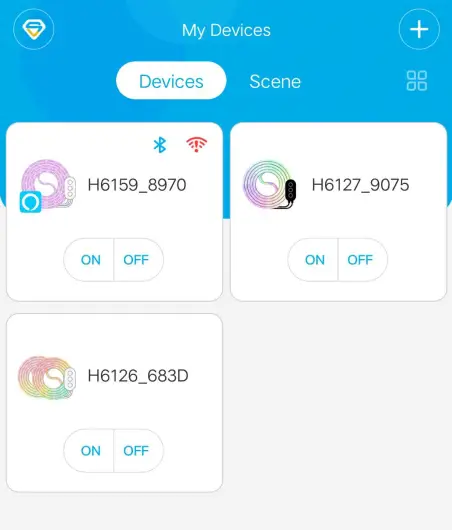
1) A red exclamation mark on the Wi-Fi symbol. 2) The strip light cannot be controlled via Govee home App when Bluetooth is turned off on your phone. 3) Please search for FAQ Why does the Govee strip light not connect with WiFi? 2. The strip light is successfully connected to the internet.
Please log out of your Govee account on the Govee Home App first then re-link this account to Alexa. After re-linking Govee account, you could log back your account on Govee Home App.
Why doesn’t my strip light work?
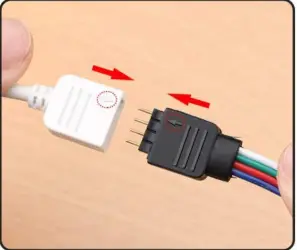
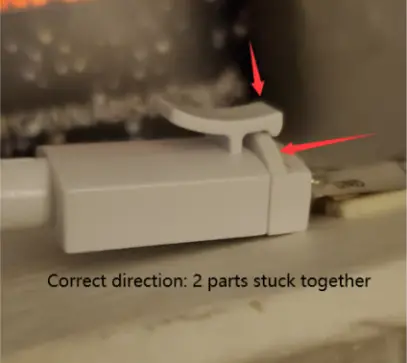
1. Make sure the pin connection is correct.
1) For H61901A1/H61891A1/H61401A1/H61061A1, The arrow symbols should be lined up.
2) For H6191/H6139/H6116/H6159/H6110/H6109/H6117, the little clip should be fastened, picture attached.
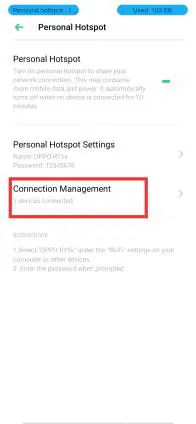
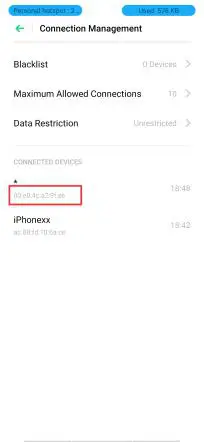
How to find the Mac address of the Govee strip lights?
1. Android phone
1) Enable a personal Hotspot on an Android phone. 2) Connect your phone to the Hotspot. 3) Pair the strip light on your phone and follow the App guidance to finish the Wi-Fi connection. 4) Go to the Android phone and check the connected device. 5) Find the Mac address.
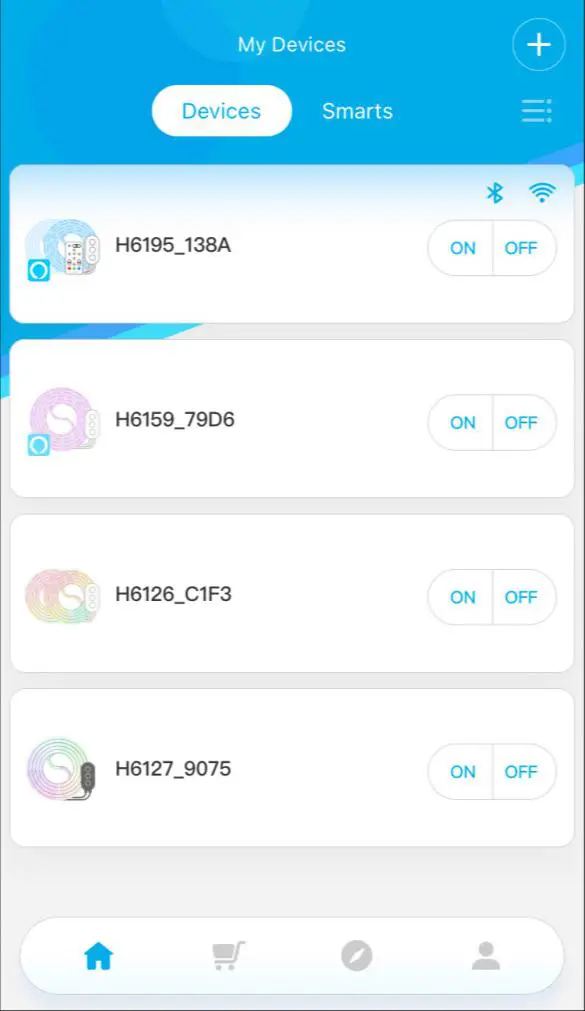
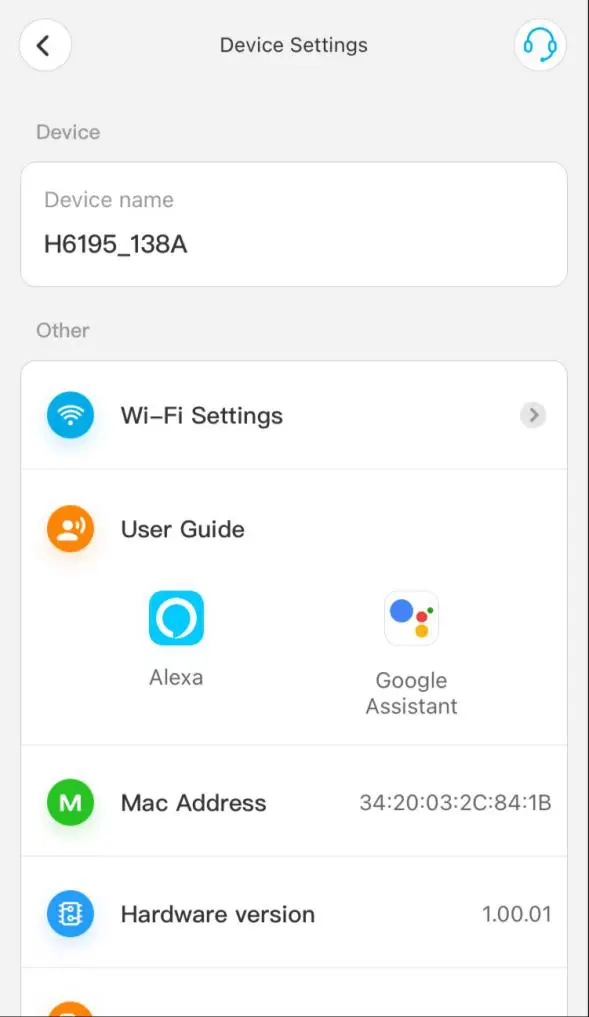
2. Some WIFI strip lighs can find the MAC address on Device setting page. ( H6104, H6188, H6141, H6142, H6143, H6144, H6148, H6195, H6199, H6154 ).
1) Make sure your strip light is connected to your WIFI successfully. 2)Enter into the Device page. 3)Tap the Device setting page and find the MAC address.
Documents / Resouces
Download manual
Here you can download full pdf version of manual, it may contain additional safety instructions, warranty information, FCC rules, etc.
To access the pdf donwload links, solve the captcha.