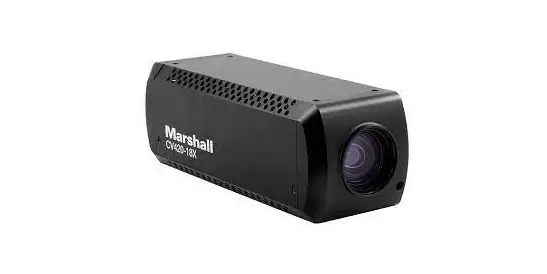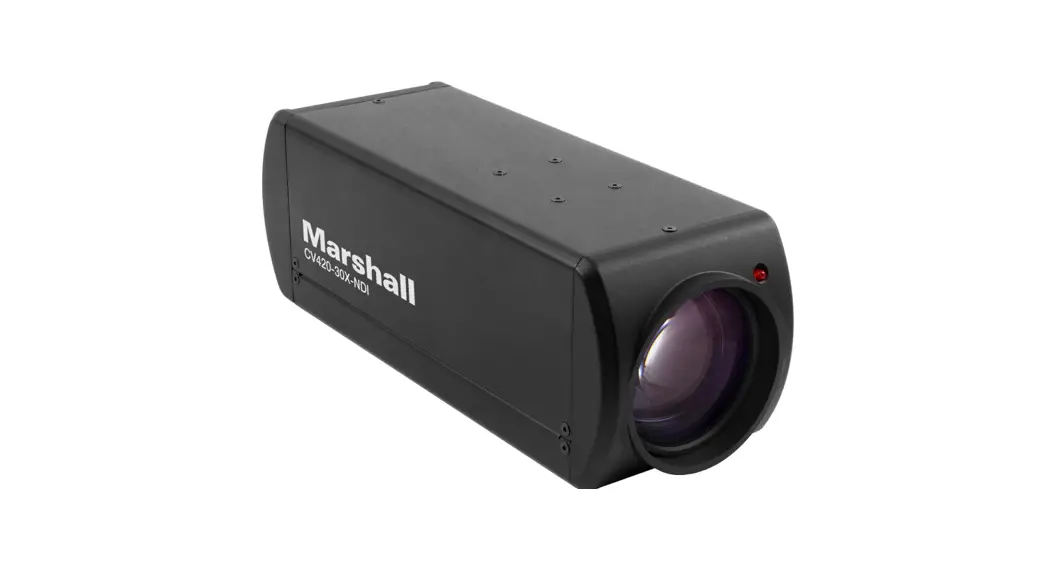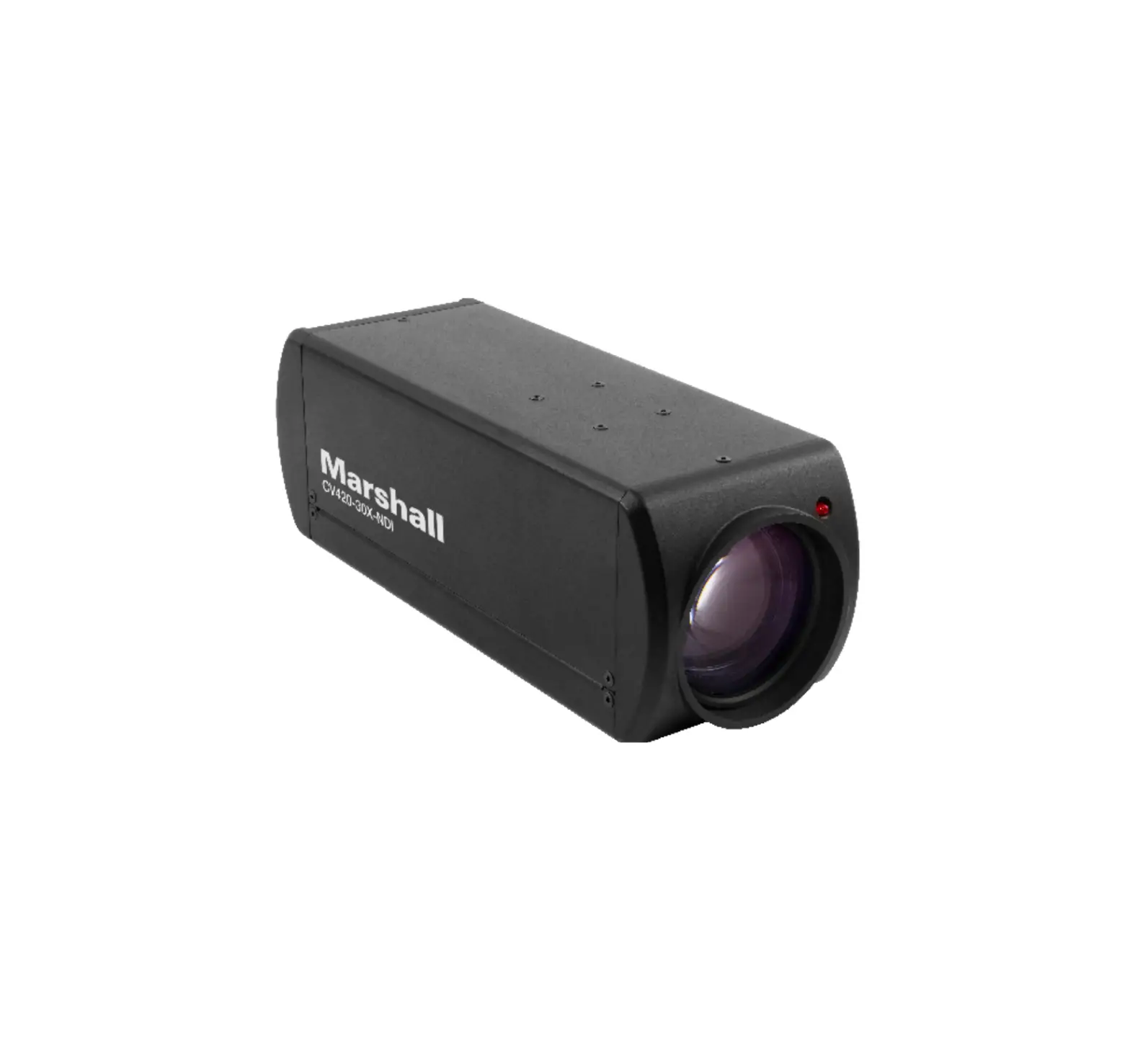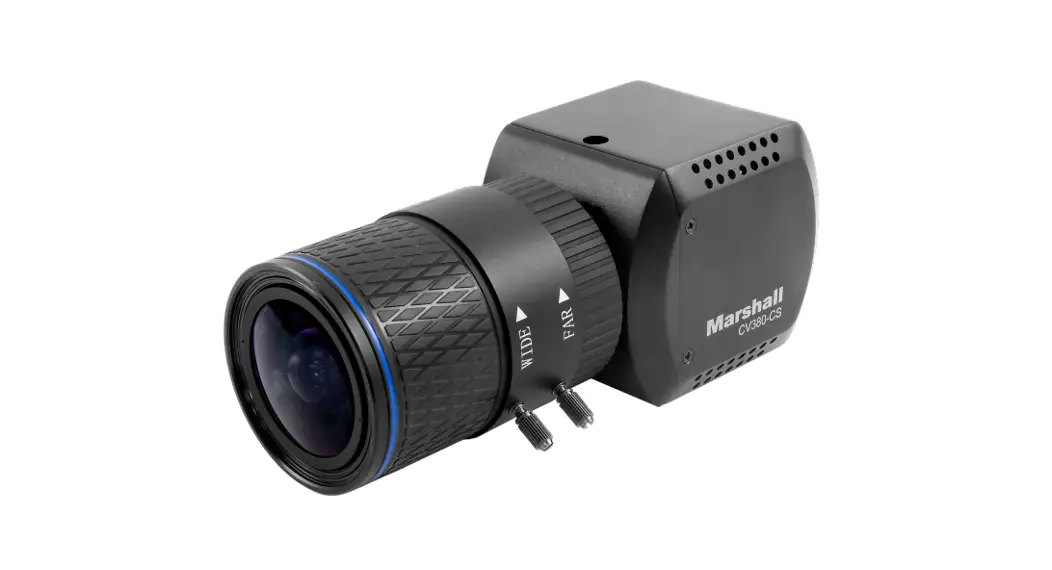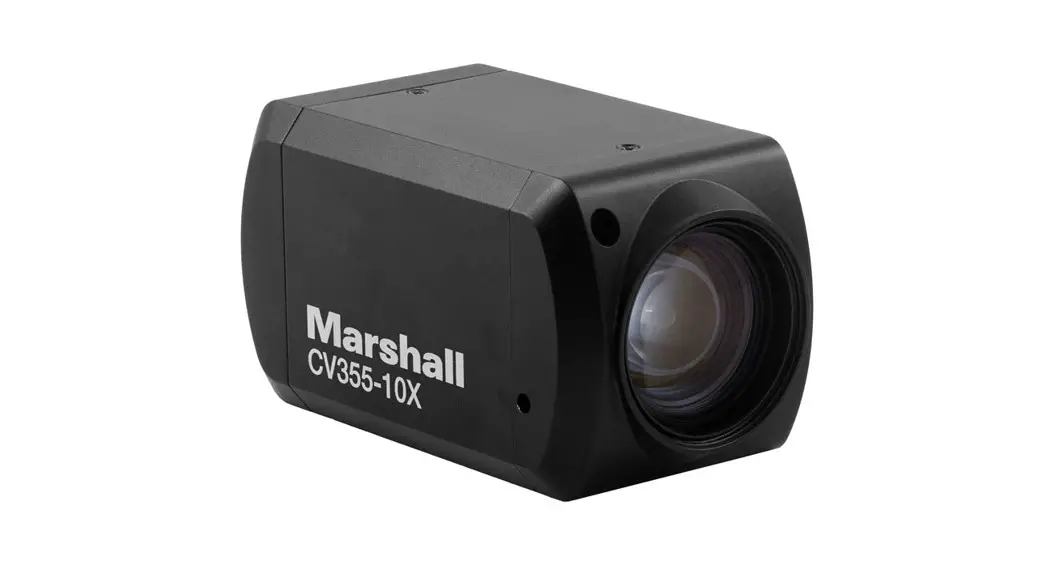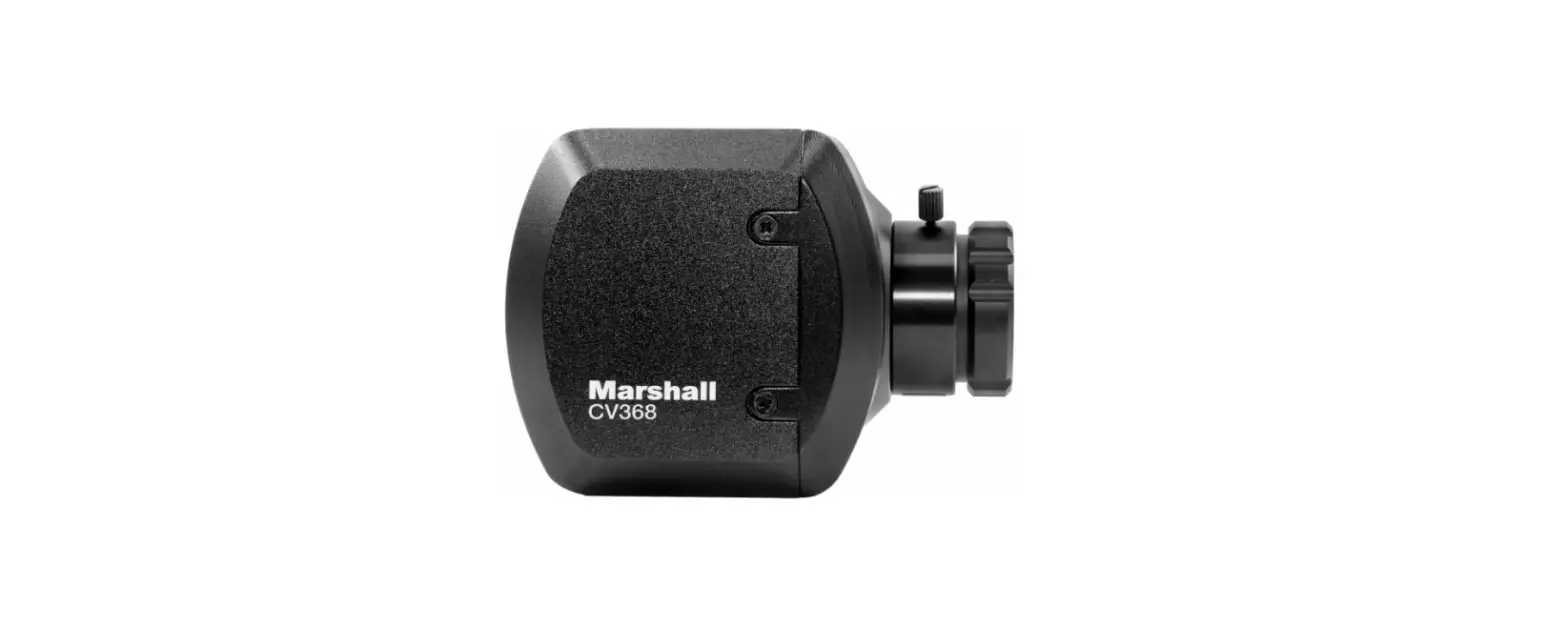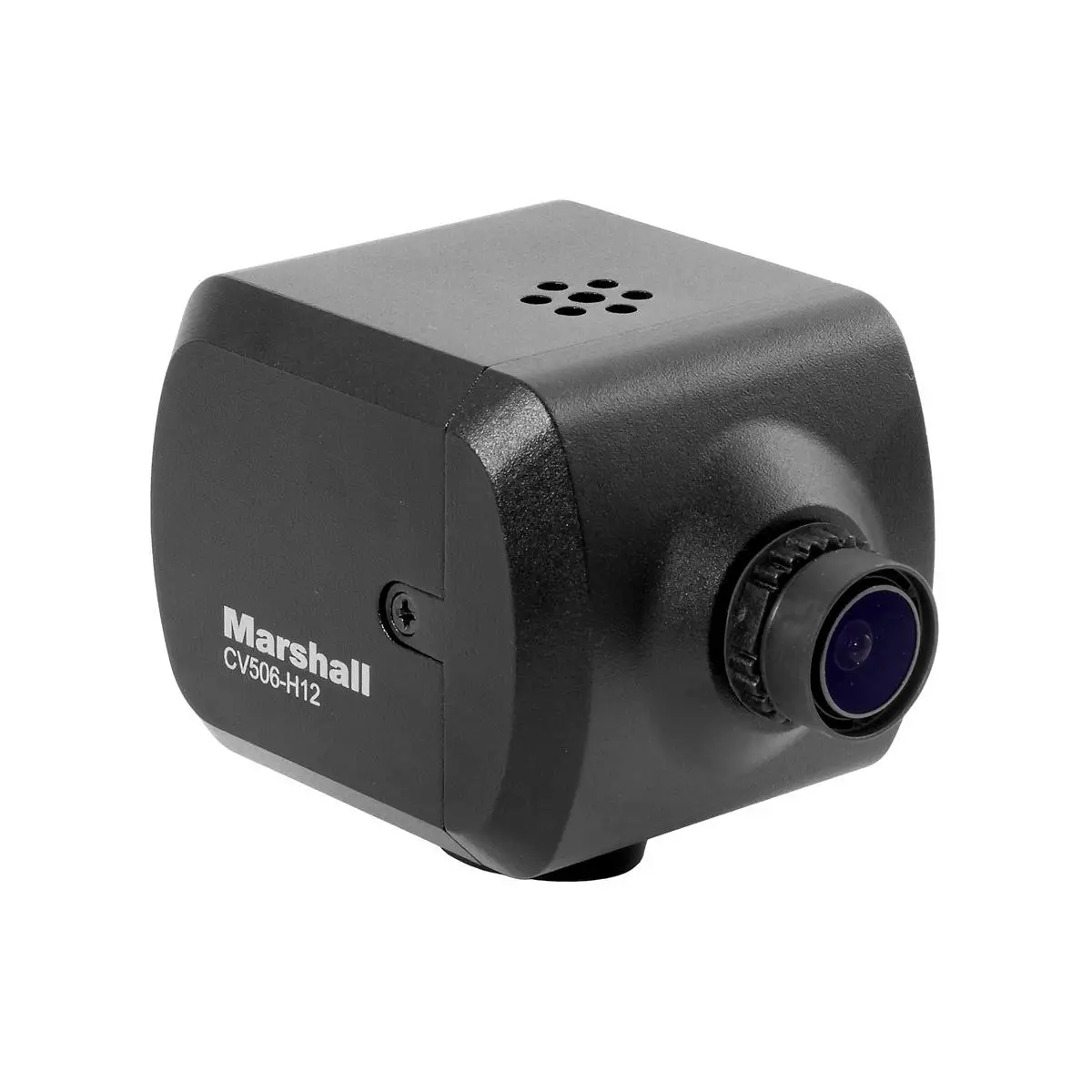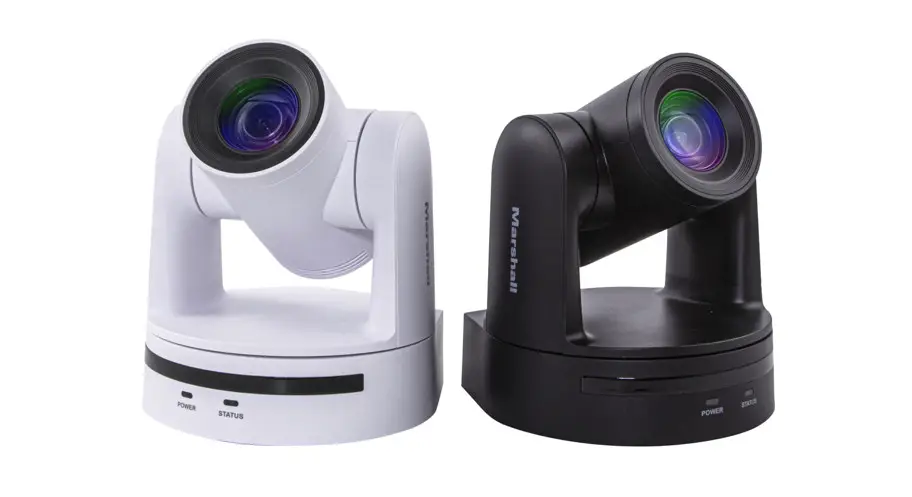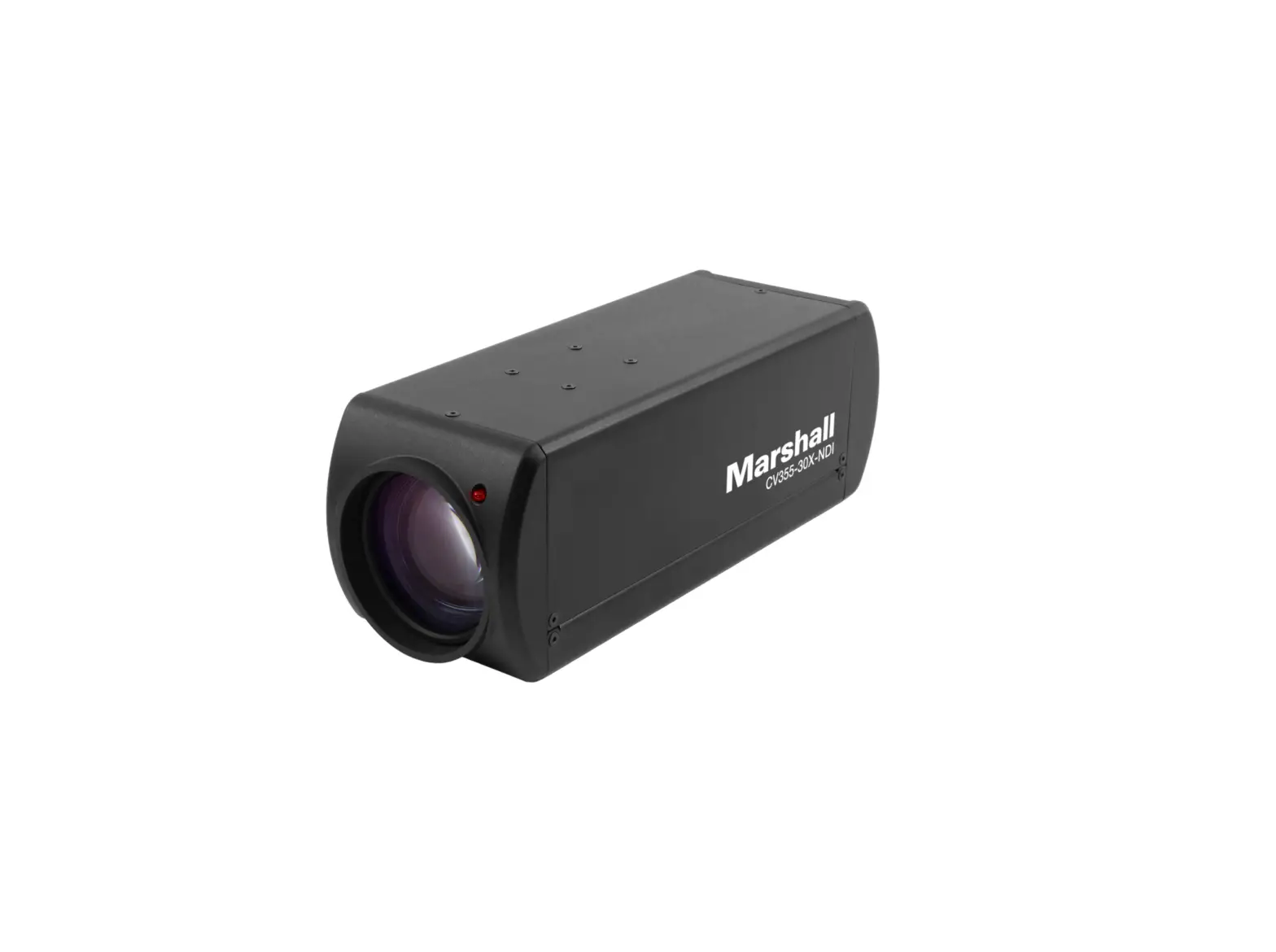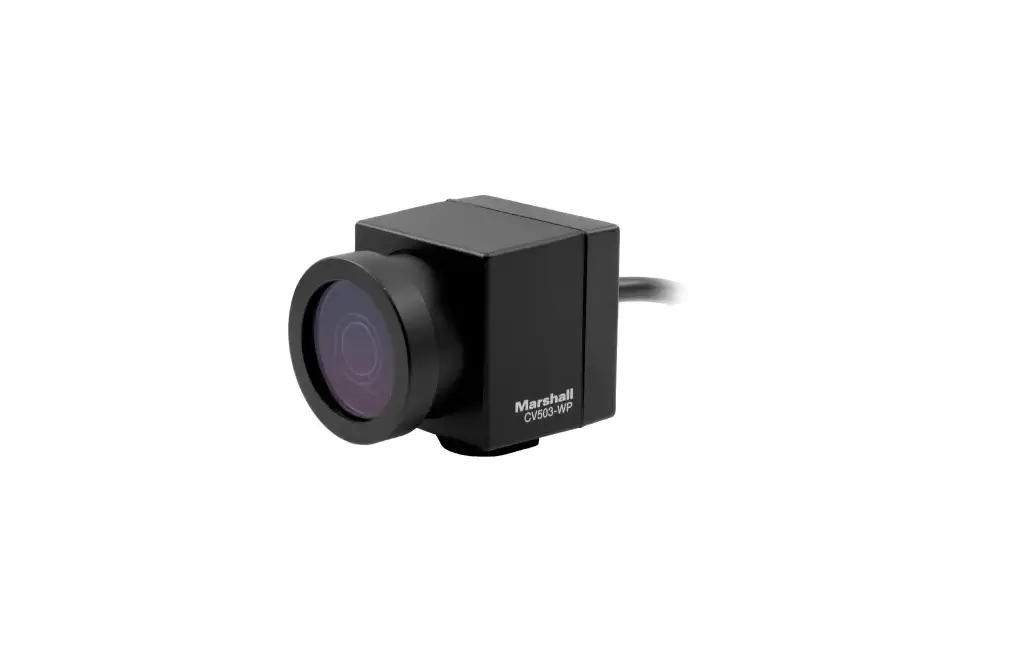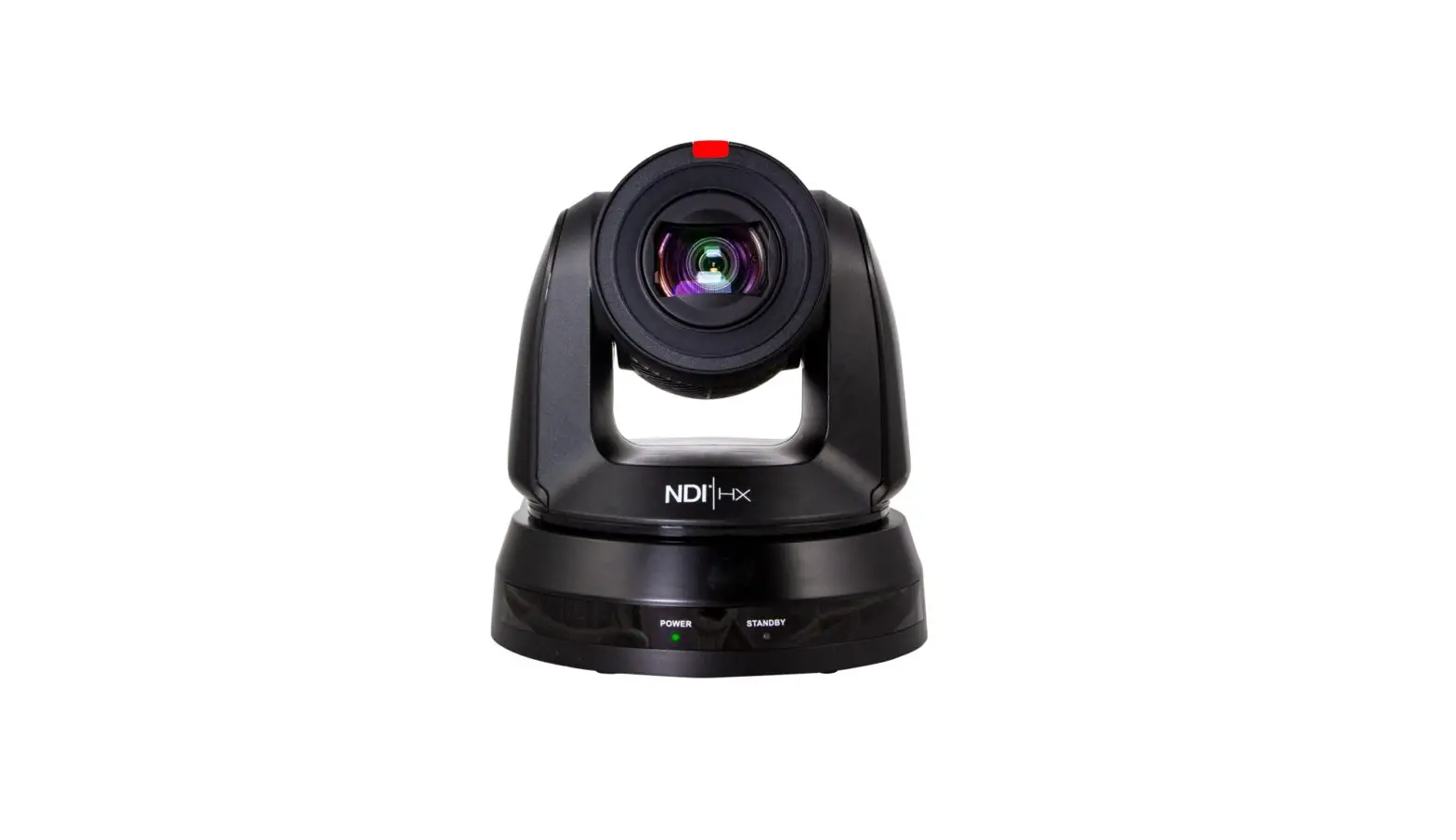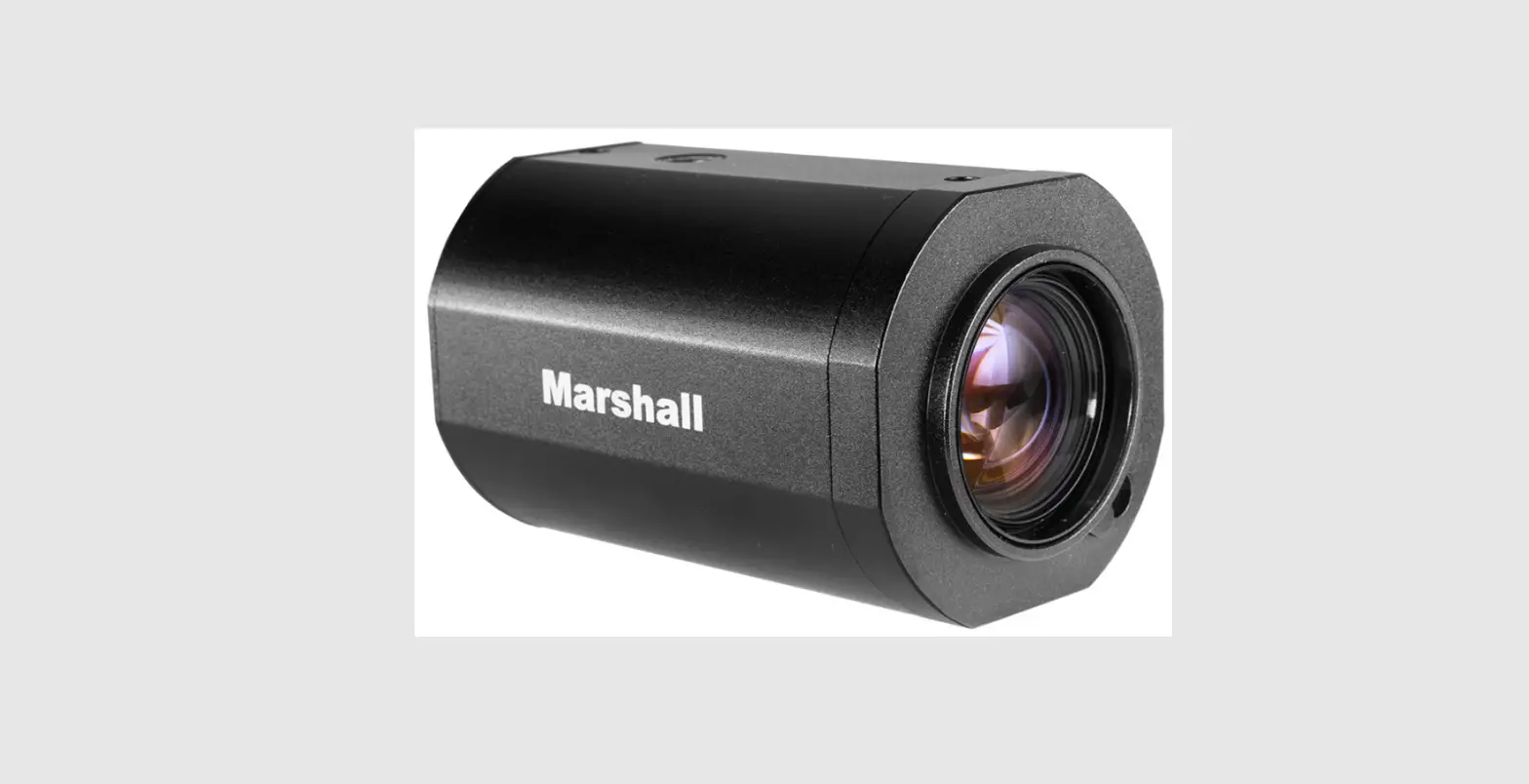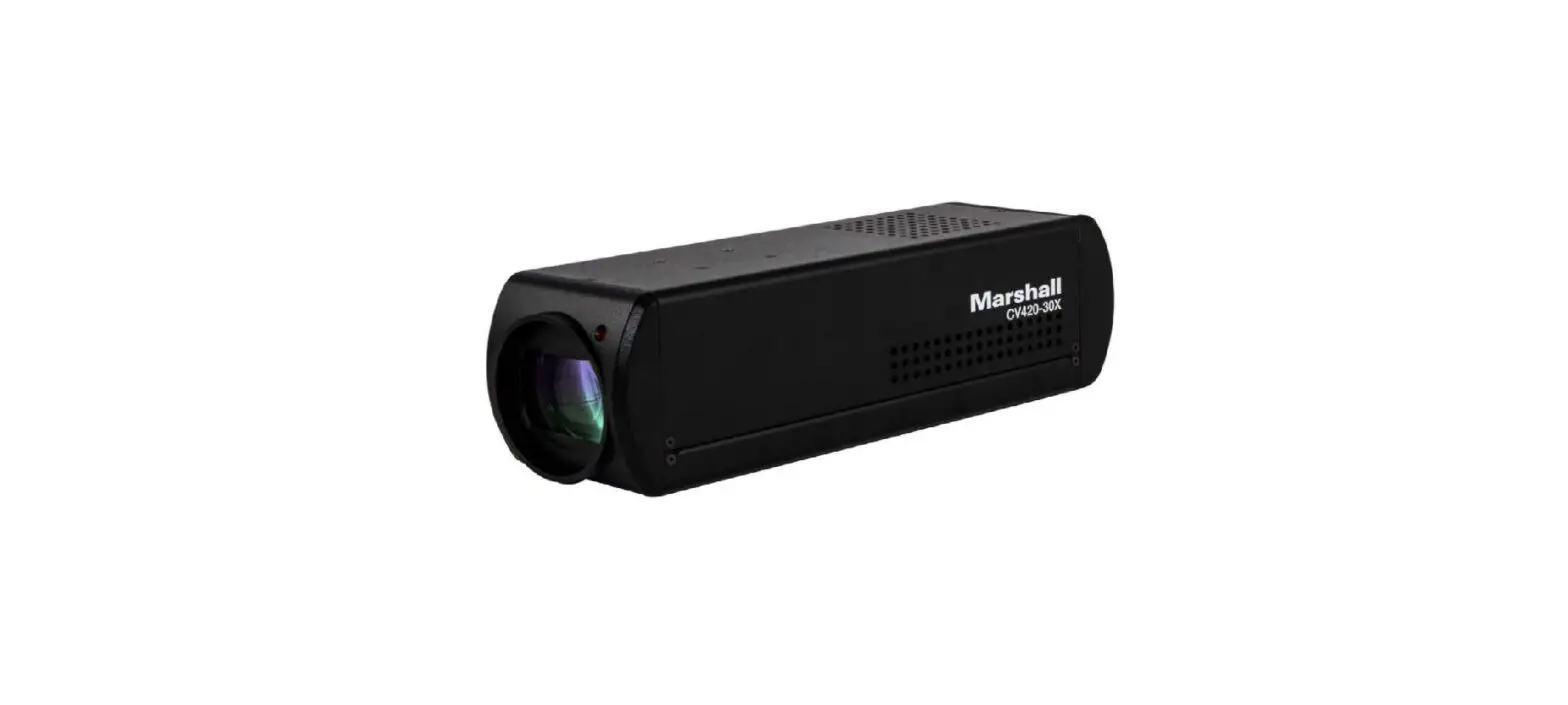

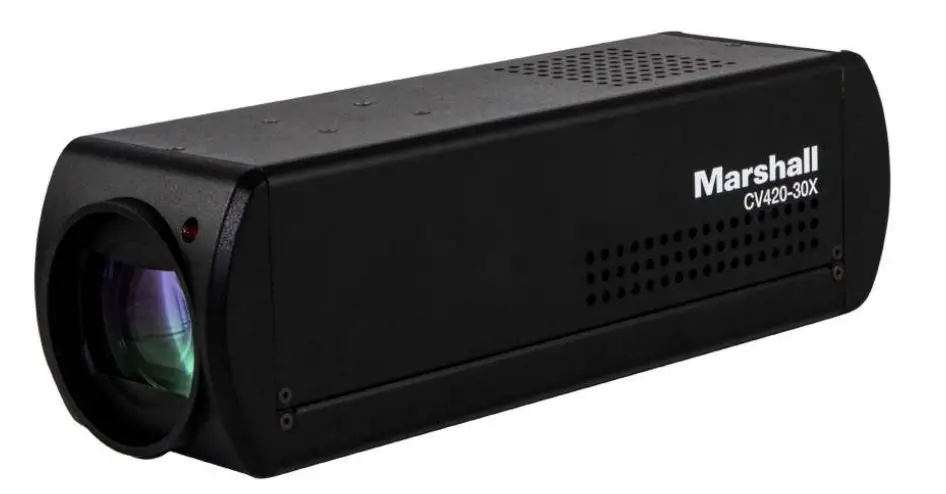
Marshall CV420-30X Compact 4K60 30X Zoom Camera 12GSDI HDMI, and IP (HEVC)
Safety Instructions
Operation
- Use the camera in the recommended operating environments.
- Do not place the camera in a tilted position.
- Do not place the product on an unstable cart, stand, or table.
- Do not use this product near water, extreme humidity, or high heat.
- Use recommended ¼”-20 mounts and attachments.
- Use the power supply that is provided in the box.
- Always take the following precautions when handling the power plug. Failure to do so may result in sparks, shock or fire:
- Ensure the plug is free of dust before inserting it into a socket.
- Ensure that the plug is inserted into the socket completely and securely.
- Do not overload wall sockets, use long extension cords, or plug the camera into multi-output power strips.
- Do not block vents on the camera body as they provide ventilation and prevent the product from overheating.
- Do not open or remove the camera body, the camera warranty is void if opened.
- Unplug the product from the wall outlet and consult a licensed service technician when the following conditions arise:
- If the power cords are damaged or frayed.
- If a liquid is spilled into the product or the product has been exposed to rain or water.
Installation
For security considerations, please make sure any mounts that are used are standard UL or CE safety certified and installed by technician personnel.
Storage
- Do not mount the camera where the power cord can be stepped on, as this may result in fraying or damage to the lead or the plug.
- Never allow debris or objects of any kind to penetrate the camera body. Never allow liquid of any kind to spill onto or into the camera body.
- Unplug this product during thunderstorms, during electrical surges, or if it is not going to be used for an extended period of time.
- Do not place camera or accessories on top of vibrating equipment or heated objects
Cleaning
Unplug all the cables before cleaning. Use a damp cloth for cleaning. Do not use liquid or aerosol cleaners or allow any liquids to enter the camera body
Precautions
Warning: To reduce the risk of fire or electric shock, do not expose this camera to rain, moisture, debris or liquids. If the HD camera will not be used for an extended time, unplug it from the power socket.
Caution:
To reduce the risk of electric shock, do not remove the cover (or back). No user-serviceable parts inside. Refer servicing to licensed service personnel. Please do not open it by yourself
This symbol indicates that this equipment may contain dangerous voltage which could cause electric shock.
This symbol indicates that there are important operating and maintenance instructions in this User Manual with this unit
FCC Warning
This product has been tested and found to comply with the limits for a Class B computing device, pursuant to Article 15-J of FCC Rules. These limits are designed to provide reasonable protection against harmful interference in a residential installation. This digital apparatus does not exceed the Class B limits for radio noise emissions from digital apparatus as set out in the interference-causing equipment standard entitled “Digital Apparatus” ICES-003 of Industry Canada.
EN55032 (CE Radiation) Warning
The operation of this equipment in a residential environment could cause radio interference.
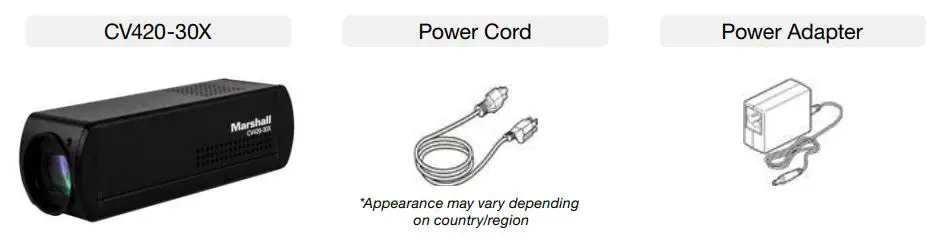
Package Contents
Function Introduction
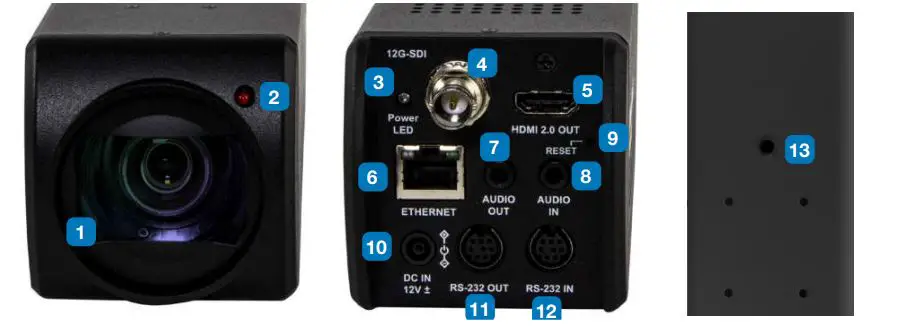
I/O functions Introductions
| No. | Item. | Function Descriptions |
| 1 | Lens | 30x HD/UHD camera lens |
| 2 | Tally indicator light | Tally light displays status of the camera |
| 3 | Power indicator light | After power is on, the indicator light will display in red |
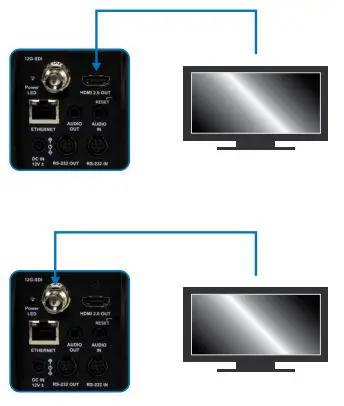
| 4 | 12G-SDI output | 12G-SDI output |
| 5 | HDMI 2.0 output | HDMI 2.0 output |
| 6 | Network port | Network port. Support routers or hubs (IEEE 802.3 af) with PoE power supply support |
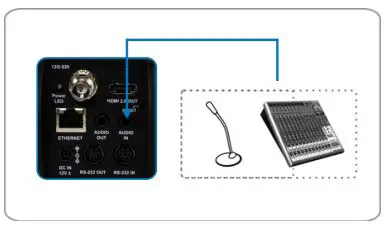
| 7 | Audio input | 3.5mm Audio Input supports Line-level or Mic-level Stereo/Mono input |
| 8 | Audio output | Loop-through 3.5mm Output |
| 9 | Rest | Factory Reset and reset static IP to default value |
| 10 | DC 12 V power connector | AC power supply connecting port |
| 11 | RS232 output | RS232 output port. At most 7 cameras can be connected in a serial connection |
| 12 | RS232 input | RS232 input port. At most 7 cameras can be connected in a serial connection |
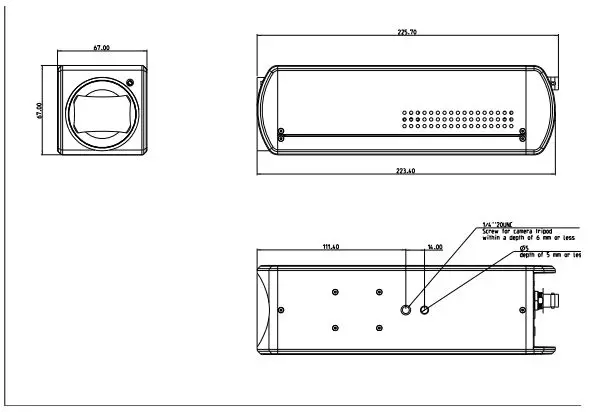
| 3 | Tripod screw holes | ¼”, 20 UNC tripod deck |
Tally Indicator Light Function Description
The tally indicator light function may be enabled through the control of RS232 command. The setting method is as follows:
- Tally Mode : 8x 01 7E 01 0A 01 0p FF
- p = 0 : OFF
- p = 4 : On (half-brightness)
- p = 5 : On (full-brightness)
Installation Instructions
Installation Basics
CV420-30X Dimensions
Connecting devices
SDI and HDMI connection to TV/display screen
Connecting to Internet
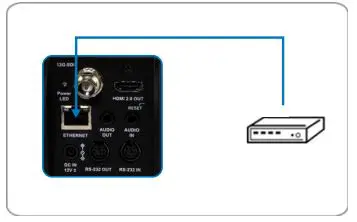
For details of web page connection setting and description, please refer to Chapter 5 Network Function Settings Description.
Connecting AUDIO IN
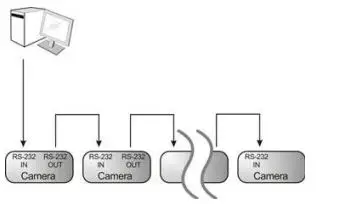
Connecting RS-232
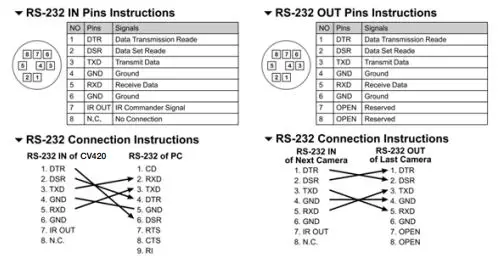
CV420 camera includes a RS232 IN and OUT for Daisy Chain style connections or can be setup via home run using splitters (use CV620-CABLE-07 extenders to convert to CAT RJ45 cables for longer runs)
- RS-232 pin definition description
Network Function Settings
Web System Requirements
Web Browser:
- Internet Explorer 11 or above
- Firefox 66.0.3 or above
- Chrome 73 or above
- Edge 42.17134 or above
- Safari 12.1 or above
Connecting Camera to Network
Connecting to Internet
Two common connection methods are shown below
- Connecting via switch or router
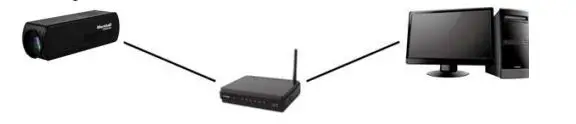
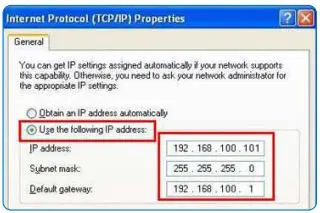
- If the camera is connected to the computer directly, the computer IP address must be modified to have the same network segment as the camera For example, the factory-preset default IP address of CV420-30X is 192.168.100.100. The computer IP address must be set with the same subnet, such as 192.168.100.101 so that the computer can be connected correctly to the camera
- Connection Diagram
- Change network settings
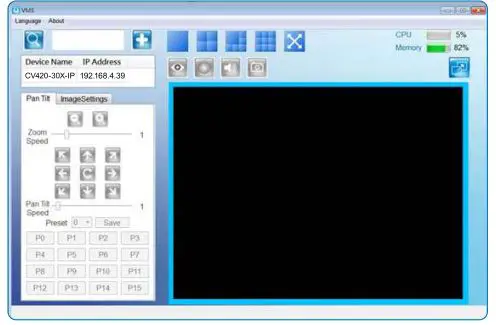
Using Marshall VMS Software to View the Images
- The CV420-30X DHCP initial setting is ON. If it is connected to the local area network (LAN), the camera IP can be retrieved via the following methods
- Install Marshall VMS software (Please download from the Marshall official website, www. marshall-usa.com)
- Open Marshall VMS software
- Search for the camera: Press the [automatically search for the device] button to locate the CV420-30X camera
- Click CV420-30X in the list and start operation after connecting to network
Note: When using automatic search, the camera and computer must be in the same network segment, e.g.: 192.168.4.X
Suggested minimum system requirement for HEVC 4K60 IP Streaming:
- Windows 10
- CPU: Intel i5 (7th gen and above)
- GPU: intel (7th gen and above) or Nvidia GTX 1050 and above
- Memory: 8GB(64-bits) RAM
- Ethernet: Gigabyte
- 1GB Free Disk Space
Using the Browser to View the Images
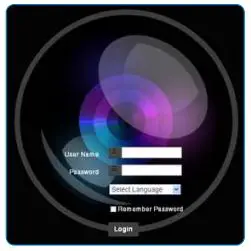
- Open the browser, and enter the URL of CV420-30X in the IP address bar e.g.: http://192.168.100.100 (default IP address)
- Enter the administrator’s account and password
Account: admin (Default)
Password: 9999 (Default)
Using RTSP Player to View the Images
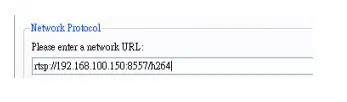
Besides the browser and VMS, other free software also can be used for RTSP connection, such as VLC, Quick Time, PotPlayer, and other free software RTSP connection address formats are as follows:
- RTSP Main Streaming => rtsp://camera IP:8554/hevc
- RTSP Sub1 Streaming => rtsp://camera IP:8557/h264
- RTSP Sub2 Streaming => rtsp://camera IP:8556/h264
Example: Open VLC software and input the URL: rtsp://192.168.100.150:8557/h264
Web Page Function Description
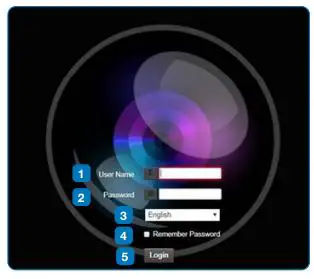
Login Screen
| No. | Item. | Function Descriptions |
| 1 | Username | Enter user account name (default: admin) |
| 2 | Password | Enter user password (default: 9999) |
| 3 | Language selection | The system currently supports English, Traditional Chinese, and Simplified Chinese |
| 4 | Remember password | Saves user account name and password to the browser. |
| 5 | Login | Log into the administrator screen on the website |
Viewing In Real Time
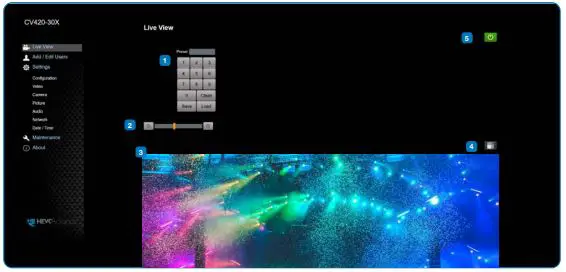
| No. | Item. | Function Descriptions |
| 1 | Preset setting | Select the number first and then select SAVE or LOAD |
| 2 | Zoom ratio | Adjust the zoom-in or zoom-out ratio via scroll bar |
| 3 | Preview window | Display the screen currently captured by the camera |
| 4 | Switch to Full Screen | Switch the preview window to full screen |
| 5 | Power button | Turn on or turn off the camera power |
Account Management
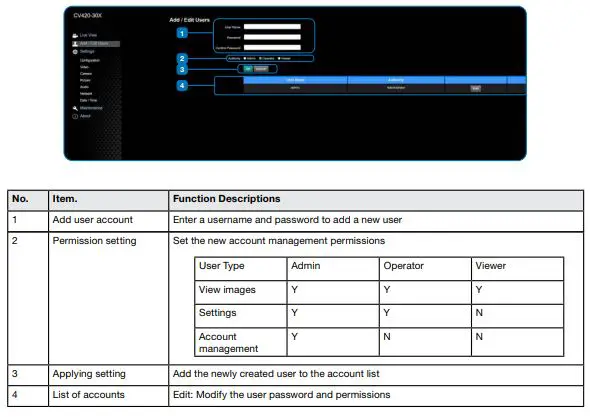
System Configurations
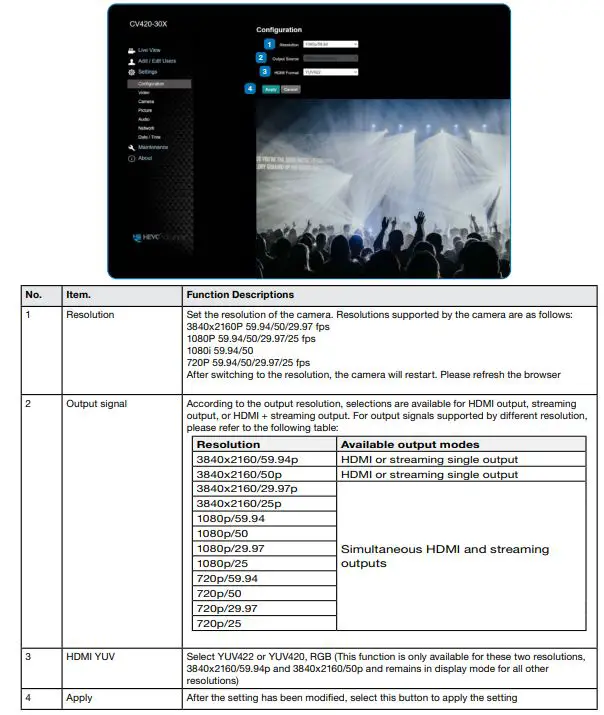
Video Settings
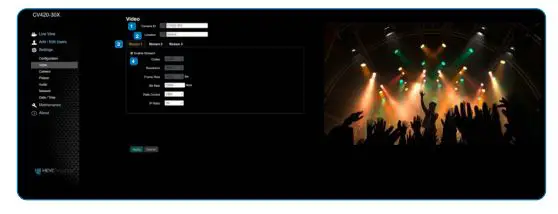
| No. | Item. | Function Descriptions |
| 1 | Camera name | Modify the camera name • Camera names are limited to 1-12 characters • Please use a camera name by mixing uppercase and lowercase letters and numbers. Do not use “/” and “space” or special symbols |
| 2 | Camera location | Modify the location of the camera, such as Meeting Room 1 • Camera locations are limited to 1-12 characters • Please use a camera name by mixing uppercase and lowercase letters and numbers. Do not use “/” and “space” or special symbols |
| 3 | Streaming 1 / Streaming 2 / Streaming 3 | The CV420-30X supports 3 streaming outputs. Please refer to 5.3.5.1 Streaming Parameter Setting for relevant settings |
| 4 | Open streaming | Confirm the streaming function |
Streaming Paramater Setting
| Function | Streaming 1 | Streaming 2 | Streaming 3 | |
| Encode Format | H.265 | H.264 | ||
| Resolution | 4K /1080P / 720P | 1080P / 720P | 640×360 | |
| Frame rate | Setting according to the supported resolution | |||
| Bit Rate(kbps) | Range | 2,000~20,000 | 2,000~20,000 | 512~5,000 |
| Factory default | 15,000 | 7,500 | 1,000 | |
| Rate control | CBR / VBR | |||
| IP ratio | Setting according to the supported resolution | |||
Camera Settings
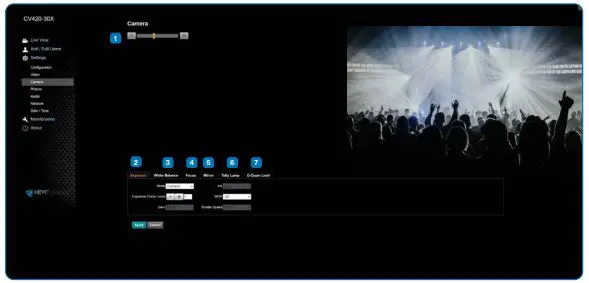
| No. | Item. | Function Descriptions |
| 1 | Zoom ratio | Adjust the zoom-in or zoom-out ratio via scroll bar |
| 2 | Exposure | • Mode: Select exposure mode (Automatic/Shutter Priority/Aperture Priority/Manual ) • Exposure Comp. Level: Select exposure compensation level • Gain: The gain limit is adjustable when the exposure mode is set to “Manual” • Iris: The size of aperture is adjustable when the exposure mode is set to “Manual” or “Aperture Priority” • WDR: Set the level of wide dynamic range (WDR) in order to obtain better images in dynamic lighting environments. • Shutter Speed: The shutter speed is adjustable when the exposure mode is set to “Manual” or “Shutter Priority” |
| 3 | White balance | • Mode: Select the color temperature mode • Auto • Indoor • Outdoor • One Push WB • ATW • Manual • Sodium Lamp • Open Push Trigger: One push color temperature is adjustable when the white balance mode is set to “One Push Trigger” • Manual Red/Blue: Manually adjust blue/red color temperature |
| 4 | Focus | • Mode: Select manual/automatic focus • Focus Range: The focusing range is adjustable when the focus mode is set to “Manual” • AF Sensitivity: Set automatic focus sensitivity • AF Frame: Set automatic focus range • Preset AF: |
| 5 | Mirror | • Mirror: Set automatic flip mode |
| 6 | Tally Lamp | Enable / Disable |
| 7 | D-Zoom Limit | 1X-12X |
Picture Settings
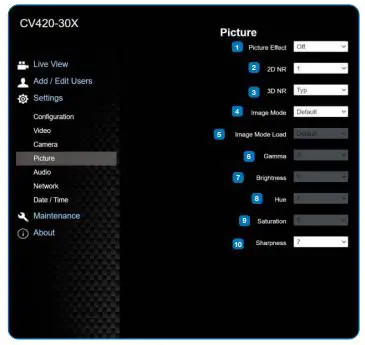
| No | Item | Function Descriptions |
| 1 | Picture effect | Set picture effect, Off / Film / Black and White |
| 2 | 2D noise reduction settings | • 2D noise reduction settings |
| 3 | 3D noise reduction settings | • 3D noise reduction settings |
| 4 | Image mode | • The user may customize his/her desired image mode |
| 5 | Image mode load | • When no custom setting is needed, reset the picture parameters back to the factory default by selecting this item |
| 6 | Gamma | • Gamma Level adjustment; Adjustable when the image mode is set to Custom |
| 7 | Brightness | • Brightness adjustment; Adjustable when the image mode is set to Custom |
| 8 | Hue | |
| 9 | Saturation | • Saturation adjustment; Adjustable when the image mode is set to Custom |
| 10 | Sharpness | • Adjust the sharpness of the image |
Camera Settings
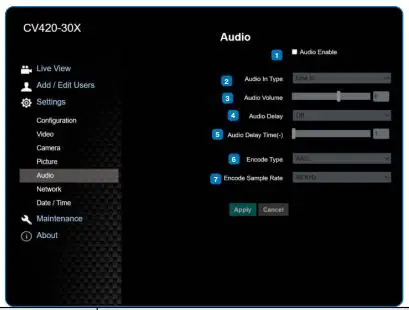
| No. | Item. | Function Descriptions |
| 1 | Open audio | Enable / Disable |
| 2 | Audio In Type | MIC In / Line In |
| 3 | Audio Volume | 0-10 |
| 4 | Audio Delay | On / Off |
| 5 | Audio Delay Time | 1-500 |
| 6 | Encode Type | AAC:48/44.1/16 G.711 16/8 |
| 7 | Encode Sample Rate | Encode Sample Rate Selection |
Time Settings
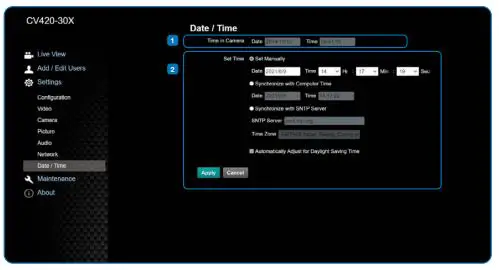
| No. | Item. | Function Descriptions |
| 1 | Camera Time | Display the date and time of the camera |
| 2 | Set the Time | • Set Manually: Set time manually • Synchronize with computer time: Set the camera time according to the computer time • Synchronize with SNTP server: Set the camera time synchronously with the SNTP server <Remark> SNTP server address: Please change in network setting |
Network Settings
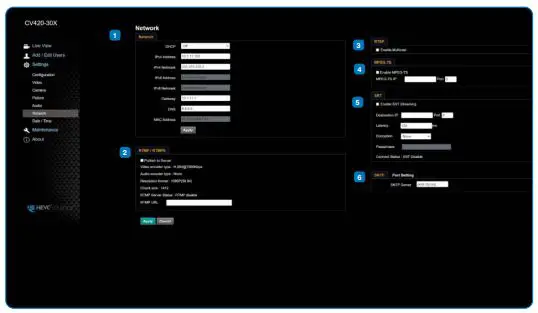
| No. | Item. | Function Descriptions |
| 1 | Network | Network setting of camera. Change of setting is available only when DHCP function is closed. |
| 2 | RTMP/RTMPS Setting | Copy the RTMP web address provided by the RTMP service platform and paste it to the RTMP connection address to publish the camera images on the RTMP service platform. |
| 3 | RTSP Setting | To upload to YouTube for live streaming, the audio function must be turned on first. |
| 4 | MPEG-TS Setting | Set MPEG-TS format <Remark> The following port has been used by the camera. Setting of the port may not connect correctly. 8554, 8556, 8557, 8080, 80, 81, 9090, 23 |
| 5 | SRT Setting | 1. Set the field of SRT and then check the item to open SRT streaming After the SRT streaming is opened, it will be connected automatically upon startup. 2. The port number must be set in the range above 1024 with a maximum value of 9999 The following port has been used by the camera. Setting of the port may not connect correctly. 8554, 8555, 8556, 8557, 8080, 9090, 19353. 3. Delay time is for 20 to 8000 microseconds. The default value is 120 microseconds. |
| 6 | SNTP Setting | Set SNTP Server IP |
Maintenance and Updating Firmware
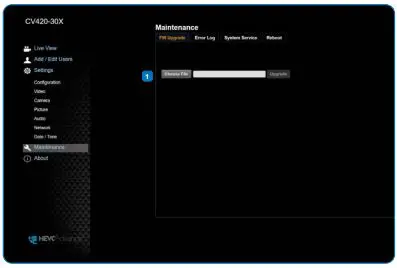
| No. | Item. | Function Descriptions |
| 1 | Firmware Update | The camera firmware may be upgraded via web page. For the upgrade method, please download the FW upgrade manual from Marshall website. |
Incident/Error Logs
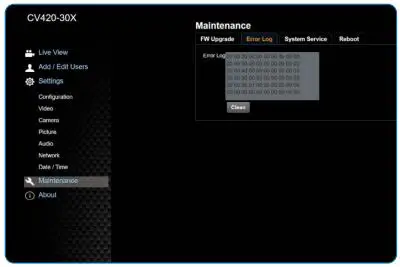
| No. | Item. | Function Descriptions |
| 1 | Event Logs | If the camera encounters errors, an error code log will be established. |
Additional Maintenance Settings
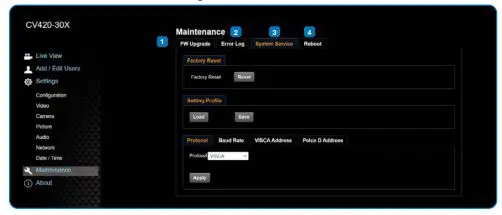
| No. | Item. | Function Descriptions | |
| 1 | FW Upgrade | The camera firmware can be upgraded via webpage. For the upgrade method, please download the FW upgrade manual from Marshall website. | |
| 2 | Error Log | If the camera encounters errors, an error code log will be established | |
| 3 | System Service | Factory Reset | Select the reset button to resume the factory default setting as the webpage setting |
| Setting Profile | The web page setting parameters can be exported from the computer and imported/applied to another camera | ||
| Protocol | VISA/Pelco | ||
| Baud Rate | Set the camera Baud Rate for the use of connecting RS-232 communication | ||
| VISA Address | VISCA Address 1-7 | ||
| Pelco D Address | Pelco D Address 1-255 | ||
| 4 | Reboot | Camera Reboot | |
About
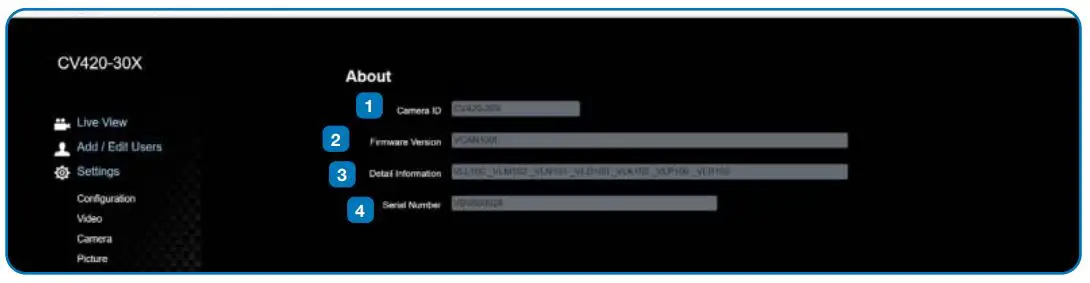
| No. | Item. | Function Descriptions |
| 1 | Camera ID | Display the camera name |
| 2 | Firmware Version | Display the firmware version of the camera |
| 3 | Detail information | Display the camera firmware details |
| 4 | Serial Number | Display the camera serial No. |
Troubleshooting
This chapter describes problems you may encounter while using CV420-30X. If you have questions, please refer to related chapters and follow all the suggested solutions. If the problem remains, please contact your distributor or the service center.
| No. | Problem | Solution |
| 1 | Boot without power signal | 1. Make sure you have plugged in the power cord. 2. When using a PoE connection, ensure that the power supply supports IEEE 802.3af hubs |
| 2 | There is no image output from CV420-30X | 1. Check the power supply or PoE supply functions. 2. Confirm the output signals are in streaming output. 3. If the camera is connected to a monitor, confirm the monitor equipment supports 4K output 4. Replace the cables and make sure they are not faulty. |
| 3 | CV420-30X image is severely delayed | Please use 4K, 1080p or 720p 60/50 Hz signals rather than 25/30 Hz signals. |
| 4 | RS-232 cannot be controlled | 1. Confirm the connection is correct (RS-232 Input / Output). 2. Please make sure the Baud rate setting is the same as the control equipment. |
| 5 | Whether the Internet can be used for the operation | Please refer to Chapter 5 Network Function Description for the Internet usage or call marshall tech support. |
Warranty
Marshall Electronics warranties to the first consumer that this device will, under normal use, be free from defects in workmanship and materials, when received in its original container, for a period of three years from the purchase date. This warranty is extended to the first consumer only, and proof of purchase is necessary to honor the warranty. If there is no proof of purchase provided with a warranty claim, Marshall Electronics reserves the right not to honor the warranty set forth above. Therefore, labor and parts may be charged to the consumer. This warranty does not apply to the product exterior or cosmetics. Misuse, abnormal handling, alterations or modifications in design or construction void this warranty. No sales personnel of the seller or any other person is authorized to make any warranties other than those described above, or to extend the duration of any warranties on behalf of Marshall Electronics, beyond the time period described above. Due to constant effort to improve products and product features, specifications may change without notice.
References
 Marshall Electronics - Professional Broadcast Miniature/Compact/Indoor 4K/UHD/HD Cameras, 4K Rack Mount/Desktop Monitors, Hardware, and Accessories.
-
USA Location information - USA.com
-
Marshall Electronics - Professional Broadcast Miniature/Compact/Indoor 4K/UHD/HD Cameras, 4K Rack Mount/Desktop Monitors, Hardware, and Accessories.
 Marshall Electronics - Professional Broadcast Miniature/Compact/Indoor 4K/UHD/HD Cameras, 4K Rack Mount/Desktop Monitors, Hardware, and Accessories.
 USA Location information - USA.com
 Marshall Electronics - Professional Broadcast Miniature/Compact/Indoor 4K/UHD/HD Cameras, 4K Rack Mount/Desktop Monitors, Hardware, and Accessories.