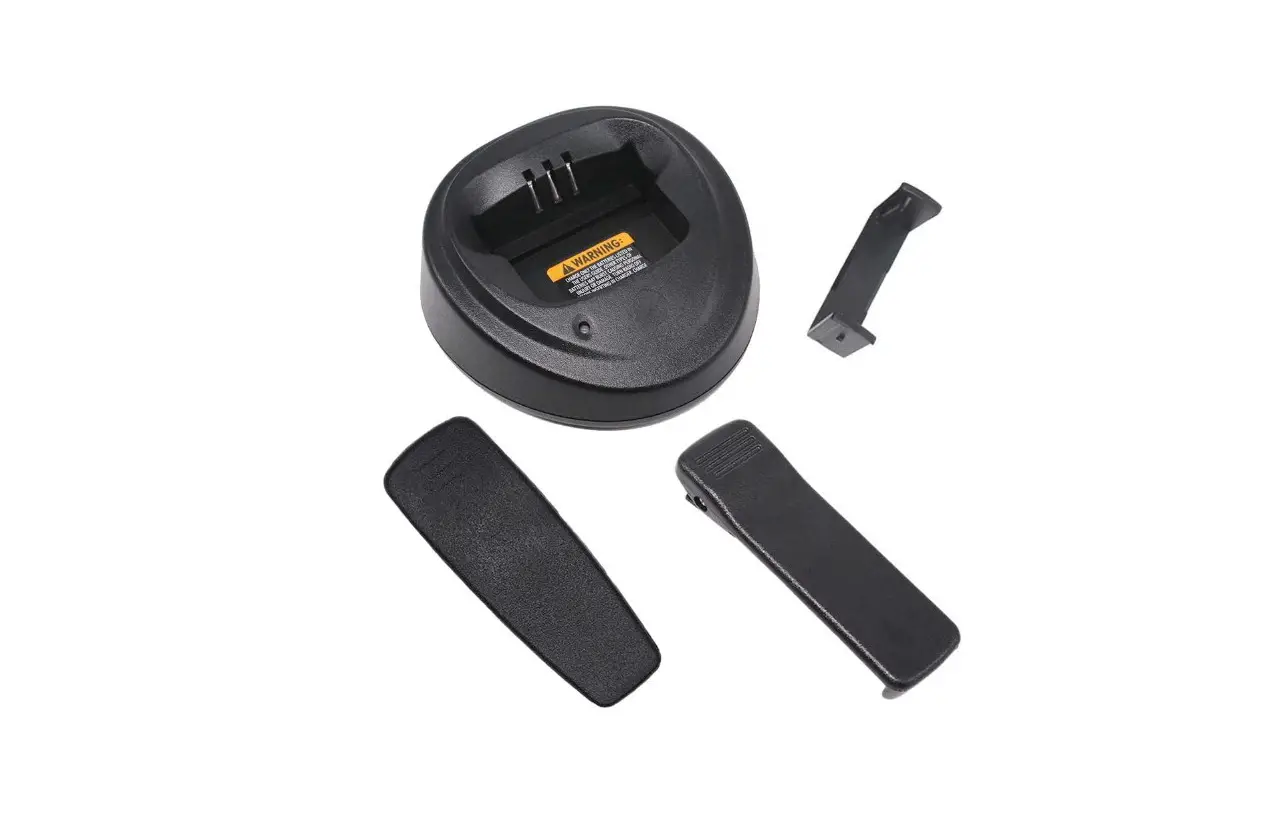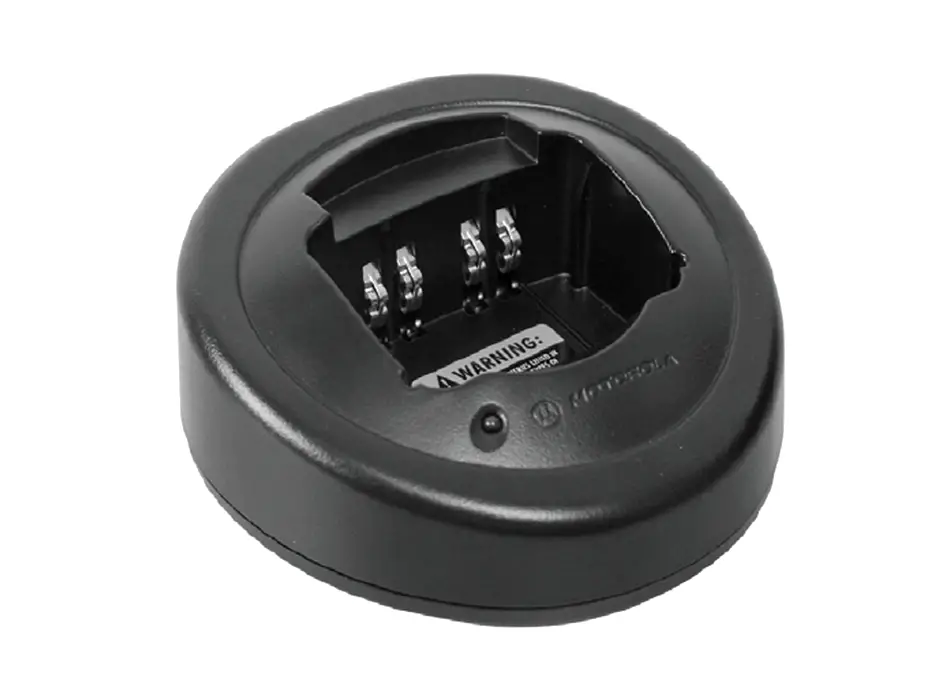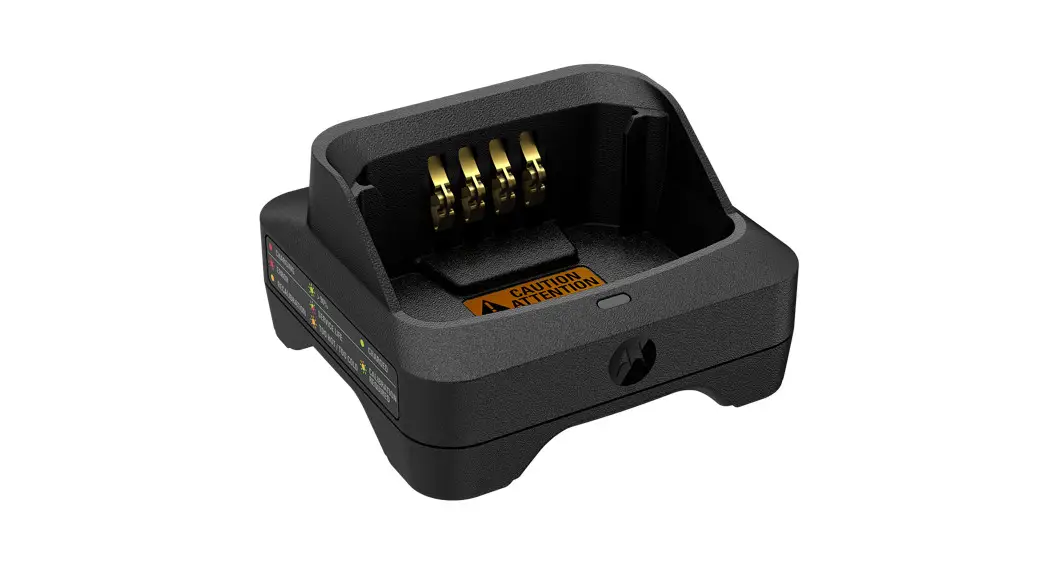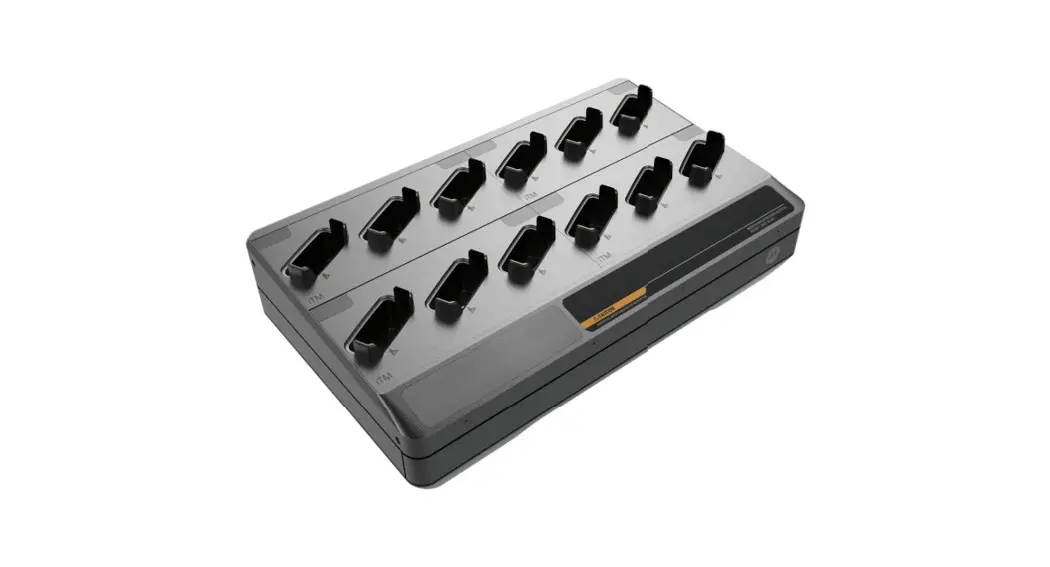
motorola IMPRES 2 Single-Unit Charger Kit User Guide
Important Safety Instructions
This document contains important safety and operating instructions.
Please read these instructions carefully and save them for future reference.
Before using the battery charger, read all the instructions and cautionary markings on (1) the charger, (2) the battery, and (3) the radio using the battery
- To reduce risk of damage to the power supply electric plugs and cords, pull the plug rather than the cord when disconnecting from the AC outlet or the charger.
- An extension cord should not be used unless absolutely necessary. Use of an improper extension cord could result in risk of fire and electric shock. If an extension cord must be used, make sure that the cord size is 18 AWG for lengths of up to 6.5 feet (2.0 m), and 16 AWG for lengths up to 9.8 feet (3.0 m).
- To reduce risk of fire, electric shock, or injury, do not operate the charger if it has been broken or damaged in any way.
- Do not disassemble the charger. It is not repairable and replacement parts are not available. Disassembly of the charger may result in risk of electric shock or fire.
- To reduce risk of electric shock, unplug the charger power supply from the AC outlet before attempting any cleaning.
- To reduce risk of injury, charge only the rechargeable Motorola Solutions-authorized batteries listed in Table 4. Other batteries may explode, causing personal injury and damage.
- Use of accessories not recommended by Motorola Solutions may result in risk of fire, electric shock, or injury
Operational Safety Guidelines
- This equipment is not suitable for outdoor use. Use only in dry locations and conditions.
- Maximum ambient temperature around the charger must not exceed 40 °C (104 °F).
- Turn the radio off when charging the battery
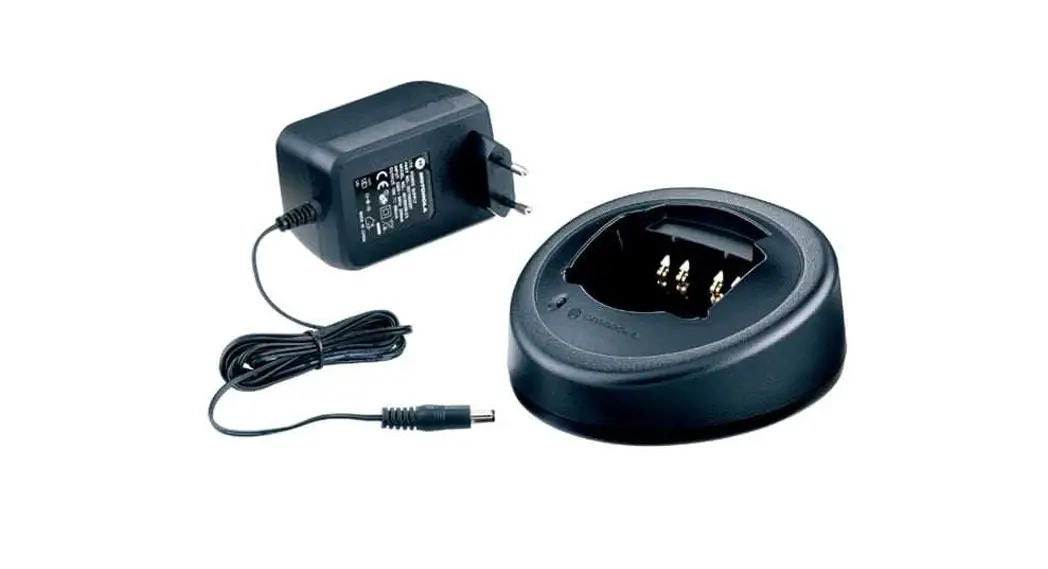
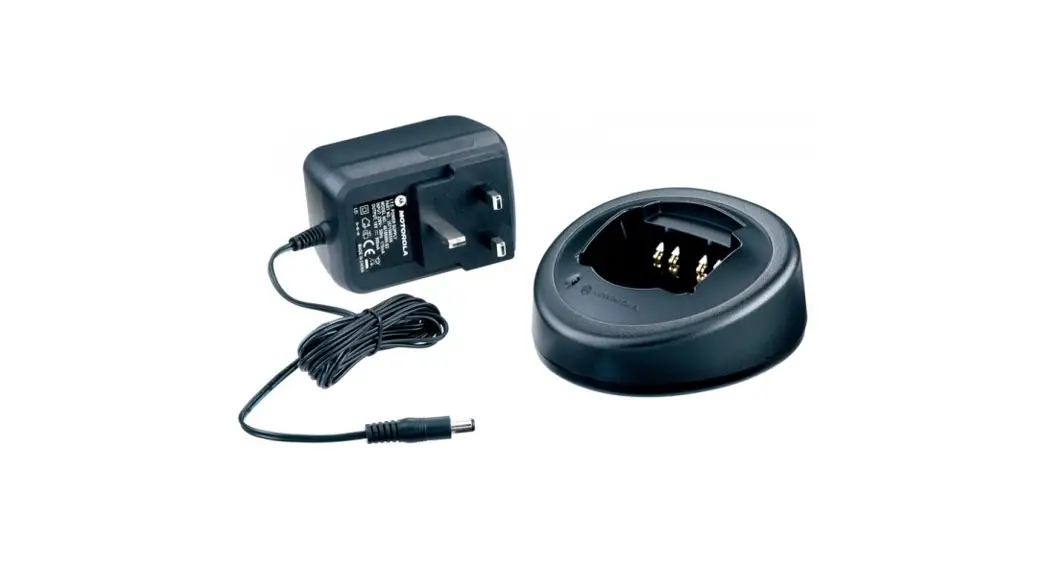
- Connect the single-unit charger only to an appropriate power supply listed in Table 1.
- Connect the multi-unit charger only to an appropriate power cord listed in Table 2.
- The AC outlet to which the power cord is connected must be close and easily accessible.
- Make sure the power supply or power cord to the charger is located where it will not be stepped on, tripped over, or subjected to water, damage, or stress.
- Connect the power supply or power cord only to an appropriately fused and wired AC outlet with the correct voltage, as specified on the product.
- Disconnect from line voltage by removing the power supply or power cord from the AC outlet.
- The equipment shall be connected to a nearby and easily accessible
socket outlet.
IMPRES 2 Single-Unit Charger and IMPRES 2 Multi-Unit Charger can charge the batteries listed in Table 4. The batteries may be attached to a radio or may be stand-alone.
Table 1: Motorola Solutions-Authorized Power Supply for SUC
| Part Number | Description |
| PS000040A01 | 36 W, 120 VAC, Low Noise, Level 6 |
Table 2: Motorola Solutions-Authorized Power Cord for MUC
| Part Number | Description |
| 3087791G01 | Power Cord, US/NA |
Table 3: Motorola Solutions Communications Module for SUC
| Part Number | Description |
| NNTN8870 | IMPRES 2 USB Reprogramming and Fleet Management Module |
Table 4: Motorola Solutions-Authorized Chargers and Batteries
| Adapter Kit Number | Kit Number | Description |
| Multi-Unit Charger PMPN4134 and Single-Unit Charger PMPN4175 | NNTN4435 | NIMH Battery, 1800 mAH, (IMPRES) |
| NNTN4436 | NIMH Battery, 1800 mAH, FM | |
| NNTN4437 | NIMH Battery, 1800 mAH, FM | |
| NNTN6034 | Li-Ion Battery, 4500 mAH, (IMPRES) | |
| NNTN6263 | NIMH Battery, 2000 mAH, FM, (IMPRES) | |
| NNTN7335 | Li-Ion Battery 2800 mAH, (IMPRES) | |
| NNTN7453 | Li-Ion Battery, 4500 mAH, FM, (IMPRES) | |
| NNTN7554 | Li-Ion Battery, 2100 mAH, (IMPRES) | |
| NTN9857 | NIMH Battery, 2000 mAH, FM, (IMPRES) | |
| NTN9858 | NIMH Battery, 2410 mAH, (IMPRES) | |
| NTN9862 | Li-Ion Battery, 2850 mAH, (IMPRES) | |
| NTN9862 | Li-Ion Battery, 2850 mAH, (IMPRES) | |
| PMNN4093 | NIMH Battery, 3200 mAH, (IMPRES) | |
| PMNN4449 | Li-Ion Battery, 4200 mAH | |
| PMNN4454 | Li-Ion Battery, 2750 mAH |
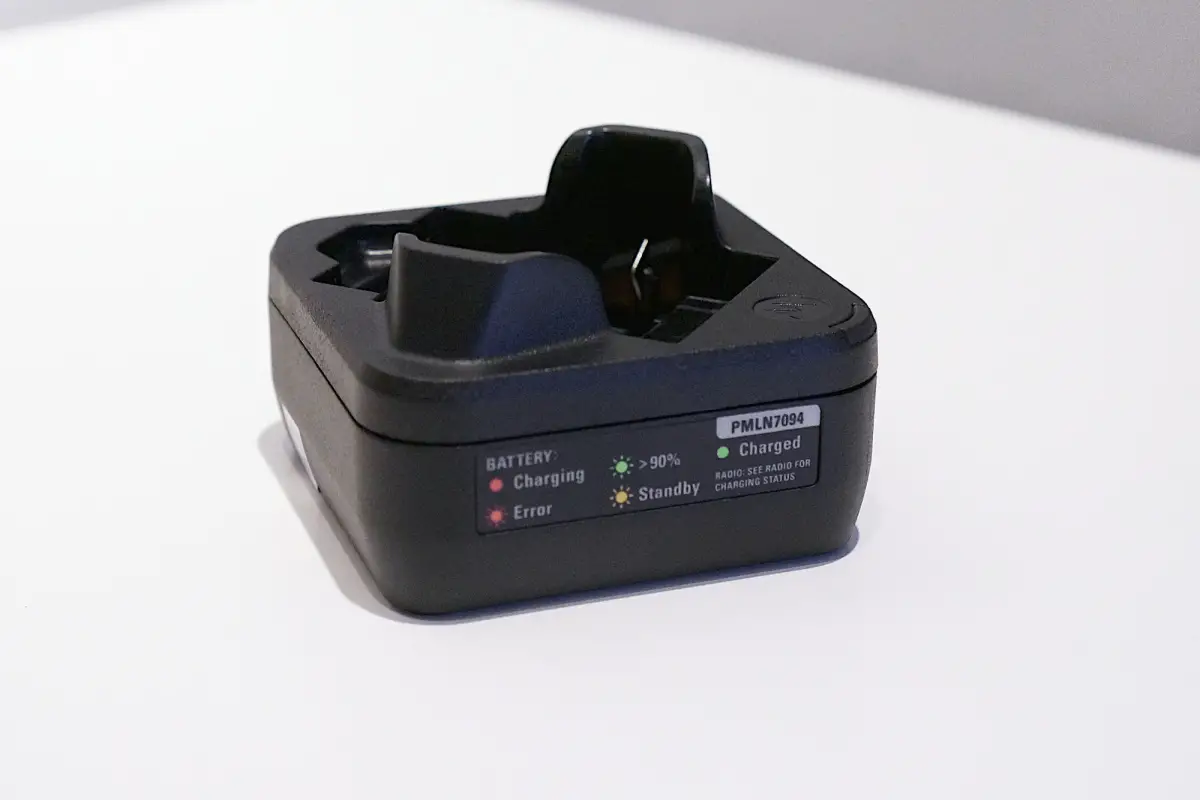
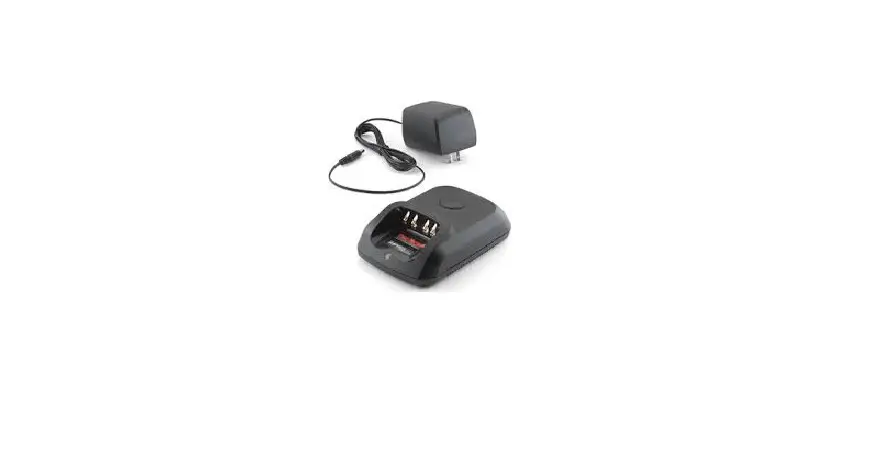
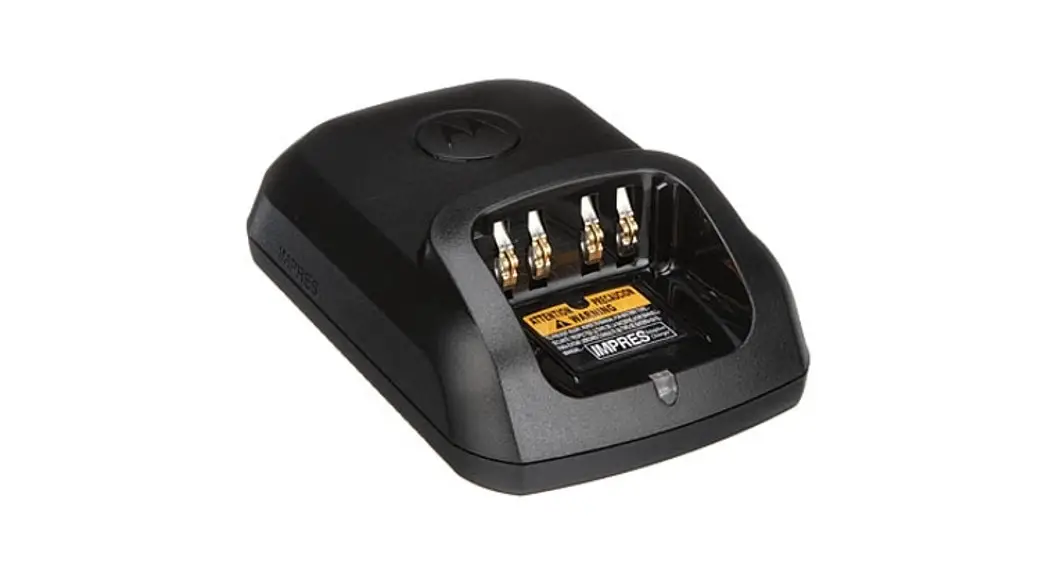
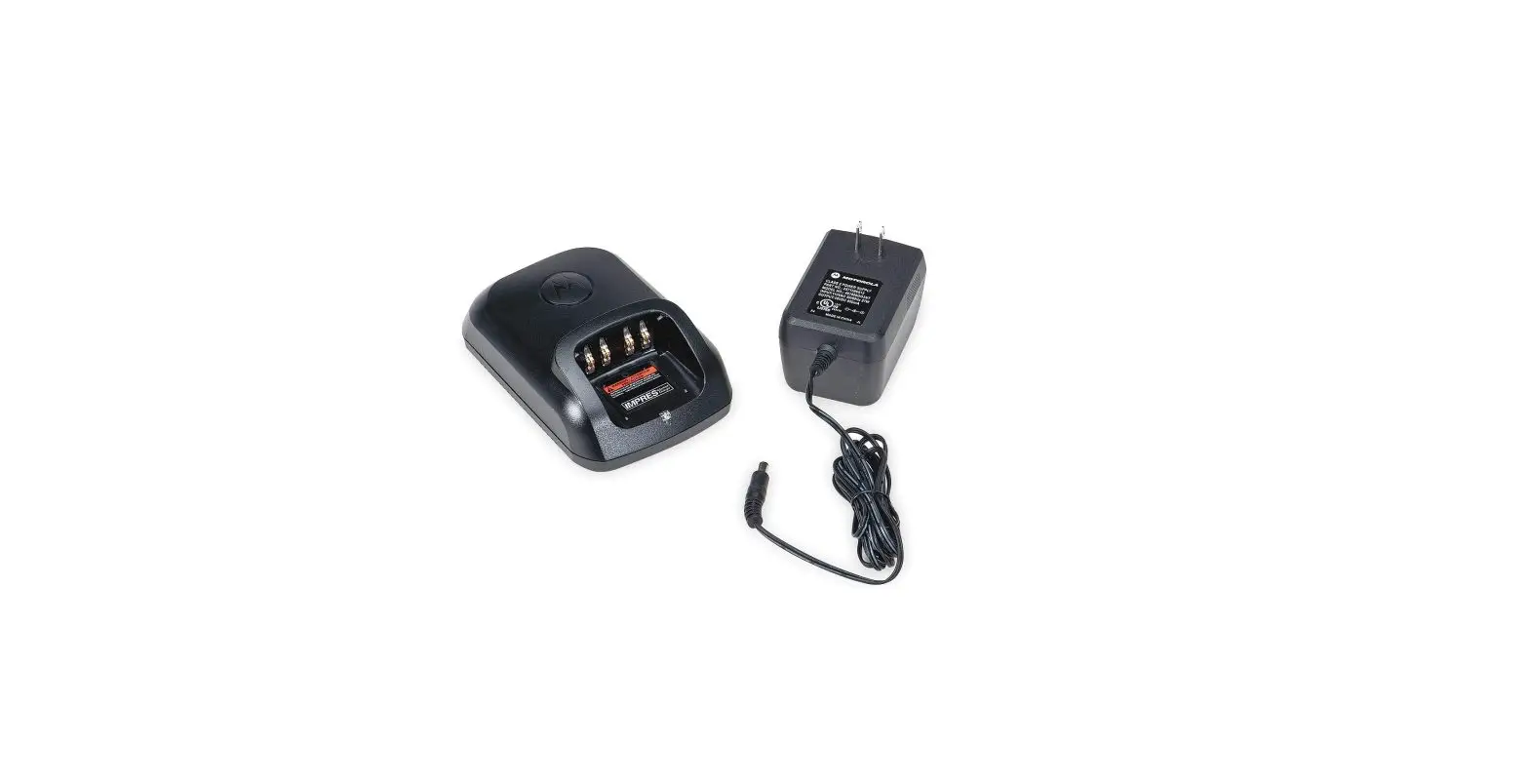
Single-Unit Charger Overview
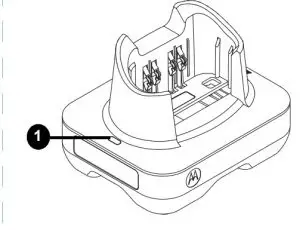
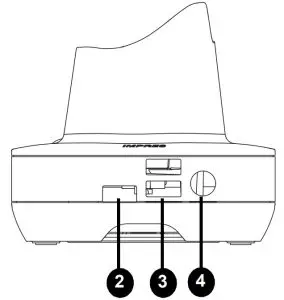
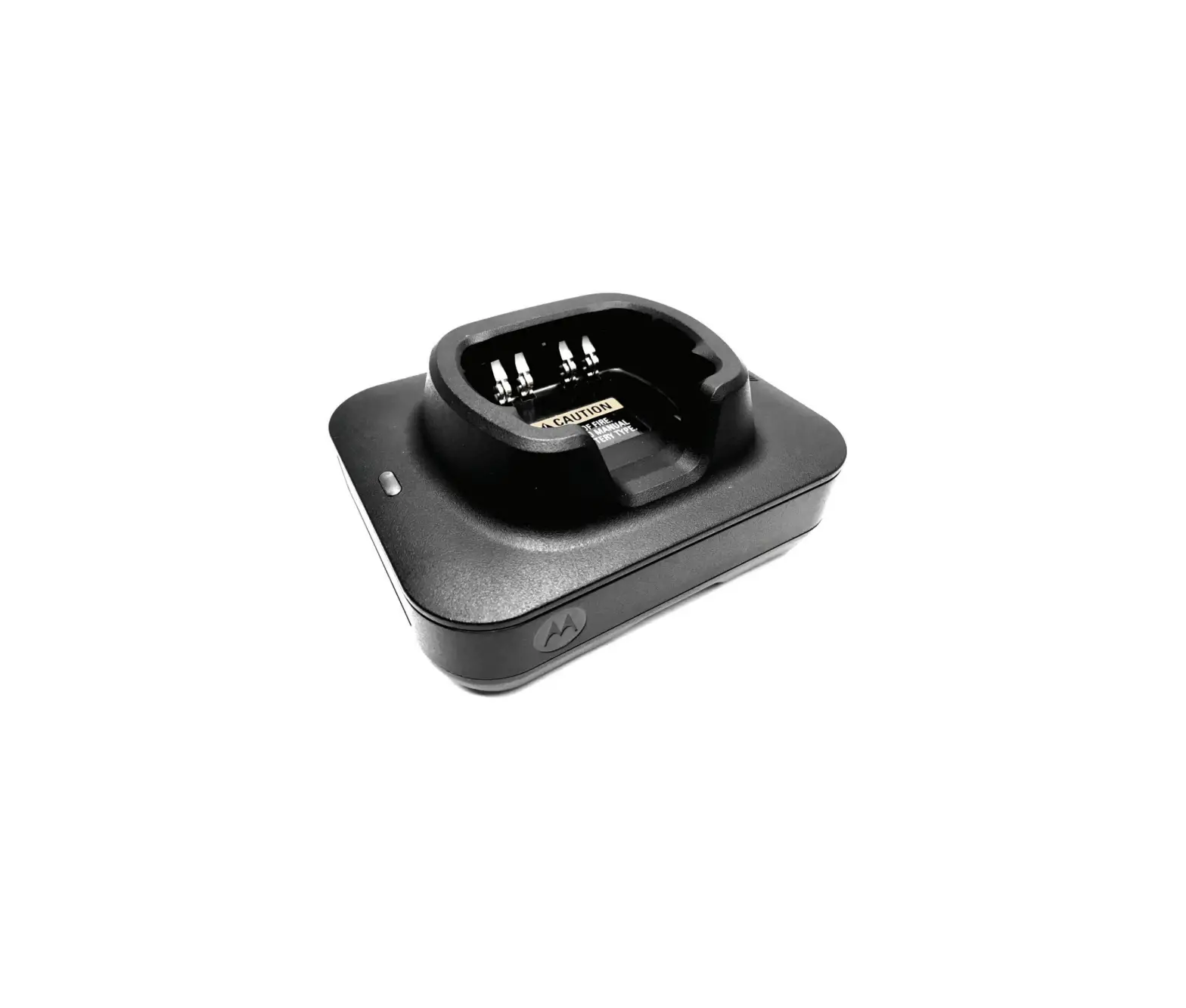
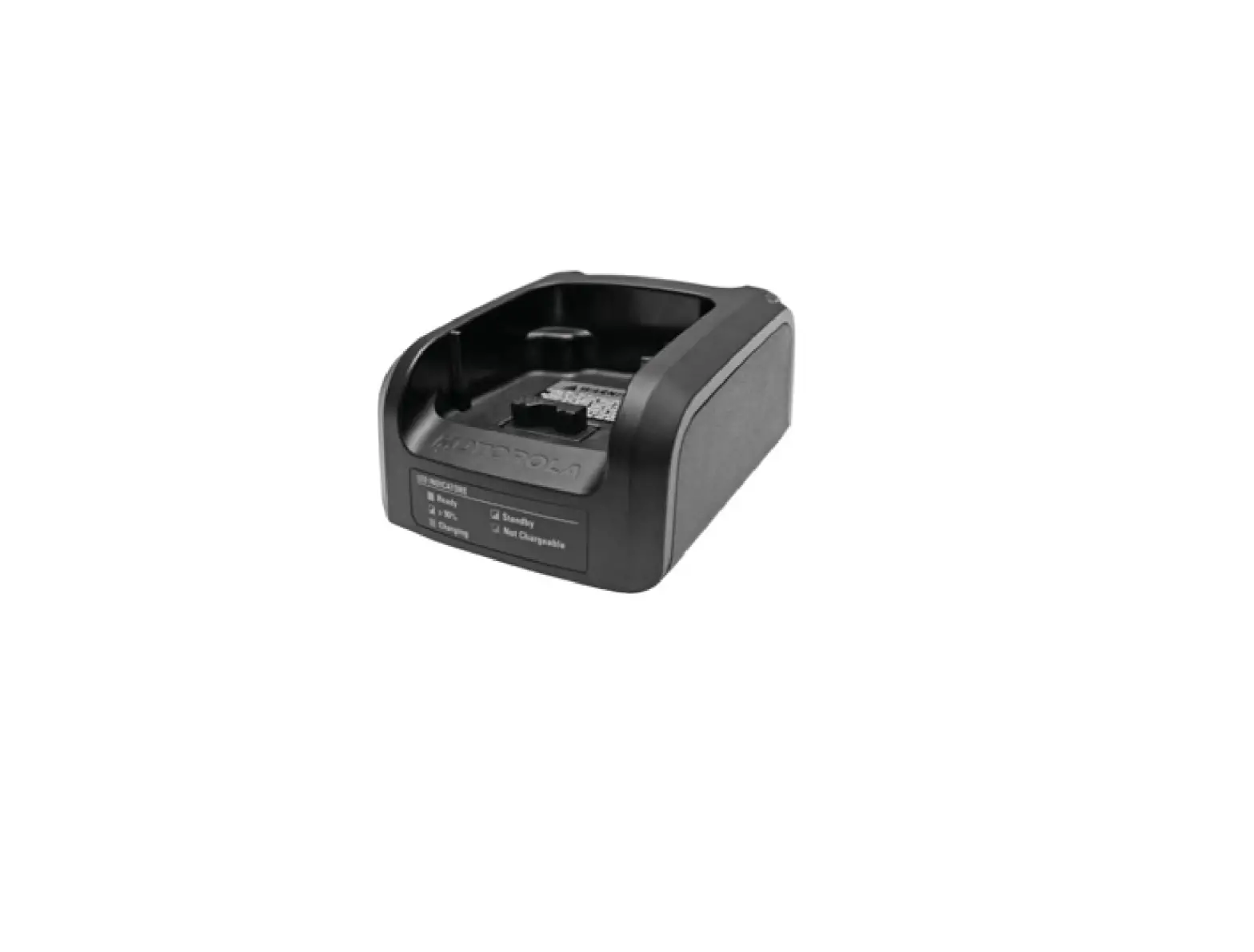
- Charge Status LED.
- Programming/Fleet Management Port – connect to Communication Module in Table 3.
- DC Input Socket – connect to power supply in Table 1.
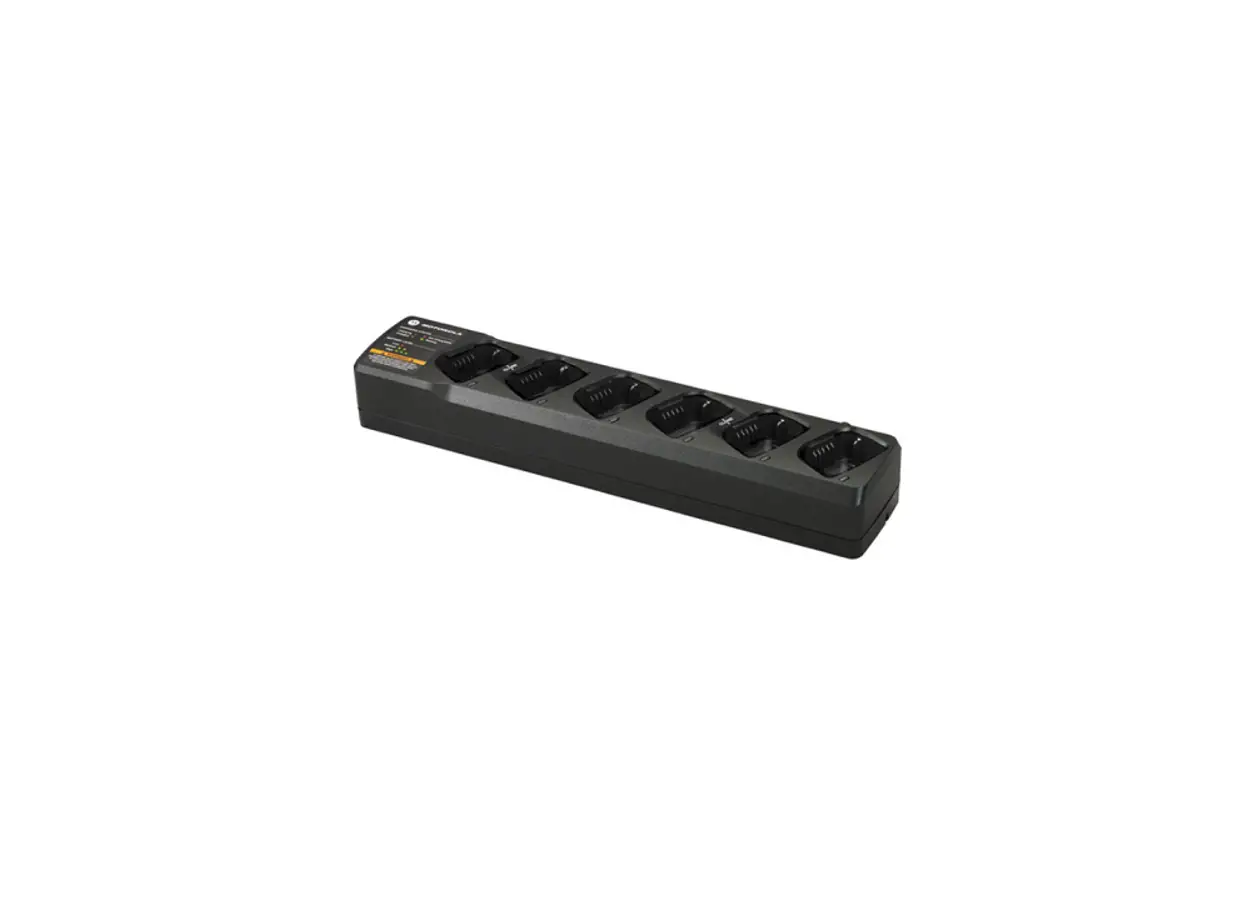
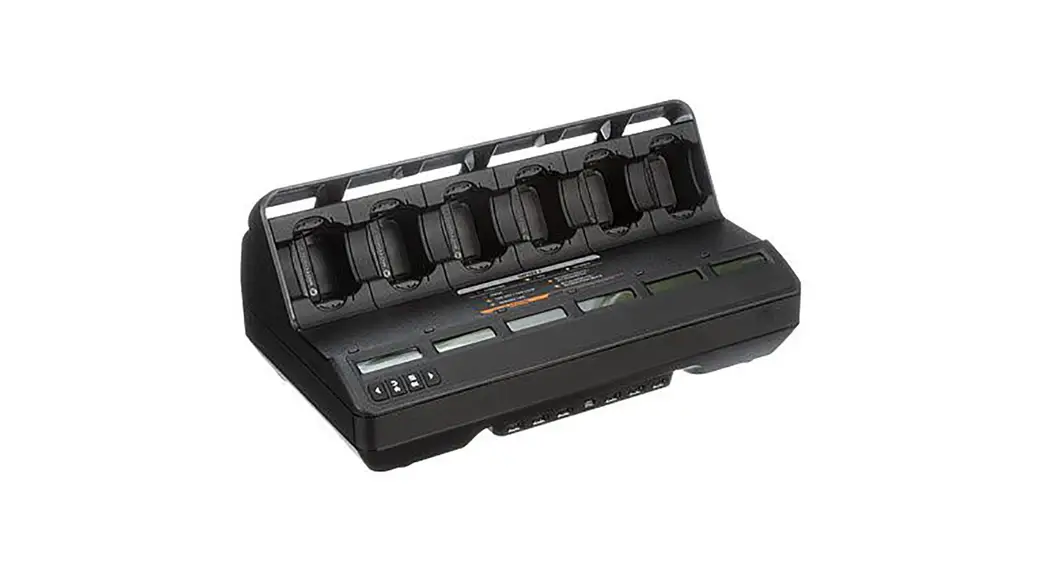
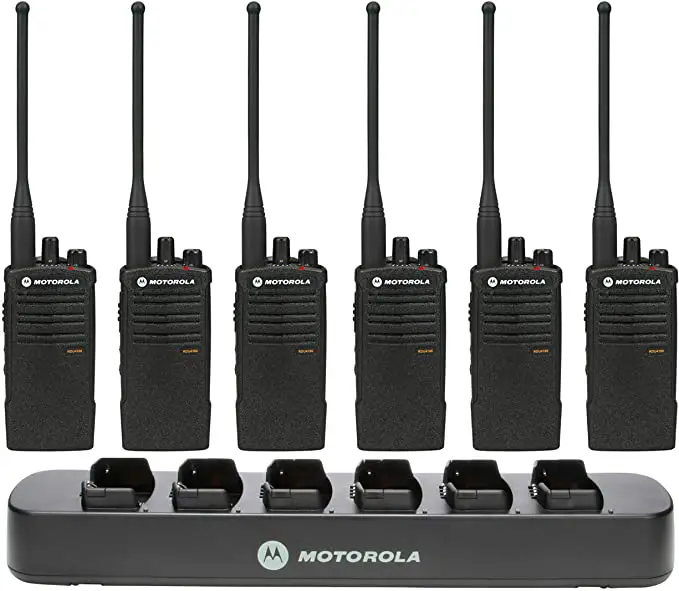
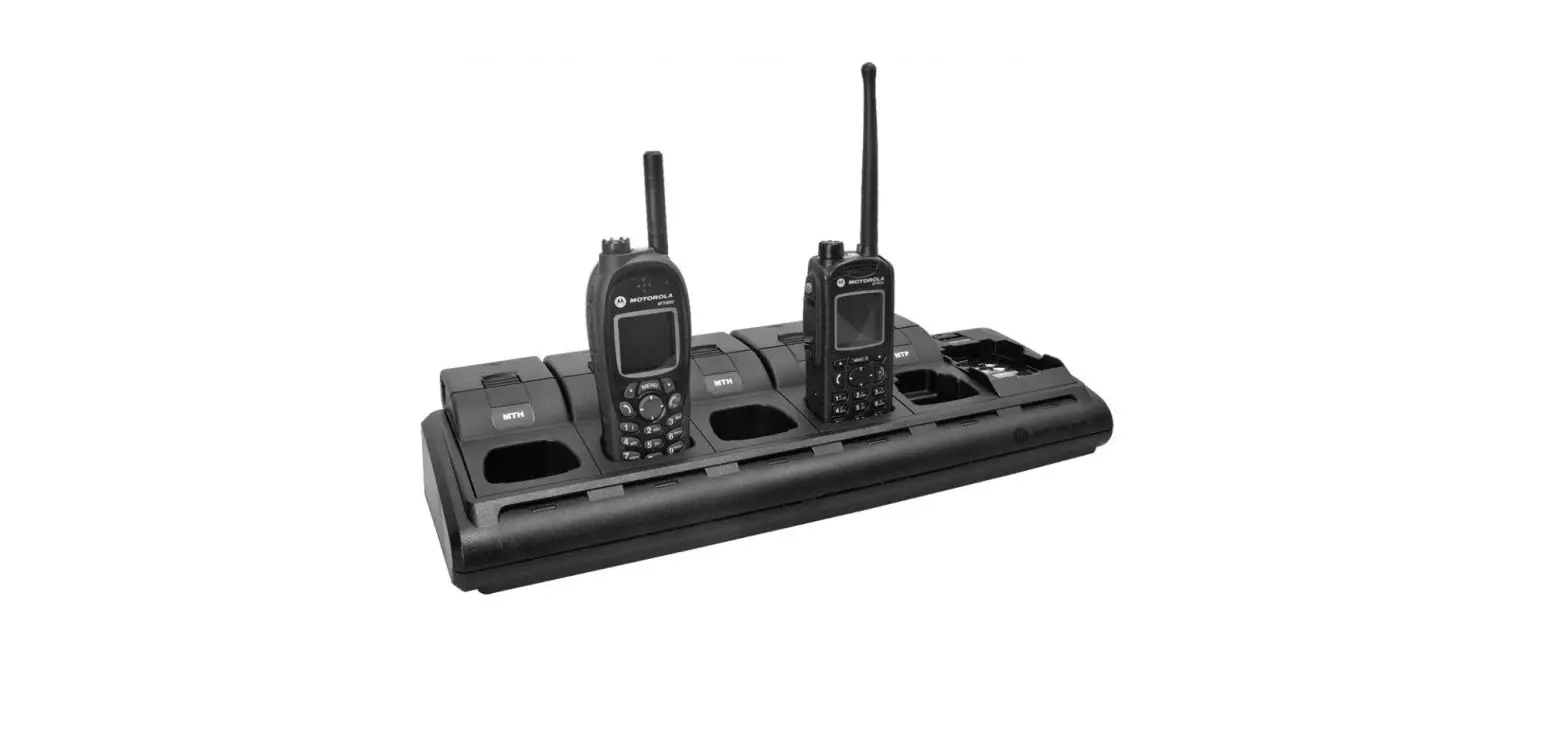
Multi-Unit Charger Overview
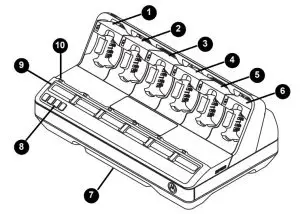
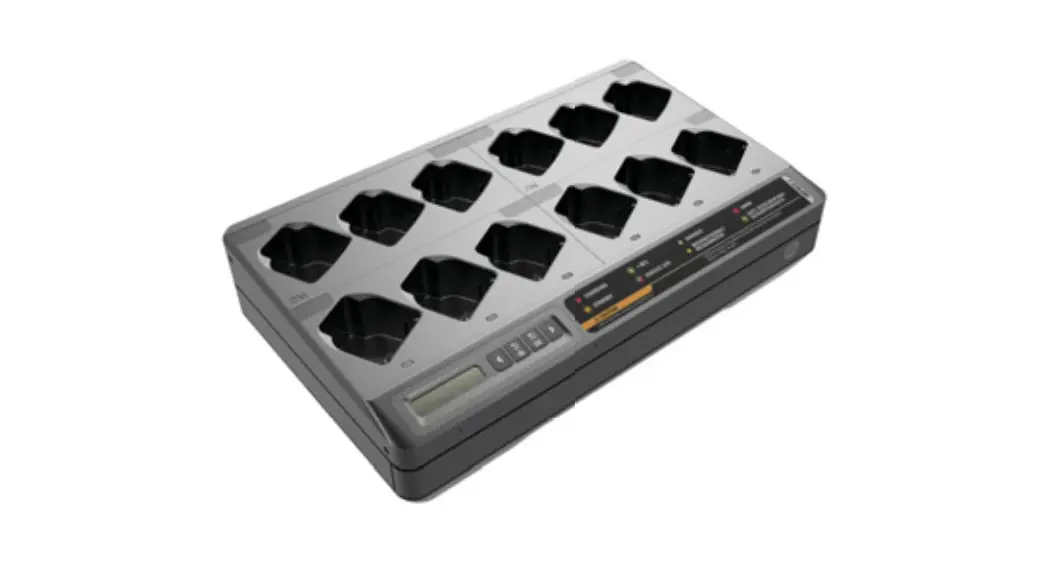
1–6. Pocket 1 to Pocket 6.
7. Communications Module/Accessory Charging.
8. Menu Selection Keypad.
9. Charger Display.
10. LED Status Indicator.
11. AC Inlet Socket – connect to power cord listed in Table 2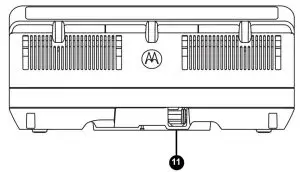
Operating Instructions
- Batteries charge best at room temperature.
- Batteries may be attached to a radio or stand-alone.
- Prior to charging a radio with an IMPRES or IMPRES 2 battery, turn the radio off.
Charging with a Single-Unit Charger
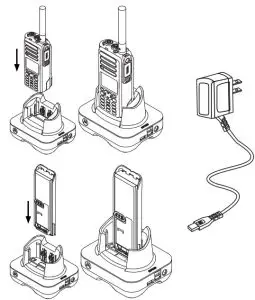
- Place the IMPRES 2 Single-Unit Charger on a flat surface.
- Firmly insert the power supply barrel connector into the charger DC Input Socket on the back of the charger.
- Plug the AC adapter into a matching power outlet.
- Upon successful power-up, the pocket LED shows Green for one second. If the LED does not light up, check the power supply cord connections.
- Insert the radio with battery or stand-alone battery into the pocket.
- When the radio or stand-alone battery is properly seated in the pocket, charging status will be indicated by the LED.
- The radio or stand-alone battery is ready for use when the LED is
Steady Green
Table 5: LED Indications for IMPRES or IMPRES 2 Batteries
| Status | LED Indication |
| Charger Powering Up |  Green for approximately one second. Green for approximately one second. |
| Battery Detected (Battery requires Calibration but Calibration is disabled in charger) |  Alternating Amber and Green for four seconds. Alternating Amber and Green for four seconds. |
| Battery Discharging |  Steady Amber Steady Amber |
| Rapid Charging |  Steady Red Steady Red |
| Charged to 90% or more |  Blinking Green Blinking Green |
| Charged to 95% or more (Battery does not require Calibration) | Steady Green |
| Charged to 95% or more (Battery requires Calibration but Calibration is disabled in charge) | Alternating Amber and Green for four seconds then, Steady Green. |
Table 5: LED Indications for IMPRES or IMPRES 2 Batteries
| Status | LED Indication |
| Charged (Battery may be nearing End of Service but still usable) |  Alternating Red and Green Alternating Red and Green |
| Fault |  Blinking Red Blinking Red |
Standby
|  Blinking Amber Blinking Amber |
Table 6: LED Indications for Other Motorola Solutions Batteries
| Status | LED Indicator |
| Charger Powering Up | Green for approximately one second. |
| Battery Detected | Steady Red |
| Rapid Charging | Steady Red |
| Charged to 90% or more | Blinking Green |
| Charged to 95% or more | Steady Green |
| Fault | Blinking Red |
Standby
| Blinking Amber |
Charging with a Multi-Unit Charger
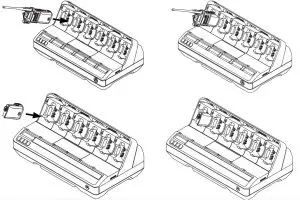
- 1. Place the IMPRES 2 Multi-Unit Charger on a flat surface.
- Firmly insert the power cord into the charger AC Inlet Socket at the back of the charger.
- Plug the power cord into a matching power outlet.
- Upon successful power-up, each pocket LED shows Green for one second and IMPRES 2 CHARGER is displayed. If the LEDs do not light up and no message is displayed, check the power cord connections.
- Insert the radio with battery or stand-alone battery into an available
pocket. - . When the radio or stand-alone battery is properly seated in the pocket, charging status will be indicated by the associated pocket LED. The associated Display provides additional information. For single-display chargers, the display provides charging status of only Pocket 1.
- The radio or stand-alone battery is ready for use when the LED is Steady Green.
Additional Features and Information
This guide provides information on the features of the IMPRES 2 SingleUnit Charger and IMPRES 2 Multi-Unit Charger, including:
IMPRES 2 Single-Unit Charger
- Automatic reconditioning.
- Troubleshooting.
- IMPRES Charging Features and Benefit description.
IMPRES 2 Multi-Unit Charger
- IMPRES 2 Charging Features.
- Details regarding charging status and LED indications for various batteries.
- Charger Reprogramming.
- IMPRES Battery Fleet Management.
- USB Accessory Charging.
- Charger Setup Options
- Preparing Lithium-ion Batteries for Shipment.
- Long-Term Battery Storage.
- Enabling or Disabling Calibration or Reconditioning.
- IMPRES Battery End-of-Service Life Indication Selection.
- Display Format Selection.
- Power Saver Selection.
- Battery Analyzer Mode
Table 7: Messages and LED Indications for IMPRES or IMPRES 2 Battery
| Status | Charger Display | LED Indication | ||||
| Charger Powering Up | IMPRES 2 CHARGER | Green for approximately one second. | ||||
| Battery Detected | IMPRES 2 BATTERY or | Battery does not require Calibration: Steady Red Battery requires Calibration but Calibration is disabled in charger: | ||||
| IMPRES BATTERY | ||||||
| Requesting IMPRES Battery Calibration (Calibration is disabled in charger) • Press OK to enable Calibration • Ignore for normal charging (message disappears after one minute) | ENABLE BATTERY CALIBRATION? | Steady Red | ||||
| Battery Discharging | CAL DISCHARGE xxxx0mAh yyy% | Steady Amber | ||||
| Rapid Charging | RAPID CHARGE xxxx0mAh yyy% | Steady Red | ||||
| Charged to 90% or more | TRICKLE CHARGE xxxx0mAh yyy% | Blinking Green | ||||
| Charged to 95% or more | CHARGE COMPLETE xxxx0mAh yyy% | Battery does not require Calibration: Steady Green Battery requires Calibration but Calibration is disabled in charger:
| ||||
| Fault | NOTCHARGEABLE REMOVE& REINSERT | Blinking Red | ||||
| HOT BATTERY WAITING TO CHRGE or | ||||||
| Standby (Battery is waiting to rapid charge) | COLD BATTERY WAITING TO CHRGE or | Blinking Amber | ||||
| VERY LOW BATTERY WAITING TO CHRGE | ||||||
Table 8: Messages and LED Indications for Other Motorola Solutions Batteries
| Status | Charger Display | LED Indication |
| Charger Powering Up | IMPRES 2 CHARGER | Green for approximately one second. |
| Battery Detected | MOTOROLA BATTERY | Steady Red |
| Rapid Charging | RAPID CHARGE xxxx0mAh yyy% | Steady Red |
| Charged to 90% or more | TRICKLE CHARGE xxxx0mAh yyy% | Blinking Green |
| Charged to 95% or more | CHARGE COMPLETE xxxx0mAh yyy% | Steady Green |
| Fault | NOT CHARGEABLE REMOVE& REINSERT | Blinking Red |
| Standby (Battery is waiting to rapid charge) | HOT BATTERY WAITING TO CHRGE or COLD BATTERY WAITING TO CHRGE VERY LOW BATTERY WAITING TO CHRGE | Blinking Amber |
 Motorola Login