
acer XV242Y LCD Monitor
Safety Notice
Any person attempting to service this chassis must familiarize with the chassis and be aware of the necessary safety precautions to be used when serving electronic equipment containing high voltage.
Important Safety Notice
Product Announcement
This product is certificated to meet RoHS Directive and Lead-Free produced definition. Using approved critical components only is recommended when the situation to replace defective parts. Vender assumes no liability express or implied, arising out of any unauthorized modification of design or replacing non-RoHS parts. Service providers assume all liability.
Qualified Repairability
Proper service and repair is important to the safe, reliable operation of all series products. The service providers recommended by vender should being aware of notices listed in this service manual in order to minimize the risk of personal injury when perform service procedures. Furthermore, the possible existed improper repairing method may damage equipment or products. It is recommended that service engineers should have repairing knowledge, experience, as well as appropriate product training per new model before performing the service procedures.
NOTICE
- To avoid electrical shocks, the products should be connect to an authorized power cord, and turn off the master power switch each time before removing the AC power cord.
- To prevent the product away from water or explosed in extremely high humility environment.
- To ensure the continued reliability of this product, use only original manufacturer’s specified parts.
- To ensure following safety repairing behavior, put the replaced part on the components side of PWBA, not solder side.
- To ensure using a proper screwdriver, follow the torque and force listed in assembly and disassembly procedures to screw and unscrew screws.
- Using Lead-Free solder to well mounted the parts.
- The fusion point of Lead-Free solder requested in the degree of 220°C.
Exploded Diagram
Product Exploded Diagram
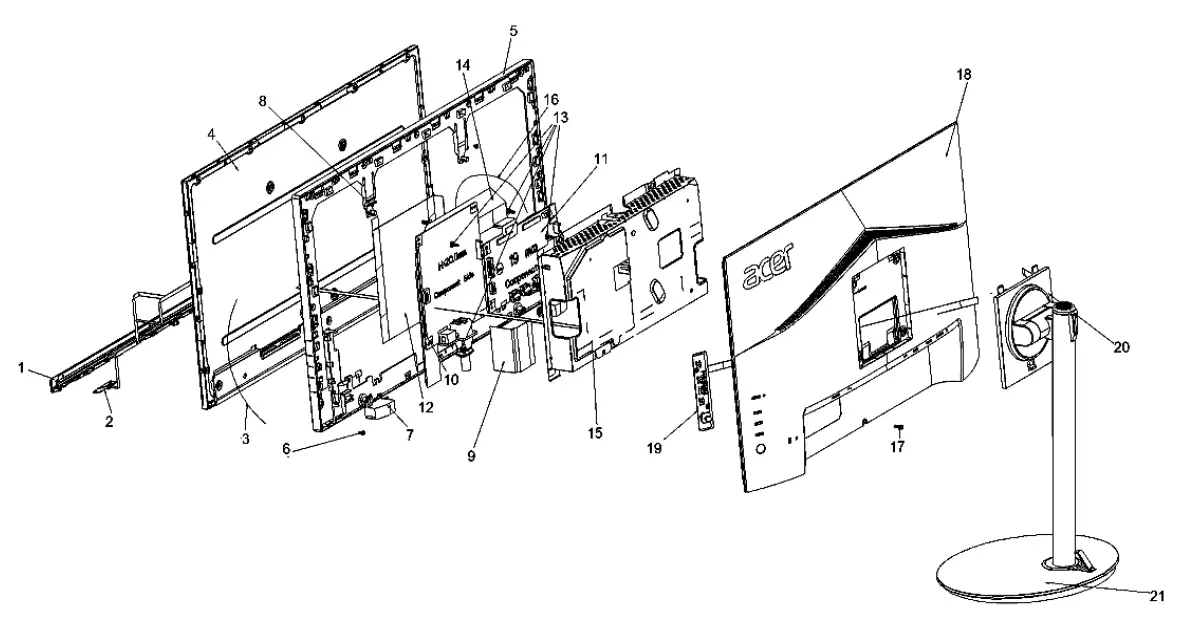
| Item | ODM DESCRIPTION |
| 1 | ASSY TRIM |
| 2 | PCBA LED BD |
| 3 | LAMP WIRE |
| 4 | LCDM |
| 5 | MID-FRAME |
| 6 | SCRW |
| 7 | SPK |
| 8 | SCRW |
| 9 | MYLAR |
| 10 | PCBA SPS BD |
| 11 | PCBA IF BD |
| 12 | MYLAR SHD |
| 13 | SCRW |
| 14 | FFC LVDS |
| 15 | ASSY SHD |
| 16 | LVDS WIRE |
| 17 | SCRW |
| 18 | ASSY RC |
| 19 | PCBA CTRL BD |
| 20 | ASSY CLMN |
| 21 | ASSY BASE |
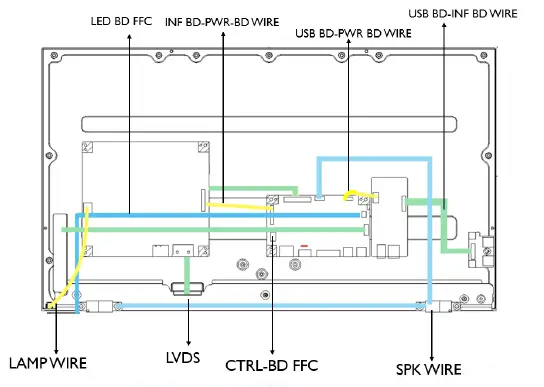
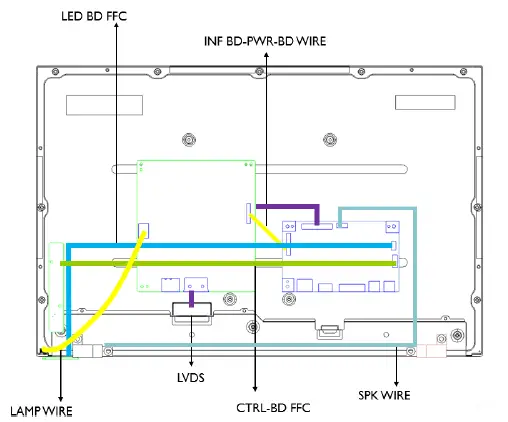
Wiring connectivity diagram
There are two types of wiring diagrams for model XV240Y. The wiring connectivity position will be different according to the ACTUAL PCBA connector position. Please base on different SKU refer to below diagram.
NOTE: INF BD= Interface Board, PWR BD=Power Board, CTRL BD= Control Board
- SKU with USB.

- SKU without USB.

Mechanical Instruction
Tools Required
List the type and size of the tools that would typically can be used to disassemble the product to a point where components and materials requiring selective treatment can be removed.
Tool Description
- working table
- Screw-driver: Philips-head screwdriver, Hex-head screwdriver
- Knife
- glove
- cleaning cloth
- ESD protection
Disassembly and Assembly SOP
XV240Y
Disassembly Procedures
Preparation before disassemble
- Clean the room for disassemble
- Identify the area for monitor
- Check the position that the monitors be placed and the quantity of the monitor ;prepare the area for material flow; according to the actual condition plan the disassemble layout
- Prepare the implement, equipment, materials as bellow:
- working table
- Screw-driver: Philips-head screwdriver, Hex-head screwdriver
- knife
- glove
- cleaning cloth
- ESD protection
WARNING: After unplugging the power cord, the power board still have power energe. Please pay attention when disassembling/assembling.
S1: Disassemble the RC, stand and base
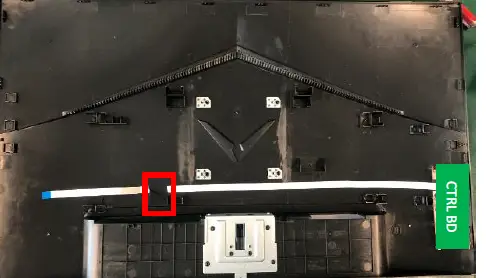
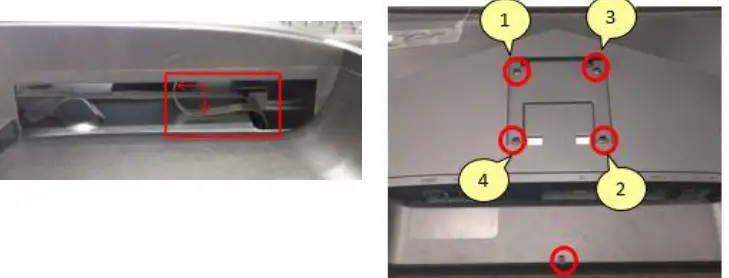
Before Disassembling & Assembling, monitor need to be put on the sponge and the Insulation glove must be wore during the process. Unlock 4 screws to disassemble base and stand from the RC(Rear Case) and Unlock RC center screw as picture 1. Disassemble RC from monitor and extract the FFC CTRL from the IF BD as picture 2.
- PICTURE 1

- PICTURE 2

S2: Disassemble CTRL BD
- Tear off the adhesive tape of the FFC CTRL from the RC as picture 1.
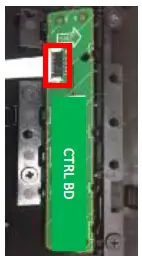
- Disassemble the CTRL BD from the RC as picture 2.
- Disassemble the FFC CTRL from the CTRL BD.
- PICTURE 1

- PICTURE 2

S3: Disassemble SPK and Lamp wire
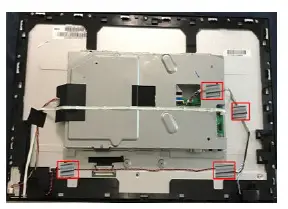
- Tear off 4 tapes of the SPK wire, extract the SPK wire from the IF BD and disassemble the SPK from the MF as picture 1.
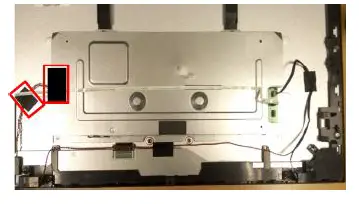
- Tear off the black tape of the lamp wire, tear off black mylar on SHD and extract the lamp wire from the P/BD as in picture 2.
- Extract the LED wire from the IF BD and tear off the wire from the SHD as picture 3.
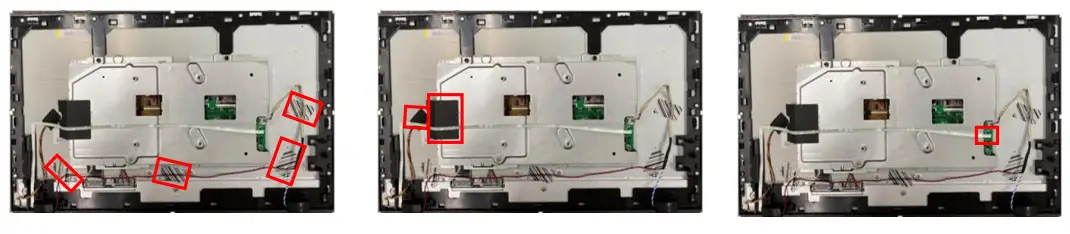
- PICTURE 1
- PICTURE 2
- PICTURE 3
S4: Disassemble ASSY Trim
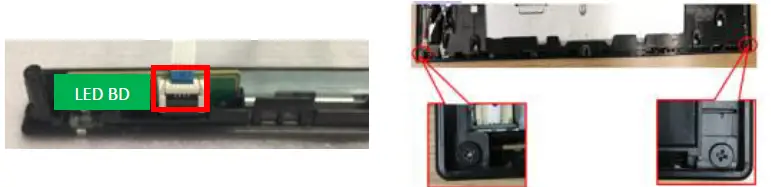
- Unlock 2 TRIM screws and disassemble the ASSY TRIM from the MF as picture 1.
- Disassemble the LED BD from the Trim and extract the LED wire from the LED BD as picture 2.
- PICTURE 1

- PICTURE 2

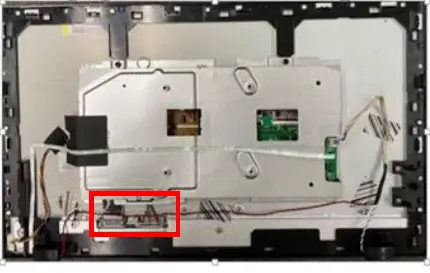
S5: Disassemble SHD and MF.
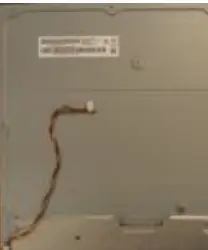
- Extract 2 FFC wires from the panel as picture 1.
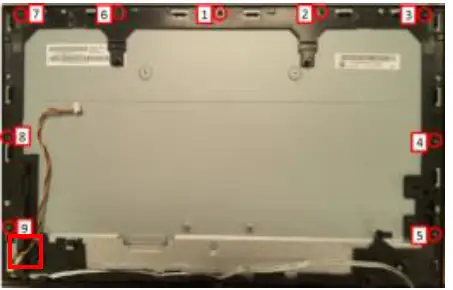
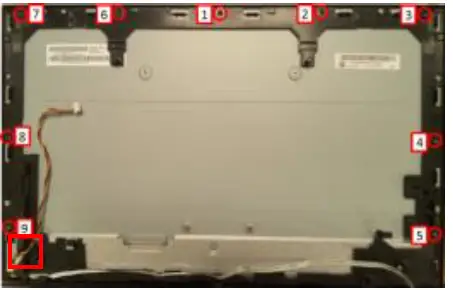
- Unlock 9 screws from the MF and disassemble the MF from the Pane as picture 2.
- Extract the lamp wire from the panel as picture 2.
- PICTURE 1
- PICTURE 2
- PICTURE 3

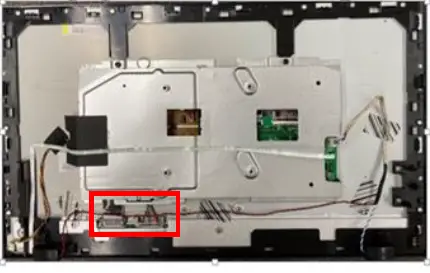
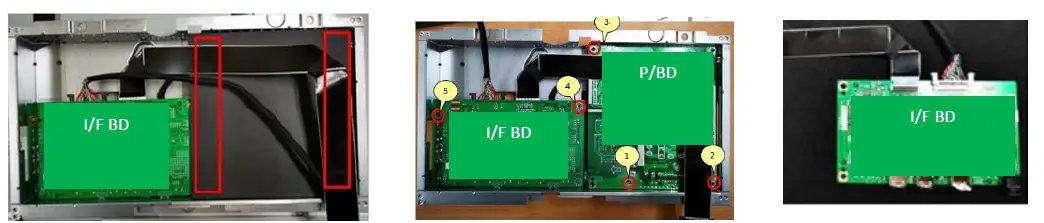
S6: Disassemble I/F BD and P/BD.
- Tear off Mylar from the SHD.
- Unlock 5 PCBA screws from the PCBA as picture 2
- Disassemble the I/F BD from the SHD and extract the P/BD wire, the FFC LVDS from the I/F BD.
- Disassemble the P/BD from the SHD.
- PICTURE 1
- PICTURE 2
- PICTURE 3
NOTE: Circuit boards >10 cm² has been highlighted with the yellow rectangle as above image shows. Please detach the Circuit boards and follow local regulations for disposal.
Assembly Procedures
Preparation before assemble
- Clean the room for work
- Identify the area for material
- Prepare the implement, equipment, materials as below
- working table
- Screw-driver: Philips-head screwdriver, Hex-head screwdriver
- Knife
- Glove
- Cleaning cloth
- ESD protection
After unplugging the power cord, the power board still have power energe. Please pay attention when disassembling/assembling.
S1: Assemble I/F BD and P/BD from SHD.
- Before Disassembling & Assembling, monitor need to be put on the sponge and the Insulation glove must be wore during the process.
- Put the SHD on the worktable. Locate the P/BD into the SHD.
- Insert FFC LVDS to the I/F BD. Insert the wire on the P/BD to the I/F BD.
- Locate the I/F BD into the SHD. Lock 6 screws to PCBA and stick 1 mylar to fasten the wire on the SHD as picture 2.
- Assemble the Mylar on the SHD as the picture 3.

- PICTURE 1
- PICTURE 2
- PICTURE 3
S2: Assemble Panel to MF
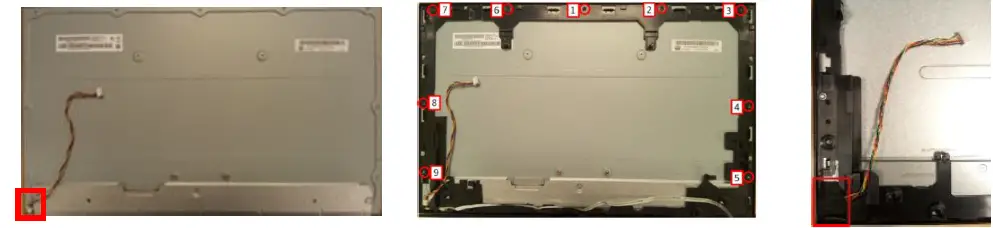
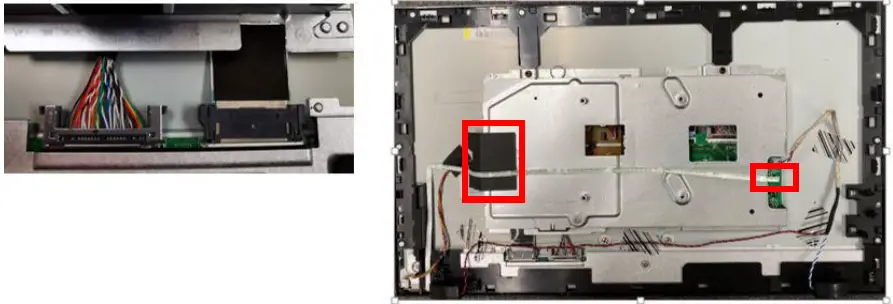
- Take the Panel and insert lamp wire to panel marked as picture 1.
- Assemble the MF to the panel and lock 9 screws to the MF as picture 2.
- Stick 1 piece of adhesive tape on the little connector of lamp wire as picture 3.
- PICTURE 1
- PICTURE 2
- PICTURE 3
S3: Assemble ASSY TRIM
- Insert the LED wire into the LED BD and assemble the LED BD into the TRIM as picture 1.
- Assemble the ASSY TRIM on the MF.
- Lock 2 screws to the ASSY TRIM as the picture 3.
- PICTURE 1
- PICTURE 2
S4: Assemble SHD
- Insert the LVDS into the Panel, locate the SHD on the Panel and insert the big connector of the lamp wire to P/BD as picture 1.
- Paste 1 mylar on SHD as picture 2.
- Tear off the 4 gums on the LED wire, arrange the LED wire and insert the LED wire into the I/F BD.

- PICTURE 1
- PICTURE 2
S5: Assemble SPK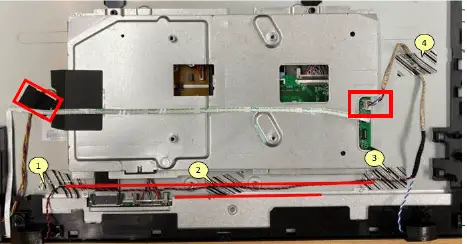
- Assemble the SPK to the MF.
- Insert the wire of SPK into the I/F BD.
- Arrange the wire of SPK and stick 4 pieces of black tapes to fasten the wire of SPK on the Panel.
- Stick 1 piece of black tape to fasten the lamp wire
S6: Assemble CTRL BD
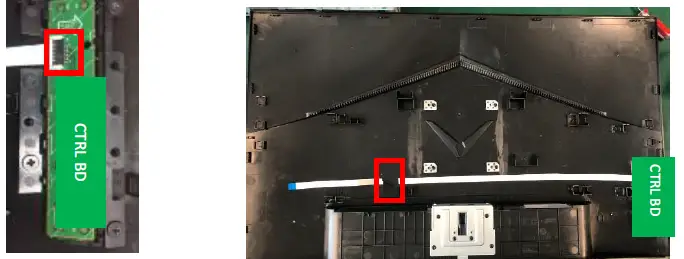
- Assemble the FFC CTRL to the CTRL BD and assemble the CTRL BD to the RC as picture 1.
- Stick a piece of adhesive tape to fasten the FFC CTRL on the RC as picture 2.
- PICTURE 1
- PICTURE 2
S7: Assemble the RC, stand and base
- Insert the FFC CTRL to the IF BD and assemble the RC to the MF as picture 1.
- Lock 1 RC center screw and lock 4 screws to assemble the Stand and Base to Monitor as the picture 2.
- PICTURE 1
- PICTURE 2
NOTE: Circuit boards >10 cm² has been highlighted with the yellow rectangle as above image shows. Please detach the Circuit boards and follow local regulations for disposal.
TROUBLESHOOTING
Before sending your LCD monitor for servicing, please check the troubleshooting list below to see if you can self-diagnose the problem.
(VGA Mode)
| Problems | Current Status | Remedy |
|
No Picture | LED ON |
|
| LED OFF |
| |
| ||
| LED displays amber color |
| |
| ||
|
Abnormal Picture | Unstable Picture |
|
|
Display is missing, center shift, or too small or too large in display size |
| |
| ||
| Abnormal Sound (Only Audio-Input model) (Optional) | No sound, or sound level is too low |
|
|
(HDMI/DP Mode)
| Problems | Current Status | Remedy |
| No Picture | LED ON |
|
| LED OFF |
| |
| ||
| LED displays amber color |
| |
| ||
| Abnormal Sound (Only Audio-Input model) (Optional) | No sound, or sound level is too low |
|
|
FRU List
This chapter gives you the FRU (Field Replaceable Unit) listing in global configurations of ACER XV240Y. Refer to this chapter whenever ordering for parts to repair or for RMA (Return Merchandise Authorization).
Please note that WHEN ORDERING FRU PARTS, you should check the most up-to-date information available on your regional web or channel. For whatever reasons a part number change is made, it will not be noted on the printed Service Guide. For AUTHORIZED SERVICE PROVIDERS, your office may have a DIFFERENT part number code from those given in the FRU list of this printed Service Guide. You MUST use the local FRU list provided by your regional office to order FRU parts for repair and service of customer machines
NOTE: To scrap or to return defective parts, you should follow the local government ordinance or regulations on how to dispose it properly, or follow the rules set by your regional office on how to return it.
| Category | ACER DESCRIPTION | Description | PART NO. |
| LCD | |||
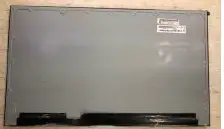 | LED LCD Panel BOE MV238FHM-NG0 1000:1350nit | LCM 23.8W MV238FHM-NG0 4D40 | KL.2380E.023 |
| BOARD | |||
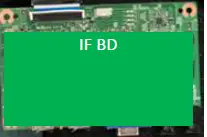 | MAIN BOARD 2H1DP+OD+S BOE | PCBA IF BD MI 2H1DP+S XV240Y | 55.TLVM3.001 |
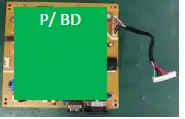 | POWER BOARD 2H1DP+S BOE | PCBA SPS BD MI XV240Y BOE | 55.TL1M3.002 |
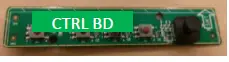 | FUNCTION KEYBOARD WITH 5-DIRECTION BUTTON W/ WIRE | PCBA CTRL BD MI VG240Y | 55.TG5M3.003 |
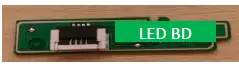 | LED BOARD W/ WIRE | PCBA-LED BD MI VG240Y | 55.TG5M3.004 |