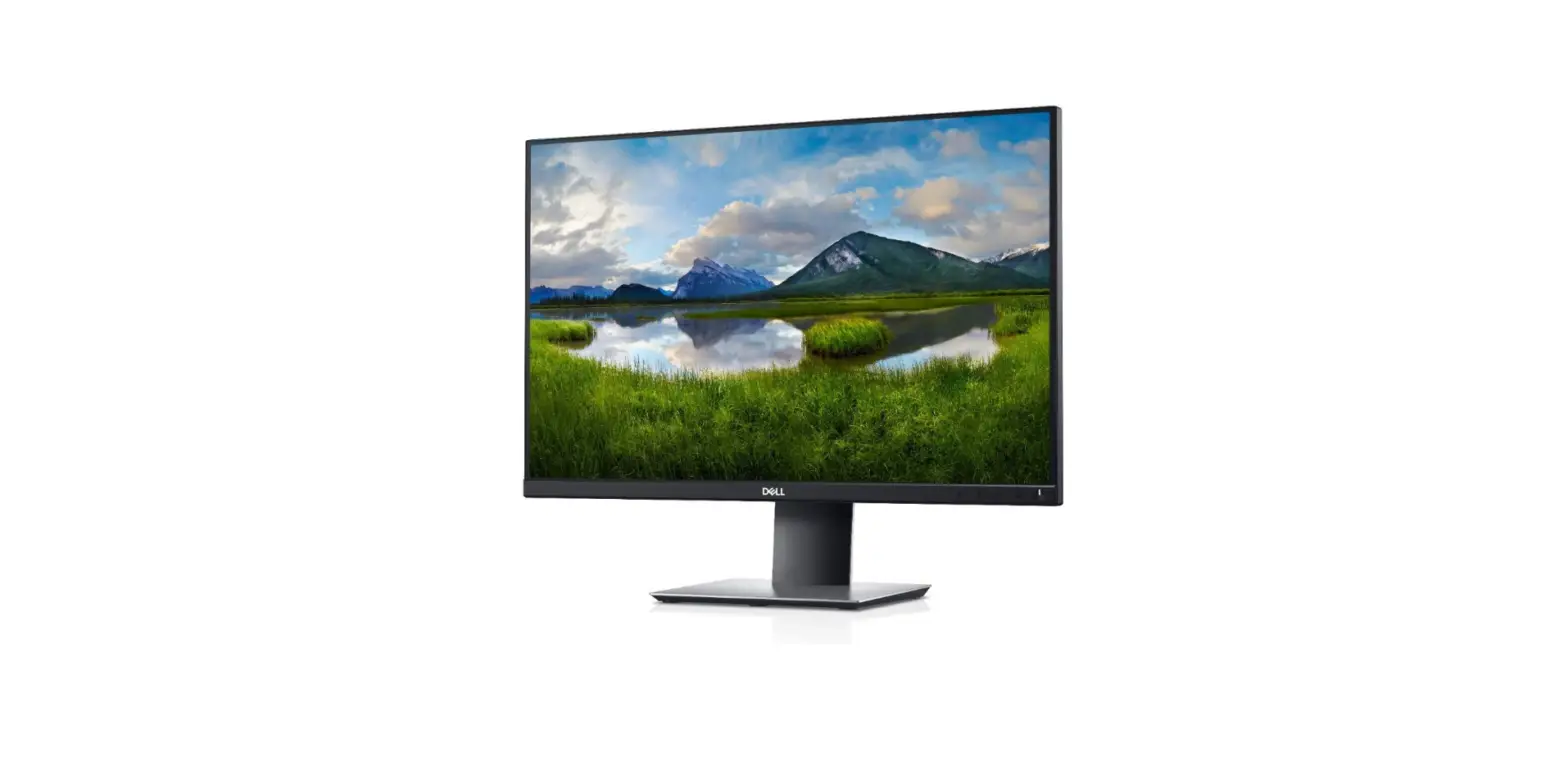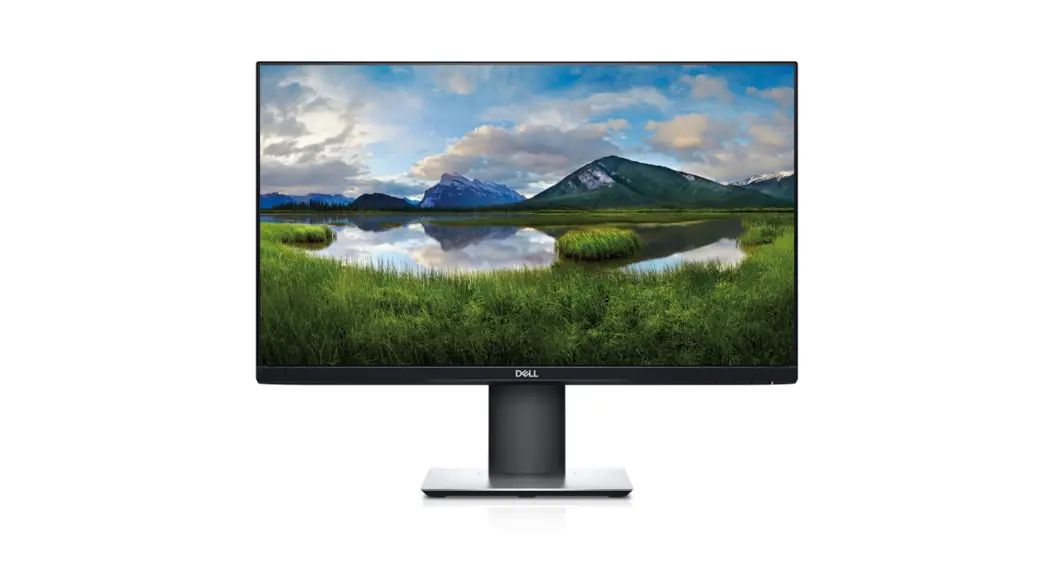
Simplified Service ManualP2419HCB
Version: 01
Date:2021/02/04
General Safety Instructions
Use the following safety guidelines to help ensure your own personal safety and to help protect your equipment and working environment from potential damage. NOTE: In this section, equipment refers to monitors.
IMPORTANT NOTICE FOR USE IN HEALTHCARE ENVIRONMENTS: Dell products are not medical devices and are not listed under UL or IEC 60601 (or equivalent). As a result, they must not be used within 6 feet of a patient or in a manner that directly or indirectly contacts a patient
SAFETY: General Safety
WARNING: To prevent the spread of fire, keep candles or other open flames away from this product at all times.
When setting up the equipment for use:
- Place the equipment on a hard, level surface. Leave 10.2 cm (4 in) minimum of clearance on all vented sides of the computer to permit the airflow required for proper ventilation.
- Restricting the airflow can damage the computer or cause a fire.
- Do not stack equipment or place equipment so close together that it is subject to recalculated or preheated air.
- NOTE: Review the weight limits referenced in your computer documentation before placing a monitor or other devices on top of your computer.
- Ensure that nothing rests on your equipment’s cables and that the cables are not located where they can be stepped on or tripped over.
- Ensure that all cables are connected to the appropriate connectors. Some connectors have a similar appearance and may be easily confused (for example, do not plug a telephone cable into the network connector).
- Do not place your equipment in a closed-in wall unit or on a bed, sofa, or rug.
- Keep your device away from radiators and heat sources.
- Keep your equipment away from extremely hot or cold temperatures to ensure that it is used within the specified operating range.
- Do not push any objects into the air vents or openings of your equipment. Doing so can cause fire or electric shock by shorting out interior components.
- Avoid placing loose papers underneath your device. Do not place your device in a closed-in wall unit, or on a soft, fabric surface such as a bed, sofa, carpet, or rug.
When operating your equipment:
- Do not use your equipment in a wet environment, for example, near a bathtub, sink, or swimming pool, or in a wet basement.
- Do not use AC-powered equipment during an electrical storm. Battery-powered devices may be used if all cables have been disconnected.
- Do not spill food or liquids on your equipment.
- Before you clean your equipment, disconnect it from the electrical outlet. Clean your device with a soft cloth dampened with water. Do not use liquids or aerosol cleaners, which may contain flammable substances.
- Clean the monitor display with a soft, clean cloth and water. Apply the water to the cloth, then stroke the cloth across the display in one direction, moving from the top of the display to the bottom. Remove moisture from the display quickly and keep the display dry.
- Long-term exposure to moisture can damage the display. Do not use a commercial window cleaner to clean your display.
- If your equipment does not operate normally – in particular, if there are any unusual sounds or smells coming from it – unplug it immediately and contact an authorized dealer or service center.
Protecting Against Electrostatic Discharge
Electrostatic discharge (ESD) events can harm electronic components inside your equipment. Under certain conditions, ESD may build up on your body or an object, such as a peripheral, and then discharge into another object, such as your computer. To prevent ESD damage, you should discharge static electricity from your body before you interact with any of your equipment’s internal electronic components, such as a memory module. You can protect against ESD by touching a metal grounded object (such as an unpainted metal surface on your computer’s I/O panel) before you interact with anything electronic. When connecting a peripheral (including handheld digital assistants) to your equipment, you should always ground both yourself and the peripheral before connecting it. In addition, as you work inside the equipment, periodically discharge any static charge your body may have accumulated.
You can also take the following steps to prevent damage from electrostatic discharge:
- When unpacking a static-sensitive component from its shipping carton, do not remove the component from the antistatic packing material until you are ready to install the component. Just before unwrapping the antistatic package, be sure to discharge static electricity from your body.
- When transporting a sensitive component, first place it in an antistatic container or packaging.
- Handle all electrostatic-sensitive components in a static-safe area. If possible, use antistatic floor pads and workbench pads.
SAFETY: General Power Safety
Observe the following guidelines when connecting your equipment to a power source:
- Check the voltage rating before you connect the equipment to an electrical outlet to ensure that the required voltage and frequency match the available power source.
- Do not plug the equipment power cables into an electrical outlet if the power cable is damaged
- Norway and Sweden: If this product is provided with a 3-prong power cable, connect the power cable to a grounded electrical outlet only.
- If you use an extension power cable, ensure that the total ampere rating of the products plugged into the extension power cable does not exceed the ampere rating of the extension cable.
- If you must use an extension cable or power strip, ensure the extension cable or power strip is connected to a wall power outlet and not to another extension cable or power strip. The extension cable or power strip must be designed for grounded plugs and plugged into a grounded wall outlet.
- If you are using a multiple-outlet power strip, use caution when plugging the power cable into the power strip. Some power strips may allow you to insert a plug incorrectly. Incorrect insertion of the power plug could result in permanent damage to your equipment, as well as a risk of electric shock and/or fire. Ensure that the ground prong of the power plug is inserted into the mating ground contact of the power strip.
- Be sure to grasp the plug, not the cable, when disconnecting equipment from an electric socket.
If your equipment uses an AC adapter:
- Use only the Dell-provided AC adapter approved for use with this device. The use of another AC adapter may cause a fire or explosion.
- NOTE: Refer to your system rating label for information on the proper adapter model approved for use with your device.
- Place the AC adapter in a ventilated area, such as a desktop or on the floor, when you use it to run the computer or to charge the battery. Do not cover the AC adapter with papers or other items that will reduce cooling; also, do not use the AC adapter inside a carrying case.
- The AC adapter may become hot during the normal operation of your computer. Use care when handling the adapter during or immediately after operation.
- It is recommended that you lay the adapter on the floor or desk so that the green light is visible. This will alert you if the adapter should accidentally go off due to external effects. If for any reason the green light goes off, disconnect the AC power cord from the wall for a period of ten seconds, and then reconnect the power cord.
- Japan-Only: Use only the Dell-provided AC power cable with the AC adapter. Use of any other power cable may damage the device or AC adapter or may present a risk of fire or electric shock.
Exploded view diagram with a list of items
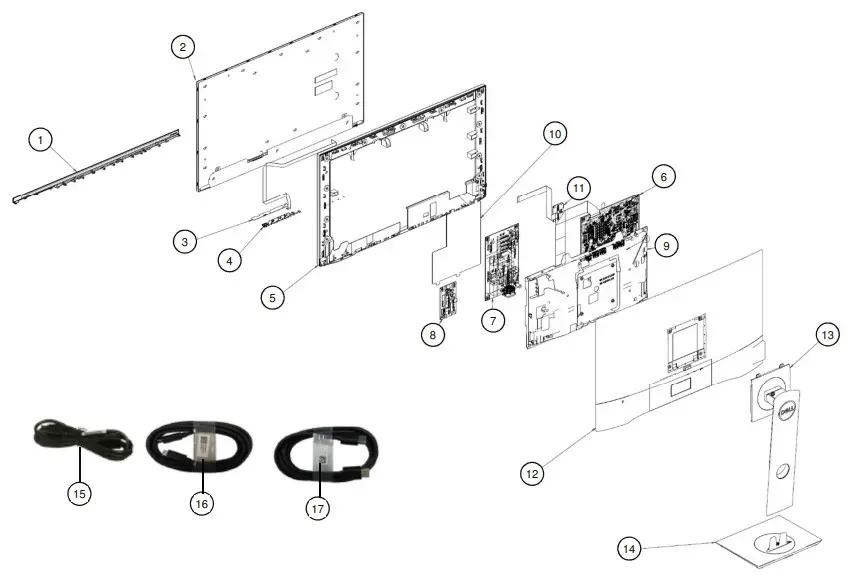
| Item | Description | Q’ty | Remark |
| 1 | ASSY BZL CHIN | 1 | |
| 2 | Panel | 1 | |
| 3 | PCBA CTRL BD | 1 | |
| 4 | BTN PWR | 1 | |
| 5 | MIDFRAME | 1 | |
| 6 | PCBA I F BD | 1 | |
| 7 | PCBA SPS BD | 1 | |
| 8 | PCBA L DRV BD | 1 | |
| 9 | ASSY SHD MAIN | 1 | |
| 10 | MYLAR SAFETY | 1 | |
| 11 | PCBA USB BD | 1 | |
| 12 | ASSY RC | 1 | |
| 13 | ASSY CLMN | 1 | |
| 14 | ASSY BASE | 1 | |
| 15 | Power cable | 1 | |
| 16 | USB Type-C cable | 1 | |
| 17 | DP cable | 1 |
Wiring connectivity diagram
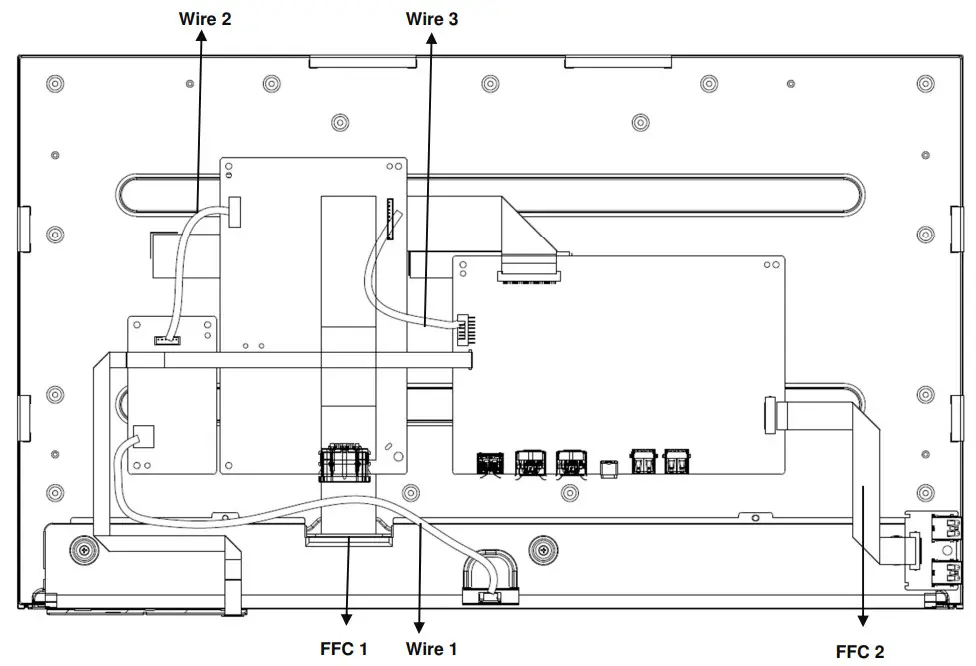
Disassembly and Assembly Procedures
Disassembly SOP
Preparation before disassemble
- Clean the room for disassemble
- Identify the area for monitor
- Check the position that the monitors be placed and the quantity of the monitor; prepare the area for material flow; according to the actual condition plan the disassemble layout
- Prepare the implement, equipment, material as bellow:
1) Working table
2) Philips-head screwdriver
3) Glove
4) Cleaning cloth
5) ESD protection
Item | Picture | Operation | Tool | Notes |
| 1 | 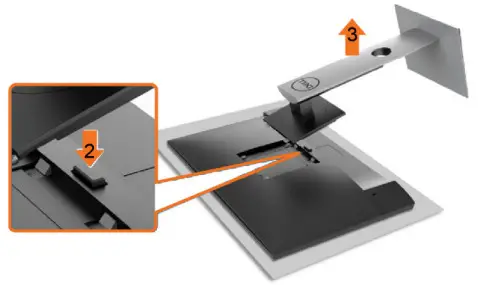 | To remove the stand: 1. Place the monitor on a soft cloth or cushion2. Press and hold the stand-release button 3. Lift the stand up and away from the monitor. | ||
| 2 | 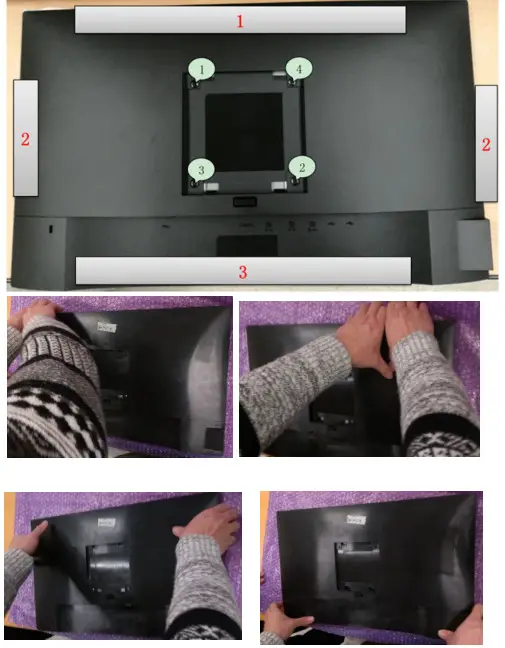 | 4. Unlock 4 Rear Cover screws 5. Disassemble Rear Cover and Middle Frame according to the sequence as the picture shown | Philips-head screwdriver Torsion of RC screw: 9±1Kg | |
| 3 | 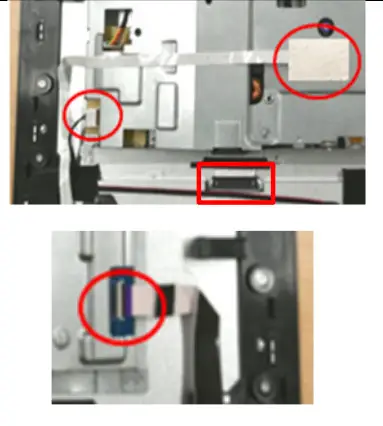 | 1. Tear off the AL foil 2. Pull out the Control board cable, wire, and USB board cable 3. Take off the main shielding from the middle frame 4. Tear off adhesive tape from LVDS cable 5. Pull out the LVDS cable and take off the main shielding from the panel | ||
| 4 | 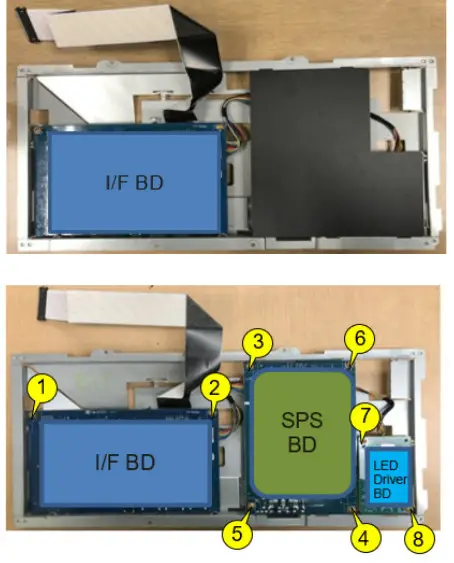 | 1. Disassemble Mylar from Main Shielding 2. Unlock 8 PCB screws | Philips-head screwdriver Torsion of PCB screw: 8~9kg | |
| 5 | 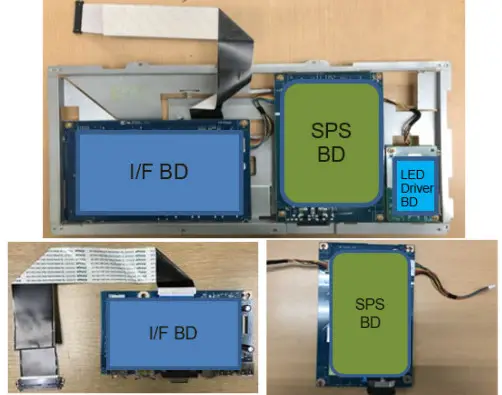 | 1. Take out I/F Board, SPS Board, LED Driver Board from Main Shielding 2. Pull out the I/F board cable and LED Driver board cable from SPS Board |
Assembly SOP
Preparation before assemble
- Clean the room for work
- Identify the area for material
- Prepare the implement, equipment, material as bellow:
1) Working table
2) Philips-head screwdriver
3) Glove
4) Cleaning cloth
5) ESD protection
Item | Picture | Operation | Tool | Notes |
| 1 | 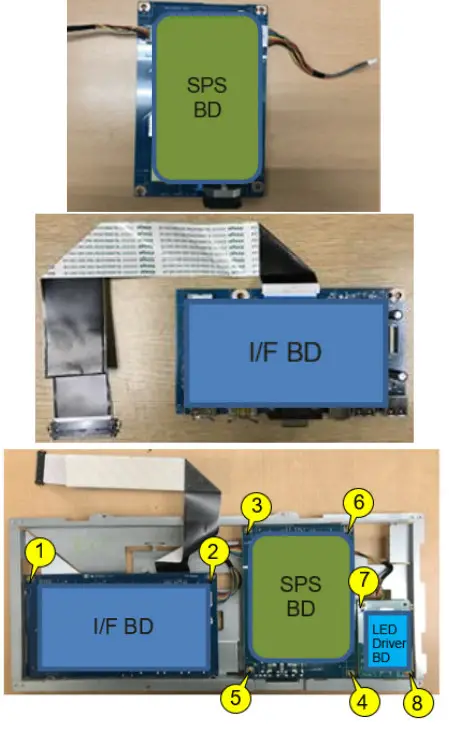 | 1. Insert I/F board cable and LED Driver board cable into SPS Board 2. Insert the LVDS cable and I/F board cable into I/F Board 3. Insert the LED Driver board cable into Driver Board 4. Assemble PCBA into the main shielding 5. Lock 8 PCB screws | Philips-head screwdriver Torsion of PCB screw:8~9kgf
| |
| 2 | 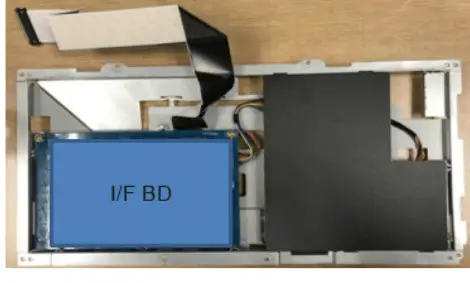 | 1. Assemble Mylar (Paste Mylar on Main Shielding as the picture showed ) | ||
| 3 | 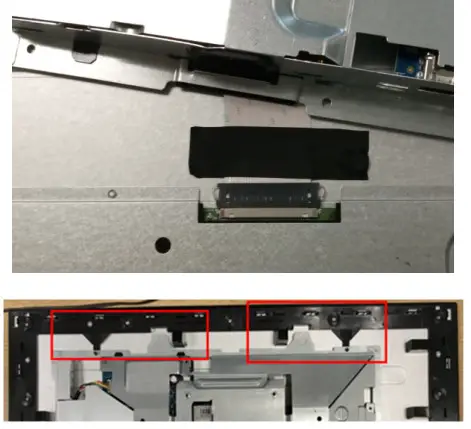 | 1. Insert LVDS cable into the interface on the panel and paste acetate tape 2. Locate Main Shielding on the middle frame | ||
| 4 | 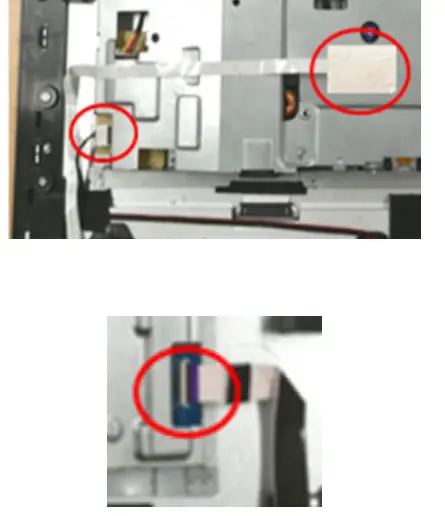 | 1. Insert wire into SPS board 2. Arrange the control board cable and insert the control board cable into the I/F board 3. Fix control board cable on the panel and main shielding, and cover a piece of AL foil on the hole 4. Insert USB board cable into I/F Board | ||
| 5 | 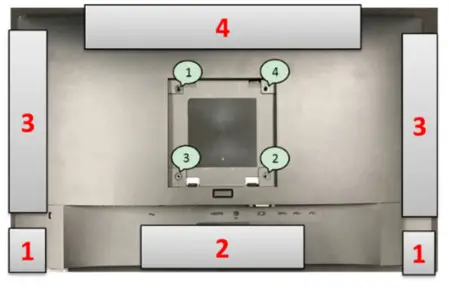 | 1. Assemble Rear Cover and Middle Frame according to the sequence as the picture shown 2. Lock 4 Rear Cover screws | Philips-head screwdriver Torsion of RC screw: 9±1Kgf | |
| 6 | 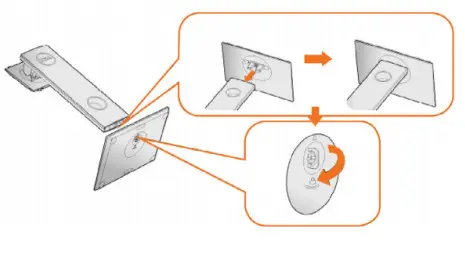 | To attach the monitor stand: 1. Follow the instructions on the flaps of the carton to remove the stand from the top cushion that secures it 2. Insert the stand base blocks fully into the stand slot 3. Lift the screw handle and turn the screw clockwise 4. After fully tightening the screw, fold the screw handle flat within the recess | ||
| 7 | 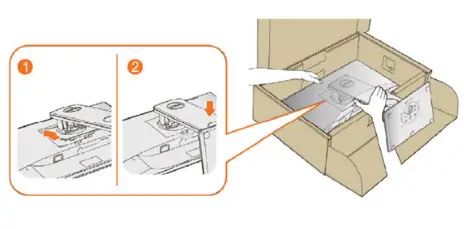 | Attach the stand assembly to the monitor: 1. Fit the two tabs on the upper part of the stand to the groove on the back of the monitor 2. Press the stand down till it snaps into place. |
Troubleshooting instructions
Troubleshooting
 WARNING: Before you begin any of the procedures in this section. follow the Safety Instructions.
Self-Test
Your monitor provides a self-test feature that allows you to check whether your monitor is functioning properly. If your monitor and computer are properly connected but the monitor screen remains dark. run the monitor self-test by performing the following steps:
- Turn off both your computer and the monitor.
- Unplug the video cable from the back of the computer. To ensure proper Self-Test operation, remove all digital and analog cables from the back of the computer.
- Turn on the monitor.
The floating dialog box should appear on-screen (against a black background), if the monitor cannot sense a video signal and is working correctly. While in self-test mode, the power LED remains white. Also, depending upon the selected input, one of the dialogs shown below will continuously scroll through the screen.

- This box also appears during normal system operation if the video cable becomes disconnected or damaged.
- Turn off your monitor and reconnect the video cable: then turn on both your computer and the monitor.
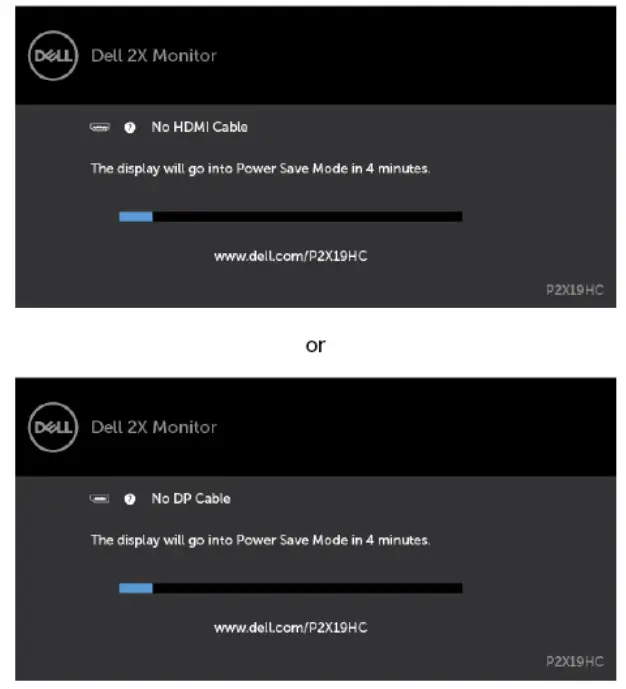
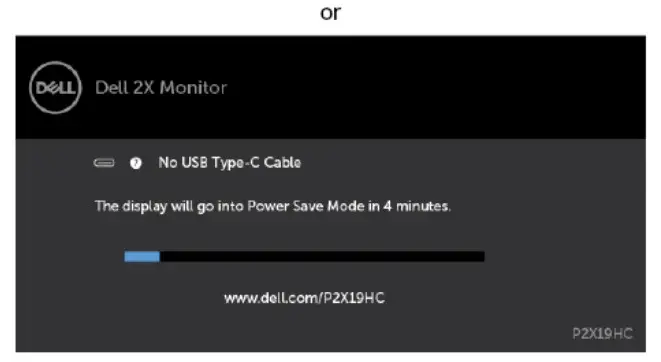
If your monitor screen remains blank after you use the previous procedure. check your video controller and computer, because your monitor is functioning properly.
Built-in Diagnostics
Your monitor has a built-in diagnostic tool that helps you determine if the screen abnormality you are experiencing is an inherent problem with your monitor, or with your computer and video card.
 NOTE: You can run the built-in diagnostics only when the video cable is unplugged and the monitor is in self-test mode.
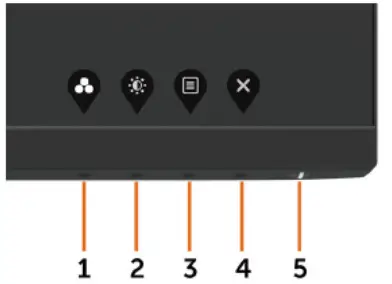
To run the built-in diagnostics:
- Make sure that the screen is clean (no dust particles on the surface of the screen).
- Unplug the video cable(s) from the back of the computer or monitor. The monitor then goes into the self-test mode.
- Press and hold Button 1 for 5 seconds. A gray screen appears.
- Carefully inspect the screen for abnormalities.
- Press Button 1 on the front panel again. The color of the screen changes to red.
- Inspect the display for any abnormalities.
- Repeat steps 5 and 6 to inspect the display in green, blue, black, white, and text screens.
The test is complete when the text screen appears. To exit, press Button 1 again. If you do not detect any screen abnormalities upon using the built-in diagnostic tool, the monitor is functioning properly. Check the video card and computer.
Always-On USB Type-C Charging
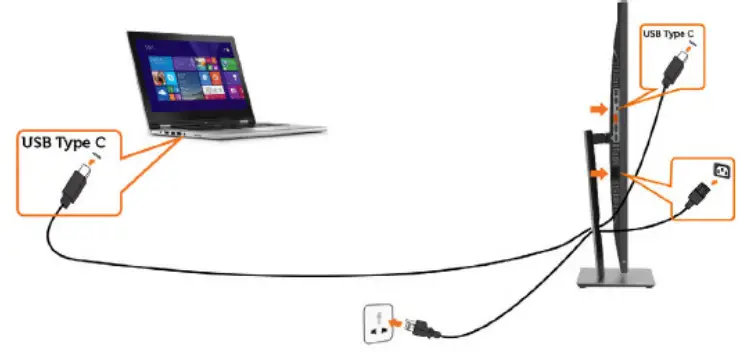
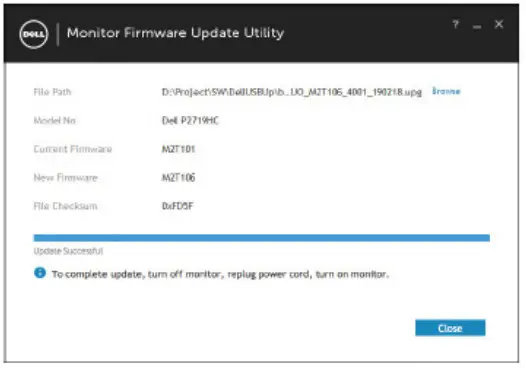
You can charge your notebook or mobile devices through the USB Type-C cable even when the monitor has powered oft This option, called `USB-C Charging’ is located in the Personalize section of the OSD. This feature is only available in the following monitor firmware revisions:
- P2219HC: M2B106 or later
- P2419HC: M3B106 or later
- P2719HC: M2T106 or later
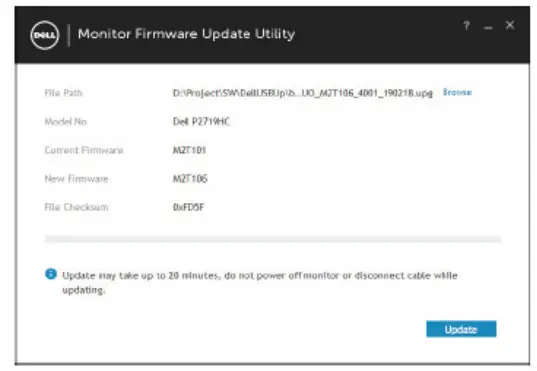
You may verify your monitor’s firmware revision from Firmware. If this feature is not available in your product, please follow these steps to update the monitor to the latest firmware:
- Download the latest application installer (Monitor Firmware Update Utility.exe) from the Drivers & Downloads section of the Dell Monitor support site:
P2219HC: www.dell.com/P2219HC
P2419HC: www.dell.com/P2419HC
P2719HC: www.dell.com/P2719HC - Connect the USB Type-C cable to the Monitor and PC.

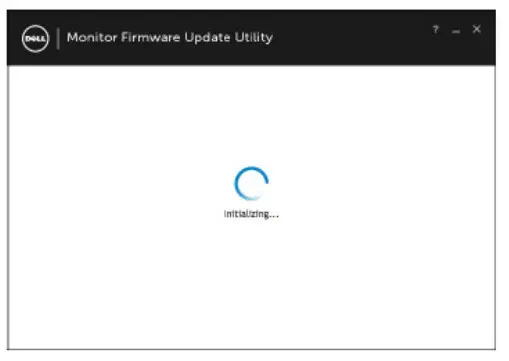
- Run the Monitor Firmware Update Utility.exe to install the program.

- Check current firmware revision: click Update to update the firmware.

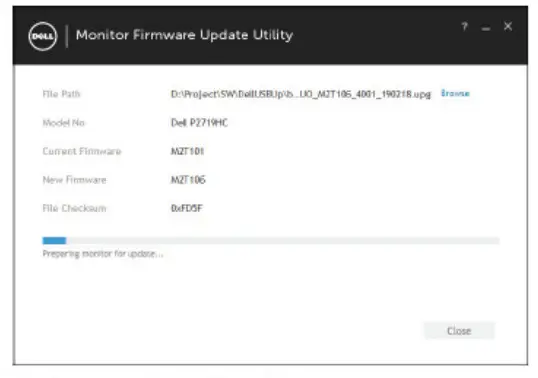
- Wait for the firmware to be updated.

- Click Close once the firmware is updated.

Common Problems
The following table contains general information about common monitor problems you might encounter and the possible solutions:
| Common Symptoms | What You Experience | Possible Solutions |
| No Video/Power LED off | No picture |
|
| No Video/Power LED on | No picture or no brightness |
|
| Missing Pixels | The LCD screen has spots |
|
| Stuck-on Pixels | LCD screen has bright spots |
|
| Brightness Problems | Picture too dim or too bright |
|
| Safety-Related Issues | Visible signs of smoke or sparks |
|
| Intermittent Problems | Monitor malfunctions on & off |
|
| Missing Color | Picture missing color |
|
| Wrong Color | The picture color is not good |
|
| Image retention from a static image left on the monitor for a long period of time | Faint shadow from the static image displayed appears on the screen |
|
Product Specific Problems
| Specific Symptoms | What You Experience | Possible Solutions |
| The screen image is too small
| Image is centered on screen but does not fill the entire viewing area |
|
| Cannot adjust the monitor with the buttons on the front panel
| OSD does not appear on the screen |
|
| No Input Signal when user controls are pressed | No picture, the LED light is white |
|
| The picture does not fill the entire screen
| The picture cannot fill the height or width of the screen |
|
| No image when using USB Type-C connection to PC or Notebook.
| Black screen
|
|
| No charging when using USB Type-C connection to the PC or Notebook
| No charging
|
|
Universal Serial Bus (USB) Specific Problems
| Specific Symptoms | What You Experience | Possible Solutions |
| USB interface is not working | USB peripherals are not working |
|
| SupreSpeed USB 3.0 interface is slow | SuperSpeed USB 3.0 peripherals working slowly or not working at all |
|
| Wireless USB peripherals stop working when a USB 3.0 device is plugged in | Wireless USB peripherals respond slowly or only work as the distance between themselves and their receiver decreases |
|