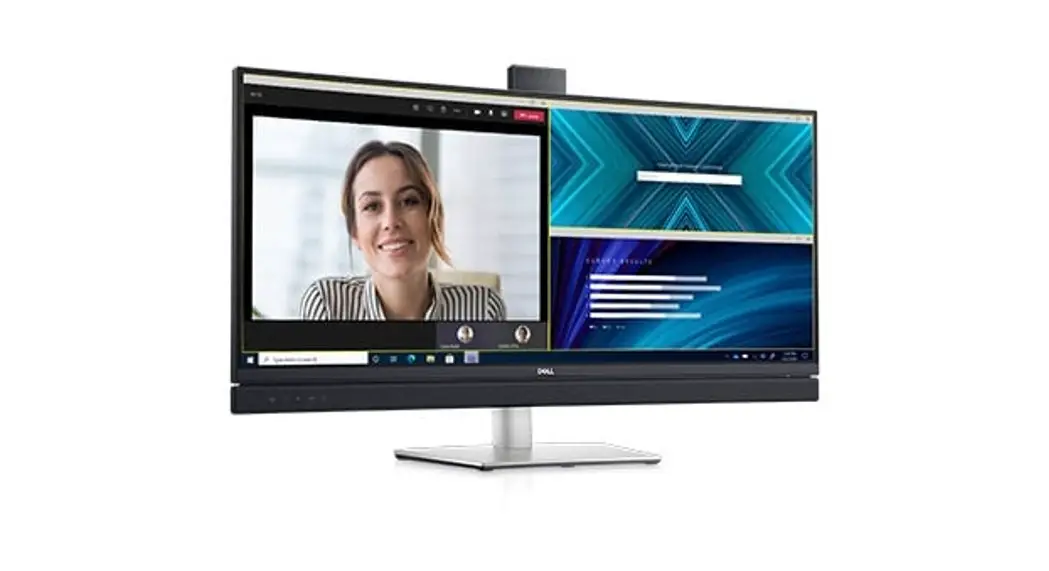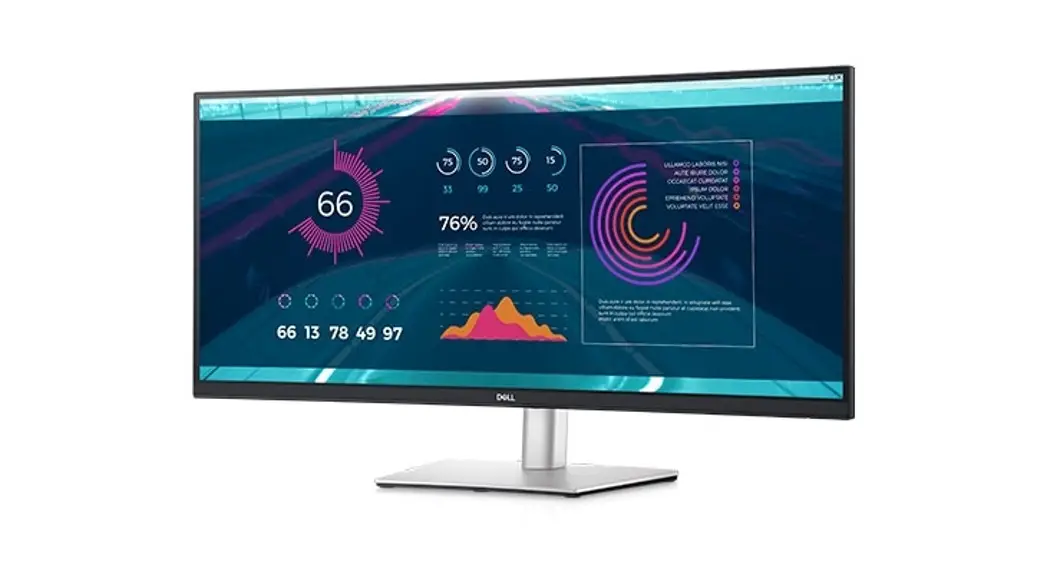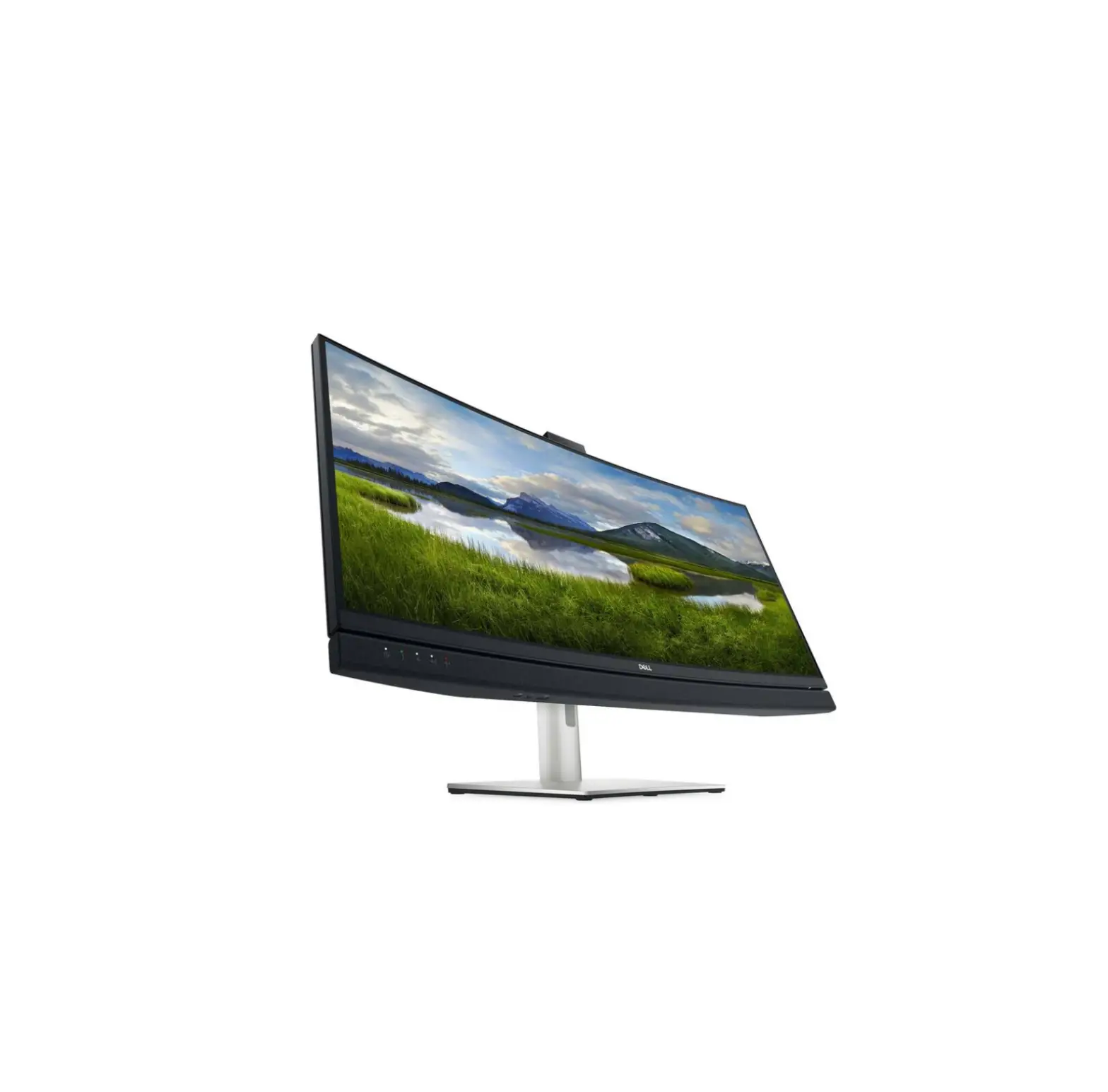
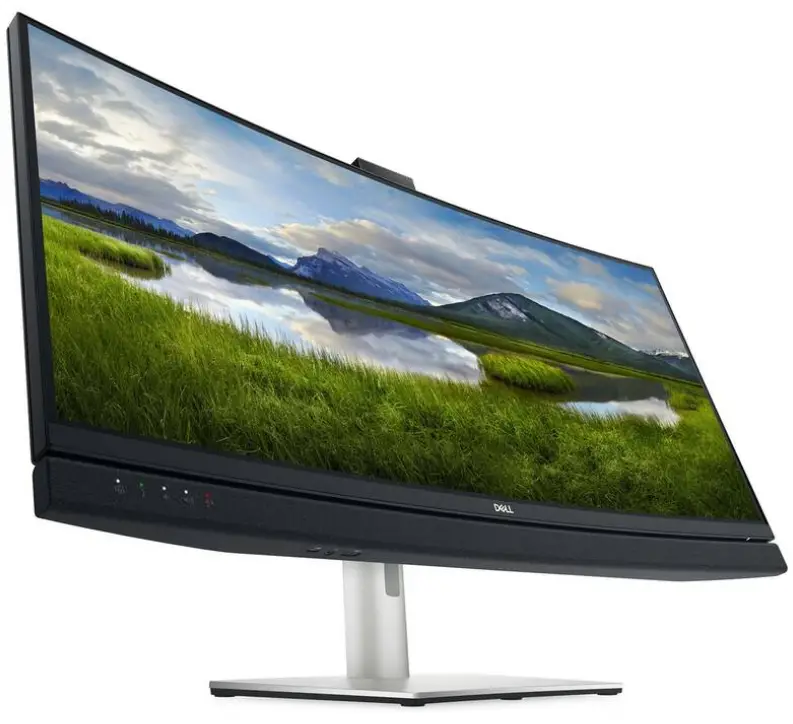
DELL C3422WE Monitor User Manual
Important Safety Notice
Product Announcement:
This product is certificated to meet RoHS Directive and Lead-Free produced definition. Using approved critical components only is recommended when the situation to replace defective parts. Vender assumes no liability express or implied, arising out of any unauthorized modification of design or replacing non-RoHS parts. Service providers assume all liability.
Qualified Repairability:
Proper service and repair is important to the safe, reliable operation of all series products. The service providers recommended by vender should be aware of notices listed in this service manual in order to minimize the risk of personal injury when perform service procedures. Furthermore, the possible existed improper repairing method may damage equipment or products. It is recommended that service engineers should have repairing knowledge, experience, as well as appropriate product training per new model before performing the service procedures
NOTICE:
!To avoid electrical shocks, the products should be connected to an authorized power cord, and turn off the master power switch each time before removing the AC power cord.
! To prevent the product away from water or expose in extremely high humility environment.
! To ensure the continued reliability of this product, use only original manufacturer’s specified parts.
! To ensure following safety repairing behavior, put the replaced part on the components side of PWBA, not solder side.
! To ensure using a proper screwdriver, follow the torque and force listed in assembly and disassembly procedures to unscrew screws.
! Using Lead-Free solder to well mounted the parts.
! The fusion point of Lead-Free solder requested in the degree of 220°C.
Exploded view diagram with list of items
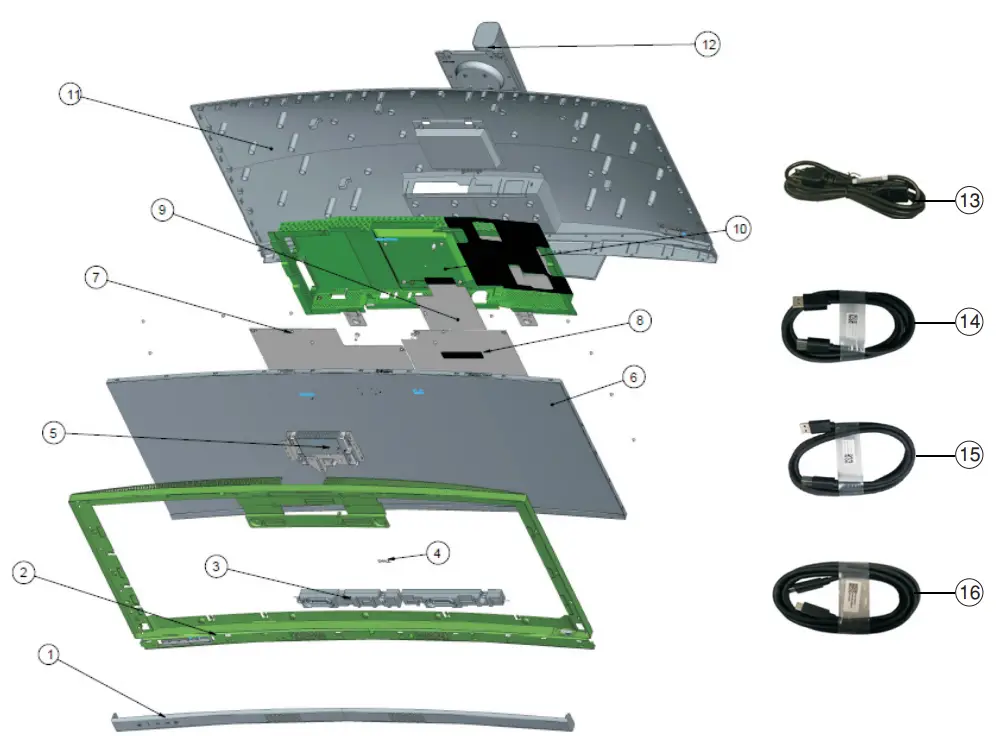
Item | Description | Q’ty | Remark |
1 | Front Bezel | 1 | For EMEA Only, not for other regions |
2 | ASSY Middle Frame | 1 | |
3 | Speaker | 1 | |
| 4 | DELL Logo | 1 | |
5 | Webcam Module | 1 | |
6 | Panel | 1 | |
7 | Interface BD | 1 | |
8 | Power BD | 1 | |
| 9 | Safety Mylar | 1 | |
| 10 | Main bracket | 1 | |
| 11 | ASSY Rear Cover | 1 | |
12 | Stand base ASSY | 1 | |
13 | Power cable | 1 | |
14 | DisplayPort cable | 1 | See “NOTE” |
15 | USB 3.2 Gen1 Type A to Type B cable upstream cable | 1 | See “NOTE” |
| 16 | USB-C cable (C to C) | 1 | See “NOTE” |
NOTE:
For replacement of power cord, connectivity cable and external power supply (if applicable), contact Dell:
- Go to https://www.dell.com/support.
- Verify your country or region in the Choose A Country/Region drop-down menu at the bottom-right corner of the page.
- Click Contact Us next to the country dropdown.
- Select the appropriate service or support link based on your need.
- Choose the method of contacting Dell that is convenient for you.
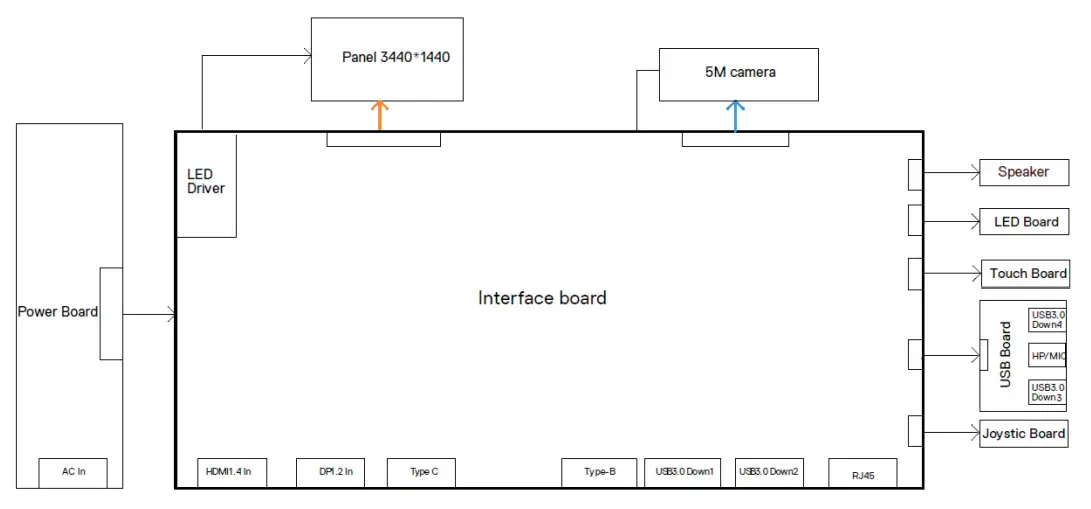
Wiring Connectivity Diagram
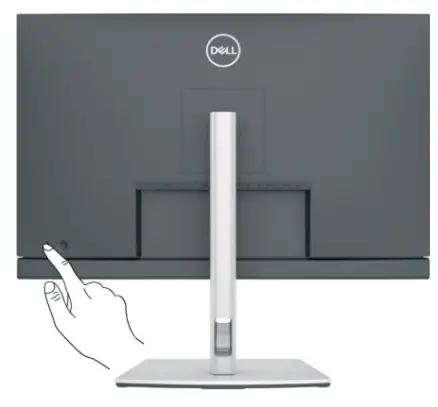
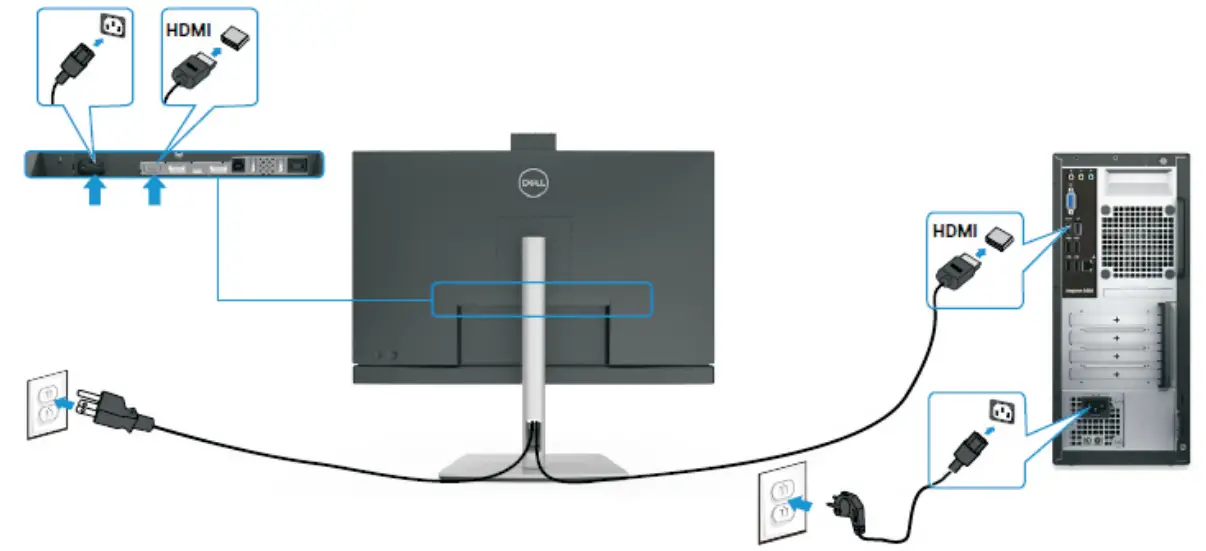
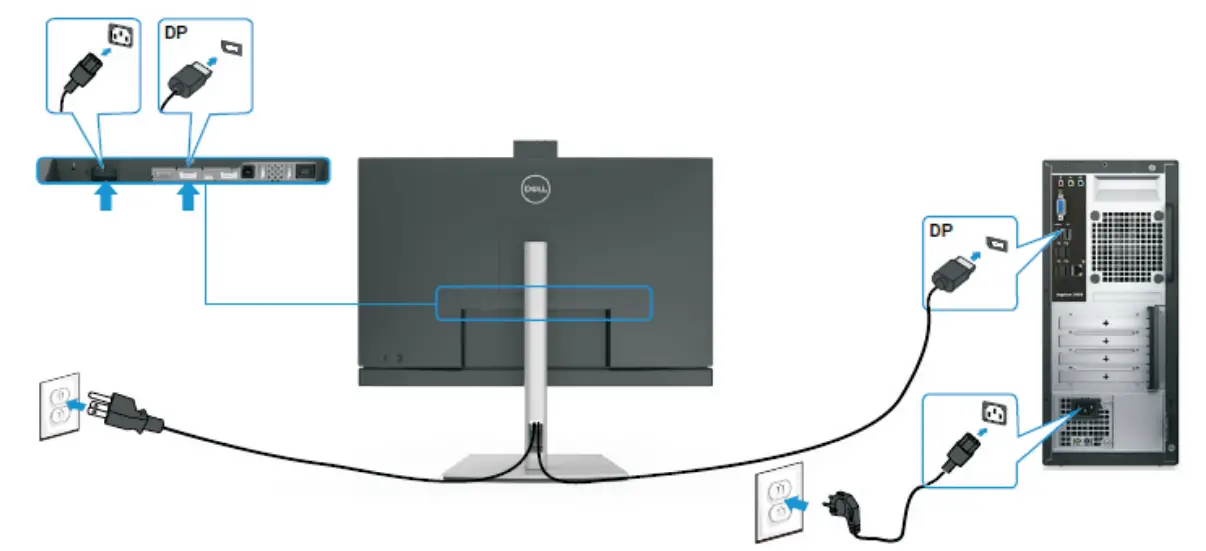
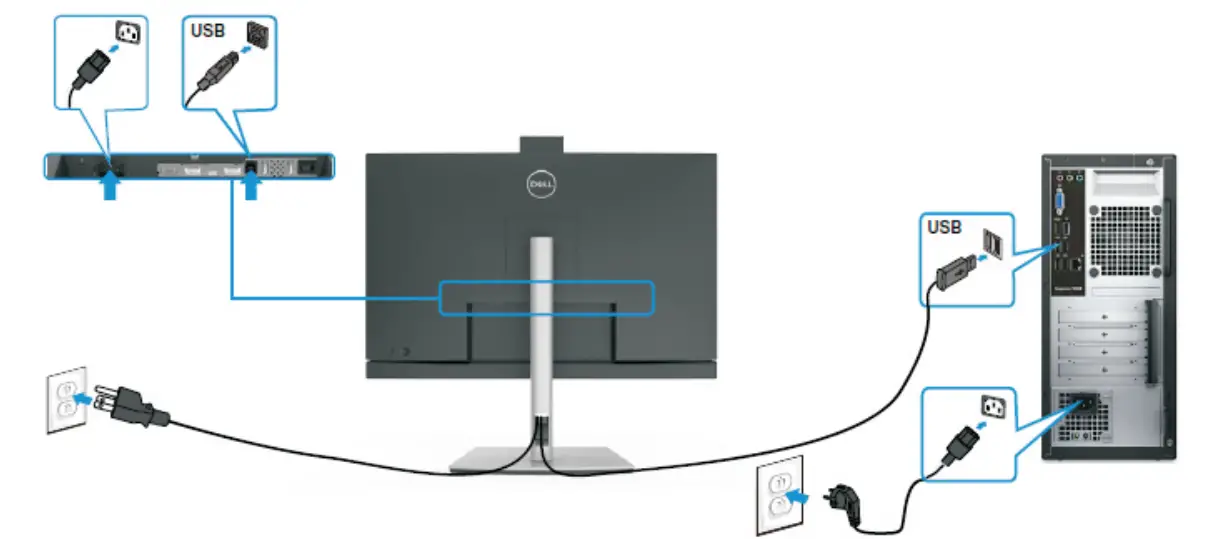
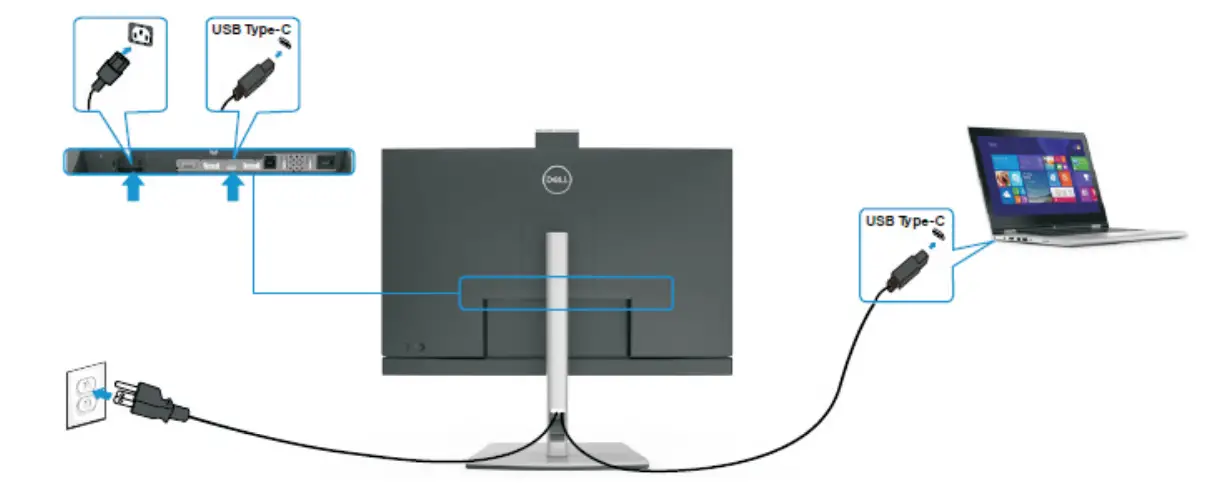
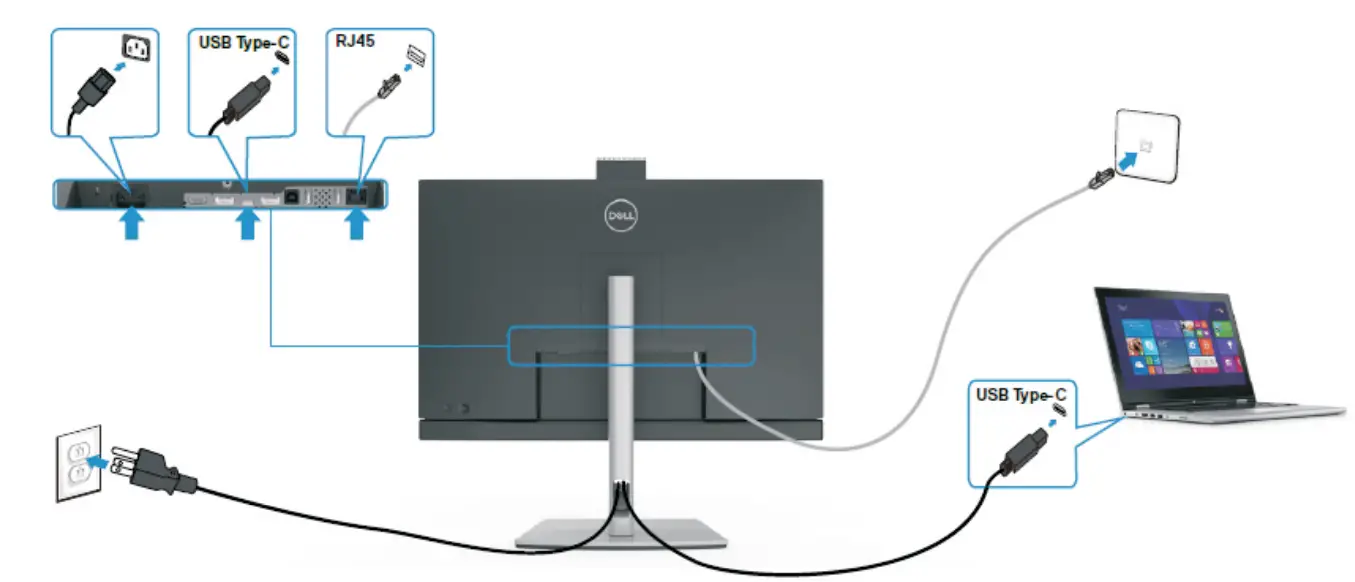
How to connect and disconnect power cable/ connectivity cable
WARNING: To change power cable/ connectivity cable, switch off power before unplugging the cable and replugging in required cable
Connecting the HDMI cable (Optional)
Connecting the DP cable
Connecting the USB cable
Connecting the USB Type-C cable
Connecting the monitor for RJ45 Cable (Optional)
Disassembly and Assembly Procedures
NOTE:
This “Disassembly and Assembly Procedures” is for EMEA only, not for other regions. Please note that Dell will deem warranty void if any disassembly is done on the monitors.
Tool Required:
List the type and size of the tools that would typically can be used to disassemble the product to a point where components and materials requiring selective treatment can be removed.
Tool Description:
– Screwdriver(Phillip head) #1
– Screwdriver(Phillip head) #2
– Penknife
– Soldering iron and absorber
Disassembly Procedures:
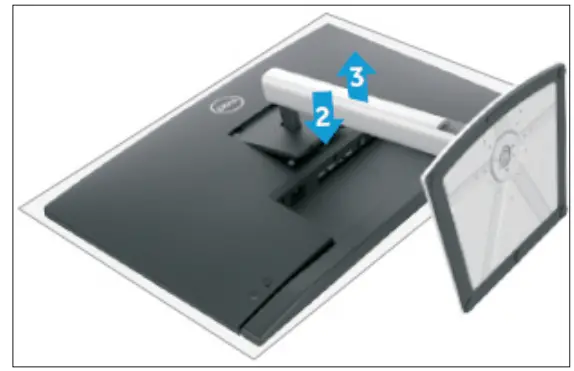
S1 Remove the monitor stand base:
- Place the monitor on a soft cloth or cushion.
- Press and hold the stand-release button.
- Lift the stand up and away from the monitor
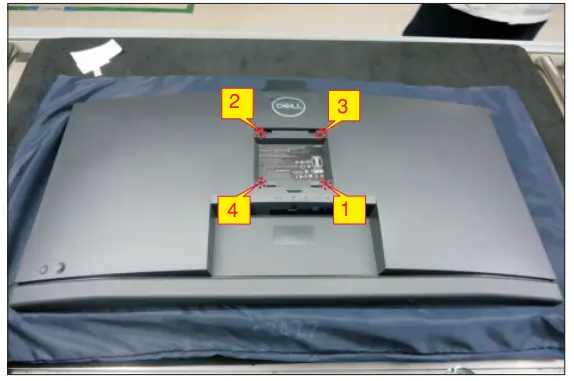
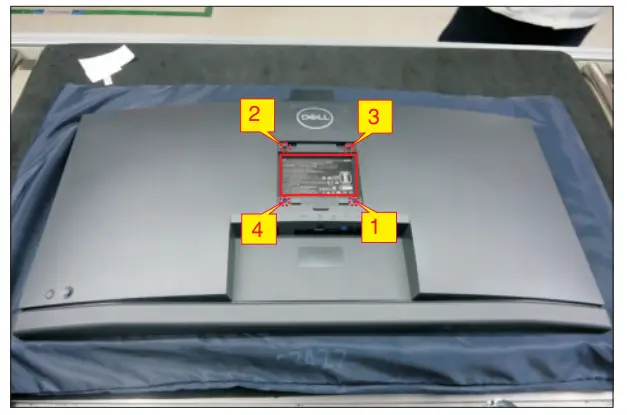
S2Use a Philips-head screwdriver to remove 4pcs screws for unlocking mechanisms. Remove DP cap.
(No.1~4 screw size=M4x11; Torque=11±1kgfxcm)
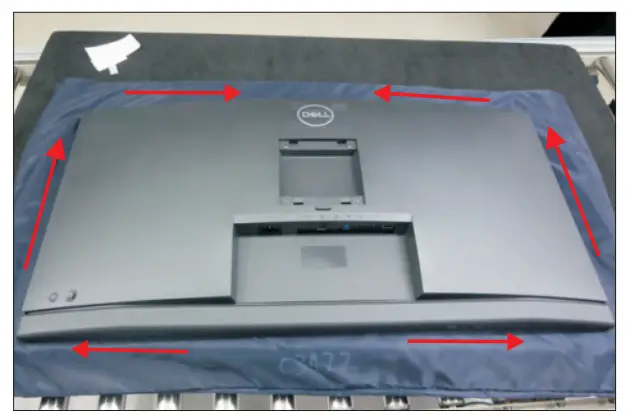
S3 Wedge your fingers between rear cover and the middle bezel on the corners of the top side of the monitor to release the rear cover, then use one hand to press the middle bezel, the other hand to pull up carefully the rear cover in order of arrow preference for unlocking mechanisms of rear cover.
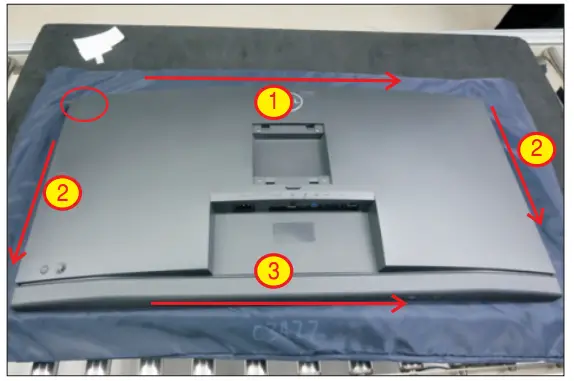
S4 Lift the rear cover up carefully. Disconnect the joystick key cable and two USB cables from the connectors of the board, and then remove the rear cover and put it aside for later disassembling.
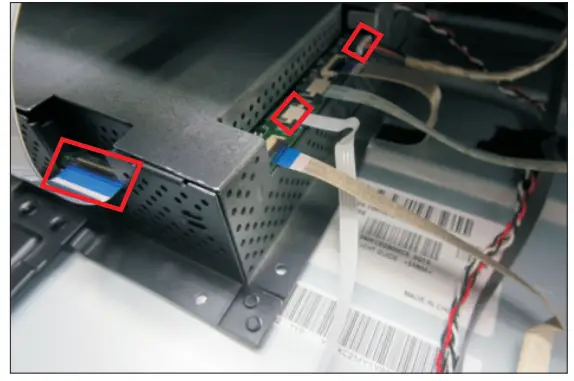
S5 Use a Philips-head screwdriver to remove 1pcs screw for unlocking the USB board, then tear off all the tapes and release the Usb power cable and joystick cable.
(No.1 screw size=M3x6, Torque=4±0.5kgfxcm)
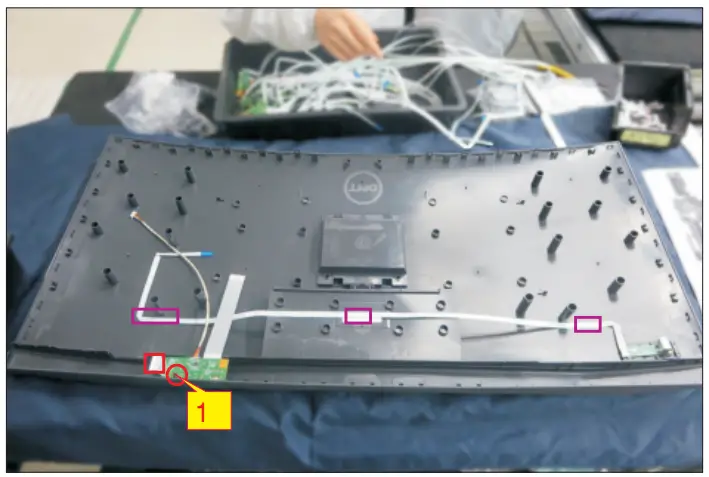
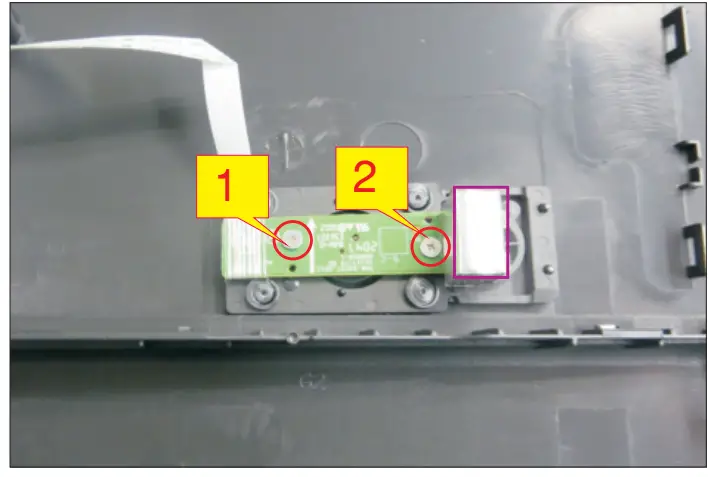
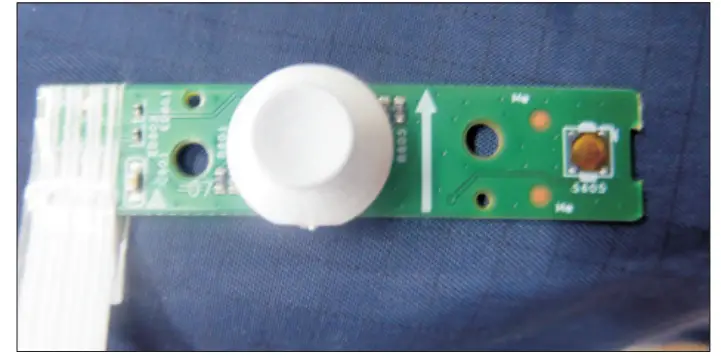
S6 Use a Philips-head screwdriver to remove 2pcs screws for unlocking the joystick board, then release the Joystick board from the hook of the rear cover.
(No.1~2 screw size=M2x2.4, Torque=0.8~1kgfxcm)
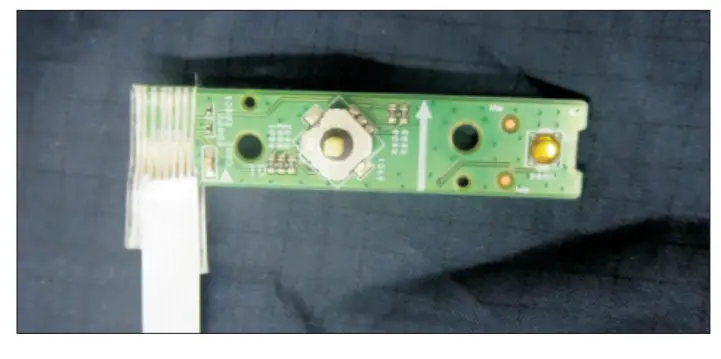
Disassembly and Assembly Procedures
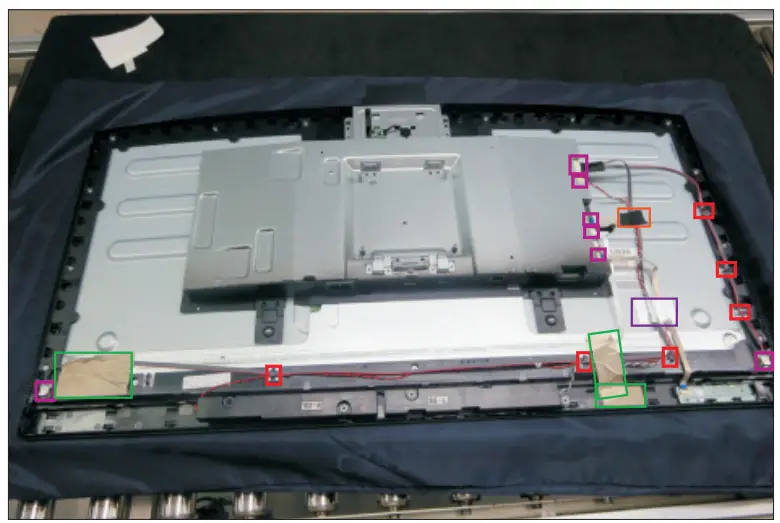
S7 Tear off 1pcs acetate tapes and 1pcs aluminum foils and 3pcs conductive tapes for releasing the cables. Disconnect the panel lamp cable, LED cable, touch cable, camera connective cable and speakers’ cable from the connectors of the board, then release the panel lamp cables from the hooks of the middle bezel.
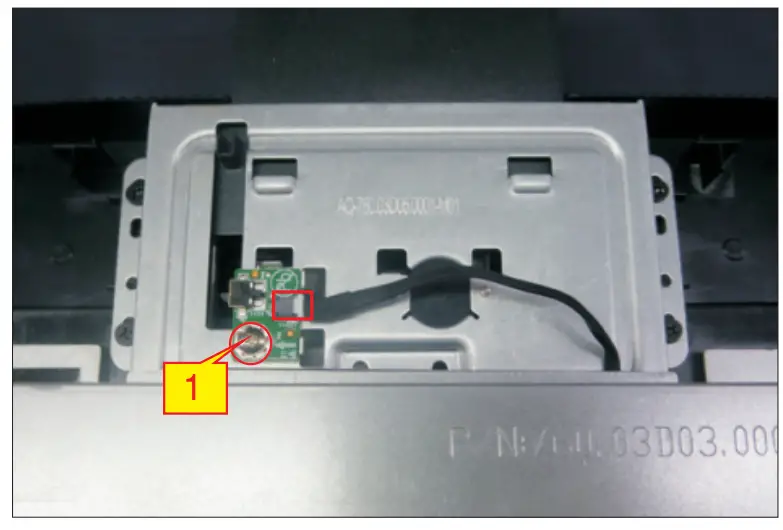
S8 Disconnect the camera cable from away the camera board, then use a Philips-head screwdriver to remove one screw for unlocking camera board with the camera module. (No.1 screw size=M3x3, Torque=5±0.5 kgfxcm)
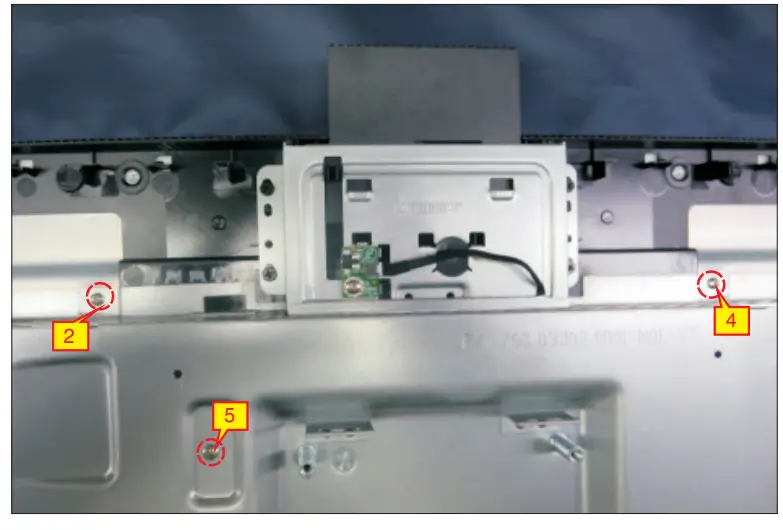
S9 Use a Philips-head screwdriver to remove 4pcs screws for unlocking bracket with panel, to remove one screw for unlocking the heat-sink. (No.1~5 screw size=M3x3, Torque=5±0.5 kgfxcm)
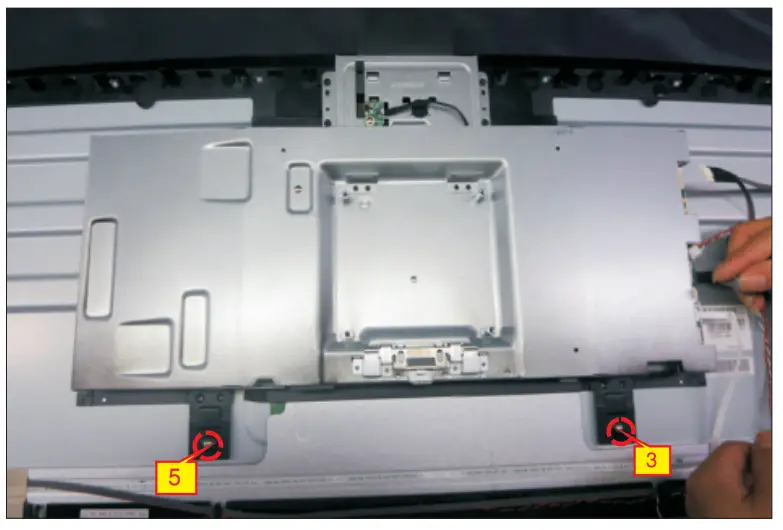
S10 Lift up the bracket chassis module and tear off the 1pcs acetate tape, then disconnect the EDP cable away from the connector of the panel module, then put the bracket chassis module on a cushion.
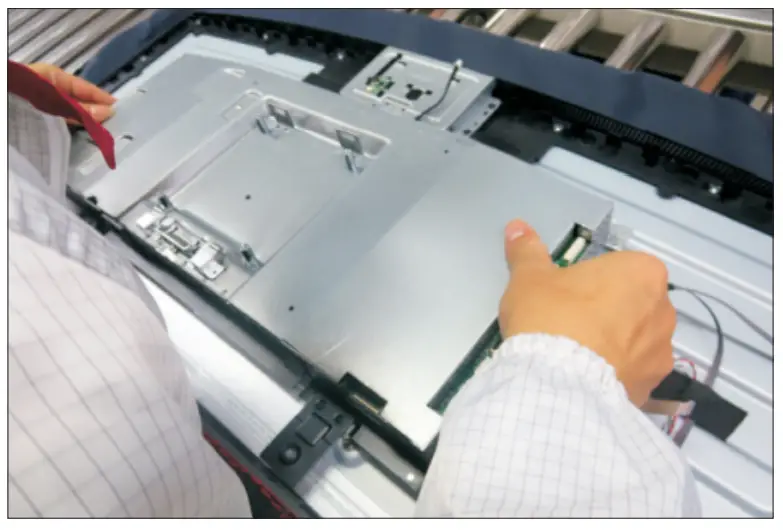
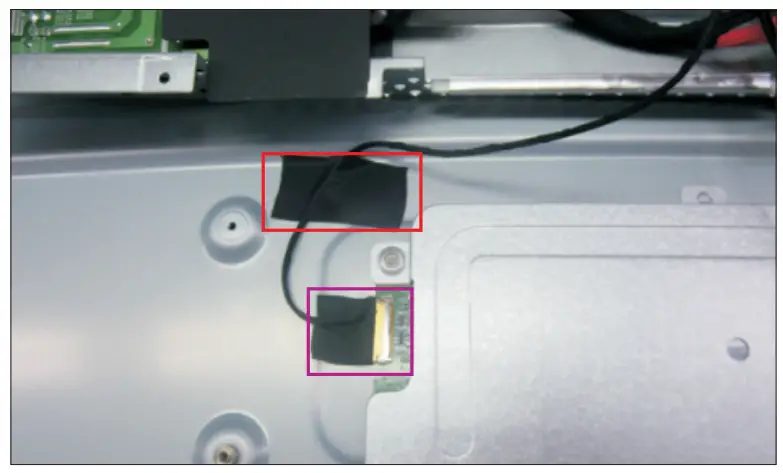
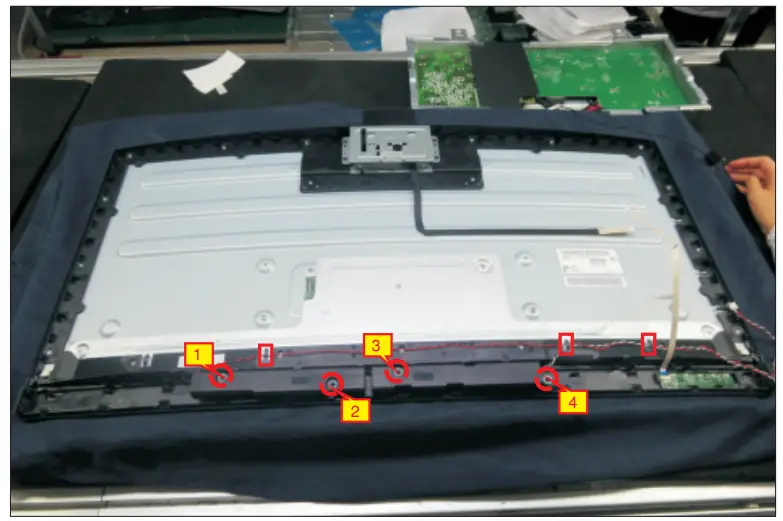
S11 Use a Philips-head screwdriver to remove 4pcs screws for unlocking the speakers with middle bezel, then release the speakers’ cable from the hooks of the middle bezel, and then release the two speakers from the probers of the middle bezel. (No.1~4 screw size=M3x6, Torque=4±0.5 kgfxcm)
S12 Tear off tapes for releasing the camera connective cable, then use a Philips-head screwdriver to remove 4pcs screws for unlocking the camera module, and then remove assembled camera unit and put it aside for later disassembling. (No.1~4 Screw size= M3x4, Torque=3.5±0.5kgfxcm)
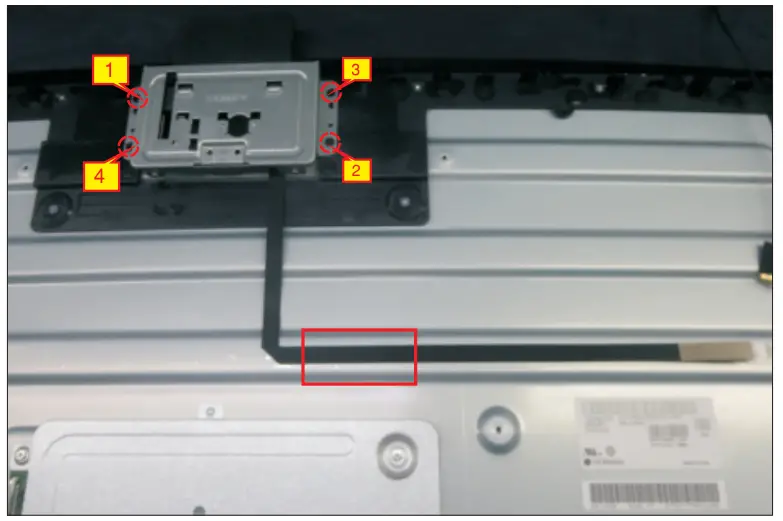
S13 Tear off the camera glass and tape of the camera connective cable, then use a Philips-head screwdriver to remove 3pcs screws for unlocking the rear cover with front cover. Remove the rear cover, and then tear off the conductive foam and tape for release the cable, then tear off the camera from the front cover. (No.1~3 screw size=M3x5, Torque=3±0.5kgfxcm
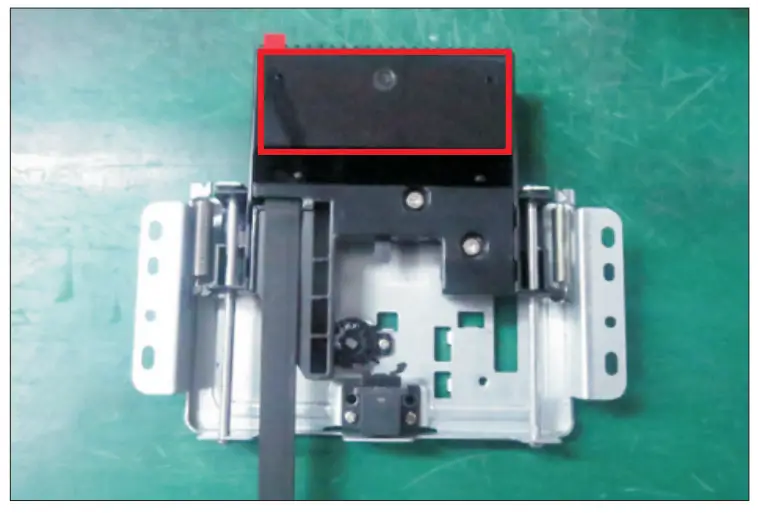
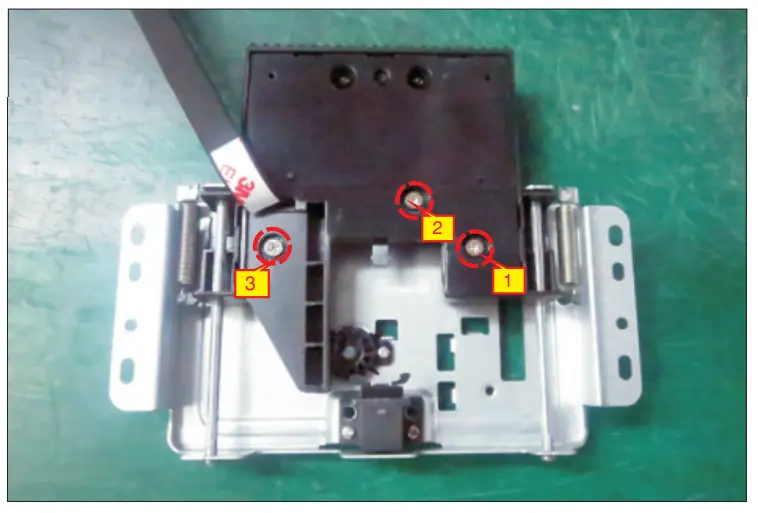
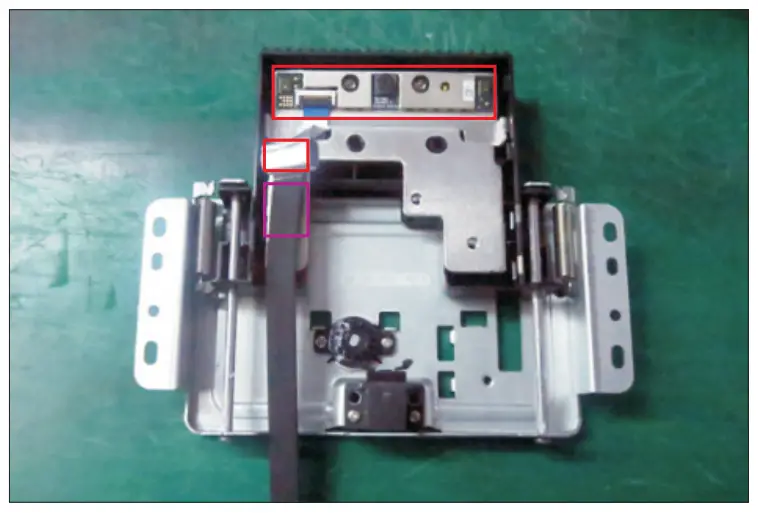
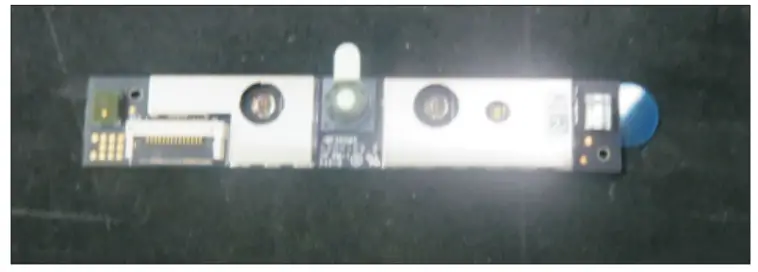
S14 Use a Philips-head screwdriver to remove 21pcs screws for unlocking the middle bezel unit with the panel module. (No.1~21 screw size=M3x4, Torque=5±0.5kgfxcm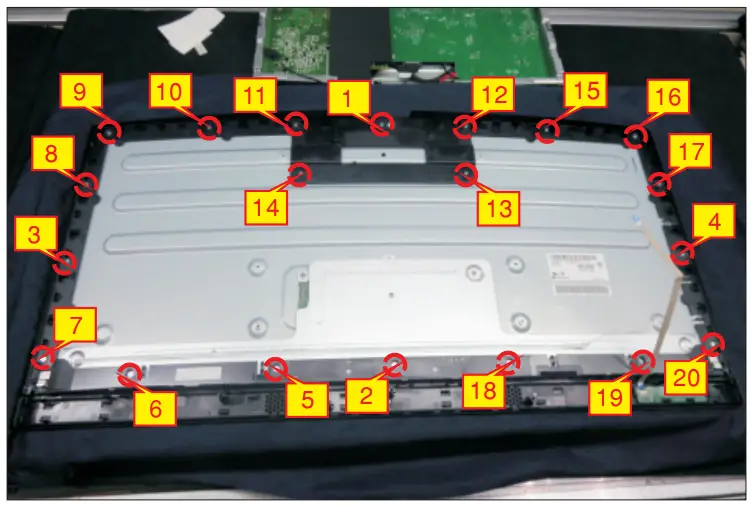
S15 Release the touch board from the middle bezel by tearing off the tape, and then middle bezel and put it on a cushion foam. lift up the LED cable by tearing off 3pcs tapes on the back of cable. Take away the middle bezel and put it on a cushion foam.
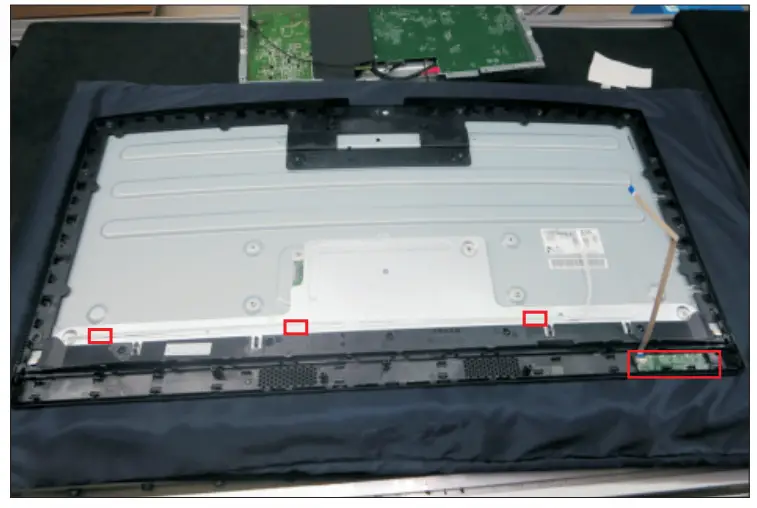
S16 Put the middle bezel with LED board into a fixture, then tear off the mylar tape for releasing the LED board.
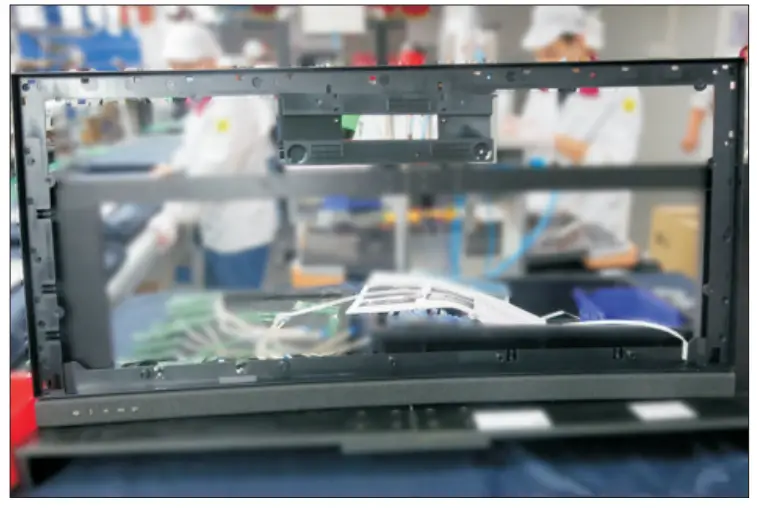
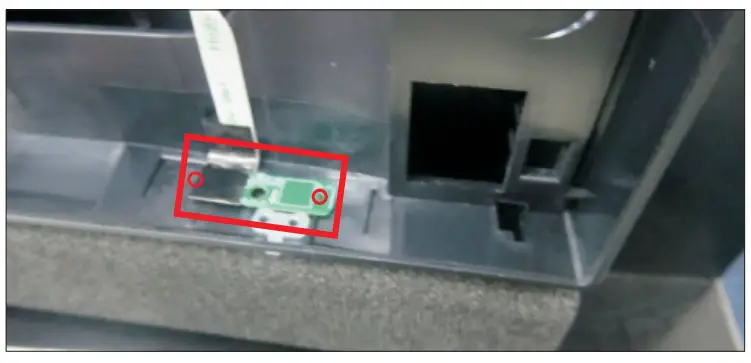
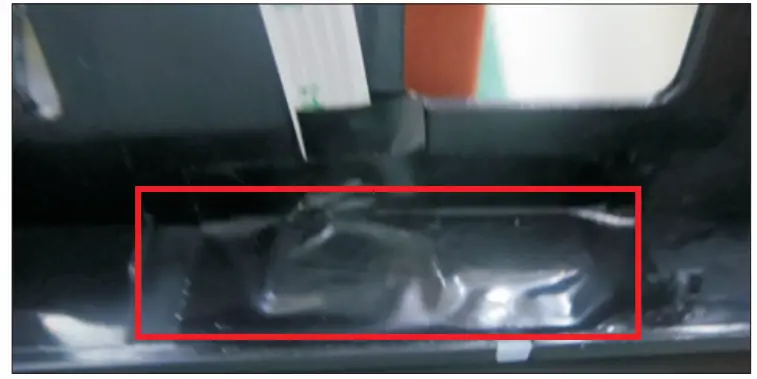
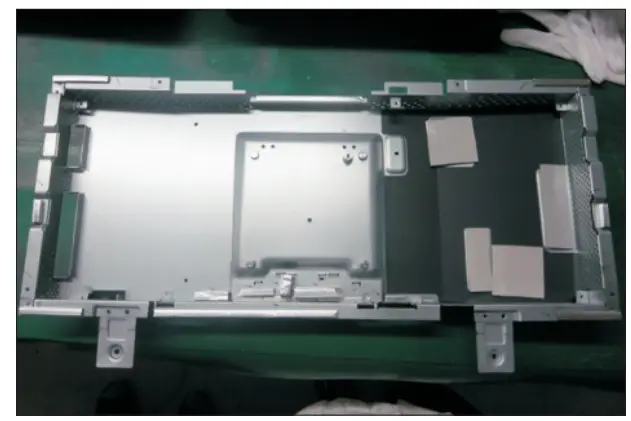
S17 Remove the Mylar tape from the brackets by tearing off the tape on the bracket.
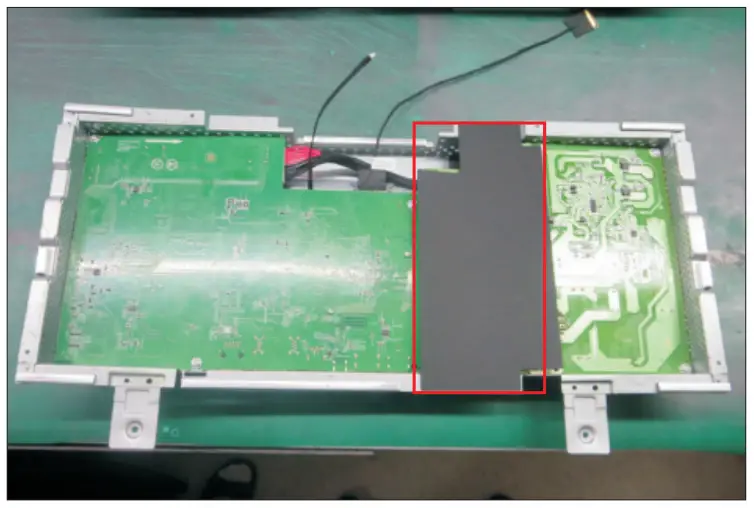
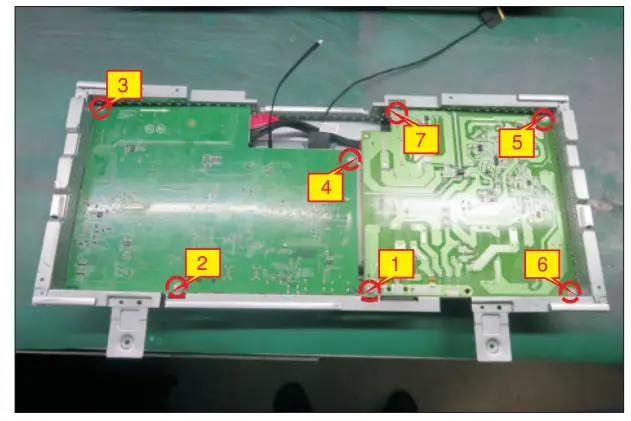
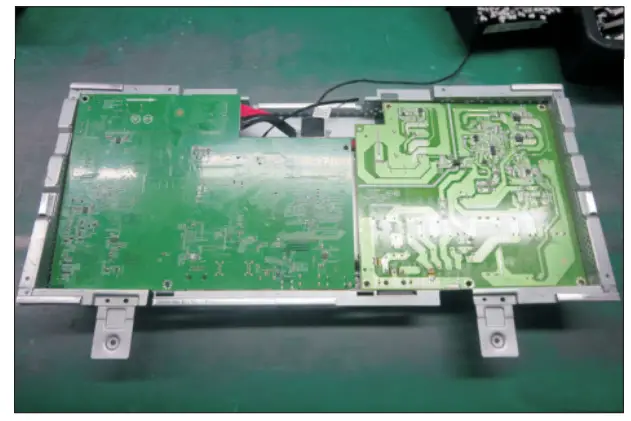
S18 Use a Philips-head screwdriver to remove 7pcs screws for interface board and power board. (No.1 screw size=M4x8, Torque=7±1kgfxcm; No.2~7 screw size=M3x7.5, Torque=7±1kgfxcm)
S19 Remove the power board and interface board from the disconnect all of the cables. bracket chassis module carefully, and then dissconnect all of the cables.
Assembly Procedures:
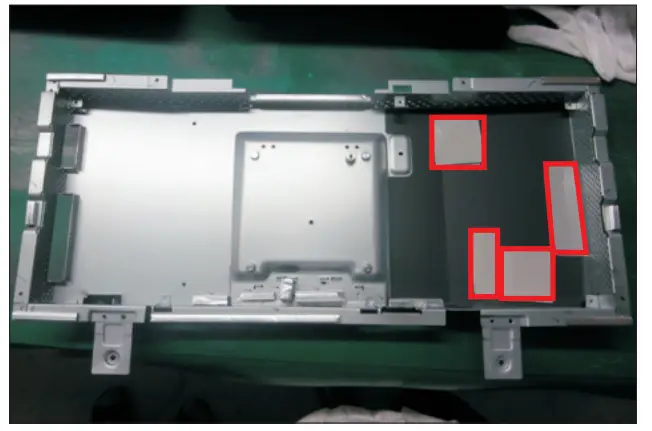
S1 Place a bracket chassis base on a protective cushion, then stick 3pcs Silicon sheets on the position as the picture below shown.
S2 Turn over a power board and put the power board into the bracket chassis.
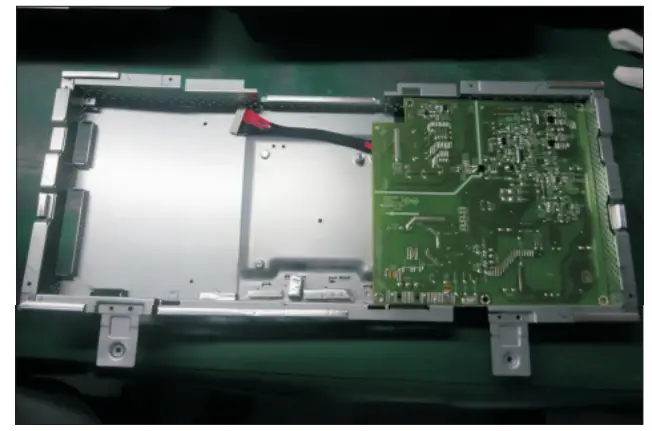
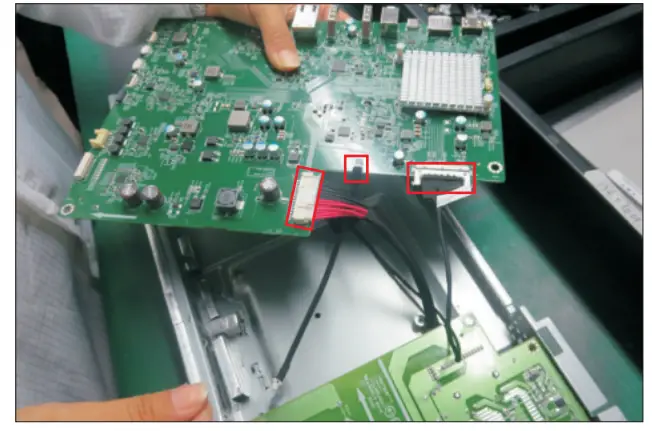
S3 Take a interface board, connect 1pcs EDP cable and 1pcs camera cable to the connectors of the interface board, then connect the cable of the power board to the connector of the interface board. Turn over the interface board and locate it into the bracket chassis module. Use a Philips-head screwdriver to tighten 7pcs screws for locking the interface board and power board with the bracket chassis module.
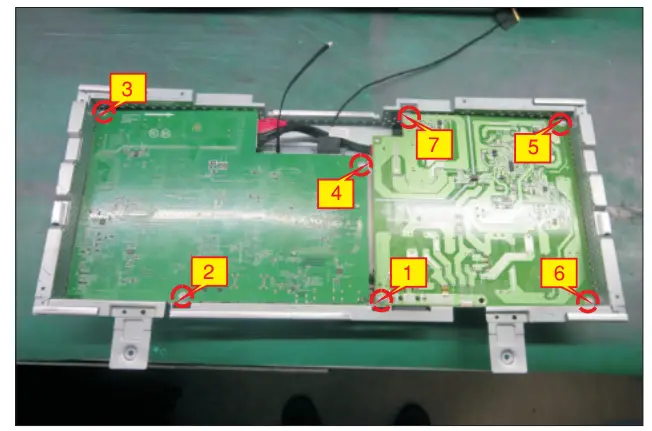
(No.1 screw size=M4x8, Torque=7.5±0.5kgfxcm; No.2~7 screw size=M4x8, Torque=7.5±0.5kgfxcm)
S4 Take a black mylar, tear off 2pcs gum on the back of the mylar, then paste the mylar on the specific position of the bracket.
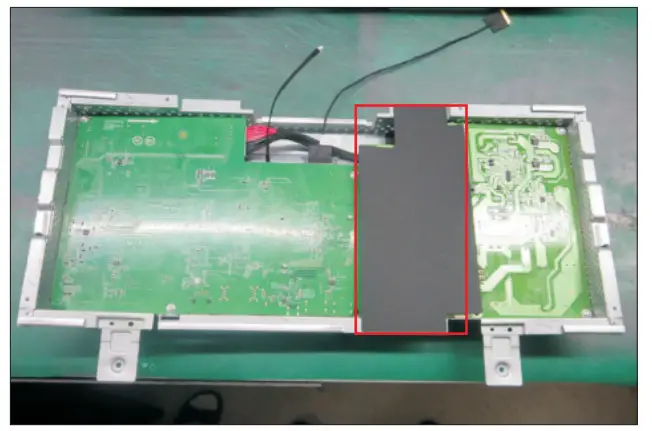
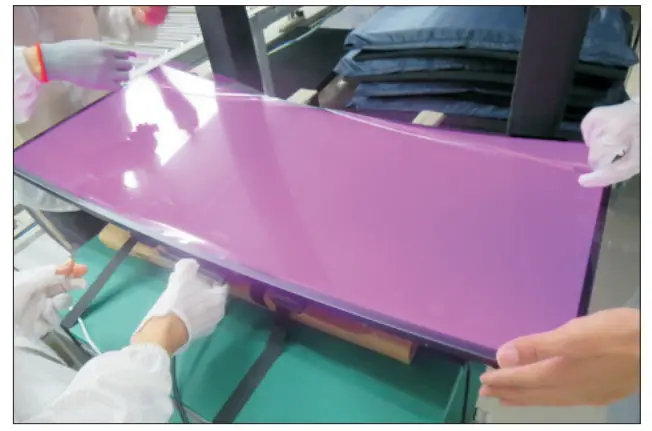
S5 Panel module preparation: Take out 1pcs panel module with front bezel from carton, remove the protective film by tearing off all the tapes of the panel module, then power on the panel module to examine the panel surface according to inspection criteria carefully.
S6 Take 1pcs Dell nameplate, then use a locating fixture to fix the nameplate to the front bezel of the module, and then move the whole unit into a laminating fixture, use the laminating fixture to press the nameplate with the front bezel of the panel module firmly attachment.
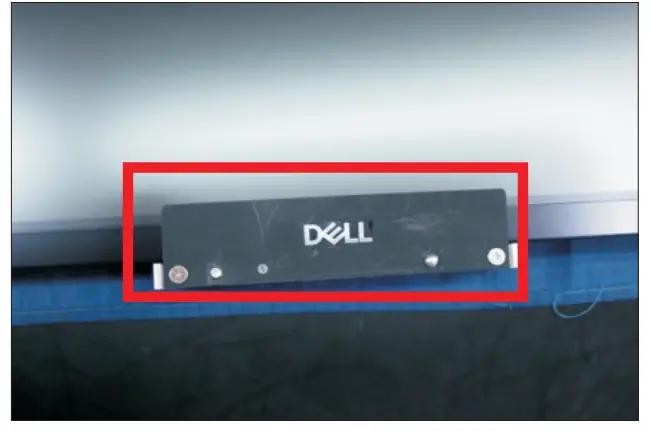
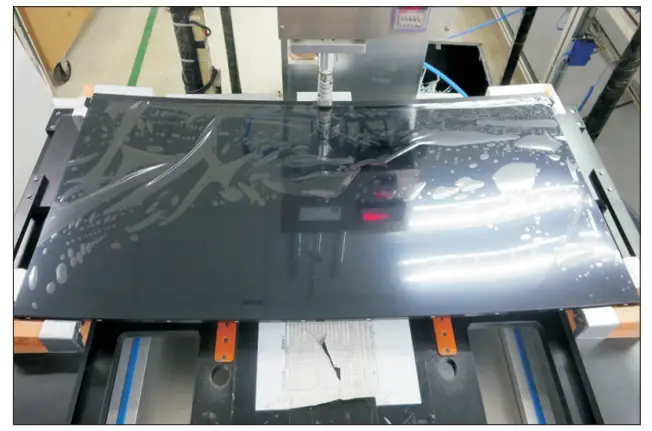
S7 Turn over the panel module to place screen faced down for later assembling.
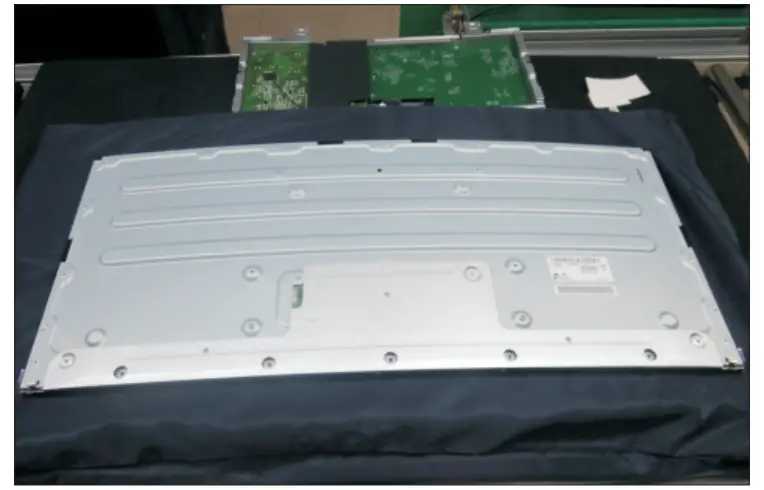
S8 Take 1pcs LED board and 1pcs middle bezel with speaker’s cover unit, then put the middle bezel unit into a fixture jip. Tear off the release paper on the back of the LED board, and then paste the LED board on the correct position of the middle bezel unit, then paste 1pcs mylar tape to cover the LED board.
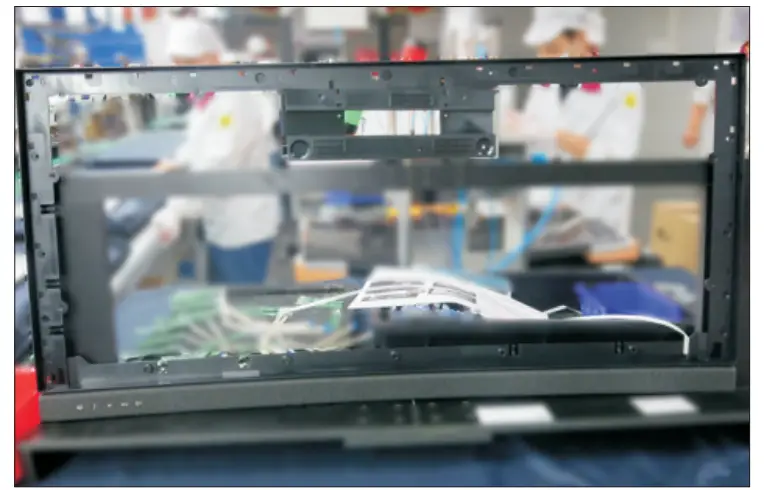
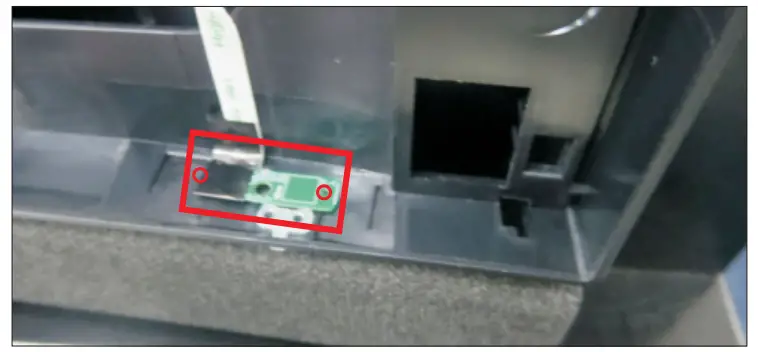
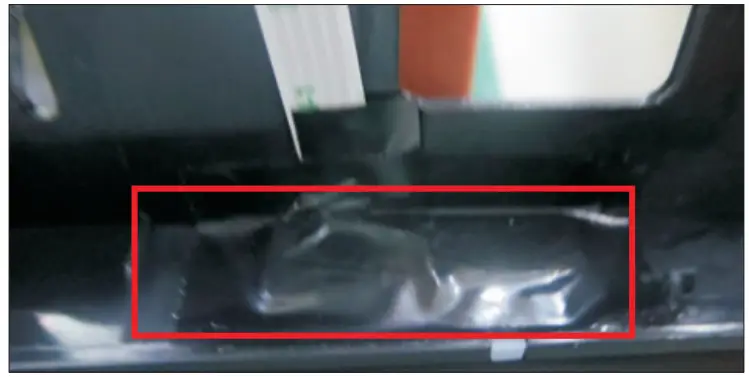
S9 Move the middle bezel unit close to the panel module unit, then assemble the middle bezel unit with the front bezel and panel module.
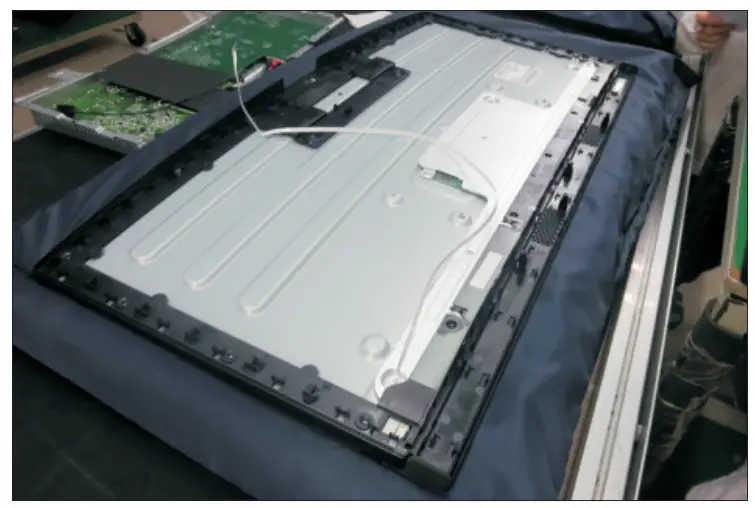
S10 Tear off 3pcs gum on the back of the LED cable, then paste the LED cable on the panel. Take 1pcs touch board, and tear off the release paper of the middle bezel, and then paste the touch board on the correct position of the middle bezel.
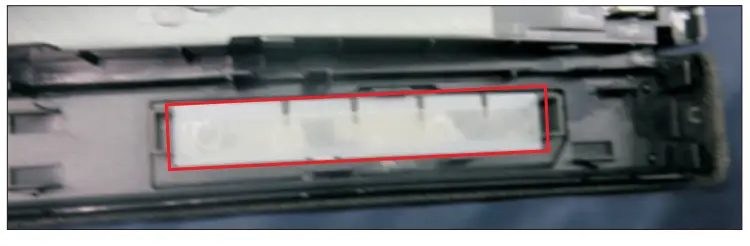
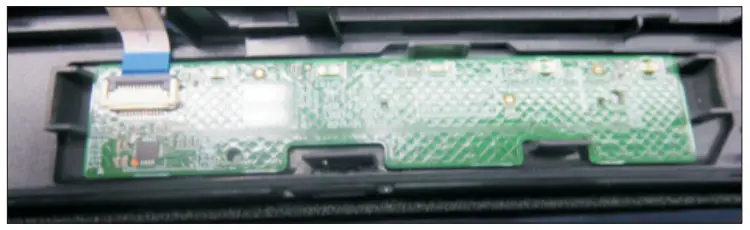
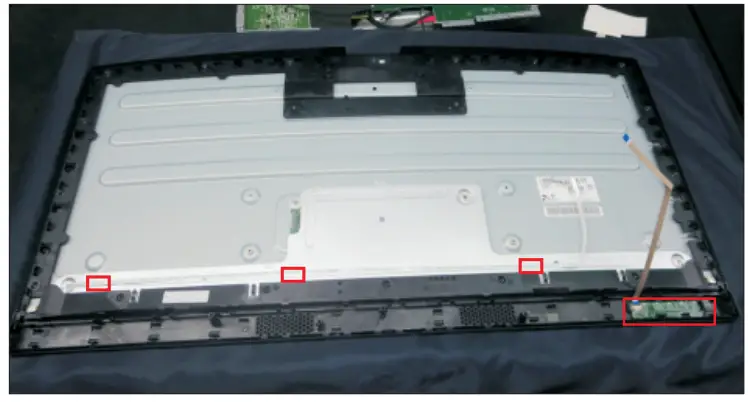
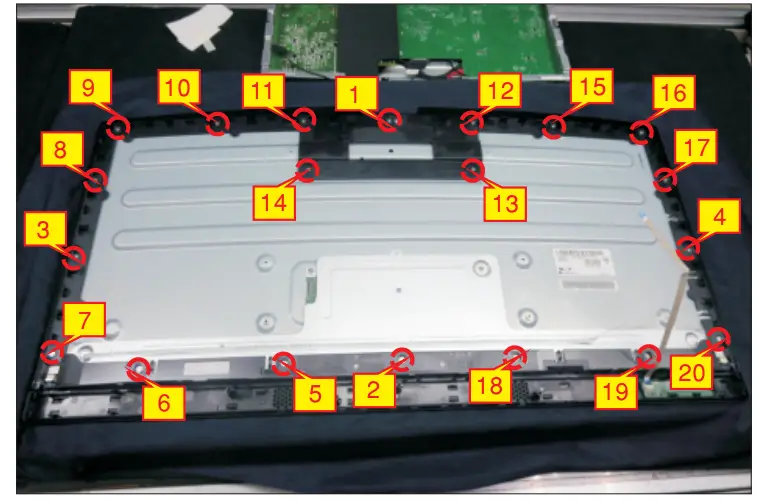
S11 Use a Philips-head screwdriver to lock 20pcs screws for locking the middle bezel unit with the panel module. (No.1~20 screw size=M3x4, Torque=5±0.5kgfxcm)
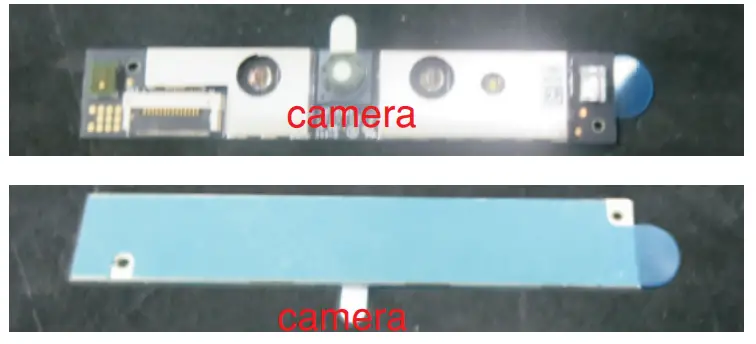
S12 Take 1pcs camera, 1pcs front cover of the camera, 1pcs rear cover of the camera,1pcs connective cable and 2pcs rubbers. Connect the cable with the camera board, then tear off the gum of the camera, and then paste the camera on the front cover, then paste 1pcs foam on the cable. Assemble 2pcs rubbers with the rear cover, then assemble the rear cover with the unit, then locate the cable into the hook of the rear cover.
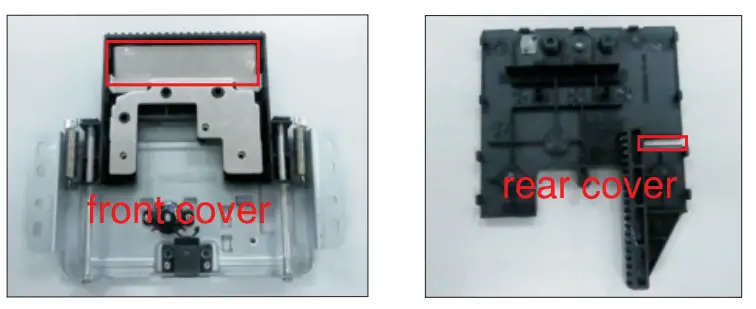
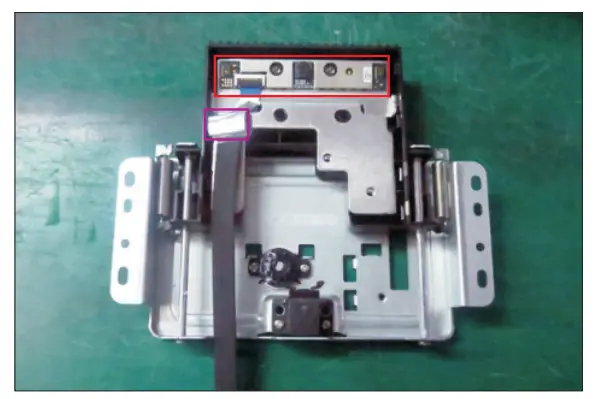
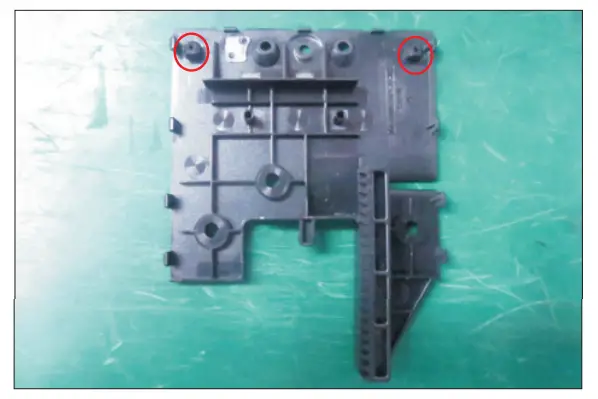
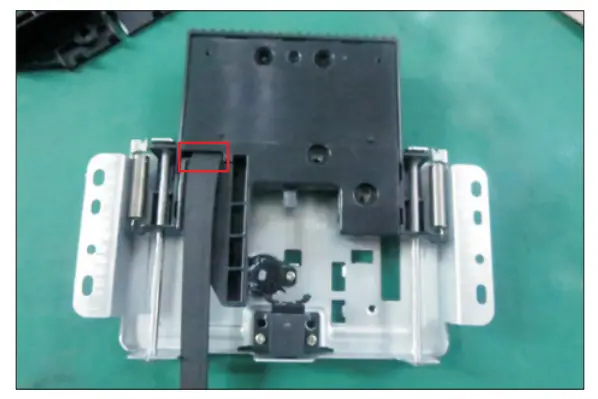
S13 Use a Philips-head screwdriver to tighten 3pcs screws for locking the rear cover with front cover, then tear off the tape paper on the back of the connective cable, and fix the cable with tape. Paste 1pcs camera glass on the back of the rear cover by tearing the gum of the tape. (No.1~3 screw size=M3x5, Torque=3±0.5kgfxcm)
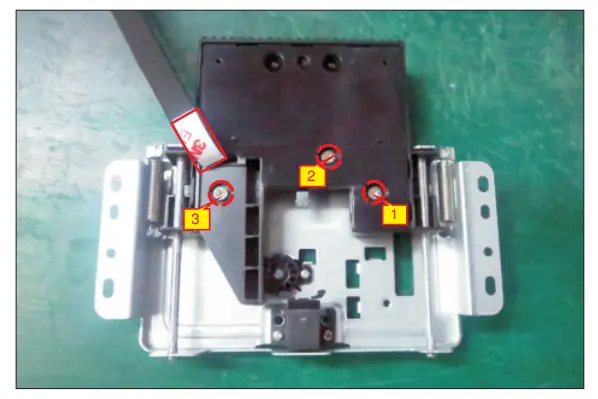
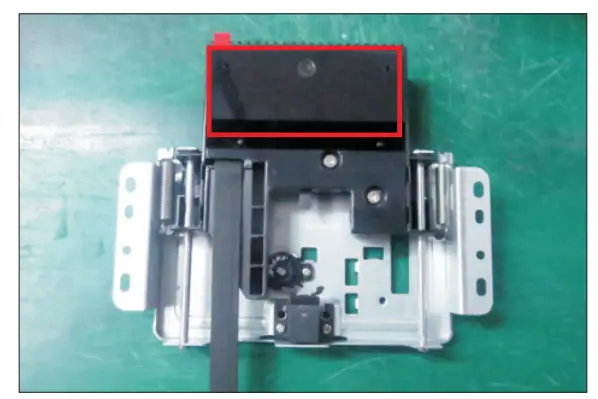
S14 Locate the assembled camera unit into the pins of middle bezel, then use a Philips-head screwdriver to tighten 4pcs screws . Tearing off the gum paper of the connective cable and fix the cable with it. for locking the camera module with the middle bezel (No.1~4 Screw size= M3x4, Torque=3.5±0.5kgfxcm)
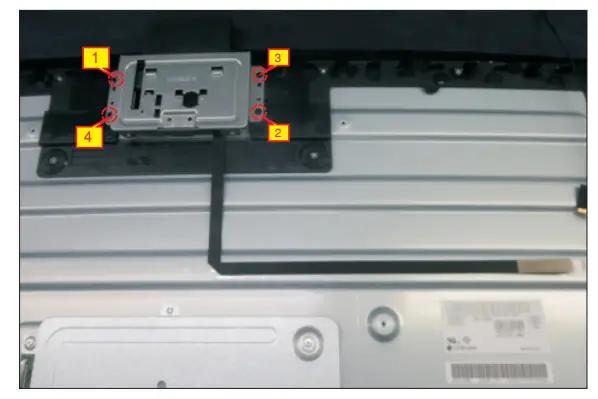
S15 Take a pair of speakers to locate the probers of the middle bezel, then locate the speakers’ cable to the hooks of the middle bezel. Use a Philips-head screwdriver to tighten 4pcs screws for locking the speakers with middle bezel. (No.1~4 screw size=M3x6, Torque=4±0.5 kgfxcm)
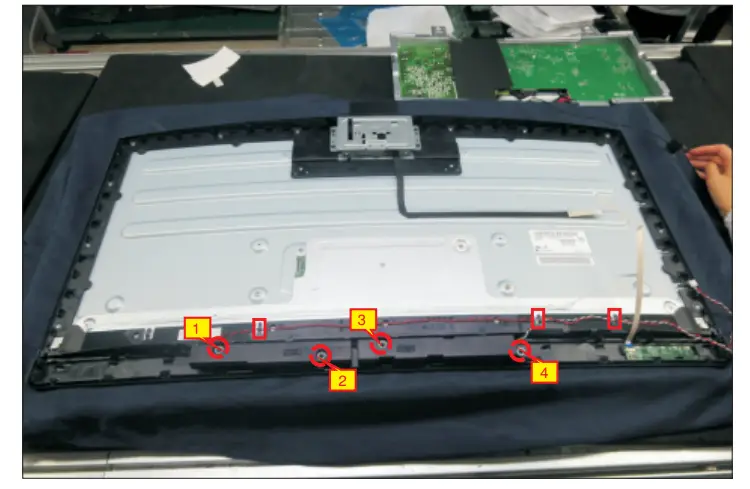
S16 Move the bracket close to the panel module, then connect EDP cable to the connector of the panel module, then fix the EDP cable with 1pcs acetate tape. Put down the bracket chassis module on the back of panel module.
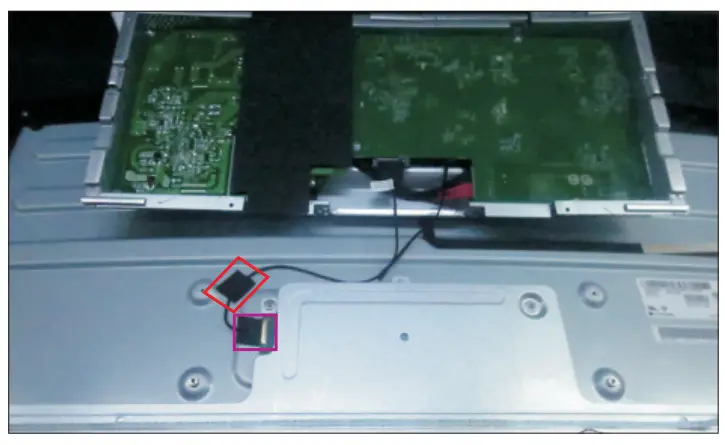
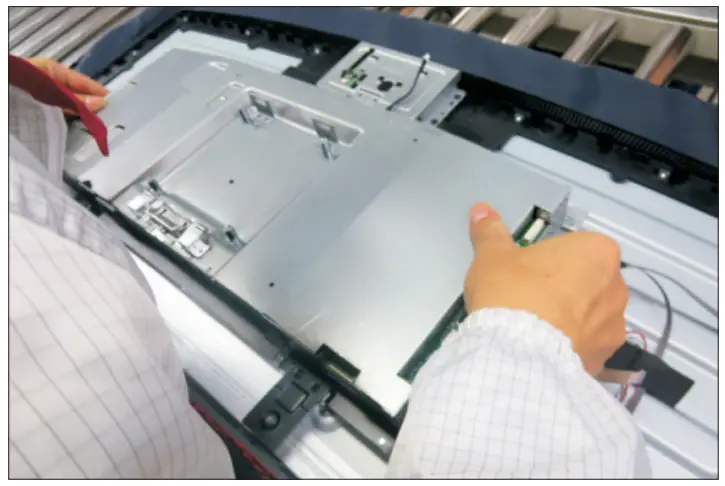
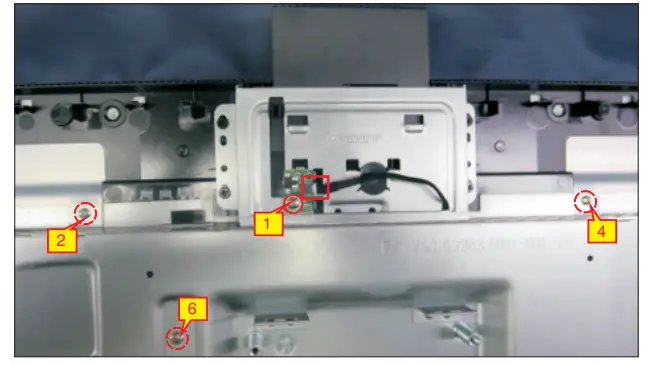
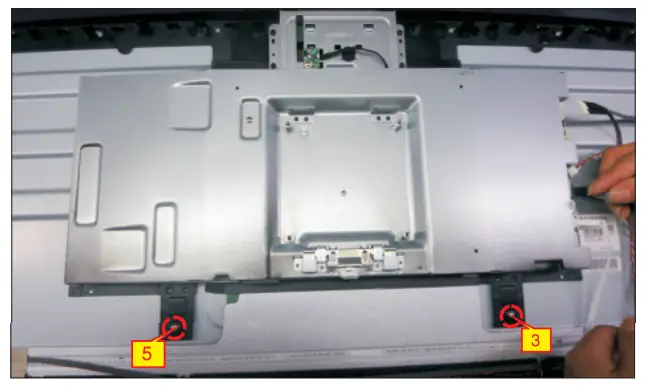
S17 Take 1pcs camera board to connect the camera cable, then locate the camera board to the unit. Use a Philips-head screwdriver to tighten one screw for locking the camera board with the camera unit. Use a Philips-head screwdriver to tighten 4pcs screws for locking the bracket with the panel, to tighten 1pcs screw for locking the heat-sink.(No.1~6 screw size=M3x3, Torque=5±0.5 kgfxcm)
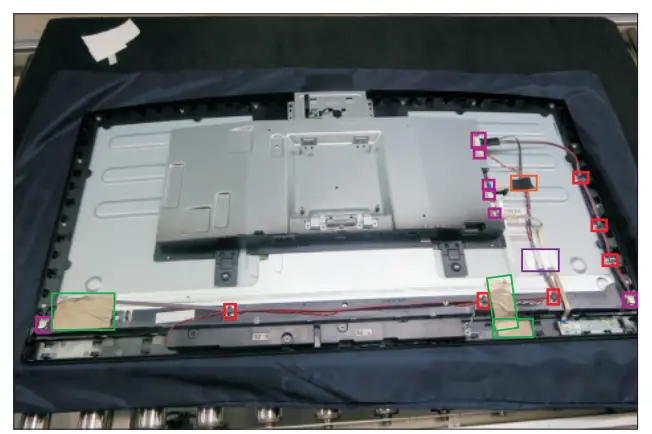
S18 Take 1pcs panel lamp cable to connect the panel module with the interface board, then locate the panel lamp cable into the hooks of the middle bezel. Connect the LED cable, touch cable, camera connective cable and speakers’ cable into the connectors of the board, then paste 3pcs conductive tapes, 1pcs aluminum foil and 1pcs acetate tape to fix the cables as the picture.
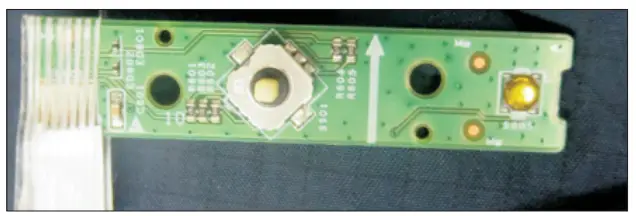
S19 Take 1pcs joystick key, 1pcs joystick board and 1pcs rear cover, then assemble the joystick key with board. Locate the joystick board to the correct position of the rear cover, then use a Philips-head screwdriver to tighten 2pcs screws for locking the joystick board with rear cover, paste 1pcs conductive foam on the board.(No.1~2 screw size=M2x2.4,Torque=1±0.2kgfxcm
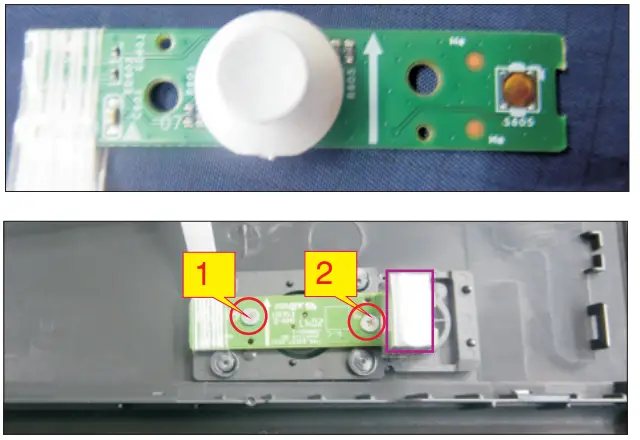
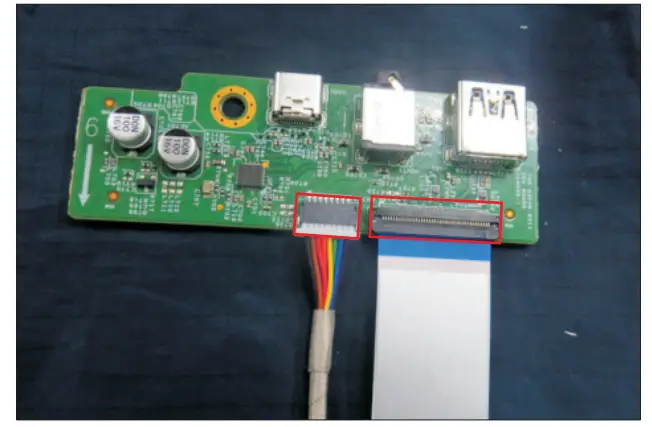
S20 Tear off the papers on the back of the cable, and then fix the joystick cable with tapes. Take 1pcs USB board, 2pcs cable, 1pcs conductive foam. Connect the two cables to the connectors of the USB board, then paste 1pcs conductive foam on the back of the USB board, and then locate the USB board into the rear cover. Use a Philips-head screwdriver to tighten one screw for locking the USB unit with the rear cover, then fix the USB power cable with 1pcs PVC tape. (No.1 screw size=M3x6, Torque=4±0.5kgfxcm)
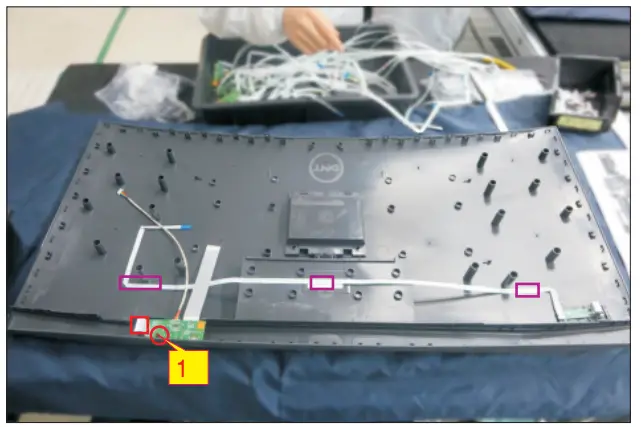
S21 Move the assembled rear cover close to the panel unit, then connect the joystick cable and 2pcs Usb cables to the connectors of interface board. Put down the rear cover and push the rear cover on the positions marked as the picture below shown for mechanisms engagement.
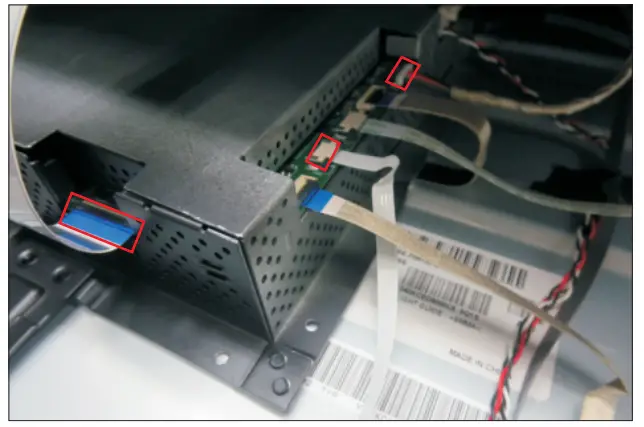
S22 Use a Philips-head screwdriver to tighten 4pcs screws for locking the rear cover with the unit. Paste 1pcs label on the specific positions of the rear cover. (No.1~4 screw size=M4x11; Torque=11±1kgfxcm)
S23 Take a stand base with protective bag close to the monitor. Fit the two tabs on the upper part of the stand into the grooves, and then lower the stand so that the monitor mounting area snaps onto the stand.
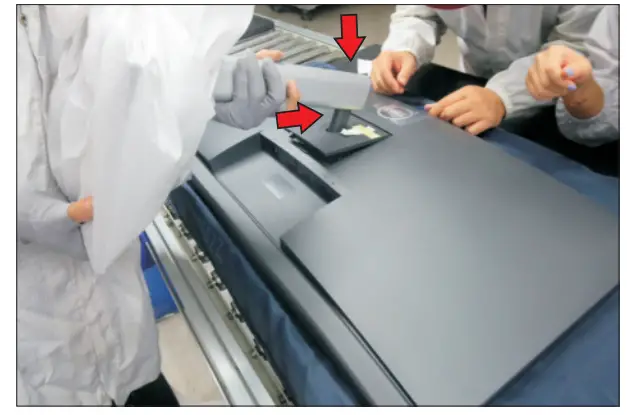
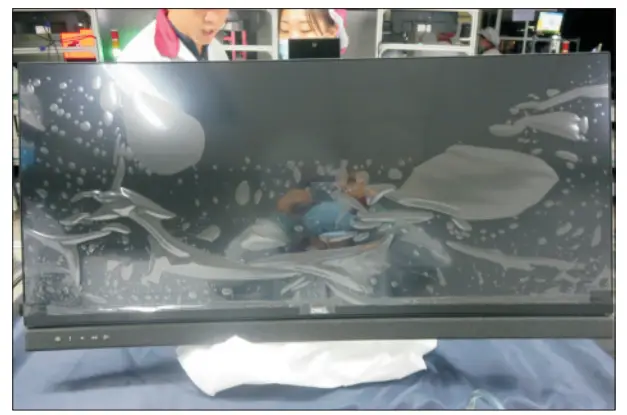
S24 Lift up the monitor to check the gap between the front bezel and the panel, then provide power supply and a video signal to the monitor, then turn on the monitor for functionality check, then turn off the power, and remove all the cables.
Trouble Shooting Instructions
Self-test
Your monitor provides a self-test feature that allows you to check whether your monitor is functioning properly. If your monitor and computer are properly connected but the monitor screen remains dark, run the monitor self-test by performing the following steps:
- Turn off both your computer and the monitor.
- Unplug the video cable from the back of the computer. To ensure proper Self-Test operation, remove all digital and the analog cables from the back of computer.
- Turn on the monitor.
The floating dialog box should appear on-screen (against a black background), if the monitor cannot sense a video signal and is working correctly. While in self-test mode, the power LED remains white. Also, depending upon the selected input, one of the dialogs shown below will continuously scroll through the screen.
- This box also appears during normal system operation if the video cable becomes disconnected or damaged.
- Turn off your monitor and reconnect the video cable; then turn on both your computer and the monitor.
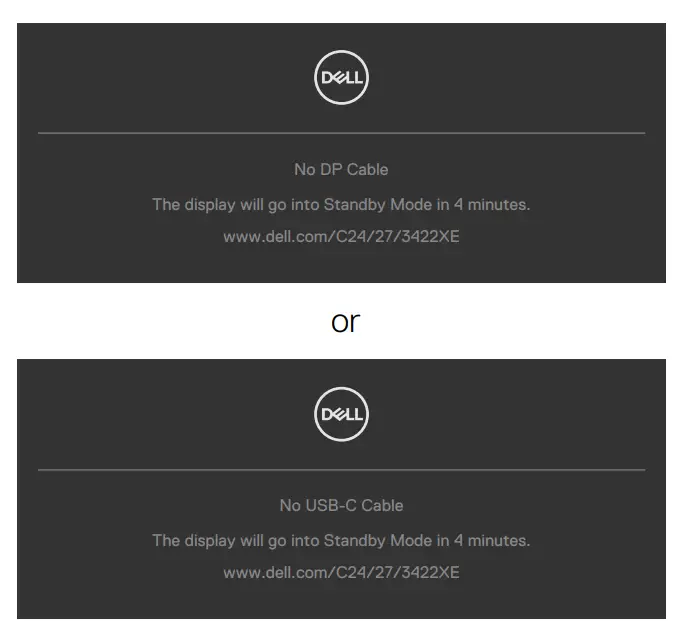
if your monitor screen remains blank after you use the previous procedure, check your video controller and computer, because your monitor is functioning properly.
Built-in diagnostics
Your monitor has a built-in diagnostic tool that helps you determine if the screen abnormality you are experiencing is an inherent problem with your monitor, or with your computer and video card.
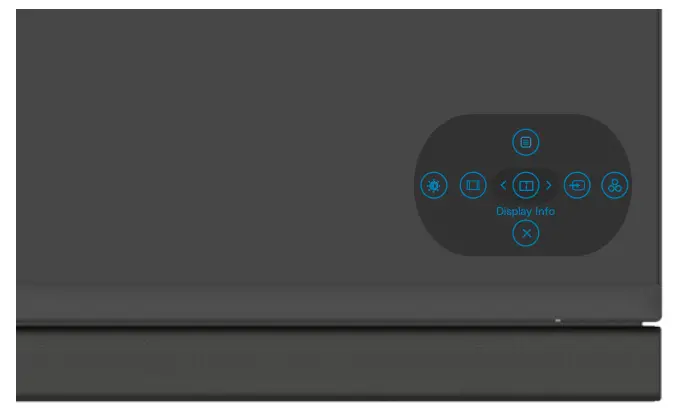
To run the built-in diagnostics:
- Ensure that the screen is clean (no dust particles on the surface of the screen).
- Press and hold Up or Down or Left or Right direction for four seconds until a menu appears on the screen.
- Using the joystick control, highlight the Diagnostics
 option and press the joystick button to start the diagnostics. A gray screen is displayed.
 - Observe if the screen has any defects or abnormalities.
- Toggle the joystick once again until a red screen is displayed.
- Observe if the screen has any defects or abnormalities.
- Repeat steps 5 and 6 until the screen displays green, blue, black, and white colors. Note any abnormalities or defects.
 option and press the joystick button to start the diagnostics. A gray screen is displayed.
The test is complete when a text screen is displayed. To exit, toggle the joystick control again.
If you do not detect any screen abnormalities upon using the built-in diagnostic tool, the monitor is functioning properly. Check the video card and computer.
Common Problems
The following table contains general information about common monitor problems you might encounter and the possible solutions:
Common Symptoms | What You Experience | Possible Solutions | |
No Video/ Power LED off | No picture |
| |
No Video/ Power LED on | No picture or no brightness |
| |
Missing Pixels | LCD screen has spots |
| |
Stuck-on Pixels | LCD screen has bright spots |
| |
Brightness Problems | Picture too dim or too bright |
| |
Common Symptoms | What You Experience | Possible Solutions |
Safety Related Issues | Visible signs of smoke or sparks |
|
Intermittent Problems | Monitor malfunctions on & off |
|
Missing Color | Picture missing color |
|
Wrong Color | Picture color not good |
|
Image retention from a static image left on the monitor for a long period of time | Faint shadow from the static image displayed appears on the screen |
|
Mic/Webcam does not work |
|
|
Product specific problems
Common Symptoms | What You Experience | Possible Solutions |
Screen image is too small | Image is centered on screen, but does not fill entire viewing area |
|
Cannot adjust the monitor with the buttons on the front pane | OSD does not appear on the screen |
|
| No Input Signal when user controls are pressed | No picture, the LED light is white |
|
The picture does not fill the entire screen | The picture cannot fill the height or width of the screen |
|
No image when using DP connection to the PC | Blank screen |
|
No image when using USB Type-C connection to computer, laptop | Blank screen |
|
| Common Symptoms | What You Experience | Possible Solutions |
No charging when using type –connection to coumpter,laptop and so on | No charging |
|
Intermittent charging when using USB Type-C connection to computer, laptop, and so on | Intermittent charging |
|
No image when using USB Type-C MST | Blank screen or 2nd DUT is not Prime mode |
|
No network connection | Network dropped or Intermitten |
|
The LAN port is not functioning | OS setting or cable connection issue |
|
Problem | What you experience | Possible solutions |
| Monitor buttons (Mute / Volume down / Volume up / Hook switch) not working with Microsoft Teams® App | Monitor buttons (Mute / Volume down / Volume up / Hook switch) not working on Microsoft Teams® App with Chrome OS / Ubunt | Use Microsoft Teams® App to perform the below tasks:
|
| Video recording not working | Video recording App not working with Win 7 |
|
| Headset with Mic (3.5mm combo jack) not working with monitor mute / unmute button | Headset with Mic (3.5mm combo jack) not working with monitor mute / unmute button when camera module is pop in (retracted) | Use UC App (e.g. Microsoft Teams, Skype for Business, Zoom, etc.) Mic Icon to mute / unmute |
| When press either Volume down / Volume up or Mute button, LED not blink | When press either Volume down / Volume up or Mute button, LED not blink when connected to HDMI or DP only | Connect USB A – B cable |
| Camera or Mic not working | Camera or Mic not working when connected to HDMI or DP only | Connect USBA-cable |
| Problem | What you experience | Possible solutions |
Ethernet port (RJ45) cannot connect to internet | Ethernet port (RJ45) cannot connect to internet on Win 10 | Change the LAN Controller Power Saving from Enable to Disable |
Microphone not working or not detect | Microphone not working or not detect on the Voice recorder App with Intel Gen 11th CPU (Tiger Lake) platform | Disable Intel Smart Sound Technology for USB Audio driver in the Device Manager and re-boot the PC |
No sound can be heard from recorded video | No sound can be heard from recorded video with Intel Gen 11th CPU (Tiger Lake) platform | Disable Intel Smart Sound Technology for USB Audio driver in the Device Manager and re-boot the PC |
When press either Volume down/ Volume up, OSD volume bar response is lagging/delayed | When press either Volume down/ Volume up, OSD volume bar response is lagging/delayed with monitor connected to Intel Gen 11th CPU (Tiger Lake) platform | Disable Intel Smart Sound Technology for USB Audio driver in the Device Manager and re-boot the PC |
Universal Serial Bus (USB) specific problems
Specific Symptoms | What You Experience | Possible Solutions |
USB interface is not working | USB peripherals are not working |
|
super speed USB 3.2 Gen 1 interface is slow. | super speed USB 3.2 Gen 1 peripherals working slowly or not working at al |
|
Wireless USB peripherals stop working when a USB 3.0 device is plugged in | Wireless USB peripherals responding slowly or only working as the distance between itself and its receiver decreases |
|
USB is not working | No USB functionalities | Refer to input source and USB pairing table. |
 Dell Display Pixel Guidelines | Dell US