Product Information:
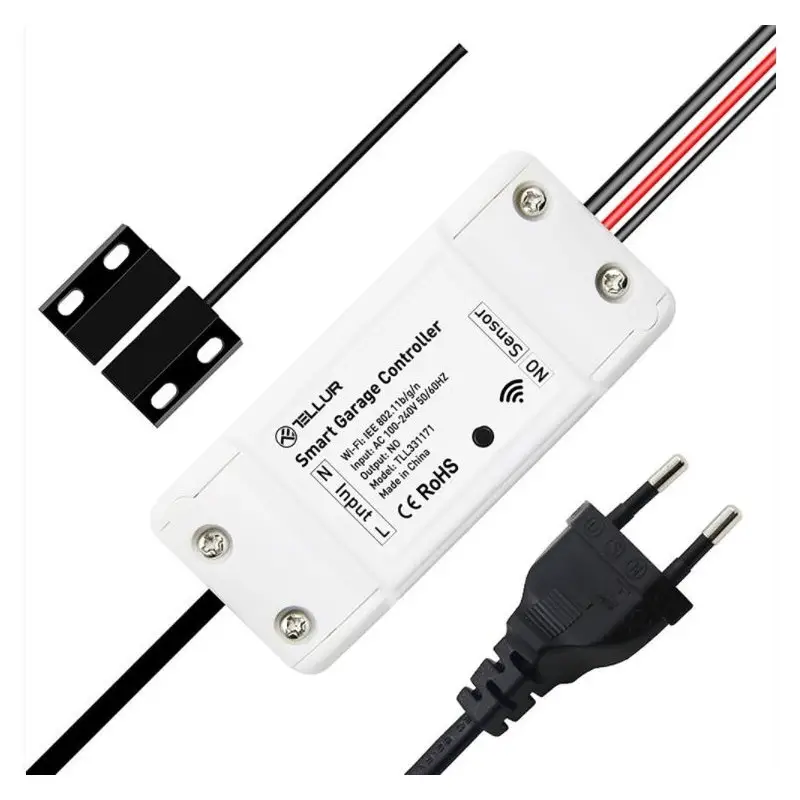
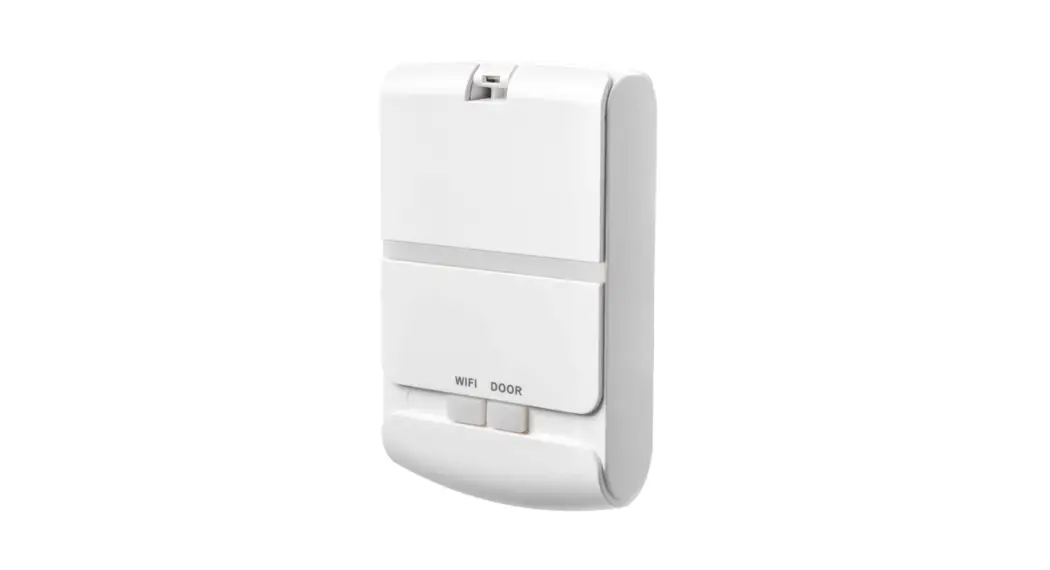
- Product Name: Garage Door Control Button
- Model No.: WGO2001
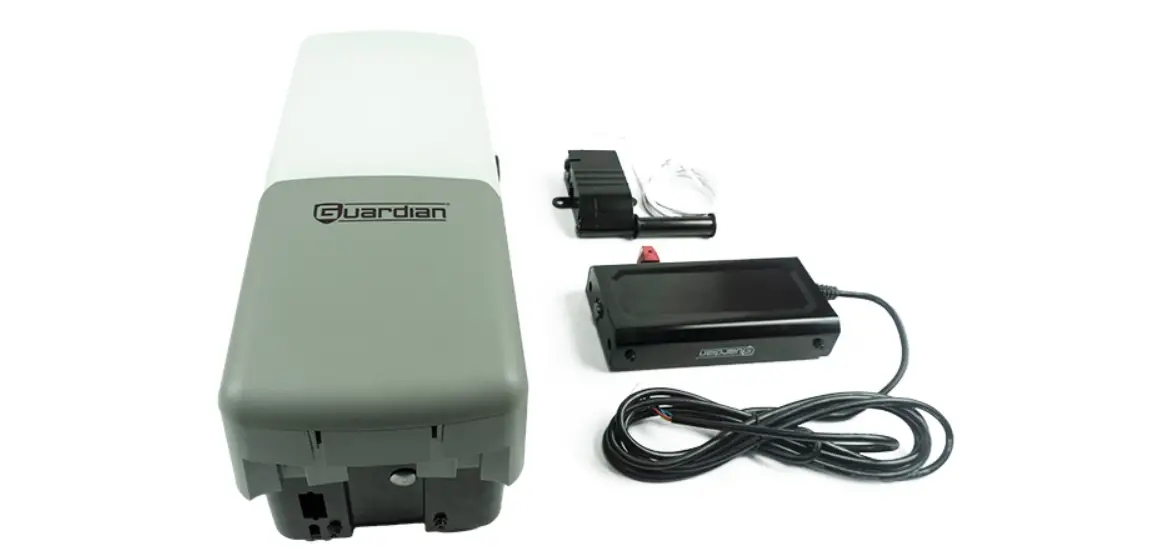
- Contents of the Package:
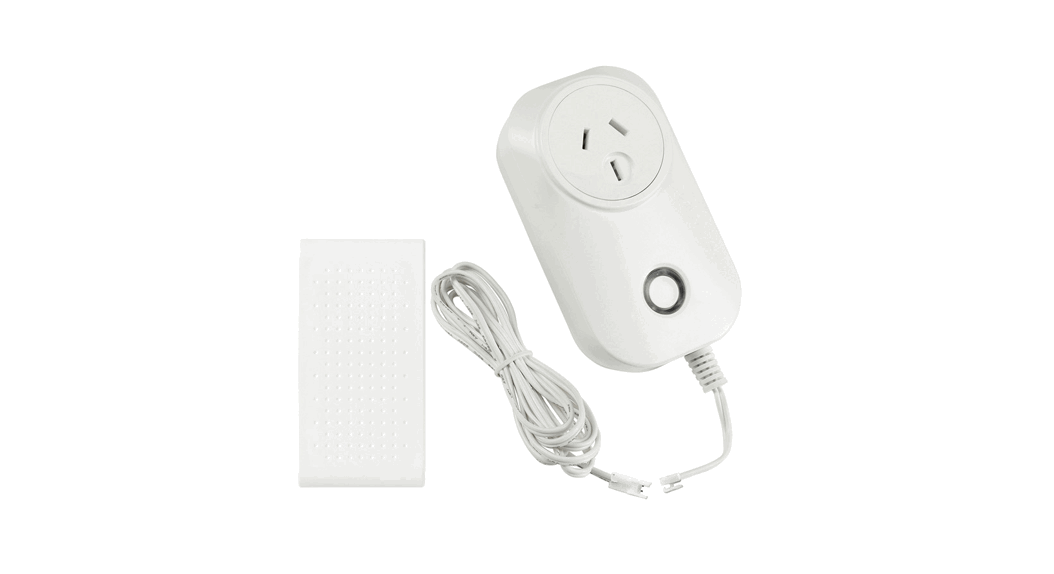
- 1x Garage Door Control Button
- 1x Power Adapter
- 1x Power Cable
- 2x U-fork Wires
- Mounting Accessories and Double-sided Tape
- 2x 18-Gauge Wires
Product Usage Instructions:
Option 1: Add it with your existing home8 system
Step 1: Assemble your device and accessories
- Unpack your device and accessories.
- Pair the Garage door control button with the Security Shuttle
within 1-10 feet to ensure a good connection. - Connect the included power adapter to the Garage door control
button and plug it in.
Step 2: Add a device
- Open the Home8 app, tap on the menu button and select Device
Management. - Press the add button ‘+’ next to Sensor.
- Follow the app instructions to scan the QR code located on the
back of the device. - When the activation is completed, the LED status light will
become solid green.
Option 2: Add it with Virtual Gateway
Step 1: Set up your smartphone
- Connect your Smartphone to Wi-Fi.
- Download the Home8 app from the App Store, Google Play, or
Windows store. - Follow the steps to create an account.
Step 2: Assemble your device and accessories
- Before the device is powered on, press and hold down the
button. - While holding down the button, attach the power cable.
- Continue holding down the button for 5 seconds until blinking
(orange-red) starts.
Step 3: Add it to the System with Virtual Gateway
- Tap the sidebar to show the sidebar menu and then tap Device
Management. - Swipe left across the screen and select Wi-Fi Sensor.
- Follow the on-screen instructions. When finished, press
Next.
Step 4: Connect the Device to the Wi-Fi Network
- After scanning the QR code located on the back of the device,
enter your Wi-Fi password as prompted. - Follow the on-screen instructions to complete the process.
- When the activation is completed, the LED status light will
become solid green. The sensor is now added to the device
management page.
Choose Your Installation Method
Review the 3 installation methods below and refer to the user
manual of your specific garage door opener before you install your
garage door control button. For more information, including a list
of compatible garage door openers, visit home8alarm.com/faq.
Method 1: Use it with your existing wall switch
- With the existing wall switch, unscrew it.
- Locate the two wires that connect to your garage motor.
- Loosen the screws that hold them in place.
- Attach one U-fork wire under each screw and tighten.
- Re-mount your existing wall switch.
Method 2: Replace your existing wall switch
- With the existing wall switch, unscrew it.
- Locate the two wires that connect to your garage motor.
- Loosen the screws that hold them in place.
Add-On Device Quickstart Guide
What’s inside:
1
Garage Door Control Button Quickstart Guide
Model No. WGO2001
1x Garage Door Control Button
1x Power Adapter 1x Power Cable
2x U-fork Wires
Mounting Accessories and Double-sided Tape
2x 18-Gauge Wires
2
Add-On Device Quickstart Guide
Option 1: Add it with your existing home8 system
Step 1: Assemble your device and accessories
1 . Unpack your device and accessories. 2. Pair the Garage door control button with the Security
Shuttle within 1-10 feet to make sure the connection is working well. 3. Connect the included power adapter to the Garage door control button and plug it in.
Step 2: Add a device
1 . Open the Home8 app, tap on the menu button ” ” and select “Device Management”.
2. Press the add button `+’ next to “Sensor”. 3. Follow the app instructions to scan the QR code
located on the back of the device 4. When the activation is completed, the LED status
light will become solid green.
Add-On Device Quickstart Guide
3
Option 2: Add it with Virtual Gateway
Step 1: Set up your smartphone
1 . Connect your Smartphone to Wi-Fi. 2. Download the Home8 app from the App Store,
Google Play, or Windows store. 3. Follow the steps to create an account.
Step 2: Assemble your device and accessories
1. Before the device is powered on, press and hold down the button.
2. While holding down the button, attach the power cable. 3. Continue holding down the button for 5 seconds until
blinking (orange-red) starts.
4
Add-On Device Quickstart Guide
Step 3: Add it to the System with Vitural Gateway
Note: Make sure your Wi-Fi router is on. Make sure the Wi-Fi of your smartphone is on
1. Tap the side bar ” ” to show the sidebar menu; then, tap “Device Management”.
2. Swipe left across the screen and select “Wi-Fi Sensor”. 3. Follow the on-screen instructions. When finished,
press “Next”.
Add-On Device Quickstart Guide
5
Option 2: Add it with Virtual Gateway
Step 4: Connect the Device to the Wi-Fi Network
1. After scanning the QR code located on the back of the device, the system will ask you to enter your Wi-Fi password then follow the on-screen instruction to complete the process.
2. When the activation is completed, the LED status light will become solid green. The sensor now is added to the device management page.
6
Add-On Device Quickstart Guide
Choose Your Installation Method
Review the 3 installation methods below and refer to the user manual of your specific garage door opener before you install your garage door control button. For more information, including a list of compatible garage door openers, visit home8alarm.com/faq.
Method 1: Use it with your wall existing switch
With existing wall switch Attach U-fork wires
Unscrew your existing garage door wall switch Locate the two wires that connect to your garag motor.
Loosen the screws that hold them in place Attach one U-fork wire under each screw and tighten Re-mount your existing wall switch
Add-On Device Quick Start Guide
7
Method 2: Replace your existing wall switch
Replacing existing switch
Unscrew your existing garage door wall switch
Locate the two wires that connect to your garage motor. Loosen the screws that hold
Remove switch completely them in place
Remove your garage door wall switch completely Continue to next step
Method 3: Attach it to your garage door motor
ÏÏÕ§ä©ËÉ»¶ on your garage door motor unit
Attached to motor
Wire to garage door motor
7ÀÕÕ§ÕäÀä©ËÏÕ§ÕÀ»»ÕÕÀêÀØˢˢÀÀË䶶 switch. If you have trouble finding them, please refer to the user manual of your garage door motor to determine which wires connect to your wall switch. Or give us a call, we’ll be happy to help.
É»©»¢À»êÀØ˺ÀÕÀËØÏY¡ÀË´ä©ËÏÀËÏÕË©¢§Õ wires to connect your new garage door control button to your garage door motor
À»Õ©»ØÕÀ»éÕÏÕÉ
8
Add-On Device Quickstart Guide
Mount and test your device
1 . Insert the loose wires into the bottom of your Home8 garage door control button (one per hole, the order doesn’t matter).
2. Plug in your Home8 garage door control button with the included power cable and adapter, then mount your control button with screws or double-sided tape.
3. In the Home8 app, navigate to Automation > Garage Door Opener and press the red power button. Your app should now be able to operate your garage door.
Troubleshooting Tips
If you’re having trouble adding your device, you may need to reset it Press the reset button on the back of the device with a pin
for approximately 5 seconds The LED will flash red and green then orange to green
flashing LÕØË»ÕÀ Step 2 and add the device again
 Home8 Alarm Systems: Frequently Asked Questions (FAQ) I Home8