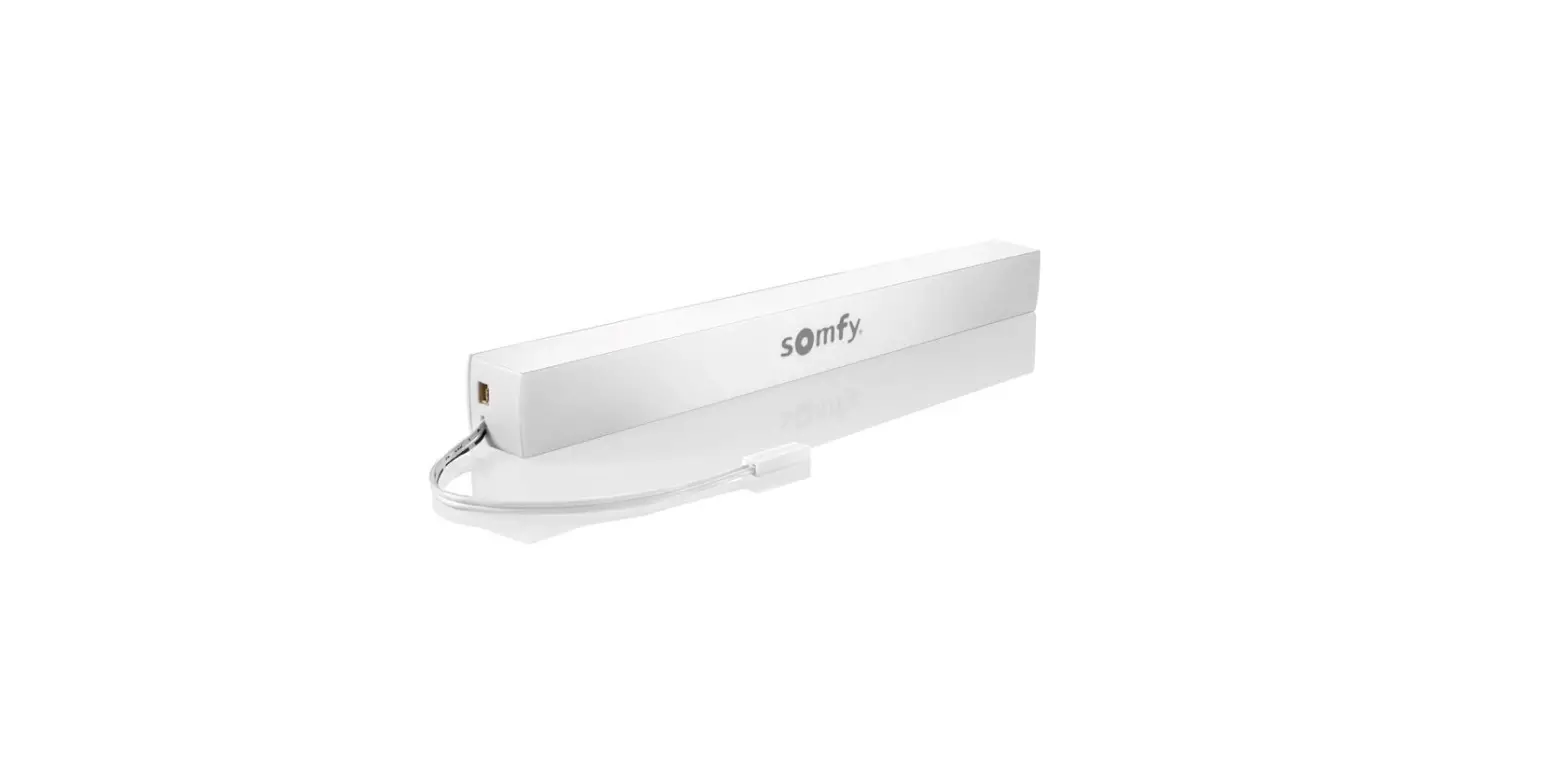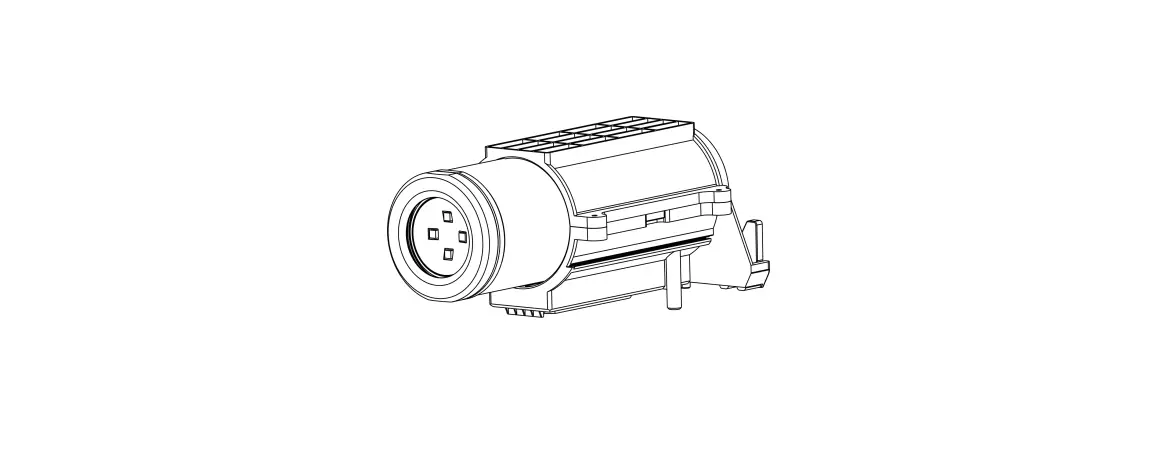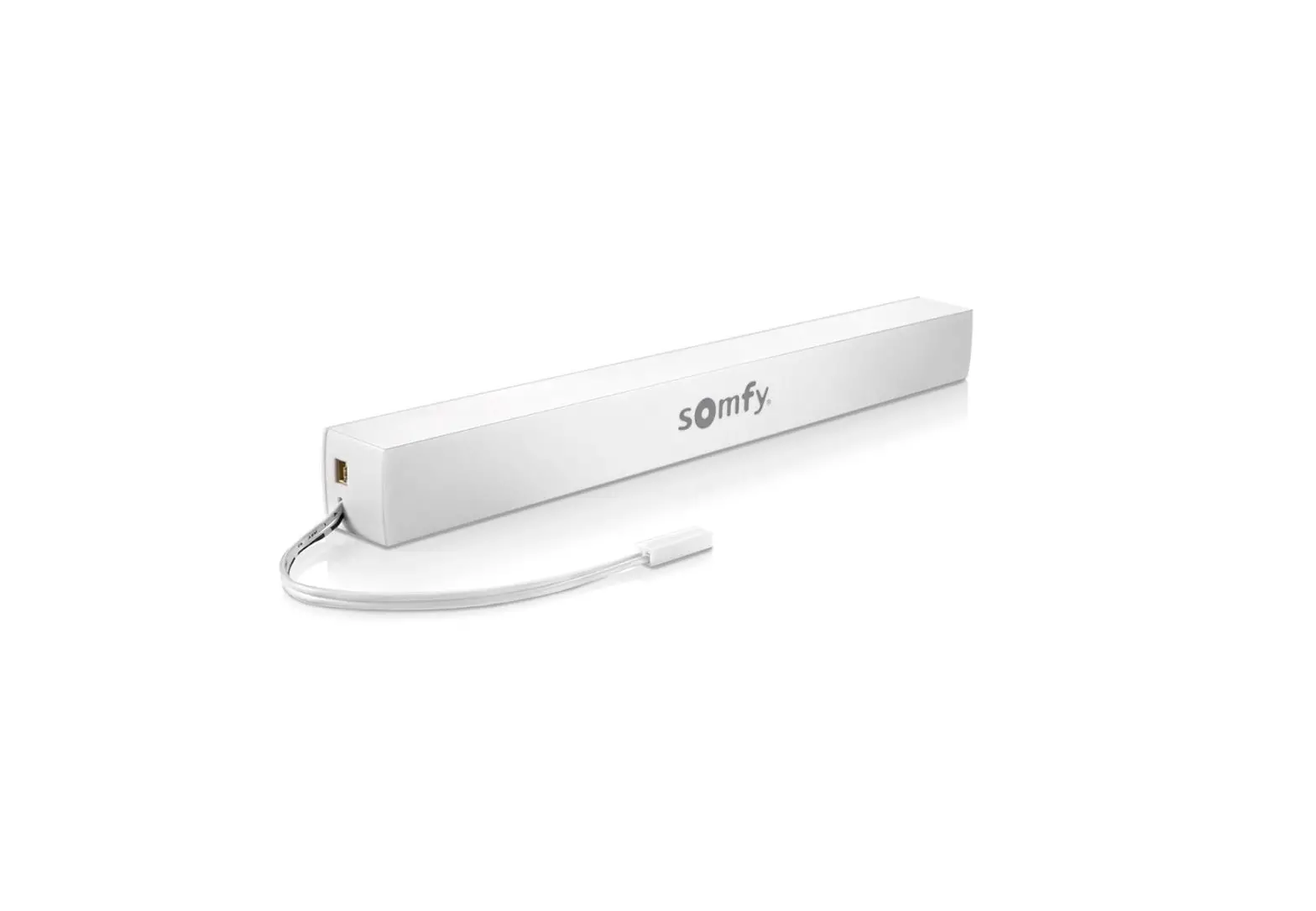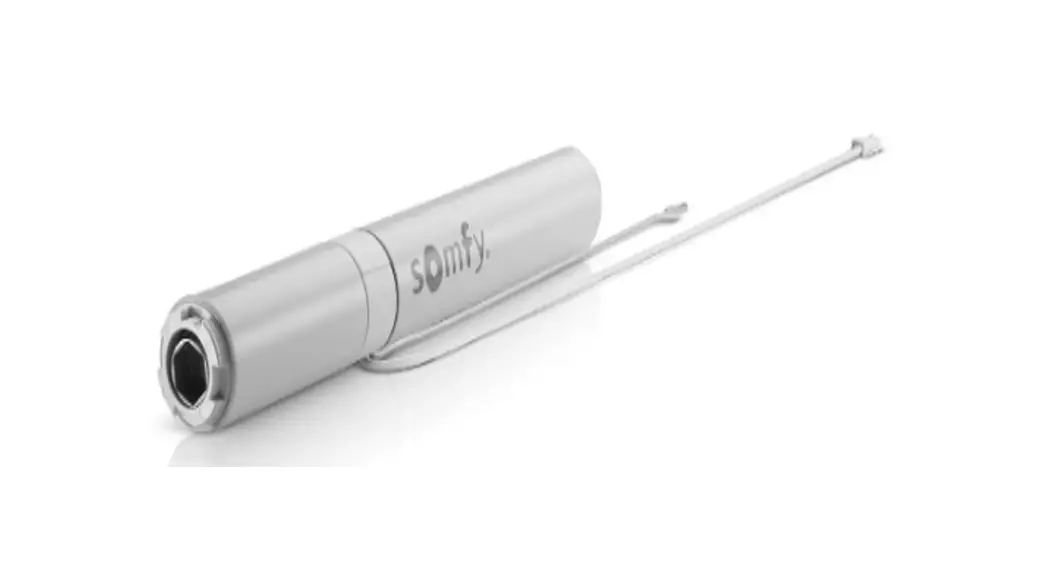

 TL25 Wirefree RTS External Battery
User Guide
TL25 Wirefree RTS External Battery
TL25 Wirefree™ RTS External Battery
Quick Programming Guide
IMPORTANT: Upper and lower limits are set at the factory. In the event limit setting is required, follow steps to RESET MOTOR TO FACTORY MODE and proceed with INITIAL PROGRAMMING AND LIMIT SETTING.
- Supply power to the motor. The shade will jog 3 times.
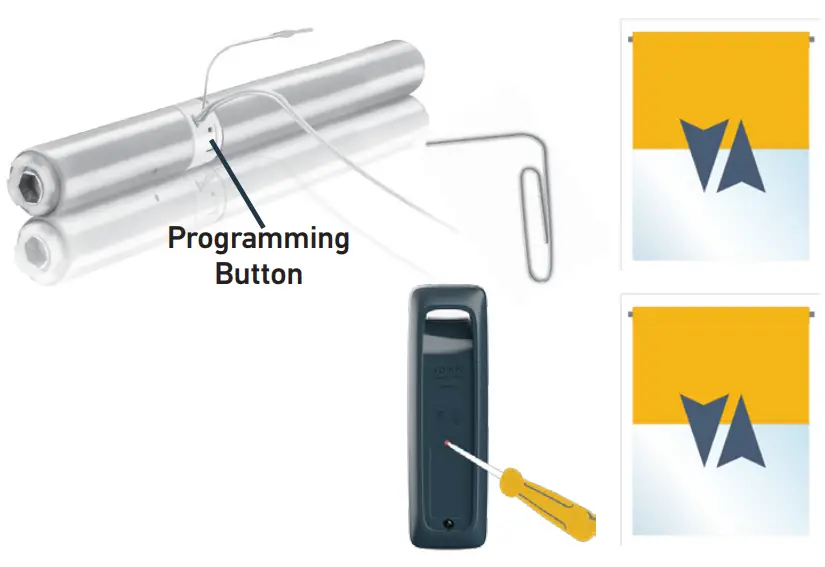
- PRESS & HOLD the PROGRAMMING BUTTON on the motor until the shade jogs once.
- Choose the transmitter you wish to control the shade and choose the appropriate channel for control.
- BRIEFLY PRESS the PROGRAMMING BUTTON on the transmitter. The shade will jog once. The transmitter is now paired. You can now install the shade.
ADJUSTING THE LIMITS IN USER MODE
Step 1: Move the shade to the current limit position you wish to adjust and let it stop.
Step 2: PRESS & HOLD both UP and DOWN buttons simultaneously until the shade jogs, then release.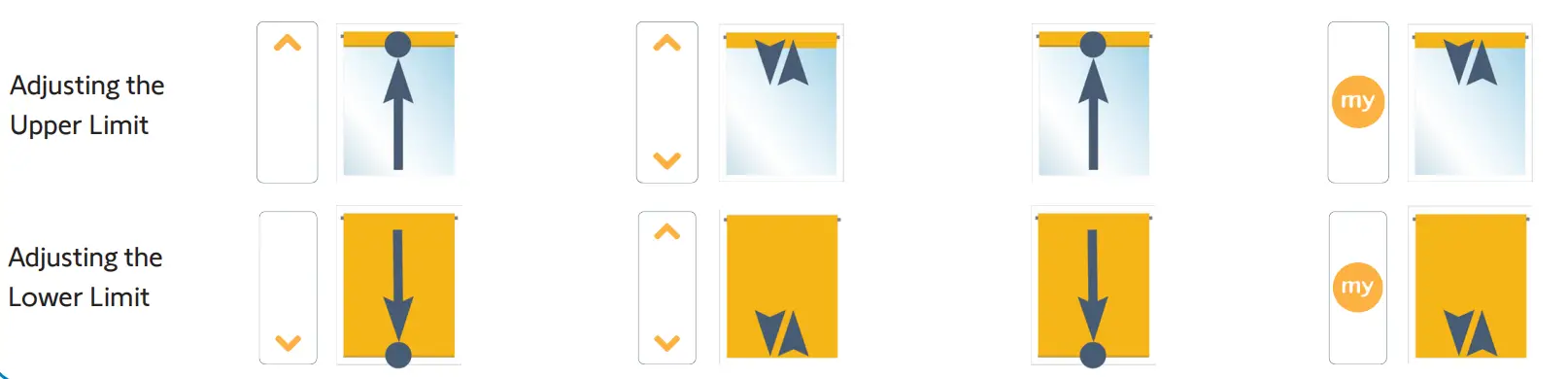
Step 3: Adjust to a new limit position using the UP or DOWN buttons.
Step 4: PRESS & HOLD the MY/STOP button until the shade jogs, then release. Check the new limit.
INITIAL PROGRAMMING AND LIMIT SETTING
NOTE: Motor will exit programming mode after 2 minutes of inactivity. While in programming mode, the shade only operates when UP or DOWN buttons are continuously pressed.
Step 1: To initiate programming PRESS & HOLD the UP and DOWN buttons at the same time until the shade jogs.
Step 2: Check the direction of the operation. Press the DOWN button and confirm the shade lowers.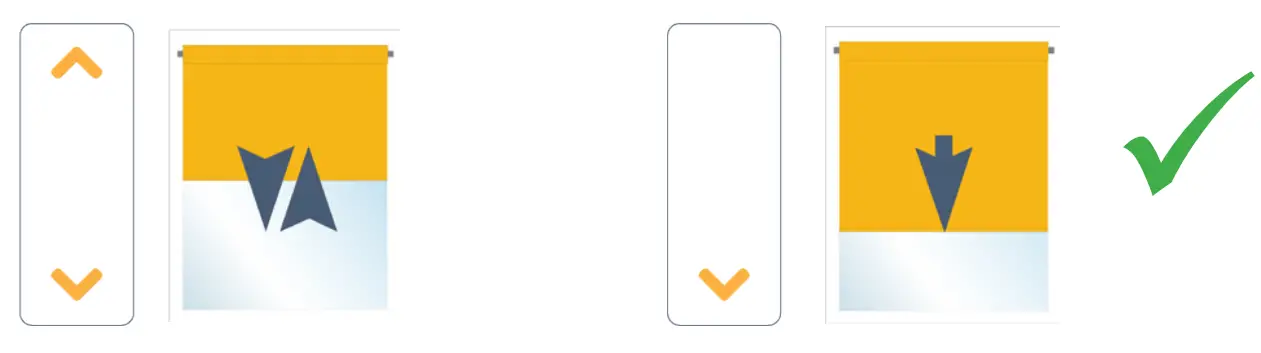
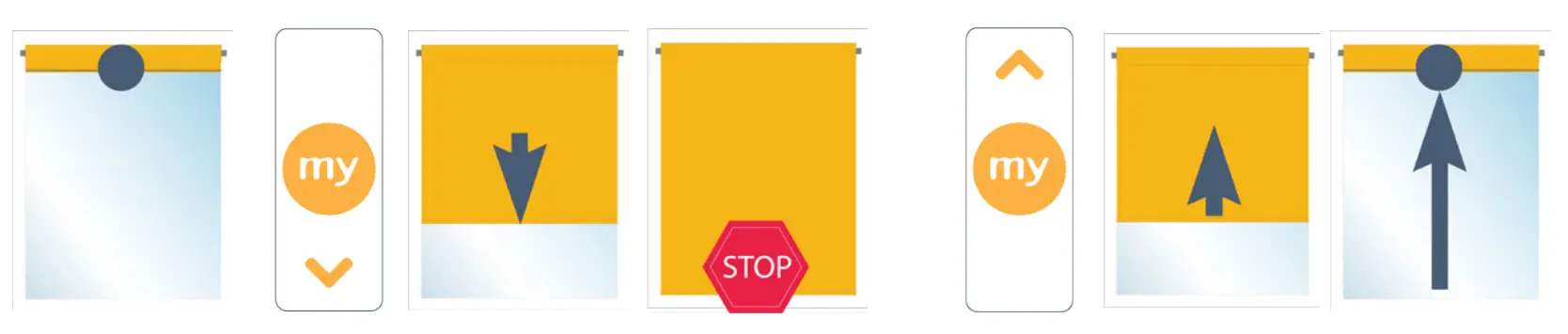
Step 3: Bring the shade to your desired upper limit. Make sure it is not too compressed. PRESS & HOLD both the MY/STOP & DOWN buttons until the shade begins to
move down, then release. Stop the shade at the desired lower limit, and adjust if needed.
Step 4: PRESS & HOLD the UP and MY/STOP buttons until the shade begins to move up. The shade will stop at the original upper limit.
If the shade raises instead of lowering, change the direction – PRESS & HOLD the MY/STOP button until the shade jogs. Confirm the correct direction of operation before proceeding.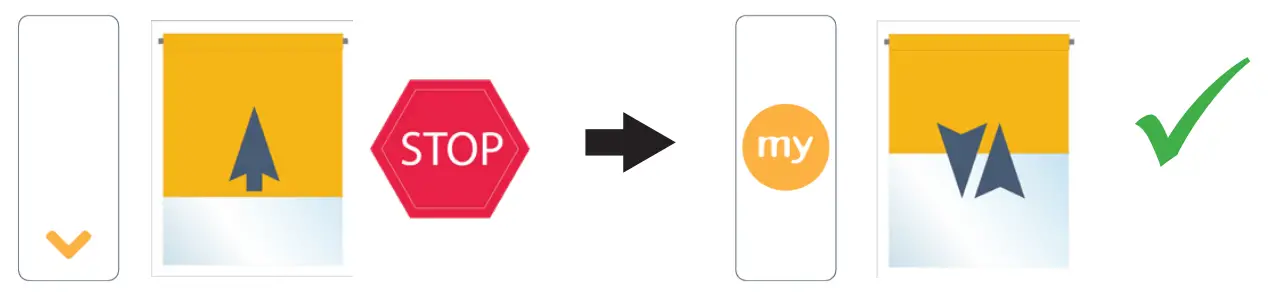
Step 5: PRESS & HOLD the MY/STOP button until the shade jogs to confirm both limit settings.
Step 6: To finalize BRIEFLY PRESS the PROGRAMMING BUTTON on the back of the control. The shade will jog and will now operate in user mode. 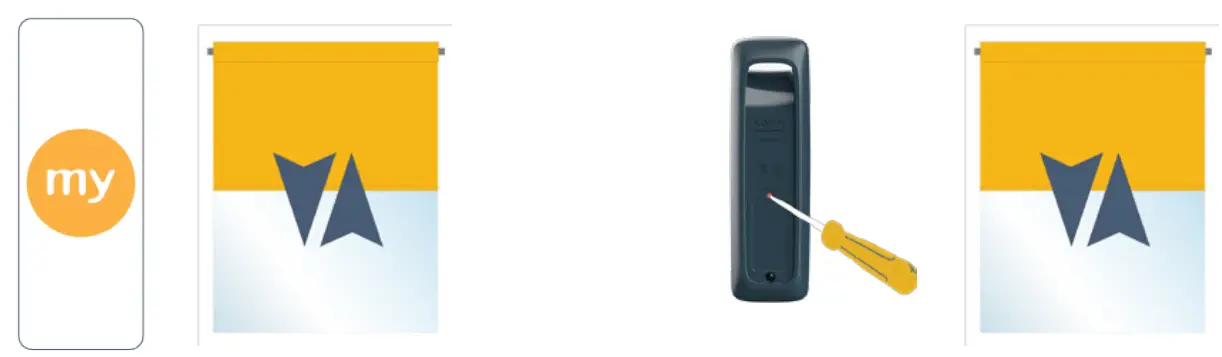
In user mode, a brief press of the UP or DOWN button will send the shade to the respective limit.
ADDING OR DELETING A CONTROL
NOTE: If working with a multi-channel remote or remotes, make sure to first select the channel you wish to copy or delete.
CONTROL 1: ORIGINAL/TO BE KEPT
Previously programmed control – single channel or the channel (1-16) of a multi-channel remote.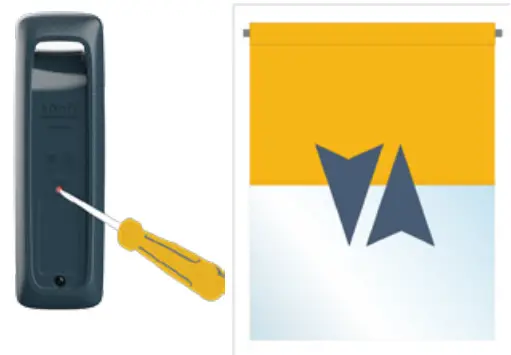
a) PRESS & HOLD the PROGRAMMING BUTTON on the back of Control 1 until the shade jogs.
CONTROL 2: NEW CONTROL/OR CONTROL TO BE DELETED
The second control to be added single channel or the channel (1-16) of a multi-channel remote.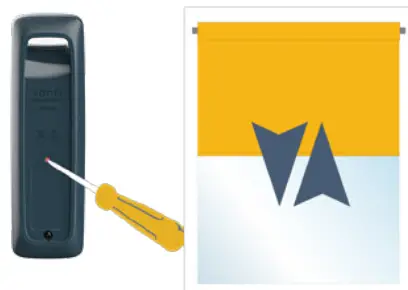
b) BRIEFLY PRESS the PROGRAMMING BUTTON on the back of Control 2. The shade jogs.
SETTING THE INTERMEDIATE “MY” POSITION
1) Move the shade to the desired position and press MY/STOP button to stop the shade.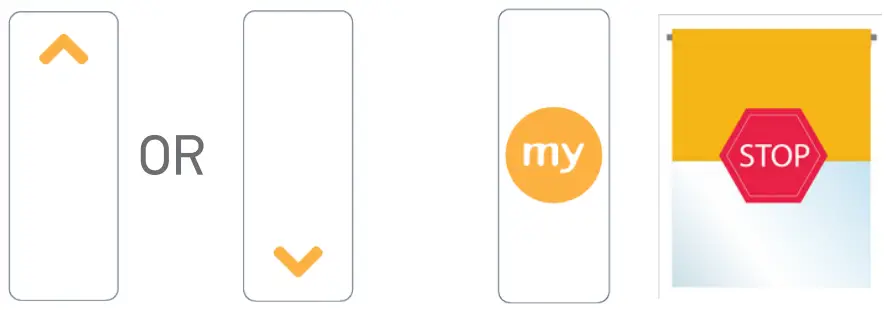
2) PRESS & HOLD the MY/STOP button until the shade jogs. The “my” favorite position is set.
3) To set a NEW “my” position, repeat steps 1 and 2.
To delete: First, send the shade to the current “my” position, then PRESS & HOLD the MY/STOP button for 5 seconds. The shade will jog to confirm the deletion.
USING THE INTERMEDIATE “MY” POSITION
While the shade is stationary, a simple press of the MY/STOP button will move the shade to the “my” intermediate position from any shade position.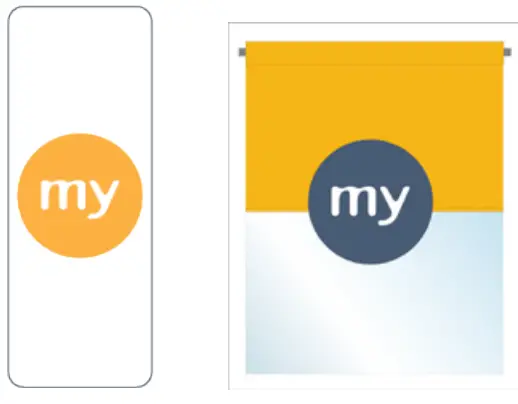
If the shade is in motion, first stop it by pressing MY/STOP and then MY/STOP again to send it to the “my” position.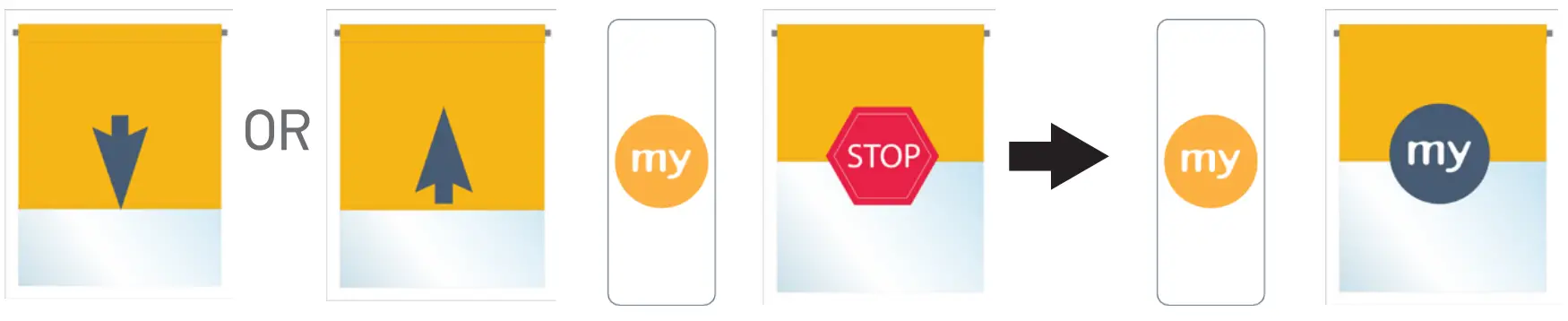
ADJUSTING THE SPEED
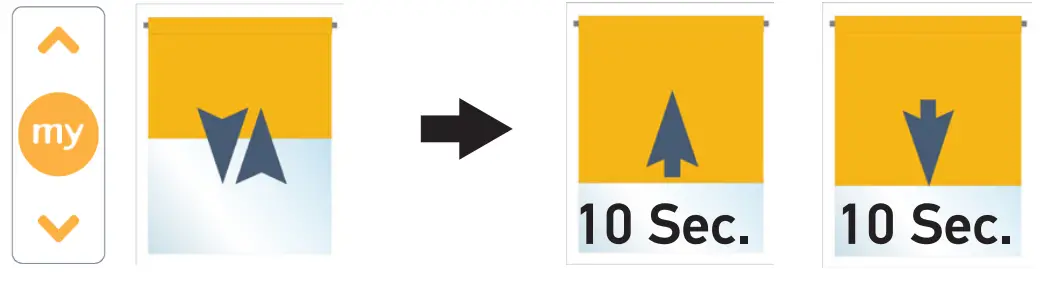
- Move the shade away from the end limits. PRESS & HOLD the UP, MY/STOP and DOWN buttons simultaneously, until the shade jogs. The shade will move up and down automatically in ten-second cycles.

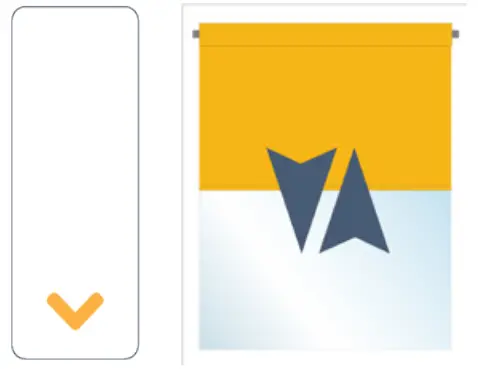
- To decrease the speed, PRESS & HOLD the DOWN button until the shade jogs. Repeat as needed.
 Minimum speed is achieved when the shade no longer jogs when the DOWN button is pressed.
- To increase the speed, PRESS & HOLD the UP button until the shade jogs. Repeat as needed. Maximum speed is achieved when the shade no longer jogs when the UP button is pressed.

- To confirm the new speed, PRESS & HOLD the MY/STOP button until the shade jogs.


RESETTING THE MOTOR TO FACTORY MODE
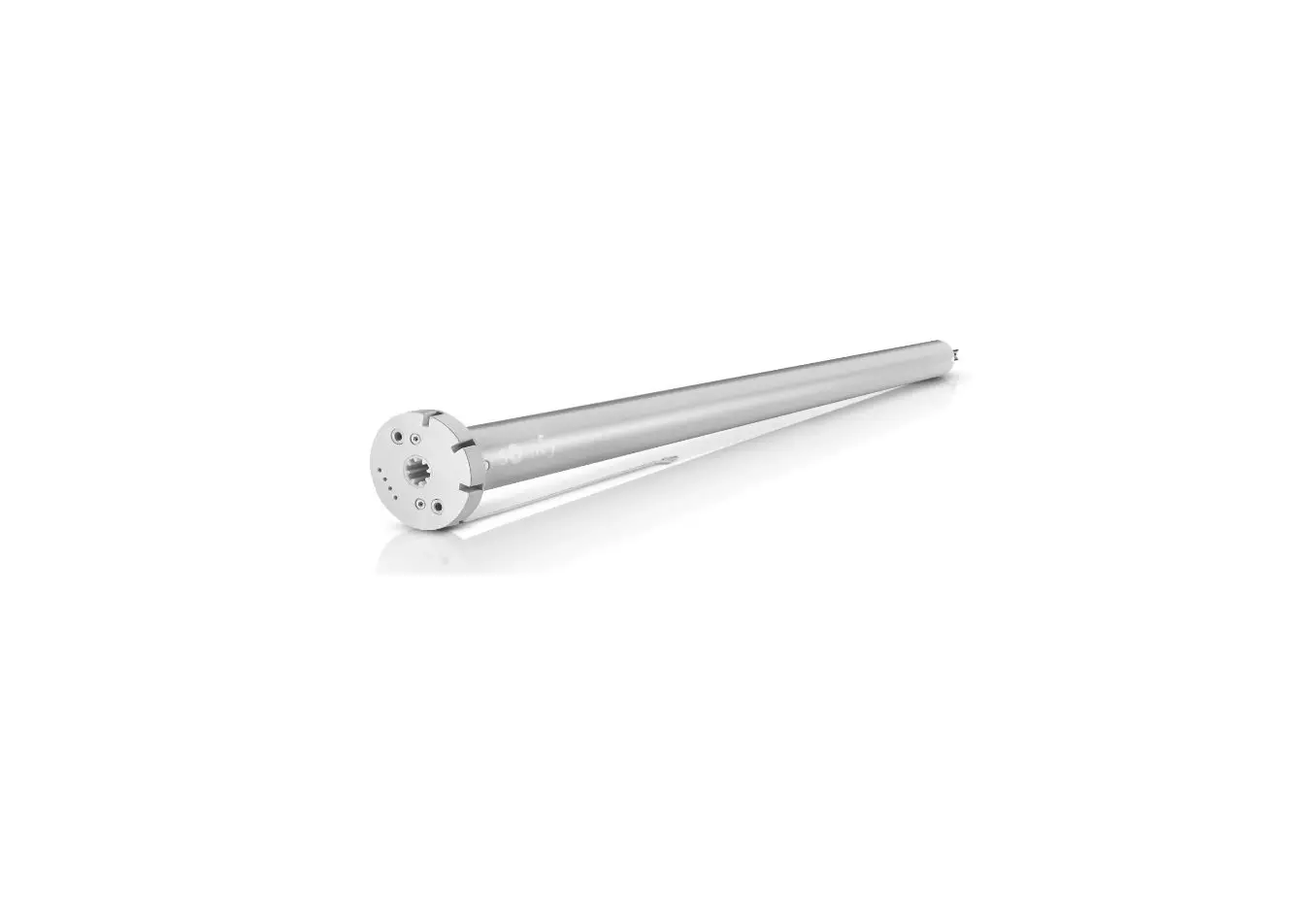
With a paperclip or a similar device PRESS & HOLD the PROGRAMMING BUTTON on the motor (shown below) for approximately 12 seconds during which the shade will jog 3 separate times. DO NOT RELEASE UNTIL 3 JOGS.
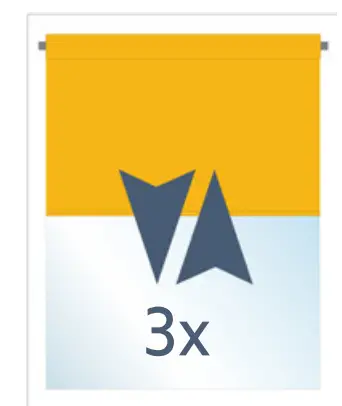
All programmed remotes and limit settings will be erased. The motor is now reset to factory mode. Motor limits will need to be re-established.
Copyright © Somfy SAS 8/2022 P-0057CBG
www.somfysystems.com
 Somfy: Smart Home Solutions For Motorized Blinds, Shades & More