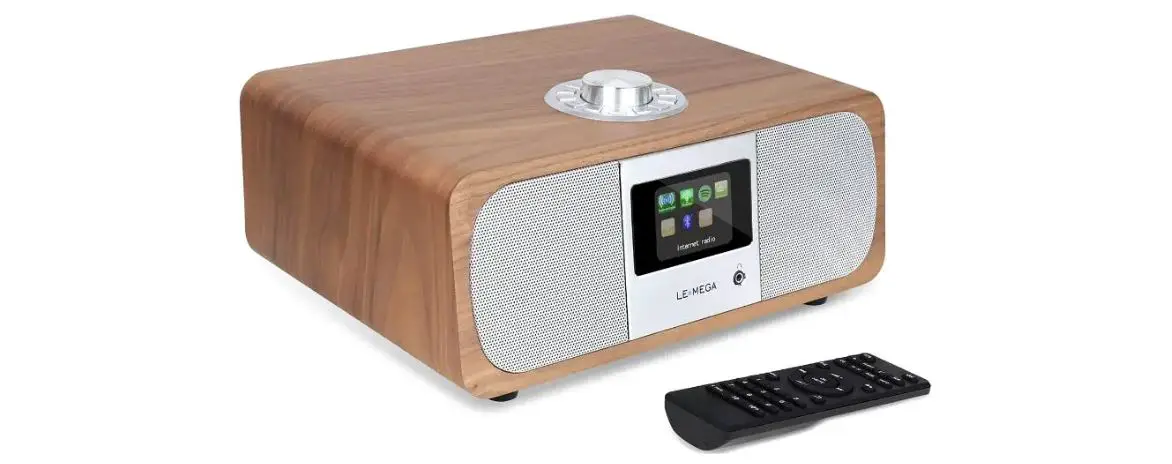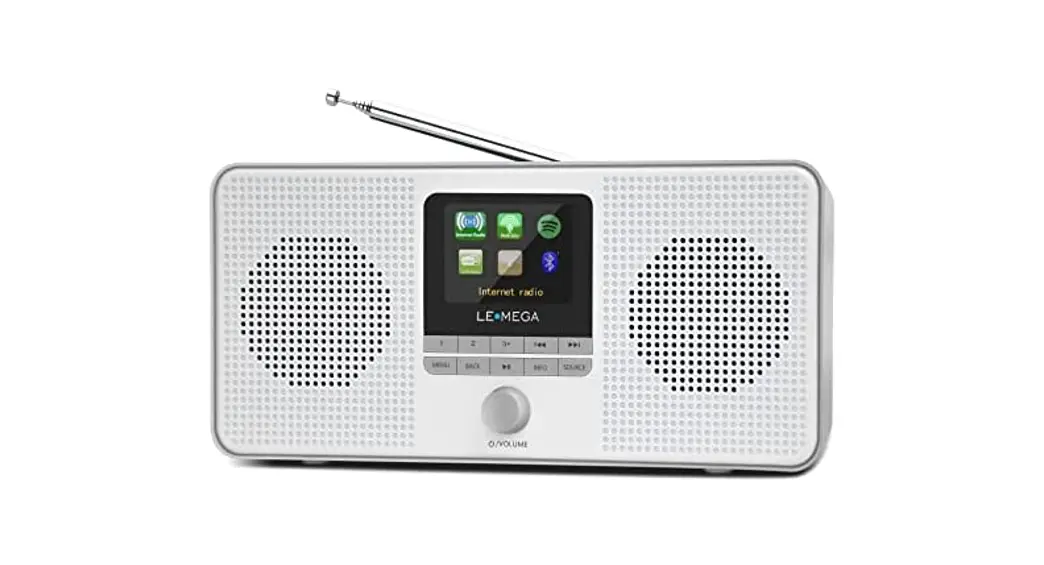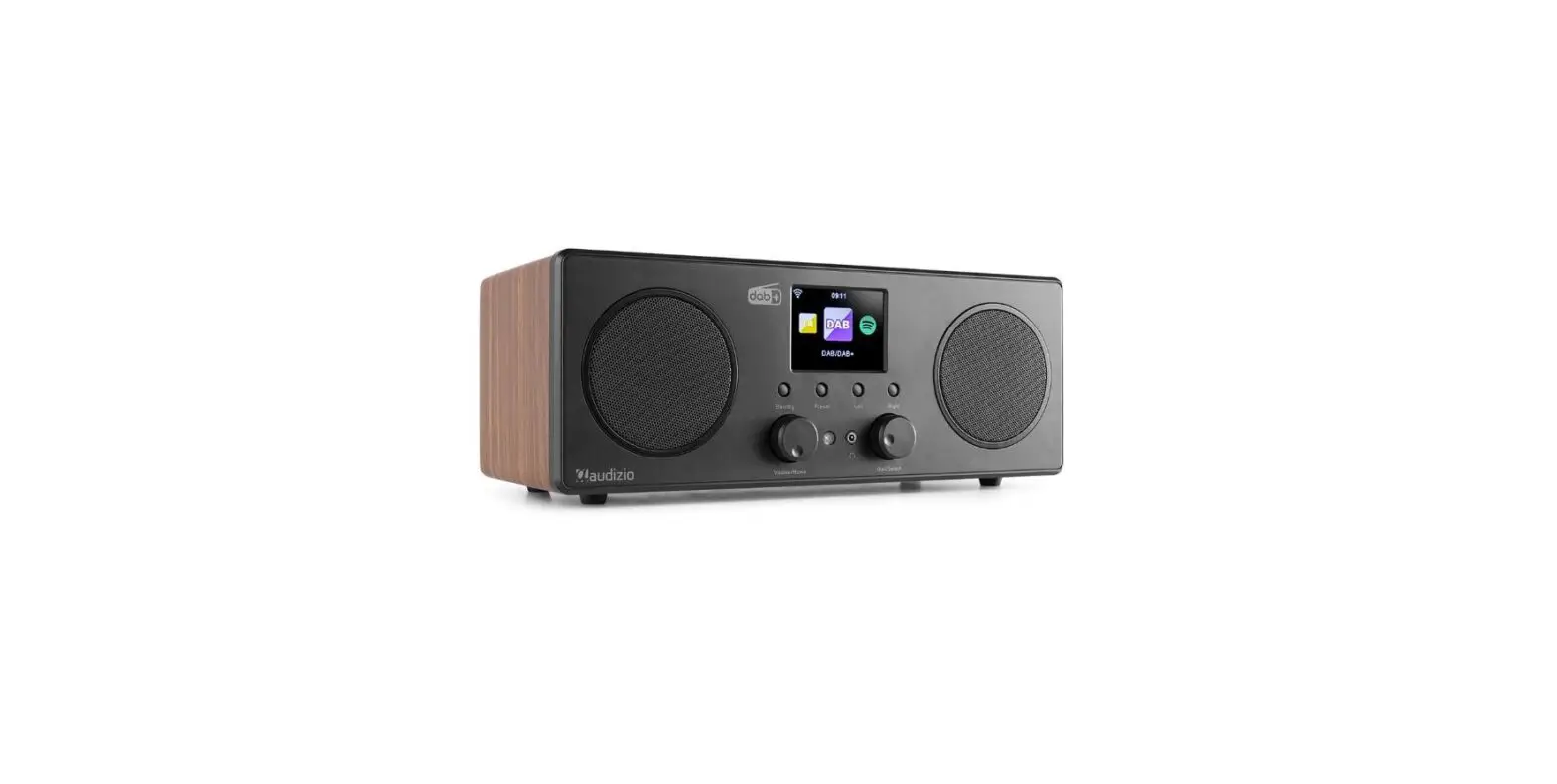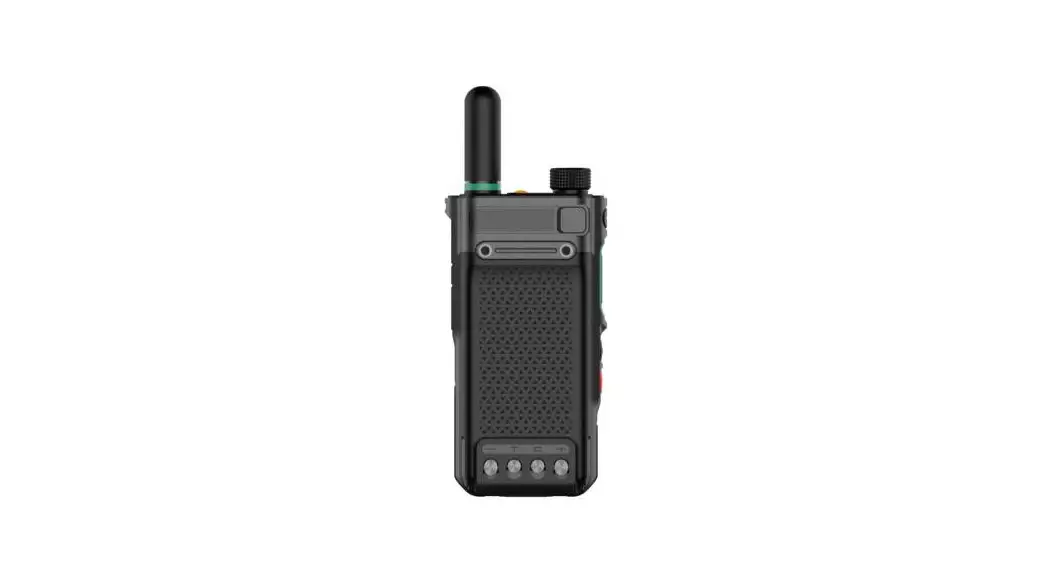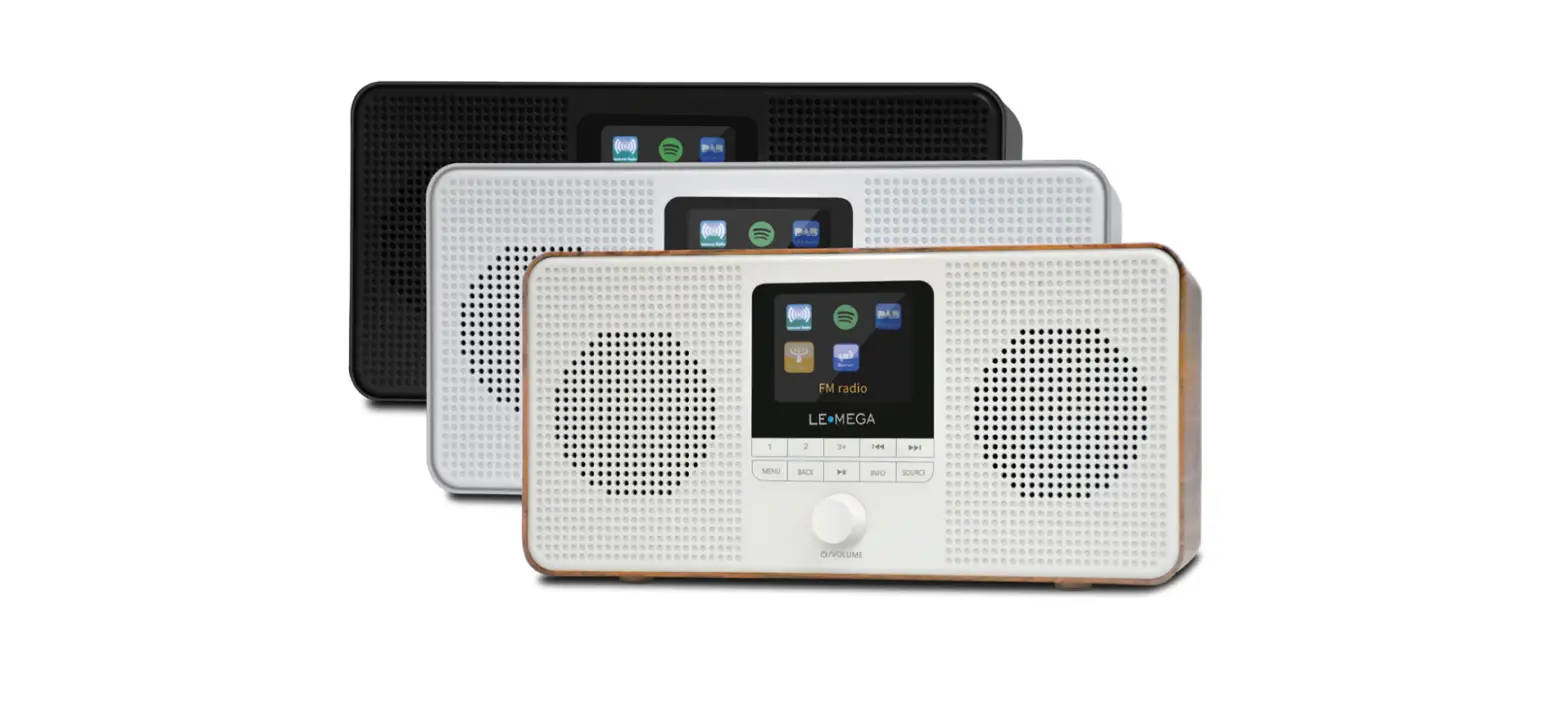

LEMEGA IR4S Stereo WiFi Internet Radio
Safety
Safety Instructions
Please store this instruction manual for future reference.
- WARNING: To reduce the risk of fire or electric shock, do not expose this apparatus to rain or moisture. The apparatus shall not be exposed to dripping or splashing and objects filled with liquids, such as vases, shall not be placed on the apparatus.
- WARNING: The direct plug-in adapter is used as a disconnect device, the disconnect device shall remain readily operable.
- This lightning flash with an arrowhead symbol within an equilateral triangle is intended to alert the user to the presence of non-insulated “dangerous voltage” within the product’s enclosure that may be of
sufficient magnitude to constitute a risk of electric shock - Warning: To reduce the risk of electric shock, do not remove the cover (or back) as there are no user-serviceable parts inside. Refer servicing to qualified personnel.
- The exclamation point within an equilateral triangle is intended to alert the user to the presence of important operating and maintenance instructions in the literature accompanying the appliance. the product should not be disposed of with other household wastes throughout the EU. To prevent possible harm to the environment or human health from uncontrolled waste disposal, recycle it responsibly to promote the sustainable reuse of material resources. To return your used device, please use the return and collection systems or contact the retailer where the product was purchased.
- They can take this product for environmentally safe recycling.
- No naked flame Modes, such as lighted candles, should be placed on the apparatus.
- Do not use this product near water or moisture.
- Clean only with a dry cloth.
- Unplug this product from the wall outlet before cleaning.
- Place the unit on a solid surface.
- Do not put it in a closed bookcase or a cabinet that may keep air from flowing through its ventilation openings.
- Do not install near any heat Modes, such as radiators, heat registers, stoves or other appliances that produce heat.
- Protect the power cord from being walked on or pinched, particularly at plugs and the point where they exit from the product.
- Servicing is required when the product has been damaged. Do not attempt to service this product yourself. Opening or removing covers may expose you to dangerous voltages or other hazards. Please contact the manufacturer to be referred to an authorized service center near you.
- To prevent risk of fire or electric shock, avoid over loading wall outlets extension cords, or integral convenience receptacles.
- Do not let objects or liquids enter the product.
- Use proper power Modes. Plug the product into a proper power Mode as described in the operating instructions or as marked on the product.
Features
This manual describes how to use the IR4, an advanced but easy-to-use Wi-Fi connected audio system with the following modes:
Internet Radio with access to over 20,000 stations by wifi streaming ‘Listen again’ broadcasts and podcasts
DAB/DAB+ digital radio with a wide choice of channels and digital quality sound broadcast free-to-air.
FM with RDS (Radio Data System)
Bluetooth – streaming music and control from Smart device.
Carton contents
After you unpack the box, you will find the following items:
- 1 owner’s manual
- 1 USB charging cable
- 1 DC 5V Power Supply
- 1 Warranty Card
- 1 IR4 unit
Controls, connectors and display
Main controls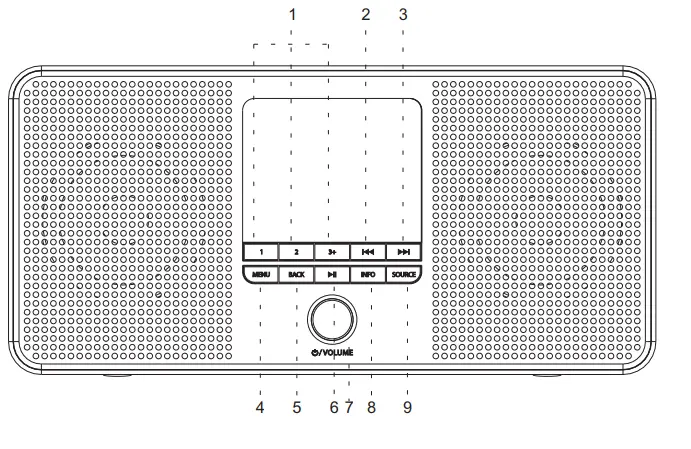
| 1. Preset 1,2,3+ | 6. Play/Pause |
| 2 TUNE- / | 7.Power on/off&Volume&Select/Snooze/Mute |
| 3 TUNE+ / | 8.Info |
| 4. Menu | 9.Source |
| 5. Back |
- PRESET: Long press button 1, 2, 3+ to preset and save your favorite stations save 20 favorite stations); Short Press button 1,2,3+ to select the favorite station to play or Preset recall. You can save 20 stations by pressing button 5+ and by scrolling the preset list to achieve.
 / TUNE- : Press to select the previous track under DAB /FM / Bluetooth and internet radio mode. Press and hold the Tune- button 2 seconds to scan the stations under the FM mode.
 / TUNE+ “: Press to select the next track under DAB / FM / Bluetooth under internet radio mode. Press and hold t he T une+ button 2 seconds to auto-scan the stations under the DAB / FM mode.
- MENU: press the MENU to show the MENU for the current mode. Press again to show now playing screen.
- BACK: press the BACK to return to the previous screen.
- Press to select Play/Pause under BT mode.
- SELECT/ SNOOZE/Power/Volume:
- Power: Turn on or back to standby mode (showing clock and date), or cancel sleep, or cancel alarm function.
- VOLUME: Rotate the scroll button to adjust the volume up or down during playback.
- MUTE: Press the scroll button to mute the music when playing.
- SELECT: Rotate the scroll button scroll through a menu or station list. Press to the scroll button to select the chosen option. Press and hold Select scroll button to auto scan DAB/FM stations.
- SNOOZE: Press the scroll button to snooze a set time when alarm sounding.
- INFO: View more information about the station or track playing. Press again to cycle through further information screens then return to the normal playing screen.
FULL SIDESHOW: Press and hold INFO button to switch DAB normal playing screen image to full screen slide show image. - SOURCE: Press Source to select different mode Internet Radio / DAB / FM / Bluetooth.
 / TUNE- : Press to select the previous track under DAB /FM / Bluetooth and internet radio mode. Press and hold the Tune- button 2 seconds to scan the stations under the FM mode.
 / TUNE+ “: Press to select the next track under DAB / FM / Bluetooth under internet radio mode. Press and hold t he T une+ button 2 seconds to auto-scan the stations under the DAB / FM mode.
Connectors 
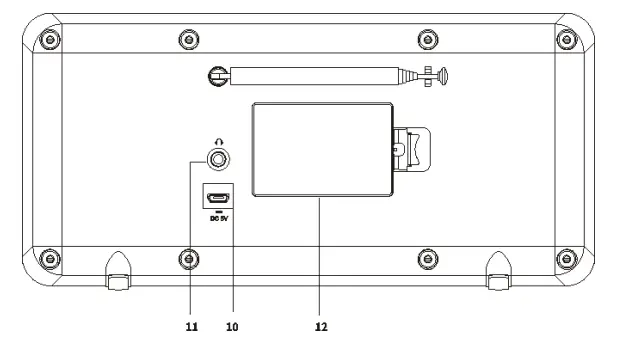
| 10 | DC power in (5V) | 12 | Battery compartment. |
| 11 | Headphones out. |
Operation
After the initial setup, IR4 is ready for operating in most Modes.
To select a Mode, press Mode until the required Mode splash screen is displayed. After a brief moment, IR4 switches to that mode. The last station or track previously used in that mode is selected. If this is not possible, IR4 scans for relevant stations, and networks, or prompts the user for appropriate input. See the relevant Mode section for details of how to use each listening mode.
The Common local controls for sound volume, Mute and Play/Pause are available in all listening modes.
Menu navigation
The primary control for moving through menus and options is the Select Control. Rotate the control to move up or down a menu. Once the required option or value is highlighted, press the Select Control. All menus and lists act as loops such that turning the control to go beyond the first or last entry in a menu or list takes you to the opposite end of the menu or list. So going up from the first entry in a menu will take you to the last option in the menu, etc. A “>” appears on the right of the screen if there are more options above or below those visible.
To enter the menu tree in a particular mode press Menu. To move back a menu level press Back. To exit the menu system, press Menu again. Each mode has a Mode menu, with options specific to that mode.
For example, the FM mode menu has two mode-specific options:
Scan setting and Audio setting.
In addition, each mode menu has a final option:
System settings >. The ‘>’ indicates options leading to further menus.
The System settings menu presents system setting functions to allow the user to set up how the unit behaves. This includes Equalizer, Sleep, Alarms, Streaming Audio quality, network, time/date, language, factory reset, software update, Setup wizard, info, Privacy policy, and backlight.
Started and setup
When IR4 is started for the first time, it runs through a setup wizard to configure settings for date/time and network. Once this has finished,
the system is ready to use in most modes.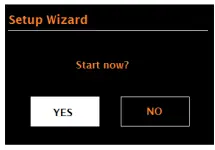
Note: To change these settings later, select Menu >System settings > and select the required settings option(s).
To run the setup wizard again, select Menu > System settings > Setup wizard.
The Network settings can be reset later by manually running the Network wizard, select Menu > System settings > Network wizard.
Select Yes to start the setup wizard.
If you choose No, a second screen asks if you would like to run the wizard next time IR4 is started; select Yes or No. The system then starts without configuring time/date and network settings and enters the Main Menu.
Note: If power is removed while the wizard is in progress, the wizard will run again next time IR4 is started.
- 12/24 hour display
To change between 12 and 24-hour display, select Time/Date > Set format 12/24 hour format and then select your preference. - Set Time/Date (wizard)
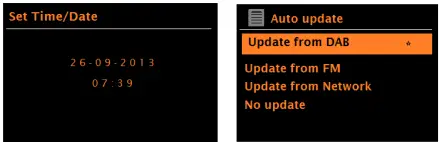
The date and time are displayed as dd-mm-yyyy and hh: mm with the first value, dd, active (flashing). Adjust each value with the Select control. As each value is set by pressing the Select control, the next value becomes active ready for adjustment.
Auto-update
Auto-update works with data sent over DAB, FM or network. The clock is only updated when in a corresponding mode, so it is best to select a mode you use regularly.
DAB and FM use time signals broadcast with radio transmissions.
The network uses a time signal sent from the Internet radio portal when in any network-connected mode.
- Select Update from DAB, Update from FM, Update from Network or No update.
- If you are updating from the network, set your time zone.
- If your country uses daylight saving, the automatically updated time from the network may be wrong by one hour. When daylight savings are in effect (during the winter), turn on the Daylight savings option to rectify this.
Note that if you are updating the time from DAB or FM, the Daylight savings option has no effect on the clock’s time.
IR4 will auto-update from the selected Mode when time information is available.
3.1.3 Network
IR4 is compatible with all common network protocols and encryption methods, including Wi-Fi Protected Setup (WPS).
To connect IR4 to your network, you need a Wi-Fi wireless router, together with password key if set Select WLAN region/country >Wi-Fi network (SSID), and then select a network from the list. 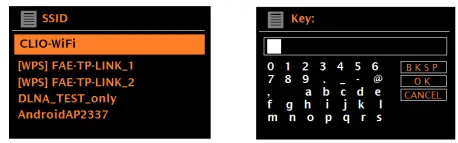
If the network is open (non-encrypted), IR4 connects and no further details are required; see Completion below.
Standard encrypted network
To enter the network’s key (password), use the Select control to highlight the next relevant character and press to select each character in turn. As each character is selected, the key is built up near the top of the display.
The three options – Backspace, OK and Cancel are included in the election loop. These can be accessed just using the Select control, or, a short cut is available, pressing the Info key, which moves the selection highlight to the Back Space option.
WPS setup
WPS encrypted networks are identified by ‘[WPS]’ at the start of the Network name, and have two methods of connection. Select one and follow the prompts. When using the network wizard an additional option to Skip
WPS is available.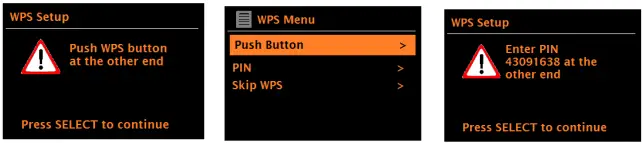
- Push Button >
IR4 prompts you to press the connect button on the router. It then presses the select control. - Pin > (code number)
IR4 generates an 8-digit code number which you enter into the wireless router, access point. - Skip WPS >
Enter key as for a standard encrypted network, above. For more information on setting up a WPS encrypted network, see your WPS router’s instructions.
On completion
IR4 connects to the selected network.
If connecting fails, IR4 returns to a previous screen to try again. To exit the process use the Back/Menu button 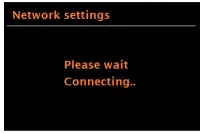
Other settings
Network
IR4 remembers the last four wireless networks it has connected to, and automatically tries to connect to whichever one of them it can find. You can see the list of registered networks through Menu > System settings >Network > Network profile >From here you can delete unwanted networks by turning and pressing Select then confirming delete Yes. There are also other options for viewing and manually altering network settings from Menu > System settings > Network > (for example setting up a wired network).
Users experienced with networking may find these options useful for diagnosing and fixing network problems.
Language
The default language is English. To change, select Menu > System settings>Language >then select your language.
Internet radio mode
IR4 can play thousands of radio stations and podcasts from around the world though a broadband Internet connection.
When you select Internet radio mode, IR4 contacts the Frontier Silicon Internet radio portal to get a list of stations, organized into different categories like Country, Most popular and Genre. Once you select a station, IR4 connects directly to that station.
To enter Internet Radio mode, press Mode until the display shows Internet Radio. Note: The station list menu is provided from the Internet radio portal, so it is only accessible when IR4 is connected to the Internet. Station lists and submenus may change from time to time.
The Station list is organized into various categories and search facilities:
- <Country> This menu item is localized for each country, for example, ‘UK’, please update accordingly
- History
- Search
- Location
- popular
- Discover.
Country
This menu item is localized for each country, for example, ‘UK’, please update accordingly.
Presents a sub-menu to search for stations using a variety of categories, for example, local stations, BBC stations, Genres or stations from a specific city.
Choose the required category and either a further list of sub categories is shown, or (if there are no further cub-categories) the available stations for the chosen category are listed.
History
When Internet radio mode restarts, the last-listened station is selected.
To select another recently used station, select Menu > History then one of the stations listed. Most recent stations appear at the top of the list.
Search
You can also search through Internet broadcasts for stations with particular keywords in their title.
To search, select Menu > Search.
Enter a keyword by selecting characters in turn, then OK. The search entry screens are similar in operation to the Wi-Fi passphrase entry screen.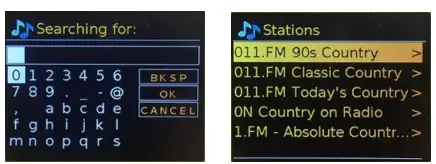
Select a broadcast from the list.
Location
To select an Internet broadcast from a particular location, select Menu > Location >.
Select a continent from the menu and a list of countries available is presented, select a country and the available internet radio stations are presented.
Choose a radio station from the list to tune to that station.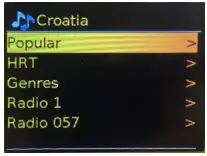
Popular
Presents a list of the most popular internet stations from around the world.
Discover
Allows you to select from a list of stations defined by either their origin (Country), Genre (style of music) or language. Navigate through the category options; once you have made your selection a screen confirms your selected category and the number of stations within that category. To see the list, select the option showing the number of available stations.
Now playing information
While the stream is playing, the screen shows its name and description. If artist and track information is available, this is also shown. To view further information, press Info .
Each time you press Info, another set of information is displayed, cycling through the following details:
- Slogan (default; where available)
- Language/Location
- Codec and sampling rate
- Playback buffer
- Today’s Date.
DAB radio mode (Optional)
DAB radio mode receives DAB/DAB+ digital radio and displays information about the station, stream and track playing.
To enter DAB mode, press Mode until the display shows DAB Radio.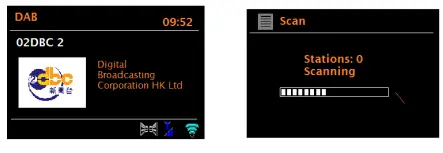
Scan for stations
The first time you select DAB radio mode, or if the station list is empty, IR4 automatically performs a full scan to see what stations are available. You may also need to start a scan manually to update the list of stations for one of the following reasons:
- Available stations change from time to time.
- If reception was not good for the original scan (for example the antenna was not up), this may result in an empty or incomplete list of available stations.
- If you have poor reception of some stations (burbling), you may wish to list only stations with good signal strength.
- To start a scan manually, select Menu > Scan.
- Once the scan is complete, the radio shows a list of available stations.
- To remove stations that are listed but unavailable, select Menu > Prune invalid.
Selecting stations
To listen to or change a station, turn the Select control to view a list ofstations and press to select. Once selected, the station plays and the screen shows information about the station, track or show as broadcast. Presets To store a DAB preset, press and hold Preset 1,2,3+ until the display shows the Save preset screen.
To select a preset, press 1,2,3 + briefly, then select one of the listed preset stations.
When a preset station is playing, it shows ☆1,2,3 etc in the middle of the screen.
Now playing information
While the stream is playing, the screen shows its name and DLS (Dynamic Label Segment) information broadcast by the station giving
real-time information such as program name, track title and contact details. Stereo broadcasts are indicated with an icon at the top of the screen. To view further information, press Info.
Each time you press Info, another set of information is displayed, cycling through DLS text, program type, ensemble name/frequency, signal strength/error rate, bit rate/codec/channels and today’s date.
Slideshow
When the slideshow is available (dependent on the broadcasted signal), the images are displayed on the left side of the screen. To cycle through the different display options (thumbnail, slide with DLS text and full screen slide) press and hold the info button.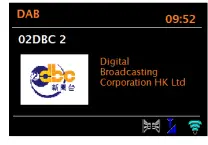
Settings
Dynamic range compression
Some DAB broadcasts offer dynamic range compression (DRC). This feature allows radios to compress the dynamic range of the output audio stream, so that the volume of quiet sounds is increased, and the volume of loud sounds is reduced. This can be useful if you are listening to music with a high dynamic range in a noisy environment (for example, classical music while cooking).
To change the DRC of the IR4, select Menu > DRC, and then DRC high, DRC low or DRC off.
Note: The IR4’s DRC setting does have any effect if DRC data is not included in the broadcast.
Station order
You can choose the order of the DAB station list to be either
Alphanumeric, Ensemble or Valid. Ensemble lists groups of stations that are broadcast together on the same ensemble, for example BBC or South Wales local. Valid lists valid stations first, alphanumerically, then off-air stations. To change station order, select Menu > Station order > then Alphanumeric or Ensemble.
FM radio mode
FM radio mode receives analogue radio from the FM band and displays RDS (Radio Data System) information about the station and show (where broadcast). To enter FM mode, either press Mode to choose FM Radio.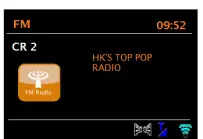
- Selecting stations
To find a station, press and hold Select knob. The frequency display starts to run up as IR4 scans the FM band. resets to store an FM preset, press and hold button 1-3+ Preset until the display shows the Save preset screen. Select one of the 20 presets to save the currently playing station.
To select a preset, press Preset 1-3+ briefly, then select one of the listed Preset stations. When a preset station is playing, it shows ☆1,2,3 etc in the middle of the screen. - Now playing information
While an FM station is playing, the screen shows one of the two following sets data:
If RDS information is available, by default the service name (i.e. station name) is displayed.
You can cycle through further RDS information by pressing Info .Each time you press Info, another set of information is displayed, cycling through RDS radio text, RDS programme type, frequency and today’s date. If no RDS information is available, the currently tuned frequency is shown. - Settings
Scan settings
By default, FM scans stop at any available station. This may result in a poor signal-to-noise ratio (hiss) from weak stations. To change the scan settings to stop only at stations with good signal strength, select Menu > Scan setting > Strong stations only? > Yes.
Audio settings
By default, all stereo stations are reproduced in stereo. For weak stations, this may result in a poor signal-to-noise ratio (hiss). To play weak stations in mono, select Menu >Audio setting > FM weak reception: Listen in mono only > Yes.
Bluetooth mode
Prior to pairing, verify your device supports Bluetooth 4.2+EDR A2DP and your device is not connected to any other Bluetooth product. Devices may pair differently. Below is a general guide.
- Press to Mode to Bluetooth mode. This will power on the Bluetooth. Turn the volume up about ¼ to start. Also turn up the volume on the smart device (the device you are streaming from).
- Turn on the Bluetooth on your enabled device.
- Select Bluetooth device name “IR4” when it appears on your device’s screen to initiate searching.
- You can start to play your music files wirelessly. Adjust the volume level on your device.
You should not have to pair your device again.
Depending on your device, you may need to make multiple attempts at Pairing and/or Connecting to the “LEMEGA IR4”, but please give your device adequate time to Pair or Connect before repeating
the process.
Alarms and sleep
As well as a clock/calendar, there are two versatile wake-up alarms with snooze facility, and a sleep function to turn the system off after a set period. Each alarm can be set to start in a particular mode.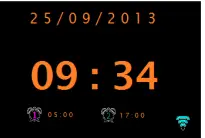
- Alarms
To set or change an alarm, select Menu > system settings> Alarms. Select the alarm number (1 or 2) then configure the following parameters: Enable: Off, Daily, Once, Weekends or Weekdays Time:12:00AM (adjust as necessary)
Mode: Buzzer, Internet radio, DAB, or FM
Preset: Last listened or 1-20,
Volume: 0 – max.
To save these settings and set the alarm, scroll down and select Save. Note: If you press Back or Menu to exit the Alarm settings without saving, a dialogue screen is displayed asking if you wish to save the changes or not.
The Now Playing, screen shows active set alarms with an icon at the bottom left. The Standby screen shows active set alarms with an icon and the alarm time. At the set time, the alarm will sound. To temporarily silence it,
press the “Select” knob. Pressing Select knob repeatedly cycles through the available snooze periods: 5 Mins, 10 Mins, 15 Mins, 30 Mins. The radio returns to standby for the set period, with the silenced alarm icon flashing
and a countdown of the remaining snooze period. After the set snooze time the alarm will sound again.
Note: During a snooze period, to change the snooze time, press Select knob to select a new snooze time.
Any remaining snooze time is reset to the selected time period. To cancel a sounding alarm, or an alarm in snooze, press Power knob to off alarm. - Sleep
To set the sleep timer, select Menu > system setting > Sleep then choose from Sleep OFF, 15 MINS, 30 MINS, 45 MINS or 60 MINS. Stop when the required time is displayed, after a brief moment the screen returns to the screen being used before the sleep function was selected. On the Now Playing screens the remaining sleep time is displayed at the bottom of the screen.
Once you select a sleep period, the system returns to the main menu. Press Menu to return to the Now playing screen.
To cancel a sleep time, select Sleep OFF from the sleep options using either of the above methods.
Note: A sleep time is automatically cancelled if IR4 is put into Standby.
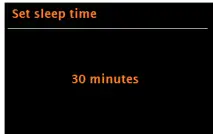 Stop when the required time is displayed, after a brief moment the screen returns to the screen being used before the sleep function was selected. On the Now Playing screens the remaining sleep time is displayed at the bottom of the screen.
Software upgrades and factory reset
Software upgrade
From time to time, IR4 may make software upgrades available with bug Fixes and/or additional features. You can either check manually or set IR4 to check periodically automatically (this is the default). If IR4 detects that newer software is available, it asks if you want to go ahead with an update.
If you agree, the new software is then downloaded and installed. After a software upgrade, all user settings are maintained.
CAUTION: Before starting a software upgrade, ensure that IR4 is plugged into a stable mains power connection. Disconnecting power during a software update may permanently damage the unit.
To turn automatic checking on or off, select Menu > System settings Software update >Auto-check setting.
Factory reset
A factory reset resets all user settings to default values, so time/date, network configuration and presets are lost. However, the radio’s current software version is maintained.
To perform a factory reset, select Menu > System settings > Factory reset Proceed > Yes.
Troubleshooting and error messages
Error messages
| Message | Description | Example |
| Failed to connect | Correct key entered,
But router rejects request | MAC filtering enabled on router |
| Format error | Cannot recognize file format
-independent of network | Received.wma, but
found that the stream wasn’t WMA when trying to decode |
| Network error | Problem past router -incorrect data being received from network | Data obtained from server is unreadable. |
| Network not ready | Problem with connection to router | Router switched off |
| Network timeout | Problem past router – no response being received from network | Streaming IR station and suddenly station becomes unavailable |
| Service not available (DAB) | No DAB reception |
| Problem | Cause | Solutions |
|
Cannot connect to network | Network down | Check that network is working between a computer and the router |
| Router restricts access to listed MAC addresses | Obtain the IR4 MAC address from Menu > System settings
> Network > View settings and add to router list. | |
| Note: IR4 has separate MAC addresses for wired and wireless networks; only the current network adaptor method address is displayed, but the other address can
be obtained by changing the first pair of digits between ‘00’ (wireless) and ‘02’ (wired) | ||
| Insufficient Wi-Fi signal strength | Check distance to router; see if a computer can connect to the network in this location | |
| Unknown encryption
method | Change encryption method on router. IR4 supports WEP, WPA and WPA2 | |
|
Cannot connect to network | Unusual network configuration | Setup network manually through Menu > System settings > Network > Manual settings |
| Firewall preventing access | Check the following ports are open on the router: UDP and TCP ports 80 and 123; DNS port 53. Windows shares: ports 135 – 139 and 445. | |
| Windows Media Player: varies – non-Microsoft firewalls may require configuration for UPnP. |
|
Cannot connect to network | Internet connection down | Check that Internet is working for a computer connected to the same network
Check the following ports are open: UDP and TCP ports 80 and 123; DNS port 53. Some Internet radio stations may require additional ports to be opened. |
| Firewall preventing access | ||
|
Cannot play particular Internet radio station | Station not broadcasting, overloaded or insufficient bandwidth.
Station broadcasting using unknown codec. | Try other stations; try listening on computer via Internet radio portal website; try late |
| The link out of date. |
Technical Specification
- Model:IR4
- Type:Stereo Smart Radio
- Speaker:2 X 2.5” full range driver
- power:2 X 3W RMS
- Power Supply:5 V DC or Li-ion battery 1050mAh/3.7 [battery included]
- Dimension (mm):235 X 112 X 54 MM
- Weight: 0.65 Kg
Specifications are subject to change without notice.
If you have any questions or suggestions, please share them with us.
[email protected] www.lemegaaudio.com
For more information about other exciting products from LEMEGA, please visit our website or contact us directly.
FAQS
If using only the power cord, should the battery be removed?
Probably not.
Did anyone try the Egyptian stations on it? Especially the Quran station?
Does not take ANY stations that are worth lessening to, how every over 20000 Chinese stations is available. It should be for Chains only since no other nationality can not use it
What type of rechargeable batteries does it use, NiMH, NiCd, or something else? please do not try to answer this question if you don’t know
The battery backup for this radio can be rechargeable or non-rechargeable batteries. In the case of rechargeable batteries, the only concern is that the batteries be recharged in a charging unit made specifically the battery type (e.g., NiMH, NiCd, Lithium, etc.)
can you set the display to always show the time?
Not all the time and basically. your internet FM radio selection or other than, it is displayed on the right of the screen in small size when it is synchronized.
Can you get AM as well on this radio?
no over-the-air AM but local FM.
Your am station might be broadcasting as an internet station
How do you program particular radio stations into the radio? I am more interested in talk radio..
Scan to the desired station, then press the preset number you want to save it at (1,2). If you want to save it on preset number 3 or higher, press and hold 3+ for 3 seconds than use the knob to select the desired preset number from 3 to 20
Can you connect to wfan ny?
Yes if the station streams its broadcast.
How come this radio does not have pandora or tune-in?
Because the device is not for Pandora fans. It uses an application to tune into internet radio stations, but I do not think it is tune-in.
Are this radio or the app (undock) have a timer option?
You will find this information in the manual
how long do AA batteries last and is there a low battery indicator?
This model dos not have batteries and work with a direct line to the adaptor and then to a power source
Any chance that access to iheart radio and tunein stations could be added by lemega with a firmware update?
IR4S portable FM radio can let you add Preset via URL but it can’t directly play iheart radio and Tunein.
Can you play You tube music on this?
NO