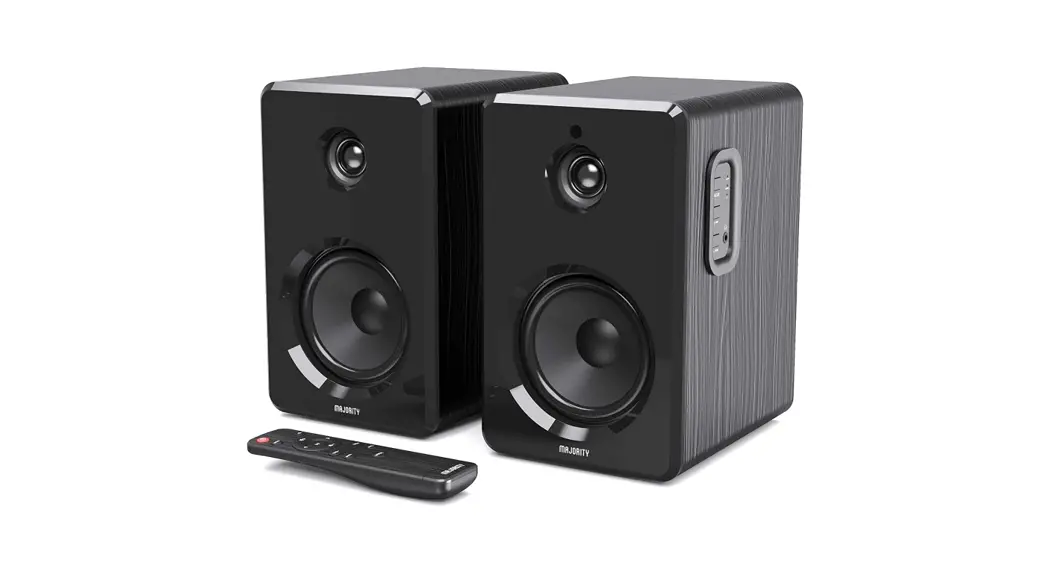
 D 40
D 40
USER MANUAL
3 YEAR WARRANTY
Register your product online for a FREE 3 year extended warranty at: www.majority.co.uk
BOX CONTENTS
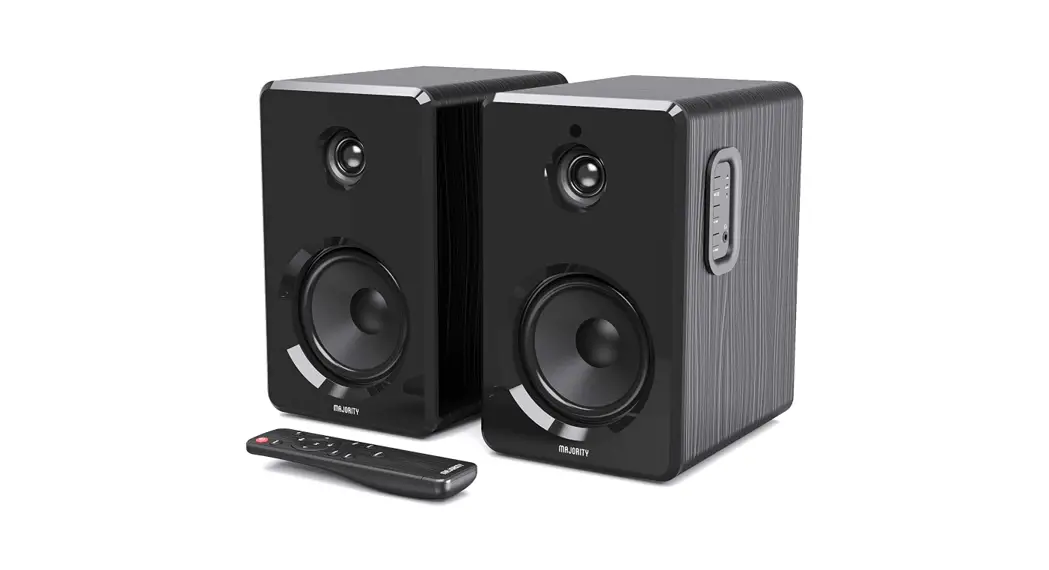
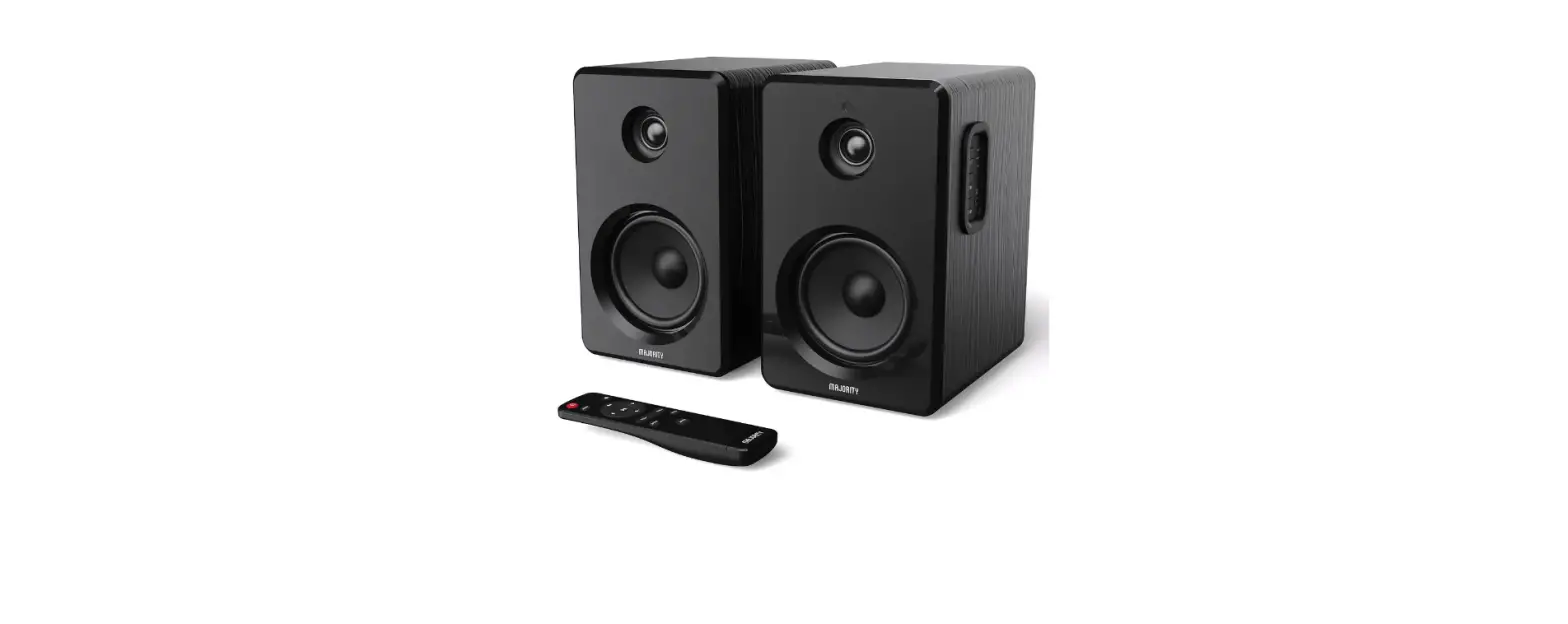
WHAT’S IN THE BOX
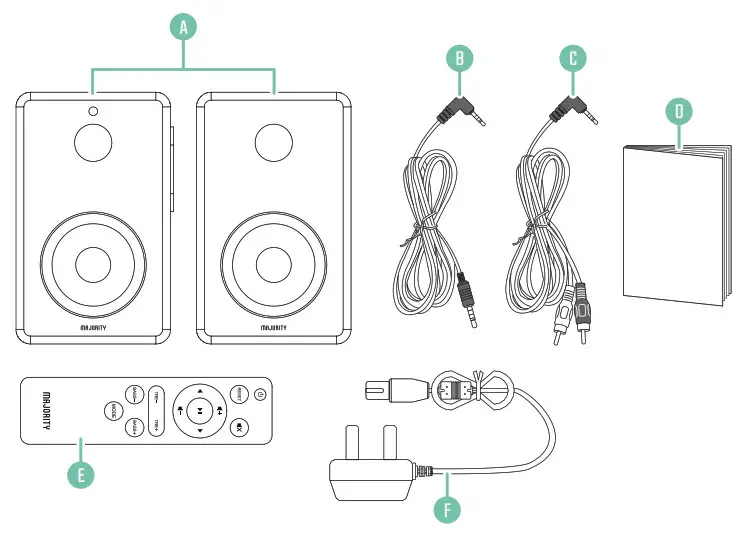
| A. Majority D40 Bookshelf Speakers B. 3.5mm to 3.5mm AUX Cable C. 3.5mm to RCA Cable | D. Instructions Guide E. Remote Control F. Power Adapter |
CONTROLS & FUNCTIONS
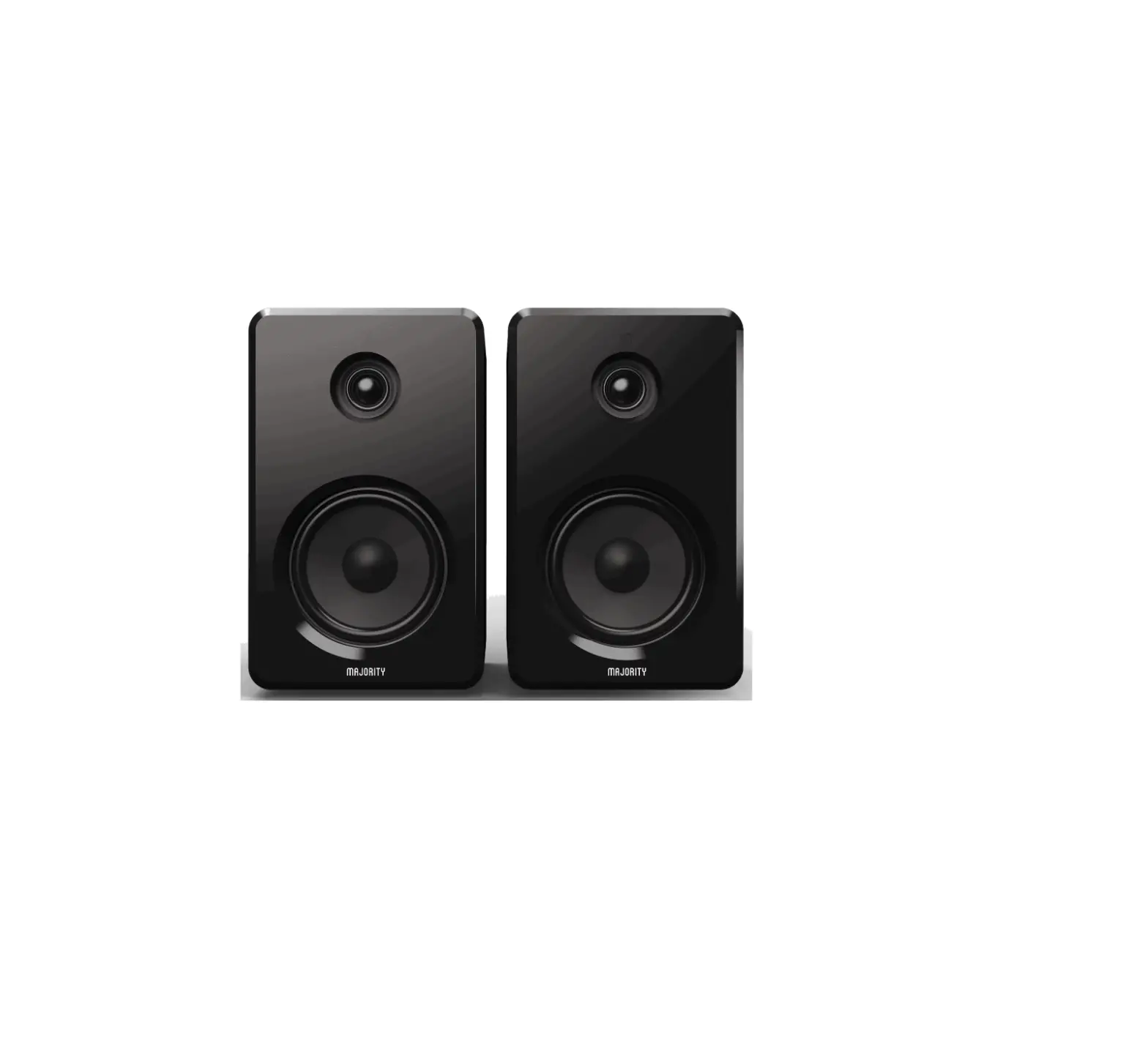
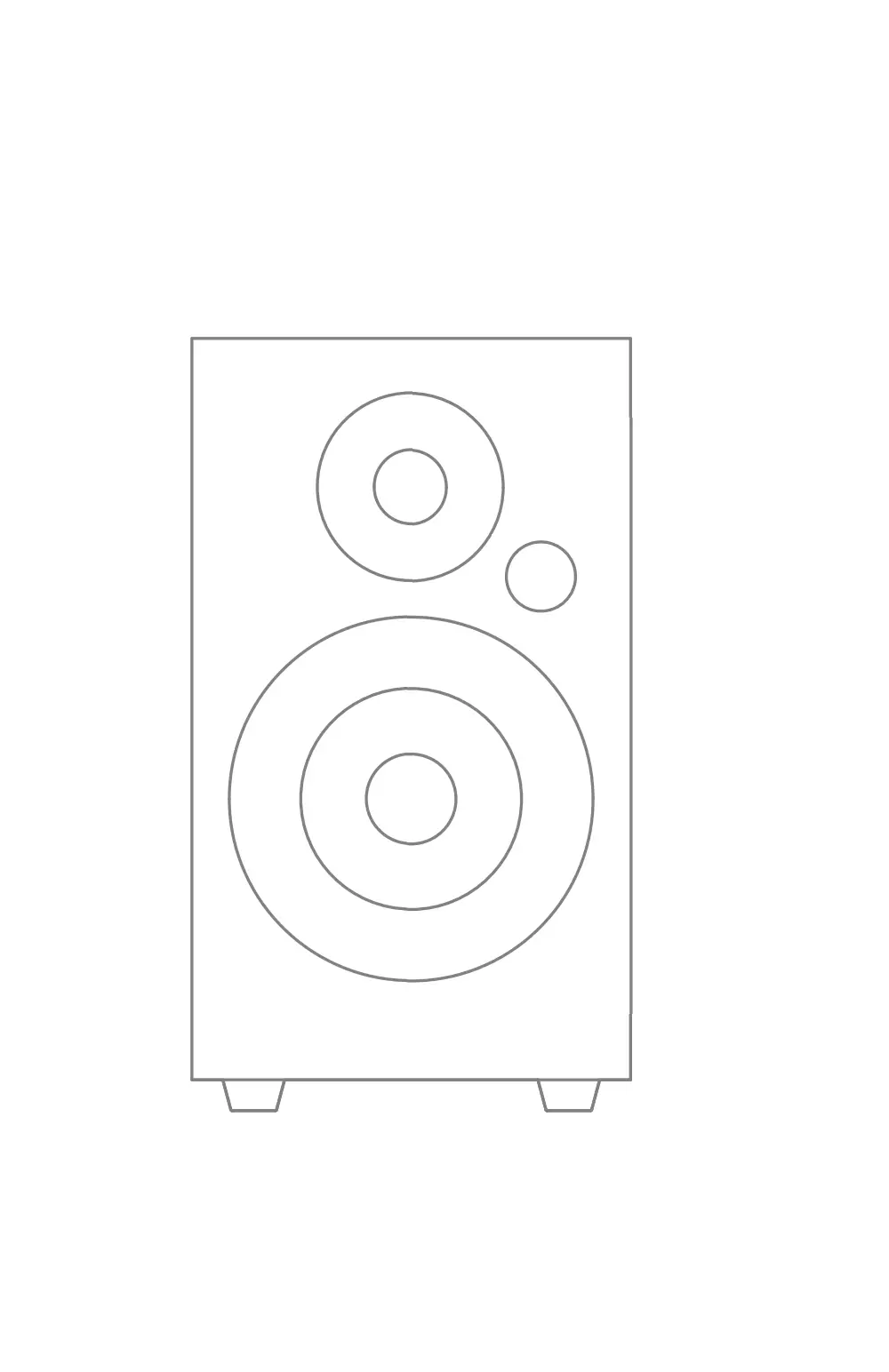
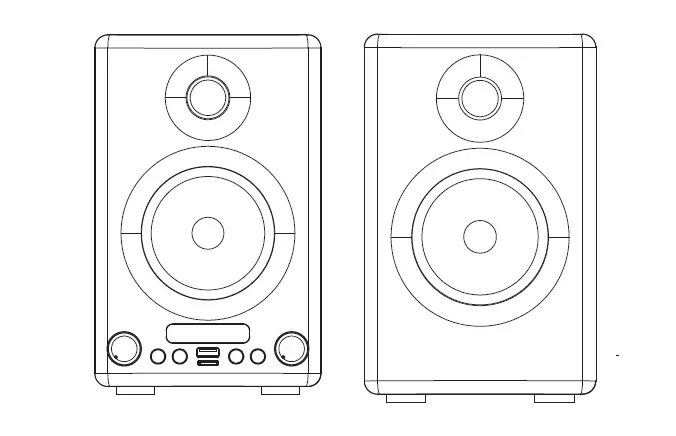
FRONT VIEW
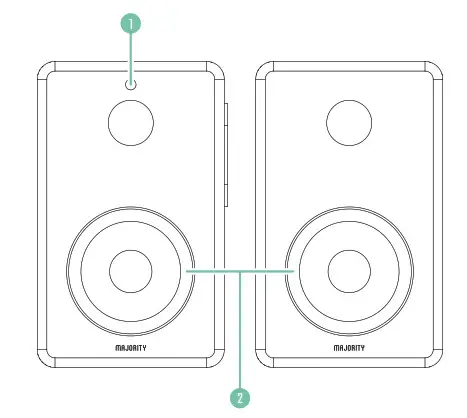
| 1. Remote Sensor | 2. Speakers |
SIDE VIEW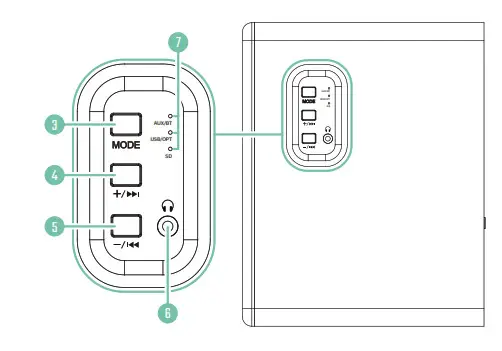
| 3. Mode 4. Vol + / Next 5. Vol – / Previous | 6. Headphone Jack 7. Mode indicator lights |
BACK VIEW
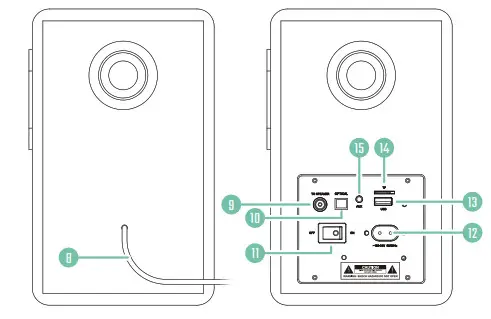
| 8. Speaker connector cable 9. Speaker input 10. OPTICAL input 11. Power On/Off | 12. 100–240V/50-60HZ Power 13. USB slot 14. SD Card slot 15. AUX input |
REMOTE CONTROL
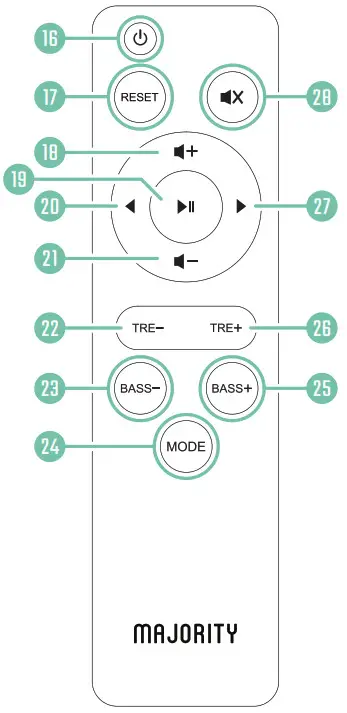
| 16. Power 17. Reset 18. Vol + 19. Play/Pause 20. Previous/Back 21. Vol 22. Treble | 23. Bass 24. Mode 25. Bass + 26. Treble + 27. Next 28. Mute |
SETTING UP YOUR MAJORITY D40 SPEAKERS
Please note that the instructions in this manual will refer to the speaker or remote control button number e.g (Ref.*number*) in accordance with the diagrams on pages 2-4.
Connecting and powering the unit
Using the power cord provided, plug one end into the back of the primary speaker (Ref.12) and plug the other end into the main socket. Switch the unit on at the back of the primary speaker (Ref.11).
Connect the two speakers together via the speaker connector cable (Ref.8) by plugging the connector cable into the speaker input of the primary speaker (Ref.9).
Switch on your Majority D40 Speakers
Press the  button (Ref.16) or press and hold the ‘Mode’ button on the unit (Ref.3) to switch on the speakers. Press the button (Ref.16) to switch the speakers off.
Remote Power
Remove the battery cover of the remote control. Insert 1 x AAA battery (included).
Replace the battery cover.
Note: when using the remote control, ensure that you are pointing at the remote sensor (Ref.1) otherwise the unit may not respond to keypresses.
BASIC OPERATION
Basic controls
Volume, treble and bass can be changed on all speaker modes.
Use the + (Ref.18)/(Ref.4) and – (Ref.21)/(Ref.5) buttons to control the volume.
Press X (Ref.28) to mute the audio.
Use the Treble- (Ref.22), Treble+ (Ref.26), Bass- (Ref.23), and Bass+ (Ref.25) to control the bass and treble settings of the sound. Press ‘RESET’ (Ref.17) to reset the treble and bass settings.
In Bluetooth, SD, or USB mode, use the ⏴ ⏵ (Ref.20)/(Ref. 27) and -/⏮ +/⏭ buttons (press and hold (Ref.4)/(Ref.5)) to skip tracks and rewind or fast forward (see page 7).
Switching mode
When a USB, SD card or AUX cable is inserted, the unit will automatically switch to the correct mode and begin playing audio. If necessary, select the correct mode using the ‘Mode’ button (Ref.24)/(Ref.3).
On the speaker set, Bluetooth and USB modes are indicated by blue light. All other modes are indicated by a red light (Ref.7).
BLUETOOTH, SD & USB CONTROLS
Please note that the following controls and functions are related to Bluetooth, SD card, and USB mode only. For AUX and Optical controls and functions, please see the section ‘AUX and Optical Modes’ (page 8).
Note: in the table below, (H) = ‘Press and hold’.
| Remote | Speaker | Function |
| – + | -/⏮ +/⏭ | Volume up/down |
| ⏴ ⏵ | (H) -/⏮ +/⏭ | Previous/next track |
| (H)⏴ ⏵ | n/a | Rewind/Fast forward |
| X | n/a | Mute |
| ⏯ | MODE | Play/Pause |
| TRE-/TRE+ | n/a | Treble up/down |
| BASS-/BASS+ | n/a | Bass up/down |
| MODE | (H) MODE | Change Mode |
| RESET | n/a | Reset Treble/Bass |
AUX AND OPTICAL MODES
Use the 3.5mm to 3.5mm AUX cable or 3.5mm to RCA cable to connect an external AUX device to the ‘AUX’ input of the D40 speakers (Ref.15).
Switch to AUX mode
When an AUX cable is plugged into the AUX port at the rear of the speaker (Ref.15),
the unit will automatically switch to AUX mode (indicated with a red light (Ref.7))
and make 3 short ascending beeps. If necessary, select ‘AUX’ mode using the ‘Mode’ button (Ref.24)/(Ref.3).
Optical mode
To connect the D40 speakers to an external device, use an optical cable to connect via the OPTICAL input (Ref.10).
Press the ‘Mode’ button (Ref.24)/(Ref.3) to switch the Mode to Optical. The corresponding mode indicator light (Ref.7) will light up red and make a short sound when Optical mode is selected.
Controls and Functions – AUX/Optical
Note: in the table below, (H) = ‘Press and hold’.
| Remote | Speaker | Function |
| – + | -/⏮ +/⏭ | Volume up/down |
| X ⏯ | MODE | Mute |
| TRE-/TRE+ | n/a | Treble up/down |
| BASS-/BASS+ | n/a | Bass up/down |
| MODE | (H) MODE | Change Mode |
| RESET | n/a | Reset Treble/Bass |
BLUETOOTH MODE
To connect an external device to the D40 speakers, ensure that the speakers are in ‘Bluetooth’ mode. Select ‘Bluetooth’ mode manually by using the ‘Mode’ button (Ref.24)/(Ref.3) until the corresponding mode indicator light, labeled ‘AUX/BT’, (Ref.7) lights up blue. The speakers will make a series of short ascending beeps to indicate that Bluetooth mode is now active.
Switch Bluetooth on for your external device. Select ‘D40’ from the list of devices. When your external device is connected, the speakers will make a short beep to indicate a successful connection. You can now play audio through the speakers. When Bluetooth is disconnected, the speakers will sound with 5 short ascending beeps to indicate successful disconnection.
USB & SD CARD MODE
USB
To use USB mode, insert a USB drive into the USB port at the back of the speaker (Ref.13). The speakers will sound with 2 short beeps to indicate that USB mode is active, and the ‘USB/OPT’ mode indicator light (Ref.7) will light up blue. If necessary,
select ‘USB’ mode using the ‘Mode’ button (Ref.24)/(Ref.3).
SD
To use SD mode, insert a SD/TF card into the SD port at the back of the speaker (Ref.14). The speakers will sound with 3 short beeps to indicate that SD mode is active, and the ‘SD’ mode indicator light (Ref.7) will light up red. If necessary, select ‘SD’ mode using the ‘Mode’ button (Ref.24)/(Ref.3).
Maximum storage compatibility for USB and SD/TF cards: 64GB.
CONNECTING HEADPHONES
Connect wired headphones (not included) to the headphone port of the Majority D40 speakers (Ref.6) to listen to audio through headphones.
Ensure the volume is turned down before you use the headphones.
You will now hear audio output through the headphones.
Please note that the Majority D40 is not compatible with Bluetooth headphones.
TROUBLESHOOTING
| Observation | Potential Cause/Solution |
| No power/function | Check whether the power is switched on or off at the wall. Check that the power adaptor is properly connected to the power outlet. |
| No sound | Check whether the unit is set to MUTE. Check whether MODE is correctly selected. Turn up the volume on the speakers or on your external device. Check that cables are properly installed. |
| Function disturbance | Switch off and unplug the unit. Leave it for 2 minutes and switch it on again. |
| Bluetooth not connecting | Ensure that you are on Bluetooth mode on the speaker and the Bluetooth on your device is switched on. Select the Bluetooth device ‘D40’ and you should now be able to play audio. |
SUPPORT
SPEC & WARRANTY
SPECIFICATION
| Power Supply | 100-240V/50-60Hz |
| Mode: | Bluetooth 3.5mm AUX-in USB reader SD reader |
| Power consumption | 0.5W (standby mode) |
| Dimensions | 223 x 137 x 179 mm |
| Weight | 3.80 kg |
| Speakers | 2*4” full range + 2 * 1” tweeter |
| Bluetooth Version | 5.0 |
| Bluetooth range | up to 10 meters |
| Compatible file types | MP3, WMA, FLAC, MAV, APE |
| Maximum compatible USB/SD storage | 64GB |
Warranty
All products come with a standard 12-month warranty. All items must be registered on www.majority.co.uk for the warranty to be valid. Once on the web page, use the menu to find “Register Your Product”. You will also be given the chance to extend your warranty for an additional 24 months, free of charge.
Safety Information
- Read these instructions.
- Keep these instructions. Instructions are also available for download at www.majorityradios.co.uk
- Heed all Warnings
- Follow all instructions
- Do no clean the apparatus near or with water
- Do not block any ventilation openings. Install in accordance with the manufacturer’s instructions
- Do not install near any heat sources such as radiators, heat registers, stoves, or other apparatus (including amplifiers) that produce heat.
- Protect the power from being walked on or pinched particularly at plugs, convenience receptacles, and the point where they exit from the apparatus.
- Only use attachments/accessories specified by the manufacturer.
- Unplug this apparatus during light storms or when unused for long periods of time.
- Refer all servicing to qualified service personnel. Servicing is required when the apparatus has been damaged in a way, such as power-supply cord or plug is damaged, liquid has been spilled or objects have fallen into the apparatus, the apparatus has been exposed to the rain or moisture, does not operate normally or has been dropped.
- No naked flame sources, such as lit candles, should be placed on the apparatus.
- Dispose of used electrical products and batteries safely according to your local authority and regulations.
ADDITIONAL WARNINGS
The apparatus shall not be exposed to dripping or splashing and no objects filled with liquid, such as vases, shall be placed on the apparatus. The mains plug is used to disconnect the device and it should remain readily operable during intended use. In order to disconnect the apparatus from the main mains completely, the mains plug should be disconnected from the main socket outlet completely. The battery shall not be exposed to excessive heat such as sunshine, fire or the like.
RECYCLING ELECTRICAL PRODUCTS You should now recycle your waste electrical goods and in doing so help the environment.
This symbol means an electrical product should not be disposed of with normal household waste.
Please ensure it is taken to a suitable facility for disposal when finished with.
IMPORTANT: Please read all instructions carefully before use and keep them for future reference. Risk of electric shock.
Do not open Read all instructions carefully before use and keep them for future reference
 When servicing, use only identical replacement parts

IMPORTANT: Please read all instructions carefully before use and keep for future reference