
cisco OS11 Webex Room Device
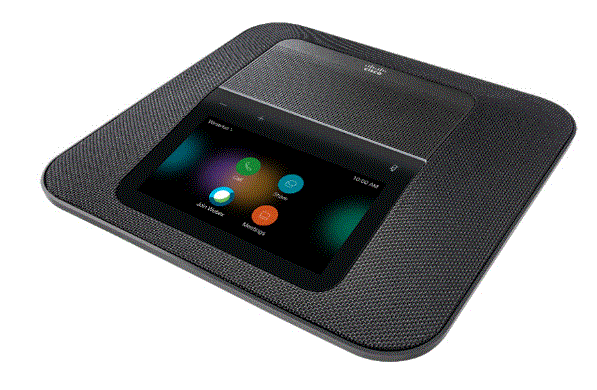
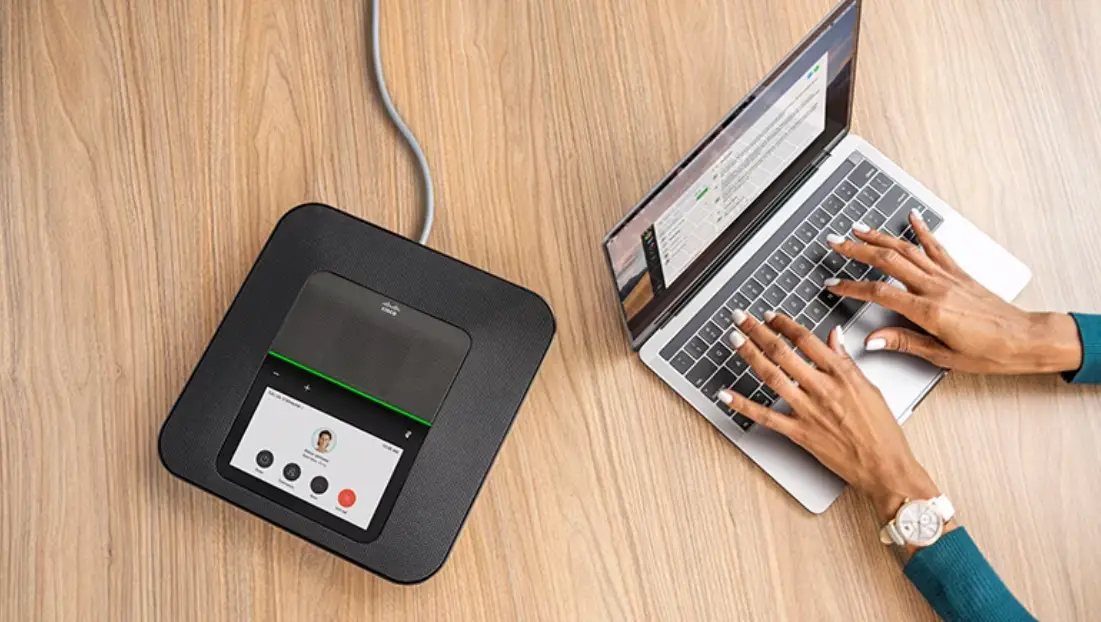
With Webex Room devices, you can easily share content with participants during a meeting, either wirelessly or by physically connecting your laptop.
- Connect your laptop to the Webex Room device with the HDMI or USB-C cable
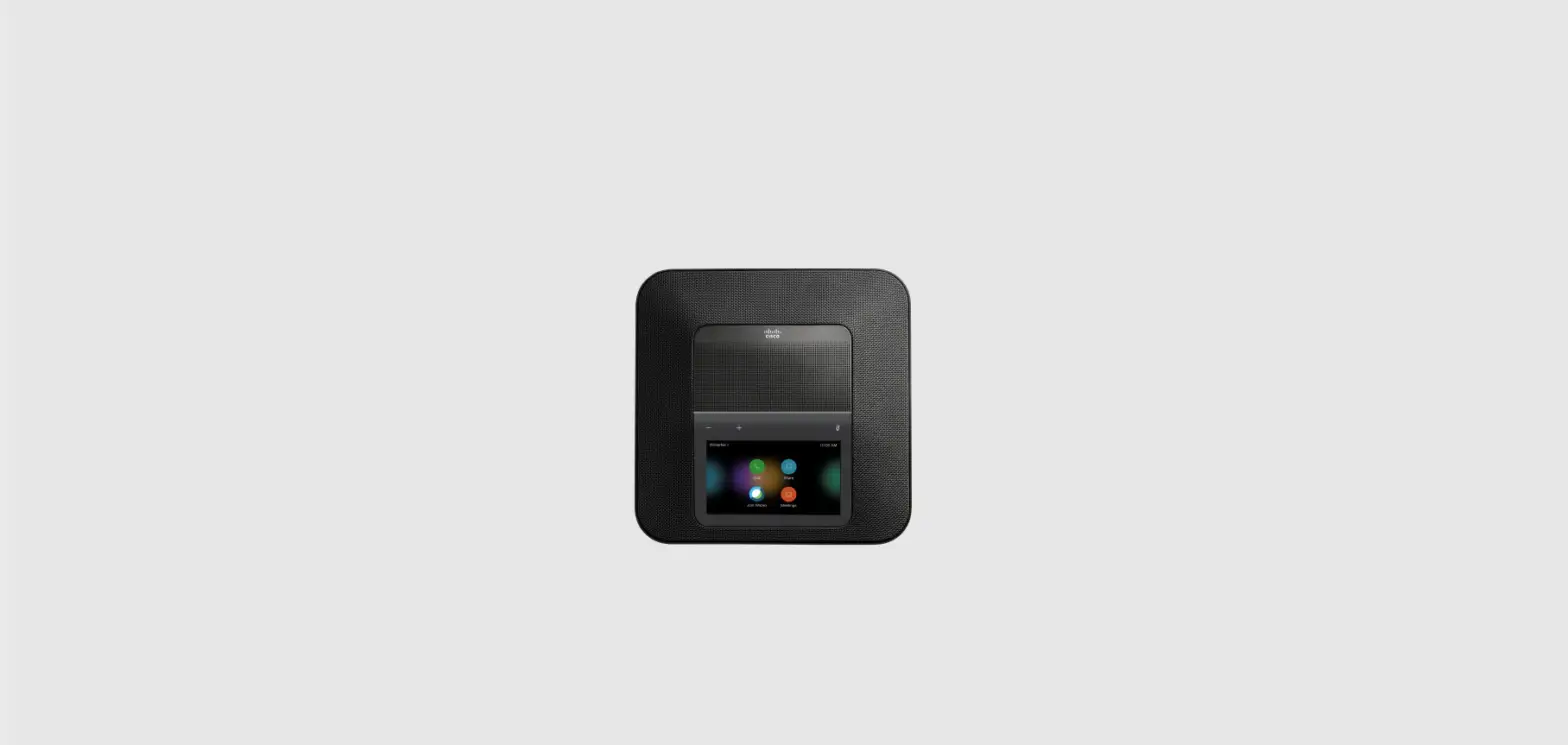
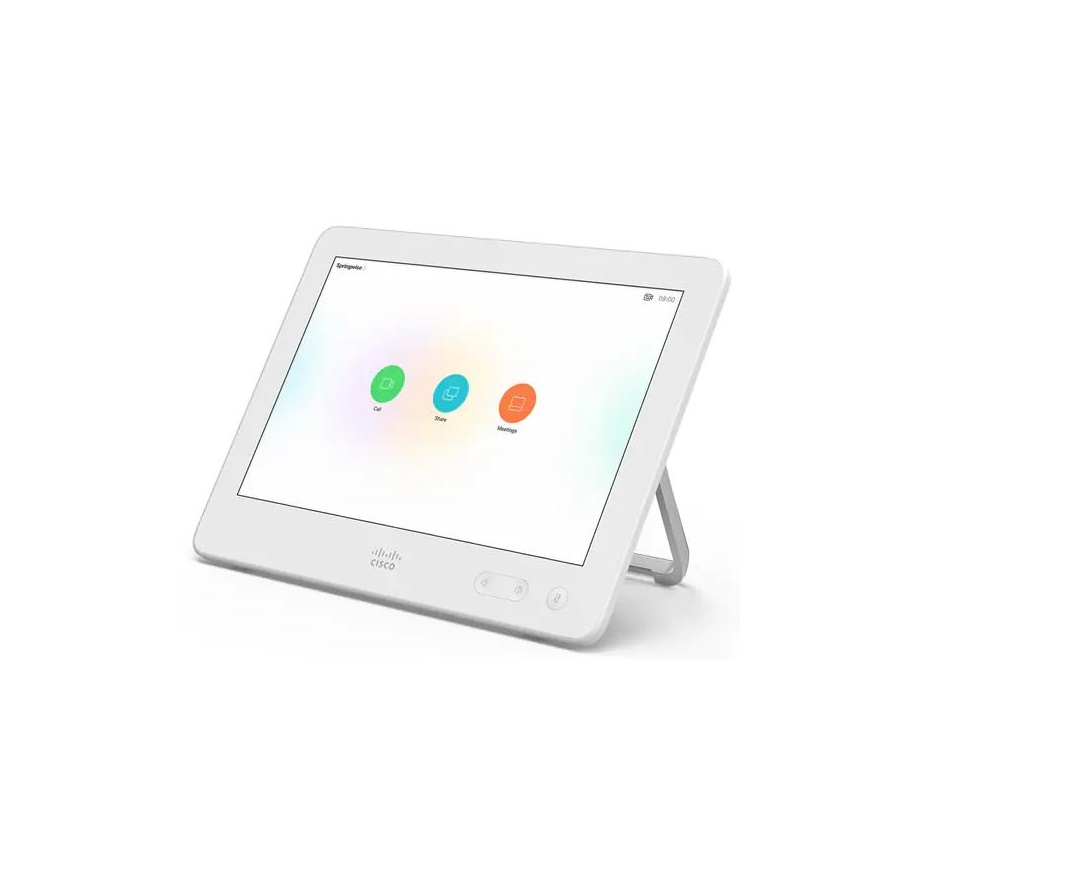
- On the Touch tablet, tap Share in call to start sharing your content with participants in the meeting
- When you’re finished, tap Stop sharing on the Touch tablet
- Tap on your device icon
 select the Webex Room device, and then tap
  Share Screen
Note: If you want to share video and audio from your mobile device, tap Optimize for video, and then tap Share - Tap Share, then tap Start Broadcast
- When you’re finished, tap the top left of the screen, and then tap Stop Broadcast, or tap Stop on your Webex App
 select the Webex Room device, and then tap
  Share Screen
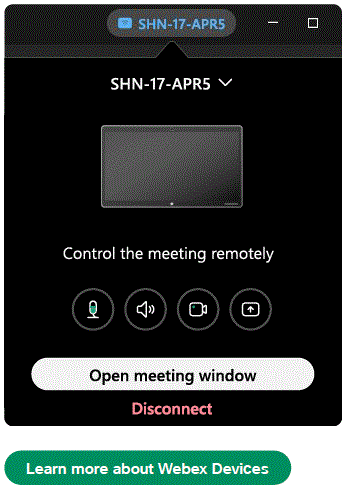
- On your Webex App click Connect to a device and select the Webex Room device you want to connect to
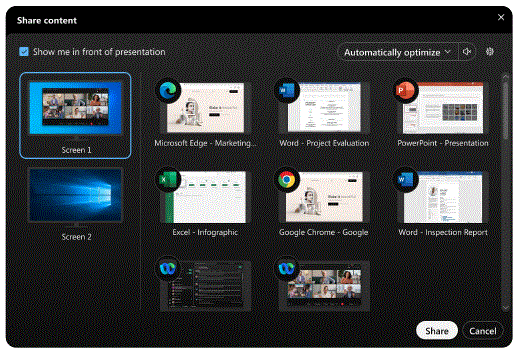
- Next select the Share button on the right

- Then select the application or window you want to share

Note: If you want to share audio, check Share computer audio at the top of the share window - To stop sharing, tap Stop