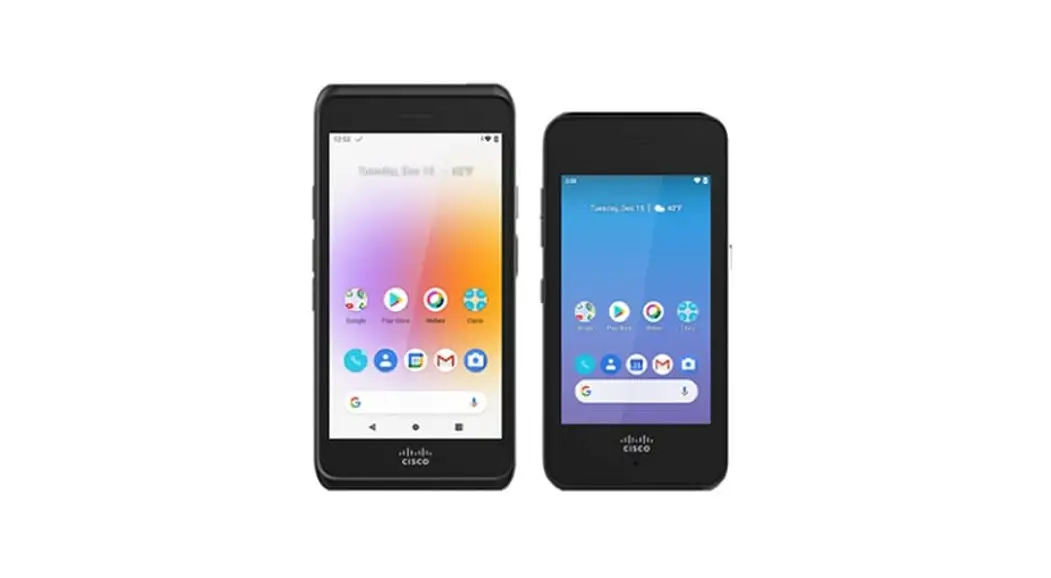

Cisco Webex Wireless Phone 860 and 860S Quick Reference Guide
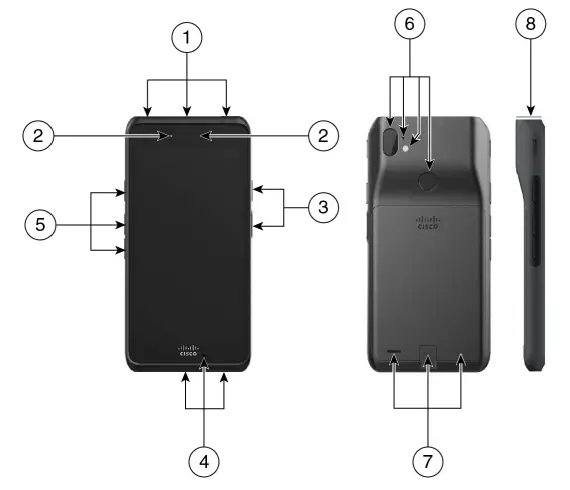
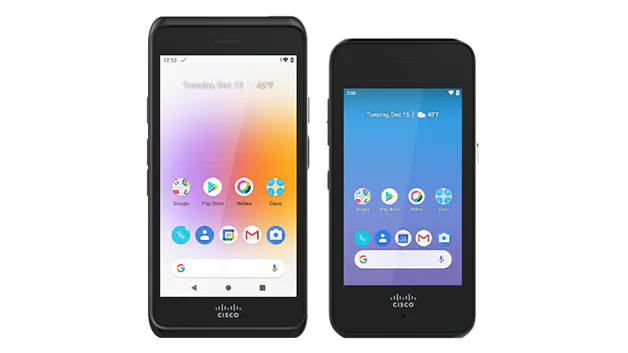
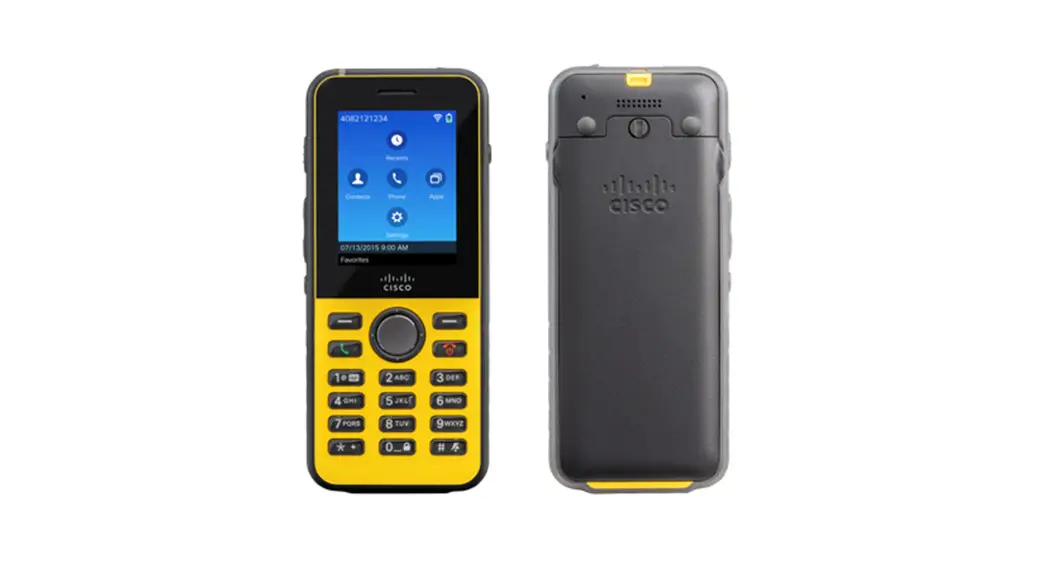
Your Phone
- Headset jack, barcode scanner (860S only), and programmable button (by default Emergency)
- The front camera and receive speaker
- Programmable button (by default PTT) and power button
- USB charging port, microphone, and charger contacts
- Programmable buttons (by default: Scanner for 860S, Volume up, and Volume down)
- The rear camera, rear microphone, flash lens/ torch, and programmable button (by default Fingerprint)
- Rear speaker, battery latch, and rechargeable battery pack.
- Barcode scanner (860S only)
Turn On Your Phone
Press and hold the Power button until the phone vibrates and the first screen displays.
Unlock Your Phone
- If the phone screen is in sleep mode, briefly press the Power button.
- From the lock screen, swipe up on the Lock
 icon.
icon. - Enter your PIN or password and tap Enter
 .
.
OR: For 860 and 860S only—If configured, press the programmed Fingerprint button.
 icon.
icon. .
.Lock Your Phone
Briefly press the Power button.
Turn Off Your Phone
- Press and hold the Power button.
- Tap Power off
 .
.
 .
.Make a Call from the Keypad Tab
- Access the Cisco Phone
 app.
app. - Tap Keypad
 .
. - Enter a phone number.
- Tap Answer/Call
 .
.
 app.
app. .
.Answer a Call
Swipe Answer/Call  to the right.
Mute Your Microphone
- From the active call screen, tap Mute
 .
. - To unmute your microphone, tap Mute
 again.
 .
. again.
Change Your Audio Option
- From the active call screen, tap Audio options
 .
. - Select the desired available audio option:
Headphones , Speaker
  , Bluetooth
  , or Phone
  .
.
 .
. , Speaker
  , Bluetooth
  , or Phone
  .
.Hold a Call
- From the active call screen, tap Hold
 .
. - To return to the held call, tap Hold
 .
.
 .
. .
.Transfer a Call to Another Person
- From the active call screen, tap More
 .
. - Tap Transfer to number.
- Enter the number to call or select an entry from your Recent Calls
 .
. - Tap Transfer
 .
.
 .
. .
. .
.Add a Call to Create a Conference
- From the active call screen, tap More .
- Tap Add call.
- Enter a number to call.
- Tap Add
 .
. - After the person answers, tap More.
- Tap Merge.
- Tap the held call that you want to join in the conference.
- Tap Merge.
- Repeat steps 1-8 for each additional participant.
 .
.Access Other Apps During an Active Call
- To leave the active call screen, tap Home
 .
.
Back , or Recent apps
  .
. - Use the desired app.
- To return to the active call screen, swipe down on the status bar and tap the active call notification.
 .
. , or Recent apps
  .
.View Your Recent or Missed Calls
- Access the Cisco Phone app.
- Tap Calls .
- Tap Recents or Missed.
Add a New Local Contact
- Access the Cisco Phone app.
- Tap Contacts
 .
. - Tap Add
 .
. - Enter the contact information.
- Tap Save.
 .
. .
.Access Voicemail
- Choose one of the following:
• Swipe down on the status bar and tap the Voicemail waiting for notification.
• If configured, tap 1 on the Cisco Phone app Keypad to dial the voicemail retrieval number.
 - Follow the prompts to retrieve the voicemail.
OR: If visual voicemail is configured—From the Cisco Phone app, tap Voicemail  .
.
 on the Cisco Phone
  .
.Forward Calls from Your Phone
- Access the Cisco Phone app.
- Tap the Overflow
 menu.
menu. - Select Features > Call forward.
- Swipe the Enable call forward slider to the right
 .
. - Enter the number to receive your calls, or select an entry from your Contacts list.
- Tap Enter.
 menu.
menu. .
.Turn Off Call Forward from Your Phone
- Access the Cisco Phone app.
- Tap the Overflow menu.
- Select Features > Call forward.
- Swipe the Enable call forward slider to the left
 .
.
 .
.(If Configured) Send a Push to Talk (PTT) Broadcast
- If your phone is password protected, unlock the phone.
- If you are not on the desired channel, access the PTT app and tap the desired channel from the Channels
 tab or click a leg of a conversation from the Activity
  tab.
tab. - Press and hold the programmed PTT button.
- After you hear a beep, hold the phone microphone approximately two inches (five centimeters) from your mouth and speak.
- Release the PTT button.
 app and tap the desired channel from the Channels
  tab or click a leg of a conversation from the Activity
  tab.
tab.(If Configured) Activate the Panic Alarm
Press the programmed red Emergency button on the top right of the phone, as directed.
(For 860S Only) Scan a Barcode
- If your phone is password protected, unlock the phone.
- Point the barcode reader 1 to 18 inches (2.5 to 46 centimeters) from the barcode that you want to scan.
- Press and hold the programmed Scanner button with the red line shining across the entire barcode symbol until the red light turns off and you hear a beep.
Adjust the Volume During a Call
Press the programmed Volume up and Volume down buttons to adjust the volume while you are on a call.
Pair a Bluetooth Device
- Access the Settings
 app.
app. - Select Connected devices > Connection Preferences > Bluetooth.
- Tap Pair new device.
- From the list of available devices, select the desired device and tap Pair.
- If required, enter the device pin code.
 app.
app.(If Available) Adjust the Phone Ringer Volume
- Access the Settings app.
- Tap Sound.
- Slide to adjust the Ring volume.
(If Available) Adjust the Screen Brightness
- Access the Settings app.
- Tap Display.
- Tap Brightness level.
- Swipe the slider to adjust the screen brightness.
- If desired, turn on Adaptive brightness to automatically adjust the screen brightness based on the environment.
(If Available) Change the Screen Display Timeout
- Access the Settings app.
- Tap Display.
- Tap Advanced.
- Tap Screen Timeout.
- Select the desired amount of time.
(If Available) Change the Font Size and Display Size
- Access the Settings app.
- Tap Display.
- Tap Advanced.
- Tap Font size or Display size.
- Use the Font size or Display size sliders to adjust the font size or display size.
User Guide
View the full User Guide at: https://www.cisco.com/c/en/us/support/collaboration-endpoints/webex-wireless-phone/products-user-guidelist.html.
Cisco and the Cisco logo are trademarks or registered trademarks of Cisco and/or its affiliates in the U.S. and other countries. To view a list of Cisco trademarks, go to this URL: www.cisco.com/go/trademarks. Third-party trademarks mentioned are the property of their respective owners. The use of the word partner does not imply a partnership relationship between Cisco and any other company. (1110R)
Copyright © 2021 Cisco Systems, Inc. All rights reserved.