SHT-RCD10-V Roasting Control Device
SHT-RCD10-V Roasting Control Device
The SHT-RCD10-V is a roasting control device that allows you to
monitor and control your roasting process. It comes with various
features and specifications to enhance your roasting
experience.
Product Specifications:
- Model: SHT-RCD10-V
- CPU: RK3288
- Main Frequency: Quad-core ARM Cortex-A17 CPU with up to
1.8GHz - GPU: Mali-T764
- Inner Memory: 2G DDR3
- Operating System: Android 5.1
- User Interface: Android system Interface style
- Video: 4K H.264/H.265 decoder, 1080P multi-video decoders
- Audio: MP3/WMA/APE/FLAC/AAC/OGG/AC3/WAV etc.
- Picture: Supports variety of image formats browsing (jpg, png,
bmp etc.) - Flash: Supports flash 11.1
- Storage Expansion: Support TF card and mobile hard disk
expansion - USB: 4 USB HOST 2.0
- TF Card: Support up to 32GB capacity
- HDMI: HDMI 2.0 with up to 4K(2160p)
- Bluetooth: BT 4.0
- Wifi: 2.4G/5G Wifi
- RJ45: Connection the wire network
- Audio Optical: Supports Audio optical output
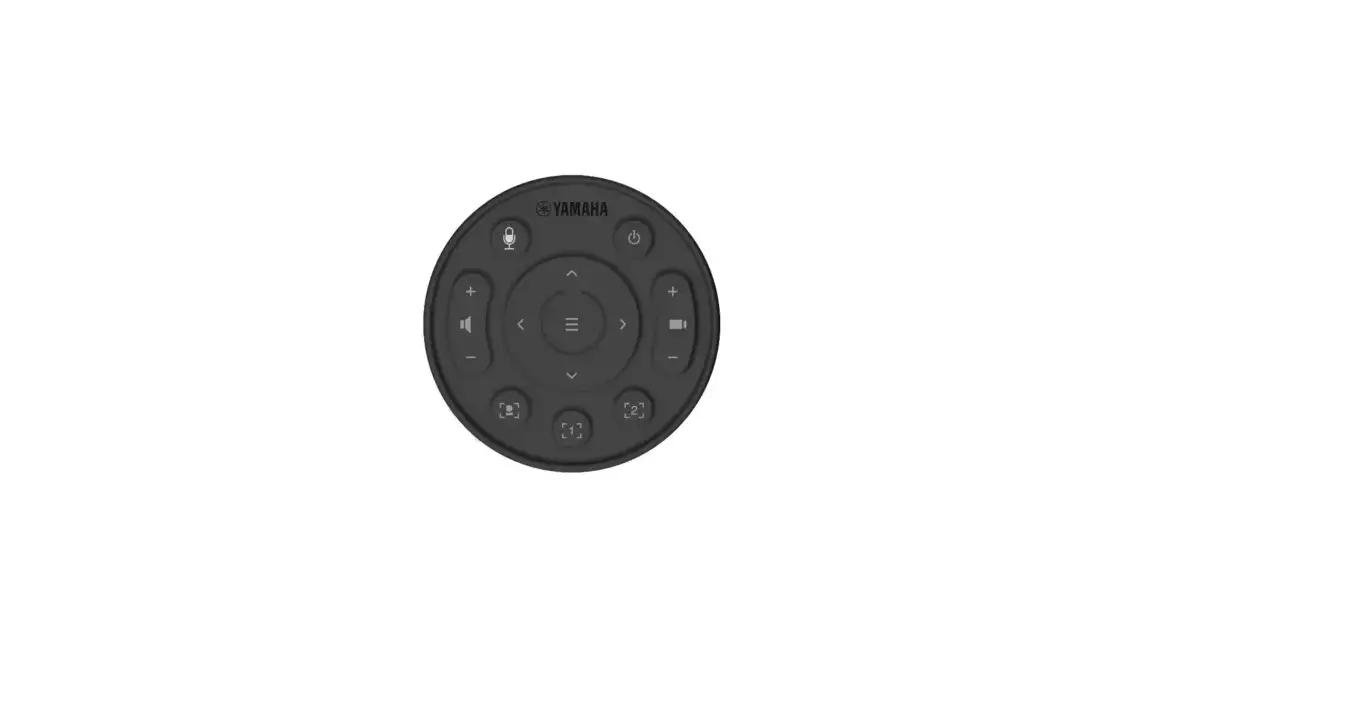
- Remote Control: Support IR remote and 2.4G Wireless remote
- AV Out: Support AV out
- Voltage Parameters: 12V 3A DC
Product Usage Instructions:
Power On and Connection:
- Turn on your TV.
- Connect SHT-RCD10-V to your TV using an HDMI cable.
- Select the source of HDMI on your TV.
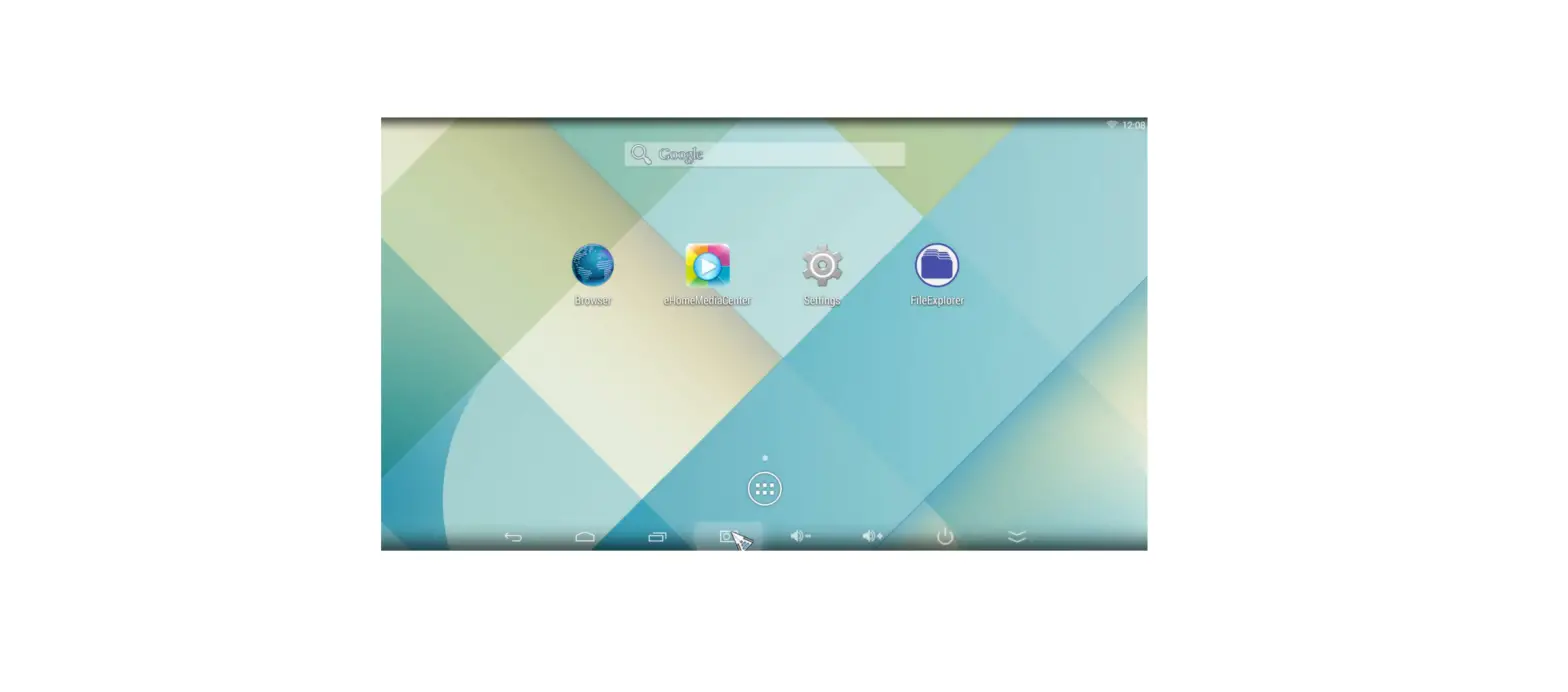
After booting, you will enter the main interface. Use the remote
control or mouse to move the cursor and control the device. Click
the central button to enter applications, access basic apps, or
download apps from the play store.
WiFi Setting:
- Click on “Setting” in the main menu.
- Choose the network.
- If WiFi is available, search for the local network and connect
to it. If WiFi is not available, choose Ethernet. - After setting up the network, go back to the main interface.
You can now browse websites and download apps from the play
store.
Browse the File:
- In the Desktop state, click on the application bar icon to
enter the application field. - Click on the resource manager to view the file list.
- The file list can be scrolled and clicked on.
- To open a file or folder, click on it.
- To return to the level folder, click the status bar’s back
button. - To return to the home page, click the Home button on the status
bar. - Long press a file or folder to access additional options such
as copy, delete, move, paste, rename, etc. - If you do not want to execute any operation, click on the
Cancel button directly.
Install/Uninstall Apps:
To install or uninstall apps on your SHT-RCD10-V, please refer
to the specific instructions provided by the app or follow general
Android app installation/uninstallation procedures.
FCC Statement:
This device complies with part 15 of the FCC Rules. Operation is
subject to the following two conditions: (1) This device may not
cause harmful interference, and (2) this device must accept any
interference received, including interference that may cause
undesired operation.
SHT-RCD10-V Roasting Control Device
Operating Instruction Power on the Device-turn on your TV, connect SHT-RCD10-V to your TV with HDMI
cable, select source of the HDMI. Main Menu
After booting, you will go into the main interface as below
* Using the remote control or mouse to move the cursor to control the device * Click the central button to enter application, get all the basic apps, or you could download from play store.
WiFi Setting
* Click Setting, choose network * Searching local network and connected to able the network * or wifi not available, choose Ethernet * After setup network, go back to main interface, you are able to browser website and download apps from play store.
Browse the file
* In Desktop state, click the application bar icon, enter into the application field, click into the” resource manager.”
* In the file list can be clickable sliding, rolling. * Click on the required file or folder, can open the file or folder. * Click the status bar of the back button to return to the level folder. * Click the Home button on the status bar, you can return to the home page. * Long press a file or folder, window pop up with a menu, for example: “Copy, delete, move, paste, rename” and other additional options. If you do not execute the operation,
click on the Cancel button directly Install/Uninstall Apps
Device operating system default for Android version, install the software required to process the format is*. Apk format. * this device supports many popular third-party application software formats * this device can be installed or uninstalled you need software. * To install an application, the need to*. Apk format copied to your SHT-RCD10-V, then open” resource manager”,click to install*. Apk file. * Installed application, will appear in the application bar. * To uninstall the software, click “Settings” to enter the setup menu, click into the “Applications” tab, then click: “Manage Applications”, click on the software you want to uninstall, and click “Uninstall.
Product Display 4 x USB 1 x TF card slot 1 x HDMI port 1 x AV port 1 x Optical port 1 x RJ45 jack 1 x DC port 1 x External antenna port
Specs.
Specifications of appendix:
Model#
SHT-RCD10-V
CPU
RK3288
Main
Frequency
Quad-core ARM Cortex-A17 CPU with up to 1.8GHz and GPU is Mali-T764
Inner memory 2G DDR3
Memory
4G 8G 16G 32G
Operating
system
Android 5.1
User interface Android system lnterface style
Video
4K H.264/H.265 decoder, 1080P multi-video decoders
1080P video encoding for H.264 and VP8, MVC
Audio
MP3/WMA/APE/FLAC/AAC/OGG/AC3/WAV etc.
Picture
Supports variety of image formats browsing (jpgpngbmp etc.
Flash
Supports flash 11.1
Storage
Expansion Support TF card and mobile hard disk expansion
USB
4 USB HOST 2.0
TF card
Support up to 32GB capacity
HDMI
HDMI 2.0 with up to 4K(2160p)
Bluetooth BT 4.0
Wifi
2.4G/5G Wifi
Rj45
Connection the wire network
Audio Optical Supports Audio optical output
Remote control Support IR remote and 2.4G Wireless remote
AV Out
Support AV out
Voltage
parameters 12V 3A DC
FCC Statement
This device complies with part 15 of the FCC Rules. Operation is subject to the following
two conditions: (1) This device may not cause harmful interference, and (2) this device
must accept any interference received, including interference that may cause undesired
operation.
Note: This equipment has been tested and found to comply with the limits for a Class B digital device, pursuant to part 15 of the FCC Rules. These limits are designed to provide reasonable protection against harmful interference in a residential installation. This equipment generates, uses and can radiate radio frequency energy and, if not installed and used in accordance with the instructions, may cause harmful interference to radio communications. However, there is no guarantee that interference will not occur in a particular installation. If this equipment does cause harmful interference to radio or television reception, which can be determined by turning the equipment off and on, the user is encouraged to try to correct the interference by one or more of the following measures: –Reorient or relocate the receiving antenna. –Increase the separation between the equipment and receiver. –Connect the equipment into an outlet on a circuit different from that to which the receiver is connected. –Consult the dealer or an experienced radio/TV technician for help. Note: The Grantee is not responsible for any changes or modifications not expressly approved by the party responsible for compliance. such modifications could void the user’s authority to operate the equipment. The device has been evaluated to meet general RF exposure requirement. To maintain compliance with FCC’s RF exposure guidelines, the distance must be at least 20 cm between the radiator and your body, and fully supported by the operating and installation configurations of the transmitter and its antenna(s).