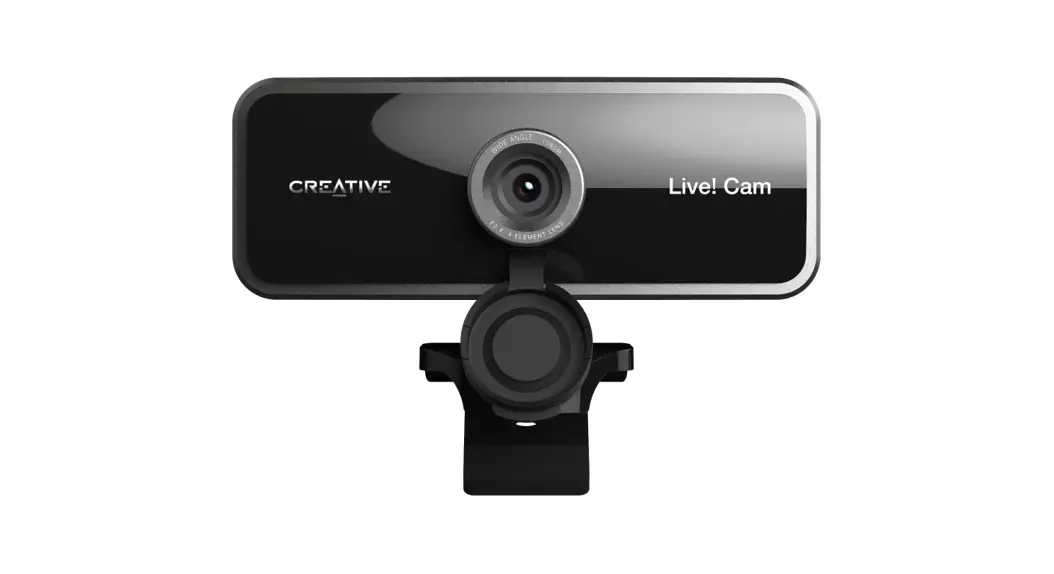
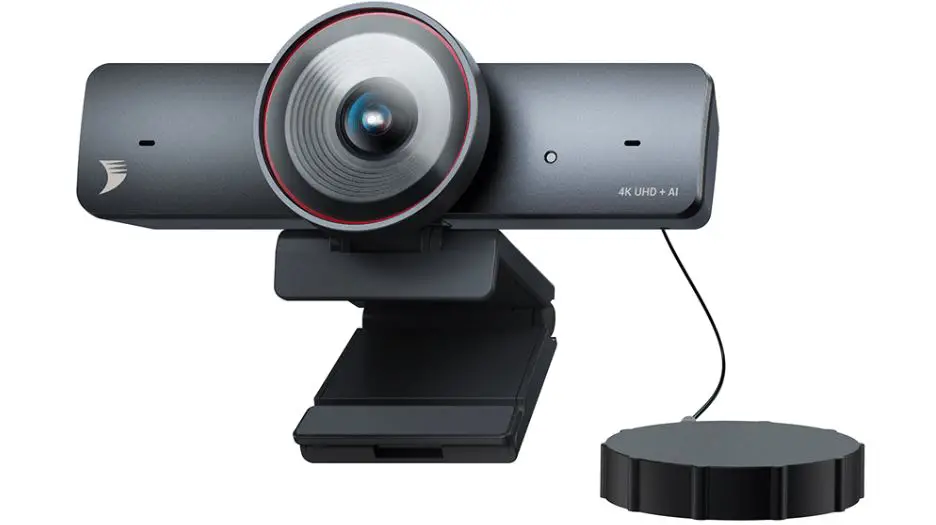
Live CAM Sync 4K UHD Webcam with Backlight Compensation
Product Information
Product Name: SYNC 4K
Model No.: VF0920
PN: 03VF092000000 Rev B
Features:
- 4K UHD webcam with backlight compensation
- Dual digital microphones
- Mic mute/unmute slider switch
- LED indicator
- Universal tripod mount plate
- Lens focus ring
- Privacy lens cap
- Mounting clip
Product Usage Instructions
Setting Up And Connecting The Webcam
- Hold the webcam as illustrated and place it over the
monitor. - Ensure the back of the clip is securely attached to the back of
your monitor. - Plug the webcam into an available USB port to start using.
- Cover the lens with the attached privacy lens cap when the
webcam is not in use to ensure privacy.
Aspect Ratio and Resolution
The webcam supports the following aspect ratios and
resolutions:
| Aspect Ratio | Resolution | Frame Rate |
|---|---|---|
| 16:9 | 3840 x 2160 | 25 |
| 16:9 | 2560 x 1440 | 25 |
| 16:9 | 1920 x 1080 | 40 |
| 4:3 | 1600 x 1200 | 25 |
| 16:9 | 1280 x 720 | 40 |
| 4:3 | 640 x 480 | 40 |
Note: To achieve 4K UHD output resolution and manually select a
preferred resolution, compatible third-party software is required.
For more details on webcam’s resolution, please visit
creative.com/support/LiveCam4K.
Manual Backlight Compensation
Different lighting conditions may affect the webcam’s
capabilities in capturing high-quality images accurately. The
Creative Live! Cam Sync 4K allows you to manually control backlight
compensation with an 8-step exposure adjustment. Press and hold the
backlight compensation button to cycle through different exposures
and achieve optimal lighting.
Manual Focus
The manual focus feature allows you to adjust the sharpness and
clarity of the webcam’s image. Turn the lens focus ring clockwise
or anti-clockwise to adjust the focus to your liking. Experiment
with the focus ring to find the best adjustment for your needs.
Installing A Tripod Mount
- Align the webcam’s mount plate with the tripod’s mounting
screw. - Turn the webcam clockwise to tighten it to the tripod.
Creative App
Set up your product, enhance its performance, and more with the
Creative app*. Visit creative.com/support/LiveCam4K to download the
Creative app. Please note that the app is currently only available
for Windows.
Technical Specifications
- 40 fps is only available for resolutions 1080p and below of
16:9 aspect ratio. - Compatible with all universal tripod mounts.
- TriPod is optional and not included.
SYNC 4K
4K UHD WEBCAM WITH BACKLIGHT COMPENSATION
QUICK START GUIDE
Model No. / / : VF0920 /
PN: 03VF092000000 Rev B
1. Overview 1 2 3
4 5
1 Backlight Compensation Button
2 Mic Mute / Unmute Slider Switch
6
3 LED Indicator
i) LED Indicator
ii) Action
(a)
White
Mic Unmuted
ON
7
(b)
Off
Mic Muted
OFF
4 Dual Digital Microphones
8
5 Universal Tripod Mount Plate
6 Lens Focus Ring
7 95° Wide-angle Lens
8 Privacy Lens Cap
9
9 Mounting Clip
REGISTER YOUR PRODUCT
creative.com/register
TECHNICAL SUPPORT creative.com/support
© 2023 Creative Technology Ltd. All rights reserved. Creative, the Creative logo and Live! are trademarks or registered trademarks of Creative Technology Ltd in the United States and/or other countries. All other trademarks are the property of their respective owners and are hereby recognized as such. All specifications are subject to change without notice. Actual product may differ slightly from images shown. Use of this product is subject to a limited warranty.
2. Setting Up And Connecting The Webcam
3. Aspect Ratio and Resolution
Hold the webcam as illustrated and place it over the monitor.
Ensure the back of the clip is securely attached to the back of your monitor.
Creative Live! Cam Sync 4K is a plug-and-play webcam. Simply plug the webcam into an available USB port to start using. You may cover the lens with the attached privacy lens cap when the webcam is not in use to ensure privacy.
Aspect Ratio
Resolution
Frame Rate
16:9
3840 x 2160
25
16:9
2560 x 1440
25
16:9
1920 x 1080
40
4:3
1600 x 1200
25
16:9
1280 x 720
40
4:3
640 x 480
40
4K UHD output resolution and the ability to manually select a preferred resolution requires compatible third-party software. For more details on webcam’s resolution, please visit creative.com/support/LiveCam4K.
4. Manual Backlight Compensation
Press and Hold
Different lighting conditions may affect the webcam’s capabilities in capturing high quality image accurately. Creative Live! Cam Sync 4K lets you manually control backlight compensation with an 8-step exposure adjustment. Press and hold to cycle through different exposures to achieve optimal lighting.
5. Manual Focus
Manual focus allows you to adjust the sharpness and clarity of the webcam’s image. Turn the ring clockwise or anti-clockwise to adjust the focus to your liking. Experiment with the focus ring to find the best adjustment for your needs.
Overexposed 6. Installing A Tripod Mount
Optimal Exposure
Underexposed
Align the webcam’s mount plate with the tripod’s mounting screw.
Turn the webcam clockwise to tighten the webcam to the tripod.
7. Creative App
Set up your product, enhance your product’s performance, and more with the Creative app*.
· Access and control our all-new SmartComms Kit’s suite of smart communication features such as VoiceDetect and NoiseClean-out to improve online call experience
· Configure Recording and other settings · Perform software upgrade, product registration,
and more · Download the Creative app from
creative.com/support/LiveCam4K *The Creative app is currently only available for download on Windows
8. Technical Specifications
Maximum Resolution: 4K UHD (3840 x 2160) Frame rate: Up to 40 fps* Focus type: Manual focus Microphone: Dual digital microphones Field of View: 95° (diagonally) Cable length: 1.8m / 5.9 ft
*40 fps is only available for resolutions 1080p and below of 16:9 aspect ratio.
Compatible with all universal tripod mounts
*Tripod is optional and not included
DE
1. Überblick
1 Taste für die Gegenlichtkompensation
2 Schalter für Mikrofon stumm stellen/laut stellen
3 LED-Anzeige
i) LED-Anzeige
ii) Vorgang
(a)
weiss
Mikrofon angeschaltet
EIN
(b)
aus
Mikrofon stummgeschaltet
AUS
4 Dual digitale Mikrofone 5 Objektiv Fokussierring 6 95° Weitwinkelobjektiv 7 Sichtschutzkappe 8 Montageclip 9 Universelle Stativhalterung
2. Einrichten und Anschließen der Webcam
· Halten Sie die Webcam wie abgebildet und platzieren Sie sie über dem Monitor.
· Stellen Sie sicher, dass die Rückseite des Clips sicher an der Rückseite Ihres Monitors befestigt ist.
· Creative Live! Cam Sync 4K ist eine Plug-and-Play-Webcam. Für die Benutzung schließen Sie die Webcam einfach an einen freien USB-Anschluss an. Sie können das Objektiv mit der beiliegenden Sichtschutzkappe abdecken, wenn die Webcam nicht benutzt wird, um Ihre Privatsphäre zu schützen.
3. Bildseitenverhältnis und Auflösung
Bildseitenverhältnis
Auflösung
Bildfrequenz
16:9
3840 x 2160
25
16:9
2560 x 1440
25
16:9
1920 x 1080
40
4:3
1600 x 1200
25
16:9
1280 x 720
40
4:3
640 x 480
40
4K UHD-Ausgabeauflösung und die Möglichkeit, eine optionale Auflösung manuell auszuwählen zu wählen, erfordert kompatible Software von Drittanbietern. Weitere
Details zur Auflösung der Webcam finden Sie unter creative.com/support/ LiveCam4K.
4. Manuelle Gegenlichtkompensation
Gedrückt halten
Unterschiedliche Lichtverhältnisse können sich auf die Fähigkeit der Webcam auswirken, Bilder korrekt in hoher Qualität zu erfassen. Mit Creative Live! Cam Sync 4K können Sie die Gegenlichtkompensation mit einer 8-stufigen Belichtungsanpassung manuell steuern. Halten Sie die Taste gedrückt, um durch verschiedene Belichtungsstufen zu schalten und so eine optimale Beleuchtung zu erzielen.
5. Manueller Fokus Mit dem manuellen Fokus können Sie die Schärfe und Klarheit des Webcam Bildes einstellen. Drehen Sie dazu den Ring im oder gegen den Uhrzeigersinn, um den Fokus nach Ihren Wünschen einzustellen. Experimentieren Sie mit dem Fokusring, bis Sie die beste Einstellung für Ihre Bedürfnisse gefunden haben.
6. Stativhalterung aufstellen · Richten Sie die Montageplatte der Webcam an der Befestigungsschraube des
Stativs aus. · Drehen Sie die Webcam im Uhrzeigersinn, um die Webcam am Stativ festzuziehen. Kompatibel mit allen Universalstativhalterungen *Stativ ist optional und nicht im Lieferumfang enthalten
7. Creative App
Konfigurieren Sie Ihr Produkt, um die Leistung Ihres Produkts zu verbessern und für vieles mehr mit der Creative App*. · Greifen Sie auf die intelligenten Kommunikationsfunktionen unseres neuen
SmartComms Kits zu, wie z. B. VoiceDetect und NoiseClean-out, und steuern Sie sie, um Ihre Online-Anrufe zu verbessern. · Konfigurieren Sie die Aufnahme und andere Einstellungen. · Führen Sie das Software-Upgrade, die Produktregistrierung und vieles mehr durch. · Laden Sie die Creative App von creative.com/support/LiveCam4K herunter. * Die Creative App ist derzeit nur als Download für Windows erhältlich.
8. Technische Spezifikationen Maximale Auflösung: 4K UHD (3840 x 2160) Bildfrequenz: bis zu 40 fps* (Einzelbilder pro Sekunde). Fokus Typ: manueller Fokus Mikrofon: zwei digitale Mikrofone Sichtfeld: 95° (diagonal) Kabellänge: 1,8 m *40 fps ist nur für Auflösungen von 1080p und darunter mit einem Seitenverhältnis von 16:9 erhältlich.
FR
1. Aperçu
1 Bouton de compensation de contre-jour
2 Interrupteur à glissière pour désactiver/activer le micro
3 Voyant LED
i) Voyant LED
ii) Action
(a)
Blanc
Micro activé
ACTIVÉ
(b)
Désactivé
Micro désactivé
DÉSACTIVÉ
4 Double microphone numérique 5 Bague de mise au point de la lentille 6 Lentille grand angle 95° 7 Curseur de confidentialité 8 Clip de montage 9 Plaque de montage universelle pour trépied
2. Configuration et connexion de la webcam
· Tenir la webcam comme illustré et la placer sur le moniteur.
· S’assurer que l’arrière du clip soit solidement fixé à l’arrière du moniteur.
· Creative Live! Cam Sync 4K est une webcam plug-and-play. Il suffit de brancher la webcam sur un port USB disponible pour commencer à l’utiliser. Vous pouvez couvrir l’objectif avec le curseur de confidentialité joint lorsque la webcam n’est pas utilisée pour garantir la confidentialité.
3. Rapport de cadre et résolution
Rapport de cadre
Résolution
Fréquence d’image
16:9
3 840 x 2 160
25
16:9
2 560 x 1 440
25
16:9
1 920 x 1 080
40
4:3
1 600 x 1 200
25
16:9
1 280 x 720
40
4:3
640 x 480
40
La résolution de sortie 4K UHD et la possibilité de sélectionner manuellement une résolution préférée nécessite un logiciel tiers compatible. Pour plus de détails sur la résolution de la webcam, veuillez consulter l’adresse creative.com/support/ LiveCam4K.
4. Compensation manuelle de contre-jour
Appuyer et maintenir enfoncé le bouton
Des conditions d’éclairage différentes peuvent affecter les capacités de la webcam à capturer avec précision des images de haute qualité. Creative Live! Cam Sync 4K vous permet de contrôler manuellement la compensation du contre-jour grâce à un réglage de l’exposition en 8 étapes. Appuyer sur la touche et la maintenir enfoncée pour passer d’une exposition à l’autre afin d’obtenir un éclairage optimal.
5. Mise au point manuelle
La mise au point manuelle vous permet de régler la netteté et la clarté de l’image de la webcam. Tournez la bague dans le sens des aiguilles d’une montre ou dans le sens inverse pour régler la mise au point à votre convenance. Jouez avec la bague de mise au point jusqu’à ce que vous trouviez le réglage le mieux adapté à vos besoins.
6. Installation d’un support pour trépied
· Aligner la plaque de montage de la webcam avec la vis de montage du trépied. · Tourner la webcam dans le sens des aiguilles d’une montre pour serrer la webcam
sur le trépied. Compatible avec tous les supports de trépied universels. *Le trépied est en option et non inclus.
7. Application Creative
Configurez votre produit, améliorez ses performances et plus encore avec l’application Creative*. · Accéder et contrôler la suite de fonctions de communication intelligente de notre
tout nouveau SmartComms Kit, telles que VoiceDetect et NoiseClean-out, pour améliorer l’expérience des appels en ligne. · Configurer l’enregistrement et les autres paramètres. · Effectuer la mise à jour des logiciels, l’enregistrement des produits et plus encore. · Télécharger l’application Creative à partir du lien creative.com/support/LiveCam4K. *L’application Creative et le SmartComms Kit peuvent être téléchargés sur Windows.
8. Spécifications techniques
Résolution maximale : 4K UHD (3 840 x 2 160) Fréquence d’images : une qualité jusqu’à 40 fps* Type de mise au point : mise au point manuelle Microphone : double microphone numérique Champ de vision : 95° (en diagonale) Longueur du câble : 1,8 m *la vitesse de 40 fps n’est disponible que pour les résolutions 1 080 p et inférieures au format 16:9.
IT
1. Panoramica 1 Pulsante di compensazione della retroilluminazione
2 Interruttore a scorrimento per l’abilitazione/disabilitazione del microfono
3 Indicatore LED
i) Indicatore LED
ii) Azione
(a)
Bianco
Microfono attivato
ATTIVATO
(b)
Disattivato
Microfono disattivato
DISATTIVATO
4 Doppio microfono digitale 5 Anello di messa a fuoco dell’obiettivo 6 Obiettivo grandangolare da 95° 7 Copriobiettivo per la privacy 8 Clip di montaggio 9 Piastra di montaggio universale per treppiede
2. Installazione e collegamento della webcam
· Tieni la webcam come illustrato e posizionala sul monitor.
· Accertati che la parte posteriore della clip sia fissata saldamente alla parte posteriore del monitor.
· Creative Live! Cam Sync 4K è una webcam plug-and-play. Basta collegare la webcam a una porta USB per iniziare a utilizzarla. Puoi coprire l’obiettivo con il copriobiettivo per la privacy quando la webcam non è in uso per garantire la privacy.
3. Rapporto d’aspetto e risoluzione
Proporzioni 16:9 16:9 16:9 4:3 16:9 4:3
Risoluzione 3840 x 2160 2560 x 1440 1920 x 1080 1600 x 1200 1280 x 720
640 x 480
Frequenza fotogrammi
25 25 40 25 40 40
La risoluzione di output 4K UHD e la possibilità di selezionare manualmente una risoluzione preferita richiedono un software di terze parti compatibile. Per maggiori dettagli sulla risoluzione della webcam, visita creative.com/support/LiveCam4K.
4. Compensazione manuale della retroilluminazione
Premi e tieni premuto
Diverse condizioni di illuminazione possono influenzare le capacità della webcam nell’acquisire accuratamente immagini di alta qualità. Creative Live! Cam Sync 4K ti consente di controllare manualmente la compensazione del controluce con una regolazione dell’esposizione ad 8 livelli. Premere e tenere premuto per scorrere tra le diverse esposizioni per ottenere un’illuminazione ottimale.
5. Messa a fuoco manuale La messa a fuoco manuale consente di regolare la nitidezza e la chiarezza dell’immagine della webcam. Ruota l’anello in senso orario o antiorario per regolare la messa a fuoco a tuo piacimento. Sperimenta con l’anello di messa a fuoco finché non trovi la regolazione migliore per le tue esigenze.
6. Installazione di un treppiede · Allinea la piastra di montaggio della webcam con la vite di montaggio del treppiede. · Ruota la webcam in senso orario per serrare la webcam al treppiede. Compatibile con tutti i supporti universali per treppiede *Il treppiede è opzionale e non incluso
7. Creative App
Configura il prodotto, migliora le prestazioni del prodotto e molto altro ancora con l’app Creative*. · Accedi e controlla la nostra nuova suite di funzionalità di comunicazione
intelligente di SmartComms Kit come VoiceDetect e NoiseClean-out per migliorare la tua esperienza di chiamata online · Configurazione della registrazione e altre impostazioni · Aggiorna il software, registra il prodotto e molto altro ancora · Scarica l’app Creative da creative.com/support/LiveCam4K *L’app Creative è attualmente disponibile per il download solo su Windows.
8. Specifiche tecniche Risoluzione massima: 4K UHD (3840 x 2160) Frequenza fotogrammi: fino a 40 fps* Tipo di messa a fuoco: messa a fuoco manuale Microfono: doppio microfono digitale Campo visivo: 95° (in diagonale) Lunghezza del cavo: 1,8 m *40 fps è disponibile solo per le risoluzioni 1080p e inferiori al formato 16:9.
ES
1. Información general
1 Botón de compensación de contraluz
2 Botón deslizante para silenciar/activar micrófono
3 Indicador LED
i) Indicador LED
ii) Acción
(a)
Blanco
Micro habilitado
ON
(b)
Off
Micro silenciado
OFF
4 Micrófonos digitales duales 5 Anillo de enfoque de lente 6 Lente gran angular 95° 7 Tapa de lente de privacidad 8 Clip de montaje 9 Placa de montaje de trípode universal
2. Configurando y conectando la cámara
· Sujete la cámara como se muestra y colóquela sobre el monitor.
· Asegúrese de que la parte trasera del clip está firmemente sujeta a la parte posterior de su monitor.
· ¡Creative Live! Cam Sync 4K es una cámara web “plug and play”. Basta con conectar la webcam a un puerto USB disponible para empezar a utilizarla. Puede cubrir el objetivo con la tapa de la lente de privacidad adjunta cuando la webcam no esté en uso para garantizar la privacidad.
3. Relación de aspecto y resolución
Proporciones 16:9
Resolución 3840 x 2160
Velocidad de cuadros
25
16:9
2560 x 1440
25
16:9
1920 x 1080
40
4:3
1600 x 1200
25
16:9
1280 x 720
40
4:3
640 x 480
40
La resolución de salida 4K UHD y la capacidad de seleccionar manualmente una resolución preferida requiere un software de terceros compatible. Para obtener más detalles sobre la resolución de la cámara web, visite creative.com/support/ LiveCam4K.
4. Compensación de contraluz manual
Apriete y mantenga
Las diferentes condiciones de iluminación pueden afectar las capacidades de la cámara web para capturar imágenes de alta calidad con precisión. Creativo Live! Cam Sync 4K le permite controlar manualmente la compensación de contraluz con un ajuste de exposición de 8 pasos. Apriete y mantenga apretado para recorrer las distintas exposiciones para conseguir la iluminación óptima.
5. Enfoque manual El enfoque manual le permite ajustar la nitidez y la claridad de la imagen de la cámara web. Gire el anillo en sentido horario o antihorario para ajustar el enfoque a su gusto. Experimente con el anillo de enfoque hasta que encuentre el mejor ajuste para sus necesidades.
6. Instalación de soporte para trípode · Alinee la placa de montaje de la cámara web con el tornillo de montaje del trípode. · Gire la cámara web en el sentido horario para apretar la cámara web al trípode. Compatible con todos los trípodes universales *El trípode es opcional y no se incluye
7. Creative App
Configure su producto, mejore su rendimiento y mucho más con Creative app*. · Acceso y control con nuestro nuevo paquete de herramientas SmartComms Kit
con funciones avanzadas de comunicación como VoiceDetect y NoiseClean-out, que mejoran sus llamadas en línea · Configuración de grabación y otros ajustes · Realice actualizaciones de software, registre el producto, y más. · Descargue Creative app en creative.com/support/LiveCam4K *Actualmente, la aplicación Creative solo está disponible para descargar en Windows.
8. Especificaciones técnicas Resolución maxima: 4K UHD (3840 x 2160) Fotogramas por Segundo: hasta 40 fps* Tipo de focus: Focus Manual Micrófono: micrófonos digitales duales Campo de visión: 95° (en diagonal) Longitud de cable: 1.8 m *40 fps solo está disponible para resoluciones de 1080p e inferiores con una relación de aspecto de 16:9.
NL
1. Overzicht
1 Knop voor compensatie van de achtergrondverlichting
2 Schuifschakelaar voor dempen/inschakelen microfoon
3 Indicatie-LED
i) LED-indicator
ii) Actie
(a)
Wit
Microfoon ingeschakeld
AAN
(b)
Uit
Microfoon uitgeschakeld
UIT
4 Dubbele digitale microfoon 5 Lensscherpstelring 6 95° groothoeklens 7 Privacy-lensdop 8 Bevestigingsklem 9 Universele statiefbevestigingsplaat
2. De webcam instellen en aansluiten
· Houd de webcam vast zoals getoond in de afbeelding en plaats deze over de monitor.
· Zorg ervoor dat de achterkant van de klem goed is bevestigd aan de achterkant van uw monitor.
· De Creative Live! Cam Sync 4K is een plug-and-play webcam. Sluit de webcam eenvoudig aan op een beschikbare USB-poort om hem te gebruiken. Je kunt de lens afdekken met de bijgevoegde privacy-lensdop als de webcam niet in gebruik is om privacy te garanderen.
3. Hoogte/breedte-verhouding en resolutie
Hoogte/breedteverhouding
16:9
Resolutie 3840 x 2160
Beeldfrequentie 25
16:9
2560 x 1440
25
16:9
1920 x 1080
40
4:3
1600 x 1200
25
16:9
1280 x 720
40
4:3
640 x 480
40
4K UHD-uitvoerresolutie en de mogelijkheid om handmatig een voorkeurresolutie te selecteren vereist compatibele software van derden. Ga voor meer informatie over de resolutie van de webcam naar creative.com/support/LiveCam4K.
SV
1. Översikt
1 Knapp för kompensation av bakgrundsbelysning
2 Skjutbrytare stäng av/slå på mikrofon
3 LED-indikator
i) LED-indikator
ii) Åtgärd
(a)
Vit
Mikrofon på
PÅ
(b)
Av
Mikrofon av
AV
4 Dubbla digitala mikrofoner 5 Fokuseringsring 6 95° Vidvinkellins 7 Linslock 8 Monteringsklämma 9 Universal-stativfäste
2. Installation och anslutning av webbkameran
· Håll webbkameran som på bilden och placera den över monitorn. · Se till att bakänden av klämman sitter fast ordentligt på baksidan av monitorn. · Creative Live! Cam Sync 4K är en plug-and-play-webbkamera. Det är bara att
ansluta webbkameran till en tillgänglig USB-port för att börja använda den. Du kan täcka linsen med det medföljande linsskyddet när webbkameran inte används för att skydda din integritet.
3. Bildförhållande och upplösning
Bildförhållande
Upplösning
Bildfrekvens
16:9
3840 x 2160
25
16:9
2560 x 1440
25
16:9
1920 x 1080
40
4:3
1600 x 1200
25
16:9
1280 x 720
40
4:3
640 x 480
40
4K UHD-upplösning och möjligheten att manuellt välja en önskad upplösning kräver kompatibel programvara från tredje part. Mer information om webbkamerans
upplösning finns på följande webbplats creative.com/support/LiveCam4K.
4. Handmatige compensatie van de achtergrondverlichting
Ingedrukt houden
Verschillende lichtomstandigheden kunnen van invloed zijn op de mogelijkheden van de webcam om beelden van hoge kwaliteit nauwkeurigvast te leggen. Met de Creative Live! Cam Sync 4K kunt u handmatig de compensatie van de achtergrondverlichting regelen met een belichtingsaanpassing in 8 stappen. Ingedrukt houden om verschillende belichtingen te doorlopen voor een optimale belichting.
5. Handmatige scherpstelling Met de handmatige scherpstelling kunt u de scherpte en helderheid van het beeld van de webcam aanpassen. Draai de ring rechtsom of linksom om de scherpstelling naar wens aan te passen. Experimenteer met de scherpstelring tot u de beste instelling voor uw behoeften vindt.
6. Een statiefbevestiging installeren · Lijn de montageplaat van de webcam uit met de montageschroef van het statief. · Draai de webcam rechtsom om de webcam op het statief vast te zetten. Compatibel met alle universele statiefbevestigingen *Statief is optioneel en niet meegeleverd
7. Creative-app Maak uw product klaar, verbeter de prestaties van uw product en meer met de Creative-app*. · Toegang tot en controle over het geheel nieuwe pakket slimme
communicatiefuncties van onze SmartComms-Kit, zoals VoiceDetect en NoiseClean-out voor een betere ervaring met online bellen · Configureer opname- en andere instellingen · Voer software-upgrade, productregistratie en meer uit · Download de Creative-app op creative.com/support/LiveCam4K *De Creative-app is momenteel alleen beschikbaar voor download op Windows
8. Technische specificaties Maximale resolutie: 4K UHD (3840 x 2160) Framesnelheid: tot 40 fps* Type scherpstelling: handmatige scherpstelling Microfoon: dubbele digitale microfoon Gezichtsveld: 95° (diagonaal) Kabellengte: 1,8 m *40 fps is alleen beschikbaar voor resoluties van 1080p en lager met een hoogte/ breedte-verhouding van 16:9.
4. Manuell kompensation för bakgrundsbelysning
Tryck och håll in
Olika ljusförhållanden kan påverka webbkamerans förmåga att fånga bilder av hög kvalitet. Creative Live! Cam Sync 4K låter dig manuellt styra motljuskompensationen med en exponeringsjustering i 8 steg. Tryck och håll ned för att växla mellan olika exponeringar för att uppnå optimal belysning.
5. Manuell fokus Med manuell fokusering kan du justera skärpan och tydligheten i webbkamerans bild. Vrid ringen med eller moturs för att justera fokuseringen efter dina önskemål. Experimentera med fokuseringsringen tills du hittar den bästa inställningen för dina behov.
6. Montera på ett stativ · Passa in webbkamerans stativfäste med stativets monteringsskruv. · Vrid webbkameran medurs för att dra åt webbkameran på stativet. Kompatibel med alla universalstativ *Stativ är tillval och inkluderas inte
7. Creative-appen Gör inställningar för din produkt, förbättra produktens prestanda och mer med Creative-appen *. · Få tillgång till och kontrollera vårt helt nya SmartComms Kit med smarta
kommunikationsfunktioner som VoiceDetect och NoiseClean-out för att förbättra upplevelsen av onlinesamtal · Konfigurera inspelning och andra inställningar · Utför programvaru-uppgradering, produktregistrering och mer · Ladda ner Creative-appen från creative.com/support/LiveCam4K *Creative-appen kan för tillfället endast laddas ner till Windows.
8. Tekniska specifikationer Högsta upplösning: 4K UHD (3840 x 2160) Bildfrekvens: Upp till 40 bps* Typ av fokus: Manuell fokus Mikrofon: Dubbla digitala mikrofoner Synfält: 95° (diagonalt) Kabellängd: 1,8 m *40 bps är endast tillgängligt för upplösningar på 1080p och lägre med 16:9 bildformat.
NO
1. Oversikt
1 Knapp for bakgrunnslys kompensasjon
2 Skyvebryter for demping av mikrofon
3 LED-indikator
i) LED-indikator
ii) Handling
(a)
Hvit
Mikrofonen er på
PÅ
(b)
Av
Mikrofon dempet
AV
4 Doble digitale mikrofoner 5 Objektiv fokusring 6 95° vidvinkelobjektiv 7 Linsehette for personvern 8 Monteringsklemme 9 Monteringsplate for universal trebent stativ
2. Sette opp og koble til webkameraet · Hold webkameraet som vist og plasser det over skjermen. · Sørg for at baksiden av klipsen er godt festet til baksiden av skjermen. · Creative Live! Cam Sync 4K er et plug-and-play-webkamera. Bare koble
webkameraet til en ledig USB-port for å komme i gang. Når du ikke bruker webkameraet, kan du bruke det medfølgende dekselet for å dekke linsen for privatliv.
3. Aspekt forhold og oppløsning
Størrelsesforhold
Oppløsning
Bildefrekvens
16:9
3840 x 2160
25
16:9
2560 x 1440
25
16:9
1920 x 1080
40
4:3
1600 x 1200
25
16:9
1280 x 720
40
4:3
640 x 480
40
4K UHD-oppløsning for utgang og muligheten til å velge en foretrukket oppløsning manuelt krever kompatibel programvare fra tredjepart. For mer informasjon om webkameraets oppløsning, besøk creative.com/support/LiveCam4K.
FI
1. Yleiskatsaus
1 Vastavalon korjain -painike
2 Mikrofonin mykistys/Poista mykistys -liukusäädin
3 LED-merkkivalo
i) LED-merkkivalo
ii) Toiminto
(a)
Valkoinen
Mikrofonin mykistys poistettu
PÄÄLLÄ
(b)
Pois päältä
Mikrofoni mykistetty
POIS PÄÄLTÄ
4 Kaksi digitaalista mikrofonia 5 Objektiivin tarkennusrengas 6 95° laajakulmaobjektiivi 7 Yksityisyyden suojaava linssinsuojus 8 Kiinnityspidike
9 Universaali kolmijalkakiinnityslevy
2. Verkkokameran määrittäminen ja liittäminen
· Pidä verkkokameraa kuvan mukaisesti ja aseta se näytön päälle.
· Varmista, että pidikkeen takaosa on kiinnitetty kunnolla näytön takaosaan.
· Creative Live! Cam Sync 4K on plug-and-play-verkkokamera. Kytke verkkokamera vain käytettävissä olevaan USB-porttiin ja aloita käyttö. Voit peittää objektiivin oheisella yksityisyyssuojalla, kun verkkokamera ei ole käytössä, ja varmistaa näin yksityisyyden.
3. Kuvasuhde ja resoluutio
Kuvasuhde
Tarkkuus
Kuvanopeus
16:9
3840 x 2160
25
16:9
2560 x 1440
25
16:9
1920 x 1080
40
4:3
1600 x 1200
25
16:9
1280 x 720
40
4:3
640 x 480
40
4K UHD -lähtöresoluutio ja mahdollisuus valita haluamasi resoluutio manuaalisesti edellyttävät yhteensopivaa kolmannen osapuolen ohjelmistoa. Lisätietoja verkkokameran resoluutiosta on osoitteessa creative.com/support/LiveCam4K.
4. Manuell bakgrunnslys kompensasjon
Trykk og hold
Ulike lysforhold kan påvirke et webkameras evne til nøyaktig å ta bilder av høy kvalitet. Creative Live! Cam Sync 4K lar deg manuelt kontrollere bakgrunnslys kompensasjon med 8-trinns justering for eksponering. Trykk og hold for å bla gjennom ulike eksponeringer for optimal belysning.
5. Manuell fokus Manuell fokus lar deg justere skarpheten og klarheten til webkameraets bilde. Vri ringen med eller mot klokken for å justere fokuset etter din smak. Eksperimenter med fokusringen til du finner den justeringen som passer best for dine behov.
6. Installere et feste for stativ · Juster webkameraets monteringsplate med stativets skrue. · Vri webkameraet med klokken for å stramme webkameraet til stativet. Kompatibel med alle universelle trebente stativer *Trebent stativ er valgfritt og medfølger ikke
7. Creative app Konfigurer produktet ditt , forbedre produktets ytelse og mer med Creative-appen *. · Få tilgang til og kontroller vår nye SmartComms-pakke med smarte funksjoner
for kommunikasjon, som VoiceDetect og NoiseClean-out, for å forbedre den elektroniske samtale opplevelsen · Konfigurer opptak og andre innstillinger · Utfør oppgradering av programvare, produktregistrering og mer · Last ned Creative-appen fra creative.com/support/LiveCam4K * Creative-appen er foreløpig kun tilgjengelig for nedlasting på Windows.
8. Tekniske spesifikasjoner Maksimal oppløsning: 4K UHD (3840 x 2160) Bildefrekvens: Opptil 40 fps* Type fokus: Manuell fokus Mikrofon: Doble digitale mikrofoner Synsfelt: 95° (diagonalt) Lengde på kabel: 1,8 m *40 fps er kun tilgjengelig for oppløsninger på 1080p og lavere med 16:9 sideforhold.
4. Manuaalinen vastavalon korjain
Paina ja pidä painettuna
Erilaiset valaistusolosuhteet voivat vaikuttaa verkkokameran kykyyn tuottaa korkealaatuista kuvaa tarkasti. Creative Live! Cam Sync 4K:n avulla voit säätää vastavalon korjainta manuaalisesti 8-portaisella valotuksen säädöllä. Paina ja pidä painettuna vaihtaaksesi eri valotusasetusten välillä saavuttaaksesi optimaalisen valaistuksen.
5. Manuaalinen tarkennus Manuaalisella tarkennuksella voit säätää verkkokameran kuvan terävyyttä ja selkeyttä. Käännä rengasta myötä- tai vastapäivään säätääksesi tarkennusta mielesi mukaan. Kokeile tarkennusrengasta, kunnes löydät tarpeisiisi parhaiten sopivan säädön.
6. Kolmijalan kiinnityksen asentaminen · Kohdista verkkokameran kiinnityslevy kolmijalan kiinnitysruuviin. · Kiristä verkkokamera kolmijalkaan kääntämällä verkkokameraa myötäpäivään. Yhteensopiva kaikkien yleisten kolmijalkakiinnitysten kanssa *Kolmijalka on valinnainen eikä sisälly toimitukseen
7. Creative-sovellus Asenna tuotteesi , paranna tuotteesi suorituskykyä ja paljon muuta Creativesovelluksella *. · Käytä ja hallitse upouusia SmartComms Kit -sarjan älyviestintäominaisuuksia,
kuten VoiceDetect ja NoiseClean-out, joilla voit parantaa verkkopuhelukokemustasi · Määritä tallennus- ja muut asetukset · Suorita ohjelmistopäivitys, tuotteen rekisteröinti ja paljon muuta · Lataa Creative-sovellus osoitteesta creative.com/support/LiveCam4K * Creative-sovellus on tällä hetkellä ladattavissa vain Windowsissa.
8. Tekniset tiedot Suurin resoluutio: 4K UHD (3840 x 2160) Kuvanopeus: Jopa 40 fps* Tarkennustyyppi: Manuaalinen tarkennus Mikrofoni: Kaksi digitaalista mikrofonia Näkökenttä: 95° (viistoon) Kaapelin pituus: 1,8 m *40 fps on käytettävissä vain resoluutioille 1080p ja sitä pienemmille 16:9-kuvasuhteille.
CZ
1. Pehled
1 Tlacítko kompenzace podsvícení
2 Posuvný pepínac ztlumení/zrusení ztlumení mikrofonu
3 Kontrolka
i) LED kontrolka
ii) Akce
(a)
Bílá
Ztlumení mikrofonu zruseno
ZAPNUTO
(b)
Vypnuto
Mikrofon ztlumen
VYPNUTO
4 Dva digitální mikrofony 5 Krouzek ostení objektivu 6 Sirokoúhlý objektiv 95° 7 Krytka objektivu na ochranu soukromí 8 Píchytka 9 Univerzální deska pro stativ
2. Sestavení a pipojení webové kamery
· Uchopte webovou kameru podle obrázku a umístte ji na monitor.
· Pesvdcte se, ze zadní cást píchytky spolehliv doléhá k zadní stran monitoru.
· Creative Live! Cam Sync 4K webová kamera typu plug-and-play. Webovou kameru stací pipojit k volnému portu USB a mzete ji zacít pouzívat. Pokud webovou kameru nepouzíváte, mzete zakrýt objektiv pilozenou krytkou objektivu pro zajistní soukromí.
3. Pomr stran a rozlisení
Pomr stran 16 : 9
Rozlisení 3840 x 2160
Snímková frekvence
25
16 : 9
2560 x 1440
25
16 : 9
1920 x 1080
40
4 : 3
1600 x 1200
25
16 : 9
1280 x 720
40
4 : 3
640 x 480
40
Rozlisení výstupu 4K UHD a moznost rucn volit preferované rozlisení vyzaduje kompatibilní software tetí strany. Více podrobností o rozlisení webové kamery najdete na adrese creative.com/support/LiveCam4K.
4. Rucní kompenzace podsvícení
Stisknutí a podrzení
Rzné svtelné podmínky mohou ovlivnit schopnost webové kamery pesn zachycovat obraz ve vysoké kvalit. Creative Live! Cam Sync 4K vám umozuje rucn ovládat kompenzaci podsvícení pomocí osmikrokového nastavení expozice. Stisknutím a podrzením mùzete procházet rùznými expozicemi, abyste dosáhli optimálního osvìtlení.
5. Rucní ostení Díky rucnímu ostení je mozné pizpsobovat ostrost a cistotu obrazu webové kamery. Otocením krouzku po smru hodinových rucicek nebo proti nmu mzete upravovat zaostení dle libosti. Experimentujte s krouzkem ostení, dokud nenajdete nastavení, které nejvíce vyhovuje vasim potebám.
6. Pipevnní stativu · Zarovnejte montázní desku webové kamery s upevovacím sroubem stativu. · Otácením ve smru hodinových rucicek webovou kameru utáhnte na stativu. Kompatibilní se vsemi univerzálními stativy * Stativ je volitelný a není soucástí balení
7. Aplikace Creative Aplikace Creative umozuje nastavení produktu, vylepsení jeho výkonu a mnoho dalsího*. · Mzete aktivovat a ovládat nasi zbrusu novou sadu funkcí pro chytrou komunikaci s
názvem SmartComms Kit, kam patí napíklad funkce VoiceDetect a NoiseClean-out, jez vám vylepsí online hovory · Konfigurace nahrávání a dalsí nastavení · Upgrade softwaru, registrace produktu a mnoho dalsího · Aplikaci Creative si mzete stáhnout na adrese creative.com/support/LiveCam4K *Aplikace Creative a sada SmartComms Kit jsou k dispozici ke stazení pro systém Windows.
8. Technické specifikace Maximální rozlisení: 4K UHD (3840 x 2160) Snímková frekvence: az 40 snímk/s* Typ ostení: Rucní ostení Mikrofon: Dva digitální mikrofony Zorné pole: 95° (úhlopícn) Délka kabelu: 1,8 m *40 snímk/s je k dispozici jen pro rozlisení 1080p a pomr stran nizsí nez 16 : 9.
DA
1. Oversigt
1 Knap til kompensation af baggrundsbelysning
2 Skydekontakt til at slukke/tænde mikrofon
3 LED-indikator
i) LED-indikator
ii) Handling
(a)
Hvid
Mikrofon tændt
TÆND
(b)
Sluk
Mikrofon slukket
SLUK
4 Dobbelte digitale mikrofoner 5 Linse-fokusring 6 95° linse med vidvinkel 7 Hætte til afdækning af linse 8 Monteringsklips 9 Universel monteringsplade til trefod
2. Opsætning og tilslutning af webkameraet · Hold webkameraet som vist, og placér det over skærmen. · Sørg for, at bagsiden af klipsen er ordentligt fastgjort på bagsiden af din skærm. · Creative Live! Cam Sync 4K er et plug-and-play webkamera. Du skal blot sætte
webkameraet i en ledig USB-port for at begynde at bruge det. Du kan dække linsen med den medfølgende beskyttende linsedæksel, når webkameraet ikke er i brug, for at sikre privatlivets fred.
3. Billedformat og opløsning
Billedformat
Opløsning
Billedhastighed
16:9
3840 x 2160
25
16:9
2560 x 1440
25
16:9
1920 x 1080
40
4:3
1600 x 1200
25
16:9
1280 x 720
40
4:3
640 x 480
40
4K UHD-udgangsopløsning og muligheden for manuelt at vælge en foretrukken
opløsning kræver kompatibel tredjepartssoftware. Du kan få flere oplysninger om webkameraet opløsning på creative.com/support/LiveCam4K.
4. Manuel kompensation for baggrundsbelysning
Tryk på og hold
Forskellige lysforhold kan påvirke webkameraets evne til at optage billeder af høj kvalitet præcist. Creative Live! Cam Sync 4K lader dig manuelt styre kompensationen for baggrundsbelysning med en 8-trins eksponeringsjustering. Tryk og hold nede for at skifte mellem forskellige eksponeringer for at opnå optimal belysning.
5. Manuel fokus Manuel fokus giver dig mulighed for at justere skarpheden og klarheden af webkameraets billede. Drej ringen med eller mod uret for at justere fokus efter dine ønsker. Eksperimentér med fokusringen, indtil du finder den bedste indstilling til dine behov.
6. Montering af trefod · Sæt webkameraets monteringsplade ud for trefodens monteringsskrue. · Drej webkameraet med uret for at fastgøre det til trefoden. Kompatibel med alle standard trefodsbeslag *Kamerastativet er ekstraudstyr og er ikke inkluderet
7. Creative-app Opsæt dit produkt, gør dit produkts ydeevne bedre og meget mere med Creativeappen*. · Få adgang til og styr vores helt nye SmartComms Kit’s pakke af smarte
kommunikationsfunktioner såsom VoiceDetect og NoiseClean-out for at forbedre oplevelsen af onlineopkald · Konfigurer optagelse og andre indstillinger · Udfør softwareopgradering, produktregistrering og meget mere · Download Creative-appen fra creative.com/support/LiveCam4K *Creative-app’en kan lige nu kun downloades på Windows.
8. Tekniske specifikationer Maksimal opløsning: 4K UHD (3840 x 2160) Billedhastighed: Op til 40 fps * Fokustype: Manuel fokus Mikrofon: Dobbelt digital mikrofon Synsfelt: 95° (diagonalt) Kabellængde: 1,8 m *40 fps er kun tilgængelig for opløsninger på 1080p og derunder med et billedformat på 16:9.
SK
1. Prehad
1 Tlacidlo kompenzácie protisvetla
2 Posuvný prepínac stlmenia/zrusenia stlmenia mikrofónu
3 Kontrolka LED
i) Kontrolka LED
ii) Akcia
(a)
Biela
Zrusenie stlmenia mikrofónu
ZAP
(b)
Vypnutá
Stlmenie mikrofónu
VYP
4 Duálne digitálne mikrofóny 5 Krúzok na zaostrenie objektívu 6 95° sirokouhlý objektív 7 Kryt objektívu na ochranu súkromia 8 Montázna spona 9 Univerzálna doska na upevnenie na statív
2. Nastavenie a pripojenie webovej kamery
· Webovú kameru podrzte ako na obrázku a umiestnite ju na monitor.
· Zaistite, aby bola zadná strana spony bezpecne upevnená k zadnej strane monitora.
· Creative Live! Cam Sync 4K je webová kamera typu plug-and-play. Webovú kameru stací zapoji do dostupného portu USB a môzete ju zaca pouzíva. Ke webovú kameru nepouzívate, môzete zakry objektív prilozeným krytom objektívu na ochranu súkromia.
3. Pomer strán a rozlísenie
Pomer strán 16:9
Rozlísenie 3840 x 2160
Snímková frekvencia
25
16:9
2560 x 1440
25
16:9
1920 x 1080
40
4:3
1600 x 1200
25
16:9
1280 x 720
40
4:3
640 x 480
40
Výstupné rozlísenie 4K UHD a moznos manuálneho výberu preferovaného rozlísenia vyzadujú kompatibilný softvér od iných spolocností. alsie informácie o rozlísení webovej kamery nájdete na stránke creative.com/support/LiveCam4K.
RU
1.
1
2 /
3
i)
i)
(a)
.
(b)
.
.
4 5 6 95° 7 8 9
2. –
· – .
· , .
· Creative Live! Cam Sync 4K — – « ». , – USB-. – , , .
3.
16:9
3840 x 2160
25
16:9
2560 x 1440
25
16:9
1920 x 1080
40
4:3
1600 x 1200
25
16:9
1280 x 720
40
4:3
640 x 480
40
4K UHD . – creative.com/support/ LiveCam4K.
CS
1.
1
2 /
3 LED
i) LED
ii)
(a)
(b)
4 5 6 95° 7 8 9
2. · · · Creative Live! Cam Sync 4K
USB
3.
16:9
3840 x 2160
25
16:9
2560 x 1440
25
16:9
1920 x 1080
40
4:3
1600 x 1200
25
16:9
1280 x 720
40
4:3
640 x 480
40
4K creative.com/support/LiveCam4K
4. Manuálna kompenzácia protisvetla
Stlacte a podrzte
Rôzne svetelné podmienky môzu ovplyvni schopnosti webovej kamery presne nasníma vysokokvalitný obraz. Creative Live! Cam Sync 4K umozuje manuálne ovláda kompenzáciu protisvetla pomocou 8-stupového nastavenia expozície. Stlaèením a podrzaním prepínajte medzi rôznymi expozíciami, aby ste dosiahli optimálne osvetlenie.
5. Manuálne zaostrovanie Manuálne zaostrovanie umozuje upravi ostros a cistotu obrazu webovej kamery. Otácaním krúzku v smere alebo proti smeru hodinových ruciciek upravíte zaostrenie poda vasich predstáv. Experimentujte so zaostrovacím krúzkom, kým nenájdete najlepsie nastavenie pre vase potreby.
6. Upevnenie na statív · Zarovnajte dosku na upevnenie webovej kamery s montáznou skrutkou statívu. · Otácaním webovej kamery v smere hodinových ruciciek upevnite webovú kameru
na statív. Kompatibilné so vsetkými univerzálnymi upevneniami na statív *Statív je volitený a nie je súcasou dodávky
7. Aplikácia Creative Nastavte svoj produkt, vylepsite výkon produktu a vykonávajte alsie cinnosti s aplikáciou Creative*. · Prístup a moznosti ovládania úplne nového balíka inteligentných komunikacných
funkcií súpravy SmartComms, ktorý obsahuje rezimy VoiceDetect a NoiseCleanout, na vylepsenie pouzívateskej skúsenosti z online hovorov · Konfigurujte Nahrávanie a alsie nastavenia · Vykonajte inováciu softvéru, registráciu produktu a alsie cinnosti · Stiahnite si aplikáciu Creative zo stránky creative.com/support/LiveCam4K *Aplikácia Creative je v súcasnosti k dispozícii na stiahnutie iba v systéme Windows.
8. Technické údaje Maximálne rozlísenie: 4K UHD (3840 x 2160) Snímková frekvencia: do 40 fps (sn./s)* Typ zaostrovania: manuálne zaostrovanie Mikrofón: duálne digitálne mikrofóny Zorné pole: 95° (diagonálne) Dzka kábla: 1,8 m *40 fps (sn./s) je k dispozícii iba pre rozlísenia 1080p a nizsie pomeru strán 16:9.
4.
-. 4K Creative Live! Cam Sync 4K 8- . , .
5. -. , . , .
6. · – . · – , . *
7. Creative Creative*, , . · –
SmartComms Kit, VoiceDetect NoiseClean-out. · . · ,
. · Creative creative.com/support/LiveCam4K. * Creative SmartComms Kit
Windows.
8. : 4K UHD (3840 x 2160) : 40 * : : : 95° ( ) : 1,8 * 40 1080p 16:9.
PL
1. Przegld
1 Przycisk kompensacji podwietlenia
2 Przelcznik suwakowy wyciszania/wlczania wyciszenia mikrofonu
3 Wskanik LED
i) Wskanik LED
ii) Akcja
(a)
Bialy
Mikrofon wlczony
ON
(b)
Off
Mikrofon wylczony
OFF
4 Podwójne mikrofony cyfrowe 5 Piercie ostroci obiektywu 6 95° Obiektyw szerokoktny 7 Oslona obiektywu 8 Klip montaowy 9 Uniwersalny uchwyt do montau na statywie
2. Konfigurowanie i podlczanie kamery internetowej
· Chwy kamer internetow zgodnie z ilustracj i umie j nad monitorem. · Upewnij si, e tyl klipu montaowego jest bezpiecznie przymocowany do tylu
monitora. · Creative Live! Cam Sync 4K kamer internetow typu plug-and-play. Wystarczy
podlczy kamer internetow do dostpnego portu USB, aby rozpocz korzystanie. Gdy kamera nie jest uywana, mog Pastwo zakry obiektyw dolczon oslon, aby zapewni sobie prywatno.
3. Wspólczynnik proporcji i rozdzielczo
Proporcje obrazu
Rozdzielczo
Szybko klatek
16:9
3840 x 2160
25
16:9
2560 x 1440
25
16:9
1920 x 1080
40
4:3
1600 x 1200
25
16:9
1280 x 720
40
4:3
640 x 480
40
Rozdzielczo wyjciowa 4K UHD i moliwo rcznego wyboru preferowanej rozdzielczoci wymaga kompatybilnego oprogramowania innych firm. Aby uzyska wicej informacji na temat rozdzielczoci kamery internetowej, odwied creative. com/support/LiveCam4K.
JP
1.
1 2 / 3 LED
i) LED
ii)
(a)
(b)
4
5
6
7 95°
8
9
2. / · · · Creative Live! Cam Sync 4K
USB
3.
16:9
3840 x 2160
25
16:9
2560 x 1440
25
16:9
1920 x 1080
40
4:3
1600 x 1200
25
16:9
1280 x 720
40
4:3
640 x 480
40
4K UHD creative.com/support/LiveCam4K
4.
Creative Live! Cam Sync 4K 8
5.
6. · · *
7. Creative Creative * · SmartComms Kit VoiceDetect
NoiseClean- · · · creative.com/support/LiveCam4K Creative *Creative Windows
8. 4K UHD3840 x 2160 40fps* 95° 1.8 * 40 fps 16:9 1080p
CT
1.
1
2 /
3 LED
i) LED
ii)
(a)
(b)
4 5 6 95° 7 8 9
2. · · · Creative Live! Cam Sync 4K
USB
3.
16:9
3840 x 2160
25
16:9
2560 x 1440
25
16:9
1920 x 1080
40
4:3
1600 x 1200
25
16:9
1280 x 720
40
4:3
640 x 480
40
4K creative.com/support/LiveCam4K
4. Manualna kompensacja podwietlenia Nacisnij i przytrzymaj
Róne warunki owietleniowe mog wplywa na moliwoci kamery internetowej w zakresie dokladnego rejestrowania wysokiej jakoci obrazu. Creative Live! Cam Sync 4K umoliwia rczne sterowanie kompensacj podwietlenia z 8-stopniow regulacj ekspozycji. Nacinij i przytrzymaj, aby przechodzi midzy rónymi ekspozycjami w celu uzyskania optymalnego owietlenia.
5. Rczna regulacja ostroci Rczne ustawianie ostroci umoliwia dostosowanie ostroci i wyrazistoci obrazu z kamery internetowej. Obró piercie zgodnie z ruchem wskazówek zegara lub przeciwnie do ruchu wskazówek zegara, aby dostosowa ostro do wlasnych upodoba. Eksperymentuj z piercieniem ostroci, a znajdziesz najlepsze ustawienie dla swoich potrzeb.
6. Instalowanie mocowania statywu · Dopasuj plytk montaow kamery do ruby mocujcej statyw. · Obró kamer internetow w prawo, aby dokrci kamer do statywu. Kompatybilny ze wszystkimi uniwersalnymi mocowaniami statywu * Statyw jest opcjonalny i nie jest dolczony do zestawu
7. Aplikacja Creative Aplikacja Creative* umoliwia konfigurowanie produktu, poprawianie jego wydajnoci i nie tylko. · Uzyskaj dostp do wszystkich nowych funkcji komunikacyjnych zestawu
SmartComms Kit, takich jak VoiceDetect i NoiseClean-out, kontroluj je, aby poprawi jako polcze online. · Konfiguruj nagrywanie i inne ustawienia. · Wykonuj uaktualnienia oprogramowania, rejestracj produktów i nie tylko. · Pobierz aplikacj Creative ze strony creative.com/support/LiveCam4K *Aplikacj Creative mona obecnie pobra tylko w systemie Windows.
8. Dane techniczne Maksymalna rozdzielczo: 4K UHD (3840 x 2160) Liczba klatek na sekund: do 40 kl./s* Rodzaj ostroci: rczne ustawianie ostroci Mikrofon: dwa mikrofony cyfrowe Pole widzenia: 95° (po przektnej) Dlugo kabla: 1,8m *40 kl./s jest dostpne tylko dla rozdzielczoci 1080p i niszych o wspólczynniku proporcji 16:9.
4.
Creative Live! Cam Sync 4K8
5.
6. · · *
7. Creative Creative * · /VoiceDetect
NoiseClean- / · · · Creative creative.com/support/LiveCam4K *Creative Windows
8. 4K UHD (3840 x 2160) 40 fps* 95° 1.8m *40 fps16:91080p
4.
Creative Live! Cam Sync 4K 8
5.
6. · · *
7. Creative Creative * · SmartComms Kit VoiceDetect
NoiseClean- · · · creative.com/support/LiveCam4K Creative *Creative SmartComms Kit Windows
8. 4K UHD(3840 x 2160) 40 fps* 95° 1.8 *40 fps 16:9 1080p
KO
1.
1
2 /
3 LED
i) LED
ii)
(a)
(b)
4 5 6 95° 7 8 9
2. · . · . · Creative Live! Cam Sync 4K .
USB . .
3.
16:9
3840 x 2160
25
16:9
2560 x 1440
25
16:9
1920 x 1080
40
4:3
1600 x 1200
25
16:9
1280 x 720
40
4:3
640 x 480
40
4K UHD 3 A. , creative.com/support/ LiveCam4K .
4.
. Creative Live! Cam Sync 4K 8- . .
5. . . .
6. · . · . *
7. Creative Creative , .* · VoiceDetect NoiseClean-out
SmartComms Kit . · · , · Creative creative.com/support/LiveCam4K *Creative Windows .
8. : 4K UHD (3840 x 2160) : 40 fps* : : : 95° () : 1.8m *40 fps 1080p 16:9 .
PRODUCT REGISTRATION AND WARRANTY Registering your product ensures you receive the most appropriate service and product support available. You can register your product at creative.com/register. Please note that your warranty rights are not dependent on registration. Creative warrants the included Creative-branded hardware product (the “Product”) against defects in materials and workmanship (“Defect(s)”) for twelve (12) months (for the European Union, twenty-four (24) months (excluding all wear and tear), subject to certain exceptions as stated in the EU Directive 1999/44/EC) from the date of purchase. The Creative Limited Hardware Warranty (the “Warranty”) does not cover (but not limited to) consumable parts, such as batteries or protective coatings that, due to their nature, tend to diminish over time; normal wear and tear, accidents or misuse. You must provide Creative proof of original purchase of the Product by a dated itemized receipt to be eligible for the Warranty. If a Defect arises and a valid claim is received during the applicable Warranty Period, Creative will at its sole option, service the Product at no charge using new or refurbished replacement parts at our sole discretion. Warranty benefits are in addition to rights provided under local consumer laws. For Australia only: Our goods come with guarantees that cannot be excluded under the Australian Consumer Law. You are entitled to a replacement or refund for a major failure and for compensation for any other reasonably foreseeable loss or damage. You are also entitled to have the goods repaired or replaced if the goods fail to be of acceptable quality and the failure does not amount to a major failure. Goods presented for repair may be replaced by refurbished goods of the same type rather than being repaired. Refurbished parts may be used to repair the goods. [Address: Creative Technology Ltd, 31 International Business Park, #03-01, Singapore 609921. Telephone: +65 6895 4101 (standard international call charges apply.)] [EN] For the full terms and detailed information on the Warranty, please visit creative.com/compliance/LiveCam4K, or scan the QR code. A printed copy is available upon request to Creative Labs, Inc., 1900 McCarthy Boulevard, Suite 103, Milpitas, CA 95035.
[DE] PRODUKTREGISTRIERUNG UND GARANTIE Die vollständigen Bedingungen und detaillierte Informationen über die Garantie finden Sie unter creative.com/compliance/LiveCam4K oder indem Sie den QR-Code scannen.[FR] ENREGISTREMENT ET GARANTIE DU PRODUIT Pour obtenir les conditions complètes et des informations détaillées sur la garantie, veuillez consulter le site suivant creative.com/compliance/ LiveCam4K ou scanner le code QR.
[IT] REGISTRAZIONE DEL PRODOTTO E GARANZIA Tutti i termini e le informazioni dettagliate sulla garanzia sono disponibili visitando sul sito creative.com/compliance/LiveCam4K o eseguendo la scansione del codice QR.
[ES] REGISTRO Y GARANTÍA DEL PRODUCTO Para consultar todas las condiciones y la información detallada sobre la garantía, visite creative.com/compliance/LiveCam4K o escanee el código QR.
[NL] PRODUCTREGISTRATIE EN GARANTIE Voor de volledige voorwaarden en gedetailleerde garantie-informatie, ga naar creative.com/compliance/LiveCam4K of scan de QR-code.
[PL] REJESTRACJA PRODUKTU I GWARANCJA Wszystkie warunki gwarancji i szczególowe informacje o niej mona znale pod adresem creative.com/compliance/LiveCam4K. Dostp do nich mona te uzyska, skanujc poniszy kod QR.
[NO] PRODUKTREGISTRERING OG GARANTI For fullstendige vilkår og detaljert informasjon om garantien, besøk creative.com/compliance/LiveCam4K eller skann QR-koden.
[FI] TUOTTEEN REKISTERÖINTI JA TAKUU Katso kaikki ehdot ja takuun tarkat tiedot osoitteesta creative.com/compliance/LiveCam4K tai skannaa QR-koodi.
[SV] PRODUKTREGISTRERING OCH GARANTI För fullständiga villkor och detaljerad information om garantin, besök creative.com/compliance/LiveCam4K eller skanna QR-koden.
[DA] PRODUKTREGISTRERING OG GARANTI For de fulde vilkår og detaljerede oplysninger om garantien, besøg venligst creative.com/compliance/LiveCam4K eller scan QR-koden.
[CZ] REGISTRACE PRODUKTU A ZÁRUKA Kompletní podmínky a podrobné informace o záruce najdete na adrese creative.com/compliance/LiveCam4K nebo po naskenování QR kódu.
[SK] REGISTRÁCIA PRODUKTU A ZÁRUKA Úplné podmienky a podrobné informácie o záruke nájdete na adrese creative.com/compliance/LiveCam4K alebo po naskenovaní kódu QR.
[RU] creative.com/compliance/LiveCam4K ( QR-).
[JP] creative.com/compliance/LiveCam4K qr
[CS] creative.com/compliance/LiveCam4K
[CT] creative.com/compliance/LiveCam4K
[KO] , creative.com/compliance/LiveCam4K QR .
[TR] ÜRÜN KAYDI VE GARANTI Garanti ile ilgili tüm artlar ve ayrintilar için lütfen creative.com/compliance/LiveCam4K adresini ziyaret edin veya QR kodunu tarayin.
[EL] , creative.com/ compliance/LiveCam4K QR. [EN] Other Information Please visit creative.com/compliance/LiveCam4K for user guide and safety & regulatory leaflet. [DE] Sonstige Informationen Bitte besuchen Sie creative.com/compliance/LiveCam4K, um das Benutzerhandbuch, Sicherheits- und Behördeninformationen. [FR] Informations complémentaires Veuillez consulter le mode d’emploi, les données sur la sécurité et la réglementation du produit, sur creative.com/compliance/ LiveCam4K. [IT] Altre informazioni Visita creative.com/compliance/LiveCam4K per ottenere la guida utente, informazioni sulla sicurezza e le normative.
[ES] Otra información Visite creative.com/compliance/LiveCam4K para obtener la Guía del usuario, así como información sobre seguridad y normativa.
[NL] Andere informatie Kijk op creative.com/compliance/LiveCam4K voor gebruikershandleiding en informatie over veiligheid en regelgeving.
[NO] Annen informasjon Besøk creative.com/compliance/LiveCam4K for brukerveiledning og sikkerhets og regulerende hefte.
[SV] Övrig information Gå till creative.com/compliance/LiveCam4K för att hitta användarguide och säkerhets- och föreskriftsblad. [FI] Muut tiedot Vieraile osoitteessa creative.com/compliance/LiveCam4K, josta löytyy käyttöohje ja turva -ja sääntelyesite. [CZ] Dalsí informace Uzivatelskou pírucku a leták s informacemi o bezpecnosti a pedpisech naleznete na stránkách creative.com/compliance/LiveCam4K. [DA] Andre oplysninger
Besøg creative.com/compliance/LiveCam4K for at finde brugervejledning samt indlægsseddel for sikkerhed og forskrifter.
[SK] alsie informácie
Navstívte stránku creative.com/compliance/LiveCam4K, kde nájdete pouzívateskú prírucku a leták o bezpecnosti a regulácii.
[PL] Pozostale informacje
Na stronie creative.com/compliance/LiveCam4K znale mona instrukcj obslugi, informacje dot. bezpieczestwa i informacje prawne.
[RU] creative.com/compliance/LiveCam4K , .
[JP] / creative.com/compliance/LiveCam4K
[CS] creative.com/compliance/LiveCam4K
[CT] creative.com/compliance/LiveCam4K
[KO] , creative.com/compliance/LiveCam4K .
[EL] creative.com/compliance/LiveCam4K .
EL
1 2 / 3 LED
i) LED
Ii)
(a)
ON
(b)
OFF
OFF
4
5
6 95°
7
8
9
2.
· web .
· .
· Creative Live! Cam Sync 4K web plug-and-play. web USB . web .
3.
16:9
3840 x 2160
25
16:9
2560 x 1440
25
16:9
1920 x 1080
40
4:3
1600 x 1200
25
16:9
1280 x 720
40
4:3
640 x 480
40
4K UHD . webcam, creative.com/support/LiveCam4K.
4.
. Creative Live! Cam Sync 4K .
5.
web . . .
6. ·
. · .
* .
7. Creative
, Creative*. · SmartComms Kit
, VoiceDetect NoiseClean-out, . · . · , . · Creative creative.com/ support/LiveCam4K. * Creative Windows.
8.
: 4K UHD (3840 x 2160) : 40 fps* : : : 95° () : 1,8 * 40 fps 1080p 16:9.
“”
(Pb)
(Hg)
(Cd)
(Cr6+)
(PBB)
(PBDE) (2-)
(DEHP)
(DBP)
(BBP)
(DIBP)
/ ** ** * ** ** /
SJ/T 11364
: GB/T 26572 : GB/T 26572 : , “”
5 :
Creative Live! Cam Sync 4K RoHS RoHScreative.com/compliance/LiveCam4K Creative Live! Cam Sync 4K Taiwan RoHS
: –
, : VF0920, CREATIVE LIVE! CAM SYNC 4K : 5V 500mA : CREATIVE LABS PTE. LTD.
( ): .
(, )
, , ( ): .
020/2011 ” ” . 09.12.2011. 879
« » ( 037/2016) 18 2016 . N. 113
ENThe use of the WEEE Symbol indicates that this product may not be treated as household waste. By ensuring this product is disposed of correctly, you will help protect the environment. For more detailed information about the recycling of this product, please contact your local authority, your household waste disposal service provider or the shop where you purchase the product.
FRL’utilisation du symbole DEEE indique que ce produit ne peut être traîté comme déchet ménager. En garantissant la mise au rebut appropriée de ce produit, vous contribuez à préserver l’environnement. Pour plus d’informations sur le recyclage de ce produit, contactez les autorités locales, le fournisseur de service d’élimination des déchets ménagers ou le magasin où vous avez acheté le produit.
DEDie Verwendung des WEEE-Symbols gibt an, dass dieses Produkt nicht als Haushaltsmüll betrachtet werden kann. Durch die korrekte Entsorgung dieses Produktes tragen Sie zum Schutz der Umwelt bei. Ausführliche Informationen zum Recycling des Produkts erhalten Sie über die örtlichen Behörden, die für Sie zuständige Müllabfuhr oder das Geschäft, in dem Sie das Produkt erworben haben.
ESEl uso del símbolo RAEE (WEEE) indica que el producto no se puede tratar como un desecho doméstico. Si se deshace de este producto debidamente, contribuirá a proteger el medioambiente. Si desea obtener información detallada acerca del reciclaje de este producto, póngase en contacto con las autoridades locales, el servicio de recogida de basura o la tienda donde ha adquirido el producto.
ITL’uso del simbolo RAEE indica che questo prodotto non deve trattato come un rifiuto domestico. Assicurandosi che questo prodotto sia smaltito correttamente, si contribuisce a proteggere l’ambiente. Per informazioni più dettagliate sul riciclaggio di questo prodotto, rivolgersi agli enti locali, al fornitore del servizio di smaltimento dei rifiuti domestici o al negozio in cui è stato acquistato il prodotto.
PLSymbol WEEE wskazuje, e ten produkt nie moe by traktowany jako odpad gospodarczy. Zapewniajc prawidlow utylizacj produktu pomagasz w ochronie rodowiska. Aby uzyska szczególowe informacje na temat utylizacji produktu, naley skontaktowa si z lokalnymi wladzami, przedsibiorstwem wiadczcym uslugi usuwania odpadów z gospodarstwa domowego lub sklepem, w którym zakupiono produkt.
NL Gebruik van het WEEE-symbool betekent dat het product niet als normaal huishoudelijk afval mag worden verwerkt. U helpt met de bescherming van het milieu door dit product op correctly wijze te verwijderen. Voor meer informatie over het recyclen van dit product, neemt u contact op met het gemeentehuis, uw afvaldienstverlener of de winkel waar u het product hebt gekocht.
PTO uso do símbolo REEE indica que este produto não pode ser tratado como resíduo doméstico. Ao garantir que este produto é eliminado correctamente, estará a proteger o ambiente. Para obter informações mais detalhadas sobre a reciclagem deste produto, contacte as autoridades locais, o fornecedor de serviços de eliminação de lixo doméstico ou a loja onde adquiriu este produto.
SVAnvändningen av WEEE-symbolen anger att produkten inte får hanteras som hushållsavfall. Genom att säkerställa att produkten hanteras på rätt sätt bidrar du till att skydda miljön. Mer detaljerad information om återvinningen av denna produkt får du hos den lokala återvinningsorganisationen, bolaget som hanterar dina hushållssopor eller den återförsäljare där du köpte produkten.
NOBruken av WEEE-symbolet indikerer at dette produktet ikke kan behandles som husholdningsavfall. Du vil bidra til å beskytte miljøet ved å sørge for at dette produket blir avhendet på en forsvarlig måte. Ta kontakt med kommunale myndigheter, renovasjonsselskapet der du bor eller forretningen hvor du kjøpte produktet for å få mer informasjon om resirkulering av dette produktet.
DA Brugen af WEEE symbolet angiver, at dette produkt ikke må behandles som husholdningsaffald. Ved at sikre at produktet bortskaffes korrekt, vil du hjælpe med til at beskytte miljøet. For mere detaljerede oplysninger om genbrug af dette produkt, bedes du kontakte din kommune, dit renovationsselskabs tjenesteudbyder eller den butik, hvor du købte produktet.
FI WEEE-symbolin käyttö ilmaisee, että tätä tuotetta ei saa hävittää kotitalousjätteen seassa. Huolehtimalla siitä, että tämä tuote hävitetään asianmukaisesti, autat suojelemaan ympäristöä. Tarkemmat tiedot tämän tuotteen kierrättämisestä saat ottamalla yhteyttä paikallisviranomaisiin, jätehuoltoyhtiöön tai liikkeeseen, josta ostit tämän tuotteen.
HU A WEEE szimbólum használata jelzi, hogy termék nem kezelhet háztartási hulladékként. A termék megfelel ártalmatlanításával segít védeni a környezetet. A termék újrahasznosításával kapcsolatos további információkért keresse meg a helyi hatóságot, a háztartási hulladék elszállításáért felels szolgáltatót vagy a boltot, ahol a terméket vásárolta.
EL WEEE . , . , , .
LTEEA simbolis rodo, kad produkto negalima ismesti kartu su buitinmis atliekomis. Tinkamai ismesdami s produkt padsite saugoti aplink. Dl issamesns informacijos, kaip perdirbti s produkt, kreipkits vietines atsakingsias institucijas, buitini atliek perdirbimo paslaug teikj arba parduotuv, kurioje sigijote s produkt.
SKPouzitie symbolu WEEE oznacuje, ze tento výrobok sa nesmie likvidova s komunálnym odpadom. Ak výrobok správne zlikvidujete, prispejete k ochrane zivotného prostredia. Podrobnejsie informácie o recyklácii výrobku získate na miestnom zastupitestve, u poskytovateov sluzieb likvidácie domového odpadu alebo v predajni, v ktorej ste výrobok zakúpili.
CZPouzití symbolu WEEE oznacuje, ze tento výrobek nesmí být povazován za domovní odpad. Zajistním správné likvidace tohoto výrobku pomáháte chránit zivotní prostedí. Podrobnjsí informace o recyklaci tohoto výrobku získáte od místních úad, od firmy, která u vás zajisuje odvoz odpadk, nebo v obchod, kde jste výrobek zakoupili.
RU WEEE , . , . , , , , .
References
 Creative Labs (United States) | Sound Blaster Sound Cards, Super X-Fi, Speakers and Soundbars, Webcams, Headphones and Gaming Headsets
-
Creative Worldwide SupportCreative Live! Cam Sync 4k
-
Creative Technology - Online Product Registration
-
Creative Worldwide Support
-
Creative Worldwide Support
-
Creative Worldwide Support - Creative Live! Cam Sync 4k
 Creative Labs (United States) | Sound Blaster Sound Cards, Super X-Fi, Speakers and Soundbars, Webcams, Headphones and Gaming Headsets