Contents hide
Quick
Installation
Guide
Your quick and easy step-by-step guide to setting up your Fibre Broadband at home.
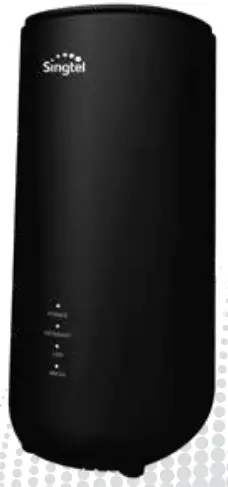
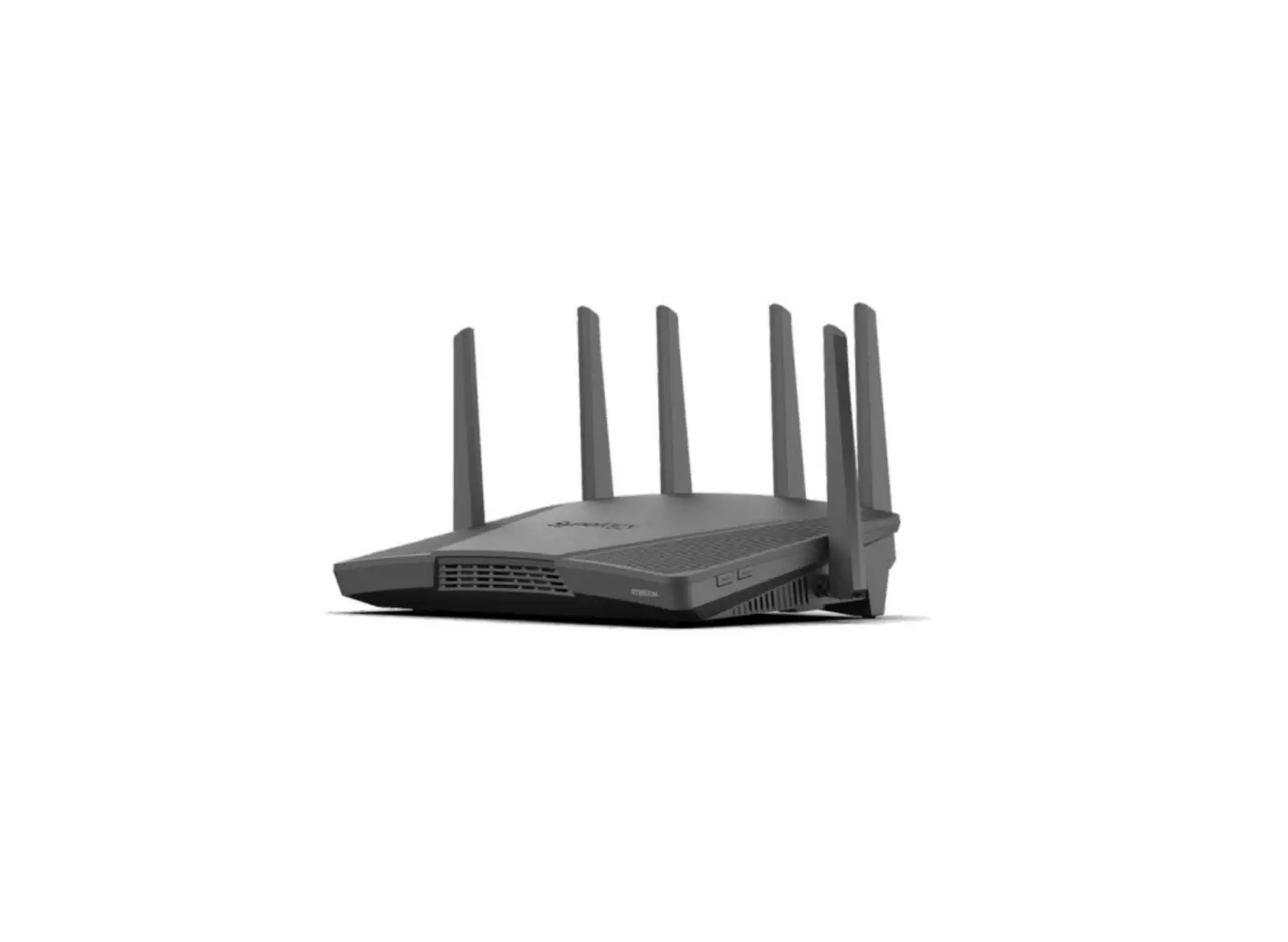
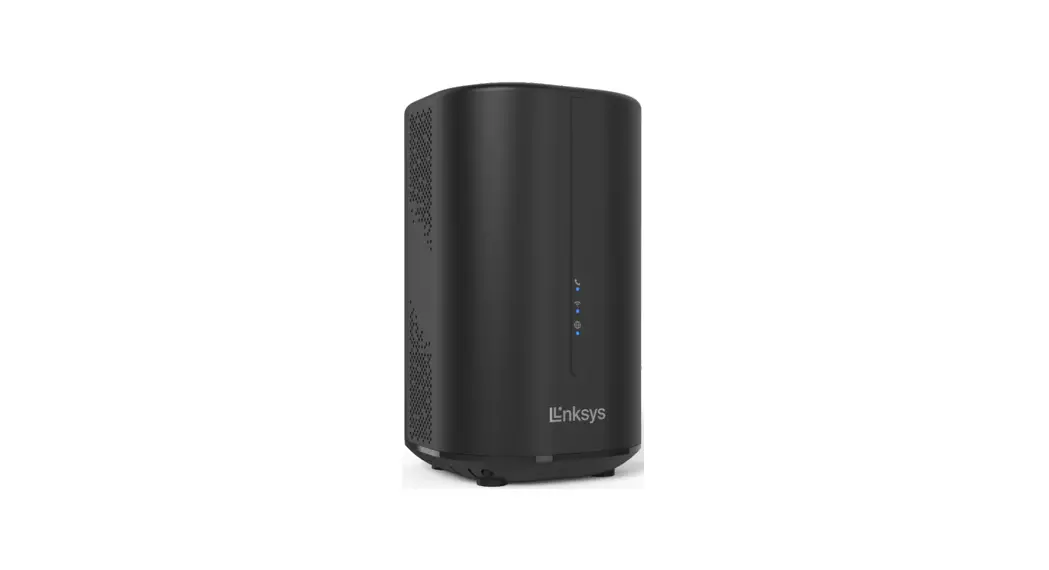
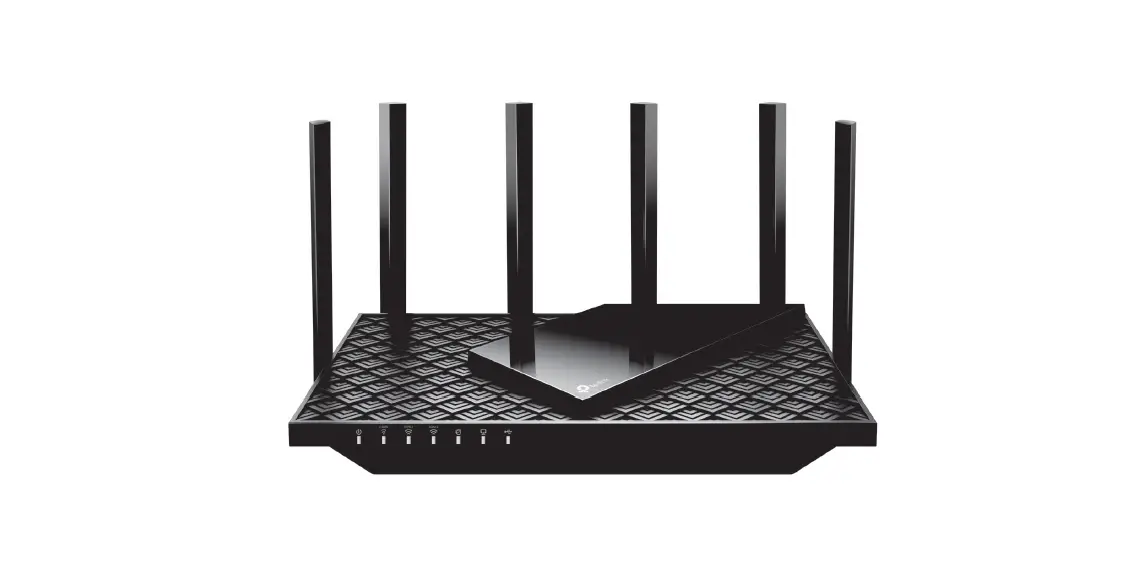
Singtel Wi-Fi 6 Router
– – – – – – – – – – – – – – – – – – – – – – – – ))
RT5703W
WiFi6
POWERED BY ASKEY
What’s in the box
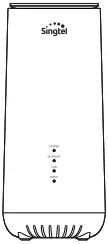
Router x 1 Quick Installation Guide x 1
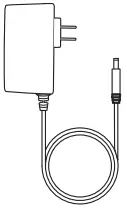
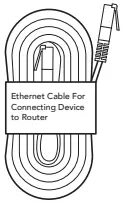
Power Cable x 1 Ethernet Cable x 1
Overview
FRONT VIEW
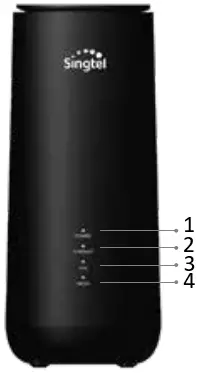
- Power LED
- Internet LED
- LAN LED
- Mesh LED
BACK VIEW
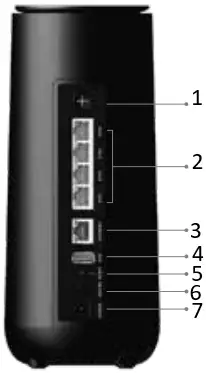
- WPS Button
- LAN Ports
- WAN Port
- USB 3.0 Port
- Reset Button
- ON / OFF
- Power
Installing your Router
There are 2 different set-ups in a Singtel Fibre Broadband Home. Please check your equipment name to confirm the type of set up.
1. If you are using Optical Network Terminal, please set up your Wi-Fi 6 Router as per the below diagram.
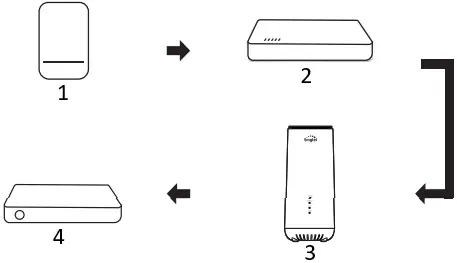
- Fibre Termination Point
- Optical Network Terminal (ONT)
- Wi-Fi 6 Router
- Singtel TV Set-Top Box
2. If you are using Optical Network Router, please set up your Wi-Fi 6 Router as per the below diagram.
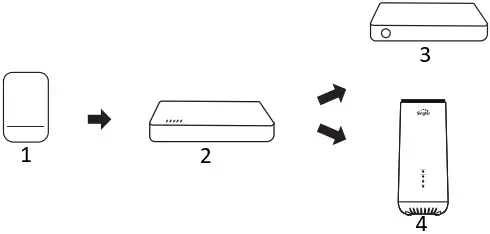
- Fibre Termination Point
- Optical Network Router (ONR)
- Singtel TV Set-Top Box
- Wi-Fi 6 Router
Installing your Router
- Insert the Power Adapter into the Wi-Fi Router’s Power Port and plug it into the power outlet.
- Connect one end of the Ethernet cable to the LAN 1 port on the ONT or ONR and the other to the WAN port of the Router.
- Power up the Router and wait for the internet LED to light up.
- Connect your computer or mobile device to the Router via Wi-Fi using the Username and Password printed on the device label or use the ethernet cable to connect your computer to the Router’s LAN port.
Optimal Placement
- Router should be placed at a central location within the home, and preferably unobstructed.
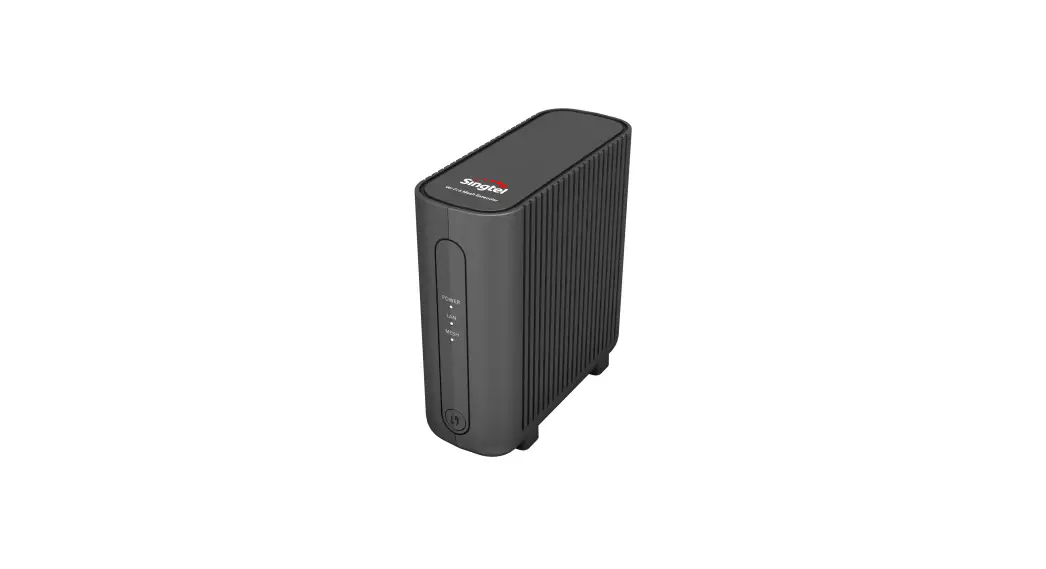
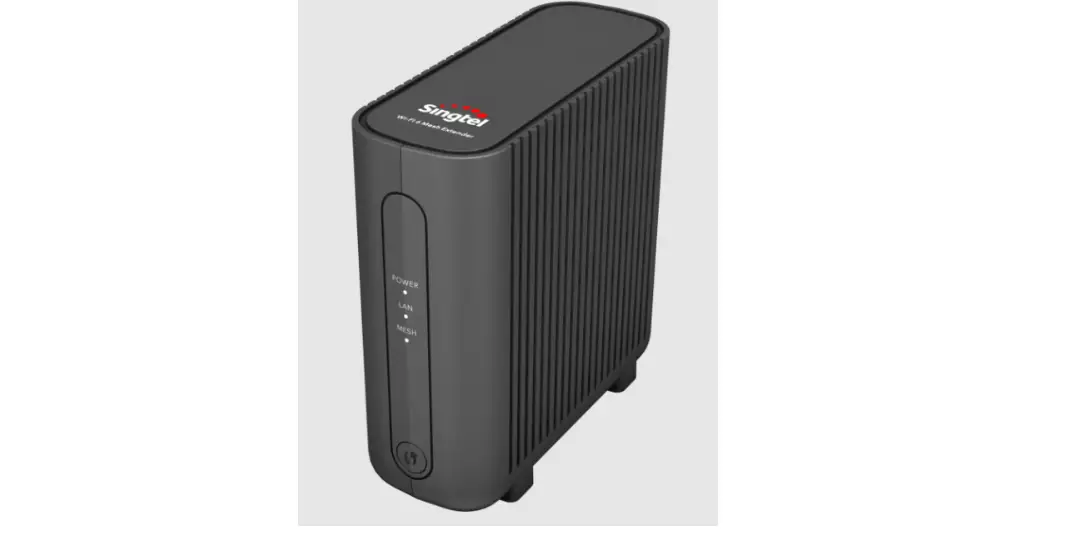
- For optimal connection to eliminate Wi-Fi dead spots, consider adding Singtel Wi-Fi 6 Mesh Extender to the home network. Speak to a Singtel representative to learn more.
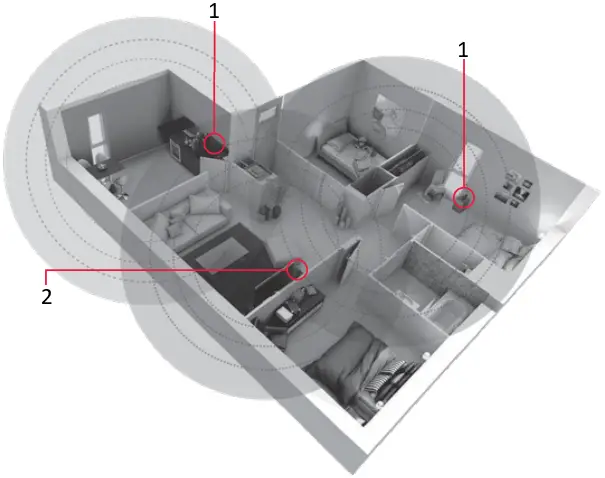
- Mesh Extender (Optional)
- Router
How to Configure your Wi-Fi settings:

Scan here for detailed instructions.
Troubleshooting Steps if you encounter connectivity issues
- Turn off and turn on your Wi-Fi on your handphone or device to reset the Wi-Fi connection.
- If issue persists, reboot the router.
LED Indicator
| LED | LED behaviour | Device status |
| Power | White ON | Router device is ready |
| Red ON | System failure | |
| Red Flashing | Router is booting up | |
| Off | Power off | |
| White/Red alt. Flashing | Firmware upgrade | |
| White Flashing | Factory Reset | |
| Internet | White ON | WAN connection is functioning OK |
| White Flashing | Obtaining IP address | |
| Red ON | Internet connection failure | |
| Off | No internet link | |
| LAN | White ON | Ethernet connection established |
| Off | No LAN connection on the port | |
| Mesh | White ON | Mesh Network Connection |
| Off | No mesh connectivity | |
| White Flashing | Mesh Pairing |