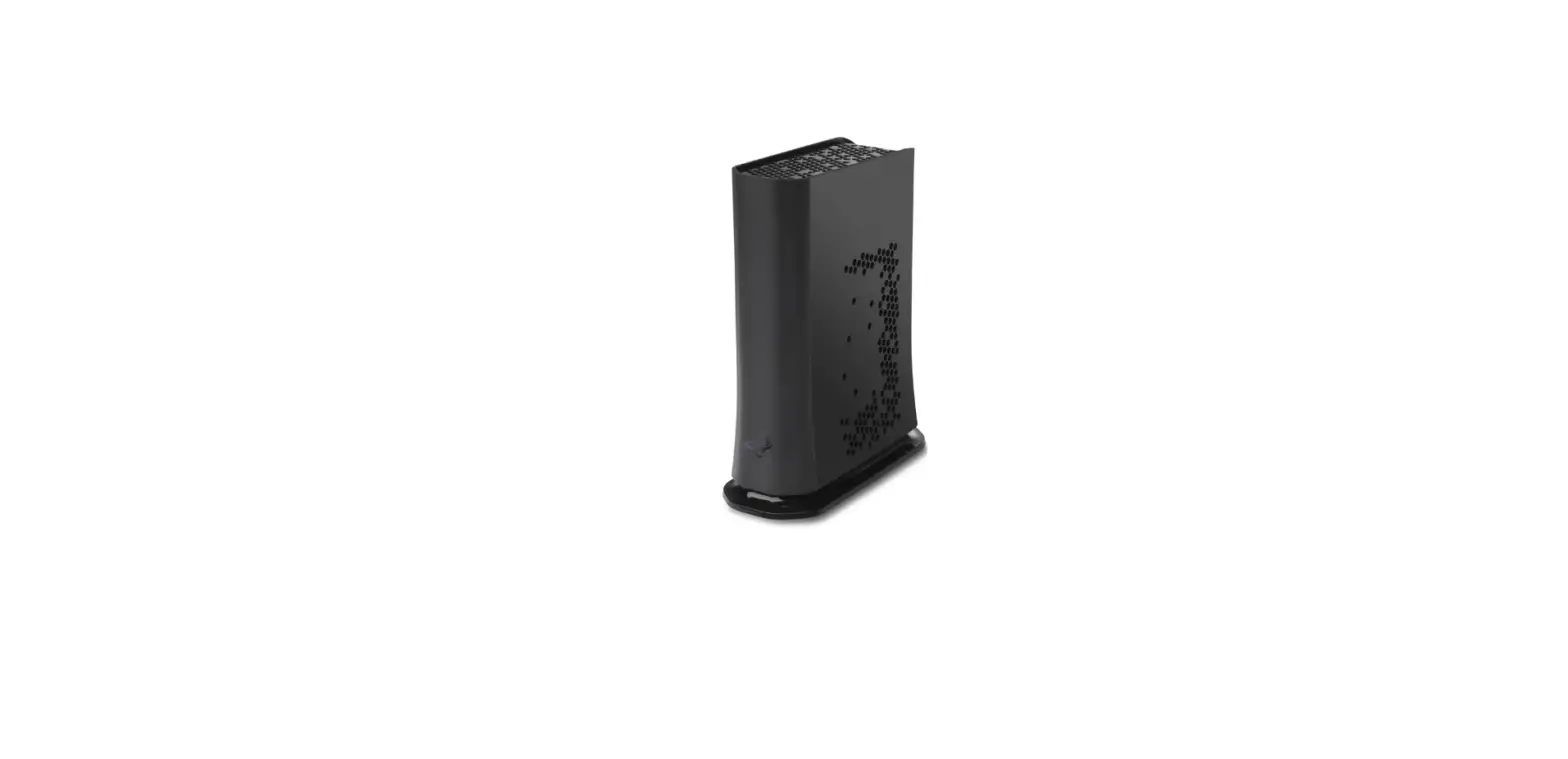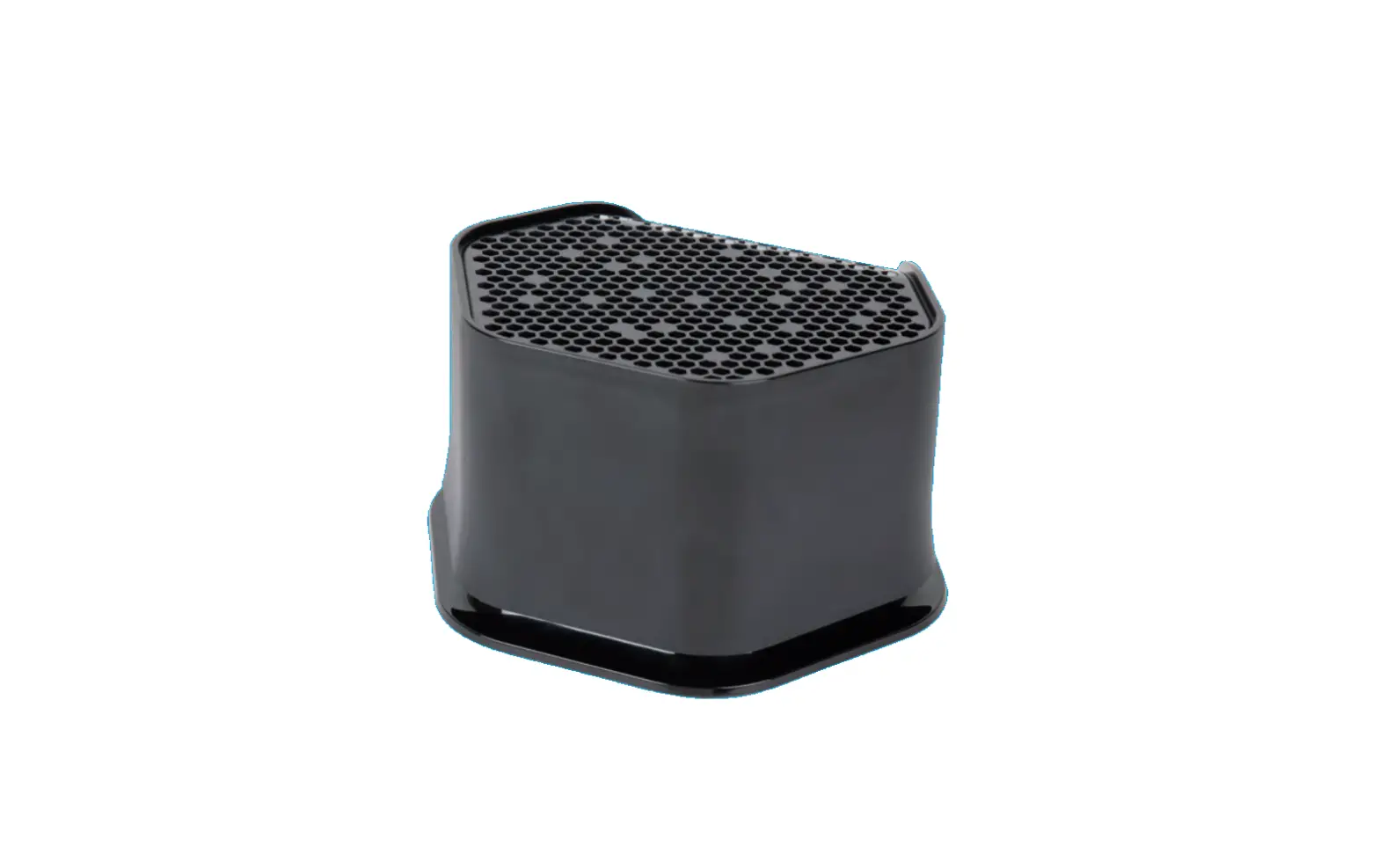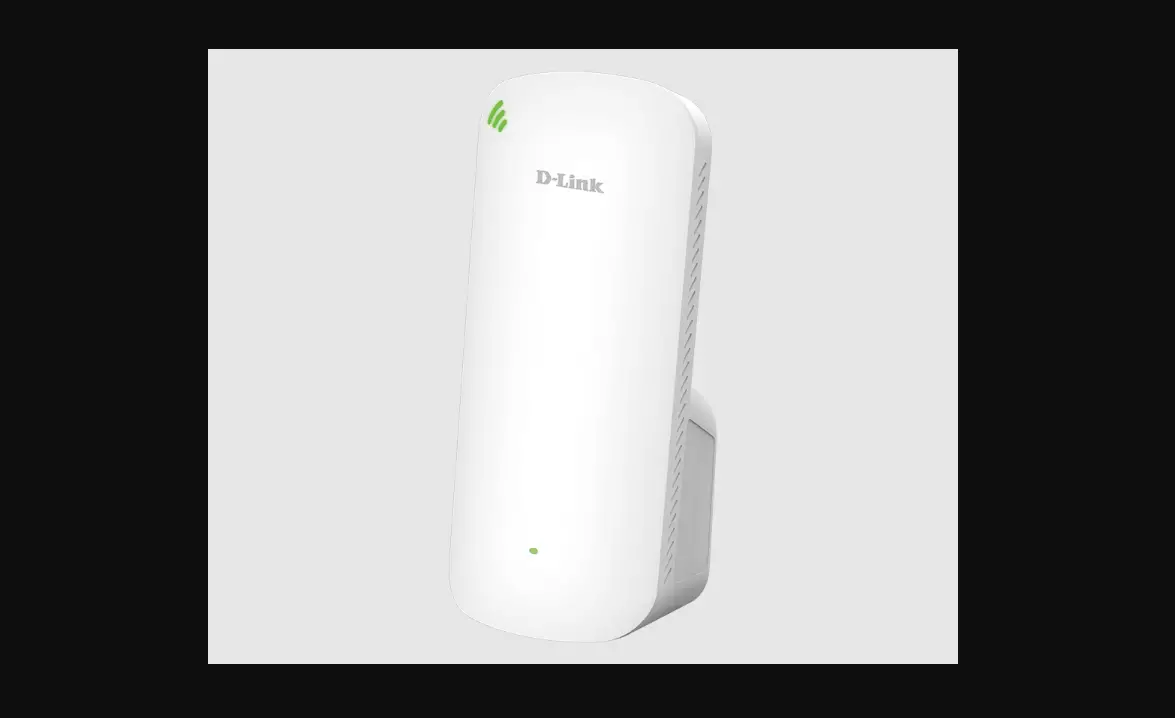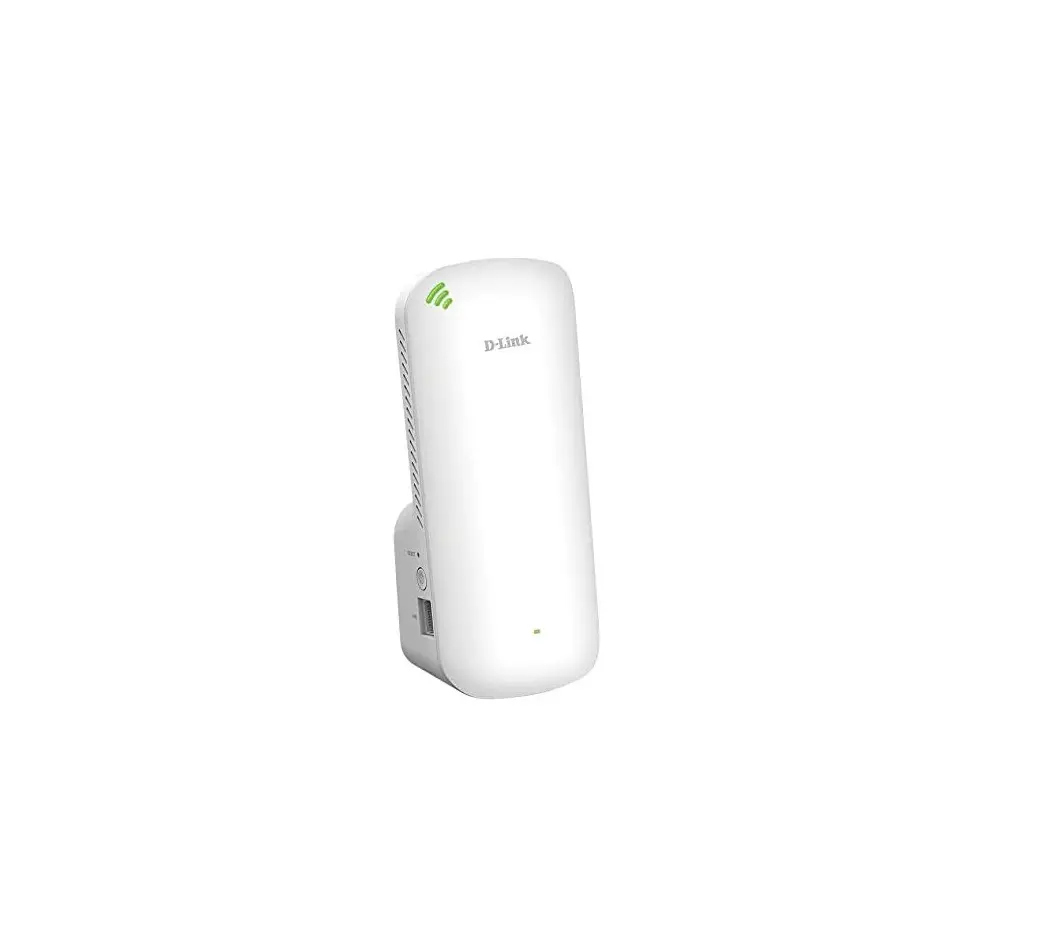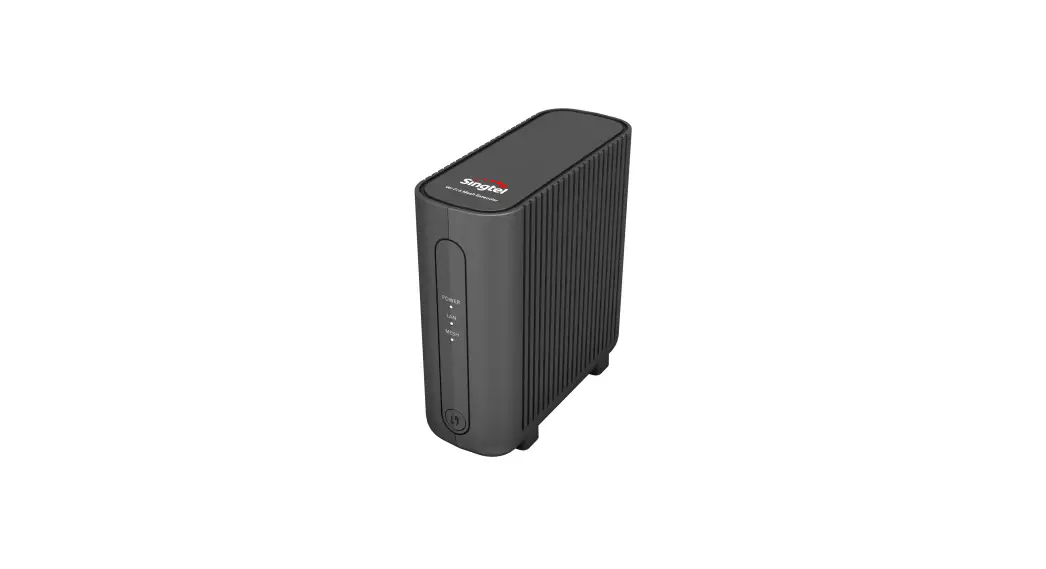
 AP5690W Wi-Fi 6 Mesh Extender
Installation Guide
Quick Installation Guide
AP5690W Wi-Fi 6 Mesh Extender
Your quick and easy step-by-step guide to setting up your Fibre Broadband at home.
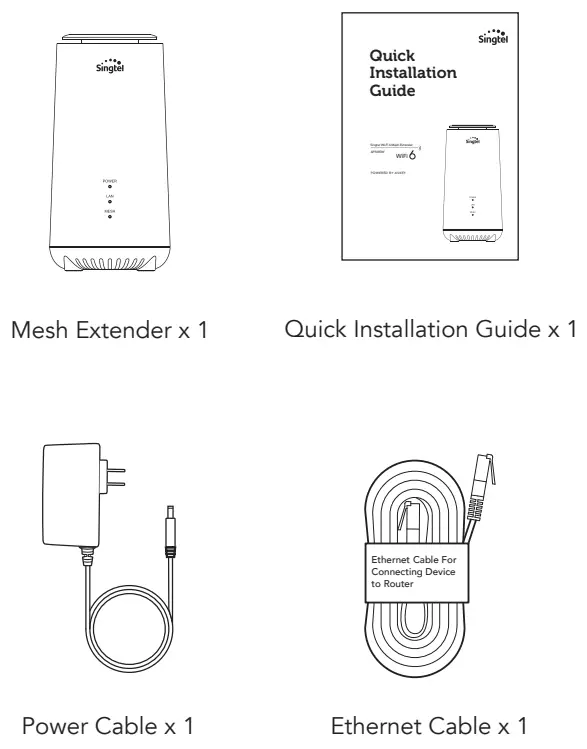
What’s in the box
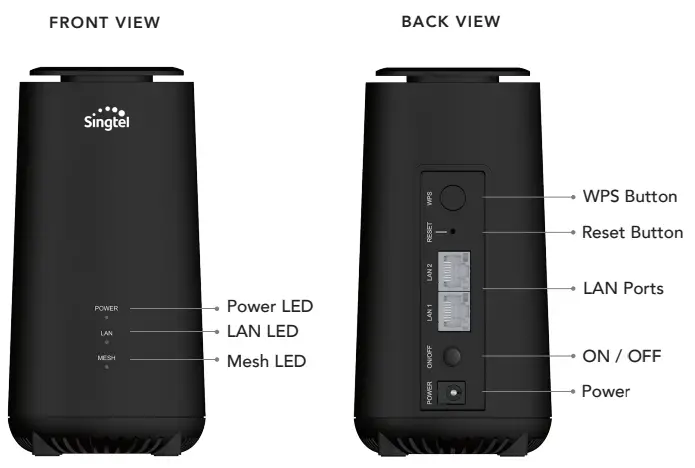
Overview
Setting up your Mesh Extenders
(You do not currently have any Mesh Extender installed.)
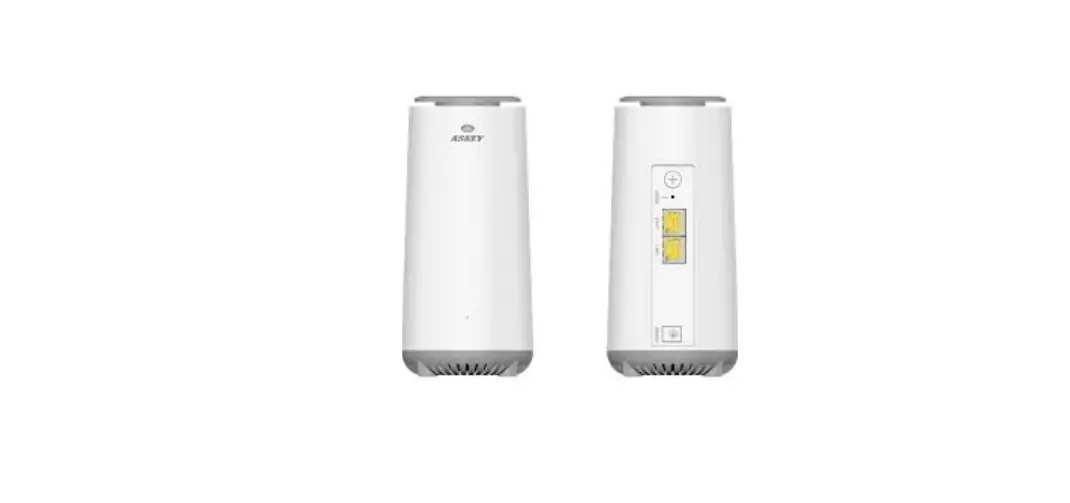
- Use the Ethernet Cable to connect the LAN port (port 1-4) on the ONR to any LAN port at the back of a unit of Mesh Extender.
- Insert the Power Adapter into the Mesh Extender’s Power Port and plug it into the power outlet. Depress the power button on the back of the device if the device does not turn on.
- The POWER LED light will start flashing in red. Once they turn a solid white, you’re set!
- Connect your Computer or mobile device to the Mesh Extender via WiFi using the Username and Password printed on the device label or use the ethernet cable to connect your computer to the Mesh Extender’s LAN port.
Setting up your Mesh Extenders
(You already have a Wi-Fi 6 Mesh Extender installed.)
- Connect your new Mesh Extender to a power point close to the installed Mesh and turn on. Depress the power button on the back of the device if it does not turn on.
- Press and hold the WPS button at the back of your installed Mesh for 2 seconds, then press and hold the WPS button on one of the Mesh Extender and wait up to 5 minutes for the Mesh LED to turn solid white on both Mesh Extenders.
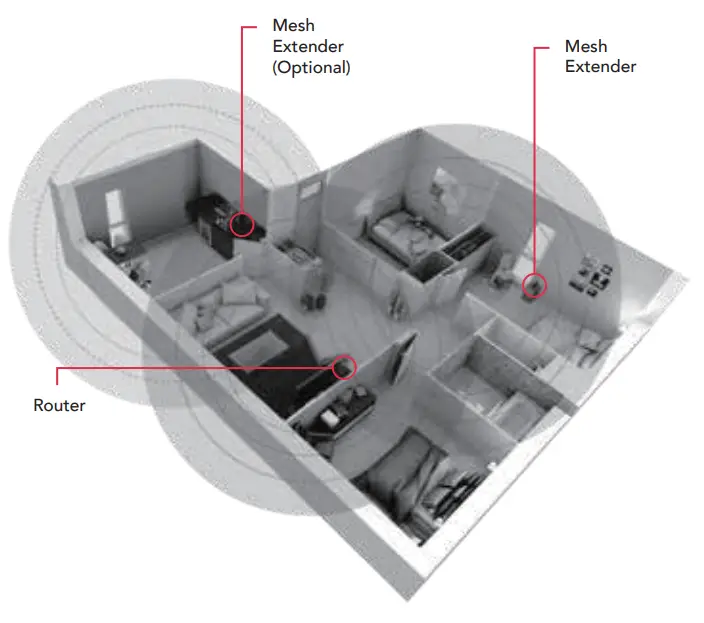
- Re-position the new Mesh Extender to a location in-between your original Router / Mesh Extender and the area in your home with weak WiFi signal and switch on.
Optimal Placement
For optimal connection to eliminate WiFi deadapts, the placement of each Mesh Extender device should be within line of sight of the next closest device.
How to Configure your Wi-Fi settings:

https://www.singtel.com/personal/support/broadband/troubleshoot/change-wifi-name-password
Troubleshooting Steps if you encounter connectivity issues
- Turn off and turn on your Wi-Fi on your handphone or device to reset the Wi-Fi connection.
- If issue persists, reboot the router.
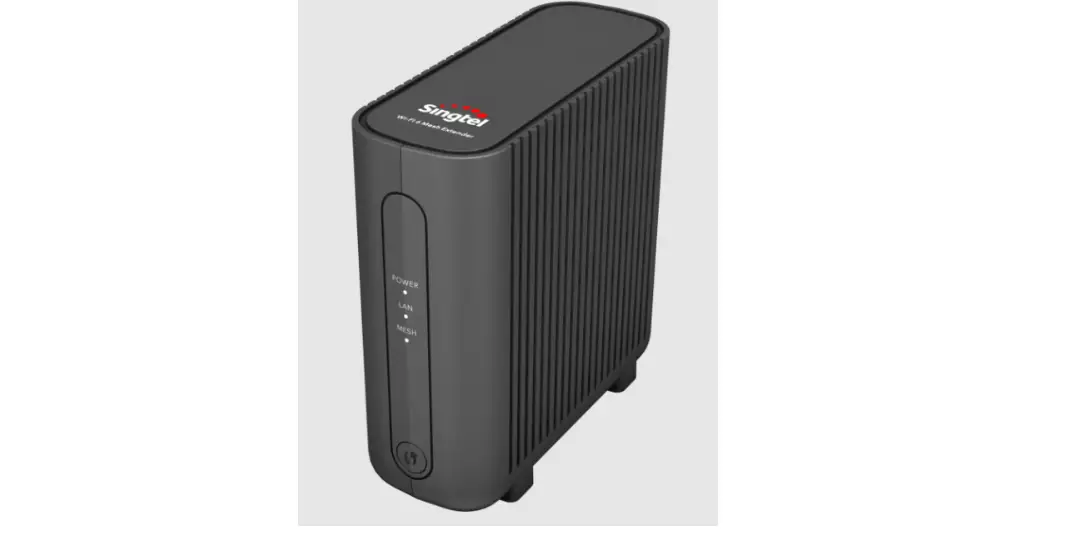
LED Indicator
| LED | LED behaviour | Device status |
| Power | White ON | Mesh device is ready |
| Red ON | System failure | |
| Red Flashing | Mesh is booting up | |
| Off | Power off | |
| White/Red alt. Flashing | Firmware upgrade | |
| White Flashing | Factory Reset | |
| LAN | White ON | Ethernet connection established |
| Off | No LAN connection on the port | |
| Mesh | White ON | Good signal strength in wireless mesh network (SNR > 25dB)/ Wired backhaul |
| Red ON | Weak signal strength in wireless mesh network | |
| Off | No mesh connectivity | |
| White Flashing | Mesh Pairing |