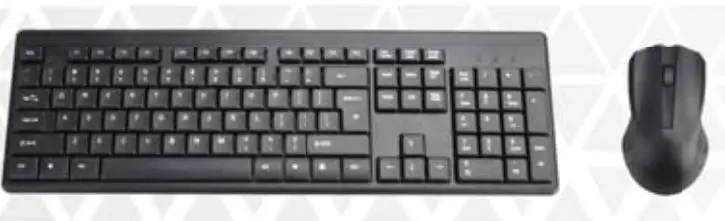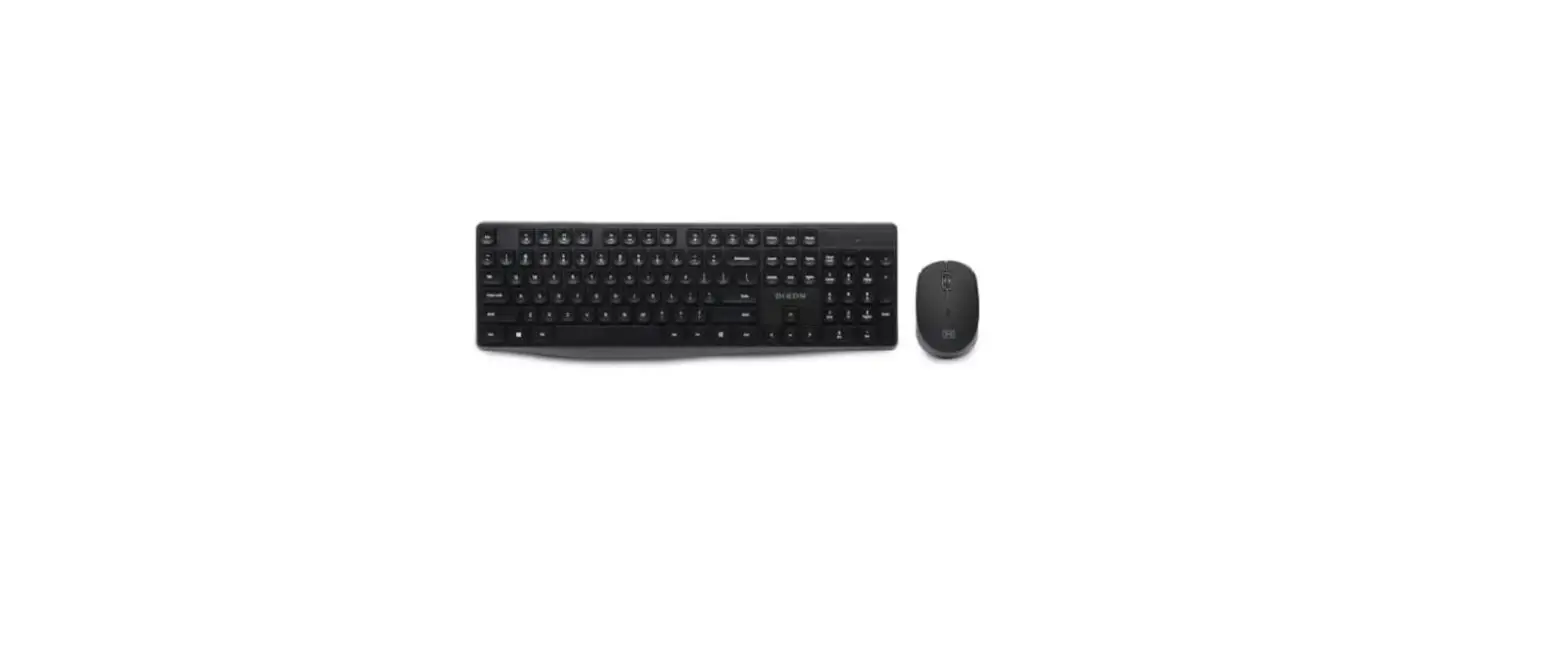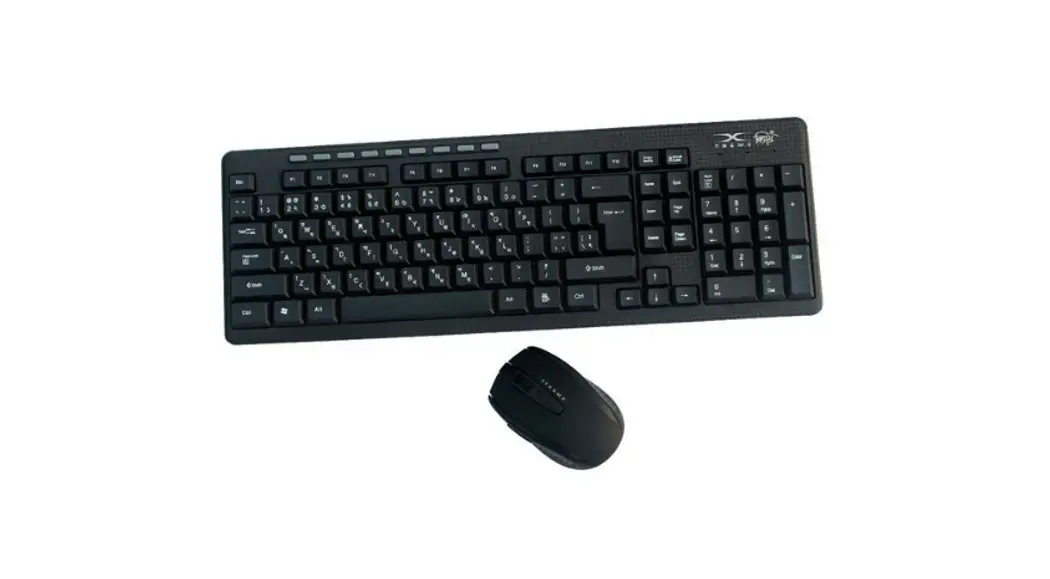

Acrox Technologies MU106 Wireless Multimedia Keyboard and Mouse with Nano Receiver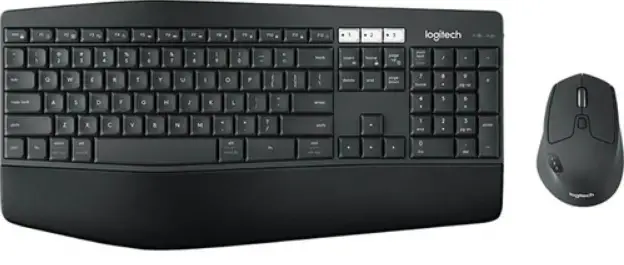
Functional Introduction
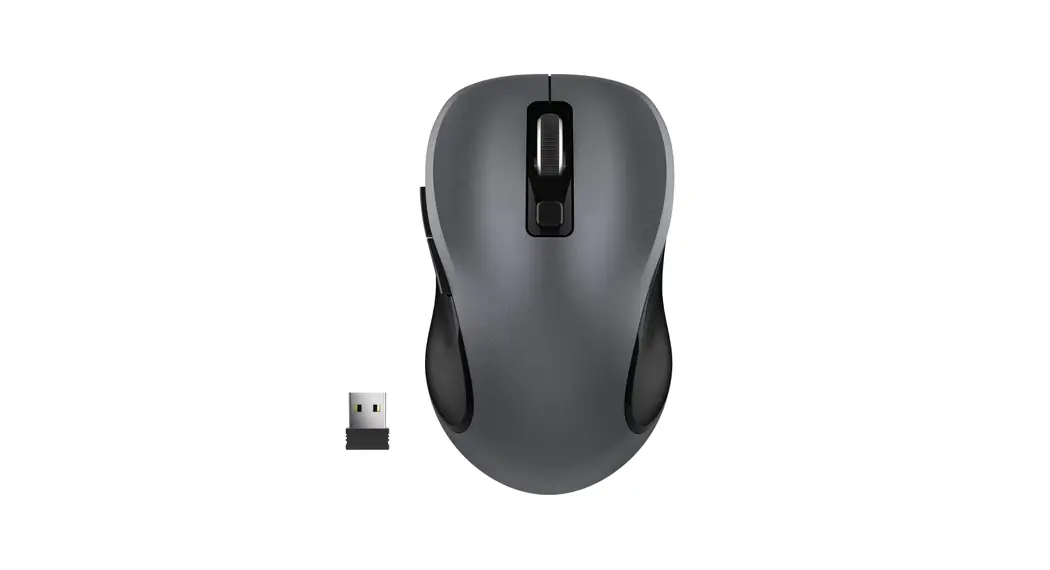
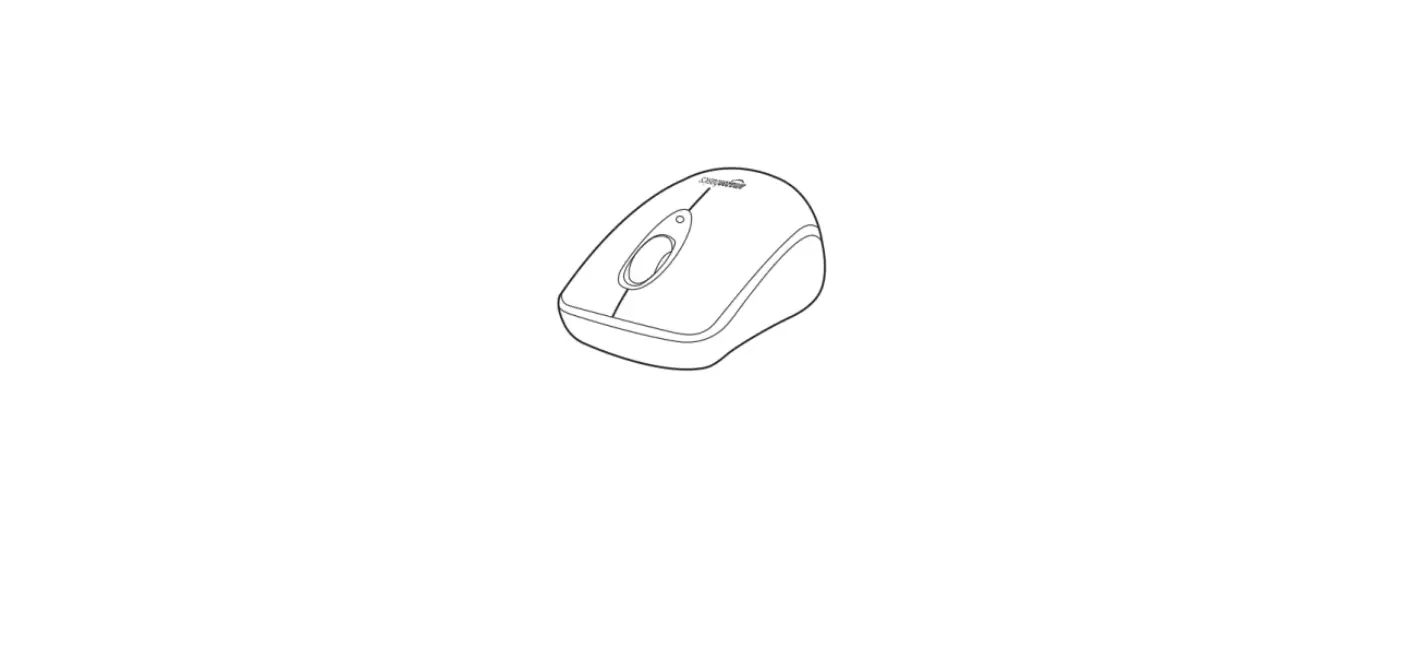
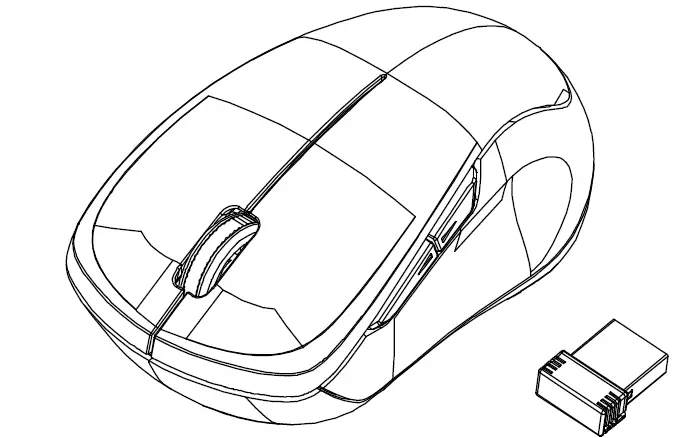
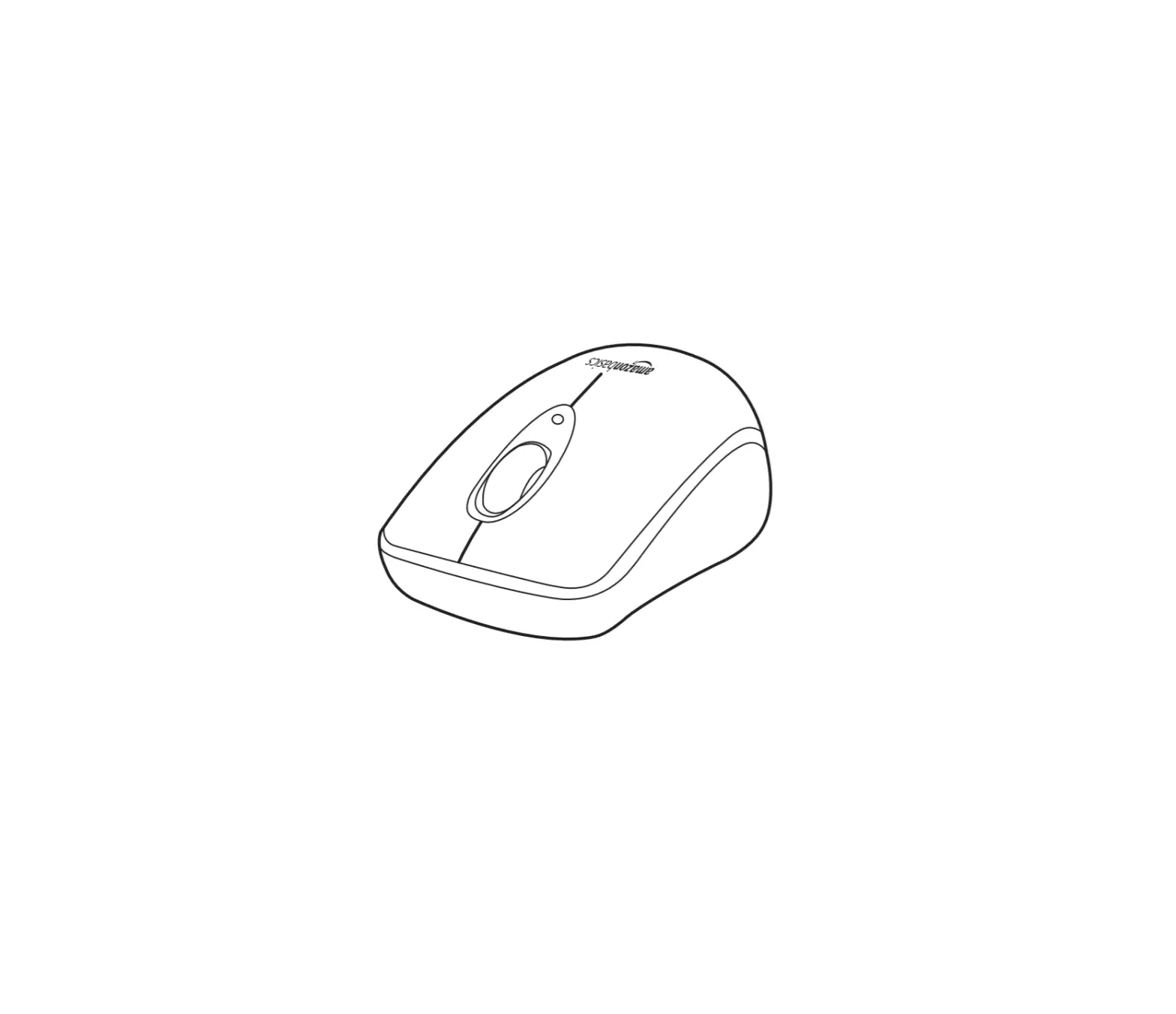
Mouse Buttons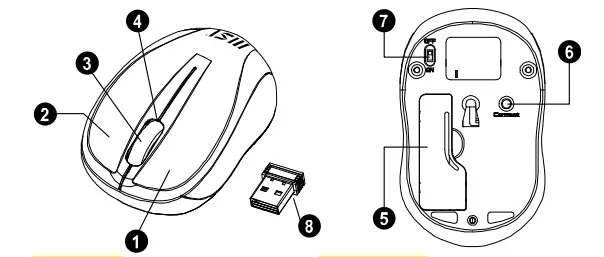
- Left Button
- Battery Cover
- Right Button
- Connect Button
- Scrolling Wheel
- ON/OFF Switch
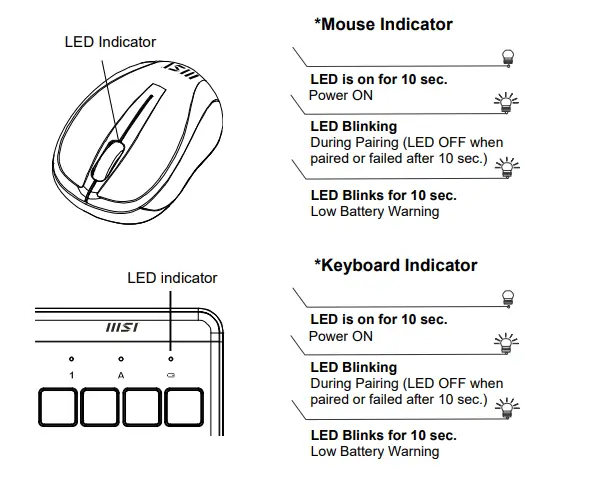
- LED Indicator
- Nano Receiver
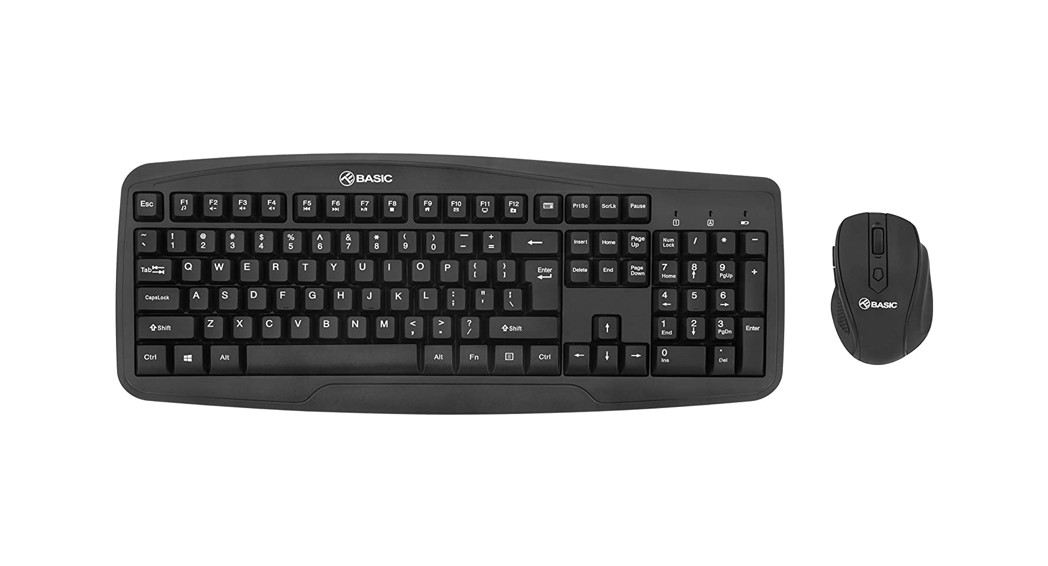
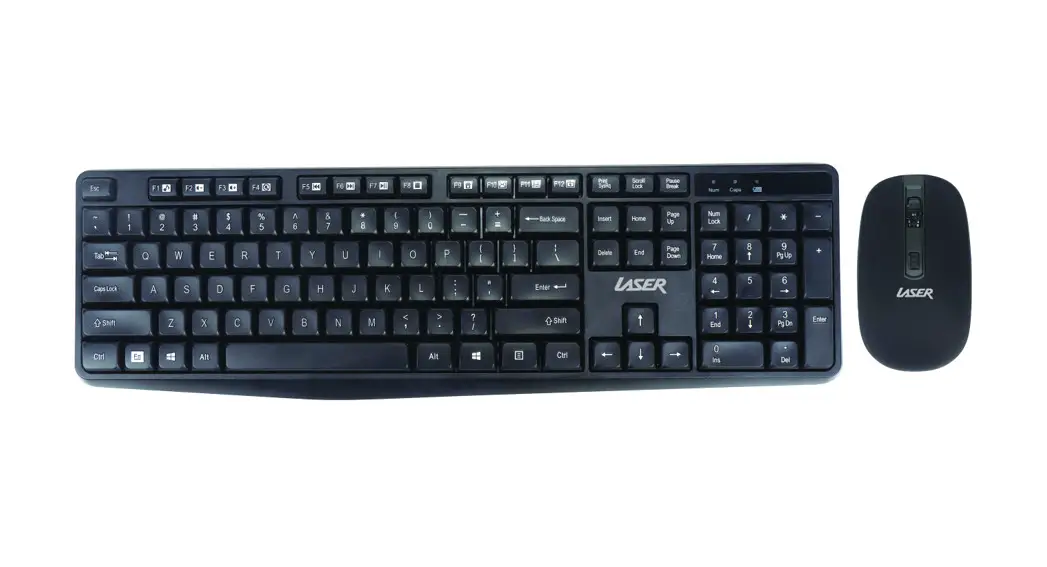
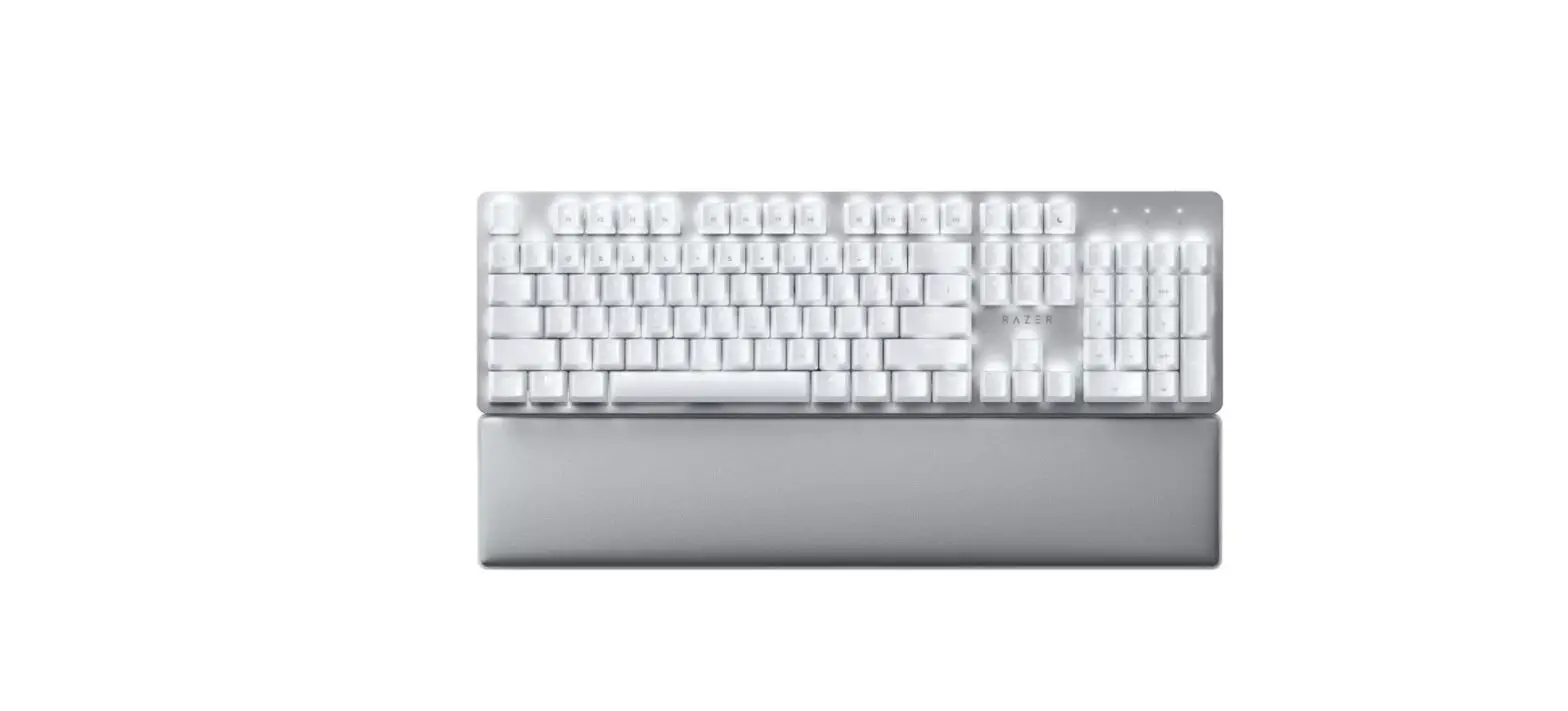
Keyboard Buttons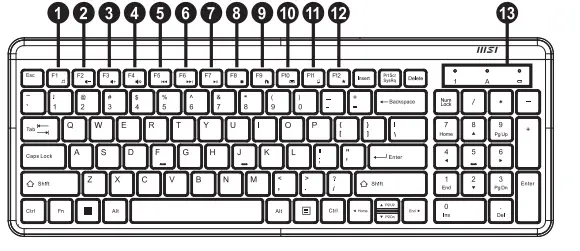
| Key Function (* compound key, Press with Fn key) | |||
| 1. | Media Player On | Turn on the Media player program | |
| 2 | Volume down (Voice-) | Decrease the computer’s sound volume. | |
| 3. | Volume up (Voice+) | Increase the computer’s sound volume. | |
| 4. | Mute | Mute (turns off) the computer’s sound | |
| 5. | Previous | Switch to the previous media track | |
| 6. | Next | Switch to the next media track | |
| 7. | Play/Pause | Switch between playing and pausing media | |
| 8. | Stop(Media) | Stop playing the media in the media player | |
| 9. | Homepage(www/e) | Start the default Web browser and loads the home Web page | |
| 10. | Outlook(E-mail)àDefault | Start the default e-mail program | |
| 11. | My Computer | Open My Computer/This PC folder. | |
| 12. | My Favorites | Open My Favorites folder within Internet browser application | |
| 13. | Number Lock Indicator | |
| Caps Lock Indicator | ||
| Low Battery & Pairing Indicator | ||
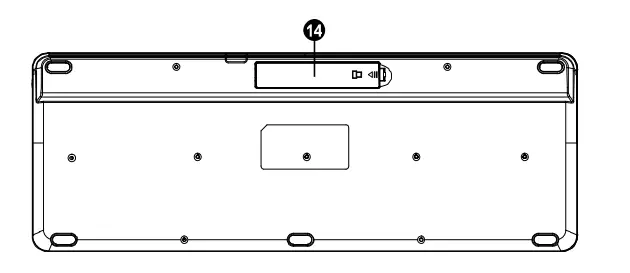
| 14. | Battery Cover | |
| Fn + | HOME |
| Fn + | END |
| Fn + | Pg UP |
| Fn + | Pg DN |
HIKVISION-DS-PDTPH-E-WB-Wireless-Temperature-Detector- FEATURED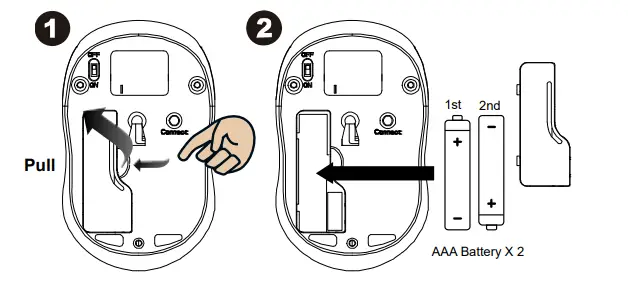
Step 3: Replace the cover.
Step 4: Turn on power switch.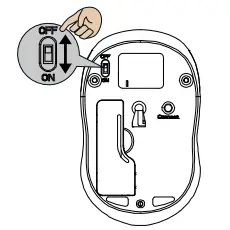
Warning:
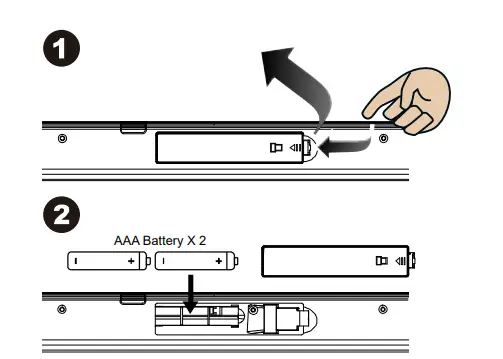
Please insert the battery with the correct position according to the instruction labeled on the mouse & Keyboard.
Setup the Connection between the Receiver and the Mouse & Keyboard
- Remove the cover under the mouse & keyboard to access the battery and nano receiver compartment.
- Insert batteries into the mouse & keyboard, and remove the nano receiver from the compartment. Place the covers back onto the devices.
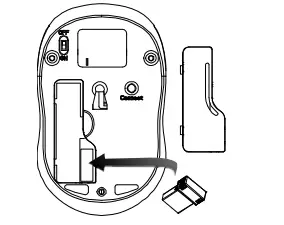
- Plug the nano receiver into a USB port on your computer.
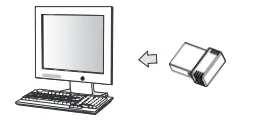
- If the device does not work, please turn it into pairing mode.
- Pairing: Re-plug the receiver into the USB port on your computer, then press connect button of the mouse, and press they key combination
“ESC + K “ on the keyboard. If the mouse or keyboard does not work after 10 seconds, pair them again. - The LED indicator on the mouse & Keyboard flashes steadily when it is in pairing mode and stops blinking when it is successfully paired with the receiver.
- When the device has low battery, the battery indicator on the keyboard or the mouse will start to blink.