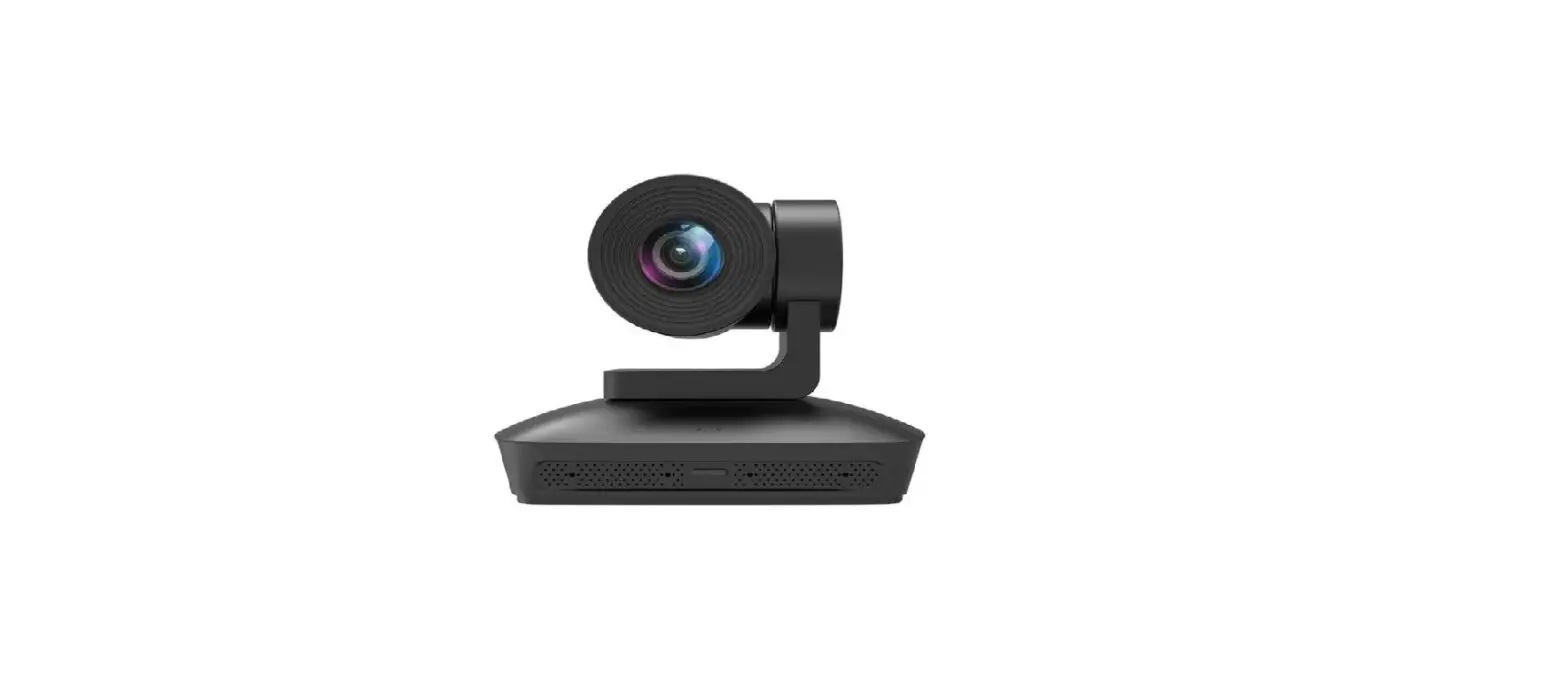
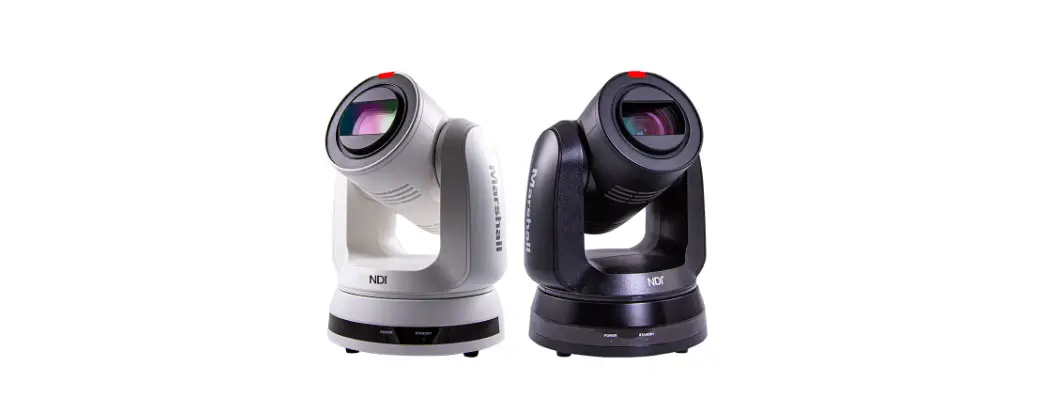
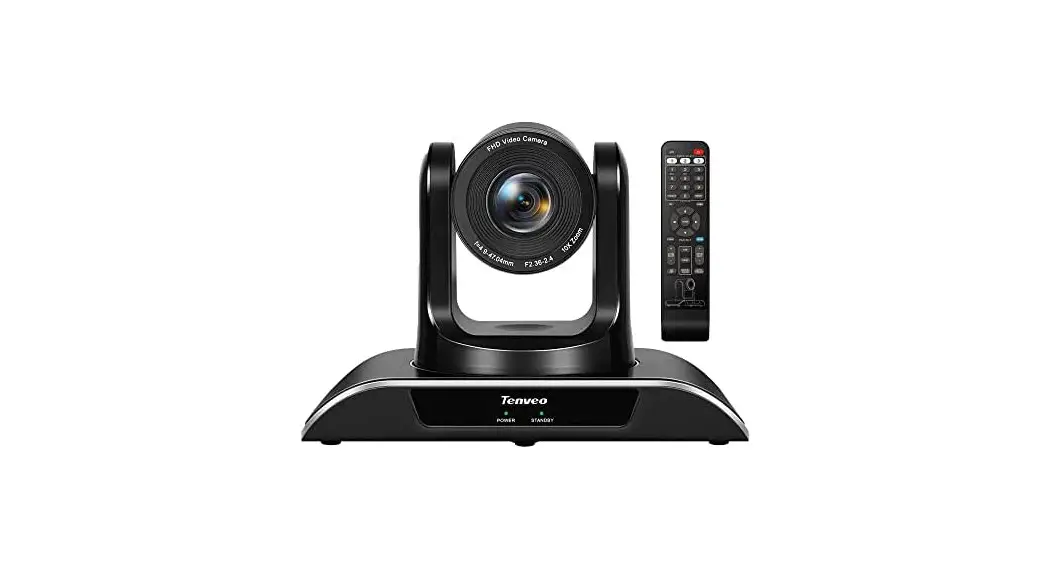
VIS-TCAMH-B HD Video Tracking Camera
Product Information
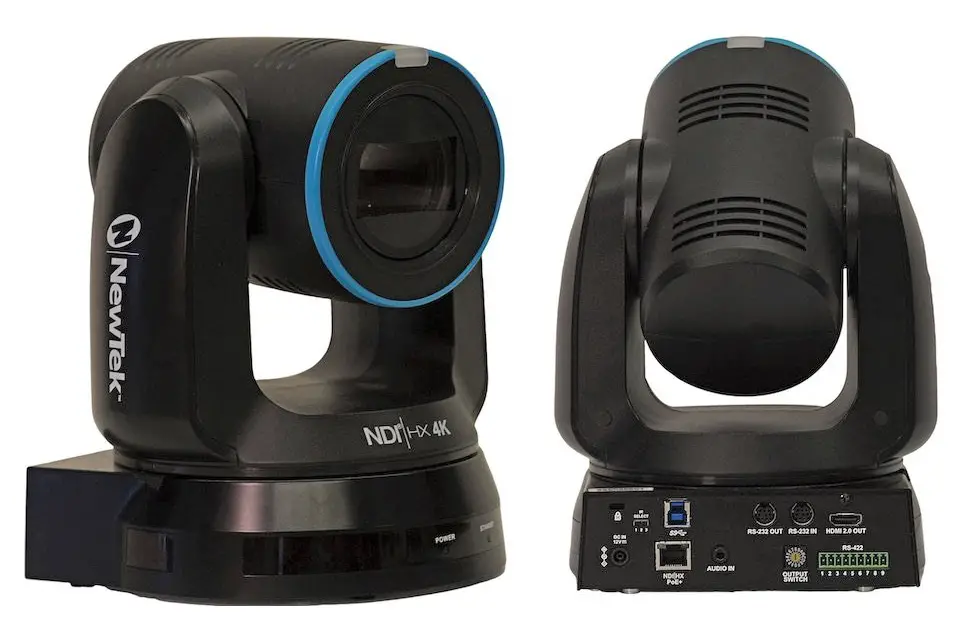
The VIS-TCAMH-B HD Video Tracking Camera is a high-definition
camera designed for tracking and monitoring purposes. It features
an integrated design that allows it to output panoramic and
close-up 4 channel HD 1080P video. With its built-in leading image
recognition and tracking algorithm, it can achieve smooth and
natural tracking without the need for any auxiliary positioning
camera or tracking host. This camera is suitable for applications
such as intelligent teaching tracking.
Product Usage Instructions
- Electric Safety:
- Installation and operation must comply with electric safety
standards.
- Installation and operation must comply with electric safety
- Transportation:
- Avoid stress, vibration, or soakage during transport, storage,
and installation.
- Avoid stress, vibration, or soakage during transport, storage,
- Power Supply:
- The power supply of this product is +12V with a maximum
electrical current of 1.5A. - Ensure correct polarity of the power supply plug when
connecting.
- The power supply of this product is +12V with a maximum
- Installation Precautions:
- Do not dismantle the camera without authorization.
- Avoid any unauthorized modification or dismantling.
- Do not use the camera in corrosive liquid, gas, or solid
environments.
- Quick Start:
- Check that all the supplied accessories are included: Camera,
AC Power Adaptor, Power Cable, RS232 Cable, Remote Control, Wall
Bracket with Screw Pack, and User Manual. - Ensure correct connections before starting.
- Connect the DC 12V power cord to the supplied power adapter and
plug it into a power outlet. The power indicator on the camera’s
front panel should turn on. - After powering on, the camera will initialize and move to the
limit position. It will then move both horizontally and vertically
to the middle position, and the motor will stop running. This
indicates that the initialization is completed.
- Check that all the supplied accessories are included: Camera,
- Product Installation:
- If the monitor thickness is greater than 170mm or if wall
mounting is required, follow the specific installation steps shown
in the provided figure.
- If the monitor thickness is greater than 170mm or if wall
HD Tracking Camera
User Manual
VIS-TCAMH-B HD Video Tracking Camera
User Manual
V1.3 Version
User Manual
HD Tracking Camera
User Manual
Catalogue
1 Note……………………………………………………………………………………………………………. 1 2 Packing List …………………………………………………………………………………………………. 1 3 Quick Start…………………………………………………………………………………………………… 1 4 Product Installation ……………………………………………………………………………………….. 2 5 About Product………………………………………………………………………………………………. 2
5.1 Features …………………………………………………………………………………………………………………. 2 5.2 Product Specification ………………………………………………………………………………………………… 3 5.3 Interfaces and Buttons ………………………………………………………………………………………………. 4 5.4 Dimension ………………………………………………………………………………………………………………. 5 5.5 Remote Control ……………………………………………………………………………………………………….. 5 5.6 RS232 Interface………………………………………………………………………………………………………..6 5.7 VISCA Network ………………………………………………………………………………………………………… 7 5.8 Serial Communication Control……………………………………………………………………………………..7
6 GUI Settings ………………………………………………………………………………………………… 8
6.1 MENU……………………………………………………………………………………………………………………..8 6.2 EXPOSURE…………………………………………………………………………………………………………….. 8 6.3 COLOR ………………………………………………………………………………………………………………….. 8 6.4 IMAGE…………………………………………………………………………………………………………………….9 6.5 P/T/Z ……………………………………………………………………………………………………………………… 9 6.6 NOISE REDUCTION ………………………………………………………………………………………………. 10 6.7 SETUP …………………………………………………………………………………………………………………. 10 6.8 COMMUNICATION SETUP ……………………………………………………………………………………… 10 6.9 RESTORE DEFAULT………………………………………………………………………………………………. 10
7 Network Function …………………………………………………………………………………………11
7.1 Operating Environment ……………………………………………………………………………………………. 11 7.2 Equipment Installation……………………………………………………………………………………………… 11 7.3 Internet Connection ………………………………………………………………………………………………… 11 7.4 Camera Controlled by LAN ………………………………………………………………………………………. 11
7.4.1 Setup IP Address……………………………………………………………………………………………………….. 11 7.4.2 Visit/Access Camera ………………………………………………………………………………………………….. 12
HD Tracking Camera
User Manual
7.5 Camera Controlled by WAN ……………………………………………………………………………………… 12 7.5.1 Setup IP Controlled by Dynamic DNS ………………………………………………………………………….. 12 7.5.2 Dynamic DNS Visit Camera ………………………………………………………………………………………… 13 7.5.3 VLC Stream Media Player Monitor ………………………………………………………………………………. 13
7.6 Camera Parameter Setup ………………………………………………………………………………………… 13 7.6.1 Homepage Introduction ………………………………………………………………………………………………. 13 7.6.2 Video Settings …………………………………………………………………………………………………………… 15 7.6.3 Image Settings ………………………………………………………………………………………………………….. 16 7.6.4 Audio Settings …………………………………………………………………………………………………………… 16 7.6.5 System Settings ………………………………………………………………………………………………………… 17 7.6.6 Network Settings ……………………………………………………………………………………………………….. 17 7.6.7 Device Information …………………………………………………………………………………………………….. 18
7.7 Download the Upgrade Program ……………………………………………………………………………….. 18
8 Maintenance and Troubleshooting ………………………………………………………………… 18
HD Tracking Camera
User Manual
1 Note
Electric Safety Installation and operation must accord with electric safety standard. Use Caution to Transport Avoid stress, vibration or soakage in transport, storage and installation. Polarity of Power Supply The power supply of this product is +12V, the max electrical current is 1.5A. Polarity of the power supply plug drawing shows as below.
material) damage. Make sure there is no obstacle within rotation range. Please never power on before installation is completed. Do not Dismantle the Camera We are not responsible for any unauthorized modification or dismantling.
Specific frequencies of electromagnetic field may affect the image of the camera!
2 Packing List
Installation Precautions Do not grasp the camera lens when carrying it. Don’t touch camera lens by hand. Mechanical damage may be caused by doing so. Do not use in corrosive liquid, gas or solid environment to avoid any cover (plastic
3 Quick Start
When you unpack, check that all the supplied accessories are included:
Name Camera AC Power Adaptor Power Cable RS232 Cable Remote Control Wall Bracket with Screw Pack User Manual
Quantity 1 1 1 1 1 1 1
1) Please check connections are correct before starting.
1
HD Tracking Camera
User Manual
2) Connect the DC 12V power cord to the supplied power adapter and connect the power adapter to a power outlet. The power indicator on the front panel of the camera is on.
3) After the camera is powered on, it starts to initialize, right up to the limit position, and then both horizontal and vertical go to the middle position, the motor stops running, and the initialization is completed (Note: If preset 0 is saved, PTZ will be move to preset 0).
4 Product Installation
When the monitor thickness is >170mm or when it is required to be mounted on a wall, the wall mounting method can be selected. The specific installation steps are shown in the following figure.
5 About Product
Intelligent Teaching Tracking
5.1 Features Integrated Design Integrated design, it can output panoramic and close-up 4 channel HD 1080P video.
Built-in leading image recognition and tracking algorithm, you can achieve smooth and natural tracking without any auxiliary positioning camera or tracking host. Different cameras can be installed to achieve teacher tracking or
student tracking.
2
HD Tracking Camera
Lens Replaceable The panoramic lens is replaceable and compatible with M12 interface lenses, then making it easy to respond to different classroom scenes. Adjustable Viewing Angle The panoramic lens angle can be adjusted up and down (-15°~0°), which is very convenient for engineering installation and debugging. Same Video Style The panoramic machine and the close-up machine adopt the same image processing scheme to ensure the brightness, color and style of the two images are consistent. 72.5° Wide-angle Lens Close-up camera use 72.5° wide-angle high quality lens, support 12x optical zoom and 16x digital zoom. 1080P Full HD Apply Panasonic’s high quality HD CMOS sensors of 1/2.7 inch, 2.07 million effective pixels, so as to reach maximum 1920 x 1080 resolution and achieve quality image. Ultra-high Frame Rate The output frame rate is up to 60fps in 1080P. AAC Audio Encoding Close-up camera support AAC audio encoding, better sound quality and smaller bandwidth. Low Light The application of 2D and 3D noise reduction algorithm greatly reduces image noise. Even under the condition of ultra-low illumination, it still keep the picture clean and clear, and the SNR of image is as high as 55dB. Remote Control Through the RS232 serial port, the camera can be controlled remotely.
User Manual
5.2 Product Specification
Name
Camera
Video System
Sensor
Scanning Mode
Lens
Teacher Panorama Lens Student Panorama Lens Digital Zoom Minimum Illumination Shutter
White Balance
Backlight Compensation Digital Noise Reduction Signal Noise Ratio Horizontal Angle of View Vertical Angle of View Horizontal Rotation Range Vertical Rotation Range Pan Speed Range Tilt Speed Range H & V Flip
Image Freeze
HD Teaching Tracking Camera
1080P/60, 1080P/50, 1080I/60, 1080I/50, 1080P/30, 1080P/25, 720P/60, 720P/50 1/2.7”, CMOS, Effective Pixel: 2.07M Progressive 12x, f=3.5mm ~ 42.3mm, F1.8 ~ F2.8 f=6mm, F1.8, angle of view is about 60° (optional) f=3.24mm, F1.8, angle of view is about 84° (optional) 16x 0.5 Lux @ (F1.8, AGC ON) 1/30s ~ 1/10000s Auto, Indoor, Outdoor, One Push, Manual, VAR
Support 2D & 3D Digital Noise Reduction 55dB
72.5° ~ 6.9°
44.8° ~ 3.9°
±170°
-30° ~ +90°
1.7° ~ 100°/s
1.7° ~ 69.9°/s
Support Support
3
HD Tracking Camera
Number of Preset
255
Preset Accuracy 0.1°
Network Features
Video Compression Video Stream
First Stream Resolution
Second Stream Resolution
Third Stream Resolution
Four Stream Resolution
H.264/MJPEG
First Stream, Second Stream, Third Stream, Four Stream 1920×1080, 1280×720, 1024×576, 960×540, 640×480, 640×360 1920×1080, 1280×720, 1024×576, 720×576 (50Hz support), 720×480 (60Hz support), 720×408, 640×360, 480×270, 320×240, 320×180 1024×576, 960×540, 720×576 (50Hz support), 720×480 (60Hz support), 720×408, 640×360, 480×270, 320×240, 320×180 1024×576, 960×540, 720×576 (50Hz support), 720×480 (60Hz support), 720×408, 640×360, 480×270, 320×240, 320×180
Video Bit Rate 32Kbps ~ 102400Kbps
Bit Rate Type
Variable Rate, Fixed Rate
Frame Rate Audio Compression Audio Bit Rate
Protocols
50Hz: 1fps ~ 25fps, 60Hz: 1fps ~ 30fps
AAC
96Kbps, 128Kbps, 256Kbps TCP/IP, HTTP, RTSP, RTMP, ONVIF, DHCP, etc.
Input/Output Interface
HD Output
1 x HDMI: Version 1.3
1 x 3G SDI: BNC type, 800mVp-p, 75, Along to SMPTE 424M standard
User Manual
Network Interface Audio Interface
Communication Interface
Power Jack
1 x RJ45: 10M/100M Adaptive Ethernet Port 1 x LINE IN: 3.5mm Audio Interface 1 x RS232 IN: 8pin Min DIN, Max Distance: 30m, Protocol: VISCA / Pelco-D / Pelco-P 1 x RS-232 OUT: 8pin Min DIN, Max Distance: 30m, Protocol: VISCA network use only
JEITA type (DC IN 12V)
Physical Parameter
Input Voltage
Current Consumption Operating Temperature Storage Temperature Power Consumption
MTBF
DC 12V 1.0A (Max) -10°C ~ 40°C -40°C ~ 60°C 12W (Max) 30000h
Size
200 x 150 x 165mm
Net Weight
About 1.6Kg
5.3 Interfaces and Buttons
4
HD Tracking Camera
Item 1 2 3 4 5 6 7 8 9
Name System Select Switch
Network Interface RS232 OUT Interface
RS232 IN Interface HDMI Interface LINE IN Interface 3G SDI Interface DC 12V Interface Power Switch
5.4 Dimension
User Manual 5.5 Remote Control
Key Description 1. Standby Key Press this button to enter standby mode. Press it again to enter normal mode. Note: Power consumption in standby mode is approximately half of the normal mode 2. Number Key To set preset or call preset. 3. *Key Used with other buttons. 4. Preset Key Set preset: Store a preset position. [SET PRESET] + Numeric button (0-9): Setting a corresponding numeric key preset position.
5
HD Tracking Camera
5. HOME Key Confirm menu, enter the submenu or the PTZ will back to the middle position after pressed it 6. Return Key Return back the last level menu 7. Zoom Key Slow Zoom: Zoom In [+] or Zoom Out [-] slowly Fast Zoom: Zoom In [+] or Zoom Out [-] fast 8. Left/Right Setting Key Press with 1 button and 2 button setting the direction of the Pan-Tilt. Simultaneously press L/R Set +1[STD]:
set the Pan-Tilt turn the same direction as the L/R Set. Simultaneously press L/R Set +2[REV]: set the Pan-Tilt turn the opposite direction as the L/R Set. 9. Focus Key Used for focus adjustment. Press [AUTO] adjust the focuses on the center of the object automatically. Press [MANUAL] adjust the focus on the center of the object manual. MANUAL button, and adjust it with [Far] (Focus on far object) and [NEAR] (Focus on near object). 10. Selection Key Press the button corresponding to the camera you want to operate with the remote controller. 11. #Key Used with other buttons. 12. IR Remote Control Key [*]+[]+[F1]: Address 1 [*]+[]+[F2]: Address 2 [*]+[]+[F3]: Address 3 [*]+[]+[F4]: Address 4 13. Reset Key Clear preset: Erase a preset position. [CLEAR PRESET] + Numeric button (0-9) Or: [*]+[#]+[CLEAR PRESET]: Erase all the preset individually. 14. PTZ Control Key Press arrow buttons to perform panning and tilting. Press [HOME] button to face the camera back to front. 15. Menu Key MENU: enter or exit OSD MENU.
User Manual
16. Backlight Key BLC ON/OFF: Press this button to enable the backlight compensation. Press it again to disable the backlight compensation. NOTE: Effective only in auto exposure mode. If a light behind the subject, the subject
will become dark. In this case, press the backlight ON/OFF button. To cancel this function, press backlight ON/OFF button. 17. PTZ Reset Key Preset Pan/Tilt self-test. 18. Image Freezing Function Manually freeze: Open the freezing function after press the remote control [F4], display “Freeze” on the left upper corner character, after five seconds display disappear automatically. If you want to cancel the freeze, press [F4] key and then can return to normal, display “Unfreeze” on the left upper corner, after five seconds display will disappear automatically. Recalling the Preset image Freeze: By the OSD Menu “Image Freeze” to set recalling the preset image freeze function. After the function is opened, the screen will stay in before Recalling the Preset when Recalling the Preset, the screen can be switched to the preset position screen until the camera points to the preset position. 19. Shortcut Set [*]+[]+[1]: OSD menu default English [*]+[]+[3]: OSD menu default Chinese [*]+[]+[4]: Display current IP address [*]+[]+[6]: Quickly recover the default [*]+[]+[8]: View the camera version [*]+[]+[9]: Quickly set up inversion [*]+[]+[MANUAL]: Restore default IP address
5.6 RS232 Interface
6
HD Tracking Camera
No.
Function
1
DTR
2
DSR
3
TXD
4
GND
5
RXD
6
GND
7
IR OUT
8
NC
The correspondence between the camera and Windows DB-9 pin:
Camera 1.DTR 2.DSR 3.TXD 4.GND 5.RXD 6.GND 7.IR OUT 8.NC
Windows DB-9 1.CD 2.RXD 3.TXD 4.DTR 5.GND 6.DSR 7.RTS 8.CTS 9.RI
The correspondence between the camera and the Mini DIN pin:
Camera 1.DTR 2.DSR 3.TXD 4.GND 5.RXD 6.GND 7.IR OUT 8.NC
Mini DIN 1.DTR 2.DSR 3.TXD 4.GND 5.RXD 6.GND 7.NC 8.NC
User Manual
5.7 VISCA Network
5.8 Serial Communication Control RS232 Communication Control The camera is controlled via RS232. The RS232 serial port parameters are as follows: Baud rate: 2400/4800/9600/38400; Starting position: 1 bit Data bits: 8 bits Stop bits: 1 bit Parity: None After power on, the camera goes to the upper right limit and then back to the middle position. The zoom lens is pulled to the farthest position, auto focus, and the aperture is adjusted to the default value. If the camera has preset 0 saved, the camera will be set to position 0 after the initialization is completed. At this point, the user can use the serial port command to control the camera. List of protocols (omitted) The serial port of the camera follows the VISCA/Pelco-D/Pelco-P standard protocol. If secondary development is required, the camera can be controlled according to the standard protocol.
7
HD Tracking Camera
User Manual
6 GUI Settings
6.1 MENU
Press [MENU] button to display the main menu on the normal screen, using arrow button to move the cursor to the item to be set. Press the [HOME] button to enter the corresponding sub-menu.
MENU Exposure Color Image P/T/Z Noise Reduction Setup Communication Setup Restore Default
6.2 EXPOSURE
Move the main menu cursor to [EXPOSURE], and press [HOME] key enter the exposure page, as shown in the following figure.
EXPOSURE Mode ExpCompMode ExpComp Backlight Gain Limit Anti-Flicker Meter DRC
Auto On +1 Off 6 50Hz Average 5
ExpComp: Exposure the compensation value, optional items: -7 ~ 7 (Effective only in ExpCompMode item to On). Backlight: Set the backlight compensation, optional items: On, Off (Effective only in Auto mode). Bright: Intensity control, optional items: 0 ~ 17 (Effective only in Bright mode). Gain Limit: Maximum gain limit, optional items: 0 ~ 15 (Effective only in Auto, SAE, AAE, Bright mode). Anti-Flicker: Anti-flicker, optional items: Off, 50Hz, 60Hz (Effective only in Auto, AAE, Bright mode). Meter: Optional items: Average, Center, Smart, Top. Iris: Aperture value, optional items: F1.8, F2.0, F2.4, F2.8, F3.4, F4.0, F4.8, F5.6, F6.8, F8.0, F9.6, F11.0, Close (Effective only in Manual, AAE mode). Shutter: Optional items: 1/30, 1/60, 1/90, 1/100, 1/125, 1/180, 1/250, 1/350, 1/500, 1/725, 1/1000, 1/1500, 1/2000, 1/3000, 1/4000, 1/6000, 1/10000 (Effective only in Manual, SAE mode). Gain: Optional items: 0 ~ 7 (Effective only in Manual mode). DRC: DRC strength, optional items: 0 ~ 8.
6.3 COLOR
Move the main menu cursor to [COLOR], and press [HOME] key enter the color page, as shown in the following figure.
Select Item Change Value [Menu] Back
Mode: Exposure mode, optional items: Auto, Manual, SAE, AAE, Bright. ExpCompMode: Exposure the compensation mode, optional items: On, Off (Effective only in Auto mode).
COLOR WB Mode RG Tuning BG Tuning Saturation Hue AWB Sens
Auto 0 0 100% 7 High
Select Item Change Value [Menu] Back
8
HD Tracking Camera
User Manual
WB-Mode: White balance mode, optional items: Auto, Indoor, Outdoor, One Push, Manual, VAR. RG Tuning: Red gain fine-tuning, optional items: -10 ~ +10 (Effective only in Auto, One Push, VAR mode). BG Tuning: Blue gain fine-tuning, optional items: -10 ~ +10 (Effective only in Auto, One Push, VAR mode). Saturation: Optional items: 60% ~ 200%. Hue: Optional items: 0 ~ 14. AWB Sens: The white balance sensitivity, optional items: Low, Middle, High. RG: Red gain, optional items: 0 ~ 255 (Effective only in Manual mode). BG: Blue gain, optional items: 0 ~ 255 (Effective only in Manual mode). Color Temp: Optional items: 2500K ~ 8000K (Effective only in VAR mode).
6.4 IMAGE
Move the main menu cursor to [IMAGE], and press [HOME] key enter the image page, as shown in the following figure.
Flip-H: Image flipped horizontally, optional items: On, Off. Flip-V: Image Flip Vertical, optional items: On, Off. B&W-Mode: Optional items: On, Off. Gamma: Optional items: Default, 0.45, 0.5, 0.56, 0.63. Style: Optional items: Norm, Clarity (LED), Clarity, Bright, PC, Custom. LDC: Optional items: Off, -10 ~ +10.
6.5 P/T/Z
Move the main menu cursor to [P/T/Z], and press [HOME] key enter the P/T/Z page, as shown in the following figure.
P/T/Z SpeedByZoom AF-Zone AF-Sense L/R Set Display Info Image Freeze Digital Zoom Call Preset Speed Pre Zoom Speed
On Center High STD On Off Off 24 5
IMAGE Luminance Contrast Sharpness Flip-H Flip-V B&W-Mode Gamma Style LDC
6 9 1 Off Off Off 0.5 Clarity Off
Select Item Change Value [Menu] Back
Luminance: Brightness adjustment, optional items: 0 ~ 14. Contrast: Contrast adjustment, optional items: 0 ~ 14. Sharpness: Sharpness adjustment, optional items: Auto, 0 ~ 15.
Select Item Change Value [Menu] Back
SpeedByZoom: The depth of field scale switch, optional items: On, Off. AF-Zone: Interested in focusing area, optional items: Top, Center, Bottom. AF-Sense: Automatic focusing sensitivity options, optional items: Low, Normal, High. L/R Set: Optional items: STD, REV. Display Info: Optional items: On, Off. Image Freeze: Optional items: On, Off. Digital Zoom: Optional items: Off, 2x, 4x, 8x, 16x. Call Preset Speed: Optional items: 1 ~ 24. Pre Zoom Speed: Optional items: 0 ~ 7.
9
HD Tracking Camera
6.6 NOISE REDUCTION
Move the main menu cursor to [NOISE REDUCTION], and press [HOME] key enter the noise reduction page, as shown in the following figure.
NOISE REDUCTION
NR2D-Level
Off
NR3D-Level
2
Select Item Change Value [Menu] Back
NR2D Level: 2D noise reduction, optional items: Off, Auto, 1 ~ 5. NR3D Level: 3D noise reduction, optional items: Off, 1 ~ 8.
6.7 SETUP
Move the main menu cursor to [SETUP], and press [HOME] key enter the setup page, as shown in the following figure.
SETUP
Language
EN
DVI Mode
DVI
Select Item Change Value [Menu] Back
Language: Optional items: EN, Chinese, Russian. DVI Mode: Optional items: DVI, HDMI.
6.8 COMMUNICATION SETUP
Move the main menu cursor to [COMMUNICATION SETUP], and press [HOME] key enter the communication setup page, as shown in the following figure.
User Manual
COMMUNICATION SETUP
Protocol
VISCA
V_Address
1
V_AddrFix
Off
Net Mode
Serial
Baudrate
9600
Select Item Change Value [Menu] Back
Protocol: Control protocol type, optional items: Auto, VISCA, PELCO-D, PELCO-P. V_Address: Optional items: 1 ~ 7. (Effective only in Auto, VISCA protocol). V_AddrFix: Optional items: On, Off (When set to On, useless in 88 30 01 FF Command). P_D_Address: Optional items: 0 ~ 254. (Effective only in Auto, PELCO-D protocol). P_P_Address: Optional items: 0 ~ 31. (Effective only in Auto, PELCO-P protocol). Net Mode: Set the serial port network control, optional items: Serial, Paral. Baudrate: Serial port baud rate, optional items: 2400, 4800, 9600, 38400.
6.9 RESTORE DEFAULT
Move the main menu cursor to [RESTORE DEFAULT], and press [HOME] key enter the restore default page, as shown in the following figure.
RESTORE DEFAULT
Restore?
No
Change Value [Home] OK [Menu] Back
Restore: Confirm restore factory settings, optional items: Yes, No. Note: Press [HOME] button to confirm, all parameter restore default, include IR Remote address and VISICA address.
10
HD Tracking Camera
7 Network Function
7.1 Operating Environment Operating System: Windows 2000/2003/XP/ vista/7/8/10 Network Protocol: TCP/IP Client PC: P4/128M RAM/40G HDD/ support scaled graphics card, support DirectX 8.0 or more advanced version. 7.2 Equipment Installation 1) Connect video conference camera to your
internet or to your PC via network cable. 2) Turn on DC 12V power. 3) If the network connection is normal, the
connection light (green) at the network interface will light up within 5 seconds, and the data indicator (orange) will flash, indicating that the physical connection of the camera has been completed. 7.3 Internet Connection There are two main ways to connect video conference camera.
User Manual
If you don’t know the camera IP, view as below: Method 1: Press * and # and 4 on remote controller one by one, the camera IP address will be shown on screen. Method 2: Connect camera to PC with network cable, use “upgrade_En.exe” to search for IP address.
Change IP address, two methods as below: Method 1: Login the web page, select “Network > Lan Settings”, change IP address, subnet mask and gateway. Click “Apply” and restart the camera.
Connect by Network Cable
Connect by Switch/Router 7.4 Camera Controlled by LAN 7.4.1 Setup IP Address
11
HD Tracking Camera
Method 2: Open “upgrade_En.exe”, change IP and click “Set”. After modified, the video conference camera will be restart.
User Manual After login, shown as below:
Change IP address: Step 1 Search the IP address of camera. Step 2 Select the camera IP of you want to
change. Step 3 Select the config dialog of upgrade
applets. Step 4 Change the IP address, netmask and
gateway, then click “Set”. Step 5 Finish. 7.4.2 Visit/Access Camera Input http://192.168.100.82 to IE (the teacher camera IP address: 192.168.100.82; the student camera IP address: 192.168.100.92), a login window pop up, input username: admin, password: admin, shown as below:
If user first time use this camera by internet (only for new user), must install a player software (VLC). Please go to VLC website http://www.videolan.org/vlc/#download and Install VLC (player software). After installation, login again, will show as above.
7.5 Camera Controlled by WAN
7.5.1 Setup IP Controlled by Dynamic DNS
Two dynamic DNS: Dyndns.org, 3322.org. Router Port Mapping: Take Tenda router for example, enter the Router Home Page (interface page), select “Advanced”- “Virtual Server”, add a new port number in “Ext Port”, add a new port number in “Int port”, put camera IP address to “Internal IP”, then select “Save”, shown as below:
12
HD Tracking Camera
7.5.2 Dynamic DNS Visit Camera
Set domain name to camera, setup the parameter, then dynamic DNS can access camera. Access link: http://hostname: port number. For example, setup host computer name: youdomain.f3322.org, the camera port number is 89, the access link should be http://youdomain.3322.org:89.
User Manual
RTSP port number default 554. If the camera port default is 80, then unnecessary to input port number of URL address.
If the camera port default is 80, then unnecessary to input port number, use host name can access camera directly. 7.5.3 VLC Stream Media Player Monitor
Visit VLC Media Server Procedure Step 1 Open VLC media player. Step 2 Click “Media > Open Network Stream”,
or click “Ctrl + N”; as below:
7.6 Camera Parameter Setup
7.6.1 Homepage Introduction
Menu All pages include two menu bars: Real time monitoring: displaying video image Parameter setup: with function buttons. A. Video Viewing Window Video viewing window must be same as video resolution, the bigger the resolution is, the bigger the playing area is. Double click viewing window, will show full-screen, double click again, will return to initialized size. Status bar in viewing window shown as below:
1) Video playback pause button: control
real-time video pause, stop the last picture,
Step 3 Input URL address: rtsp://ip: port number/1 (First stream); rtsp://ip: port number/2 (Second stream).
click recoverable video again. 2) Audio control buttons: can adjust the
volume or set silent mode. 3) Full screen switch button.
Step 4 Click “Play”. 13
HD Tracking Camera B. PTZ Setup
User Manual
Click the “Set” button to save the current location with that preset number. Click the “Call” button to cause the camera to return to that position. This enables smooth, quick and convenient control without the need to manually drive the camera. You can set up preset that user want as below. Method 1: Type a number into the Preset box.
Preset: Optional items: 0 ~ 254. Method 2: Type the name into the Presets Information.
1) Pan and Tilt Control
Up, Down, Left and Right arrows and the home button allow you to manually drive the camera to the desired position. 2) Zoom
Zoom In and Zoom Out buttons allow for wide or narrow view of the space. 3) Focus
Focus In and Focus Out buttons allow for fine manual focus adjustment if the camera has any problems auto focusing on the difficult object. 4) PTZ Speeds
Pan speed can be set at any rate between 1 ~ 24, Tilt speed can be set at any rate between 1 ~ 20. Zoom and Focus speeds can be set at any rate between 0 ~ 7. 5) PTZ Presets
After manually setting up a shot that you would like to return to later, you can save presets for quick recall of these positions. Type a number between 0 and 254 into the Preset box.
Click “Set” button, when PTZ turn to other position, click “Call” button or click “No.” of the Presets Information, PTZ will turn back to preset position. 6) PTZ / OSD Dropdown From the dropdown menu, clicking the OSD option will open the on-screen display menu of the camera giving you control from within the IP interface. C. Language Selection
Click either “Chinese”, “English” or “Russian” to change the language of the webpage.
14
HD Tracking Camera 7.6.2 Video Settings
User Manual
1) Video Format Support 50Hz (PAL) and 60Hz (NTSC), and Dial Priority three formats. 2) Encode Level Support baseline, mainprofile and highprofile three levels. 3) Encode Protocol Support H.264 and MJPEG two protocols, and only the first stream support MJPEG. 4) Resolution First stream support 1920×1080, 1280×720, 1024×576, 960×540, 640×480, 640×360. Second stream support 1920×1080, 1280×720, 1024×576, 720×576 (50Hz support), 720×480 (60Hz support), 720×408, 640×360, 480×270, 320×240, 320×180. Third/Four stream support 1024×576, 960×540, 720×576 (50Hz support), 720×480 (60Hz support), 720×408, 640×360, 480×270, 320×240, 320×180. The bigger resolution is, the clearer the image will be, more network bandwidth will be taken. 5) Bit Rate The user can specify the bit rate. Generally speaking, the larger of the bit rate, the clearer of the image. However, the configuration of the bit rate needs to be combined with the network bandwidth. When the network bandwidth is narrow and the bit rate is configured larger, the video stream cannot be transmitted normally, and the visual effect is worse. 6) Frame Rate User can specify the size of the frame rate, generally, the frame rate greater, the image more smooth; Frame rate is smaller, the more sense of beating. 7) I Key Frame Interval Set interval between 2 I frame, the bigger interval is the response will be lower from viewing window.
15
HD Tracking Camera
8) Bit Rate Control Constant Bit Rate: Video coder will be coding according to preset speed. Variable Bit Rate: Video coder will adjust the speed based on preset speed to gain the best image quality. 9) Fluctuate Level Restrain the fluctuation magnitude of variable rate, grade 1 ~ 6. 7.6.3 Image Settings
User Manual
shows the corresponding numerical. Default value is 2. 5) Hue Hue 0 ~ 14, slider control, on the right shows the corresponding numerical. Default value is 7. 6) Flip & Mirror Tick Flip to realize image upside down, tick mirror to realize image around the mirror. Default value is not tick.
7.6.4 Audio Settings
1) Audio Switch
Enable or disable audio switch.
1) Brightness
Image bright 0 ~ 14, slider control, on the right shows the corresponding numerical. Default value is 7. 2) Saturation
Saturation 0 ~ 14, slider control, on the right shows the corresponding numerical. Default value is 4. 3) Contrast
2) Audio Type Audio type AAC. 3) Sample Rate Optional items: 44.1K, 48K. 4) Bit Rate Optional items: 96K, 128K, 256K. 5) Input Type Optional items: Line in. 6) Input Vol L
Contrast 0 ~ 14, slider control, on the right shows the corresponding numerical. Default value is 7. 4) Sharpness
Sharpness 0 ~ 15, slider control, on the right
The volume of the left channel. 7) Input Vol R The volume of the right channel. 8) ADTS Options Optional items: On, Off.
16
HD Tracking Camera
User Manual
7.6.5 System Settings
1) Work Mode The default work mode is RTSP. Optional items: RTSP, SDK, Multicast. 2) Reboot Click the “Reboot” button, system restart. 3) Username and password The user can modify the password (letters and Numbers only). 7.6.6 Network Settings
1) Lan Settings
The teacher camera IP address: 192.168.100.82; the student camera IP address: 192.168.100.92, the MAC address cannot be modified. 2) Port Settings
A. HTTP Port
IP address identifies the network device, the device can run multiple web applications, each network program using network port to transmit data, so data transmission to be carried out between the port and port. Port setting is to set up web server program using which port to transmit. When port mapping, need to be consistent with the port number (default port: 80). B. RTSP Port
The video conference camera support RTSP protocol, use the VLC tools broadcast, default port: 554. C. PTZ Port
Support PTZ protocol, default port: 5678. 3) Control Protocol Settings
Setting the camera control communication protocol, include Visca address, Pelco-D address and Pelco-P address. 4) RTMP Settings
Setting the MRL of RTMP, select enable or disable video and audio. You can select control code stream of “On”, “Off”, “Video”, “Audio” between in the two streams. 5) RTSP Settings
Turn On/Off RTSP auth. 6) ONVIF Settings
Turn On/Off ONVIF and ONVIF auth. 7) Multicast Settings
Turn On/Off multicast. Setting the multicast address (default value is 224.1.2.3) and port (default value is 6688, then 6688 is the
17
HD Tracking Camera
multicast port of the first stream; 6690 is the multicast port of the second stream). 8) SDK Settings Turn On/Off active connection. Setting SDK address (default value is 192.168.100.138) and port (default value is 1234). 9) NTP Settings Turn On/Off NTP time sync, main time show and sub time show. Setting NTP server address, time interval, main stream position and sub stream position. 7.6.7 Device Information Display the current device information, as shown below.
7.7 Download the Upgrade Program If you need the camera upgrade program, please contact the manufacturer.
8 Maintenance and
Troubleshooting
Camera Maintains If camera will not be used for a long time,
please turn off the power switch, disconnect AC power cord of AC adaptor to the outlet. Please use soft cloth or tissue to clean the camera cover. Please use soft dry cloth to clean the lens. If the camera very dirty, clean it with diluted neuter detergent. Do not use any type of solvents, which may damage the surface.
User Manual
Unqualified Application No shooting extreme bright object for a long
period of time, such as sunlight, light
sources, etc. No operating in unstable lighting conditions,
otherwise image will be flickering. No operating close to powerful
electromagnetic radiation, such as TV or
radio transmitters, etc. Troubleshooting Image The monitor shows no image 1) Check that the camera power supply is
connected, the voltage is normal, and the power indicator light is always on. 2) Turn off the power switch to check whether the camera is self-testing. 3) Check the cable of video platform and TV whether correct connection. Sometimes without the image Check the cable of video platform and TV whether correct connection. Image have jitter when the camera lens at
max multiple 1) Check whether the camera installed
position be stabled. 2) Check whether have vibrating machinery
or object near the camera. There is no video image in IE Browser Please visit VLC website (http://www.videolan.org/vlc) download and install VLC media player, after it installed, visit video conference camera will have normal image display.
18
HD Tracking Camera
Unable to access video conference camera
through IE Browser
1) Using PC to access the network to test whether the network access can work properly, first of all, the network fault caused by the PC virus can be eliminated, until the PC and video conference camera can communicate with each other Ping.
2) Disconnect the network, connect video conference camera and PC separately, and reset the IP address of PC.
3) Check IP address, subnet mask, and gateway settings for video conference camera.
4) Check whether the MAC address is conflicts.
5) Check whether the web port is occupied by another device.
User Manual
Forget the IP address or login password
Please remember the teacher camera IP address: 192.168.100.82; the student camera IP address: 192.168.100.92; the default user name: admin; the default password: admin. Control Remote control cannot control
1) Check and replace the new battery for the remote controller.
2) Check whether the camera working mode is correct.
3) Check whether the address of remote control can match the camera.
Serial port cannot control
1) Check whether the camera protocol, address such is the same.
2) Check whether the control line is connected well.
19
 My Dyn Account
 Official download of VLC media player, the best Open Source player - VideoLAN