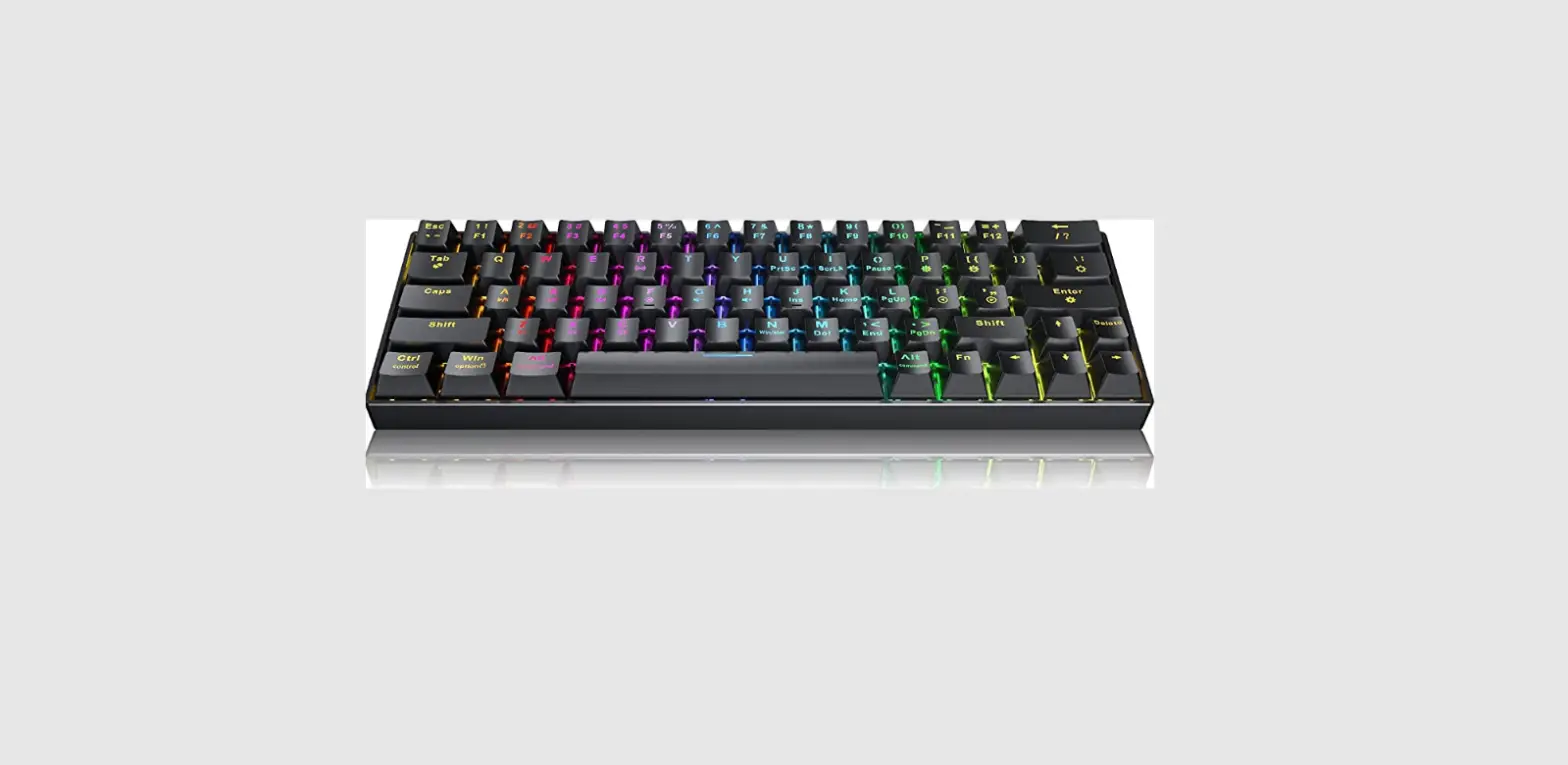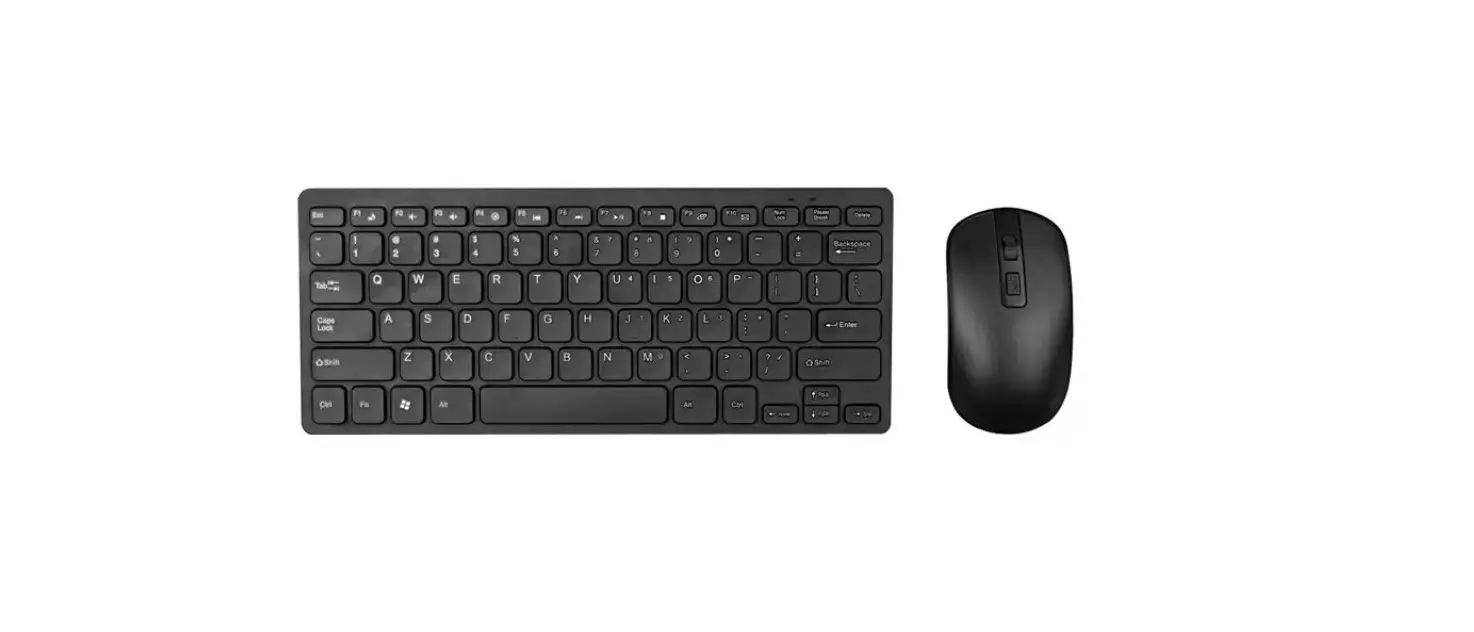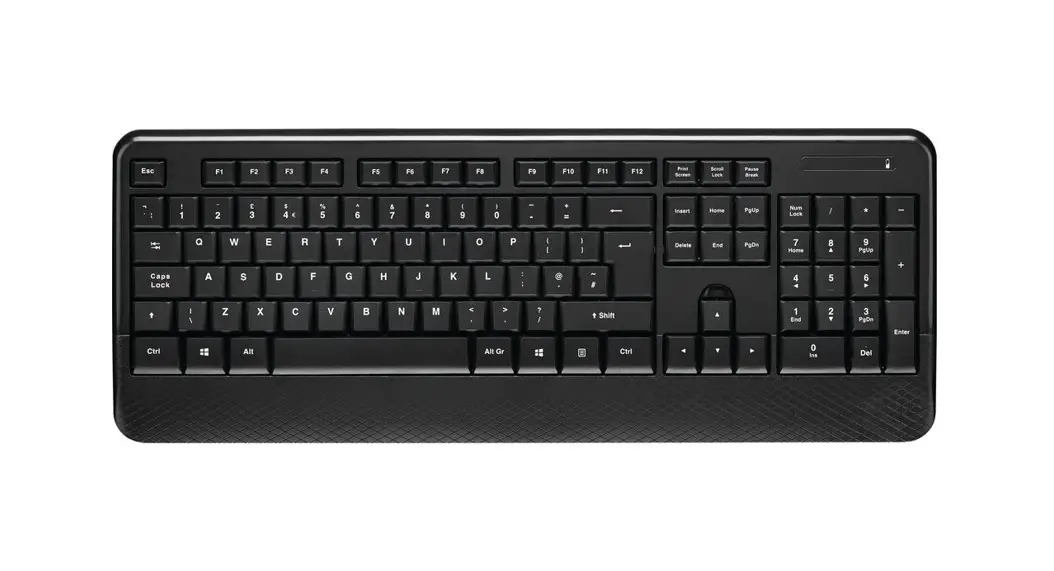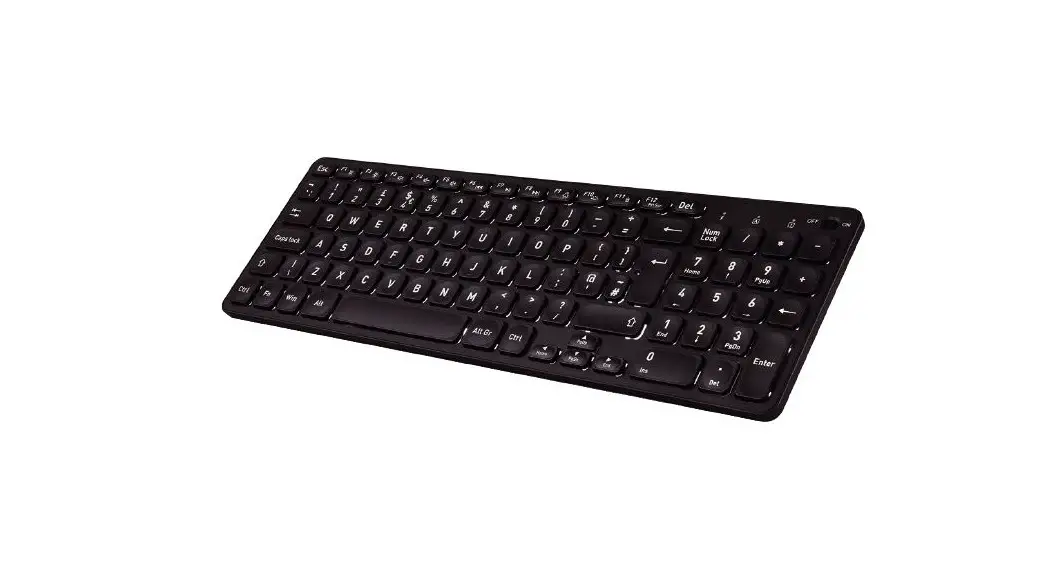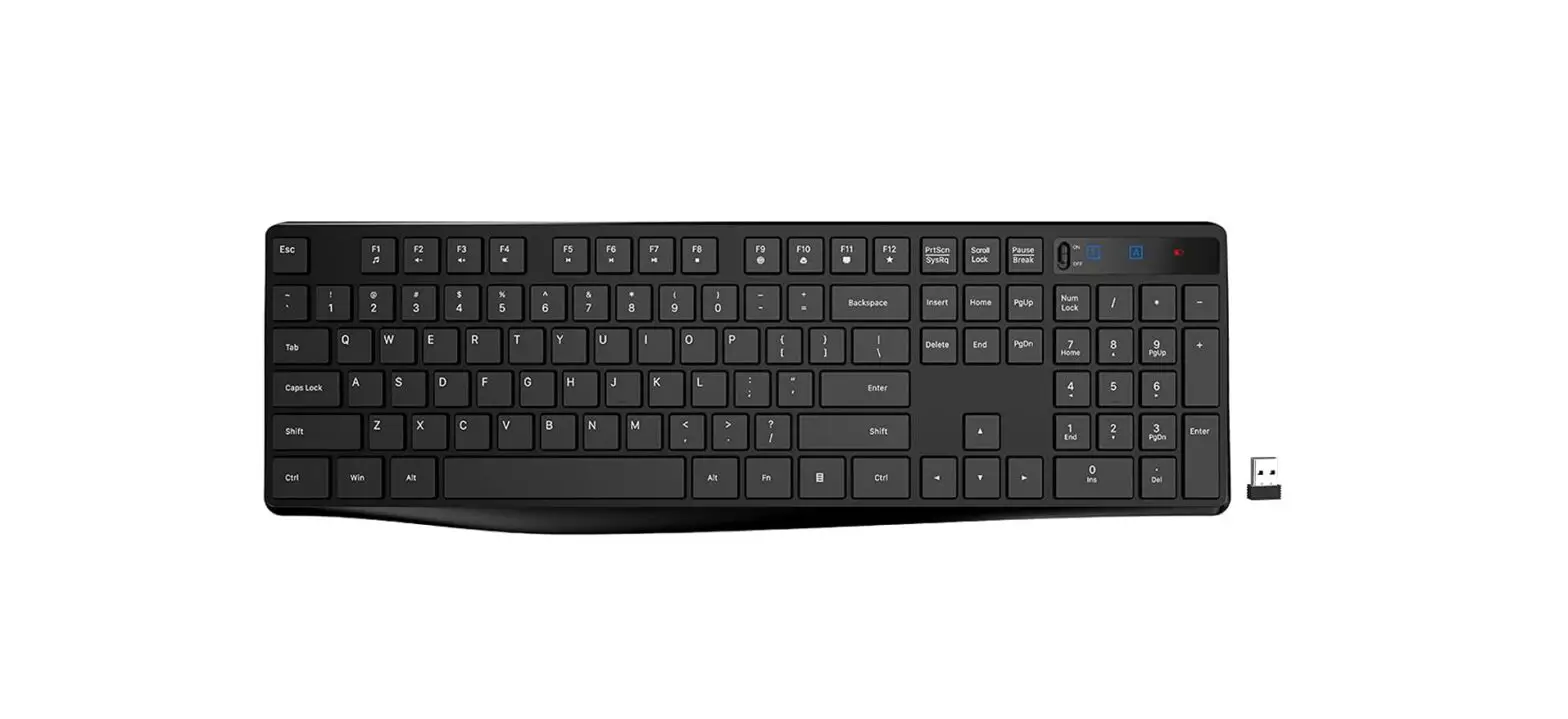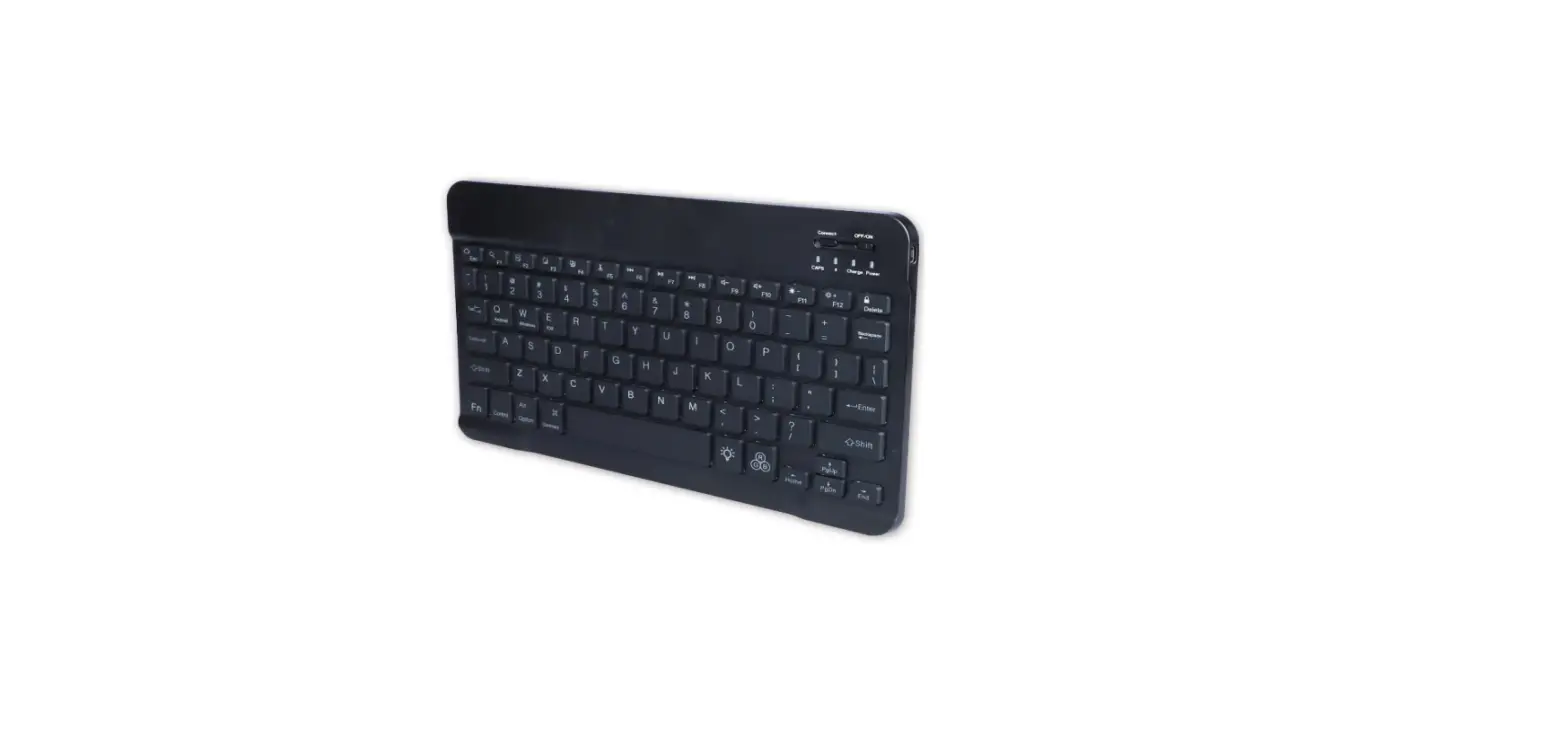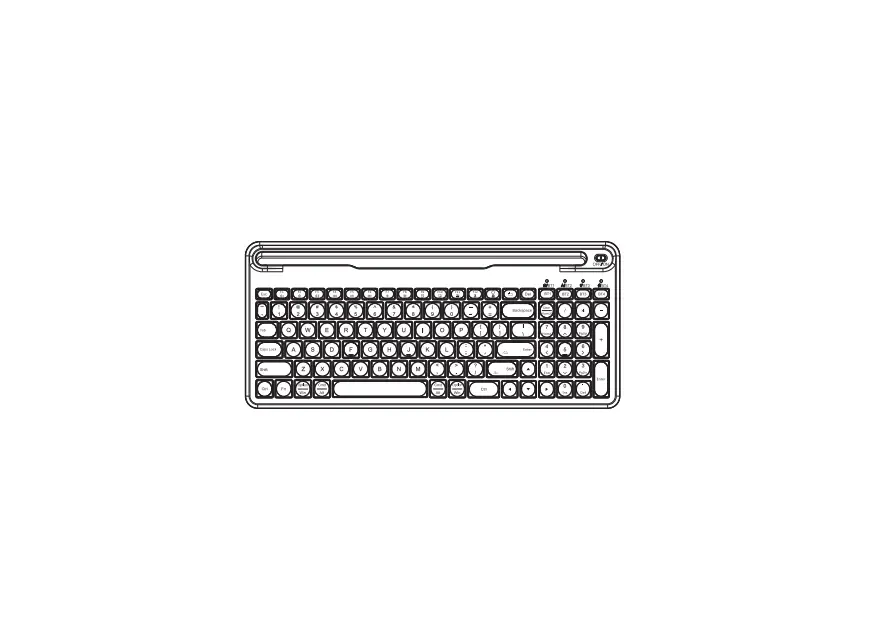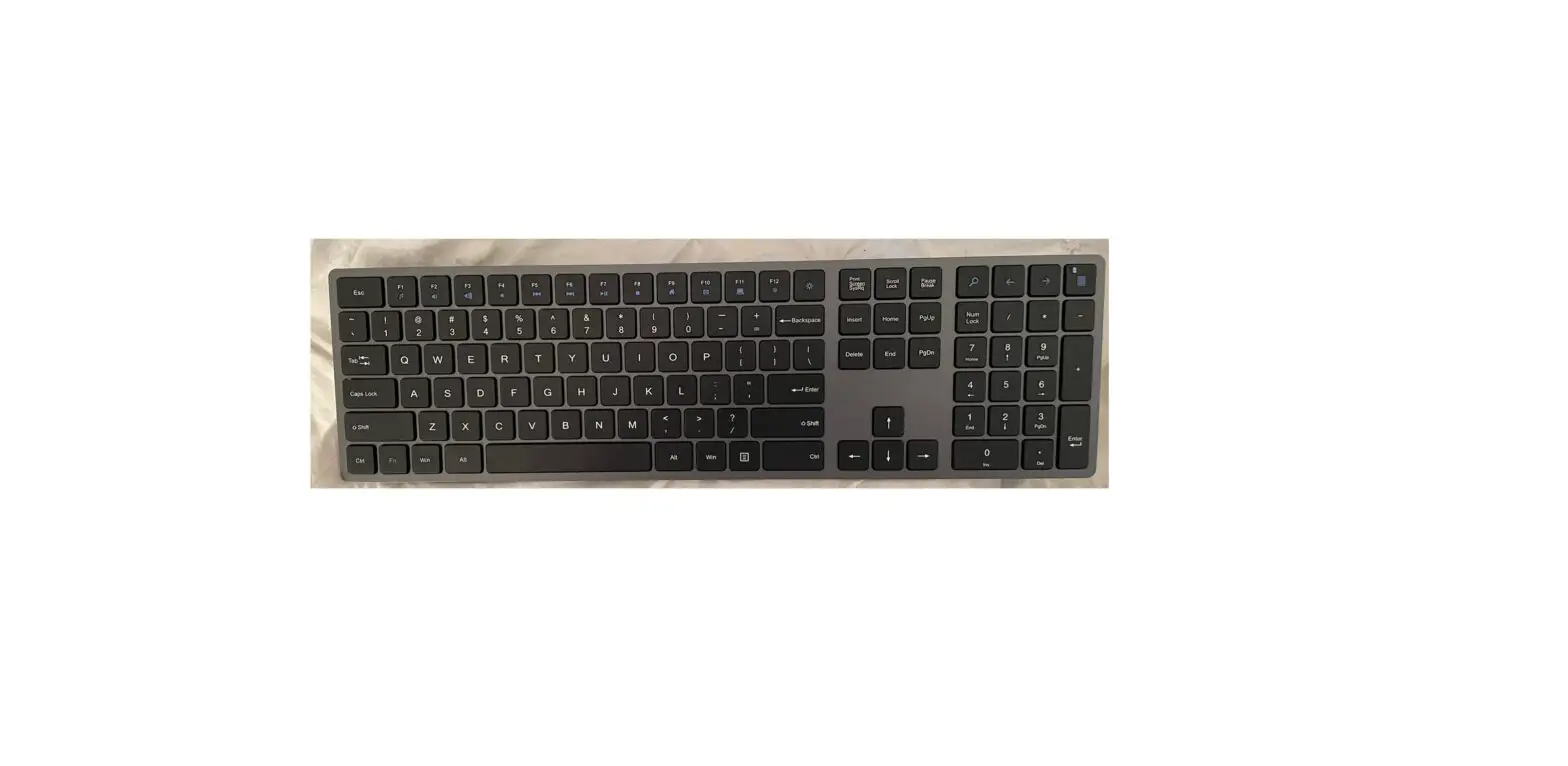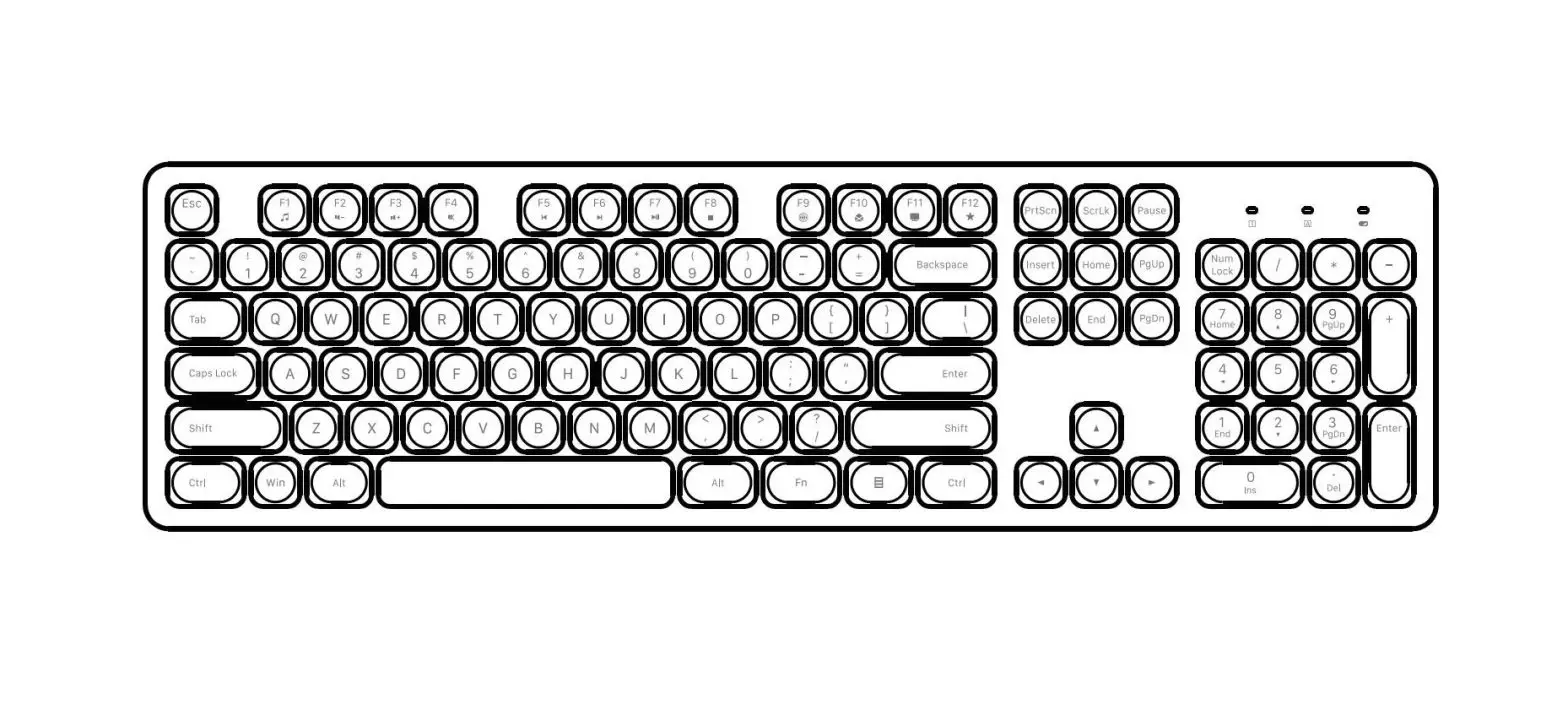
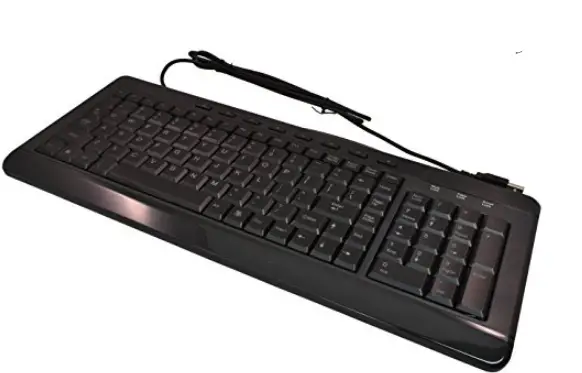
 Dongguan Tinow Technology T202 Backlight Wireless Keyboard
 Product Functions
 Keyboard Light Switch
 Dongguan Tinow Technology T202 Backlight Wireless Keyboard
 Product Functions
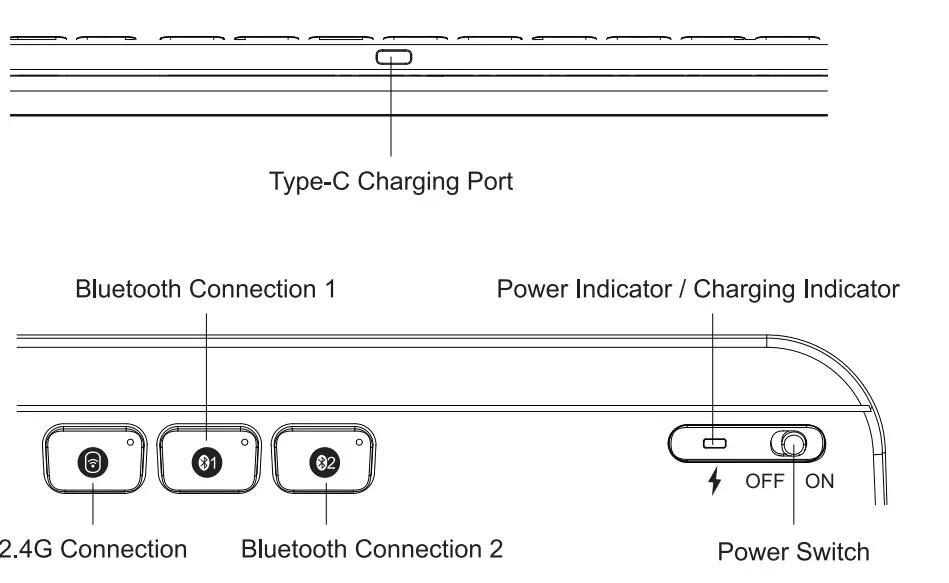 Keyboard Light Switch
Press the first time, the keyboard light will be up in low mode;
Press the second time, the keyboard light will increase to medium mode;
Press the third time, the keyboard light will enter the strong mode;
Press it again, the backlight will turn off. If no operations for 30s, the light will be off automatically, and it will wake up if pressing any key.
If no operations for 30 mins, the keyboard will enter deep sleep mode, and pressing any keys will wake up the keyboard, but the backlight needs to turn on again.
2.4G Connection
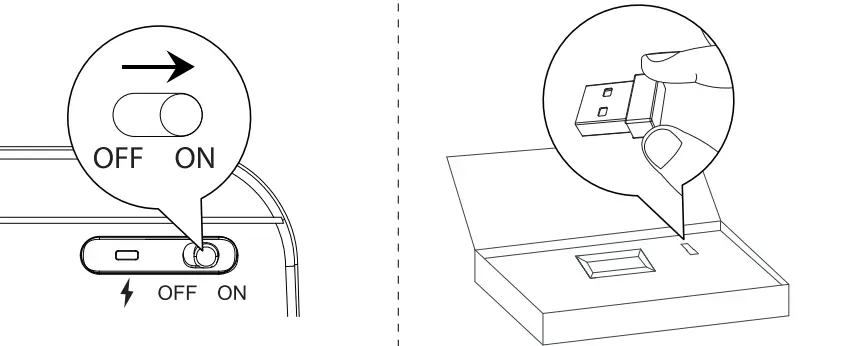
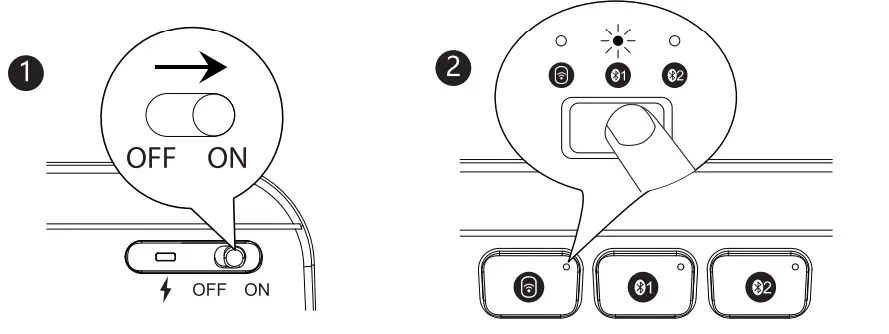
- Switch ON the power button.

- Take out the USB receiver from the package.
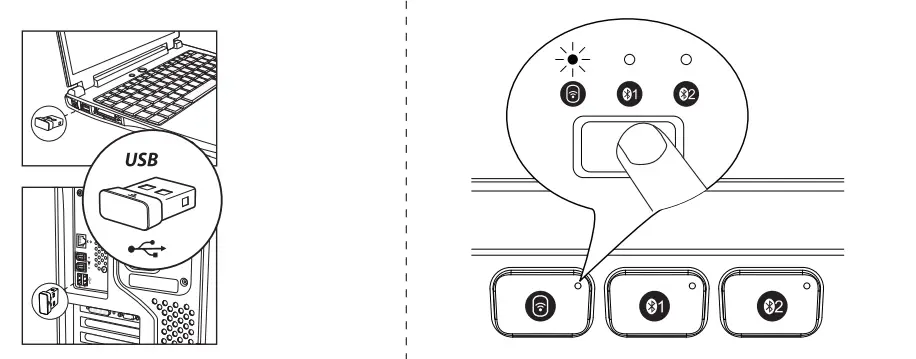
- Plug the receiver into the USB port of computer.

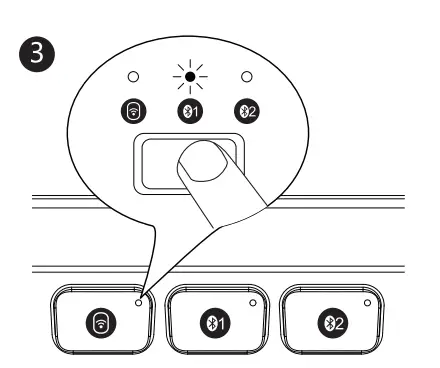
- Short press the button (i), it will switch to 2.4G Channel. When the white indicator flashes slowly, the keyboard enters 2.4G Mode.
Bluetooth Connection
- Switch ON the power button.

- PRess Bluetooth O or@, the keyboard will enter Bluetooth Mode with the white indicator flashing once.
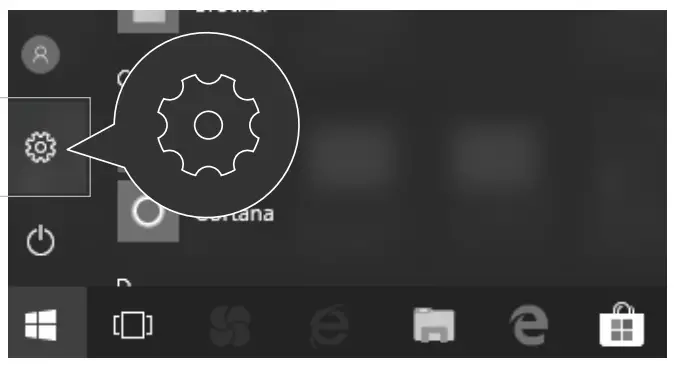
- Long press the Bluetooth button for 3-Ss, the indicator will flash quickly and enter Bluetooth pairing mode.

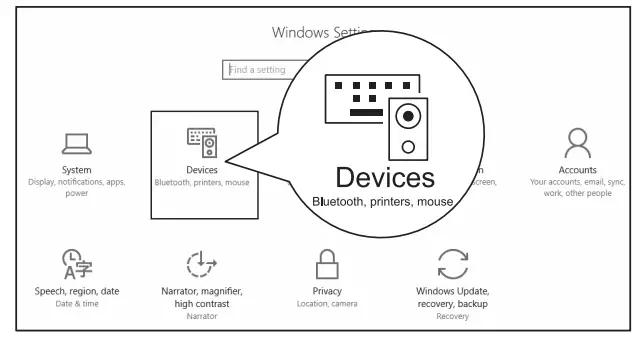
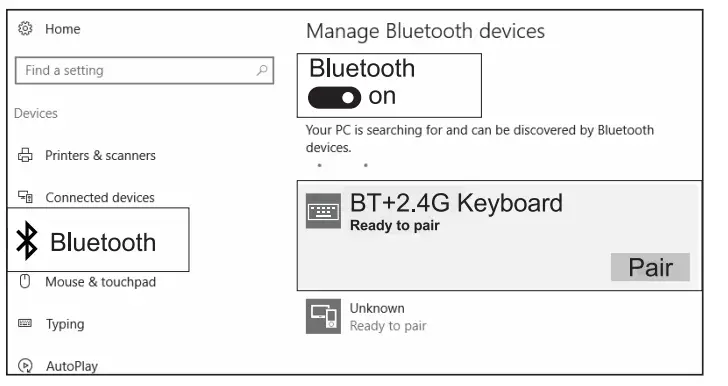
- Click “Bluetooth Devices” in your computer.

- Click “Add or delete Bluetooth device”.

- Search Bluetooth devices and find “BT+ 2.4G Keyboard”, and click “Pair”.

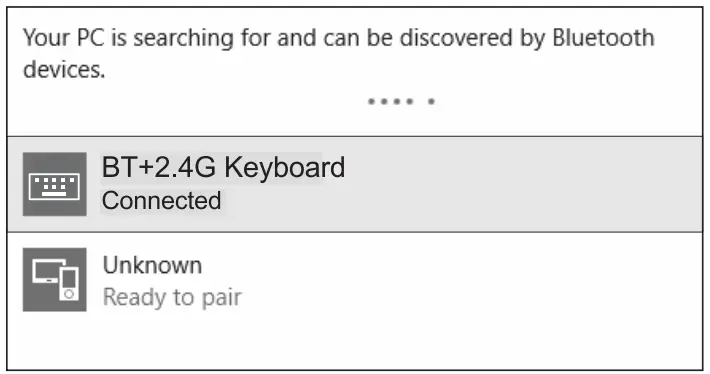
- When “BT+ 2.4G Keyboard” is connected, you can use the keyboard via Bluetooth.

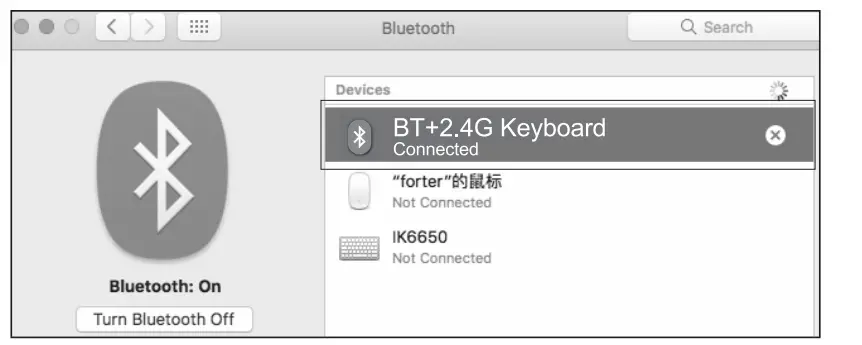
For Mac OS System
Please refer to Step 1 – Step 3 under the Bluetooth Connection part before pairing the keyboard.
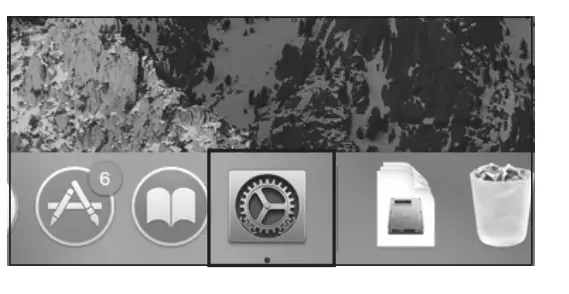
- Click System Preferences in the Mac.

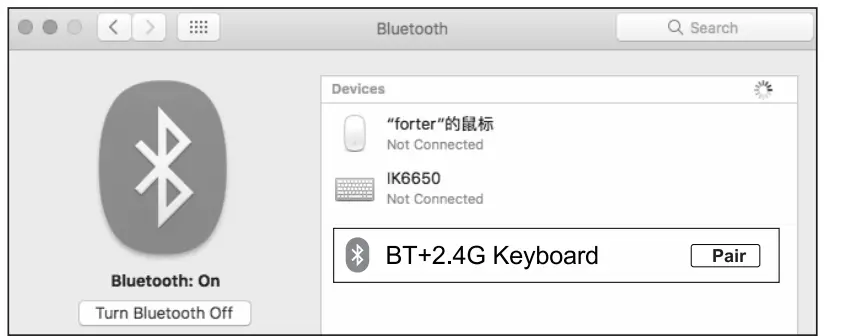
- Turn Bluetooth function on.

- Search Bluetooth devices and find “BT+ 2.4G Keyboard”, and click “Pair”. It’s ready for use then.

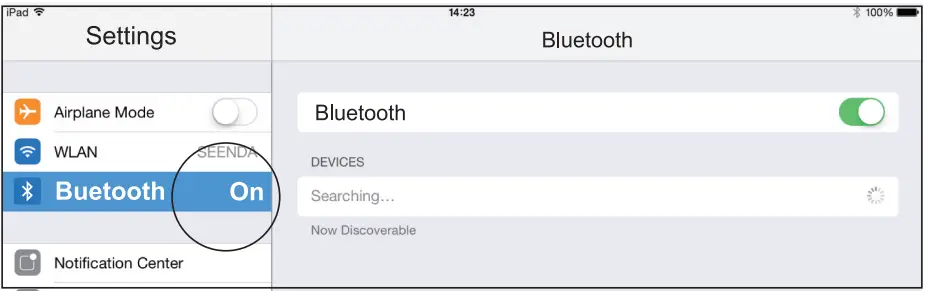
For iOS System
Please refer to Step 1 – Step 3 under the Bluetooth Connection part before pairing the keyboard.
- Click “Setting” in your device, and turn on Bluetooth.

- Search Bluetooth devices and find “BT+ 2.4G Keyboard”, and click “Pair”.

- When “BT+ 2.4G Keyboard” is connected, you can use the keyboard via Bluetooth.

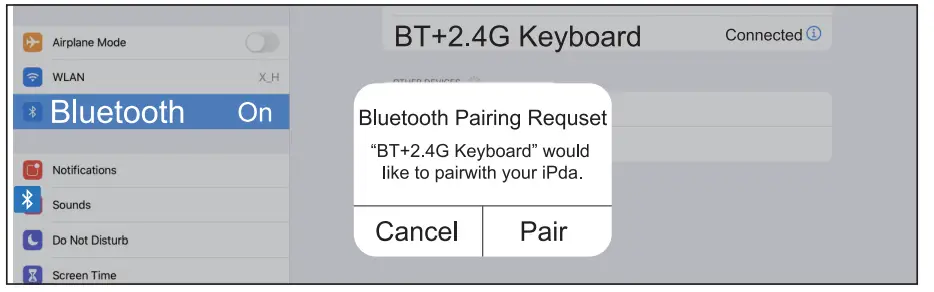
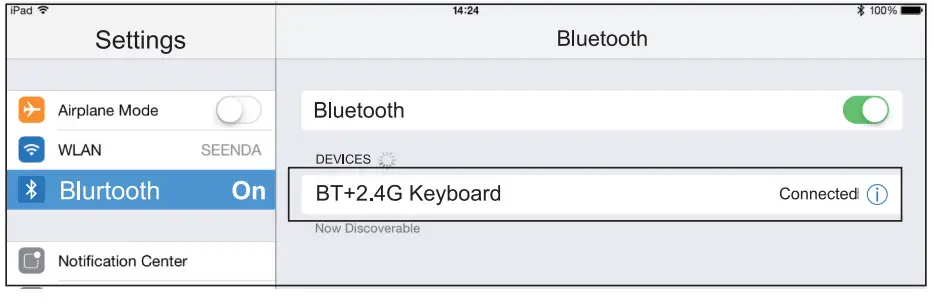
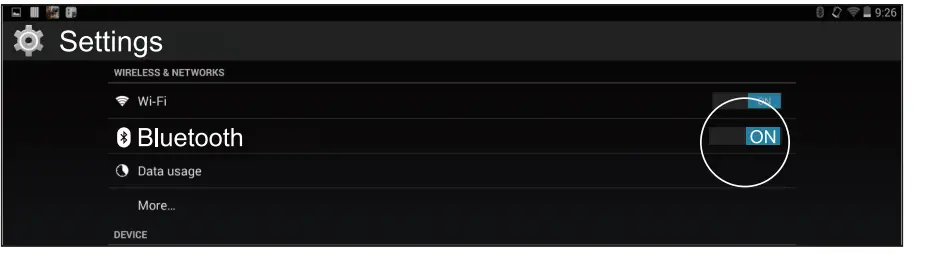
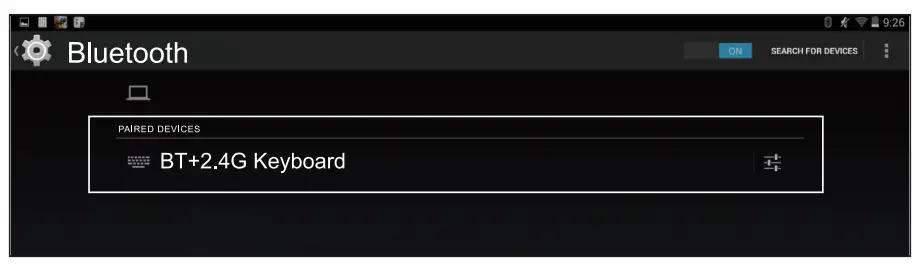
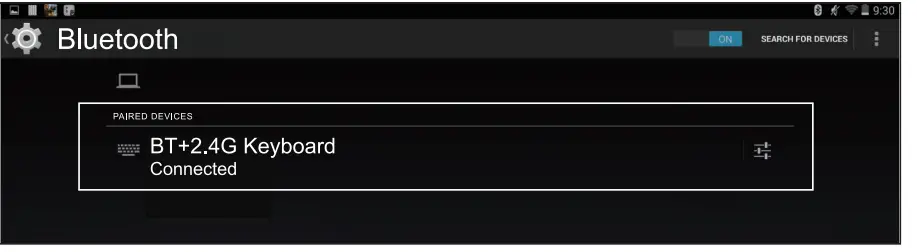
For Android System
Please refer to Step 1 – Step 3 under the Bluetooth Connection part before pairing the keyboard.
- Click “Setting” in your device, and turn on Bluetooth.

- Search Bluetooth devices and find “BT + 2.4G Keyboard”, and click “Pair”.

- When “BT + 2.4G Keyboard” is connected, you can use the keyboard via Bluetooth.

Switching Modes
Once connected, you can easily switch between three devices by short pressing the buttons.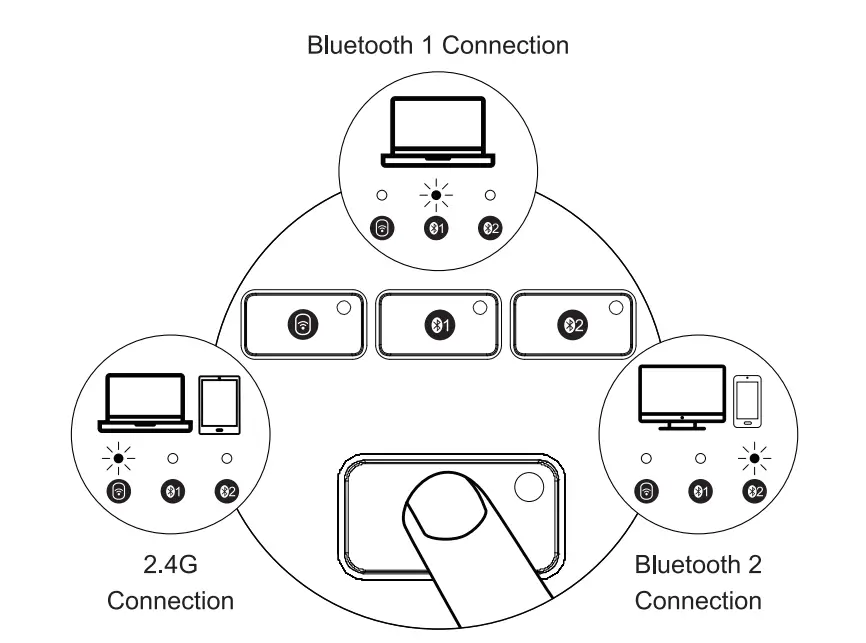
Recharge Keyboard

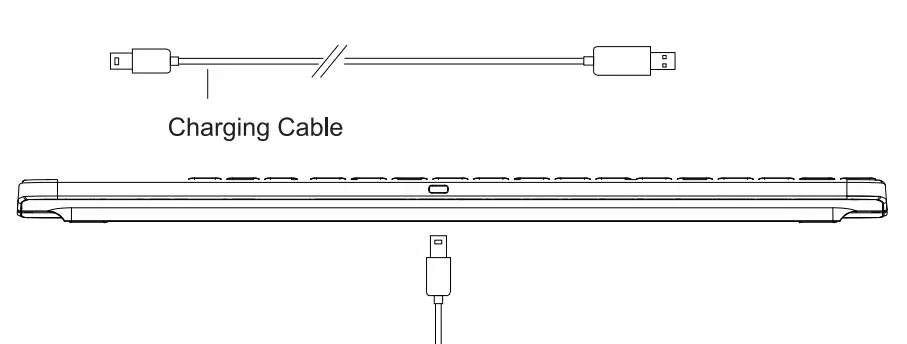
When the keyboard battery is too low, the white indicator (current working mode) will flash quickly for 180s and the keyboard will turn off. Please recharge the keyboard timely (red for charging, and green for full) to ensure the battery is enough for normal work. If the battery is too low, the backlight will not be able to light up, and the input may put off or freeze abnormally.
Multimedia Function Keys
| Keys | Windows OS | Android OS | iOS | Mac OS |
| x | Mute | Mute | Mute | Mute |
| ) | Volume Down | Volume Down | Volume Down | Volume Down |
| >)) | Volume Up | Volume Up | Volume Up | Volume Up |
| <]<] | Previous Track | Previous Track | Previous Track | Previous Track |
| t>II | Play&Pause | Play&Pause | Play&Pause | Play&Pause |
| t>t> | Next Track | Next Track | Next Track | Next Track |
| -•aI•- •I• | Light – | Light – | Light – | Light – |
| ,,, -a- ‘•’ | Light+ | Light+ | Light+ | Light+ |
| rjj) | Select All | Select All | Select All | Select All |
| Copy | Copy | Copy | Copy | |
| Paste | Paste | Paste | Paste | |
| 1 | Cut | Cut | Cut | Cut |
| Q | Search | Search | Search | Search |
| tm | FN + Lock, Open or close Multimedia or F1-F12 function | |||
Note: Press FN + Lock buttons to switch to F1-F12 or Multimedia Function keys, thus you do not need to always press FN together.
Product Parameters
| Project Name | Parameters |
| Battery Capacity | 1800mAh |
| Sleep Time | No operations for 30 mins |
| Battery Life | 1000 times charge and discharge |
| Key Life | 3 millions strokes |
| Standby Time | 500 hours without backlight |
| Continuous Working Time | 200 hours without backlight |
| Wake Up Way | Pressing any keys |
| Working Range | Within 8 meters |
| Working Current (W/O backlight) | ::;3mA |
| Keyboard Dimension | 426.8*113.5*10.7mm |
| Keyboard Working time (low light) | ::;12Hours |
| Keyboard Working time (medium light) | ::;8Hours |
| Keyboard Working time (strong light) | ::;4Hours |
| 2.4G System Requirements | One working USB port Windows XP, Windows?, Windows 8, Windows 10 or higher |
| Bluetooth System Requirements | Windows 8, Windows 10 or higher Mac OS X 10.12 or higher Android 4.3 or higher |
Kind Note
- When the keyboard is not connected properly, please turn off the power switch, restart the Bluetooth of the device and connect again, or delete extra Bluetooth device names in the Bluetooth list, and connect again.
- Please press the channel button to switch between the devices that already connected successfully, wait for 3 seconds, it will work properly.
- The keyboard has memory function, when the keyboard is connected properly at one channel, turn off the keyboard and turn on again, the keyboard will be in the default channel, and the indicator light of this channel is on.
Sleep Mode
- When the keyboard is not used for over 30 minutes, the indicator will turn off and it will enter sleep mode automatically.
- Press any keys to awake the keyboard within 3-5 seconds. After the indicator turns on, the keyboard is ready for work.
Package List
- 1 * Wireless Bluetooth Keyboard
- 1 * USB Receiver
- 1 * Type-C Charging Cable
- 1 * User Manual
NOTE: This equipment has been tested and found to comply with the limits for a Class B digital device, pursuant to part 15 of the FCC Rules. These limits are designed to provide reasonable protection against harmful interference in a residential installation. This equipment generates uses and can radiate radio frequency energy and, if not installed and used in accordance with the instructions, may cause harmful interference to radio communications. However, there is no guarantee that interference will not occur in a particular installation. If this equipment does cause harmful interference to radio or television reception, which can be determined by turning the equipment off and on, the user is encouraged to try to correct the interference by one or more of the following measures:
- Reorient or relocate the receiving antenna.
- Increase the separation between the equipment and receiver.
- Connect the equipment into an outlet on a circuit different from that to which the receiver is connected.
- Consult the dealer or an experienced radio/TV technician for help
Changes or modifications not expressly approved by the party responsible for compliance could void the user’s authority to operate the equipment.
This device complies with Part 15 of the FCC Rules. Operation is subject to the following two conditions:
- this device may not cause harmful interference, and (2) this device must accept any interference received, including interference that may cause undesired operation.
- This device contains licence-exempt transmitter(s)/receiver(s) that comply with Innovation, Science and Economic Development Canada’s licence- exempt RSS(s). Operation is subject to the following two conditions:
- This device may not cause interference.
- This device must accept any interference, including interference that may cause undesired operation of the device.