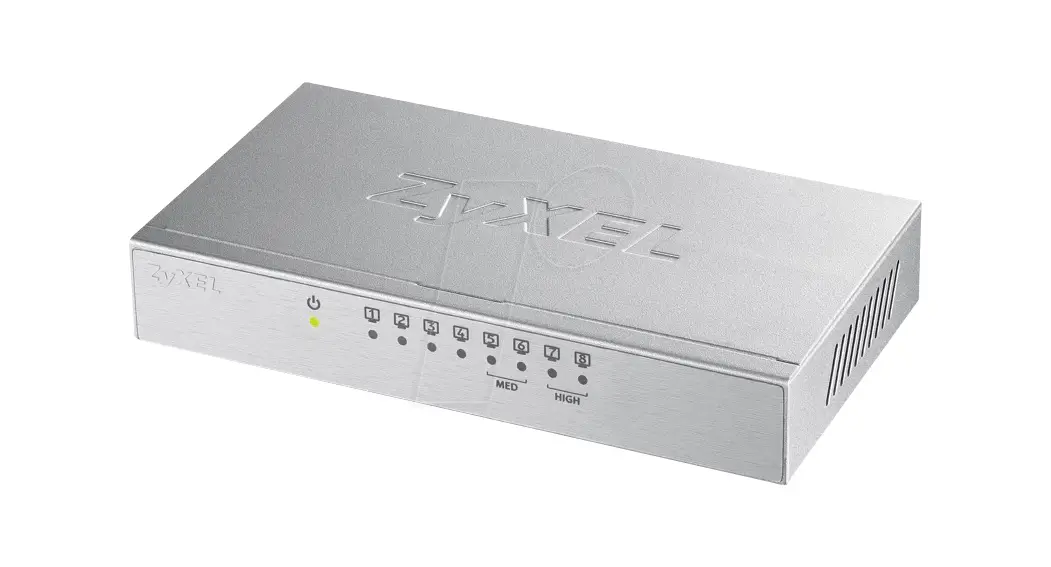
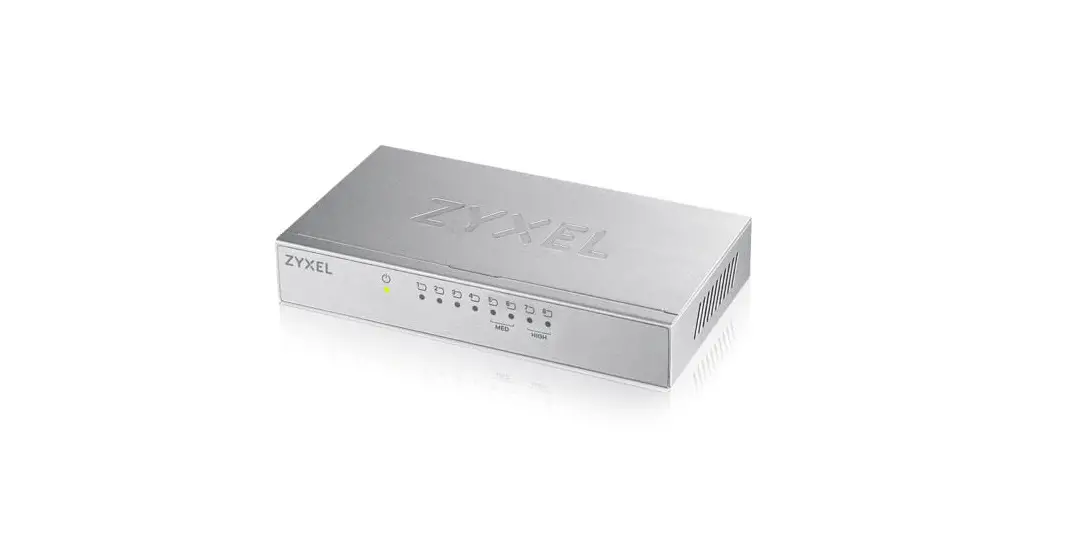
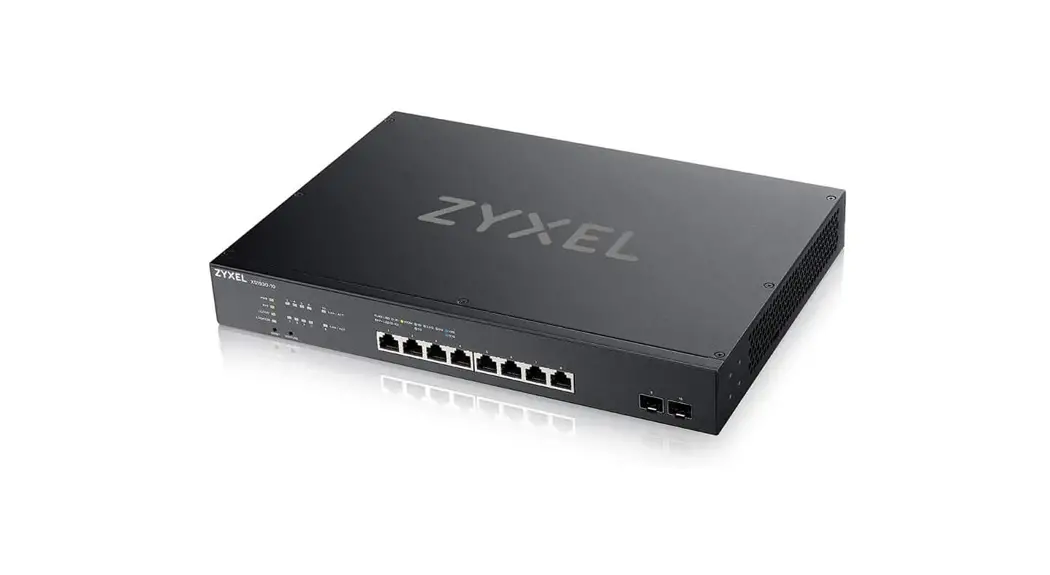
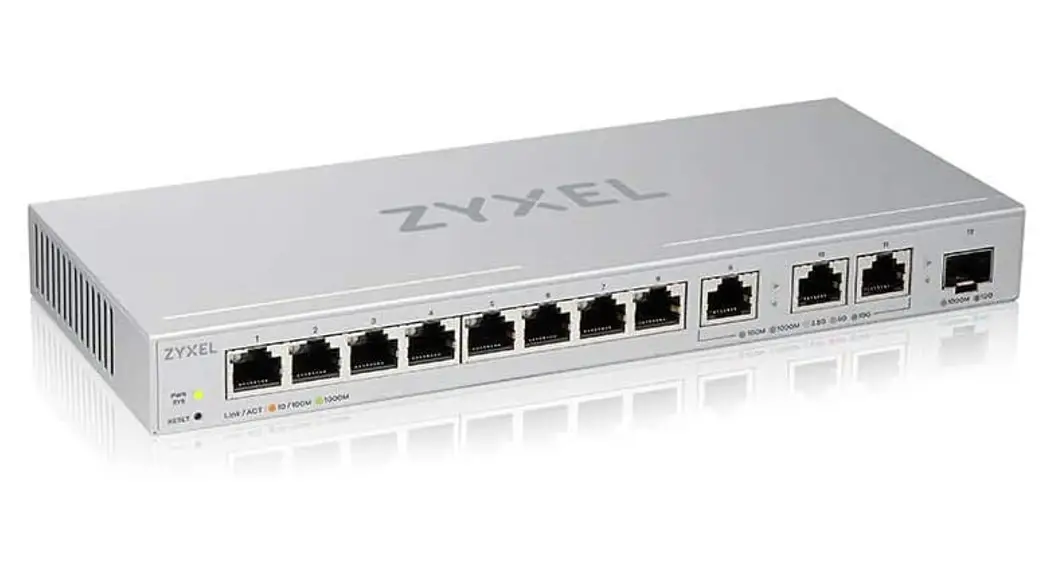
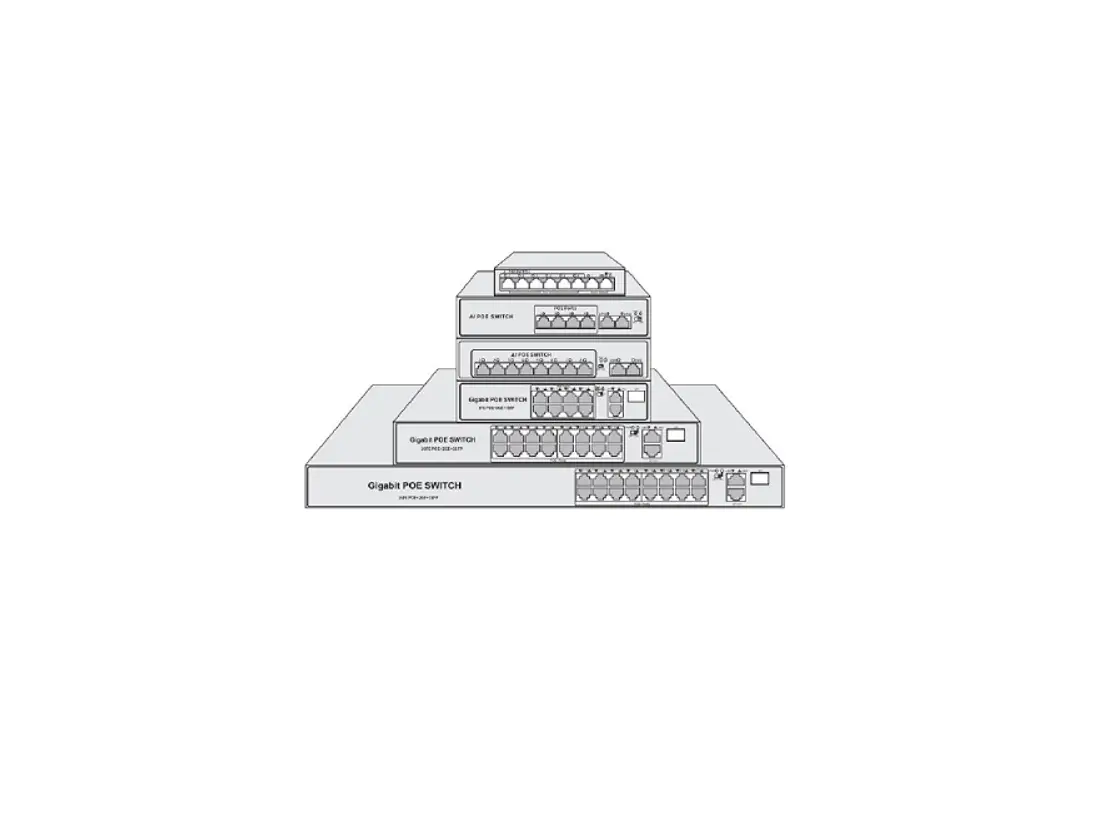
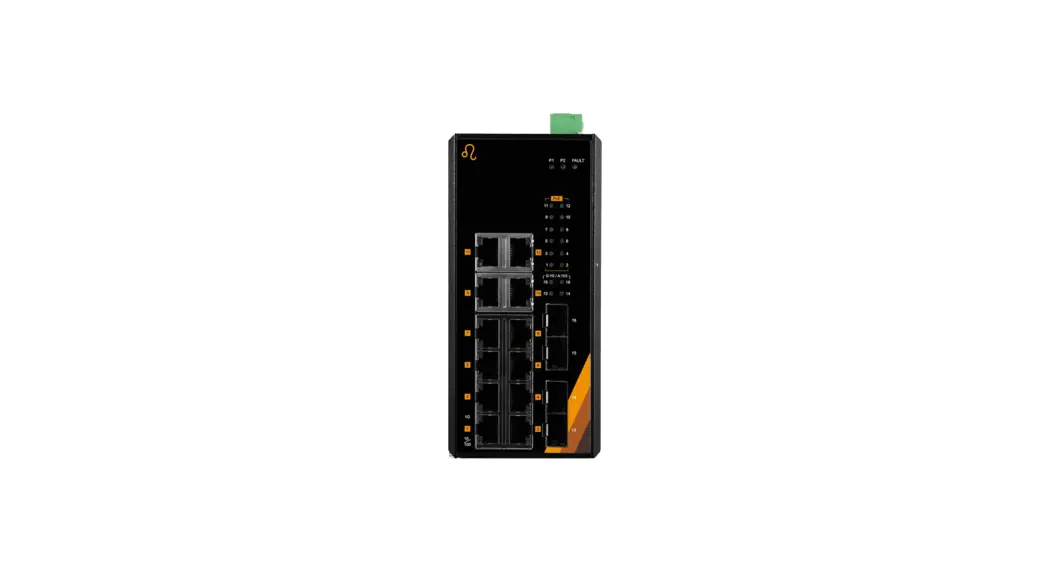
ZT-106 48 PORT Gigabit Ethernet Switch
Zenty | Professional A/V Solution Provider User Manual
[V1.0]
48 PORT GIGABIT ETHERNET SWITCH
ZT-106 | ZT-IPS48
For any inquiries, please contact (888) 610-2818 or visit
www.zenty.com.
Page 1 of 20
9807 EMILY LANE STAFFORD, TX 77477
(844) 200-1945 | [email protected]
Table of Contents
- Introduction
- Key Features
- Package Contents
- Typical Applications
- One To Many
- Many To Many
- Switch Login
- Port Tools
- Port Settings
- Port Routing
- System
- Port Cable Test
- Maintenance
- Warranty
- Mail-In Service
- Limited Warranty Limits and Exclusions
1. Introduction
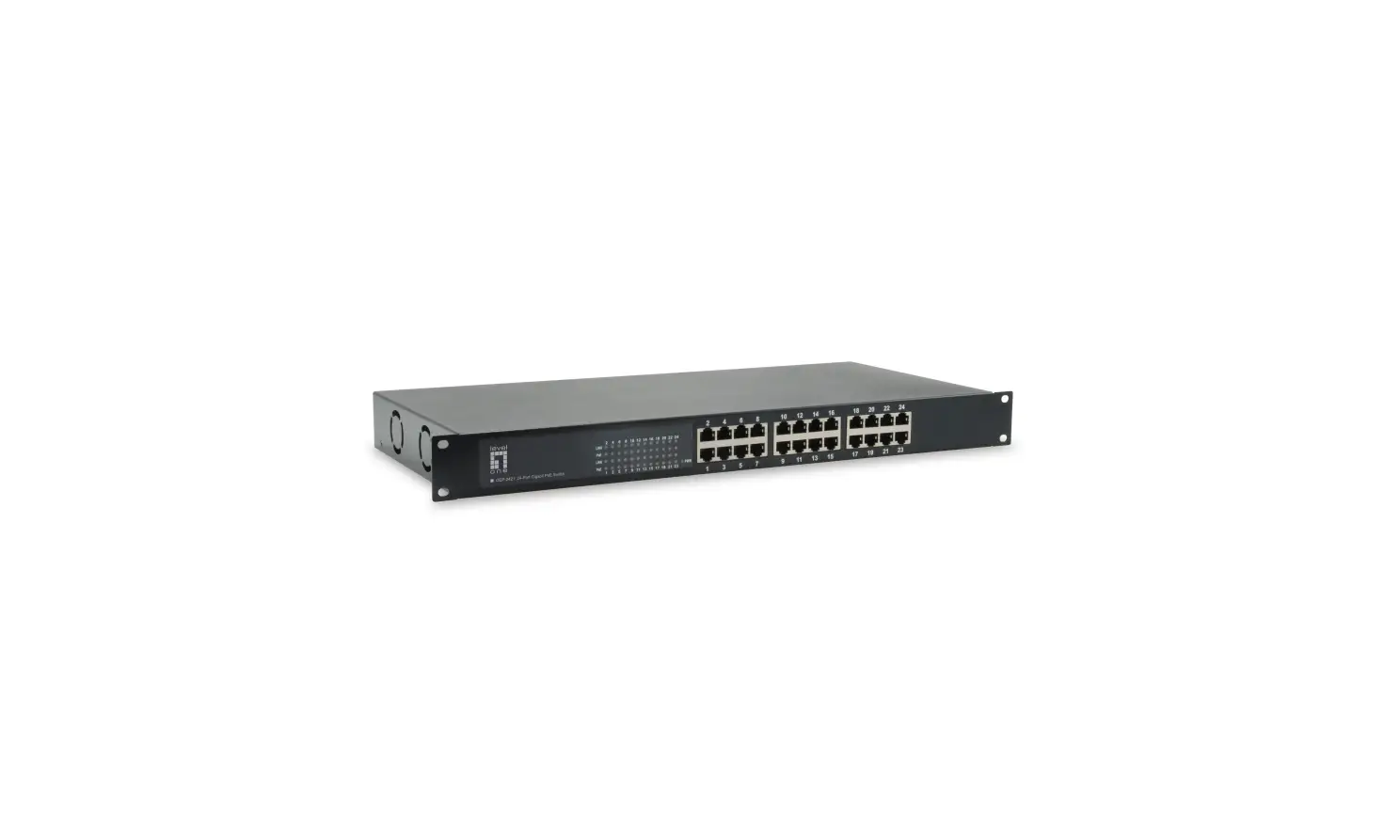
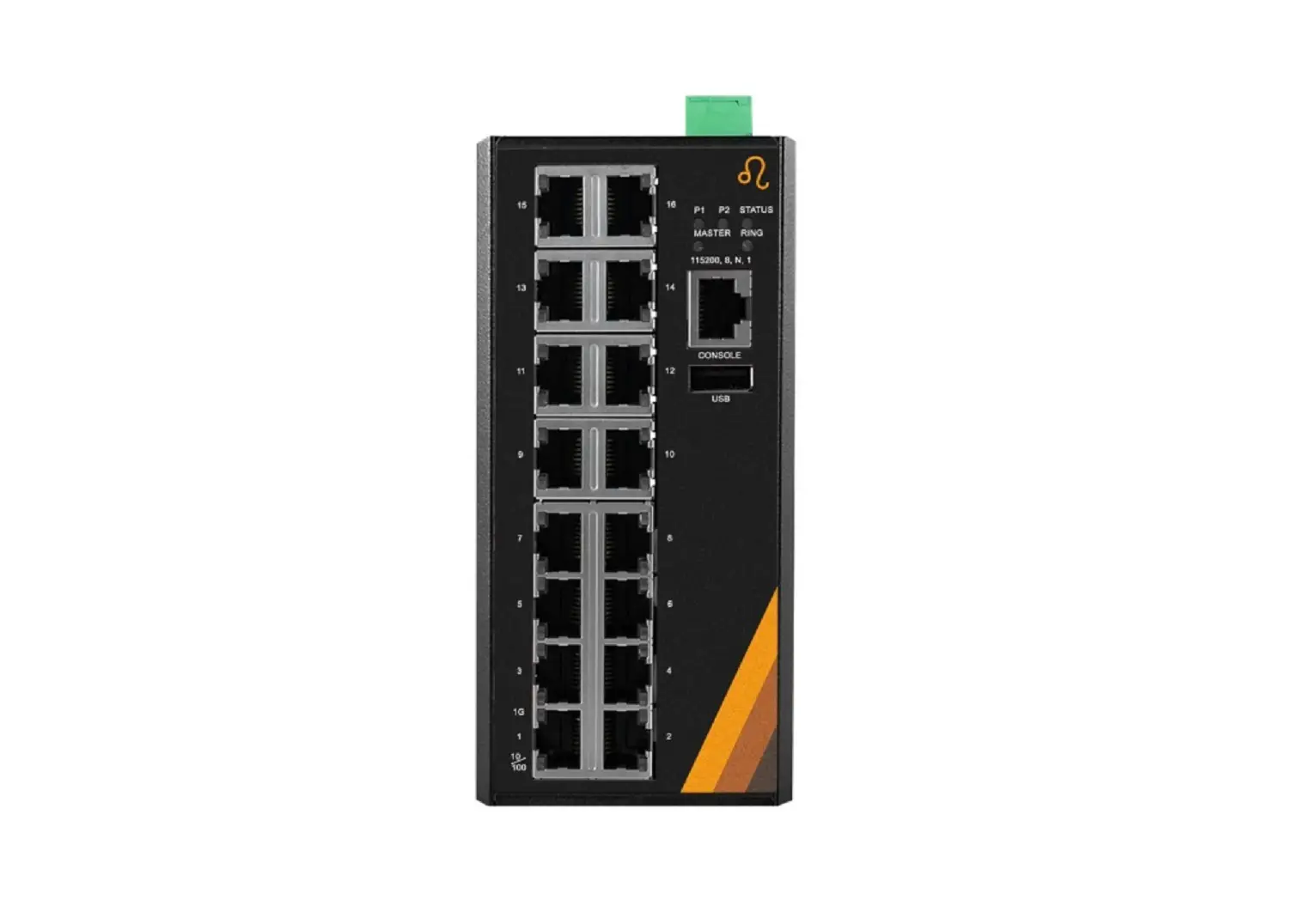
The ZENTY ZT-IPS48 provides 48 ports for you to customize as
input or output ports (47 and 48 are for management by default),
and ultimately custom tailor your own AV over IP matrix. Use the
ZT-IPS48 as a standalone matrix or integrate the switch into your
existing network. Making routing changes and creating routing
presets has never been easier with the new and improved web GUI
interface.
2. Key Features
- 10Mbps/100Mbps/1000Mbps Network Switch specially optimized for
HDMI extender matrix. - Port 1 to Port 46 can be reconfigured as input or output
ports. - Port 47 and 48 are exclusively for management. Supports user
management. - User-friendly Web GUI available for Port-to-Port routing.
- Control via web GUI or Zenty Control App (available on Google
Play and App Store). - Control 4 Driver Available.
3. Package Contents
- 1 x Zenty ZT-IPS48 Gigabit Ethernet Switch
- 1 x User Manual
- 1 x Warranty Card
- 2 x Rackmount Ears
- 1 x Power Cable
4. Typical Applications
4.1 One to Many Configuration
4.2 Many to Many Configuration
5. Switch Login
Step 1: Connect your PC (or laptop) to port 48 (default
management port) on the switch. Revise your PC’s IP address to
192.168.168.11 (0-255). PC’s IP address must be different than the
switch’s default IP address (192.168.168.254).
Zenty | Professional A/V Solution Provider User Manual [V1.0]
48 PORT GIGABIT ETHERNET SWITCH
ZT-106 | ZT-IPS48
(888) 610-2818 | www.zenty.com
Page 1 of 20
ZENTY ®
9807 EMILY LANE STAFFORD, TX 77477
(844) 200-1945 [email protected]
Copyright © 2022
Table of Contents
1. Introduction…………………………………………………………………..3 2. Key Features………………………………………………………………….3 3. Package Contents……………………………………………………………3 4. Typical Applications…………………………………………………………4
4.1. One To Many…………………………………………………………………………………4 4.2. Many To Many……………………………………………………………………………….5
5. Switch Login…………………………………………………………………..5 6. Port Tools………………………………………………………………………7
6.1. Port Settings………………………………………………………………………………….7 6.2. Port Routing………………………………………………………………………………..10
7. System………………………………………………………………………..12
7.1. User Management………………………………………………………………………..12 7.2. System Config………………………………………………………………………………14 7.3. System Status……………………………………………………………………………….15 7.4. Firmware Upgrade……………………………………………………………………………16 7.5. System Reboot………………………………………………………………………………….16 7.6. Restore Factory Default Settings…………………………………………………………..17
8. Port Cable Test…………………………………………………………………18 9. Maintenance………………………………………………………………………19 10. Warranty…………………………………………………………………………19 11. Mail-In Service………………………………………………………………….19 12. Limited Warranty Limits and Exclusions…………………………………19
(844) 200-1945 | [email protected]
Page 2 of 20
Copyright © Zenty AV
1. Introduction
The ZENTY ZT-IPS48 provides 48 ports for you to customize as input or output ports (47 and 48 are for management by default), and ultimately custom tailor your own AV over IP matrix. Use the ZT-IPS48 as a standalone matrix or integrate the switch in to your existing network. Making routing changes and creating routing presets has never been easier with the new and improved web GUI interface.
2. Key Features
10Mbps/100Mbps/1000Mbps Network
Switch specially optimized for HDMI extender matrix.
Port 1 to Port 46 can be reconfigured as
input or output ports.
Port 47 and 48 are exclusively for
management. Supports user management.
3. Package Contents
1 x Zenty ZT-IPS48 Gigabit Ethernet Switch 1 x User Manual 1 x Warranty Card 2 x Rackmount Ears 1 x Power Cable
User-friendly Web GUI available for
Port-to-Port routing.
Control via web GUI or Zenty Control
App (available on Google Play and App
Store)
Control 4 Driver Available.
(844) 200-1945 | [email protected]
Page 3 of 20
Copyright © Zenty AV
4. Typical Applications
4.1 One to Many Configuration
(844) 200-1945 | [email protected]
Page 4 of 20
Copyright © Zenty AV
4.2 Many to Many Configuration
(844) 200-1945 | [email protected]
Page 5 of 20
Copyright © Zenty AV
5. Switch Login
Step 1: Connect your PC (or laptop) to port 48 (default management port) on the switch. Revise your PC’s IP address to 192.168.168.11 (0-255). PC’s IP address must be different than the switch’s default IP address (192.168.168.254).
Step 2: Open a web browser and type in this address, `Http://192.168.168.254′ (192.168.168.254 is the default IP address)
Step 3: Default login credentials are, “Username: admin | Password: admin”
(844) 200-1945 | [email protected]
Page 6 of 20
Copyright © Zenty AV
Step 4: After clicking the Login button, the routing will be shown as below:
6. Port Tools
6.1 Port Settings
Reference your desired Transmitter (TX) and Receiver (RX) connections, and designate your available ports as inputs or outputs in the Web GUI.
Here is an example that demonstrates how to change port 45 and port 46 from Outputs to Inputs. Follow Steps 1 2 below:
(844) 200-1945 | [email protected]
Page 7 of 20
Copyright © Zenty AV
After clicking the “Edit” button, you will see the input/output setting, and will be able to add a description for the port.
(844) 200-1945 | [email protected]
Page 8 of 20
Copyright © Zenty AV
Click Apply and Port 45 and 46 will change from output to input.
(844) 200-1945 | [email protected]
Page 9 of 20
Copyright © Zenty AV
6.2 Port Routing
In Port Tools, you can set each Output port to display any Input port’s content.
For example, if you want Output P14 and P15 to display the same Input source (Port 1), you can set it as below:
After these steps, the matrix will send P1 source to Output ports P14 and P15.
You can use mode 1-4 to save and recall customized port routing configurations. Here is an example setting port routing data for mode 2.
(844) 200-1945 | [email protected]
Page 10 of 20
Copyright © Zenty AV
After you click `Save and Apply’, Mode2 routing configurations will be saved, and the routing data will be applied to the switch.
(844) 200-1945 | [email protected]
Page 11 of 20
Copyright © Zenty AV
7. System
7.1 User Management
Add a user account via steps 1-7 shown below:
(844) 200-1945 | [email protected]
Page 12 of 20
Copyright © Zenty AV
Edit a user account by following steps 8-12 shown below:
You can also delete a user account by pressing the “Delete” button as shown below:
(844) 200-1945 | [email protected]
Page 13 of 20
Copyright © Zenty AV
7.2 System Config
Setting an IP address, subnet mask, and gateway for the matrix switch:
After clicking “Apply”, the device will apple the new IP information. You will need to use these new settings to login to the web GUI.
(844) 200-1945 | [email protected]
Page 14 of 20
Copyright © Zenty AV
7.3 System Status
(844) 200-1945 | [email protected]
Page 15 of 20
Copyright © Zenty AV
7.4 Firmware Upgrade
Follow Steps 1-4 to upgrade the firmware. It will take up to 10 minutes to complete. Don’t power off during the upgrade process. After you finish the upgrade, you can reboot the unit.
7.5 System Reboot
After steps 1 and 2, a dialogue box will display, “Reboot the system. Do you want to Continue?”. Click `Ok”. Please note that if “Ok” is not selected promptly, you may be asked to login to the web GUI again.
(844) 200-1945 | [email protected]
Page 16 of 20
Copyright © Zenty AV
7.6 Restore Factory Default Settings
“Restore Factory Default” will set the switch to the default settings.
After step 2, a dialogue box will display, “Restore to factory defaults. You need to reboot the device to take effect. Do you want to continue?” Click “Ok” to continue. The dialogue box will display, “Reboot the device to take effect now. Do you want to continue?”. Click “Ok” to reboot the system.
Factory Default Settings:
IP Address: 192.168.168.254
Subnet Mask: 255.255.255.0
Gateway:
192.168.1.1
Username: admin
Password
admin
Management Ports: Port 47 and Port 48
(844) 200-1945 | [email protected]
Page 17 of 20
Copyright © Zenty AV
8. Port Cable Test
After steps 1-4, you will receive the cable test result. A status example is shown below:
(844) 200-1945 | [email protected]
Page 18 of 20
Copyright © Zenty AV
9. Maintenance
Clean this unit with a soft, dry cloth. Never use alcohol, paint thinner, or benzine to clean.
10. Warranty
If your product does not work properly because of a defect in materials of workmanship, our company (referred to as “the warrantor”) will, for the length of the period indicated as below, “Parts and Labor (5) Years”, which starts with the date of original purchase (“Limited Warranty period”), at its option either (a) repair your product with new or refurbished parts, or (b) replace it with a new or a refurbished product. The decision to repair or replace will be made by the warrantor.
During the “Labor” limited warranty period, there will be no charge for labor. During the “Parts” warranty period, there will be no charge for parts. You must mail-in your product during the warranty period. This Limited Warranty is extended only to the original purchaser and only covers products purchased as new. A purchase receipt or other proof of original purchase date is required for Limited Warranty service.
11. Mail-In Service
When shipping the unit, carefully pack and send it prepaid, adequately insured, and preferably in the original carton. Include a letter detailing the complaint and provide a day time phone and/or email address where you can be reached.
12. Limited Warranty Limits and Exclusions
This Limited Warranty ONLY COVERS failures due to defects in material or workmanship, and DOES NOT COVER normal wear and tear or cosmetic damage. The Limited Warranty ALSO DOES NOT COVER damages which occurred in shipment, or failures which are caused by products not supplied by warrantor, or failures which result from accidents, misuse, abuse, neglect, mishandling, misapplication, alteration, faulty installation, set-up adjustments, mis-adjustment of consumer controls, improper maintenance, power line surge, lightning damage, modification, or service by anyone other than a Factory Service center or other Authorized Servicer, or damage that is attributed to acts of God.
THERE ARE NO EXPRESS WARRANTIES EXCEPT AS LISTED UNDER “LIMITED WARRANTY COVERAGE”. THE WARRANTOR IS NOT LIABLE FOR INCIDENTAL OR CONSEQUENTAIL DAMAGES RESULTING FROM THE USE OF THIS PRODUCT, OR ARISING OUT OF ANY BREACH OF THIS WARRANTY. (As examples, this excludes damages for lost time, cost of having someone remove or re-install an installed unit if applicable, travel to and from the service, loss of or damage to media or images, data or other recorded content. The items listed are not exclusive, but are for illustration only.) PARTS AND SERVICE, WHICH ARE NOT COVERED BY THIS LIMITED WARRANTY, ARE YOUR RESPONSIBILITY.
(844) 200-1945 | [email protected]
Page 19 of 20
Copyright © Zenty AV
WWW.ZENTY.COM 9807 EMILY LANE STAFFORD, TX 77477
(844) 200-1945 [email protected]
(844) 200-1945 | [email protected]
Page 20 of 20
Copyright © Zenty AV
 Zenty - The AV Technology Leader