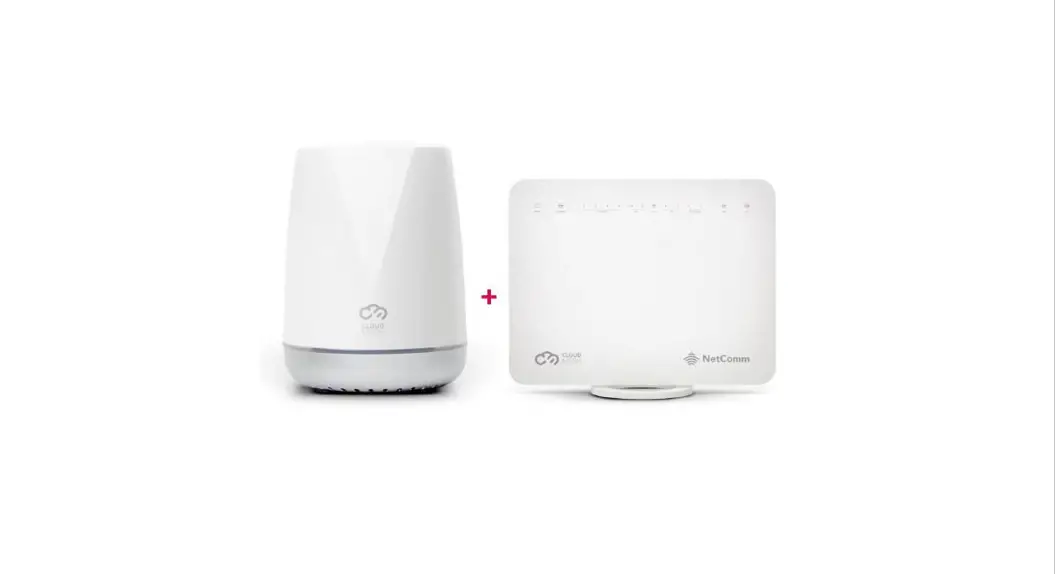
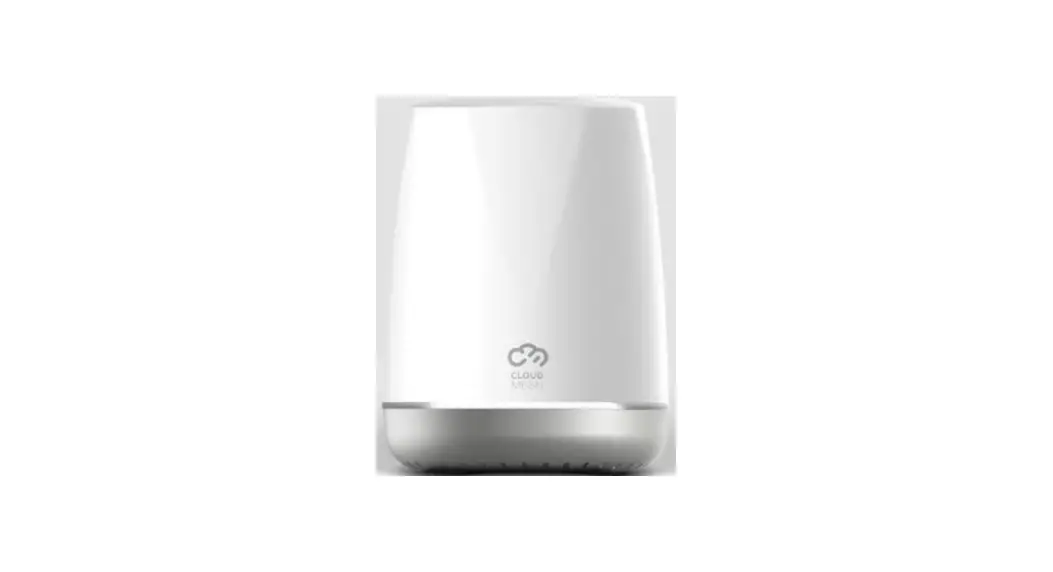
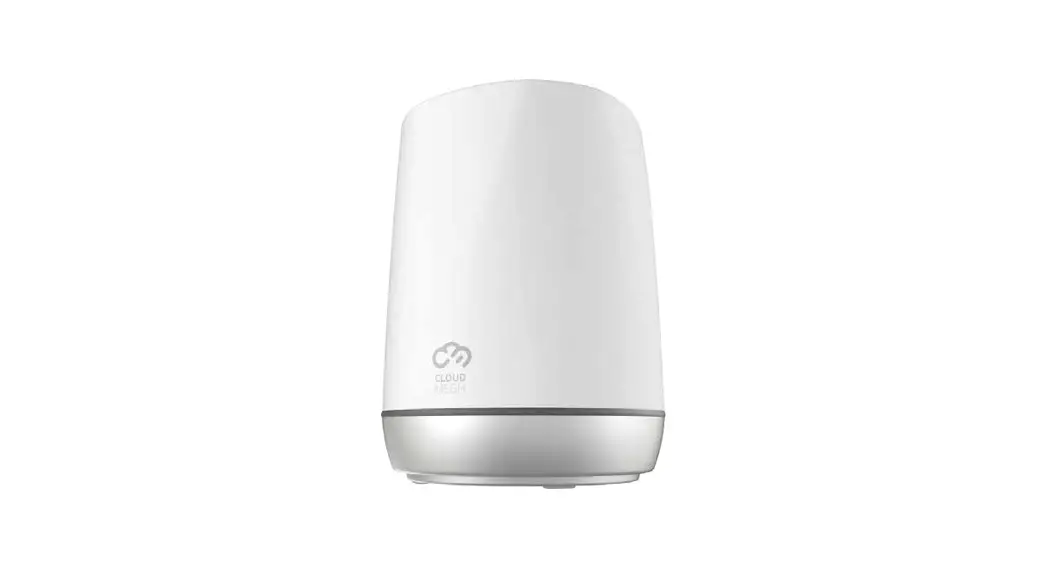
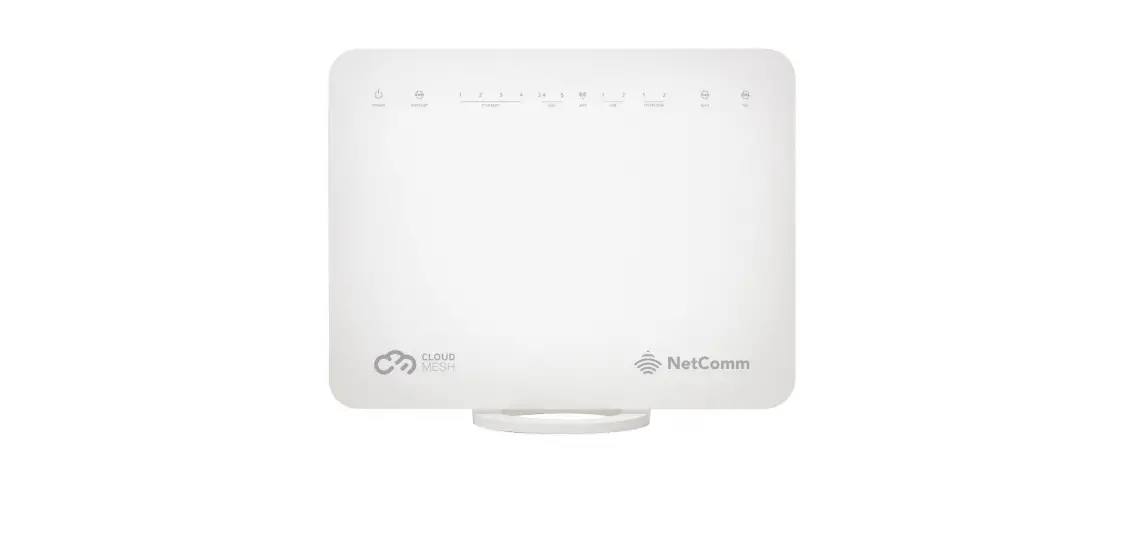
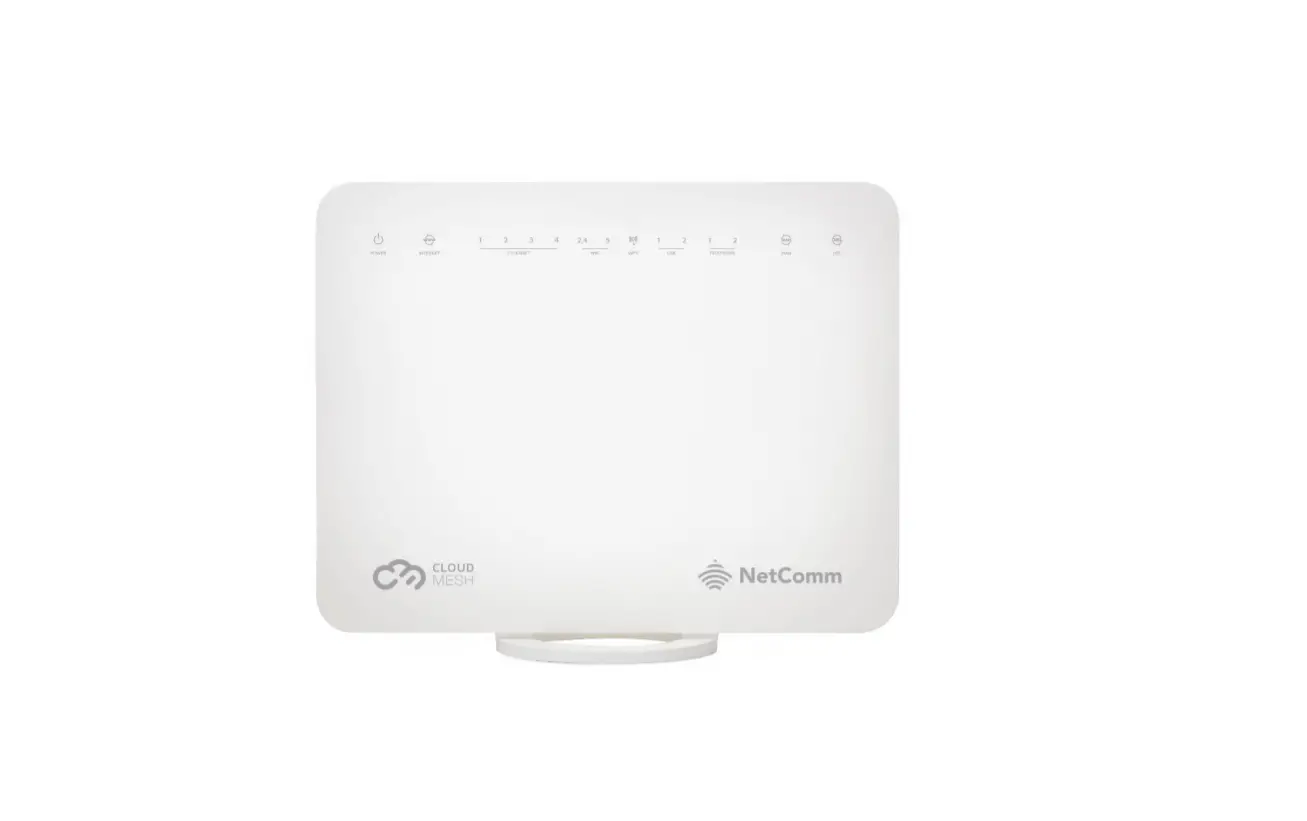
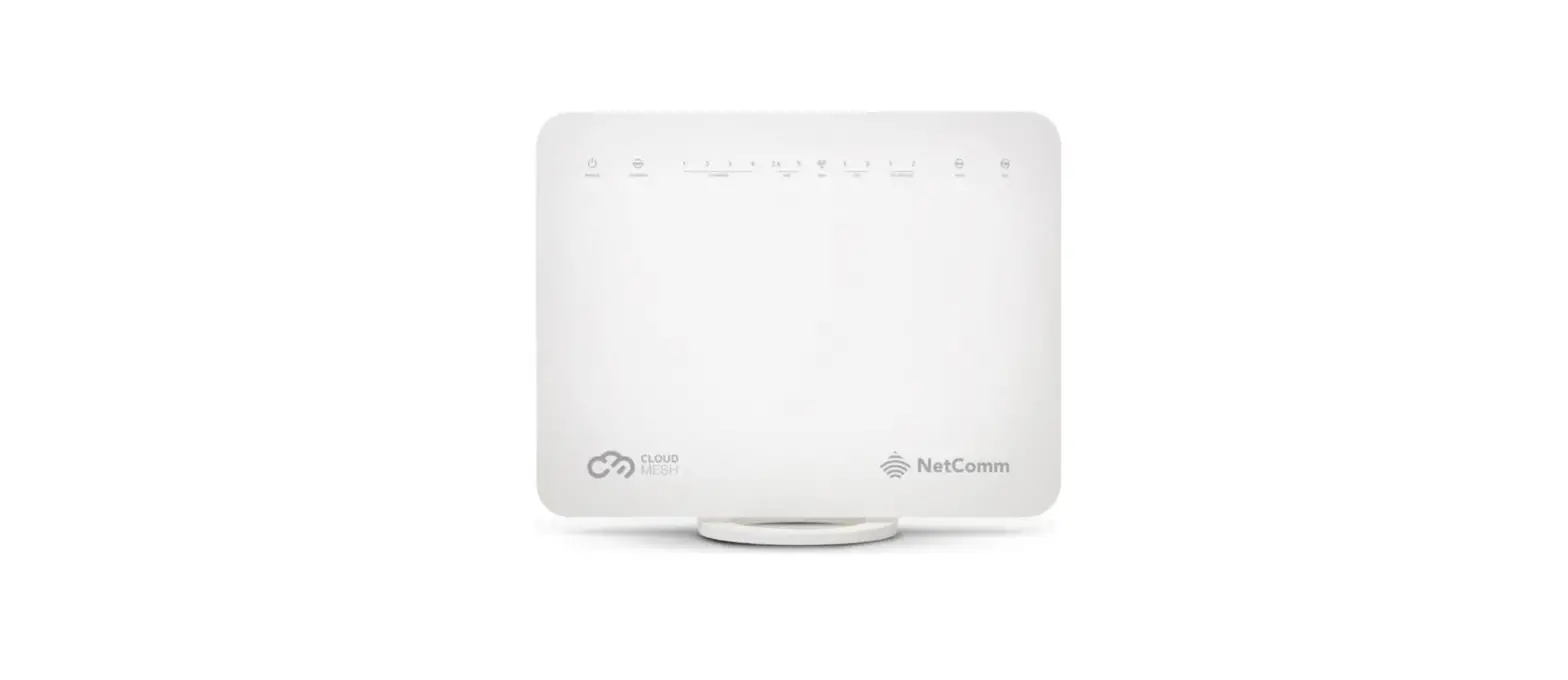
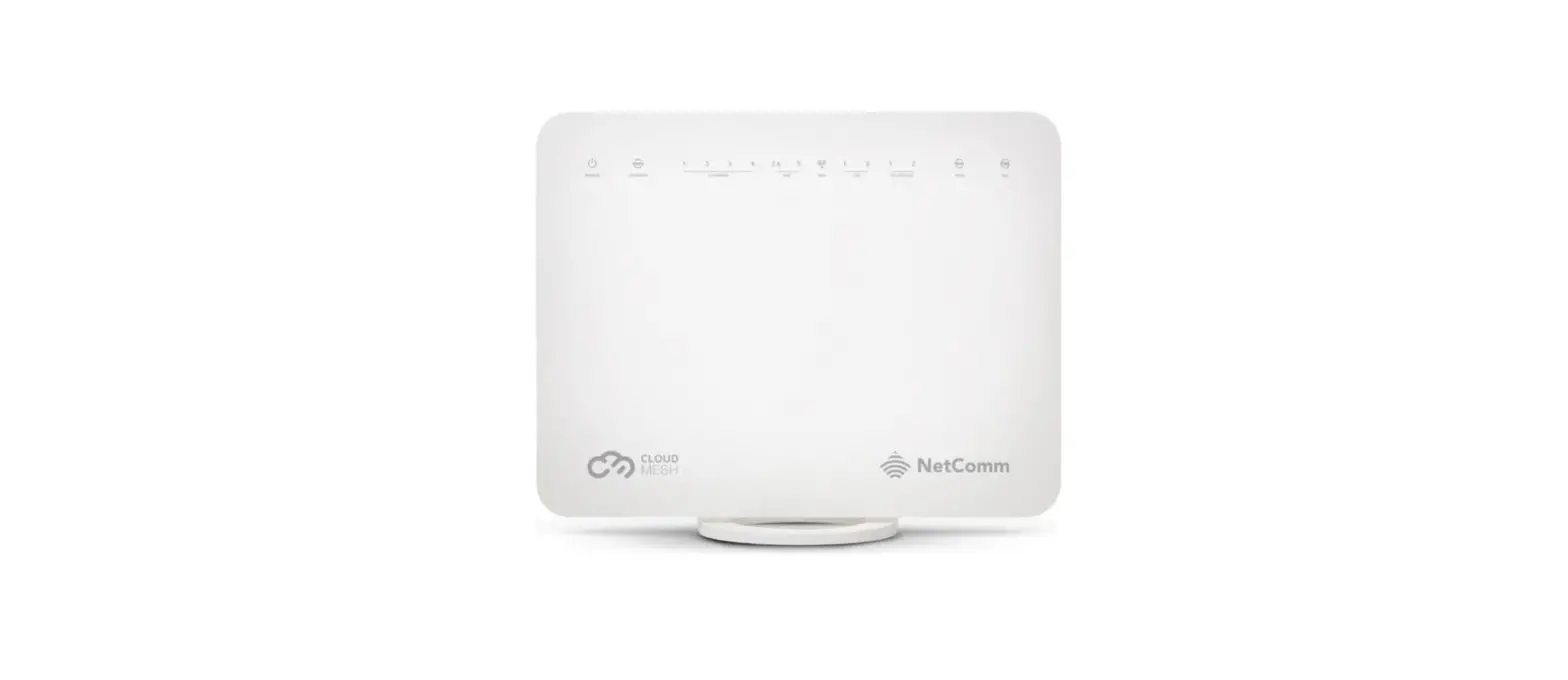
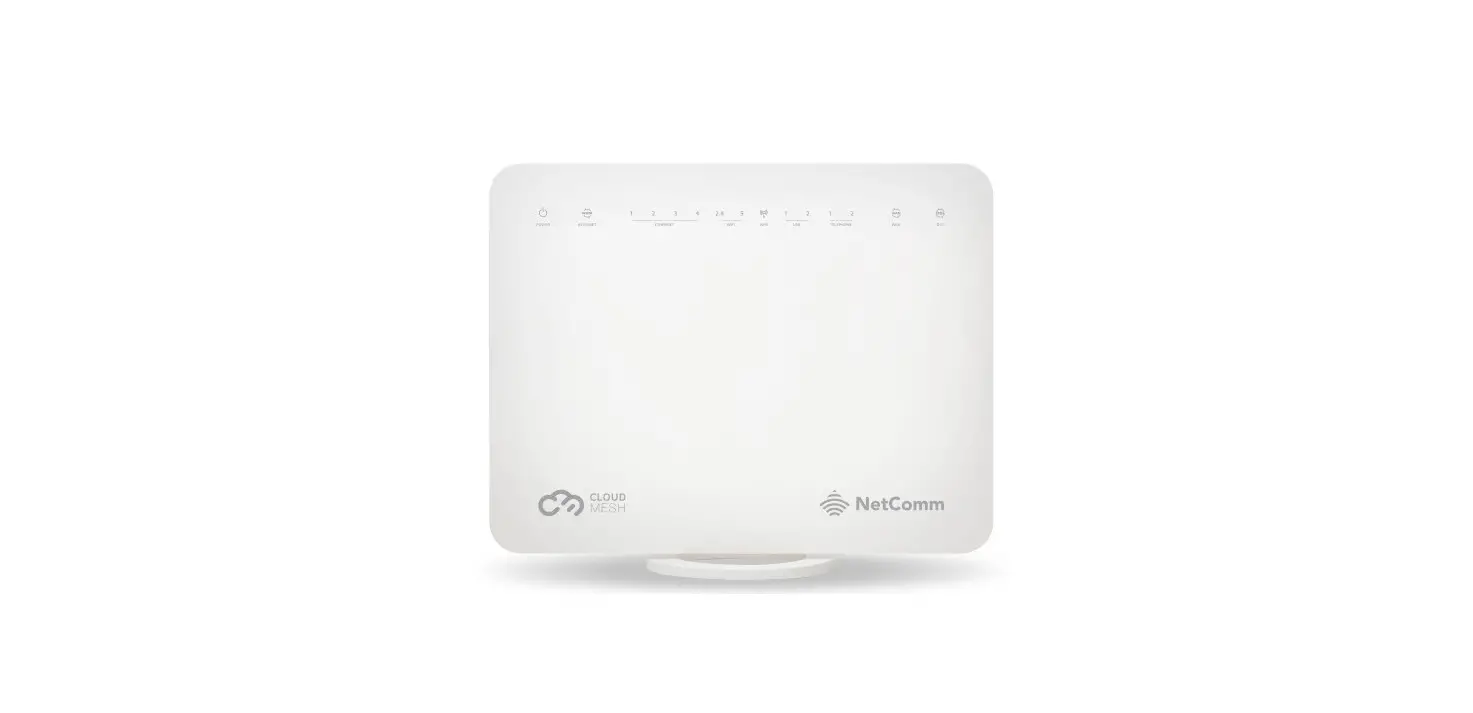
CloudMesh Satellite CMS2
Product Information: CloudMesh Satellite
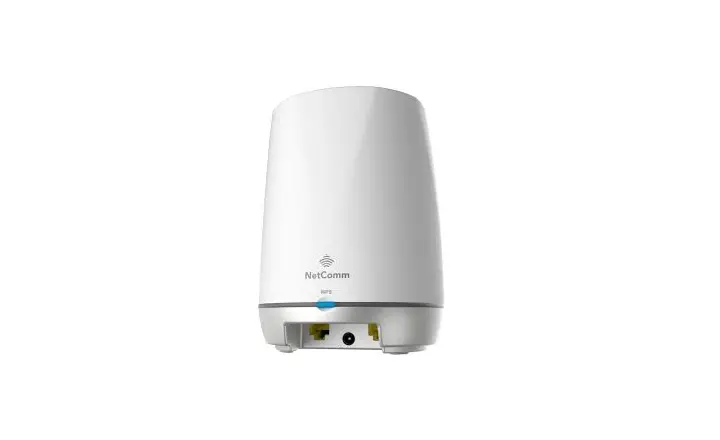
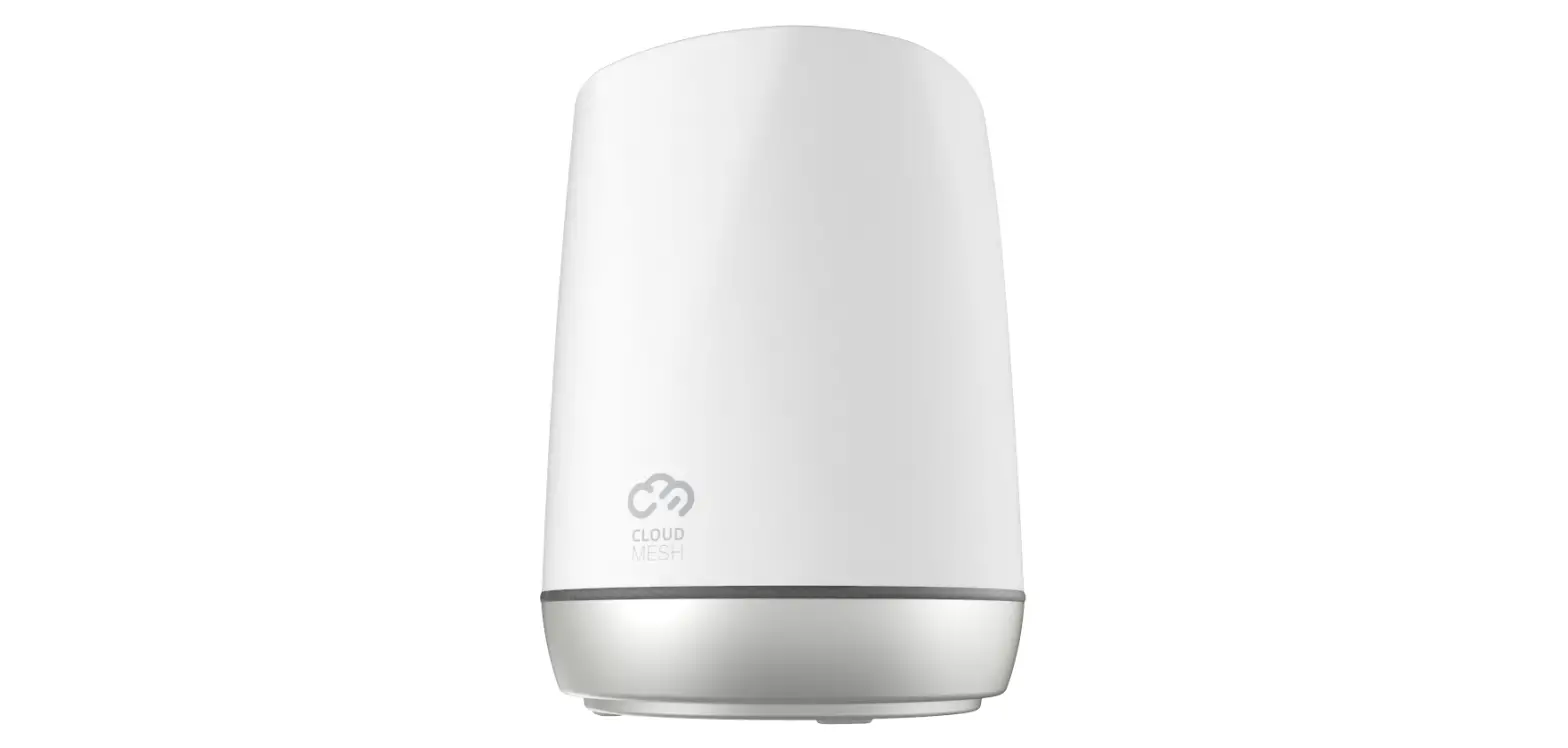
The CloudMesh Satellite is a device that provides seamless Wi-Fi
coverage in your home or office. It is designed to extend the range
and improve the signal strength of your wireless network.
Features:
- Seamless Wi-Fi coverage
- Easy setup with the CloudMesh app
- Supports Wi-Fi 6 technology
- Multiple Satellites can be added for expanded coverage
- LED indicator for status and connectivity
Package Contents:
- CloudMesh Satellite
- Power adapter
- Ethernet cable
Product Usage Instructions:
- Download the CloudMesh app from the App Store or Google
Play. - Plug in the power adapter of the CloudMesh Satellite and power
it on. - Connect one end of the Ethernet cable to either of the network
ports on the CloudMesh Satellite. - Plug the other end of the Ethernet cable into a LAN port on
your router. - Wait for the LED indicator on the Satellite to light up in
white, indicating it is ready for use. - If you have more than one Satellite, use the CloudMesh app to
add and configure additional Satellites. - To connect your devices to Wi-Fi, either scan the QR code
provided by the CloudMesh app or manually search for the wireless
network and enter the password. - You can manage your wireless network using the CloudMesh
app.
Note: The username and password for the wireless network are
case sensitive.
CloudMesh Satellite
CMS2 SEAMLESS WI-FI COVERAGE
MPRT-00073-000_QSG CMS2_Rev1.indd 1
20/9/21 4:10 pm
1
Download the CloudMesh app
2
MPRT-00073-000_QSG CMS2_Rev1.indd 2
20/9/21 4:10 pm
Get it on the App Store or Google Play.
MPRT-00073-000_QSG CMS2_Rev1.indd 3
3
20/9/21 4:10 pm
2
Plug in the power adapter and power on
4
MPRT-00073-000_QSG CMS2_Rev1.indd 4
20/9/21 4:10 pm
MPRT-00073-000_QSG CMS2_Rev1.indd 5
5
20/9/21 4:10 pm
3
Connect Ethernet cable
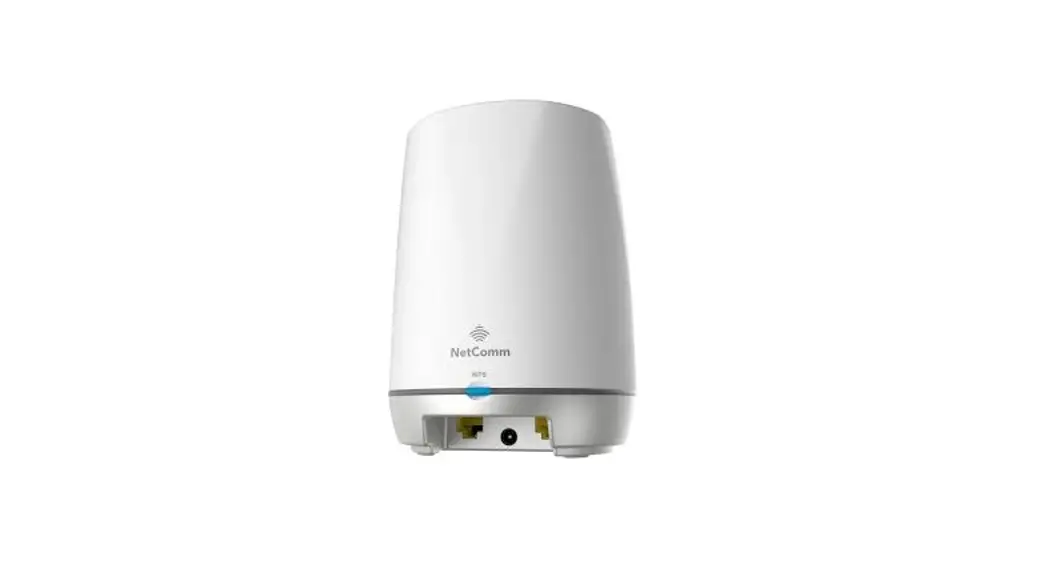
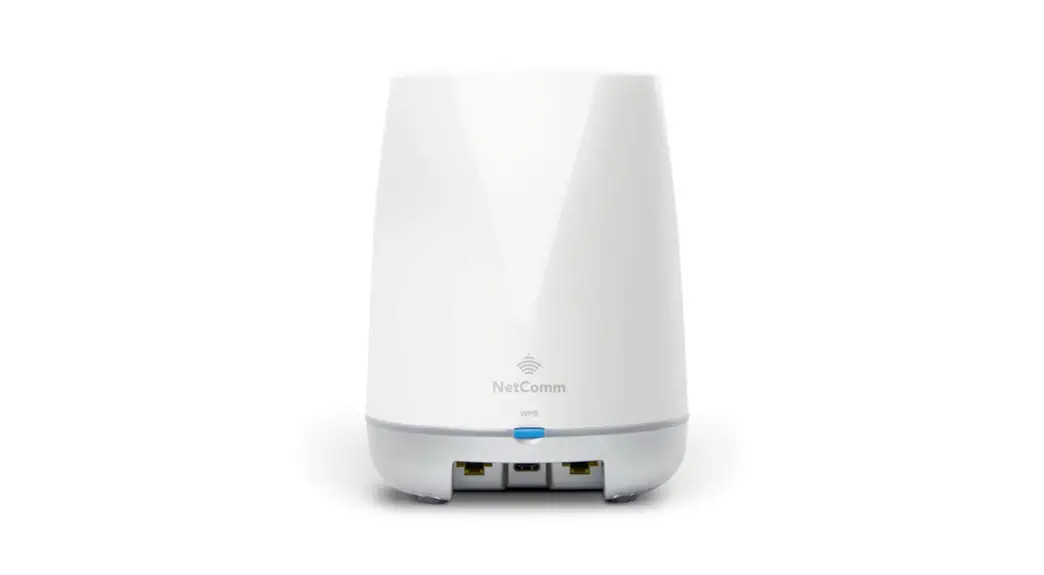
Plug the Ethernet cable into either of the network ports on the CloudMesh Satellite.
6
MPRT-00073-000_QSG CMS2_Rev1.indd 6
20/9/21 4:10 pm
MPRT-00073-000_QSG CMS2_Rev1.indd 7
7
20/9/21 4:10 pm
4
Connect satellite to router
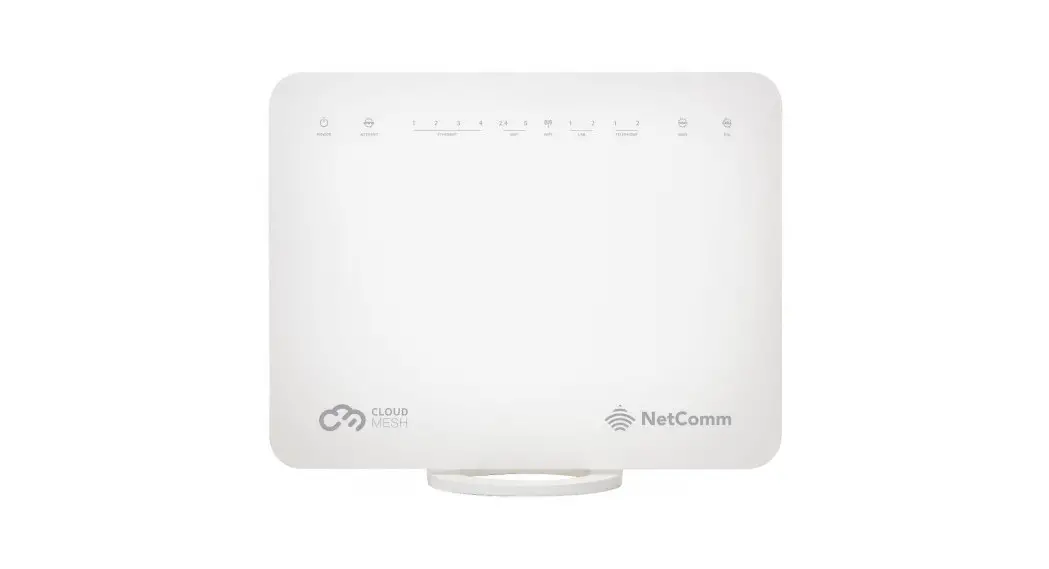
Plug the other end of the Ethernet cable into a LAN port on your router.
8
MPRT-00073-000_QSG CMS2_Rev1.indd 8
20/9/21 4:10 pm
MPRT-00073-000_QSG CMS2_Rev1.indd 9
9
20/9/21 4:10 pm
5
Wait for the white light
When the Satellite is ready for use, the LED lights up in white.
10
MPRT-00073-000_QSG CMS2_Rev1.indd 10
20/9/21 4:10 pm
MPRT-00073-000_QSG CMS2_Rev1.indd 11
11
20/9/21 4:10 pm
6
Setup additional CloudMesh Satellites
If you have more than one Satellite, use the CloudMesh app to add other Satellites.
12
MPRT-00073-000_QSG CMS2_Rev1.indd 12
20/9/21 4:10 pm
MPRT-00073-000_QSG CMS2_Rev1.indd 13
13
20/9/21 4:10 pm
7
Connect to Wi-Fi
Connect your devices to Wi-Fi by scanning the QR code or manually scanning for the wireless network and entering the password.
14
MPRT-00073-000_QSG CMS2_Rev1.indd 14
20/9/21 4:10 pm
TYPE OR
The username and password are case sensitive.
SCAN
MPRT-00073-000_QSG CMS2_Rev1.indd 15
15
20/9/21 4:10 pm
8
Enjoy your new Wi-Fi 6 network
You can use the CloudMesh app to manage your wireless network.
16
MPRT-00073-000_QSG CMS2_Rev1.indd 16
20/9/21 4:10 pm
MPRT-00073-000_QSG CMS2_Rev1.indd 17
17
20/9/21 4:10 pm
NOTES:
18
MPRT-00073-000_QSG CMS2_Rev1.indd 18
20/9/21 4:10 pm
NOTES:
MPRT-00073-000_QSG CMS2_Rev1.indd 19
19
20/9/21 4:10 pm
MPRT-00073-000_QSG CMS2_Rev1
US EU
CORPORATE HEADQUARTERS ANDOVER Casa Systems Inc. 100 Old River Road, Andover, MA 01810 USA | +1 978 688 6706 www.casa-systems.com
EU OFFICE IRELAND Casa Communications Ltd. National Technology Park Plassey, Limerick, V94 RX49 Ireland | +353 61 633000 Extn: 3011 www.casa-systems.com
MPRT-00073-000_QSG CMS2_Rev1.indd 20
20/9/21 4:10 pm
 Home - Casa Systems