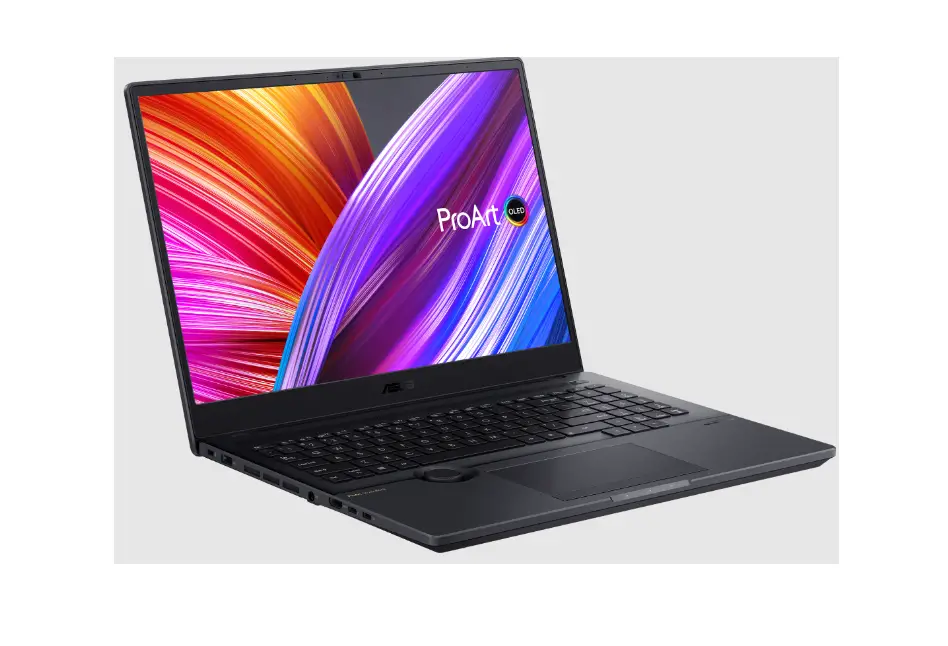
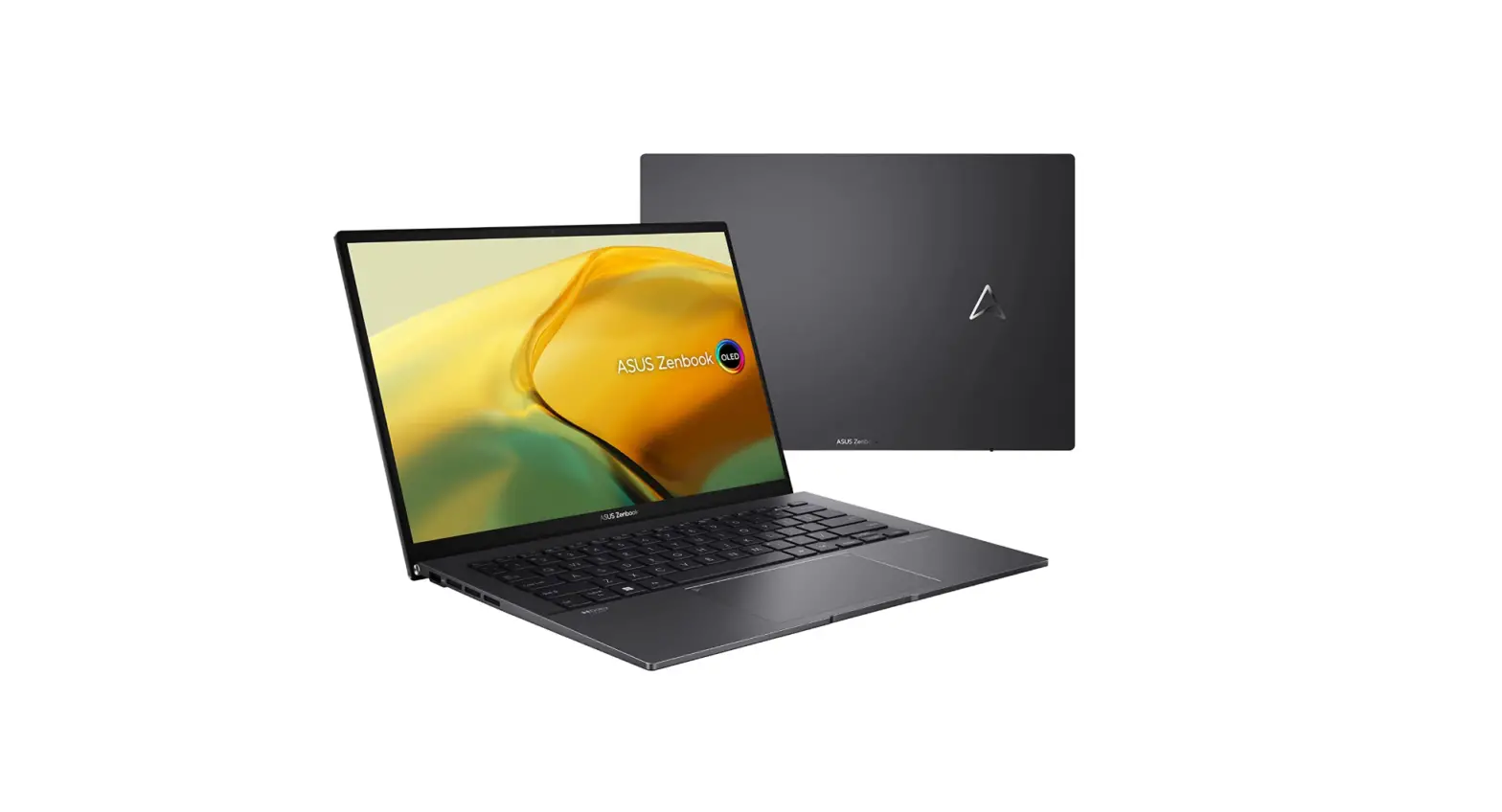
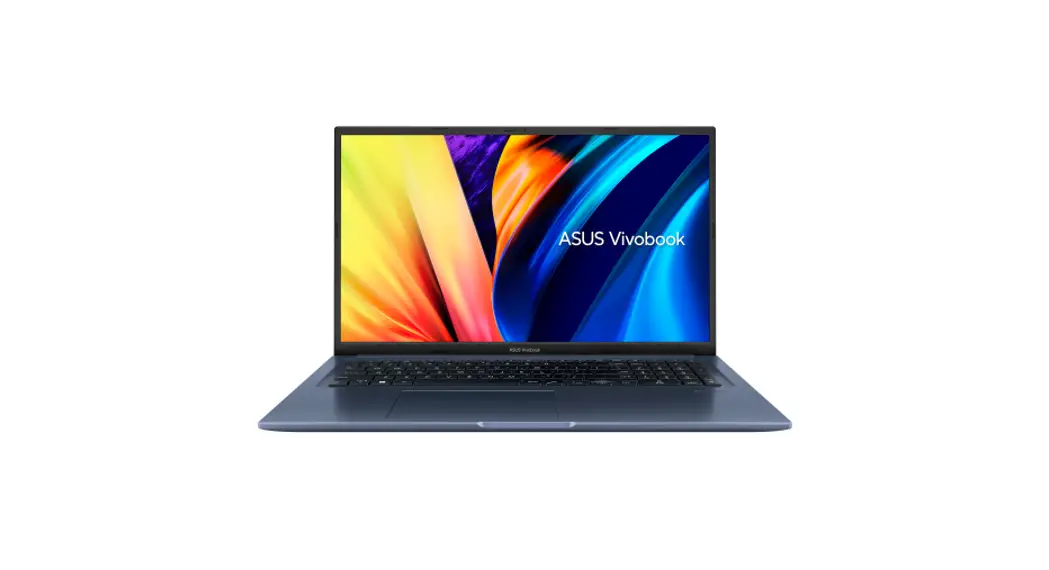
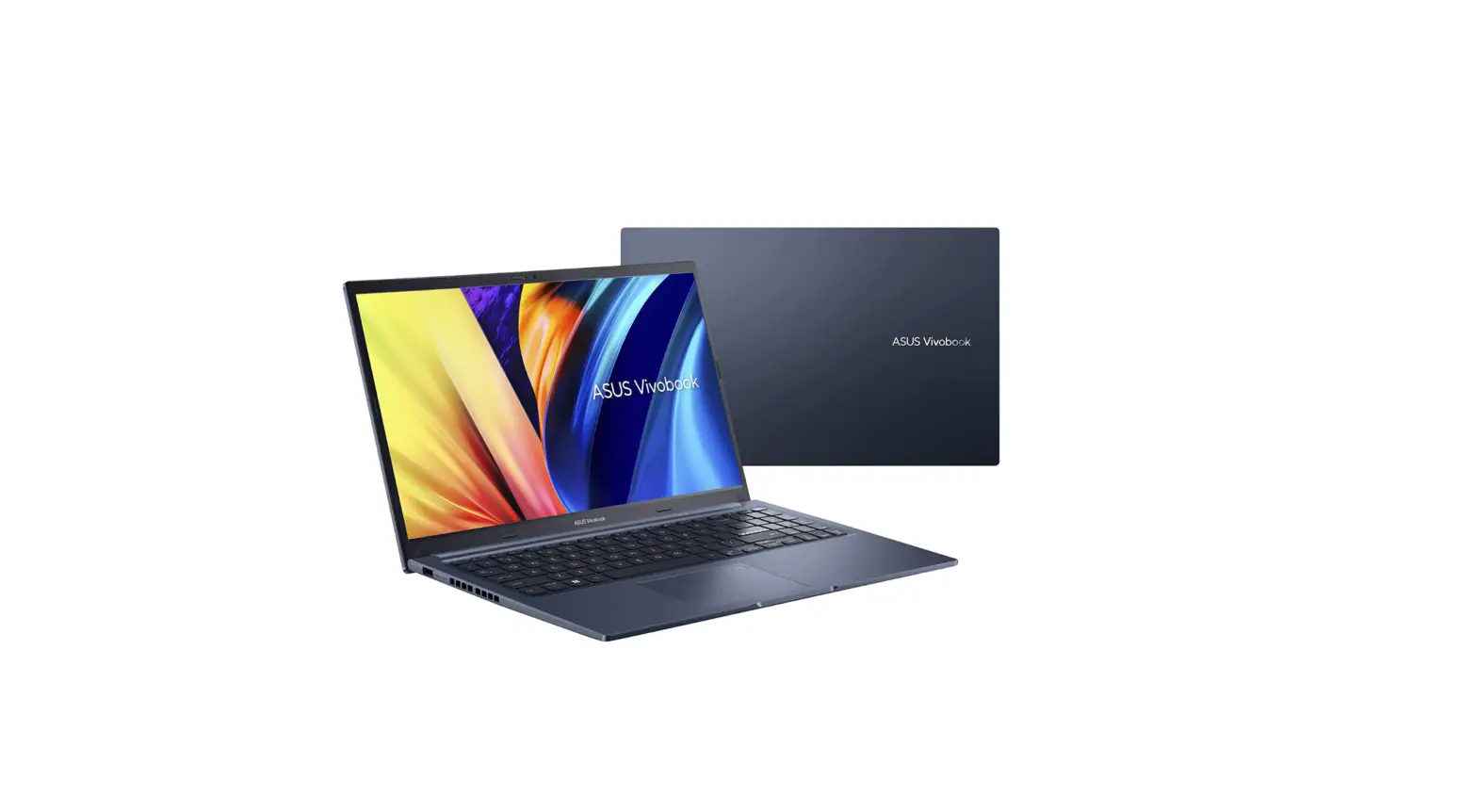
H7604JI ProArt Studiobook 16 OLED Laptop
Product Information
This manual is the First Edition / February 2023 Customer Self
Repair (CSR) Maintenance and Service Guide for a product
manufactured by ASUSTeK COMPUTER INC. (ASUS). It provides
information on the products and software described in it.
The manual states that the specifications and information
contained in it are for informational use only and are subject to
change without notice. ASUS assumes no responsibility or liability
for any errors or inaccuracies that may appear in this manual,
including the products and software described in it.
The manual also includes a limitation of liability section,
stating that ASUS will only be responsible for or indemnify the
user for loss, damages, or claims based on contract, tort, or
infringement under the Warranty Statement. ASUS, its suppliers, and
resellers collectively have a maximum liability limit.
Additionally, the manual provides a service and support section,
directing users to visit the ASUS website for multi-language
support.
Product Usage Instructions
- Ensure the protection of stored data by making periodic back-up
copies of all data stored on the hard disk or other storage
devices. - Before disassembly, it is strongly recommended to prepare a
smartphone or other handheld camera to take photos during the
process. These photos will help you remember the order of assembly
and location of parts. - When lifting the base cover off, do it slowly and carefully to
minimize the angle. Before opening the base cover completely,
confirm that all cables are disconnected to avoid damaging
them. - After opening the base cover, disconnect the battery cable
first. - When replacing components, ensure that any materials, cables,
tapes, or others that were touched or moved are returned to their
original location before proceeding.
First Edition /February 2023
Customer Self Repair (CSR)
Maintenance and Service Guide
COPYRIGHT INFORMATION
No part of this manual, including the products and software described in it, may be reproduced, transmitted, transcribed, stored in a retrieval system, or translated into any language in any form or by any means, except documentation kept by the purchaser for backup purposes, without the express written permission of ASUSTeK COMPUTER INC. (“ASUS”).
ASUS PROVIDES THIS MANUAL “AS IS” WITHOUT WARRANTY OF ANY KIND, EITHER EXPRESS OR IMPLIED, INCLUDING BUT NOT LIMITED TO THE IMPLIED WARRANTIES OR CONDITIONS OF MERCHANTABILITY OR FITNESS FOR A PARTICULAR PURPOSE. IN NO EVENT SHALL ASUS, ITS DIRECTORS, OFFICERS, EMPLOYEES OR AGENTS BE LIABLE FOR ANY INDIRECT, SPECIAL, INCIDENTAL, OR CONSEQUENTIAL DAMAGES (INCLUDING DAMAGES FOR LOSS OF PROFITS, LOSS OF BUSINESS, LOSS OF USE OR DATA, INTERRUPTION OF BUSINESS AND THE LIKE), EVEN IF ASUS HAS BEEN ADVISED OF THE POSSIBILITY OF SUCH DAMAGES ARISING FROM ANY DEFECT OR ERROR IN THIS MANUAL OR PRODUCT.
Products and corporate names appearing in this manual may or may not be registered trademarks or copyrights of their respective companies, and are used only for identification or explanation and to the owners’ benefit, without intent to infringe.
SPECIFICATIONS AND INFORMATION CONTAINED IN THIS MANUAL ARE FURNISHED FOR INFORMATIONAL USE ONLY, AND ARE SUBJECT TO CHANGE AT ANY TIME WITHOUT NOTICE, AND SHOULD NOT BE CONSTRUED AS A COMMITMENT BY ASUS. ASUS ASSUMES NO RESPONSIBILITY OR LIABILITY FOR ANY ERRORS OR INACCURACIES THAT MAY APPEAR IN THIS MANUAL, INCLUDING THE PRODUCTS AND SOFTWARE DESCRIBED IN IT.
Copyright © 2020 ASUSTeK COMPUTER INC. All Rights Reserved.
LIMITATION OF LIABILITY
Circumstances may arise where because of a default on ASUS’ part or other liability, you are entitled to recover damages from ASUS. In each such instance, regardless of the basis on which you are entitled to claim damages from ASUS, ASUS is liable for no more than damages for bodily injury (including death) and damage to real property and tangible personal property; or any other actual and direct damages resulted from omission or failure of performing legal duties under this Warranty Statement, up to the listed contract price of each product.
ASUS will only be responsible for or indemnify you for loss, damages or claims based in contract, tort or infringement under this Warranty Statement.
This limit also applies to ASUS’ suppliers and its reseller. It is the maximum for which ASUS, its suppliers, and your reseller are collectively responsible.
UNDER NO CIRCUMSTANCES IS ASUS LIABLE FOR ANY OF THE FOLLOWING: (1) THIRD-PARTY CLAIMS AGAINST YOU FOR DAMAGES; (2) LOSS OF, OR DAMAGE TO, YOUR RECORDS OR DATA; OR (3) SPECIAL, INCIDENTAL, OR INDIRECT DAMAGES OR FOR ANY ECONOMIC CONSEQUENTIAL DAMAGES (INCLUDING LOST PROFITS OR SAVINGS), EVEN IF ASUS, ITS SUPPLIERS OR YOUR RESELLER IS INFORMED OF THEIR POSSIBILITY.
SERVICE AND SUPPORT
Visit our multi-language website at: https://www.asus.com/support/
2
Customer Self Repair Guide
Table of Contents
Disclaimer………………………………………………………………………………………………..4 Safety precautions……………………………………………………………………………………4 Installation tools………………………………………………………………………………………5 Before disassembly…………………………………………………………………………………..5 Removing the base cover…………………………………………………………………………..6 Installing a RAM module……………………………………………………………………………9 Installing an M.2 card (SSD)……………………………………………………………………..15
Customer Self Repair Guide
3
Disclaimer
ASUS is not responsible for direct, indirect, intentional or unintentional damages resulting from improper installation and operation.
Safety precautions
· Keep liquids or moisture away from your Notebook PC before installing or removing any components.
· Place your Notebook PC on a stable surface before installing or removing any components. · Detach the clip or flap before removing the signal cables to prevent damage. · Disconnect the power plug by pulling the plug evenly to avoid damage. Ensure to connect the
signal cables in the correct orientation. · Disconnect all power cables and remove the battery pack (if applicable) before cleaning your
Notebook PC with liquid detergent to avoid risk of electric shock. · Disconnect all power cables and remove the battery pack (if applicable) before installing or
removing any components. Be sure to thoroughly to read and follow the instructions in the manual. · To avoid Electrostatic Discharge (ESD) damage the electric components inside your computer, before handling components, use a grounded wrist strap or touch a safely grounded object to prevent electric products damaged by the electrostatic discharge.Please refer to Electrostatic Discharge (ESD) Protection Notes. · Keep liquids or moisture away from your Notebook PC to avoid short circuiting. · Hold components by the edges to avoid touching the Integrated Circuits (ICs). · Before re-connecting the AC power, ensure all components are properly installed. · Reduce the risk of fire or explosion by avoiding incompatible power adapters or batteries. Use only certified power adapters or batteries supplied by ASUS or authorized retailers. · Ensure the correct screw models are re-installed to your Notebook PC to prevent damage.
Protection of Stored Data
For Your important data, please make periodic back-up copies of all the data stored on the hard disk or other storage devices as a precaution against possible failures, alteration, or loss of the data.
ASUS AND ITS AFFILIATES WILL NOT BE HELD LIABLE FOR ANY OF YOUR CONFIDENTIAL, PROPRIETARY OR PERSONAL DATA NOR ANY LOST OR CORRUPTED DATA, PROGRAMS OR SOFTWARE. IF YOUR DATA IS ALTERED OR LOST DUE TO ANY TROUBLE, FAILURE OR MALFUNCTION OF THE PRODUCT AND THE DATA CANNOT BE RECOVERED, WE SHALL NOT BE LIABLE FOR ANY DAMAGE OR LOSS TO DATA, SYSTEM, NETWORK, OR ANY OTHER DAMAGE RESULTING THEREFROM. WHEN COPYING OR TRANSFERRING YOUR DATA, PLEASE BE SURE TO CONFIRM WHETHER THE DATA HAS BEEN SUCCESSFULLY COPIED OR TRANSFERRED PRIOR TO PROVISIONING OF SERVICES BY US. WE DISCLAIM ANY LIABILITY FOR THE FAILURE TO COPY OR TRANSFER THE DATA CORRECTLY AND WILL HAVE NO LIABILITY FOR ANY ACTS OR OMISSIONS, INCLUDING NEGLIGENCE, BY ASUS OR A THIRD-PARTY SERVICE PROVIDER.
4
Customer Self Repair Guide
Installation tools
#1
T5
Screwdriver
Non-conductive pry tool
Tweezers
Anti-static gloves
Before disassembly
A. Before your disassembly, we strongly recommend that you
A
prepare a smartphone or other handheld camera. During
disassembly, use your camera to take photos to help you
remember the order of assembly and location of parts.
B. When lifting the base cover off, slowly and carefully open so the B
angle is as small as possible. To avoid damaging the cables, please confirm they are disconnected before opening the base cover completely.
C
C. After you open the base cover, be sure to disconnect the battery cable first.
D. When replacing components, if any materials, cables, tapes and D
others were touched or moved, please return it to its original location before proceeding.
E. Avoid using too much force when fastening screws to prevent E
hardware damage.
Customer Self Repair Guide
5
Removing the compartment cover
Disassembly Notice
NOTE : The appearance of your Notebook PC’s bottom view may vary per model. A. Remove the screw(s) from the Notebook PC’s compartment cover.
Assembly Notice
Righty – Tighty
T5
T5
Lefty – Loosey
T5
6
Customer Self Repair Guide
B. Use the non-conductive pry tool to lift open the indicated area of the base cover as shown in the illustration.
Start
Disassembly steps:
IMPORTANT! Avoid sliding the non-conductive pry tool along the side of your Notebook PC to prevent damage.
Customer Self Repair Guide
7
C. Pull out the base cover and remove it completely from your Notebook PC.
8
Customer Self Repair Guide
Installing a RAM module
Upgrade the memory capacity of your Notebook PC by installing a RAM (Random Access Memory) module in the memory module compartment. The following steps show you how to install a RAM module into your Notebook PC:
WARNING! Disconnect all the connected peripherals, any telephone or
telecommunication lines and power connector (such as external power supply, battery pack, etc.) before removing the base cover.
IMPORTANT! Visit an authorized service center or retailer for
information on RAM module upgrades for your Notebook PC. Only purchase RAM modules from authorized retailers of this Notebook PC to ensure maximum compatibility and reliability.
NOTE : · The appearance of your Notebook PC’s bottom view and RAM
module may vary per model but the RAM module installation remains the same. · It is recommended that you install the RAM module under professional supervision. You may also visit an authorized service center for further assistance.
Customer Self Repair Guide
9
Disassembly Notice
A. Before handling components, wear anti-static gloves to avoid damaging them due to static electricity.
B. Remove the base cover.
NOTE : For more details, refer to the removing the base cover section in this manual.
C. Disconnect the cable from the battery connector.
Disassembly steps: 1. Use the non-conductive pry tool to push iron sheet.
2. Use the non-conductive pry tool to disconnect battery connector. NOTE : Please disconnect the red cable side first.
10
Customer Self Repair Guide
Disassembly Notice
D. Remove the RAM module.
NOTE : If there is material pasted on the RAM, when you replace RAM, please paste the material on the new RAM. (Not included specification label.)
Disassembly steps: 1. Unlock and remove the RAM module.
(Front) (Rear)
2. Tear off the ABSORBER with GRAPHITE from RAM. Please keep this part, it will be reused for new RAM installation. (Device with dual 32GB DDR memories will come with the absorbers and two pieces of graphite, while others will have absorbers.)
(Outer)
(Front)
(Inner)
(Rear)
Customer Self Repair Guide
11
Disassembly Notice
E. Please check and remove the spec label from the ABSORBER, and paste it back to the old RAM.
12
Customer Self Repair Guide
Assembly Notice
F. Paste the ABSORBER with GRAPHITE on the new RAM.
G. Align and insert the new RAM module at 30° into the memory slot. H. Once properly inserted, push down the RAM module until it clicks in place.
G
H
30° I. Please follow the below steps to attach the battery connector.
NOTE : Please connect the black cable side first.
Customer Self Repair Guide
13
Assembly Notice
J. Install the base cover at a slight tilt at upper side first, and then press the upper side of base cover to fix from right to left.
15~30
K. Put the base cover down slowly, and then press left and right side of base cover to fix and press lower side of base cover to fix.
L. Secure the base cover in place using the screws.
Righty – Tighty
T5
T5
Lefty – Loosey
T5
14
Customer Self Repair Guide
Installing an M.2 card (SSD)
Refer to the following steps when installing a compatible M.2 card (SSD) in your Notebook PC:
IMPORTANT! Purchase your M.2 card from authorized retailers of this Notebook PC to ensure maximum compatibility and reliability.
WARNING! Disconnect all the connected peripherals, any telephone or telecommunication lines and power connector (such as external power supply, battery pack, etc.) before removing the base cover.
NOTE : · The appearance of your Notebook PC’s bottom view and M.2 card
may vary per model but the module installation remains the same. · It is recommended that you install the M.2 card under professional
supervision. You may also visit an authorized service center for further assistance.
Customer Self Repair Guide
15
Disassembly Notice
A. Before handling components, wear anti-static gloves to avoid damaging them due to static electricity.
B. Remove the base cover.
NOTE : For more details, refer to the removing the base cover section in this manual.
C. Disconnect the cable from the battery connector.
Disassembly steps: 1. Use the non-conductive pry tool to push iron sheet.
2. Use the non-conductive pry tool to disconnect battery connector. NOTE : Please disconnect the red cable side first.
16
Customer Self Repair Guide
Disassembly Notice
D. Remove the M.2 card (SSD).
NOTE : If there is material pasted on the M.2 card (SSD), when you replace M.2 card (SSD), please paste the material on the new M.2 card (SSD). (Not included specification label.)
Disassembly steps: 1. Remove the screw*1pc and M.2 card (SSD).
(Front) (Rear)
2. Tear off the Thermal PAD from M.2 card (SSD). Please keep this part, it will be reused for new SSD installation.
(Front) (Rear) (Thermal Pad)
Customer Self Repair Guide
17
Assembly Notice
E. Paste the Thermal PAD to new M.2 card (SSD).
F. Assembly the M.2 card (SSD).
NOTE : When installing the new M.2 card (SSD), please keep the new M.2 card (SSD) less then 15 degrees with motherboard, and then insert the new M.2 card (SSD).
>15°
<15°
Assembly steps: 1. Align and insert the new M.2 card into the module slot. 2. Secure the M.2 card in place by fastening the screw.
2
1
18
Customer Self Repair Guide
Assembly Notice
G. Please follow the below steps to attach the battery connector. NOTE : Please connect the black cable side first.
H. Install the base cover at a slight tilt at upper side first, and then press the upper side of base cover to fix from right to left.
15~30
I. Put the base cover down slowly, and then press left and right side of base cover to fix and press lower side of base cover to fix.
Customer Self Repair Guide
19
Assembly Notice
J. Secure the base cover in place using the screws.
Righty – Tighty
T5
T5
Lefty – Loosey
T5
20
Customer Self Repair Guide
 Official Support | ASUS Global