 Quick instructions
Smart Home controller II
Product description
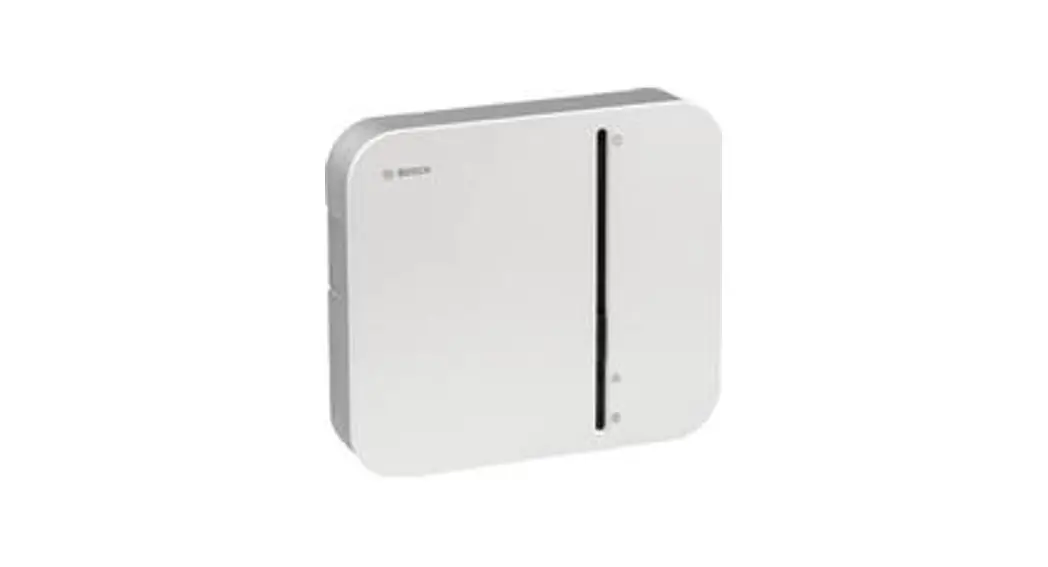
As the heart of the system, the Smart Home controller II protects your private data and controls communication between the app and all devices.
Description of the symbols Warning!
Note about hazards Attention!
Additional important information Note about the installation video
 Safety instructions
▶ Read this user manual completely before installing or commissioning the device and pay particular attention to the hazard information.
▶ Fire hazard due to electrical current! There is a risk of fire when the electrical connection is not used properly. Only use the product with the specified, approved power supply unit.
▶ The device may only be connected to an easily accessible power socket. The plug must be removed in the event of a hazard.
▶ Do not open up the device. It does not contain any parts to be maintained by the user. If a fault occurs, have the device checked by a specialist.
▶ Do not use the device if it has damage which is visible from the outside, for example, to the housing, control elements or connection sockets, or if it has a malfunction. If in doubt, please contact our service team.
▶ For safety and approval reasons (CE/UKCA), the device may not be modified and/or no changes may be made to the device without authorisation.
▶ The device is not a toy! Do not allow children to play with it. Never leave the packaging material lying around unattended. Plastic film and small parts may pose a danger to children.
▶ This device may be used by children from 8 years of age and by persons with reduced physical, sensory or mental capacities, or a lack of experience and knowledge provided these persons are supervised or have been instructed in the safe use of the device, and understand the corresponding risks.
▶ When remotely or automatically controlling a device, it is not always possible to guarantee that commands are actually executed or that the correct device status is displayed in the app and on other Smart Home display devices because of external circumstances. This may lead to material damage and/or personal injury. Therefore, you must ensure to the greatest extent possible that no person is endangered at the time of remote operation or automated control. Please take special care when setting up or adjusting the remote control or when using the automated control and check the desired functionality at regular intervals.
▶ We accept no liability for material damage or personal injury which is caused by improper use or failure to observe the safety instructions. In these cases, any guarantee claim becomes void! We accept no liability for consequential damage.
▶ Any use other than that which is described in the user manual is considered improper and leads to theexclusion of guarantee and liability.
▶ Only operate the device indoors and do not expose it to moisture, vibrations, constant sunlight or other sources of heat, extreme cold temperatures and mechanical stress.
▶ Only use the device together with original components and recommended products from Bosch partners. Notes
▶ The range within buildings can differ significantly from the range in open spaces. In addition to the transmitting power and the receiving properties of the receiver, environmental factors such as humidity, as well as the local structural situation, play an important role.
▶ The device is only suitable for use in residential environments.
▶ The device is only intended for private use.You can also use the explanatory videos and additional information on our website as an additional aid for mounting, installing, starting up and restoring the factory settings on your Bosch
Smart Home controller: www.bosch-smarthome.com/rom/controller-2
Product overview
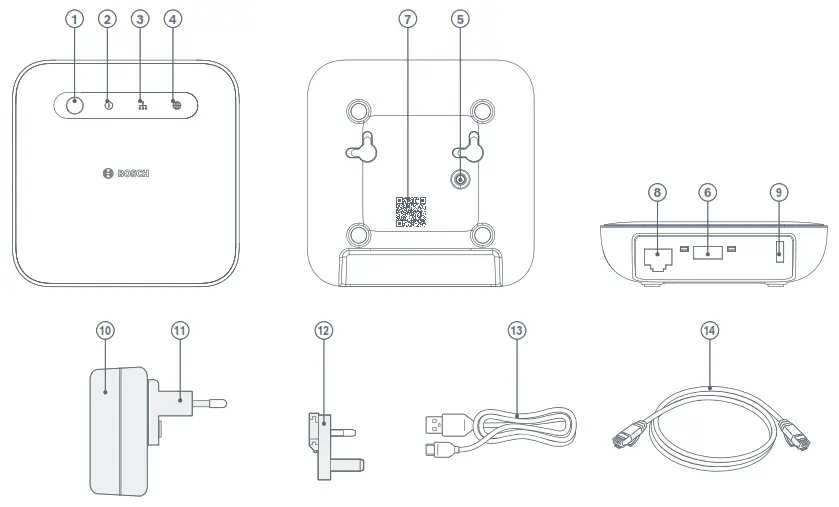
| Item | Name | Item | Name | Item | Name |
| 1 | Function key | 6 | USB connection | 11 | EU adapter (pre-mounted) |
| 2 | Power LED | 7 | QR code | 12 | UK adapter |
| 3 | Network LED | 8 | Network connection (RJ45) | 13 | Power cable, 1.5 m (USB-A to USB-C) |
| 4 | Cloud LED | 9 | Supply voltage connection (USB-C) | 14 | Network cable (RJ45) |
| 5 | Reset button | 10 | Power supply unit (USB-A output, 5 VDC, 2 A max.) |
The status LEDs (2, 3, 4) show the status of the controller using flashing codes.
| Power LED | Status | Recommended action |
| Flashes yellow | Device starting up | Wait until the device has fully started up. |
| Lights green | The device has started up | None |
| Flashes red | Start-up failed | Disconnect the Smart Home controller from the power and reconnect it. If the LED flashes red again, then check the internet connection; connect the controller to another network if possible. |
| Network LED | Status | Recommended action |
| Flashes yellow | Searching for a network connection | None |
| Lights green | Network connection established | None |
| Flashes red | Network connection failed | Check your network settings. |
| Cloud LED | Status | Recommended action |
| Flashes yellow | Update is being downloaded from the Bosch Cloud or data is being exchanged via the tunnel connection. | None |
| Lights green | Remote access via the Bosch Cloud is activated and established. | If you do not want to access your Smart Home system while out and about, then you can deactivate remote access in the Smart Home app. |
| Flashes red | Bosch Cloud connection failed and remote access to your Bosch Smart Home system is not currently possible. | Disconnect the Smart Home controller from the power and reconnect it. If the LED flashes red again, then check the internet connection. |
Mounting instructions
The standards and directives applicable in your country must be observed during planning, set-up, operation and maintenance.The controller can be used in a horizontal position or mounted on the wall.When selecting the mounting location and when drilling, pay attention to the areas where electrical wires run, or to any supply cables.Please also note any additional information on the product.Always lay the cables of connected devices in such a way that they cannot pose a hazard to people or pets.For electronic devices (Smart Home hubs, routers, power supply units, etc.), radio interference may occur under some circumstances if the distance between the devices is less than one metre. If this occurs, please select a larger distance between the devices.Screws and plugs are not included in the box contents. Fillister head screws or cylinder head screws with a head diameter of max. 8 mm and a head height of max. 4 mm are recommended.
Start-up
Insert the network cable into the controller network connection (9) and a free LAN port on your Wi-Fi router. Now insert the cable for the power supply unit supplied into the controller supply connection (10). Then plug the power supply unit into a free socket. The status LEDs (2, 3, 4) show the status of initialisation after starting through flashing codes (see product overview).When you connect the controller to the internet for the first time, it automatically searches for software updates. If an update is required, it is automatically downloaded and installed by the controller. This process can take more than 30 minutes. The controller cannot be started during this time. Please do not disconnect the controller from the power for the duration of the process.The Smart Home controller II requires Ipv4 in the local network This is usually the standard configuration for your router.
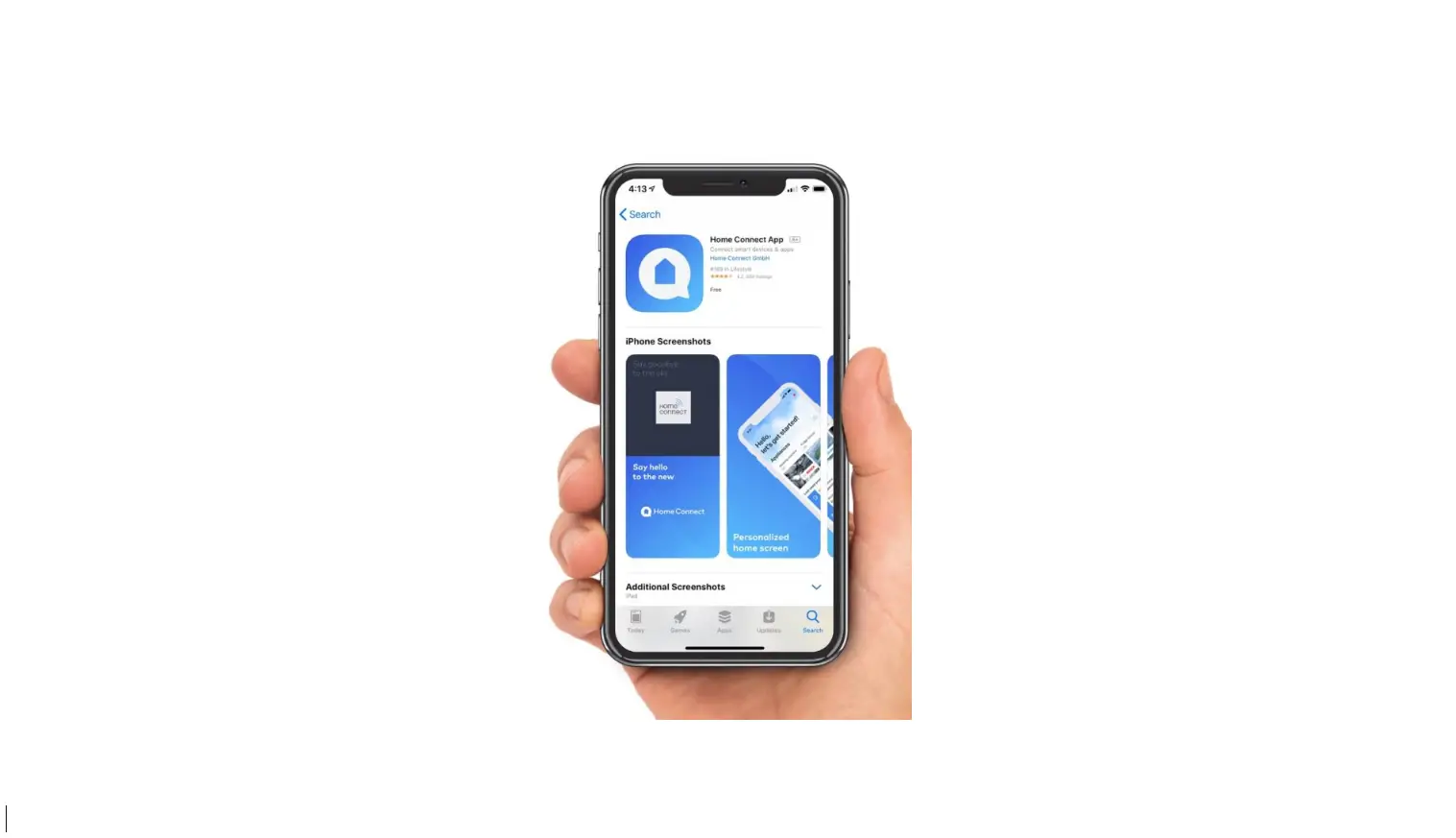
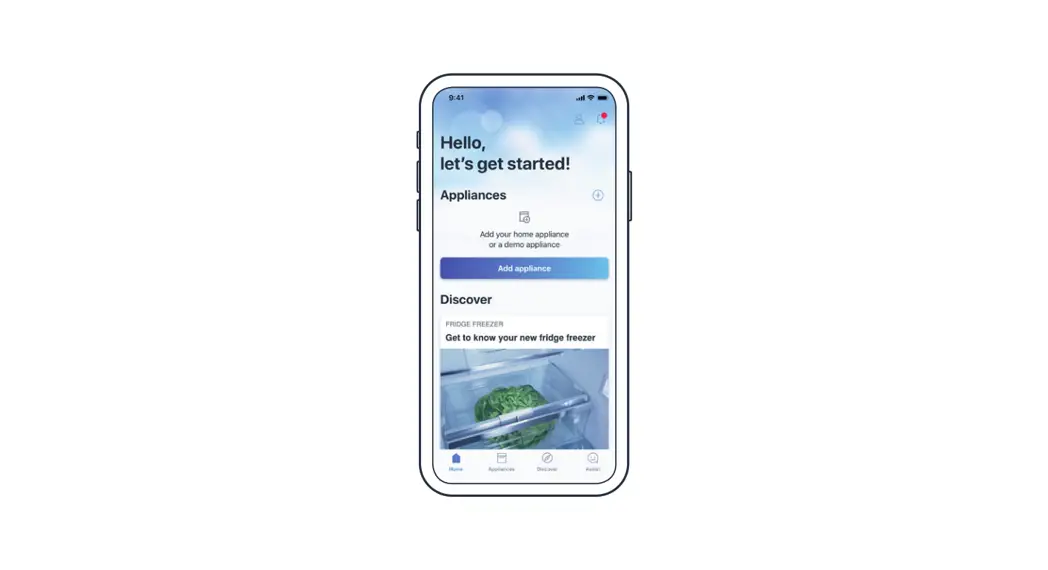
Download the “Bosch Smart Home” app from your app store. You will need this for installation, configuration and operation.
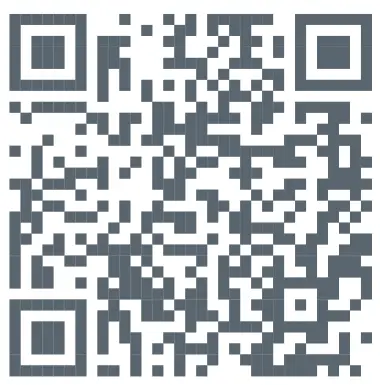 | 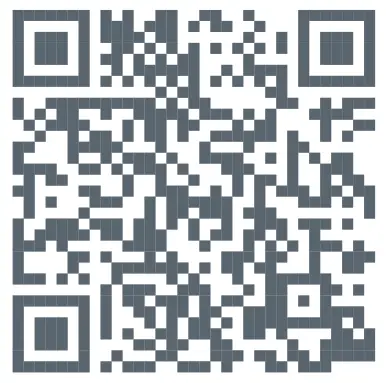 |
| QR code for the Apple App Store www.bosch-smarthome.com/rom/apple-app-store | QR code for the Google Play Store www.bosch-smarthome.com/rom/google-play-store |
To configure the controller, your mobile device must be on the same network.
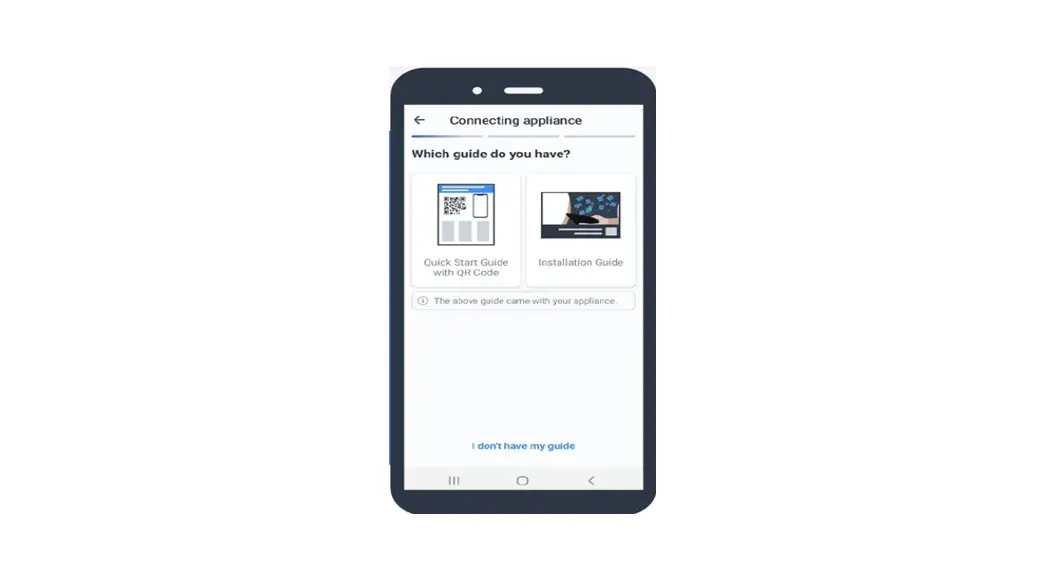
Start the Bosch Smart Home app and follow the instructions.
The Bosch Smart Home system can be used by other mobile devices. To do this, first install the Bosch Smart Home app on the additional mobile device and follow the instructions in the app.
Resetting to factory settings
You have two options for resetting the Smart Home controller to the factory settings:
- Reset using the Bosch Smart Home app
Go to “More” then “System” in the app and select “Factory settings”. Follow the instructions. - Reset using the reset button
Press the reset button (5) until the status LEDs (2, 3, 4) on the front flash red, release it briefly and press and hold it again until the LEDs light yellow. The device then restarts. Please note that it can take a few minutes until the controller is ready for operation again.
When resetting the Smart Home controller to the factory settings (using the app or the reset button), only the Smart Home controller is reset. All Smart Home devices which were previously integrated should be manually reset after resetting the controller.
Maintenance and cleaning
The device does not require maintenance. Leave any repairs to a specialist. Clean the device with a soft, clean, dry and lint-free cloth. When cleaning, do not use any cleaning agents containing solvents.
Simplified declaration of conformity Robert Bosch Smart Home GmbH hereby declares that the radio equipment type BSHC-2 complies with Directive 2014/53/EU. The complete text of the EU declaration of conformity is available via the following web address: https://eu-doc.bosch.com
 Robert Bosch Smart Home GmbH hereby declares that the radio system type BSHC-2 complies with Regulation 2017. The full text of the declaration of conformity is available at the following internet address: https://gb-doc.bosch.com
Environmental protection and disposal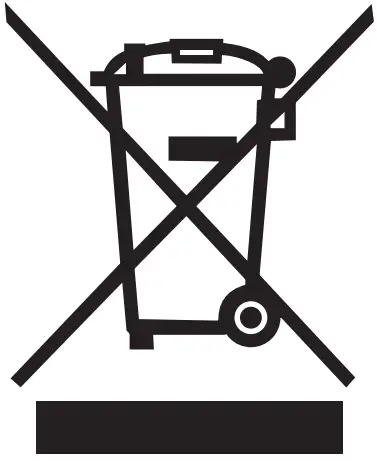 Electrical or electronic devices which are no longer usable must be collected separately and disposed of via an environmentally friendly recycling facility (European Directive on Waste Electrical and Electronic Equipment). Use your country’s specific return and collection systems when disposing of waste electrical or electronic devices.
Technical data
| Device type designation | BSHC-2 |
| Protection type | IP20 |
| Ambient temperature | + 0° C to + 40 °C |
| Max. humidity | 85 % (non-condensing) |
| Housing dimensions (W × H × D) | 100 × 100 × 29 mm |
| Weight | 110 g |
| Supply voltage | 5 VDC |
| Max. power consumption | 2 A |
| Typical power consumption | 0.4 A |
| Radio protocol | ZigBee 3.0 |
| Radio frequency band | 2.4 – 2.4835 GHz |
| Max. transmitting power | 10 dBm |
| Radio range in the open | < 100 m |
| Software class | A |
| Receiver category | 2 |
| Network connection | RJ45; port speed 10/100 Mbit/s |
Technical modifications reserved
Spare parts / accessories
For information on available spare parts or accessories,
please visit: https://www.bosch-smarthome.com/rom/spareparts
Open source software
This Bosch Smart Home product uses open source software. You can obtain the license information in two ways:
- Directly via the Smart Home controller: Do this by inserting any empty USB stick into the USB port on the back of the device. The license information along with further product information will automatically be saved on the stick.
- Online at www.bosch-smarthome.com/rom/opensource-software
Service information Robert Bosch Smart Home GmbH
Schockenriedstraße 17
70565 Stuttgart-Vaihingen
Germany [email protected]
@ www.bosch-smarthome.com/service
8-750-002-359 V003 10/2022 8750002359
 Home Automation and Smart Home Control | Control4
 bosch-smarthome.com/service
 Declarations of Conformity and International Type Approvals
 Declarations of Conformity and International Type Approvals