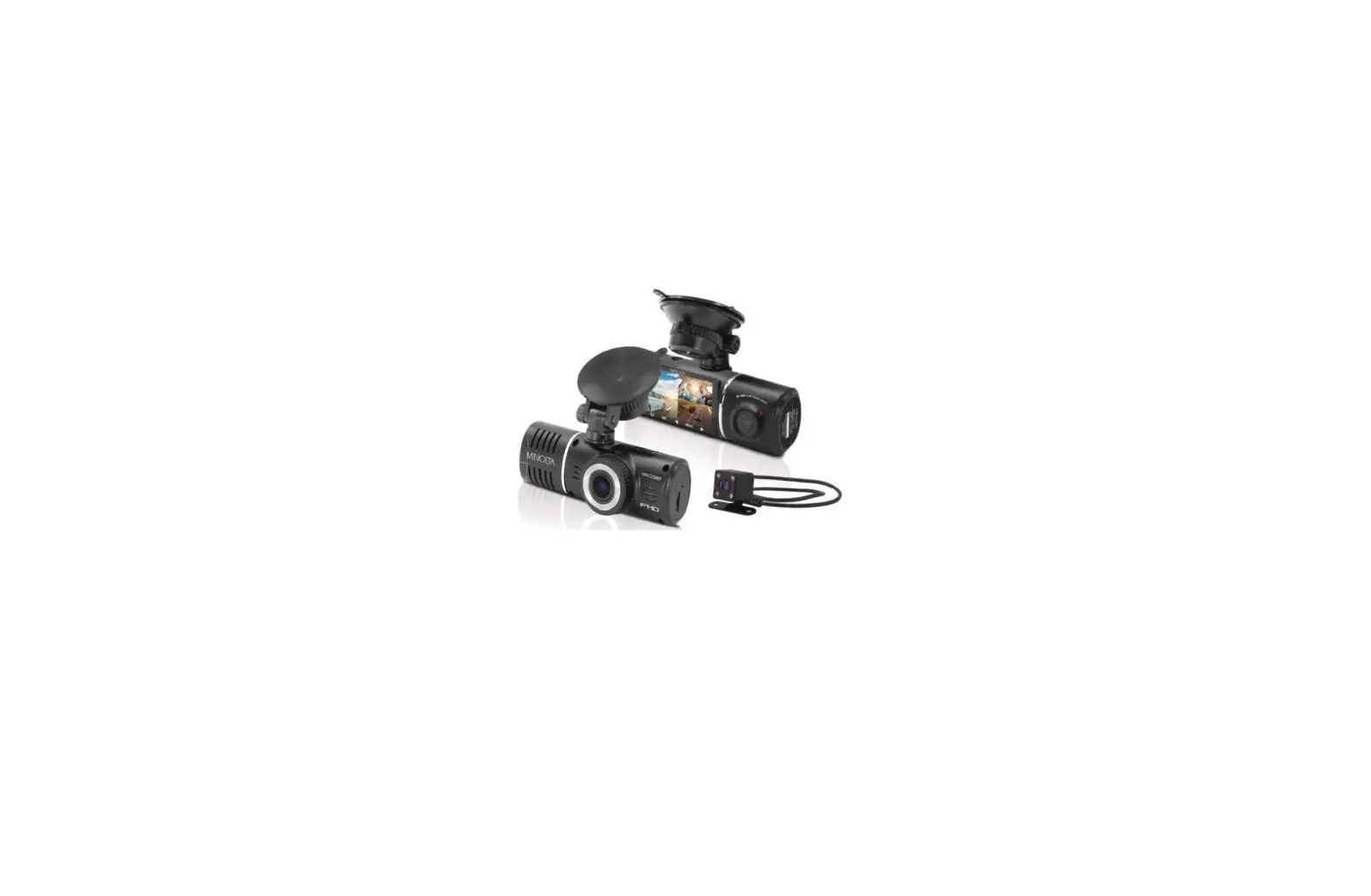
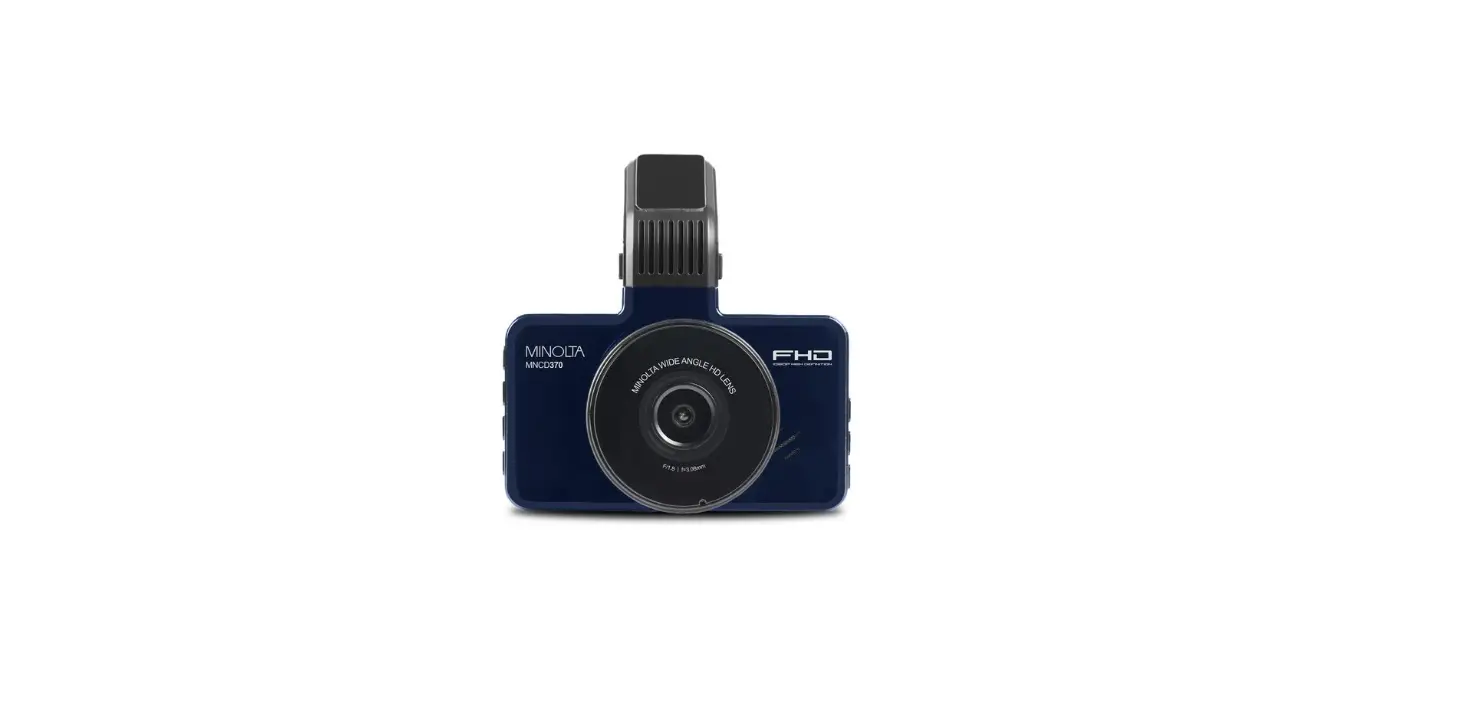
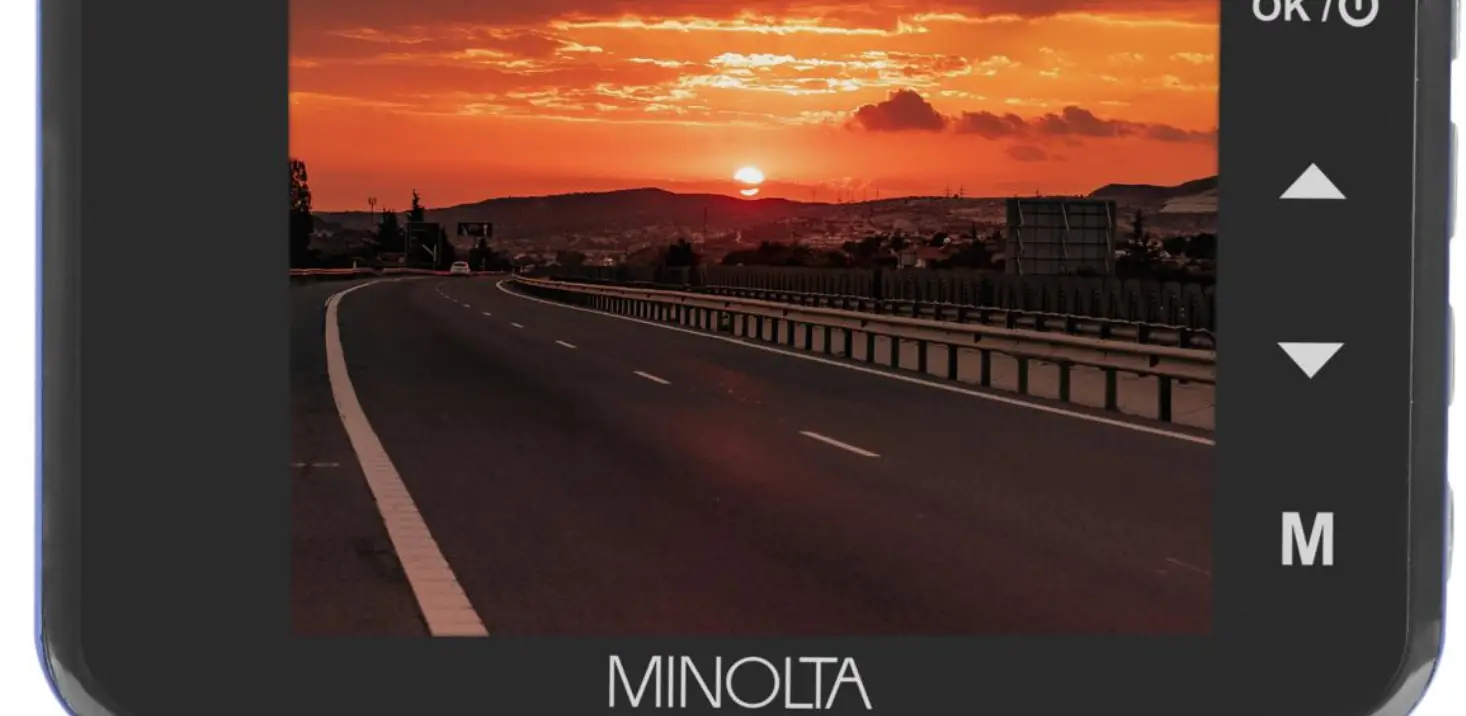
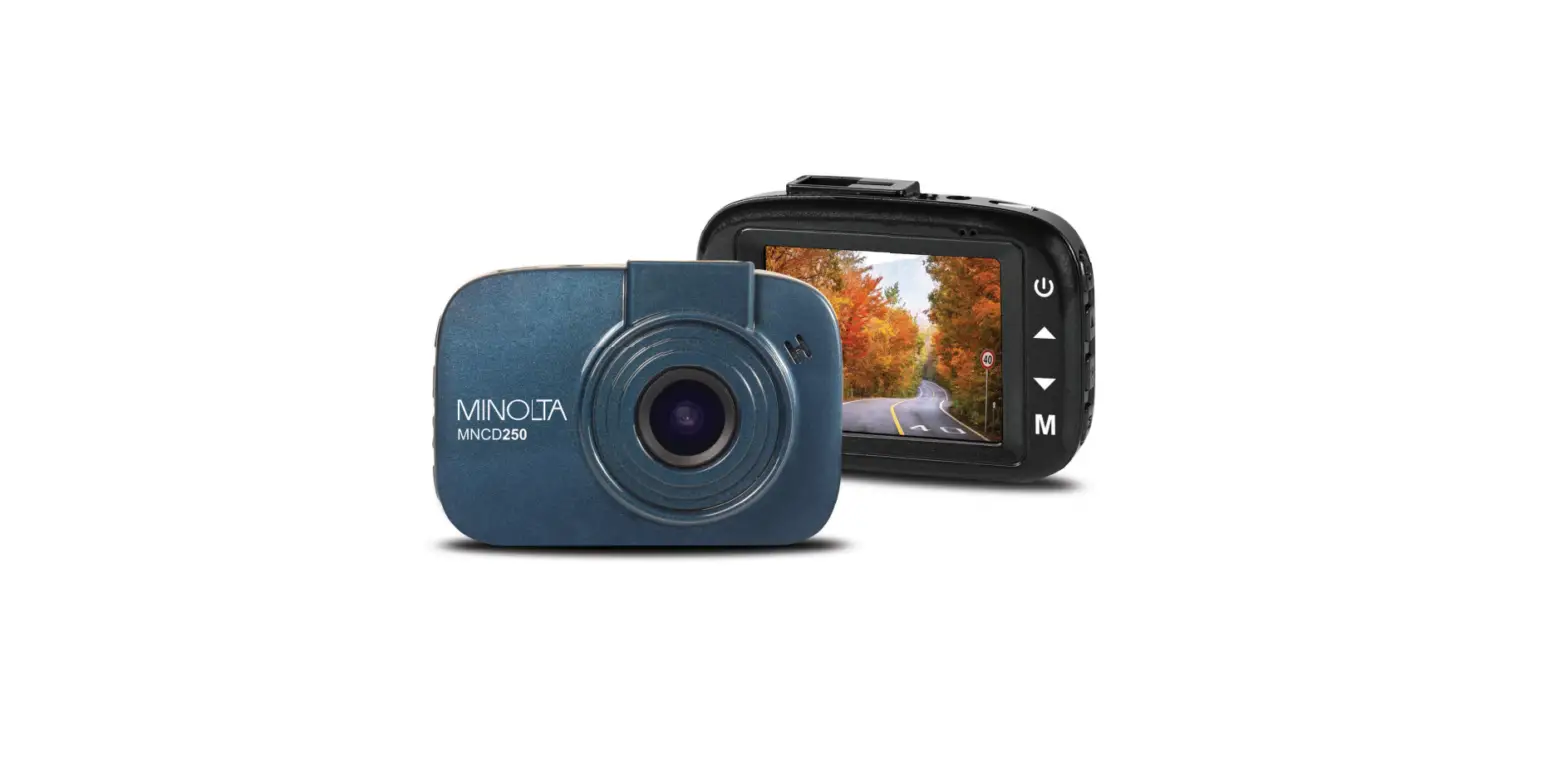
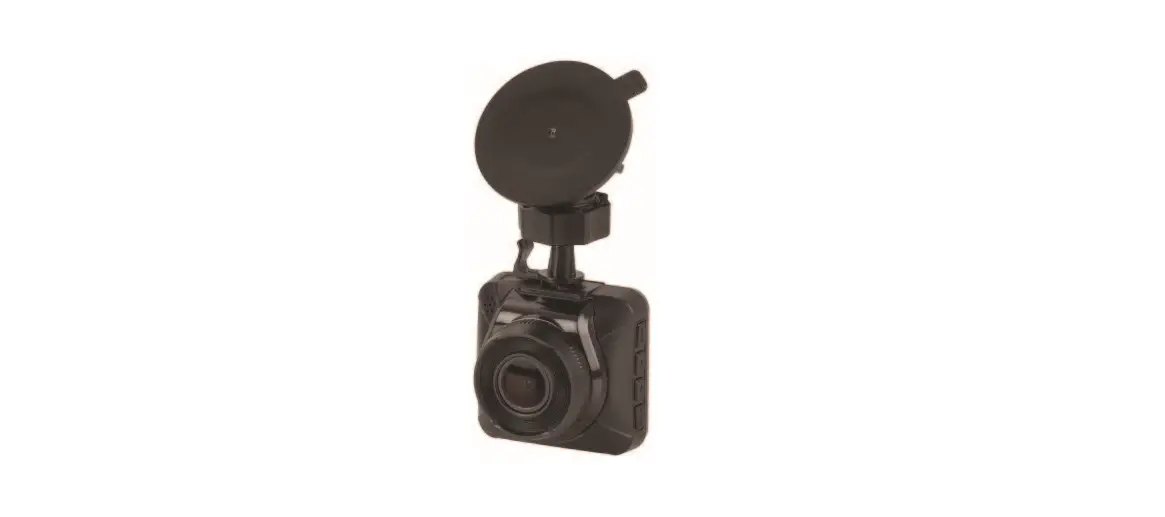
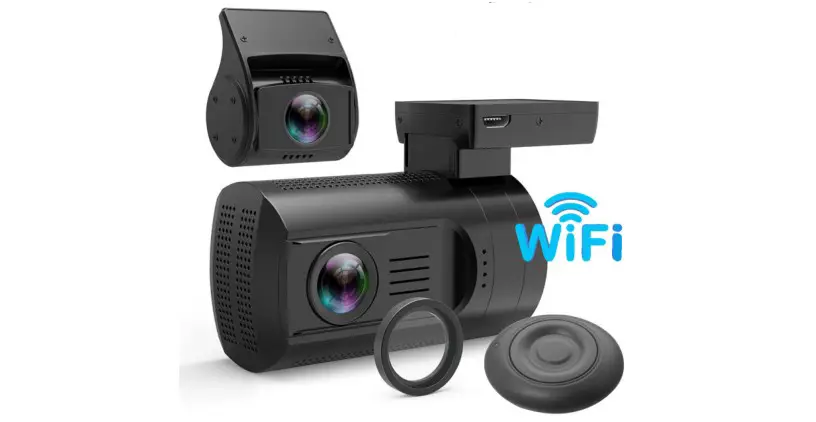
MNCD337N 2 Channel 1080P Dash Camera
Product Information
Congratulations on purchasing your Minolta Camcorder! This user
manual provides detailed information about the product and its
usage. Please note that the contents of this manual are subject to
change without notice, and the example screens and product
illustrations shown may differ somewhat from the actual camera’s
screens and configuration. For the latest updates, please visit our
website at www.minoltadigital.com.
1. Getting Started
1.1 Overview
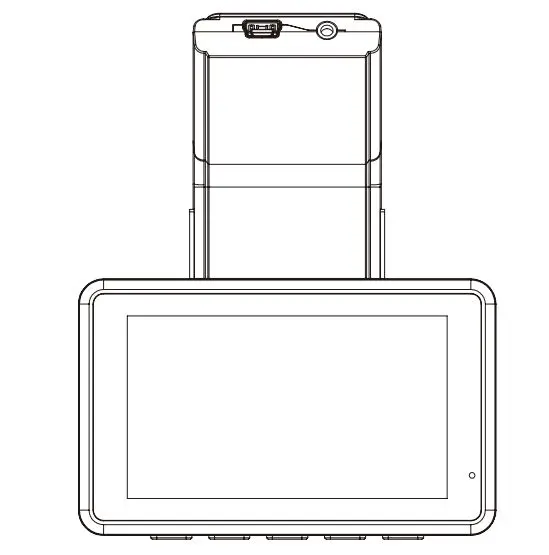
The Minolta Camcorder comes with the following components:
- In-Car Camera Cable
- Display
- In-Car Camera Lens
- In-Car Camera IR LEDs
- USB Port
- OK | Record Button
- Mode Button
- Lock / Unlock File Button
- Power | Display On/Off Button
- Speaker
- Lens
- Windshield Mount
- Memory Card Slot
- Up | Display View Button
- Menu Button
- Down Button
- Reset Pinhole
- Microphone
| Button | Description |
|---|---|
| Power | Button for powering on/off the camcorder |
| Mode | Button for switching between different modes |
| Down | Button for navigating downwards in menus or options |
| OK | Record | Button for confirming selections or starting/stopping recording |
| Up | Display View | Button for navigating upwards in menus or options, and for changing display views |
| Menu | Button for accessing the menu settings |
| Lock File | Button for locking/unlocking files to prevent accidental deletion |
| Microphone | Built-in microphone for audio recording |
| USB Port | Port for connecting the camcorder to a computer or other devices |
| IR LEDs | Infrared LEDs to aid with night vision recording |
| Windshield Mount | Mount used to connect the camcorder to your windshield |
| Memory Card Slot | Storage slot for inserting your MicroSD memory card |
| Speaker | Built-in speaker output for playback of video files with audio |
| Lens | Front capture device for all video and photo |
| Reset Button | Button for resetting and power cycling the camcorder |
1.5 Swivel Lens
The front lens of your dashcam can swivel and adjust to your
preferred point of view. To adjust the front lens, follow these
steps:
- Apply the mount and dashcam combined to your windshield and fix
it firmly in place. - Move the front lens housing in any direction until satisfied
with the front view.
Note: Adjust the front lens only after applying
the mount and dashcam to your windshield.
1.6 Display Mirror
The camcorder display has a mirror finish that allows you to use
it as a mirror when the display is off. However, please note that
the camcorder should not be used as a replacement for your car’s
rearview mirror.
1.7 Startup
1.7.1 In-Car Use
To use the camcorder in your car, follow these steps:
- Connect the included auxiliary DC power adaptor to your car’s
power port. - Plug the USB plug into the camcorder’s USB port.
- Charging will begin immediately.
- Note: The camcorder’s internal battery has a
very limited capacity and is only intended for use in emergency
situations.
Note: Your camcorder acts like a memory card
reader when connected to a computer. To access the files on your
PC, go to Start (or File Explorer) > This PC and find Removable
Disk. Your media will be stored in a folder on this drive.
1.7.4 Using the IR Night Vision Mode
The camcorder has built-in infrared (IR) LEDs for night vision
recording. The infrared LEDs automatically activate when the level
of ambient light is low and turn off when the level of ambient
light is high.
1.7.5 Reset
If your camcorder freezes or becomes unresponsive, you can reset
and power cycle it by pressing the RESET button. Insert a pointy
object into the reset hole on the front body of the camcorder to
fully reset it. Refer to Section 1 of the user manual’s
illustration for more details.
INTRODUCTION
Congratulations on purchasing your Minolta Camcorder! The contents of this manual are subject to change without notice. Note that the example screens and product illustrations shown in this User’s Guide may differ somewhat from the screens and configuration of the actual camera. Please visit our website at www.minoltadigital.com for the latest updates.
This manual contains proprietary information protected by copyright. All rights are reserved. No part of this manual may be reproduced by any mechanical, electronic or other means, in any form, without prior written permission of Elite Brands Inc. © 2023. —————————–The Minolta MNCD337N Car Camcorder integrates multi-functions of 1080P HD video capture, high resolution photo capture and a compact form factor. It adopts video decoding technology of high performance and compression ratios to deliver excellent video quality. This camcorder is intended for in-vehicle shooting, which effectively enables the collection of evidence for driving accidents, daily life, traveling and outdoor activities. The Minolta MNCD337N allows you to record video when mounted to your car’s windshield in a wide, large angle. This quick guide explains how to use your camcorder and provides additional information, including precautions and technical specifications. Please read through it carefully and understand this quick guide before use. Keep it properly stored away for reference. Safety and Handling Precautions · Do not take apart or attempt to service the camcorder yourself. · Do not expose the camcorder to moisture, or extreme temperatures. · Allow the camera to warm up when moving from cold to warm temperatures. · Do not touch and put pressure on the camera lens. · Do not expose the lens to direct sunlight for extended periods. · Do not use abrasive chemicals, cleaning solvents or strong detergents to clean the
product. Wipe the product with a slightly damp soft cloth. · When the camera is used for an extended period of time, it is normal for the camera body
to feel warm. · Do not subject the LCD monitor to impact. · To prevent the risk of fire or electric shock, do not expose this appliance to rain or
moisture.
1
1. GETTING STARTED
1.1 Overview
1 In-Car Camera Cable 2 Display 3 In-Car Camera Lens 4 In-Car Camera IR LEDs 5 USB Port 6 OK | Record 7 Mode 8 Lock / Unlock File 9 Power | Display On/Off 10 Speaker 11 Lens 12 Windshield Mount 13 Memory Card Slot 14 Up | Display View 15 Menu 16 Down 17 Reset Pinhole 18 Microphone
1
2
1 In-Car Camera Cable
2 Display
3 In-Car Camera Lens
4 In-Car Camera IR LEDs
5
USB P34ort
6 OK | Record
7 Mode
8 Lock File
9 Power | Display On/Off
10 11
17 18
5 6 7 8 9
12
13 14 15 16
2
1.2 Button and Functions Explanation
Function Display
Power
Mode Down OK | Record Up | Display View Menu Lock File Microphone USB Port IR LEDs Windshield Mount Memory Card Slot Speaker Lens Reset Button
Description
Shows the current view and menu, options and different statuses of each mode. Press and hold for 3 seconds to power on and off. Tap once while power is on to turn off the display, tap again to turn the display on, Tap once to cycle between Video, Photo and Playback modes. Button used during menu navigation and playback use. Tap to turn audio recording on and off. OK button in menus. Record button in shooting modes. Button used during menu navigation and playback use. Tap to change the view on the LCD Display. Button used for accessing and exiting all menus and submenus. Tap to protect a video while recording and in playback mode. Built-in microphone for audio capture during video recording. Power port and data transfer port for transferring media to your computer.
IR LEDs to aid with night vision.
Mount used to connect the camcorder to your windshield.
Storage slot for inserting your MicroSD memory card.
Built-in speaker output for playback of video files when audio recording is enabled.
Front capture device for all video and photo.
Button for power cycling your camcorder if it freezes or becomes unresponsive
3
1.3 Memory Card Insertion and Removal 1. Ensure the camcorder is powered off. 2. Insert a MicroSD memory card into the MicroSD card slot with the gold pins facing the display screen. Do not force it through the MicroSD card into the slot as it can only be inserted in one direction. Once successfully inserted, it will click in. 3. To remove the MicroSD card, simply push the MicroSD card in and it will bounce back out of the slot. Do not remove or insert the memory card when recording. Doing so may cause the card to become damaged or cause data loss.
1.4 Windshield Mount The windshield mount is included for mounting your camcorder to your windshield. Simply attach the smaller plastic end of the mount to the top of your camcorder, make sure that the red tape covering can be seen when looking at the front of the camcorder. When picking the spot to mount the camcorder, power the camcorder on and test the location on the windshield. This will allow you to pick the spot where the camcorder does not block your view while driving and where the camcorder has the best view of the road. Once you choose the best location, make sure that your windshield is clean and free of any dirt or debris. Then peel off the red adhesive covering on the mount and press firmly onto your windshield and hold the mount for 30 seconds to ensure a strong bond.
4
1.5 Swivel Lens The front lens of your dashcam can swivel and adjust to your preferred point of view. Simply move the front lens housing in any direction until satisfied with the front view. Be sure to adjust the front lens only after applying the mount and dashcam combined to your windshield and it is fixed firmly in place.
1.6 Display Mirror The camcorder display has a mirror finish that allows you to use the camcorder as a mirror when the display is off.
NOTE: The camcorder is not and should not be used as a replacement for your car’s rearview mirror.
1.7 Startup 1.7.1 In-Car Use Connect the included auxiliary DC power adaptor to your car’s power port. Plug the USB plug into the camcorder’s USB port. Charging will begin immediately. Please note that the camcorder’s internal battery has a very limited capacity and is only intended for use in emergency use situations.
1.7.2 In-Car Camera The camcorder comes with a second camera that can be attached to the camcorder. This camera is used to record the interior of your vehicle at the same time as the front camera is recording the road in front of you. The lens can be rotated allowing you to choose the best view. To attach the in-car camera to your camcorder, simply attach the smaller plastic end of the in-car camera to the bottom of your camcorder, make sure that the wire from the incar camera is pointing towards the longer edge of the camcorder. Then plug the cable from the in-car camera into the port on the top of the camcorder. Press the UP button to change the view on the LCD screen to the in-car camera. Video files from the in-car camera are saved as separate files on the memory card.
5
1.7.3 USB Cord / Computer Use Connect the included USB cable to a free USB port on your computer, and connect the other end of the cable into the camcorder’s USB port. The battery may be charged while the camcorder is powered on or off. The camcorder will automatically power on and show three different modes you can select from. The modes are `Memory’, where you can access stored videos and images, `PC camera’, where the camcorder will function like a web cam, and `Video’, where the camcorder will function normally. Use the UP or DOWN buttons to select your desired mode and press the OK button to enter that mode.
Your camcorder acts like a memory card reader when connected and your videos and photos stored on your camcorder memory can easily be accessed this way.
To access the files on your PC, go to Start (or File Explorer) This PC and find Removable Disk. Your media will be stored in a folder on this drive.
1.7.4 Using the IR Night Vision Mode This camcorder has built-in infrared (IR) LEDs for night vision recording – giving you the ability to capture photos and videos in a dark environment.
The infrared LEDs automatically activate when the level of ambient light is low and will turn off when the level of ambient light is high.
1.7.5 Reset If your camcorder freezes or becomes unresponsive, press the RESET button to reset and power cycle the camcorder. Insert a pointy object into the reset hole on the front body of the camcorder to fully reset it. Refer to the Section 1 of the user manual’s illustration.
2.USING YOUR CAMCORDER
Quick Use Instructions
Simply insert the memory card into the card slot, and insert the auxiliary power adaptor into the camcorder’s USB port and your car’s power port. The camcorder will automatically power on and begin recording a video file.
To start or stop recording at any time, press the OK button. You may also remove the auxiliary DC power adaptor at any time to automatically save a recording and power the camcorder off. Just mount it to your windshield, plug in the power and drive!
6
3.CAMCORDER OPERATION
Once you have inserted the MicroSD memory card and plugged your camcorder into a power source, your camcorder will automatically power on and begin recording. Press the OK button to stop recording. You may also manually power your camcorder on or off by pressing the POWER button for 2 seconds.
There are 3 operation modes available for use. To cycle through the different modes, simply press the MODE button. Your camcorder’s screen will show the current mode in the display’s upper left corner. Modes cannot change while a video is being recorded. The recording must stop first before changing to another mode.
3.1 Video Capture Mode Once your camcorder powers on, it will default to Video Mode and will begin recording automatically. To start or stop recording at any time, press the OK button. Press the DOWN button to change the view of the rear camera.
3.2 Photo Capture Mode To capture a photo, enter PHOTO Mode by pressing the MODE button until a camera icon is show in the upper left corner of the screen. Press the OK button to instantly capture a photo.
3.3 Playback Mode To review your video and photo files, enter PLAYBACK Mode. Press the MODE button until a previously captured file is shown on the screen. The most recent file captured will be displayed first. 1. Press the UP and DOWN buttons to cycle through available playback files of photos and videos. 2. To delete a file or to protect a file from deletion, press the MENU button. 3. Press the MODE button again to exit PLAYBACK mode.
Playing Back Video Clips 1. Press the OK button to play or pause a video clip in PLAYBACK mode. 2. To delete a file or to protect a file from deletion, press the LOCK FILE button.
7
3.4 Main Screen and Icons Explanation VIDEO MODE
1 2 3456 7
9
8
1. VIDEO Mode 2. Recording Time Elapsed 3. Park Mode 4. Motion Detection 5. Memory Card Inserted 6. Audio Recording 7. Battery Level 8. Current Time 9. Current Date
PHOTO MODE
1
2 34
6
5
1. PHOTO Mode 2. Memory Card Inserted 3. Beep Sound 4. Battery Level 5. Current Time 6. Current Date
8
4.MENU & SETTINGS INTERFACE
4.1 Video & Photo Mode Settings Overview Your camcorder comes preset with some user-adjustable settings to fine tune and customize how you would like your videos to be captured. The settings are already optimized and preset for the easiest experience.
NOTE: The settings menu cannot be accessed while the camcorder is recording a video file. If the camcorder is recording a file, you must stop recording before the settings menu can be accessed. To stop recording at any time, press the OK button.
4.1.1 Video Resolution Your camcorder has a number of preset resolution and frames per second rates. A higher resolution will produce a higher quality and lager video file. 1. In VIDEO or PHOTO modes, press the MENU button. Select `Video Resolution’ by using
the UP or DOWN buttons. Press the OK button to enter the `Video Resolution’ submenu. 2. Press the UP or DOWN buttons again to navigate the submenu and select a setting.
You can select from 1080FHD (highest quality), 1080P (higher quality) and 720P (lowest quality. 3. Press the OK button to confirm your selected setting. To exit the settings menu, press the MENU button and your camcorder will return to the main status screen of the current mode.
4.1.2 Loop Recording This setting allows you to set a maximum duration for each video clip recorded. Once you select an option, your camcorder will record video clips in this time interval only. Once your selected duration recording time is reached, the camcorder will end the recording and begin recording a new video file seamlessly. 1. In VIDEO or PHOTO modes, press the MENU button. Select `Loop Recording’ by using
the UP or DOWN buttons. Press the OK button to enter the `Loop Recording’ submenu. 2. Press the UP or DOWN buttons again to navigate the submenu and select a setting. You
can select from Off, 1 Minute, 2 Minutes, 3 Minutes and 5 Minutes. 3. Press the OK button to confirm your selected setting. To exit the settings menu, press the MENU button and your camcorder will return to the main status screen of the current mode.
9
4.1.3 Exposure This function adjusts the frame brightness in your video. 1. In VIDEO or PHOTO modes, press the MENU button. Select `Exposure’ by using the UP
or DOWN buttons. Press the OK button to enter the `Exposure’ submenu. 2. Press the UP or DOWN buttons again to navigate the submenu and select a setting. You
can select from +2.0, +5/3, +4/3, +1.0, +2/3, +1/3, +0.0, -1/3, -2/3, -1.0, -4/3, -5/3, and 2.0. 3. Press the OK button to confirm your selected setting. To exit the settings menu, press the MENU button and your camcorder will return to the main status screen of the current mode.
4.1.4 Motion Detection This setting automatically begins recording if movement is detected in front of the camcorder lens. Once recording, the camcorder will stop recording if not further movement is detected within a 10-second period of the last movement registered. You may also manually stop recording anytime by pressing the OK button during a recording. 1. In VIDEO or PHOTO modes, press the MENU button. Select `Motion Detection’ by using
the UP or DOWN buttons. 2. Press the OK button to turn Motion Detection on or off, a check indicates that the option
is activated. To exit the settings menu, press the MENU button and your camcorder will return to the main status screen of the current mode.
Note: When selecting OFF, your camcorder will still automatically record upon startup if you power it off.
4.1.5 Beep Sound This setting allows you to enable or disable the sound when pressing a button. 1. In VIDEO or PHOTO modes, press the MENU button. Select `Beep Sound’ by using the
UP or DOWN buttons. 2. Press the OK button to turn Beep Sound on or off, a check indicates that the option is
activated. To exit the settings menu, press the MENU button and your camcorder will return to the main status screen of the current mode.
4.1.6 Collision Sensitivity This setting allows you to set the sensitivity level for automatic recording upon collision. When triggered or when the camcorder things a collision occurred, it will automatically
10
begin recording and the recording will be stored with a lock icon. The video file will be locked and protected from deletion. 1. In VIDEO or PHOTO modes, press the MENU button. Select `Collision Sensitivity’ by
using the UP or DOWN buttons. Press the OK button to enter the `Collision Sensitivity’ submenu. 2. Press the UP or DOWN buttons again to navigate the submenu and select a setting. You can select from Off, High, Medium and Low. 3. Press the OK button to confirm your selected setting. To exit the settings menu, press the MENU button and your camcorder will return to the main status screen of the current mode.
4.1.7 Photo Resolution Your camcorder has a number of preset photo resolution sizes. A higher resolution will produce a higher quality and larger file size photo. 1. In VIDEO or PHOTO modes, press the MENU button. Select `Resolution’ by using the
UP or DOWN buttons. Press the OK button to enter the `Resolution’ submenu. 2. Press the UP or DOWN buttons again to navigate the submenu and select a setting.
You can select from 12 Mega Pixels (highest quality), 10 Mega Pixels, 8 Mega Pixels, 5 Mega Pixels, 3 Mega Pixels, 2 Mega Pixels, 1.3 Mega Pixels, and VGA (lowest quality). 3. Press the OK button to confirm your selected setting. To exit the settings menu, press the MENU button and your camcorder will return to the main status screen of the current mode.
4.1.8 Audio Recording This setting allows you to set the built-in microphone ON or OFF during a video recording. Once you select an option, your camcorder will either record audio within the video file, or record a video file without audio captured. 1. In VIDEO or PHOTO modes, press the MENU button. Select `Audio Recording’ by using
the UP or DOWN buttons. 2. Press the OK button to turn Audio Recording on or off, a check indicates that the option
is activated. To exit the settings menu, press the MENU button and your camcorder will return to the main status screen of the current mode.
4.1.9 Photo Quality This setting determines the level of compression the camera uses when saving photos to your memory card. A high level of compression will produce a lower quality photo, and will also use less space when saving your photos.
11
1. In VIDEO or PHOTO modes, press the MENU button. Select `Photo Quality’ by using the UP or DOWN buttons. Press the OK button to enter the `Photo Quality’ submenu.
2. Press the UP or DOWN buttons again to navigate the submenu and select a setting. You can select from Super Fine (highest quality), Fine, and Normal (lowest quality).
3. Press the OK button to confirm your selected setting. To exit the settings menu, press the MENU button and your camcorder will return to the main status screen of the current mode.
4.1.10 Photo Sharpness This setting determines the visible detail of the photos being captured. 1. In VIDEO or PHOTO modes, press the MENU button. Select `Sharpness’ by using the
UP or DOWN buttons. Press the OK button to enter the `Sharpness’ submenu. 2. Press the UP or DOWN buttons again to navigate the submenu and select a setting.
You can select from Hard (sharp, saturated photo), Normal (medium sharpness), and Light (soft, duller photo). 3. Press the OK button to confirm your selected setting. To exit the settings menu, press the MENU button and your camcorder will return to the main status screen of the current mode.
4.1.11 White Balance This setting determines the color of light present in your photos. It can make scenes seem warmer or cooler in lighting depending on how the scene you’re shooting in affects the frame. 1. In VIDEO or PHOTO modes, press the MENU button. Select `White Balance’ by using
the UP or DOWN buttons. Press the OK button to enter the `White Balance’ submenu. 2. Press the UP or DOWN buttons again to navigate the submenu and select a setting.
You can select from Auto, Daylight, Cloudy, Tungsten, and Fluorescent. 3. Press the OK button to confirm your selected setting. To exit the settings menu, press the MENU button and your camcorder will return to the main status screen of the current mode.
4.1.12 ISO This setting determines the light sensitivity in the photos being captured. 1. In VIDEO or PHOTO modes, press the MENU button. Select `ISO’ by using the UP or
DOWN buttons. Press the OK button to enter the `ISO’ submenu. 2. Press the UP or DOWN buttons again to navigate the submenu and select a setting.
You can select from Auto, 100 and 200. 3. Press the OK button to confirm your selected setting.
12
To exit the settings menu, press the MENU button and your camcorder will return to the main status screen of the current mode.
4.1.13 Image Stabilization This setting enables image capture in shaky or low-light settings by electronically eliminating motion blur and canceling shake. 1. In VIDEO or PHOTO modes, press the MENU button. Select `Image Stabilization’ by
using the UP or DOWN buttons. 2. Press the OK button to turn Image Stabilization on or off, a check indicates that the
option is activated. To exit the settings menu, press the MENU button and your camcorder will return to the main status screen of the current mode.
4.1.14 Quick Review This setting allows you to review the photo after it’s taken before returning back to Photo Mode. 1. In VIDEO or PHOTO modes, press the MENU button. Select `Quick Review’ by using
the UP or DOWN buttons. Press the OK button to enter the `Quick Review’ submenu. 2. Press the UP or DOWN buttons again to navigate the submenu and select a setting.
You can select from Off, 2 seconds and 5 seconds. 3. Press the OK button to confirm your selected setting. To exit the settings menu, press the MENU button and your camcorder will return to the main status screen of the current mode.
4.1.15 Date & Time Stamp This setting allows you to imprint a date & time onto your recorded video files. Once a video file is recorded with the imprint, the imprint cannot be removed. 1. In VIDEO or PHOTO modes, press the MENU button. Select `Date & Time Stamp’ by
using the UP or DOWN buttons. Press the OK button to enter the `Date & Time Stamp’ submenu. 2. Press the UP or DOWN buttons again to navigate the submenu and select a setting. You can select from Off and On. 3. Press the OK button to confirm your selected setting. To exit the settings menu, press the MENU button and your camcorder will return to the main status screen of the current mode.
4.1.16 Date & Time Setup This setting allows you to set a date and time for display on videos and photos.
13
1. In VIDEO or PHOTO modes, press the MENU button. Select `Date & Time Setup’ by using the UP or DOWN buttons. Press the OK button to enter the `Date & Time Setup’ submenu.
2. The menu is presented as follows: 3. Date: YYYY / MM / DD(the date can only be displayed in this format) 4. Time: HH:MM:SS (the time can only be displayed in a 24-hour format) 5. Press the UP or DOWN buttons to change the any of the values of the date and time.
When you are satisfied with the highlighted value, press the OK button to confirm that value and proceed to the next value. Once you are completed, press the MENU button to save your setting and exit. Your camcorder will return to the main status screen of the current mode.
4.1.17 Parking Monitoring This setting allows the camcorder to automatically power on and record a video clip if the camcorder detects a collision while parked and is powered off. You can set the sensitivity level setting in this menu. This setting will only activate if there is sufficient battery power remaining in the camcorder’s built-in battery. When triggered or when the camcorder thinks a collision occurred, it will automatically begin recording and the recording will be stored with a lock icon. The video file will be locked and protected from deletion. 1. In VIDEO or PHOTO modes, press the MENU button. Select `Parking Monitoring’ by
using the UP or DOWN buttons. 2. Press the OK button to turn Parking Monitoring on or off, a check indicates that the
option is activated. To exit the settings menu, press the MENU button and your camcorder will return to the main status screen of the current mode.
Note: When off, your camcorder will still automatically record upon startup if you power it off.
4.1.18 Auto Power Off Delay This setting allows you to set the length of time before the camcorder powers off automatically. 1. In VIDEO or PHOTO modes, press the MENU button. Select `Auto Power Off Delay’ by
using the UP or DOWN buttons. Press the OK button to enter the `Auto Power Off Delay’ submenu. 2. Press the UP or DOWN buttons again to navigate the submenu and select a setting. You can select from Off, 1 Minute and 3 Minutes. 3. Press the OK button to confirm your selected setting. 4. After the selected amount of time the camcorder will power off.
14
To exit the settings menu, press the MENU button and your camcorder will return to the main status screen of the current mode.
4.1.19 Language This setting allows you to set the language for your camcorder’s menus. 1. In VIDEO or PHOTO modes, press the MENU button. Select `Language’ by using the
UP or DOWN buttons. Press the OK button to enter the `Language’ submenu. 2. Press the UP or DOWN buttons again to navigate the submenu and select a setting.
You can select from several different languages. 3. Press the OK button to confirm your selected setting. To exit the settings menu, press the MENU button and your camcorder will return to the main status screen of the current mode.
4.1.20 Frequency This setting allows you to set the power frequency of your camcorder. This setting is dependent on the region that the camcorder is being used in. 1. In VIDEO or PHOTO modes, press the MENU button. Select `Frequency’ by using the
UP or DOWN buttons. Press the OK button to enter the “Frequency’ submenu. 2. Press the UP or DOWN buttons again to navigate the submenu and select a setting.
You can select from 50Hz and 60Hz. The setting for North America is 60Hz. 3. Press the OK button to confirm your selected setting. To exit the settings menu, press the MENU button and your camcorder will return to the main status screen of the current mode.
4.1.21 Format Memory Card This setting allows you to erase all video and photo files stored on your memory card. 1. In VIDEO or PHOTO modes, press the MENU button. Select `Format Memory Card’ by
using the UP or DOWN buttons. Press the OK button to enter the `Format Memory Card’ submenu. 2. Press the UP or DOWN buttons again to navigate the submenu and select a setting. You can select from OK and Cancel. 3. Press the OK button to confirm your selected setting. To exit the settings menu, press the MENU button and your camcorder will return to the main status screen of the current mode.
NOTE: Use extreme caution when accessing this setting. There is no way to recover formatted media. Once you format your memory card, the previously stored files cannot be recovered.
15
4.1.22 Restore Factory Setting This setting allows you to reset all menu settings to the factory default settings. This function will not delete any media stored on your memory card. 1. In VIDEO or PHOTO modes, press the MENU button. Select `Restore Factory Setting’
by using the UP or DOWN buttons. Press the OK button to enter the `Restore Factory Setting’ submenu. 2. Press the UP or DOWN buttons again to navigate the submenu and select a setting. You can select from OK and Cancel. 3. Press the OK button to confirm your selected setting. To exit the settings menu, press the MENU button and your camcorder will return to the main status screen of the current mode. 4.1.23 Firmware Version This setting displays the current firmware version of your camcorder. 1. In VIDEO or PHOTO modes, press the MENU button. Select `Firmware Version’ by using the UP or DOWN buttons. 2. The menu will display the current firmware version. To exit the settings menu, press the MENU button and your camcorder will return to the main status screen of the current mode.
16
4.2 Playback Mode Settings Overview Before you begin, ensure you are in PLAYBACK mode. From the main screen, press the MODE button two times. The current mode will be displayed in the upper right corner of the display. To cycle through the different modes, simply press the MODE button again. 4.2.1 Delete Your camcorder gives you the option of deleting your recorded video and photo files right from your camcorder. 1. In PLAYBACK mode, press the MENU button. 2. Press the UP or DOWN buttons again to navigate the menu and select a setting. You can select from OK and Cancel. 3. Press the OK button to confirm your selected setting. 4. If the file you are trying to delete is locked, exit the Delete menu and press the UNLOCK button, you will then be able to delete the file. 5. Press the MENU button to exit the menu without deleting any images. NOTE: There is no way to recover deleted media. Once you delete a single file or all files, they cannot be recovered. Only files that are locked are protected from deletion in PLAYBACK mode.
17
5.TECHNICAL SPECIFICATIONS
Model Number LCD Display Screen Anti-Shake Technology
Field of View
MNCD337N 3.0 Inch LCD Screen Electronic Image Stabilization (Photo Mode only) Front Lens – Super wide angle; 120 Degrees In-Car Lens – Super wide angle; 90 Degrees
Video Resolution
1080FHD, 1080P, 720P
Photo Resolutions
File Format Loop Recording Collision Auto Recording
12 Mega Pixels; 10 Mega Pixels; 8 Mega Pixels; 5 Mega Pixels; 3 Mega Pixels; 2 Mega Pixels; 1.3 Mega Pixels; VGA; Picture: JPEG, Video: AVI
Support Support
Motion Detection Recording Support
Time & Date Stamp External Storage
Support MicroSD, MicroSDHC, MicroSDXC Card (32GB max.) Class 10 Recommended
Languages
English, French, German, Italian, Portuguese, Spanish, Chinese (simplified), Korean, Russian
USB Function Microphone and Speaker
Built-in Battery
USB 2.0 Built-in Built-in 3.7V 150mAh – for use as a backup power source during power outage
Minolta is a registered trademark of JMM Lee Properties, LLC and is used in the United States by Elite Brands Inc. under license. 40 Wall Street, 61st Floor, New York, NY 10005 USA · Tel: 800-441-1100
www.minoltadigital.com · www.elitebrands.com Copyright © 2023 Elite Brands Inc.
If you’re having difficulties with your camera, or would like further assistance, please call our toll-free technical support hotline at 800-441-1100. Please be sure to have your camera handy when calling.
18
 Minolta Digital