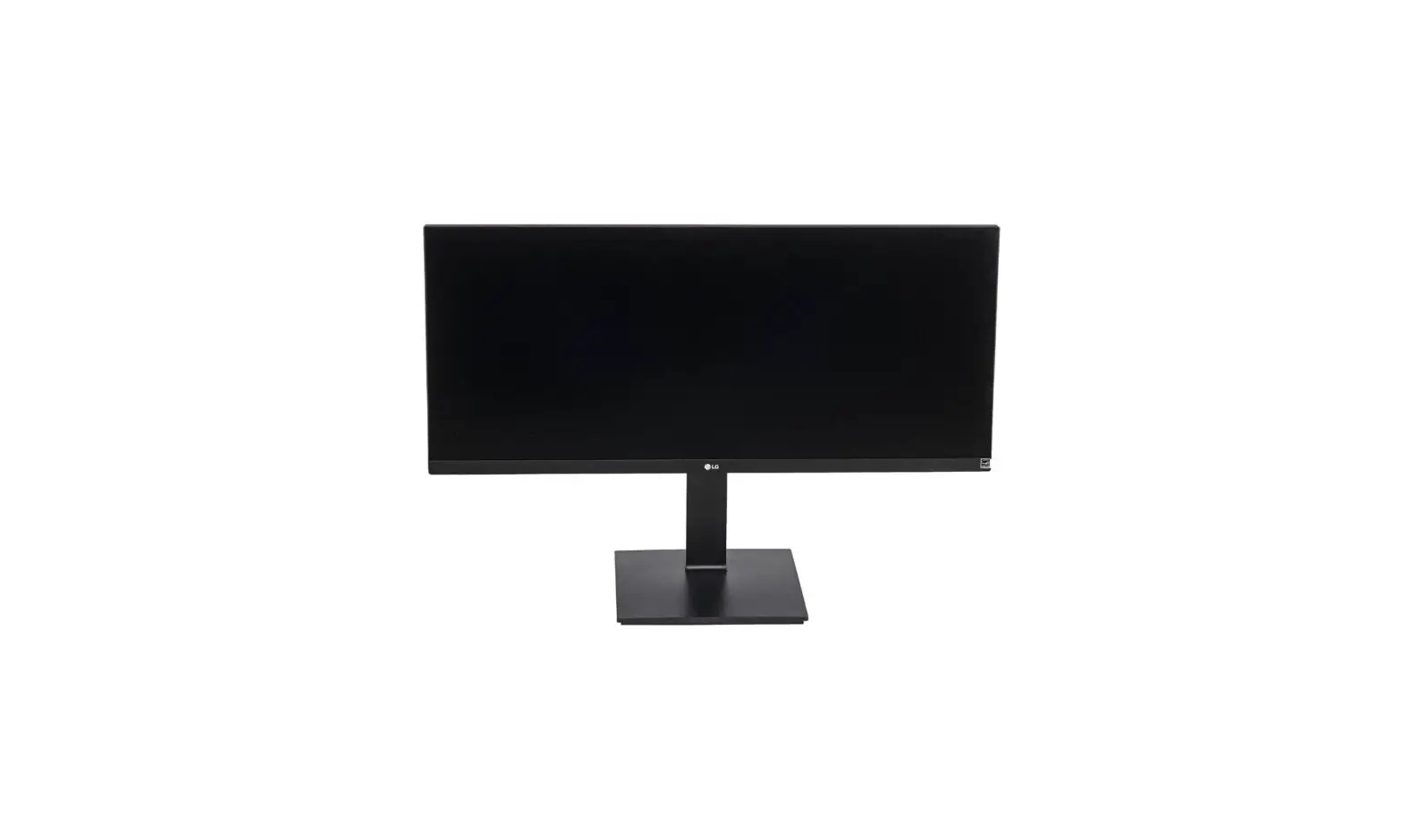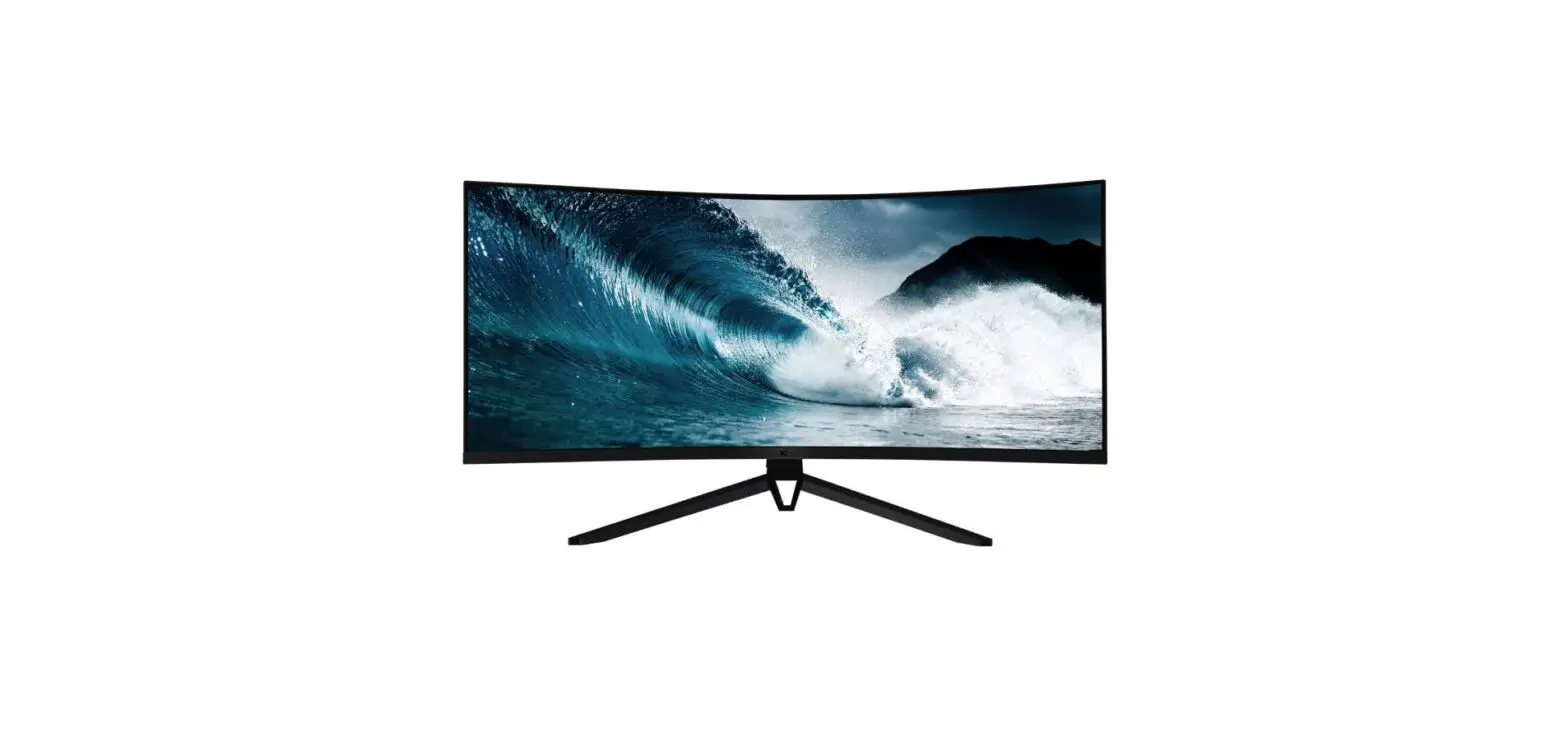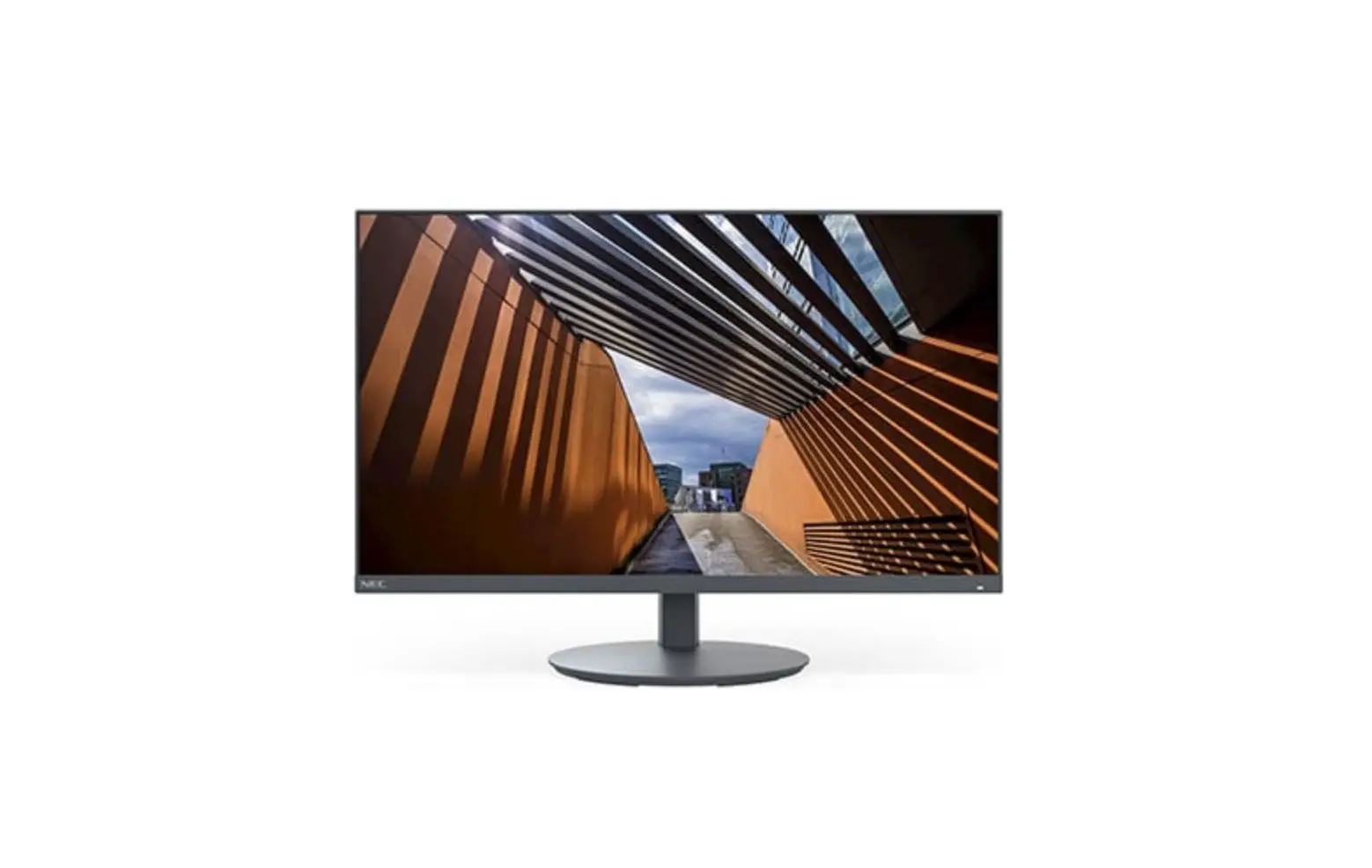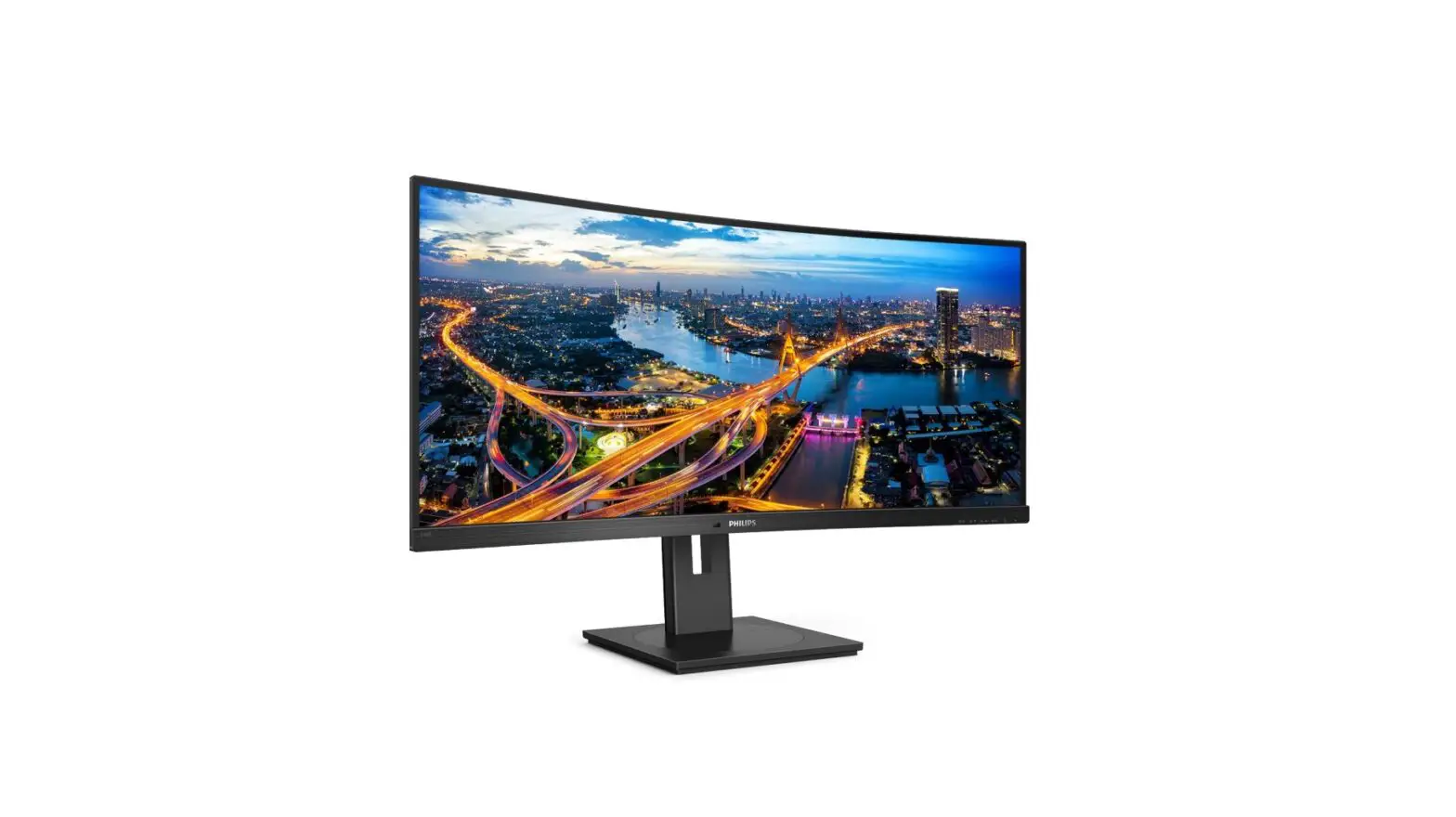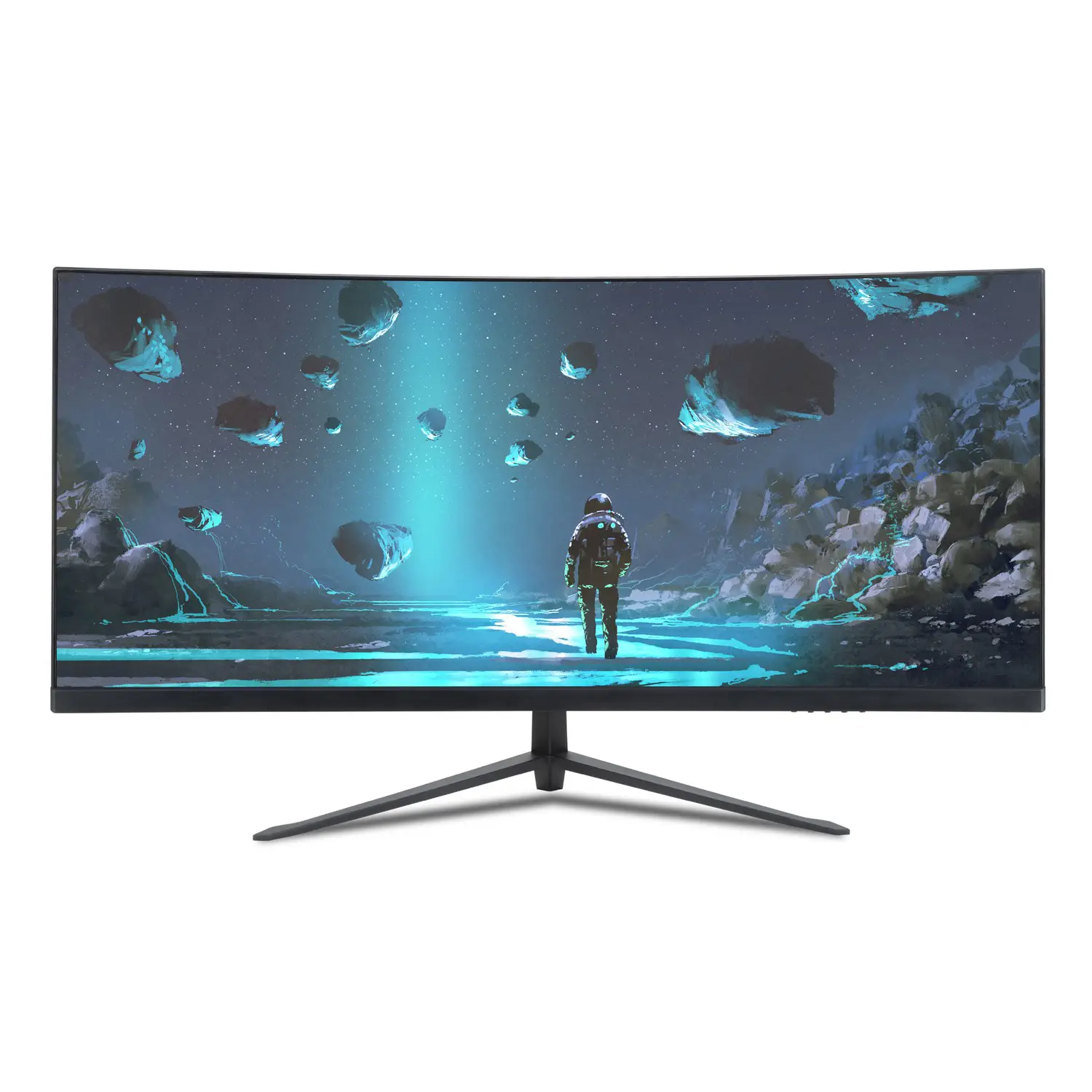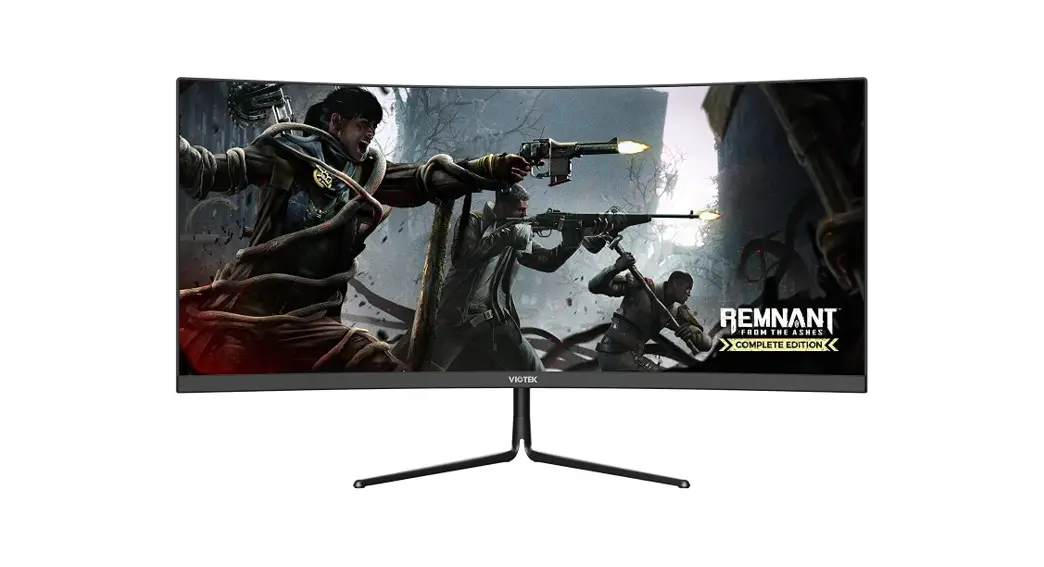

 UW-29 Ultra-Wide Flat Slim Bezel Pro Display
Instruction Manual
UW-29 Ultra-Wide Flat Slim Bezel Pro Display
This manual is available in pdf format print from:
veho-world.com/downloads
Donjour Hola Hej Ciao
WHAT’S IN THE BOX
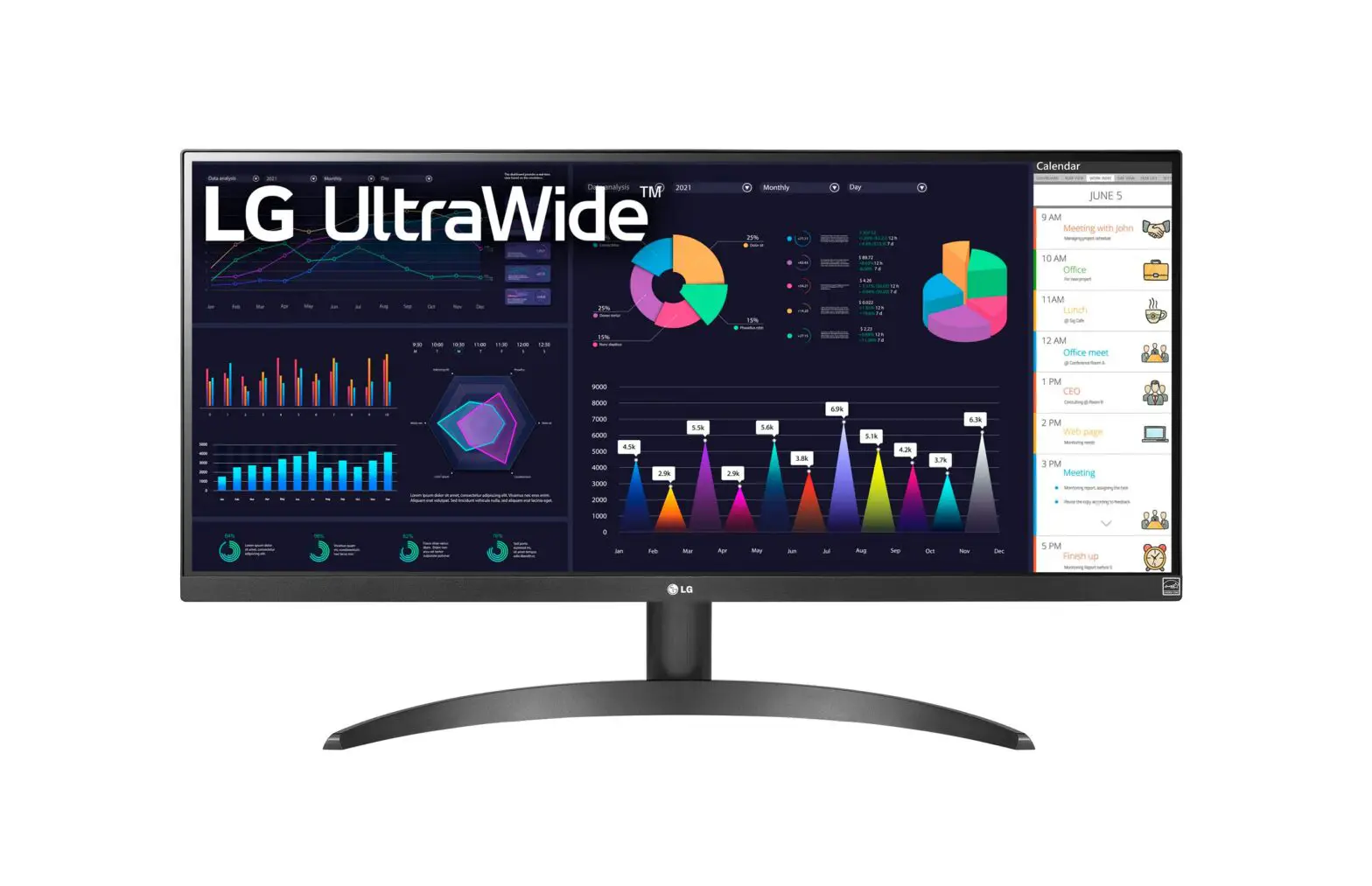
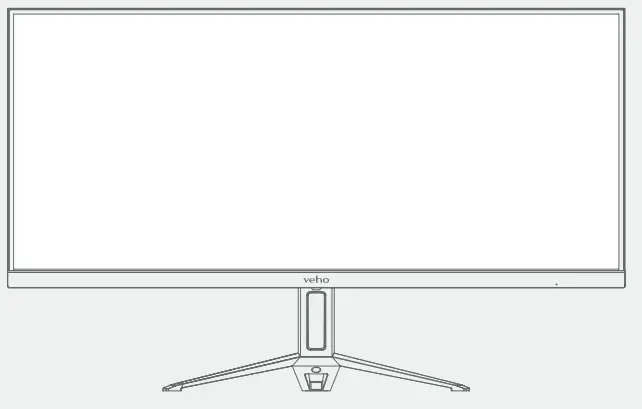 29” Ultra-wide monitor
Monitor stand
Screw (x1)
DC power adapter
Mains plug (Types A, C & G)
Display Port cable
User manual
MONITOR ASSEMBLY
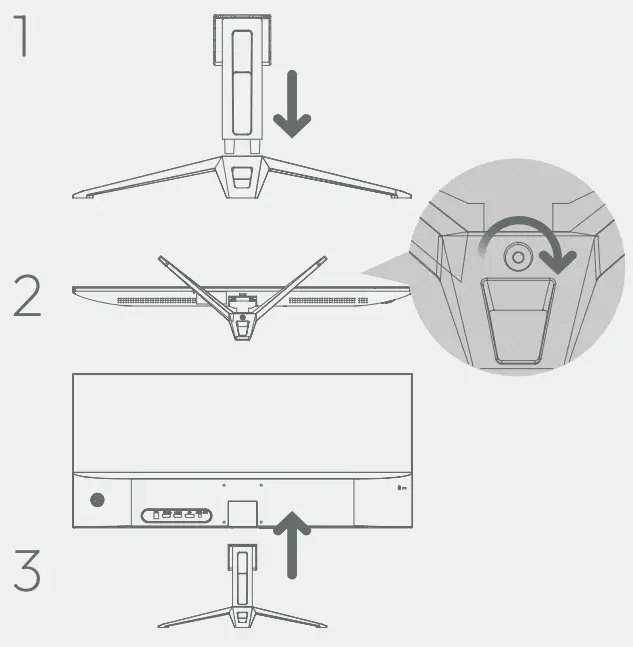
- Insert the stem of the stand into the base
- Flip over and use the screw to fasten stem into the base
- Clip the stand into the rear of the monitor- ensure this is sturdy before moving into place
USING THE MONITOR
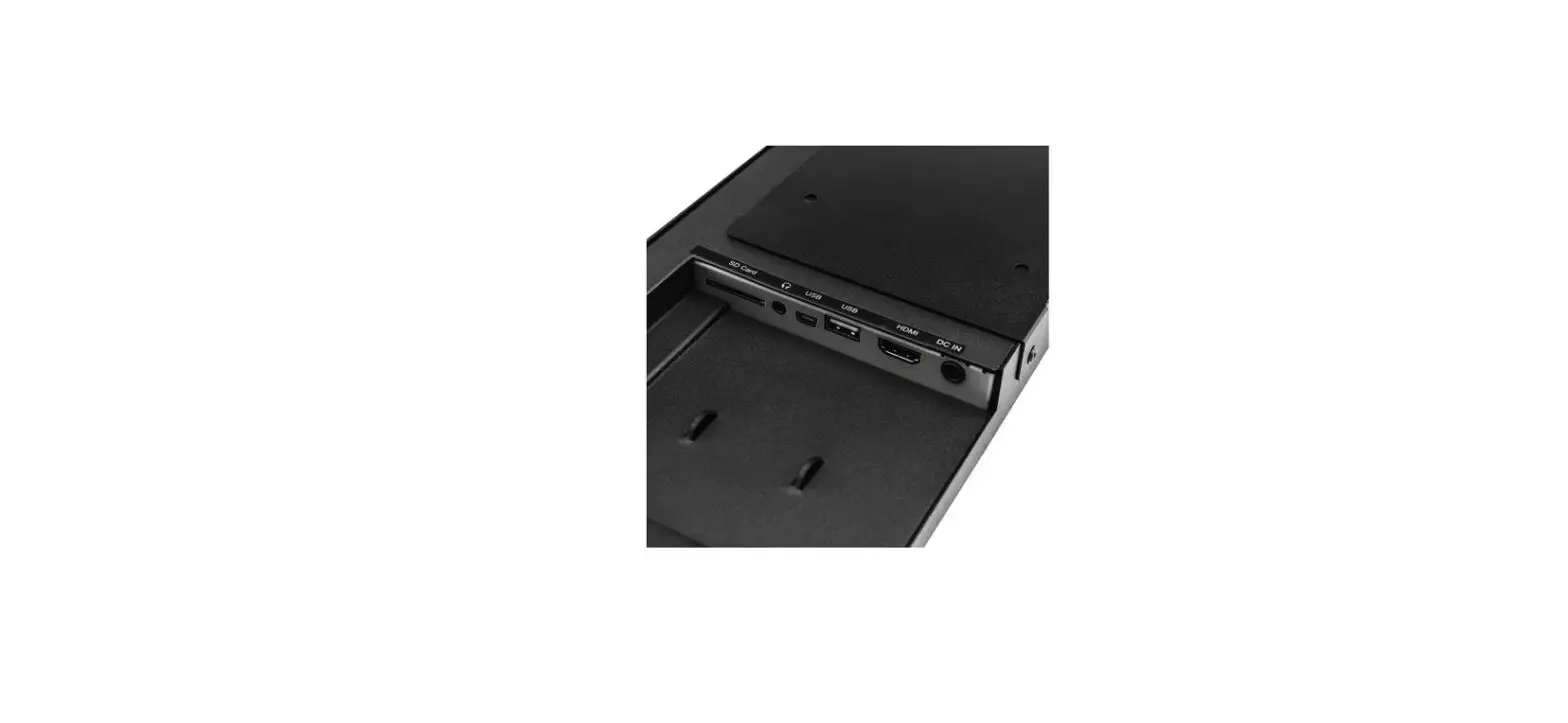
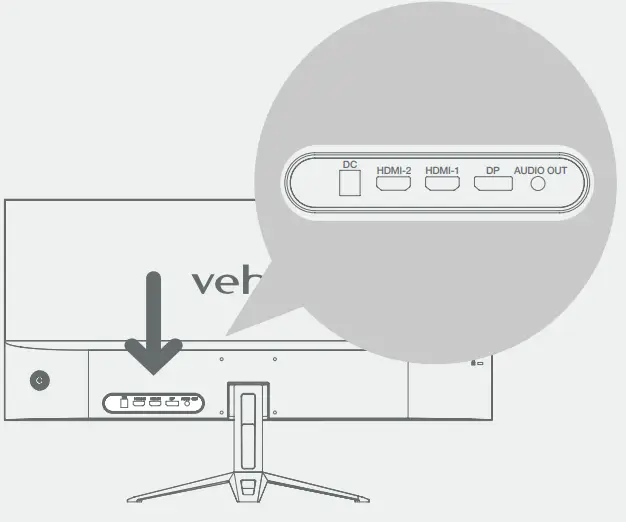 UK Connecting cables Connect the power cord into the DC port and then into the mains plug; ensure the power is switched on. Connect a signal cable/s (HDMI or Display Port) into the monitor and then into your selected master device.
LED INDICATORS
| Indicator | Mode |
| Off | Power off |
| Solid blue | Power on/Input detected |
| Flashing blue | Power on/No signal input |
JOYSTICK FUNCTIONALITY
| Select/OK | Press the joystick once to select/confirm |
| Power on | Press and hold the joystick for approximately 6 seconds to turn the monitor on |
| Power off | Press and hold the joystick for approximately 6 seconds to turn the monitor off |
| Left/Right/Up/Down | Move the joystick left/right/up/down to navigate the monitor settings |
Shortcuts
– Press the joystick to open monitor settings. Move the joystick left to close settings
– Move the joystick up to mute/unmute the monitor
– Move the joystick down to adjust monitor volume
– Move the joystick left to select image type
– Move the joystick right to select input source
PICTURE
Brightness : Adjust display brightness
Contrast : Adjust display contrast ratio
DCR : Enable/disable display dynamic contrast ratio
Image type : Select between Standard, Text, Movie, Game, FPS, & RTS image types according to display usage
COLOUR
Colour Temperature : Select between Standard, Warm, Cool, sRGB, & Custom to adjust colour temperatures according to preference
Red : Select the ‘Custom’ colour temperature to then adjust red colour settings manually
Green : Select the ‘Custom’ colour temperature to then adjust green colour settings manually
Blue : Select the ‘Custom’ colour temperature to then adjust blue colour settings manually
ONSCREEN DISPLAY <OSD>
Language : Select monitor language setting
OSD Horizontal : Adjust on-screen display horizontally
OSD Vertical : Adjust on-screen display vertically
OSD Transparency : Adjust on-screen display transparency
OSD Time out : Adjust on-screen display time out (seconds)
SETUP
Input Source : Select display input source accordingly. Auto Source will automatically detect input and adjust
Mute : Mute/unmute the monitor
Volume : Adjust monitor volume settings
Reset : Restore factory settings
OTHER
Display size : Select display aspect ratio
Low blue : Adjust display blue light settings
Over driver : Switch on/off monitor overdrive
Free Sync : Switch on/off monitor FreeSync
HDR : Switch on/off/auto high dynamic range
SPECIFICATIONS
| Screen size | 29″ |
| Resolution | 2560 x 1080 |
| Frequency | 60-75Hz |
| Panel type | BOE ADS |
| Active area | 672.768mm(H) × 283.824(V)mm |
| Dot pitch | 0.2628(H) ×0.2628(V) |
| Curvature | FLAT |
| Panel ratio | 219 |
| Backlight | LED |
| Brightness | MAX:300cd/M2 |
| Contrast ratio | 1000:01:00 |
| Colour temperature | 6500/7500/9300 (Default 6500K) |
| Colour | 16.7M / NTSC 85%~88%, sRGb 119%~123%, Adobe RGB 90%~91% |
| Viewing angel | 178/178 |
| Response time | 14ms |
| Suggested response time | 5ms |
| Kensington compatible | Yes |
| VESA | 75mm x 75mm |
| Input sources | 2HDMI + DisplayPort + Audio out (HDMI 1.4 2560 x 1080 75Hz) (DP1.2 2560 x 1080 75Hz) |
| SPK | Optional |
| Audio ports | 3.5mm audio out |
| Power input | 12V/4A |
| Power type | Adapter types: A, C & G |
| Power consumption | Max: 48W STB ≤0.5W |
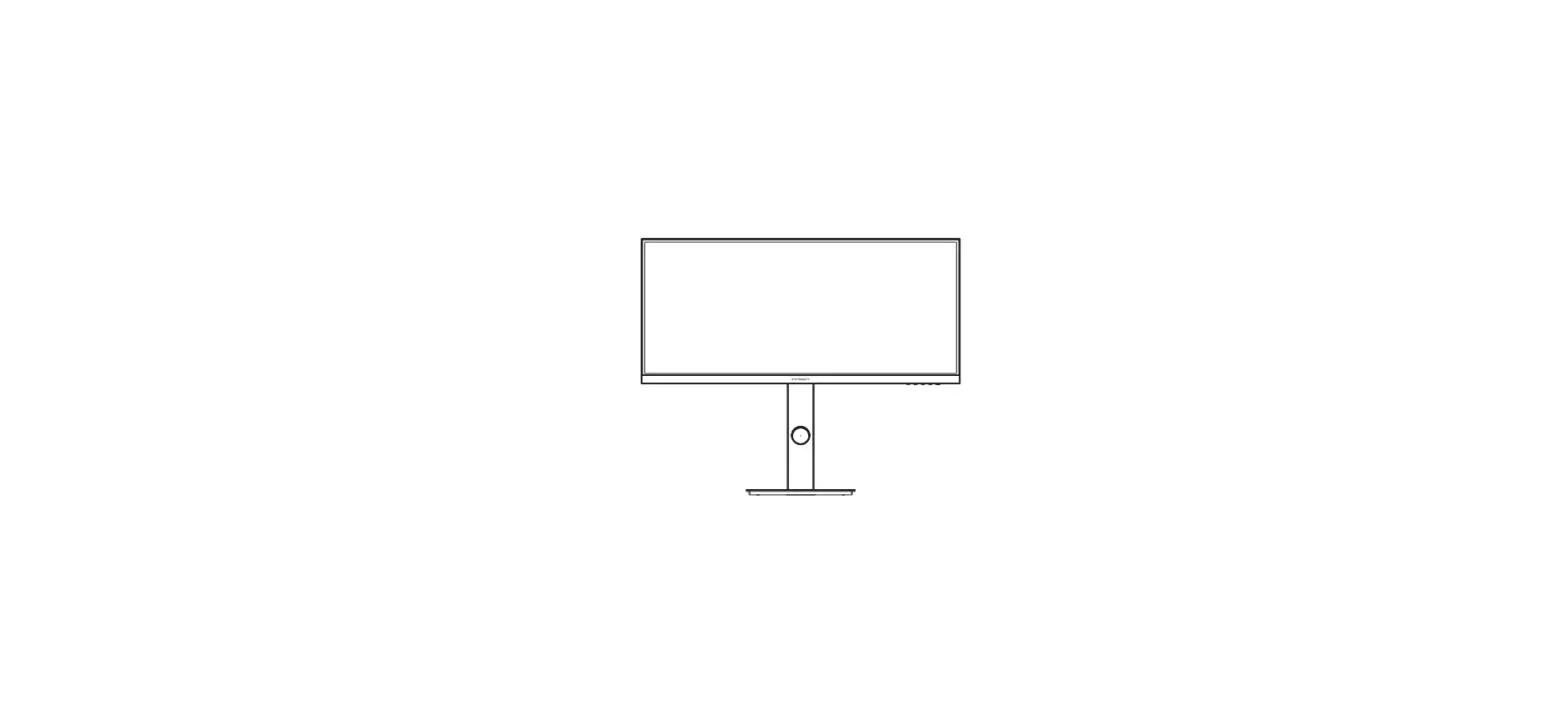
| Display dimensions | 686.4mm x 310.9mm x 36.4mm (with stand 686.4mm x 425.7mm x 170.1mm) |
| Elevation | Forerake 5°, Fadeaway 15° |
| Control | Five-way joystick |
| Languages | English, |
| Storage temperature | -20ºC~60ºC |
| Operating temperature | 0ºC~40ºC |
| Humidity temperature | 10~90%RH |
DISCLAIMERS.
IMPORTANT! Avoid touching screen / User is responsible for ensuring correct stand assembly / Only remove screen protector once in place / Only use the provided power accessories.
OTHER VEHO PRODUCTS
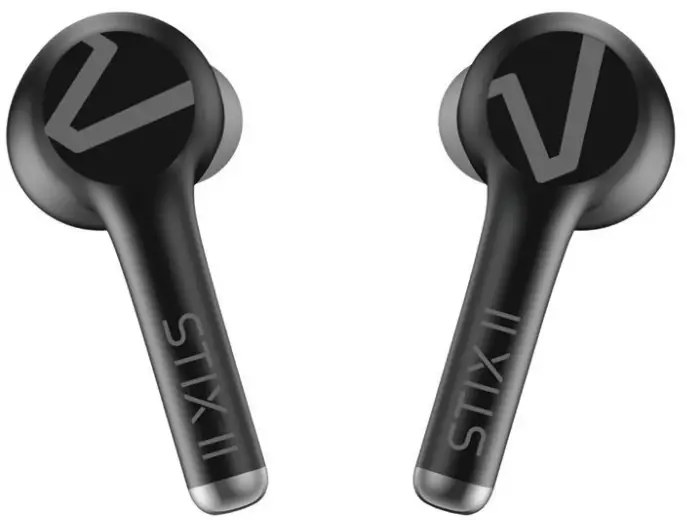 STIX II True Wireless Earphones / VEP-210-STIX2-B
 Alpha Bravo GX4 Pro Gaming Headset with UBU 7.1 Surround Sound / VAB-004-GX4
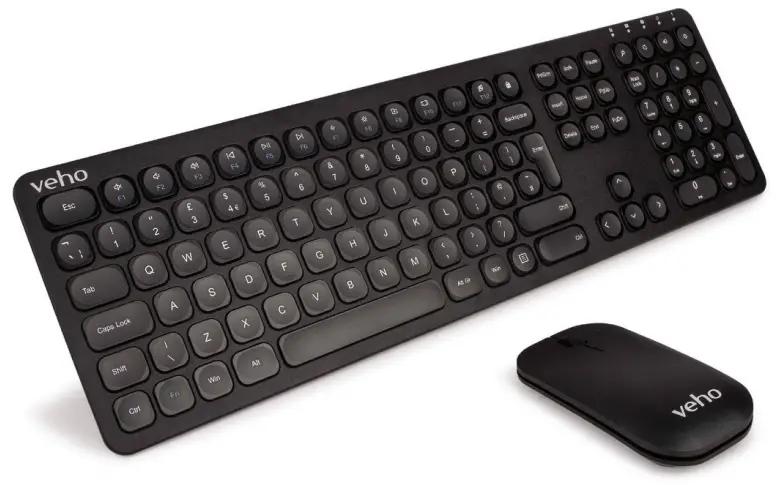 HUT8 WZ-1 2.4ghz slimline wireless keyboard & scroll mouse combo / VHK-001-WZ1
EC Declaration of Conformity
Hereby, Veho UK LTD declares that the radio equipment type (VHM-001-29UW) is in compliance with Directive
2014/53/EU. The full text of the EU Declaration of Conformity is available at https://veho-world.com/compliance/Veho
Global Group, PO Box 436, Southampton, SO30 9DH, UK
Veho Europe, 25 Place de la Madeleine, 75008 Paris This symbol, affixed to the product or its packaging, indicates that the product must not be processed as household waste. This product should be correctly disposed of according to your local guidelines for electrical and battery operated products. Correct disposal of the battery will avoid potential harm to the environment and human health. For further information regarding the recycling of this product, please contact your local waste recycling centre.
Support
For product support please contact us via our chat box on our website at: veho-world.com

 Veho
Veho