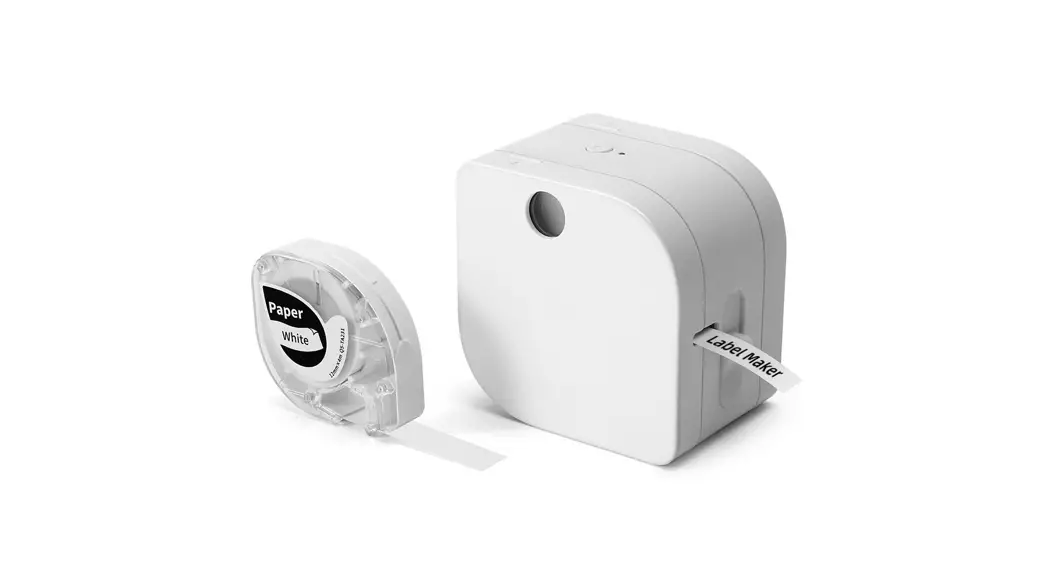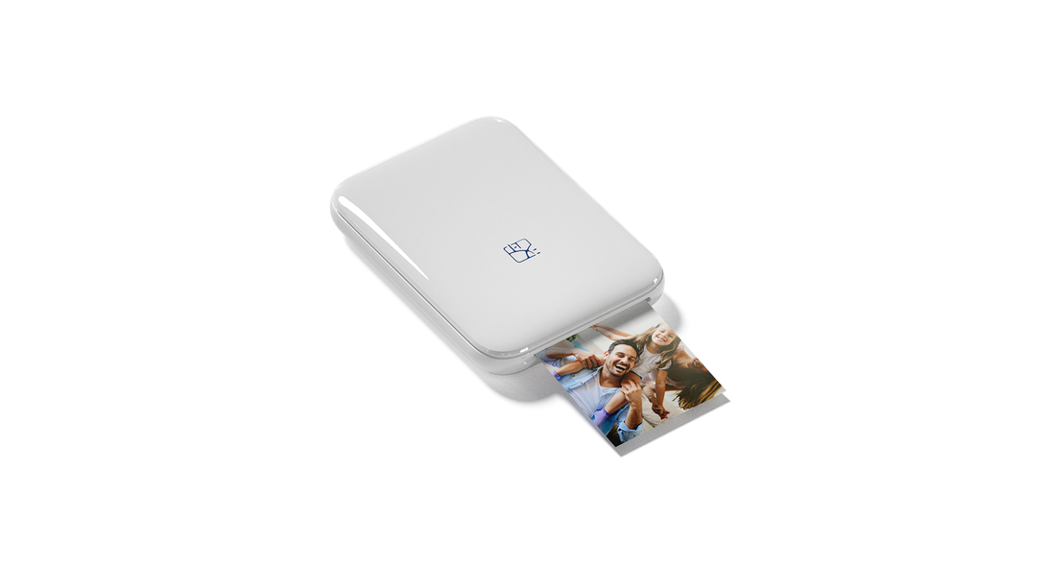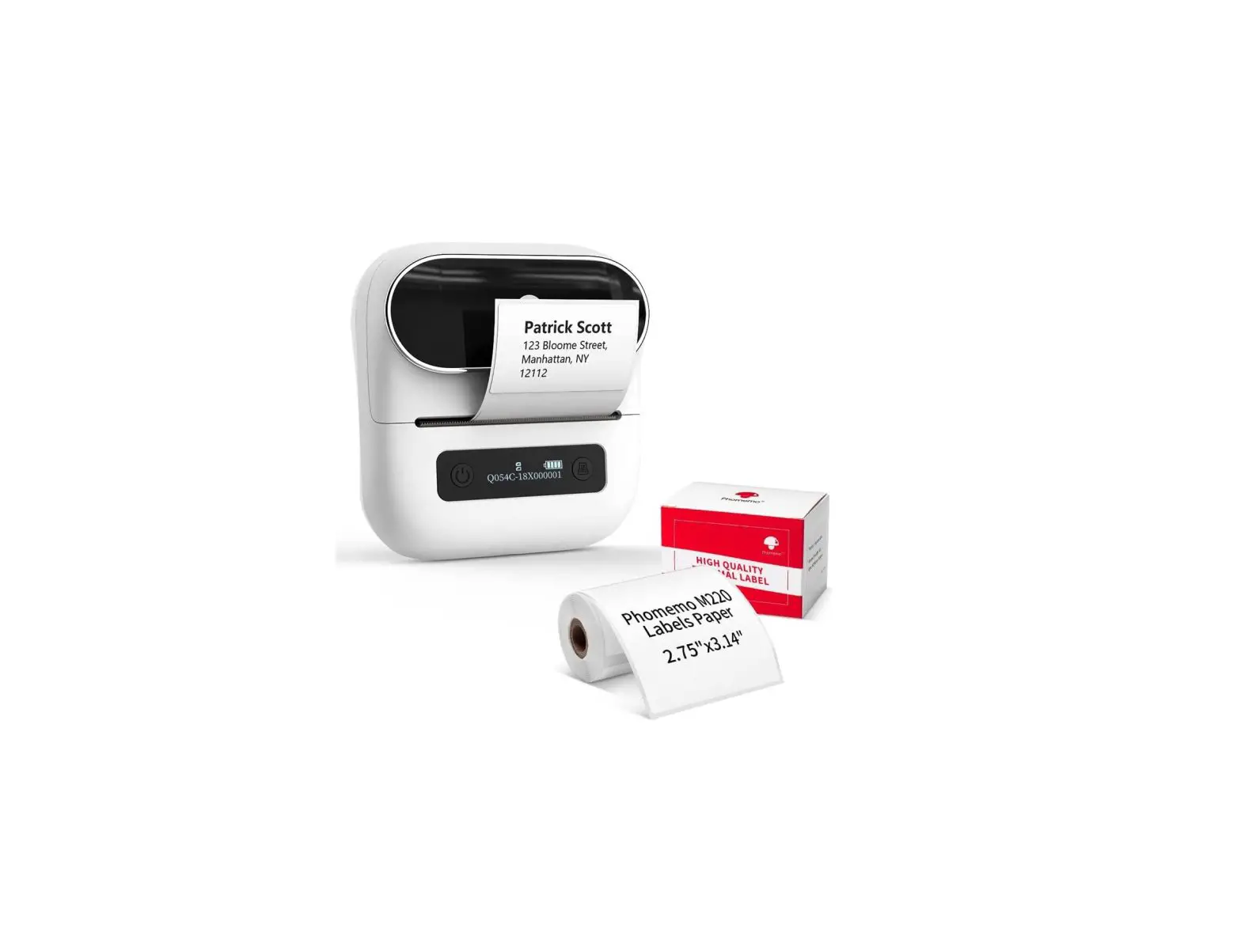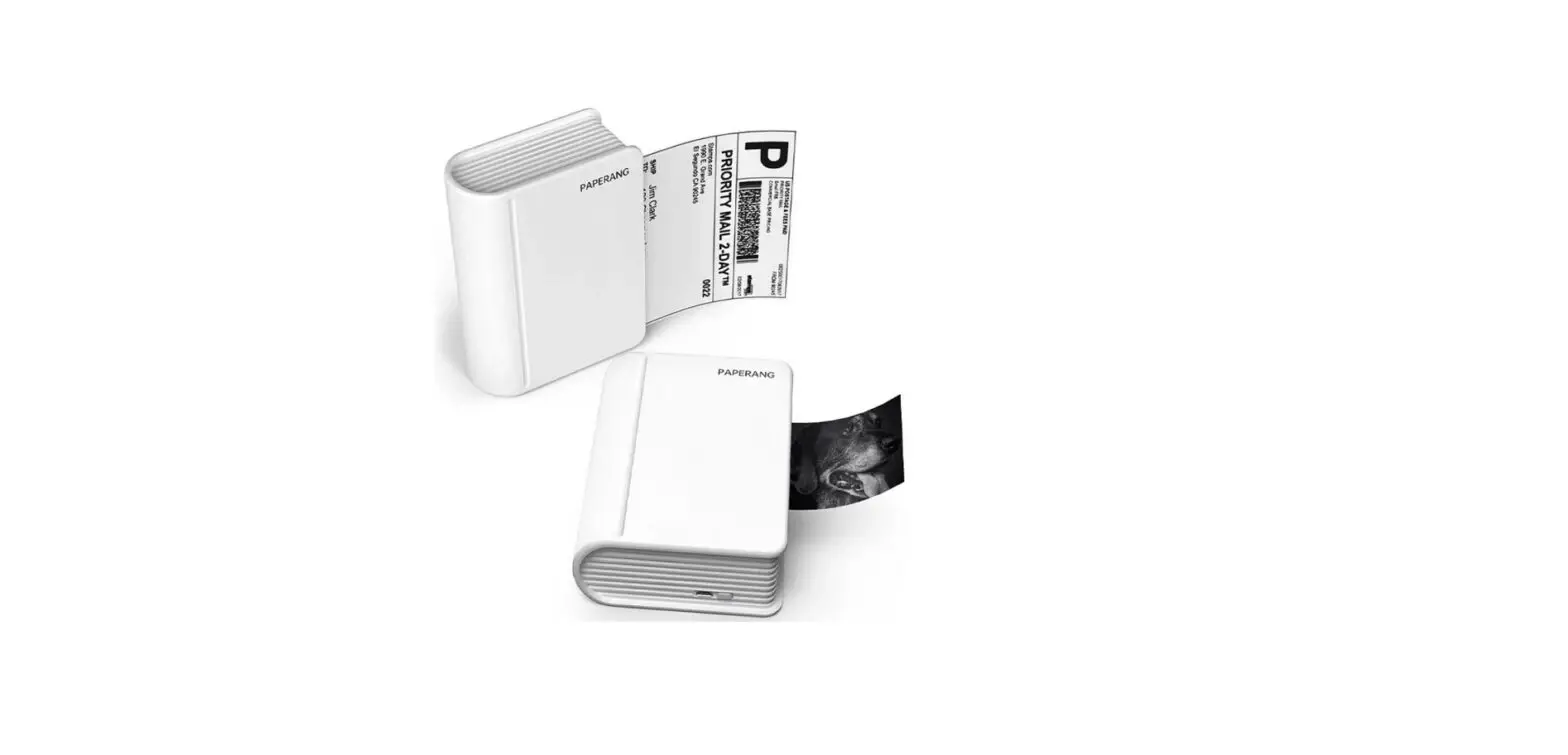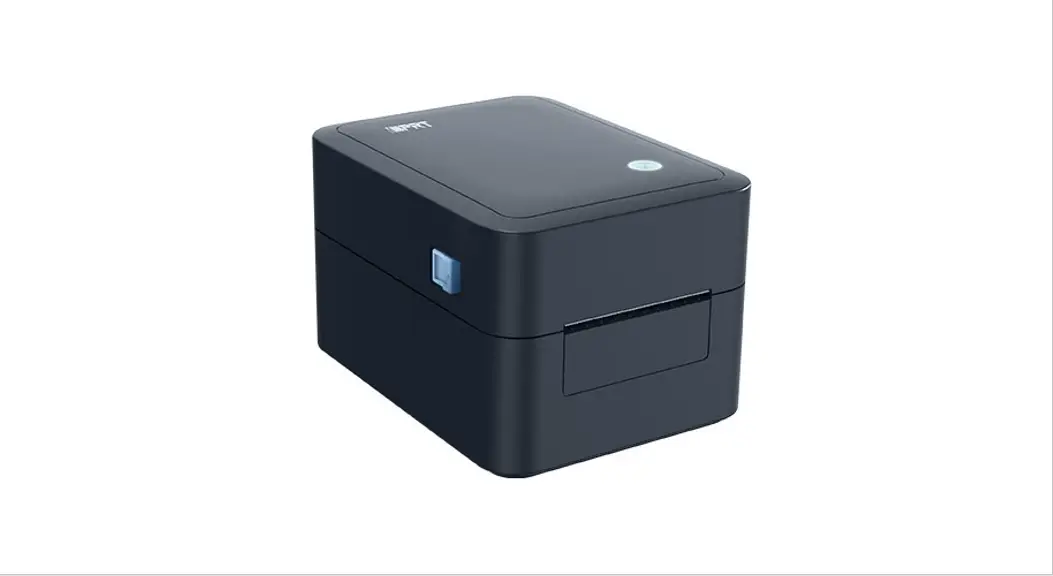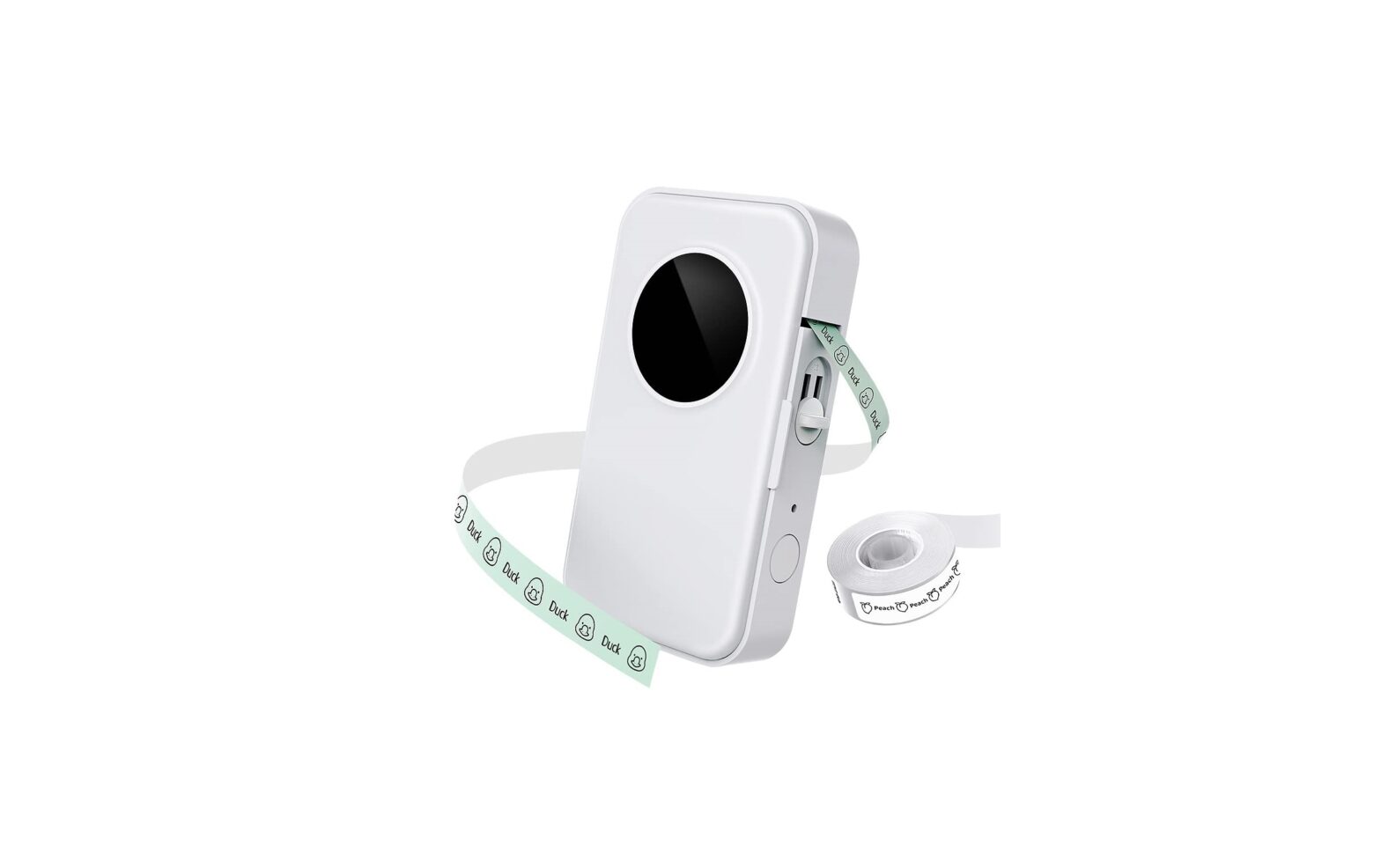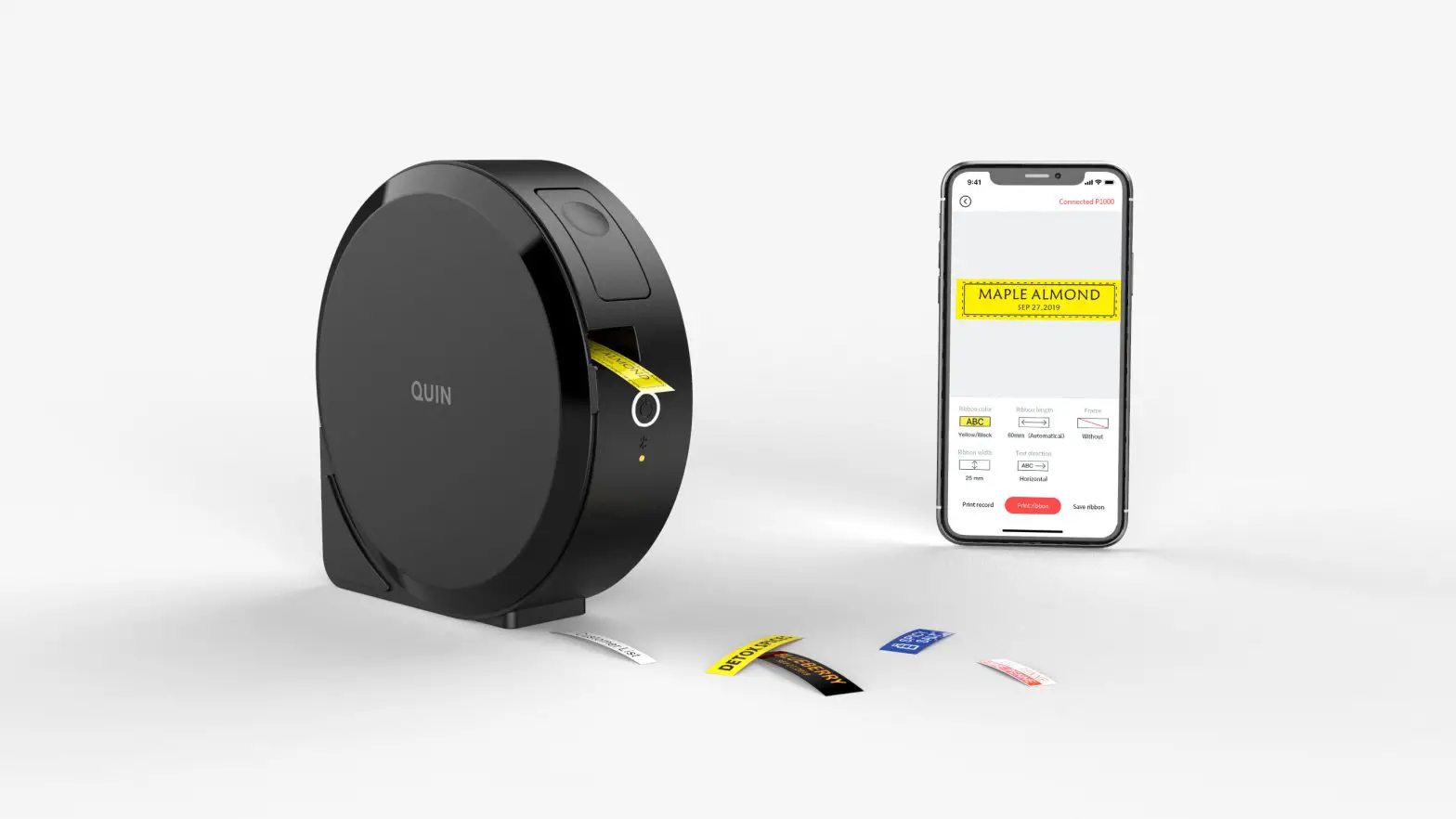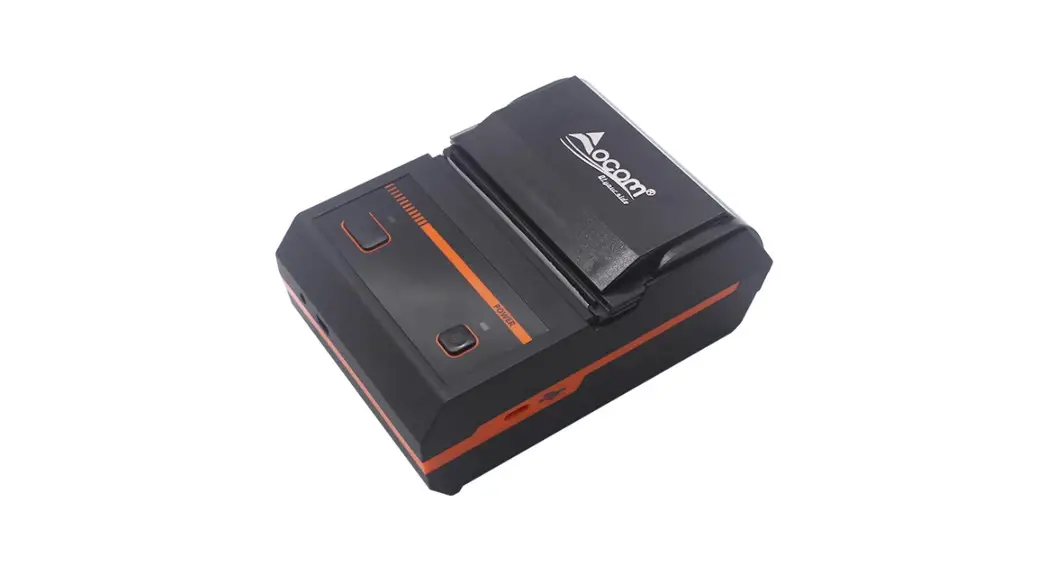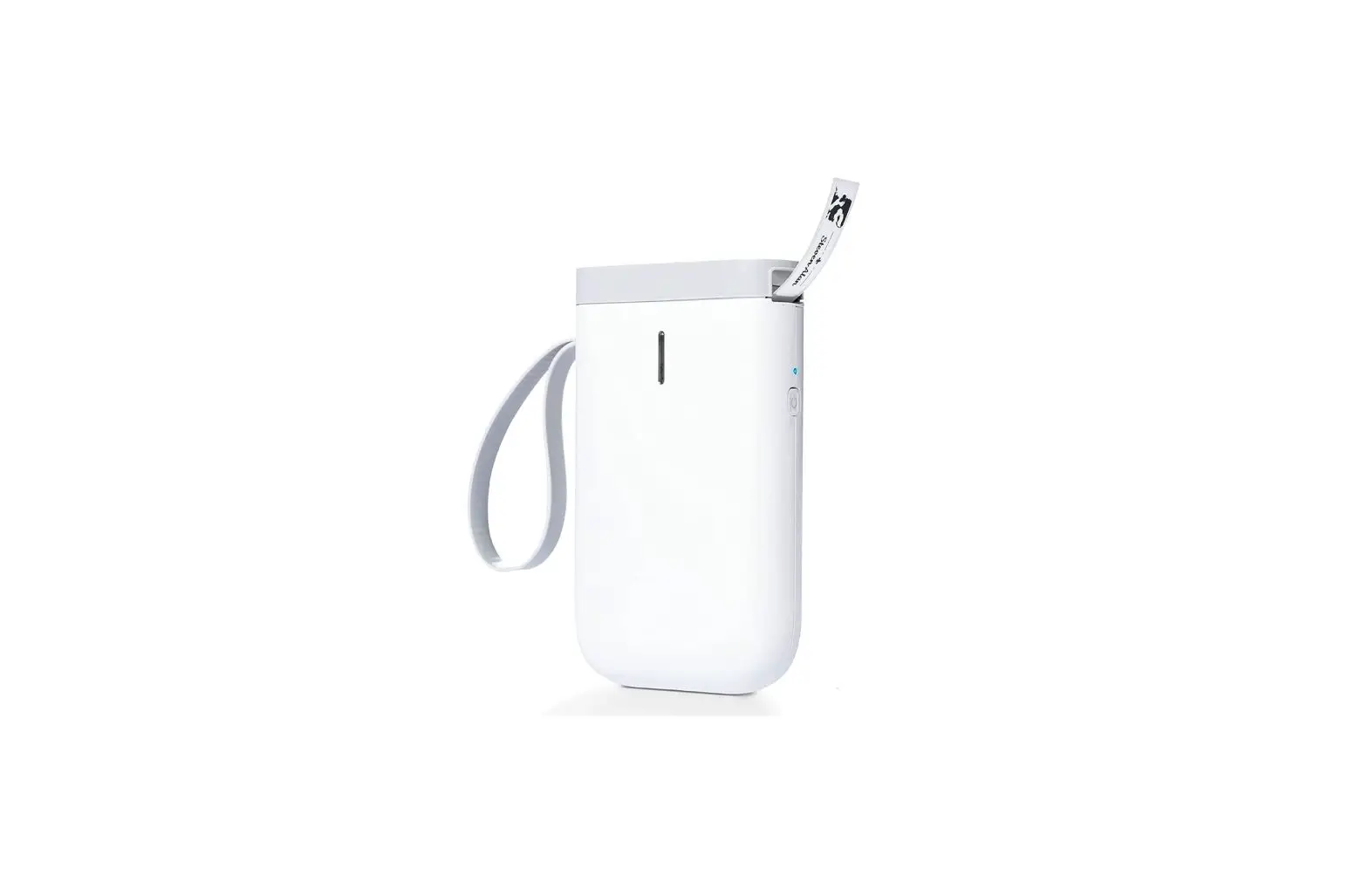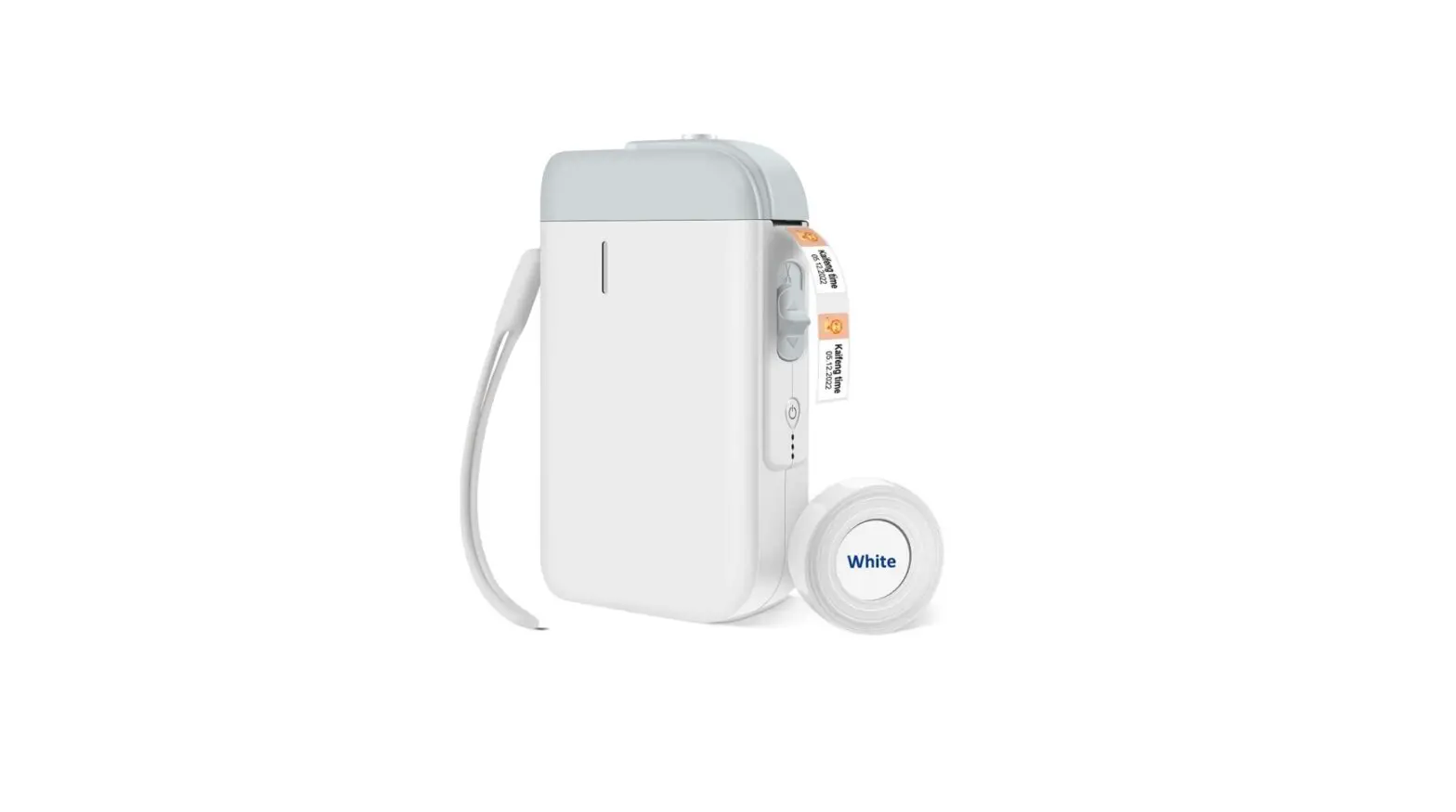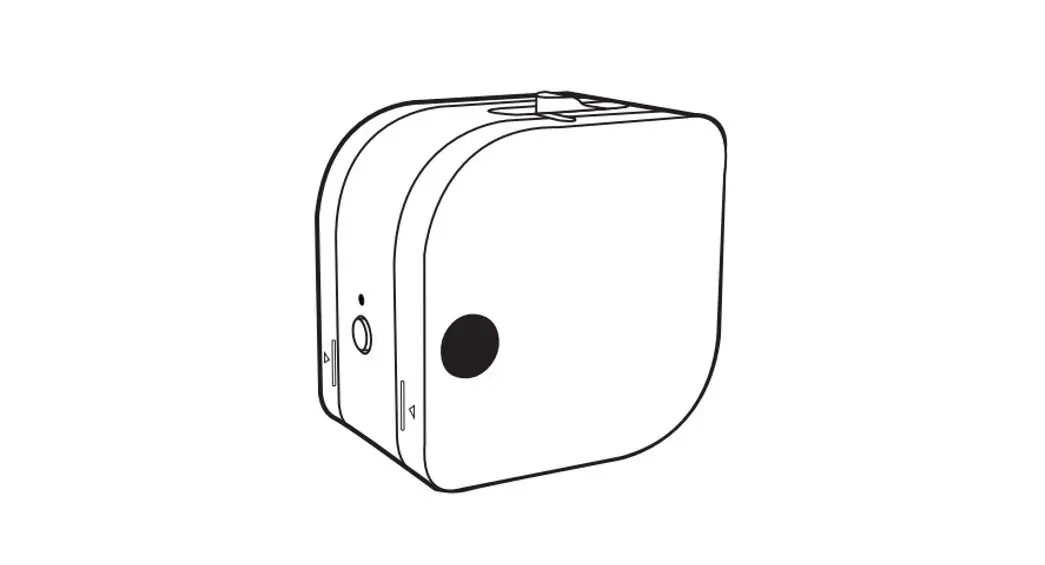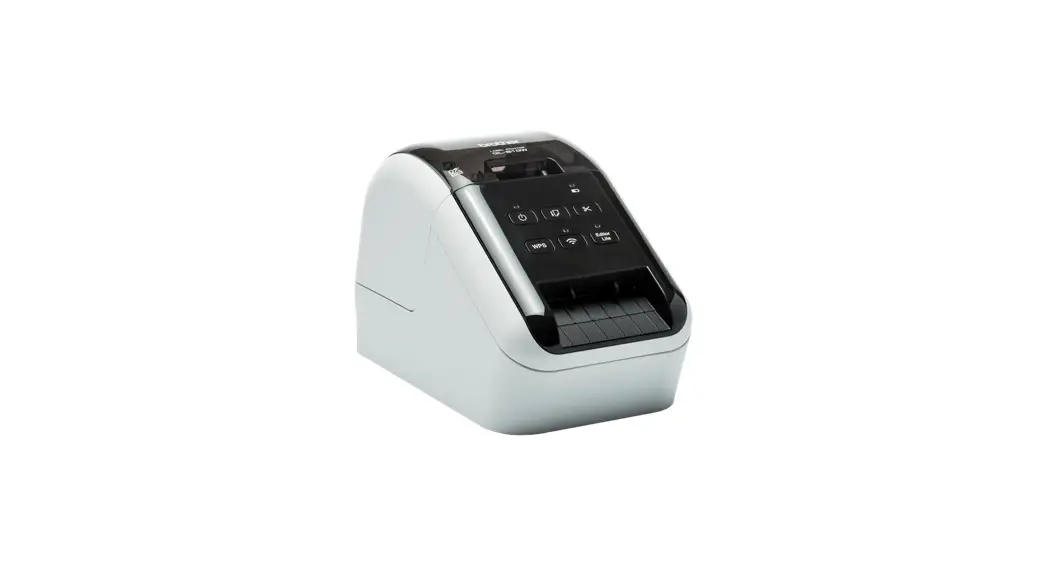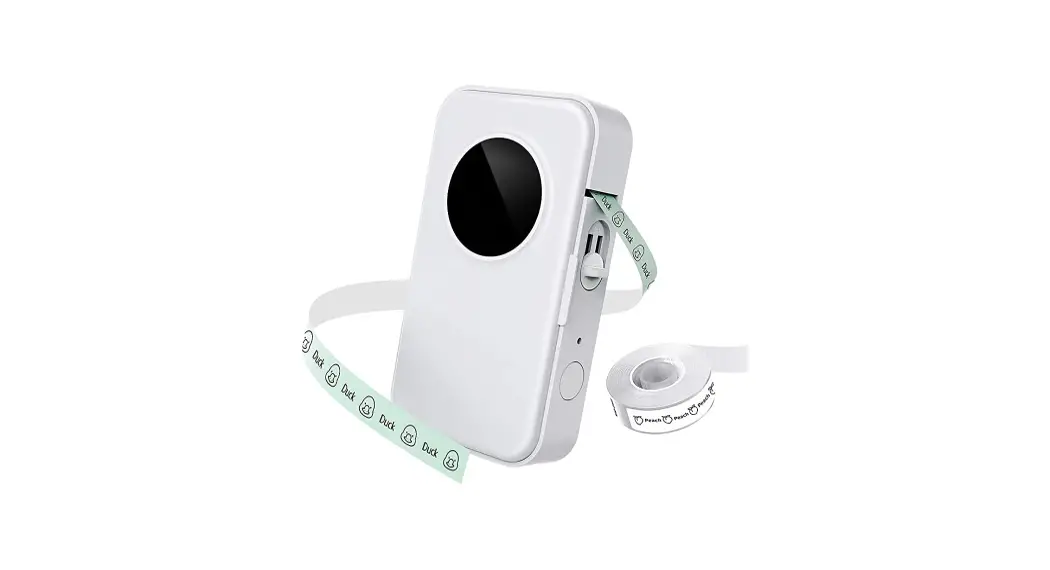
 D35 Wireless Bluetooth Labels Maker
Portable Mini Label Printer
Instructions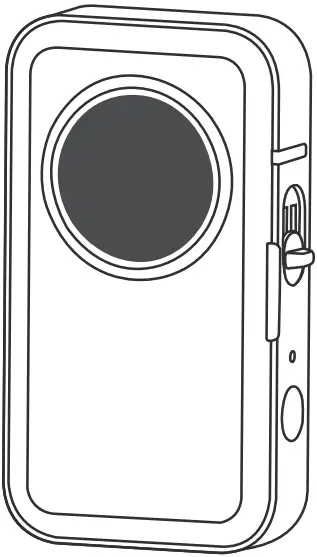
D35 Wireless Bluetooth Labels Maker Portable Mini Label Printer
Please read this instruction carefully before using this product and keep it properly.
Packing List
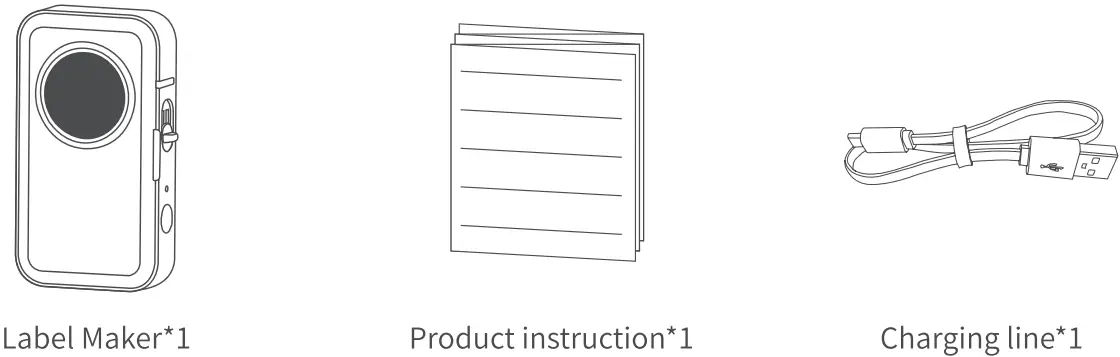 The number of paper rolls in the list is subject to the actual shipment.
Product Specifications
| Product name | Smart Mini Label Maker |
| Product model | D35 |
| Printing technology | Thermal printing |
| Consumable width | 6-15mm |
| Effective printing width | 12mm |
| Supported consumables | Pre-cut paper,black mark paper,continuous paper |
| Printing density | Light, standard, dark |
| Printing resolution | 203dpi |
| Print head service life | 50KM |
| Communication interface | Bluetooth |
| Product Size | 135*79.6*29.2mm(5.3*3.1*1.15inch) |
| Power Input | 5V  2A 2A |
| Power supply method | Type-C / Lithium battery |
| Supported operating system | Android / iOS |
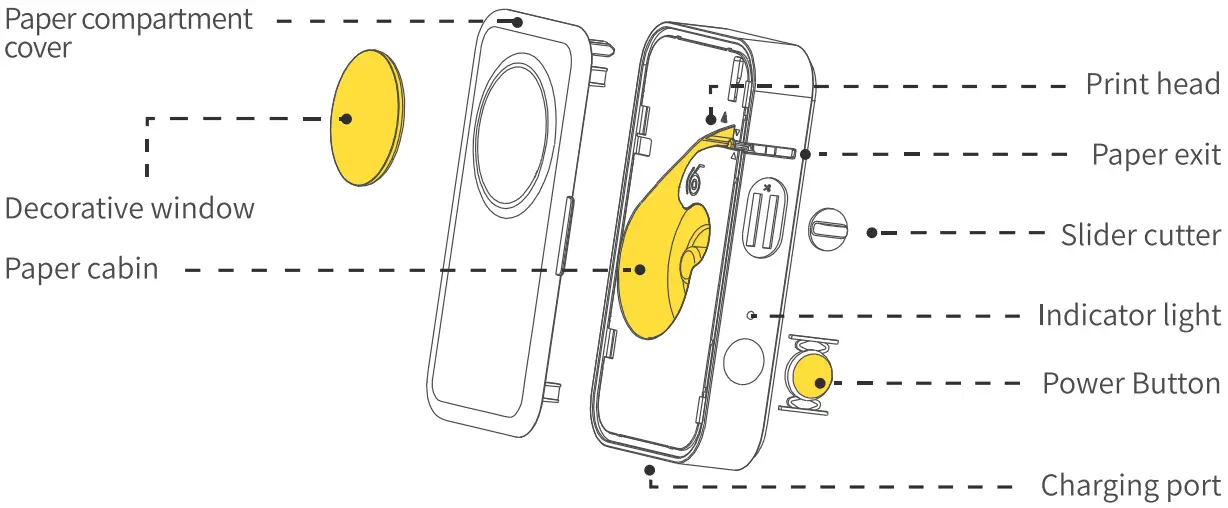
Parts Description Appearance Introduction
- Label Maker display

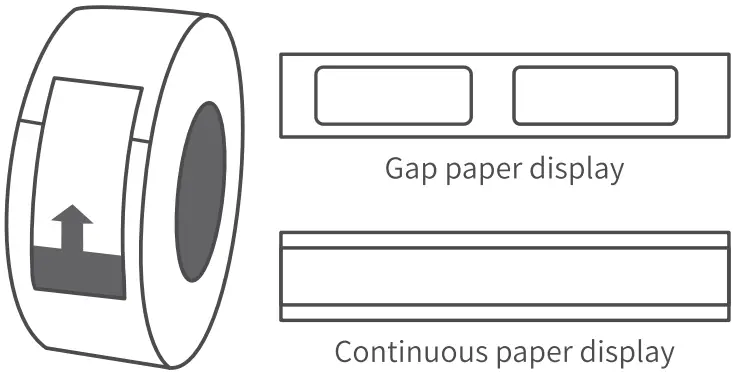
- Label paper display
Various labels available for purchase
- Continuous paper display
Easy to tear line design, easy to tear the bottom paper Gently bend the label paper along the easy-to-tear line to make it easier to peel the bottom paper from the adhesive.
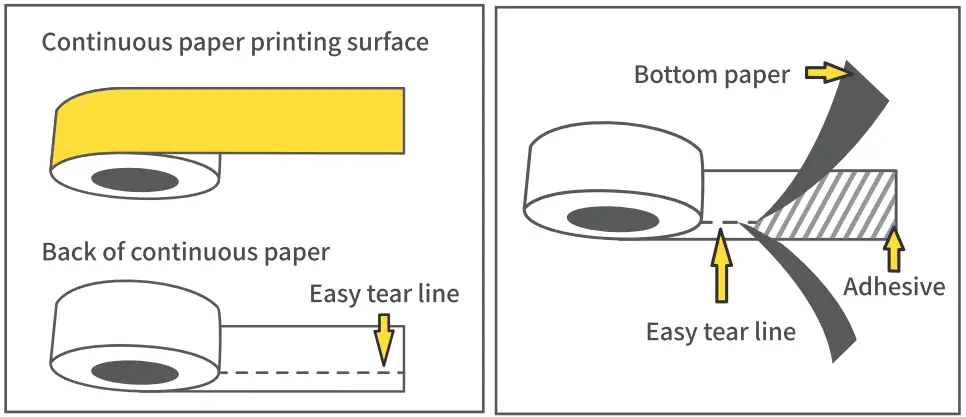 Gently bend the label paper along the easy-to-tear line to make it easier to peel the bottom paper from the adhesive.
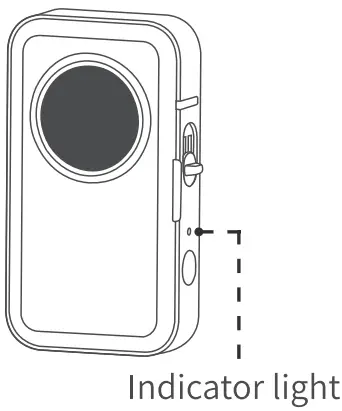 Power button description
| Button | Operation method | Functions |
| Power button | Presse fur 3s | Turn on/off |
| Click | Print out the paper | |
| Double click | Print the content of the self-test paper |
Power indicator status
 Green light keeps on Green light keeps on | Normal status |
 Green light flashes slowly Green light flashes slowly | charging with power on |
 Green light flashes quickly Green light flashes quickly | charging with power off |
 Red light keeps on Red light keeps on | Error (lack of paper, cover opened, high temperature) |
 Red light flashes slowly Red light flashes slowly | 10% battery |
 Red light flashes quickly Red light flashes quickly | 5% battery |
Instructions for use
- Open the paper compartment cover of the machine
- Putthe label paperin the paper compartment with the printing side facing left
- Pull out the label paper by 5mm in length for normal printing

- Align the upper cover buckle and close the cover
- Press and hold for 3s to turnon
- Click the power button toidentify the label position

- Come out a piece of paper, positioning completed
- After printing, slide the cutter button up to tear offthe label

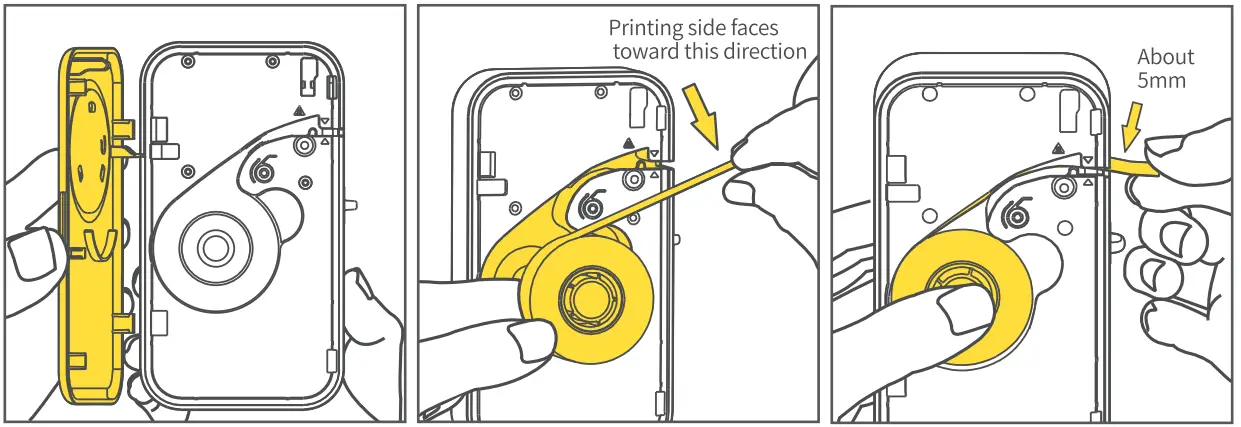
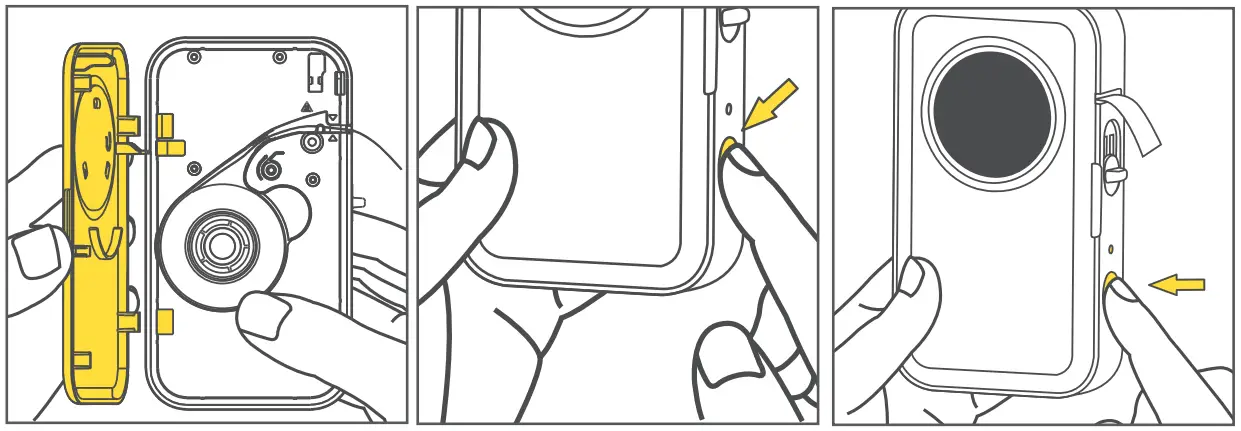
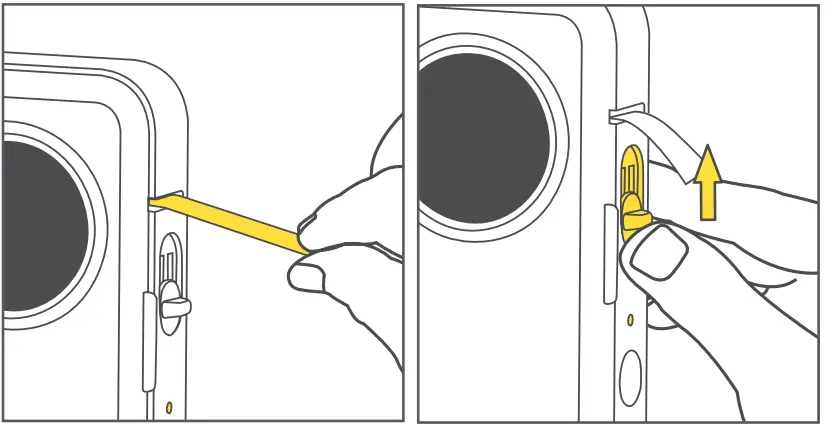
 NOTE
NOTE
- When installing or replacing the label roll for the first time,the label position identification is required; (Step 06 ).
- If the label position identification is not carried out(Step 06 ), failures may occur such as first printing missing, not centered, etc.
- The continuous papers do not need to click the power button for positioning, just pull out the position of the paper outlet.
App Download Method
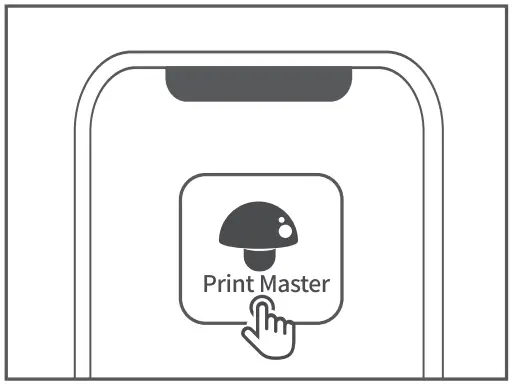 NOTE
NOTE
- This product needs to be connected to the printer in the App;
- Due to the requirements of mobile phone system, the Android mobile phone will use the user’s geographic location when connecting, so that the user needs to turn on the GPS and confirm the authorization.
Method I: Please use your mobile phone 10 scan the QR code to download the App
 http://downloadapp.qu-in.com/M110-Print-master/
Method II: Search and download
Label Maker Connection
- Turn on GPS(Android mobile phone only)
- Open the App
- Click to search Connect now for the device
- Connect immediately
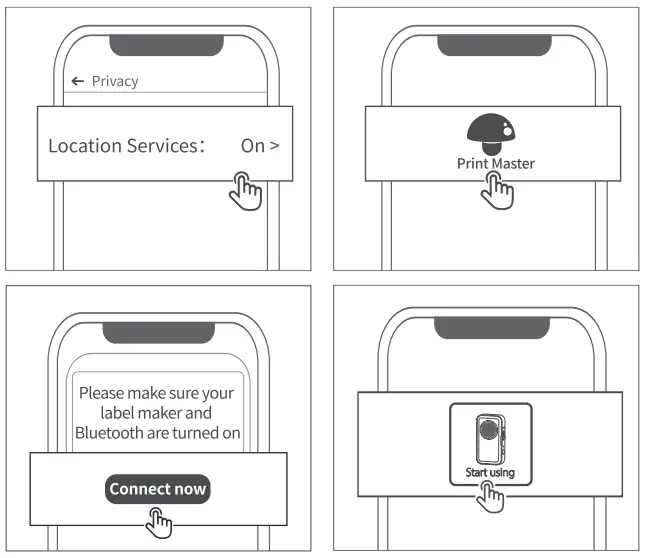
- When connecting device in the App, please make sure that your Label Maker is turned on and Bluetooth of your mobile phone s turned on.
- Due to the requirements of mobile phone system, the Android mobile phone will use the user’s geographic location when connecting, so that the user needs to turn on the GPS and confirm the authorization.
Confirm the Label Size
Method I: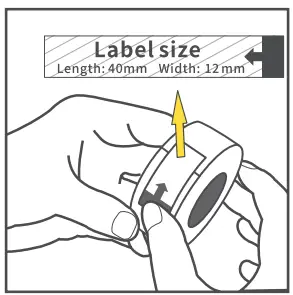 Check the antiloosening paste please efertotheactual Sizeused
Method II: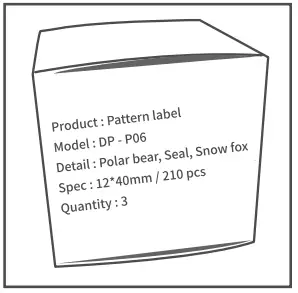 Check the label paper packaging
Method III: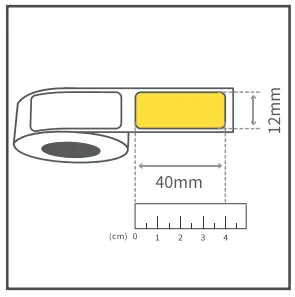 Use a ruler to measure
Method IV: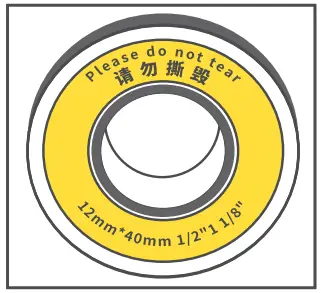 Check the label paper pads (the old and new versions of label paperae being replaced, Please refer to the actual shipment)
Printing Guide Select Edit Version
Lite Mode: Edit simply,print speedly  Creation Mode: Multifunctional, covers more needs
  ‘The user can view more operation tutorials and switch editing versions in the “Home”.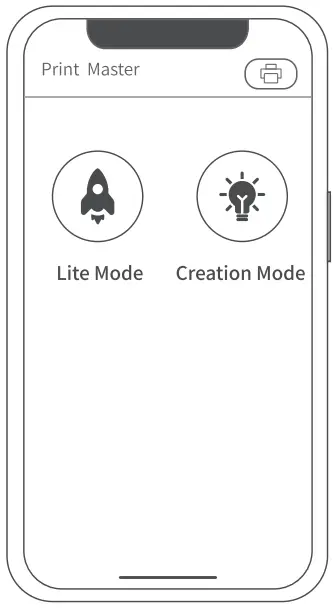
Printing Gmde Lite Mode
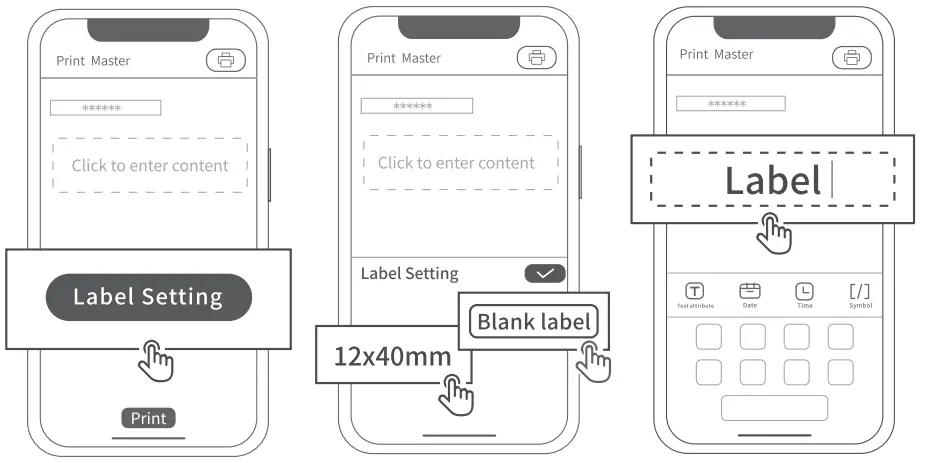
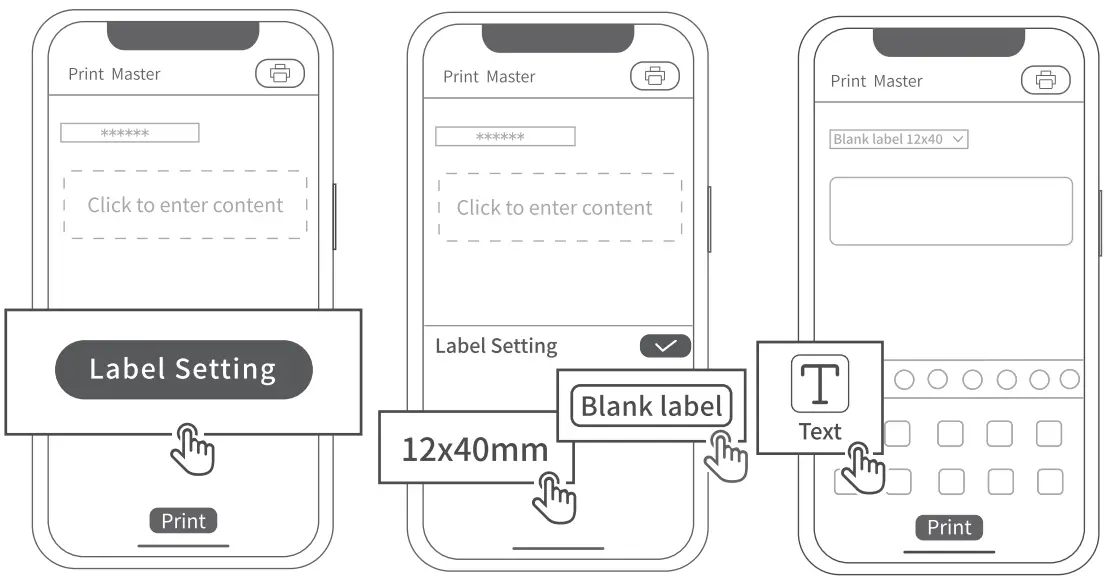
- Select “Label Setting”
- Click to select the corresponding label size Giease refr tothe actualsze sed
- Click the blank box to enter text
 NOTE
NOTE
• If the matching template is not selected, there will be undesirable situations such as centeredlayout of printed content, uneven layout, etc. - Edit function description

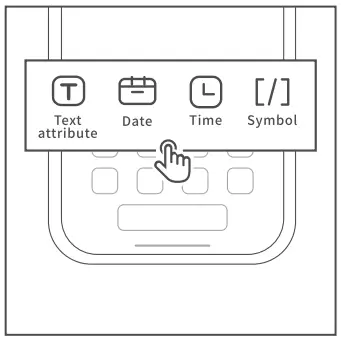
Functions Operation method Example 
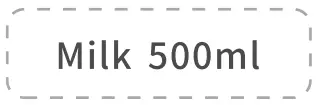
Click to insert text. User can edit the text size, typesetting and select various fonts, etc. 

Add date 

Edit specific time point 

Unit symbol 
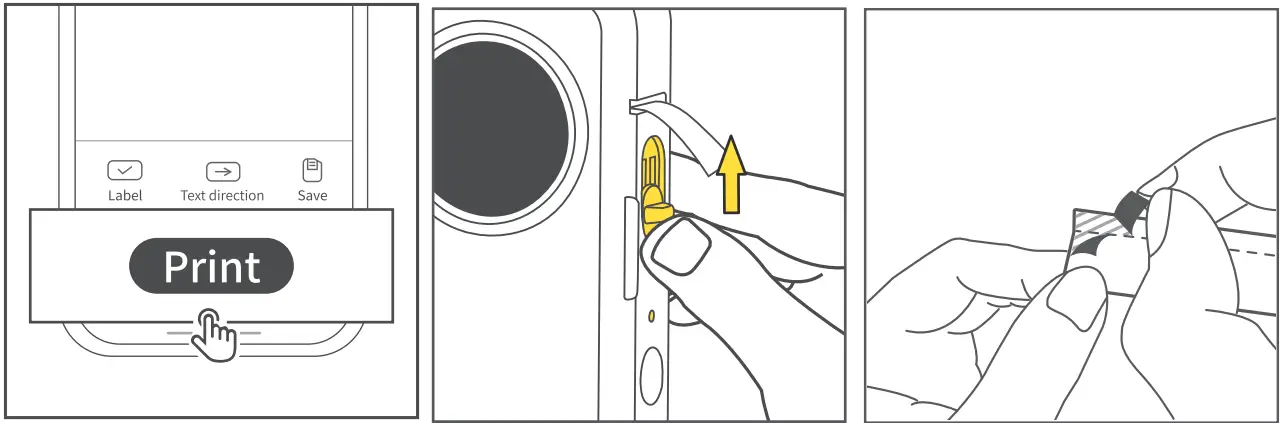
- After editing, click to “Print”
- After printing, slide the cutter button up to tear off the label
- Continuous paper tear off the bottom paper (Gently bend the label paper along the easy-to-tear line to make it easier to peel the backing paper from the adhesive)








Printing Guide Creation Mode
- Select “Label Setting”
- Click to select the corre- sponding label size (Please refer to the actual size used)
- Click ” ( T )” to input text
 NOTE
NOTE
• If the corresponding size template is not selected correctly, there will be undesirable situations such as centered printing layout and uneven layout, etc. - Edit function description
 NOTE
NOTE
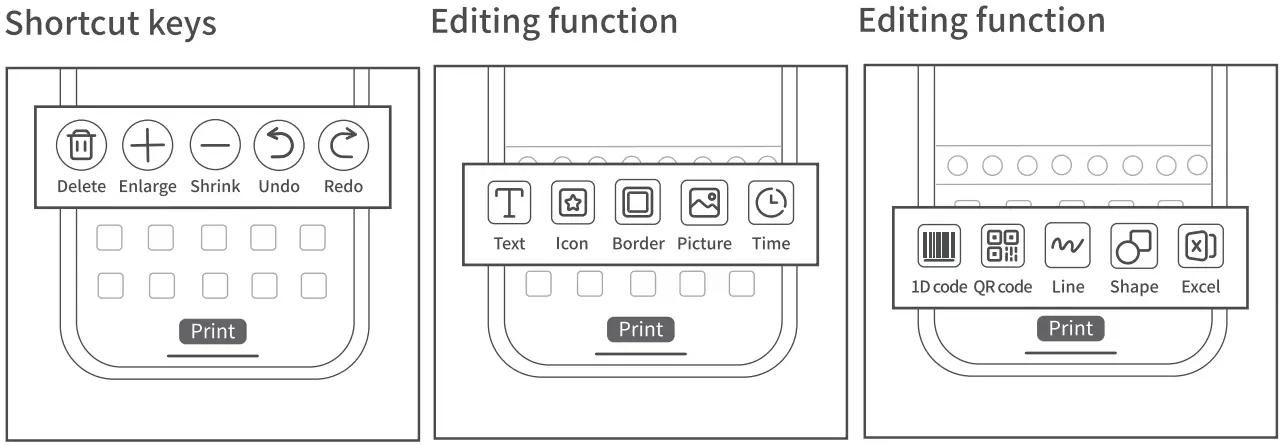
• App functions will be updated with new functions in irregular, please refer to the actual function.Functions Description Functions Description 
Click to insert text. User can edit the text size, typesetting and select various fonts, etc. 
Click to insert a one-dimensional code. Enter the information to be edited, then a one-dimensional code can be automatically generated, and the layout can be adjusted. 
Icon function, click to insert all kinds of cute icons. 
Click to insert a QR code. Enter the information to be edited, then a QR code can be automatically generated, and the layout can be adjusted. Click border function, and choose various cute borders to decorate your label. 
Insert a line. User can choose a dashed line or a solid line. 
Click to insert the picture you want to edit and print. Click to insert round or square shapes. 
Insert date and specific time. 
Support table import, therefore quickly generating a list that needs to be printed. 
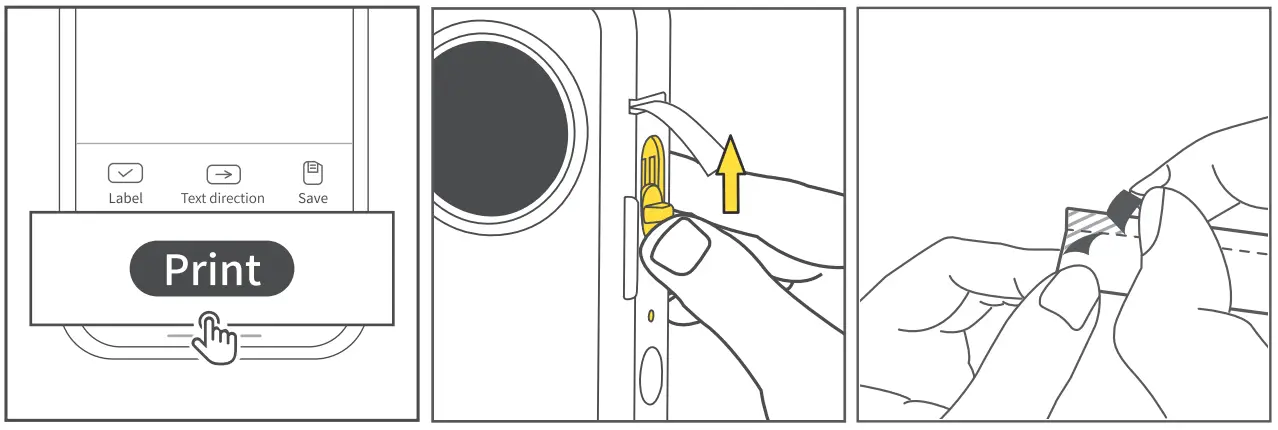
Click to scan the code to identify. It can quickly identify the text content in the QR code. Click to recognize text in the picture. - After editing, click to “Print”
- After printing, slide the cutter button up to tear off the label
- Continuous paper tear off the bottom paper (Gently bend the label paper along the easy-to-tear line to make it easier to peel the backing paper from the adhesive)



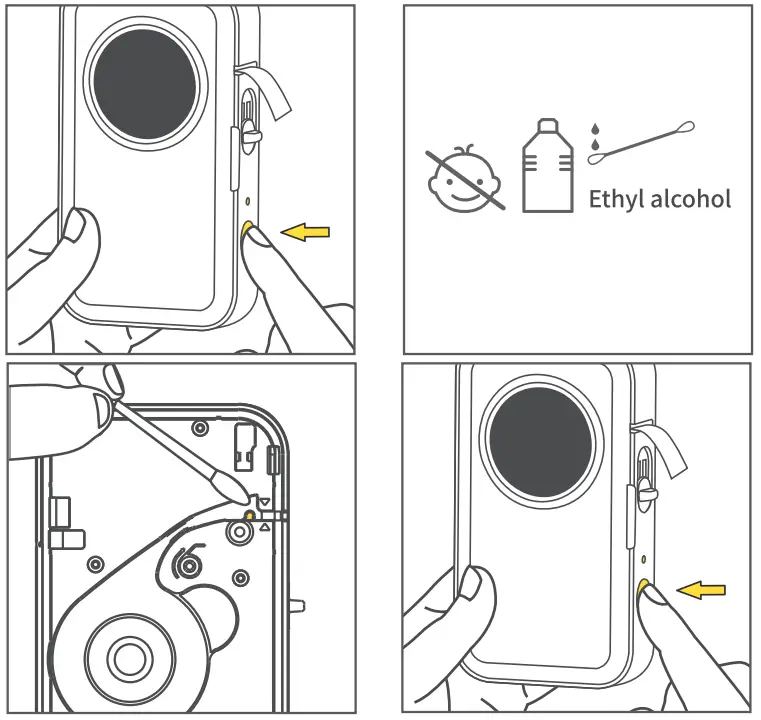
Daily Cleaning
- Turn off the Label Maker
- Use a cotton swab dipped in a little alcohol
- Wipe the print head gently
- Wait for the alcohol to evaporate and then turn it on and double-click the power button to print labels
 NOTE
NOTE
• Do not scratch the print head with hard objects, otherwise the thermal film will be permanently damaged and cannot be repaired).
Solutions for Common Problems
The printer can’t close the cover?
Please check Are the buckles of the printer cover aligned?
Please align the upper cover buckle with the holes on the left, and then close the printer cover to the right.
Not centered, misplaced, offset, skipped, etc.
Please check Whether the paper roll is correctly placed in the machine?
Please make sure that the label is placed in the machine with printing side facing left. If it is placed incorrectly (reversed), printing will fail.
Please check Whether to select the corresponding label size and pattern in the App?
Please check the label size and image on the label packaging, and choose the correct template in the App. To do so, select “Label Setting”
Please check After the machine is turned on, whether to click the power button to allow themachine to calibrate and position the label?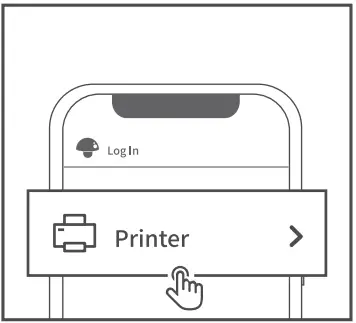 When installing or replacing label paper roll for the first time, the user needs to click the power button to print a blank label so that the print head can identify the position of label paper.The continuous papers do not need to click the power button for positioning, just pull out the position of the paper outlet.
Printing blurry
Please check Whether the power of machine is sufficient.
On the “Profile” page,click“ Printer”and chooce“ “to view the specific power level. If the remaining power of printer is less than 10%,you can charge it for at least half an hour before use.
Please checkWhether there is foreign matter or glue on the print head?
There is foreign matter or glue on the print head. Please use a cotton swab dip with a little alcohol to gently wipe the dirt on the print head. Do not turn on the machine immediately after wiping. After the alcohol is evaporated and dry, double-click the power button to print the self-check page after turning on the machine to check the effect.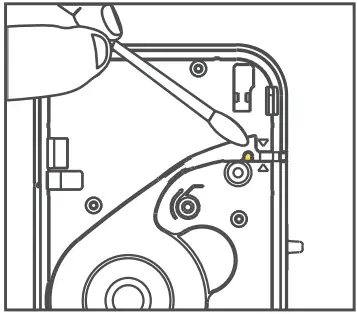 Printer cannot be connected
Please check The status of the printer is on,and the mobile phone bluetooth has been turned on?
Please check Is the deviceconnection performed in App?
This product needs to perform the device connection in App.
Please check Is the mobile phone authorized?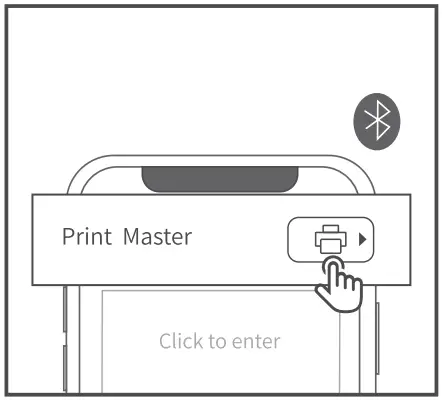 Because of the phone system’s requirements, Android phones will use your location when it is connected, and you need to turn on GPS and confirm authorization (other phone systems don’t need to turn on this function).
Product Warranty
Thank you for choosing the Smart Mini Label Maker.
- We will provide customers with reliable *replacement/return” support during the one-year warranty period from the date of purchase;
- Please keep the warranty card in a safe place so that you can read it when needed.
If you have any problem or need on our product or this user manual, please feel free to contact our customer services. We will do our best to help you.
Note: Ifthe supporting software is updated, it will be compiled into the new version of the manual without notice
FCC Caution
This device complies with part 15 of the FCC Rules. Operation is subject to the following two conditions: (1)This device may not cause harmful interference, and (2) this device must accept any interference received, including interference that may cause undesired operation.
Any Changes or modifications not expressly approved by the party responsible for compliance could void the user’s authority to operate the equipment.
Note: This equipment has been tested and found to comply with the limits for a Class B digital device, pursuant to part 15 of the FCC Rules. These limits are designed to provide reasonable protection against harmful interference in a residential installation. This equipment generates uses and can radiate radio frequency energy and, if not installed andused in accordance with the instructions, may cause harmful interference to radio communications. However, there is no guarantee that interference will not occur in a particular installation. If this equipment does cause harmful interference to radio or television reception, which can be determined by turning the equipment off and on, the user isencouraged to try to correct the interference by one or more of the following measures:
- Reorient or relocate the receiving antenna.
- Increase the separation between the equipment and receiver.
- Connect the equipment into an outlet on a circuit different from that to which the receiver is connected.
- Consult the dealer or an experienced radio/TV technician for help.
*RF warning for Portable device:
The device has been evaluated to meet general RF exposure requirement. The device can be used in portable exposure condition without restriction.
Warranty/Maintenance Card
□ Replce
□ Retum
| User Information | Name: | Gender: | Phone: |
| Address: | |||
| Product Information | Date of purchase: | ||
| Product order number: | |||
| Product serial number: | |||
| Reason for Return (Replace / Repair / Request Maintenance ) | Fault description : | ||
Thank you for choosing our products!