SATA DOM Duplicator and Sanitizer
SATA DOM Duplicator
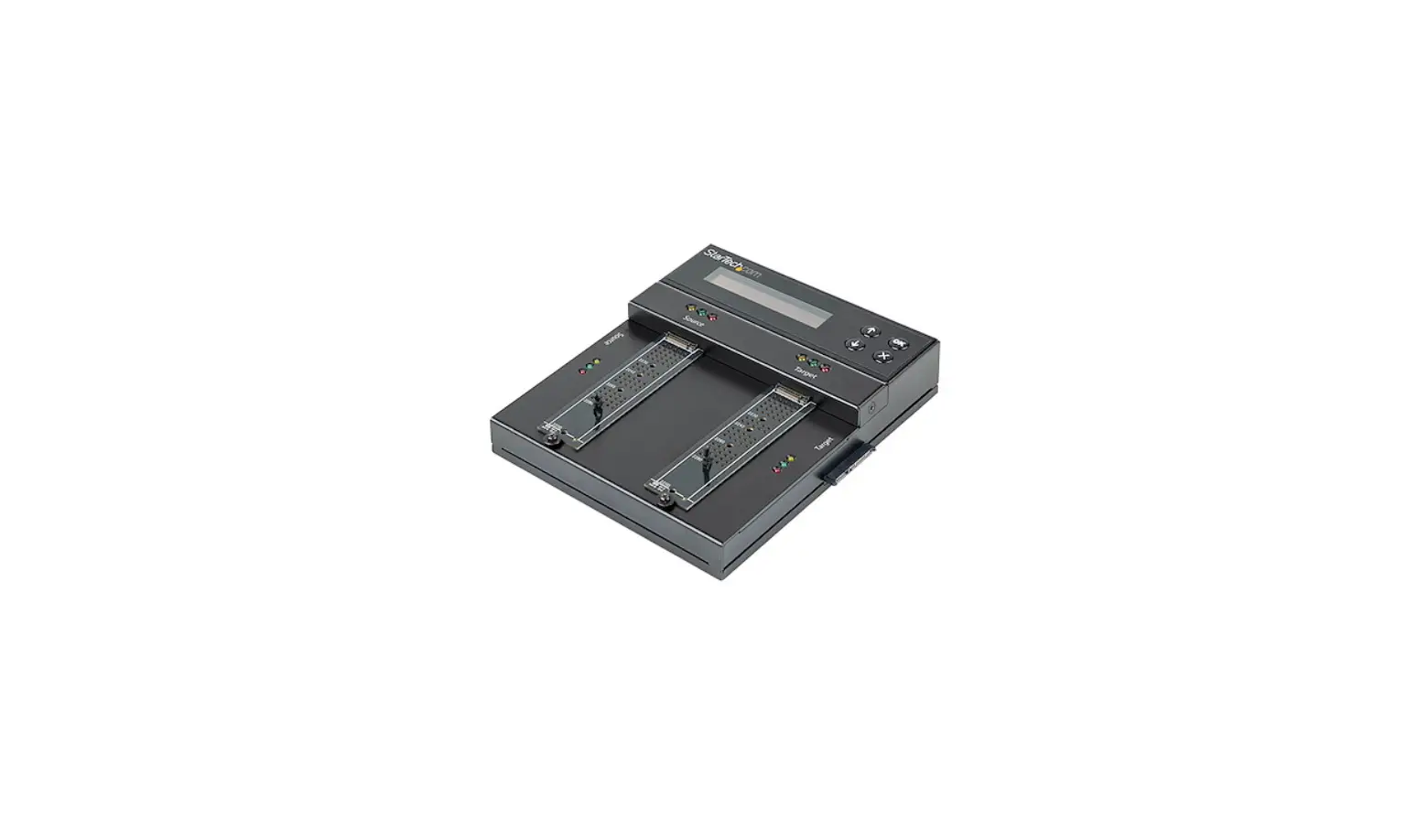
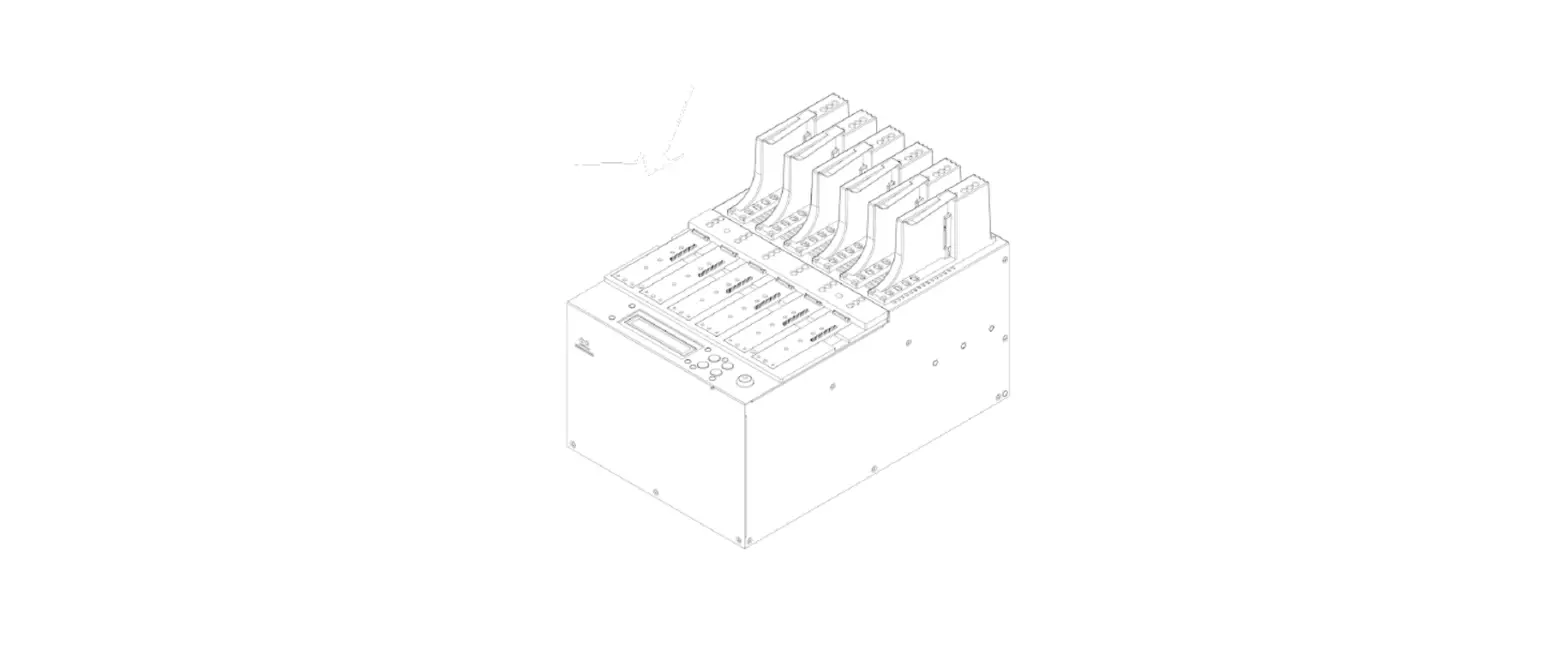
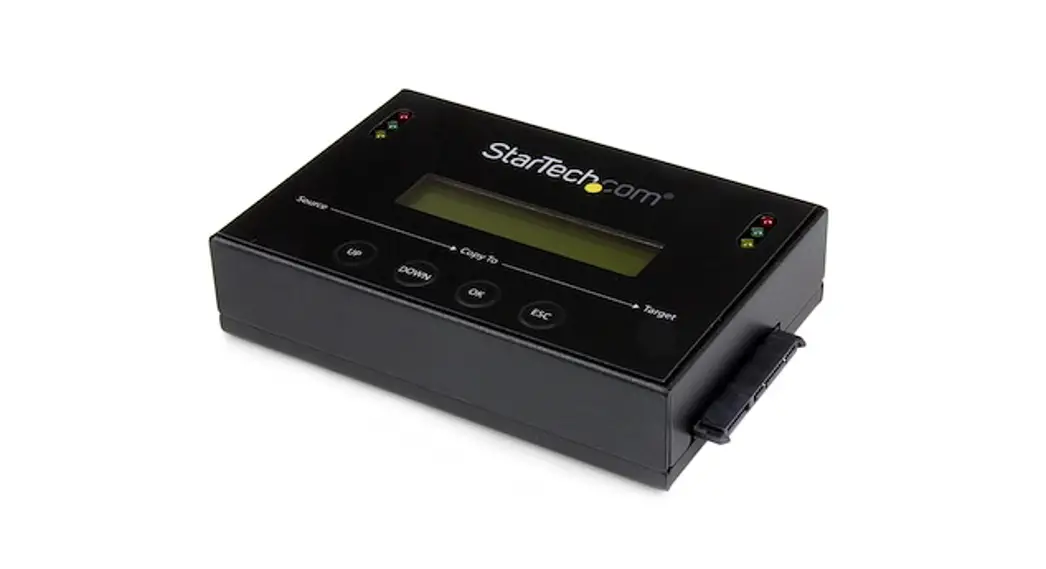
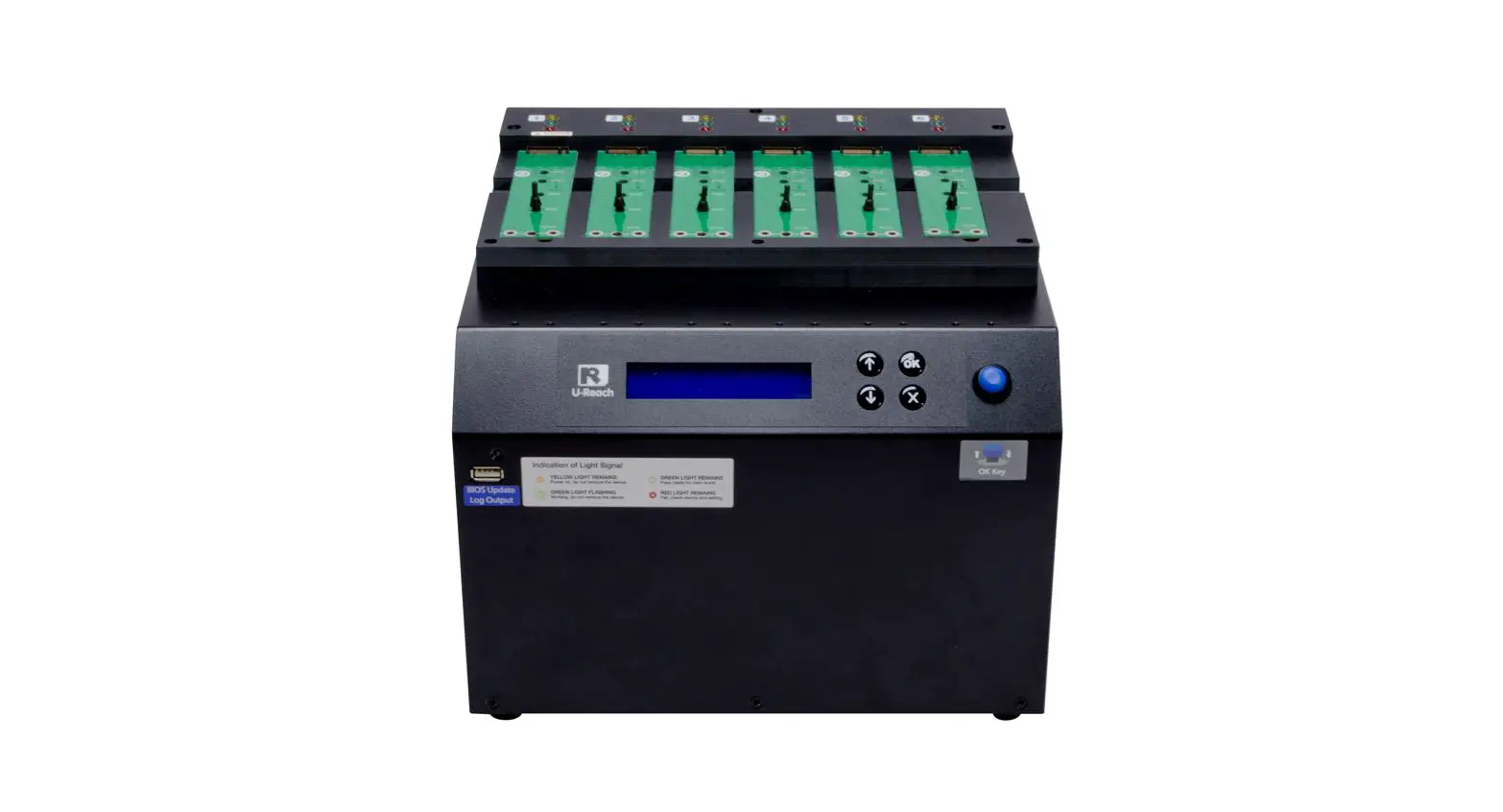
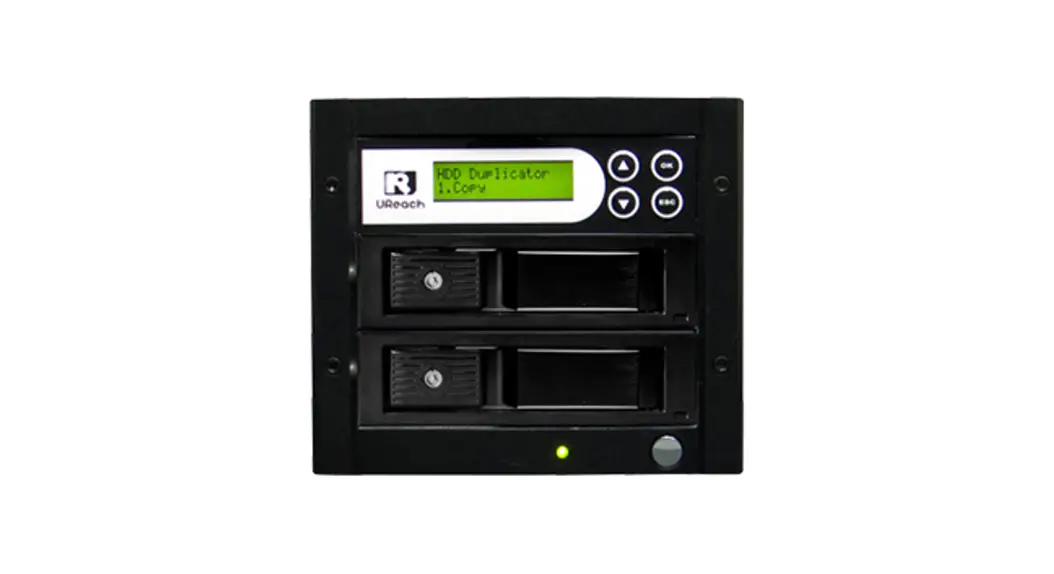
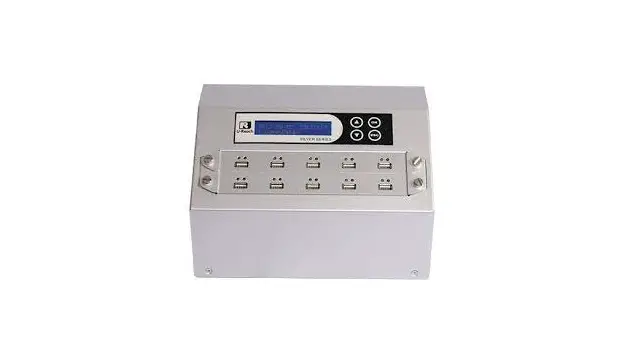
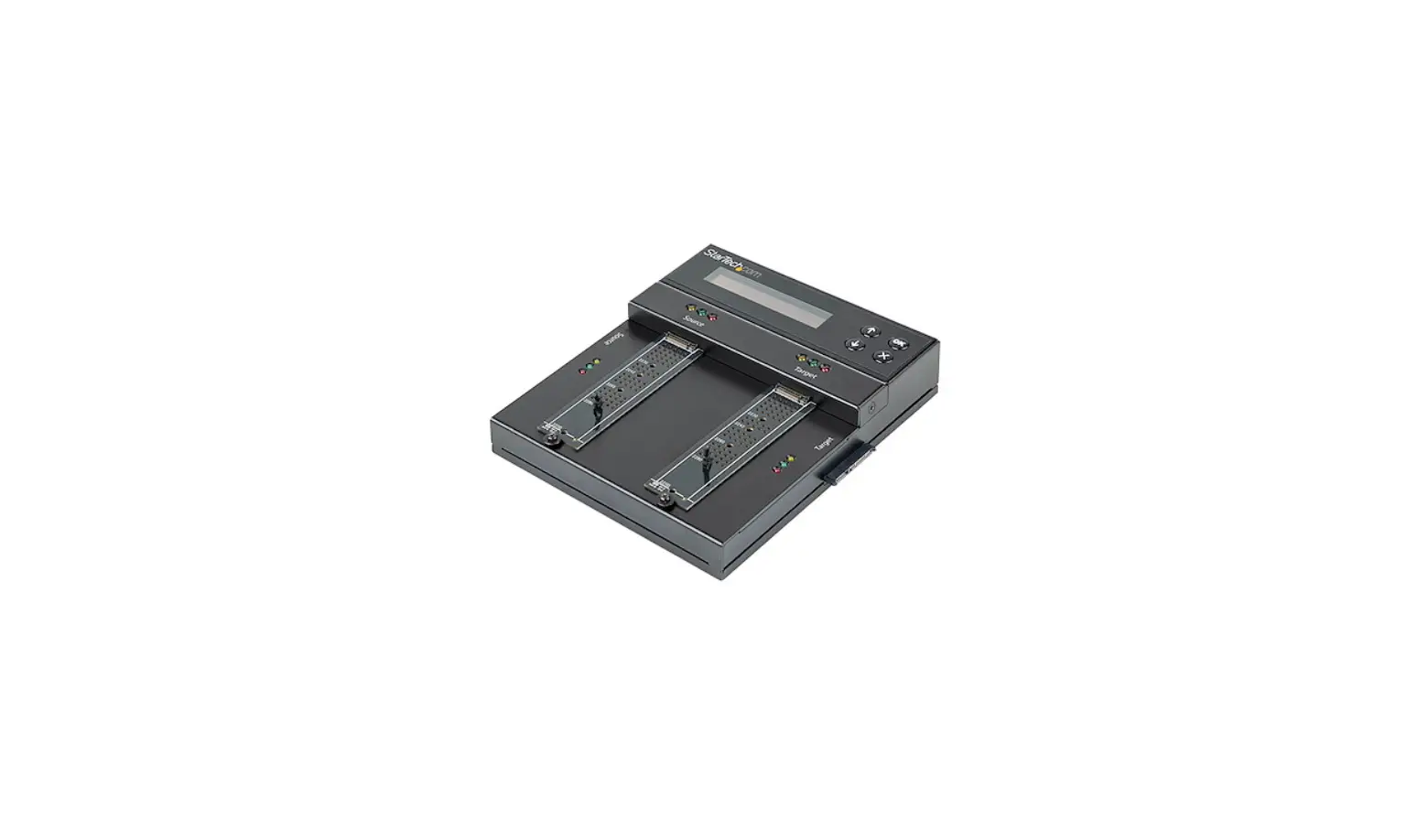
The SATA DOM Duplicator is a device designed to duplicate data
from a source device to multiple target devices. It is equipped
with an LCD screen, LED status indicators, and multiple sockets for
connecting devices.
Specifications
- Product Disclaimer: Specifications and features subject to
change without notice or obligation. - Warranty: One-year parts and labor warranty (excluding cables,
adapters, and other consumable items). Optional extended warranty
available for an added cost. Telephone and email support is
available for the life of the product as defined by us. - Piracy Statement: The manufacturer accepts no responsibility
for copyright infringement or misuse of any our equipment.
Usage Instructions
- Before starting, carefully read the entire manual for proper
operation instructions. - Ensure that the source device is correct and functioning
properly. - It is recommended to have equal capacity of source and target
devices for guaranteed data consistency. - Use the Copy+Compare function for the most flawless
duplication. - Damage incurred due to non-compliance with operating
instructions will void the warranty. - Store the equipment safely when not in use and keep out of
reach of children. - Turn off the duplicator before replacing sockets.
- Never turn off the power while the firmware updates.
- Use only approved, stable power sources.
- The power supply has overload protection. When it is overloaded
and shutdown, unplug the power cord for 2 minutes for
discharging. - Use product only in a clean, dry, dust-free, and ventilated
area. - Liquids or foreign debris can severely damage your
duplicator. - It is typical for the machine to heat up during operation.
While in use, do not move the duplicator or remove SSDs. - Static electricity may cause duplication error. Pay attention
to the duplicator’s environment while operating equipment.
Purchasing electricity elimination equipment helps avoid
shock. - Devices will operate at high-temperatures during selected
tasks. Wear protective gloves to prevent burns when handling
devices. - Ensure machine and operator are properly grounded to prevent
ESD.
Function Table
| Function | Description |
|---|---|
| Copy | Copy data from source HDD to targets. (There are four copy modes for selection at function 6.1) |
| Compare | To compare data bit for bit between source and target HDDs. |
| Copy+Compare | Makes copy first and then compares target HDD with source HDD to ensure data correctness. |
| Quick Erase | To erase HDD’s index table only. |
Note: Refers to related duplicator operations, special details,
tips, or suggestions for operational effectiveness.
Caution: Refers to procedures that need to be adhered to or
precautions.
SATA DOM Duplicator
User Guide v A.01
Index
v A.01
Product Disclaimer …………………………………………………………………………………. 2 Warranty ………………………………………………………………………………………………. 2 Piracy Statement ……………………………………………………………………………………. 2 Before You Start …………………………………………………………………………………….. 3 Notice Symbols………………………………………………………………………………………. 3 Product Introduction………………………………………………………………………………. 4 Function Table ……………………………………………………………………………………….. 5 Functions………………………………………………………………………………………………. 7 1. Copy …………………………………………………………………………………………………. 7 2. Compare ……………………………………………………………………………………………. 7 3. Copy+Compare…………………………………………………………………………………… 7 4. Erase …………………………………………………………………………………………………. 8 5. Utility………………………………………………………………………………………………… 9 6. Setup ………………………………………………………………………………………………. 10
1
Product Disclaimer
The manufacturer is not accountable for any incidental or consequential damages, which includes, but is not constrained to property harm, loss of time or data from use of our product, or any other damages attributable to product malfunction or failure (including without limitation, those attributable to: (1) reliance of the materials provided, (2) costs of product replacement, (3) loss of use, data or profits, (4) delays or business interruptions, (5) and any principle of legal responsibility, arising out of or in reference to the use or overall performance or from delays in servicing or lack of ability to render service) of any our product. The manufacturer makes every effort to ensure proper operation of all products. However, the customer is responsible to affirm that out of our product meets the customer’s quality requirement. The customer further acknowledges that fallacious operation of our product and/or software program, or hardware issues, can cause loss of data, defective formatting, or data loading. The manufacturer will make efforts to resolve or repair any issues recognized by customer either within the warranty period or on a time and materials basis.
Specifications and features subject to change without notice or obligation.
Warranty
The manufacturer provides a basic one-year parts and labor warranty for all of its products (excluding cables, adapters, and other consumable items). An optional extended warranty is also available for an added cost. Telephone and email support is available for the life of the product as defined by us.
All warranties will be restricted and defined by the market region from which customers purchased.
Piracy Statement
The manufacturer accepts no responsibility for copyright infringement or misuse of any our equipment. Copying all forms of data: audio, video, or software without the permission of the copyright holder is illegal. It is the sole responsibility of the user to ensure that the legal copyrights of the copyright owners are respected.
2
Before You Start
Important Notice
Carefully read the entire manual before operating. Make sure the source device is correct and functioning. Equal capacity of source and target is recommended for guaranteed data consistency. Using the Copy+Compare function provides the most flawless duplication. Damage incurred due to non-compliance with our operating instructions will void the
warranty. Store the equipment safely when not in use and keep out of the reach of children. Please turn off duplicator before replacing sockets. Never turn off the power while the firmware updates. Use only approved, stable power sources. The power supply has overload protection. When it is overloaded and shutdown,
please unplug the power cord for 2 minutes for discharging. Use product only in a clean, dry, dust-free, and ventilated area. Liquids or foreign
debris can severely damage your duplicator. It is typical for the machine to heat up during operation. While in use, do not move the duplicator or remove SSDs. Static electricity may cause duplication error. Please pay attention to the duplicator’s
environment while operating equipment. Purchasing electricity elimination equipment helps avoid shock. Devices will operate at high-temperatures during selected tasks. Wear protective gloves to prevent burns when handling devices. Ensure machine and operator are properly grounded to prevent ESD.
Notice Symbols
Special items, procedures, or notes to be observed prior to use:
Note
Refers to related duplicator operations, special details, tips, or suggestions for operational effectiveness.
Caution Refers to procedures that need to be adhered to or precautions.
3
Product Introduction
Front View:
Socket
LCD
Back View:
LED Status Red: Fail Green Flashing: Processing Green Remaining: Pass Yellow: Powering
LCD Configuration
Power Switch Power Supply
4
Function Table
Function Description
1. Copy Copy data from source HDD to targets. (There are four copy modes for
selection at function 6.1)
2. Compare To compare data bit for bit between source and target HDDs.
3. Copy It makes copy first and then compare target HDD with source HDD to ensure +Compare data correctness.
4.1 Quick Erase To erase HDD’s index table only.
4.2 Full Erase
To erase whole HDD.
4. Erase
4.3 DoD Erase To erase HDDs three times complying with USA Department of Defense (DoD) standard.
4.4 DoD EraseComp To erase HDDs three times complying with USA Department of Defense
(DoD) standard and bit by bit to check if data is completely erased.
4.5 7-Pass Erase
Erases device(s) 7 times complying with DoD 5220.22-M(ECE) Standards.
5.1 Show DOM Info Displays basic information such as device model, name, capacity, etc.
5. Utility 6. Setup
5.2.1 Update BIOS To update the system firmware via a USB pen drive or
5.2 Update System
a HDD. 5.2.2 Create Update HDD To format the HDD with a 2GB FAT partition in order to quickly save firmware in the HDD.
5.3 System Info.
Show information of the duplicator system, including controller model number and software version.
System and Files Set to copy source HDD’s data only.
6.1 Copy Area Setup copy mode.
ALL Partitions Set to copy source HDD’s.
Whole HDD Set to copy the whole source HDD.
Percentage (%)
Set up percentage range of HDD for copy.
6.2 Copy GPT Backup Area
Enable this function to copy the end GPT format.
6.3 Skip Errors
5
Set the error volume of source DOM that you want to ignore while copying.
6.4 Erase Master
Allows user to erase the source port or not.
6.5 Unknown Format
Allows user to copy or skip unknown format(s).
6.6 Transfer Rate
Allows user to select from UDMA2 to UDMA4. The UDMA4 is the fastest.
One Byte
A random character to be written into every byte.
6.7 Erase Pattern Big Random Data
A set of random character to be written into a set of
area.
6.8 Language
English / Japanese
6.9 Stop Motor Time
Auto running time after stopping motor.
6.10 Mark after Erase
Creates watermark on the device(s) after erase job is completed.
6.11 Restore Default
Back to original manufacturer setting.
6
Functions
1. Copy
Step 1: Prepare source and target devices.
Note
Recommendation: Target device(s)’ capacity must be equal to or larger than the source device capacity.
Step 2: Connect source and target devices. Step 3: Proceed to copy. Scroll to select “Copy”, then press “OK” to start the duplication process.
Note
The number of working/connected targets will be displayed on LCD. Press “OK” to start.
Press “” together for 5 seconds to stop operation on the
slowest device. Press “ESC” for 5 seconds to stop all the copy jobs.
Caution
It is recommended the copy.
to reboot
the machine after manually stopping
Step 4: Copy Completed! The quantity of passed or failed target device(s), the copied duration will be
displayed on the LCD after duplication completes.
2. Compare
Proceed to verify device(s).
Scroll to select “Compare”, then press “OK” to start the verification process.
Note
The number of working/connected targets will be displayed on the LCD. Press “OK” to start.
3. Copy+Compare
Sequentially automates from Function Copy to Function Compare.
Scroll to select “Copy+Compare”, then press “OK” to start the automated
duplication and verification process.
7
User is responsible for verification of targets’ quality. Testing a few Caution completed targets in a mass production environment for quality
control is recommended.
4. Erase
Caution Please back up all important data before using this function.
Step 1: Connect device(s) for sanitizing. Note Source Port is disabled for erasing.
Step 2: Enter function “4. Erase” Scroll to select “Erase”, then press “OK” to view these erase modes.
Step 3: Select an Erase Function. Here are a couple tips to see port details during erase: Press “” or “” to view real-time status of each port. Press “OK” to view the details of each port.
Step 4: Erase Completed
User is responsible for verification of targets’ quality. Testing a few Caution completed targets in a mass production environment for quality
control is recommended.
4.1 Quick Erase This function will erase the index table from the connected device(s). Scroll to select “Quick Erase”, then press “OK” to start the erasing process.
4.2 Full Erase This function will erase all data per NIST 800-88 Standards on the connected device(s). Scroll to select “Full Erase”, then press “OK” to start the erasing process.
8
4.3 DoD Erase This function will erase all data per DoD 5220.22-M Standards on the connected device(s). Scroll to select “DoD Erase”, then press “OK” to start the erasing process.
4.4 DoD Erase Comp This function will erase all data per DoD 5220.22-M Standards, then compare erasure of the connected device(s). Scroll to select “DoD EraseComp”, then press “OK” to start the erasing and verifying process.
4.5 7-Pass Erase This function will erase device(s) 7 times complying with DoD 5220.22-M(ECE) Standards. Scroll to select “7-Pass Erase”, then press “OK” to start the erasing process.
5. Utility
This menu contains submenus related to device information, system information and updates. Scroll to “Utility”, then press “OK” to view the submenus.
5.1 Show Disk Info This function will display basic information such as device model, name, capacity, etc…. Scroll to select “Show Disk Info”, then press “OK” to view the connected device(s). Then scroll through to view connected device(s) by port number order.
5.2 Update System This function is used to update the system firmware. Please follow the following steps to execute “Update System”. Step 1: Select function [5.2.2 Create Update HDD]. Step 2: Format DOM. (Create a 2GB FAT partition) Note: The purpose of formatting DOM before updating system is because
9
creating a 2GB FAT partition can speed up the updating process. Caution The data saved in this HDD will be erased.
Step 3: Download the BIOS from PC to your DOM. Step 4: Plug in the DOM into the Port#1, and select [Function 5.2.1] to update BIOS.
Please do not disrupt during BIOS update, otherwise it would cause Caution irretrievable error on duplicator. We are not held responsible for any
damages.
5.3 System Info. This function will display basic information such as controller, model number, software version, etc. Scroll to select “System Info”, then press “OK” to view all information.
6. Setup
6.1 Copy Area There are 4 submenu modes. Scroll to select “Copy Area”, then press “OK.” Then scroll through to select one of the four copy methods.
Copy and Compare Preparations Please consider the following settings before proceeding with copy or compare: – Copy Area – Skip Errors – Unknown Format – Copy HPA Area Using appropriate copy modes can greatly reduce operation time and increase efficiency. There are four copy modes with different copy methods.
6.1.1 System and Files Copies data and skips empty space. Only supports standardized formats.
10
Scroll to select “System and Files”, then press “OK” to save the copy method. Allows user to copy source device’s System and Files, instead of the entire device. The system will analyze the source device and identify the data area to copy. If the source device’s data is within the target device’s capacity, the copy will be processed. FAT16/32/64, NTFS, EXT2/EXT3/EXT4, and HFS/HFS+/HFSX are supported in this copy mode.
Partition1 (150GB) Data 30 GB
Source
Duplication
Target
PartitioDna2ta(2300G0GB) Data 90GB
500GB
150GB Unallocated Partition
Only 120G data area will be copied.
6.1.2 All Partitions
Copies all partitions and data, unallocated partitions not included. Scroll to select “All Partitions”, then press “OK” to save the copy method. The target device’s capacity must be equal to or larger than the source device’s capacity.
Partition1 (150GB) Data 30 GB
Partition2 (200GB) Data 90GB
Source
Duplication
500GB
Target 350GB
150GB Unallocated Partition
350GB of all Partitions along with its contents will be copied.
6.1.3 Whole HDD
11
Copies all source data bit by bit. Scroll to select “Whole Device”, then press “OK” to save the copy method. Copies the whole source device, irrespective of content, format, partition or empty space. This mode does not analyze the data.
Partition1 (150GB) Data 30 GB
Source
Duplication
Target
Partition2 (200GB) Data 90GB
500GB
150GB Unallocated Partition
150GB Unallocated Partition
500GB
150GB Unallocated Partition
All 500GB of data will be copied.
6.1.4 Percentage (%)
Select percentage of source capacity to copy. Scroll to select “Percentage”, set the upper and lower %, then press “OK” to save the copy method.
Source
Duplication
Target
25%
25%
35%
35%
500GB
150GB Unallocated Partition
Only copies the selected area.
6.2 Copy GPT Backup Area
Disabling this function allows the duplicator to copy from big capacity device to small
capacity device(s). 12
Note The partition size of the source HDD must be smaller than target capacity. GPT Index Partition
Disabling function “Copy GPT Backup Area” will force the duplicator to ignore this area.
GPT Backup Area
If function is disabled, the target HDD will reconstruct the GPT Backup Area by Caution Windows system. It may require the HDD to restart in order to work.
6.3 Skip Errors Skips bad sectors during Copy/ Compare. Scroll to select Skip Errors”, then press “OK” to scroll through the available values for skipping bad sectors. If the device data is critical and needs to be a full clone, it is recommended to set “Skip Error” at “0.” Bad sectors can be set as unlimited or at a value from 0 to 65,535.
Caution
The “Copy+Compare” accuracy.
function
is
advised
for
enhanced
copy
6.4 Erase Master This function allows user to enable or disable the source port for sanitization. Scroll to select “Erase Master”, then press “OK.” Then scroll through to select one of two settings.
Disabled Devices connected to source port cannot be erased. Scroll to select “Erase Master >> Disabled”, then press “OK” to save this setting.
13
Enabled Devices connected to source port can be erased. Scroll to select “Erase Master >> Enabled”, then press “OK” to save this setting.
6.5 Unknow Format This function only works with “Copy Area >> System and Files.” Scroll to select “Unknown Format”, then press “OK”. Unknown format includes all forms of modified and proprietary data and partitions.
Copy Unknown Copy unknown format(s). Scroll to select “Unknown Format >> Copy Unknown”, then press “OK” to save this setting. Skip Unknown Skip unknown format(s). Scroll to select “Unknown Format >> Skip Unknown”, then press “OK” to save this setting.
6.6 Transfer Rate Allows user to select the transfer rate. Scroll to select “Transfer Rate”, then press “OK”. Select the desired transfer mode from UDMA2 to 4. The default is UDMA4.
6.7 Erase Pattern Scroll to select “Erase Pattern”, then press “OK”. Then scroll through to select one of two settings.
One Byte Random character written per byte. Scroll to select “Erase Pattern >> One Byte”, then press “OK” to save this setting. Big Random Data Random character written in a set of area. Scroll to select “Erase Pattern >> Big Random Data”, then press “OK” to save this setting.
14
6.8 Language Select English or Japanese. Scroll to select “Language”, then press “OK.” Then scroll through to select the desired language. 6.9 Stop Motor Time Sets device power down buffer time when tasks are completed. Scroll to select “Stop Motor Time”, then press “OK” to set buffer time from 1 to 20 seconds. The default is 5 seconds. 6.10 Mark after Erase After the HDD is erased, a mark is left on the hard disk. The default setup is disable.
6.11 Restore Default Restores all settings back to manufacturer defaults. Scroll to select ” Restore Defaults”, then press “OK” to restore settings back to manufacturer defaults.
*The above information is for marketing reference only. The actual specification may subject to change without notice.
15