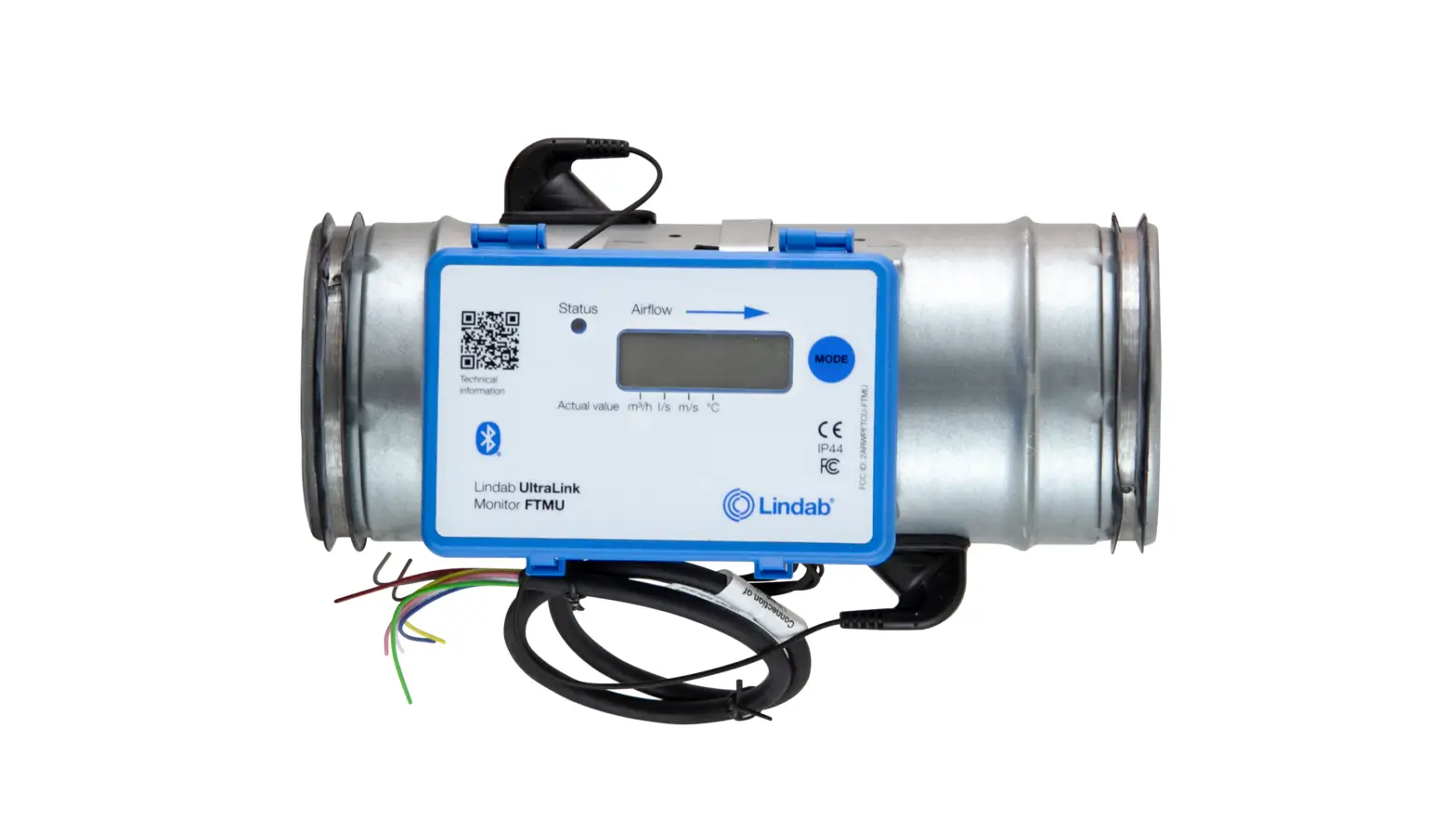
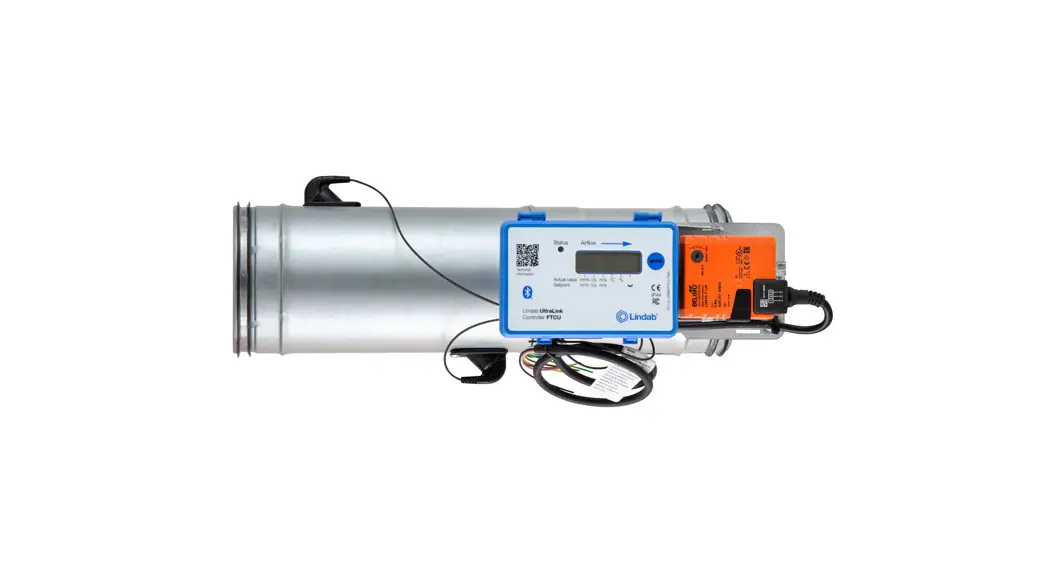
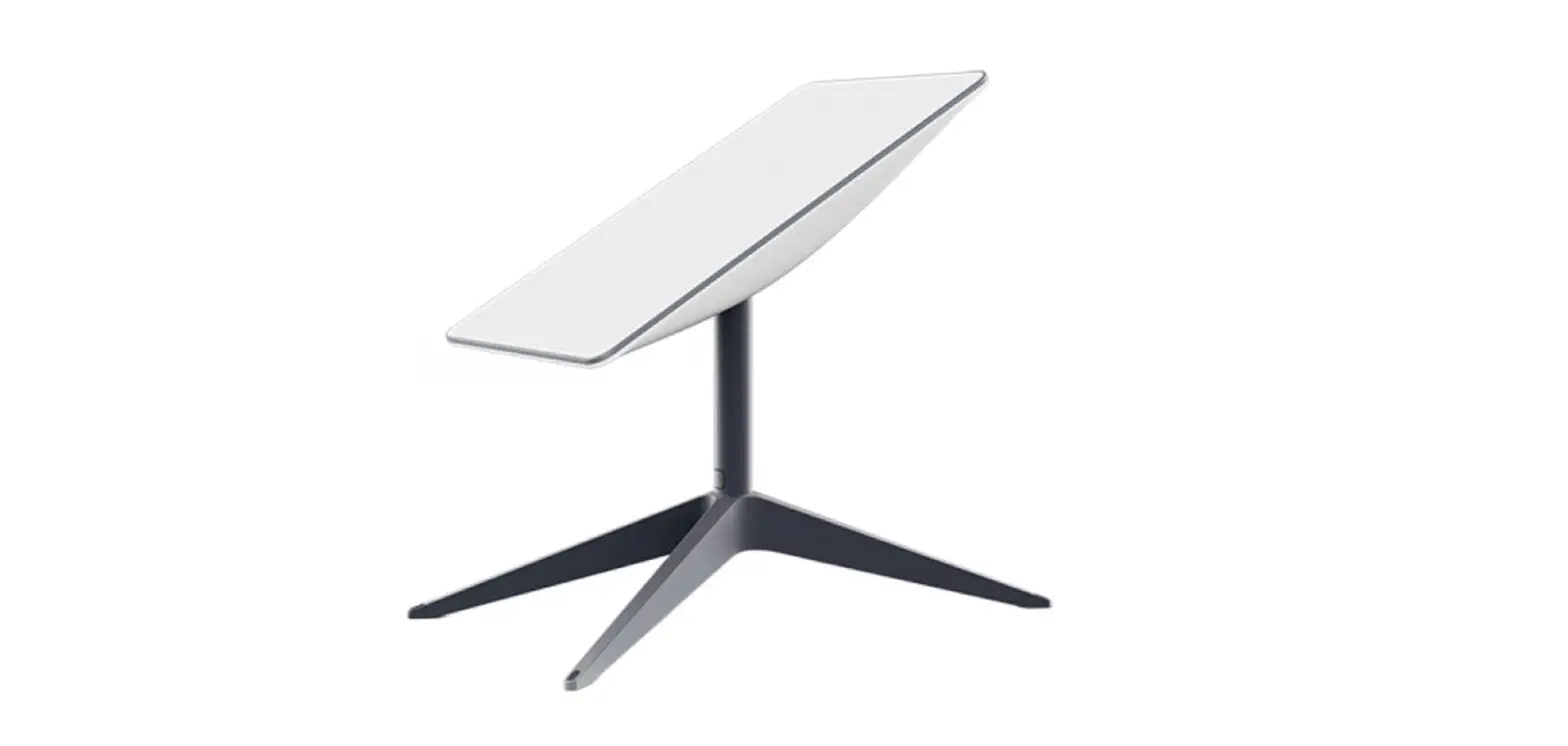
FTMU UltraLink Monitor
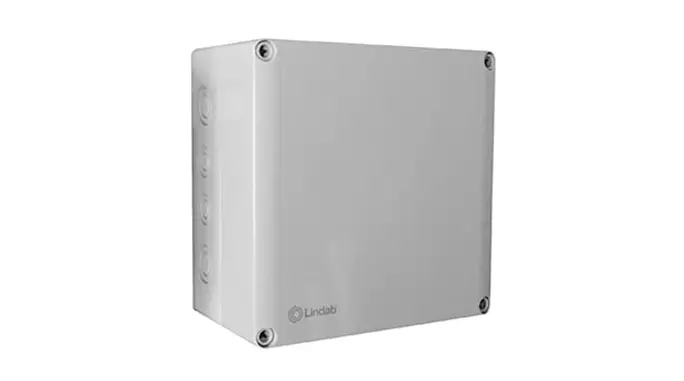
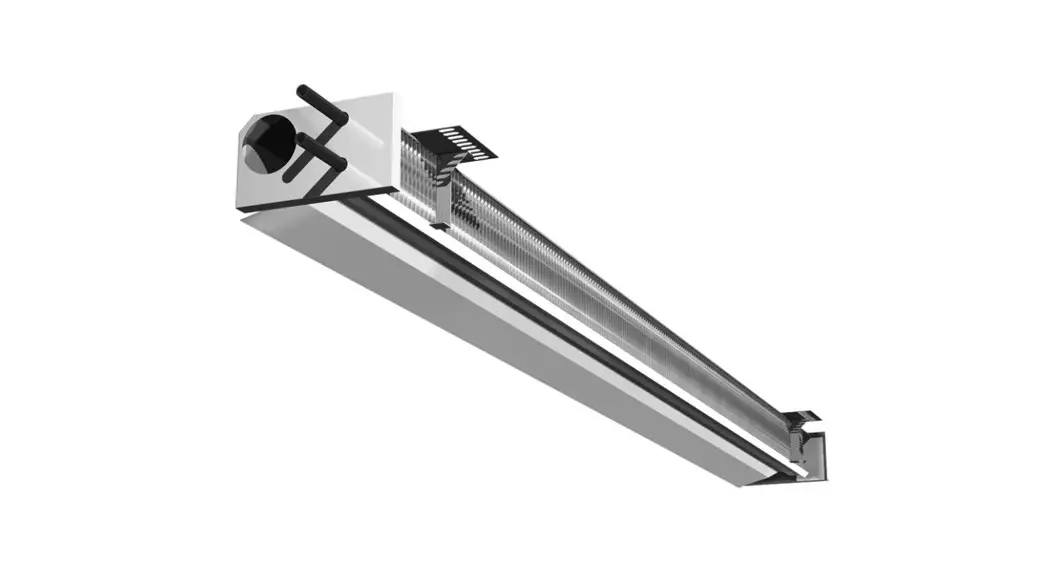
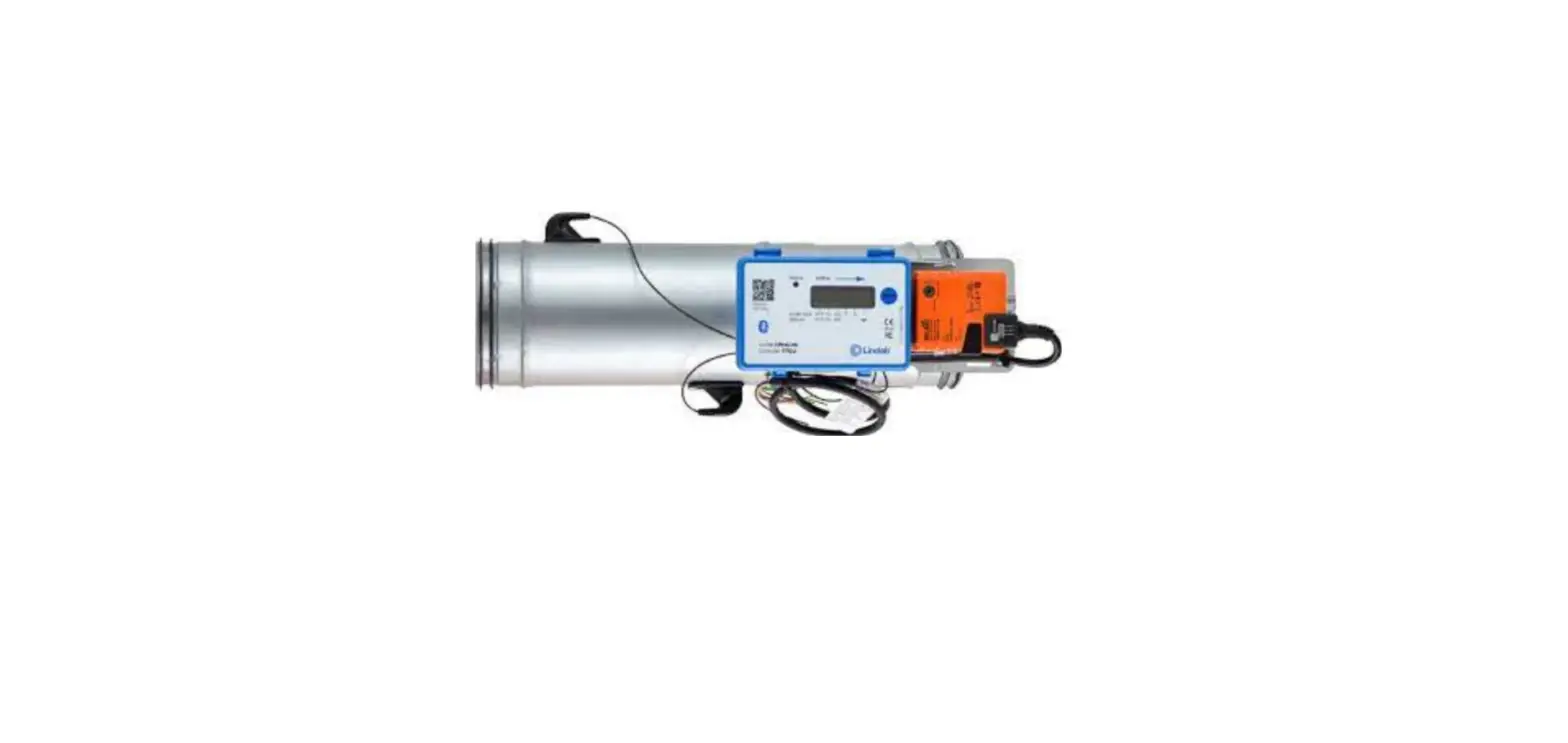
Lindab FTMU Air Flow and Temperature Measurement Unit
Lindab FTMU is a highly accurate measurement device that
measures air flow and temperature in ventilation systems. It is
designed to provide reliable data to HVAC engineers, building
managers, and maintenance professionals. The device is equipped
with two flow sensors that are mounted on the sensor body and
connected to a display unit. The display unit is mounted on top of
a shelf on the sensor body. The FTMU can communicate via analog or
digital signal using Modbus.
Technical Specifications
- Measurement range: 0-10 m/s
- Accuracy: ±3% of reading + 0.1 m/s
- Temperature range: -20°C to +80°C
- Power supply: 24V DC
- IP classification: IP54
Mounting Instructions
It is important to follow the mounting instructions to ensure
accurate measurements. The device should be installed in a straight
duct, and the longer the distance to disturbance, the higher the
measurement accuracy will be. The first flow sensor should not be
placed on an outer radius of a fitting. Other obstructions in the
duct system such as axial fans, silencer baffles, or cleaning
hatches are not allowed before the UltraLink (in the direction of
the flow). If a cleaning hatch is required, it must be placed after
the UltraLink (in the direction of the flow).
It is also important to note that the flow sensors are placed at
a fixed distance to each other and should never be removed or used
as handles when turning the sensor body. Never install a
measurement unit after (in airflow direction) two disturbance
fittings where those two fittings are installed in two different
levels and the airflow also turns in cross direction. Not following
these rules may cause damage and result in inaccurate
measurements.
Usage Instructions
To use the FTMU, first, ensure that it is properly installed in
a straight duct according to the mounting instructions. Then,
connect the device to a power supply of 24V DC. The FTMU can
communicate via analog or digital signal using Modbus, so ensure
that the appropriate communication method is used for your system.
The display unit provides information on air flow direction, status
light, display parameters, CE-mark, and IP classification.
If non-optimal installation situations appear, or several
successive disturbance faults exist, please contact Lindab sales
for consulting.
Lindab reserves the right to make changes without prior
notice.
lindab | for a better climate
Lindab UltraLink® Monitor FTMU
Technical information
lindab | technical information
UltraLink® Monitor
Content
Introduction ………………………………………………………………………………………. 2 Overview (Application, Design, Display unit) ………………………………………….3 Mounting ………………………………………………………………………………………….. 4 Electrical installation ………………………………………………………………………….. 7 Commissioning ……………………………………………………………………………….. 11
Mobile app …………………………………………………………………………………. 11 Ultra BTTM Room Control System (Installation of wireless sensors) …… 11 Display ………………………………………………………………………………………. 12 Parameter structure …………………………………………………………………….. 12 Status light …………………………………………………………………………………. 12 Connecting flow measurement for installation close to disturbance ….. 13 ID-numbers………………………………………………………………………………… 13 PIN code ……………………………………………………………………………………. 13 Maintenance ………………………………………………………………………………. 13 Configuration menu structure……………………………………………………….. 13 Digital communication settings………………………………………………………….. 14 Analog communication settings ………………………………………………………… 14 Troubleshooting ………………………………………………………………………………. 15 Technical data …………………………………………………………………………………. 16 Appendix A Modbus register ………………………………………………………….. 17
FTMU
Introduction
UltraLink® FTMU is a highly accurate flow monitor without any obstacles in the airstream that creates pressure drop. It measures the flow with an angled ultrasonic beam which can be calculated and compensated to a very high accuracy over the whole flow range. The method is very stable over time due to that it is not sensitive to dirt and the design minimizes the dust accumulation on the flow sensors.
An increased focus on energy saving has led to ventilation systems requiring low minimum flows. The low flows are a problem since they are very difficult to measure, which makes it difficult to control the ventilation system.
The new technology of UltraLink® makes it possible to measure lower air flows compared to today’s products while maintaining measurement accuracy. This offers great advantages for the user in terms of comfort and savings in energy consumption, which is of great interest.
© 10.2022 Lindab Ventilation. All forms of reproduction without written permission are forbidden.
is the registered trademark of Lindab AB.
Lindab’s products, systems, product and product group designations are protected by intellectual property rights (IPR).
2
Lindab reserves the right to make changes without prior notice
2022-10-28
UltraLink® Monitor
Display unit
lindab | technical information
FTMU
Sensor body Transducer
Overview
Application
The FTMU is suitable for measuring air flow and temperature. Communication is established via analog or digital signal using Modbus.
Design The FTMU consists of a sensor body with Lindab Safe gaskets.
Two flow sensors are mounted on the sensor body and connected to a display unit. The display unit is mounted on top of a shelf on the sensor body.
Note! The flow sensors are placed at a fixed distance to each other and they shall never be removed and not used as handles when turning the sensor body.
Display unit
QR code
Mode button Air flow direction
Bluetooth®
Status light Display parameters
CE-mark IP classification
Lindab reserves the right to make changes without prior notice
3
2022-10-28
lindab | technical information
UltraLink® Monitor
Mounting
Please note: · The transducers must never be removed! · Do not use the transducers as handles when you mount the FTMU since
this may cause damage!
· Make sure the airflow arrow is pointing in the direction of the airflow.
FTMU
Transducers
· Rotate the senor body to the correct position according to the chapter “Planning” on the next page.
· Position the display so it is visible from a suitable direction. By loosening the screw of the steel strip, the display unit can be rotated.
Airflow direction arrow
· Mount the FTMU into the air duct system according to the mounting instructions for Lindab Safe.
Duct fan
· Never use a FTMU on the outlet side of a duct fan. (Place it on the inlet side or in worst case use a flow conditioner if it must be placed on the outlet side.)
· Note the ID-number of the FTMU. The ID is the three last numbers of the serial number and can be found: – on the label of the box it was delivered in – on the label on the FTMU itself – in the display after pressing the “MODE” button – in the App when the product is turned on
· To avoid issues with measurement accuracy due to air turbulence:
Make sure you never install a measurement unit after (in airflow direction) two disturbance fittings (refering to number 1 and 2) where those two fittings are installed in two different levels and the airflow also turnes in cross direction. (Refering to number 3)
Not following these rules the measurement might not be accurate due to air turbulance.
Where non-optimal installation situations appear, or several successive disturbance faults may exist, please contact Lindab sales for consulting.
Controller FTCU Ø125
Serial no. 132600052
Lindab®
UltraLink
2
1
3 Airflow direction
4
Lindab reserves the right to make changes without prior notice
2022-10-28
lindab | technical information
UltraLink® Monitor
FTMU
Planning
The longer distance to disturbance, i.e. the longer straight duct before the FTMU, the higher the measurement accuracy will be. However this is not the only factor which affects the accuracy of the measurement. The rotation of the FTMU and hence the positioning of the first flow sensor has an impact on the uncertainty of the measurement. It is not recommended to mount the FTMU so that the first flow sensor (*) is placed on an outer radius of a fitting.
For example: in the case of the bend in the table below, by rotating the FTMU to position the first flow sensor according to the first picture (with the first flow sensor on the inner radius of the bend), the FTMU can be placed at the distance of two duct diameters from the disturbance to achieve 5 % uncertainty. Positioning the FTMU according to the second picture (with the first sensor on the outer radius of the bend), the FTMU must be mounted five duct diameters from the disturbance to achieve the same level of uncertainty.
Other obstructions in the duct system such as axial fans, silencer baffels or cleaning hatches etc. are not allowed before the UltraLink (in the direction of the flow). If a cleaning hatch is required, it must be placed after the UltraLink (in the direction of the flow). The reason is that these cause turbulences, which can result in errors in flow measurements.
Disturbance Bend
Bend
* Placement of first flow sensor
a
Ød
*
Inner radius (Best position)
Measurement uncertainty ± % or X l/s depending wich is the greatest of percentage or the absolute value for the
specific product size, see table on page 16.
a
2-4·Ød >4-5·Ød >5·Ød
5
5
5
*
a
Ød
Outer radius
20
10
5
(Not recommended)
Bend
Ød
a*
a
*
Ød
Side
10
5
5
Lindab reserves the right to make changes without prior notice
5
2022-10-28
lindab | technical information
UltraLink® Monitor
FTMU
Disturbance Reducer Reducer T-piece
T-piece
* Placement of first flow sensor
a
Ød
Duct diameter
decrease
*
a
Measurement uncertainty ± % or X l/s depending wich is the greatest of percentage or the absolute value for the
specific product size, see table on page 16.
a
2-4·Ød >4-5·Ød >5·Ød
5
5
5
Ød
Duct diameter increase
10
5
5
*
a
Ød
* *
a
Ød
Inner radius (Best position)
10
5
5
Outer radius
20
10
5
(Not recommended)
T-piece
a*
Ød
a*
Ød
Side
10
5
5
6
Lindab reserves the right to make changes without prior notice
2022-10-28
UltraLink® Monitor
lindab | technical information
FTMU
Electrical installation
Please note:
· You must under no circumstances make any holes or connect anything with screws to the body of the FTMU.
· In case electrical installation equipment such as a junction box is needed for installation, the FTES is a Lindab accessory which can be mounted on the FTMU without causing damage to the FTMU.
· Never remove the blue electronics box. · Never remove the transducers.
For cable connections there is two options, use the premounted cable or connect directly in the PCB (option A and B):
Option A
Use the premounted cable >>
· Connect power and communication cables to the premounted cable.
· Check the label on cable for reference to cable colours.
· It is important that the cable is as short as possible for optimal Modbus communication.
Option B
Connect directly on PCB >>
· To access the terminals on the circuit board, remove the lid by pushing the two heels on the side of the blue box.
· To be able to connect cords to the terminal board the rubber cable grommet on the backside of the display unit must be punctured, preferably using an awl or something pointy to ensure tightness to the environment. Do not remove the blue box to do this!
· When the cables have been connected they must be strain relieved. The cables can be attached to the shelf by using cable ties that are attached around cut outs in the shelf.
SCL SDA GND 3V3 24V GND +B -A SH GND AO1 AO2 AIN MO1 MO2 GND
13 14 15 16
1 2 3 4 5 6 7 8 9 10 11 12
Lindab reserves the right to make changes without prior notice
7
2022-10-28
lindab | technical information
UltraLink® Monitor
FTMU
Option A: Connect to premounted cable
Connect the premounted cable in a junction box near the FTMU. Connect power and signal cables in the junction box according to the color scheme on the lable on the premounted cable, see picture to the right.
When connecting Modbus signal wires, the length of the premounted cable needs to be as short as possible, since these have a negative effect on signal quality.
In this case, place junction box as close to the FTMU as possible, then cut the premounted where it is as short as possible for installation.
Connection of UltraLink
Note! All cables that are not connected must be insulated.
24V GND +B -A GND AO1 AO2 AIN
Red White Yellow Brown Grey Green Blue Pink
Option B: Circuit board screw terminals
Connections are made in the terminal board which can be accessed when the lid of the display unit is removed. In the back of the lid there is a picture with a list of the terminals.
1. 24V, power supply (AC G, DC +) * 2. GND, power supply (AC G0, DC -) * 3. +B, connection for Modbus via RS485 4. -A, connection for Modbus via RS485 5. SH, shield 6. GND, ground (system neutral) 7. AO1, analog output 8. AO2, analog output 9. AIN, (not used in this version) 10. MO1, (not used in this version) 11. MO2, (not used in this version) 12. GND, ground (system neutral) 13. SCL, not used 14. SDA, not used 15. GND, ground (system neutral) 16. 3V3, not used (in case of biasing)
13 14 15 16
{ 24V AC/DC G+ G-
{ Modbus
+B
-A
GND
{ AO1
Analog signals
AO2
AIN
SCL SDA GND 3V3 24V GND +B -A SH GND AO1 AO2 AIN MO1 MO2 GND
1 2 3 4 5 6 7 8 9 10 11 12
*) When using AC terminal 1 (G) should have system potential and terminal 2 (G0) should be system neutral.
Recommendations for wiring
Function 24 V Supply RS485 Modbus communication
Cable type 2-wire, thickness depending on length and load, max. 1,5 mm² 2-wire shielded twisted pair, min. 0,1 mm² (LIYCY cable)
Using other cables for Modbus signals may result in communication problems.
Analog connection
When connecting the FTMU using analog signals, it is important to connect the analog out signals on the FTMU (AO1, AO2) to the analog in terminals on the RTU and the analog in signal (AIN) is connected to the analog out terminal on the RTU. Also make sure to connect the cables to the same analog ground.
8
Lindab reserves the right to make changes without prior notice
2022-10-28
UltraLink® Monitor
lindab | technical information
FTMU
Digital connection (Modbus)
Connect A on the RTU to -A on the display unit and B to +B. When connecting more than one FTMU in series it is important to keep connecting -A to -A and +B to +B since crossing them will stop Modbus from working. It is recommended to use RS485 cables with twisted pairs and shield, do not supply power in the same cable unless the cable is produced for that purpose. When connecting signal ground, attach it to “GND” on the terminal to the right of the terminal for shield (SH) on the PCB. Then attach it to the corresponding terminal in the RTU.
Connecting shield
The shield in the RS485 cable should be connected to ground at the transformer and then continuously connect to “SH” on all the UltraLinks that are powered from that transformer. If more than one transformer is used on the bus, the shield is broken at each transformer so “SH” on every product only has connection to ground at the transformer from which its power is supplied.
+B -A
GND
+B -A
GND
+B -A GND
Shield ground B A Signal ground
+B -A GND
Biasing
The master on the bus must have biasing on -A and +B. This is more or less standard on BMS-controllers, but if communication should be established with a conventional computer using a RS485-USB converter, then it is important to make sure that the converter has a bias circuit. If communication fails and you are uncertain about existance of biasing,
you can add biasing resistors in the screw terminal on one of the UltraLinks to see if this is the cause of the communication failure. Use 500 – 1000 resistors and connect one resistor from -A to GND and one from +B to the 3V3 terminal. It is also recommendedto add a 120 termination resistor between -A and +B on the last UltraLink on the bus to avoid signal reflections.
Repeater
If the bus is longer than 300 meters or if there are more than 30 devices, the system might need an RS485 repeater (FDS-R, see picture to the right) to be able to communicate in an efficient way.
Lindab reserves the right to make changes without prior notice
9
2022-10-28
lindab | technical information
UltraLink® Monitor
FTMU
Power supply Transformer sizing
The needed size of 24 V AC transformer(s) can be defined by adding up the dimensioning power consumption [VA] of all the components. The transformer power must exceed this. Use only safety isolating transformers. Calculation of the current demand I:
I = (P1+P2+…+Pn) / U [A] where: Pn is the dimensioned power consumption for each component [VA] U is the voltage (24) [V].
If the current demand I exceeds 6 A ( which corresponds to approximately 150 VA for a 24 V AC transformer ), it is necessary to use more transformers to prevent overheating.
Supply cable sizing
The wire size of the supply cable can be determined by calculating the resistance per meter R. The calculation presupposes that a voltage drop of e.g. 2 V is accepted in the supply cable:
R(per m) = Udrop / (I * L) [/m] where: Udrop is the accepted voltage drop (2 V) in the cable [V] I is the current [A] L is the longest distance of supply cables from transformer to a component [m]
Wire cross section area as a function of resistance per m for copper wire
Example: Udrop = 2 V, I = 4 A, L = 20 m R (per m) = 2V / (4A × 20 m) = 0,025 /m In the diagram a Wire cross section Area of 0,7 mm² can be read.
Wire cross section Area [ mm2 ]
1,5 1,4 1,3 1,2 1,1
1 0,9 0,8 0,7 0,6 0,5 0,4 0,3 0,2 0,1
0 0
0,05
0,10
0,15
0,20
Copper Resistance [ /m ]
Power consumption The power consumption for dimensioning supply cables for an UltraLink® FTMU is 0,5 VA. It is not recommended to use a transformer with a higher capacity than 150 VA.
10
Lindab reserves the right to make changes without prior notice
2022-10-28
UltraLink® Monitor
lindab | technical information
FTMU
Commissioning
Mobile app
Using a smartphone with the Lindab OneLink app, nearby UltraLinks will be identified. Now you can connect to all the different UltraLink units, change settings and view information regarding each unit. You can find the OneLink app in both Google Play and AppStore, free of charge. The settings of all the different UltraLink units can then easy be changed directly through the app. This means you can have individually settings chosen for a specific building.
It is therefore necessary to change the PIN code in the UltraLink, for a discription on how this is done, see page 13.
Download app
Lindab Ultra BTTM Room Control System (Installation of wireless sensors)
Ultra BT is based on few components and introduces a revolutionized way of controlling and optimizing your Demand Controlled Ventilation system at room level.
It is a 360-degree system upgrade with a fully integrated Bluetooth Technology, making both costs, installation complexity, and daily operations much more efficient and indoor climate optimal at all times.
Lindab Ultra BTTM User Manual
You can find the specific user manual for the Ultra BTTM Room Control System by clicking or scaning the QR code.
12:30
Wireless Sensors
20.1°C
512 ppm
57 %
456 l/s
70 %
YES 86%
T2immeSinoSeuuEnttCesMsT0oA0Hr:Ct0y0pa:0de0d:0re0:s0s0:00 Configuration
Connect
Measure A
CoBntact
Lindab reserves the right to make changes without prior notice
11
2022-10-28
lindab | technical information
UltraLink® Monitor
FTMU
Display
The display can show
useful information both
with the diode flashing in
green (status light) and with parameters in the
257
LCD. If the product is
equipped with Bluetooth,
then the diode will also
flash in blue every three seconds. If a device has been
connected to the UltraLink via Bluetooth, then the diode
will flash in blue every other second.
By short pressing the mode button you can change the displayed parameter. If the button is pressed for more than 5 seconds (long press) then the configuration menu will be visible. The arrow at the bottom of the display indicates the current parameter type and unit.
For a detailed description on configurating the UltraLink using the mode button on the display, see page 13.
Parameter structure
The information menu is visible in the display as soon as the device is powered and by default the air flow in m³/h is shown. You can toggle between the different parameters in the menu by short pressing the Mode button. The arrows at the bottom of the menu indicates the air flow reading, temperature and also what unit the current value has (if any). The following list of parameters are available;
· Air flow (m³/h) · Air flow (l/s) · Air velocity (m/s) · Temperature (°C) · FTMU ID number
Status light The green status light indicates:
Mode No light Flashing light every 1 second Constant light
The Blue status light indicates: Mode No light Flashing light every 3 second Flashing light every 1 second
Function FTMU is turned off A problem has occurred, error code will be visible in display FTMU is turned on and functioning as normal
Function Bluetooth is turned off or the FTMU is not equipped with it. Bluetooth is on stand by and is ready to connect to mobile device. A mobile device has been connected to the FTMU.
12
Lindab reserves the right to make changes without prior notice
2022-10-28
lindab | technical information
UltraLink® Monitor
FTMU
ID-numbers
Controller FTCU Ø125
The FTMU is given an
ID-number between 1 to 239
Serial no. 132600052
during production. The given
Lindab®
UltraLink
ID-number can be seen on
the label on the outside of the box the FTMU is delivered
in, the ID-number is the same as the three last digits in the
serial number.
If two or more Modbus devices have the same ID-number it is necessary to apply changes so that each of them get an unique ID-number to allow communication.
To change the Modbus ID register of an UltraLink® all other devices with the same ID must be disconnected. It is more efficient to change the ID in the display under “Con.Set” (see table below) or with the OneLink app. The register for Modbus ID is a holding register with address 4×001.
Correcting flow measurement for installation close to disturbance
Later UltraLinks have a function to compensate for mounting the product closer to a disturbance, and still have 5% measurement uncertainty, than what is specified in the chapter “Mounting”. If it is required to install an UltraLink close to a disturbance, the correction is done via a function in the OneLink app. Connect a mobile device to the UltraLink and tap the “Device” tab, there is a function
which is activated by choosing “Type of disturbance” and then “Distance to dirsturbance”. After these two inputs have been made, the function is active and corrects the flow according to the inputs made.
PIN code
UltraLink with Bluetooth must be protected againt unauthorized access by PIN-code, which has to be stated before changes to the settings can be made. It is important to choose and change the code that the product is delivered with (1111), to ensure that no unauthorized changes are made. The Bluetooth radio can be disabled by setting register 4×007 to 0.
The code can be changed in three ways: · using the configuration menu in the display,
see below table. · connecting a PC via Modbus and using the
“Configuration Tool” software. · connect a Bluetooth device and use the OneLink
application.
Maintenance
The FTMU does not normally require any maintenance. The visible parts of the device can be wiped with a damp cloth.
Configuration menu structure
The configuration menu is activated by long pressing the button (5 sec). After long pressing the button a new menu will appear with three different options;
· Con.Set · Cancel
(Connection settings) (Cancel and return to information menu)
Under Con.Set (connection settings) you can find the following options (toggle with short press, select with long press);
Menu tag · Pr.
· b.
Description Protocol
Baud rate
· bit. · P.
Stop bits Parity
· Id. · PLA. · ELA. · Pi. · Store · Cancel
Modbus Id PLA address for Pascal ELA address for Pascal Pin-code Store changes Cancel
Options
Pr.PAS Pr.Mod
b.9600 b.19200 b.38400 b.76800
bit.1 bit.2
P.odd P.even P.none
Id.x
PLA.x
ELA.x
Pi.xxxx
Description
Pascal protocol Modbus
Baud rate 9600 Baud rate 19200 Baud rate 38400 Baud rate 76800
1 stop bits 2 stop bits
Odd parity Even parity Parity none
Modbus id (x = value) *)
PLA address (x = value) *)
ELA address (x = value) *)
Default: xxxx = 1111
Strores changes on long press
Cancel and ignore changes on long press
*) To change the value you need to long press until a blinking cursor appears under the first single number in the current value. After that
you short press to toggle to the desired number, then you long press to move the blinking cursor to the next single number in the current
value. Proceed until the new value has beLeinndsaebtreasnedrvleosntgheprrieghststotomcaoknetcinhuaneg. es without prior notice
13
2022-10-28
lindab | technical information
UltraLink® Monitor
FTMU
Digital communication settings
Registers 4×001-4×009 are used to configure communication settings. When initializing contact for the first time the default settings will be active;
Modbus id: Last three digits in the serial number (also visible in the display if the product has power)
Baud rate: 19200 Parity: Odd Stop bits: 1
After updating any of the communication parameters the product needs to be power cycled for the changes to take effect.
PLEASE LOOK IN THE APPENDED MODBUS REGISTER FOR INSTRUCTIONS ON HOW TO CHANGE REGISTER VALUES. SOME VALUES HAS SCALE FACTORS AND SOME VALUES OCCUPY TWO REGISTERS!
All available settings are presented in the appendix. The settings can be changed via the RS485 bus and can be done from any device and configuration that can communicate using Modbus, but it can also be done via the OneLink app. For more register details see appendix.
Analog communication settings
Analog out settings via Modbus
Analog out is always active but you need to specify what kind of data you want to read on the two ports Analog Out 1 (AO1) and Analog Out 2 (AO2);
1. Configure registers 4×401(AO1) and 4×431 (AO2) for the variables you want to read on the analog out terminals (0 = Flow, 1 = Temperature).
2. Configure registers 4×400 (AO1) and 4×430 (AO2) for analog out level configuration ( (0) 0-10V, (1) 10-0V, (2) 2-10V, (3) 10-2V)
3. Configure registers 4×401406 (AO1) and 4×431436 (AO2) with relevant data for max and min levels for the voltage range selected in step 2. You only need to configure the max and min values corresponding to the variable selected in step 1.
Default values for the relevant registers related to “Analog Out 1” are according to the table below (Default values for flow max corresponds to 7 m/s).
Size Ø
[mm] 100 125 160 200 250 315 400 500 630
4×400 Level Conf.
2 (2-10V)
4×401 Unit Conf.
0 (Flow)
4×402 Temp Min
[°C]
0 0 0 0 0 0 0 0 0
4×403 Temp Max
[°C]
50 50 50 50 50 50 50 50 50
4×404 Flow Min
[l/s]
0 0 0 0 0 0 0 0 0
4×406 Flow Max
[l/s]
55 86 141 220 344 546 880 1374 2182
Default values for the relevant registers related to “Analog Out 2” are according to the table below (Default values for flow max corresponds to 7 m/s).
Size Ø [mm]
4×430 Level Conf.
4×431 Unit Conf.
4×432 Temp Min
[°C]
4×433 Temp max
[°C]
4×434 Flow Min
l/s]
4×436 Flow Max
[l/s]
100
0
50
0
55
125
0
50
0
86
160
0
50
0
141
200
0
50
0
220
250
2 (2-10V)
1 (Temperature)
0
50
0
344
315
0
50
0
546
400
0
50
0
880
500
0
50
0
1374
630
0
50
0
2182
14
Lindab reserves the right to make changes without prior notice
2022-10-28
lindab | technical information
UltraLink® Monitor
FTMU
Troubleshooting
2
4
We recommend you to in first hand use our Product Assistant inside the commissioning app OneLink.
3 1. Open Lindab OneLink app 2. Go to 3. Click on Product Assistant 4. Choose product
If digital communication fails, please verify the following before contacting support:
· Check settings for Baud rate, parity and stop bit and make sure the master uses the same settings as the UltraLinks. This can be done with a mobile phone and the OneLink app.
· -A and +B are continuously connected between all the products without any mixups of -A and +B.
· Bus layout is not allowed to be “star connection”.
· The cables for power supply are connected identical on all products and transformers connecting G to G (24V) and G0 to G0 (GND).
· The shield is continuous along the bus and grounded only at the transformer and the last UltraLink on the bus.
· There are not more than 30 devices on the bus. (Install a repeater if you have more than 30 devices.)
· The total length of the bus is maximum 300 m. (Install with a repeater if you have more than 300 m bus cable.)
· Try to establish communication with a PC using Configuration Tool and a biased RS485-USB converter.
· Keep the total length of stubbs (such as the premounted cable) of a buss with 30 devices, no more than 20 meters.
Problems accessing UltraLink via Bluetooth:
· The UltraLink must have the Bluetooth logotype on the lid of the display unit in order to have a Bluetooth function.
· To access the UltraLink via Bluetooth, the correct PIN code must be input before being able to connect. Verify with administrator that the PIN code is correct if you cannot connect.
If analog signals fails, make sure to doublecheck the following:
· Measure voltage on the screw terminal, the voltage should be the same as that on the BMS controller.
· If the voltage is not correct, check that the wire is firmly attach to the terminal of the UltraLink. If it is not, then the UltraLink might not be able to pick up the signal.
Error codes
If a problem occurs the status light will start to flash and an error code will be displayed. Listed in the table below are their problem and possible solution.
Error code Problem
Err004
Problems with flow measurement
Err05 Err06 Err032
External sensor low battery External sensor not reporting Factory data is corrupted
Comment Might be caused by: · something blocking the flow sensors · an electronic fault · the flow sensors are not connected properly into the display
unit · the sensor body is flawed
Reset to factory defaults using UltraLink® configuration tool
Lindab reserves the right to make changes without prior notice
15
2022-10-28
lindab | technical information
UltraLink® Monitor
FTMU
Technical data
Power supply Cable Power consumption Power consumption Degree of protection Tightness class to the environment Storage temperature range Maximum ambient moisture Connection Cable Protocol Output
Velocity range Measurement uncertainty flow (assuming correct installation)
Temperature range Measurement uncertainty temperature Bluetooth radio
AC/DC
24 (18-32) V
Max outer diameter
7 mm
0,4 W
For wiring
0,5 VA
EN 60529
IP44
EN 12237
D
-30 to +50 °C
95 % RH
RS485 standard or analog
RS485 standard cable, 2-wire shielded twisted pair, min. 0,1 mm² (LIYCY cable)
Modbus
Flow Flow Velocity Temperature
m³/h l/s m/s °C
For guaranteed measurement uncertainty
0,2 – 15,0 m/s
Depending on which is the greatest of the percentage or the absolute number for the specific products size.
±5 Dim. 100 = ±1,00 Dim. 125 = ±1,25 Dim. 160 = ±1,60 Dim. 200 = ±2,00 Dim. 250 = ±2,50 Dim. 315 = ±3,15 Dim. 400 = ±4,00 Dim. 500 = ±5,00 Dim. 630 = ±6,00
% or l/s l/s l/s l/s l/s l/s l/s l/s l/s
-10 to +50 °C
±1 °C
Frequency
2402 — 2480 MHz
Output
-40 to +9 dB
Airflows
Ø [mm] 100 125 160 200 250 315 400 500 630
0,2 m/s
m³/h
l/s
6
2
9
3
14
4
23
6
35
10
56
16
90
25
141
39
224
62
m³/h 198 309 507 792 1237 1964 3167 4948 7855
7,0 m/s
l/s 55 86 141 220 344 546 880 1374 2182
15,0 m/s
m³/h
l/s
425
118
662
184
1087
302
1696
471
2650
736
4208
1169
6786
1885
10603
2945
16833
4676
16
Lindab reserves the right to make changes without prior notice
2022-10-28
UltraLink® Monitor
lindab | technical information
FTMU
Appendix A Modbus register
Address : UltraLink® : Name: Description: Data type: Unit: Div: Default: Min: Max: Access:
Modbus register address (3x indicates Input & 4x indicates Holding) Type of UltraLink® where the register is available (Indicated by “x”) Name of register Short description of register. Data type for register (16bit contained in one register, 32bit and float in two consecutive registers). Unit for register value (if any). Scale factor for stored value (divide register value with “div” to get correct value). Default setting. Minimum value allowed for the register. Maximum value allowed for the register. RO for read only (Input registers) and RW for read and write (Holding registers).
UltraLink®
Address FTCU FTMU Data type Unit Div Default Min Max Access
INPUT REGISTERS
3×008
XX
3×013
XX
Flow info
3×150
XX
3×152
XX
3×154
XX
Temperature info
3×200
XX
Alarms
3×400
XX
Other 3×500
XX
Name Product Nominal Size Unit Status
Velocity in m/s Air flow in m³/h Air flow in l/s Current temperature in ºC Alarm Register 1
Signal amplification
Description
Nominal diameter of duct Current unit status: 0 = Normal mode; 1 = Locating flow; 2 = Override control; 3 = Error; 4 = Control loop regulating; 5 = Angle sensor calibrating
Velocity in m/s Air flow in m³/h Air flow in l/s
Temperature in degree celcius.
Alarms 1-32 – bitwise: 1 = Motor not working. 2 = Angle sensor not working correctly. 3 = Flow setpoint not reached. 4 = Flow measure problems. 5 = External sensor low battery. 6 = External sensor not responding. 7 – 31 = Reserved for future use. 32 = Factory data is corrupted.
Current signal amplification
* = the value depends on the dimension of the product.
16bit mm
RO
16bit
RO
Float m/s
RO
Float m³/h
RO
Float l/s
RO
16bit ºC
10
RO
32bit
RO
16bit
0
3
20
RO
Lindab reserves the right to make changes without prior notice
17
2022-10-28
lindab | technical information
UltraLink® Monitor
UltraLink®
FTMU
Address FTCU FTMU Data type Unit Div Default Min Max Access
Name
Description
Sensor
3×2001
X X Sensor Global Set Point
Multiplication factor for flow set point
16bit
100 100
RO
Factor
3×2002
X X Sensor Global Factored
Holding register FLOW_SET_POINT (314)
16bit l/s
0
RO
Set Point
multiplied with SENSOR_GLOBAL_SET_
POINT_FACTOR
3×2007
X X Sensor Global State for Control
Current state of control: 0 = Off 1 = Unoccupird 2 = Normal 3 = Forced 4 = Delayed presence 5 = Temperature increase 6 = Temperature decrease 7 = CO2 decrease 8 = Humidity increase 9 = Humidity decrease 10 = VOC decrease 11 = Particles decrease 50 = Flow slave 100 = Clearing error 101 = Error C1 102 = Error C2 103 = Error C3 104 = Error C4 105 = Error C5 106 = Error C6
3×2012
X X Sensor Com Current Pre- Current Presence based on sum from all
16bit
0
RO
sence Sum
sensors
3×2014
X X Sensor Com Presence
0 = Disabled
16bit
RO
State
1 = Unoccupied
2 = Normal
3 = Forced
4 = Delayed presence
5 = Error
3×2021
X X Sensor Com Min. Temp
Minimum Temperature
16bit degC 10
RO
3×2022
X X Sensor Com Max. Temp
Maximum Temperature
16bit degC 10
RO
3×2023
X X Sensor Com Average Temp Average Temperature
16bit degC 10
RO
3×2025
X X Sensor Com Temp State 0 = Disabled,
16bit
RO
1 = Within deadband,
2 = Outside deadband,
3 = Error
3×2034
X X Sensor Com Summed Flow
Summed Flow
16bit l/s
10
RO
3×2036
X X Sensor Com Flow State
0 = Disabled,
16bit
RO
1 = Within deadband,
2 = Outside deadband,
3 = Error
3×2041
X X Sensor Com Min. Humidity Minimum Humidity
16bit % RH 10
RO
3×2042
X X Sensor Com Max. Hu-
Maximum Humidity
16bit % RH 10
RO
midity
3×2043
X X Sensor Com Average
Average Humidity
16bit % RH 10
RO
Humidity
3×2045
X X Sensor Com Humidity
0 = Disabled,
16bit
RO
State
1 = Within deadband,
2 = Otside deadband,
3 = Error
3×2051 3×2052
3×2053
X
X Sensor Com Minimum CO2 Minimum CO2
X X Sensor Com Maximum CO2
Maximum CO2
X
X Sensor Com Average CO2 Average CO2
16bit ppm
0
RO
16bit ppm
0
RO
16bit ppm
0
RO
* = the value depends on the dimension of the product.
18
Lindab reserves the right to make changes without prior notice
2022-10-28
UltraLink® Monitor
UltraLink®
lindab | technical information
FTMU
Address FTCU FTMU Data type Unit Div Default Min Max Access
Name
Description
3×2055
X
X Sensor Com CO2 State
0 = Disabled, 1 = Within deadband, 2 = Otside deadband, 3 = Error
16bit
3×2103
X X Sensor 1 Battery Level
Sensor 1 battery level
16bit %
0
3×2104
X X Sensor 1 RSSI
Sensor 1 RSSI
16bit %
0
3×2107
X X Sensor 1 Current Presence Sensor 1 Current Presence
16bit
0
3×2108
X X Sensor 1 Temperature
Sensor 1 Temperature
16bit degC 10 0
3×2109
X X Sensor 1 Flow
Sensor 1 Flow
16bit l/s
10 0
3×2110
X X Sensor 1 Humidity
Sensor 1 Humidity
16bit % RH 10 0
3×2111 3×2123
X
X Sensor 1 CO2
X X Sensor 2 Battery Level
Sensor 1 CO2 Sensor 2 battery level
16bit ppm
0
16bit %
0
3×2124
X X Sensor 2 RSSI
Sensor 2 RSSI
16bit %
0
3×2127
X X Sensor 2 Current Presence Sensor 2 Current Presence
16bit
0
3×2128
X X Sensor 2 Temperature
Sensor 2 Temperature
16bit degC 10 0
3×2129
X X Sensor 2 Flow
Sensor 2 Flow
16bit l/s
10 0
3×2130
X X Sensor 2 Humidity
Sensor 2 Humidity
16bit % RH 10 0
3×2131 3×2143
X
X Sensor 2 CO2
X X Sensor 3 Battery Level
Sensor 2 CO2 Sensor 3 battery level
16bit ppm
0
16bit %
0
3×2144
X X Sensor 3 RSSI
Sensor 3 RSSI
16bit %
0
3×2147
X X Sensor 3 Current Presence Sensor 3 Current Presence
16bit
0
3×2148
X X Sensor 3 Temperature
Sensor 3 Temperature
16bit degC 10 0
3×2149
X X Sensor 3 Flow
Sensor 3 Flow
16bit l/s
10 0
3×2150
X X Sensor 3 Humidity
Sensor 3 Humidity
16bit % RH 10 0
3×2151 3×2163
X
X Sensor 3 CO2
X X Sensor 4 Battery Level
Sensor 3 CO2 Sensor 4 battery level
16bit ppm
0
16bit %
0
3×2164
X X Sensor 4 RSSI
Sensor 4 RSSI
16bit %
0
3×2167
X X Sensor 4 Current Presence Sensor 4 Current Presence
16bit
0
3×2168
X X Sensor 4 Temperature
Sensor 4 Temperature
16bit degC 10 0
3×2169
X X Sensor 4 Flow
Sensor 4 Flow
16bit l/s
10 0
3×2170
X X Sensor 4 Humidity
Sensor 4 Humidity
16bit % RH 10 0
3×2171 3×2183
X
X Sensor 4 CO2
X X Sensor 5 Battery Level
Sensor 4 CO2 Sensor 5 battery level
16bit ppm
0
16bit %
0
3×2184
X X Sensor 5 RSSI
Sensor 5 RSSI
16bit %
0
3×2187
X X Sensor 5 Current Presence Sensor 5 Current Presence
16bit
0
3×2188
X X Sensor 5 Temperature
Sensor 5 Temperature
16bit degC 10 0
3×2189
X X Sensor 5 Flow
Sensor 5 Flow
16bit l/s
10 0
3×2190
X X Sensor 5 Humidity
Sensor 5 Humidity
16bit % RH 10 0
3×2191
X
X Sensor 5 CO2
HOLDING REGISTERS
Sensor 5 CO2
16bit ppm
0
Communication settings
4×001
X X Communication id
Modbus address
16bit
1
4×002
X X RS485 Baud Rate Conf.
Baudrate: 0 = 9600 1 = 19200 2 = 38400 3 = 76800
16bit
1
0
4×003
X X RS485 Parity Conf.
Parity: 0 = Odd; 1 = Even; 2 = None
16bit
0
0
* = the value depends on the dimension of the product.
Lindab reserves the right to make changes without prior notice 2022-10-28
RO
RO RO RO RO RO RO RO RO RO RO RO RO RO RO RO RO RO RO RO RO RO RO RO RO RO RO RO RO RO RO RO RO RO RO RO
239
RW
3
RW
2
RW
19
lindab | technical information
UltraLink® Monitor
UltraLink®
FTMU
Address FTCU FTMU Data type Unit Div Default Min Max Access
Name
Description
4×004
X X RS485 Stop Bit Conf.
Number of stopbits: 1 or 2.
16bit
4×005
X X RS485 Protocol Conf.
Protocol: 0 = Modbus; 1 = Not used; 2 = Pascal;
16bit
4×006
X X Bluetooth Password
Password which must be provided to pair Bluetooth devices. This password can always be changed from wired connection. From wireless it can only be changed when connection is established using current password.
16bit
4×007
X X Bluetooth Enable
Enable Bluetooth Communication 0 = Bluetooth turned off; 1 = Bluetooth turned on;
16bit
4×008
X X PLA
ID used for Pascal
16bit
4×009
X X ELA
ID used for Pascal
16bit
4×010
X X Bluetooth TX Power Level Configure TX Power Level dBm. Accepted values: -40, -20, -16, -12, -8, -4, 0, 2, 3, 4, 5, 6, 7, 8, 9
16bit
System configuration
4×072
X X Installation as Extract or Supply
Specifies if device is in supply or extract: 0 = Undefined 1 = Supply 2 = Extract
16bit
4×073
X X Installation Zone Number Specifies in which zone the product is installed in
16 bit
4×074
X X Installation Floor Number Specifies on which floor the product is installed in
16bit
4×082
X X Execute Factory Reset
Factory reset of all parameters. Unit will restart 0 = Do nothing; 1 = Factory Reset
16bit
4×083
X X Execute Reboot
Reboot the unit 0 = Do nothing; 1 = Reboot the unit;
16bit
Analog output
4×400
X X Analog Output 1 Level Conf.
Analog output config: 0 = 0-10 V, 1 = 10-0 V, 2 = 2-10 V, 3 = 10-2 V.
16bit
4×401
X X Analog Output 1 Unit Conf. Show: 0 = Flow; 1 = Temperature; 2 = Angle;
16bit
4×402
X X Analog Output 1 Temp. Min.
Min temperature shown = Min output voltage 16bit ºC (Only relevant when 4×401 is set to 1 )
4×403
X X Analog Output 1 Temp. Max.
Max temperature shown = Max output volta- 16bit ºC ge (Only relevant when 4×401 is set to 1 )
4×404
X X Analog Output 1 Flow Min. Min flow shown = Min output voltage (Only relevant when 4×401 is set to 0 )
16bit l/s
4×406
X X Analog Output 1 Flow Max. Max flow shown = Max output voltage (Only 16bit l/s relevant when 4×401 is set to 0 )
4×430
X X Analog Output 2 Level Conf.
Analog output config: 0 = 0-10 V, 1 = 10-0 V, 2 = 2-10 V, 3 = 10-2 V.
16bit
4×431
X X Analog Output 2 Unit Conf. Show: 0 = Flow 1 = Temperature 2 = Angle
16bit
* = the value depends on the 20 dimension of the product.
Lindab reserves the right to make changes without prior notice 2022-10-28
1
1
2
RW
0
0
2
RW
1111 0000 9999 RW
1
0
2
RW
1
239
RW
1
239
RW
0
-40 9
RW
0
0
2
RW
0
0
0
0
0
0
65535 RW
65535 RW
1
RW
0
0
1
RW
2
0
3
RW
0
0
2
RW
0
-40 50
RW
50 -40 50
RW
0
-4700 4700 RW
*
-4700 4700 RW
2
0
3
RW
2
0
2
RW
UltraLink® Monitor
UltraLink®
lindab | technical information
FTMU
Address FTCU FTMU Data type Unit Div Default Min Max Access
Name
Description
4×432
X X Analog Output 2 Temp. Min.
Min temperature shown = Min output voltage 16bit ºC (Only relevat when 4×431 is set to 1 )
0
-40 50
RW
4×433
X X Analog Output 2 Temp. Max.
Max temperature shown = Max output volta- 16bit ºC ge (Only relevant when 4×431 is set to 1 )
50 -40 50
RW
4×434
X X Analog Output 2 Flow Min. Min flow shown = Min output voltage (Only relevant when 4×431 is set to 0 )
16bit l/s
0
-4700 4700 RW
4×436
X X Analog Output 2 Flow Max. Max flow shown = Max output voltage (Only 16bit l/s relevant when 4×431 is set to 0 )
*
-4700 4700 RW
Sensor
4×2100
X X Sensor Presence Enable 0 = Disable
Control
1 = Enable
16bit
0
0
1
RW
4×2101
X X Sensor Presence Trigger Temporary trigger time for presence Time
16bit min
1
0
60
RW
4×2102
X X Sensor Presence Trigger Factor related to toggle 0 -> 1 Factor
16bit %
100 150 49
501
RW
4×2103
X X Sensor Unoccupied Mul- Multiplication factor for Unoccupied tiplication Factor
16bit %
100 50 -1
101
RW
4×2110
X X Sensor Temperature Ena- 0 = Disable
ble Control
1 = max
2 = min
3 = avg
16bit
0
0
3
RW
4×2111
X X Sensor Temperature Baseline
Baseline for temperature
16bit C
22 -50 50
RW
4×2112
X X Sensor Temperature Deviation
Allowed deviation before full factor effect
16bit C
2
0
50
RW
4×2113
X X Sensor Temperature Dead Dead band for sensor type Temperature Band
16bit %
100 50 -1
101
RW
4×2114
X X Sensor Temperature Mul- Multiplication factor for Temperature tiplication Factor
16bit %
100 150 49
501
RW
4×2120
X X Sensor Flow Enable Control
0 = Disable 1 = Sum
16bit
0
0
1
RW
4×2121
X X Sensor Flow Dead Band Dead band for sensor type Flow
16bit %
100 2
0
100
RW
4×2122
X X Sensor Flow Multiplication Multiplication factor for Flow Factor
16bit %
100 100 0
500
RW
4×2130
X X Sensor Humidity Enable Control
0 = Disable 1 = max 2 = min 3 =avg
16bit
0
0
3
RW
4×2131
X X Sensor Humidity Baseline Baseline for humidity
16bit %
50 0
100
RW
4×2132
X X Sensor Humidity Deviation Allowed deviation before full factor effect
16bit %
20 0
100
RW
4×2133
X X Sensor Humidity Dead Band
Dead band for sensor type Humidity
16bit %
100 50 -1
101
RW
4×2134
X X Sensor Humidity Multipli- Multiplication factor for Humidity cation Factor
16bit %
100 150 49
501
RW
4×2135
X X Sensor Humidity Supplied Estimated value of supply air humidity
16bit %
50 0
100
RW
4×2140
X
X Sensor CO2 Enable Control 0 = Disable
1 = max
2 = min
3 =avg
16bit
0
0
3
RW
4×2141 4×2142 4×2143 4×2144
X
X Sensor CO2 Baseline
Baseline for CO2
X
X Sensor CO2 Deviation
Allowed deviation before full factor effect
X
X Sensor CO2 Dead Band
Dead band for sensor type CO2
X
X Sensor CO2 Multiplication Multiplication factor for CO2
Factor
16bit 16bit 16bit 16bit
ppm ppm % %
600 400 400 0 100 50 -1 100 150 49
2000 RW
1000 RW
101
RW
501
RW
4×2145
X
X Sensor CO2 Supplied
Estimated value of supply air CO2
16bit ppm
400 300 2000 RW
* = the value depends on the dimension of the product.
Lindab reserves the right to make changes without prior notice
21
2022-10-28
Most of us spend the majority of our time indoors. Indoor climate is crucial to how we feel, how productive we are and if we stay healthy.
We at Lindab have therefore made it our most important objective to contribute to an indoor climate that improves people’s lives. We do this by developing energy-efficient ventilation solutions and durable building products. We also aim to contribute to a better climate for our planet by working in a way that is sustainable for both people and the environment.
Lindab | For a better climate
2022-10-28
 OneLink - Lindab