Note
The device and software will be upgraded constantly. Please contact Ruijie technical support for details.
Before You Begin
Parts List
Management software WSP-EST350 V2 has been installed on the device.
| Part Description | Qty |
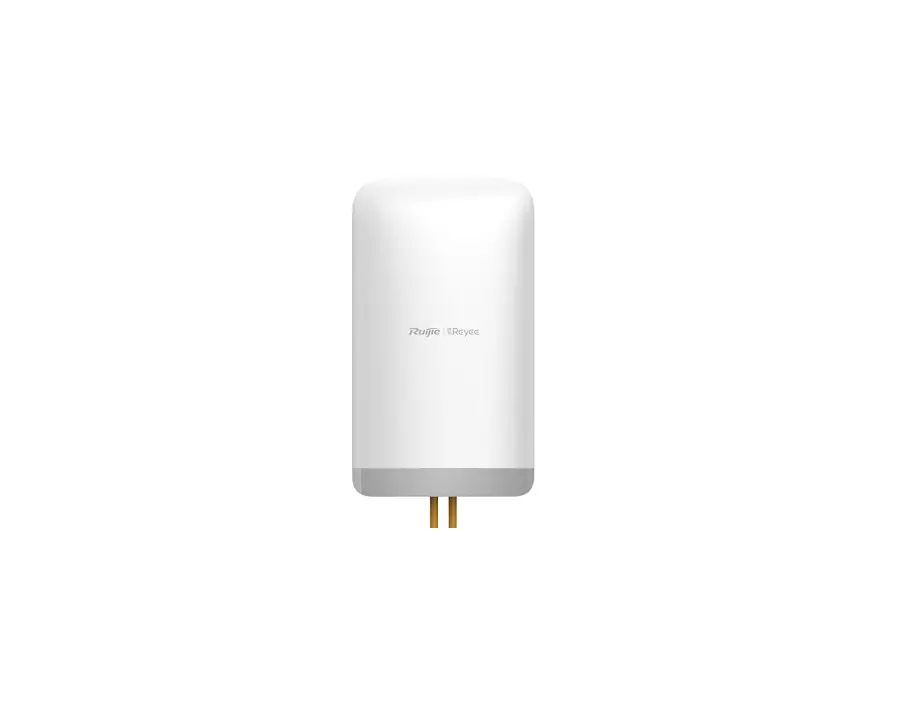
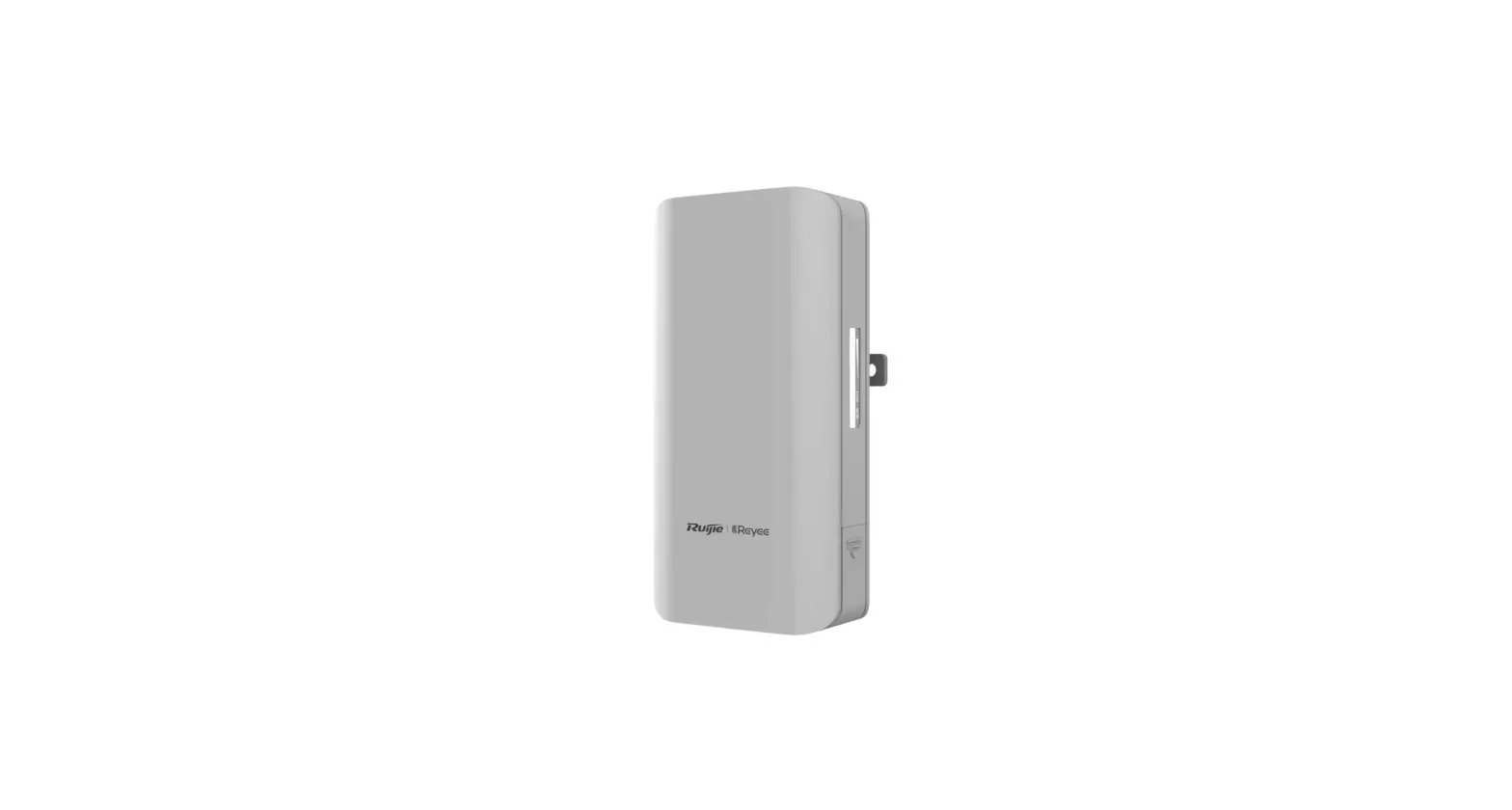
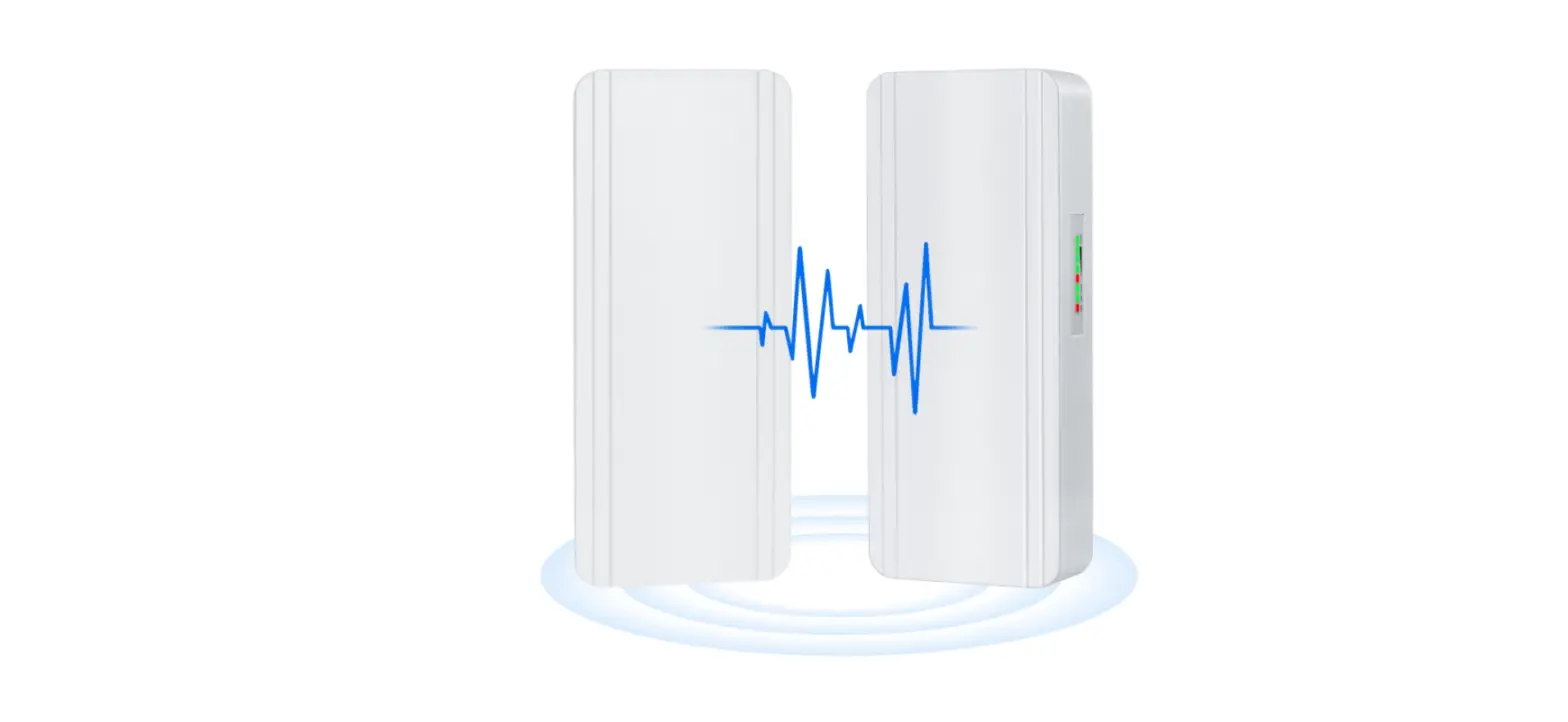
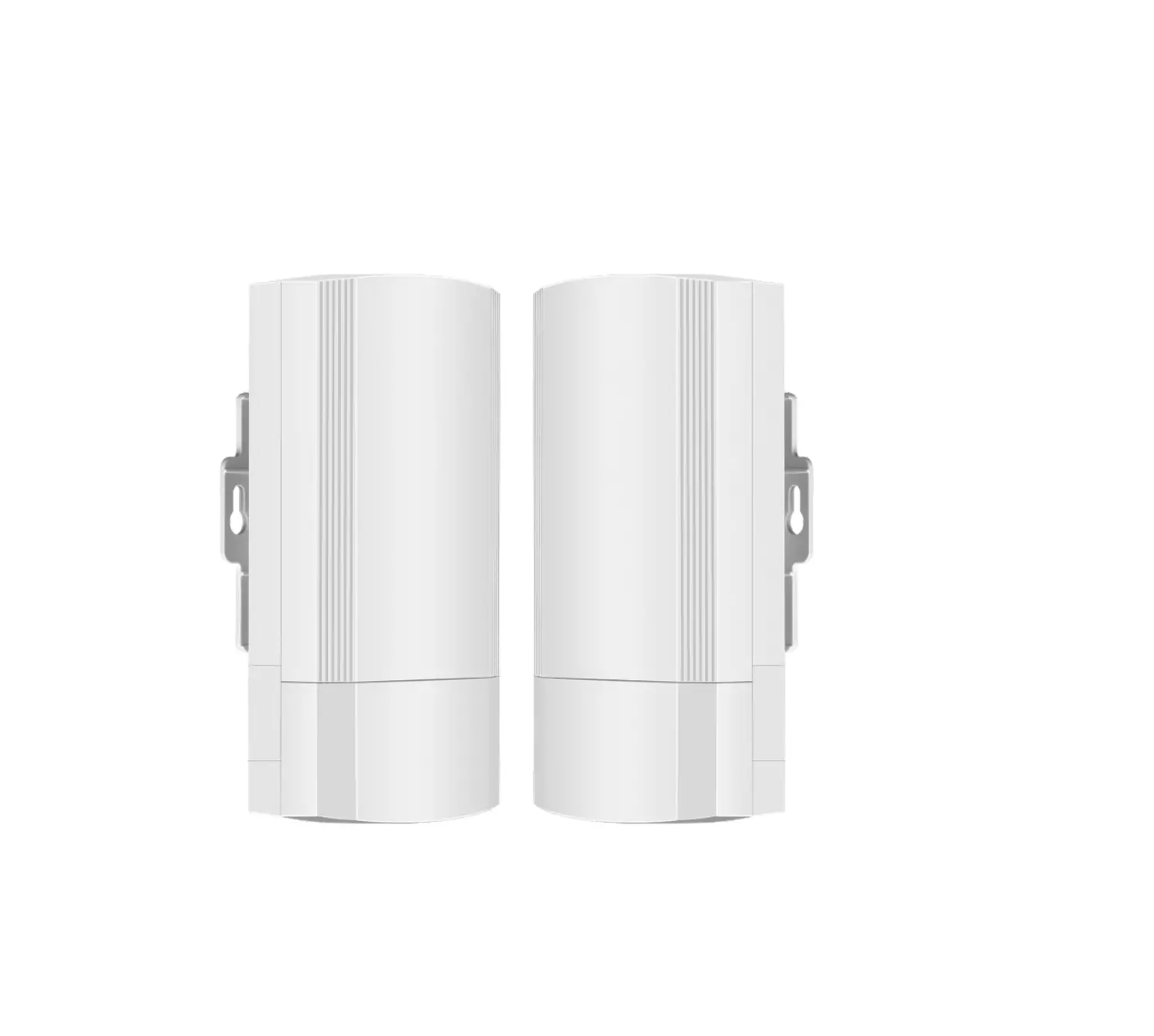
| RG-EST350 V2 Wireless Bridges | 2 |
| Phillips Pan Head Screws (ST4.2X19) | 8 |
| Hose Clamps | 2 |
| Mounting Brackets | 2 |
| Universal Joint Assemblies | 2 |
| Universal Joint Nuts | 2 |
| RG-EST350 V2 Product Manual | 1 |
| 24V/0.5A PoE Power Adapters | 2 |
| Wall Anchors | 6 |
| Power Cord | 2 |
| Warranty Card | 1 |
Networking
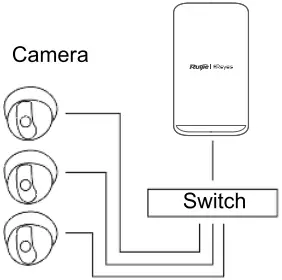
Camera – Switch (Optional) – Camera End
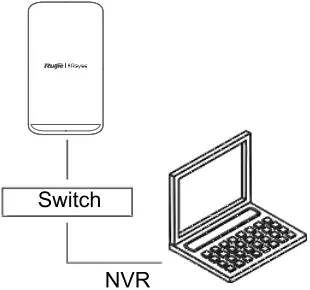
NVR End – Switch – NVR
LED & Ports
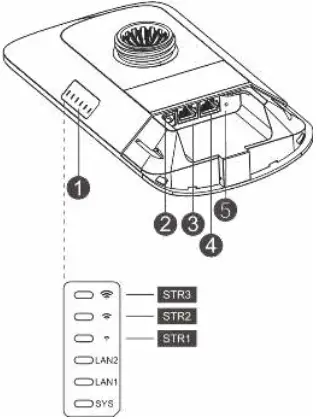
Description
- LED
a. SYS LED
Blinking: The system is initializing, restoring factory settings, upgrading or resetting.
On: The device is working properly.
Off: The device is not powered on.
b. LAN1/LAN2 LED
Off: The LAN port is not connected.
Blinking Green: Link is up. The port is sending or receiving data.
Solid Green: Link is up. The port is not sending or receiving data.
c. Signal LED (STR1/STR2/STR3)
STR1 Blinking/On: The device is bridged.
STR1 On: RSSI > -75 dBm
STR1 On + STR2 Blinking: RSSI > -73 dBm
STR1 On + STR2 On: RSSI > -71 dBm
STR1 On + STR2 On + STR3 Blinking: RSSI > -68 dBm
STR1 On + STR2 On + STR3 On: RSSI > -64 dBm - 12V DC Port
RG-EST350 V2 adopts 12 V/1 A DC power supply. - LAN2 Port
- LAN1/PoE Port
RG-EST350 V2 adopts 24 V/0.5 A PoE power supply. - Reset Button
Press the button for less than 2 seconds, and the device will be rebooted.
Press the button for over 5 seconds, and the device will restore the factory settings.
Plugging the Ports
NVR End
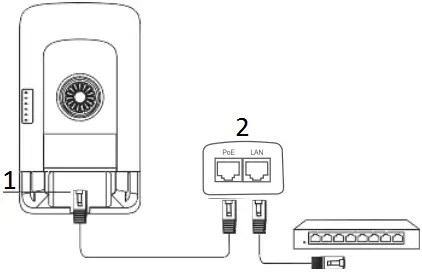
PoE Max Distance: 100m (Cat5e/6/6a/7/8 Cable)
- LAN1/PoE Port
- PoE Power Adapter
Camera End
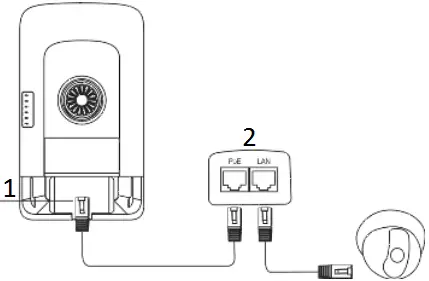
PoE Max Distance: 100m (Cat5e/6/6a/7/8 Cable)
- LAN1/PoE Port
- PoE Power Adapter
Installing the Device
Pole Mounting
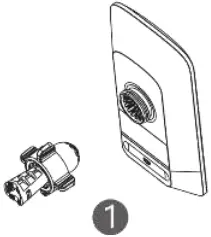
Assemble the mount kit.
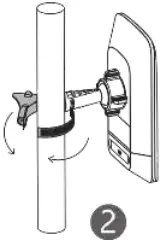
Secure the device on a pole by using a hose clamp.
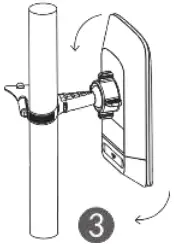
Adjust the orientation.
Wall Mounting
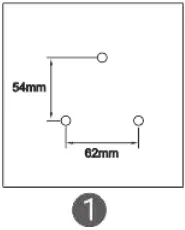
Drill holes into the marked positions and insert wall anchors.
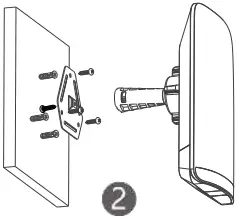
Assemble the mount kit.
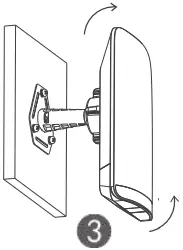
Adjust the orientation.
Managing the Device
App Management (Recommended)
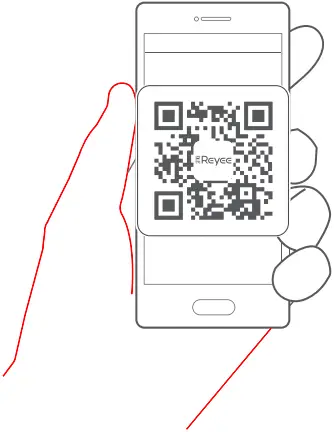
The wireless bridges are used in pairs without extra configuration. You can scan the following QR code to download an App to manage the bridges.
Navigate to Project > + Create a Project > Scan QR-code to manage the device.
Web Management
Connect to the SSID (Default: @Ruijie-bxxxx. xxxx indicates the last four digits of the MAC address) or plug an Ethernet cable into the LAN port, and then visit http://10.44.77.254. It is recommended to set the IP address of computer to 10.44.77.250.