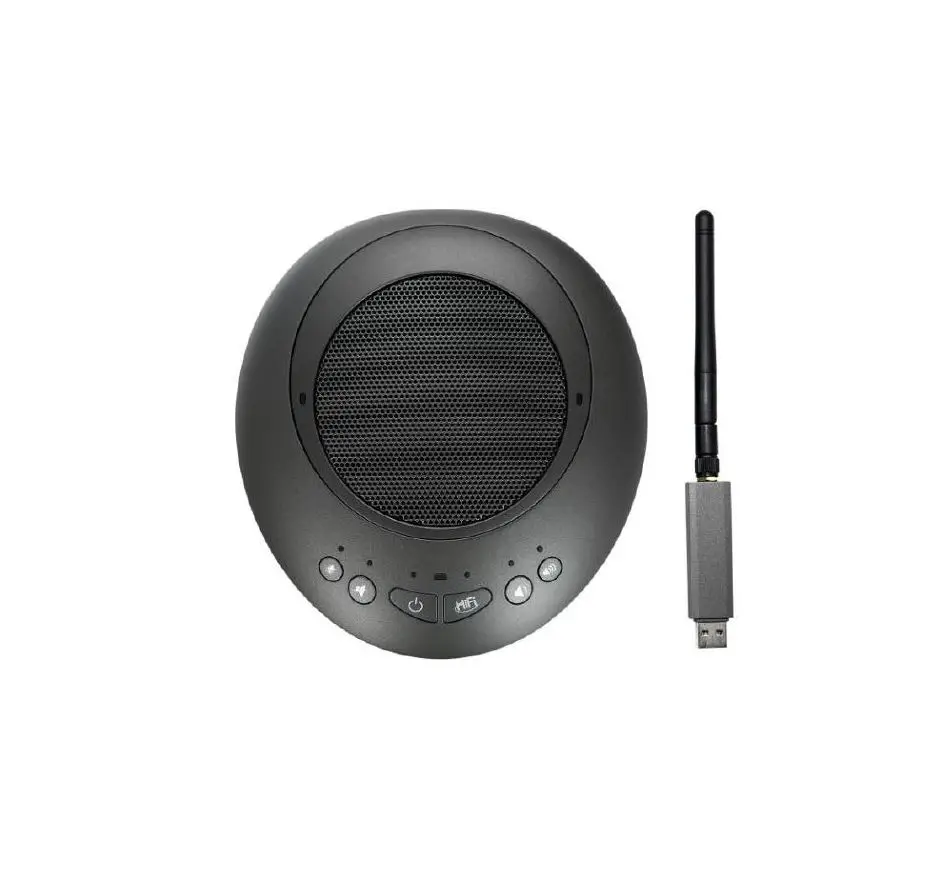

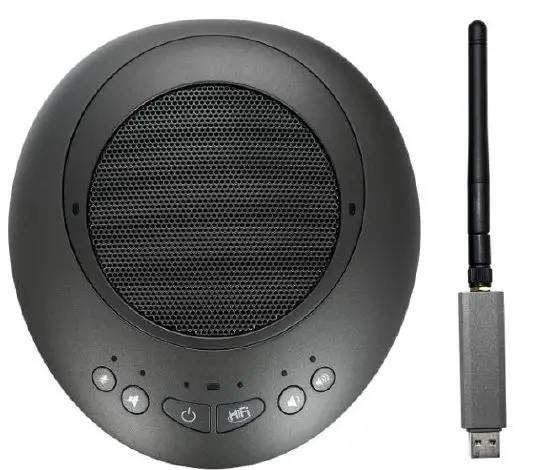
ONEKING KS-GU1G Wireless Omni-Directional Speakerphone
Thanks for purchasing our products. Please kindly read this guide book carefully so that you can make use of the product better and properly.
Note: this manual book is including Wired, Wireless, and Daisy chain dual chat pods products. Any questions or arguments, we reserve all the rights for the final explanation.
Copyright Notice
All contents of this manual, whose copyright belongs to our company. Cannot be cloned, copied or translated without the permission of the company. Products specifications and information which were referred to in this document are for reference only, and the content will be updated at anytime without prior notice.
Precautions
- Ensure your hands are dry when connecting or disconnecting the microphone or cables. Failure to observe this may result in electric shock or damage to the product.
- Do not install the product anywhere it will be exposed to dust or humidity, oily smoke or steam, or corrosive gas. Failure to observe this could result in fire, electric shock, or damage to the product.
- Do not place the product outdoors or in a location where water
- may drip on it. Failure to observe this may result in fire, electric shock or damage to the product.
- Do not touch the terminals with your fingers or metal objects. Failure to observe this may result in electric shock or damage to the product.
- Ensure the product does not fall or strongly impacted. The internal parts could break, which could then result in electric shock, fire, or damage to the product.
- If the product has been damaged, request repair or inspection services from a dealer. Continued use of the product may result in fire or electric shock.
- Do not disassemble or alter this product in any way. Failure to observe this could result in fire, electric shock, or damage to the product.
- For the better heat dissipation, please provide a good air‐circulation environment for the speakerphone when using it.
- Do not clean speakerphone with active chemical or corrosive detergents. Clean it with dry cloth or neutral detergent.
- Ensure your hands are dry when connecting or disconnecting the microphone or cables.
- Failure to observe this may result in electric shock or damage to the product.17 Ensure not to install the product anywhere unstable or where it will be exposed to vibrations as it could fall over or turn upside down, thus resulting in injury or
- amage to the product.
- Do not disassemble the speakerphone, in case of abnormal operation, contact your authorized dealer or the store where you purchased the product.
- This product is intended for use in general offices and is not designed for use in any fields requiring a high degree of reliability in the handling of human lives or valuable assets.
- Ensure to follow the instructions of your local government when disposing of the product, and there is a Lion Battery equipped in device;
Packing list
USB Wired Speakerphone
| S/N | Product name | Q’ty |
| 1 | Wired Speakerphone device | 1 unit |
| 2 | USB Cable 1.5m | 1 pc |
| 3 | Portable storage bag | 1 pc |
| 4 | Bag for accessories | 1 pc |
| 5 | Manual Book | 1 pc |
USB & Wireless Speakerphone
| S/N | Product name | Q’ty |
| 1 | Wired/Wireless Speakerphone device | 1 unit |
| 2 | USB Cable 1.5m | 1 pc |
| 3 | RF 2.4G receiver | 1 pc |
| 4 | DC 5V 1A Charger | 1 pc |
| 5 | Portable storage bag | 1 pc |
| 6 | Bag for accessories | 1 pc |
| 7 | Manual Book | 1 pc |
Daisy Chain speakerphone
| S/N | Product name | Q’ty |
| 1 | Wired/Wireless Speakerphone device | 2 units |
| 2 | USB Cable 1.5m | 2 pcs |
| 3 | RF 2.4G receiver | 1 pc |
| 4 | DC 5V 1A Charger | 2 pcs |
| 5 | Portable storage bag | 2 pcs |
| 6 | Bag for accessories | 2 pcs |
| 7 | Manual Book | 1 pc |
Structure
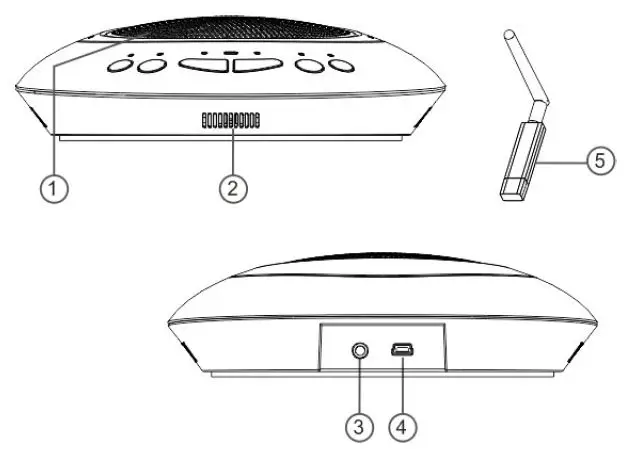
- Speaker Outputs an incoming voice from remote party
- Microphone Full duplex OMNI‐Directional microphone pick up voice of people who are speaking
- Audio port 3.5mm port for earphone or amplifier
- Power charge port Mini USB port
- Wireless receiver RF2.4G wireless receiver
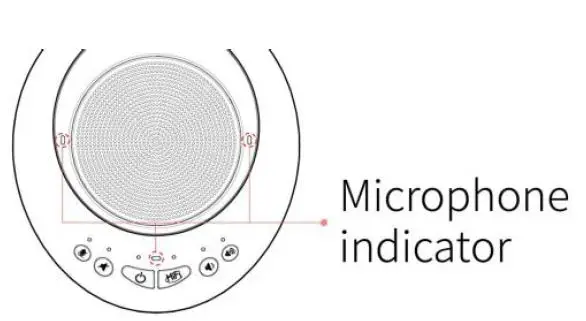
 | Microphone mute button | Used to temporarily turn off (mute) the microphone, to cancel the function, press it again. Mute status indicator is Orange color. |
 | Speaker Mute | Press to temporarily turn off (mute) the speaker. To cancel the mute function, press it again. Status indicator is orange color |
 | Power Button | Press to turn the product on. Press and hold the power button for two or more seconds to enter standby mode. Stand By mode: The 3 Leds indicator is Blue color |
 | HiFi Mode | HiFi mode for music playing, and the HiFi button indicator is Blue color. Tip: Microphone is muted at HiFi mode. |
 | Volume Down | Press to decreases the volume continuously, there are six Leds indicate the volume of device. |
 | Volume Up | Press to increases the volume continuously, there are six Leds indicate the volume of device. |
LEDs Indicator Instruction
LEDs indicator show working status:
 | Microphone Muted | default | Turn on |
| Orange color | Microphone muted | ||
 | Speaker Muted | default | Turn on |
| Orange | Speaker Muted | ||
 | HiFi Mode | default | Turn Off HiFi function |
| Blue | Music Playing mode | ||
| Volume Down | Blue | Volume status |
| Flicker Blue | Receiving volume adjust operation | ||
| Volume Up | Blue | Volume status |
| Flicker Blue | Receiving volume adjust operation |
One time press power button to show the capacity of battery as Orange color LEDs, it change to Blue LEDs when fully charged; Orange Leds is blinking when the power capacity is low;
Remote Control
Remote control unit is supplied on request only.
There are 8 buttons at the bottom of the remote controller to control the speakerphone.
 | Power | turn on/off |
| Speaker Switch | Indicator light is orange when speakerphone turn off |
| Volume Down | If the volume turn to the minimum, the indicator is blue and flicker. |
 | Volume Up | If the volume turn to the maximum, the indicator light is blinking blue. |
| Micro Mute | Indicator light is orange when turn off the Mute |
 | Battery | Show the remaining capacity |
System Requirements
- Use a PC that meets the following requirements.
- OS: Windows 7 (32bit), Windows 8/Windows10/Android 4.4 or later Windows Vista SP1 or later (32bit),
- Windows XP SP2 or later (32bit),
- Windows 2000 SP4 (32bit)
- CPU: 750MHz or more, Intel Pentium/Celeron processor (or compatible one)
- Memory: 256 MB or more
- USB port: USB1.1 or later (USB2.0 recommended)
Set up
Set the product up to make best use of it.
Turning the power on
Press the power button of the product to turn the power on. When the power is turned on, 3 LEDs light up Blue and blinking waiting for USB receiver pairing.
Plug in the USB receiver to your PC/Laptop
Plug in the USB receiver to USB port of the PC or Laptop, and it will install the standard driver automatically. While the USB receiver is paring the unit, the 3 leds light up Blue.
Select the speaker output that suits your environment.
For details, refer to “Selecting a speaker” (page 11).
Adjusting the speaker volume
Adjust the speaker volume that suits your environment.
Tips:
- Connect this unit to the PC using the supplied USB cable (wired type).
- Keep the device about 20cm distance away from the USB receiver to avoid signal interference. (Wireless and daisy chain type).
- It is not possible to connect and use more than one microphone or speaker including the product to one PC at the same time.
- The product must be connected directly to a PC. If the product is connected to a PC via a USB hub, it may cause operational problems.
- In rare cases, the audio playback may be interrupted due to PC conditions such as the workload or limited free space in memory.
Connection
Connect the speakerphone unit to PC using the supplied USB Cable or the USB dongle; The USB driver is automatically installed on the PC. Wired Speakerphone
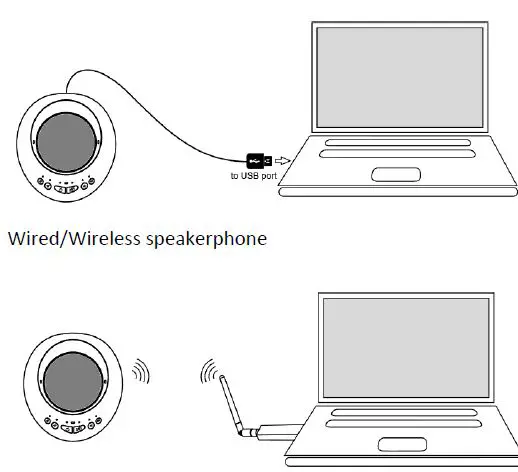
You do not need to install the USB driver separately because this unit is recognized as a basic audio device by the PC
Daisy‐chain connection of Dual chat pods
Two units speakerphone can be daisy chained wirelessly to each other without any software or driver required. Daisy chaining the Chatpods is useful for having a meeting in a larger conference Room, allows you to connect an optional microphone to extend the sound pickup range or playback range. Connect this unit to the PC using the supplied USB dongle (daisy chain type)
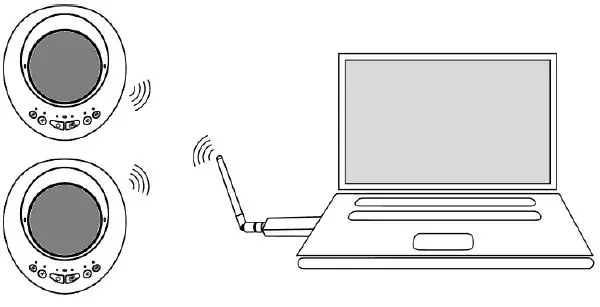
Installing the dual chat pods by following the examples below, Eacho will be produced at the other end if the devices are placed too close to each other. Keep a distance of approximately 2m between the centers of unit each placed in a linear arrangement.
Check the connection
Follow the procedure below to check whether the PC recognizes this unit properly. devices are connected.
When using a PC (Windows 10 as an example)
- Click the “start” menu and click “Control panel”.
- Click “Hardware and Sound”
- Click “sound”, The “Sound” screen appears.
- Check the settings.
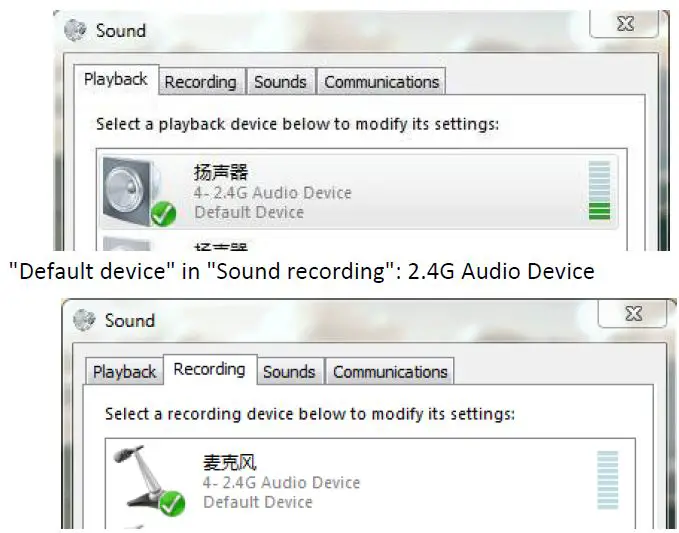
Normally, “2.4G Audio device” is automatically set when this unit is connected to the PC.
Troubleshooting
Refer to the following tables when this unit does not function properly. If the problem you are experiencing is not listed or the instruction does not solve, please contact the retailer or dealer who you purchased the product from.
| Problems | Cause | remedy |
| 3 Blue Leds is blinking | Device is waiting for | Check that the USB |
| when power on | pairing with USB receiver; | receiver is connected |
| USB receiver is not | firmly. | |
| connected properly; | ||
| The audio from the | The speaker are muted. | Turn off the speaker mute |
| other unit can not be | function. | |
| heard | The speaker volume is set | Turn the speaker volume |
| to the minimum. | up. | |
| The microphone is muted | ||
| on the other unit. | ||
| Check default recording device setting. | Click Control Pannel and check default device | |
| setting is 2.4G audio | ||
| device. | ||
| Audio is broken or | The device is set close to | Keep device in 20cm |
| interfered | the USB receiver | distance away from USB receiver |
| The audio from this | The microphone is muted | Turn off the microphone |
| unit cannot be heard | on this unit. | mute function. |
| on the other unit. | The microphone | Increase the microphone |
| sensitivity is set to the | sensitivity. | |
| minimum. | ||
| The speakers are muted | ||
| on the other unit. | ||
| Check default playback device setting. | Click Control Pannel and check default device | |
| setting is 2.4G audio | ||
| device. | ||
| the unit generates | This unit is placed near | Move this unit away from |
| feedback noises. | the wall. | the wall. |
| The unit generates | A device that interferes | Move this unit away from |
| noises. | with this unit is | the device. |
| placed near this unit. | ||
| The audio is cracking. | The speaker volume is too | Turn the speaker volume |
| high. | down. | |
| This unit does not | This unit is not recognized | If you see “?” or “!” in the |
| work. | by the PC | device manager, |
| delete the device and | ||
| then reconnect the USB | ||
| cable of this unit. | ||
| The unit can not power on | Low power capacity | Connect supplied USB Cable and charge. |
Specification
| Model No. | USBWired Speakerphone | Wireless speakerphone | Daisy chain speakerphone | |
| Microphone | type | Full duplex OMNI‐Directional microphone | ||
| Sensitivi ty | ‐22dBFS | |||
| S/N Ratio | 60dB | |||
| Frequen cy range | 20Hz‐15kHz | |||
| Speaker | Built in powerful speaker, AGC provides excellent audio quality | |||
| Echo cancellation | Advanced echo cancellation up to 256ms | |||
| Noise suppression | >15dB | |||
| Sampling rate | 16kHz/48kHz | |||
| Pick up diameter range | Max 3 Meters, suggest working in 2 meters diameter distance | |||
| Wireless | Wired | RF 2.4G | RF 2.4G | |
| Audio output | 3.5mm socket for headset | |||
| Battery ChargeSocke t | Mini USB | |||
| Control | Button Control or IR Remote controller | |||
| Button functions | Power on/Off, Mute Mic, silent speaker, HiFi mode, Volume UP/Down | ||
| Power Charger | DC5V±0.2V,1A | ||
| Battery | 2600mA, Talk time up to 10 hours, Fully charged in 4 hours | ||
| Stand by | N/A | 90 days | |
| Work Temperature | 0‐50℃ | ||
| Environment Humidity | 0‐95% RH | ||
| L X W X Hmm | 178mmx 162mmx 47mm | ||
| Weight | 430g | 500g | 950g |
FCC Statement
This equipment has been tested and found to comply with the limits for a Class B digital device, pursuant to part 15 of the FCC rules. These limits are designed to provide reasonable protection against harmful interference in a residential installation. This equipment generates, uses and can radiate radio frequency energy and, if not installed and used in accordance with the instructions, may cause harmful interference to radio communications. However, there is no guarantee that interference will not occur in a particular installation. If this equipment does cause harmful interference to radio or television reception, which can be determined by turning the equipment off and on, the user is encouraged to try to correct the interference by one or more of the following measures:
- Reorient or relocate the receiving antenna.
- Increase the separation between the equipment and receiver.
- Connect the equipment into an outlet on a circuit different from that to which the receiver is connected.
- Consult the dealer or an experienced radio/TV technician for help.
To assure continued compliance, any changes or modifications not expressly approved by the party. Responsible for compliance could void the user’s authority to operate this equipment. (Example‐ use only shielded interface cables when connecting to computer or peripheral devices). This equipment complies with Part 15 of the FCC Rules. Operation is subject to the following two conditions:
- This device may not cause harmful interference, and
- This device must accept any interference received, including interference that may cause undesired operation.
For Speakerphone
FCC Radiation Exposure Statement: The equipment complies with FCC Radiation exposure limits set forth for uncontrolled environment. This equipment should be installed and operated with minimum distance 20cm between the radiator and your body.
For Dongle
RF warning statement: The device has been evaluated to meet general RF exposure requirement. The device can be used in portable exposure condition without restriction.