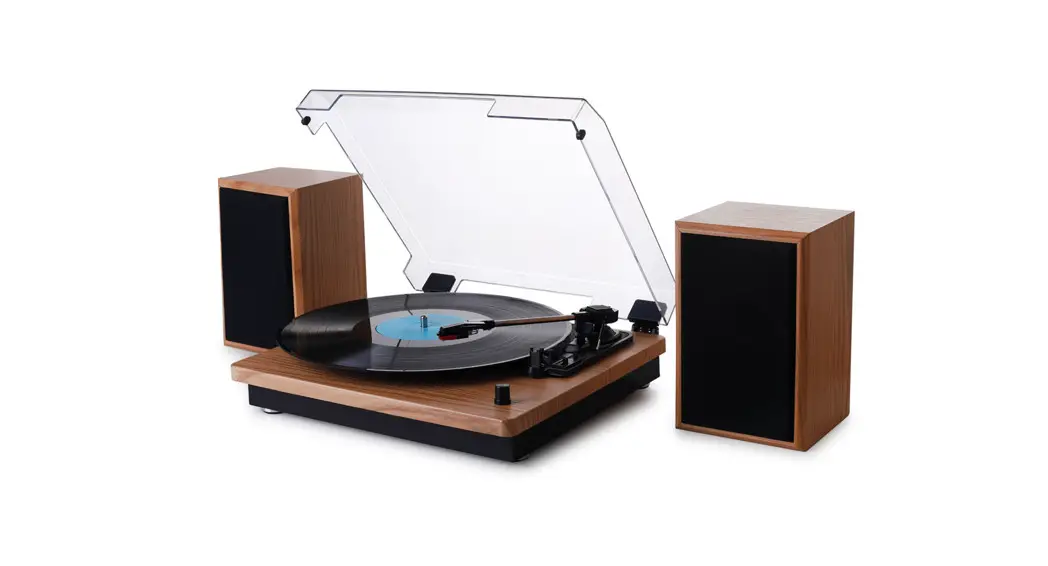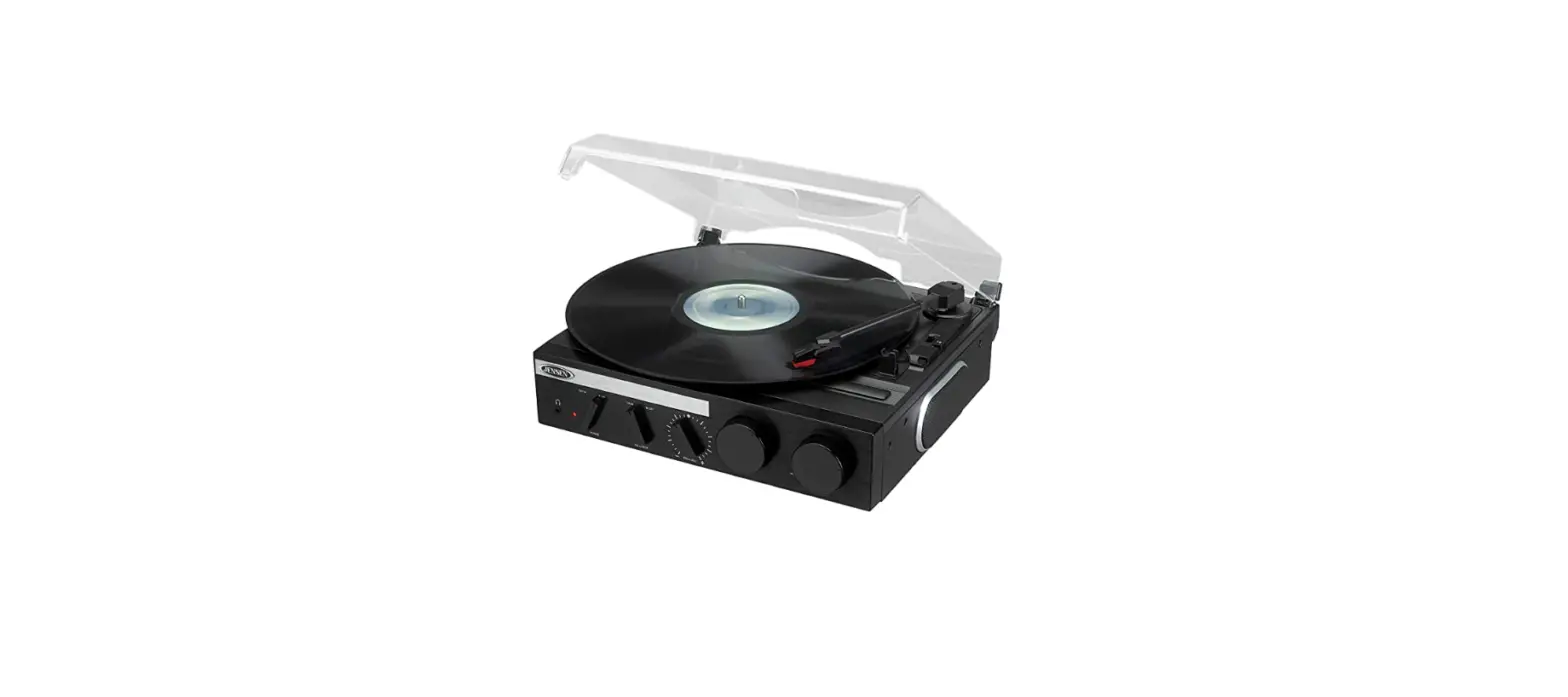
 Jensen JTA-230R 3-Speed Stereo Turntable Speakers
 Jensen JTA-230R 3-Speed Stereo Turntable Speakers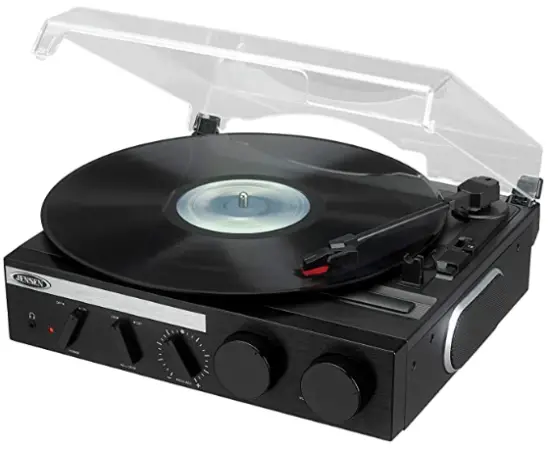
WARNING TO PREVENT FIRE OR SHOCK HAZARDS, DO NOT USE THIS PLUG WITH AN EXTENSION CORD, RECEPTACLE, OR OTHER OUTLET UNLESS THE BLADES CAN BE FULLY INSERTED TO PREVENT BLADE EXPOSURE. TO PREVENT FIRE OR SHOCK HAZARDS, DO NOT EXPOSE THIS APPLIANCE TO RAIN OR MOISTURE.
IMPORTANT SAFETY INSTRUCTIONS
- Read these instructions – All the safety and operating instructions should be read before the appliance is operated
- Keep these instructions – The safety and operating instructions should be kept for future reference.
- Heed all warnings – All warnings on the appliance and in the operating instructions should be adhered to.
- Follow all instructions – All operation and use instructions should be followed.
- Do not use this apparatus near water – The appliance should not be used near water; for example, near a bathtub, washbowl, kitchen sink, laundry tub, in a wet basement, or near a swimming pool, and the like.
- Clean only with dry cloth – The appliance should be cleaned only as recommended by the manufacturer.
- Do not block any ventilation openings. Install in accordance with the manufacturer’s instructions. – The appliance should be situated so that its location or position does not interfere with its proper ventilation. For example, the appliance should not be situated on a bed, sofa, rug, or similar surface that may block the ventilation openings; or placed in a built-in installation, such as a bookcase or cabinet that may impede the flow of air through the ventilation openings.
- Do not install near any heat sources such as radiators, heat registers, stoves or other apparatus (including amplifiers) that produce heat.
- Do not defeat the safety purpose of the polarized or grounding-type plug. A polarized plug has two blades with one wider than the other. A grounding type has two blades and a third grounding prong. The wide blade or the third prong are provided for your safety. If the provided plug does not fit into your outlet, consult an electrician for the replacement of the obsolete outlet.
- Protect the power cord from being walked on or pinched particularly at plugs, convenience receptacles, and the point where they exit from the apparatus.
- Only use attachments/accessories specified by the manufacturer
- Use only with the cart, stand, tripod, bracket, or table specified by the manufacturer, or sold with the apparatus. When a cart is used, use caution when moving the cart/apparatus combination to avoid injury from tip-over.

- Unplug this apparatus during lightning storms or when unused for a long periods of time.
- Power Sources – The appliance should be connected to a power supply only of the type described in the operating instructions or as marked on the appliance. Do not overload wall outlet.
- Wall and Ceiling Mounting – The appliance should be mounted to a wall or ceiling only as recommended by the manufacturer.
- Power Lines – An outdoor antenna should be located away from power lines.
- Object and Liquid Entry – Care should be taken so that objects do not fall and liquids are not spilled into the enclosure through openings.
- The apparatus shall not be exposed to dripping or splashing and that no objects filled with liquids, such as vases, shall be placed on apparatus.
- Refer all servicing to qualified service personnel. Servicing is required when the apparatus has been damaged in any way, such as power-supply cord or plug is damaged, liquid has been spilled or objects have fallen into the apparatus, the apparatus has been exposed to rain or moisture, does not operate normally, or has been dropped.
- Servicing – The user should not attempt to service the appliance beyond that described in the operating instructions. All other servicing should be referred to qualified service personnel.
- The MAINS plug or an appliance coupler is used as the disconnect device, the disconnect device shall remain readily operable.
- Caution marking and nameplate are located on back of product.

CAUTION
TO PREVENT ELECTRIC SHOCK, MATCH WIDE BLADE OF PLUG TO WIDE SLOT. FULLY INSERT THE PLUG TO MAIN POWER SOCKET.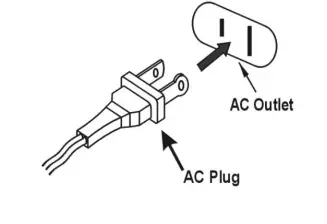
PRECAUTION FORE USE
- UNPACK ALL PARTS AND REMOVE PROTECTIVE MATERIAL.
- DO NOT CONNECT THE UNIT TO THE MAINS BEFORE CHECKING THE MAINS VOLTAGE AND ALL OTHER CONNECTIONS HAVE BEEN MADE.
- DO NOT COVER ANY VENTS AND MAKE SURE THAT THERE IS A SPACE OF SEVERAL CENTIMETERS AROUND THE UNIT FOR VENTILATION.
IMPORTANT NOTES
Avoid installing the unit in locations described below:
- Places exposed to direct sunlight or close to heat-radiating appliances such as electric heaters.
- Places subject to constant vibration.
- Dusty, humid or moist places.
COMPLIANCE WITH FCC REGULATIONS
This device complies with Part 15 of the FCC Rules. Operation is subject to the following two conditions:
- this device may not cause harmful interference, and
- this device must accept any interference received, including interference that may cause undesired operation.
NOTE: This equipment has been tested and found to comply with the limits for a Class B digital device, pursuant to Part 15 of the FCC Rules. These limits are designed to provide reasonable protection against harmful interference in a residential installation. This equipment generates, uses and can radiate radio frequency energy and, if not installed and used in accordance with the instructions, may cause harmful interference to radio communications. However, there is no guarantee that interference will not occur in a particular installation. If this equipment does cause harmful interference to radio or television reception, which can be determined by turning the equipment off and on, the user is encouraged to try to correct the interference by one or more of the following measures:
- Reorient or relocate the receiving antenna.
- Increase the separation between the equipment and receiver.
- Connect the equipment into an outlet on a circuit different from that to which the receiver is connected.
- Consult the dealer or an experienced radio/TV technician for help.
CAUTION: Changes or modifications not expressly approved by the party responsible for compliance could void the user’s authority to operate the equipment.
PROTECT YOUR FURNITURE
This model is equipped with non-skid rubber ‘feet’ to prevent the product from moving when you operate the controls. These ‘feet’ are made from non-migrating rubber material specially formulated to avoid leaving any marks or stains on your furniture. However certain types of oil based furniture polishes, wood preservatives, or cleaning sprays may cause the rubber ‘feet’ to soften, and leave marks or a rubber residue on the furniture. To prevent any damage to your furniture we strongly recommend that you purchase small self-adhesive felt pads, available at hardware stores and home improvement centers everywhere, and apply these pads to the bottom of the rubber ‘feet’ before you place the product on fine wooden furniture.
ACCESSORIES INCLUDED
- Application CD
- USB cable
- User Manual
GETTING STARTED
CONNECTING THE AC POWER CORD
- Unwind the AC power cord fully and connect it to any convenient household 120V~ 60Hz AC outlet
- Turn on the power and the Power LED indicator will light. Your system is now ready to play your music.
CONNECTING THE USB CABLE
- To encode music from your records or from the Aux-in line, connect the USB Port of the Turntable to a suitable USB port on your computer via the USB cable provided.
- Please refer to CONNECTING TO A COMPUTER FOR RECORDING section of this manual for detail.
LOCATION OF CONTROLS

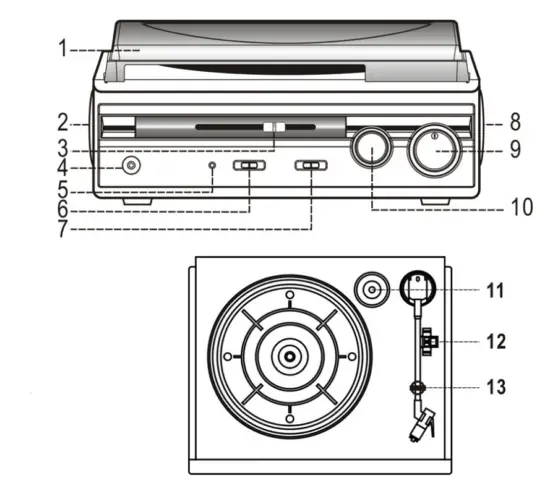

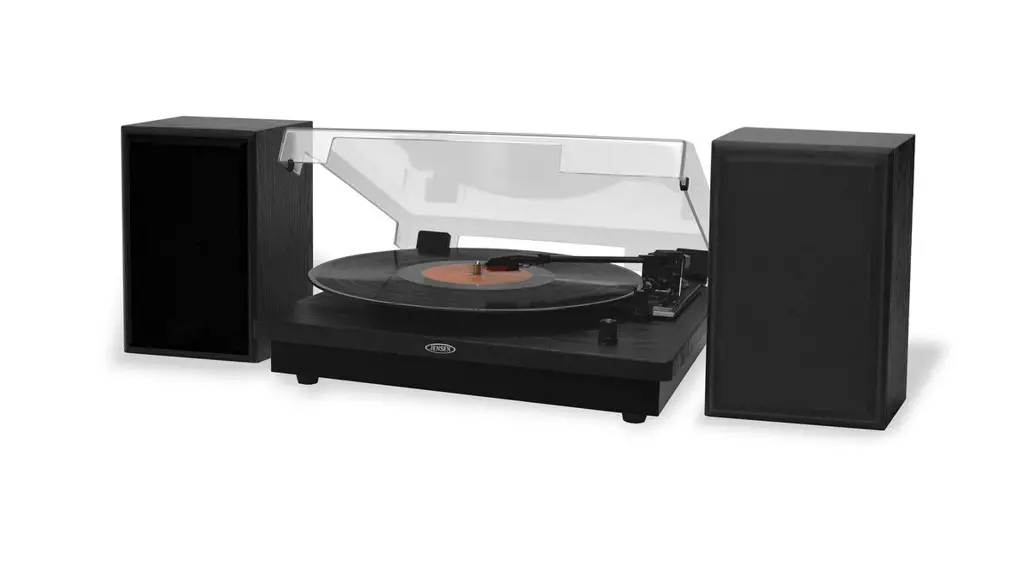
- Dust Cover
- Left Speaker
- Pitch Adjust Control
- 3.5mm Headphone Jack
- Power LED Indicator
- Power On/Off Switch
- Auto Stop Switch
- Right Speaker
- Volume Control Knob
- Tone Control Knob
- 45 RPM Record Adaptor
- 33/45/78RPM Speed Selector
- Tone Arm Rest/Holder
- Line-Out RCA Jacks (L/R)
- AUX-IN jack
- AC Power Cord
- USB Port For Computer Connection
CAUTION
This unit should not be adjusted or repaired by anyone except qualified service personnel.
STEREO PHONOGRAPH OPERATION
Please Note – Before Use
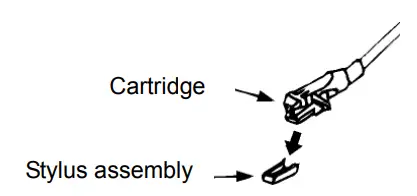
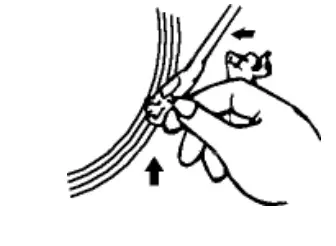
- Remove the stylus protector.
- Make sure that the tone arm is unlocked and free to move from the tone arm rest prior to operating.

Lock the tone arm in place again when not in use.
- Slide the Power On/Off switch to the On position
- Raise the turntable dust cover.
- Place a record on the turntable platter (use the 45 RPM record adaptor if you are playing 45 RPM records).
- Set the speed selector to the proper position for the record you are playing.
- Lift the tone arm from the rest and slowly move it over the record. The turntable platter will begin spinning.
- Place the tone arm down onto the record at the location that you want to play.
- Adjust the volume to the desired level.
- At the end of the record, the platter will automatically stop spinning.
Lift the tone arm from the record and return it to the rest. - To stop playing manually, lift the tone arm from the record and return it to the rest.
NOTES:
- Certain types of records may have an auto-stop area outside the preset limit, so the turntable may stop before the last track finishes. If this occurs, set the AUTO-STOP switch to the “OFF” position. This allows the record to play to the end, but please note that it will not stop automatically. You must manually raise the tone arm and place it back in the rest and then turn off the power to stop the turntable from spinning.
- The turntable will automatically disconnect and stop playing when a 3.5mm stereo aux-in cord (not included) is plugged into the Aux-in Jack on the back. The turntable cannot be used while using the Aux-in, so be sure to disconnect the Aux-in cord prior to using the turntable.
TONE CONTROL
Rotate the TONE control knob to adjust the treble level of the music you are playing.
PITCH CONTROL
The Pitch Control allows you to fine tune the playing speed of the record once the correct speed (33/45/78 RPM) is chosen. Slide the Pitch Adjust Control to slightly increase or decrease the speed of the turntable if necessary.
AUXILIARY INPUT
This unit provides an auxiliary audio signal input jack for connecting external audio devices like MP3 players, CD players and older, non-dockable iPods (except iPod shuffle 3rd gen) so you can listen to your external source through the speakers of this system.
- Use an audio cable (not included) with one 3.5 mm stereo plug on each end of the cable.
- Plug one end into the AUX-IN jack on the main unit and the other end of the cable Cartridge Stylus assembly into the Line-out Jack or Headphone Jack of your external audio device. It will automatically switch the unit to AUX mode.
- Turn on unit power and your external audio device.
- The volume level can now be controlled through the main unit. Operate all other functions on the auxiliary device as usual.
Note:
- If the Line Out Jack of your external device is connected, then you only need to adjust the volume control of this system. If the Headphone Jack of your external device is connected, then you may need to adjust both the volume control of your external device and the volume control of this system to find the most desirable volume setting.
- The turntable cannot be used while using the Aux-in cord is plugged in, so be sure to disconnect the Aux-in cord prior to using the turntable.
- Slide the POWER ON/OFF switch to turn off the system when you finish listening.
Don’t forget to switch off the power on your external device as well.
LINE OUT CONNECTION
You can connect this unit to an external Hi-Fi / AMPLIFIER system by connecting the LINE OUT RCA Jacks to the auxiliary input jacks on your Hi-Fi / AMPLIFIER system with RCA cables (not included).
Note: The Volume control on the main unit will not adjust the volume when using the LINE OUT.
USING HEADPHONES(NOT INCLUDED)
Inserting the plug of your headphones into the Headphone jack will enable you to listen in private.
READ THIS IMPORTANT INFORMATION BEFORE USING YOUR HEADPHONES
- Avoid extended play at very high volume as it may impair your hearing.
- If you experience ringing in your ears, reduce the volume or shut off your unit.
- Keep the volume at a reasonable level even if your headset is an open-air type designed to allow you to hear outside sounds. Please note that excessively high volume may still block outside sounds.
CONNECTING TO A COMPUTER FOR RECORDING
Before getting start, please install the “ AUDACITY ” recording software to your computer.
Below is an example using a computer with Microsoft XP and Audacity software installed. For other Windows OS or Mac OS, please visit the Audacity website for details.
http://audacity.sourceforge.net/
INSTALLING THE AUDACITY SOFTWARE
- Insert the Audacity disc (included) into the CD drive of your computer.
- Click on My Computer on the desktop.
- Double click CD drive to view the contents of the CD and select “Windows” under the “Audacity” folder.
- Open the “Windows” folder and select “Audacity 2.0 (Windows 2000, XP, Vista, 7)”.
- Open the folder and then double-click click Audacity set up icon with file name “audacity-win-2[1].0.exe)” to install the Audacity software according to the instruction, read license agreements of Audacity before installation.
NOTE:
Free software (AUDACITY) licensed under the GNU general public license (GPL).
More information as well as open-source code can be found on the provided CD or on the website at: http://audacity.sourceforge.net/
INSTALL THE USB DRIVE
- Use the included USB cable to connect the turntable to your computer.
- Your computer will detect the JTA-230 as a “USB Audio Controller” & start to install USB drivers for it automatically.
- Waiting for the installation complete until your computer shows a pop-up a message that it is installed properly and ready to use.
SET RECORDING INPUT LEVEL (USE WINDOWS XP COMPUTER)
- Click the “Start“ in the left corner of your computer
- Select “All Programs“
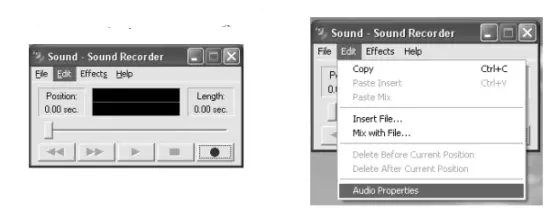
 “Accessories”“Entertainment““Sound Recorder“ to open the sound record interface.
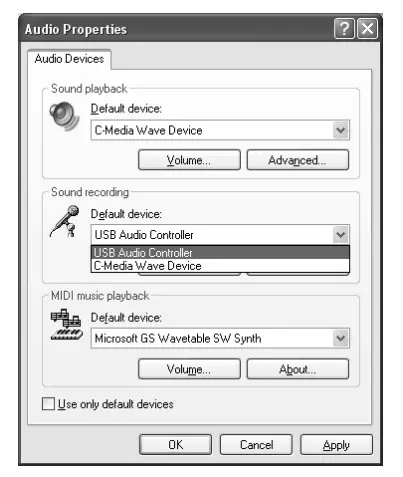
- Select “Edit” and then click “Audio Properties“ towards the bottom of the menu to select the “Audio properties” interface.

- In the Sound Recording field, click the pull down menu to select “USB Audio Controller” as Default device of sound recording.

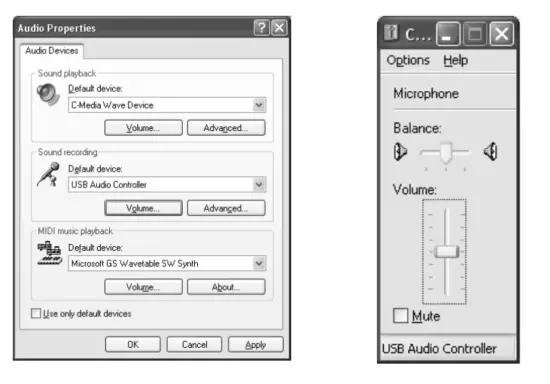
- Click the Volume button under the Sound recording tab to open the”RecordingControl“ interface;
- Adjust the line in volume to a level without distortion. You can play a recorder on the turntable and use the Sound Recorder to record a short clip of music for testing. The sound wave will show on the interface screen when recording.

 “Accessories”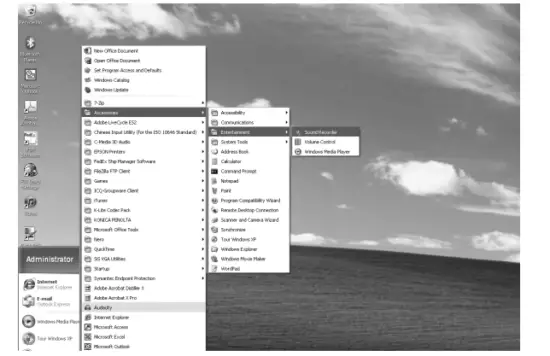
RUNNING AUDACITY SOFTWARE
Note: Please review the software license and distribution restrictions found on the software disc. Use of the Audacity software is subject to those conditions and restrictions.
For additional help with recording and editing music by using the Audacity software, please visit http://audacity.sourceforge.net/
- Run Audacity from the Windows start menu or double-click the Audacity icon on your computer desktop.
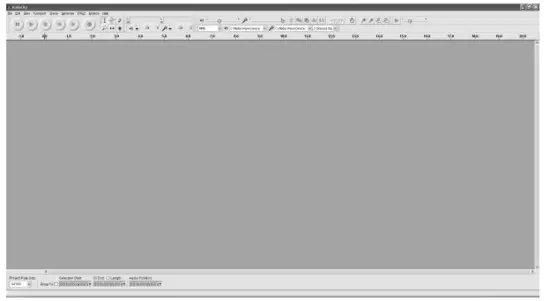
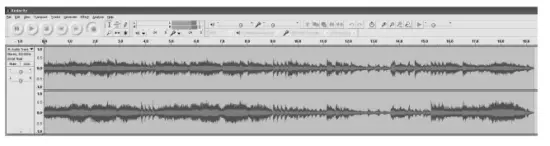
- The Audacity main screen appears. You will find the Record, Play, Pause, Stop, Skip to Start and Skip to End control buttons here. Use the File, Edit, View, Transport, Tracks, Generate, Effect and Analyze menus from your computer screen to Save, Export or Edit the music.

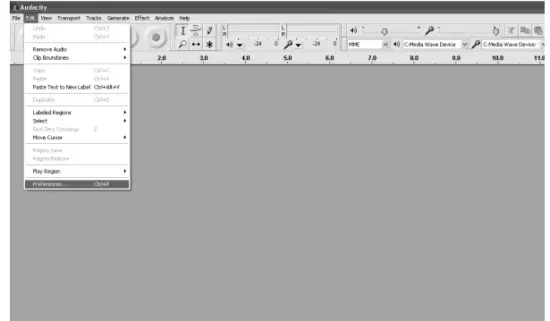
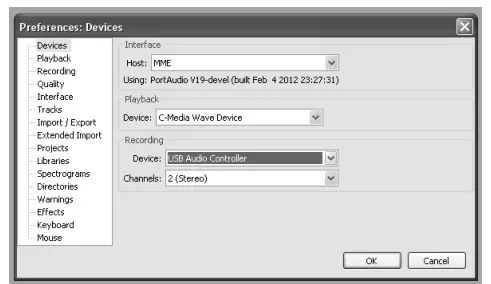
- Click “Preferences” at the bottom of the Edit menu, you can set the Devices, Quality, and various settings here.


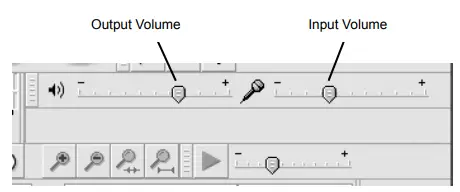
- Adjust the input and output volume by sliding the Input and Output Volume bars.

- Click the record button to start recording, left and right tracks will show on your computer screen. If you cannot see the sound waves appear on the Interface when recording, adjust the Input volume bar.
 Use the Audacity control panel to record or listen the music you have recorded
- Click
 the button to start recording.
 - Click
 the button to skip to start
 - Click
 the button to skip to end
 - Click
 the button to play;
 - Click
 the button to pause
 - Click
 the button to stop
- Click
 Use the Audacity control panel to record or listen the music you have recorded
 the button to start recording.
 the button to skip to start
 the button to skip to end
 the button to play;
 the button to pause
 the button to stop
EXPORT THE MUSIC FILES TO WAV OR MP3 FORMAT
Once you have finished recording, make sure you save your recorded music to the computer.
- Click File menu and move down to “Export” to convert the file to WAV format or MP3 format.
- Click on WAV or MP3 format you want to save the music as in pull-down menu of the “Save as type” field, and you will be asked for the file name of your recorded music
NOTE: Audacity does not export MP3 files directly. If you want to encode your recorded music to MP3 format, you need to download the LAME MP3 encoder either in the CD provided or under the page “Other Audacity Downloads for Windows” of the website http://audacity.sourceforge.net/
INSTALL THE MP3 ENCODER
- Insert the included CD into your computer and select “Audacity 2.0(Windows 2000, XP, Vista, 7)” under the “Windows” folder.
- Open the folder and select “Plug-ins”.
- Double-click the “Lame_v3.99.3_for_windows.exe” file under the “Plug-ins” folder to start to install the program.
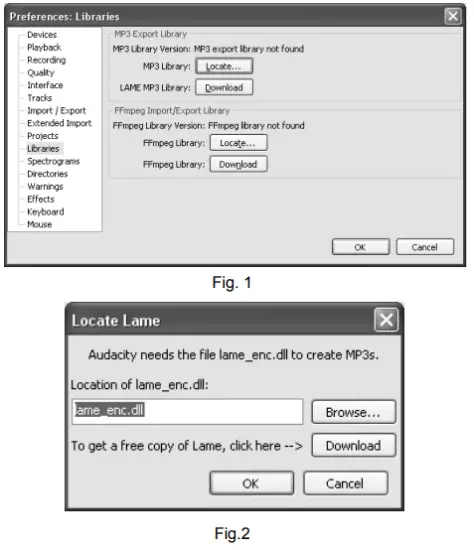
Note: Normally, Audacity will automatically locate the Lame file that you installed.
However, if you change the default directory of the Lame program, you may need to manually locate it by using AudacityEditPreferenceLibraries and the click “Locate” button on computer screen to browse the “lame_enc.dll” file where the directory you have installed. See Fig.1 & 2 below and click OK to finish the manual installation.
CARE AND MAINTENANCE
- Avoid operating your unit under direct sunlight or in hot, humid or dusty places.
- Keep your unit away from heating appliances and sources of electrical noise such as fluorescent lamps or motors.
- Unplug the unit from the electrical power outlet immediately in case of malfunction.
CLEANING THE UNIT
- to prevent fire or shock hazards, disconnect your unit from the AC power source when cleaning.
- The finish on the unit may be cleaned with a dust cloth and cared for as other furniture, Use caution when cleaning and wiping the plastic parts.
- If the cabinet becomes dusty wipe it with a soft dry dust cloth. Do not use any wax or polish sprays on the cabinet.
- If the front panel becomes dirty or smudged with fingerprints it may be cleaned with a soft cloth slightly dampened with a mild soap and water solution. Never use abrasive cloths or polishes as these will damage the finish of your unit
CAUTION: Never allow any water or other liquids to get inside the unit while cleaning.
TROUBLESHOOTING GUIDE
SHOULD YOU EXPERIENCE DIFFICULTIES IN THE USE OF THIS PLAYER PLEASE REFER TO THE FOLLOWING CHART OR CALL 1-800-777-5331 FOR CUSTOMER SERVICE.
| PROBLEM | POSSIBLE CAUSE | SOLUTION |
|
The unit does not respond (no power). | AC power cord is not plugged into a wall outlet or the connector is not plugged into the power supply jack
on the back of the unit. |
Plug the AC power cord into a wall outlet and plug the connector into the supply jack on the unit. |
|
Wall outlet is not functioning. | Plug another device into the same outlet to confirm the outlet is working. | |
|
POWER Switch in the OFF position | Slide the POWER ON/OFF switch to
the ON position | |
| Unit is ON but there is low or
no volume |
The volume Control has been turned all the way down |
Turn the Volume control to a higher output |
| Sound is distorted. | Volume level is set too high | Decrease the volume |
SPECIFICATION
Power requirement:
- Main Unit :AC 120V ~ 60Hz 13 Watts
- System Requirement: Windows 2000 / XP/ Vista/7 Mac OS X 10.4 – 10.7.5
 At Spectra, environmental and social responsibility is a core value of our business. We are dedicated to the continuous implementation of responsible initiatives with an aim to conserve and maintain the environment through responsible recycling.
Please visit us at http://www.spectraintl.com/green.htm for more information on Spectra’s green initiatives or to find a recycler in your area.
90 DAY LIMITED WARRANTY AND SERVICE VALID IN THE U.S.A ONLY
SPECTRA MERCHANDISING INTERNATIONAL, INC. warrants this unit to be free from defective materials or factory workmanship for a period of 90 days from the date of original customer purchase and provided the product is utilized within the U.S.A. This warranty is not assignable or transferable. Our obligation under this warranty is the repair or replacement of the defective unit or any part thereof, except batteries, when it is returned to the SPECTRA Service Department, accompanied by proof of the date of original consumer purchase, such as a duplicate copy of a sales receipt. You must pay all shipping charges required to ship the product to SPECTRA for warranty service. If the product is repaired or replaced under warranty, the return charges will be at SPECTRA’s expense. There are no other express warranties other than those stated herein.
This warranty is valid only in accordance with the conditions set forth below:
- The warranty applies to the SPECTRA product only while:
- It remains in the possession of the original purchaser and proof of purchase is demonstrated.
- It has not been subjected to accident, misuse, abuse, improper service, usage outside the descriptions and warnings covered within the user manual or non-SPECTRA-approved modifications.
- Claims are made within the warranty period.
- This warranty does not cover damage or equipment failure caused by electrical wiring not in compliance with electrical codes or SPECTRA user manual specifications, or failure to provide reasonable care and necessary maintenance as outlined in the user manual.
- Warranty of all SPECTRA products applies to residential use only and is void when products are used in a nonresidential environment or installed outside the United States.
This warranty gives you specific legal rights, and you may also have other rights which vary from state to state. TO OBTAIN SERVICE please remove all batteries (if any) and pack the unit carefully and send it freight prepaid to SPECTRA at the address shown below. IF THE UNIT IS RETURNED WITHIN THE WARRANTY PERIOD shown above, please include a proof of purchase (dated cash register receipt) so that we may establish your eligibility for warranty service and repair of the unit without cost. Also, include a note with a description explaining how the unit is defective. A customer service representative may need to contact you regarding the status of your repair, so please include your name, address, phone number and email address to expedite the process.
IF THE UNIT IS OUTSIDE THE WARRANTY PERIOD, please include a check for $30.00 to cover the cost of repair, handling and return postage. All out-of-warranty returns must be sent prepaid. It is recommended that you contact SPECTRA first at 1-800-777-5331 or by email at [email protected] for updated information on the unit requiring service. In some cases the model you have may be discontinued, and SPECTRA reserves the right to offer alternative options for repair or replacement.
SPECTRA MERCHANDISING INTERNATIONAL, INC.
4230 North Normandy Avenue, Chicago, IL60634, USA. 1-800-777-5331
To register your product, visit the link on the website below to enter your information.
http://www.spectraintl.com/wform.htm\
FAQS
Be sure and gently clean record. Also, try to very gentle clean the tip of the needle. Dust and residue will cause what you described and generally it is not the product itself. Examine the record under a bright light for any sort of scratches, as the needle will “jump” ahead as you described with tiniest of record scratch or mark. Wish you the very best of the best.
We don’t have any new records, but it plays really old records well.
Yes, it can be used right out of the box.
No, it does not have an auto-shutoff, but an auto-stop. But you still need to turn off the system
The needle and everything necessary for it to function is included along with a 45 adapter. Trust me, don’t need anything more.
Yes., this will play 45, 33 1/3 and 78 records –
If it’s a 180 gram (audiophile) vinyl then yes, it will absolutely skip on this player
It only has an aux-in. It has 2 phono lines for speakers and a USB port and headphone jack.
It is ok and great just to hear your old albums
JTA230 turntable gets power from its own AC power cable that can be plugged into a wall outlet.
If you are referring to the headphone jack up front, it appears to be a 1/8″ Jack.
Yes with a mini plug to RCA adapter cable available on Amazon or other electronics supplier
Yes, there are only two connections on the back of the turntable and I used red and white plug ins.
On the back of the turntable.
Could be a short in the wire connecting to the other speaker, or it could have come disconnected. Can always plug in external speakers.
There is an aux plug-in on the back. The speakers on the sides of the turntable are fair.
Depends on how many tracks/how much of the record you want to transfer, and what audio format you want the included software to convert the music to.
It took me about 10-odd minutes to record and convert one song over to mp3, so I’d wager a whole record would be inside of an hour, pretty quick in my estimation.