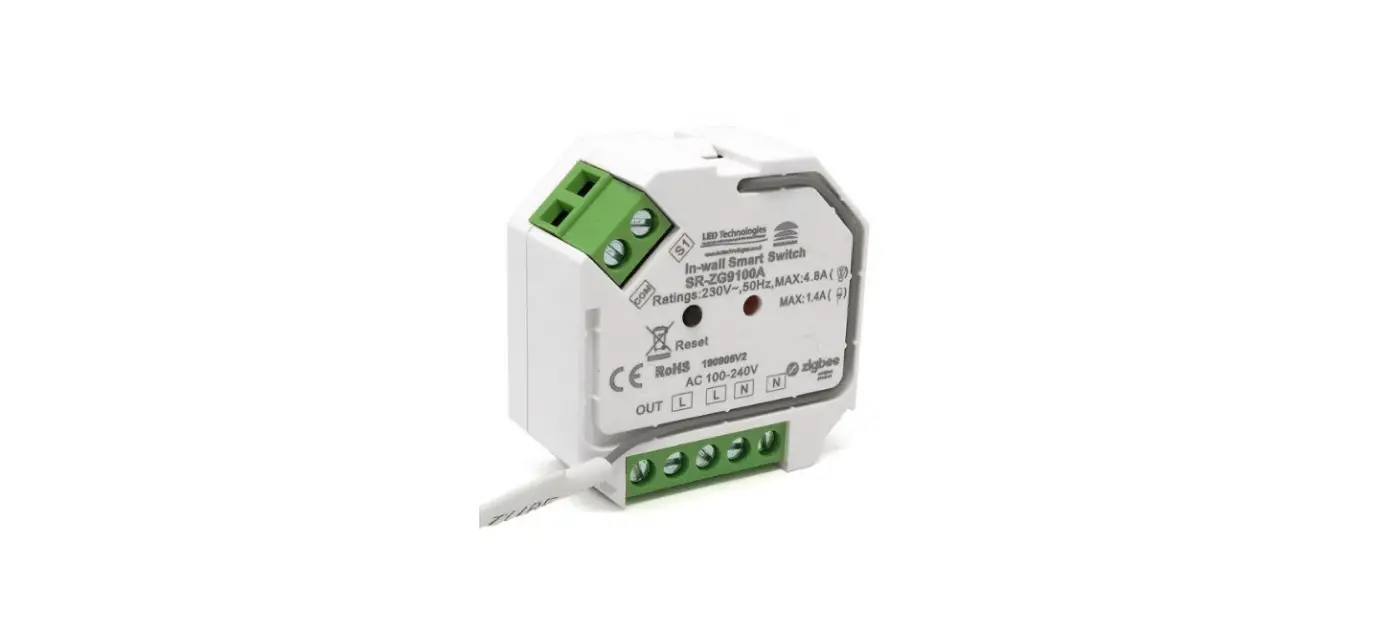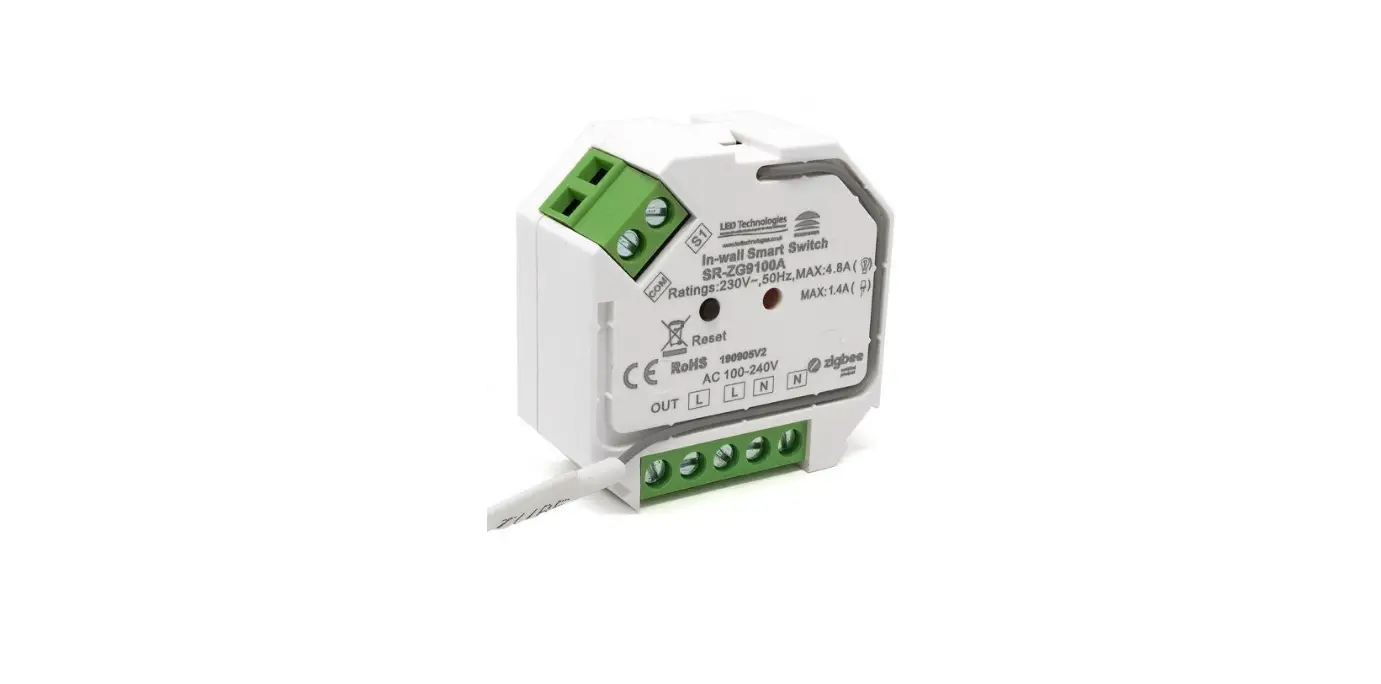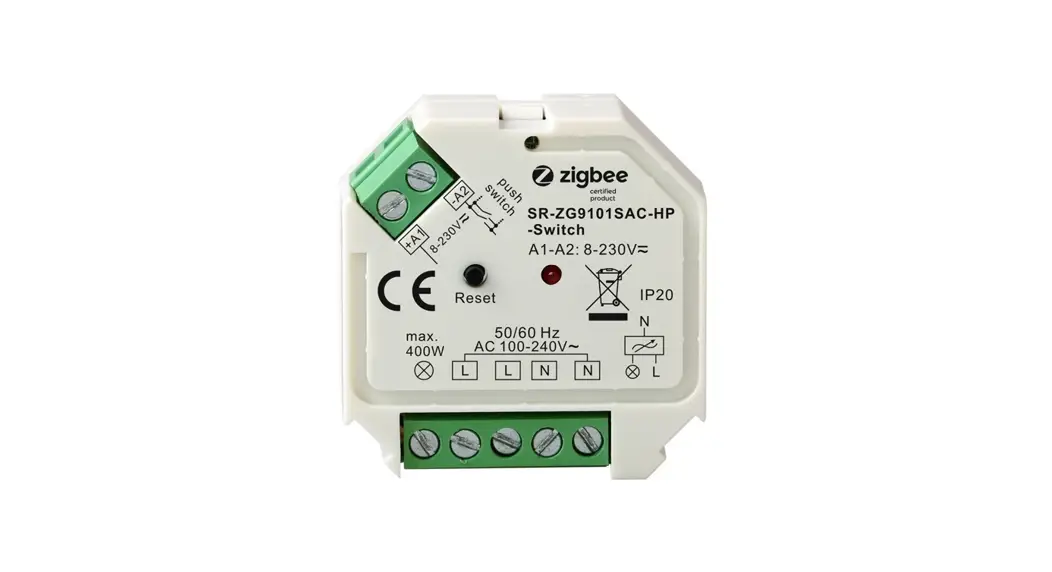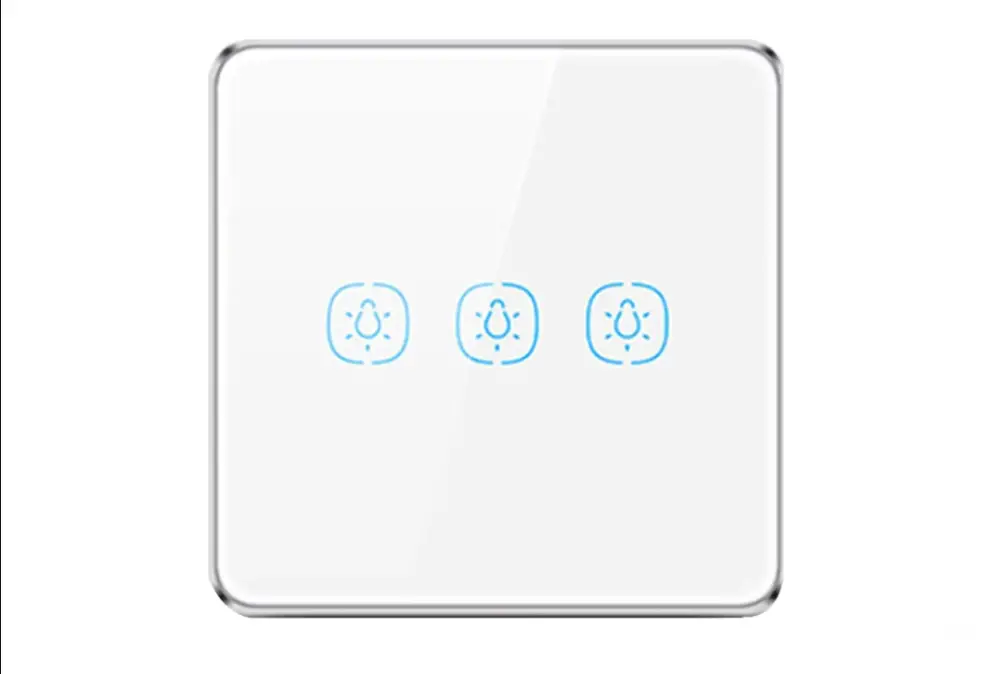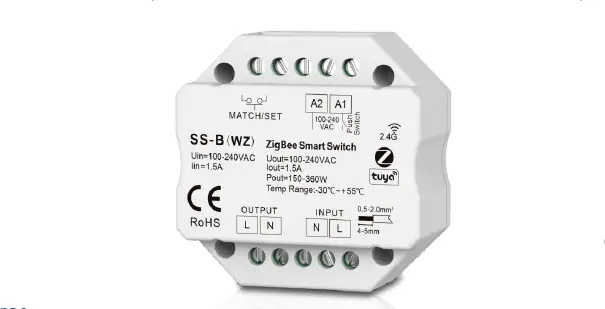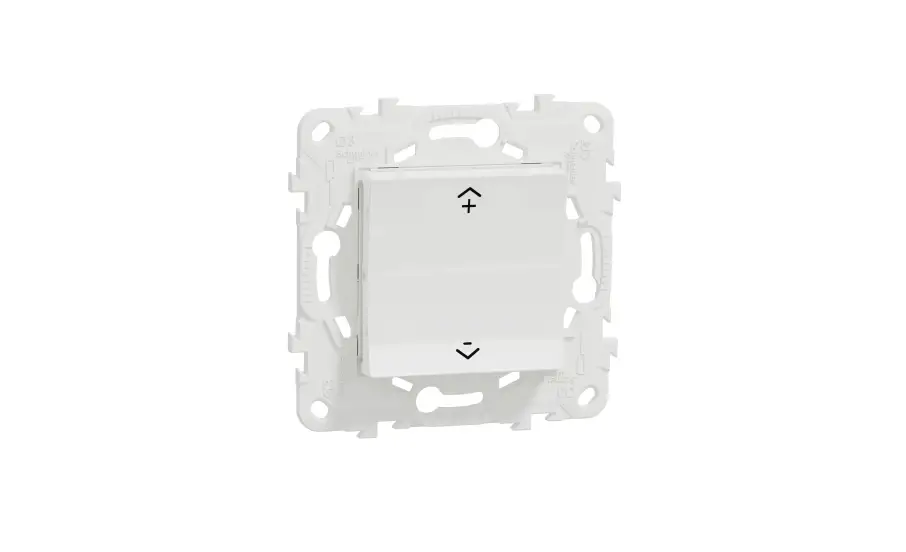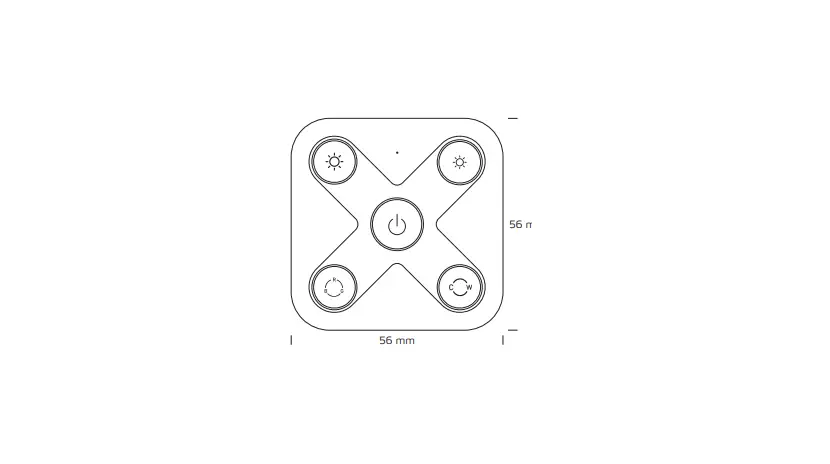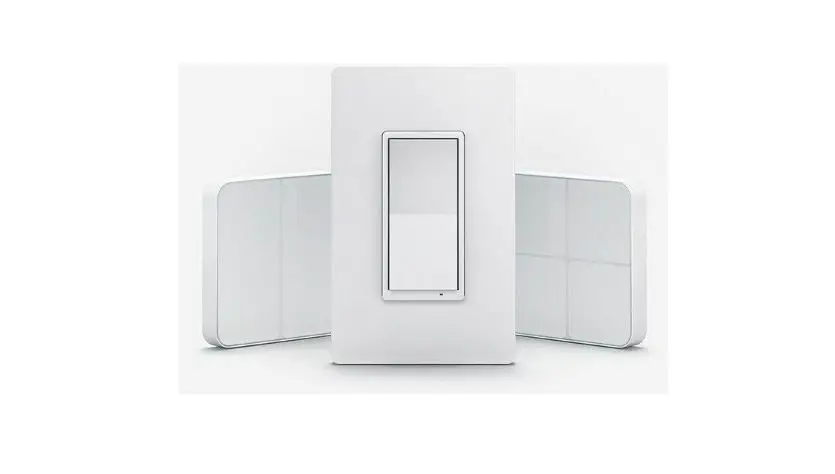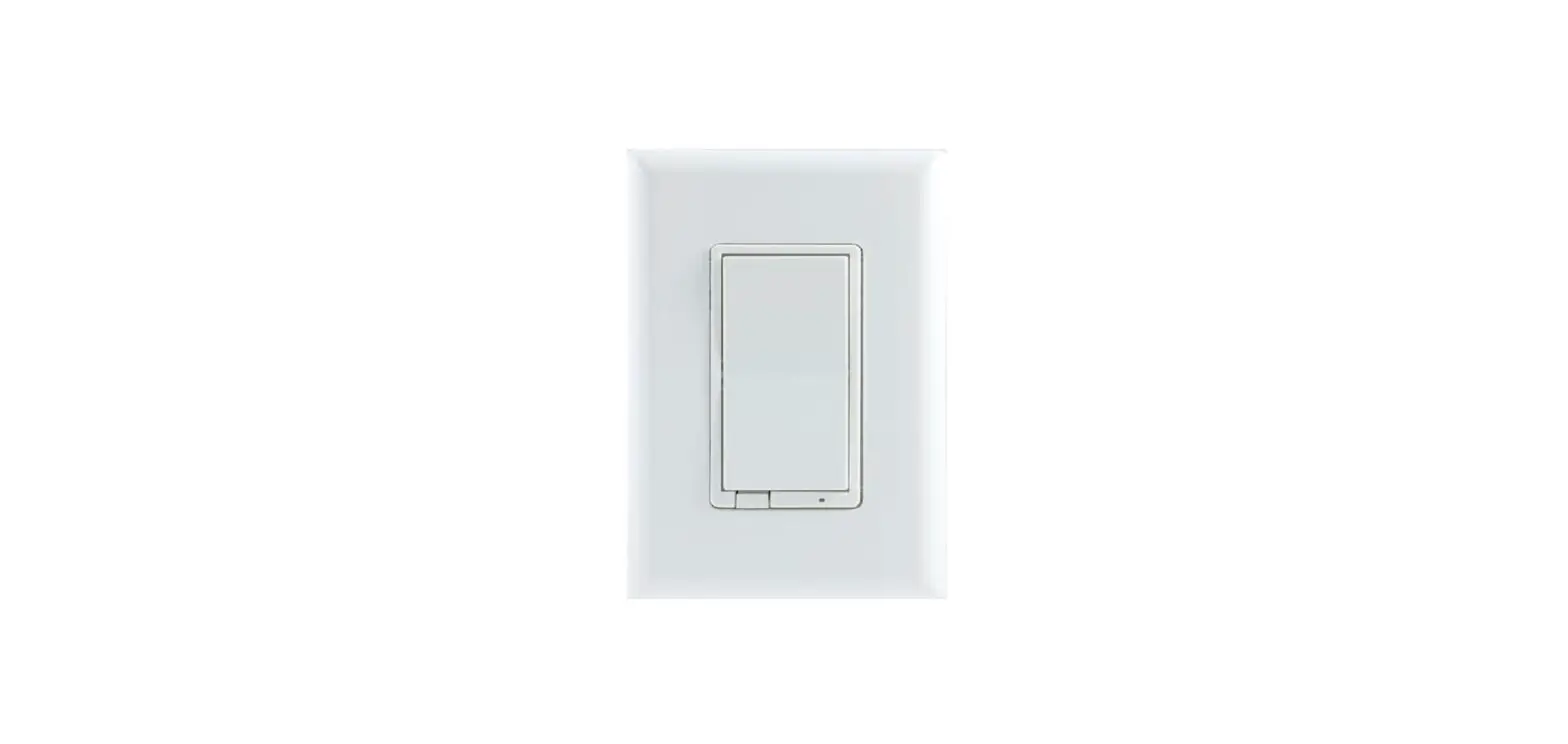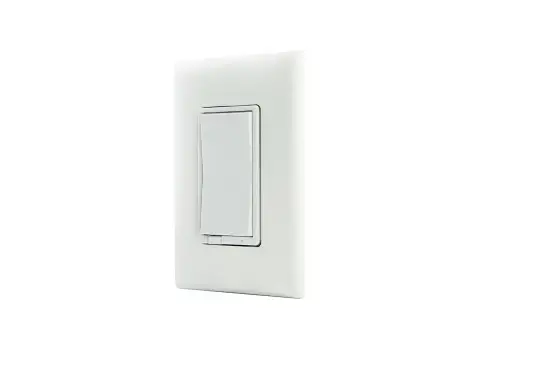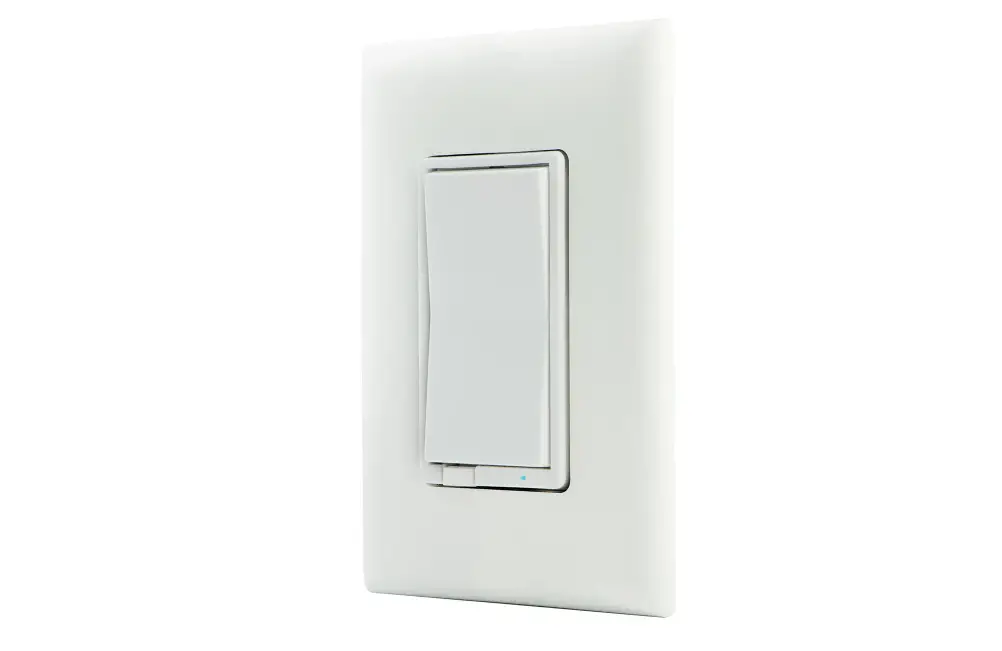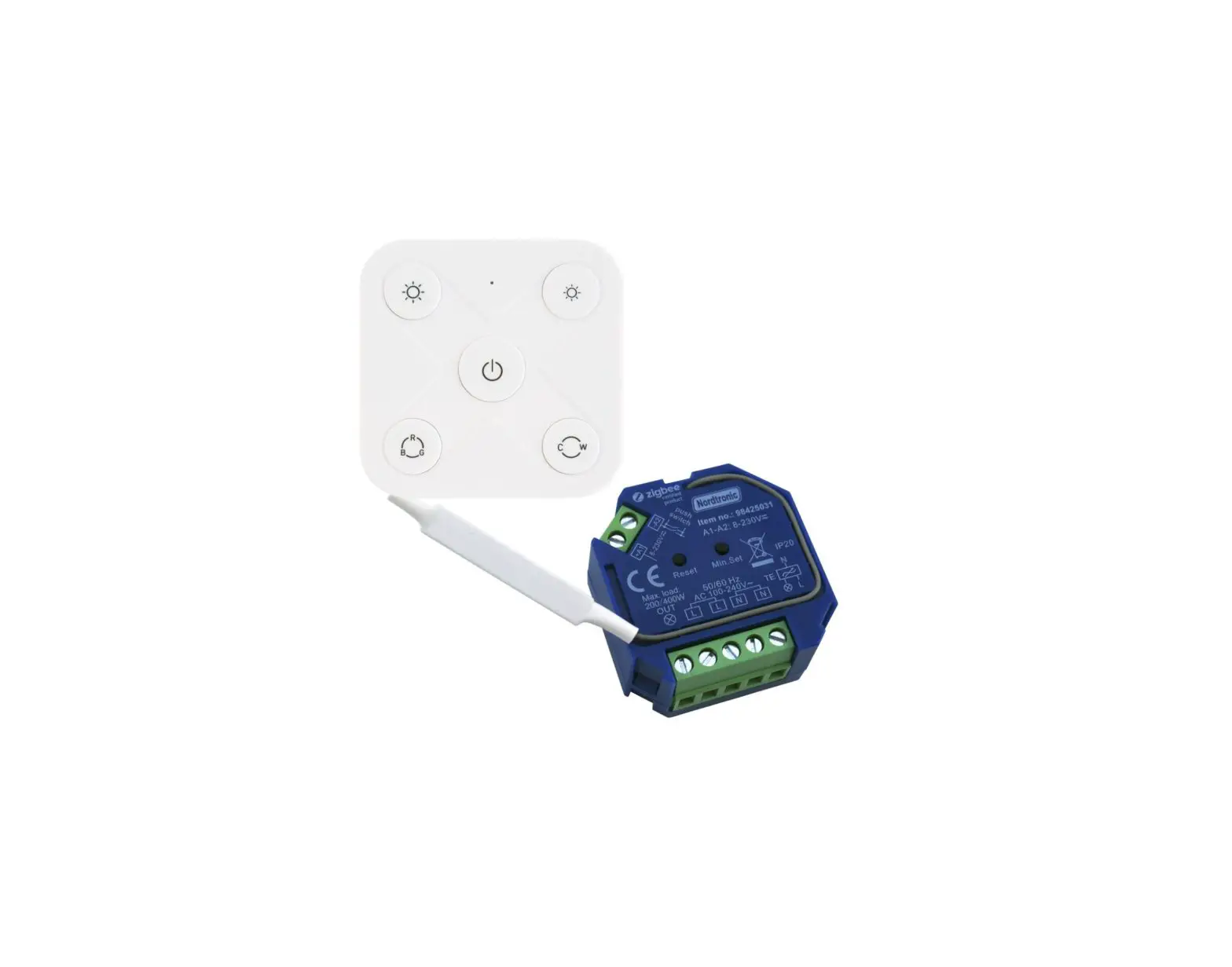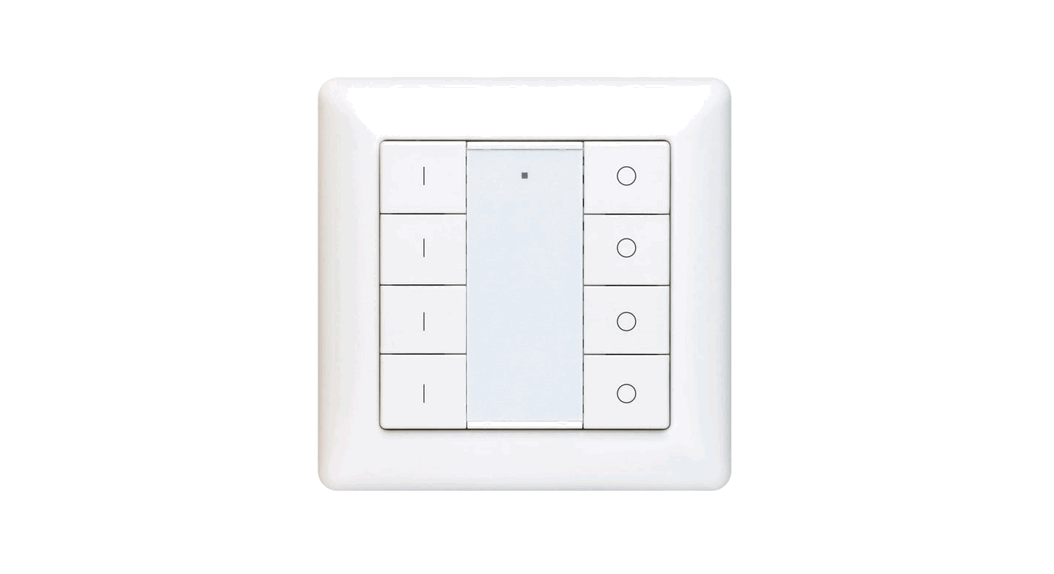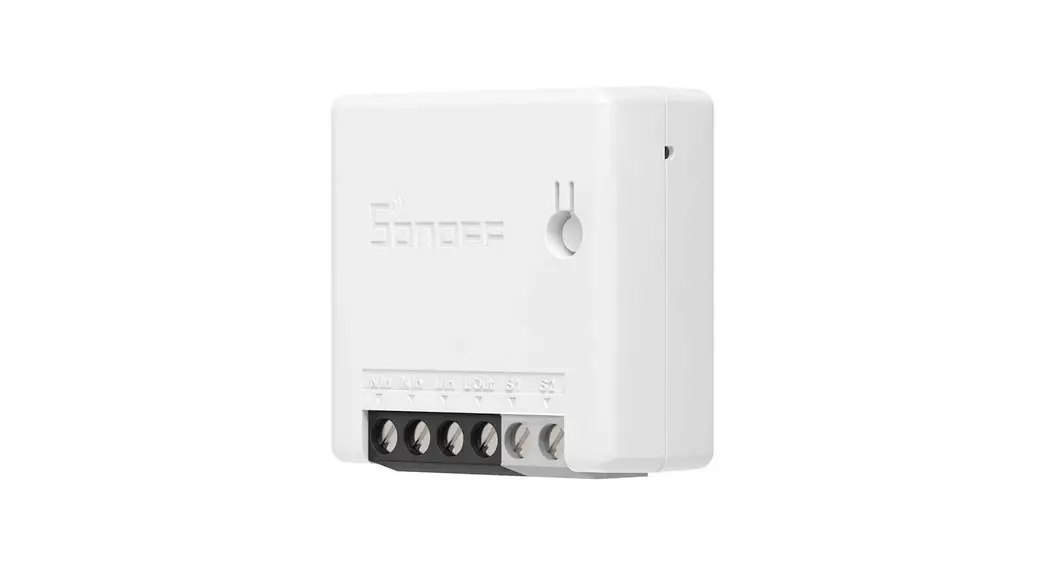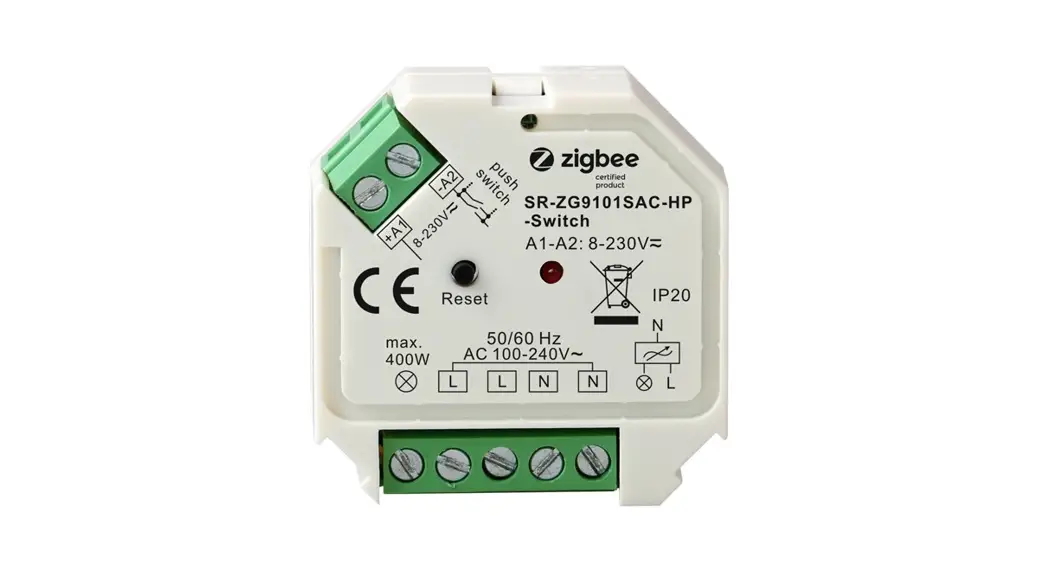
ZigBee 2-Gang In-wall Switch

Important: Read All Instructions Prior to Installation
Function introduction
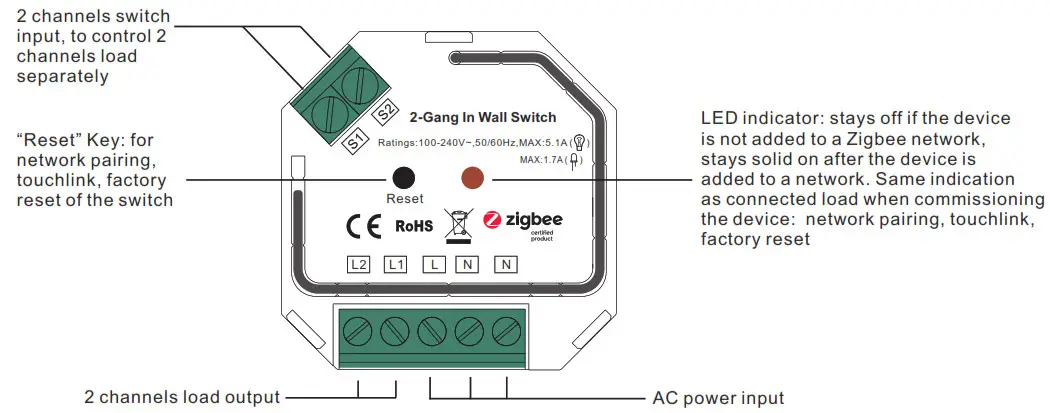
Product Data
| Input Voltage | Output Voltage | Output Channel | Max. Load | Size(LxWxH) |
| 100-240VAC | 100-2A0VAC | 2 Channels | Resistive load: max. 5.1A1CH Capacitive load: max. 1.7A1CH | 45.5x45x20.3mm |
| Compatible Load Types | |||
| Load Symbol | Load Type | Maximum Load | Remarks |
 | LED lamps with transformers | 390W/CH @ 230V 180W/CH @ 110V | Due to variety of LED lamp designs. maximum number of LED lamps is further dependent on power factor result when connected to switch. |
 | LED drivers | 390W/CH @ 230V 180W/CH @ 110V | Maximum permitted number of drivers is 390W divided by driver nameplate power rating. |
 | Incandescent lighting, HV Halogen lamps | 1170W/CH @ 230V 580W/CH @ 110V | |
 | Low voltage halogen lighting with electronic ansformers transformers | 390W/CH @ 230V 180W/CH @ 110V | |
Over Current Protection
- When connecting resistive load and total load is over 8.1A, the relay will be forced to off and protected.
- 2-gang ZigBee in-wall switch based on latest ZigBee 3.0 protocol
- 100-240VAC wide input and output voltage
- Supports resistive loads and capacitive loads
- 2 channels output, max. load 5.1A/CH
- Input and output with screw terminals, safe and reliable
- Enables to control ON/OFF of connected load
- ZigBee device with 2 endpoints which can be controlled separately
- ZigBee end device that supports Touchlink commissioning
- Can directly pair to a compatible ZigBee remote via Touchlink without coordinator
- Supports self-forming zigbee network without coordinator and add other devices to the network
- Supports find and bind mode to bind a ZigBee remote
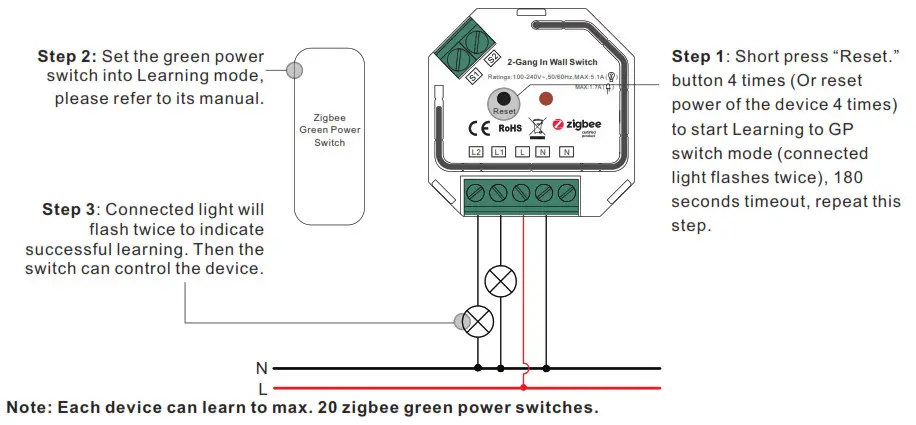
- Supports zigbee green power and can bind max. 20 zigbee green power switches
- Compatible with universal ZigBee gateway products
- Can be controlled by universal single wire push switch, 2 channels can be controlled separately by 2 switches
- Active power and energy metering functionality
- Mini Size, Easy to be installed into a standard wall box
- Radio Frequency : 2.4GHz
- Waterproof grade: IP20
Safety & Warnings
- DO NOT install with power applied to device.
- DO NOT expose the device to moisture.
ZigBee Clusters the device supports are as follows:
Input Clusters
- 0x0000: Basic
- 0x0003: Identify
- 0x0004: Groups
- 0x0005: Scenes
- 0x0006: On/off
- 0x0702: Simple Metering
- 0x0b04: Electrical Measurement
- 0x0b05: Diagnostics
Output Clusters
- 0x0019: OTA
Operation
- Do wiring according to connection diagram correctly.
- This ZigBee device is a wireless receiver that communicates with a variety of ZigBee compatible systems. This receiver receives and is controlled by wireless radio signals from the compatible ZigBee system.
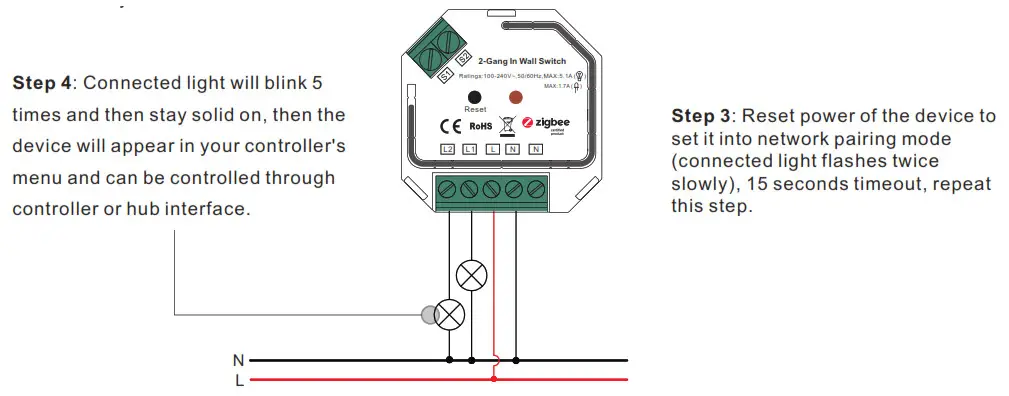
- Zigbee Network Pairing through Coordinator or Hub (Added to a Zigbee Network) Step 1: Remove the device from previous zigbee network if it has already been added to, otherwise pairing will fail. Please refer to the part “Factory Reset Manually”.
Step 2: From your ZigBee Controller or hub interface, choose to add lighting device and enter Pairing mode as instructed by the controller.
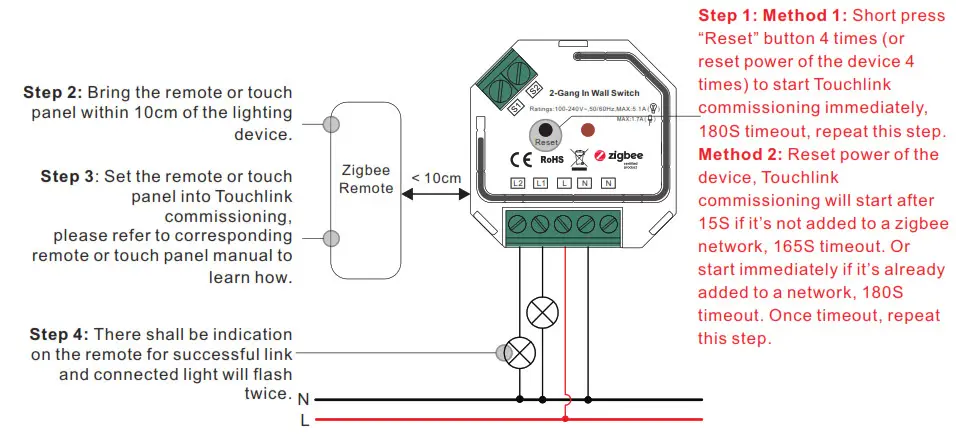
- TouchLink to a Zigbee Remote
 Note:
Note:
1) Directly TouchLink (both not added to a ZigBee network), each device can link with 1 remote.
2) TouchLink after both added to a ZigBee network, each device can link with max. 30 remotes.
3) To control by both gateway & remote, add remote and device to network first then TouchLink.
4) After TouchLink, the device can be controlled by the linked remotes. - Removed from a Zigbee Network through Coordinator or Hub Interface

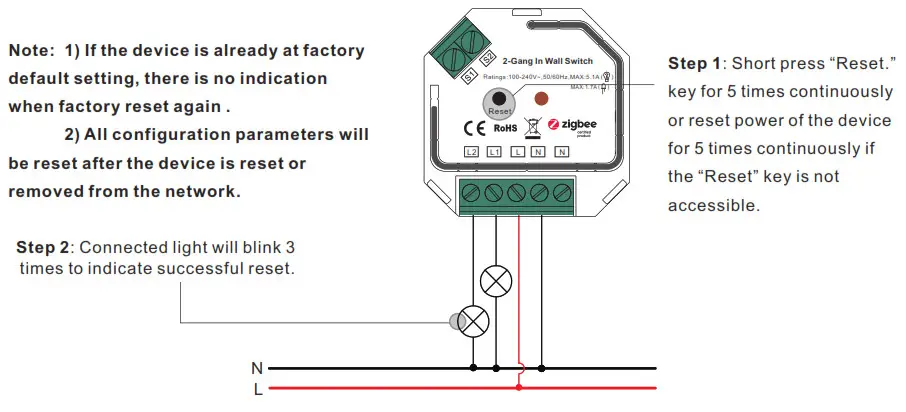
- Factory Reset Manually

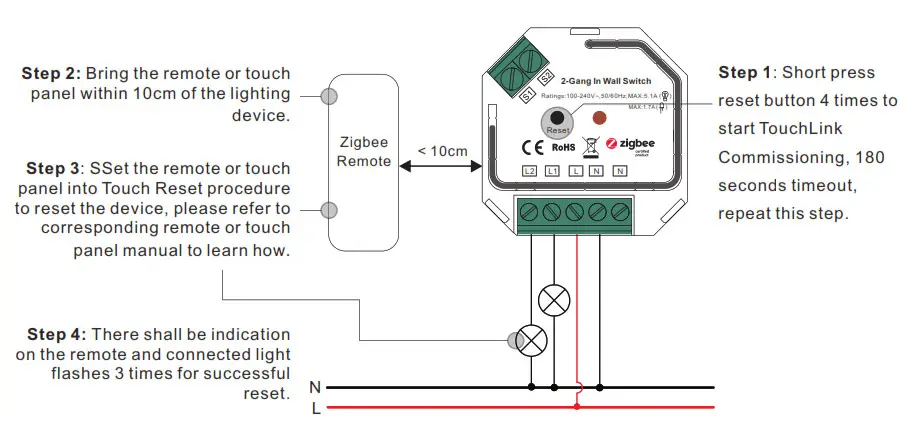
- Factory Reset through a Zigbee Remote (Touch Reset)
Note: Make sure the device already added to a network, the remote added to the same one or not added to any network.
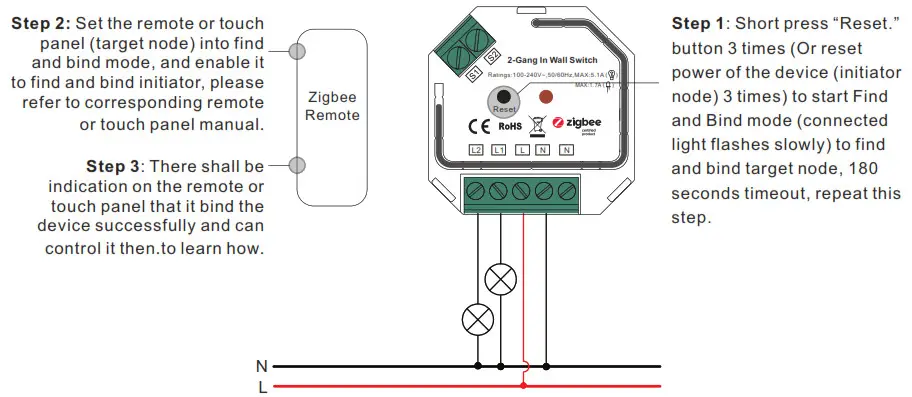
- Find and Bind Mode
Note: Make sure the device and remote already added to the same zigbee network.
- Learning to a Zigbee Green Power Switch

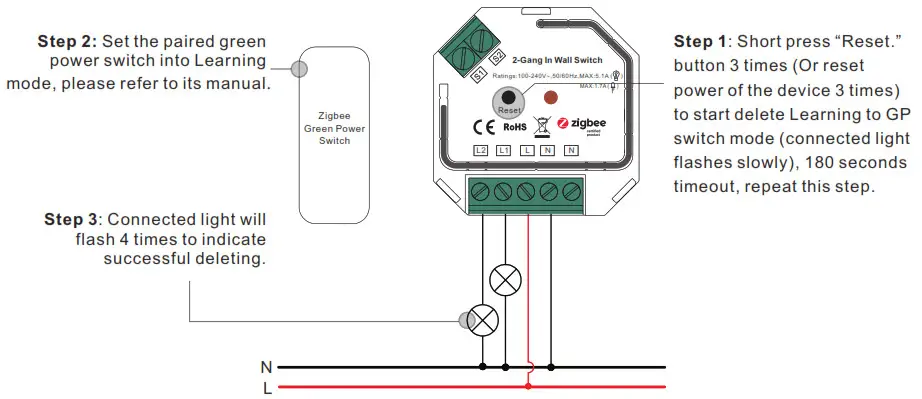
- Delete Learning to a Zigbee Green Power Switch

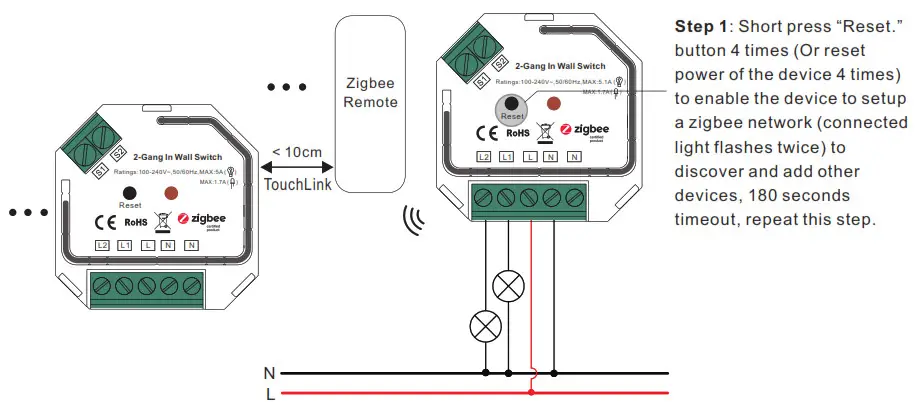
- Setup a Zigbee Network & Add Other Devices to the Network (No Coordinator Required)
 Step 2: Set another device or remote or touch panel into network pairing mode and pair to the network, refer to their manuals.
Step 3: Pair more devices and remotes to the network as you would like, refer to their manuals.
Step 4: Bind the added devices and remotes through Touchlink so that the devices can be controlled by the remotes, refer to their manuals.
Note:
1) Each added device can link and be controlled by max. 30 added remotes.
2) Each added remote can link and control max. 30 added devices. - OTA
The device supports firmware updating through OTA, and will acquire new firmware from zigbee controller or hub every 10 minutes automatically.
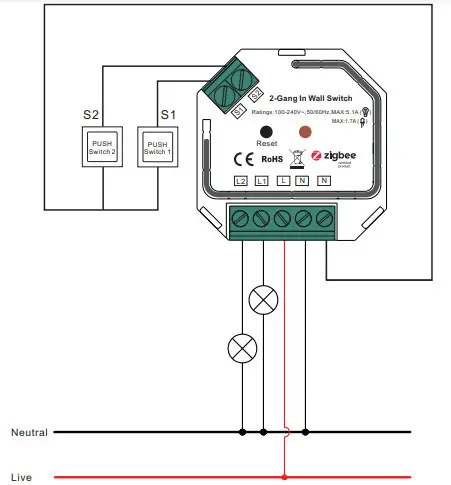
Wiring Diagram
Notes for the diagrams:
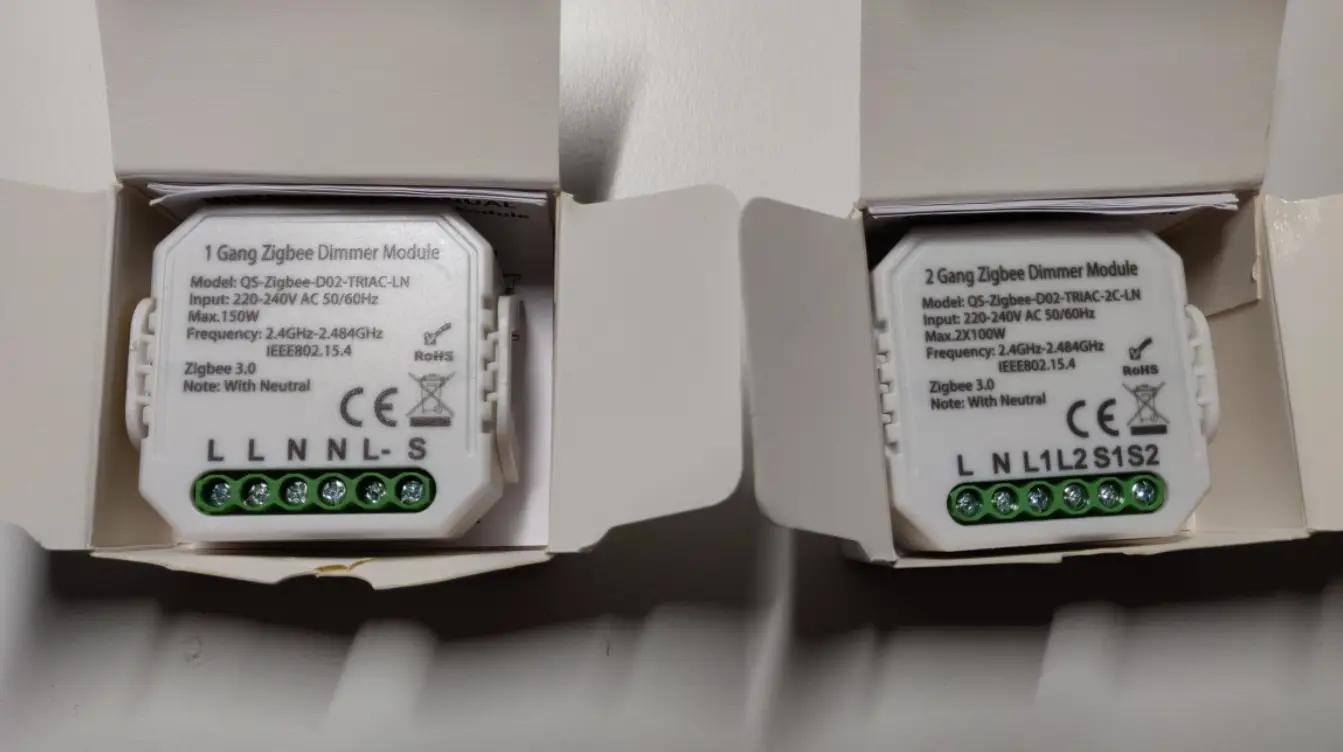
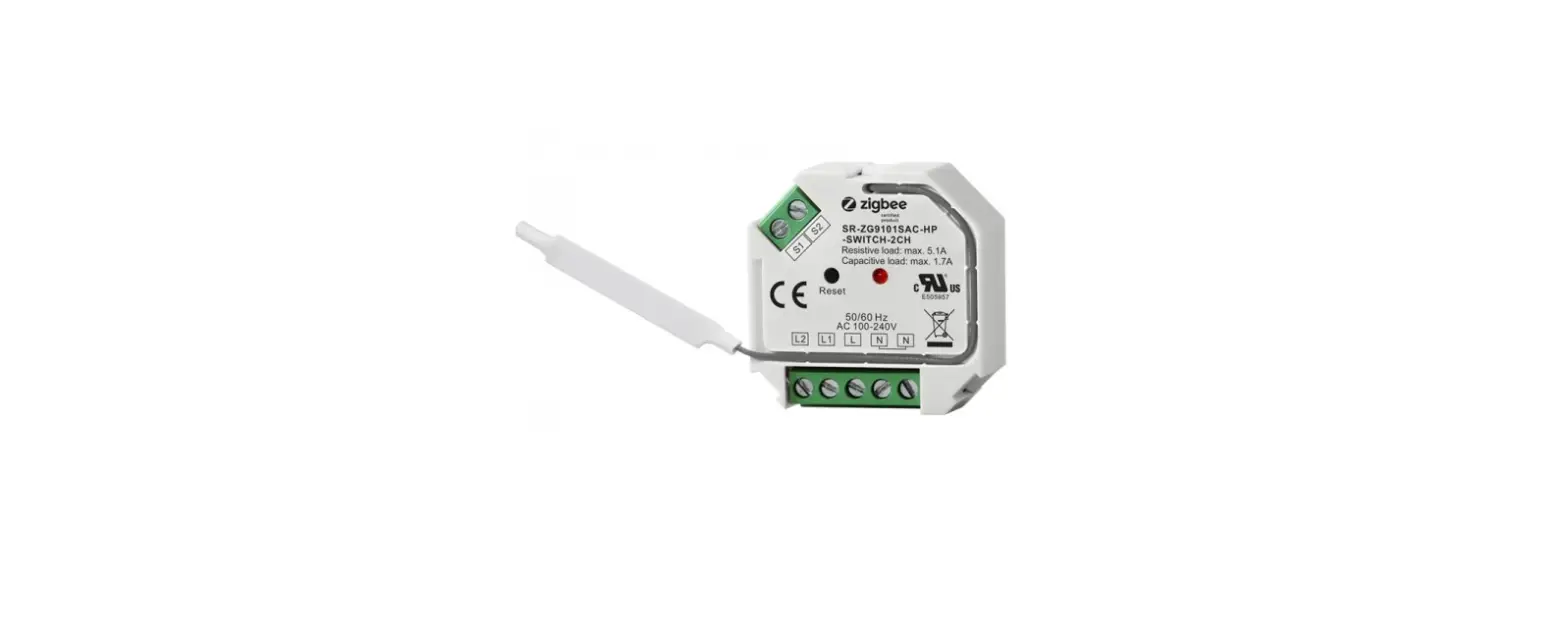
L – terminal for live lead
N – terminal for neutral lead
S1 – terminal for switch key No. 1
S2 – terminal for switch key No. 2
L1 – output terminal no. 1 for light load
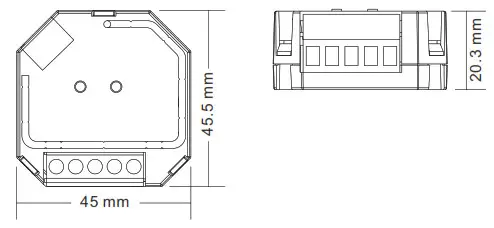
L2 – output terminal no. 2 for light load Product Dimension
 Note:
Note: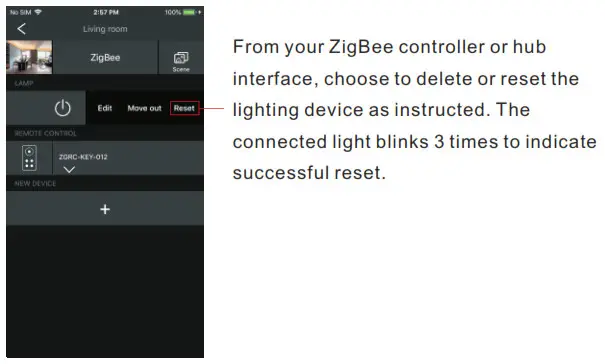
 Step 2: Set another device or remote or touch panel into network pairing mode and pair to the network, refer to their manuals.
 Product Dimension